

Page 1

User Guide
snapShot
Extendable Monopod Kit with Built-in Bluetooth
Shutter For iOS® & Android
™
devices
Lightweight
Extendable
On The Go
Collapsible
Design
SELFIES
Made for
Page 2

Having difficulty finding the perfect angle for that awesome selfie you have in
mind? Let's face it, shaking hands and too much unnecessary motion can cause a
great photo to become blurry and un-shareable. Get rid of the hassle of blurry
photos with this mobile phone and digital camera retractable monopod! With an
extendable rod and easy-to-attach base, this monopod is what you need the next
time you take that selfie or group picture while on holiday or even during event
gatherings. Now you can all say "cheese" and not have to leave anyone out of the
picture or setting the camera on timer mode.
Introduction
•Total Weight: 160g
•Stretched Length: 80cm
•Material: Carbon fiber
•Battery Capacity: 200 mAh
•Standby Time: 8 days
•Working Time: 55 hours
•Remote Control Distance: 10 meters
•Charging Time: about 1 hour
Specification
• Extendable Rod
• Easy to attach base
• LED Indicator
• Compatible with Android and IOS devices
• Quick pairing capability
• Easy to Carry
Features
Page 3

•snapShot remote control
•Smartphone Holder
•Micro-USB Cable
•2 Stands
•User Guide
Packing Contents
Appearance & Interface Description
Power On Button
Focal Distance Button
Camera Shutter Button
1
2
3
Page 4
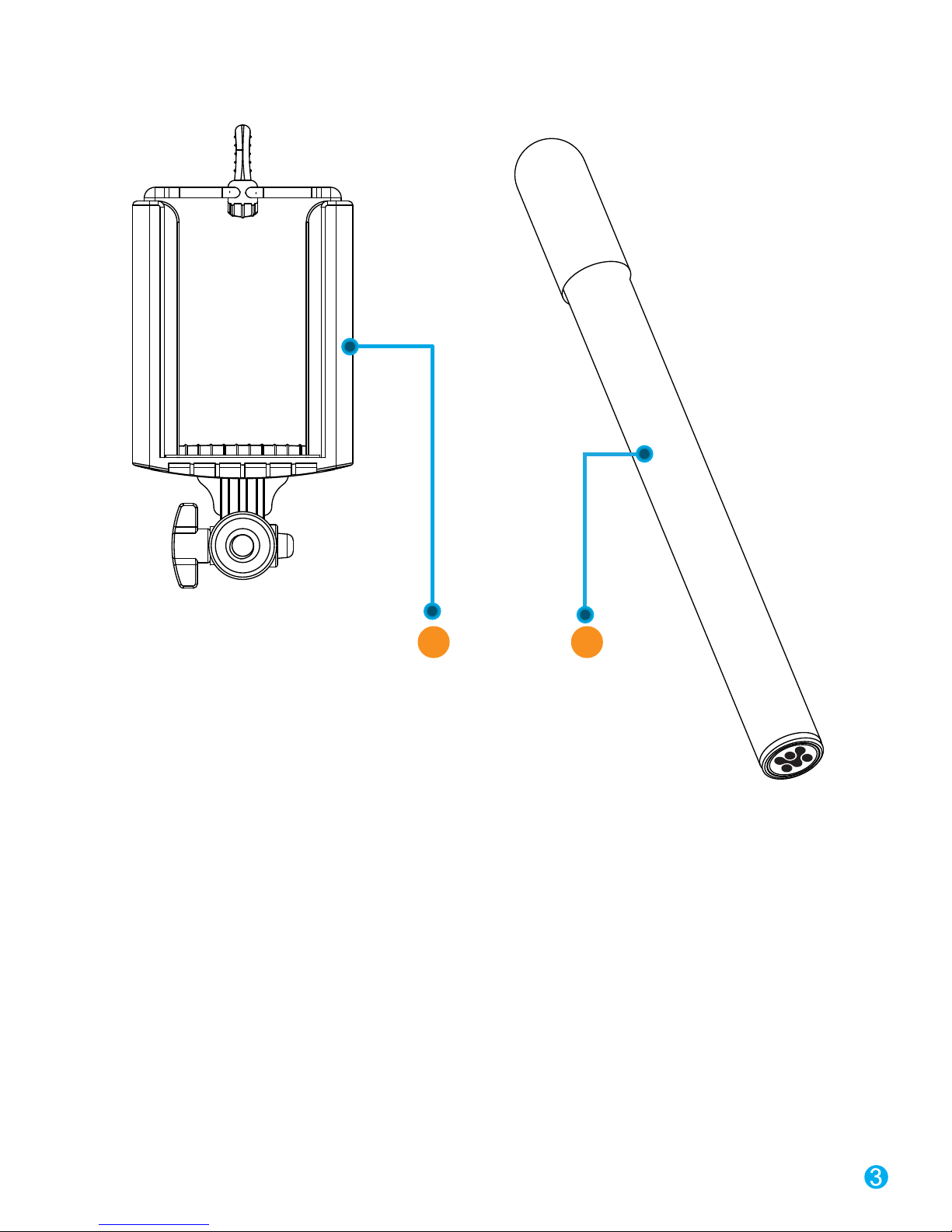
1. Remote Joystick
2. Big Tripod
3. Small Tripod
4. Smartphone Holder
5. Retractable monopod
4 5
Page 5

Press the power button . The blue LED light up, snapShot is now in Bluetooth
pairing mode.
Operation Instructions:
Step 1
Step 2
Open bluetooth seeking function from mobile equipment or tablet, scan for “snapShot”
and click it to pair. The blue LED on the power button will now turn off and the
camera shutter button LED light up that shows that your device is paired with
snapShot.
Step 3
If the colour of the Camera Shutter LED os blue the remote shutter will work with
android devices and if green the remote shutter will work with IOS devices. Press the
for 2 seconds to switch between android/IOS devices.
Adjust the focal distance for camera interface
Note: This function works for most Android devices in which volume key could be set as
zoom key on camera mode for rear camera only. E.g. For Samsung S4. On Camera
Settings, under volume key, choose zoom key selection. Camera settings varies on every
Android device.
Page 6
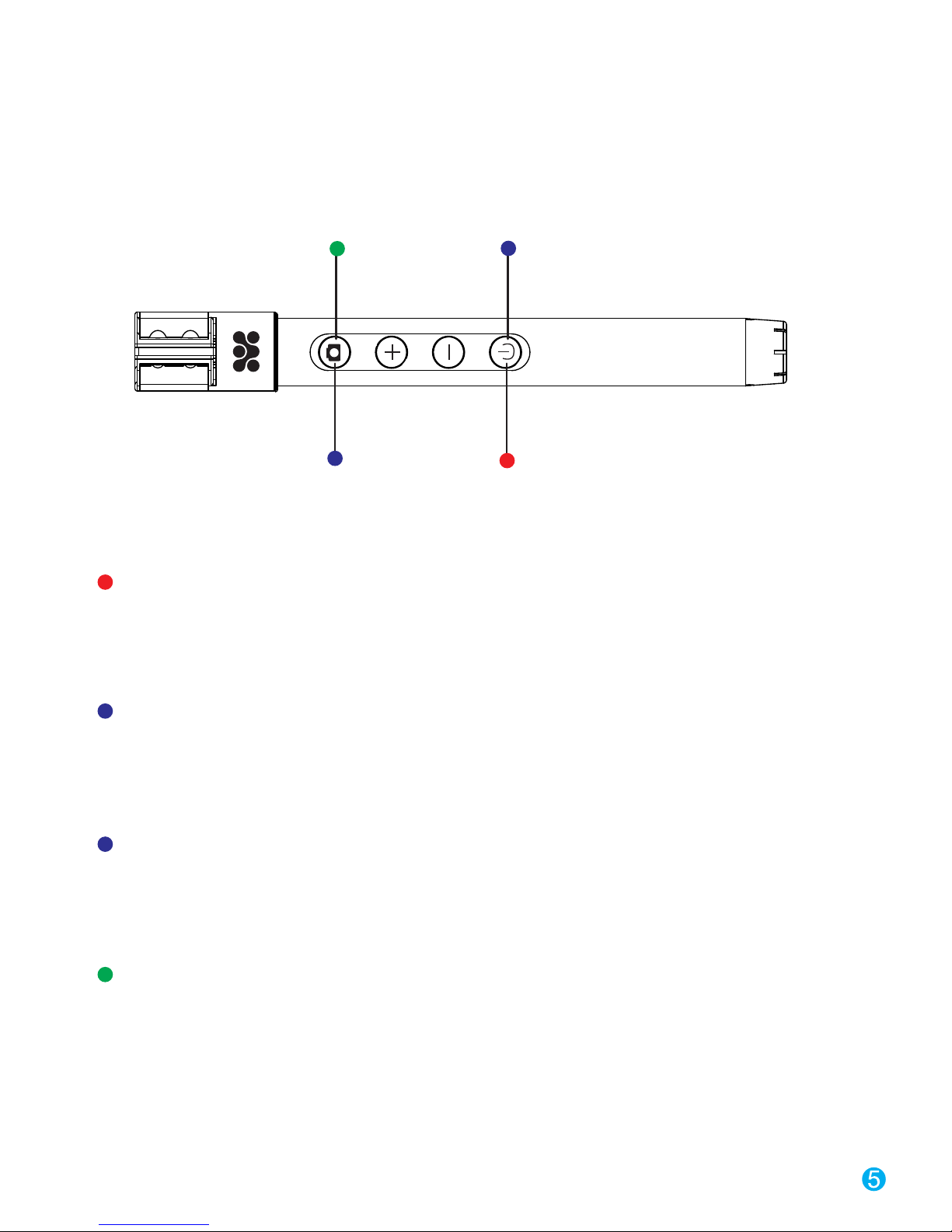
Name and Definition of LED light
LED4 LED2
LED1LED3
LED1 Charging indicator light (RED: It is Charging / RED OFF: It is Full Charged)
LED1
LED2 Power indication light/Pairing light (BLUE)
LED2
LED3 Android OS indicator light (If the light is ON it means its working)
LED3
LED4 iPhone OS indicator light (If the light is ON it means its working)
LED4
Page 7
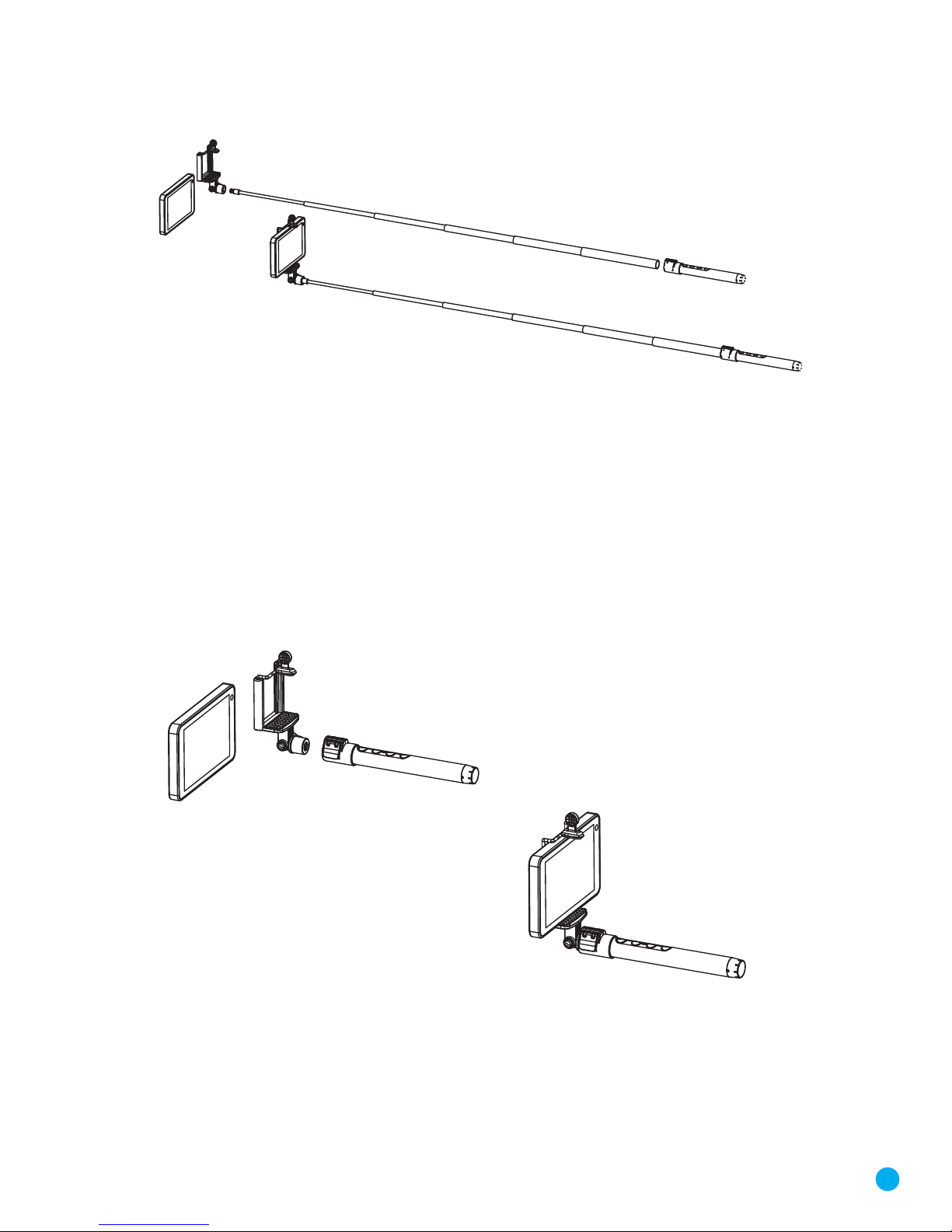
Using of SnapShot
Method 1
Method 2
1. Attach the retractable holder to the smartphone holder.
2. Attach the retractable holder to the remote joystick.
1. Attach the smartphone holder to the remote joystick.
2. Use the remote joystick to control the camera and take pictures.
6
Page 8
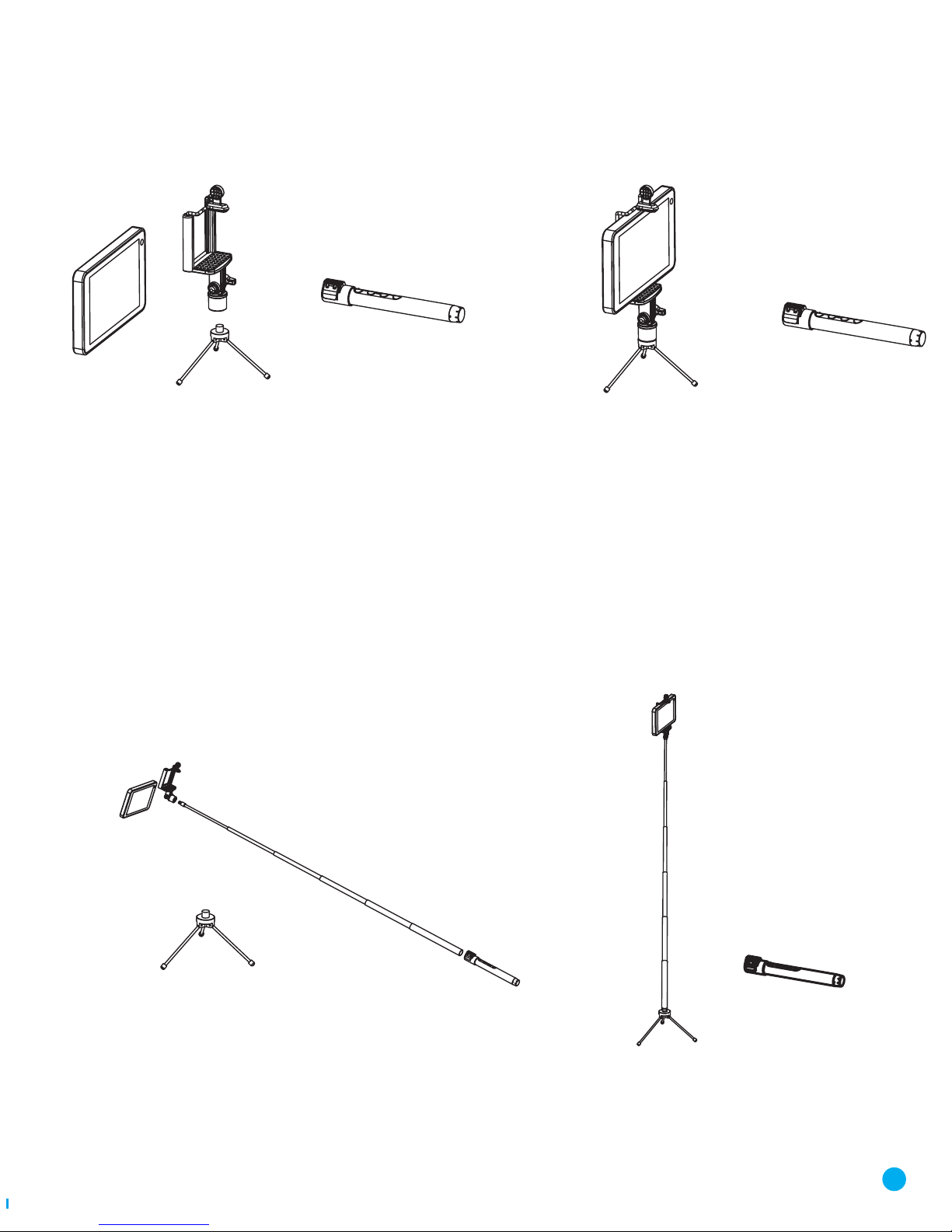
Attach the Smartphone holder to the small tripod and use the remote joystick to
control the and take pictures.
1. Attach the retractable monopod with the Smartphone holder.
2. Attach the big tripod to the retractable monopod and use the remote joystick to
control the camera and take pictures.
Method 3
Method 4
7
Page 9

Please read all safety instructions and warnings thoroughly before using this
product. Improper use of this product may result in damage to this or attached
products.
• Do not disassemble the device or attempt to fix it.
• Kindly use the included Micro-USB Cable to charge the product.
• Do not attempt to replace any part of this stand.
• Do not crush, puncture or dispose of in fire.
• Avoid excessive drops, bumps, abrasions and impacts.
• If there is any reason to believe that there is internal damage to the device,
discontinue use immediately.
• If you find that the device is too hot, is emitting and odor is deformed, punctured
or exhibits any suspicious or abnormal behavior, discontinue use immediately
and contact our customer service.
• Always charge this product before extended storage.
Precautions
Page 10

 Loading...