

Page 1
Page 2

proCube
Wireless Stereo system and Docking Station for Apple, Android and
BlackBerry devices
User Guide
Page 3
1. Introduction
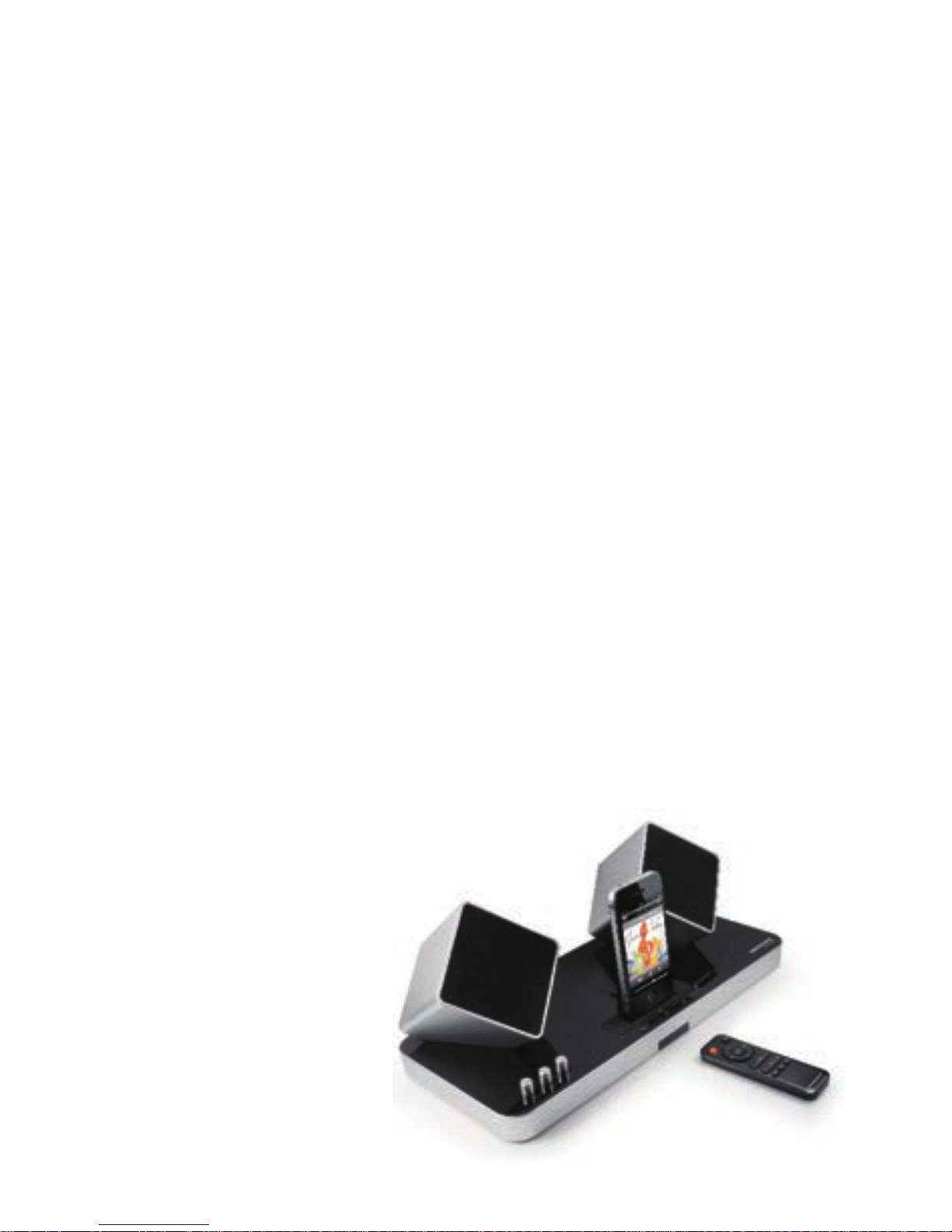
This is a product suitable for iPhone/iPad/iPod, micor USB devices, PC
and other multiple devices with 2.4G wireless transmission and speaker
charging function. This 2.4G wireless speaker, which can audio output for
iPhone, iPad, iPod, PC etc… The packaging includes 2pcs removable
connectors (For Apple and Micro USB connector) can charge for
corresponding device through the connectors. The speakers' built-in
lithium battery, two speakers can be charged by the charging stand. Two
speakers had independent volume control and left/right channel for
choice. Speaker with 2.4G wireless transmission, the speakers can be
audio played in any place in effective range. With the "OFF/ON" power
switch and the "BASS", "TREBLE" sound adjustment knob, the sound can
be adjustable according to the indoor environment and human
preferences. With charging indication light, receiving and transmitting
indication light. With 3.5mm audio interface, proCube supports other
external audio devices (such as MP3, MP4 etc…).
2. Packaging includes:
Apple Connector x 1pc
Micro USB Connector x 1pc
AC Adapter x 1pc
2.4G Transmitter x 1pc
Remote Controller x 1pc
3.5mm Audio Cable x 1pc
Page 4
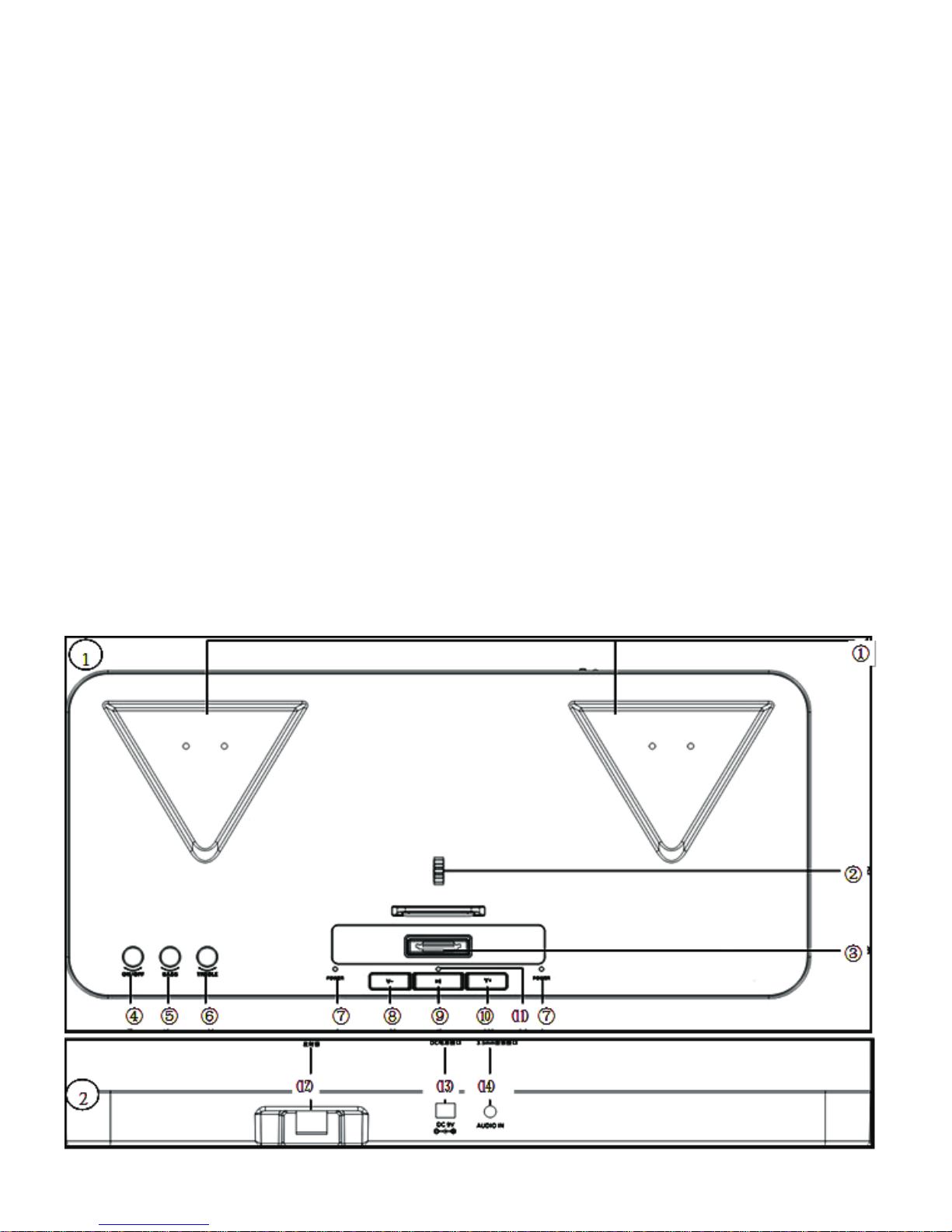
3. Key features on charge stand:
3.1 ① Speaker charging slot
3.2 ②Push button to change connectors
3.3 ③Connector slot
3.4 ④Power switch
3.5 ⑤Bass adjustable button
3.6 ⑥Treble adjustable switch
3.7 ⑦Speaker charge indicator
3.8 ⑧Volume -
3.9 ⑨Play/Stop
3.10 ⑩Volume +
3.11 ⑾ Power indicator
3.12 ⑿ 2.4G USB wireless adapter slot
3.13 ⒀ DC 9V IN
3.14 ⒁ 3.5mm Audio cable interface
Page 5
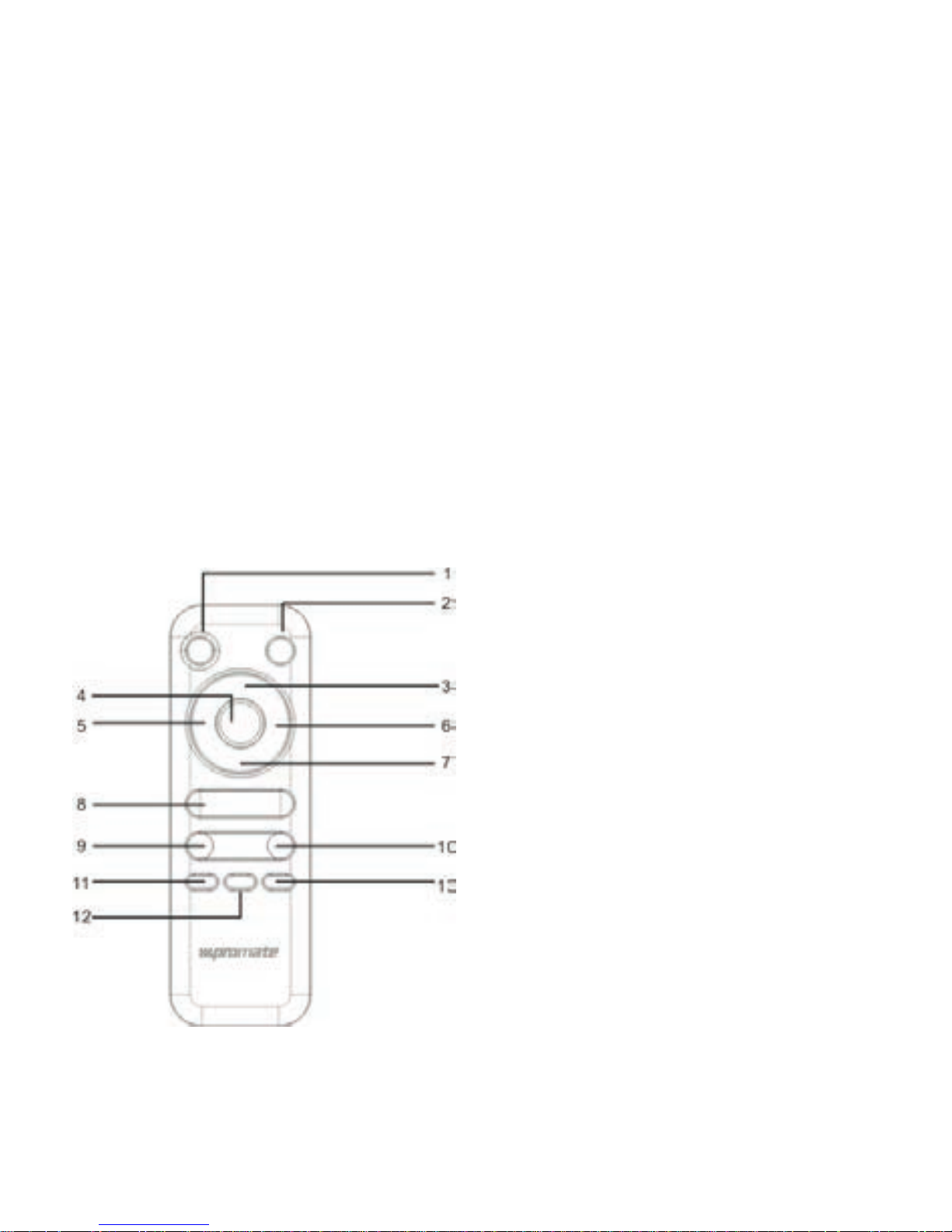
4. Key features on remote controller:
4.1 ON/OFF
4.2 Menu
4.3 Direction "up"
4. 4 Enter
4.5 Previous (Fast-backward)
4.6 Next (Fast-for ward)
4.7 Direction "down"
4.8 Play/ Pause
4.9 VOL"-"
4.10 VOL"+"
4.11 Cycle play
4.12 Mute
4.13 Random play
Note: Full function of the remote control could be used for iPhone 4/4S, iPad,
iPad2 and iPod touch only.
Page 6
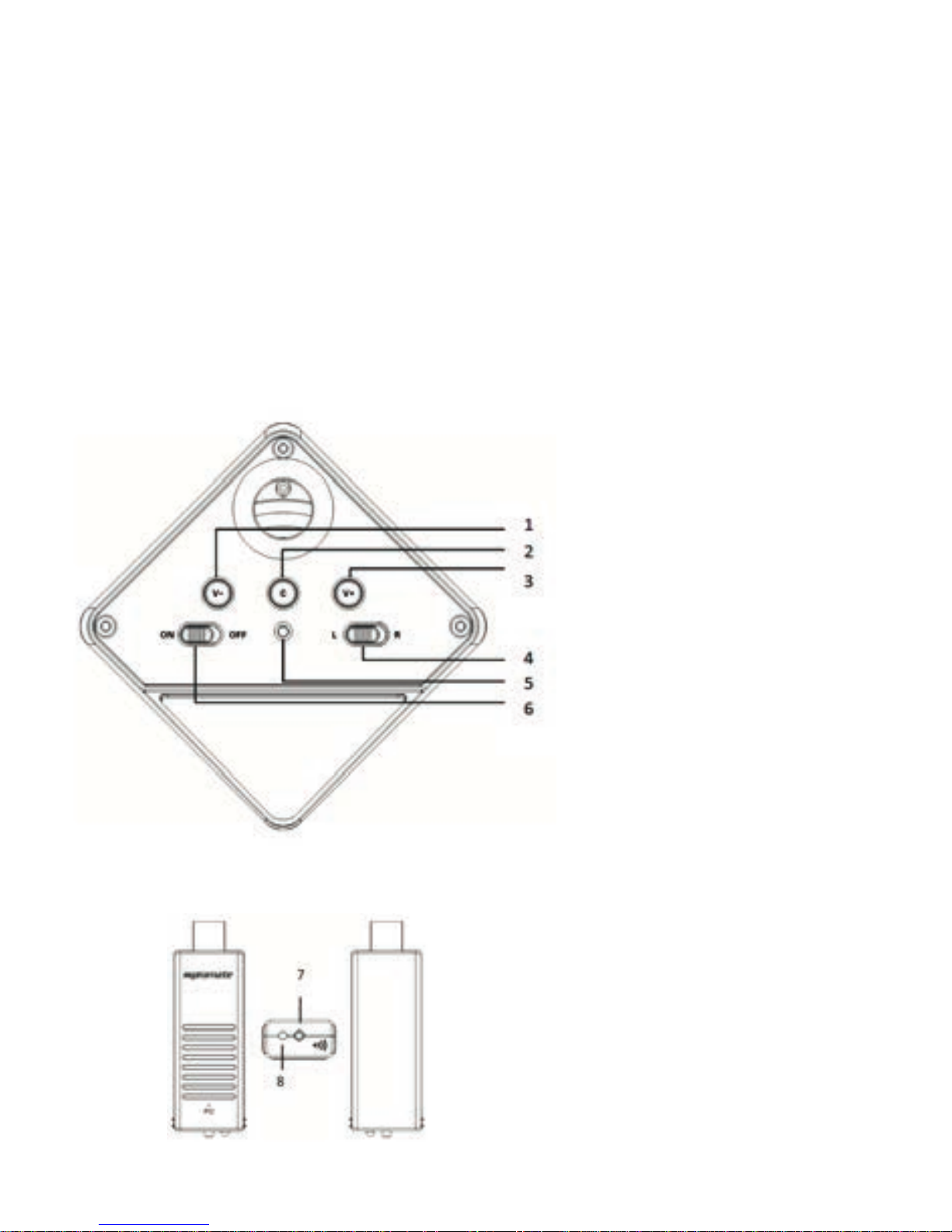
5. Key features on speaker and USB dongle
5.1 Volume"-"
5.2 SYNC code button
5.3 Volume"+"
5.4 Left/Right channel select key
5.5 Signal indicator
5.6 Power ON/OFF select key
5.7 SYNC code button
5.8 Signal indicator
Page 7
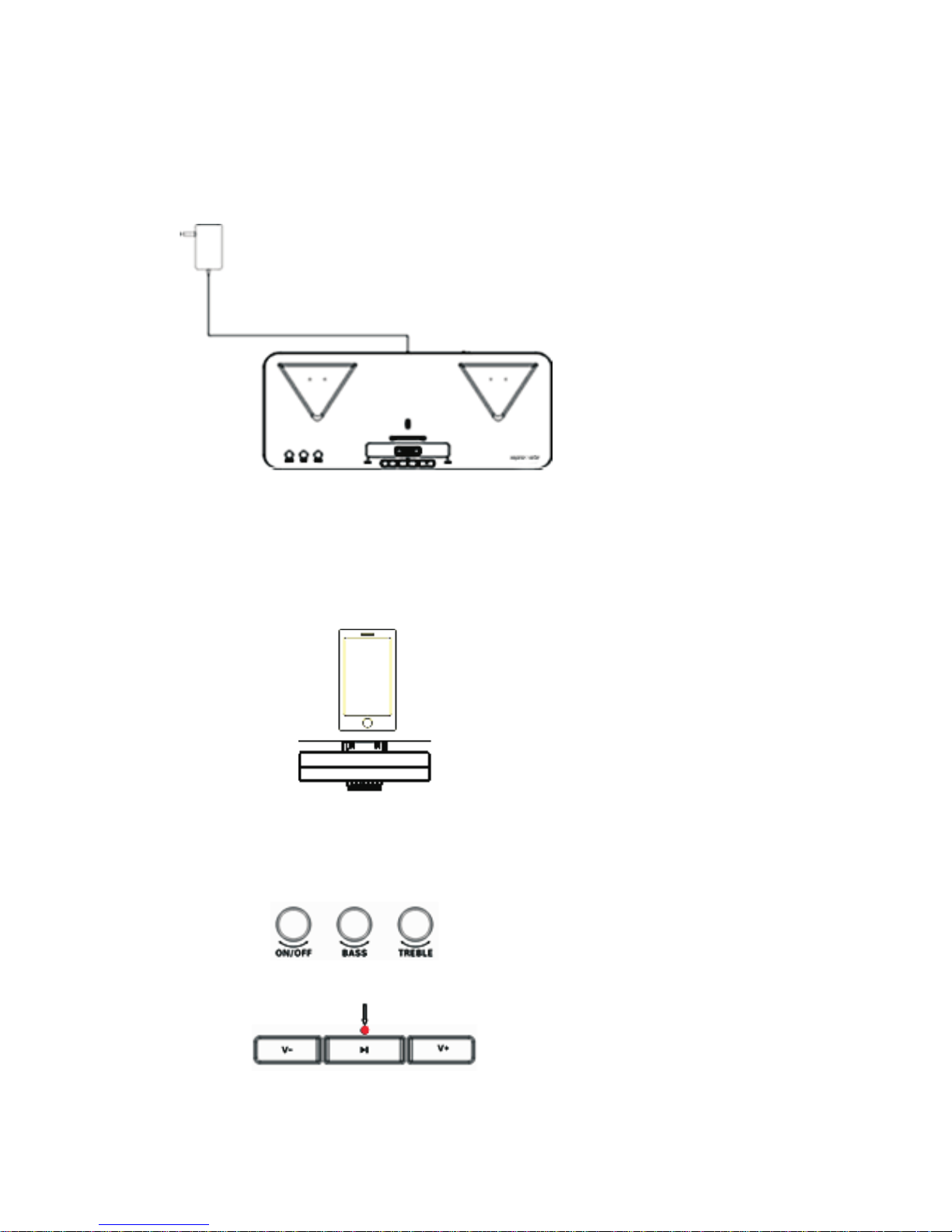
6. Operating instruction
6.1 Connect the iPhone/iPad/iPhone to playback music.
Step 1: Connect AC adapter to DC 9V IN on the back of docking.
Step 2: place the Apple connector to charging stand slot and connect
your apple device.
Step 3: switch power on
The charging stand power indicator will light up red after it is powered on
Page 8
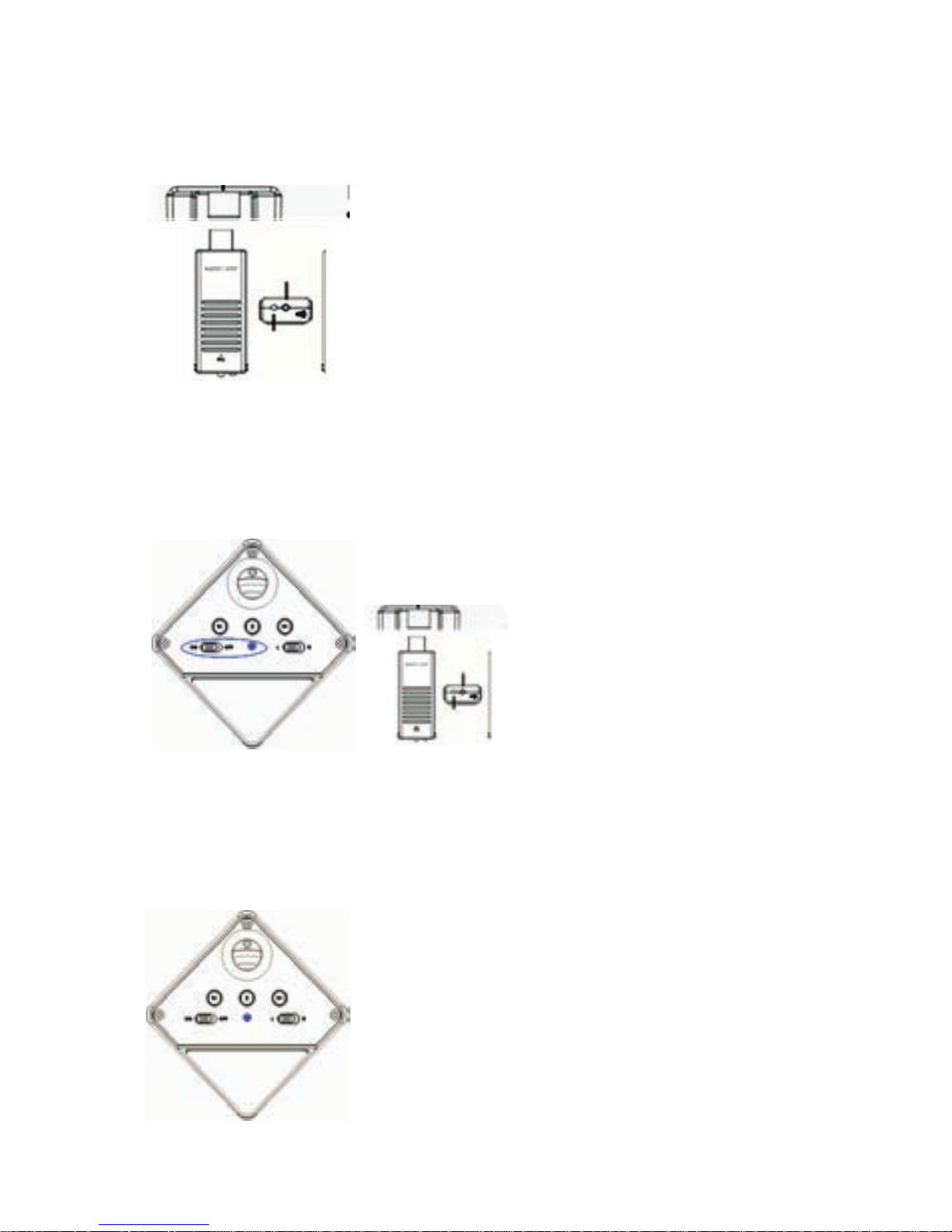
Step 4: Plug in the USB dongle to the back of charge stand (transmitter
LED slowly flash red).
Step 5: Push the select power button to ON position (indicator will slowly
flash blue)
Step 6: Press two speakers’ code key until speaker with play a sound.
(indicator will change to flashing quickly with blue)
Page 9
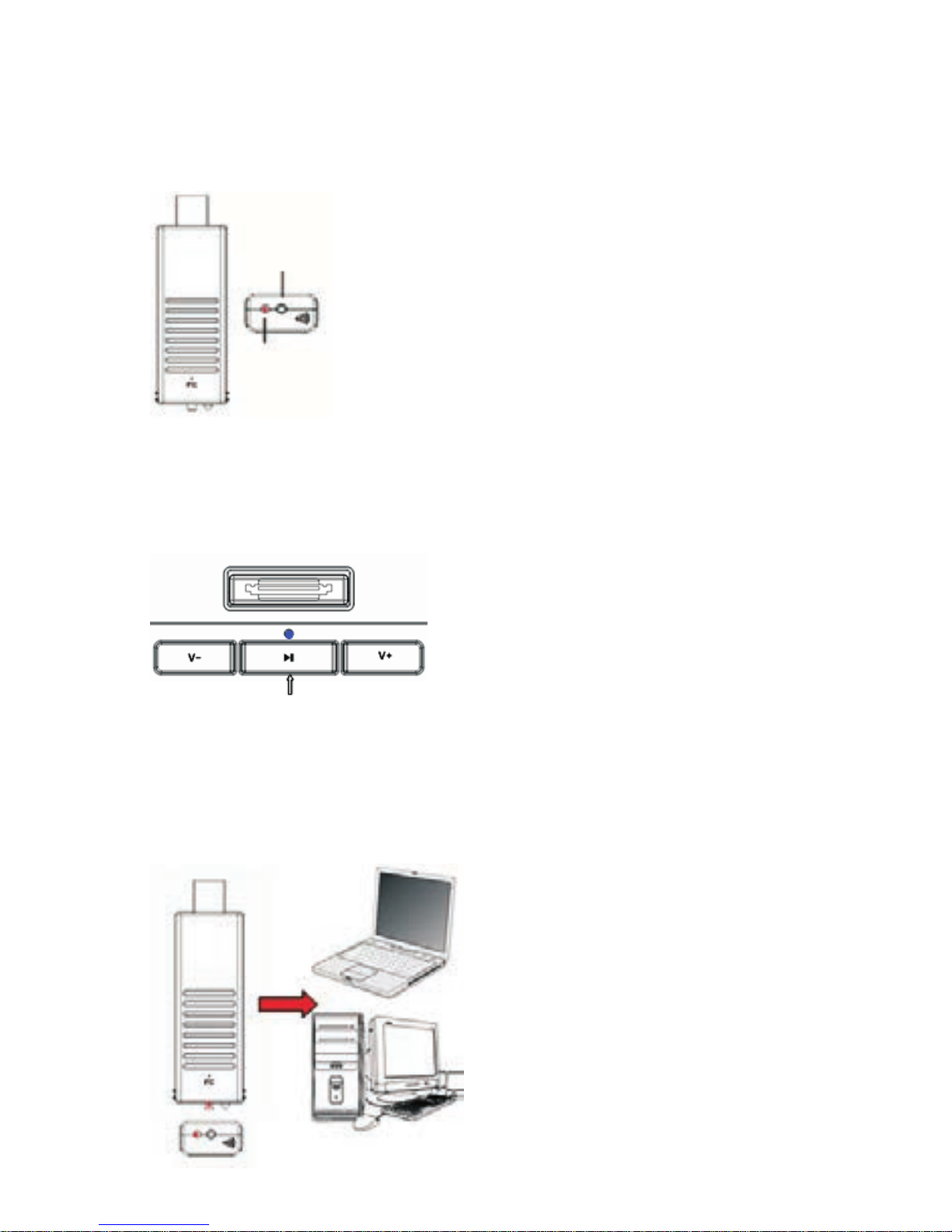
Step 7: press the code key on USB dongle until the speaker sound
activates. The speaker indicator should light up blue. (USB
dongle's indicator will flash red).
Step 8: Play music on iPhone. Press the play key on the charge stand
(indicator will change to blue light, USB dongle indicator will flash
red).
7. Connecting to PC for music playback
Step 1: Plug USB dongle into PC's USB port (dongle's LED will slowly
flash red )
Page 10
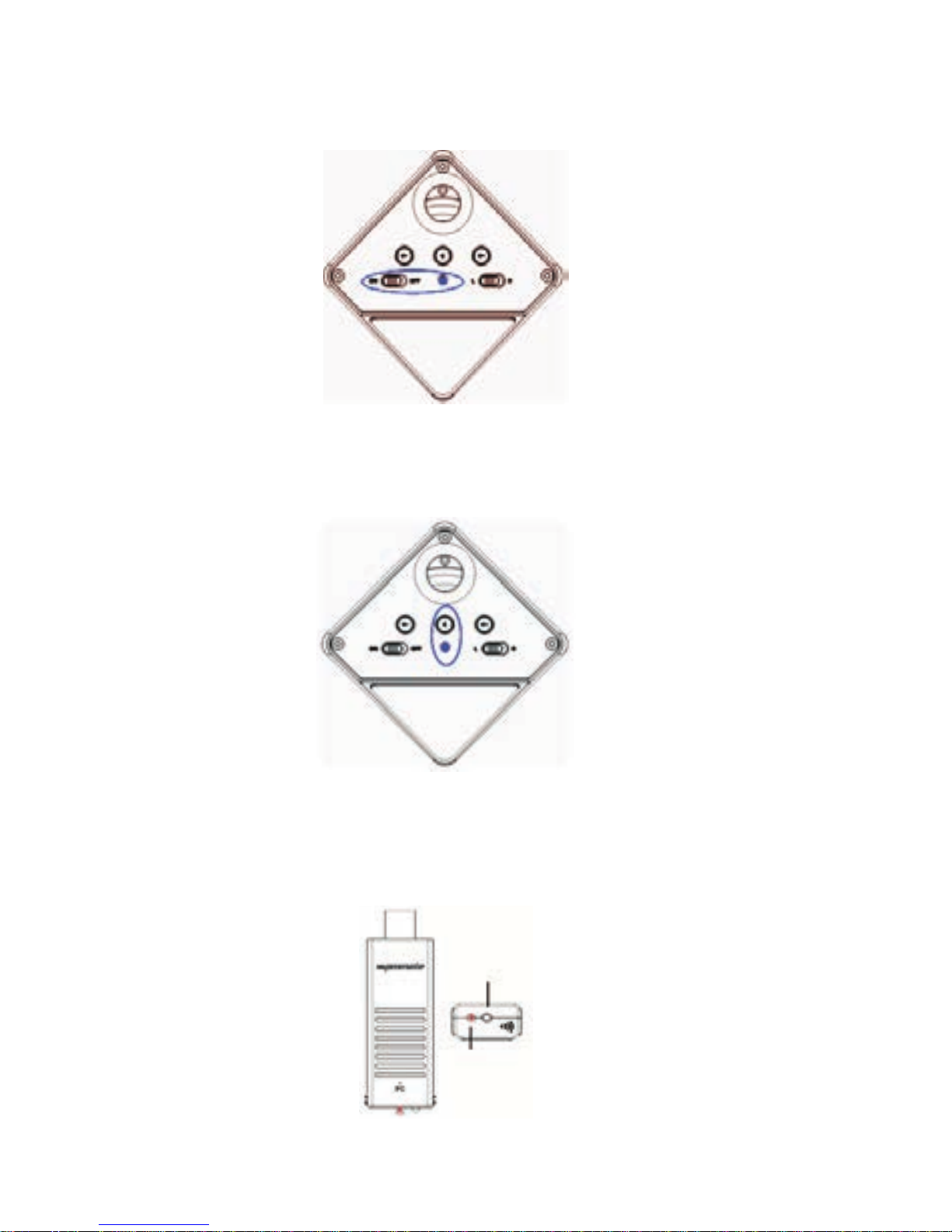
Step 2: Push the select power button to ON position (indicator will slowly
flash blue)
Step 3: press the two speakers code key (circled below in blue) until the
speaker emits a beeping sound (indicator will change to flashing
blue)
Step 4: press the code key on the USB dongle until the speaker activates.
Do one time and the speaker indicator should light up in blue. (USB
dongle's indicator will flash red).
Step 5: Open the music player on PC to play back music.
Page 11

 Loading...