

Page 1

User Guide
Fusion
Lightweight Aluminium
Bluetooth™ Keyboard Shell
Page 2

Thank you for purchasing Promate Fusion which is a light-weight, yet strong
aluminium Bluetooth™ keyboard, specifically designed for the iPad mini. As well as
enjoying the full functionality of the ordinary keyboard, you have a smart
protection for your tablet. Fusion also features a secure grip and foldable stand to
position your iPad mini at the most comfortable angle. Its aluminium outer shell
protects your iPad mini against accidental bumps and knocks for a tough yet
functional cover.
• Sleek aluminium hard shell cover
• Light-weight, tough and portable
• Bluetooth™ keyboard for wireless precision typing
• Foldable stand for viewing your iPad mini
• Angled viewing
• Built-in rechargeable lithium polymer battery
• Micro-USB Charging
• Fusion
• Micro-USB charging cable
• User Guide
• Warranty card
Introduction
Features
Packaging Contents
Page 3
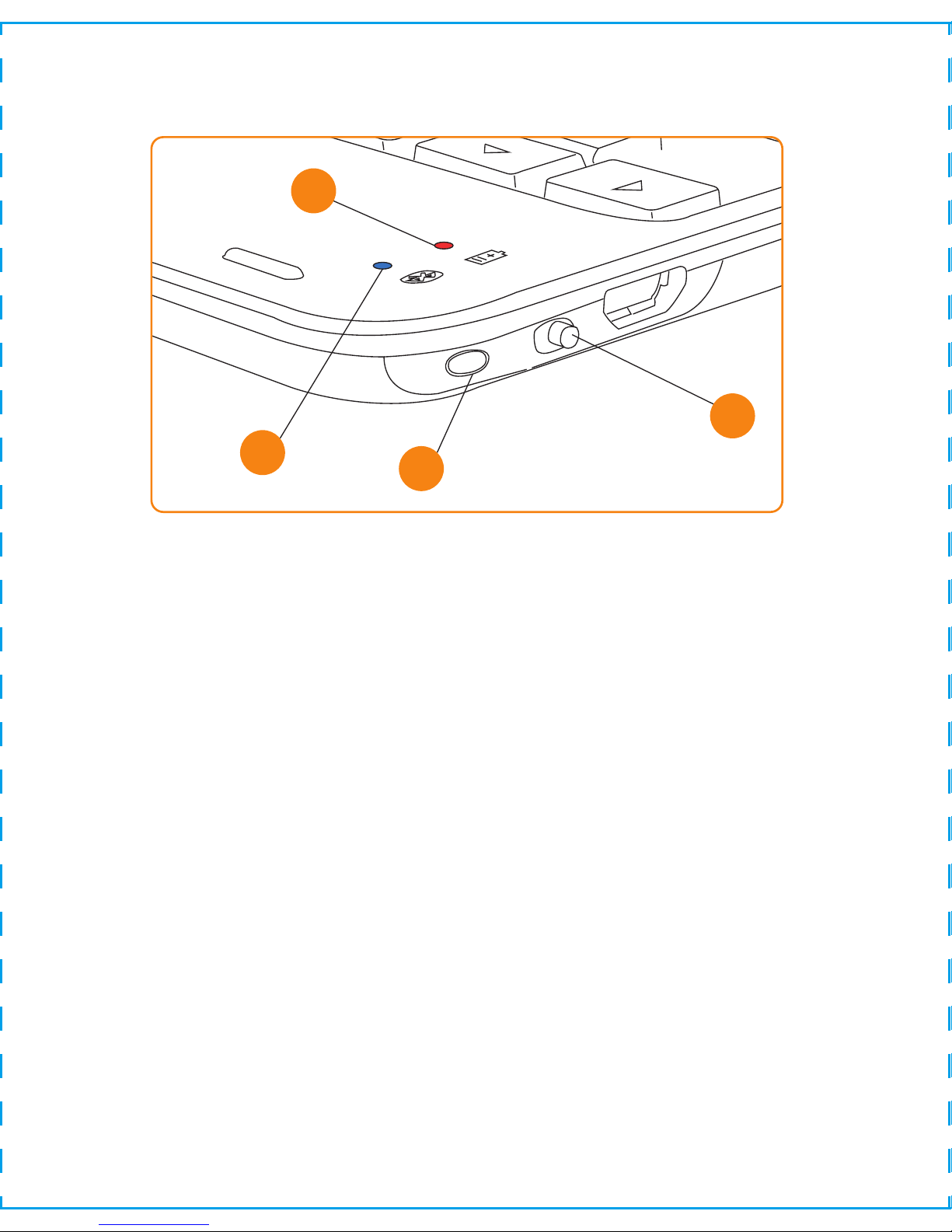
1. Bluetooth™ status indicator: LED will light up when on pairing mode.
2. Charging indicator: LED will light up red when charging the Bluetooth™
keyboard.
3. Connect button: Press to enter the keyboard on pairing mode.
4. Power switch: Toggle switch to turn the Bluetooth™ keyboard ON or OFF.
The Bluetooth™ LED lights up when the Bluetooth™ keyboard is turned ON.
Appearance and Interface Description
Technical Specification
Bluetooth™ interface: Version 3.0
Operating voltage: 3.7V
Working current: <1.5mA
Charging voltage: 5V
Standby time: 60 days (approx.)
Working time: 45 hours
Charging time: 2~3 hours
Lithium battery capacity: 180mAh
Key strength: 80±10g
Key life: 5 million strokes
Material made from: Aluminium
1
2
3
4
Page 4

Please read this User Guide carefully before using the product.
The contents herein may be changed to deliver the better services to the
end-user. To keep the perfect performances of the product, never use it in cold,
hot, dusty or moistened areas or places, especially in the following conditions:
1. Moist or underwater conditions.
2. Conditions near the heater or high-temperature service.
3. Conditions with direct sunshine.
4. Conditions with apt falling.
5. Never dismantle this product without due permission, otherwise it may nullify
the warranty clauses.
Precautions
Instructional Usage
Charging the Fusion
Before first use, charge the Fusion using the charging cable provided for 12
hours. When charging, the LED indicator is red, and when fully charged, it will
turn to green. After the initial charge, the charging time takes maximum of 2
hours.
Pairing with iPad mini
• Press the Bluetooth™ button on the Fusion to send signal. The Bluetooth™
LED will flash in blue and will be under detecting stage for a maximum of 3
minutes.
• Turn your iPad mini Bluetooth™ connection mode on.
• When the Bluetooth™ keyboard is discovered, select the “Fusion” from the
iPad mini screen, a passkey will appear on the screen of the iPad.
• Type in the passkey provided and press the ENTER key on the keyboard. Your
Fusion mini keyboard will then be successfully paired with your iPad mini.
Note: Pairing is only needed for the initial setup. After your first successful
connection, the keyboard will connect automatically to your iPad when powered on.
Page 5

Troubleshooting
If you are unable to connect the keyboard to your iPad mini, please try the
following:
• Check if the battery is low. When the battery is low, some keys will react
slowly and even won’t work. Then, you should charge the battery.
• Check the power switch, make sure it is on. When it is on, the power light on
the right top of the keyboard will flash for two seconds.
• Restart the Bluetooth™ switch, make sure your iPad mini can find this
device.
• Ensure the password for pairing is correct.
Page 6

 Loading...