

Page 1

bluTrend
Touch Control Hifi Bluetooth™ Headphone with
Multi-point Pairing and In-built Mic
User Guide
Page 2

Introduction
Thank you for purchasing Promate bluTrend Touch Control Hifi Bluetooth™ Headphone with
Multi-point Pairing and In-Built Mic. This headphone has been created with multiple functions,
perfect power and sync quality, ultra-high reliability and uniquely fined outlook.
Hereby stated are the features for this product for better understanding of its functions.
Smart Hifi Bluetooth™ headphone with touch control
Multi-point to connect two Bluetooth™ enabled devices at a time
Bluetooth™ 4.0 solution for low energy consumption
Crystal clear high-quality audio headphones with in-built mic
2-mic 6th Gen CVC™ Noise suppression and echo cancellation
In-built equalizer selection button – Rock, Pop, Classical, Jazz, and Dance
Make, receive and cancel calls all while listening to music
Compatible with most smartphones, tablets and all other Bluetooth™ audio devices
Foldable design for ultimate portability
Equipped with micro-USB port for charging and music playback from laptop
Durable metal adjustable bracket to adapt the headphone to your convenient size
Smooth hand polished noise cancellation leather ear-cushion
Axis angular rotatable ear-cups for ergonomic ear fit
Headset’s battery level indicator in iOS
Packaging Contents
bluTrend
Micro-USB cable
Pouch
User Guide
Warranty card
Precautions
Please read this User Guide carefully before using the product.
The contents herein may be changed to deliver the better services to the end-user. To keep
the perfect performances of the product, never use it in cold, hot, dusty or moistened areas or
places, especially in the following conditions:
1. Moist or underwater conditions.
2. Conditions near the heater or high-temperature service.
3. Conditions with direct sunshine.
4. Conditions with apt falling.
5. Never dismantle the product without due permission, otherwise it may nullify the
warranty clauses.
Page 3
1. Product Overview
Introduction
Designed with ultimate sound functionality, in-built mic, dual simultaneous mobile
connectivity and a simple touch control interface, the bluTrend is a remarkable headphone
that connects to smartphone, tablet, laptop or any audio device via Bluetooth™ for music
playback or making phones call without the need of a wire. Smart touch control allows easy
audio track control and volume adjustment. Make a new call, reject a call, end a call and even
redial the last number, all at the touch of a button. In-built equalizer button for listeners’
preference on any music mode such as – Rock, Pop, Classical, Jazz and Dance. The bluTrend
racks up its features with superb noise suppression and echo cancellation using its advanced
6th Gen CVC™ CSR chipset for a crystal clear sound quality. bluTrend could also be used as a
wired headphone while connected to your notebook using the provided micro-USB cable.
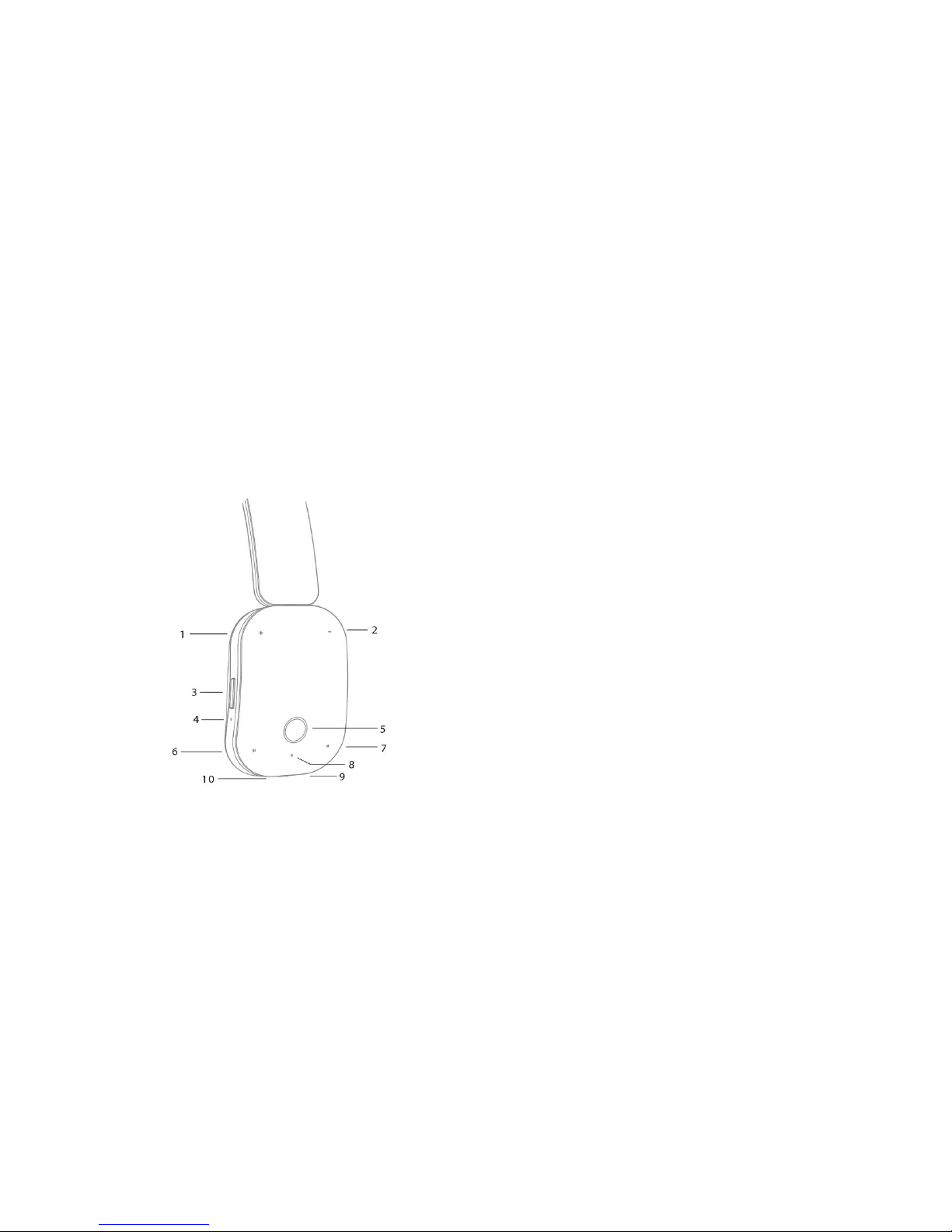
2. Appearance and Interface Description
1 Volume up
2 Volume down
3 Equalizer Button
4 Noise cancellation microphone
5 Multifunction button
6 Track back
7 Track forward
8 Indicator lights
9 Microphone
10 Charging port
Page 4
3. Instructional Usage
3.1 Basic Operation
1. Adjust the volume: Touch the Volume up or down during a call or when listening to
music.
2. EQ equalizer: Press EQ button to change the Equalizer - Rock, Pop, Classical, Jazz and
Dance.
3. Multifunction button: For operations such as turning On/Off, pairing, answer/end calls,
music play/pause, etc.
4. Track Back/Forward: Touch the Back or Forward button to adjust.
5. Indicator lights: When the headset start pairing, the red and blue lights flash
alternately. Red light flashes once when the headset is turned off. Blue light flashes in
every 8 seconds when in standby status. The blue light flashes continuously when
there is incoming calls. The red indicator light keeps lighting when the headset is
charging. The red light is off and blue light is on after fully charged.
3.2 Pairing
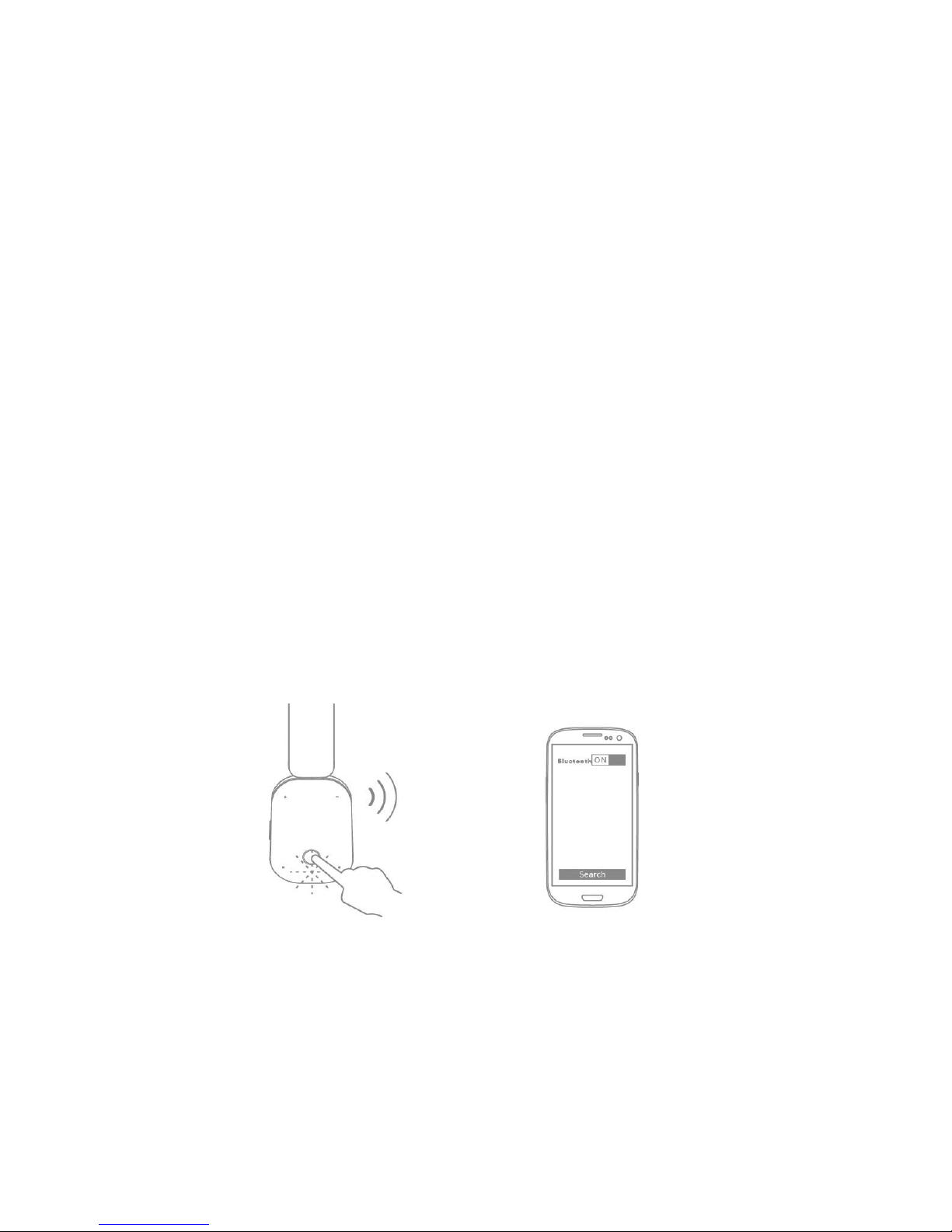
1. Press and hold the multifunction button about 5 seconds to switch on the headset, it
automatically enters the pairing mode. The red and blue indicator lights flashes
alternately.
2. Activate the Bluetooth™ feature on your phone or other Bluetooth devices and set it
to search for new Bluetooth™ devices.
3. Select "bluTrend" from the list of found devices on your phone or other Bluetooth™
devices and connect. If necessary, enter passcode 0000 to pair and connect the
headset to your device. Now you can use bluTrend for phone calls or listening to
music.
Page 5

3.3 Multipoint pairing
1. Press and hold the multifunction button for 6 seconds to switch on the headphone, it
automatically enters pairing mode. The red and blue indicator lights start flashing
alternately.
2. Pair the bluTrend with the first smartphone (see Pairing method). Then turn off the
bluTrend.
3. Pair the bluTrend with the second smartphone (see Pairing method).
4. Press the “Multifunction button” and “Equalizer button” at the same time (one click).
5. Connect with the first smartphone again.
3.4 Calls Function
1. Answer a call: Quickly press the ”Multifunction button” to answer the phone call.
2. End a call: Quickly press the “Multifunction button” to hang up the phone call during a
call.
3. Reject a call: Press and hold the “Multifunction button” to reject a call.
4. Last number redial: Press the “Multifunction button” twice to redial last number when
the headset is connected to mobile phone and in standby status.
5. To switch a call from the headset to the connected phone: Press and hold the
“Previous” song button for about two seconds to switch the call from the headset to
the connected phone. To switch the call from the phone to the headset, press and
hold the “Previous” song button for about two seconds again.
3.5 Music Function
1. Music Play/Pause: Quickly press the “Multifunction button” to pause playing a song
during playback, to resume playing a song, press the multifunction button again.
2. Previous song: Press the track back button quickly to play previous song during
playback.
3. Next song: Press the track forward button quickly to play next song during playback.
4. Switch music and calls: If you receive or make a call while listening to music, the music
is paused until the call ends.
3.6 Added Functions
1. iOS Battery indicator
The current battery status of headset will be displayed in top right corner after the
headset connected to iOS devices.
Page 6
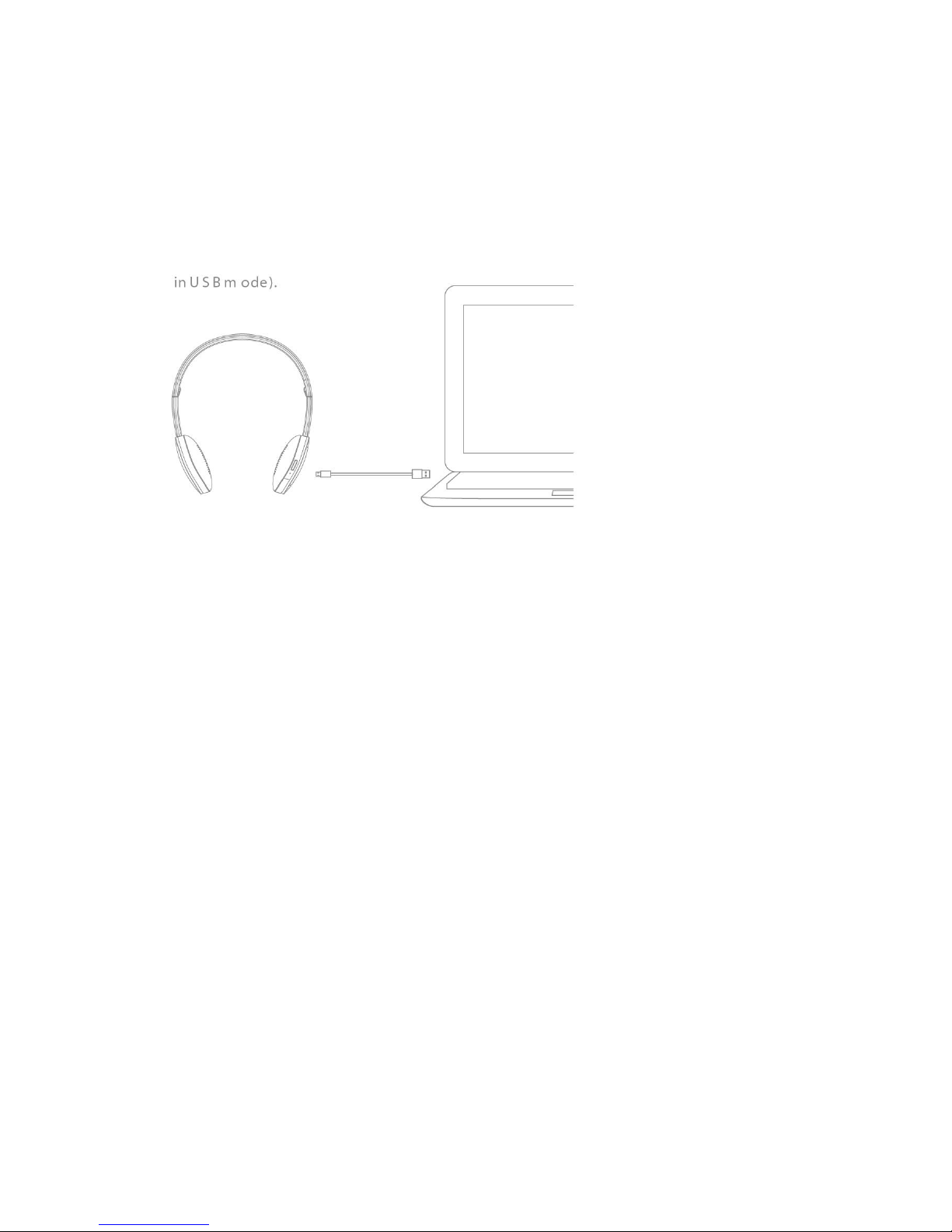
2. Listening to music using a USB cable connected to a computer
When the headset is turned off, connect the headset with computer USB port by USB
cable. The red indicator light will be on. (Microphone is unavailable when in USB
mode).
 Loading...