

Page 1

User ’s Ma n ua l
for
MVGA-NVANTA/AG
DOC NO:54-VANTA-02 Rev. B
99/07/22
Page 2
FCC Requ irement
This device has been certified to comply with the limits for a Class B computing device pursuant to
WARNING:
This equipment generates and uses radio frequency energy and, if not installed and
used properly, that is, in strict accordance with the manufacturer’s instructions, may
It has been tested and found to comply with the limits for a Class B compliant device in accordance
with the specifications in Subpart J of Part 15 of FCC Rules, which are designed to provide reasonable
If this equipment does cause interference to radio or television reception, which can be determined by
turning the equipment off and on, the user is encouraged to try to correct the interference by one or
Ensure that the card
If necessary, consult your dealer, service representative, or an experienced radio/television technician
This booklet is available from the Government Printing Office, Washington, D.C. 20402, Stock No.
You must use shielded interface cables with a ferrite bead in order to maintain compliance
Subpart J of Part 15 of the FCC Rules. See instructions if interference to radio reception is suspected.
cause interference to radio or television reception.
protection against such interference in a residential installation.
However, there is no guarantee that interference-will not occur in a particular installation.
more of the following measures:
Reorient the receiving antenna
˙
Relocate the computer away from the receiver
˙
Move the computer away from the receiver
˙
Plug the computer into a different outlet so that the computer and the receiver are on
˙
different branch circuits
˙
are tightly secured
Ensure that slot covers are installed in all unused slots
˙
’s mounting screws, attachment connector screws, and ground wires
for additional suggestions.
The manufacturer is not responsible for any radio or TV interference caused by unauthorized
modifications to this equipment. It is the responsibility of the user to correct such interference.
The user may find the following booklet prepared by the Federal Communications Commission helpful:
How to Identify and Resolve Radio-TV Interference Problem s.
004-000345-4.
NOTE:
CAUTION:
with the limits for a Class B device.
CHANGES OR MODIFICATIONS NOT EXPRESSLY APPROVED BY THE
PARTY RESPONSIBLE FOR COMPLIANCE COULD VOID THE USER’S
AUTHORITY TO OPERATE THE EQUIPMENT
II
Page 3

Notice
damages arising out of the use or the inability to use the product or documentation, eve n if
period of one (1) year from the date of purchase. During the warranty period, a product
the product has been damaged
be held liable for incidental or consequential damages, such as lost revenue or lost
The information in this document is subject to change in order to improve reliability,
design, or function without prior notice and does not represent a commitment on the part
of this company.
In no event will we be liable for direct, indirect, special, incidental, or consequential
advised of the possibility of such damages.
No part of this reference manual may be reproduced or transmitted in any form or by any
means without the prior written permission of this company.
1999
Trademark Ackn ow ledgement
All Brand- names and Trademarks are the property of their owners.
Limi ted Warr anty
Our company warrants this product against defects in materials and workmanship for a
determined by us to be defective in form or function will be repaired or at our option, to
be replaced at no charge. This warranty does not apply if
by accident, abuse, misuse, or as a result of service or modification other than by us.
This warranty is in lieu of any other warranty expressed or implied. In no event shall we
business opportunities arising from the purchase of a this product.
III
Page 4

TABL E OF CONTENTS
Installing the MVGA-NVANTA/AG adapter card
3. Software I n st a llation
Installing drivers on Windows 95/98
Installing DirectX on Windows 95/98
Installing drivers on Windows NT 4.0(SP3)
M VGA-NVANTA/AG FAQ
1. In t roduction .......................................................................................... 1
Features............................................................................................... 1
System Requirements ......................................................................... 2
Package Contents................................................................................ 2
2. Ha rdwar e Installation........................................................................... 3
Adapter Configuration ....................................................................... 3
............................. 4
............................................................................ 5
AutoRun Instruction ........................................................................... 5
.................................................. 6
................................................ 6
....................................... 7
4. Display Infor mation.............................................................................. 8
Resolutions Supported........................................................................ 8
5.
.................................................................. 10
IV
Page 5

1. Intr odu cti on
The MVGA-NVANTA/AG is a highly integrated 3D/2D graphics card.
Leveraging the RIVA TNT2 core technology,(TwiN-Texel)architecture,24bit
z-buffering.8bit stencil buffer and per-pixel mapping precision delivers
unsurpassed quality. MVGA-NVANTA/AG delivers breakthrough 3D and 2D
capabilities ,the
MVGA-NVANTA/AG provides complete support for video, software DVD
playback, as well as support for the latest system technology such as AGP 4X
MVGA-NVANTA/AG graphics card is ideal for small business users who
require high-performance 2D platform and for corporate users who also have
data-intensive visualization demands. The MVGA-NVANTA/AG exceeds
the standards of the mainstream PC graphics market and Microsoft’s PC
OpenGL ICD for Windows 2000, Windows NT 4.0, Windows 98 and
graphics performance. In addition to its outstanding graphics
bus.
98 ,PC 99, and DirectX 6.0 initiatives.
Featu r es
High performance 2D/3D processor nVIDIA Vanta VGA Chipset
□
8M/16M SD(SG) RAM memory on board
□
Integrated true-color 250MHz RAMDAC interface
□
Supports high screen resolutions up to 1920x1200@75Hz
□
128-bit TwiN-Texel architecture
□
High-performance 128-bit 2D/GUI/DirectDraw acceleration
□
Fast 32-bit VGA/SVGA support
□
Optimized for Katmai New instructions and 3DNow!
□
High performance implementation of Direct3D and OpenGL standards
□
Full-screen, full-frame DVD playback
□
Video acceleration for DirectShow,MPEG-1,MPEG-2,and Indeo
□
AGP 4X/2X interface (AGP 2.0 and AGP 1.0)
□
64-bit frame buffer interface.
□
Windows 2000,Windows NT 4.0 display drivers
□
Windows 98 and 95 display drivers
□
□
Windows 95
TM
1
Page 6

System Requi r ements
Pentium / Pentium
AMD K6-2 / AMD K6-3 family
Microsoft Windows 95 (OSR2.1) / Windows 98 / Windows 2000 or
□
motherboard with AGP bus.
□
Windows NT 4.0 with service pack 3(sp3)
DirectX 5.X/6.X driver
□
I I / Pentium I II /
Package Cont ent s
MVGA-NVANTA/AG Without TV-OUT
MVGA-NVANTA/AG adapter
□
AutoRun Driver CD-Title
□
User’s Manual
□
IVI’s WinDVD CD-Title (optional)
□
2
Page 7
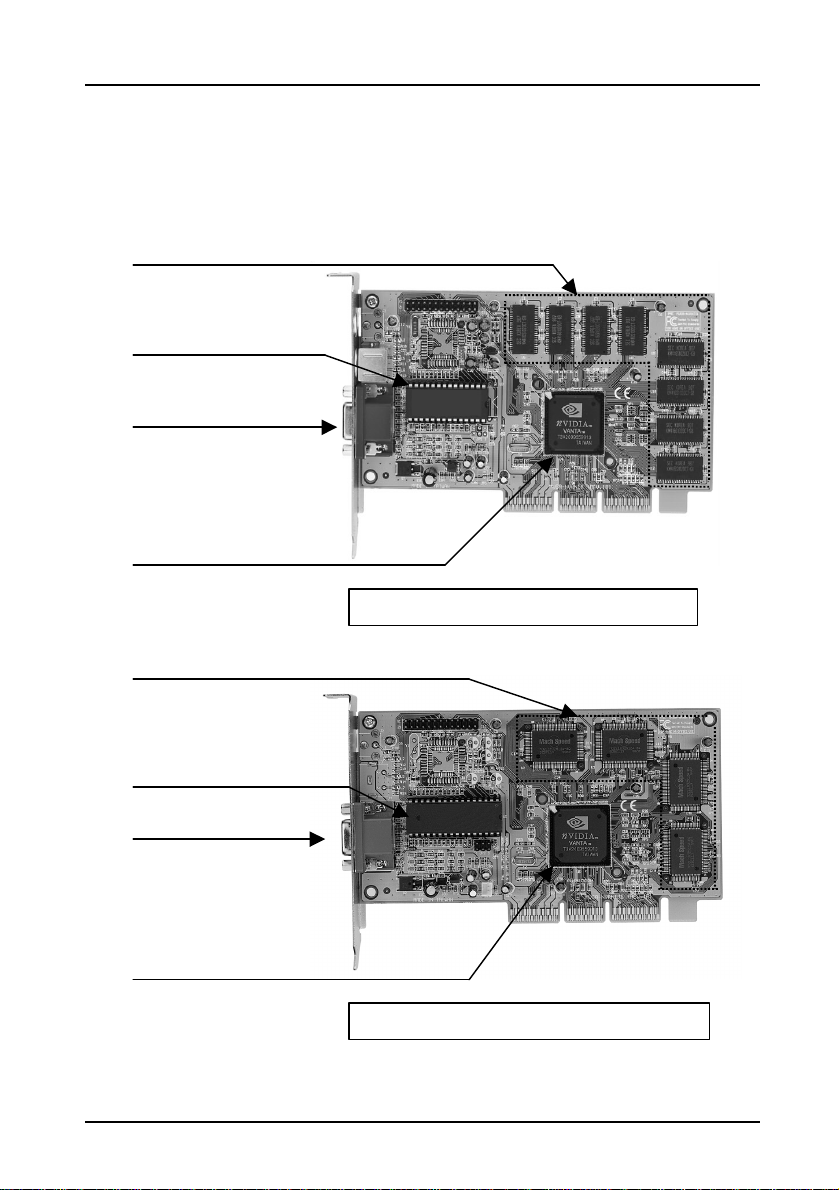
2. Hard w are In st all atio n
MVGA-NV ANTAG (W/O TV-Out)
To monitor
Vanta VGA chipset
MVGA-NV ANTA (W/O TV-Out)
To monitor
Vanta VGA chipset
Adapter Confi gur ation
8M/16M SDRAM
BIOS
nVIDIA
8M/16M SGRAM
BIOS
nVIDIA
3
Page 8
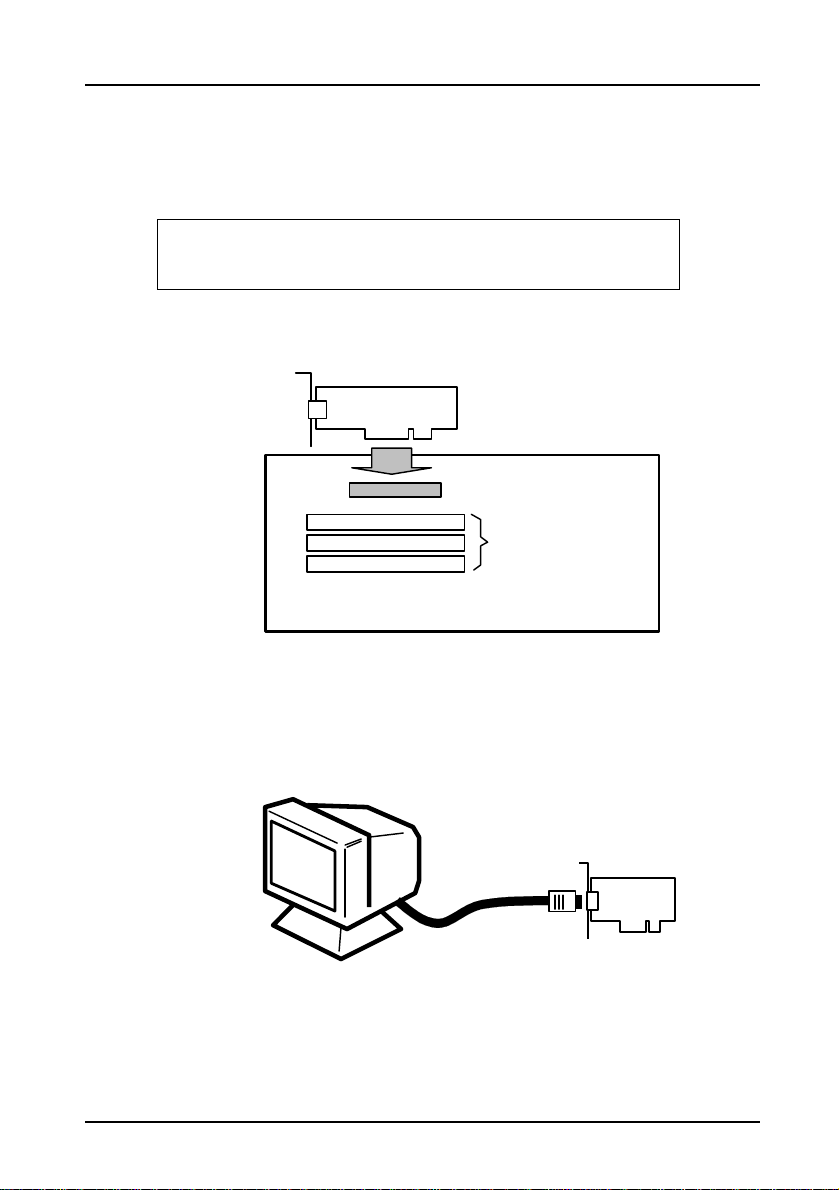
Inst al l ing th e MVGA -NVANTA/AG adapter car d
Turn OFF your computer, remove the computer case, and then ground
Not e:
Before installing the MVGA-NVANTA/AG VGA card
Align and secure the mounting bracket of the card to the computer and
MVGA-NVANTA/AG
1.
yourself by touching the power supply of the computer.
you must first set the VGA option to either standard
VGA or Standard Display VGA.
2. Remove your old graphics card, and install your new
MVGA- NVANTA/AG card into the AGP slot.
AGP slot
PCI s l o t
AGP mainboard
3.
replace the computer case.
4. Connect the monitor cable to the DB-15 co nnector of the card.
5. Turn ON your computer.
4
Page 9
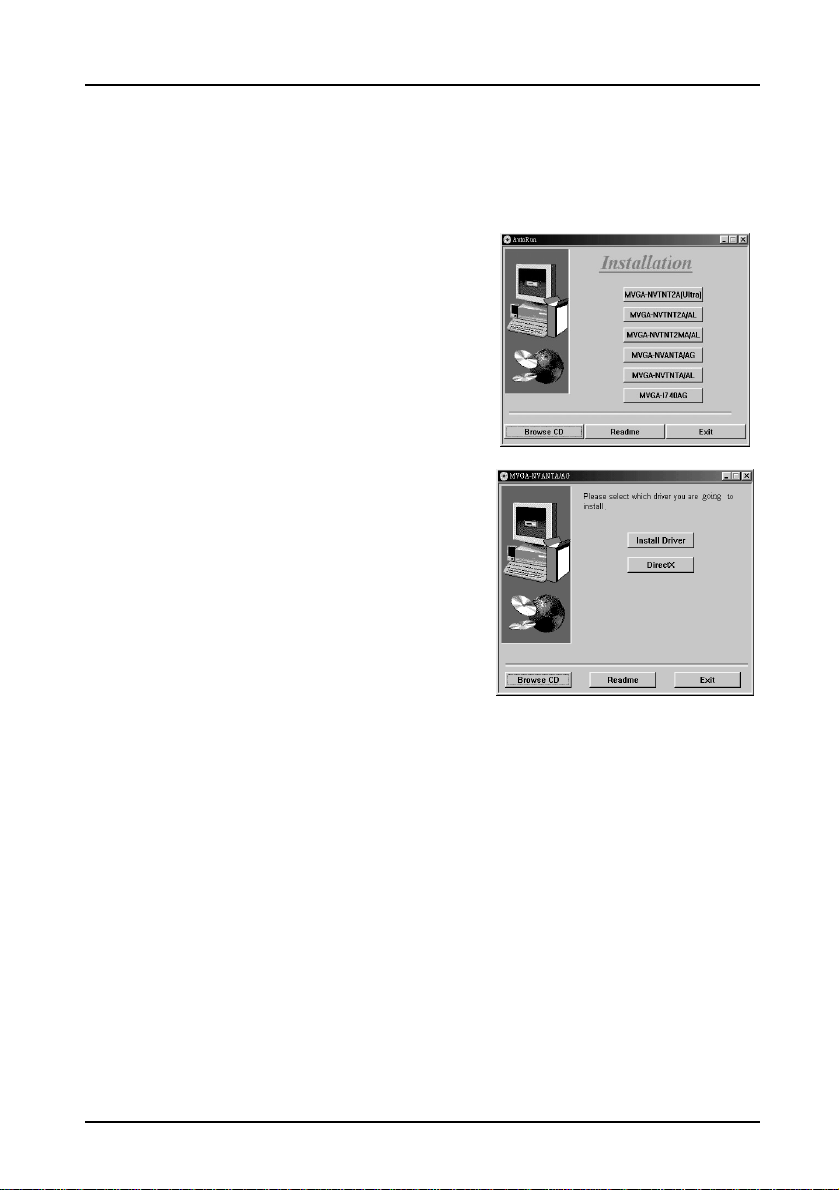
3. So ft w are Ins tall atio n
Insert the AutoRun CD-ROM driver
(wait a few seconds). You will see the
Please click ‘M VGA-NVANTA/AG
95/98 system. Not necessary, if it has already been installed in your
AutoRun Instru ctio n
1.
window.
2.
you will see the window.
Click-on ‘Install Driver’ to install the VGA driver.
□
Click-on ‘DirectX’ to install Microsoft DirectX onto your Windows
□
system.
Click-on ‘Readme’, to view detailed information regarding the
□
various Drivers/Programs and FAQ’s located on the CD.
Click-on ‘Browse CD’ to view the contents of the CD.
□
Click-on ‘Exit’ to exit the AutoRun tool .
□
’
5
Page 10
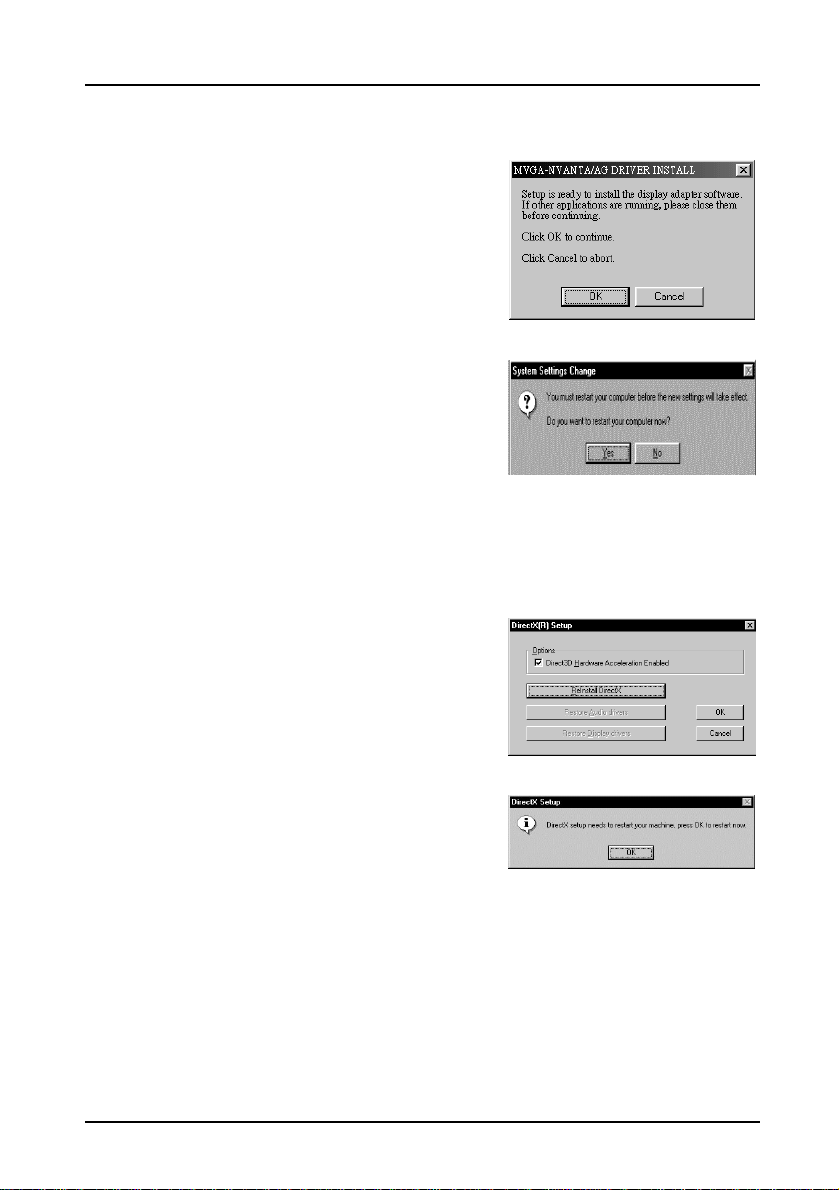
Installi ng dri vers on Wi nd ow s 95/98
Install Driver’ to setup the VGA driver.
After the installation is complete, the
system will ask you whether you want to
restart your computer now. Please click
to reboot your system and activate
is already on your system. However, if
t have it and want to install it
ReInsta ll DirectX’ to install the
When it is done, please click
to
1. Insert the AutoRun driver into the
CD-ROM drive, and click-on
‘
Please click ‘OK’.
2.
‘Y es’
the program.
Install i n g DirectX on Windows 95/98
1. There is no need to re-install DirectX, if it
you don’
click-on ‘
DirectX program.
2.
reboot windows.
‘OK’
6
Page 11

Instal l i ng dr i v ers on Wind ows NT 4.0 (SP3)
Start Windows NT
After your computer restarts, right-click the desktop and click
Click (assuming your CD-ROM disc driver X) ‘Browse CD’ to select the
You will see a list of nVIDIA Series driver. Select Vanta driver and then
Windows NT will once again prompt for confirmation. All appropriate
11.
System Sett ing Change’ dialog box is displayed. Click ‘Y es
Windows NT will restart with the default settings. The display applet will
1.
640x480 pixels), then restart your computer.
2.
‘Pr opert ies’.
3. Click the ‘Settings’ tab.
4. Select ‘Display Type’.
5. Select ‘Adapt er Type’ and click ‘Ch an ge’.
6. Click ‘Have Disk’.
7. Insert the AutoRun driver into the CD-ROM drive.
8.
path ‘X:\ NVANTA\NT40’ of the display driver for Windows NT.
9.
click ‘OK’.
10.
files are then copied to the hard disk. When all files are copied, go back to
the ‘Display Propert ies’ box by clicking ‘Ap p ly’ or Click ‘Close’.
The ‘
restart Windows.
12.
appear to allow for mode selection.
, switch display properties to VGA mode (16 colors,
’ to
7
Page 12
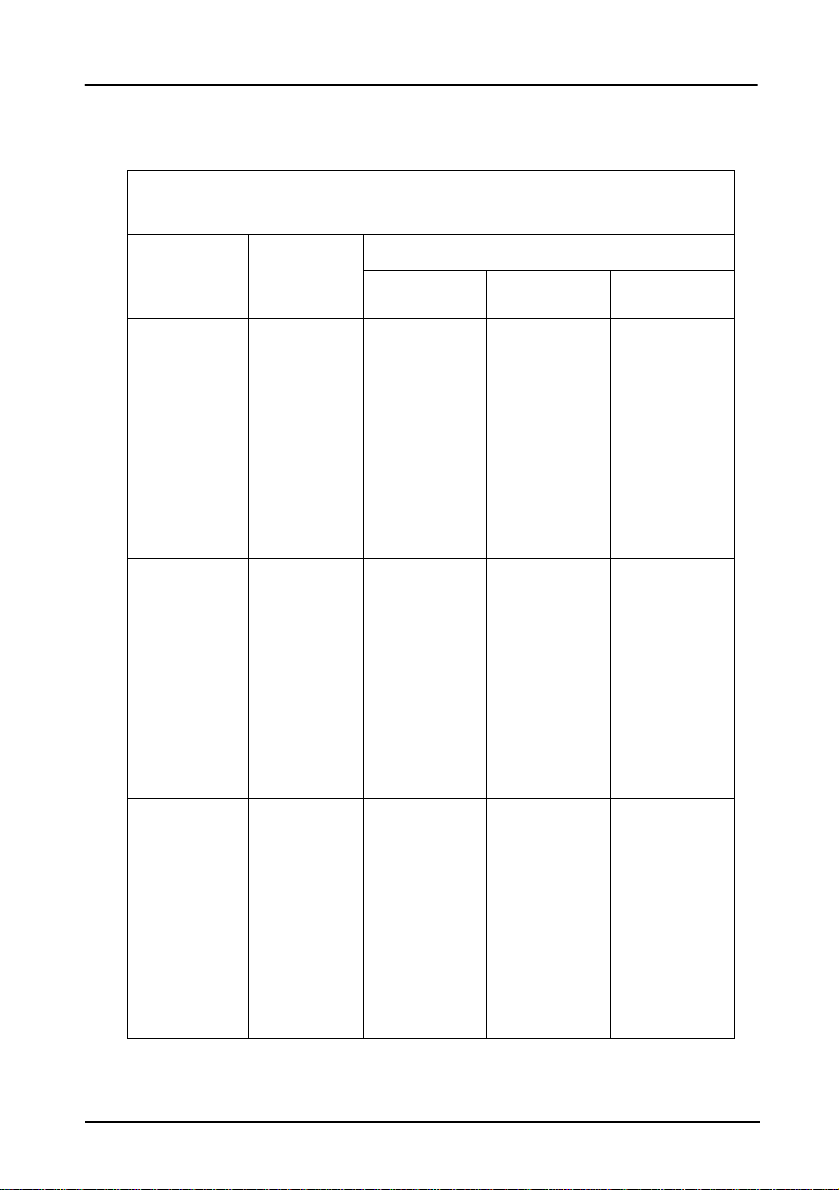
4. Dis pl ay In fo rm atio n
Resol uti ons Su ppor ted
Resol utio n
640 x 480
800 X 600
1024 X 768
Vertical
Fr equency
60Hz V V V
70Hz V V V
72 Hz V V V
75 Hz V V V
85Hz V V V
100Hz V V V
120Hz V V V
140Hz V V V
144Hz V V V
150Hz V V V
170Hz V V V
200Hz V V V
240Hz V V V
60Hz V V V
70Hz V V V
72 Hz V V V
75 Hz V V V
85Hz V V V
100Hz V V V
120Hz V V V
140Hz V V V
144Hz V V V
150Hz V V V
170Hz V V V
200Hz V V V
240Hz V V V
60Hz V V V
70Hz V V V
72 Hz V V V
75 Hz V V V
85Hz V V V
100Hz V V V
120Hz V V V
140Hz V V V
144Hz V V V
150Hz V V V
170Hz V V V
200Hz V V V
240Hz
256 colors
Standard
Color Dep t h
65K colors
Standard
16.7M colors
Standard
8
Page 13
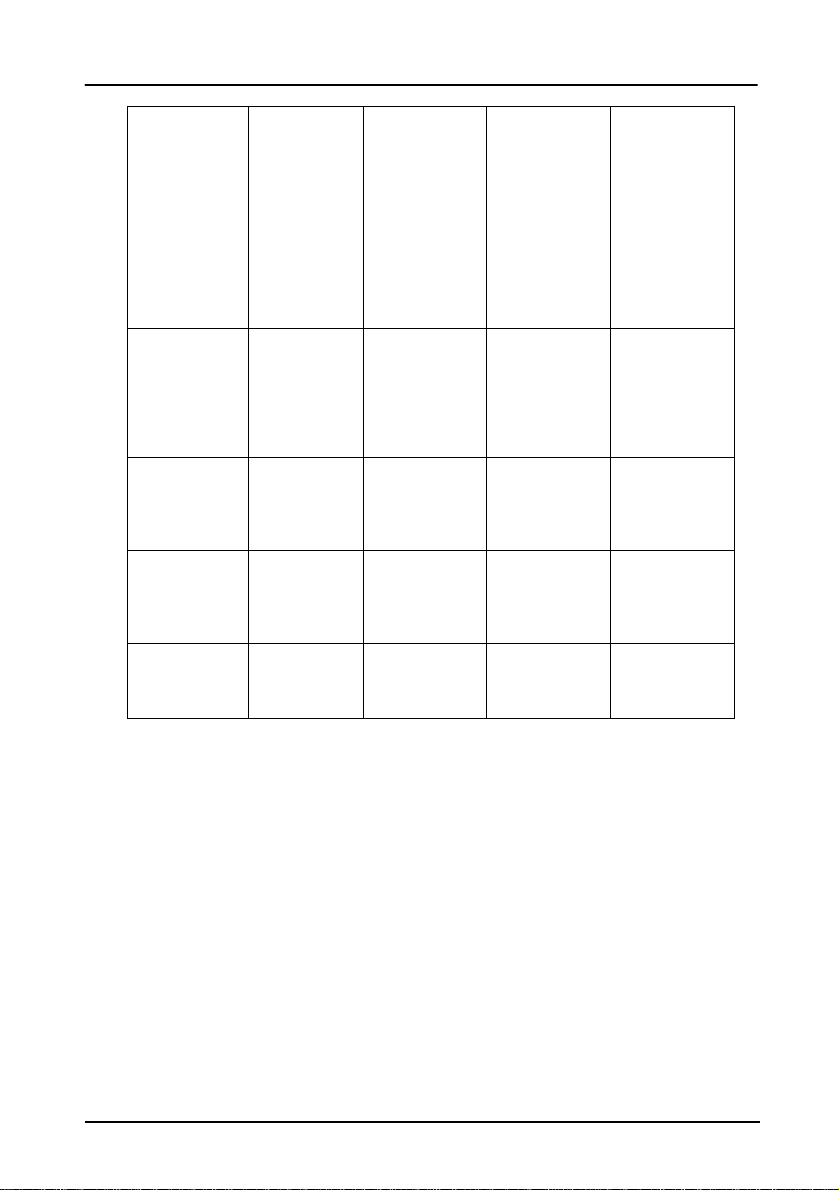
1152 X 864
1280 X 1024
1600 X 1200
1920 X 1080
1920 X 1200
60Hz V V V
70Hz V V V
72 Hz V V V
75 Hz V V V
85Hz V V V
100Hz V V V
120Hz V V V
140Hz V V V
150Hz V V V
170Hz
200Hz
240Hz
60Hz V V V
70Hz V V V
72 Hz V V V
75 Hz V V V
85Hz V V V
100Hz V V V
120Hz V V V
60Hz V V V
70Hz V V V
72 Hz V V V
75 Hz V V V
85Hz V V V
60Hz V V V
70Hz V V V
72 Hz V V V
75 Hz V V V
85Hz V V V
60Hz V V V
70Hz V V V
72 Hz V V V
75 Hz V V V
9
Page 14

5. MVGA-NVANTA/AG FAQ
While inst alling on a Windows 95 or 98 op erating system, my
A:
Please check your monitor
DDC signal to ground: Which causes the BIOS to not detect your
monitor. Therefore, causing your MVGA-NVANTA/AG to not receive
Q:
If your operating system isn’t the OSR2.1 version, you won’t be able to
The image on m y monitor keeps on flickering and the driver
Show All Devices’ and choose your monitor type.
Q:
comp u ter los es the Vertical Sync.
’s specifications. Some monitors connect the
any data or refresh rates.
I can’t install the driv er on my Window s 95 sy st em.
A:
install the driver.
to fix the problem :
Please change your operating system to the OSR2.1 version.
Windows 95 OSR2.1 Installation.
1. Install Windows 95 OSR2.1
2. Execute USBSUPP
3. Install DirectX ver 5.0/6.0 or higher
4. Install the VGA driver
Q:
can’t change the refresh rate.
The problem is due to a failed DDC monitor detection.
A:
To fix the problem:
1. Go to ‘Settings’è’Control Panel’ è’Display’
2. Select ‘Settings’ page
3. Click ‘Advanced Properties’
4. Select ‘Monitor’ page
5. Click ‘Change’
6. Select ‘
If your monitor type is not listed, Please select one that is
as similar as possible.
10
Page 15

11
Q:
How do I change the resolutio n, color, and refresh-rate on my
My Computer’ folder and select the ‘Control Panel’ icon.
then select
. A new menu will appear
Color Palette’ to change the
values. Choose ‘Desktop area
How do I change the resolutio n, color, and refresh-rate on my
A:
The procedure is basically the same as above, for the 95 & 98 system.
Except that you must select
, so that the changes can
Window s 95/98 syst em?
Open the ‘
A:
Double-click on ‘Display’
choose ‘
to change the Resolution (screen image size). From the same screen clickon ‘Advanced Properties’ to access the Refresh-rate.
Q:
‘Settings’
Color
Windows NT s yst em?
‘Test’ then ‘OK’
take affect.
’
 Loading...