

Page 1
ProHD BR-DE900
HEVC and H.264 Decoding Appliance
User Manual
Version 1.0
Date: March 4, 2018
Doc Rev: <A>
Page 2

User Manual, Version 1.0 i
Contents
Safety Instructions............................................................................................................ iii
Declaration of Conformity and Regulatory Compliance ................................................ iv
Copyright Notice ............................................................................................................... vi
Open Source Documentation ......................................................................................... vii
Chapter 1 About This Manual ........................................................................................... 8
General ......................................................................................................................... 8
Manual Structure and Use ........................................................................................... 8
Chapter 2 ProHD BR-DE900 Overview ............................................................................. 9
The Product .................................................................................................................. 9
System Requirements ............................................................................................... 10
I/O Specifications ....................................................................................................... 11
ProHD BR-DE900 Front Panel ............................................................................. 11
ProHD BR-DE900 Rear Panel .............................................................................. 13
Chapter 3 Getting Started ............................................................................................... 14
Initial Connection and Setup..................................................................................... 14
Retrieving or Setting Network Parameters through a USB Thumb Drive ............. 17
Chapter 4 Setup and Operations .................................................................................... 19
Using the ProHD BR-DE900 Interface ...................................................................... 19
The Main Menu ..................................................................................................... 20
Dashboard Frame ................................................................................................ 20
The Dashboard Page ........................................................................................... 21
The Channel Page ...................................................................................................... 25
Input Channel Configuration ............................................................................... 28
The Decoder Settings Page ....................................................................................... 33
The System Page ....................................................................................................... 36
The Configurations Page........................................................................................... 40
The General Page ....................................................................................................... 42
Chapter 5 Firmware Upgrade .......................................................................................... 44
Upgrading the Firmware ............................................................................................ 44
Page 3

User Manual, Version 1.0 ii
Chapter 6 Technical Specifications................................................................................ 46
Compliance................................................................................................................. 46
Environmental ............................................................................................................ 46
Physical ...................................................................................................................... 46
Functional Description .............................................................................................. 47
Appendix A Warranty ...................................................................................................... 49
Index ................................................................................................................................. 51
Page 4

User Manual, Version 1.0 iii
Safety Instructions
• Use the following safety guidelines to help protect your ProHD BR-DE900 unit from
potential damage and to ensure your own personal safety.
• Make sure that only authorized personnel installs, connects and maintains ProHD BR-
DE900 and its components.
• Read and follow all instructions marked on the product and in the documentation before
you operate your system. Retain all safety and operating instructions for future use.
• As a power switch is not incorporated in the equipment, the power plug must be
disconnected to shut down the unit
When using ProHD BR-DE900
• Install the system on a secured and stable surface.
• To help prevent electric shock, plug the power cable into properly grounded sources. Use
only properly grounded extensions and adapters as the need arises.
• Make sure that nothing rests on your ProHD BR-DE900 power cable and that the cables
are not located where they can be stepped or tripped over.
• Do not spill food or liquids on your unit.
• Keep your ProHD BR-DE900 unit away from radiators and heat sources. Do not place your
ProHD BR-DE900 unit on a bed, sofa, or rug.
• When you disconnect a power cable, pull on its connector or on its strain relief loop not on
the cable itself.
• ESD Warning: Normal handling precautions should be taken to avoid static discharge.
WARNING:
Do not try to open or replace parts as this will void your warranty.
Page 5

User Manual, Version 1.0 iv
Declaration of Conformity and Regulatory
Compliance
USA: FCC Part 15 Class A
This equipment has been tested and found to comply with the limits for a Class A digital device,
pursuant to part 15 of the FCC Rules. These limits are designed to provide reasonable protection
against harmful interference when the equipment is operated in a commercial environment. This
equipment generates, uses, and can radiate radio frequency energy and, if not installed and used
in accordance with the instruction manual, may cause harmful interference to radio
communications. Operation of this equipment in a residential area is likely to cause harmful
interference in which case the user will be required to correct the interference at his own expense.
Operation is subject to the following two conditions: (1) This device may not cause harmful
interference, and (2) this device must accept any interference received, including interference that
may cause undesired operation.
WARNING:
Modifying the equipment without JVC authorization may result in the equipment no longer complying with FCC
requirements for Class A digital devices. In that event, your right to use the equipment may be limited by FCC
regulations, and you may be required to correct any interference to radio or television communications at your
own expense.
Canada: ICES-003
This Class A digital apparatus complies with Canadian ICES-003.
Cet appareil numérique de la classe A est conforme à la norme NMB-003 du Canada.
European Union - European Economic Area (EEA):
This product fulfills the essential requirements of the below European directives and thus bears
the CE marking.
2004/108/EC Electromagnetic Compatibility (EMC)
2014/35/EU Low voltage (LVD)
Page 6

User Manual, Version 1.0 v
2011/65/EU Restriction of the use of certain hazardous substances in electrical and electronic
equipment (RoHS recast)
The following relevant harmonized standards were used during the assessment process:
EN 60950-1 Information technology equipment - Safety -- Part 1: General requirements
EN 61000-3-2 Limits for harmonic current emissions
EN 61000-3-3 Limitation of voltage changes, voltage fluctuations and flicker in public low-
voltage supply systems
EN 55022 Information technology equipment - Radio disturbance characteristics -
Limits and methods of measurement
EN 55024 Information technology equipment - Immunity characteristics - Limits and
methods of measurement
Per directive 2012/19/EU (Waste of Electrical and Electronic Equipment - WEEE), this product
must not be disposed of as unsorted waste and must be collected separately.
Page 7

User Manual, Version 1.0 vi
Copyright Notice
JVC, AND ITS AFFILIATES ("COMPANY") FURNISH THIS DOCUMENT "AS IS," WITHOUT
WARRANTY OF ANY KIND. THE COMPANY DISCLAIMS ALL WARRANTIES, EXPRESS OR IMPLIED,
INCLUDING, WITHOUT LIMITATION, THE IMPLIED WARRANTIES OF MERCHANTABILITY, FITNESS
FOR A PARTICULAR PURPOSE, NON-INFRINGEMENT AND THOSE ARISING FROM A COURSE OF
PERFORMANCE, A COURSE OF DEALING, OR TRADE USAGE. THE COMPANY SHALL NOT BE LIABLE
FOR ANY ERROR, OMISSION, DEFECT, DEFICIENCY OR NONCONFORMITY IN THIS DOCUMENT
AND DISCLAIMS ALL LIABILITY, INCLUDING LIABILITY FOR INFRINGEMENT OF ANY
INTELLECTUAL PROPERTY RIGHTS RELATED TO THE INFORMATION CONTAINED IN THIS
DOCUMENT.
No license, expressed or implied, to any intellectual property rights is granted under this
document. This document, as well as the software described in it, are furnished under a separate
license and shall only be used or copied in accordance with the terms of the applicable license.
The information in this document is furnished for informational use only, is subject to change
without notice, and should not be construed as any commitment by the company. Except as
permitted by the applicable license, no part of this document may be reproduced, stored in a
retrieval system, or transmitted in any form or by any means without the express written consent
of the company.
Names and logos identifying products of JVC in this document are registered trademarks or
trademarks of JVC respectively. All other trademarks mentioned in this document are the property
of their respective owners.
Copyright © 2018 JVC. All rights reserved.
http://www.jvc.com/
Page 8

User Manual, Version 1.0 vii
Open Source Documentation
The software included in this product contains open source software components licensed under
open source licenses (such as GPL - General Public License).
For information about copyright holders and licenses, or to receive a copy of the corresponding
source code to which you may be entitled under the applicable open source license, please contact
JVC.
Page 9

User Manual, Version 1.0 8
CHAPTER 1
In This Chapter
General ......................................................................................................... 8
Manual Structure and Use ............................................................................... 8
General
Information in this document is subject to change without notice. JVC assumes no responsibility
for any errors that may appear in this manual. Companies, names and data used in examples
herein are fictitious unless otherwise noted. No part of this document may be copied or
reproduced in any form, or by any means, electronic or mechanical, for any purpose, without the
express written permission of JVC. JVC provides no warranties with respect to this documentation
and disclaims any implied warranties of merchantability or fitness for a particular purpose.
Manual Structure and Use
This manual is structured in a modular format, containing the following sections:
• ProHD BR-DE900 Overview (on page 9)
Describes the ProHD BR-DE900 product, its system requirements and I/O specifications.
• Getting Started (on page 14)
Describes how to connect to the appliance for the first time.
• Setup and Operations (on page 19)
Describes how to set and configure ProHD BR-DE900 appliance, obtain an event log and
load new licenses.
• Firmware Upgrade (on page 44)
Describes how to upgrade ProHD BR-DE900 firmware.
• Technical Specifications (on page 46)
• Describes the technical specifications of the ProHD BR-DE900 appliance.
About This Manual
Page 10

User Manual, Version 1.0 9
CHAPTER 2
In This Chapter
The Product ................................................................................................... 9
System Requirements ................................................................................... 10
I/O Specifications ......................................................................................... 10
The Product
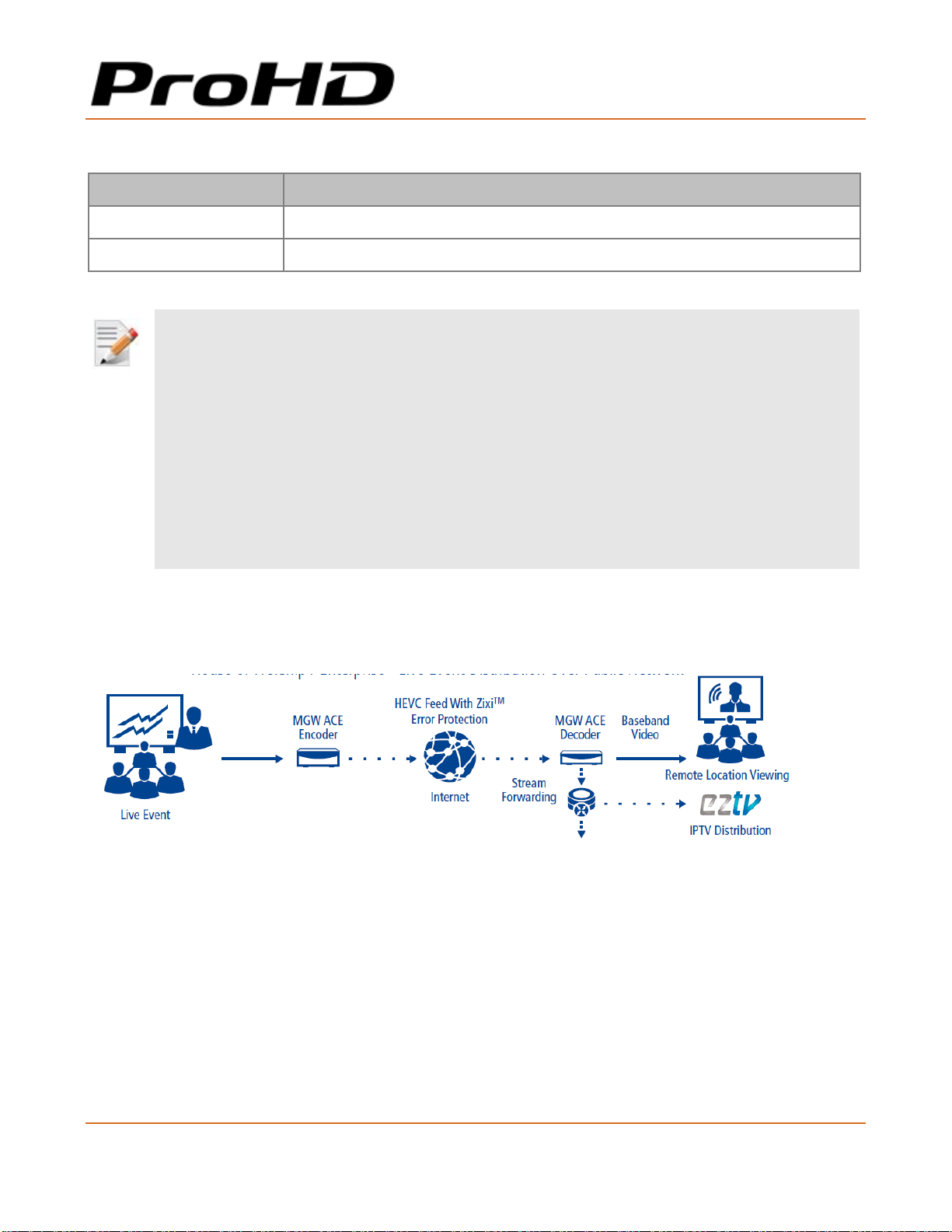
ProHD BR-DE900 is an advanced industrial-grade, HEVC (H.265) and H.264 (AVC) decoding
appliance. ProHD BR-DE900 is the preferred Hardware decoder for JVC Professional streaming
cameras. The ProHD BR-DE900 is designed for low latency decoding of high-definition and
standard-definition video sources across the enterprise, utilizing minimal bandwidth while
preserving broadcast-quality video up to full HD 1080p60 resolution.
The decoding and streaming appliance supports a wide range of streaming protocols including
UDP TS, RTP TS, RTP ES (RTSP), Pro-MPEG and Zixi™ streaming with Error Correction mechanism
for ensuring secure, error-free video over public networks (license required for Zixi™ Point to
Point mode).
• Pro-MPEG SMPTE-2022
Pro-MPEG SMPTE-2022 is an industry standard Forward Error Correction (FEC)
protocol that uses a one or two dimensional XOR algorithm. It sends redundant
information to accommodate for packet-loss during real-time video streaming. The Pro-
MPEG SMPTE-2022 streaming mode is capable of correcting network errors up to 5% with
an average end-to-end latency of 1.5 seconds. Pro-MPEG technology is included with the
product.
• Zixi™
Zixi™ error correction is a unique proprietary technology offers secure, reliable
transmission of broadcast-quality HD/SD video over unmanaged internet connections and
private IP networks. The Zixi™ protocol provides real-time protection from network jitter,
packet-loss and latency to ensure error-free video transmission.
The technology is capable of correcting high rates of network errors up to 30%. The end-
to-end latency of such IPTV service is configurable on the encoder side, and ranges
ProHD BR-DE900 Overview
Page 11

ProHD BR-DE900 HEVC and H.264 Decoding Appliance
User Manual, Version 1.0 10
between 500 milliseconds to 6 seconds. Zixi™ technology is included with the product
when used in conjunction with JVC compatible cameras for point to point streaming
(license required) or with Zixi™ Broadcaster server.
The ProHD BR-DE900 package includes:
• The ProHD BR-DE900 appliance
• Power supply with cable.
• Breakout cable for RS232, Genlock input (enabled by firmware upgrade), balanced
and unbalanced stereo audio, AES digital audio.
System Requirements
Operating System:
• Microsoft ® Windows 2003 ®
• Microsoft ® Windows 2008 ®
• Microsoft ® Windows 2012 ®
• Microsoft ® Windows 7 ®
• Microsoft ® Windows 8.0 / 8.1 ®
• Microsoft ® Windows 10.0 ®
• Apple ® MAC OS ® 10.8 or higher
Internet Browser:
• Edge ® 38 or Higher
• Internet Explorer 10 ® or higher
• FireFox 36.0 ® or higher (Windows and Mac)
• Safari 9.0 ® or higher (Mac)
• Google Chrome ™ 49.0 or higher
Page 12
ProHD BR-DE900 HEVC and H.264 Decoding Appliance
User Manual, Version 1.0 11
I/O Specifications
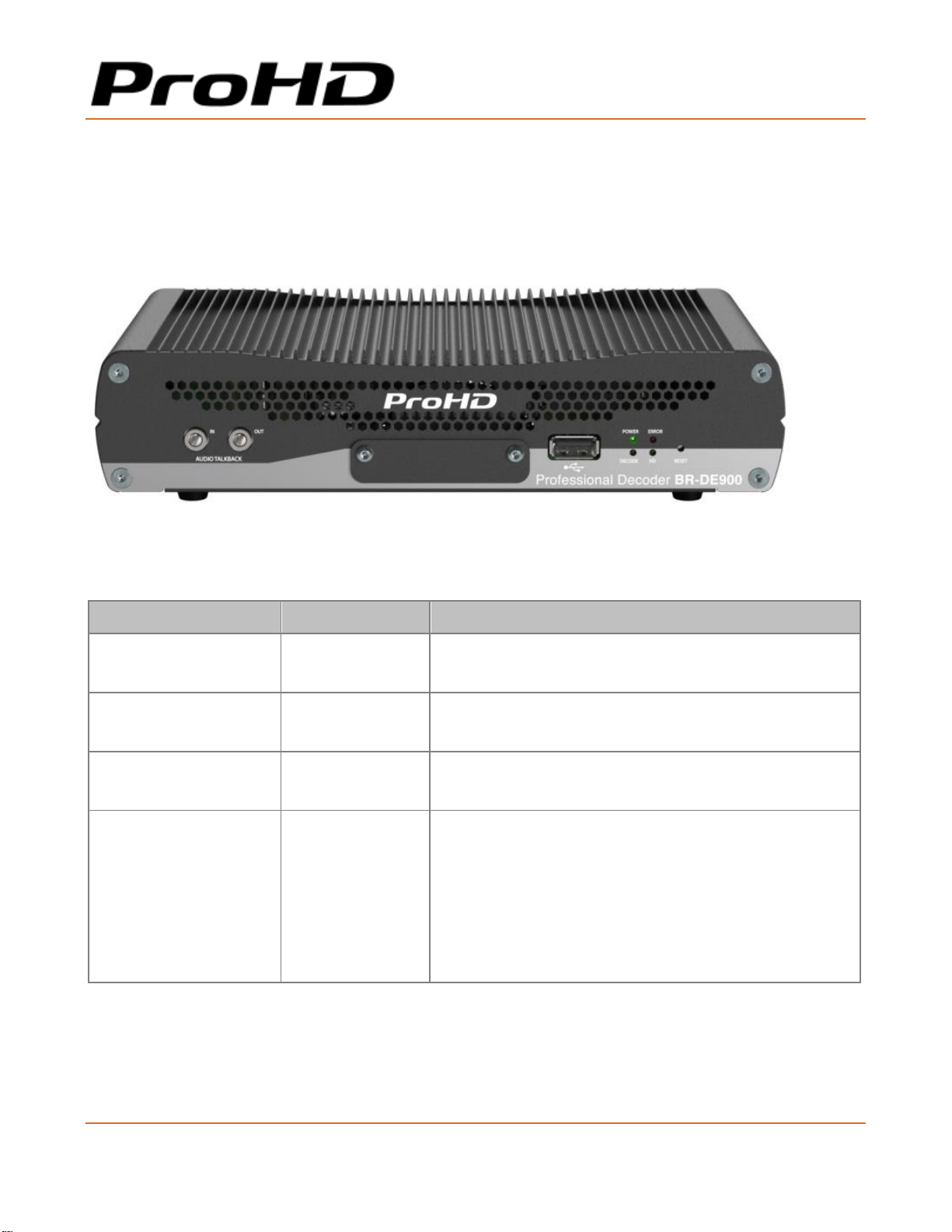
ProHD BR-DE900 Front Panel
Figure 2-1: BR-DE900 Front Panel
Connector Label
Connector
Description
Audio Talkback IN
Mini Jack
Unbalanced Analog Audio input for Audio Talkback.
To be enabled per firmware upgrade.
Audio Talkback OUT
Mini Jack
Unbalanced Analog Audio output for Audio Talkback.
To be enabled per firmware upgrade.
USB Port
USB Type A
USB connection.
To set or retrieve network parameters
Reset
Pin After boot, a short press will restart the appliance.
After boot, a long press (6 seconds minimum) will
return the unit to factory settings (erasing all userstored channel and network settings).
Pressing more than 7 seconds while powering up, will
cause the appliance to restore the unit to factory
firmware settings.
Page 13

ProHD BR-DE900 HEVC and H.264 Decoding Appliance
User Manual, Version 1.0 12
LED/ Port
LED Status
Description
Power LED
• Off
• Green
• Blinking green once per second
• Blinking green twice per second
• The appliance is off.
• The appliance is up and ready
• The appliance is starting
• The appliance is being upgraded.
Error LED
• Off
• Red
• All services are running smoothly.
• An error occurred in one or more
services:
• - Steady on – channel error
• - Blinking twice per second –
abnormal temperature
Decode LED
• Off
• Green
• Blinking green once per second
• No Channel Decoding in progress
• Channel Decoding
• The channel has started, but no
input stream was received
HD LED
• Off
• Green
• SD stream input
• HD stream input.
Page 14
ProHD BR-DE900 HEVC and H.264 Decoding Appliance
User Manual, Version 1.0 13
ProHD BR-DE900 Rear Panel
Connector Label
Connectors
Description
Ethernet 1
RJ-45
Gigabit Ethernet for streaming and management.
Ethernet 2
RJ-45
Gigabit Ethernet for streaming and management
DVB ASI IN
BNC
DVB ASI input
DVB ASI OUT
BNC
DVB ASI output/pass through
Serial/Audio/Genlock
Multi-pin
connector
Breakout cable for audio outputs:
Digital Audio AES x2
Balanced Analog Stereo Audio
Unbalanced Analog Stereo Audio
Genlock (enabled by firmware upgrade)
Serial for KLV/STANAG/CoT output (future)
CVBS
BNC
Composite output
SDI1
BNC
SDI output
SDI2
BNC
Secondary SDI output
HDMI
HDMI Type A
HDMI2.0 output
POWER 20-50 VDC
Multi-pin
connector
Power input.
Page 15

User Manual, Version 1.0 14
CHAPTER 3
In This Chapter
Initial Connection and Setup .......................................................................... 14
Retrieving or Setting Network Parameters through a USB Thumb Drive............... 16
Initial Connection and Setup
The ProHD BR-DE900 is configured, by default, to use a fixed static IP address for its streaming
and management port 1 (labeled "Ethernet1"). Use the default 192.168.1.2 IP address to perform
initial login from a computer connected directly to the platform.
To configure the appliance's network settings for the first time:
1. Connect a power source to the rear power input port.
2. Connect the network port labeled "Ethernet1" to a computer with network IP configured to
192.168.1.x range with subnet 255.255.255.0 and ensure you can ping the default IP
address of the unit to 192.168.1.2.
Getting Started
Page 16
ProHD BR-DE900 HEVC and H.264 Decoding Appliance
User Manual, Version 1.0 15
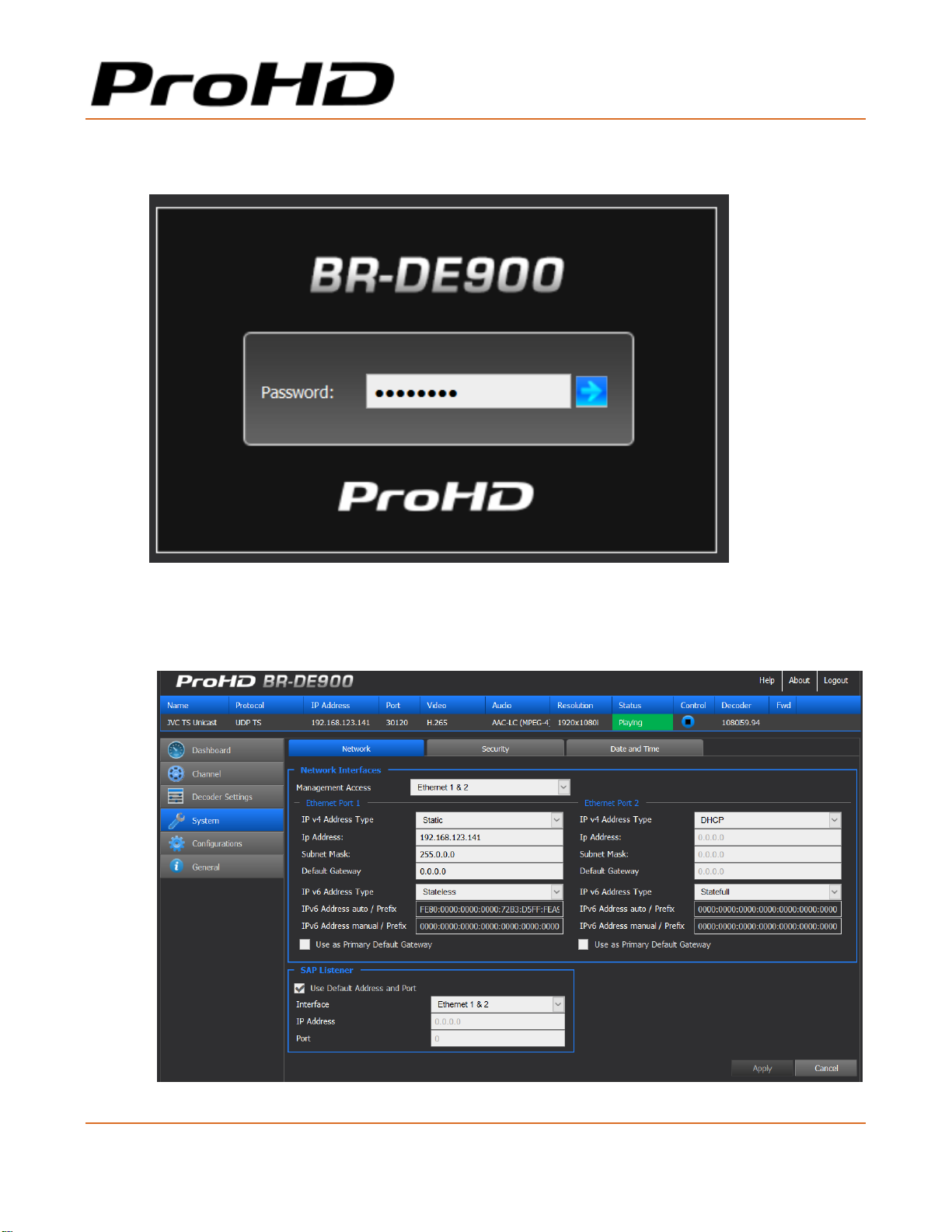
3. Open a web browser and type the appliance's IP address in the URL field. The login
window appears.
4. Type the password (the default password is "jvc1234") and click the blue arrow. The
ProHD BR-DE900 interface is loaded.
5. From the main menu, select System. The system page opens:
Page 17
ProHD BR-DE900 HEVC and H.264 Decoding Appliance
User Manual, Version 1.0 16
6. Set the below parameters required for your network and click Apply.
Parameter
Description
IPv4/ Address Type
Select between Static IP or DHCP+Zeroconf mode.
If a Static IP is used, its respective fields must be filled.
IP Address
Enter the static IP address.
Subnet Mask
Enter the subnet mask address.
Default Gateway
Enter the default gateway address.
IPv6 Address Type
Refer to The System Page (on page 38) for more
information.
SAP Listener
Refer to The System Page (on page 38) for more
information.
NOTE:
For more in-to-depth parameter information, refer to The System Page (on page 38).
CAUTION:
When in DHCP mode, ProHD BR-DE900 will receive an IP address automatically from the DHCP server. In order to know
the provided address:
• Refer to Retrieving or Setting Network Parameters through a USB Thumb Drive (see "Retrieving or Setting Network
Parameters through a USB Thumb Drive (on page 16)" on page ).
• When you change the appliance’s IP address to a different subnet you may need to reconfigure your computer network
settings to re-connect to the appliance.
Page 18
ProHD BR-DE900 HEVC and H.264 Decoding Appliance
User Manual, Version 1.0 17
Retrieving or Setting Network Parameters through a USB
Thumb Drive
To Retrieve Your Network Parameters through a USB Thumb Drive (When ProHD BR-DE900 IP Address
is Unknown):
1. Turn ProHD BR-DE900 OFF.
2. Allocate a USB thumb drive and insert it to ProHD BR-DE900 USB port.
NOTE:
USB thumb drive must be formatted in FAT32.
3. Connect the network cable to ProHD BR-DE900 Ethernet port.
4. Insert the USB thumb drive to the ProHD BR-DE900 USB port.
5. Turn ProHD BR-DE900 ON. The network setup file "DecoderNetworkSettings<the
unit's serial number>.txt" is being copied from the appliance to the thumb drive. Wait
a few minutes to ensure that the file is being copied properly.
6. Remove the USB Thumb drive from the appliance, and insert it to a PC.
7. Open the "DecoderNetworkSettings<the unit's serial number>.txt" file in the USB
thumb drive using any text editor program.
8. Read the IP address from the file.
9. Enter the read IP address in the Internet browser URL field. The Log on window appears.
10. Log in.
To Set Network Parameters through a USB Thumb Drive (When ProHD BR-DE900 IP Address is Known):
1. Either obtain the "DecoderNetworkSettings<the unit's serial number>.txt" as
detailed above, or from JVC Online Support Portal. This file contains the default IP address
of 192.168.1.2. Open it using any text editor program.
- or -
Retrieve the IP address from ProHD BR-DE900 by repeating steps 1 through 7 as
described in the section above.
2. Modify any of the listed network parameters, as required, and save the changes. The file
name to be used is "DecoderNetworkSettings.txt".
3. Eject the USB thumb drive properly from the PC and insert it to the ProHD BR-DE900 USB
port.
Page 19

ProHD BR-DE900 HEVC and H.264 Decoding Appliance
User Manual, Version 1.0 18
4. Turn ProHD BR-DE900 ON. When the boot process is completed, ProHD BR-DE900 will be
set with the new IP address.
5. Enter the IP you have set to the Internet browser URL field. The Log on window appears.
6. Log in.
7. Save the file (either on a USB thumb drive or any other place of your choice for future
reference. In case ProHD BR-DE900 IP address becomes unknown and needs to be
retrieved, this file will be used.
Page 20

User Manual, Version 1.0 19
CHAPTER 4
In This Chapter
Using the ProHD BR-DE900 Interface .............................................................. 19
The Channel Page ........................................................................................ 25
The Decoder Settings Page ............................................................................ 33
The System Page ......................................................................................... 35
The Configurations Page ............................................................................... 39
The General Page ......................................................................................... 41
Using the ProHD BR-DE900 Interface
ProHD BR-DE900 Functions
The followings are available at all times (regardless which menu item is selected):
• Dashboard frame - top of page from which decoding channel is controlled and
monitored.
• Help - offline help/user manual.
• Logout - allows you to log out the application.
• About - provides information about ProHD BR-DE900.
Setup and Operations
Page 21
ProHD BR-DE900 HEVC and H.264 Decoding Appliance
User Manual, Version 1.0 20
The Main Menu
The ProHD BR-DE900 main menu includes the following items:
• Dashboard - view platform, network and traffic information.
• Channel – view, set and select channel parameters: source streaming protocol, IP
address, Ethernet port
• Decoder Settings – set video, audio, decoder parameters
• System - view and set appliance's parameters such as network, security, date and time.
• Configurations - allows saving of channel configurations.
• General - view system information such as software version, serial number, and provides
restart, factory reset, licensing and firmware upgrade functions.
Dashboard Frame
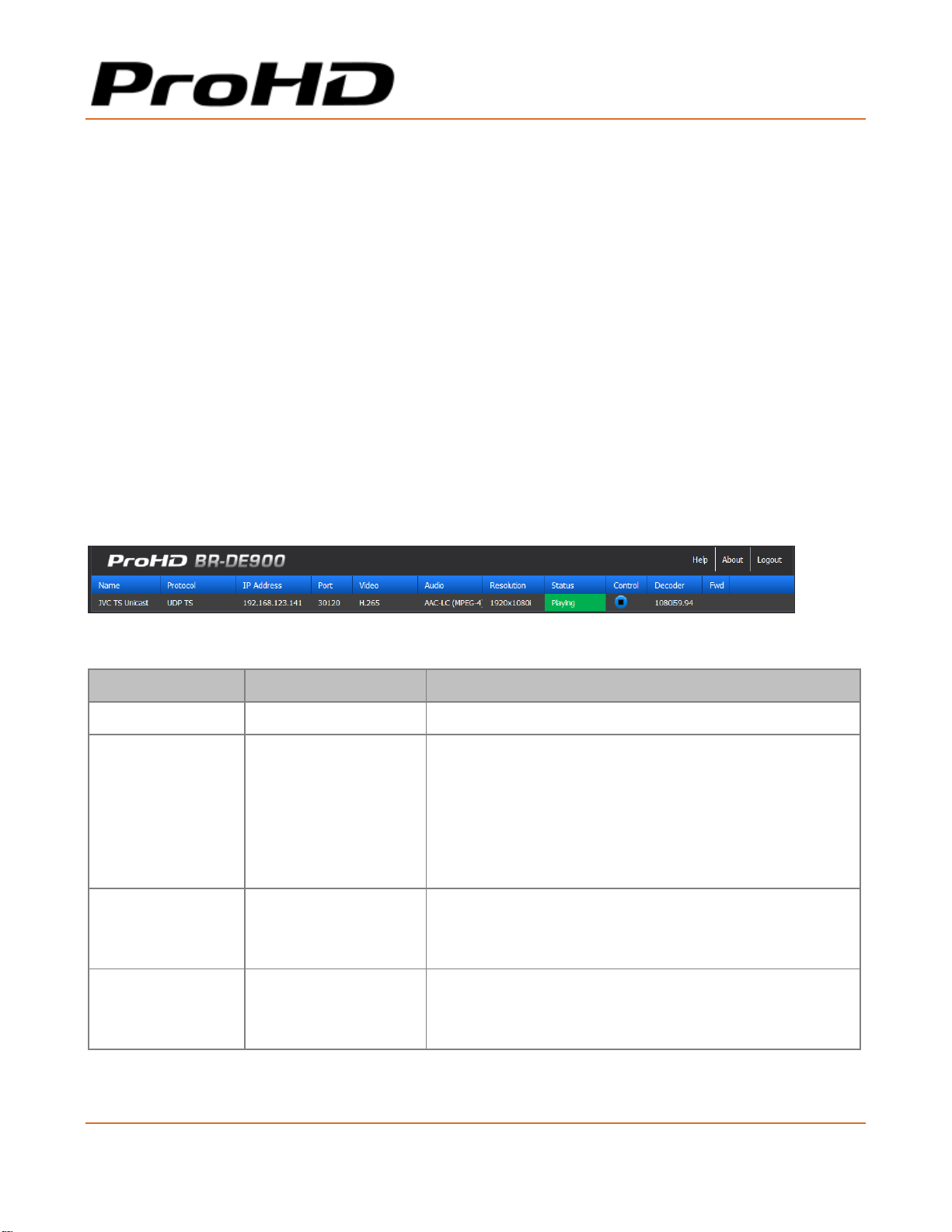
In the dashboard frame section, you can review the system configuration and parameters.
The Dashboard section displays the following information:
Parameter
Display
Description
Name
Channel name defined by the user
Protocol
• UDP TS
• RTP TS
• RTP ES (RTSP)
• Zixi™ Broadcaster
• Zixi™ P2P
• Pro-MPEG
Channel streaming protocol.
IP Address
• IP address
Displays the stream IP address.
While protocol used is Zixi™ Broadcaster or RTSP ES,
the streaming server IP address is displayed.
Port
Displays the stream port number.
While RTSP ES protocol is used, the server port is
displayed.
Page 22
ProHD BR-DE900 HEVC and H.264 Decoding Appliance
User Manual, Version 1.0 21
Video
• HEVC
• H.264
Displays the stream video codec
Audio
• AAC-LC
Displays the stream audio codec
Resolution
Displays the stream video resolution
Status
• Playing
• Started
• Stopped
• Error
Displays the status of the channel.
If the stream is not received and ProHD BR-DE900
has been started, "Started" is displayed.
Control
Play/Stop
Start / Stop the decoder.
If the stream is not received and ProHD BR-DE900
has been started, "Started" is displayed.
Decoder
Displays the decoder output resolution and frame
rate.
The Dashboard Page
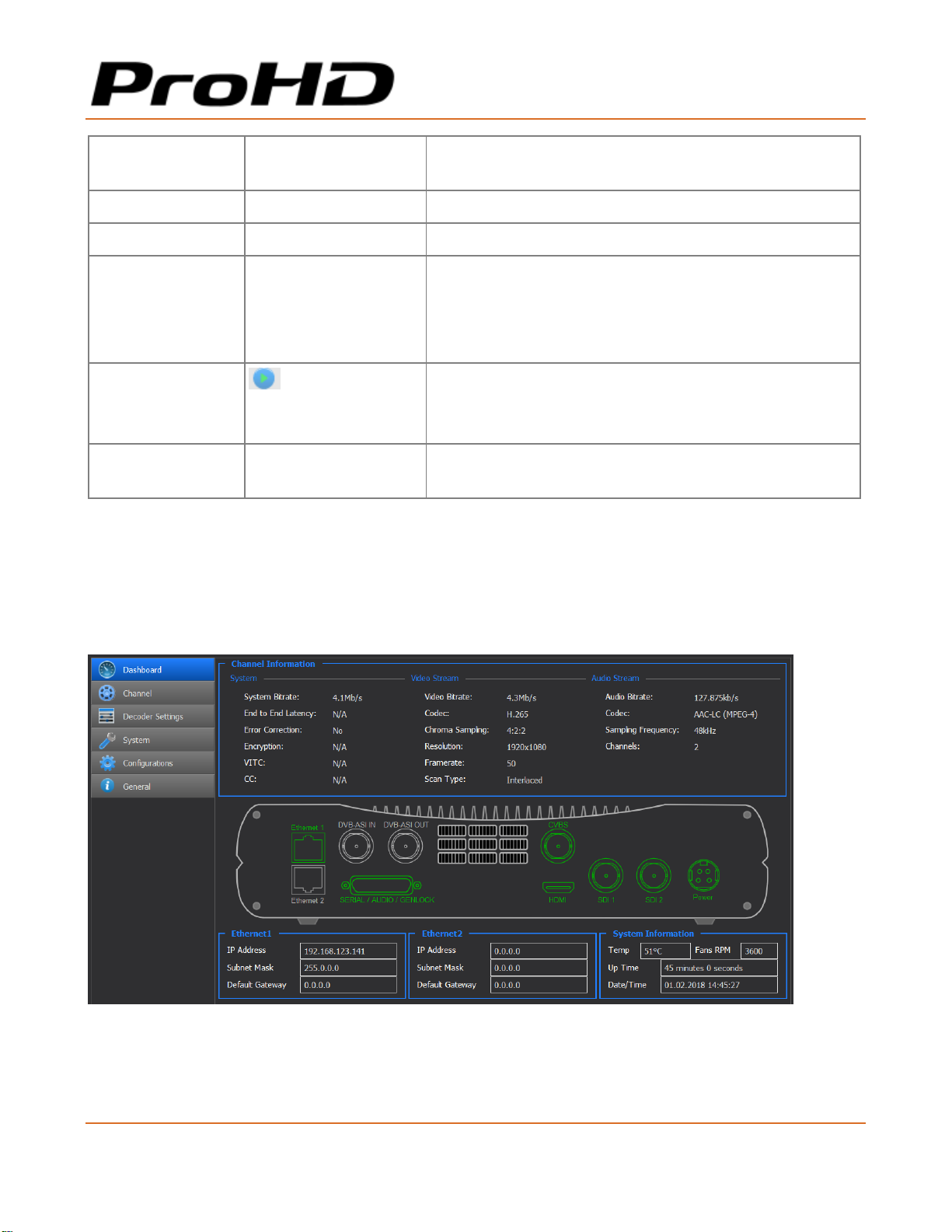
The dashboard is the main page displaying the appliance's view, and displays network information
for both network interfaces as well as an overall stream and traffic summary.
Interfaces being activated and/or used appear in green (see figure below).
Figure 4-1: The Dashboard page
Page 23
ProHD BR-DE900 HEVC and H.264 Decoding Appliance
User Manual, Version 1.0 22
To view the dashboard parameters:
1. From the main menu, select Dashboard. The following parameters are displayed:
NOTE:
The Dashboard page automatically polls the appliance hardware for the latest status of channels, streams and
sources. You may also manually refresh the Dashboard page (by either pressing the "F5" key on your keyboard
or re-clicking Dashboard), to obtain instantly the current state of the system whenever you configure any of the
following parameters: network interfaces, traffic, or rear panel connections.
Section
Description
Channel Information
System
• System Bitrates – Displays the incoming system network bitrate.
In case of several multicast streams on the network, the total
bitrate of these streams will be displayed.
• End to End Latency - N/A - for future usage.
• Error Correction - Indicates if the stream is protected by either
Zixi™ or Pro-MPEG protocol.
• Zixi™ Statistics: When a Zixi™ channel is decoded, click the info
button to access statistical Zixi™ information.
• Encryption – Indicates if an encrypted stream is being
decoded
• VITC - Indicates if VITC information is detected with the stream
(future)
• CC - Indicates if Closed Captioning information is detected with the
stream (future).
Video Stream
• Video Bitrate – Displays the incoming video bitrate.
• Codec - Displays the video codec within the stream.
• Chroma Sampling - Displays the chroma sampling of the stream.
• Resolution - Displays the stream resolution.
• Framerate - Displays the stream framerate.
• Scan Type - Displays if the stream is progressive or interlaced.
Audio Stream
• Audio Bitrate – Displays the incoming audio bitrate.
• Codec - Display the audio codec within the stream.
• Sampling Frequency- Display the audio stream sampling rate.
• Channels - Display the number of audio channels within the
stream.
Page 24
ProHD BR-DE900 HEVC and H.264 Decoding Appliance
User Manual, Version 1.0 23
Ethernet 1
• IP Address – Displays the Network Interface IP address.
• Subnet Mask – Displays the Network Interface subnet mask
address.
• Default Gateway – Displays the Network Interface Default
Gateway address.
Ethernet 2
• IP Address – Displays the Network Interface IP address.
• Subnet Mask – Displays the Network Interface subnet mask
address.
• Default Gateway – Displays the Network Interface Default
Gateway address.
System Information
• Temperature – Displays the system internal temperature.
• Fans RPM – Display current fan speed
• Up Time – Displays the uptime since last reboot.
• Date/Time – Display Date and Time.
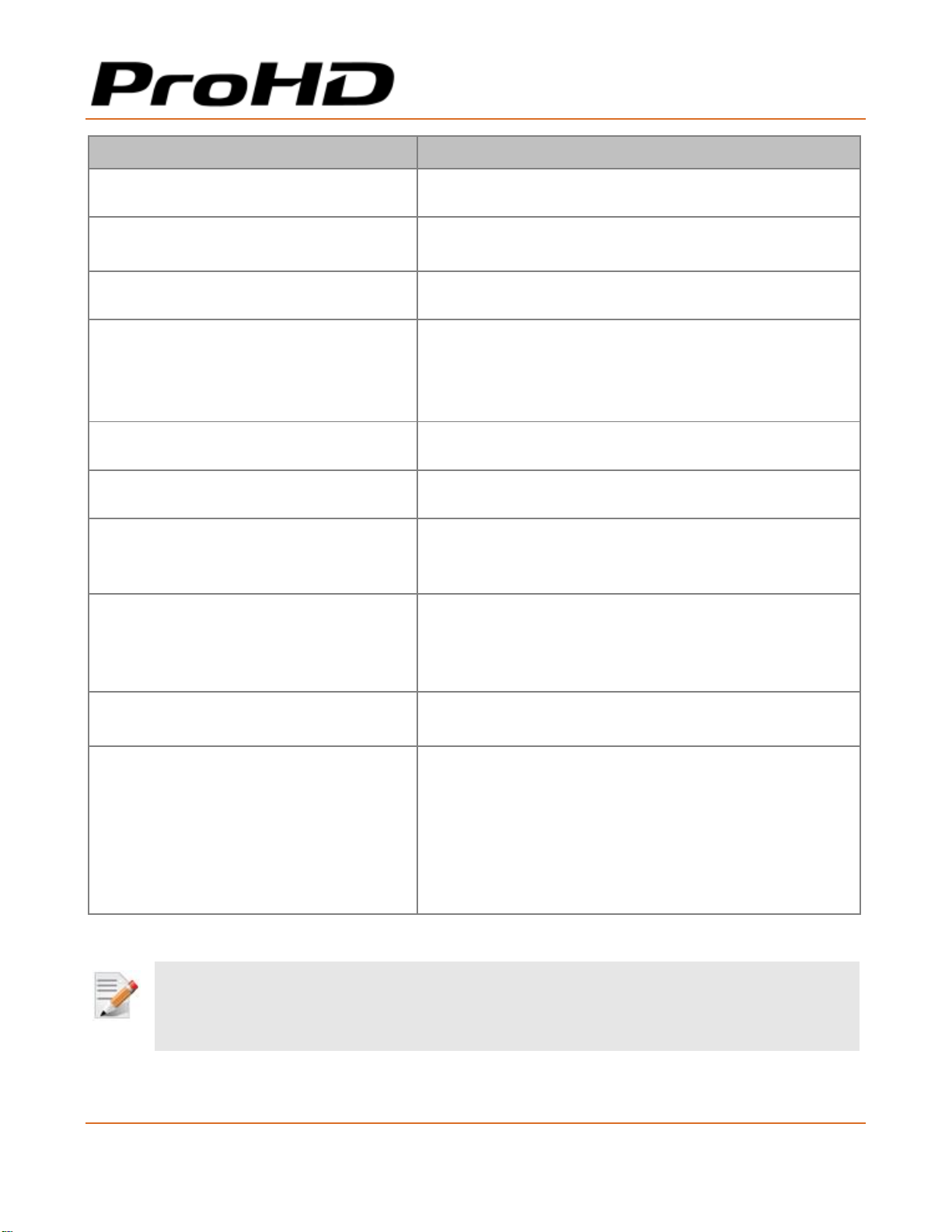
Zixi™ Statistics Information
1. When a Zixi™ channel is decoded, click the info button to access statistical Zixi™
information.
Page 25
ProHD BR-DE900 HEVC and H.264 Decoding Appliance
User Manual, Version 1.0 24
Parameter
Description
Total Bitrate (kbps)
Current bitrate of the incoming channel
Round Time Trip (ms)
Two-way delay between the encoder and decoder
(RTT)
Jitter (ms)
Network jitter
Latency (ms)
Stream Latency configured on the encoder side.
If the latency set is less than 3 times the RTT value,
then Latency value turns red to indicate non-sufficient
error recovery buffer size (refer to the note below)
Total Packets
Total number of packets already transmitted
Packet Rate
Current number of packets per second received
Packet Loss
The current percentage of dropped packets between
the encoder and decoder (the packet loss is introduced
by the network link)
Dropped Packets
Total number of packets dropped between the encoder
and the decoder due to the network link. The dropped
packets are recovered by Zixi™ technology (see below
parameters).
Recovered Packets
The total number of dropped packets that have been
recovered since the beginning of the streaming
Non-recoverable Packets
Total number of non-recovered packets since the
beginning of the streaming.
If the packet loss is lower than 30%, this number
should remain zero if the latency set on the encoder or
Zixi broadcaster is high enough, meaning no
interruption or decoding artifacts were experienced by
the viewer.
NOTE:
For getting sufficient error-recovery, it is recommended to set the Latency on the encoder side at least 3 times larger than
the RTT (i.e Latency >= 3* RTT).
Page 26
ProHD BR-DE900 HEVC and H.264 Decoding Appliance
User Manual, Version 1.0 25
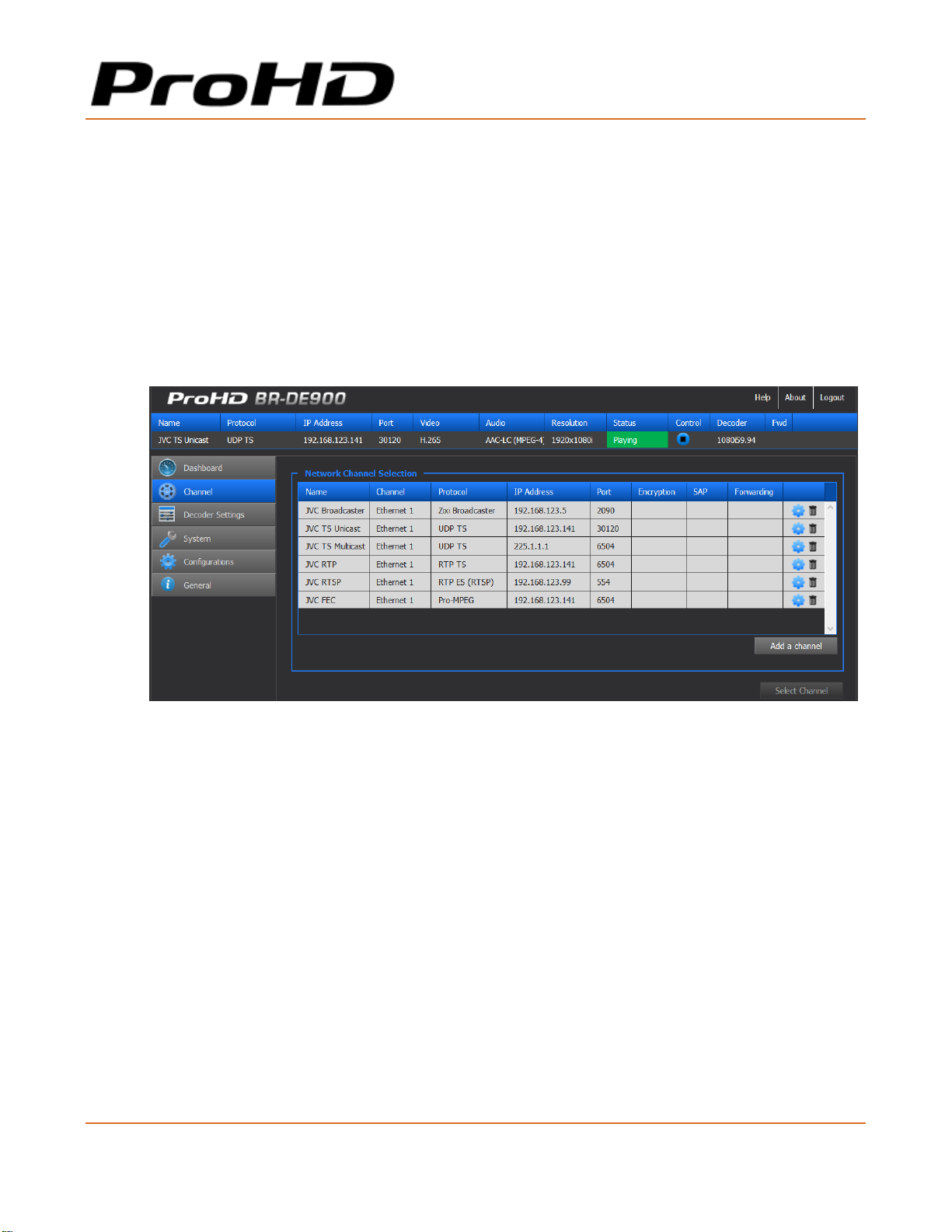
The Channel Page
In the Channel page, a list of channel can be set and saved. The following channel protocols are
supported:
• UDP TS
• RTP TS
• RTP ES (RTSP)
• Zixi™ Broadcaster
• Zixi™ P2P (if license is enabled)
• Pro-MPEG.
Figure 4-2: The Channel page
Page 27
ProHD BR-DE900 HEVC and H.264 Decoding Appliance
User Manual, Version 1.0 26
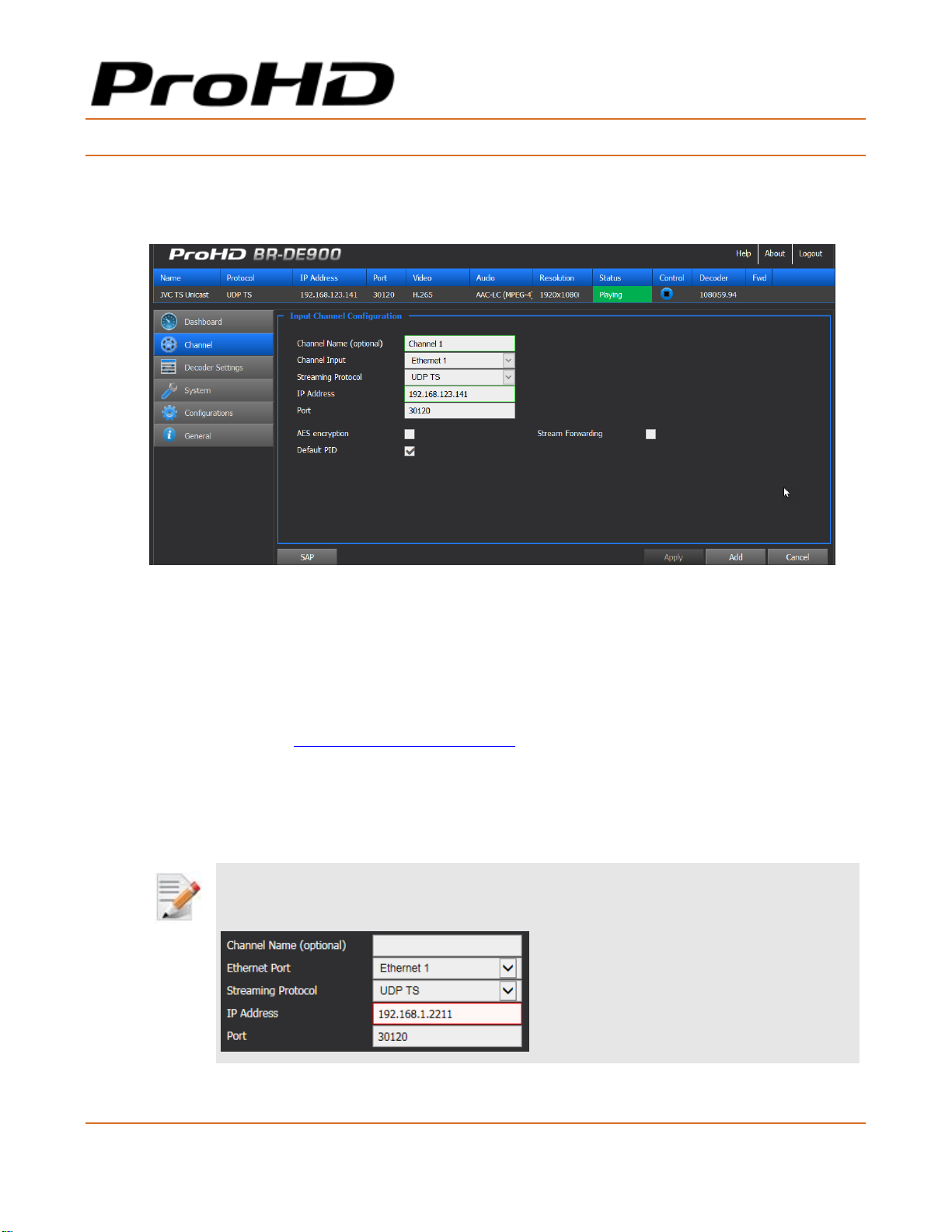
To set the channel parameters:
1. From the main menu, select Add a Channel.
2. The Input Channel Configuration page appears:
Figure 4-3: The Input Channel Configuration page
3. Set the channel fields (name….), as required
-Or-
4. Click SAP (bottom left) to display the list of channels announced by the Session
Announcement Protocol. SAP channel parameters are automatically configured. Refer to
the next section - Input Channel Configuration - for more information.
5. Click Add.
6. Refer to the Input Channel Configuration description in the next section for more
information.
NOTE:
A red frame appears when the entered value is not valid.
7. A new channel is added to the Network Channel Selection List.
Page 28
ProHD BR-DE900 HEVC and H.264 Decoding Appliance
User Manual, Version 1.0 27
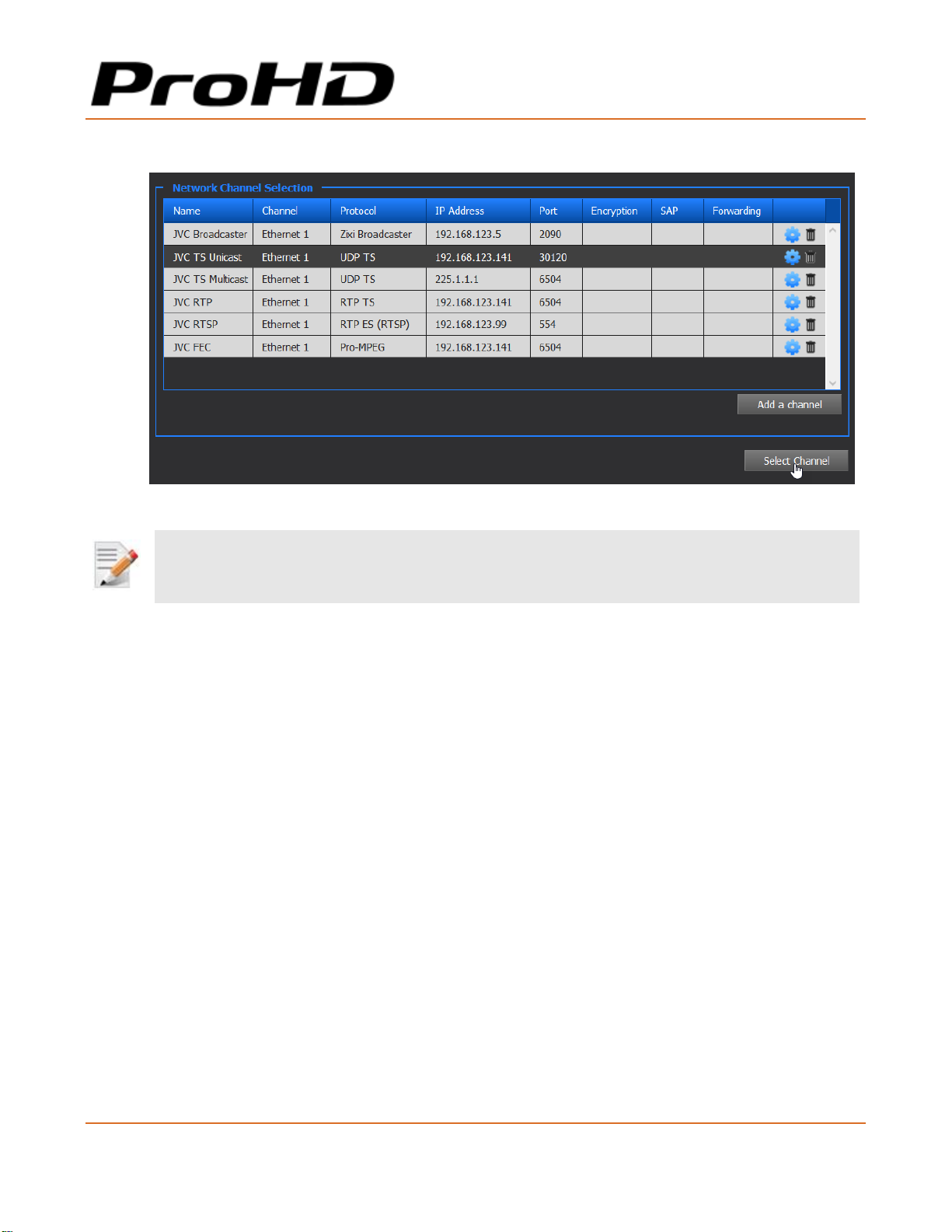
8. Select the channel to be decoded row within the list and click Select Channel.
Figure 4-4: The Network Channel Selection window
NOTE:
Channels can be modified or deleted using the settings or bin icons respectively.
Page 29
ProHD BR-DE900 HEVC and H.264 Decoding Appliance
User Manual, Version 1.0 28
Input Channel Configuration
Adding a SAP Channel
ProHD BR-DE900 allows to manually enter the parameters of a channel. It also supports the
Session Announcement Protocol (SAP) which allows to detect announced streams on a network for
auto channel configuration:
NOTE:
The SAP Listener feature must be enabled for adding a SAP Channel. Refer to The System Page (on page 35) for
instructions.
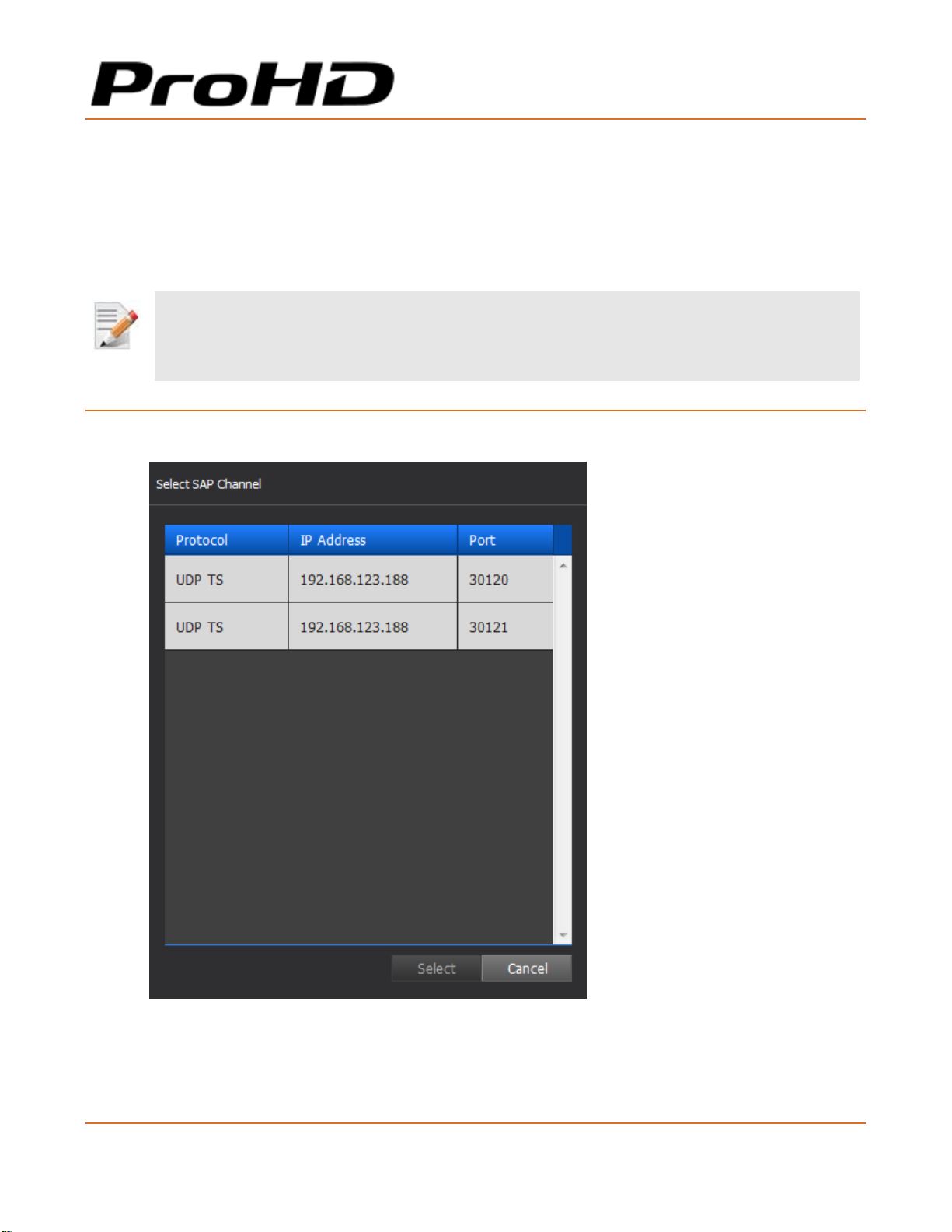
To add a channel using SAP:
1. Click SAP in the Input Channel Configuration page:
2. Select the desired channel row, and click Select.
3. The input channel configuration is now populated, add a Channel Name if required
(optional parameter).
Page 30
ProHD BR-DE900 HEVC and H.264 Decoding Appliance
User Manual, Version 1.0 29
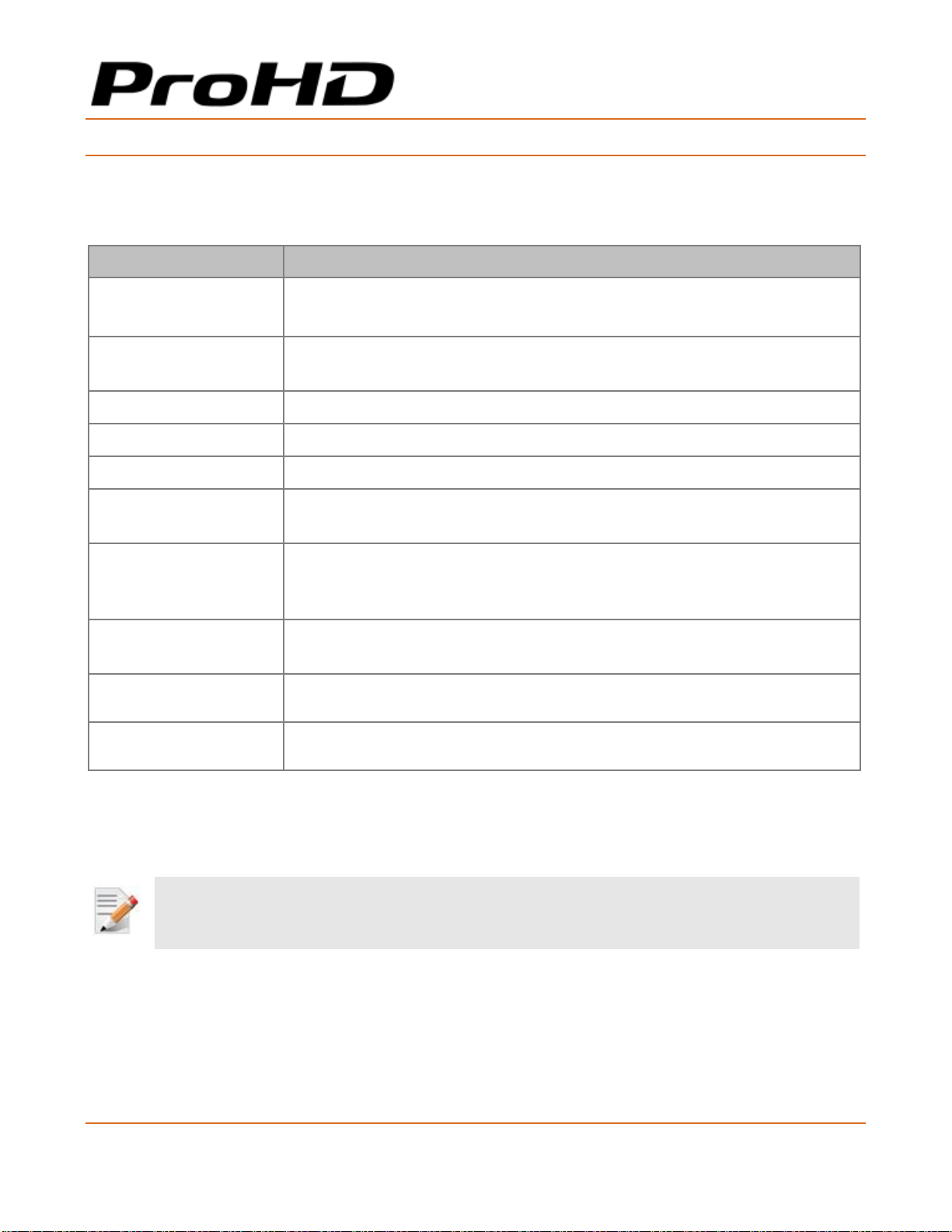
To manually add a channel:
If a channel does not appear within the SAP list, the channel can be manually set.
For UDP TS and RTP/RTSP channels:
Parameter
Description
Channel Name
(Optional)
Enter a Channel Name to differentiate channels within the Channel list.
The Channel name is an optional field.
Channel Input
Select the Channel Input from which the channel is received. Either
Ethernet Port 1, Ethernet Port 2 or DVB-ASI input can be selected.
Streaming Protocol
Select the required protocol.
IP Address
Type the channel IP address.
Port
Type the port number.
AES Encryption
Select if you wish to decode an encrypted channel. The AES key value
must be entered.
Default PID
By default, the decoder selects the first Video and Audio PID to be
decoded. In case another PID to be decoded is required, clear the check
box and enter the values accordingly.
Program PID
Set the program PID to be selected. Only available when Channel Input
selected is DVB-ASI.
Video PID
Set the Video PID to be decoded
Audio1/2 PID
Set the Audio PID to be decoded for each audio pair (1 and 2)
For RTP ES (RTSP) channel:
In addition to the parameters specified in the table above, type the path of the SDP file residing
on the RTP server (Stream Name).
NOTE:
You must click Apply for the new settings to be saved.
Page 31
ProHD BR-DE900 HEVC and H.264 Decoding Appliance
User Manual, Version 1.0 30
Zixi™ Channels
NOTE:
The Zixi™ protocol supports two modes:
• Zixi™ Broadcaster Server.
• Zixi™ P2P: Point-to-Point streaming directly from a JVC encoder. A license is required to support this mode.
When streaming using Zixi™ Broadcaster Server, the BR-DE900 pulls video from one of the server’s inputs. Enter the
Zixi™ Server IP address and Stream ID / Password for the associated input (do not attempt to create a new output on the
server).
When streaming directly from an encoder, enter the stream port to match the encoder settings.
For Zixi™ Broadcaster channel:
Parameter
Description
Channel Name
(Optional)
Enter a Channel Name to differentiate channels within the Channel list.
Channel name is optional.
Ethernet Port
Select the Ethernet Port from which the channel is received.
Streaming Protocol
Select Zixi™ Broadcaster.
IP Address
Type the Zixi™ server IP address.
Port
Type the Zixi™ server port.
Stream Name
Type the channel name entered in Zixi™ server.
Password (Optional)
Type the password if required.
Latency
Type the latency value for the Broadcaster server. It should match the
latency value that is set on the Zixi™ Broadcaster.
Page 32
ProHD BR-DE900 HEVC and H.264 Decoding Appliance
User Manual, Version 1.0 31
For Zixi™ Point-to-point channel (a license is required):
Parameter
Description
Streaming Protocol
Select Zixi™ P2P.
Port
Type the Channel port
NOTE: Zixi™ point-to-point streaming from JVC appliances
Zixi™ Point-to-point license is included when ProHD BR-DE900 is used in conjunction with JVC encoders and cameras.
To start using point-to-point Zixi™ streaming between ProHD BR-DE900 and JVC encoders/cameras:
• Verify that the JVC encoder and the BR-DE900 can communicate (the gateways should be properly configured).
• Set Zixi™ as the protocol on both ProHD BR-DE900 and the JVC encoder.
• Set the JVC encoder Target Address by entering ProHD BR-DE900 system IP address (Zixi™ is unicast address only).
• Set the same target port on both ProHD BR-DE900 and JVC encoder.
Start the ProHD BR-DE900 by clicking Play.
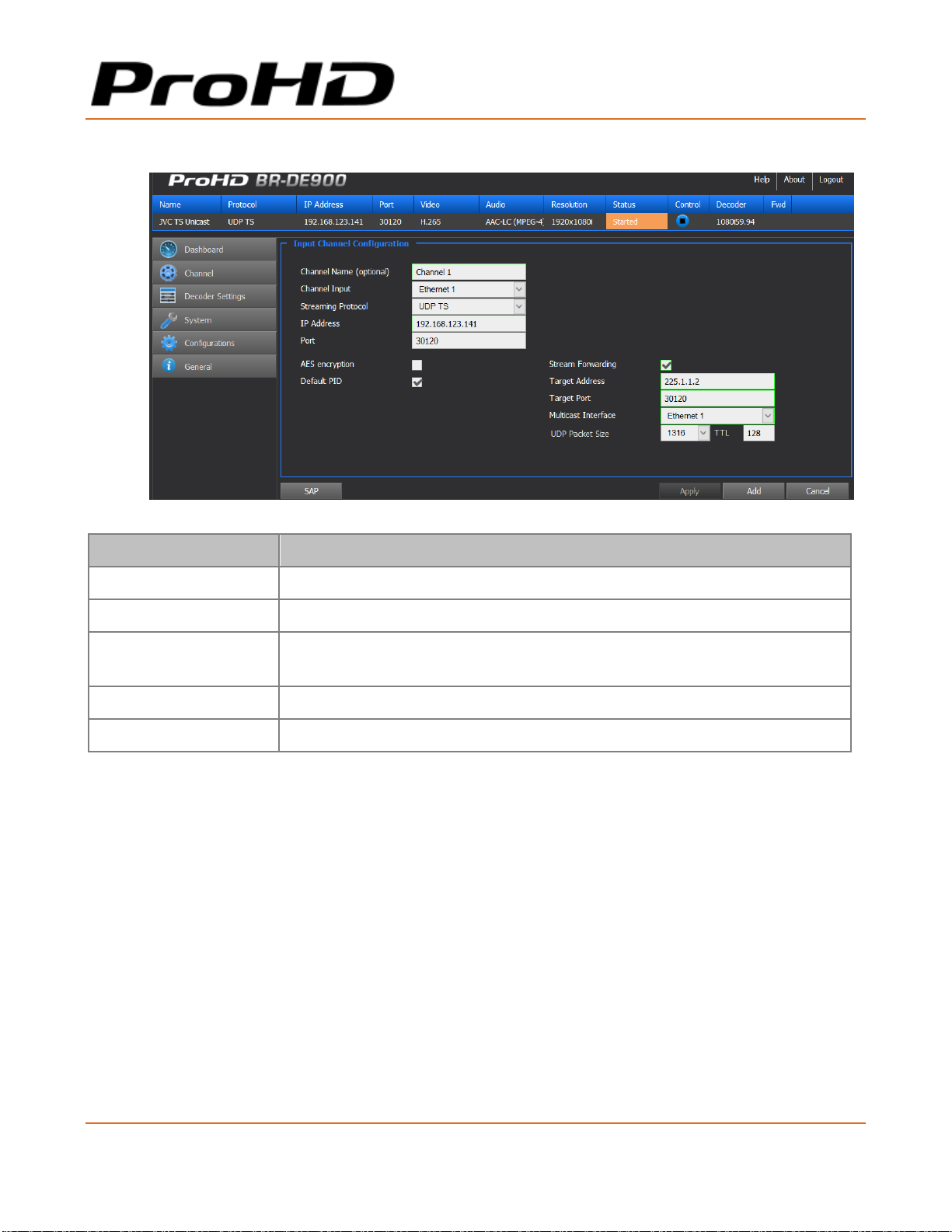
Stream forwarding:
ProHD BR-DE900 allows to forward an incoming UDP TS,Zixi™ (P2P or from a Zixi™ Broadcaster)
or Pro-MPEG channel to a UDP TS channel over IP (unicast or multicast).
1. To activate stream forwarding, click "Stream Forwarding".
Page 33
ProHD BR-DE900 HEVC and H.264 Decoding Appliance
User Manual, Version 1.0 32
2. Enter the following parameters:
Parameter
Description
Target Address
Enter the Target IP Address
Target Port
Enter the Target IP Port number
Multicast Interface
When a multicast address is specified in the target field, select the
Ethernet Port where the stream shall be transmitted to.
UDP Packet Size
Select the UDP Packet Size value
TTL
Enter the TTL value
Page 34
ProHD BR-DE900 HEVC and H.264 Decoding Appliance
User Manual, Version 1.0 33
For Pro-MPEG channel:
Parameter
Description
Channel Name
(Optional)
Enter a Channel Name to differentiate channels within the Channel list.
Channel name is optional.
Ethernet Port
Select the Ethernet Port from which the channel is received.
Streaming Protocol
Select Pro-MPEG protocol.
IP Address
Type the channel IP address.
Port
Type the port number of the main input stream.
1-D Port Number
Type the port number through where columns checksums will be sent.
2-D Port Number
Type the port number through where rows checksums will be sent when
the 2-D mode is selected.
The Decoder Settings Page
In the Decoder Settings page, the below parameters can be set:
• Video
• Audio
• Decoder
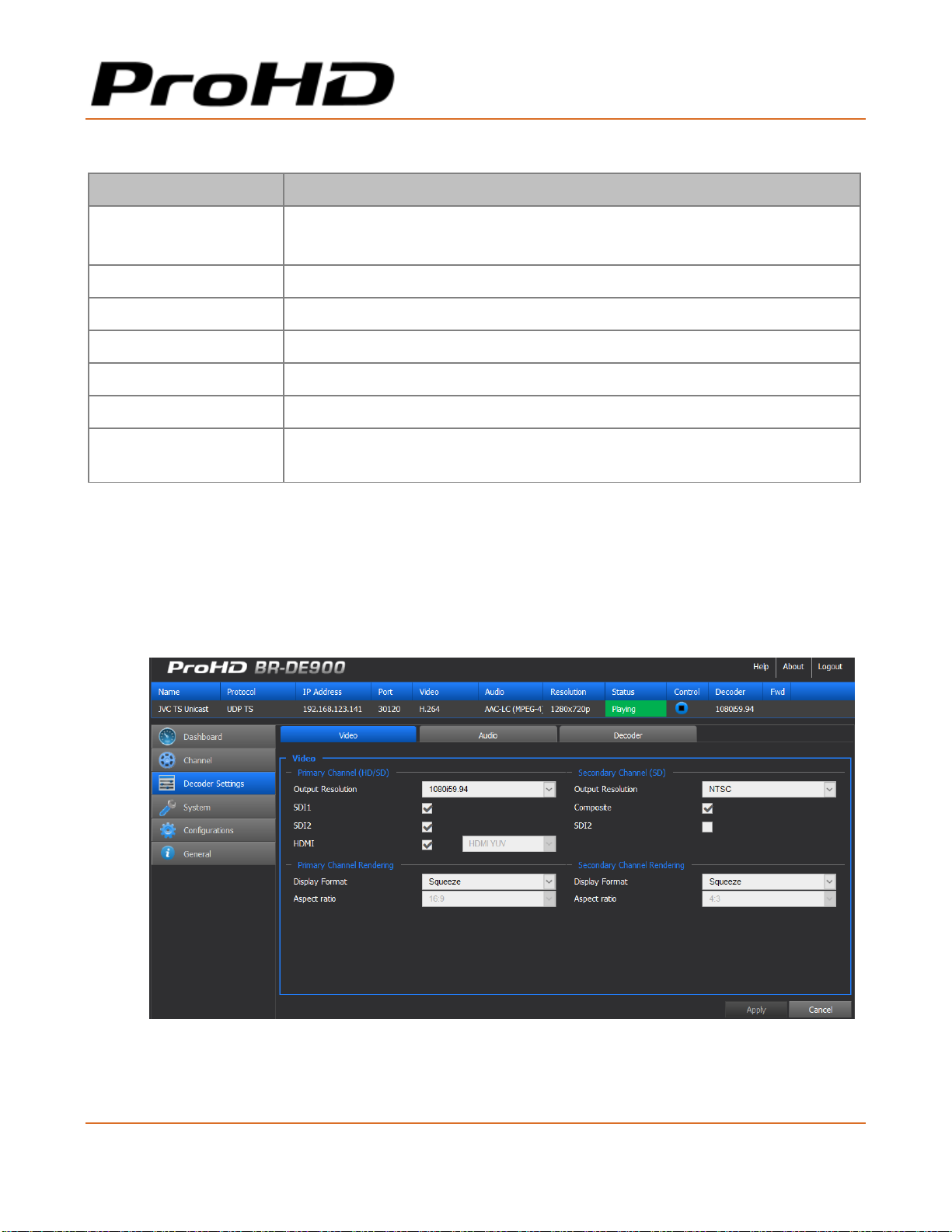
Figure 4-5: The Decoder Settings Video page
Page 35
ProHD BR-DE900 HEVC and H.264 Decoding Appliance
User Manual, Version 1.0 34
To set Video parameters:
This section sets video output settings. Video outputs are split into two channels:
• Primary Channel: SDI1/SDI2 (3G/HD/SD-SDI) and HDMI outputs can be configured.
• Secondary Channel: SDI2 (SD-SDI) and Composite outputs can be configured.
NOTE:
The Secondary channel is a downscaled version of the primary channel.
Parameter
Description
Output Resolution
(for each channel)
Select the required resolution from the drop-down list.
SDI1 / HDMI
SDI2 / Composite
Enable video outputs when the box is selected.
SDI2 can be configured as part of the Primary channel or
Secondary channel.
Display Format
Select the preferred display from the drop-down list.
Aspect Ratio
Select the aspect ratio from the drop-down list. When "Auto" is
selected the aspect ratio is determined according to the aspect
ratio of the incoming stream parameter (planned for next
versions).
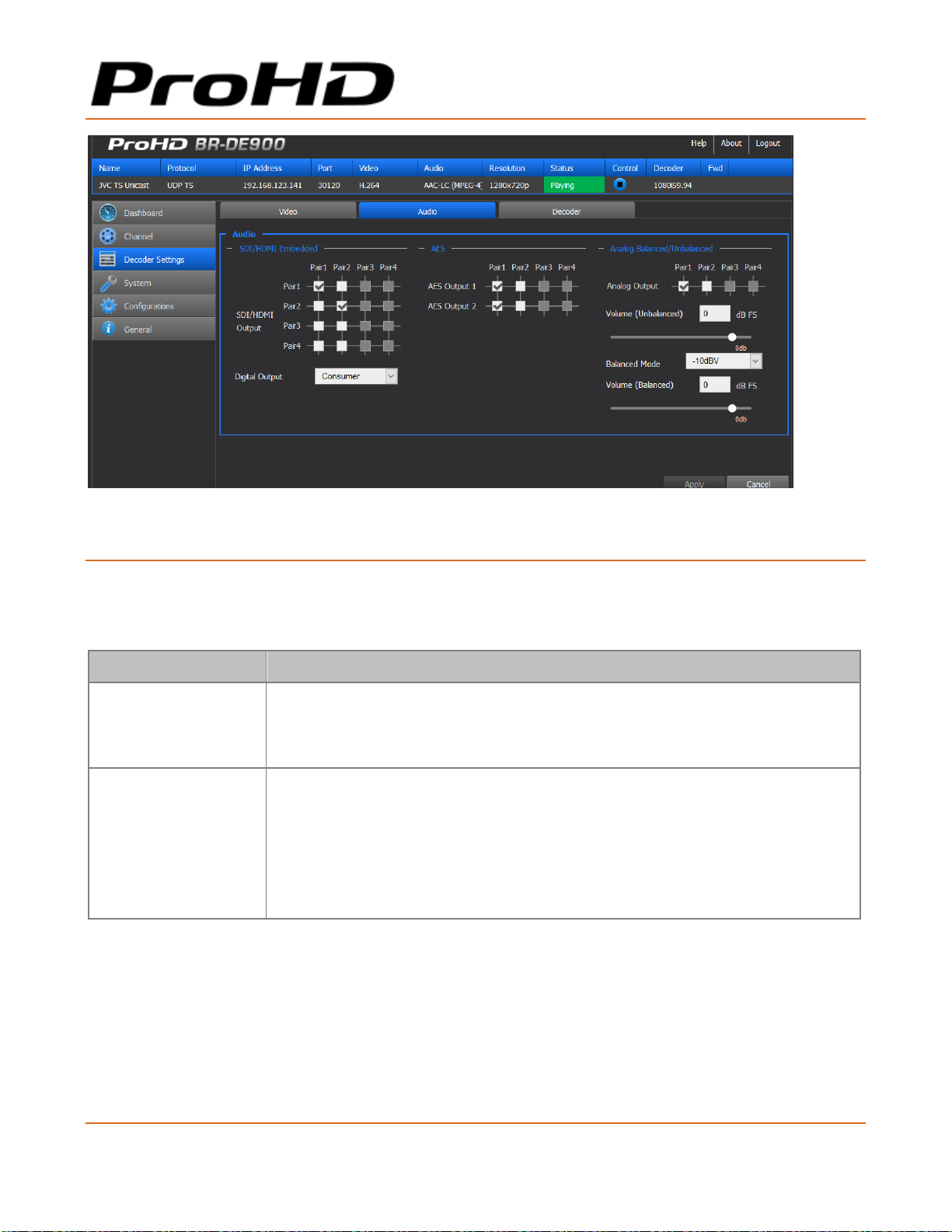
To configure Audio Settings:
This section sets audio routing for:
• SDI1/SDI2 and HDMI outputs
• Digital AES 1 and 2 unbalanced outputs. It is possible to set if AES or S/PDIF format is
outputted (respectively Consumer or Professional).
• Analog Balanced and Unbalanced audio outputs. The volume can be adjusted
independently for the audio analog balanced and unbalanced outputs.
Page 36
ProHD BR-DE900 HEVC and H.264 Decoding Appliance
User Manual, Version 1.0 35
Figure 4-6: The Decoder Settings Audio page
To set the Decoder parameters:
1. From the main menu, select Decoder Settings.
2. Set the following parameters as required in each section and click Apply.
Parameter
Description
Decoder Clock
Source
Select source clock either from:
Stream clock
Genlock input clock (planned for next versions).
Decoder Buffer
(ms)
Type the decoder buffer value (0-1500ms). This parameter is used for
handling network jitter, allowing smooth playback. The bigger the buffer,
the higher the latency.
If staggering occurs, increase the buffer value until reaching a smooth
decoding.
The default buffer value should comply to most streams.
Page 37
ProHD BR-DE900 HEVC and H.264 Decoding Appliance
User Manual, Version 1.0 36
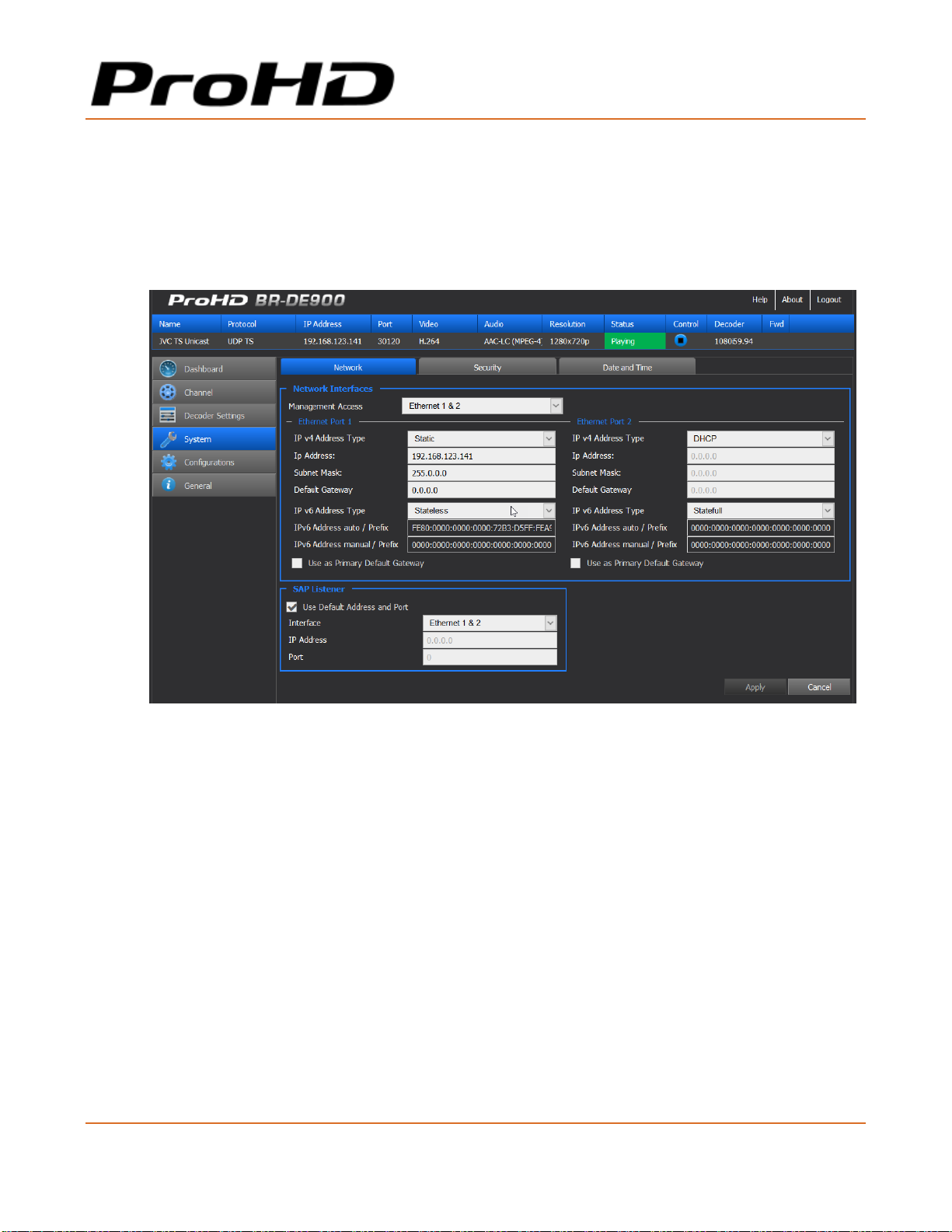
The System Page
In the System page you set the parameters of the following tabs:
• Network Interfaces
• Date and Time
• Security
Figure 4-7: The System page
Page 38
ProHD BR-DE900 HEVC and H.264 Decoding Appliance
User Manual, Version 1.0 37
System Parameters:
1. From the main menu, select System.
2. Set the fields in each of the following sections below, as required, and click Apply.
To set the Network Interfaces:
Two network interfaces are available. Each one can be used for either management and/or
streaming.
For easier management of the system, Ethernet Port 1 and 2 can be configured in DHCP mode. If
DHCP mode is selected, the system will obtain the IP address automatically from the DHCP server.
Parameter
Description
Management Access
Select the Ethernet Port used for management
(Ethernet Port 1, 2 or 1&2)
IPv4 Address Type
Select either Static, DHCP, or DHCP+Zeroconf.
Zeroconf allows the unit to get an IP address
automatically without DHCP server on the network.
To retrieve the system IP address (see "Retrieving
or Setting Network Parameters through a USB
Thumb Drive (on page 16)" for more information).
IP Address
Enter IPv4 Address if Static mode is selected
Subnet Mask
Enter Subnet Mask if Static mode is selected
Default Gateway
Enter default Gateway if Static mode is selected
IPv6 Address Type
Select either Static, Statefull or Stateless.
Static – enter the Static IPv6 address.
Stateless - when there is no concern with the
exact addresses the host use.
Statefull - when more precise control over exact
address assignments is required.
IPv6 Address auto/prefix
Displays the IP/Prefix address.
IPv6 Address manual/prefix
Enter a static IP/Prefix address.
Default Gateway
Select which Ethernet port settings to be used as
the default gateway.
Page 39
ProHD BR-DE900 HEVC and H.264 Decoding Appliance
User Manual, Version 1.0 38
NOTE:
You must click Apply for the new settings to be saved.
To set SAP:
Parameter
Description
Use default SAP
address and port
Use the default Session Announcement Protocol multicast group and port
as per RFC 2974.
Interface
Select which Ethernet interface listens to the SAP.
IP Address
Set the target multicast IP address to which SAP messages will be sent.
Port
Set the target port to which SAP messages will be sent.
NOTE:
You must click Apply for the new settings to be saved.
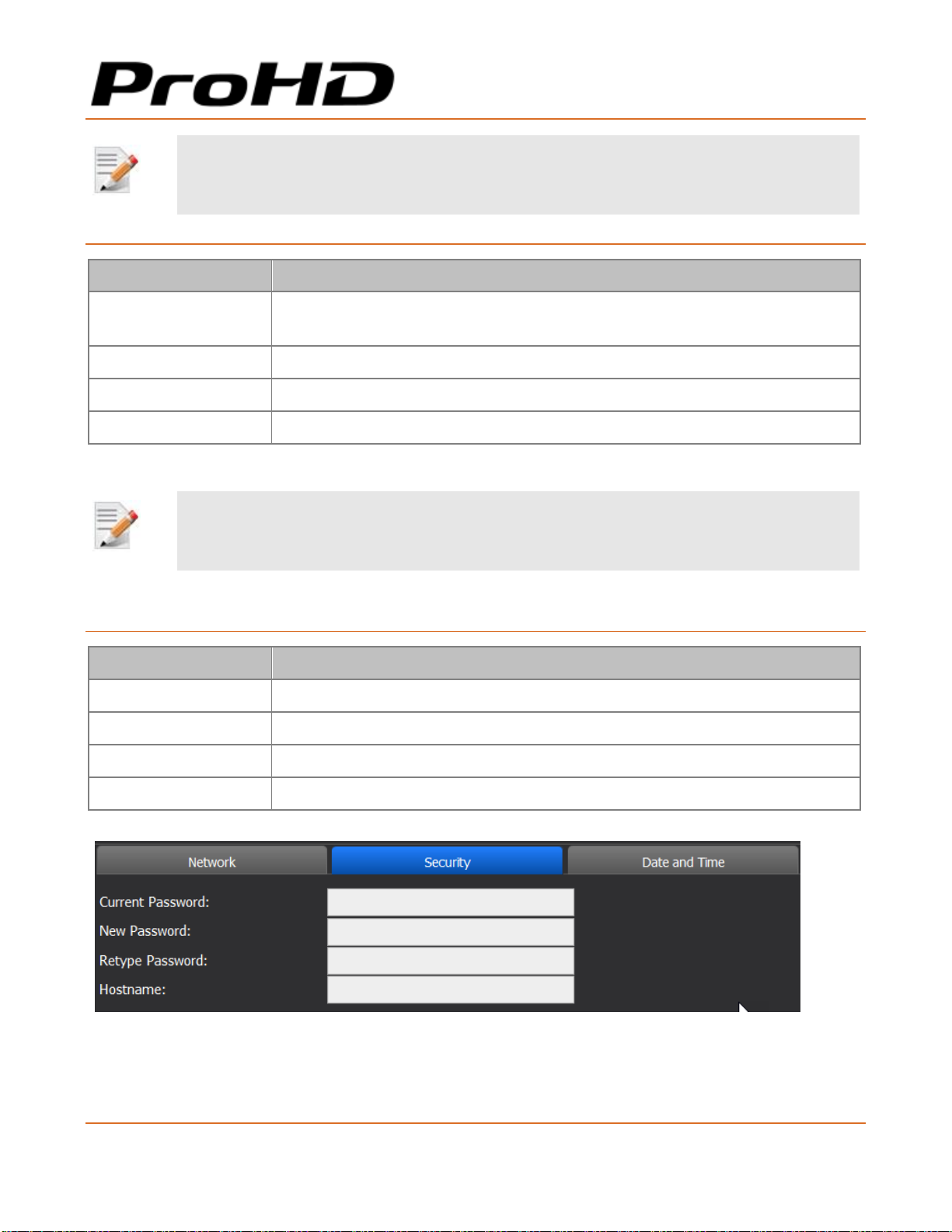
To set Security:
Parameter
Description
Current Password
Type the current password.
New Password
Type the new password (7-16 characters).
Re-Type Password
Re-type the new password.
Host Name
Host name is "BR-DE900_<SN>" where SN is the system serial number.
Figure 4-8: The Security page
Page 40
ProHD BR-DE900 HEVC and H.264 Decoding Appliance
User Manual, Version 1.0 39
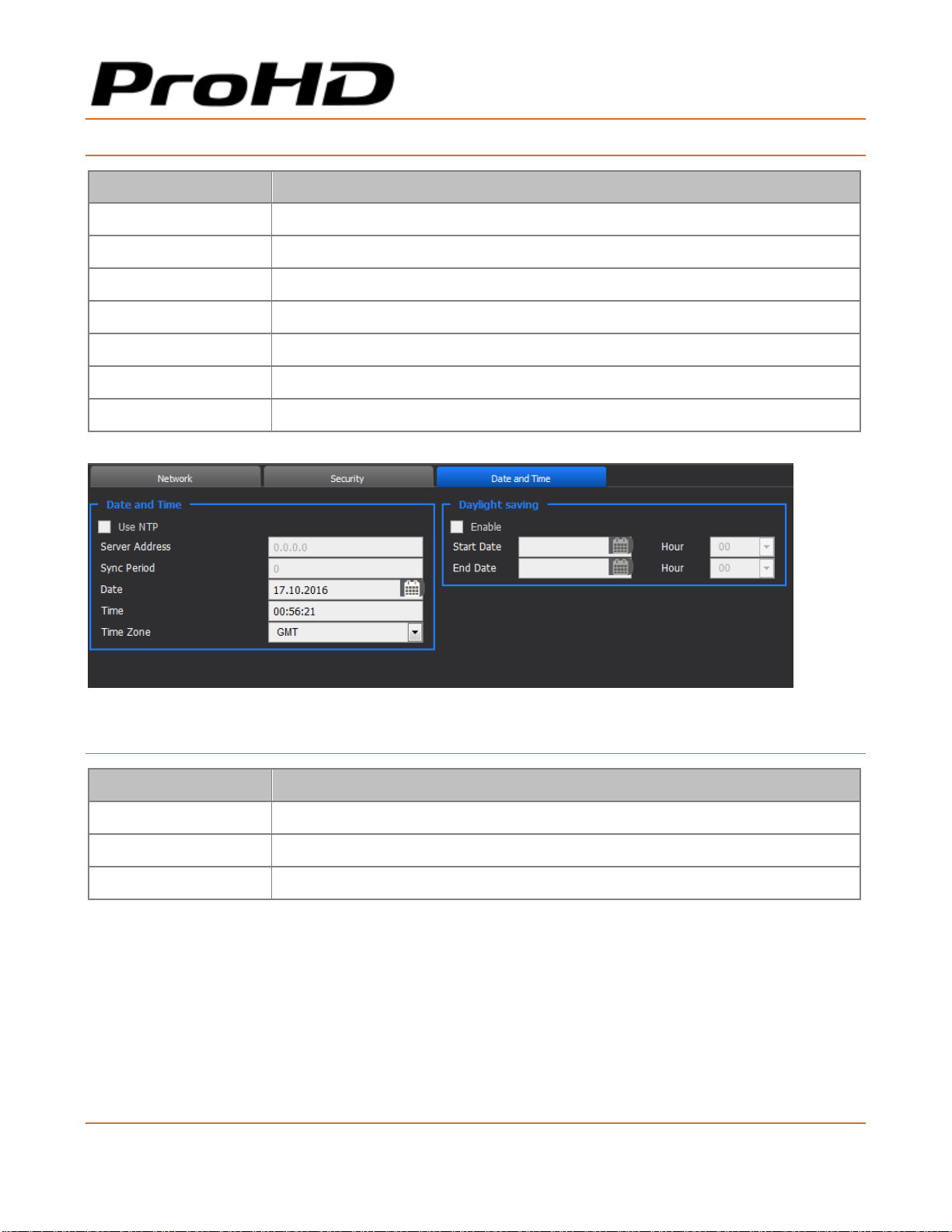
To set Date and Time:
Parameter
Description
Use NTP
Select the box to enable synchronization with the NTP server.
Server Address
Enter the NTP server address.
Sync Period
Enter the synchronization period.
Date
Set the date.
Time
Set the time.
Time Zone
Set the time zone.
Daylight Saving
See instructions below.
Figure 4-9: The Date and Time page
To set Daylight saving:
Parameter
Description
Enable
Select the box to enable daylight saving.
Start Date
Set the daylight saving start date.
End Date
Set the daylight saving end date.
Page 41
ProHD BR-DE900 HEVC and H.264 Decoding Appliance
User Manual, Version 1.0 40
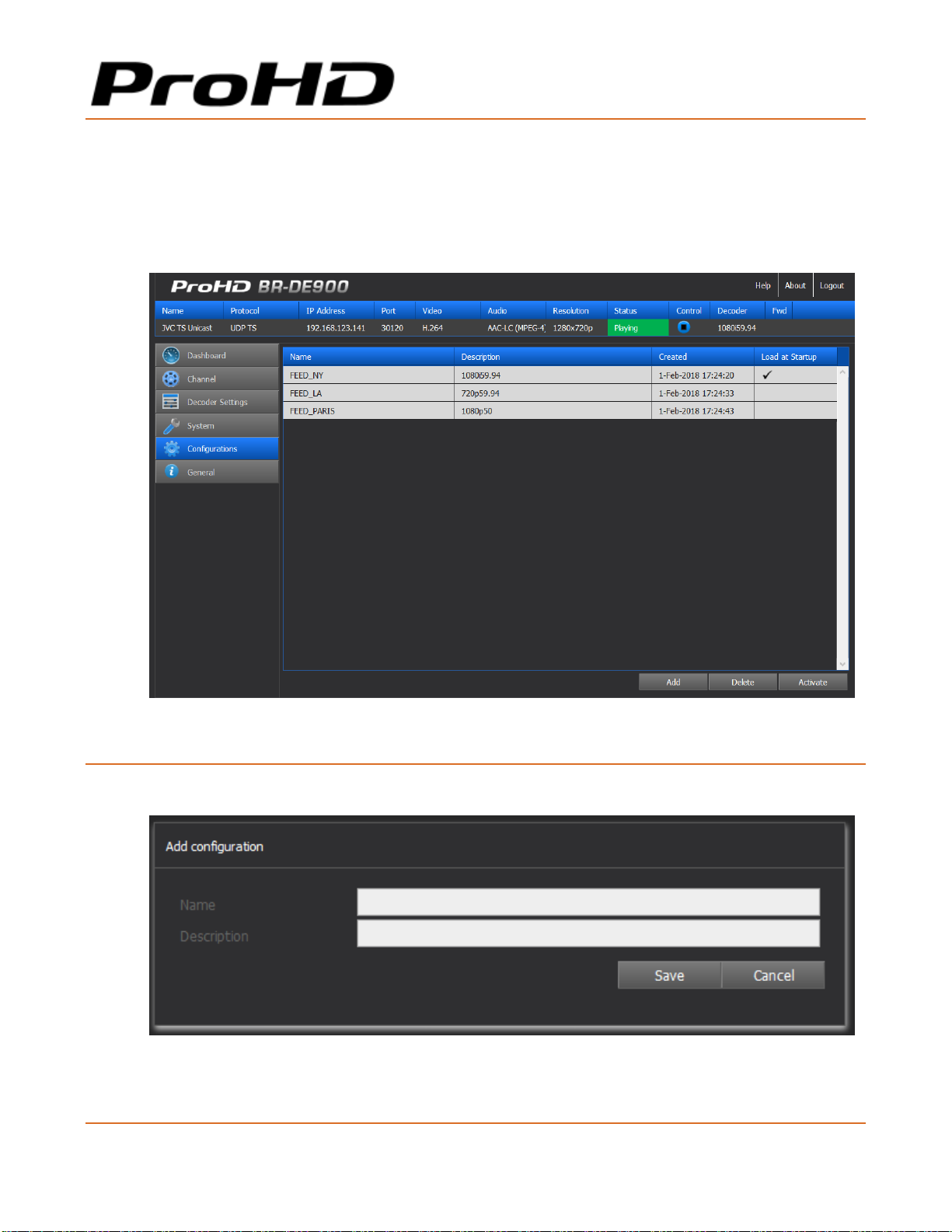
The Configurations Page
ProHD BR-DE900 allows you to save screen shots of various configurations to be loaded manually
or automatically in the future
In the Configurations page you can add, delete, Activate and Auto start a channel configuration.
Figure 4-10: The Configurations page
To add a configuration:
1. Click Add.
Figure 4-11: The Add Configuration window
2. Type the configuration name and description.
Page 42
ProHD BR-DE900 HEVC and H.264 Decoding Appliance
User Manual, Version 1.0 41
3. Click Save. The new configuration appears on the top row.
To activate a configuration:
1. Select the desired configuration row.
2. Click Activate to activate the configuration. The activated configuration is applied.
To delete a configuration:
1. Select the desired configuration row.
2. Click Delete to delete the configuration.
To activate a configuration on boot up:
1. Select the desired configuration row.
2. Click the desired configuration row under the Load at Startup column. The icon
appears in the Load at Startup column in the relevant configuration row.
On next reboot, the selected configuration will load automatically.
NOTE:
• The configuration saves all ProHD BR-DE900 parameters and status. If the configuration was saved while in
Stop mode, the system will return to that state while loading the configuration.
• For the appliance to automatically start decoding at boot up, ensure the configuration is saved while
"Playing" a stream.
Page 43
ProHD BR-DE900 HEVC and H.264 Decoding Appliance
User Manual, Version 1.0 42
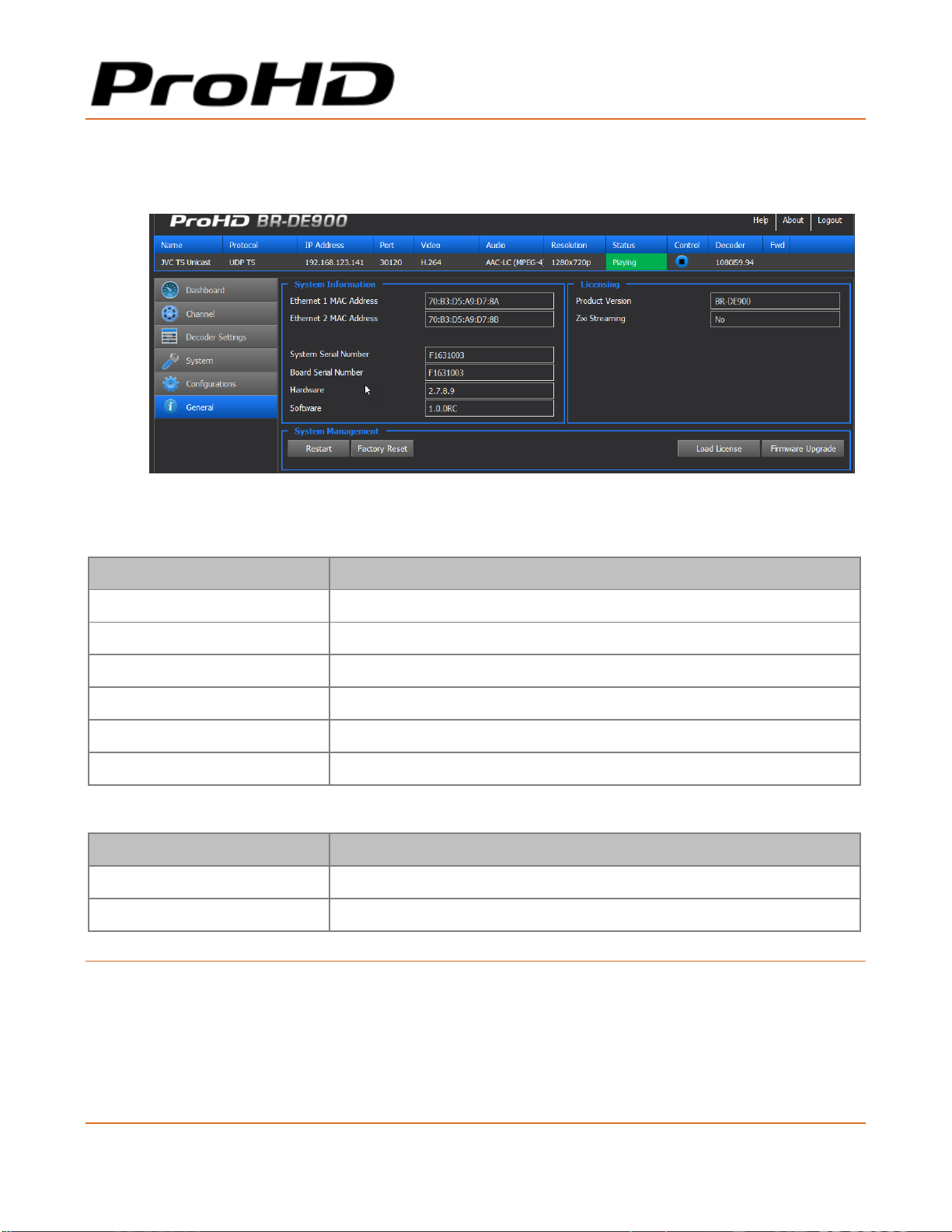
The General Page
In the General page you can view appliance related parameters and perform firmware upgrades.
Figure 4-12: The General page
System Information parameters:
Parameter
Description
Ethernet 1 MAC Address
Displays the Network Interface #1 MAC Address.
Ethernet 2 MAC Address
Displays the Network Interface #2 MAC Address.
System Serial Number
Displays the system serial number.
Board Serial Number
Displays the video board serial number.
Hardware
Displays the current hardware revision.
Software
Displays the active software version.
Licensing:
Parameter
Description
Product Version
Displays the Product version name
Zixi™ Streaming
Displays the Zixi™ P2P license status
To restart the appliance:
1. Click Restart to restart the appliance.
Page 44
ProHD BR-DE900 HEVC and H.264 Decoding Appliance
User Manual, Version 1.0 43
To restore factory settings:
1. Click Factory Reset to reset all parameters to default factory values.
NOTE:
• The Factory Reset function will return the unit to its default IP settings: 192.168.1.2 with subnet
mask 255.255.255.0 (Ethernet1) and DHCP mode for Ethernet 2.
• To connect from Ethernet 1, if you are connected to the unit from a PC on a different subnet,
reconfigure your computer to the 192.168.1.x subnet to gain access to the unit and modify its
settings for network use.
• To connect from Ethernet2, ensure you are connected to DHCP router, and retrieve the IP address
of ProHD BR-DE900 using the USB key procedure (or define an IP address to ProHD BR-DE900
based on its MAC Address).
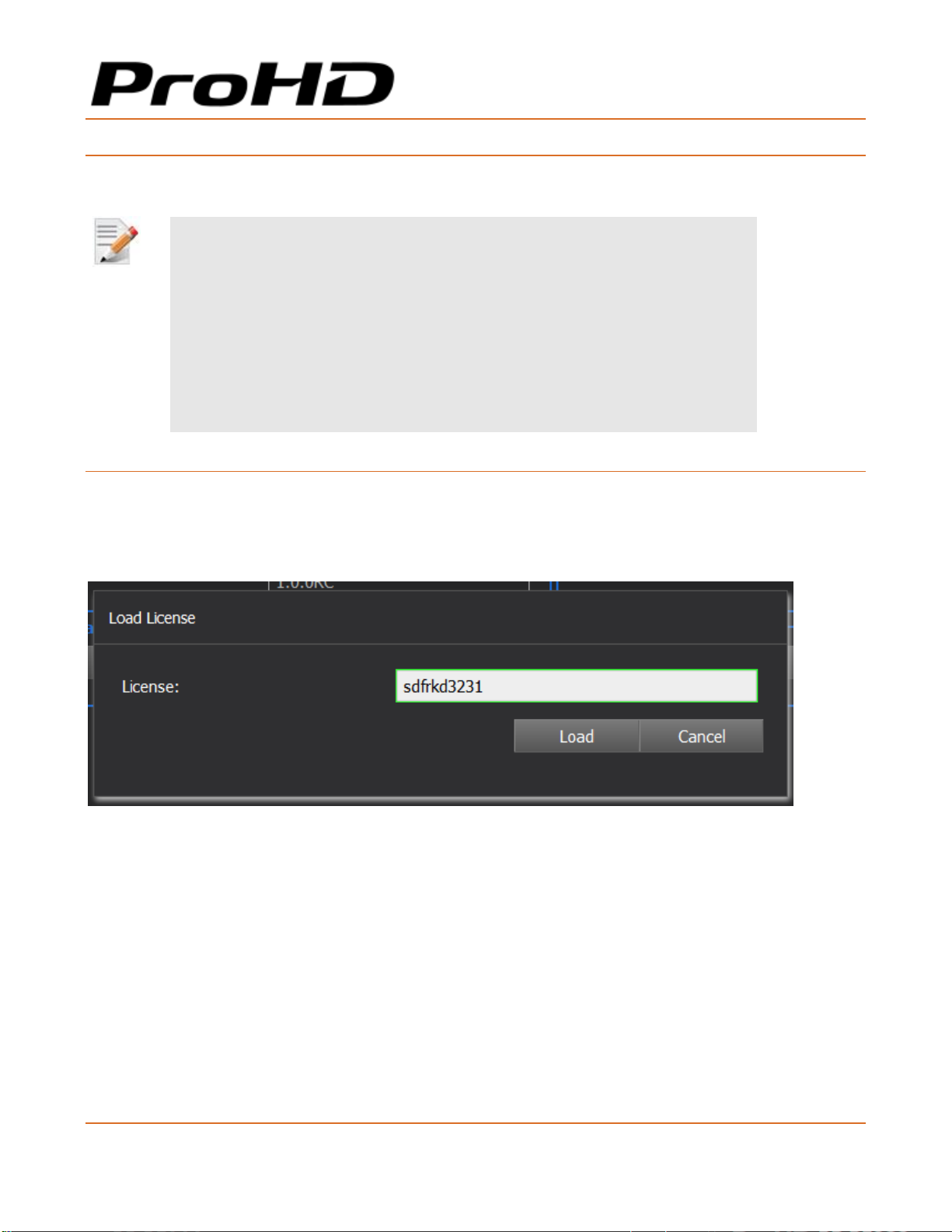
To load a Zixi™ license:
1. Click Load License to load the Zixi™ license number.
2. To get a Zixi™ license number, contact your JVC sales representative. The System Serial
Number will be requested to generate the license
Page 45

User Manual, Version 1.0 44
CHAPTER 5
In This Chapter
Upgrading the Firmware ................................................................................ 44
Upgrading the Firmware
Important Notes Prior to Upgrade
JVC periodically releases new firmware versions that include critical updates as well as feature
enhancements.
ProHD BR-DE900 firmware and software upgrade process involves uploading a .TAR file within the
unit HTTPS user interface, allowing the unit to extract the required files and perform internal
updates. Uploading time of the upgrade file can take up to few minutes and may vary from one
computer to another. It also depends on network speed and the connection's quality between the
computer and the ProHD BR-DE900 appliance. On regular LAN, it takes only few seconds.
During the upgrade, while the file is uploaded, the web based HTTPS interface polls the unit
status. This polling attempt occurs also during the actual execution of the upgrade inside the
appliance. To avoid interruption to the upgrade process, do not close the active browser window
used for uploading the file.
Read carefully the step-by-step procedure below and pay extra attention to notes and warnings.
To upgrade ProHD BR-DE900 Firmware version:
1. Send JVC your upgrade firmware request.
2. Click the General tab.
3. Click Firmware Upgrade. The Load Firmware window appears.
4. Click Browse. A browser window opens.
Firmware Upgrade
Page 46
ProHD BR-DE900 HEVC and H.264 Decoding Appliance
User Manual, Version 1.0 45
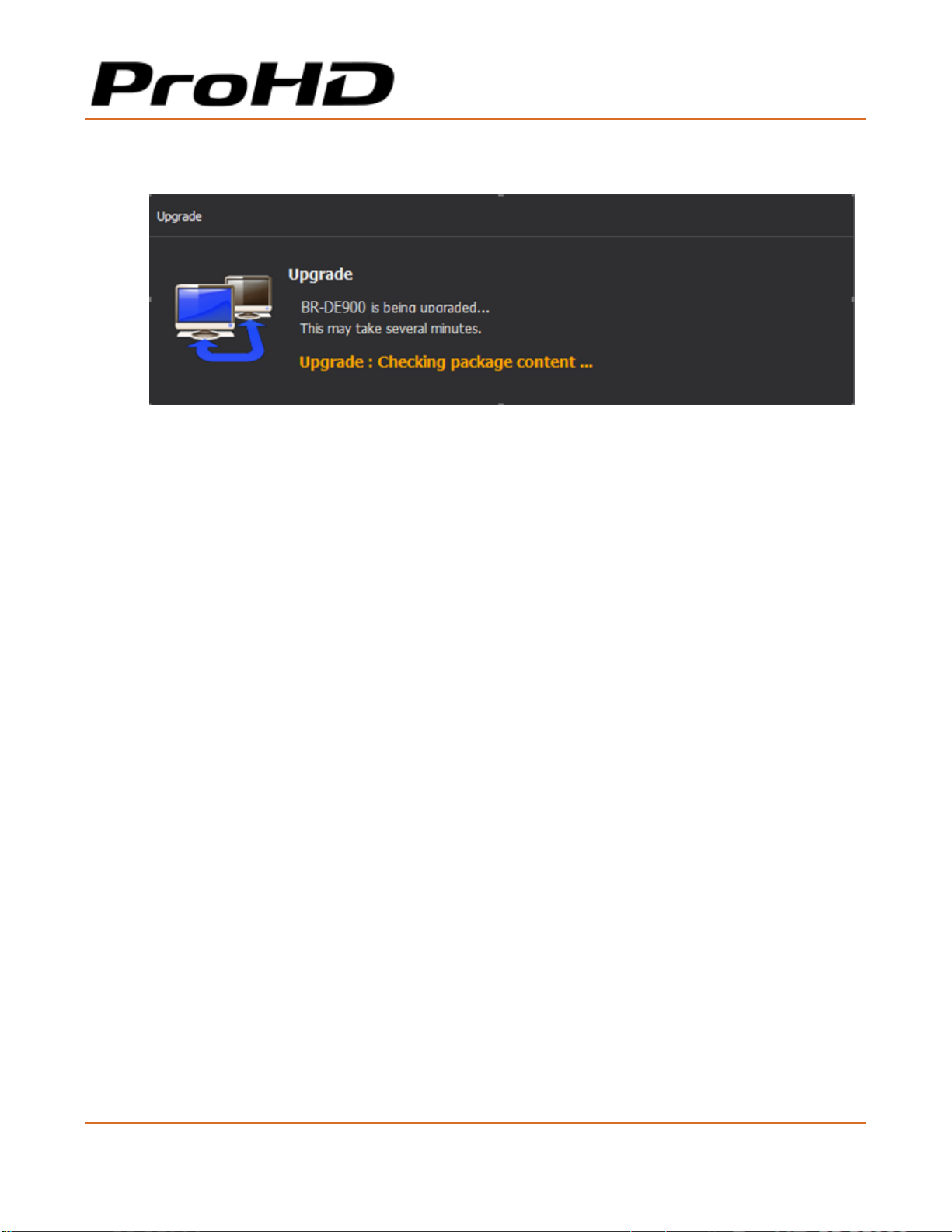
5. Select the appropriate *.tar file and click Load. The Upgrade window appears on the
screen, indicating the progress of the upgrade process:
The loading process takes from a few seconds to few a minutes, depending on your
available network bandwidth. When loading completes, the Upgrade message disappears.
6. ProHD BR-DE900 reboots. Reconnect using the previously used IP address, and enter your
login information.
In the General screen, verify that the upgrade was successful by inspecting the Software
Version field.
Page 47

User Manual, Version 1.0 46
CHAPTER 6
In This Chapter
Compliance ................................................................................................. 46
Environmental ............................................................................................. 46
Physical ...................................................................................................... 46
Functional Description .................................................................................. 46
Compliance
• FCC Part 15, Class A
• CE
• ICES-003
• RoHS
Environmental
• Operating Temperatures: 0 ºC to +50 ºC (-4 ºF to 122 ºF)
• Relative Humidity: 5% to 95% (non-condensing)
Physical
• Dimensions: 1.65" H x 7.95" W x 4.60" D (42.4 mm H x 202 mm W x 117.5 mm D)
• Weight: 2.40 lb (1.1 kg)
• Enclosure: Industrial-grade
• Mounting holes for seamless installation in vehicles / onto flat surfaces
Technical Specifications
Page 48

ProHD BR-DE900 HEVC and H.264 Decoding Appliance
User Manual, Version 1.0 47
Functional Description
Stream Input support:
Video Decoder- HEVC (H.265)
MPEG-H HEVC (ISO/IEC 23008-2) Modes:
• Profile/Level: up to Main422 [email protected] High Tier
• Color sampling & bit-depth: up to 4:2:2 / 10 bits
• Bit Rate: up to 50Mbps
• Frame Rate: 1-60 fps.
• Input Resolutions: from CIF up to 1920x1080
Video Decoder- H.264 (HEVC)
MPEG-4 AVC/H.264 (ISO\IEC 14496-10 MPEG-4 AVC -Rec. ITU-T H.264)
• Profile/Level: up to [email protected]
• Color sampling / Bit-depth: up to 4:2:2 / 10 bits
• Bit Rate: up to 100Mbps
• Frame Rate: 1-60 fps.
• Input Resolutions: from CIF up to 1920x1080
Audio Decoder
• MPEG-4 AAC-LC (ISO/IEC 14496-3)
• Up to 2x stereo channel
• Sample Rate: 48kHz
• Bit Rate: 16-192kbs
Network Protocols
• UDP TS
• RTP TS
• RTP ES (RTSP)
• Zixi™ Error-Correction (HEVC and H.264) – Zixi™ P2P and Broadcaster modes with
stream forwarding feature.
• RTP TS with ProMPEG Forward Error Correction (SMPTE 2022)
Security
• Real-time AES decryption for video, audio and metadata
Network Interfaces
• 2x Gigabit Ethernet ports for management and/or streaming
• DVB-ASI Input and Output
Video Outputs (Rear Panel)
• 1 x 3G/HD-SDI/SD-SDI (SMPTE 259M-C, SMPTE 292M, SMPTE 274M, SMPTE 296M,
SMPTE 424M, SMPTE 425M-A) (12G-SDI activated by firmware update and license
option)
Page 49

ProHD BR-DE900 HEVC and H.264 Decoding Appliance
User Manual, Version 1.0 48
• 1 x HDMI v2.0
• 1x SD-SDI (SMPTE 259M-C)
• 1x Composite (CVBS)
Output Resolutions / frame rates support:
• 1920x1080p @ 60, 59.94, 50, 30, 29.97, 25, 24, 23.976
• 1920x1080i @ 60, 59.94, 50 Hz
• 1280x720p @ 60, 59.94, 50, 30, 29.97, 25
• 720x480i @ 59.94 Hz (NTSC)
• 720x576i @ 50 Hz (PAL)
Audio Outputs
• SDI Embedded audio (PCM support)
• HDMI Embedded audio (PCM support)
• 2x AES3 Digital Audio (BNC Female)
• 1 x Analog unbalanced stereo audio, AC-coupled (RCA Female)
• 1 x Balanced analog stereo audio (XLR Male)
Talkback Audio (front panel)
• Input : 1 x Analog unbalanced stereo audio, AC-coupled (Mini Jack)
• Output 1 x Analog unbalanced stereo audio, AC-coupled (Mini Jack)
Page 50

User Manual, Version 1.0 49
APPENDIX A
Limited Hardware Warranty Terms
Subject to the terms and conditions specified below your JVC product (the "Product") is
warranted against defects in material and workmanship (the "Warranty") for a period of 12
(twelve) months following the Delivery Date (the "Warranty Period"). The Warranty provided to
you hereunder supersedes any warranty which may be provided to you by the original
manufacturer of the Product.
JVC (collectively "company") will repair or replace (at its option) any defective part during the
Warranty Period, provided that (i) the Warranty remains in force. Your dated sales receipt or
invoice shall be considered as the delivery date of the Product form JVC's premises to your
designated address (the "Delivery Date"); (ii) your Product unit carries a serial number on its
rear panel; (iii) you received from JVC Customer Service department a Return Materials
Authorization (RMA) number. No Product unit will be accepted for repair without RMA number;
and (iv) the entire Product unit is returned to the company by prepaid shipping in JVC’s original
packaging.
JVC will not be responsible for (i) any damages resulting from the use, maintenance or
installation of any Product; or (ii) for the incorporation of any spare or replacement parts not
approved by the company.
Without limiting the generality of the foregoing, The company reserves the right to refuse to
provide any services under the Warranty for any Product that, in the company opinion, has been
subjected to any abnormal electrical, mechanical, or environmental abuse, or shows signs of
modification by an unauthorized person or company. Call your local distributor or reseller for outof-warranty repair charge estimates prior to returning a product.
You acknowledge that the product licensed or sold hereunder, which may include technology and
software, are subject to the export control laws and regulations of the United States ("U.S.")
and/or any other country in which the product is received. You agree that you will not knowingly
transfer, divert, export or re-export, directly or indirectly, the product, including the software, the
software source code, or technical data (as defined by the U.S. Export Administration Regulations)
restricted by such regulations or by other applicable national regulations to any person, firm,
entity country or destination to which such transfer, diversion, export or re-export is restricted or
prohibited by U.S. or other applicable law, without obtaining prior authorization from the U.S.
Warranty
Page 51

ProHD BR-DE900 HEVC and H.264 Decoding Appliance
User Manual, Version 1.0 50
Department of Commerce and other competent government authorities to the extent required by
those laws.
Page 52

User Manual, Version 1.0 51
A
About This Manual • 8
C
Compliance • 46
Copyright Notice • vi
D
Dashboard Frame • 20
Declaration of Conformity and Regulatory
Compliance • iv
E
Environmental • 46
F
Firmware Upgrade • 8, 44
Functional Description • 47
G
General • 8
Getting Started • 8, 14
I
I/O Specifications • 11
Initial Connection and Setup • 14
Input Channel Configuration • 28
M
Manual Structure and Use • 8
O
Open Source Documentation • vii
P
Physical • 46
ProHD BR-DE900 Front Panel • 11
ProHD BR-DE900 Overview • 8, 9
ProHD BR-DE900 Rear Panel • 13
R
Retrieving or Setting Network Parameters
through a USB Thumb Drive • 16, 17, 37
S
Safety Instructions • iii
Setup and Operations • 8, 19
System Requirements • 10
T
Technical Specifications • 8, 46
The Channel Page • 25
The Configurations Page • 40
The Dashboard Page • 21
The Decoder Settings Page • 33
The General Page • 42
The Main Menu • 20
The Product • 9
The System Page • 16, 28, 36
Index
Page 53

ProHD BR-DE900 HEVC and H.264 Decoding Appliance
User Manual, Version 1.0 52
U
Upgrading the Firmware • 44
Using the ProHD BR-DE900 Interface • 19
W
Warranty • 49
 Loading...