

Page 1
LED TV
Televiseur DEL
USER MANUAL
English
Français
MANUEL D UTILISATION
MODEL:Cab-LE32D11
.
Page 2
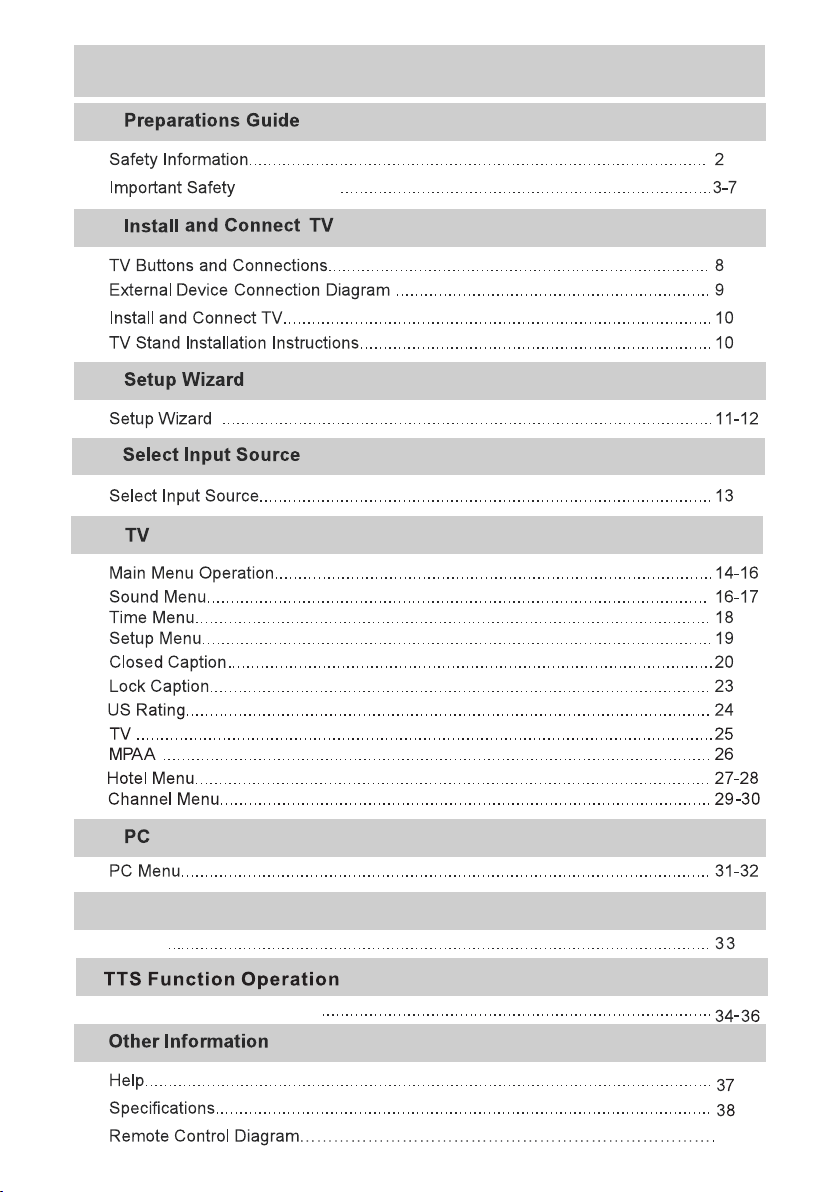
TABLE OF CONTENTS
Instructions
Media
Media
TTS Function Operation
39
Page 3
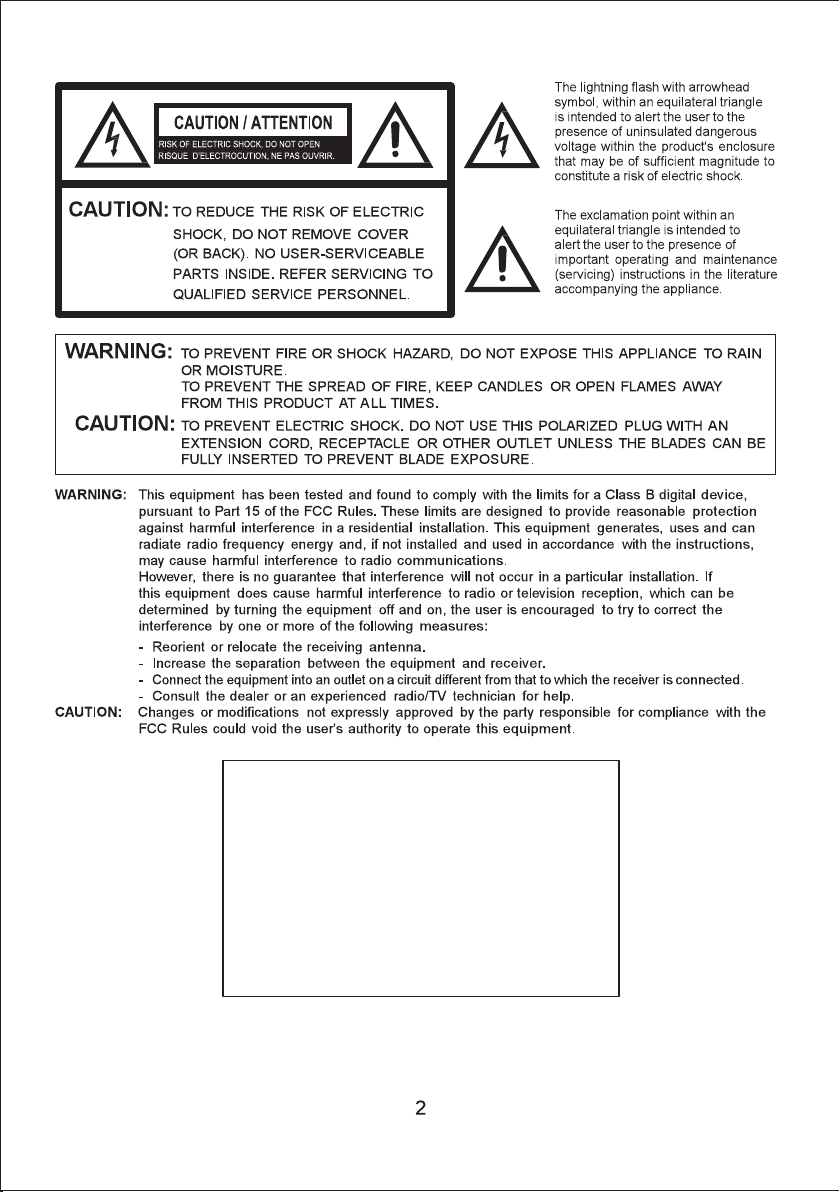
FCC Declaration or Conformity Compliance statement
This device complies with Part 15 of the FCC rules.
Operation is subject to the following two conditions: (1)
interference received, including interference that may
cause undesired operation. The party responsible for
this device may not cause harmful
interference, and (2) this device must accept any
2210 52e AVE, Lachine, Quebec, Canada, H8T2Y3
(Part 15):
compliance to these rules is:
Shopper+ Inc.
Ph:514-631-5216
Page 4
Ins truc tion s
a tip-ov er and/or inju ry.
Page 5
Ins truc tion s
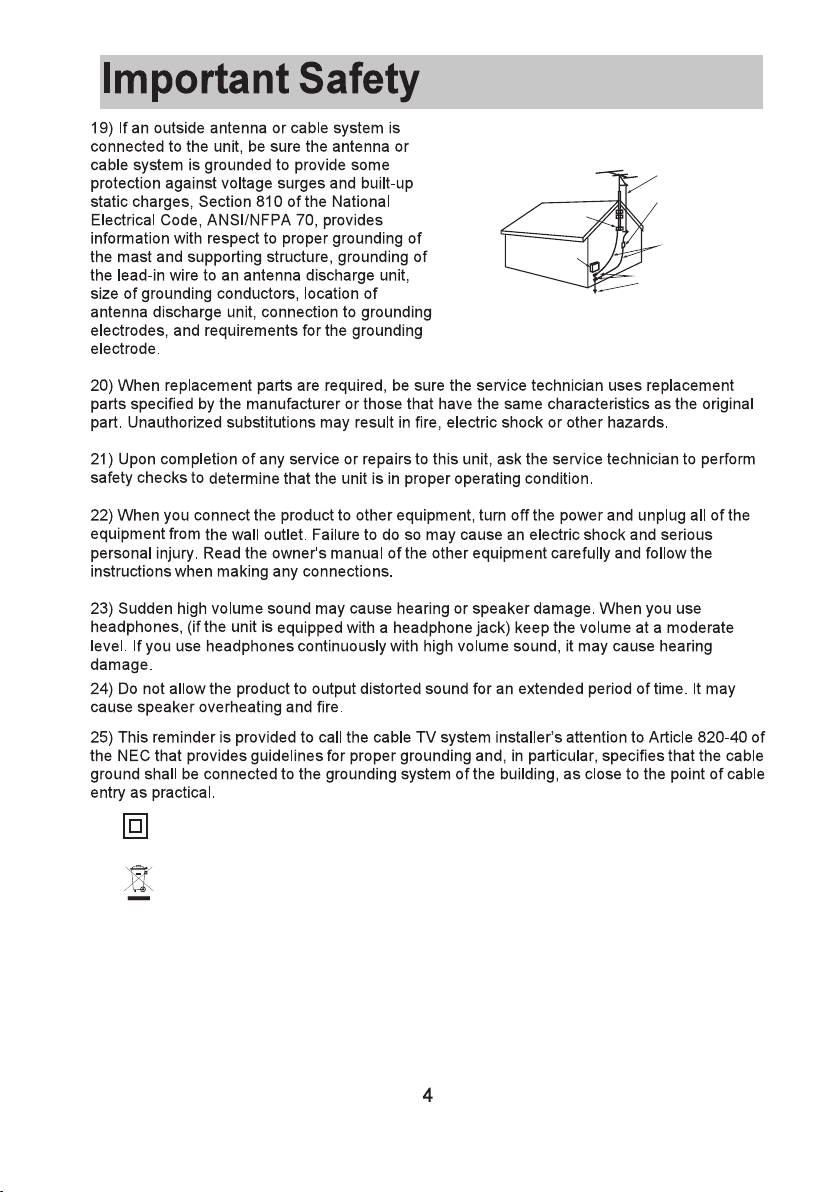
EXA MPLE OF AN TENNA GR OUNDI NG AS PER THE N ATIONA L ELECTR ICAL CO DE
ANT ENNAL EADIN W IRE
ANT ENNA
GRO UND
CLA MP
ELE C TRIC SER VICE
EQU IPMEN T
NEC -NATIO NAL ELEC TRICA L COD E
S28 98A
DIS CHAGR E UNIT
(NE C SECTIO N 810-2 0)
GRO UNDIN G CONDU CTORS
(NE C SECTIO N 810-2 1)
GRO UND CLA MPS
POW ER SERVIC E GROU NDING
ELE CTROD E SYSTE M
(NE C ART 2 50,RA RTH)
26)
This equi pm ent is a Clas s II o r double in su lated ele ct rical app li ance. It ha s be en
designe d in s uch a way tha t it d oes not req ui re a safety c on nection t o el ectrica l ea rth.
27) Corre ct d isposal o f th is produc t. This mar king indica tes that this p roduct sh ou ld not
be dispos ed w ith other h ou sehold wa st e. To preve nt p ossible h arm to the envi ronment or
human hea lt h from unco nt rolled wa st e disposa l, r ecycle it r es ponsibl y to p romote th e
sustain ab le reuse of m at erial res ou rces.
Page 6
Ins truc tion s
War ning: b att eries (pack o r bat te rie s insta lled) s hou ld not be e xpose d to exce ssi ve heat
such as s unshi ne, f ir e or ot her hea t sourc es.
Page 7
Ins truc tion s
have bright spo ts /pixels.
Page 8
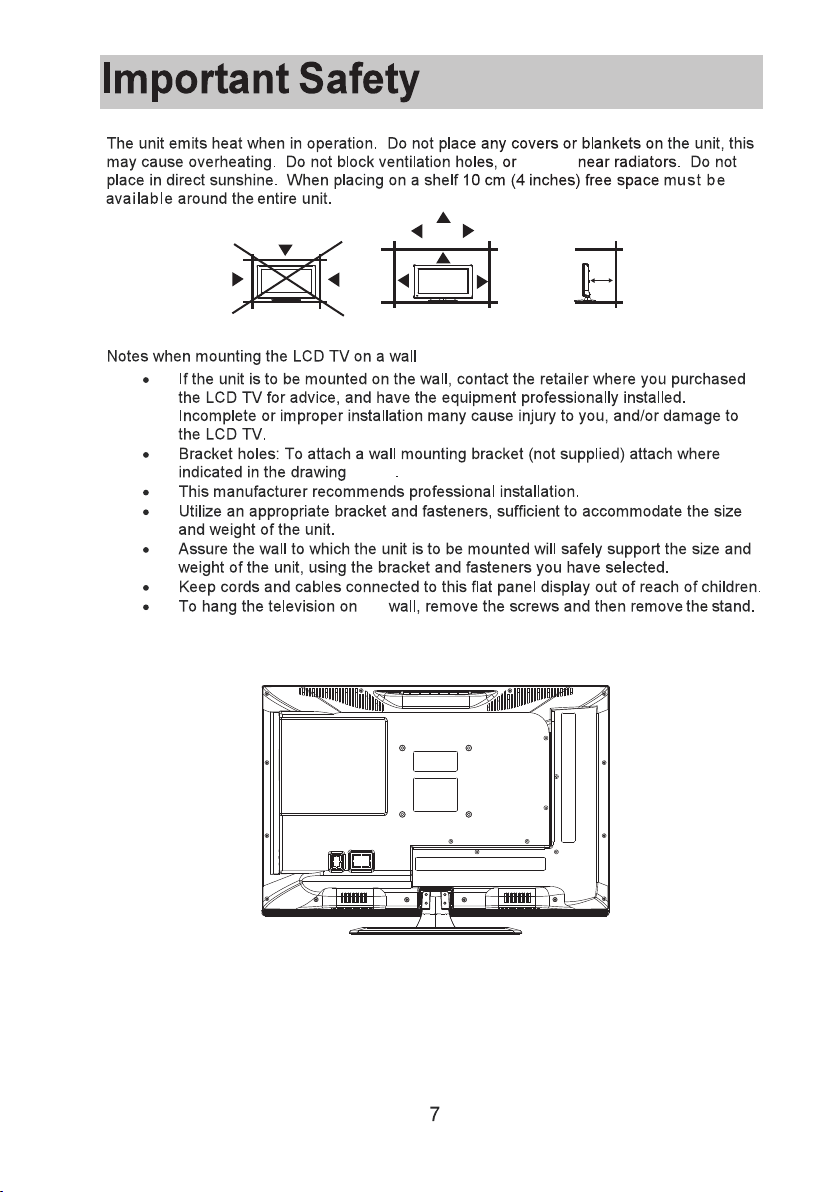
Ins truc tion s
operat e
10cm
10cm
below
the
To avoid damage t o the TV, place t he TV on a tabl e, f ace down on a s of t surface .
Note: D raw ing i s a rep res ent ative exam ple o nly
Page 9
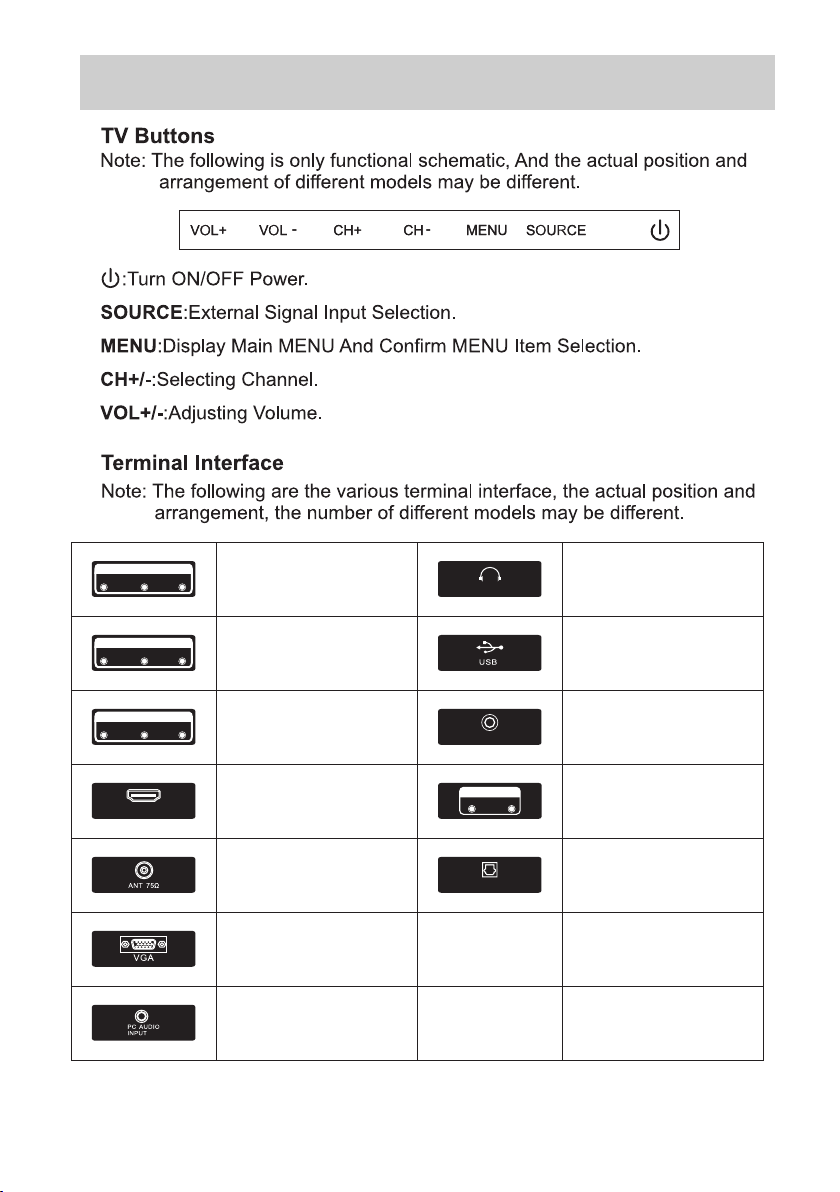
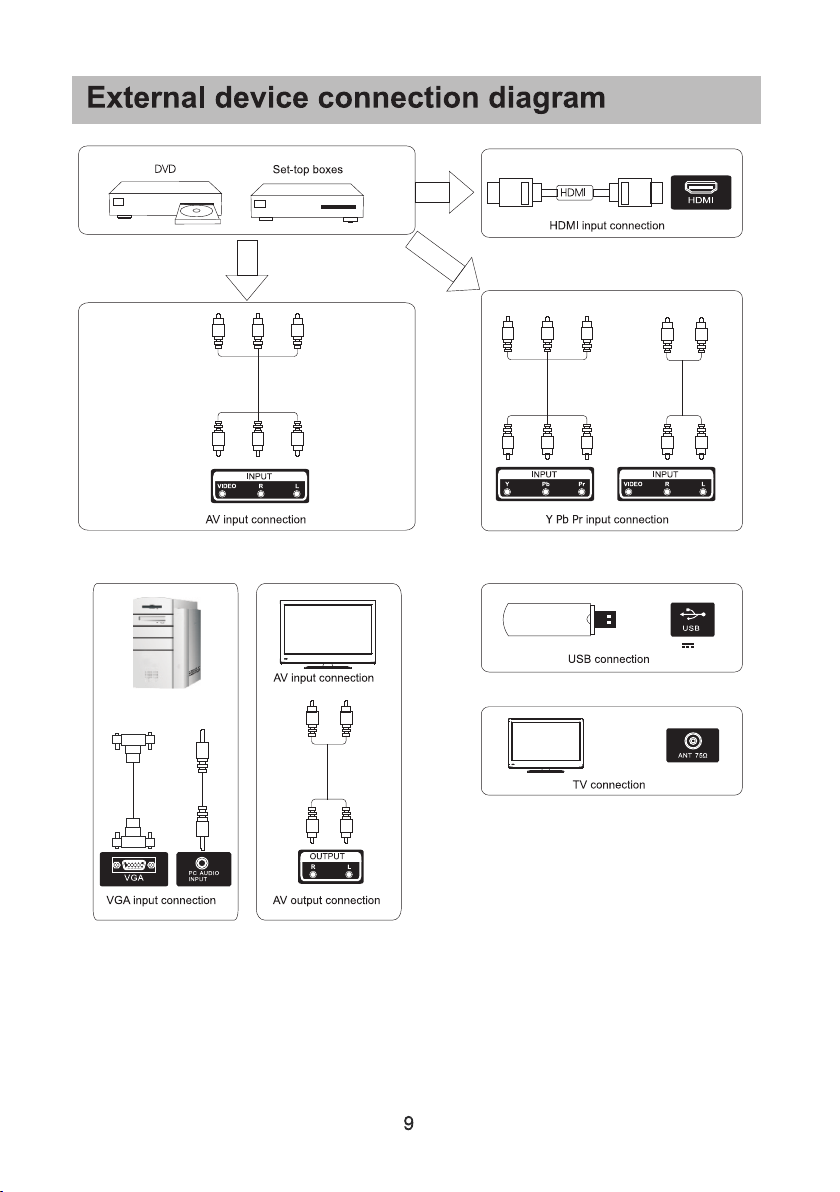
TV Buttons and Connections
INP UT
VIDE O R L
OUT PUT
VIDE O R L
INP UT
Y Pb Pr
HDM I
AV inp ut
Ext ernal AV Si gna l Inpu t and
Rig ht/Le ft Audio I nputs .
AV Out put
Ext ernal AV Si gna l Outp ut and
Rig ht/Le ft Audio O utput s.
Com ponen t Input
Con nect to a c ompon ent out put
con necti on on you r exter nal dev ice.
HDM I Input (HDMI 1,2,3 )
Con nect to a H DMI out put
con necti on on you r exter nal dev ice.
ANT 7 5/RF Co nnect ion
Con nect to t he ante nna/c able TV
out put of yo ur devi ce or wal l plate .
VGA I nput
Con nect to y our PC us ing a VGA
cab le(no t provi ded).
PC Au dio In put
Con nect to y our PC Aud io Out
usi ng 1/8 li ne cord .
HEA DPHON E JACK
HEA DPHON E
COAX IAL
OUTP UT
R
OPT ICAL
L
Plu g earph ones in to jack f or priv ate
lis tenin g. Over rides s peake rs.
USB I nput
Con nect to y our USB d evice .
COA XIAL Ou tpu t
Con nect to y our SPD IF devi ce
Out put
Aud io Out Ri ght/L eft
Con nect to y our ext ernal d evice .
OPT ICAL
Dig ital Aud io Outp ut.
8
Page 10
5V 0. 5A
Page 11
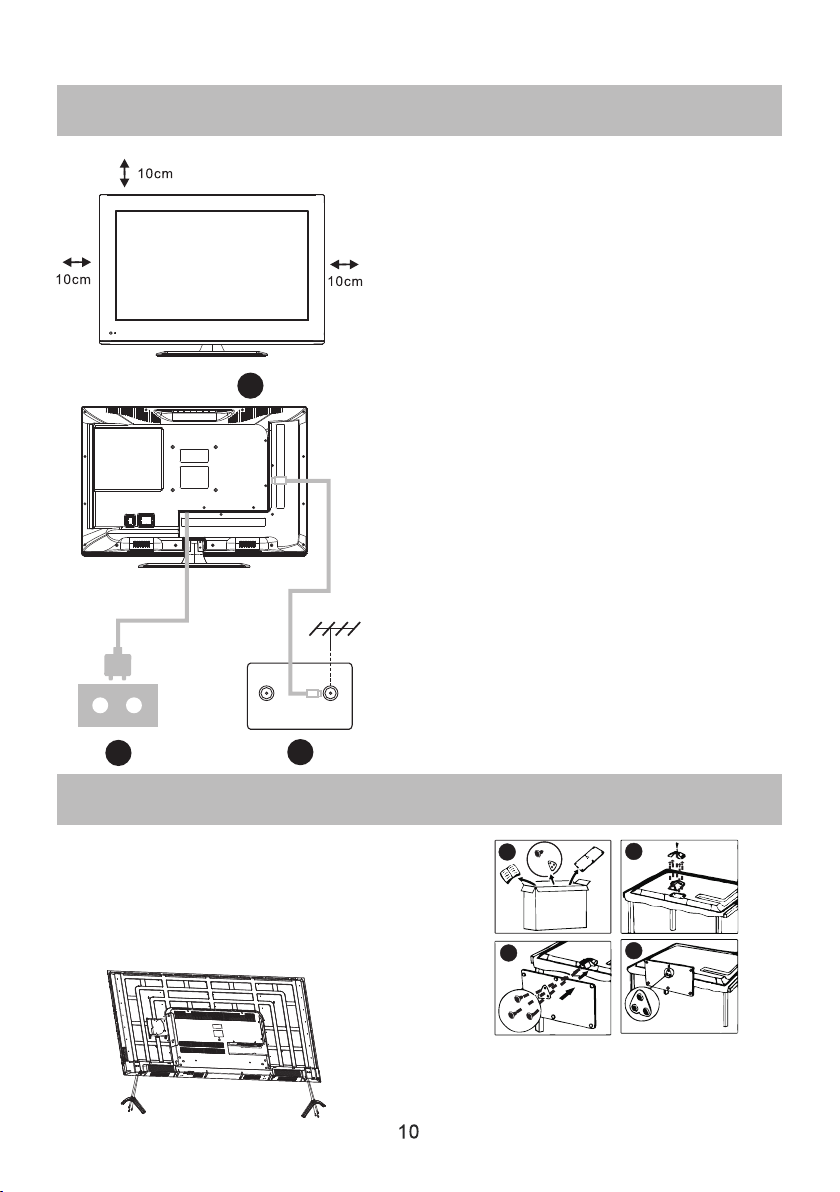
Install and Connect TV
3
Setup your TV
1.Put your TV in a place tha t ca n bear the
weight of t he TV.
To avoid dan ge r, please do not a ss emble
the TV near w ater or extre me h eat(such
as a furn ac e, light sour ce ,or candle. )
Do no t block the venti lation on the bac k
of th e TV.
Connect sig na l source and po we r
2. Connect th e an tenna cable t o th e RF
connectio n on t he back or side o f th e TV,
and/or the si gn al source HDM I ca ble to the
HDMI input( s) o n the rear or sid e of TV. Plug
the TV into t he wall power out let (AC120 ~ 60 Hz ).
Turn on th e TV
3.While in st an dby mode the po we r indicatio n
light will be r ed .Press the po we r button on
the TV or re mote control. The light will ch ange
to green.
FM ANT
TV si gnal ou tput
TV ANT
Note:
Picture for reference purposes only.
2
1
TV Stand/Feet Installation Instructions
1.Open th e ca rton and re mo ve the TV,
accesso ri es, and the s ta nd/feet .
2.To avoid da ma ge to the TV, pla ce o n
a table, fa ce d own on a soft s ur face.
The sta nd /feet are a tt ached to th e
TV with t he p rovided s cr ews.
1
3
3.E nsu re al l sta nd/ fee t scr ews a re ti ght ene d sec ure ly.
Do no t ove rti ght en.
Your TV will have either a St and o r Fee t.
Ass emb le ac cor din gly.
2
4
Page 12
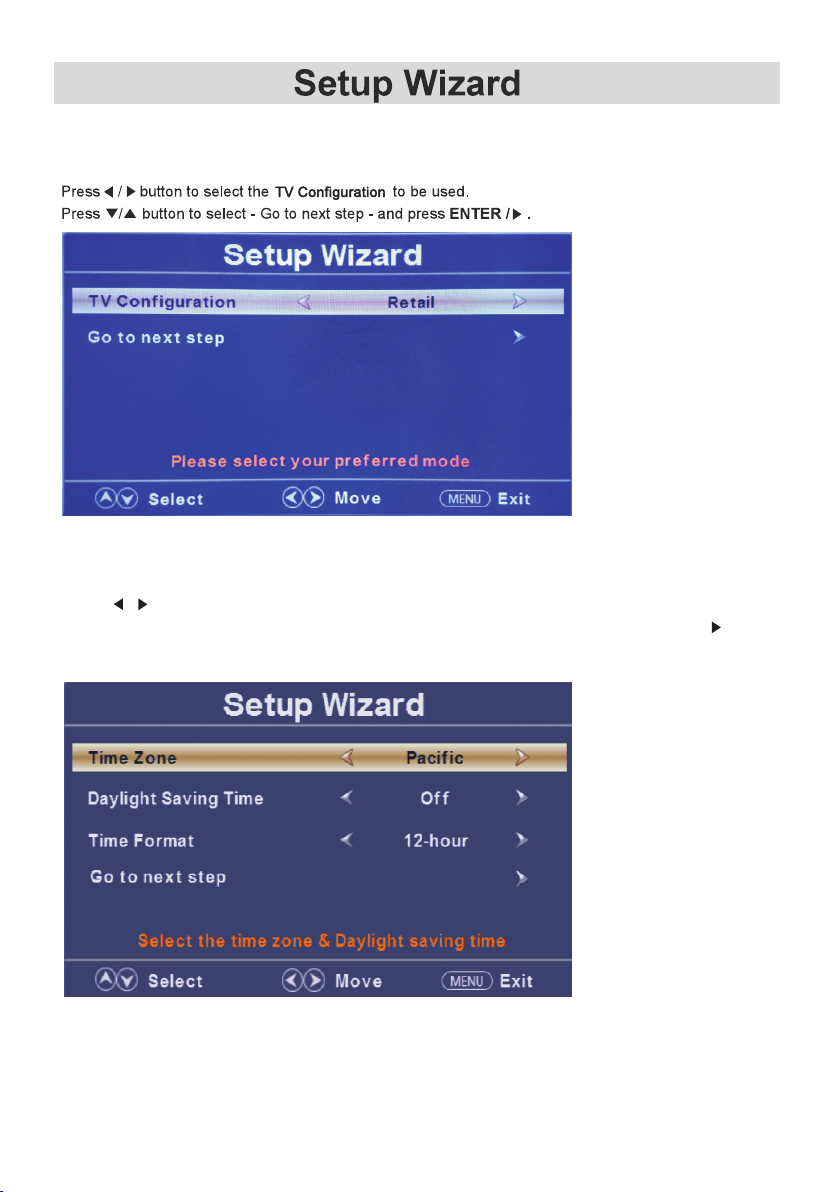
Connect an RF cable from the TV’s input called “RF-In” and to your TV Aerial socket.
Select TV Configuration
Select Time
Press ▼ / ▲ button to select the time zone, daylight saving time and time format you want to.
Press / button on the remote control to adjust.
Press ▼ / ▲ button on the remote control to select go to next step and press ENTER/ button
to go.
11
Page 13
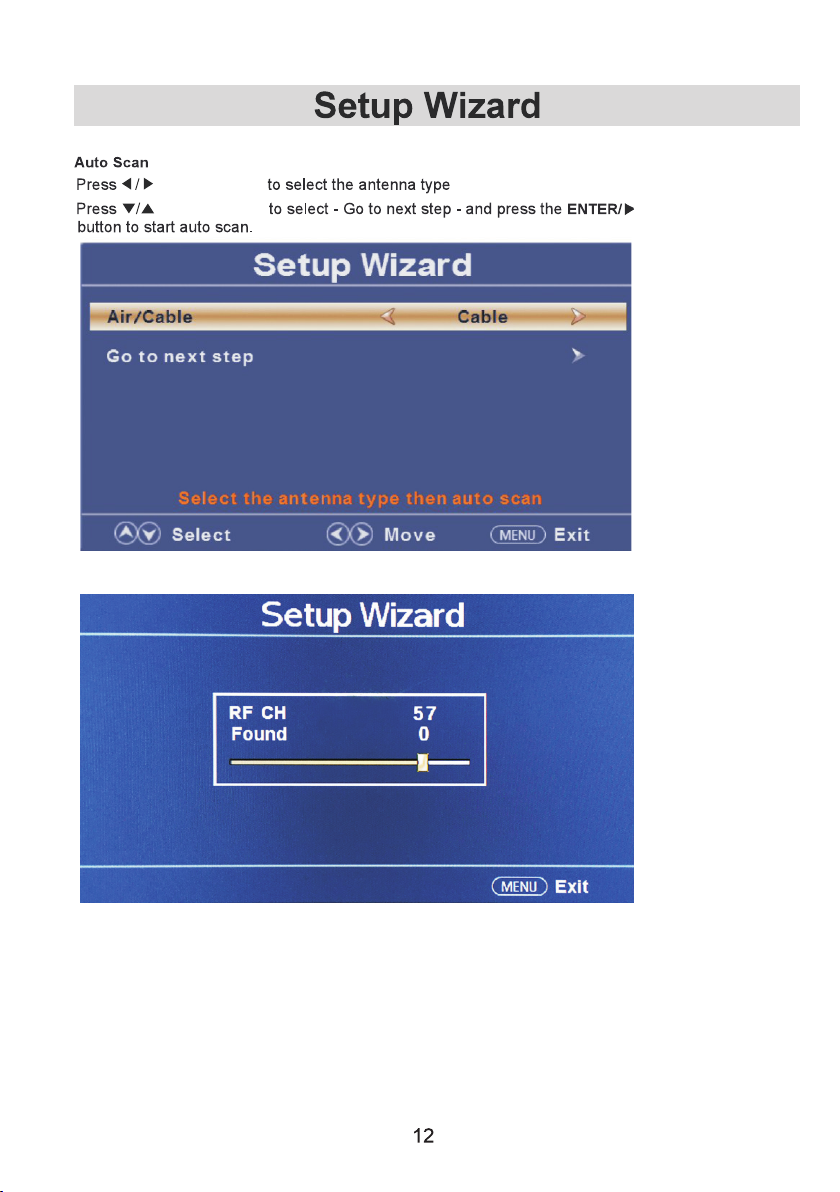
on the remo te
on the remo te
(Air/Ca bl e).
Page 14
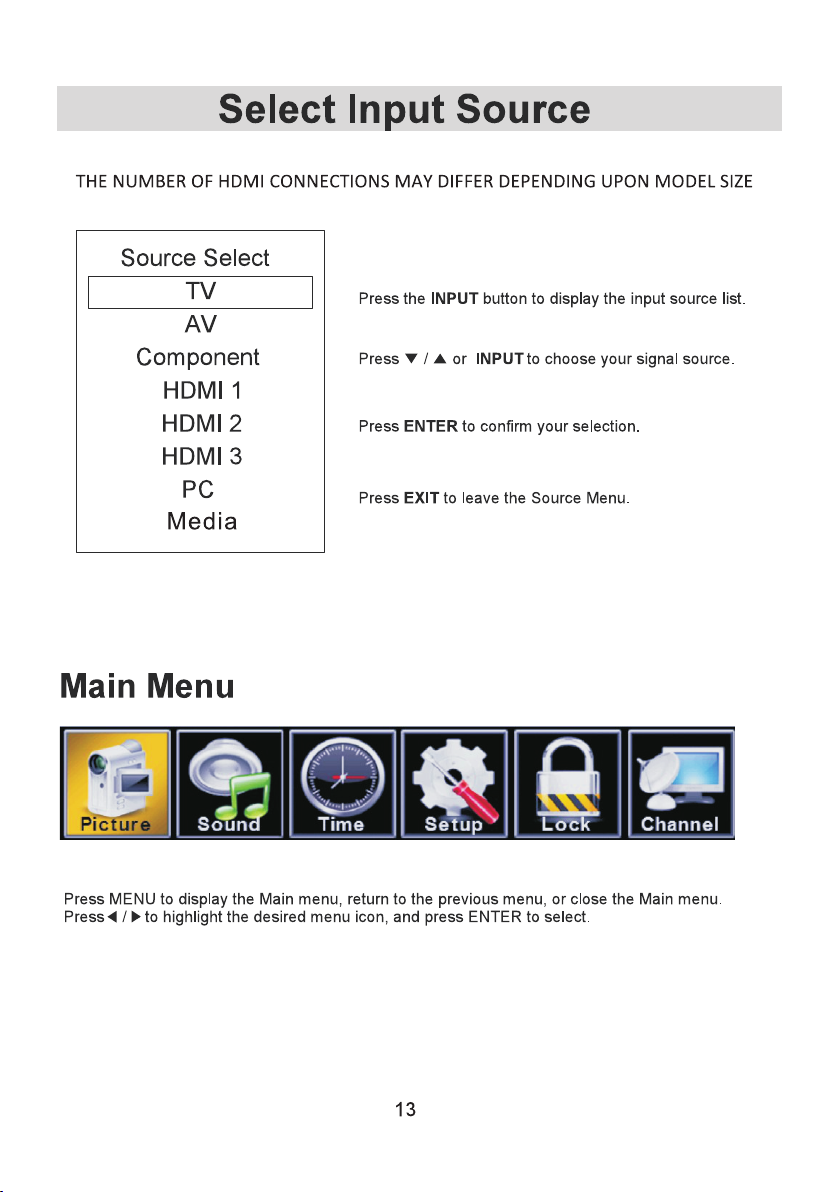
Page 15
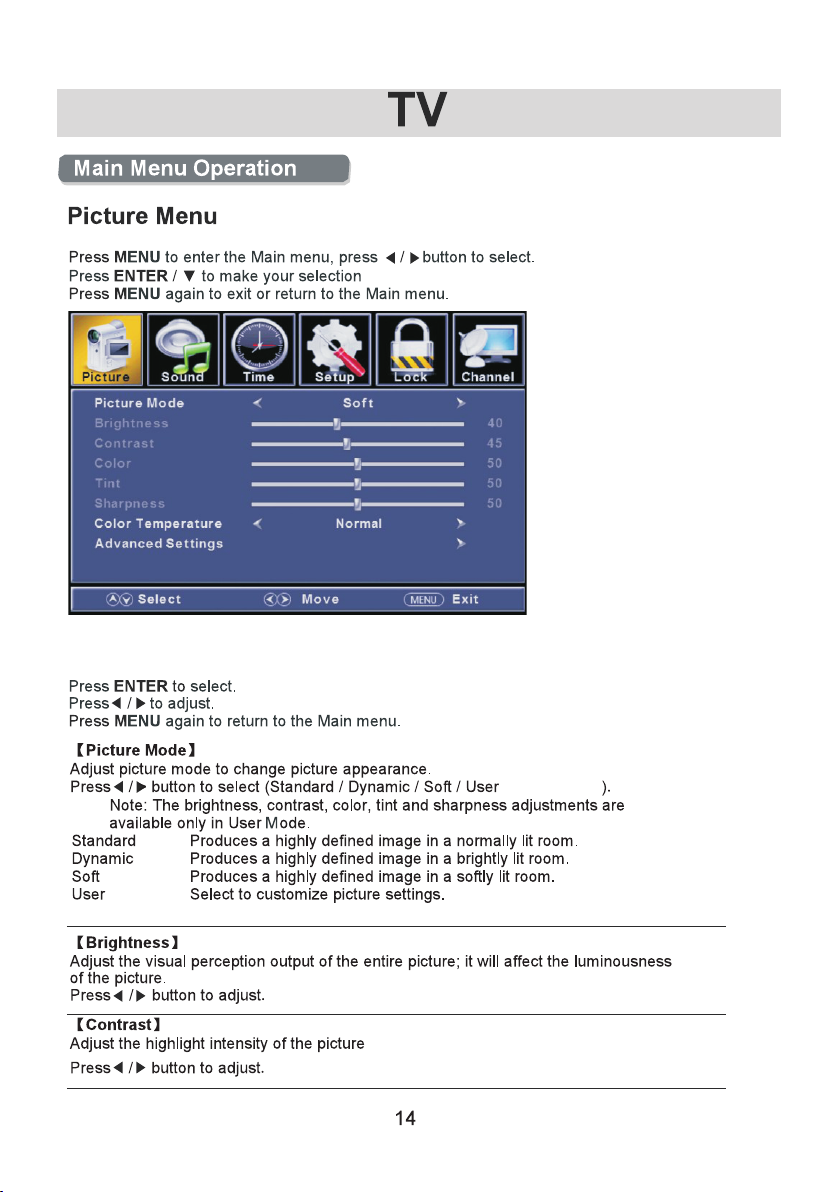
Press ▼ / ▲ button to select among Picture Mode /Brightness/ Contrast / Color / Tint / Sharpness /
Advanced Settings. Color Temperature/
/ Power s aving
Power sav in g Lower pow er c onsumpt io n.
. The sha do w of the pict ur e cannot be a dj usted.
Page 16
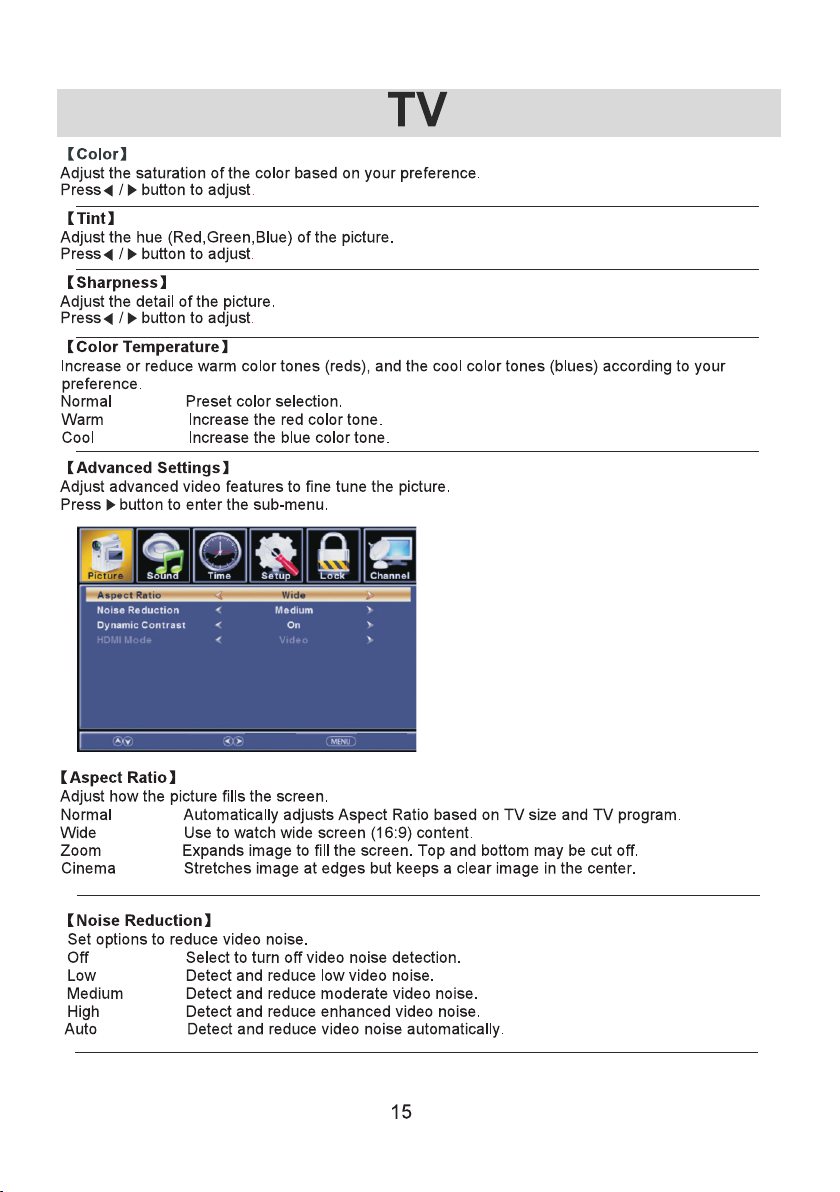
Move
Selec t
Retur n
Page 17
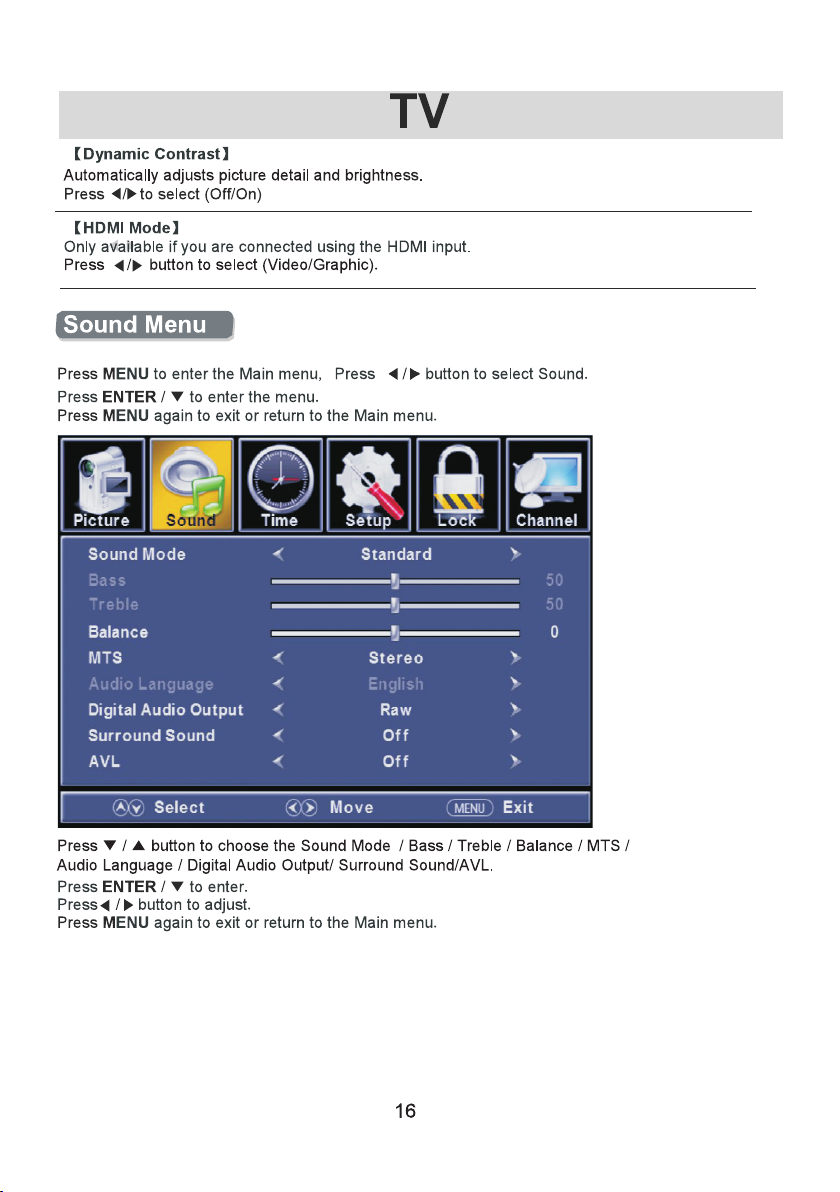
Page 18
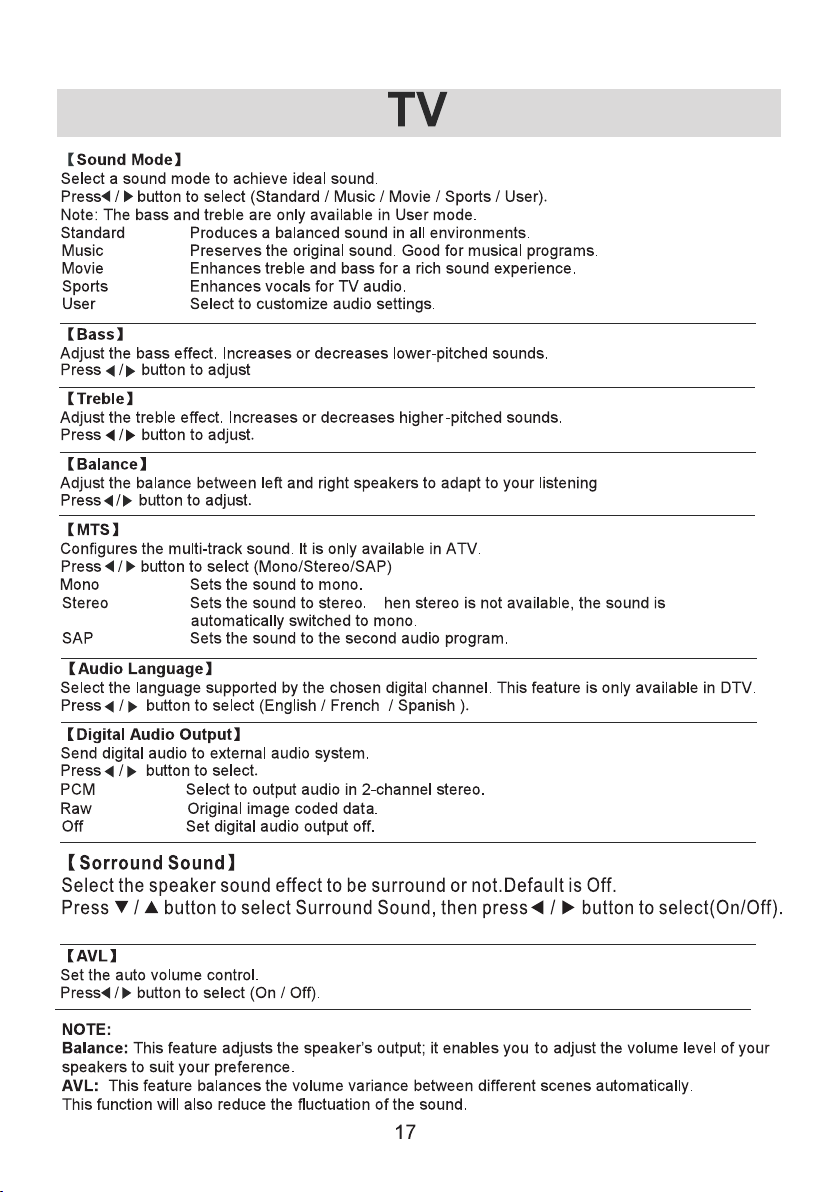
Defa ult is off.
preference.
W
Page 19
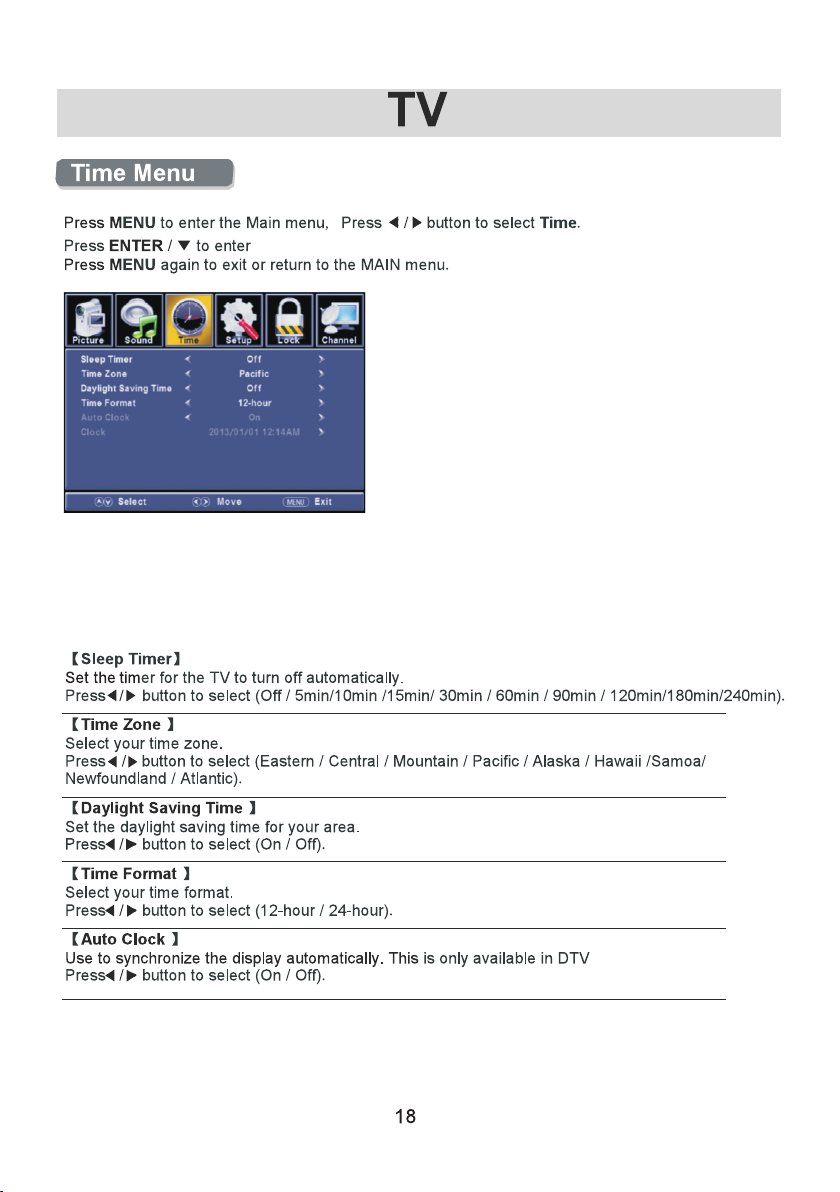
button to select among Sleep Timer / Time Zone / Daylight Saving Time /
Pre ss ▼ / ▲
Time Format / Auto Clock / Clock.
Pre ss to ente r. ENTER / ▼
Pre ss button to adjust.◄ / ►
ENU again or back to pare nt menu. Pre ss M
Page 20
Mov e
Nex t
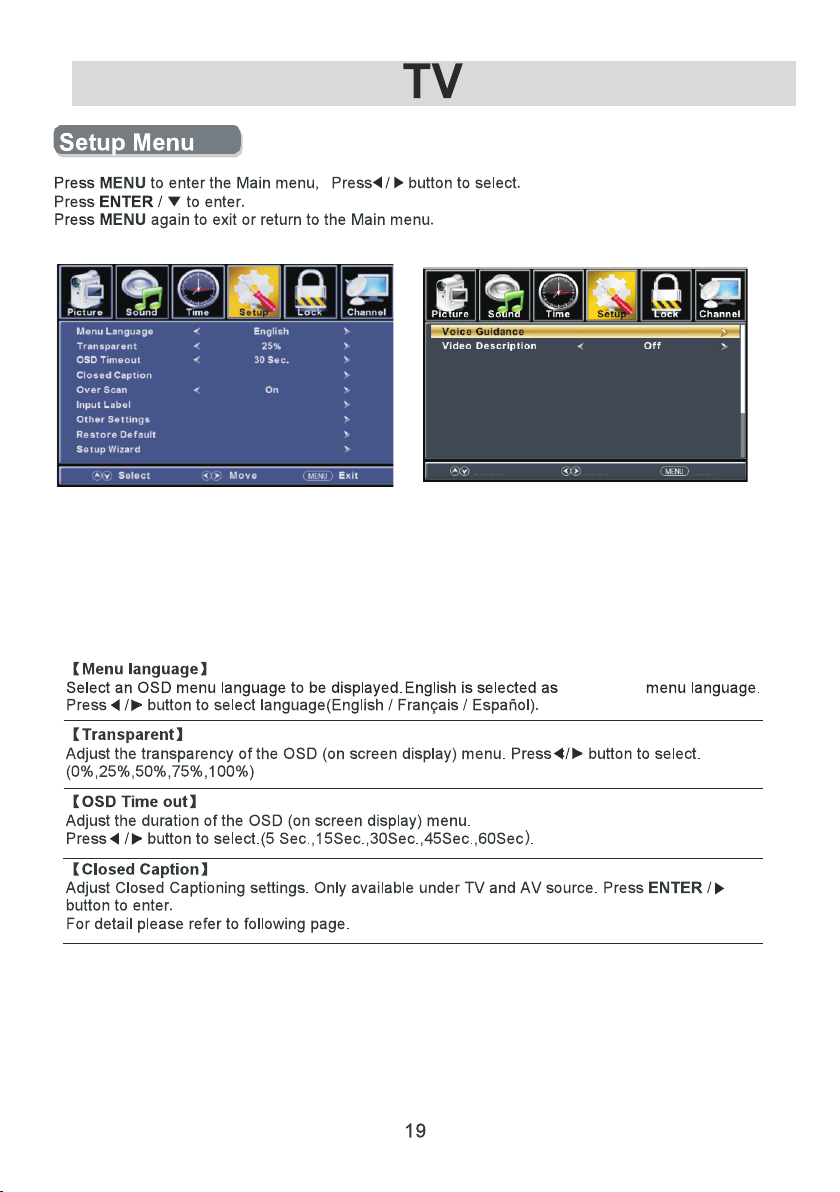
Press ▼ / ▲ button to select among Menu La ng ua ge / Tr an sp ar en t /
OSD Timeout / Closed Caption /Ove r Sc an / In pu t La be l /O th er s et ti ng s /
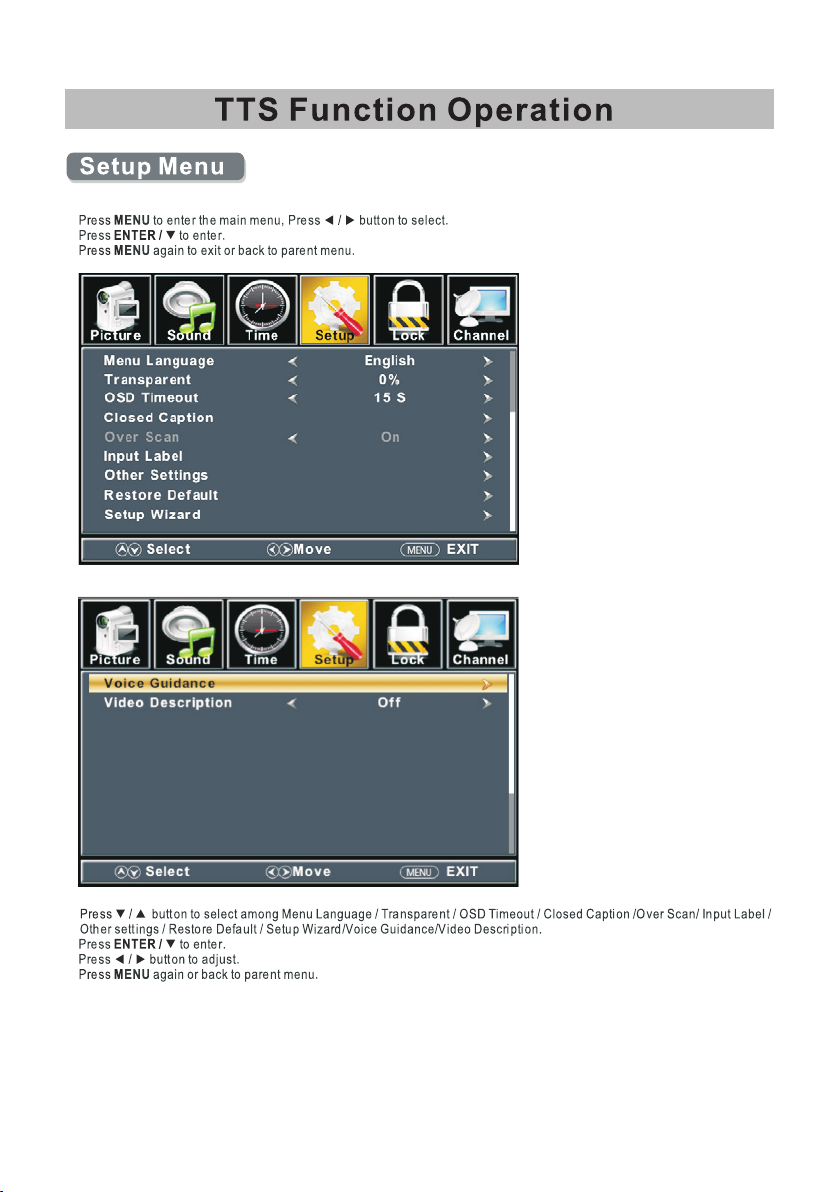
Restore Default / Setup Wizard /Vo ic e Gu id an ce /Video Description.
Pre ss to enter. ENTER / ▼
Pre ss butt on to adjust.◄ / ►
ENU again or back to pare nt menu. Pre ss M
the defau lt
Ret urn
Page 21
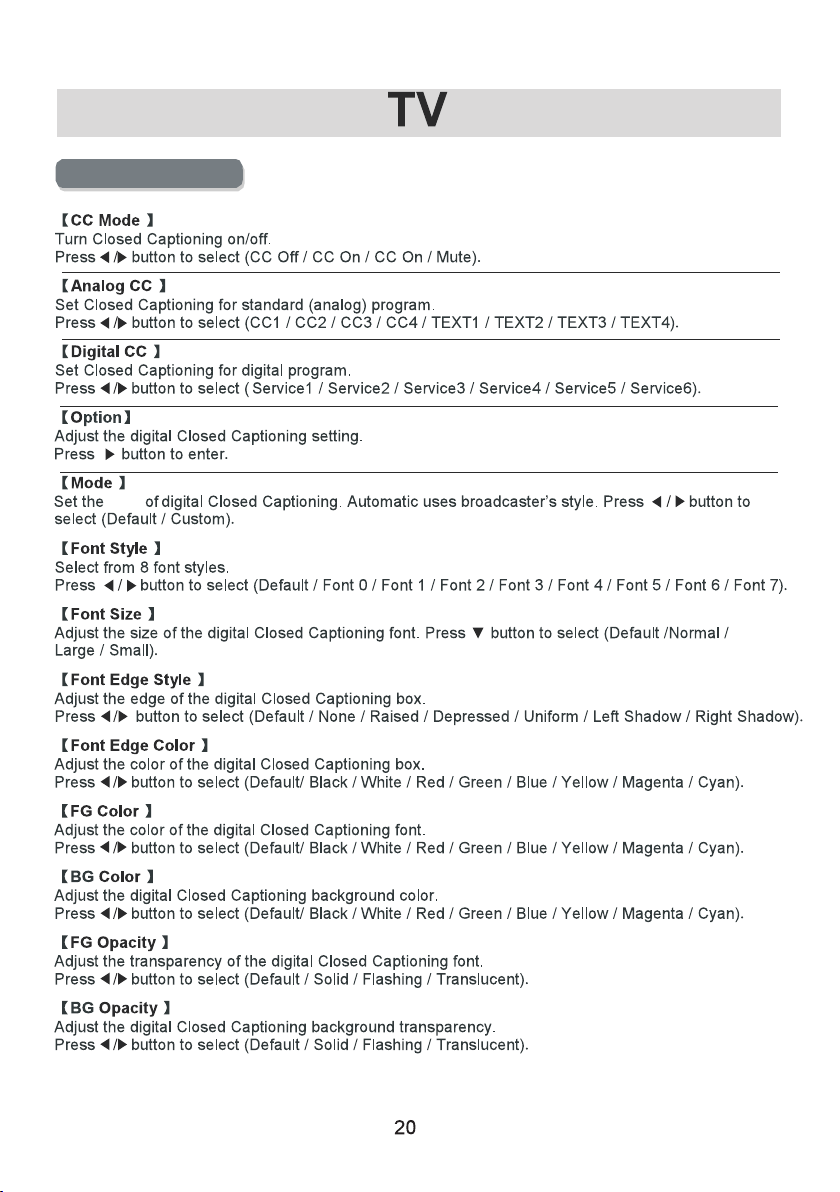
Closed Caption
style
Page 22
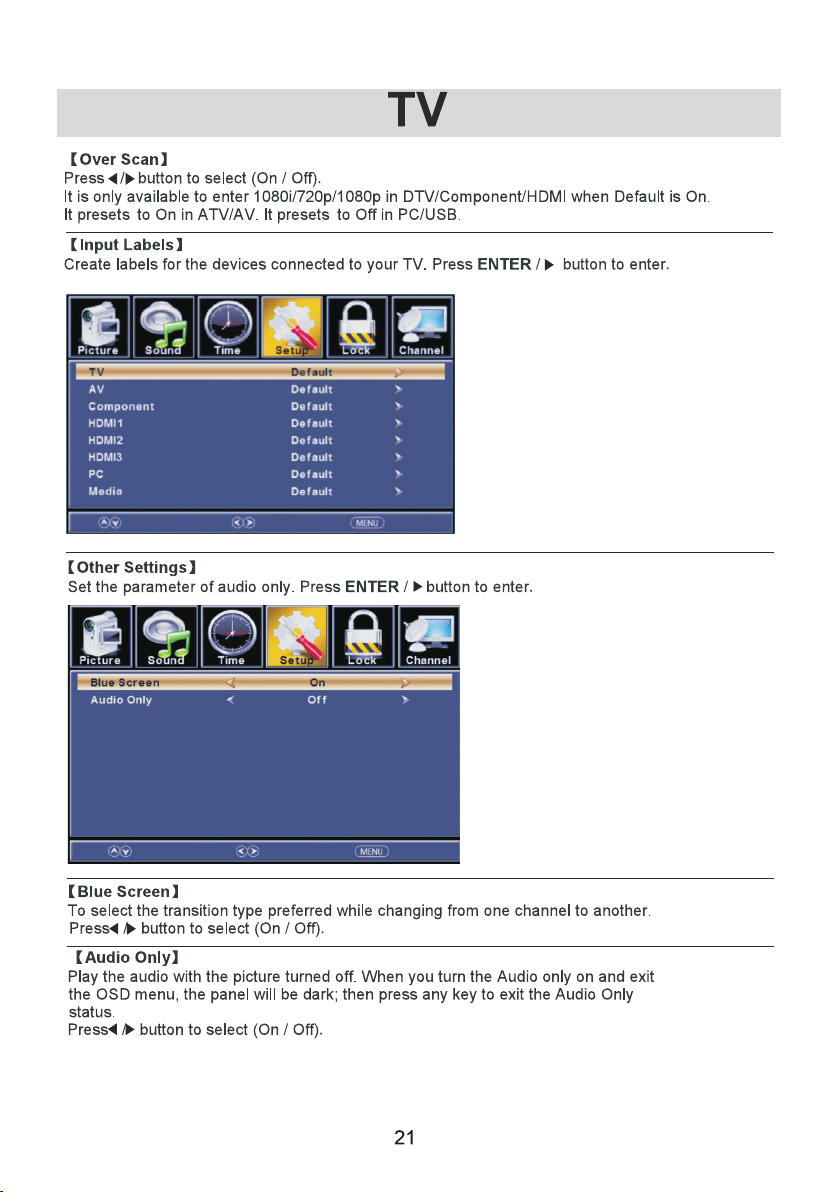
Move
Selec t
Retur n
Move
Selec t
Retur n
Page 23
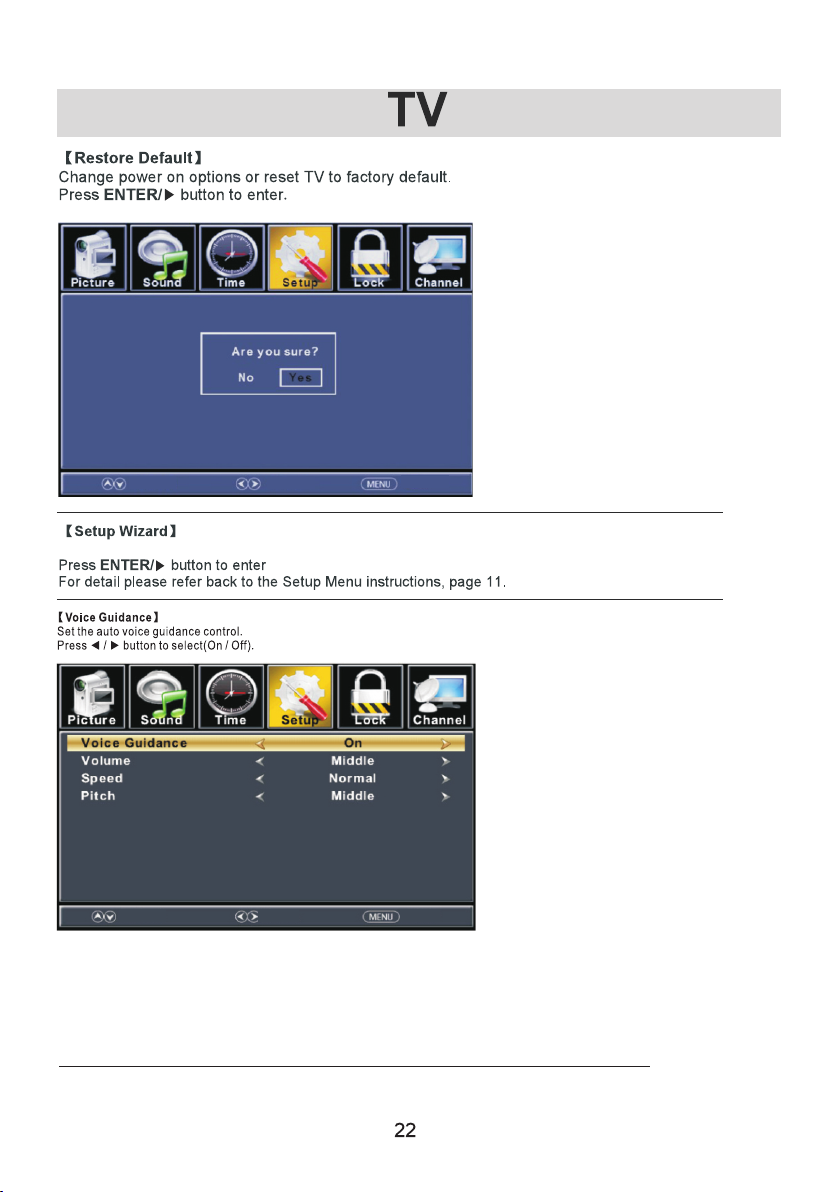
Move
Select
Return
Reset t o initi al sett ings.
Ret urnSel ectMov e
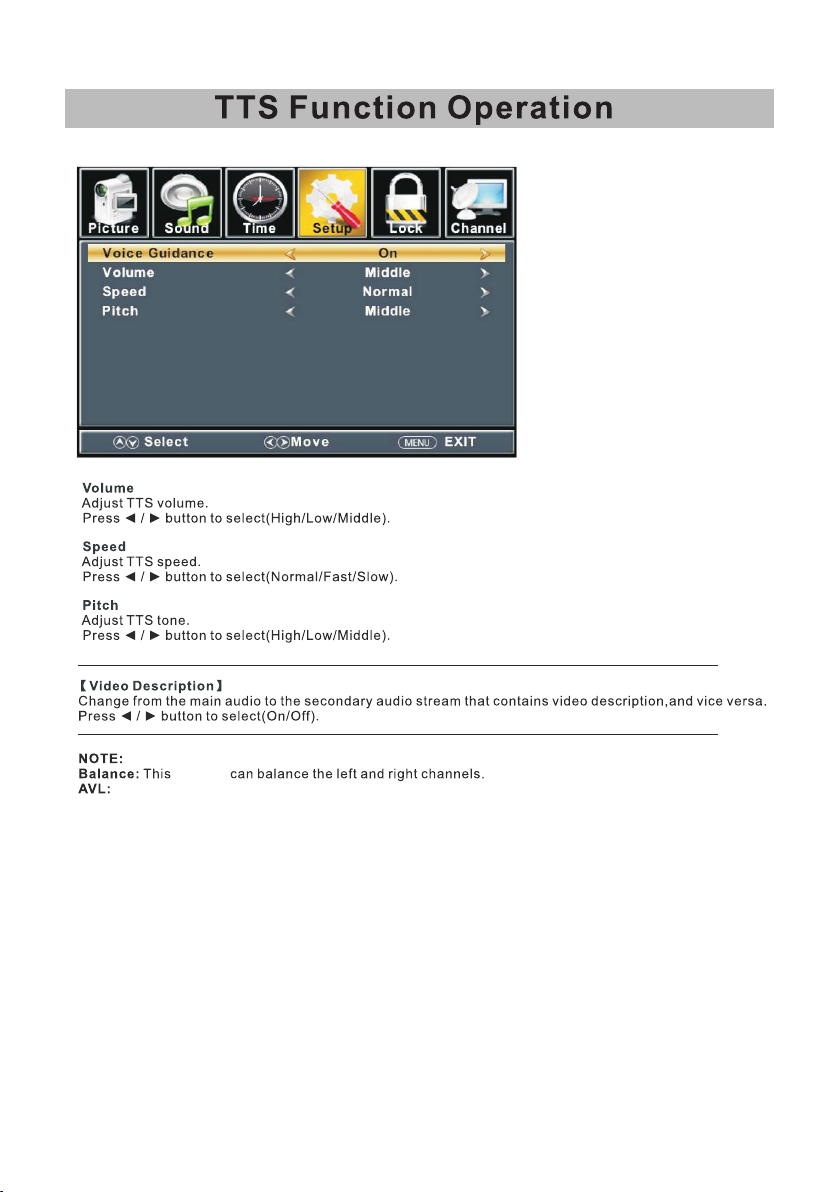
Volume
Adjust TTS volume.
Press ◄ / ► button to select(High/Low/Middle).
Speed
Adjust TTS speed.
Press ◄ / ► button to select(Normal/Fast/Slow).
Pitch
Adjust TTS tone.
Press ◄ / ► button to select(High/Low/Middle).
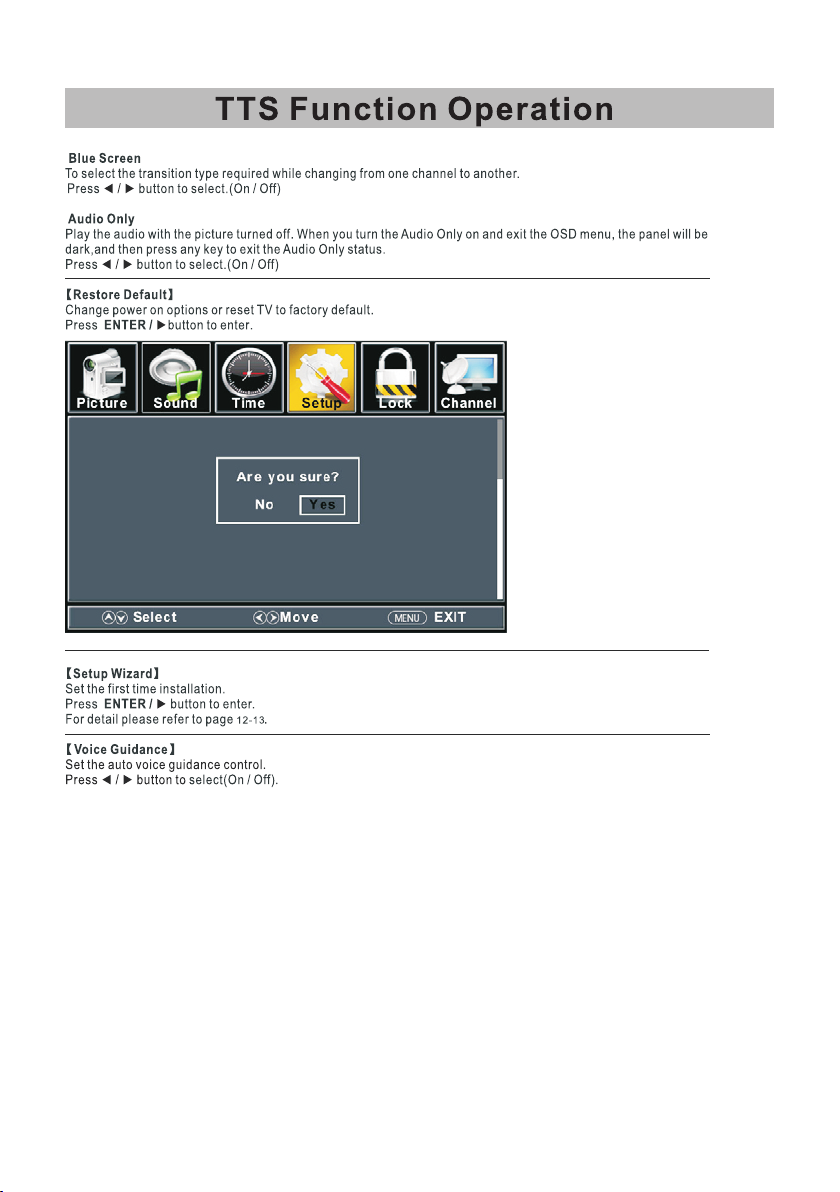
【 】Video Description
Select mai n aud io/ sec ond ary a udi o str eam con tai nin g the v ide o des cri pti on.
Press ◄ / ► button to select(On/Off)
Page 24
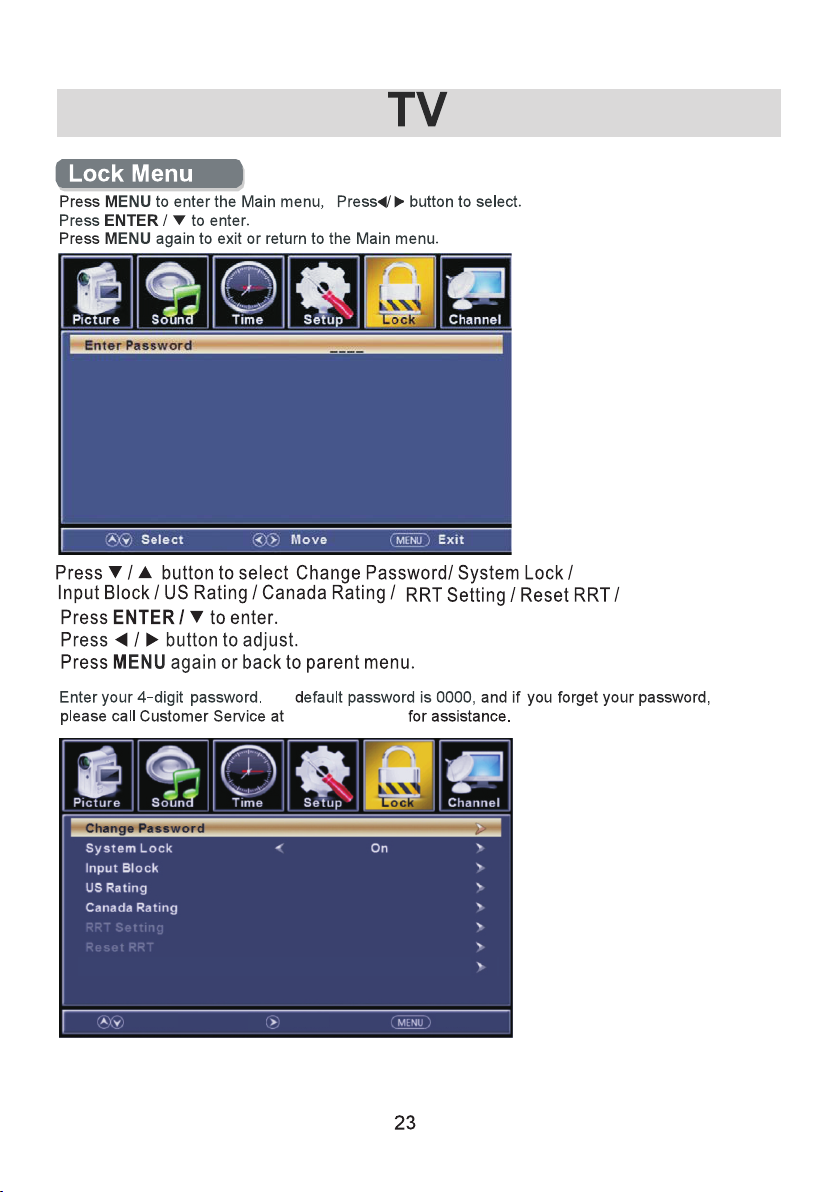
Hot el Menu
Hotel Menu
The
1-618 -392- 3456
Retur nNextMove
Page 25
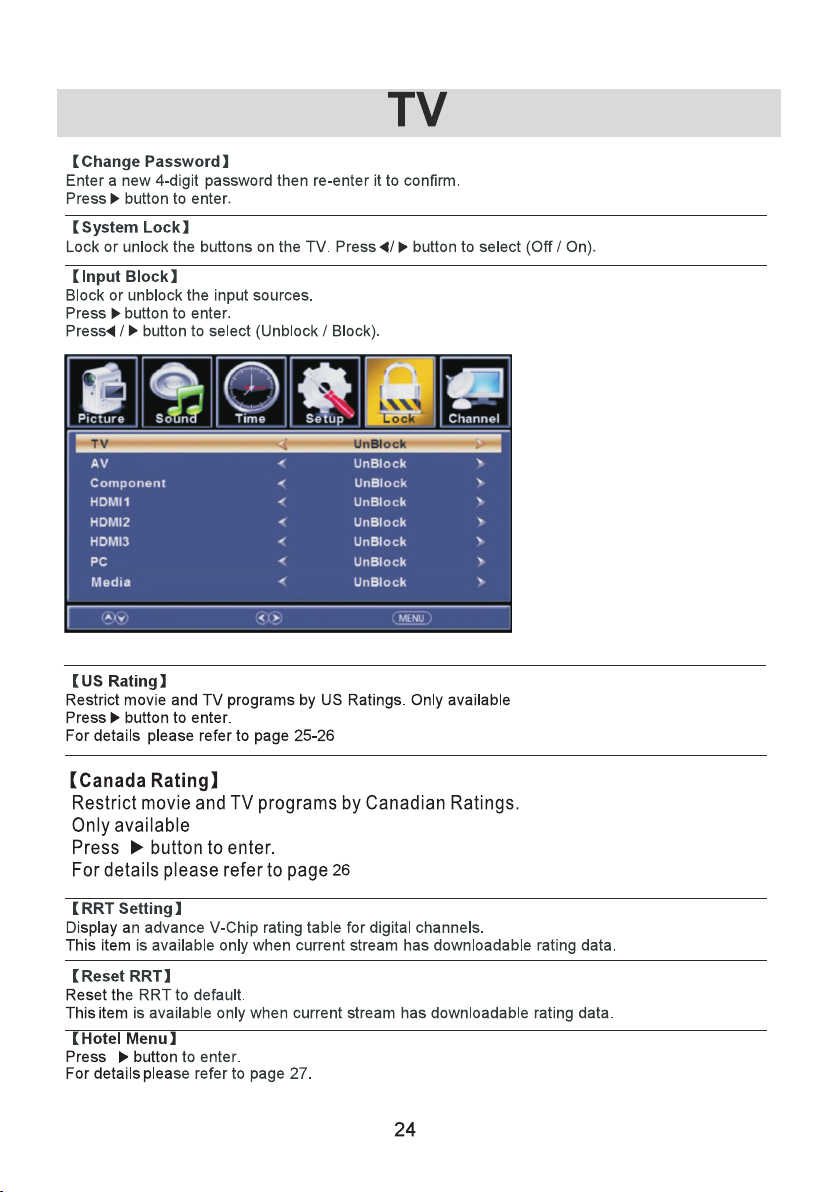
Move
when Syst em L ock is on.
Selec t
Retur n
when Syst em L ock is on.
Page 26
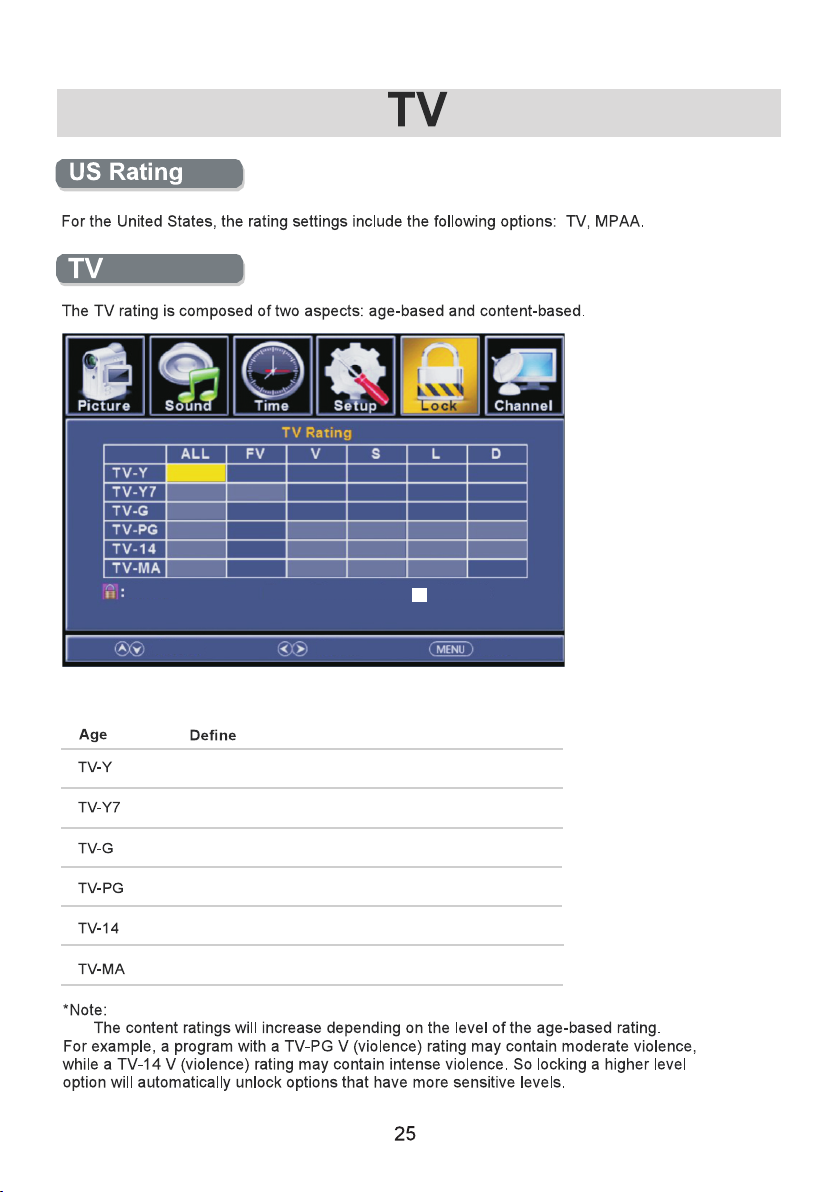
Lock
Press O K to Lo ck or U nlo ck
Move
All chi ldren
7 years o ld and ab ove
Gener al audi ence
Paren tal gui dance
14 year s old and a bove
17 year s old and a bove
Selec t
Retur n
Page 27
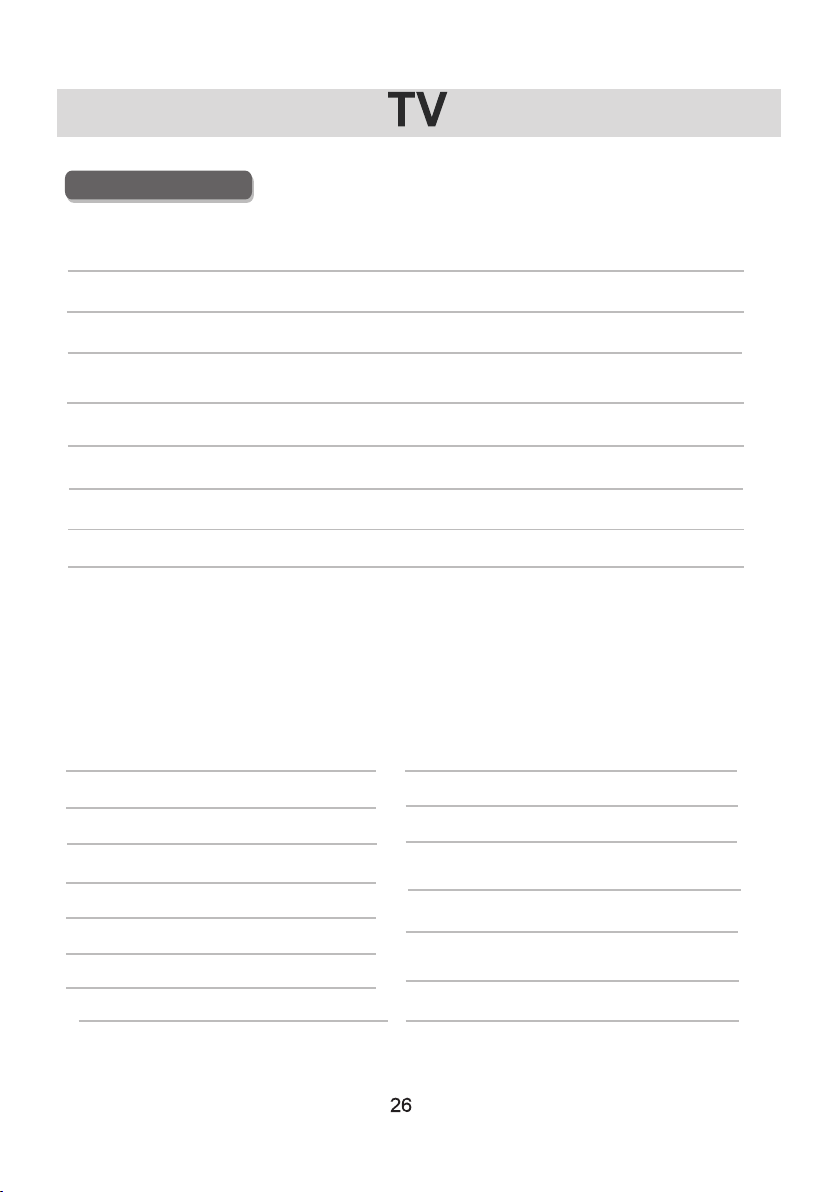
MPAA
This sy stem de fines t he rati ng cont rol whi ch come f rom MPAA rules .
Rating
Define
G
PG
PG-13
R
NC-17
X
Off
Gener al audi ence. Al l ages ad mitte d.
Paren tal gui dance s ugges ted. So me mate rial ma y not be su ita bl e for c hildr en.
Paren ts stro ngly ca ution ed. Som e mater ial may b e inapp rop ri ate f or chil dren
under 1 3.
Restr icted . Child ren und er 17 req uire ac compa nying p are nt o r adu lt guar dian.
No one 17 a nd unde r admit ted.
Adult a udien ce only.
No Ratin g Set. Off er s no re stric tion to a ccess .
Canada Rating
For Can ada , the rat ing s etting inc lud e the fol low ing opt ion s: Cana da En gli sh, Frenc h.Canad a
Canadian English
These r ati ngs are f or pr ograms whi ch ar e the
Engli sh ra ting sy ste m.
Ratin g
Off
C
C8+
G
PG
14+
18+
Defin ed as
News an d spo rts
Child ren
Child ren 8 y ears an d old er
Gener al pr ogram min g
Paren tal g uidan ce
Vie wers 14 a nd ol der
Adult p rog rammi ng
Canadian French
The rat ings are fo r progr ams
Frenc h rating sy stem.
Ratin g
Off
G
8 ans+
13 ans+
16 ans+
18 ans+
Defin ed as
News an d spo rts
Gener al
Not rec omm ended f or
under a ge 8
Not rec omm ended f or ch ildren
under a ge 13
Not rec omm ended f or
under a ge 16
This pr ogr am is res tri cte d to adul ts
which a re the
child ren
child ren
Page 28
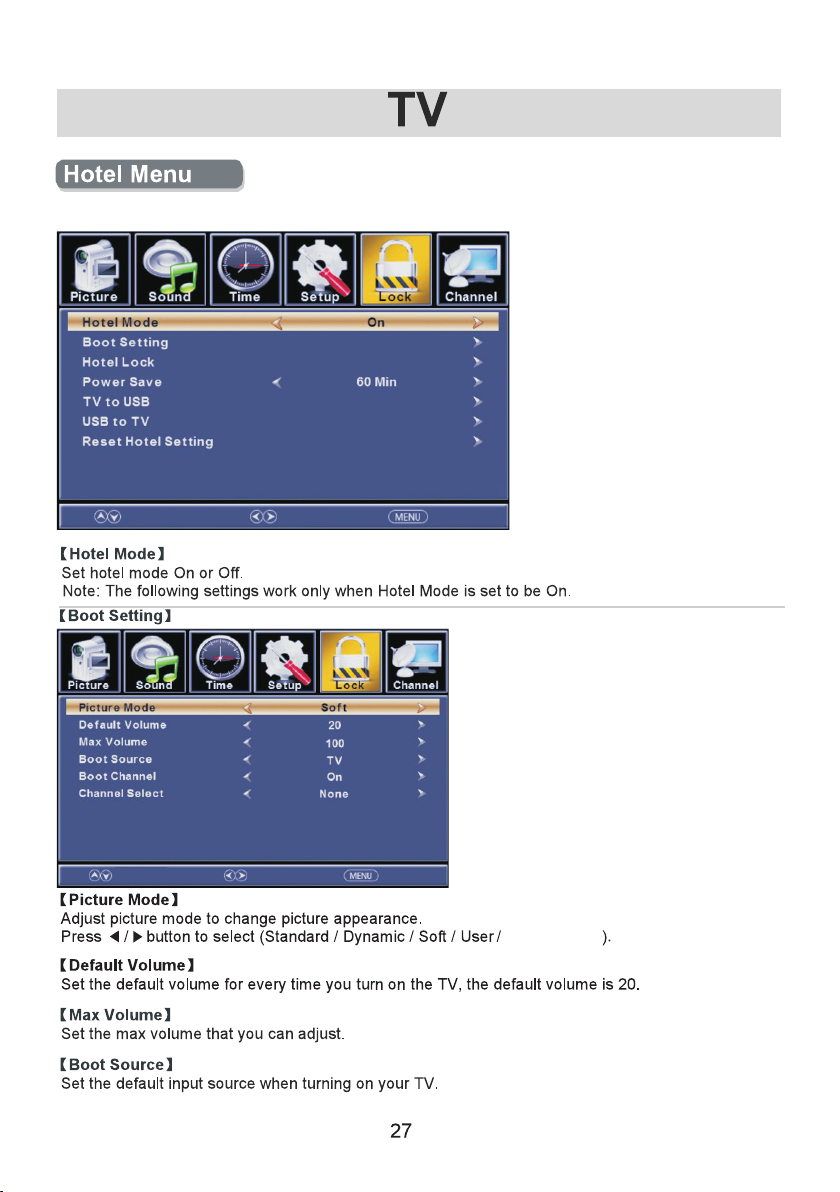
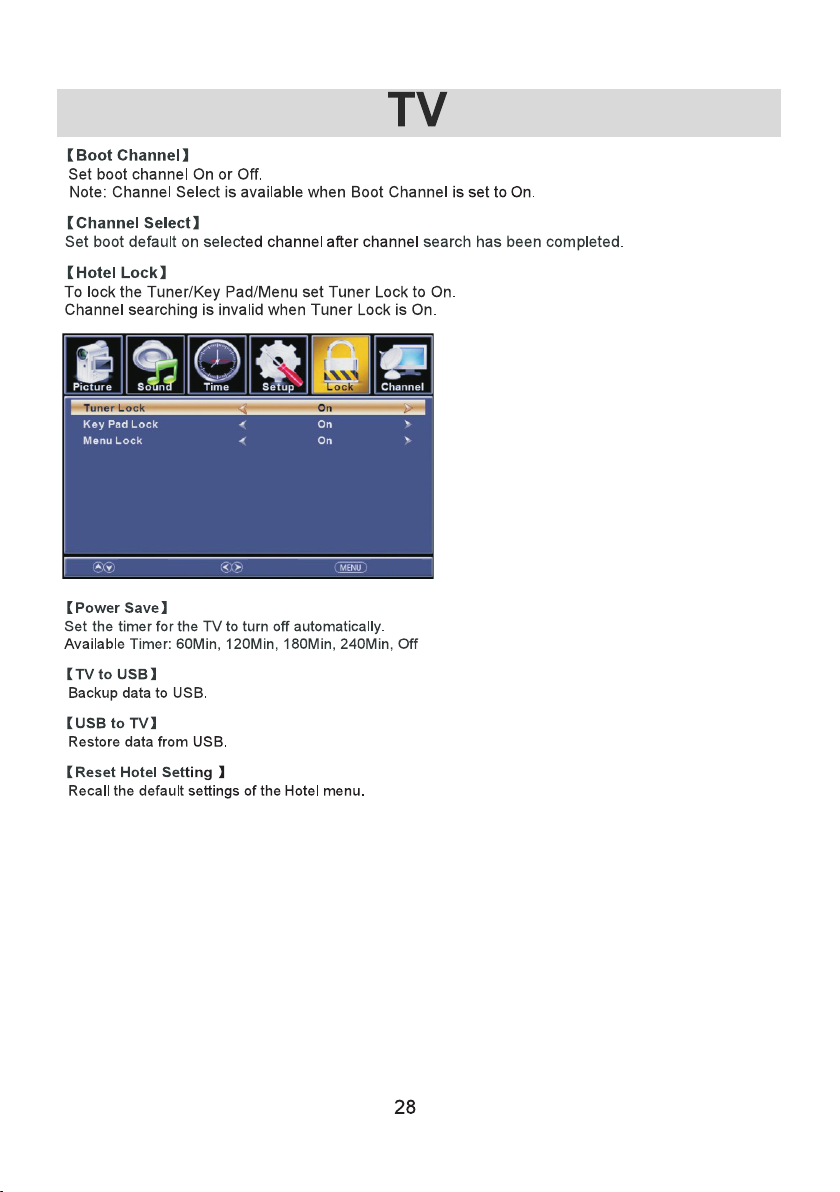
The Hot el me nu is l ocked i n the f act ory s ettin g.
To unlock , ple ase p ress Me nu, t hen 1 229 u sing th e rem ote c ontro l.
Move
Move
Move
Selec t
Selec t
Selec t
Retur n
Retur n
Retur n
Power saving
Page 29
Move
Selec t
Retur n
Page 30
Page 31
Page 32
Selec t
Retur nMove
Move
Selec t
Retur n
Page 33
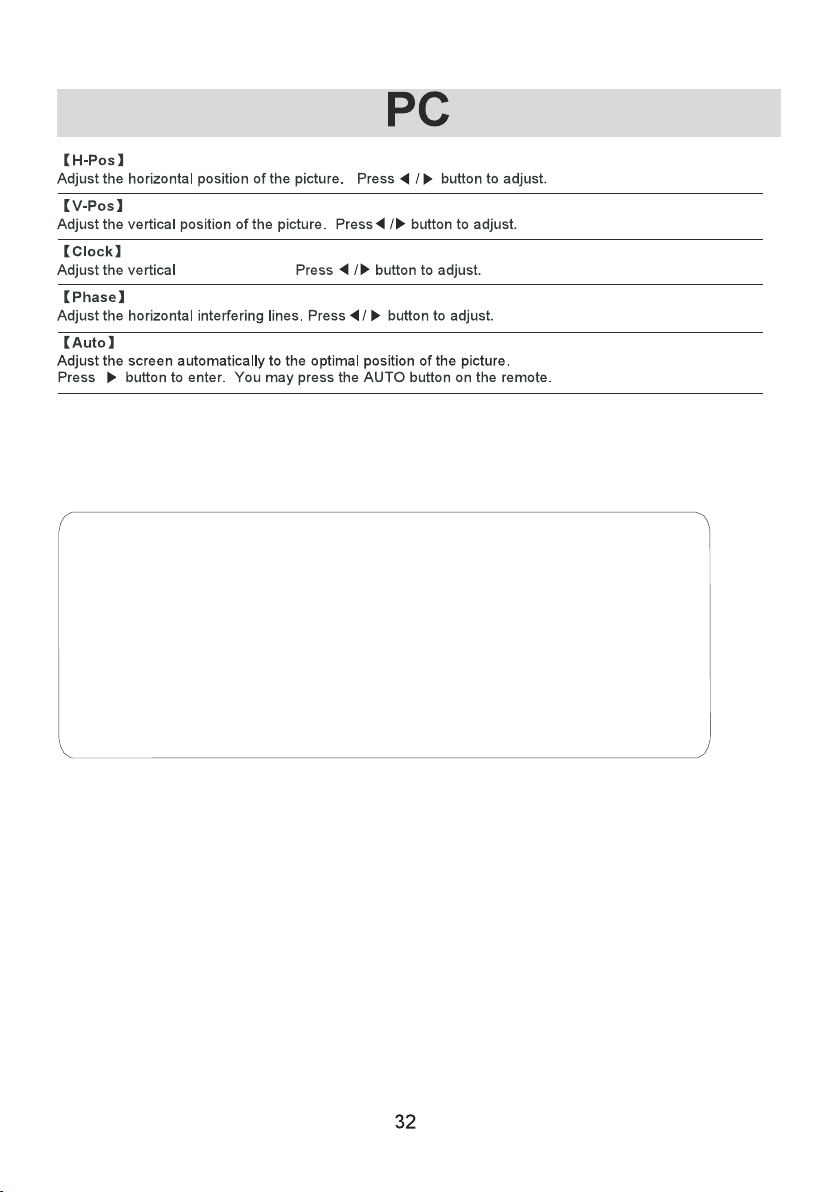
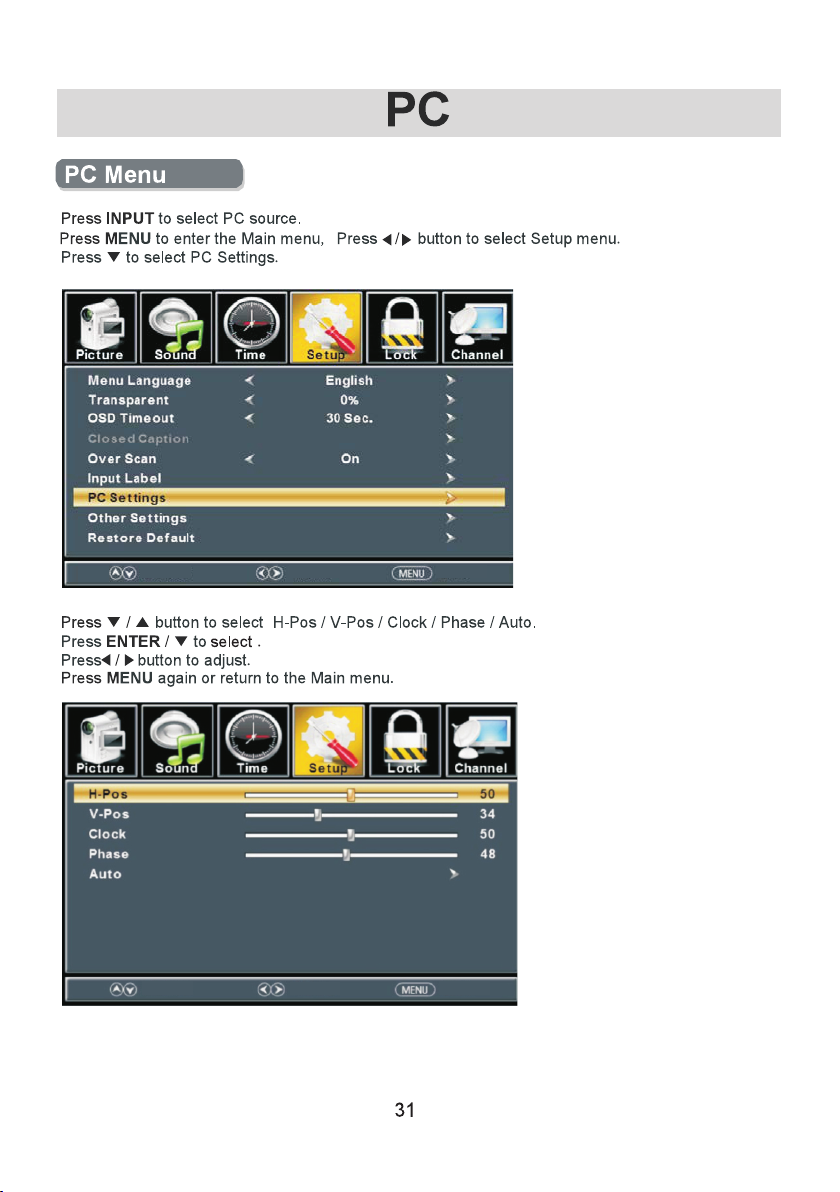
inter ferin g lines .
*Not es: In PC Mode the fo llowing funct ions are not avai lable.
1. Col or, Tint, Sharpne ss, Noise Reduc tion, Dynamic C ontrast and
HDMI M ode in PICTURE.
2. MTS a nd Audi o Language in the S OUND menu.
3. Auto C lock in TIME menu.
4. Clo sed Caption in SE TUP me nu.
5. US Ra ting, RRT Se tting and Reset R RT in LOCK men u.
6. CHA NNEL menu.
Page 34
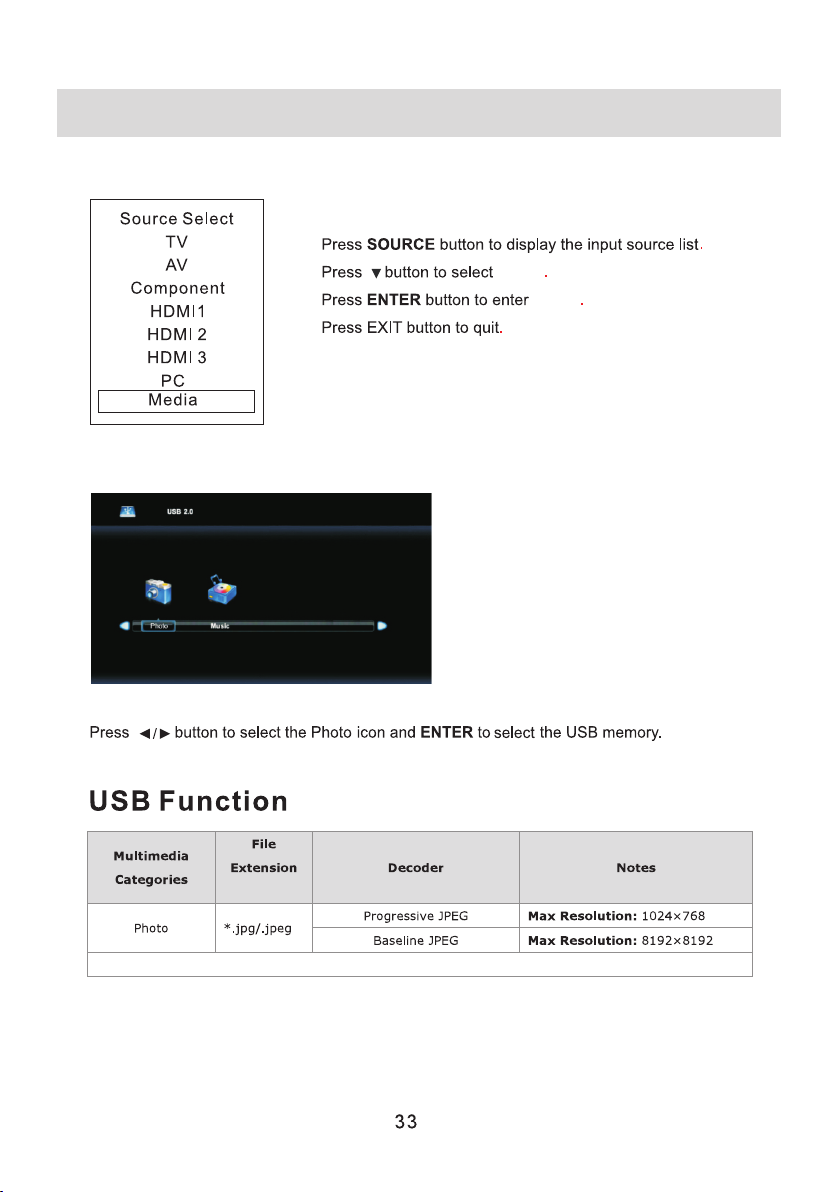
Media
The USB i nput is c ompat ible wi th flas h
drive s conta ining . jpg/. jpeg fi les onl y.
HDD (ha rd disk d rive) m ay be con necte d
with a ma ximum s torag e capac ity of 40 0G.
Accep table f ile typ es incl ude FS, FAT 32,
FAT16, an d NTFS (N TFS com press ed file s
are not s uppor ted).
Media
Media
Note: Copy rig ht Li cen ses ( whe re ap pli cab le to displa yed f ile s) ar e the r esp ons ibi lit y of the end use r.
Page 35
34
Page 36
35
Page 37
Thi s funct ion is us ed for re duc ing the d iff erenc e betwe en ch annel a nd prog ram vol ume a utoma tical ly.
This fe ature r edu ces the f luctu ation o f the s ound/ volum e.
featu re
36
Page 38
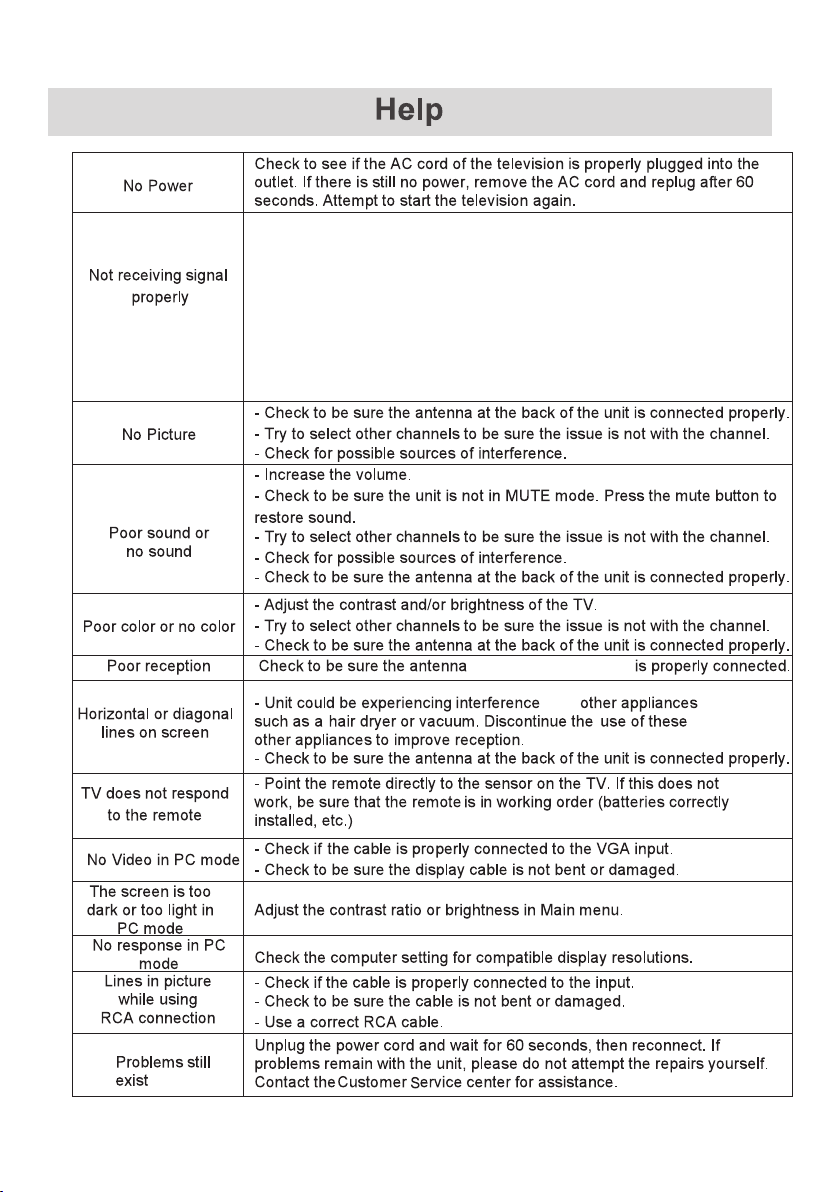
- A double image or ghost cou ld b e ca us ed by obstructions of
the external antenna. Consult the a nt en na i ns truction manual
to change the direction of the extern al a nt en na .
- Perhaps the location of the antenna i s no t go od . Us e of a
taller antenna can improve the qual it y of t he i ma ges.
- If you use an antenna, reception may be d ifficult in some
situations. You can attempt to adjust the a nt en na t o improve
the image.
at the back o f th e unit
from
37
Page 39
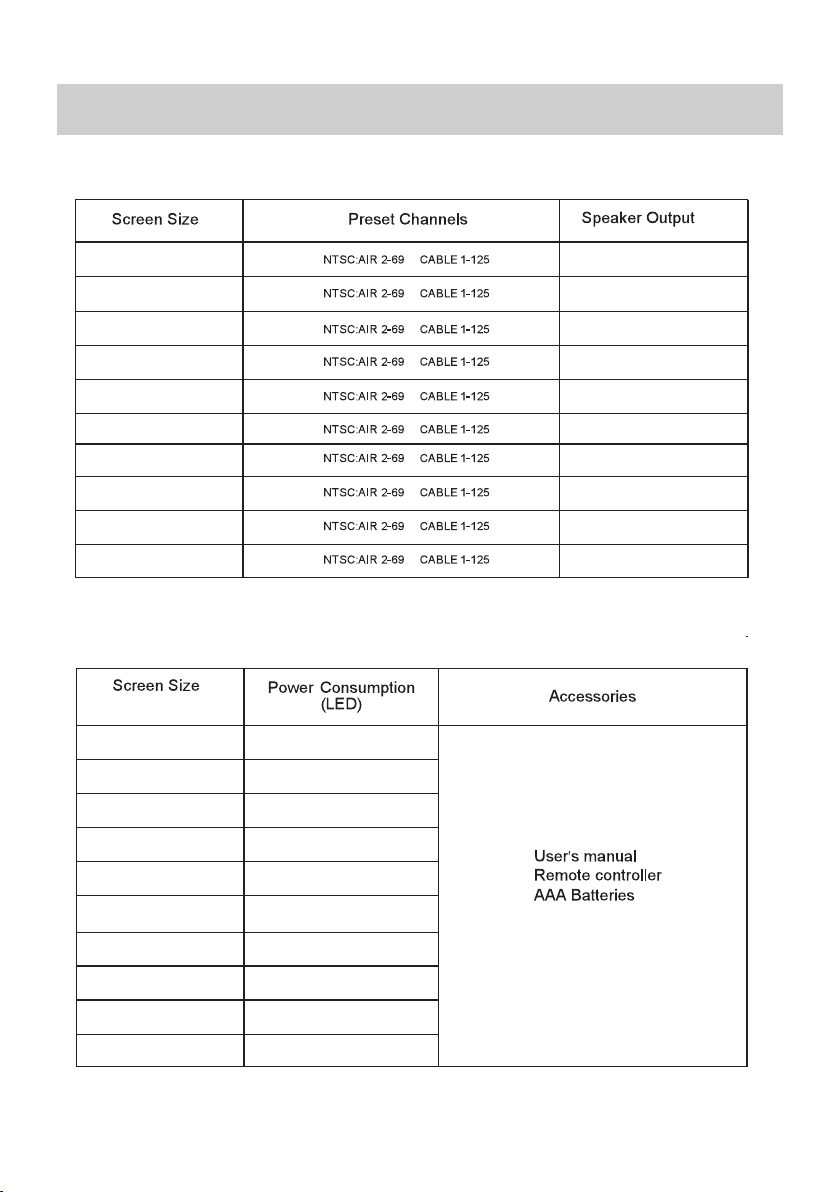
Specifications
24”
28”
32”
39”
40”
42”
43”
50”
55”
65”
24”
28”
32”
39”
40”
5W+5W
7W+7W
7W+7W
7W+7W
8W+8W
8W+8W
8W+8W
8W+8W
8W+8W
8W+8W
31W
31W
32W
76W
60W
42”
43”
50”
55”
65”
67W
65W
108W
100W
159W
38
Page 40
Power
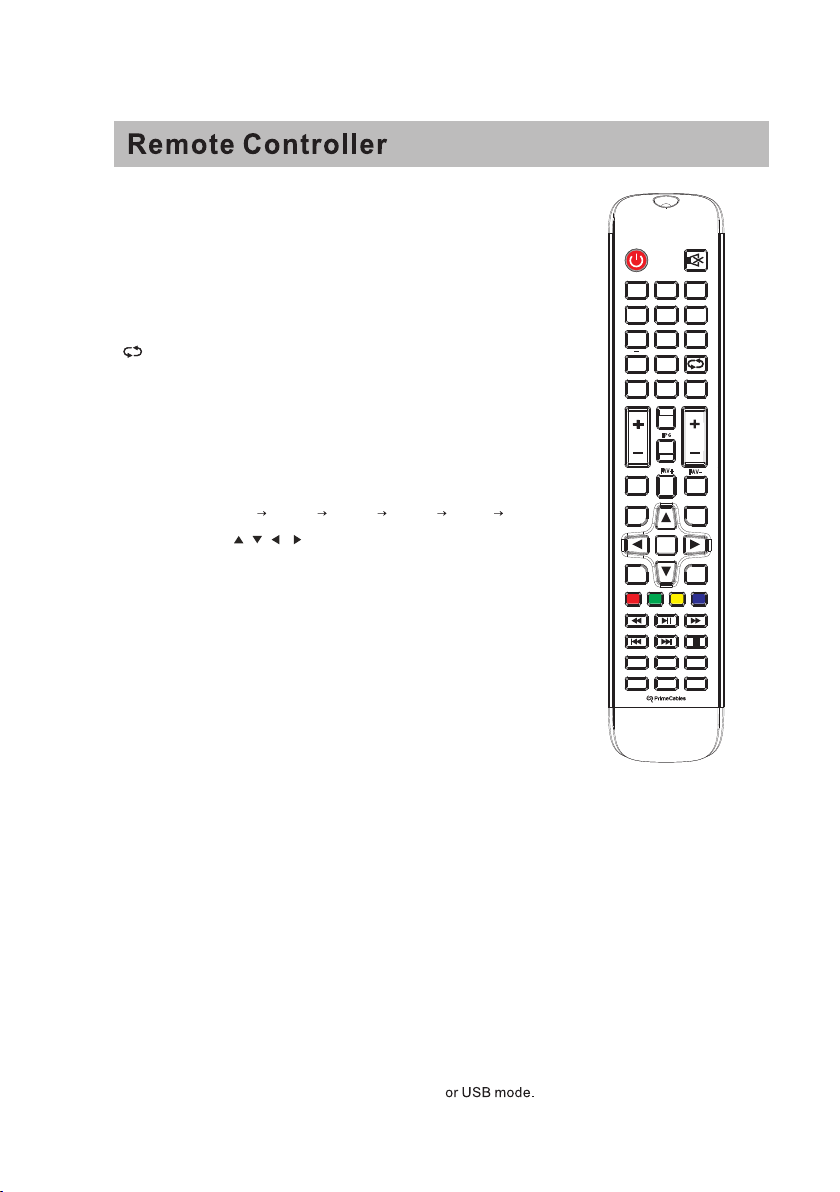
1. : Set your TV to power on or standby mode.
2.MUT E: Press to mute the sound. Press again or press VOL+
to unmute.
3.0-9: Press 0-9 to select a TV channel directly when you are
watchi ng TV. The channel will chan ge after a few seconds
4.- : Press “-” to enter a program number for a multiple program
channe l, such as 2-1etc. Return to the previous channel
viewed .
1 2
4
5. : Return to the previous channel viewed.
6.P.MO DE: Press to cycle through the different picture settin gs.
P: Select the amount of tim e before TV turns off
7.S LEE
automatically.
8.S .MODE : Press to cycle through the different sound settings.
9.ME NU: Allows you to navigate the on-screen menus.
10.S OU RC E : Press to cycle through the input source as follows:
TV → AV
11.THUMB STIC K ( / / / / ENTER ):
Allows you to navigate the on-screen menus and adjust the
system settings to your preference.
12.E XIT: Exit from the menu or sub- menu and cancel the
function in progress (if possible).
13.DIS PL AY: Press to display the source and channel’s
information.
14.MT S: Press to select the audio mode,you can select Stereo,
Mono,or SAP (second audio program).
YPBPR HDMI1 HDMI2 HDMI3 PC
P.M O DE
ME N U
E X IT
AS P E C T
HDMI
S . M OD E
+
VOL
FAV
15.V +/-: Press to increase or decrease the sound level.
16.C H+/-: Press to scan thro
ugh or to select a channel.
17.A UTO : Adjusting the PC image rate automatically.
Electronic programme guide,a function that when the channel
EPG :
is included EPG information, then press EPG button on the
remote control can show all the channel, and then press left
and right button on the remote control, you can choose the channel information.
18.FAV: Add or delete the current channel as a favorite channel.
19.F AV+:
20.F AV-:
Move down to a favorite program.
Move up to a favorite program.
21.C C: Press to display the closed caption.
22.Z OO M: Select display mode.
23.S TO P: Press to STOP in the USB mode.
24.P LAY /PAUS E: Press to PLAY/PAUSE in the USB mode.
Start recording and PAUSE in the USB mode.
25.P REV: Press to skip backward in the
USB mode .
26.NE XT : Press to skip forward in the storage mode
39
E N T E R
3
5
6
97 8
0
S L E E P
MT S
PG
E
CH
FAV +
FAV-
S OU R C E
DI S P L AY
AU T O
CC
TV
PC
 Loading...