

Page 1
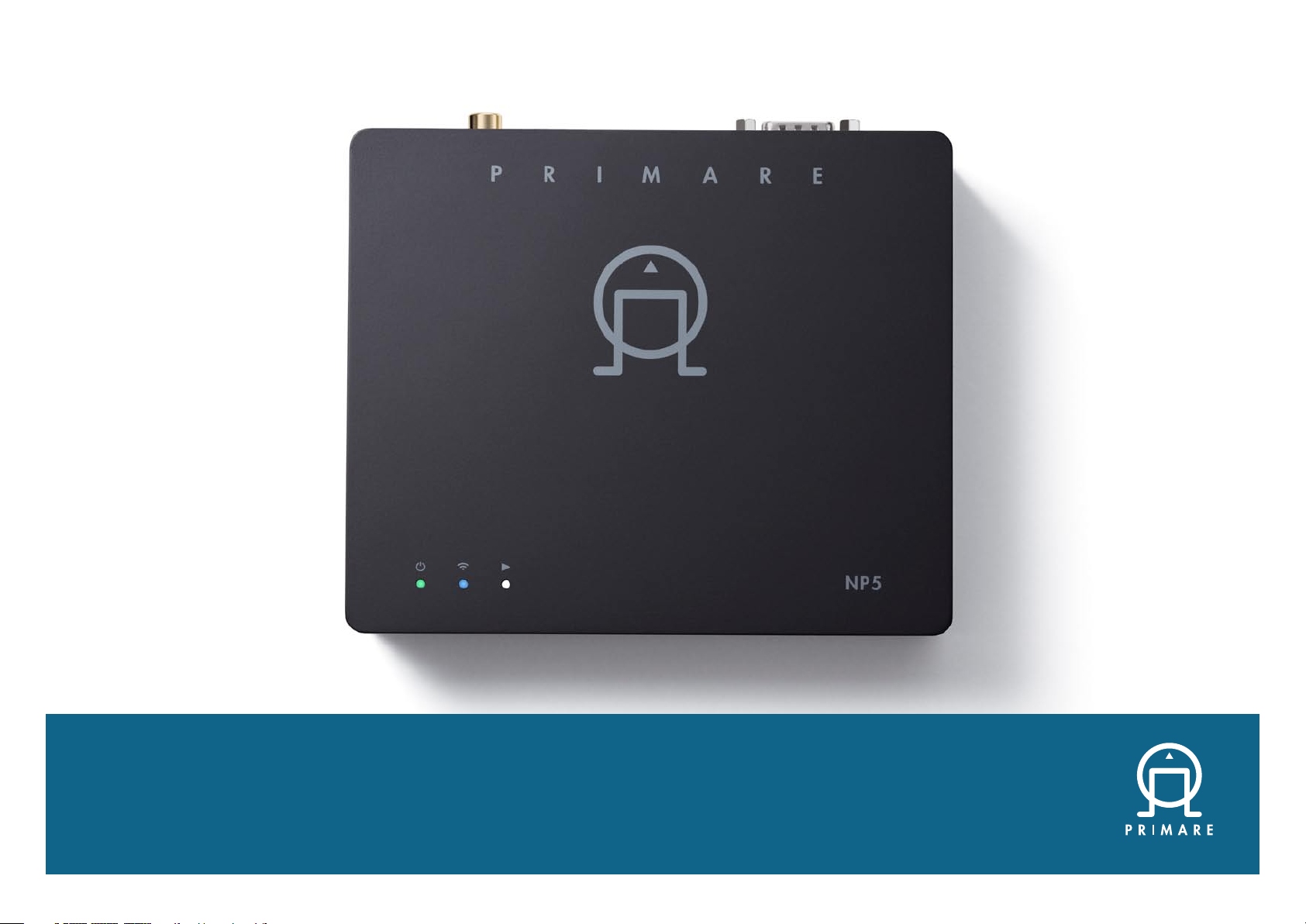
N P 5 P R I S M A N E T W O R K P L AY E R
User Guide
Page 2

CAUTION
TO REDUCE THE RISK OF FIRE, REPLACE WITH THE
SAME TYPE AND RATING OF FUSE.
ATTENTION
UTILISER UN FUSIBLE DE RECHANGE MÊME TYPE.
Safety compliance
This product has been designed to meet the IEC 60065
international electrical safety standard.
CAUTION
RISK OF ELECTRIC SHOCK DO NOT OPEN
ATTENTION
RISQUE DE CHOC ELECTRIQUE NE PAS OUVRIR
The lightning flash with an arrowhead symbol within an
CAUTION: To reduce the risk of electrical shock do not
remove cover (or back). No user serviceable parts inside.
Refer servicing to qualified service personnel.
WARNING:
do not expose this apparatus to rain or moisture.
CAUTION:
shock, match the wide blade of the plug to the wide slot
in the socket and insert the plug fully into the socket.
This product is designed and manufactured to meet strict
quality and safety standards. However, you should be aware
of the following installation and operation precautions.
equilateral triangle, is intended to alert the user to the
presence of uninsulated 'dangerous voltage' within the
product's enclosure that may be of sufficient magnitude
to constitute a risk of electric shock to persons.
The exclamation point within an equilateral triangle is
intended to alert the user to the presence of important
operating and maintenance (servicing) instructions in
the literature accompanying the product.
To reduce the risk of fire or electrical shock,
In Canada and the USA, to prevent electric
1. Take heed of warnings & instructions
You should read all the safety and operating instructions
before operating this appliance. Retain this handbook
for future reference and adhere to all warnings in the
handbook or on the appliance.
2. Water and moisture
The presence of electricity near water can be dangerous.
Do not use the appliance near water – for example next to
a bathtub, washbowl, kitchen sink, in a wet basement or
near a swimming pool, etc.
3. Object or liquid entry
Take care that objects do not fall and liquids are not spilled
into the enclosure through any openings. Liquid-filled objects
such as vases should not be placed on the equipment.
4. Ventilation
Do not place the equipment on a bed, sofa, rug or similar
soft surface, or in an enclosed bookcase or cabinet, since
ventilation may be impeded. We recommend a minimum
distance of 50mm around the sides and top of the
appliance to provide adequate ventilation.
5. Heat
Locate the appliance away from naked flames or heat
producing equipment such as radiators, stoves or other
appliances (including other amplifiers) that produce heat.
6. Climate
The appliance has been designed for use in moderate
climates.
7. Racks and stands
Only use a rack or stand that is recommended for use with
audio equipment. If the equipment is on a portable rack it
should be moved with great care, to avoid overturning the
combination.
8. Cleaning
Unplug the unit from the mains supply before cleaning.
The case should normally only require a wipe with a soft,
damp, lint-free cloth. Do not use paint thinners or other
chemical solvents for cleaning.
We do not advise the use of furniture cleaning sprays or
polishes as they can cause indelible white marks if the unit
is subsequently wiped with a damp cloth.
9. Power sources
This appliance must be connected to a mains socket
outlet using the supplied power supply. To disconnect this
apparatus from power, you must disconnect the power
supply. Make sure the power supply is always easily
accessible.
Only connect the appliance to the supplied power supply.
10. Power-cord protection
Power supply cords should be routed so that they are not
likely to be walked on or pinched by items placed upon
or against them, paying particular attention to cords and
plugs, and the point where they exit from the appliance.
11. Lightning storms
Unplug this device during lightning storms.
12. Non-use periods
If the unit is in standby, a small amount of current will
continue to flow into the equipment in this mode. Unplug
the power supply for the appliance from the outlet if left
unused for a long period of time.
13. Abnormal smell
If an abnormal smell or smoke is detected from the
appliance, unplug the power supply immediately from the
wall outlet. Contact your dealer immediately.
14. Servicing
You should not attempt to service the appliance beyond
that described in this handbook. All other servicing should
be referred to qualified service personnel.
15. Damage requiring service
The appliance should be serviced by qualified service
personnel when:
A. the power-supply cord or the plug has been damaged, or
B. objects have fallen, or liquid has spilled into the
appliance, or
C. the appliance has been exposed to rain, or
D. the appliance does not appear to operate normally or
exhibits a marked change in performance, or
E. the appliance has been dropped or the enclosure
damaged.
2.4G and 5G FCC Statements
This device complies with Part 15 of the FCC Rules.
Operation is subject to the following two conditions:
1. This device may not cause harmful interference, and
2. This device must accept any interference received,
including interference that may cause undesired
operation.
NP5 Prisma Network Player User Guide2
Page 3

Cet appareil est conforme à la section 15 des
réglementations de la FCC. Le fonctionnement de
l’appareil est sujetaux deux conditions suivantes :
1. cet appareil ne doit pas provoquer d’interférences
néfastes, et
2. cet appareil doit tolérer les interférences reçues,
y compris celles qui risquent de provoquer un
fonctionnement indésirable.
Note: This product has been tested and found to comply
with the limits for a Class B digital device, pursuant to Part
15 of the FCC Rules. These limits are designed to provide
reasonable protection against harmful interference in a
residential installation. This product generates, uses, and
can radiate radio frequency energy and, if not installed
and used in accordance with the instructions, may cause
harmful interference to radio communications. However,
there is no guarantee that interference will not occur in a
particular installation. If this product does cause harmful
interference to radio or television reception, which can be
determined by turning the equipment off and on, the user
is encouraged to try to correct the interference by one or
more of the following measures:
• Reorient or relocate the receiving antenna.
• Increase the separation between the equipment and
receiver.
• Connect the equipment into an outlet on a circuit
different from that to which the receiver is connected.
• Consult the dealer or an experienced radio/TV
technician for help.
Please take attention that changes or modification
not expressly approved by the party responsible for
compliance could void the user’s authority to operate the
equipment.
This equipment should be installed and operated with a
minimum distance 20cm between the radiator and your
body.
Cet équipement doit être installé et utilisé à une distance
minimale de 20 cm entre le radiateur et votre corps.
This device complies with Industry Canada licence-exempt
RSS standard(s). Operation is subject to the following two
conditions:
1. this device may not cause interference, and
2. this device must accept any interference, including
interference that may cause undesired operation of the
device.
Le présent appareil est conforme aux CNR d’Industrie
Canada applicables aux appareils radioexempts de
licence. L’exploitation est autorisée aux deux conditions
suivantes :
1. l’appareil ne doit pas produire de brouillage, et
2. l’utilisateur de l’appareil doit accepter tout brouillage
radioélectrique subi, même si le brouillage est
susceptible d’en compromettre le fonctionnement.
Under Industry Canada regulations, this radio transmitter
may only operate using an antenna of a type and
maximum (or lesser) gain approved for the transmitter by
Industry Canada. To reduce potential radio interference
to other users, the antenna type and its gain should be so
chosen that the equivalent isotropically radiated power
(e.i.r.p.) is not more than that necessary for successful
communication.
Conformément à la réglementation d’Industrie Canada,
le présent émetteur radio peut fonctionner avec une
antenne d’un type et d’un gain maximal (ou inférieur)
approuvé pour l’émetteur par Industrie Canada. Dans le
but de réduire les risques de brouillage radioélectrique
à l’intention des autres utilisateurs, il faut choisir le type
d’antenne et son gain de sorte que la puissance isotrope
rayonnée équivalente (p.i.r.e.) ne dépasse pas l’intensité
nécessaire à l’établissement d’une communication
satisfaisante.
The CE symbol indicates that this Primare product
complies with the EMC (Electromagnetic Compatibility)
and LVD (Low Voltage Directive) standards of the
European Community.
The WEEE symbol indicates this Primare product complies
with the European Parliament and Council Directive
2002/96/EC concerning Waste Electrical and Electronic
Equipment (WEEE). This product must be appropriately
recycled or processed in accordance with these directives.
Consult your local waste disposal authority for guidance.
The RoHS symbol indicates that Primare products are
designed and manufactured to comply with the Restriction
of Hazardous Substances (RoHS) as stated in the European
Parliament and Council Directive 2002/95/EC.
Copyright and acknowledgments
Copyright © 2019 Primare AB.
All rights reserved.
Primare AB
Limstensgatan 7
21616 Limhamn
Sweden
http://www.primare.net
Issue: NP5Prisma/2 (12/11/2019)
The information in this guide is believed to be correct as
of the date of publication. However, our policy is one of
continuous development and so the information is subject
to change without notice, and does not represent a
commitment on the part of Primare AB.
Primare is a trademark of Primare AB.
This guide was produced by
Human-Computer Interface Ltd.
http://www.interface.co.uk
NP5 Prisma Network Player User Guide 3
Page 4

NP5 Prisma Network Player User Guide4
Page 5

CONTENTS
WELCOME! 6
Getting Started 7
1 Unpack the NP5 Prisma 7
2 Connect the outputs 7
3 Connect power 7
4 Connect to a network 8
5 Download the Prisma app 8
Back-panel connections 9
Playing music from a drive or music server 10
Streaming music from a phone, tablet, or PC 11
Configuring the settings 12
Using the settings menus 12
Audio settings 12
General settings 12
Additional information 15
RS232 Link setup 15
Top panel LED indicators 15
Factory reset 15
Spotify Connect 15
Legal attributions 15
Index 16
Streaming settings 13
Information 13
Technical specification 14
Digital outputs 14
Digital input 14
Network 14
General 14
NP5 Prisma Network Player User Guide 5
Page 6
WELCOME!
Congratulations on selecting your new
NP5 Prisma Network Player
This user guide describes the features and explains how
to set up the network player for the best sound quality and
ease of operation in order to allow for the most enjoyable
reproduction of sound from all your sources.
For additional support and assistance please contact your
local authorized Primare dealer, or visit our website at
www.primare.net.
6
NP5 Prisma Network Player User Guide
Page 7

GETTING STARTED
1 Unpack the NP5 Prisma
Your NP5 Prisma is supplied with:
Chromecast Built-in Quick Start Guide
l
External power supply
l
Socket adapters for power supply
l
RS232 cable
l
If any of these items are missing please contact your
supplier. We recommend you retain the packaging in
case you need to transport the unit at a later date.
2 Connect the outputs
The NP5 Prisma Network Player provides one coax digital
output and one optical digital output for connection to a
digital input.
Connect one of the digital outputs from the NP5 Prisma
l
to an appropriate digital input.
If you want to control the volume from the NP5 Prisma:
Leave the Output option set to Variable (default).
l
Alternatively, if you want to use the NP5 Prisma as a
source, and adjust volume in a connected component:
Set the Output option to Fixed.
l
For more information see Audio settings, page 12.
The NP5 Prisma can also be connected to another Primare
device via RS232 to provide control of basic functions
(standby on/off, mute, volume up/down, and input
selection next/previous) from the Prisma application. For
more information see RS232 Link setup, page 15.
3 Connect power
If you want your NP5 Prisma connected via Ethernet
l
cable, connect the cable before you connect your
NP5 Prisma to power. For best results we recommend
connecting via cable.
Plug the power supply to DC input on the NP5 Prisma,
l
and connect it to a wall socket (use the appropriate
socket adapter).
WARNING: Always disconnect the NP5 Prisma
from the mains power before connecting or
Once connected to power it will directly power on.
disconnecting any cables.
NP5 Prisma Network Player User Guide
7
Page 8

4 Connect to a network
For best results we recommend connecting via cable. The
NP5 Prisma requires one to two minutes to completely
start up; please be patient. When it’s ready to be
configured the network LED will flash green or blue.
Connecting via an Ethernet cable
Connect an Ethernet cable between your router and the
l
LAN socket on the back panel of the NP5 Prisma.
The network LED will flash green when the NP5 Prisma is
ready to be configured using the Google Home app.
If the network LED is flashing blue, make sure your Ethernet
cable is connected and you have a network connection.
Install the free Google Home app on your mobile
l
device.
Open the Google Home app and follow the instructions
l
for setting up the NP5 Prisma on your network in the
Chromecast Built-in Quick Start Guide
description below.
Run Google Home.
l
The Google Home app will display New device found,
NP5 Prisma.
Click SET UP and follow the instructions.
l
A test sound will be played and you will be prompted to
select a name for your NP5 Prisma. If you cannot hear the
test sound you may need to increase the volume on your
amplifier.
Enter an appropriate name.
l
Once you have configured the NP5 Prisma using the
Google Home app the network LED will change from
flashing green to solid green.
You will now be able to cast music to your NP5 Prisma.
To disconnect from the Ethernet network
Remove the Ethernet cable.
l
, or the brief
Connecting via Wi-Fi
The network LED will flash blue when the NP5 Prisma is
ready to be set up by WiFi.
Make sure Bluetooth and Wi-Fi are enabled on your
l
mobile device.
Install the free Google Home app on your mobile
l
device.
Open the Google Home app and follow the instructions
l
for setting up the NP5 Prisma on your network in the
Chromecast Built-in Quick Start Guide
description below.
Run Google Home.
l
The Google Home app will display New device found,
NP5 Prisma.
Click SET UP and follow the instructions.
l
A test sound will be played and you will be prompted to
select a name for your NP5 Prisma. If you cannot hear the
test sound you may need to increase the volume on your
amplifier.
Enter an appropriate name.
l
Once you have configured the NP5 Prisma using the
Google Home app the network LED will change from
flashing blue to solid blue.
You will now be able to cast music to your NP5 Prisma.
, or the brief
To disconnect from the Wi-Fi network
Either:
Select Wi-Fi settings for the NP5 Prisma in the Google
l
Home app.
Select Forget this network.
l
Or:
Reset the NP5 Prisma to its factory defaults; see Factory
l
reset, page 15.
5 Download the Prisma app
To view and change the NP5 Prisma settings you need the
Primare Prisma app, which is available for free download
on iOS devices from the Apple App Store and on Android
devices from the Google Play Store.
In either case search for Primare to find the app.
8
NP5 Prisma Network Player User Guide
Page 9
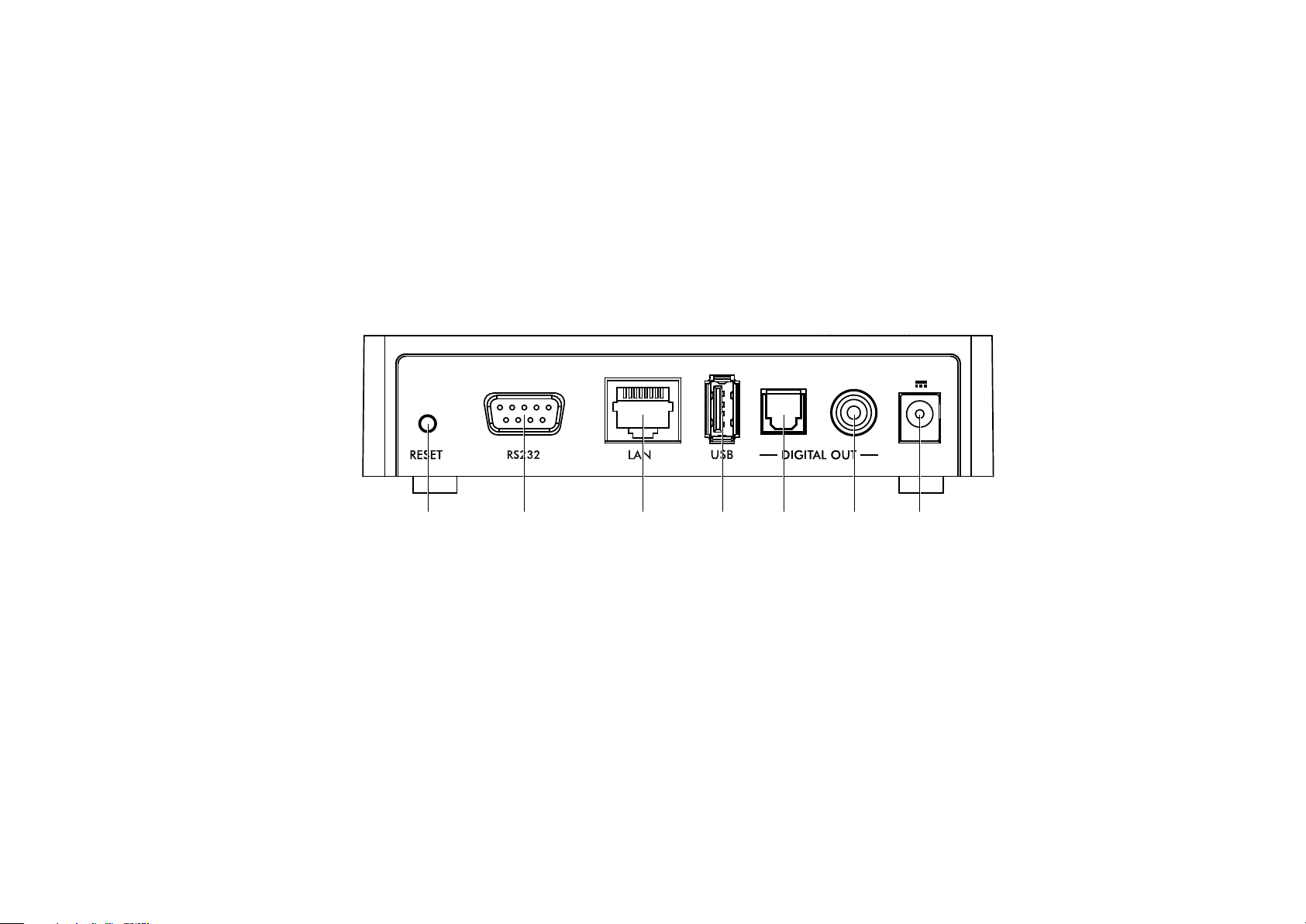
BACK-PANEL CONNECTIONS
Coax digital
output
Reset button RS232 USB Optical digital
output
Power
adaptor
Ethernet
The following diagram explains the function of each of the
connectors on the back panel:
NP5 Prisma Network Player User Guide
9
Page 10
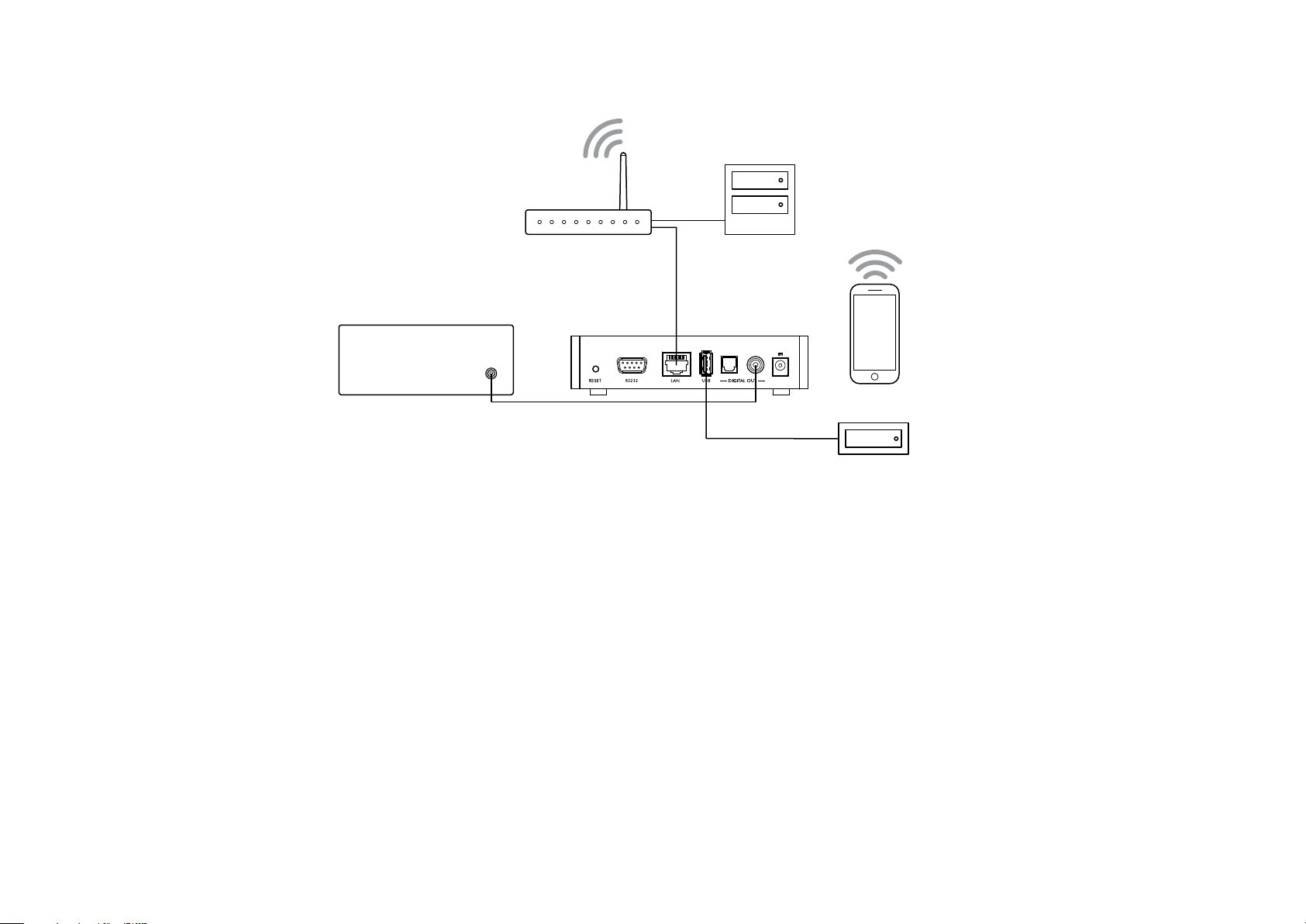
PLAYING MUSIC FROM A DRIVE OR MUSIC SERVER
Preamplifier
NP5
Music server
Hard drive
Router
You can play audio files from a USB flash drive, external
USB hard disk, or a network drive. These options are
ideal if you already have a digital library of CDs or music
files.
On a NAS drive you have the option of running a media
server program, which will catalogue your music library
and give you the option of organising it in different ways;
eg by Artist, Genre, Album, or Composer. One free
option is MinimServer; see http://minimserver.com/.
On a USB flash drive or USB portable hard drive the files
can be organised into folders, giving you one way of
classifying your music; eg by Artist.
To play audio files from a NAS (network) drive
Connect the NAS drive to the same network as the
l
NP5 Prisma.
The NAS drive can either contain folders and music files
in any of the popular formats, or it can run a music server.
See
TECHNICAL SPECIFICATION
the supported file formats.
Use the Prisma app to browse, play, and control the
l
music.
Alternatively you can select and play music from a Mac
or PC using a music server program such as JRiver or
Foobar2000.
, page 14, for details of
To play audio files from a USB flash drive or hard
drive
Connect the USB drive to the USB input on the NP5
l
Prisma.
Use the Prisma app to browse, play, and control the
l
music.
The USB drive can contain folders and music files in any
of the popular formats; see
page 14
Note that playing music via the USB input has the
following restrictions:
l
l
l
l
l
The USB input is mainly for USB thumb and other portable
hard drives and has been tested up to 2TB on NTFS and
512 GB on FAT.
The USB connection is recommended for less critical
listening, as both signal and power go through this
connection point, which we find subtly compromises
performance when compared to a network connected
hard drive.
, for details.
No playlist.
No queue.
No album art.
Maximum of 50 folders or files in a single view.
The recommended arrangement for folders is
alphabetical by artist folder.
NP5 Prisma Network Player User Guide10
TECHNICAL SPECIFICATION
,
Page 11
Preamplifier
NP5
Router
Internet music
services
Ethernet
cable
PC/Mac
STREAMING MUSIC FROM A PHONE, TABLET, OR PC
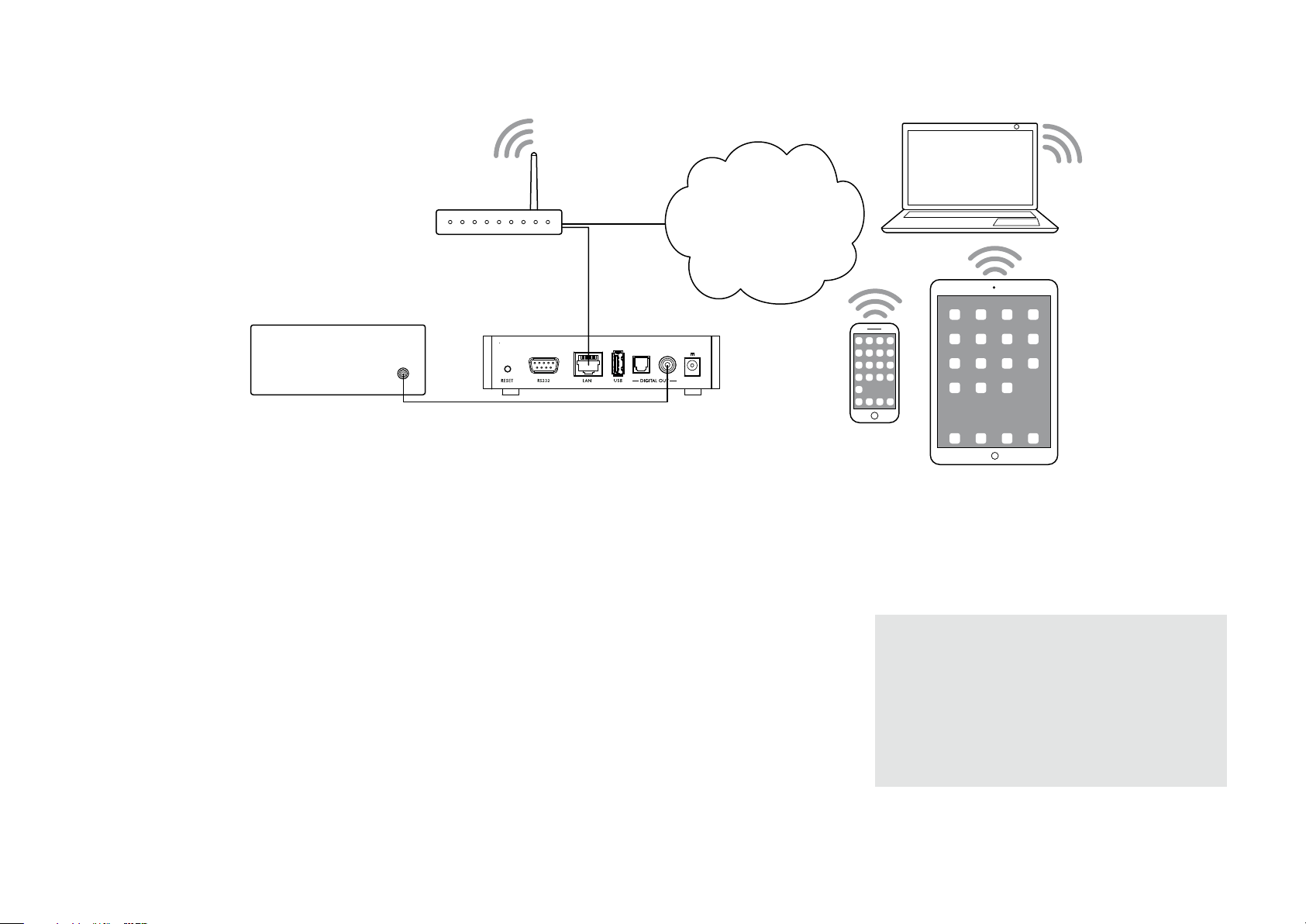
The NP5 Prisma can use Chromecast built-in to connect
directly to a music service that supports Chromecast, such
as Spotify, Deezer, Tidal, or TuneIn Radio. The music is
streamed direct to the NP5 Prisma; once set up you can
use your phone to make calls, or play other audio.
With a phone, tablet, or Mac/PC you can also play the
audio wirelessly to the NP5 Prisma, using Bluetooth or
AirPlay (iOS only), so the sound from any apps you run
on your device will be played through the NP5 Prisma.
Although you can stream music over Wi-Fi, for best results
connect the NP5 Prisma to your home router via an
Ethernet cable. If necessary, use the Google Home app to
configure the network settings on your NP5 Prisma.
NP5 Prisma Network Player User Guide 11
To stream using Chromecast built-in
The NP5 Prisma has Chromecast built-in, which means
you can stream (cast) music over your network directly to
the NP5 Prisma from any Chromecast supported music
service, using the music service’s app on your desktop or
mobile device as a controller.
Click the Cast button within your music service’s app
l
and select the NP5 Prisma in the device list.
To stream using AirPlay
Use AirPlay to send audio over the network from your
Apple device to the NP5 Prisma. AirPlay is only available
on Apple devices.
To stream using Bluetooth
Use Bluetooth to send audio directly to the NP5 Prisma
from your Bluetooth device using Bluetooth connection.
You don’t need a network to stream using Bluetooth.
To stream using Spotify Connect
The NP5 Prisma supports Spotify Connect, which means
you can stream music directly to the NP5 Prisma from the
Spotify music service over your network, using the Spotify
app on your desktop or mobile device as a controller.
Here are Spotify’s instructions:
Listen out loud with Spotify Connect
1. Connect the NP5 Prisma to your Wi-Fi network.
2. Open up the Spotify app on your phone, tablet or
laptop using the same Wi-Fi network.
3. Play a song and select Devices Available.
4. Select the NP5 Prisma and start listening.
Page 12

CONFIGURING THE SETTINGS
Using the settings menus
You can view and change the NP5 Prisma settings using
the Prisma app. For more information see Download the
Prisma app, page 8.
Audio settings
The Audio settings menu allows you to customise the
balance and start-up volume, and the maximum and mute
volume.
Output
Specifies whether the output is Variable (default) or Fixed.
Selecting Fixed will show a loud-volume warning. Select
Yes
to proceed or No to cancel the fixed gain setting.
If Variable is selected the following additional settings are
available.
Balance
Allows you to adjust the balance between 00LR-9 (far left),
00LR00 (centred, default) and -9LR00 (far right).
Startup volume
Sets the general startup volume to between 0 and 60. The
default is 30.
Maximum volume
Sets the maximum volume limit between 0 and 99. The
default is 99.
Mute volume
Sets the volume when unit is muted. You can choose
between 0 (default) and 30.
If the current volume is lower than the specified Mute
volume, the volume will be set to 0 when pressing mute.
General settings
The General settings menu allows you to configure the
general operation of the NP5 Prisma:
Standby settings
Displays the Standby settings menu to allow you to specify
the standby settings.
Auto-standby automatically switches the NP5 Prisma to
standby if there is no user interaction or audio from the
current source for a specified delay: After 10min, After
15min, After 20min (default), or Off.
Note: The Auto-standby function will be disabled if the
network has not been set up.
RS232 link
The RS232 link submenu lets you customize your RS232
link settings. For information about setting up a link see
RS232 Link setup, page 15.
Baud rate specifies the speed the RS232 commands are
being sent: 4800 or 115200.
Linked volume settings specifies the volume settings that
will be used in the app for the NP5 Prisma when linked to
a Primare device.
Auto-on turns on linked device when starting the NP5
Prisma.
Auto-off sets the linked device to standby when the NP5
Prisma goes into standby.
Connect to device. Pressing Connect sends out a command
that forces the linked device to answer. If the NP5 Prisma
receives an answer Link status will show Connected.
Factory reset
Resets the NP5 Prisma to the factory default settings.
You are prompted to confirm. Select Yes to proceed or No
to cancel.
You can also perform a factory reset by pressing and
holding the Reset button on the rear panel for 6 seconds.
All LEDs will begin to flash red to warn you. Factory reset
is in progress while all 3 LED are RED. Do not remove
power during this process.
Digital output
Allows you to adjust the output sample rate between 48,
96, and 192kHz.
NP5 Prisma Network Player User Guide12
Page 13

Streaming settings
Information
The Streaming settings menu allows you to configure the
NP5 Prisma streaming:
Bluetooth settings
Displays the Bluetooth settings menu.
Visible can be set to On to make the NP5 Prisma visible to
other Bluetooth devices, or Off (default) to make the NP5
Prisma not visible.
Note: Visible allows any Bluetooth-enabled device within
range to discover and pair with your NP5 Prisma.
Auto-connect can be set to On to automatically reconnect
to a paired mobile Bluetooth device when the Bluetooth
input on the NP5 Prisma is selected, or Off (default) to
disable automatic connection.
AirPlay password
Allows you to set an optional password for connection by
AirPlay. Leave empty for no password.
Shows information about the NP5:
System information
Shows the following system information for all Prisma
products connected to your network.
Connection: one of Connected by Wi-Fi or Connected
l
by cable.
Network, the current SSID.
l
IP, the current IP address.
l
Device name, the device name.
l
NET MAC, the network MAC address.
l
BT MAC, the current Bluetooth MAC address.
l
Firmware versions, displays the current firmware
l
versions.
App version
Shows the Prisma app version you currently are using on
your handheld device.
NP5 Prisma Network Player User Guide 13
Page 14

TECHNICAL SPECIFICATION
Digital outputs
Digital outputs
Coaxial: RCA
Optical: TOSlink
Sample Rate
48, 96 or 192 kHz/24bit
Digital input
1x USB-A up to 192kHZ/24bit;
up to DSD128 (5.6MHz)
Network
Connectivity
1 x Ethernet LAN port
2 x Internal antennas for Bluetooth and Wi-Fi
LAN: 10/100Mbit Ethernet port
WLAN: IEE 802.11 a/b/g/n/ac compliant; 2.4/5GHz;
b, g, n mode
Audio formats
WAV, LPCM, AIFF, FLAC, ALAC, WMA, OGG:
Up to 192kHz/24bit
MP3, MP4 (AAC):
Up to 48kHz/16bit, VBR & CBR 320kbps
DSD:
Up to DSD128 (5.6MHz)
Streaming
AirPlay
Bluetooth®
Chromecast built-in
Spotify Connect
General
Control
RS232
External power supply
5 Volt, 2 Amp, DC
Power Consumption
Standby: <2.9W
Operate: <3.6W
Dimensions
143 x 125 x 36 mm (wxdxh) with knobs and connectors
143 x 120 x 36 mm (wxdxh) without knobs and
connectors
Weight
0.5 kg
Colour
Black
DLNA/UPnP
NP5 Prisma Network Player User Guide14
Page 15

ADDITIONAL INFORMATION
These instructions help you get the best possible
performance from your NP5 Prisma.
RS232 Link setup
Your NP5 Prisma can be linked to another Primare
product using the RS232 Link function to add Prisma
capabilities to it. It will allow you to control the input,
volume, and standby on the linked device using the
Prisma app.
The procedure is as follows:
Connect the RS232 cable provided with your NP5
l
Prisma to your NP5 Prisma and other Primare product.
Open the Prisma app, choose the Settings tab, and go
l
to General settings.
Select RS232 link.
l
Set the appropriate Baud rate for the Primare device
l
you want to link to your NP5 Prisma.
Select 115200 for 15, 25, and 35 Series models, and
4800 for all other models.
Make sure that the linked Startup volume and
l
Maximum volume
Set the Auto-on and Auto-off settings as required.
l
We recommend enabling both settings.
When you have selected the appropriate settings press
l
the Connect button.
match your linked product.
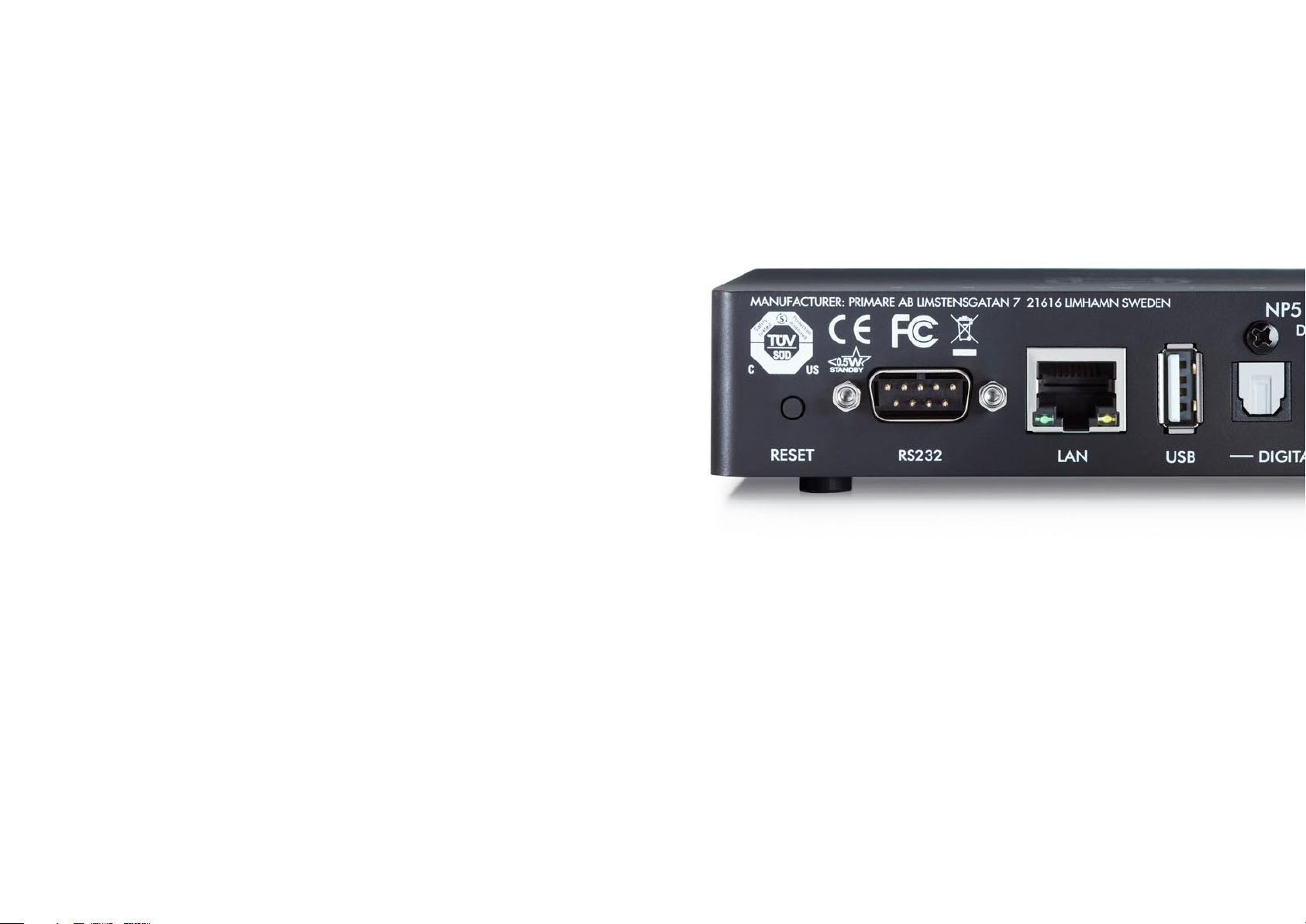
Top panel LED indicators
The table below explains the meaning of the top panel
indicators:
Colours * Power/Source Network Playing
White Chromecast, AirPlay and
UPnP/DLNA
Green flash N/A Connected by cable.
Green Spotify Connect Connected by cable. N/A
Blue flash N/A Set up Wi-Fi ** N/A
Blue Bluetooth Connected by Wi-Fi N/A
Red flash Countdown to factory reset
Red Factory reset/firmware update in progress
* Indicators are dimmed while in standby.
** Set up or configure the network using the Google Home app; see Connect to a network, page 8.
Factory reset
You can do a factory reset from the Prisma app, or from
the General settings menu; see
General settings
, page 12.
Spotify Connect
The Spotify Software is subject to third party licenses
found here:
https://www.spotify.com/connect/third-party-licenses
N/A Playing
N/A
Configure network **
Legal attributions
Apple, iPad, iPad Air, iPad Pro, iPhone and AirPlay are
trademarks of Apple Inc., registered in the U.S. and other
countries.
The Bluetooth® word mark and logos are registered
trademarks owned by Bluetooth SIG, Inc.
Chromecast built-in is a trademark of Google LLC.
SPOTIFY is a registered trademark of Spotify AB.
The Link status should now change to Connected and
you can use the Prisma app to control the volume, step
between inputs, and switch between on and standby.
NP5 Prisma Network Player User Guide 15
Page 16

INDEX
A
AirPlay, streaming 11
AirPlay password (settings menus) 13
Analogue outputs 9
App version (settings menus) 13
Audio settings menu 12
Auto-off (settings menus) 12
Auto-on (settings menus) 12
Auto-standby (settings menus) 12
B
Back panel 9
Balance (settings menus) 12
Baud rate (settings menus) 12
Bluetooth, streaming 11
Bluetooth settings (settings menus) 13
C
Chromecast, streaming 11
Coax digital output 9
Connect to device (settings menus) 12
F
Factory reset 15
Factory reset (settings menus) 12
Firmware versions (settings menus) 13
G
General settings menu 12
H
Hard disk, playing music from 10
I
Information menu 13
L
Linked volume settings (settings menus) 12
M
Maximum volume (settings menus) 12
Menus
Audio settings 12
General settings 12
Information 13
O
Optical digital output 9
Output (settings menus) 12
Outputs 9
P
Power adaptor 9
R
Reset button 9
RS232 input 9
RS232 link (settings menus) 12
S
Spotify Connect, streaming 11
Standby settings (settings menus) 12
Startup volume (settings menus) 12
Streaming settings menu 13
T
Top panel LED indicators 15
Trigger output 9
D
Digital output (settings menus) 12
E
Ethernet connection 9
Streaming settings 13
Mute volume (settings menus) 12
N
Network, connecting to 8
Network drive, playing music from 10
Network troubleshooting 15
U
USB connection 9
USB flash drive, playing music from 10
W
Wi-fi, connecting to 8
NP5 Prisma Network Player User Guide16
Page 17

L I M S T ENS G AT A N 7 ,
T H E S O U N D A N D V I S I O N O F S C A N D I N A V I A S I N C E 1 9 8 6
2 1 6 1 6 L I M H A M N , S W E D E N
More information at primare.net
 Loading...