

Page 1
GRACE V7 LTE
Unboxing Getting started Basics Phone Messages
Mail
Play store
9
BluetoothWeb & networkMultiMediaCamera
Maps & navigation Utilities Specifications Troubleshooting
.
Page 2
Unboxing
Inside your package
Your phone at a glance
Buttons
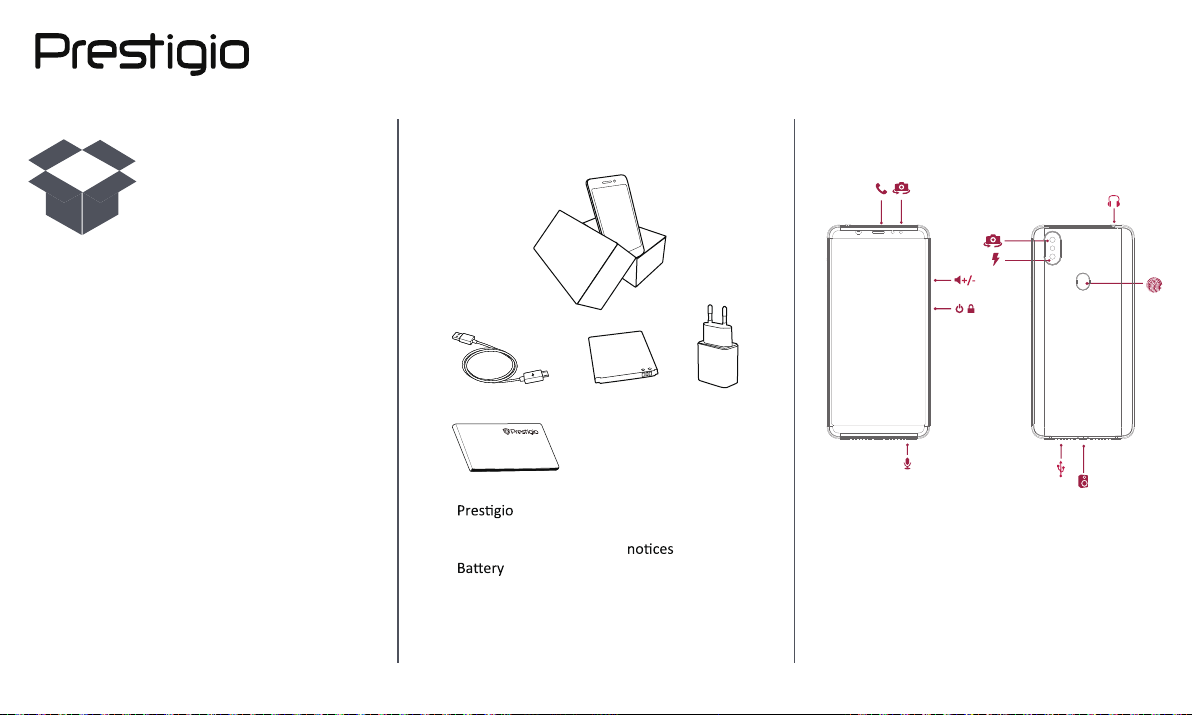
Inside your package
•
Smartphone
• USB cable
•
• Adapter
• Quick start guide
• Legal & safety
• Warranty card
Your phone at a glance
1
2
6
9
4
5
3
1. Frontcamera
2. Receiver
3. MIC
OL+/-
4. V
5. Power on/off
6.RearCamera
7.
8.
9. Flash
10.Speaker
11.Fingerprint
8
11
7
MicroUSBPort
EarphoneJack
www.prestigio.com
Page 3
Inside your package
Your phone at a glance
Buttons
Buttons
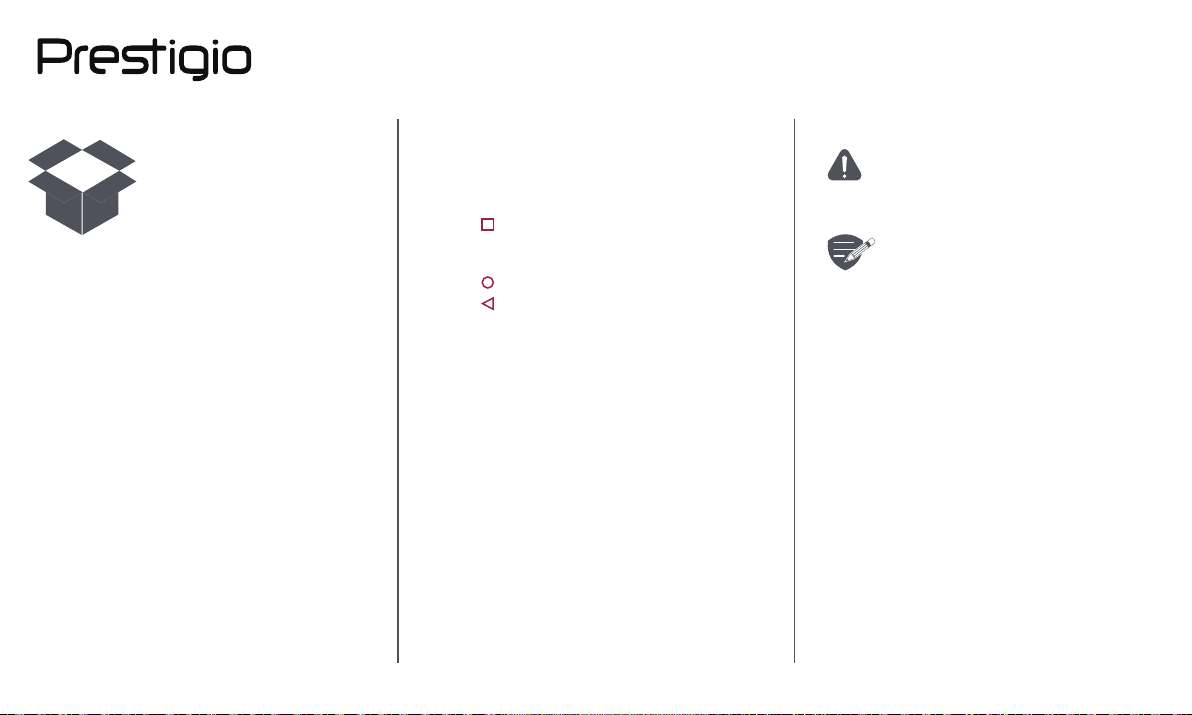
The back, start and search keys help you navigate
your phone.
• Tap to open a list of opons available on
the current screen. To open the list of recent
apps and slide, tap and hold.
• Tap to return to th
• Tap to return to the previous screen.
e home screen.
Do not cover the antenna area with
your hands or other objects. This may
cause connecvity problems or drain the
baery.
Please read the "Legal and safety
noces" in your package before use.
www.prestigio.com
Page 4
Getting started
Installation
Power on your phone
Home screens
List menu
Smartphones
For more details about your product, please visit:
Installation
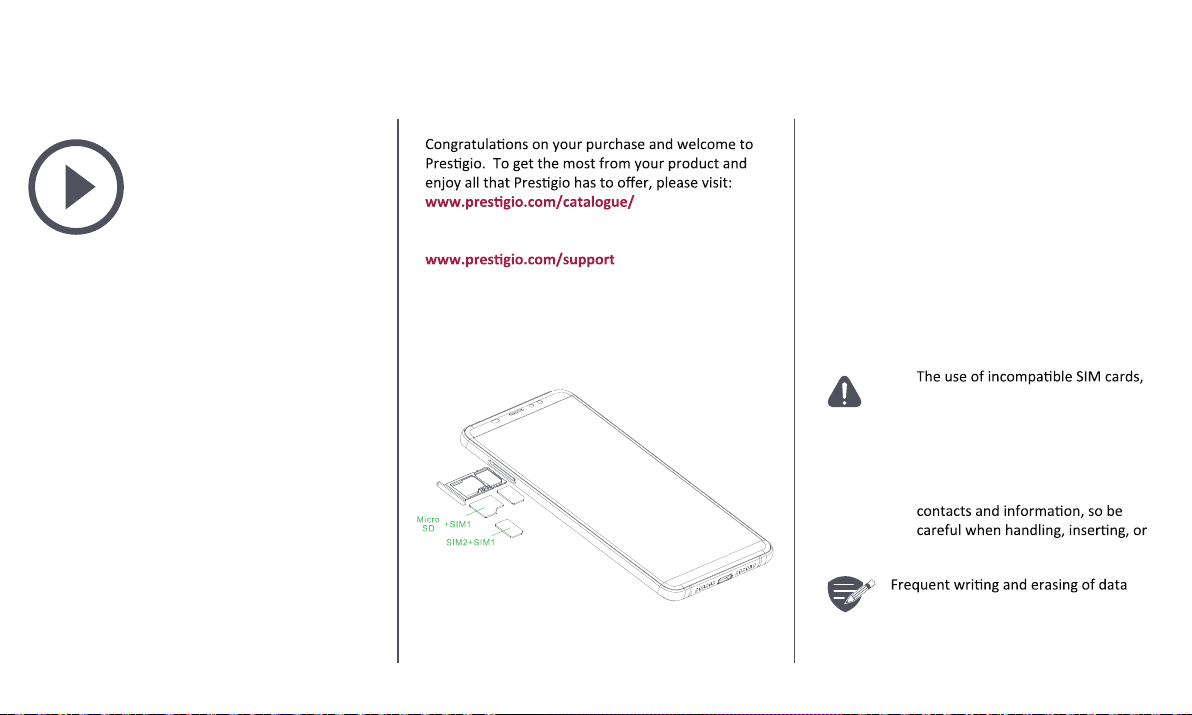
Take out sim card tray,insert Sim card and TF card
•
manually cut SIM cards, or SIM card
adapters may damage the cards or
the device, and it may corrupt the
data stored on the cards.
• Scratching or bending of the SIM
cards may result in the loss of
removing the cards.
shortens the lifespan of memory cards.
www.prestigio.com
Page 5
Installation
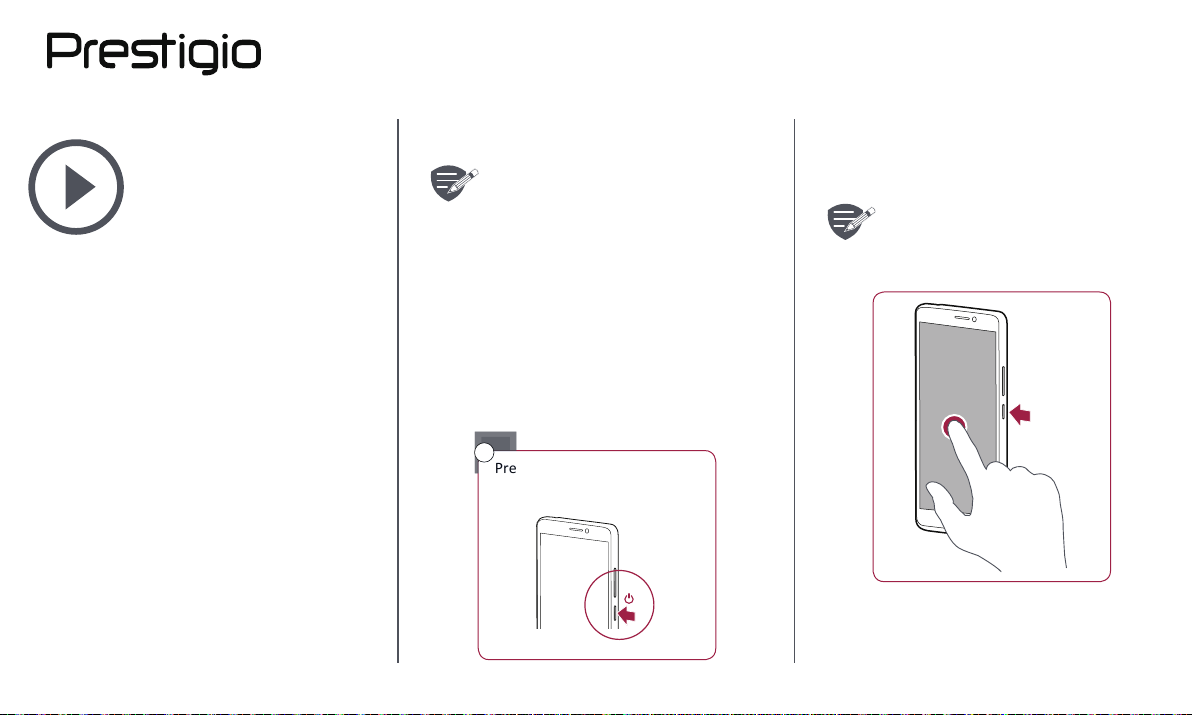
Power on your phone
Home screens
List menu
Dual SIM standby
The device supports two SIM cards for
voice calls and data connecon. During
a voice call or data transfer via one
SIM card, the other SIM card becomes
inacve (not registered with your mobile
network operator). This means that you
cannot receive incoming calls or use
data connecon via the inacve SIM
card. When the call or data transfer
ends, both SIM cards will become
acve and show on the list of registered
networks.
When turning on the device for the first me, follow
the on-screen instrucons to set up your device.
To turn off your phone, press and hold
the power key, and then tap Power off
on the pop-up screen.
Power on your phone
7
Press and hold the power
buon for a few seconds.
2
1
www.prestigio.com
Page 6
Installation
Power on your phone
Home screens
List menu
Home screens
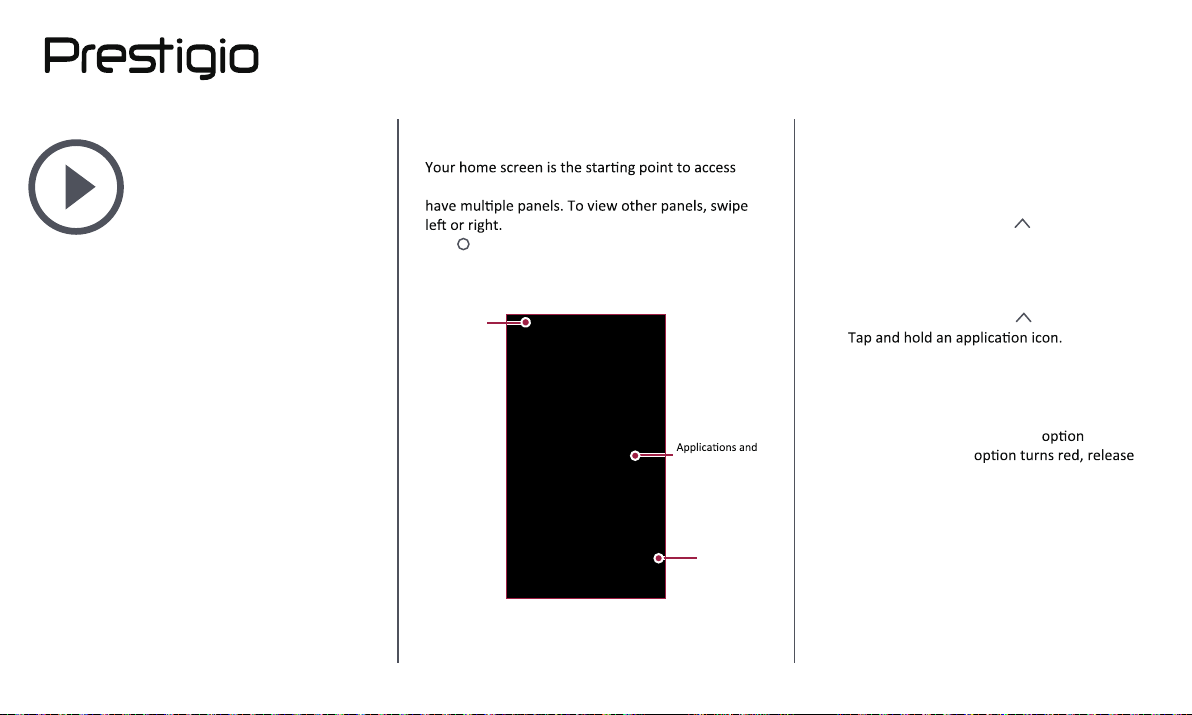
all of your phone’s features. The home screen can
Tap to return to the home screen.
Your phone’s home screen consists of the following:
Status bar
widgets
Shortcut
Personalise your wallpaper
Pick your favourite photo as your Home wallpaper.
Choose from the available wallpapers, or use any
photo you have taken with the camera.
On the home screen, Tap to open the list menu,
1.
Search applicaon and tap Sengs > Wallpaper.
2. Select an image and tap Set wallpaper.
Add an app icon to home screen
1. On the home screen, Tap open the list menu.
2.
3. Drag it into a panel preview.
Remove an item on home screen
1. Tap and hold an item to remove.
2. Drag the item to the Remove
3. When the Remove
the item.
.
www.prestigio.com
Page 7
Installation
Power on your phone
Home screens
List menu
List menu
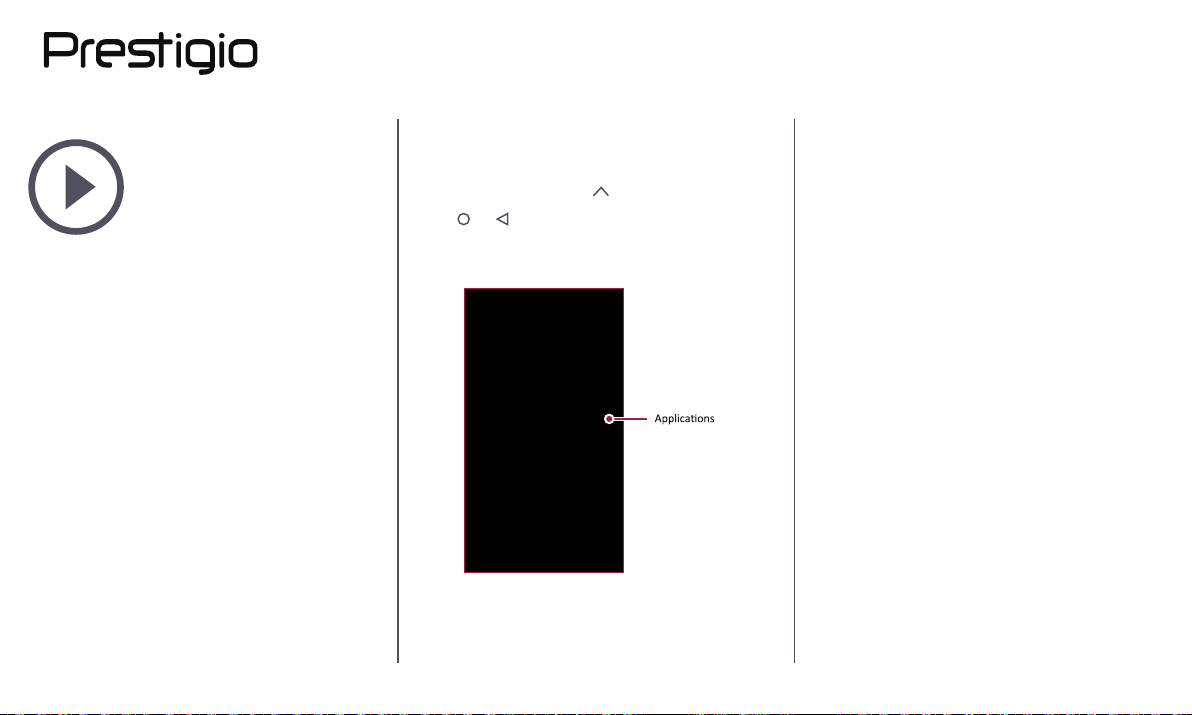
All your apps' icons can be found on the list menu.
On the home screen,
Tap or to return to the home screen. Your
phone’s list menu consists of the following:
Tap to open menu.
www.prestigio.com
Page 8
Basics
Finger tips
Charge the battery
Connect to your PC
Rotate the screen
Lock and unlock the screen
Enter text
System update
Status icons
Finger tips
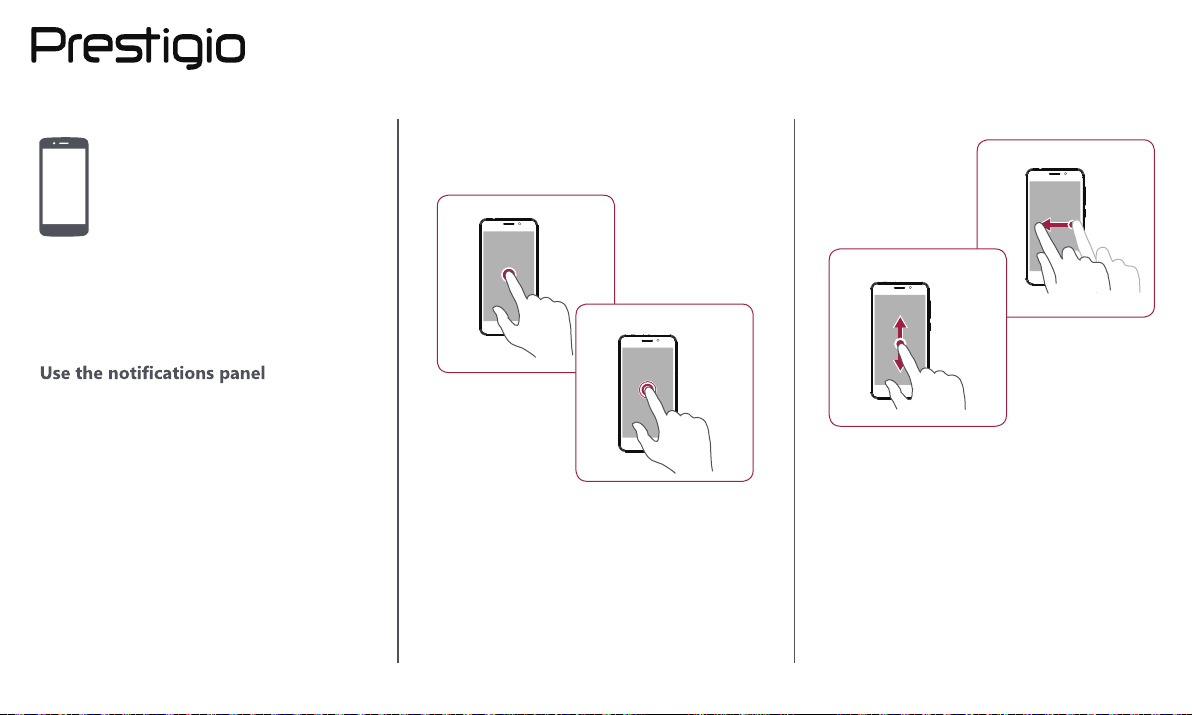
Only use your fingers to use the touch screen.
Tap
Tap and hold
• To open an applicaon, to select a menu item,
to press an on-screen buon, or to enter a
character using the on-screen keyboard, tap it
with a finger.
• Tap and hold an item for more than 2 seconds
to access available opons.
Swipe
Slide or scroll
• Quickly swipe your finger vercally or
horizontally across the screen to go to other
home pages, scroll through documents, and
more.
• Slide your finger vercally across the screen
to open drop-down menu. Drag up or down to
scroll.
www.prestigio.com
Page 9
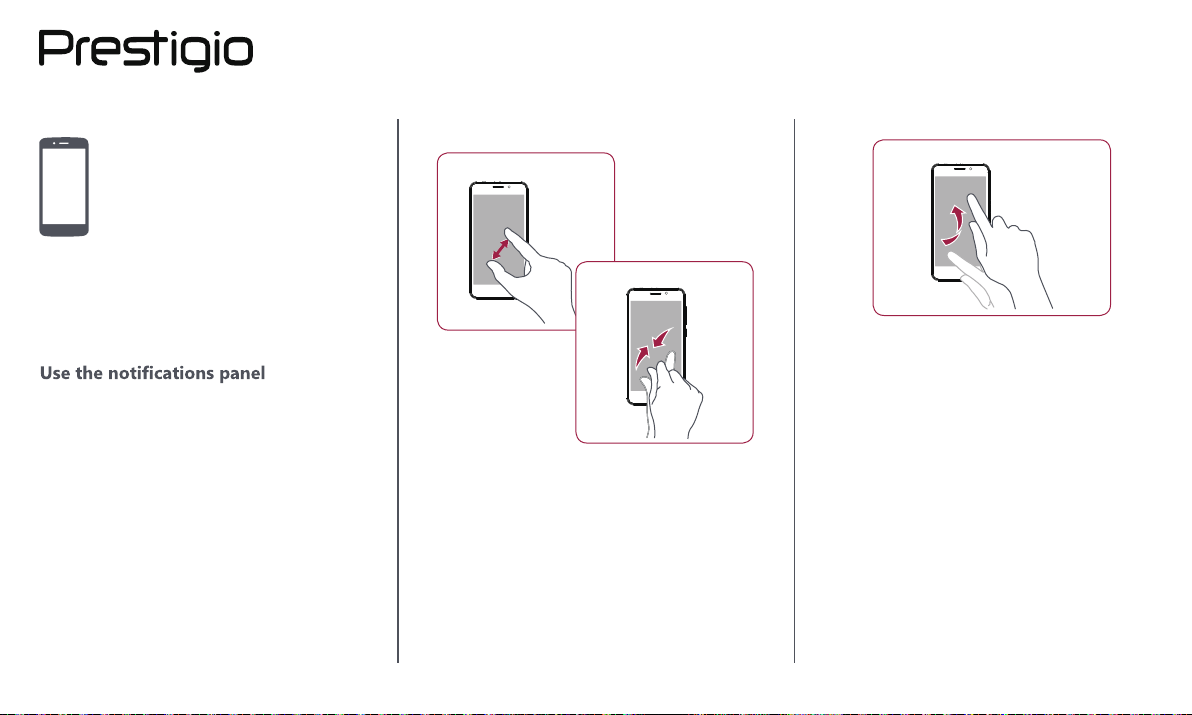
Zoom in
Flick
Finger tips
Charge the battery
Connect to your PC
Rotate the screen
Lock and unlock the screen
Enter text
System update
Status icons
Zoom out
• Flick le or right on the home screen or the
applicaons screen to see another panel. Flick
up or down to scroll through a web page or a
list, such as contacts.
• Spread two fingers apart on a web page, map,
or image to zoom in a part.
• Pinch two fingers together on a web page, map,
or image to zoom out a part.
www.prestigio.com
Page 10
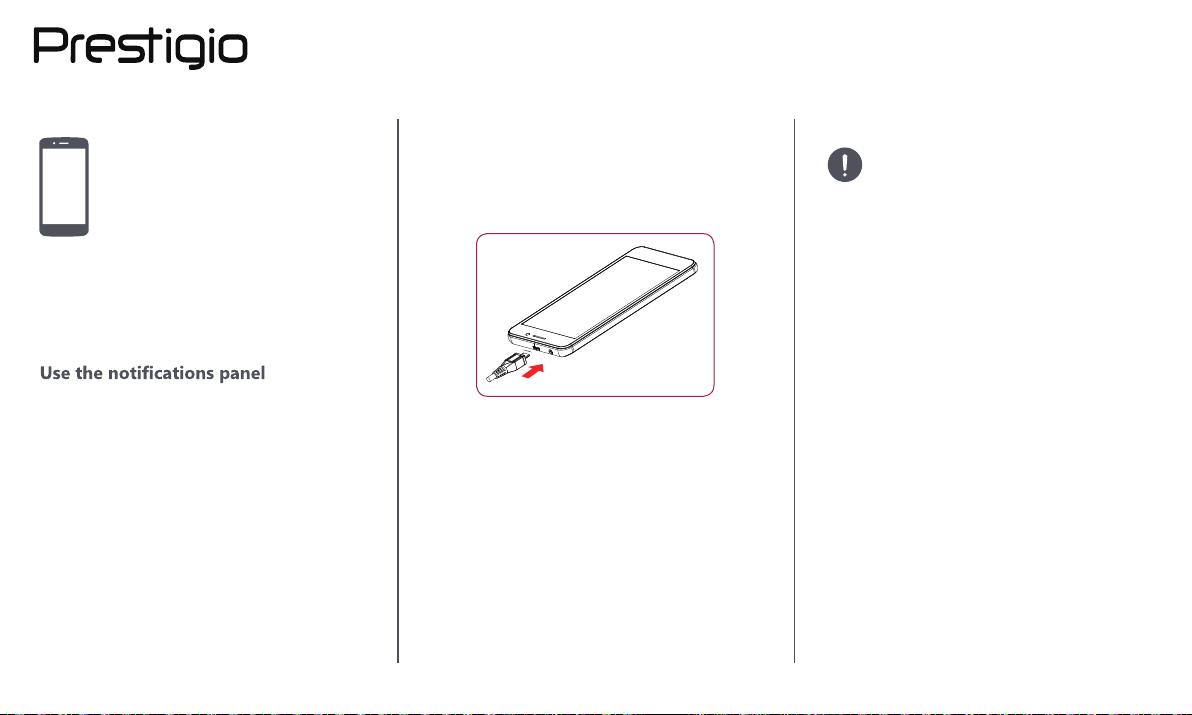
Charge the battery
A new baery is parally charged. The baery
icon at the upper-right corner shows the level of
charging status.
Always use authenc accessories to
opmise your baery performance.
Non-authenc accessories (eg. chargers)
can damage your baery and even your
phone.
Finger tips
Charge the battery
Connect to your PC
Rotate the screen
Lock and unlock the screen
Enter text
System update
Status icons
1. Plug the small end of the charger into the micro
USB port of the device, and plug the large end
of the charger into an electric socket.
2. Aer being fully charged, disconnect the device
from the charger. First unplug the charger from
the device, and then unplug it from the electric
socket.
Opmise your baery performance
Here are some ps to help you opmise your
baery performance.
- Always ensure that your phone profile is
appropriately set to meet your actual usage.
- If you are not using Bluetooth, Wi-Fi, GPS or
other applicaons, turn them off.
- Adjust the intensity of your display screen’s
backlight to low or medium level and for the
shortest duraon.
- Avoid using or placing your phone near
magnec objects (eg. a radio or television)
or on metal surfaces, which will impact the
network connecon and ulmately drain power
from your baery.
www.prestigio.com
Page 11

Finger tips
Charge the battery
Connect to your PC
Rotate the screen
Lock and unlock the screen
Enter text
System update
Status icons
Connect to your PC
You may need to connect your phone to a PC in
order to complete acvaon. Your phone’s micro
USB port allows you to exchange media and other
files with a PC.
Rotate the screen
For many screens, you can automacally change
the screen orientaon from portrait to landscape by
turning your phone sideways. When entering text,
you can turn your phone sideways to bring up a
bigger keyboard.
4G 10:154G 10:15
4G 10:15
Load files from your PC
1. Connect your phone to the PC with the included
USB cable.
2. Open the noficaons panel, and then tap
Connected as a media device > Media device
(MTP).
3. Transfer files between your phone and the PC.
To prevent the display from rotang
automacally, open the noficaons
panel and deselect Auto rotaon.
• Some applicaons do not allow
screen rotaon.
• Some applicaons display a
different screen depending on the
orientaon.
www.prestigio.com
Page 12
Finger tips
Charge the battery
Connect to your PC
Rotate the screen
Lock and unlock the screen
Enter text
System update
Status icons
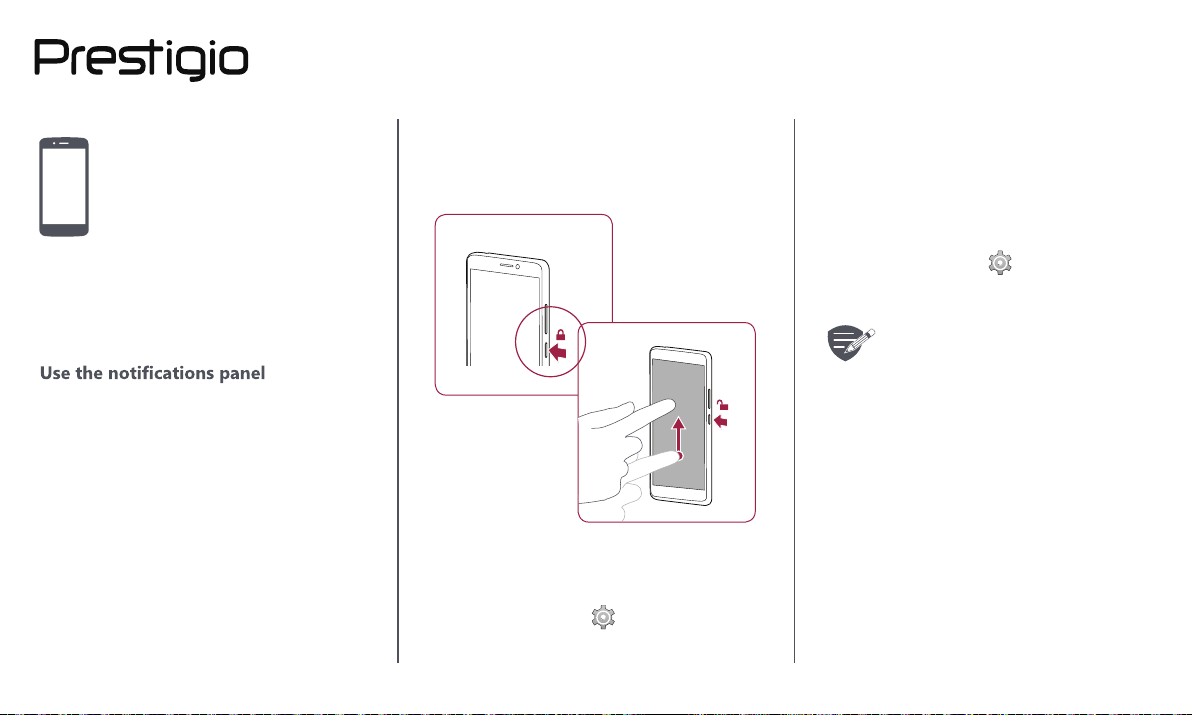
Lock and unlock the screen
When not in use, lock your phone to prevent
unwanted operaons and save the baery power.
Lock
Unlock
Auto lock
You can set a me span for the screen to be locked
automacally.
1. On the list menu, tap
Sleep.
Sengs >Display >
2. Select your desired me span.
Set screen lock pattern
Protect your personal informaon and prevent
others from using your phone without your
permission by seng a screen lock paern, PIN, or
password.
• On the list menu, tap
Security & locaon> Screen lock.
When your phone is locked, Your phone
can sll:
• Receive calls, text messages, and
other updates.
• Play music.
• Adjust the volume.
Sengs >
www.prestigio.com
Page 13
Finger tips
Charge the battery
Connect to your PC
Rotate the screen
Lock and unlock the screen
Enter text
System update
Status icons
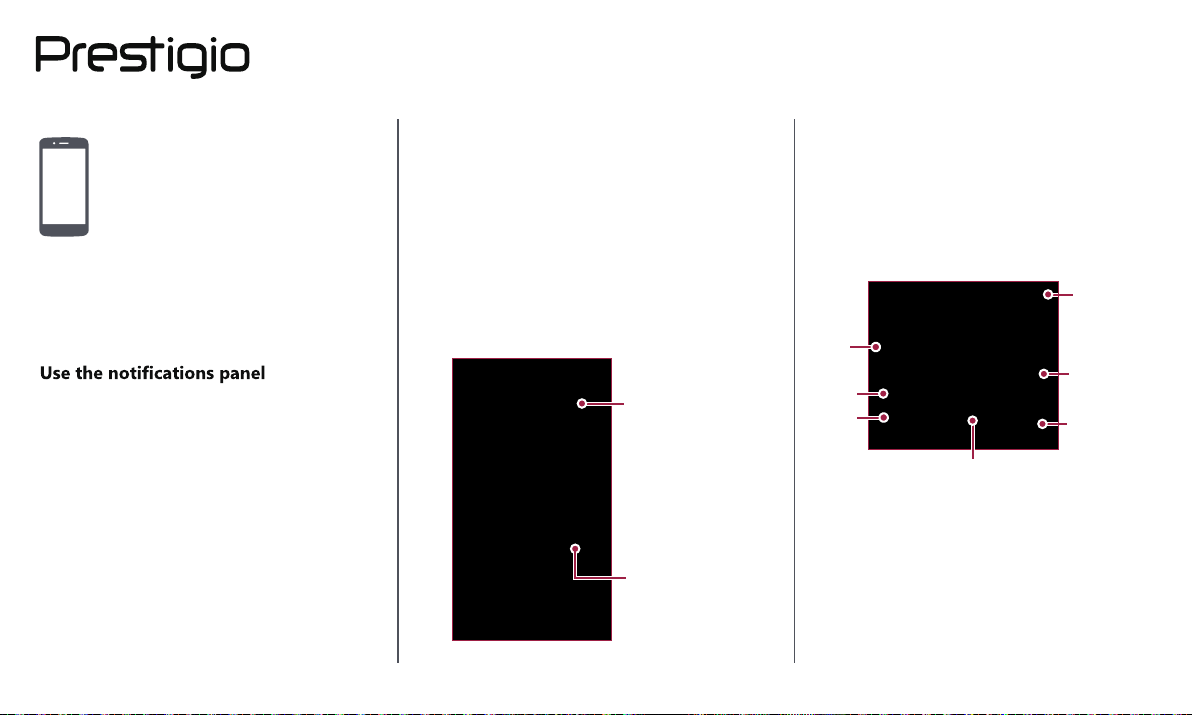
Use the notifications panel
Slide down from the top of the screen to open
the noficaons panel. When you get a new
noficaon, you can open it to see what event or
new info you have received. You can also quickly
access sengs from it. It allows you to easily turn
airplane mode, Wi-Fi, and Bluetooth on and off. It
also provides a shortcut to set the brightness and
orientaon of your screen.
Noficaons/
Dismissthe noficaon
Quick sengs
Enter text
Use the on-screen keyboard to enter text, such as
contact informaon, mail, and web addresses.
Use the keyboard
4
1
2
3
5
1. Character keys
2. Shift key
3. Numbers and symbols key
4. Enter text by voice
5. Space key
6. Enter key
7. Backspace key
7
6
www.prestigio.com
Page 14
Finger tips
Charge the battery
Connect to your PC
Rotate the screen
Lock and unlock the screen
Enter text
System update
Status icons
Enter text by voice
You also can enter the text by acvang the voice
input feature and then speak into the microphone.
Your phone displays what you speak.
Voice typing: tap
on the screen.
Copy and paste text
• Tap a word, drag the circles before and aer
the word to highlight the secon you want to
copy, and tap COPY.
• To paste the text, tap and hold at the point
where you want to paste the text. Tap Paste.
System update
Your phone can check and nofy you if there is a
new upgrade available. You can also manually check
if there is an available update. You can set this
opon in
Sengs > Stystem > updates.
Do not press any keys while the device
is upgrading.
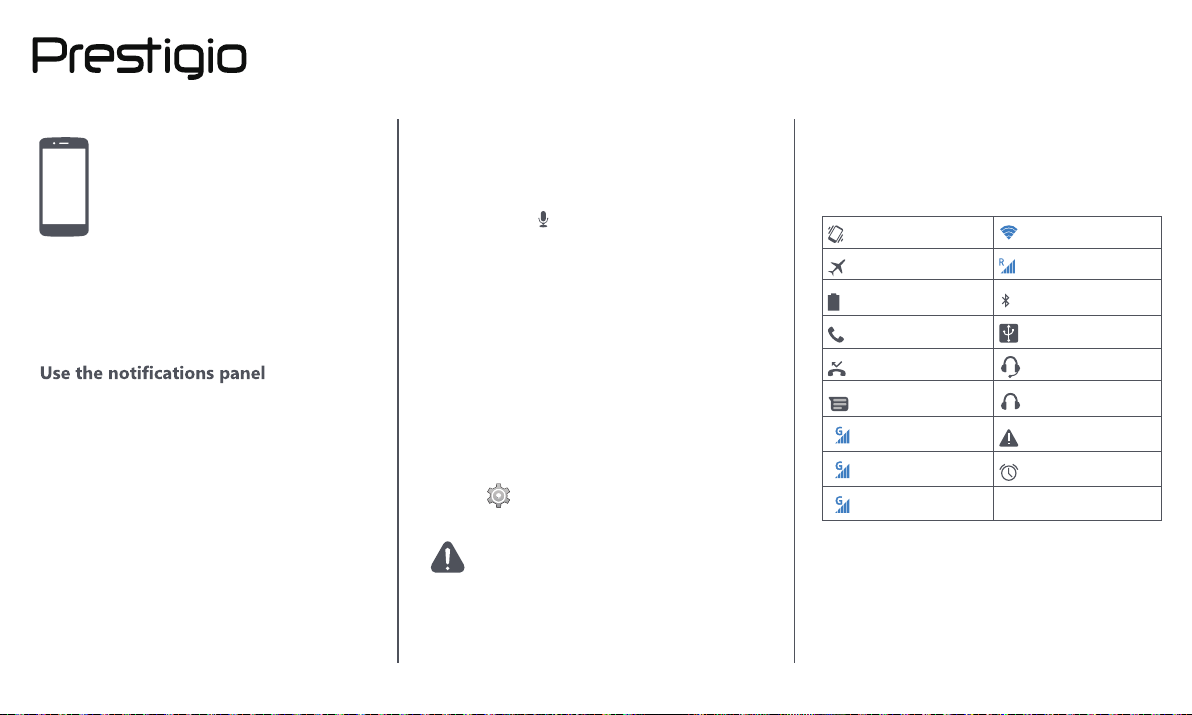
Status icons
The icons in the status bar at the top of the screen
give informaon about your phone:
Vibraon mode acvated
Airplane mode acvated
Baery power level
Calls in progress
Missed call
New SMS or MMS
2
2G network connected
3
3G network connected
4
4G network connected
Wi-Fi connected
Roaming (outside of
normal service area)
Bluetooth is acvated
Connected to PC
Wired earphones +
microphone connected
Wired earphones
connected
No SIM card detected
Alarm is set
www.prestigio.com
Page 15
Phone
Calls
Contacts
Contact groups
Learn to use calling funcons, such as making and
answering calls, using opons available during a call
or customising and using call-related features.
Calls
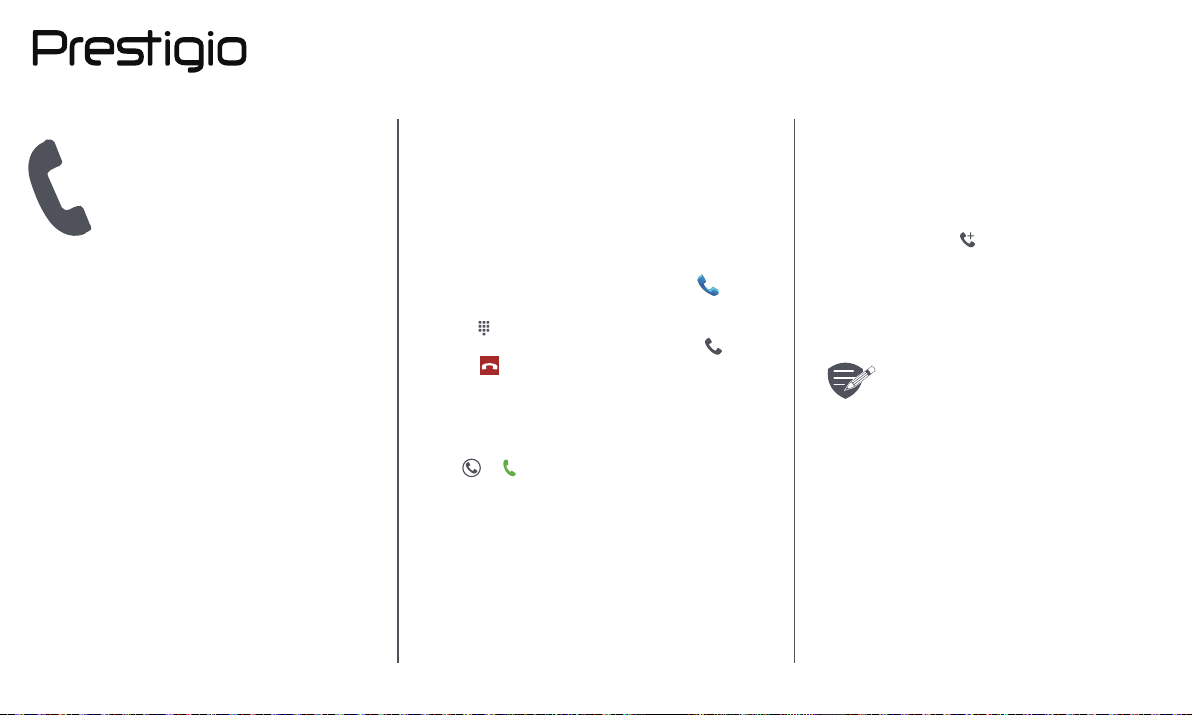
Make and end a call
1. On the home screen or list menu, tap
Phone.
2. Tap
3. Enter the phone number, and then tap
4. Tap
Answer a call
When you receive a phone call from a contact, the
incoming call screen appears. To pick up the phone,
Slide
Silence an incoming call
When a call comes in, press the power buon or
volume buon to mute the ringing sound without
rejecng the call
to open the dial pad.
.
to end a call.
to .
Set up a conference call
If network is available, you can make the first call or
accept a call. Then simply dial each subsequent call
to add it to the conference.
During a call, tap
1. to make a call to another
person.
2. The second number is dialled, and the first call
is put on hold at this me.
Make sure your SIM card is enabled with
conference calling service. Contact your
mobile operator for details.
www.prestigio.com
Page 16
Calls
Contacts
Contact groups
Make an emergency call
In some regions, you can make emergency calls
even if you do not have a SIM card installed or your
SIM card has been blocked.
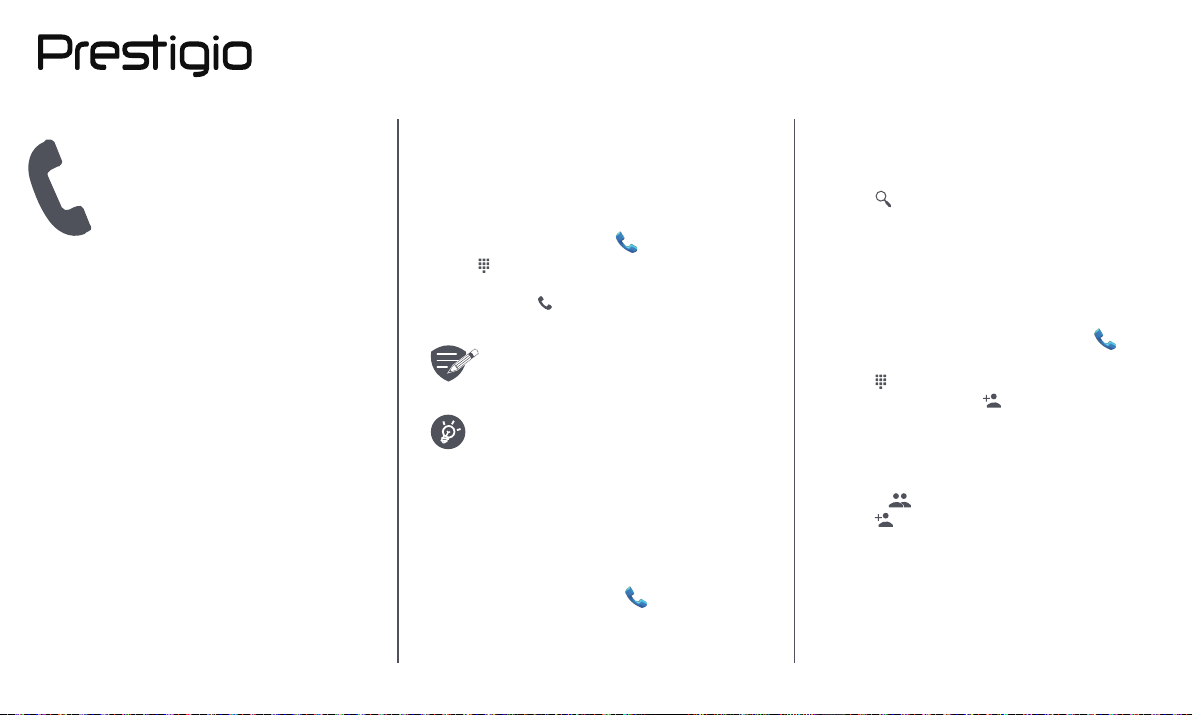
1. On the home screen, tap
2. Tap
3. Dial the emergency number for your locaon,
to open the dial pad.
and then tap
.
If you are out of base staon coverage,
you will not be able to make an
emergency call.
In Europe, the standard emergency
number is 112; in the UK, it is 999.
Phone.
Contacts
Contacts are stored in one of the two available
phone books: SIM phone book (located on your SIM
card) or the Smart phone book (located on your
phone).
• To view your contacts, tap People on the
home screen or list menu.
Search for a contact
1. Scroll up or down the contact list.
2. Tap
3. Select the contact from the opon list.
and enter the first few leers of the
name in the search bar.
Add a new contact
Method one:
1. On the home screen or list menu, tap
Phone.
2. Tap
3. Enter a number, tap Add to contacts.
4. Add details as desired.
5. Tap Done to finish and save.
Method two:
1. Go to People to view the contact list.
2. Tap to add a new contact.
to open the dial pad.
www.prestigio.com
Page 17
Import/Export contacts
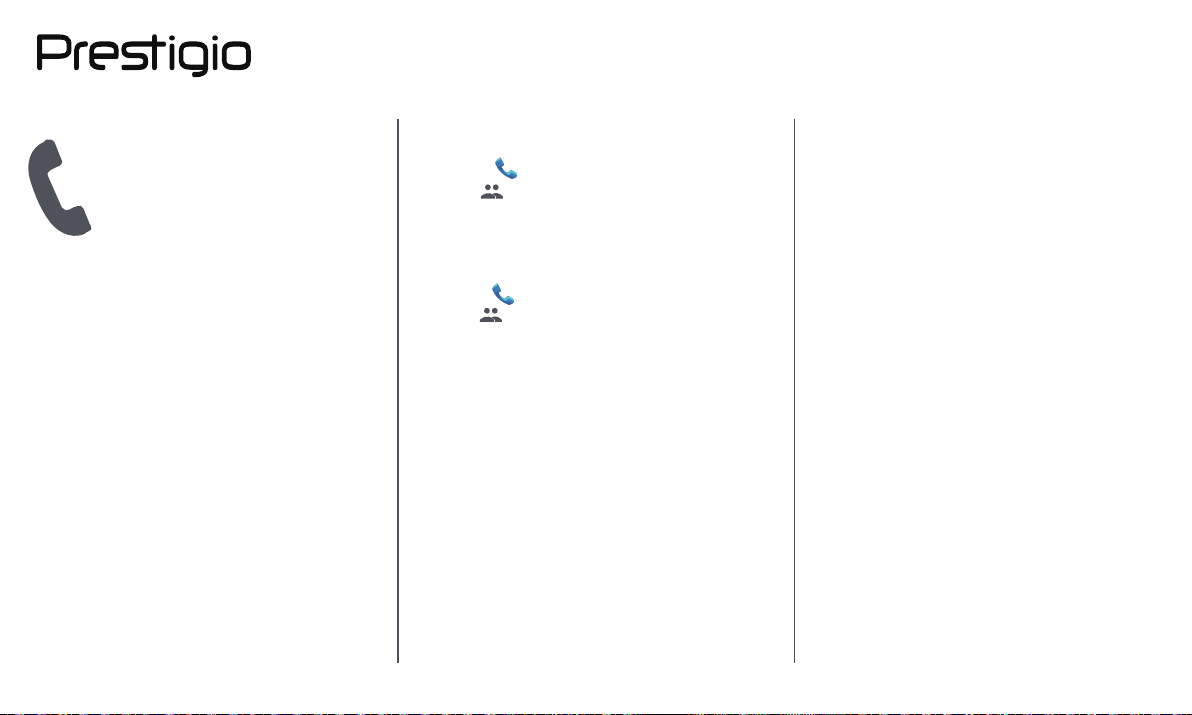
1. Go to People to view the contact list.
2. Tap > Import/export.
3. Select the contacts storage.
4. Follow the prompts to finish.
Calls
Contacts
Contact groups
Delete contacts
1. Go to People to view the contact list.
2. Tap > Delete contact.
3. Choose the contacts you wish to remove.
4. Tap OK to delete the contacts.
www.prestigio.com
Page 18
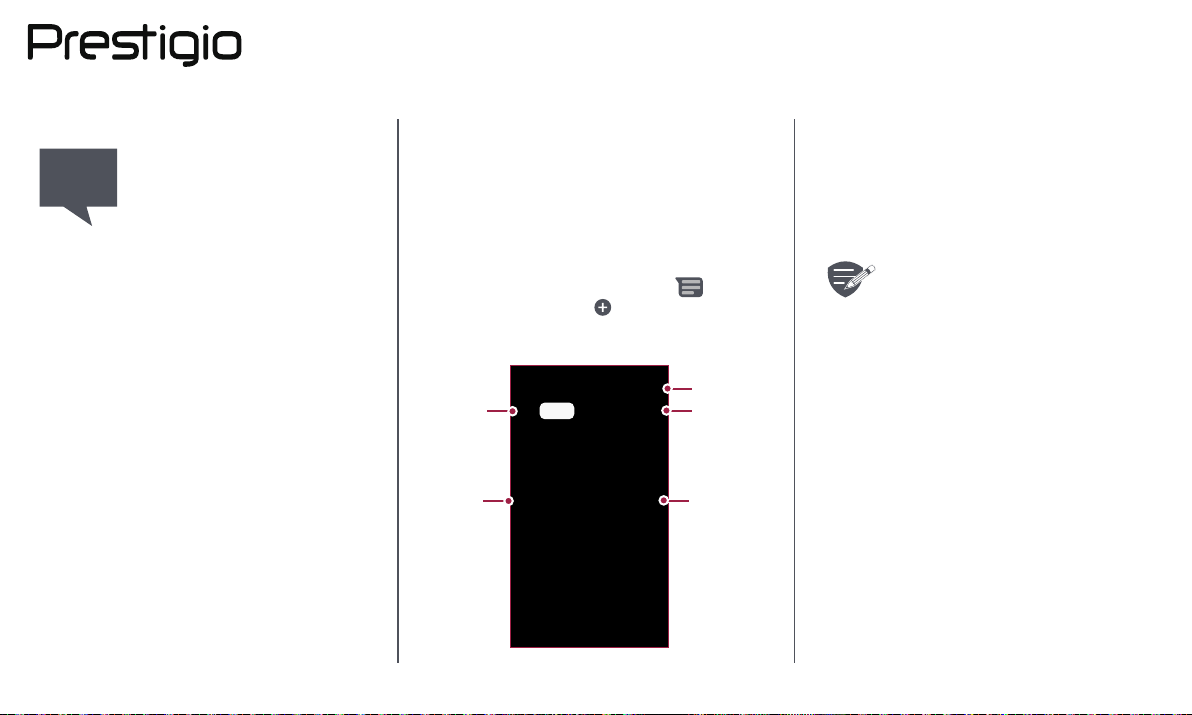
Messages
Messages let you exchange text messages with
other SMS and MMS devices via your cellular
connecon. Your sent and received messages are
neatly grouped into conversaons, by contact name
or phone number.
1. Enter a phone number
2. Add picture/video/audio/slideshow
3. More opons
4. Add a recipient from your contacts list
5. Send the message
Send a message
Check your message
Reply to a message
Forward or delete a message
Delete a conversation
Send a message
On the home screen or list menu, tap
Messaging. And then tap
new message.
2 5
to start composing a
There is a limit on the number of
characters for a single text message
(displayed above the send buon). If
you exceed the limit, your text message
will be delivered as one but will be billed
as more than one message.
3
41
www.prestigio.com
Page 19
Send a message
Check your message
Reply to a message
Forward or delete a message
Delete a conversation
Check your message
Depending on your noficaon sengs, your phone
plays a sound, vibrates, or displays the message
briefly in the status bar when you receive a new
message.
• On the home screen or list menu, tap
Messaging. To check a message, tap a
conversaon.
Reply to a message
1. On the messages screen, tap the conversaon
containing the message.
2. In the text box, enter your message.
3. Tap
to send the message.
SMS
Forward or delete a message
1. On the messages screen, tap the conversaon
containing the message.
2. Tap and hold a message.
3. In the pop-up window, select Forward or
Delete.
Delete a conversation
1. On the home screen or list menu, tap
Messaging to display the messages screen.
2. Tap and hold a contact or phone number.
3. Select the text message you want to delete,
at the top of the screen.
Tap
www.prestigio.com
Page 20
Mail
Set up an email account
Send a mail
View your mails
Reply to a mail
Delete mails
Use this applicaon to send or view email
messages. Learn to send or view email messages via
your personal or company email account.
Set up an email account
1. On the home screen or list menu, tap Email
and do one of the following:
- If this is your first me adding an email account
in Mail, move to the next step.
- If you have already added an email account,
then tap > Sengs > add account.
2. Enter the email address and password for your
email account.
When you finish seng up the email
account, the email messages will
download to your device.
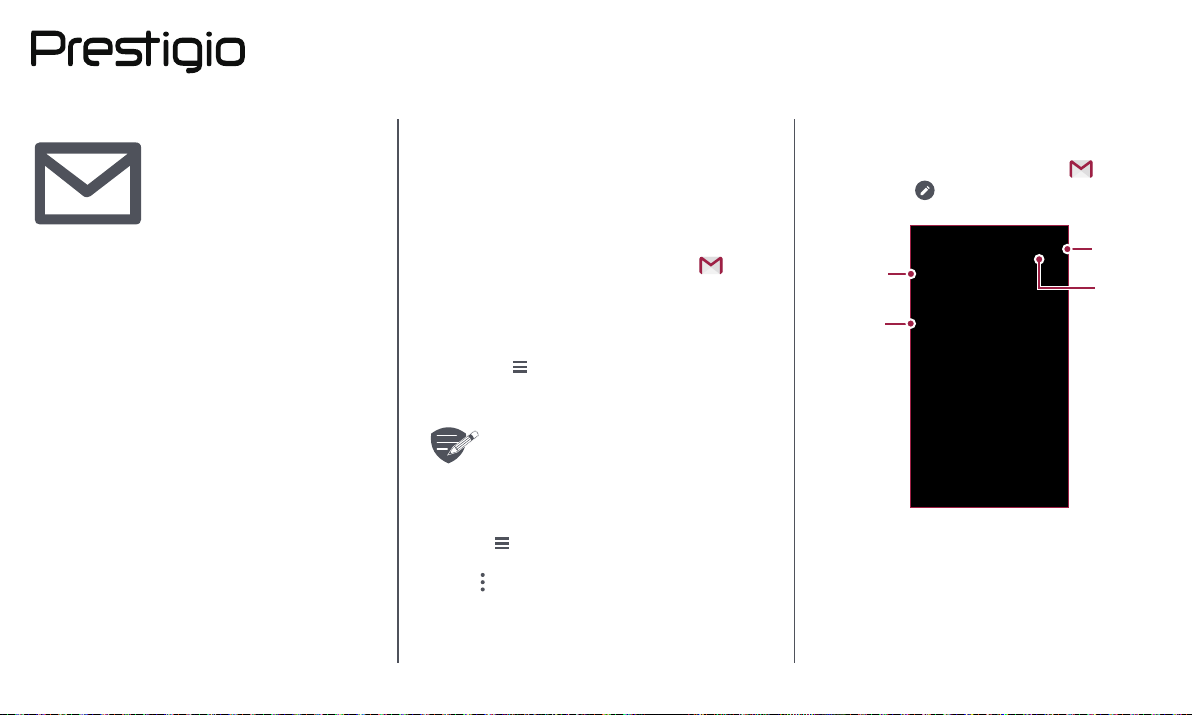
Send a mail
On the home screen or list menu, tap Email.
And then tap
to start composing a new mail.
1
2
3
4
Delete an email account
1. Go to Sengs > Accounts.
2. Tap the email account your want to delete.
3. Tap
> Remove account.
1. Enter a recipient
2. Enter the mail subject
3. More opons
4. Send the mail
www.prestigio.com
Page 21
Set up an email account
Send a mail
View your mails
Reply to a mail
Delete mails
View your mails
1. On the email inbox, tap to check whether
there is a new mail.
2. Tap the desired mail to read it.
- You can slide up and down the screen to view
the previous or next mail.
Search for a mail
1. Tap to display the search bar.
2. Choose a search opon in the drop-down list.
3. Enter the first few leers of the mail sender or
subject in the search bar.
4. Select the mail from the list.
Reply to a mail
1. On the email inbox, tap the email message.
2. Tap
3. Tap
, and then compose your mail.
to send the mail.
Delete mails
• Tap the mail you wish to delete, and then tap
.
www.prestigio.com
Page 22
Camera
Your camera at a glance
Take a photo
Record a video
Photo and video settings
With your phone, you can take both photos and
videos as desired. In addion to a rear camera,
there is a camera on the front for video calls and
self-portraits.
- To use the camera, on the home screen or list
menu, tap
Camera.
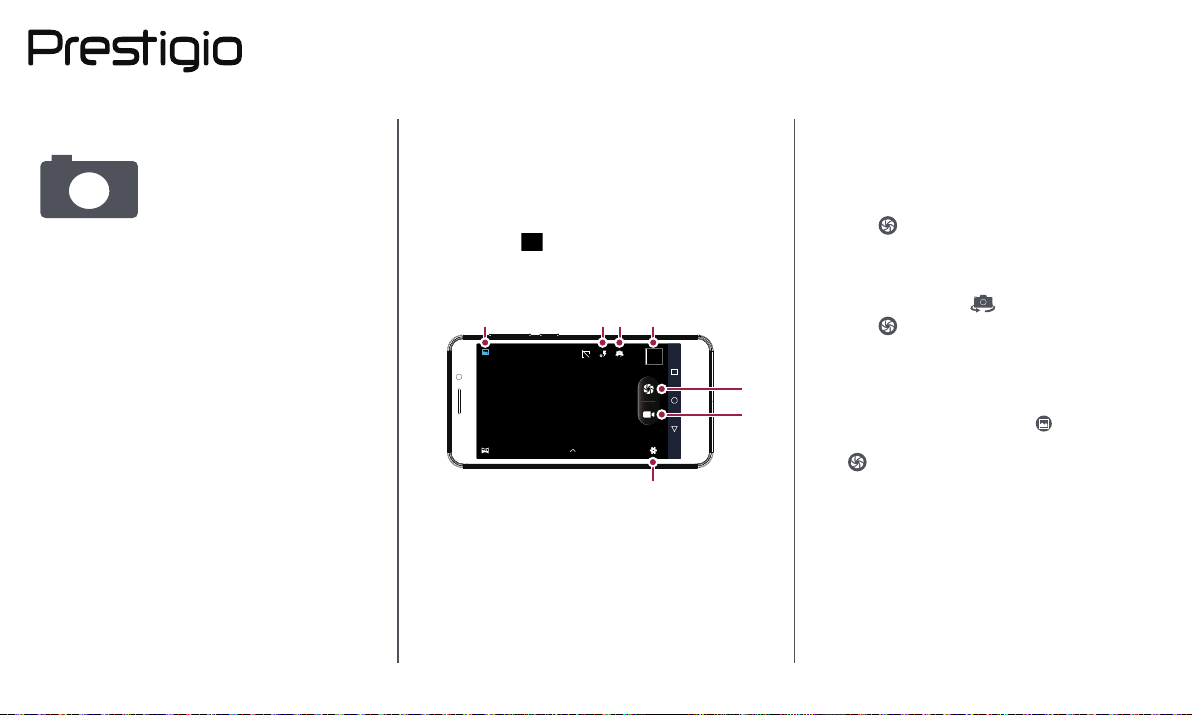
Your camera at a glance
21 76
HDR
5
1. Capture mode
2. Image preview
3. Capture photo
4. Video recording
5. Phone / video settings
6. Flash settings
7. Switch between front/rear camera
Take a photo
1. Turn on the camera.
2. Change the camera seng if necessary.
3. Point the camera at what you want to capture.
4. Tap to capture the photo.
Take a photo of yourself
1. Turn on the camera.
2. On the screen, tap .
3. Tap to capture the photo.
Take a panoramic photo
3
4
You can capture anything wide or tall objects in a
single photo with your phone.
1. Turn on the camera,and tap to capture modes.
2. When you are ready to take the first shot, tap
.
3. A direconal arrow appears. Pan your phone as
smoothly as you can.
4. The camera will stch the shots into a single
photo.
www.prestigio.com
Page 23
Your camera at a glance
Take a photo
Record a video
Photo and video settings
Record a video
1. Turn on the camera.
2. When you are ready to start recording, tap .
3. To stop recording, tap .
Photo and video settings
Before you take a photo or record a video,
customise your photo/video sengs.
General sengs
GPS locaon info
Exposure This determines how much light the camera’s
Scene mode
White balance Select an appropriate white balance, so
An-flicker Select a band to avoid the impacts on photos
Restore defaults
Photo sengs
Zero shuer
delay
Face detecon
Self mer Select a me span for shuer delay to take a
Aach a GPS locaon tag to the photo.
sensor receives.
Select your desired scene mode.
images have a true-to-life colour range.
caused by flickers from lighng sources.
Restore to default sengs.
The ZSD (zero shuer delay) funcon helps
you capture photos
immediately.
Set the ideal exposure and clarity of faces.
self-portrait.
Picture size Select from various standard sizes for your
Preview size Set the preview screen rao before you take
ISO An ISO value indicates the light sensivity of
Video sengs
EIS The EIS (Electronic Image Stabilizaon)
Time lapse
interval
Video quality Set the quality level for videos as this seng
picture.
a photo.
your camera’s imaging sensor. Higher values
are for fast-moving or poorly-lit objects.
funcon helps reduce blurring associated with
the moon of a camera during exposure
Set the me lapse interval to adjust the speed
of your video output.
will affect your file size.
www.prestigio.com
Page 24
MultiMedia
Your phone provides several mulmedia for your
entertainment. You can view your photo gallery,
enjoy music, and watch videos.
Gallery
4G 10:15
4G 10:15
2
2
3
Gallery
Video player
Music player
FM radio
View your photos
1. On the home screen or list menu, tap
Gallery.
2. Browse an album or a group of photos.
3. Tap a photo to view it full-screen.
Zoom in and out
Spread two fingers apart on any place to zoom in.
Pinch to zoom out, or double-tap to return.
Edit your photos
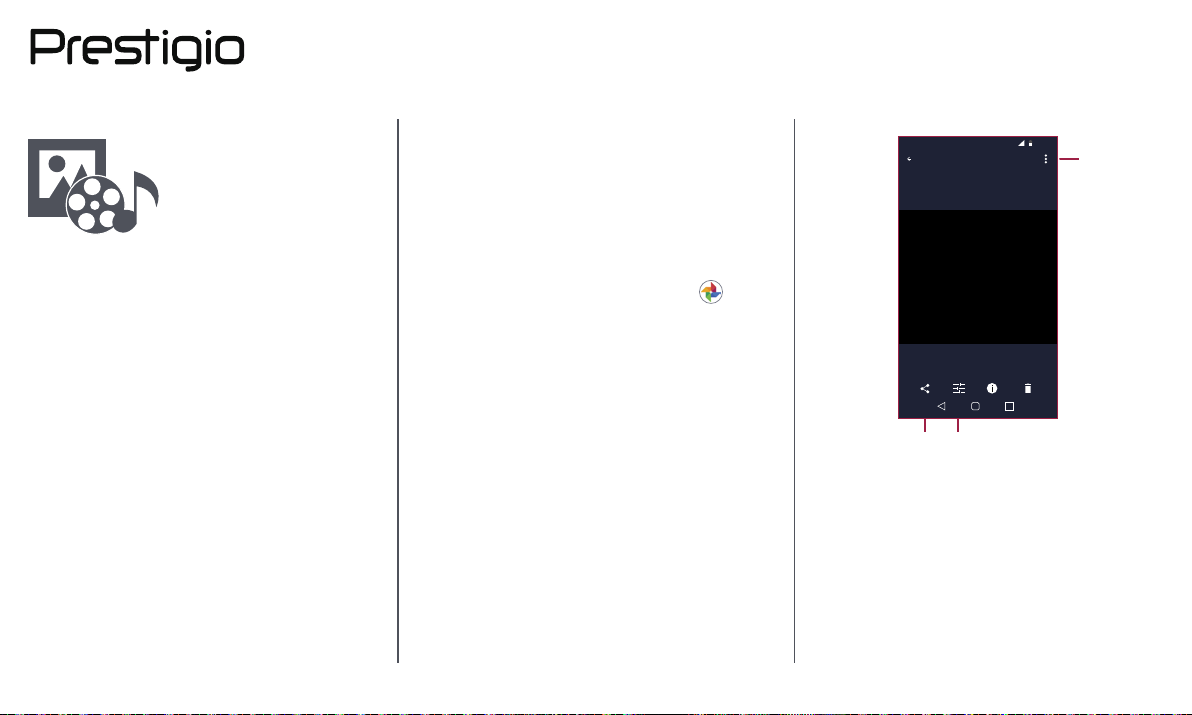
When viewing a photo, use the keys on the screen
to edit the photos.
1
13
1. Edit the photo
2. More opons
3. Share your photo
www.prestigio.com
Page 25
Gallery
Video player
Music player
FM radio
Video player
You can use the video player on your phone to
watch videos.
Watch a video
1. On the home screen or list menu, tap
Videos.
2. Select the video that you want to watch.
3. Tap the on-screen keys to control the video
playback.
4. Press the volume buon to adjust the sound.
5. Tap to select more opons.
Music player
You can listen to your favourite music with the
music player. The music app is a central hub for
your favourite music whether it is stored in your
phone or streamed through a music service.
Listen to music
1. On the home screen or list menu, tap
Music.
2. Tap a song from the list, or tap to find your
desired song.
3. Tap the on-screen keys to control the music
playback.
4. Press the volume buon to adjust the sound.
5. Tap
to select more opons.
www.prestigio.com
Page 26
FM radio
You can listen to radio programs with your phone.
You must connect a headset before
using the FM radio on your phone.
Video player
Music player
FM radio
Listen to a radio station
1. On the some screen or list menu, tap FM
Radio.
>
2. Tap
3. Use the on-screen keys to control playback:
4. Press the volume buon to adjust the sound.
5. Tap to select more opons.
Search. It will start scanning
automacally and save the available channels.
www.prestigio.com
Page 27
Web & network
Connect to the Internet
Web browse
You can connect your phone to the Internet and
browse a web page.
Connect to the Internet
Your phone connects to the Internet whenever
necessary, using a Wi-Fi connecon (if available) or
your mobile operator's data connecon.
Data connection
You can use your mobile operator's data
connecon.
Turn on data connecon
1. Go to
> Data connecon.
2. Tap to turn on or off data connecon.
Turn on data roaming
Connect to your mobile operator’s partner
networks and access data services when you are out
Sengs > More... > Mobile networks
Some apps and services may transfer
data over your mobile operator's cellular
network, which may result in addional
fees. Contact your mobile operator for
details.
of your mobile operator’s coverage area.
1. Go to
2. Tap
Sengs > Data usage.
> Data roaming to turn it on or off.
Using data services while roaming
may be costly. Check with your mobile
operator for data roaming rates before
you use data roaming.
Use your phone as a wireless router
Share your data connecon with other devices by
turning your phone into a wireless router.
1. Go to
hotspot.
2. Tap to turn on portable Wi-Fi hotspot.
Sengs > More... > Tethering &
The other device uses data from your
data plan, which may result in data
traffic costs. For info on availability and
costs, contact your network service
provider.
www.prestigio.com
Page 28
Connect to the Internet
Web browse
Wi-Fi
Connect the device to a Wi-Fi network to use the
Internet or share media files with other devices.
Connect to a wireless network
1. Go to
2. Make sure Wi-Fi is switched to On.
3. The Wi-Fi secon will show the list of networks
detected.
4. Tap the desired Wi-Fi network you want to
connect to.
- If you selected a secured network, you will be
asked to enter the network key or password.
Sengs > Wi-Fi.
3
2
Web browse
You can use your phone to browse websites. Before
browsing a website, please confirm that you have
turn on data connecon or Wi-Fi.
Browse a web page
1. On the home screen or list menu, tap
Browser.
2. Enter your search keywords or a web page
address.
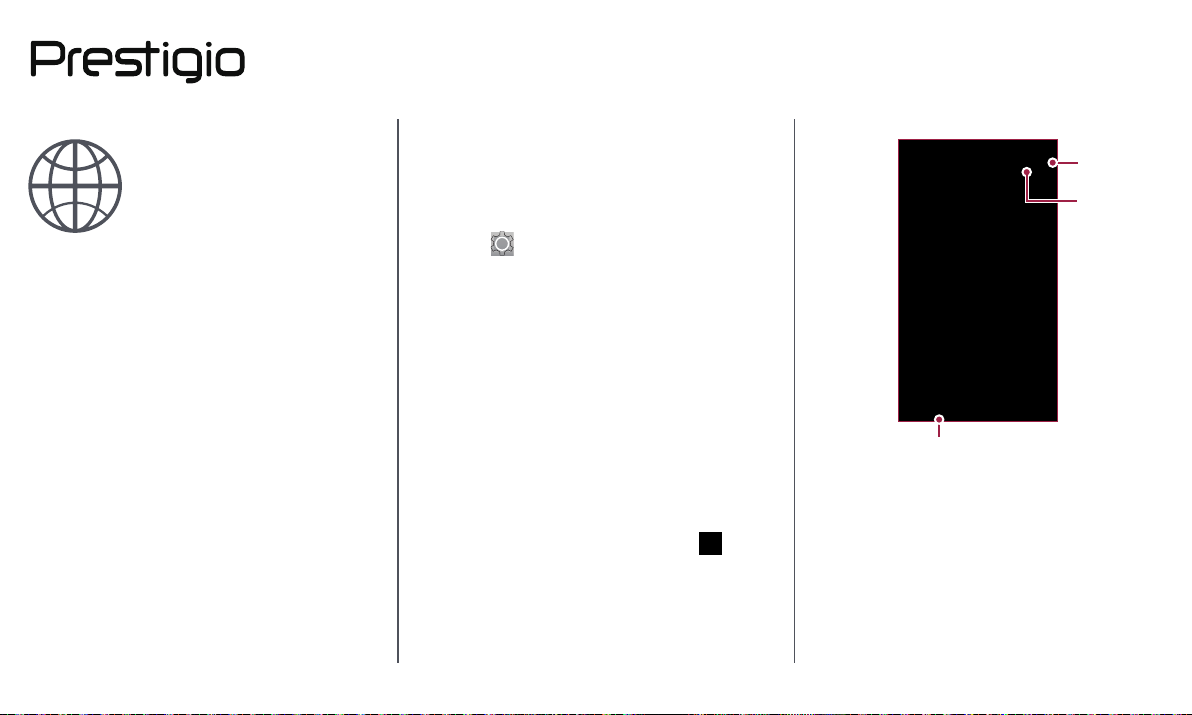
1
1. The previous web page
2.
Web page preview
3.
View Bookmarks, History and Saved pages.
www.prestigio.com
Page 29
Web page preview
Connect to the Internet
Web browse
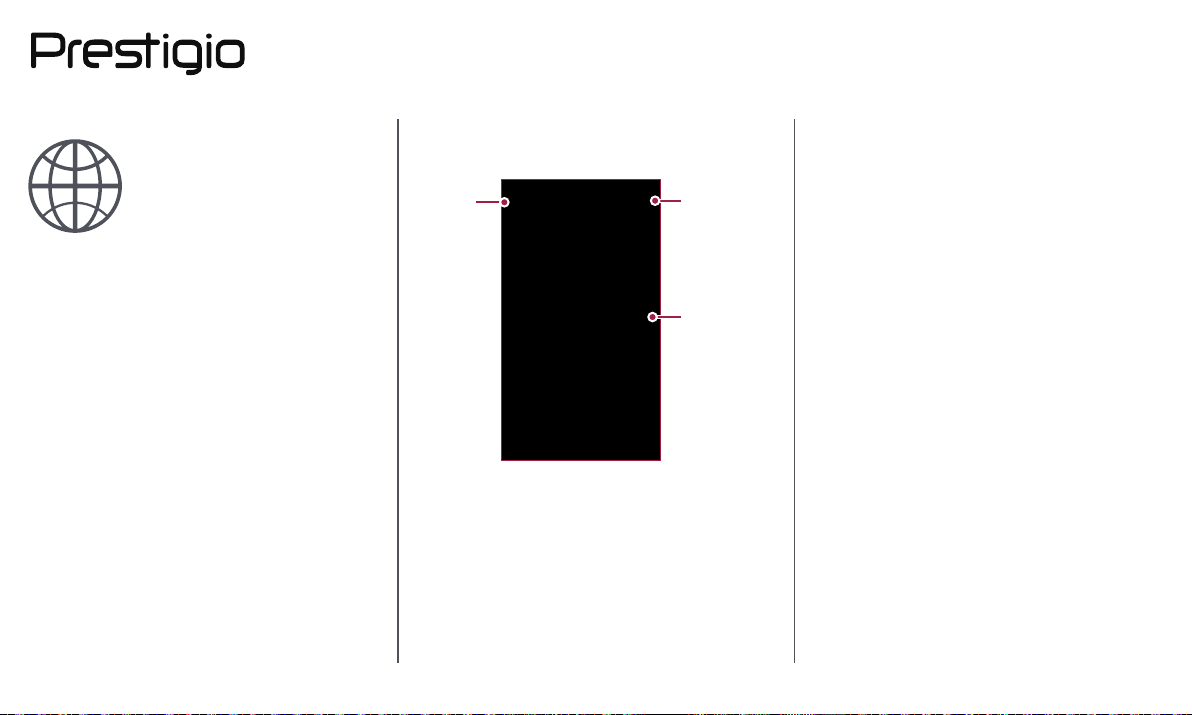
2
1. View Bookmarks
2. Open a new page
3. Close the web page
1
3
www.prestigio.com
Page 30
Bluetooth
Pair with a Bluetooth device
Receive data via Bluetooth
Send data via Bluetooth
Your phone can connect to a compable Bluetooth
device for exchanging data. Bluetooth creates a
direct wireless connecon between two devices
over short distances.
Pair with a Bluetooth device
1. Go to Sengs > Connected devices > Bluetooth.
2. Make sure Bluetooth is switched to On.
3. A list of available Bluetooth devices will appear.
4. Tap the device you wish to connect with.
5. The pairing is made if your pairing request is
accepted by the other device.
Receive data via Bluetooth
1. Make sure Bluetooth is switched to On.
2. Tap your phone model to make it visible to all
nearby Bluetooth devices.
3. Accept the request and pair with the other
Bluetooth device(s).
4. Slide to open noficaons panel, tap Accept.
Send data via Bluetooth
1. Select the file you want to share.
2. Tap to send the file via Bluetooth.
3. Select a device to start sending the file.
The files received via Bluetooth are
stored in the Bluetooth folder.
www.prestigio.com
Page 31
Play store
Search and install an app
Uninstall an app
Use the Google Play Store to purchase and
download applicaons and games that are able to
run on your phone. Choose from a wide variety of
free and paid apps ranging from producvity apps,
entertainment, to games.
• A Google Wallet™ payment service
is required to purchase a paid app.
You will be asked to confirm the
method of payment when you
purchase an app.
• The availability of Store and the
selecon of items available for
download depend on your region.
Search and install an app
1. On the list menu, tap Play store.
2. Browse applicaons by category, or tap
search with a keyword.
3. Select an applicaon to view informaon.
4. To download it, tap Install.
- If there is a charge for the applicaon, tap the
price, and follow the prompts to complete the
purchase.
to
Use a Wi-Fi connecon to download
large files.
Uninstall an app
1. On the list menu, tap Play store.
2. Tap
3. Select an app you want to uninstall.
4. Tap Uninstall.
> My Apps.
www.prestigio.com
Page 32
Maps & navigation
Use Google maps
Find a location
Search for a place
Get directions
Maps settings
Use this applicaon to pinpoint the locaon of your
phone, search for places, or get direcons.
Use Google maps
Google Maps lets you track your current locaon
and receive detailed direcons to your desnaon.
It also provides a search tool where you can locate
places of interest or an address on a map, or view
locaons at street level.
• On the home screen or list menu, tap Maps.
1
2
4
3
1. find an address or place
2. Map sengs
3. Get direcons
4. Show your locaon
Find a location
Turn on or off location service
In order to find your locaon on your phone, you
need to enable locaon service.
1. Go to
2. Switch Locaon to On.
Find your location
• On the Maps screen, tap to find your
locaon on the map.
Sengs > Locaon.
If you are in an area where there are a
lot of surrounding buildings, Locaons
may have a hard me pinpoinng your
locaon.
www.prestigio.com
Page 33
Use Google maps
Find a location
Search for a place
Get directions
Maps settings
Search for a place
You can search for a name of an establishment,
street, or city. Suggested matches will be shown
while you type.
1. On the Maps screen, tap blank space Search here.
2. Enter the place you want to search for.
3. Select the desired place in the result list.
Get directions
Get detailed direcons to where you want to go.
1. On the Maps screen, tap to get direcons.
2. Enter your start point and end point.
3. Select the desired place in the result list.
4. Choose how you want to get to your
desnaon.
5. The map opens showing the route to your
desnaon.
Maps settings
You can set up the Google Maps, tap > Sengs
while viewing the maps.
www.prestigio.com
Page 34
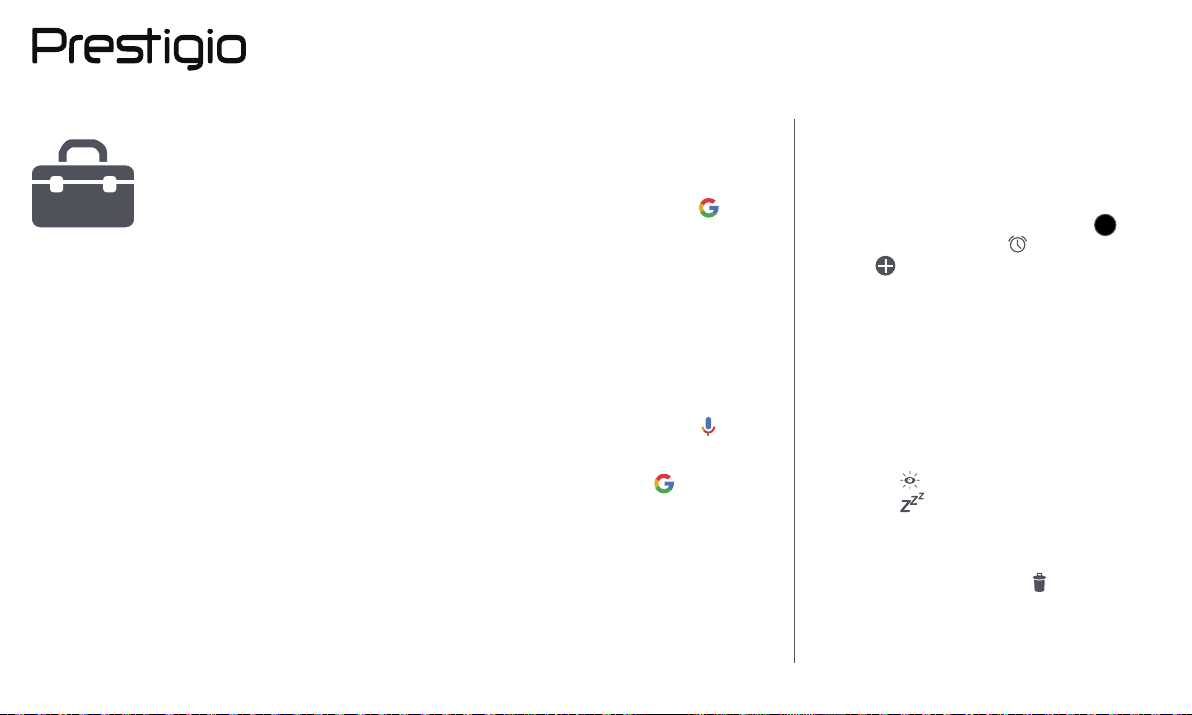
Utilities
Google search
Alarm
Calendar
Google search
Use this applicaon to search not only the Internet,
but also apps and contents on your phone.
• On the home screen or list menu, tap
Google.
Search on the web or your phone
1. Tap the search field, and then enter a keyword.
2. Select one of the suggested keywords that
appear.
Alarm
You can set up one or more alarms.
Set an alarm
1. On the home screen or list menu, tap Clock.
1. On the clock screen, tap
2. Tap
3. Set the alarm me, and then tap Done.
4. If you want the alarm for mulple days, tap
to add a new alarm.
Repeat.
.
Search with your voice
Use Google Voice Search to find informaon on the
web just by speaking to your phone.
1. On the home screen or list menu, tap Voice
search.
- If the Google search bar is available on the
Home screen, you can also tap .
2. Speak a keyword or phrase when Speak now
appears on the screen.
3. Select one of the suggested keywords that
appear.
4. If what you are searching for is in the list,
tap the item to open it in its compable app.
Otherwise, tap Retry to search again.
Turn off an alarm
• Select the alarm, and drag the check buon to
Off.
Stop an alarm
When the alarm sounds,
- Slide to
- Slide to
specific length of me.
Delete an alarm
• Tap the alarm, and then tap
: the alarm stops.
: the alarm will sound again aer a
.
www.prestigio.com
Page 35
Google search
Alarm
Calendar
Calendar
You can create events and make plans on your
calendar.
Create an event
1. On the home screen or list menu, tap
Calendar.
2. Select a date, and then tap
3. Edit reminder sengs.
4. Tap Done to save the event.
Manage your events
Edit an event
You can only edit events you have created.
1. While viewing your calendar, tap the event your
want to edit.
2. Tap , and then make changes to the event.
3. Tap Done.
Delete an event
• Select the event your want to delete, and then
tap
.
> New event.
www.prestigio.com
Page 36
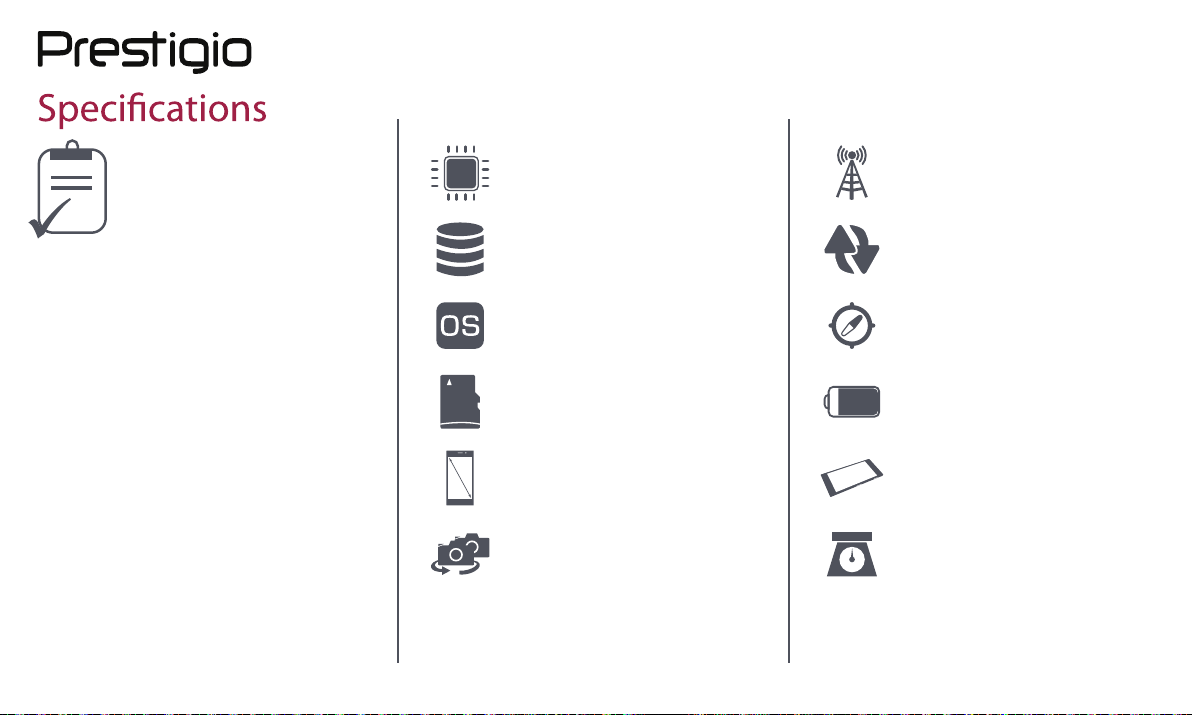
Quad core 1.3GHz
UMTS: 900/2100 MHz
GSM: 850/900/1800/1900MHz
LTE:B1/B3/B7/B20
RAM 3GB + 16GB
Android™
8.1
Micro SDHC/SDXC ≤ 64GB
6.0” 2.5D HD IPS
1440*720
8.0MP+
13.0MP /5.0MP
Wi-Fi (802.11 b/g/n), 3G,
Bluetooth 4.0
GPS,A-GPS,GLONASS
3000 mAh
155*75*8.0mm (H*W*D)
188 g
www.prestigio.com
Page 37

Troubleshooting
The phone does not switch on
Remove/reinstall the baery. Then charge the
phone unl the baery icon stops scrolling. Unplug
the charger and try to switch the phone on.
The display shows IMSI failure
This problem is related to your subscripon.
Contact your operator.
The network symbol is not displayed
The network connecon is lost. Either you are in a
radio shadow (in a tunnel or between tall buildings)
or you are outside the network coverage area. Try
from another place, try to reconnect to the network
(especially when abroad), or contact your network
operator for assistance/informaon.
The touch screen responds slowly or improperly
If your device has a touch screen and the touch
screen is not responding properly, try the following:
- Remove any protecve covers from the touch
screen. Protecve covers may prevent the
device from recognizing your inputs and are not
recommended for touch screen devices.
- Ensure that your hands are clean and dry when
tapping the touch screen.
- Restart your device to clear any temporary
soware bugs.
- Ensure that your device soware is upgraded to
the latest version.
- If the touch screen is scratched or damaged,
take it to your local dealer.
Your baery seems to over heat
You might be using a charger that was not intended
for use with your phone. Make sure you always use
the authenc accessory shipped with your phone.
You can not send text messages
Some networks do not allow message exchanges
with other networks. First check that you have
entered the number of your SMS centre, or contact
your operator for detailed informaon on this
subject.
You feel that you have missed some calls
Check your call divert opons.
The display shows SIM failure
Check that the SIM card has been inserted correctly.
If the problem persists, your SIM card may be
damaged. Contact your operator.
www.prestigio.com
Page 38

Your phone is not charging
If the baery is completely flat, it might take several
minutes of precharge (up to 5 minutes in some
cases) before the charging icon is displayed on the
screen.
The picture captured with the phone camera is not
clear
Make sure that the camera lens on both sides is
clean.
Your device freezes or has fatal errors
If your device freezes or hangs, you may need
to close programs or reset the device to regain
funconality. If your device is frozen and
unresponsive, remove the baery and try to switch
the phone on. The device reboots automacally.
If this does not solve the problem, perform a factory
data reset. On the list menu, tap Sengs > Backup
& reset > Factory data reset .
Others cannot hear you speaking on a call
- Ensure that you are not covering the built-in
microphone.
- Ensure that the microphone is close to your
mouth.
- If using a headset, ensure that it is properly
connected.
Another Bluetooth device is not located
- Ensure that the Bluetooth wireless feature is
acvated on your device.
- Ensure that the Bluetooth wireless feature is
acvated on the device you wish to connect to,
if necessary.
- Ensure that your device and the other
Bluetooth device are within the maximum
Bluetooth range (10 m).
www.prestigio.com
 Loading...