

Page 1
PressReader delivers the most engaging and authentic newspaper and magazine reading experience to iOS, Android, BlackBerry
and Windows operated tablets, smartphones and eReaders. With PressReader, users can hold digitally enhanced replicas of their
favorite publications and read them from cover-to-cover, just the way they were printed – with no compromises in quality, delity
or content.
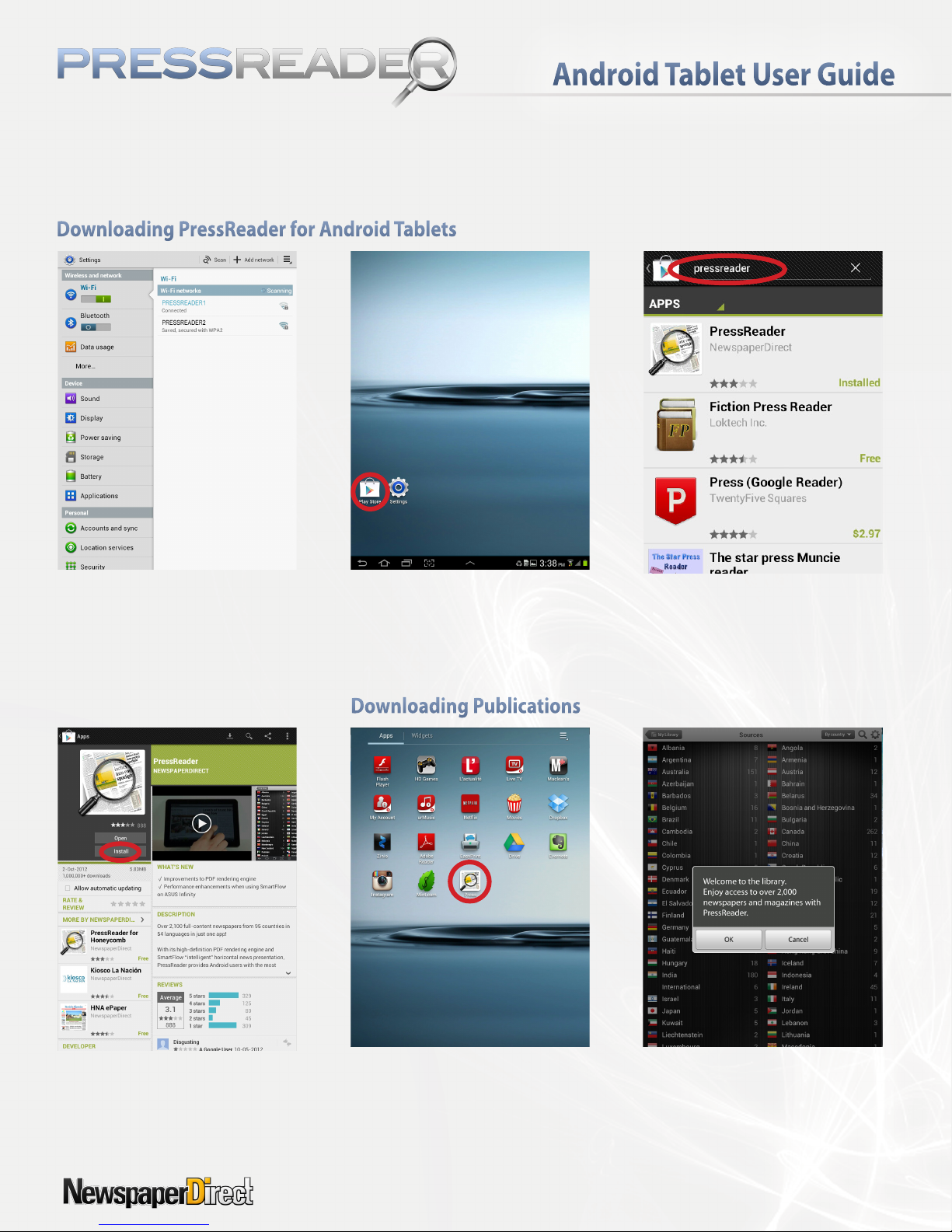
Step 1:
Connect to available Wi-Fi.
Step 2:
Open the Play Store pre-installed on
your Android tablet.
Step 3:
Search for PressReader.
Step 4:
To download PressReader, tap the
Install button.
Service by
Step 1:
Tap the PressReader icon to launch
application.
Step 2:
Read the customized welcome
message and tap “OK.”
1
Page 2
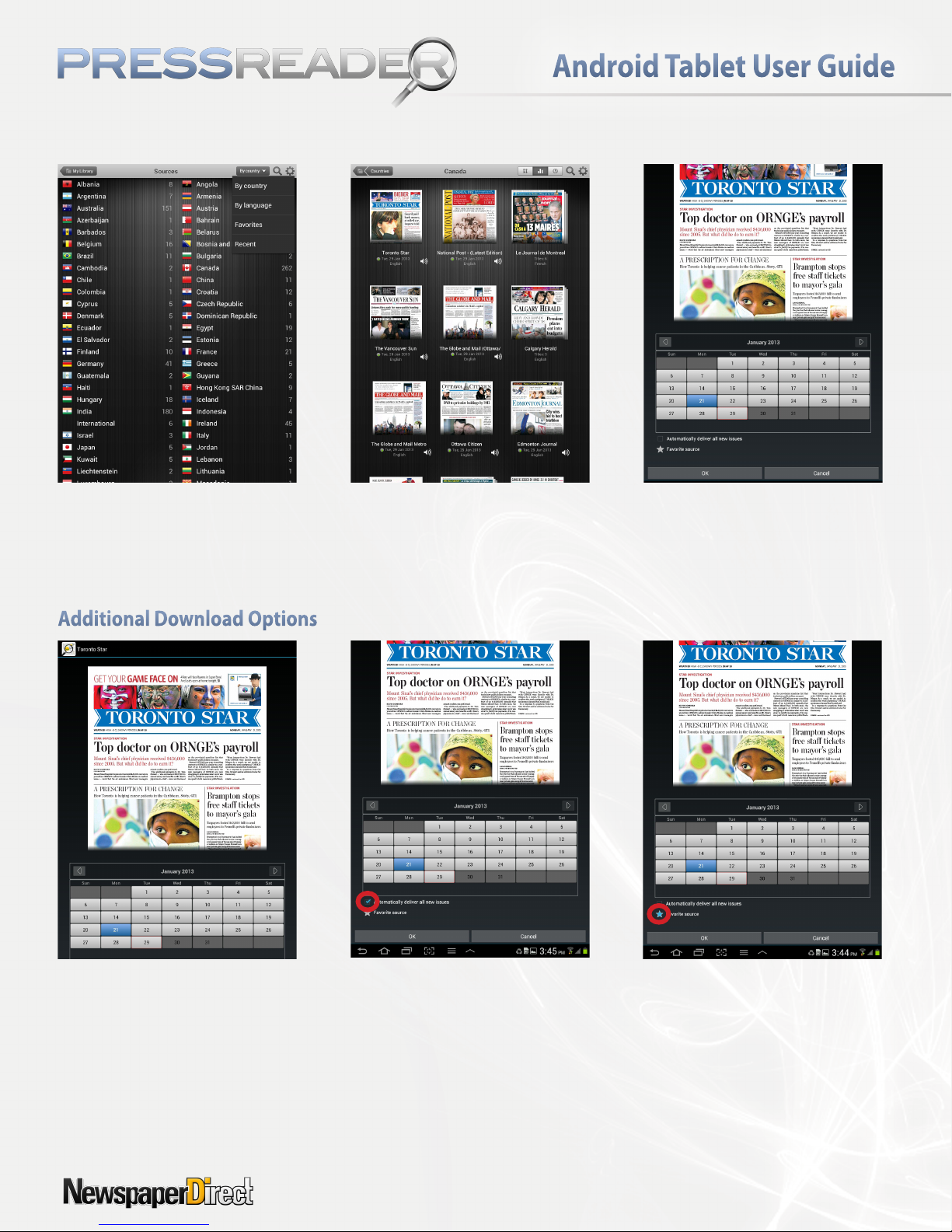
Step 3:
Search for publications* by country
or language*. See favorited and
recent publications.
Step 4:
Select your favorite newspaper or
magazine.
Step 5:
Tap the “OK” button to
download the current day issue.
Option A:
To select an available back issue**,
choose a date on the calendar.
* Title selection may vary by territory or license.
** Back issues availability may vary depending on the subscription package.
Service by
Option B
To set up automatic daily delivery of
the publication, tap the “Automatically
deliver all new issues” box.
Option C:
Tap the star icon to add this
publication to your favorites.
2
Page 3
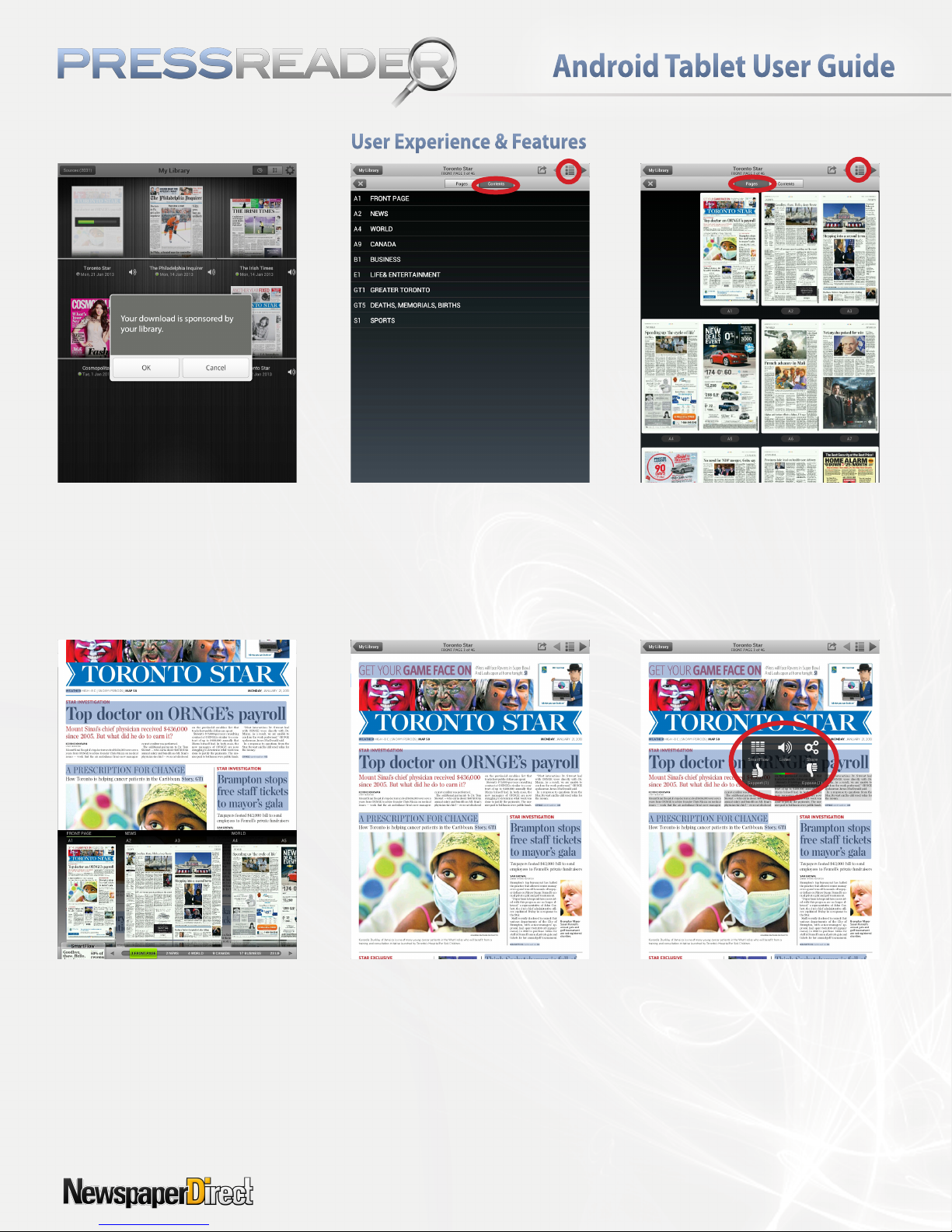
A customized message will display.
Tap “OK.” Browse your downloaded
issues in My Library. Tap on the
thumbnail of the publication to
open the issue.
Table of Contents
View the publication’s table of
contents.
Thumbnail Gallery
View thumbnails of the publication.
Thumbnail Scroller
Tap on the horizontal slider to
expand it. Scroll through the page
thumbnails. Tap on the thumbnails
to open that page.
Service by
Page View Options
Read publications in Page View as
digitally enhanced replicas.
Swipe from right to left to ip pages.
Double-tap on un-highlighted areas
of the publication to zoom.
Additional Features
Read articles in SmartFlow, share
articles, and support or oppose stories.
Press and hold (i.e. long-press) to
open up a menu of these
contextually driven actions.
3
Page 4
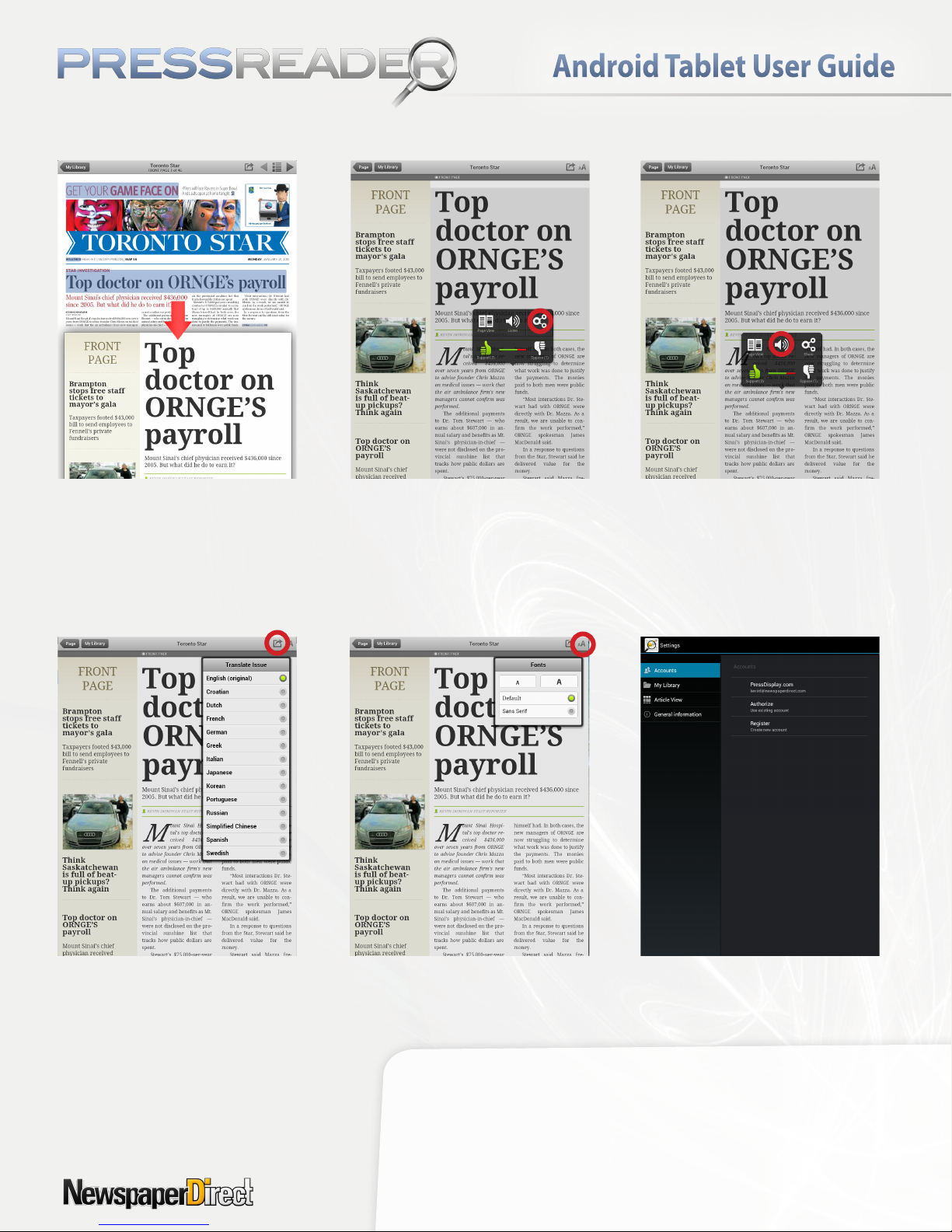
SmartFlow
Tap on highlighted headlines in
Page View to open SmartFlow and
read the publication in an intuitive
horizontal reading stream.
Share Articles
Share interesting stories by email, on
Facebook or Twitter. Copy to
Evernote or Instapaper. Activate this
menu with press and hold
(i.e. long-press).
On-Demand Audio
Listen to the article by tapping on
the speaker icon to activate
On-Demand Audio.
Translate
Tap on the top-right folder icon to
translate articles.
Service by
Adjust Font Size
Tap on the top-right letter icon to
adjust font size.
Contact Your Local Agent:
Manage Your Account
Manage your account, publication
storage and article view in Settings.
© NewspaperDirect, Inc.
 Loading...