

Page 1
Getting to Know the PS110
Front View
Back View
Connections
Quick Start
Getting to Know the PS110
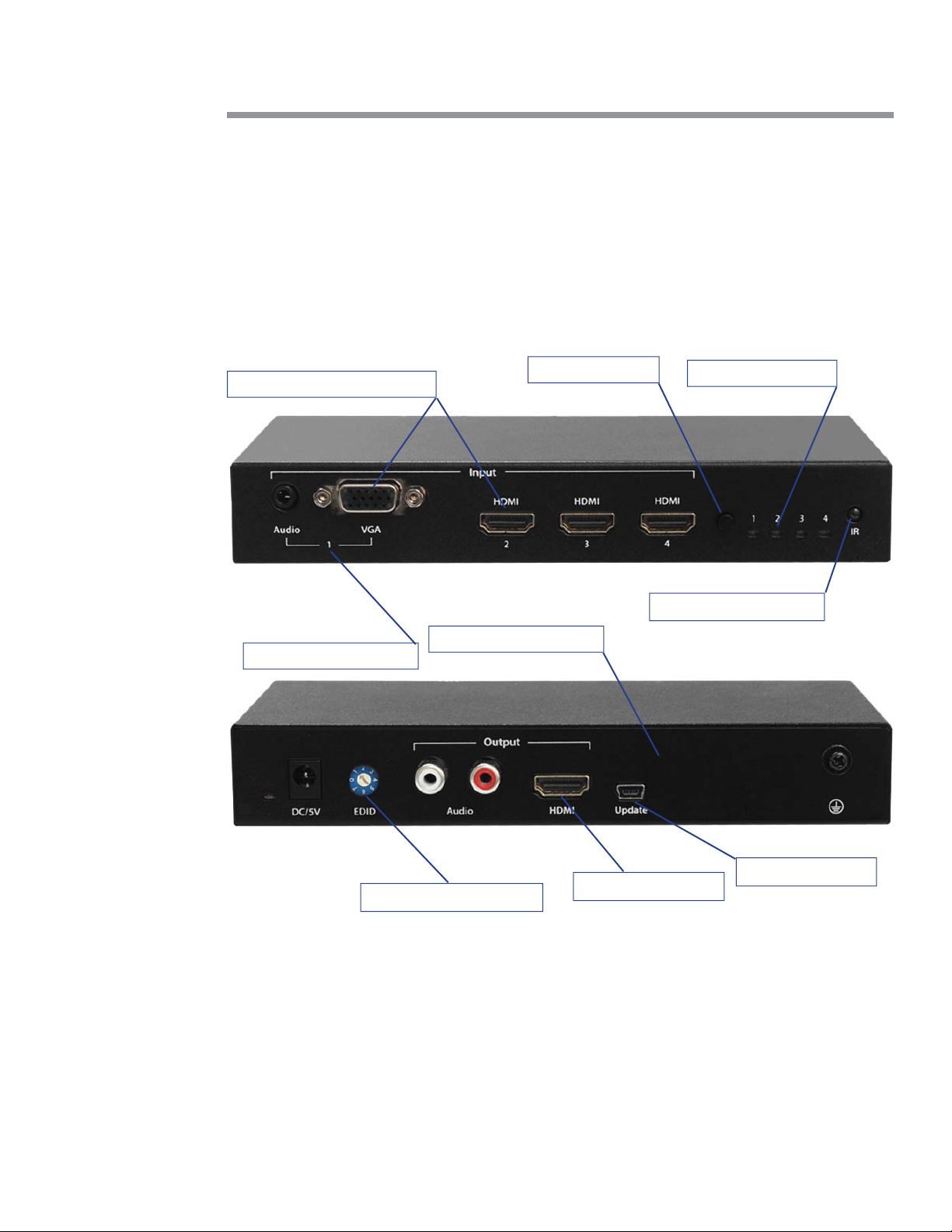
The graphic below points out key aƩ ributes of the PS110.
Connect Sources Devices Here
Front View
Source “Port”
Source Selector
Stereo Audio Output
Active Source Indicator
IR (Infra-Red) Sensor
Back View
EDID Resolution Select
Connections
Inputs and Outputs. Using the graphic above, connect the source devices to the ports labeled
above as, “Connect Source Devices Here”, and the display at locaƟ on, “Display Output”, port.
Connect audio, if applicable.
Power. Connect the DC power supply to the locaƟ on, “DC/5V”, and the other end to your 110V/
VAC power socket. The system LED will illuminate below and to the leŌ of the DC/5V locaƟ on.
Display Output
USB Firmware Update
Page 1PS110 Quick Start Guide
Page 2
Auto-Sense, Auto-Switching
Auto-Sense, Auto-Switching
Selecting a New Source Device to Display
Selecting a New Source Device to Display
(Using IR Remote)
In many situaƟ ons a control system is oŌ en unnecessary, complicated, costly, and confusing.
When a new device is connected to the PS110 system, it is immediately switched to the display.
This feature is especially useful in board room and collaboraƟ ve presentaƟ on systems.
Selecting a New Source Device to Display
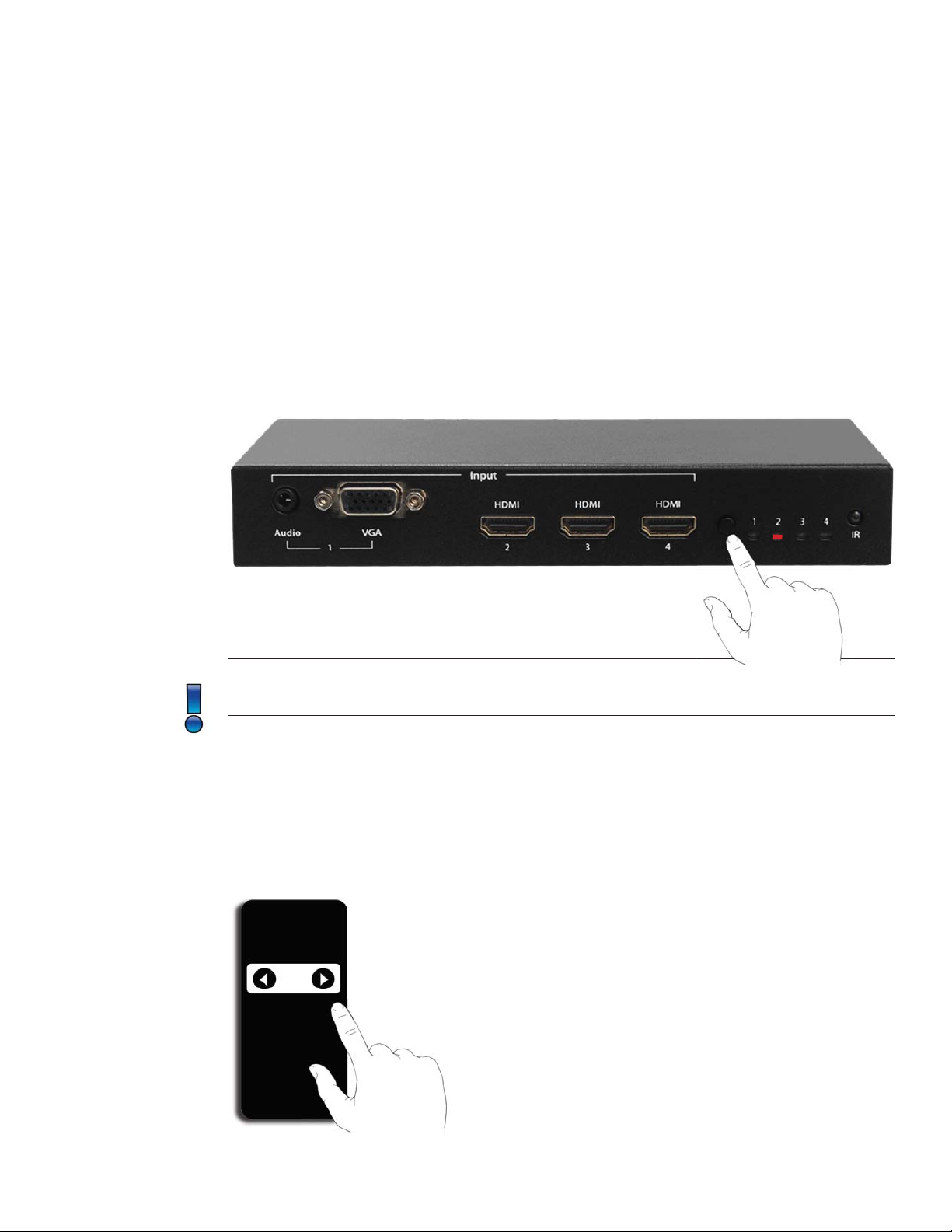
To display a new source, press the Source Selector buƩ on on the Front of the PS110 repeatedly
unƟ l the LED on the AcƟ ve Source Indicator corresponds to the desired Source Port SelecƟ on.
The image should now be visible on the Display Output and can be heard on the Stereo Audio
Output connectors.
Note: SelecƟ ng an input for a source that is not physcially connected will cause the output
display to indicate that the signal has been lost or disconnected.
Selecting a New Source Device to Display
(Using IR Remote)
From the IR Remote controller, shown below, select the Right or LeŌ buƩ ons unƟ l the desired
Source is selected. If the front panel is viewable, you will see the AcƟ ve Source Indicator change
when each buƩ on is pressed.
Page 2 Presentation Switchers, Inc.
 Loading...