

Page 1
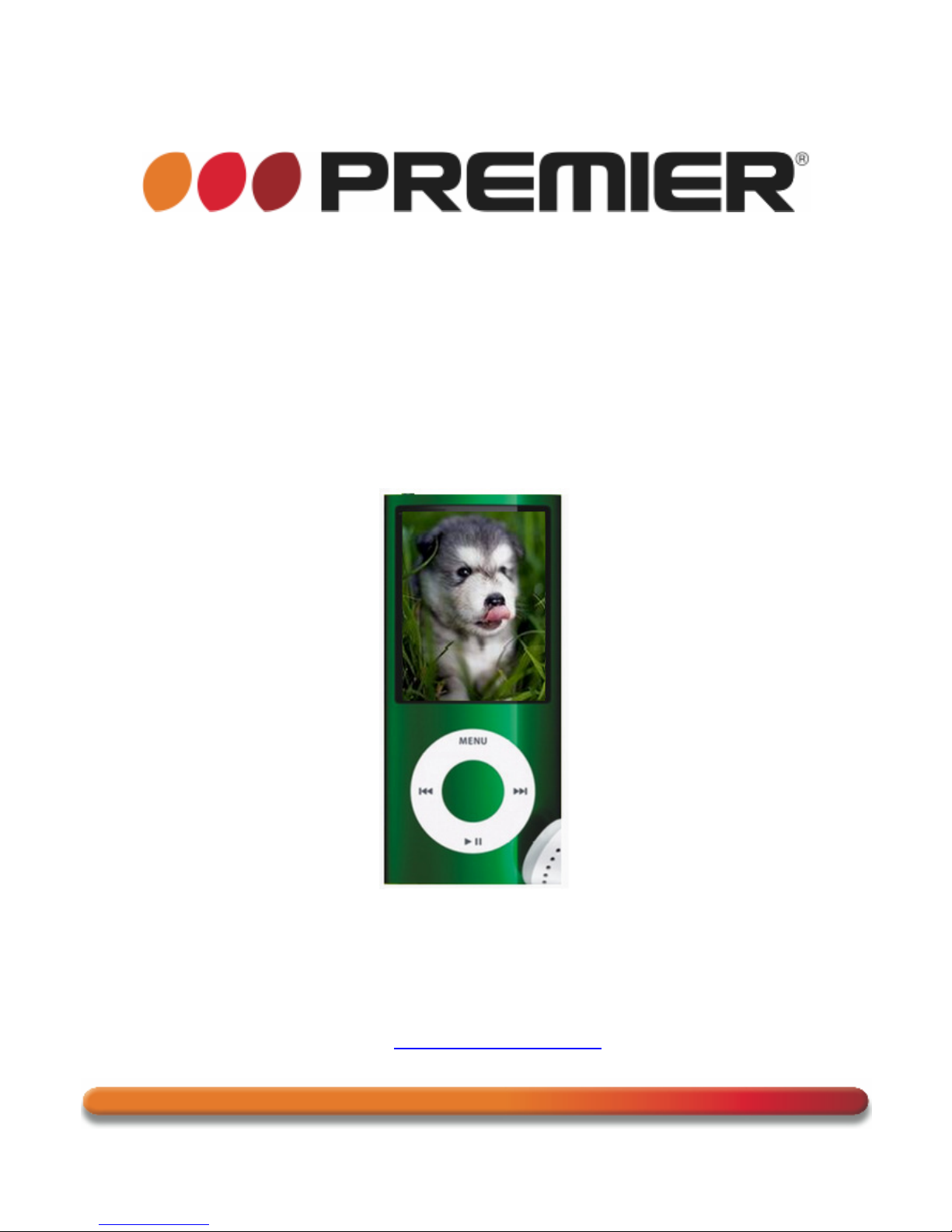
INSTRUCTION MANUAL
MP5 PLAYER
MP-3372-2G
DEAR CUSTOMER
Congratulations for your purchase!
Please read this manual carefully, and keep it for future reference.
If you need extra support, please write to [email protected]
Page 2
P-1
CAUTION
RISK OF ELECTRIC
SHOCK, DO NOT
OPEN
Caution: To reduce the risk of electric shock do not open
this device, there are not serviceable parts for customers.
Please refer any maintenance or repair to qualified
personnel.
This sign means the existence of dangerous voltage at
the inside of the unit, which states a risk of electric shock.
This sign means that there are important instructions of
operation
and handling in the manual that comes with this
device.
PREMIER CUSTOMER SERVICE
Venezuela:
0800 – ELECTRIC (353-2874)
Colombia:
01-900-331-PEJC (7352)
Panama:
300-5185
Website
www.premiermundo.com
E-mail:
ATTENTION:
The unit may be submitted to changes in specifications, characteristics and / or operation without prior
notice to the user, in order to continue improving and developing its technology.
Page 3

P-2
Declaration
1. The information in this manual may not, except under written license by The Company, be copied,
transmitted, distributed, or stored.
2. Although efforts have been made for correctness and completeness during the preparation of the
manual, there is no guarantee that this manual is free from any error or omission. The Company
assumes no reliability regarding the errors or omissions that might exist in the manual.
3. For sustainable development, The Company reserves the right to modify and improve any product
described in this manual without prior notice.
4. Under no circumstance shall the Company assume any liability, direct or indirect, related to data or
income loss, or any special, accidental, incidental or indirect losses.
Precautions
For the correct use and good performance of the player, the user must fully understand the manual as
well as strictly follow the instructions provided.
Never knock the main machine violently.
Never contact with chemicals such as benzene, thinner etc.
Do not close to strong magnetic field, electric field etc.
Keep away from direct sunlight or heating appliances.
Never privately dissemble, repair or modify the player.
Using the player and the earpiece during bicycling, car and motorcycle driving is likely to cause
danger.
Never use higher volume, which may damage your hearing ability.
Divide scraped packing, batteries, old electronic products and dispose them properly.
Basic Function
320*240, 260,000 full color, high speed TFT screen;
Music: supporting format of WMA, WAV and MP3;
Recorder: MIC recording;
Photo: supporting format of JPEG, BMP, GIF, and PNG; can setting any photo as the desktop
background;
Video: supporting format of AVI, RM, RMVB and 3GP;
Supporting FM Radio;
Supporting DC and DV
Setting function: supporting setting and reading of various functions and properties;
Supporting photo browser and interface display;
Supporting USB2.0 high speed transmission;
Supported the adoption of USB to restore or upgrade the prototype software, while supporting DRM
upgrade files
Supporting Multitasking;
Supporting Gravitational sense;
Supporting Rotation Touch;
Page 4
P-3
Preparation before Use
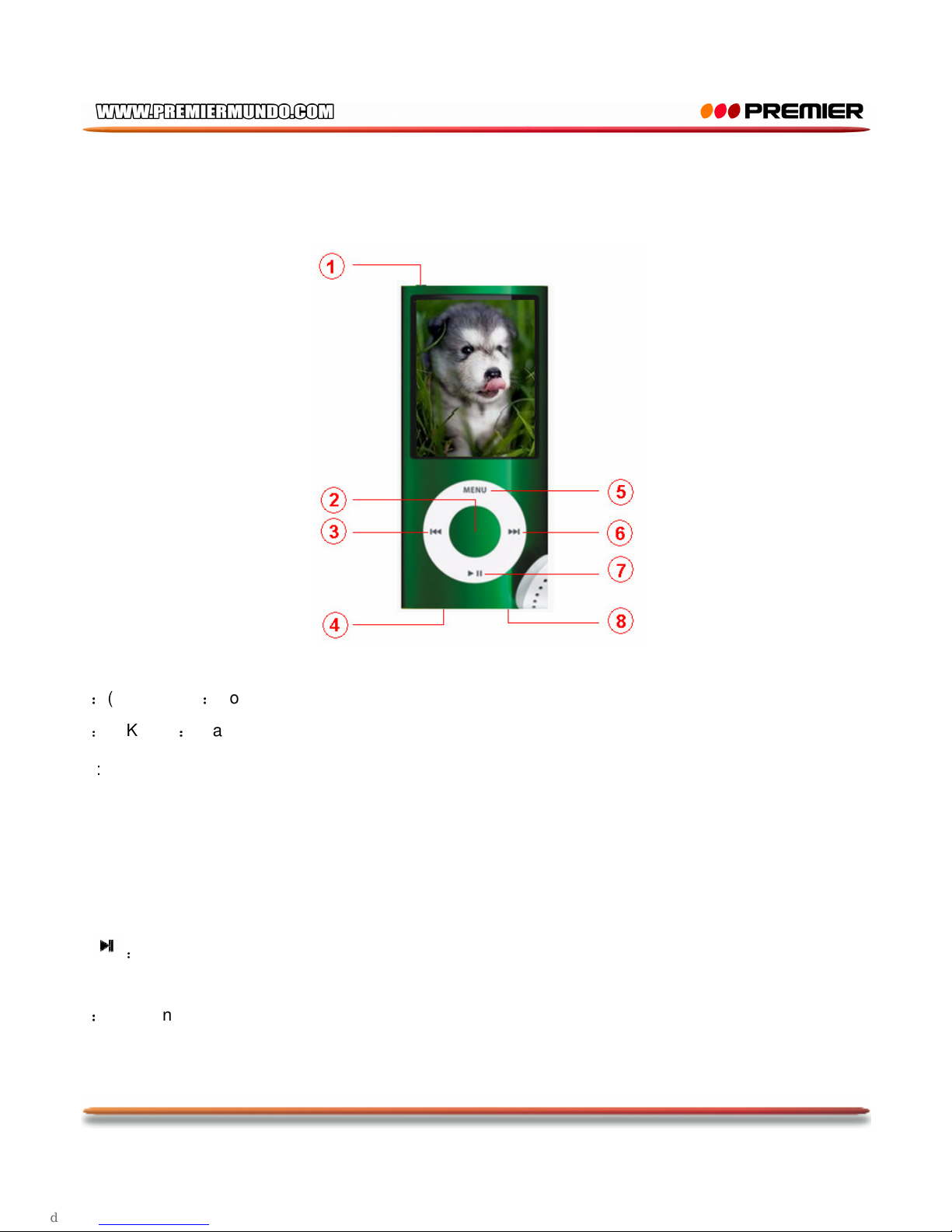
Appearance
Key Function
1:(Power Key):Power on or off.
2:(OK Key):in any interface, short press to enter next level and long press to display sub-menu.
3:(◄): Previous; long press to rewind.
4 : USB interface.
5 : (Menu Key): Return; in any interface, short press to return to the previous level and long press to
return to main interface.
6(►): Next; long press to fast forward.
7( ):PLAY; play, pause and stop when playing audio/video file; confirm and exit when selecting menu
items.
8:Earphone interface.
Page 5
P-4
Notes:
1. If no particular description, when selecting menu items, ◄/► are used to select item, OK, confirm and
Menu, return to the previous interface.
2. In any application, press OK to show volume bar, press ◄/► to adjust volume
.
Key Operation
Action Basic operations
Short press Key pressing time less than 1.2 sec
Long press Key pressing time more than 1.2 sec
Hold Press the key and keep the key pressed
Note: unless otherwise specified, press in this manual means short press.
Power On/Off
When the switch in on, long press to power on or off.
When the idle time reaches the power-off time set by the user, the player is powered off automatically.
Note: this function is ineffective when the player is connected to PC.
Low Power
When battery power is low, the player will prompt and enter Standby automatically. Please don’t power
on the player now, charge it instead.
Charger current specification recommended: 400-500mA.
File Storage
Files of different types should be stored under different directories. For example, music file should be
stored under MUSIC dir. Record file stored under RECORD dir... Otherwise the applications unable to
find the corresponding files.
Page 6
P-5
Connecting to PC and Charger
System Configuration
OS: Windows XP/2K/ME/98 (driver installation needed) /Linux9 and above /Mac OS 10
CPU: Pentium-133MHz at least
Memory: 32MB at least
Hard disk free space, 100MB at least
Connecting to PC
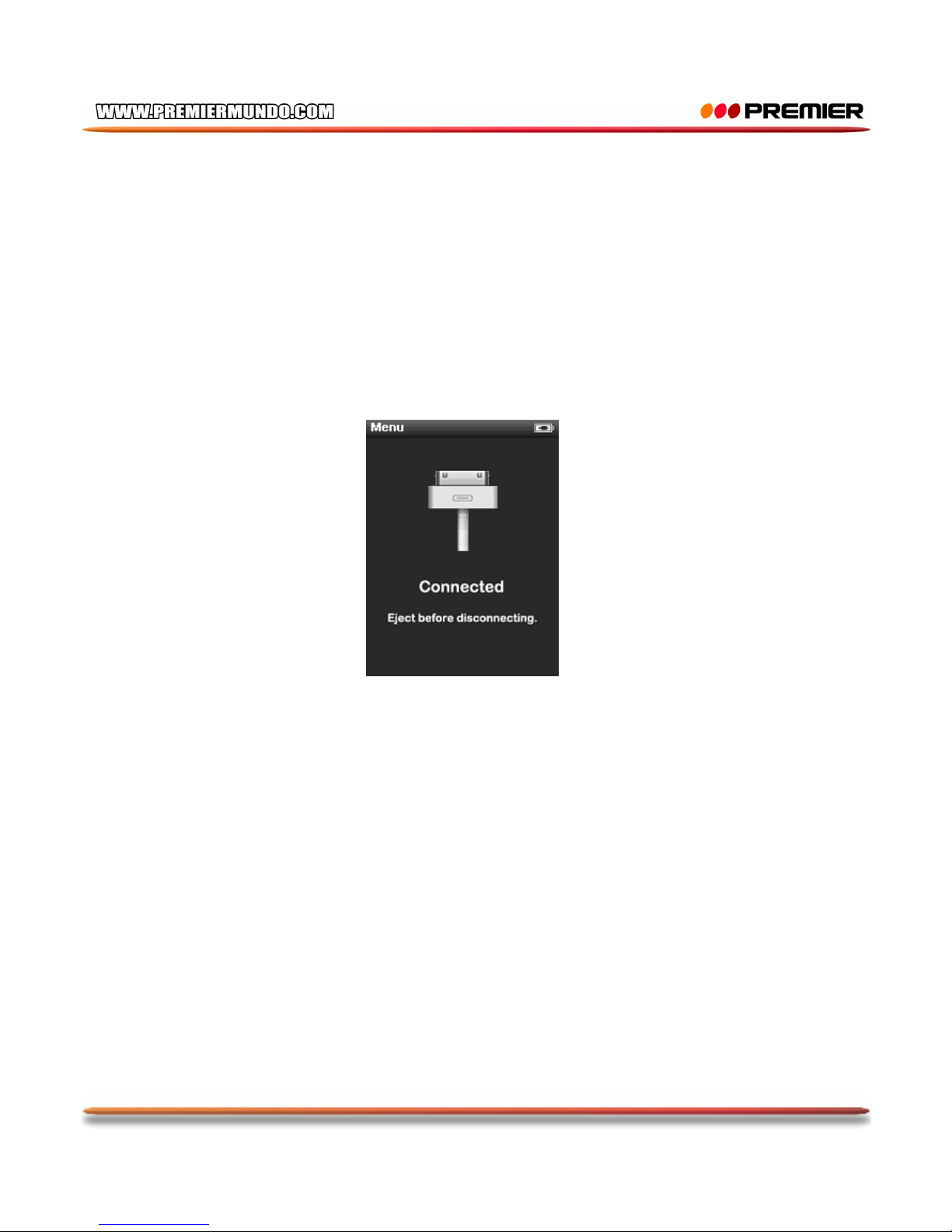
Connect the player to PC with the USB cable in power-off/on status
Disconnect the USB cable, and short press “MENU”, then the system enters player’s operation mode.
If do not disconnect USB cable, the system will stay in charging mode on its operation interface.
Connecting to Charger/Adapter
Connect the player with the charger
Notes: When charges, the power switch must be in open state.
Page 7
P-6
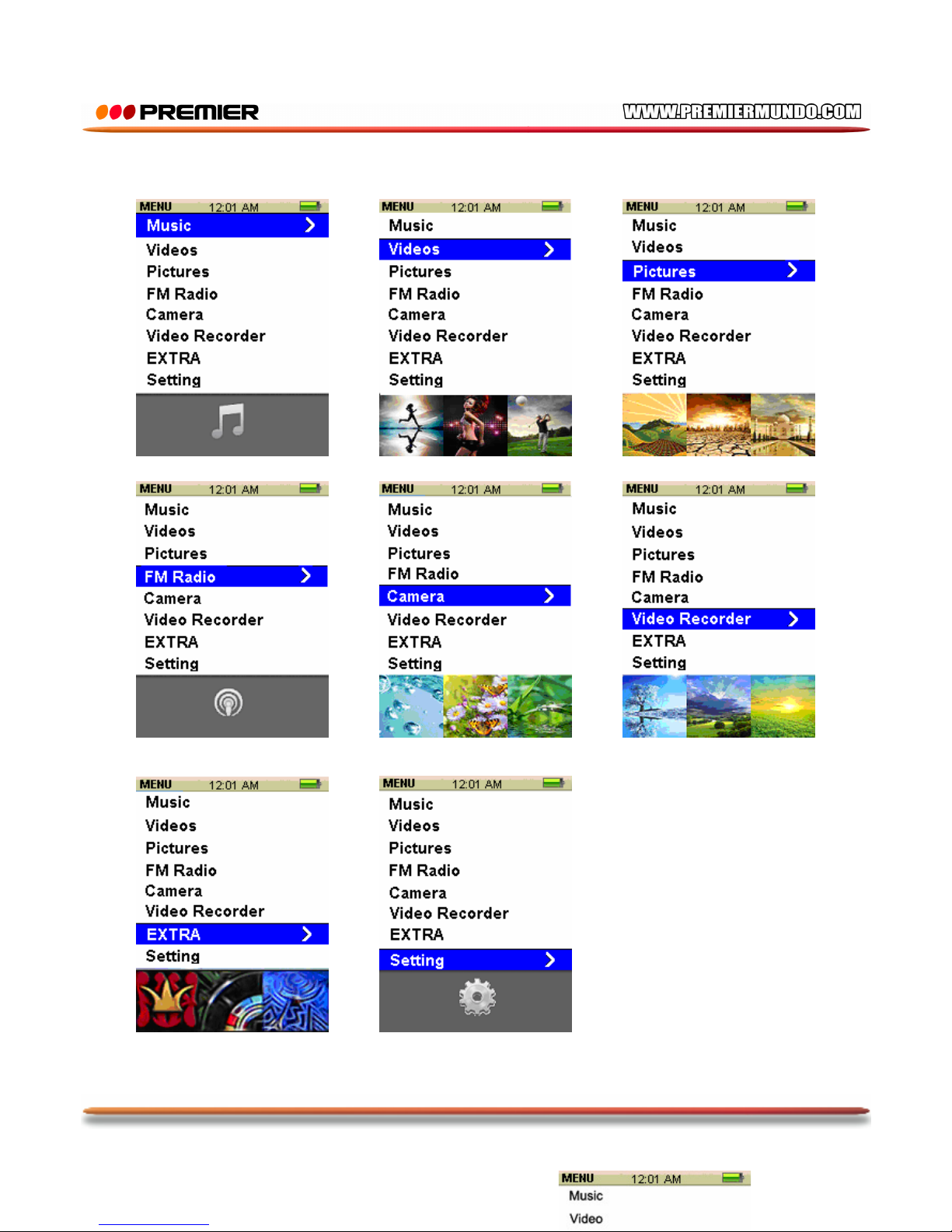
Main menu
Page 8
P-7
Music
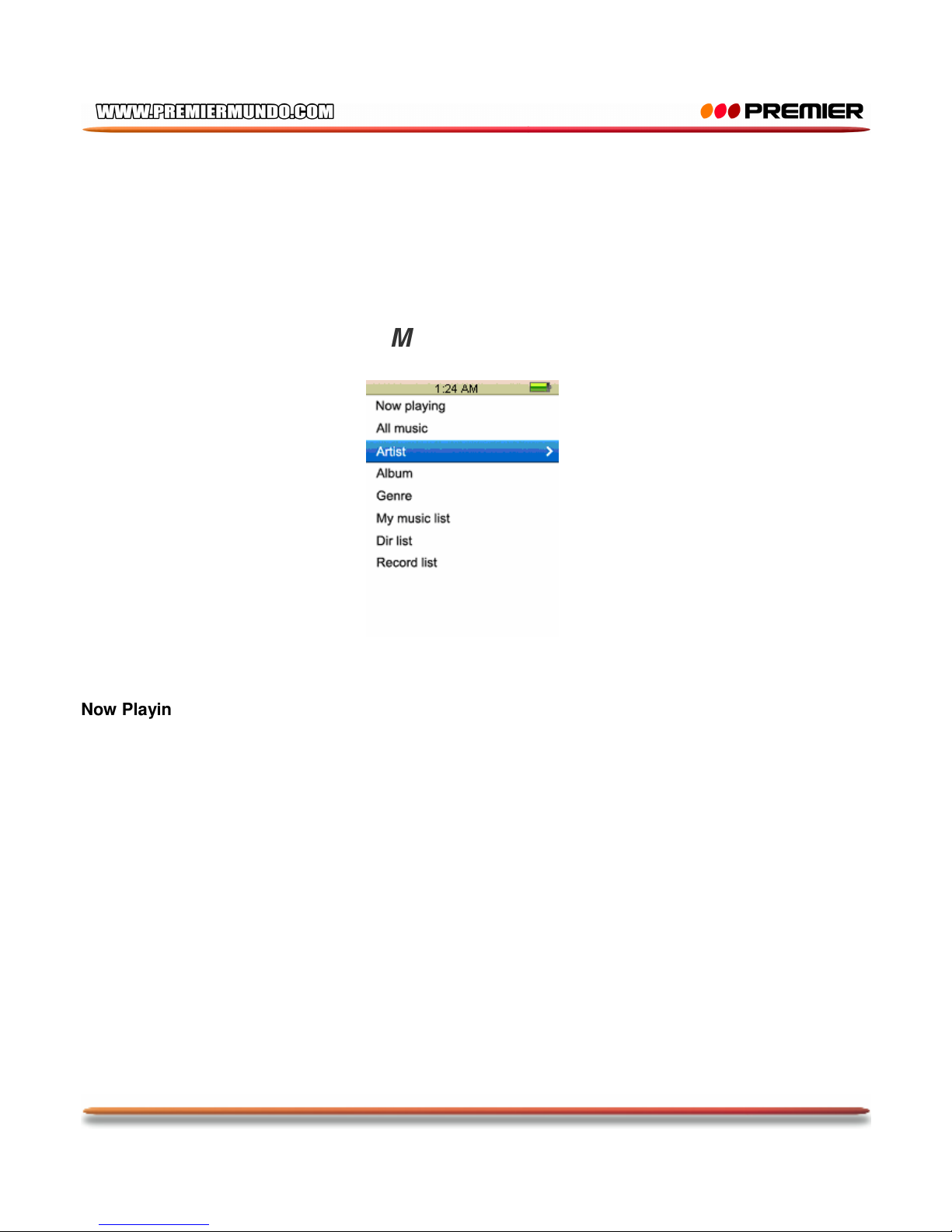
Select “Music” on the main interface and press OK to enter the main interface.
Main Interface
Now Playing: list the music played last time and highlight the one from which exited last time.
Time.
All Music: list all the music files stored under MUSIC directory in the player.
Artist: artist list; select one artist, the next level is the list of music by the artist. Unknown Artist saved
the music by unidentified artist. The function of Unknown Album and Unknown Genre are the same.
Album: album list; select one album, the next level is the list of music in the album.
Genre: genre list; select one genre, the next level is the list of music of this genre.
My Music List: five lists in total; each list contains the music classified by user.
Dir List: Internal Memory contains all music files in the player.
Record List: list all record files.
Page 9
P-8
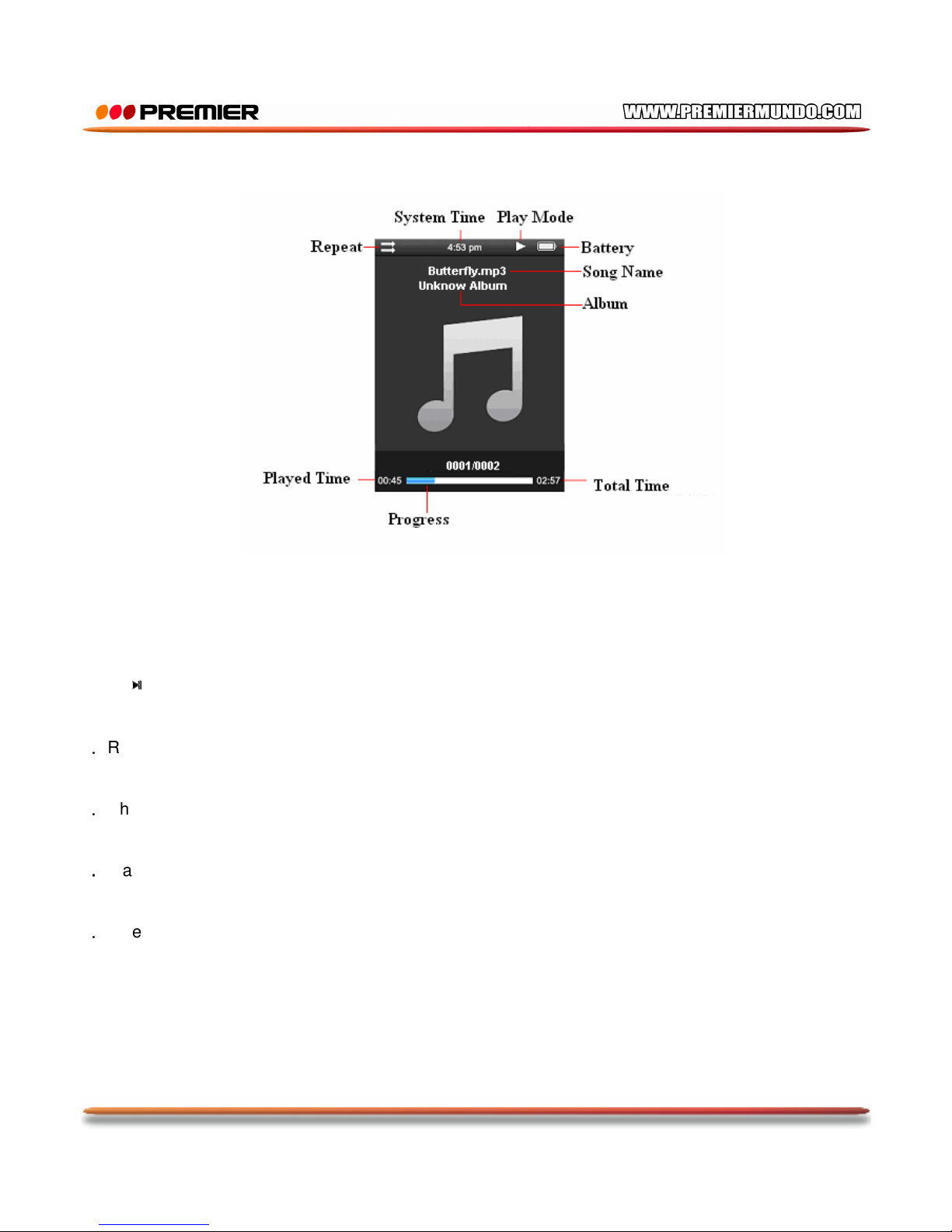
Music Playing Interface
Submenu and Basic Operation
In music playing interface, long press OK to enter submenu, the items includes:<AB repeat>, <Repeat>,
<Select EQ>, <Replay times>,<Repeat intervals>,<Variable Speed>, <Lyric display>,<Add to My
List>, <Delete the File>.
1. Play & Pause
Press to switch between play and pause.
Note: black screen function will be shielded for lyric display.
2.Rewind and Forward
When playing music or music is paused, long press ◄/► to fast rewind or forward.
3.Change Music
Press ◄/► to switch to the previous or next music.
4.Playback Mode
Select <Repeat>. Play mode includes: Sequence, Repeat One, Repeat All, Shuffle and Shuffle+Repeat.
5.Select EQ
The items includes: Normal, Rock, Pop, Classic, Soft, Jazz, bass,DBB
6. Repeat times
Press ◄/► to change Repeat times from 1 to 10.
7. Repeat Intervals
Press ◄/► to change Repeat Intervals from 1 to 7 sec.
Page 10
P-9
8
.
Variable Speed
Press ◄/► to change playing speed from -4 to 4.
9. Add to My List
Enter <Add to My List> and select one list and press , then the now-playing music is added to the list.
10. Delete File
Select <Delete the File>, press OK to enter to deletion interface to select OK or Cancel.
Videos
Select <Videos> in the main interface to enter its main menu.
Main Menu
Now Playing: Continue to the last play
Dir List: the function is the same as that of <Music-Dir List>.
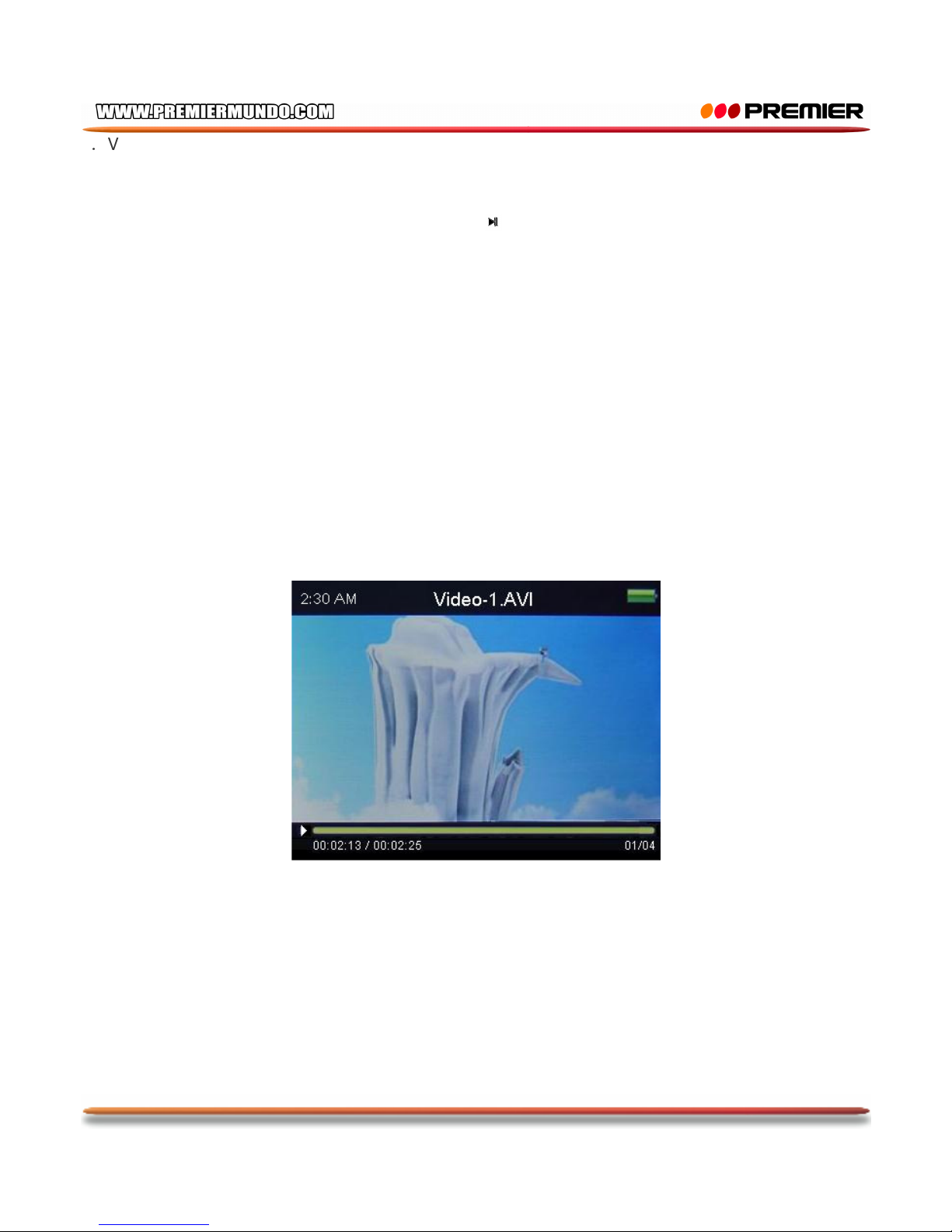
Video Playing Interface
In video playing interface, press any key to show the top and bottom bar, displaying the playing
information of current video file and to execute the corresponding operation. The bar will disappear if no
operation for 3 sec.
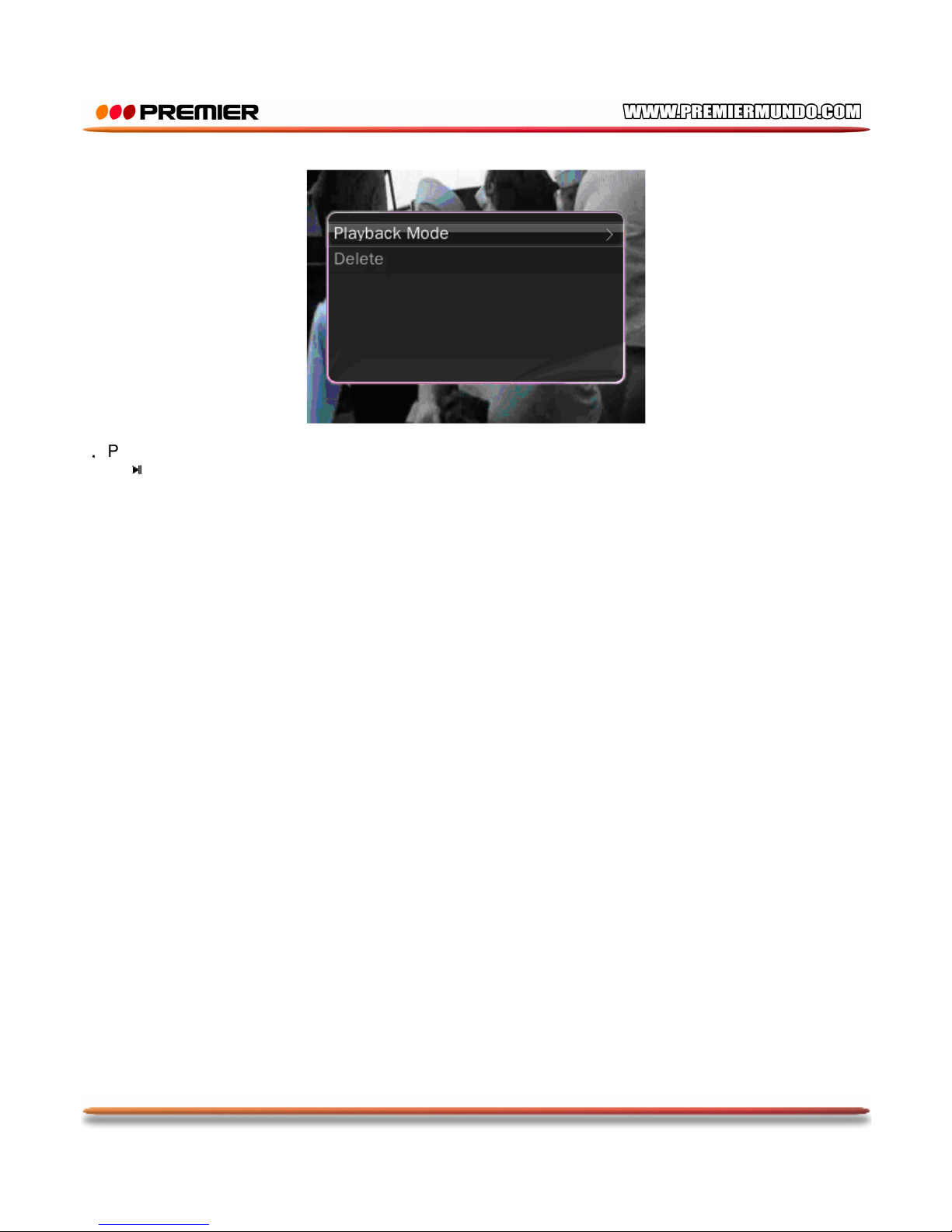
Submenu and Basic Operation
In video playing interface, long press OK to enter submenu, it includes: <Playback Mode>, <Delete> .
At this time, video playing stops and will continue if the system exit from the submenu.
Page 11
P-10
1.Play & Pause
Press to switch between play and pause.
Note: black screen function is shield when playing video.
2. Rewind and forward
When playing or pause video file, long press ◄/► to fast rewind and forward.
3. Change File
When playing or pause video file, press ◄/► to switch to the previous or next file.
4. Playback Mode
Playback mode includes: Sequence, Repeat One, Repeat All and Random.
Pictures
Select <Pictures> in the main interface to enter its main menu.
Main Interface
Now Playing: the function and operation are the same as that of <Music-Now Playing>.
Dir List: the function is the same as that of <Music-Dir List>.
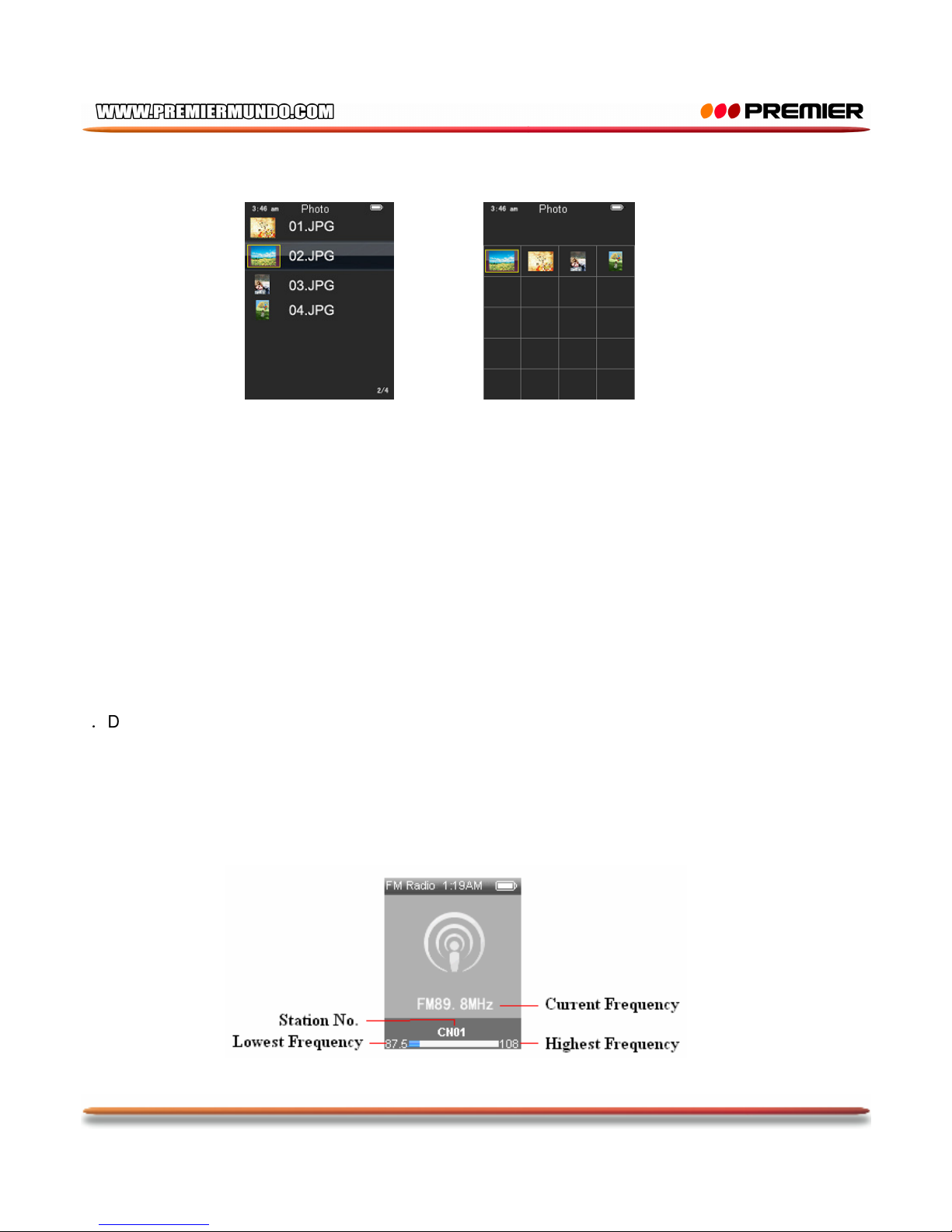
Play Mode: set display mode of picture list, List Mode and Thumbnail Mode.
Page 12
P-11
List Mode Thumbnail Mode
In the Thumbnail Mode, press◄/► to move left or right, long press ◄/► to move up and down.
Submenu and Basic Operation
When browsing a picture manually, long press OK to enter submenu, it includes: <Slide Interval>,
<Slide Effect>, <Delete the File>
1. Play and Pause
When the playing is playing picture automatically, short press OK to switch between auto and manal
play. For manual playing, press ◄/► to play the previous or next picture.
2. Slide interval
Select picture playing interval: 1-10 Sec.
3. Slide Effect
Select the special playing effect: Normal, Fly In, Chessboard, Cut, Erase, Louver, Random Line and
Random.
4.Delete the File
Operation is the same as that of <MUSIC-Delete the File>
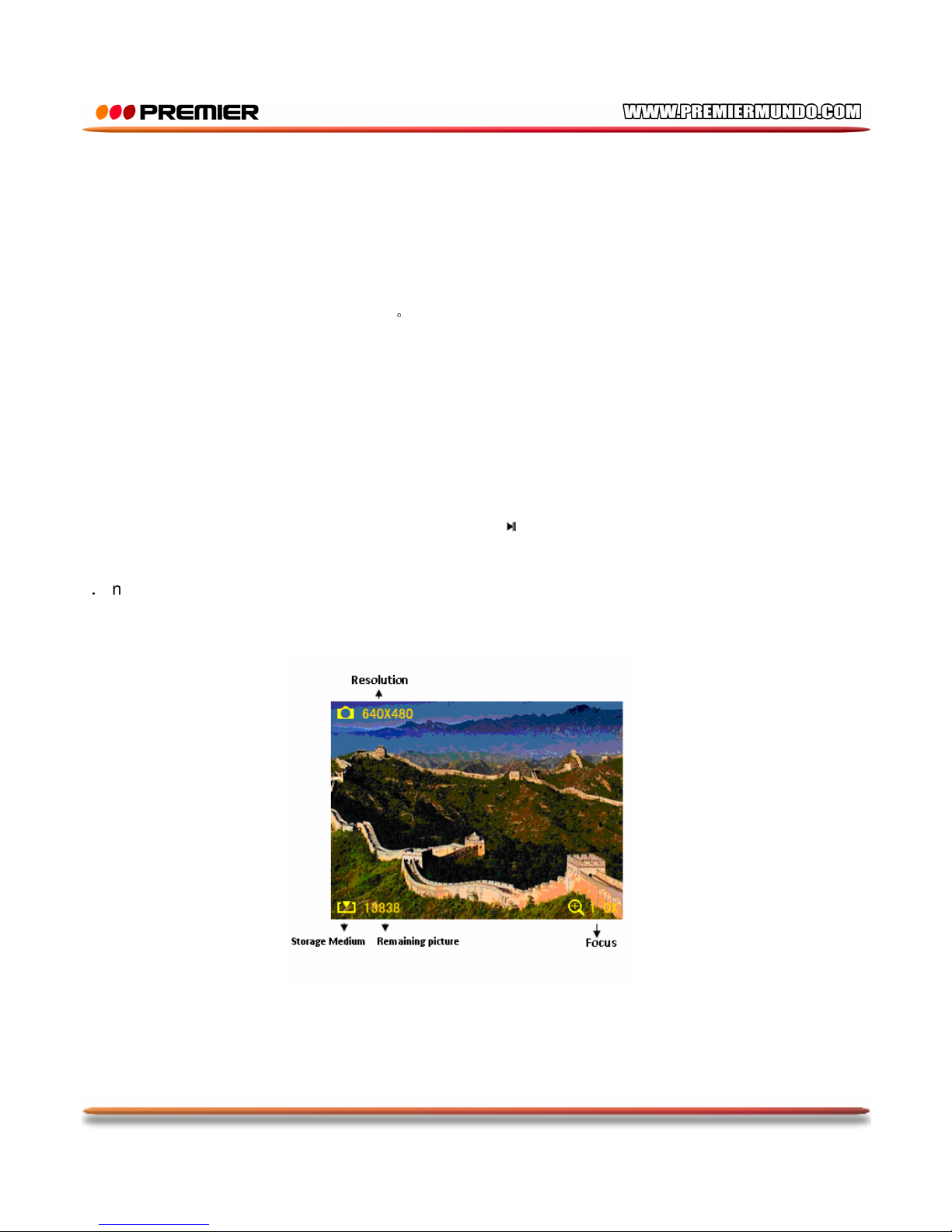
FM Radio
Select <FM Radio> in the main interface to enter.
FM Radio Interface
Page 13
P-12
Submenu and Basic Operation
In Normal Mode, press OK to enter submenu, it includes: <FM record>,<Record quality>,<Record
Gain>,<Save Channel>, <Auto Search>, and <Station List>
1. Listen In
Select this item to enter FM interface, the channel frequency is the one exited last time. If it is the first
time, the frequency is default as 87.5MHz。
In Normal Mode, press ◄/► to decrease or increase one frequency point. In Preset Mode, press ◄/►
to switch to the previous or next saved station.
2. Search Station
Manual search: In Normal Mode, press ◄/► to search, long press to quick search.
AUTO search: In submenu interface , choose <Auto Search> search station. After finish search, it will
be automatically saved to the radio station and broadcast the first radio, If there is no radio frequency it
will be in the initial station. When searching, press M key to exit, the system will stop at the last station.
3. Station List
List the saved stations. Select one station and press to enter the FM listening interface to listen.
Support up to 30 stations per band.
4.In FM state, short press PLAY button, and then press ◄/► to adjust the volume
Camera
Select <Camera> in the main application interface.
1. Short press OK to take picture;
2. Adjust focus: press ◄ to zoom in and press ► to zoom out.
3. Long press OK to enter sub-camera interface, you can set resolution, self-timer, shutter sound, date
stamp
Page 14
P-13
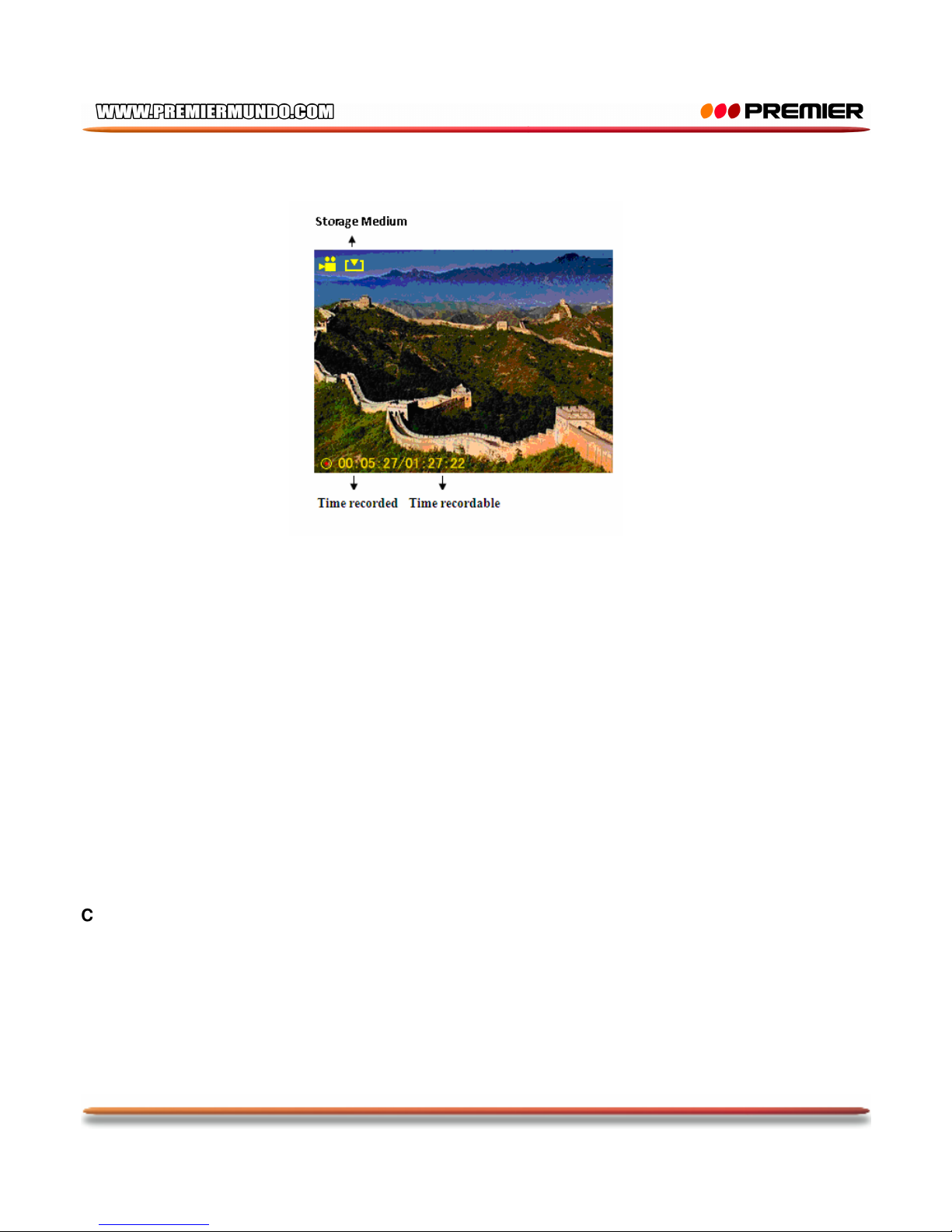
Video Recorder
Select < Video Recorder> in the main application interface
1. In the video interface, long press OK key to enter the video sub-menu to set resolution , Record
quality, short press M key to return
2. Short press OK to start recording and press it again to pause. Press M to exit, the system will
automatically save the file before exit.
Extra
Select <Extra> in the main interface to enter. The player supports Stopwatch, Calculator and Calendar.
Stopwatch
1. Select Stopwatch and press OK to enter.
2.Short press OK to start/pause/continue counting. Press ► to save the current counting and start a
new one. At the 3th counting, press ► to re-start the 1st counting to continue.
3. When counting is paused, press M to show Clear box to clear counting record
.
Calculator
1. Select Calendar and press OK to enter.
2. Press ◄/► to move left and right. Press OK to confirm.
Calendar
1.
Select Calendar and press OK to enter
2.
Press◄/► to switch among Year, Month and Date.
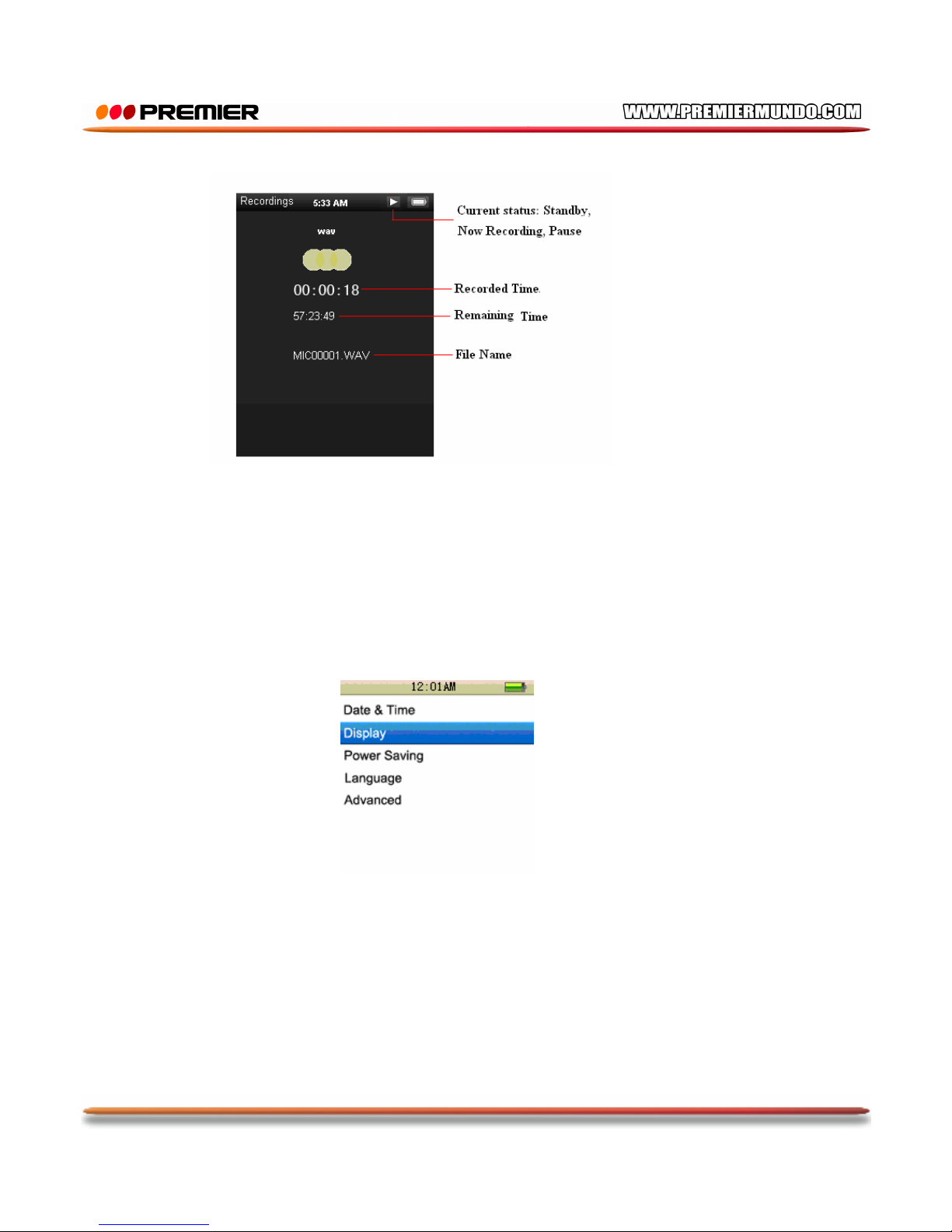
Recordings
Select <Recordings> on the main interface to enter recording interface.
Page 15
P-14
Recording Interface
Submenu and Basic Operation
1. Start\Pause\Stop Recording
Press OK to switch between record and pause record. Press M, the system will prompt “Stop Record”,
select <OK> or <Cancel> and press OK to confirm and return to the recording interface. The recorded
file will be saved in the <Music-Record List-Voice>.
When the recording pauses, press M to save the recorded file.
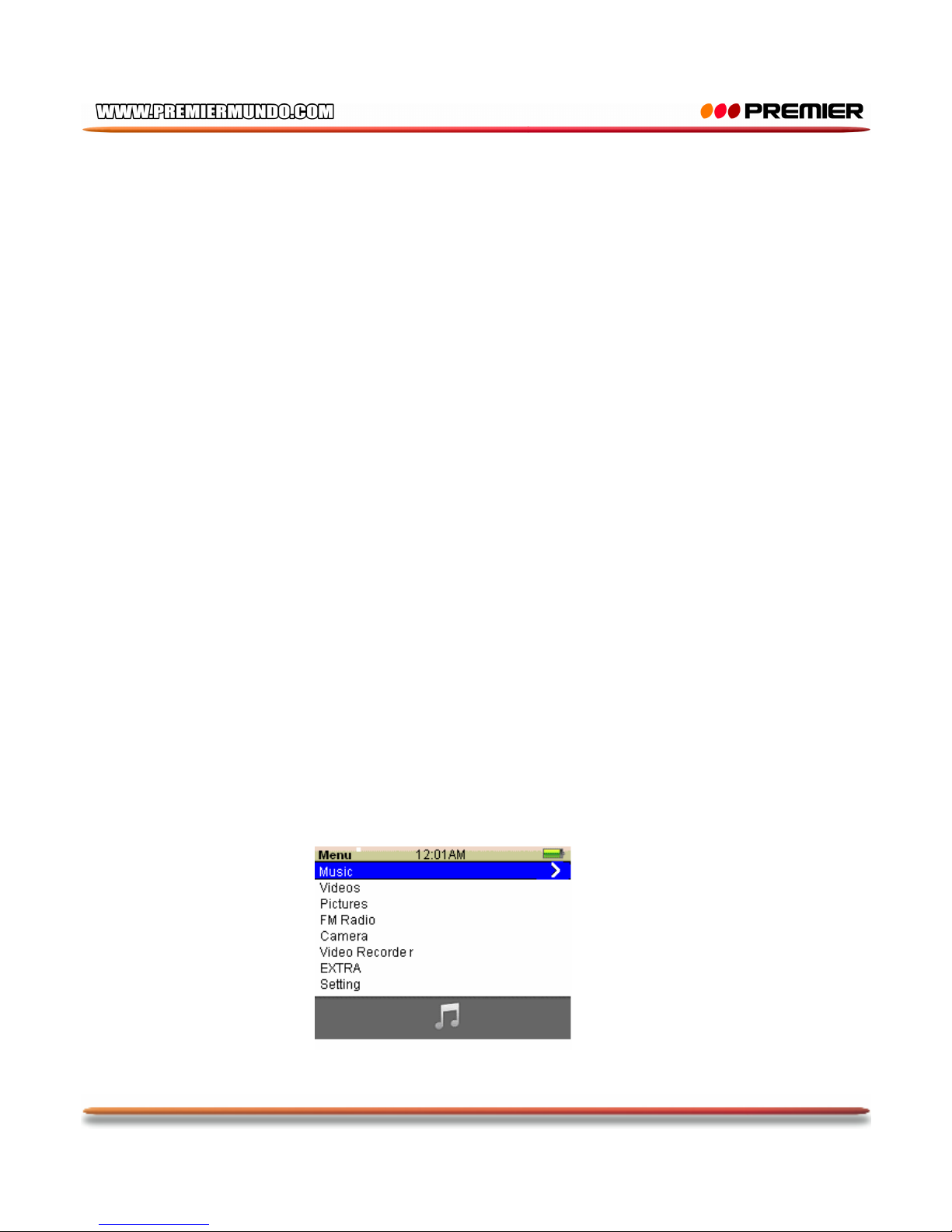
Setting
Select <Setting> in the main interface to enter the menu.
Date and Time
1. Adjust Date
Set system date. Short press Play to switch among Year, Month and Date, press ◄/► to change the
value , short press OK to confirm and exit.
2. Adjust Time
Set system time. Press Play to switch among hour, minute and AM\PM and press ◄/► to change the
value. Short press OK to conform and exit.
Display
Backlight
Off, 5, 10, 20S, 30S, 1MIN and 5MIN. If the backlight time is off, then no black screen. If it is not off, the
screen will turn black if no operation during the set duration.
Page 16
P-15
Power Saving
1. Power Saving
Off, 10S, 30S, 1MIN, 3MIN, 5MIN and 10MIN. If the power saving is off, the player will not shut down
automatically, if it is not off, the player will shut down in case no operation during the set duration.
2. Sleep Mode
Off, 10MIN, 30MIN, 1Hr, 2Hr, 3Hr, 4Hr and 5Hr. The player will shut down when the set time reaches.
Language
Support Simplified Chinese (default), Traditional Chinese, Japanese,Spanish , Italian, English, Dutch,
German, French, Polish, Turkish, Romanian ,Portuguese etc.
Advanced
Player Information
Show the player’s basic information: Firmware Version, Total Space, Free Space.
Format Memory
Format the player. Please save data before format.
System Check
Select to enter, the system prompts: “May require a few minutes to finish”. Select Ok, the system starts
self-check and shows “Self-checking…”
Reset
Select it and the system will prompt: “Reset default setting, system will shut down”. Select Ok, then the
settings of all applications will restore to the factory setting.
Rotation Touch
In any case, sliding up and down round buttons are similar of press keys
Menu settings can be turned up and down;
In the playback interface slide button can directly adjust the volume
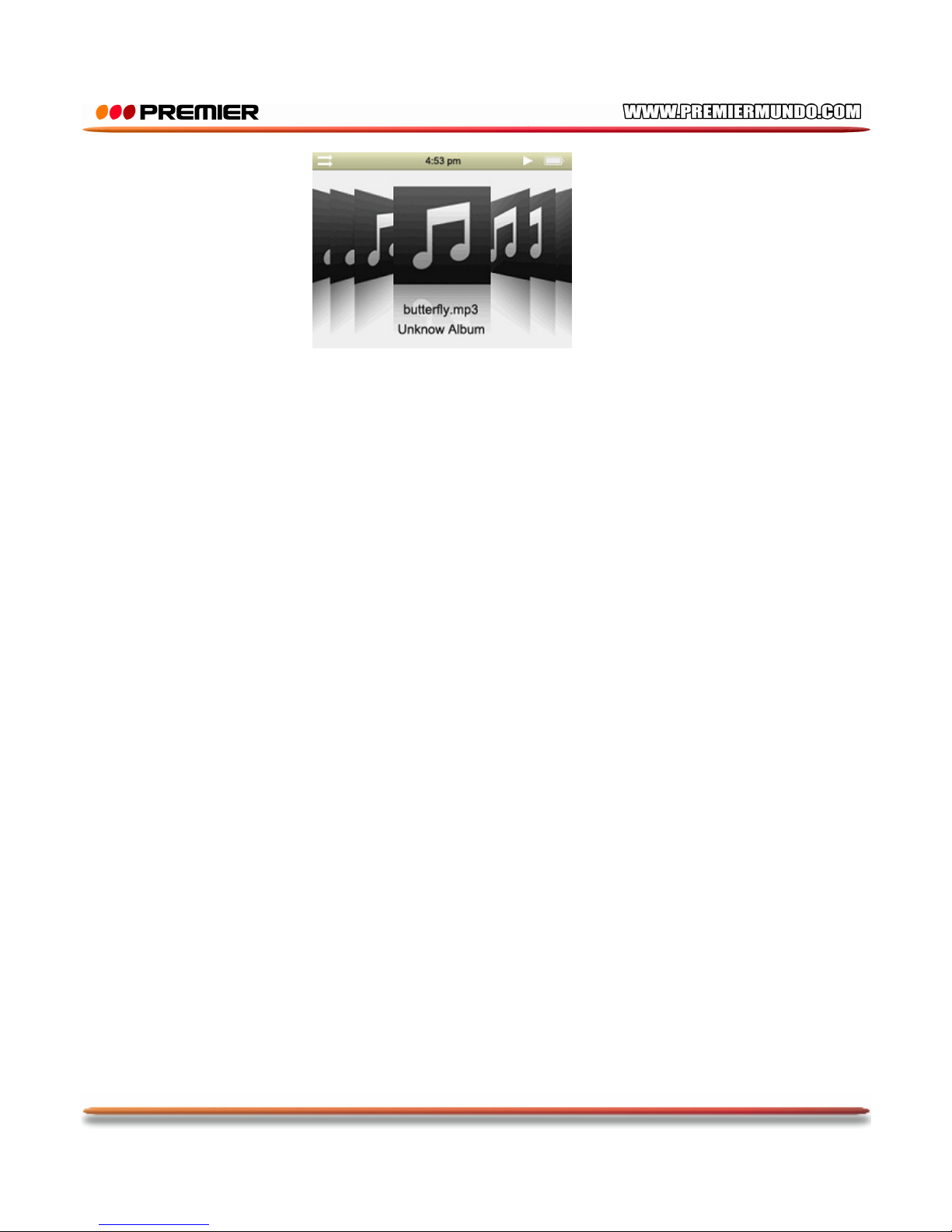
Gravitational sense
This Player can Rotate, then UI Interface changed as flow;
Main menu
Page 17
P-16
Music play
Other interfaces are similar.
FAQ
1. Cannot turn on the player.
Check battery’s remaining capacity. Connect USB cable or charger and try to turn on
the player again.
2. Cannot hear the voice via earphone.
Check whether volume is set to 0.
Check whether earphone has been plugged in the earphone slot.
3. Serious noise
Check whether earphone plug is clean. Dirty plug may lead to noise.
Check whether the file is damage. Try other file. Damaged file may lead to serious
noise and voice jump.
4. Bad signal for FM Radio
Adjust the direction and place of the player, pull the earphone cable longer.
Check whether there is electronic equipment nearby. Electronic equipment may lead
to signal electronic equipment.
5. Clobber problem
Check whether the language is set correctly.
Page 18
P-17
6. Cannot download file.
Check whether the connection between PC and the player is correct.
Check whether the memory space is full.
Check whether USB cable is damaged.
FW Upgrade
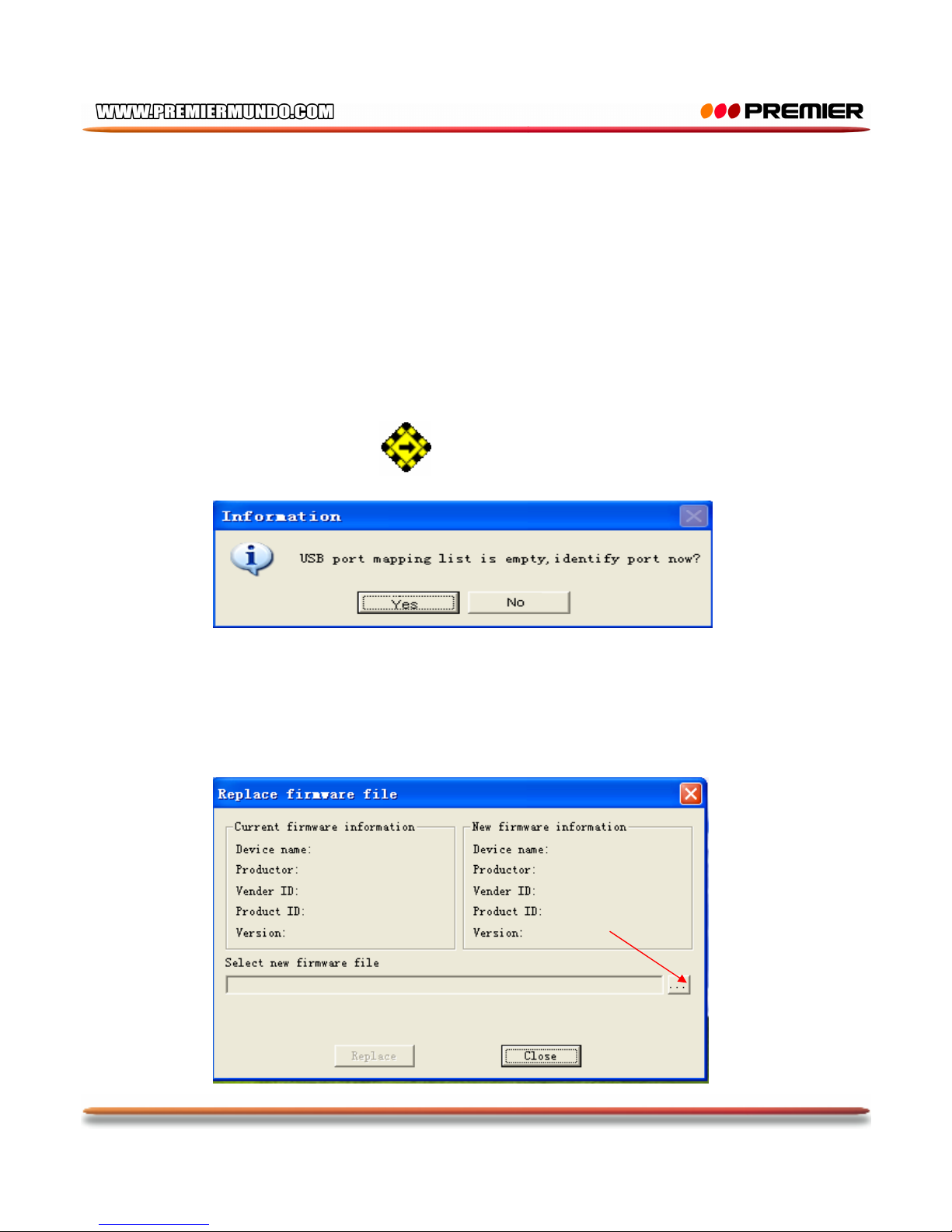
1. Installation 5.29 version update tool in CD-Driver
2. After complete installation ,click: Open the upgrade tool and select: YES , as the following
picture:
3. Click the arrow shown in the diagram, choose the upgrade process. As the following picture:
:
Page 19
P-18
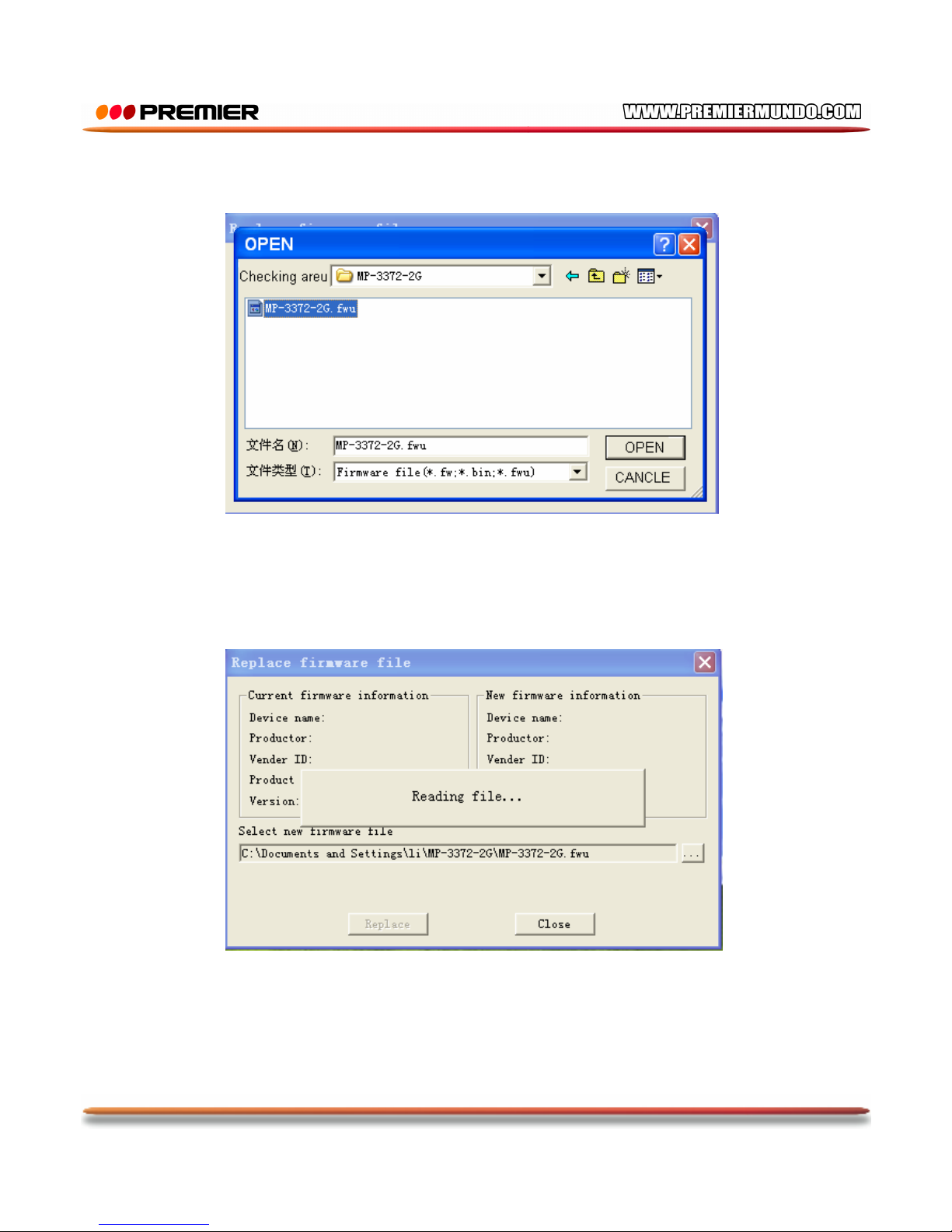
4. Select the file that corresponds to player, and click to open, As the following picture:
5. Are reading file, please wait:
Page 20
P-19
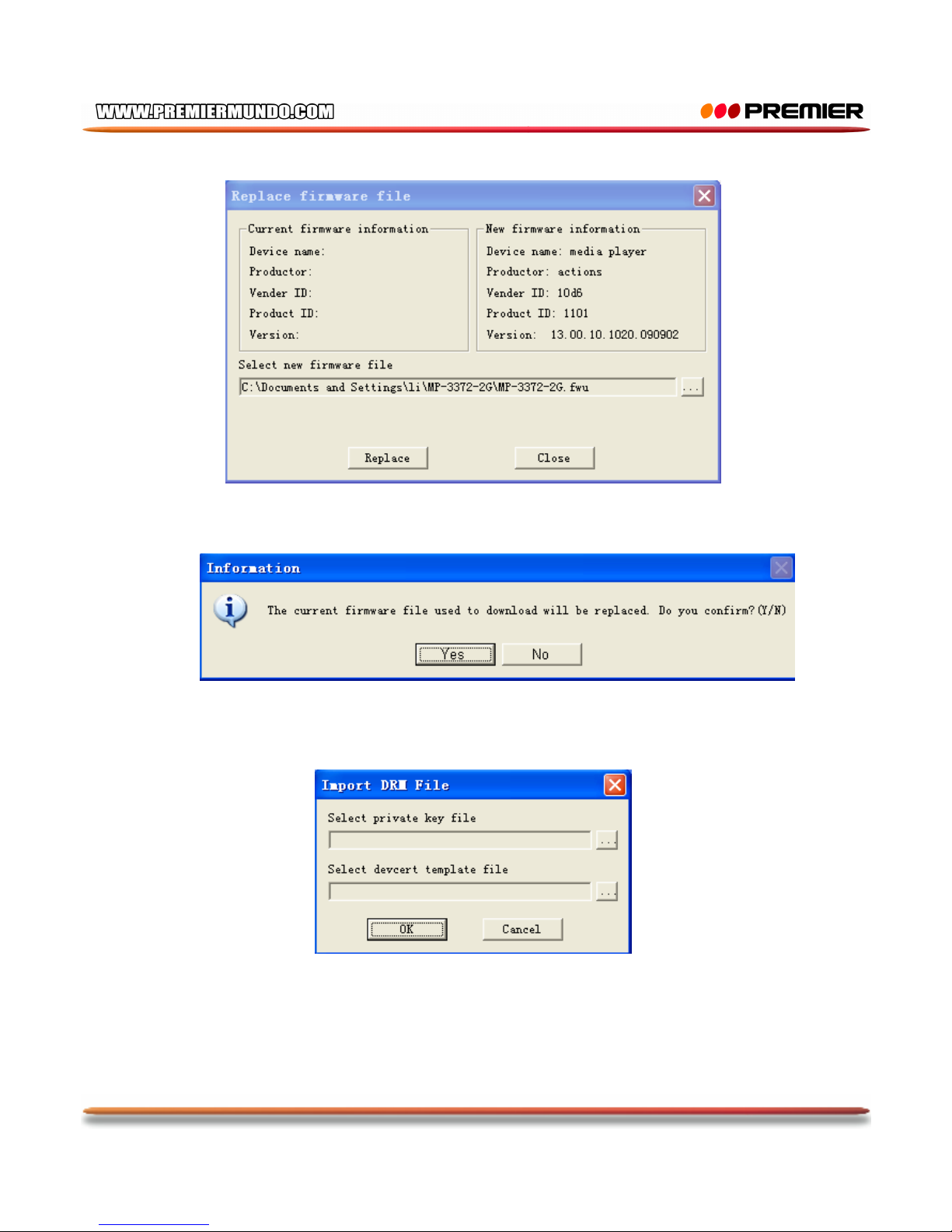
6. Select Replace, As the following picture:
7.Select YES, as the following picture:
8.Select cancel, as the following picture:
Page 21
P-20
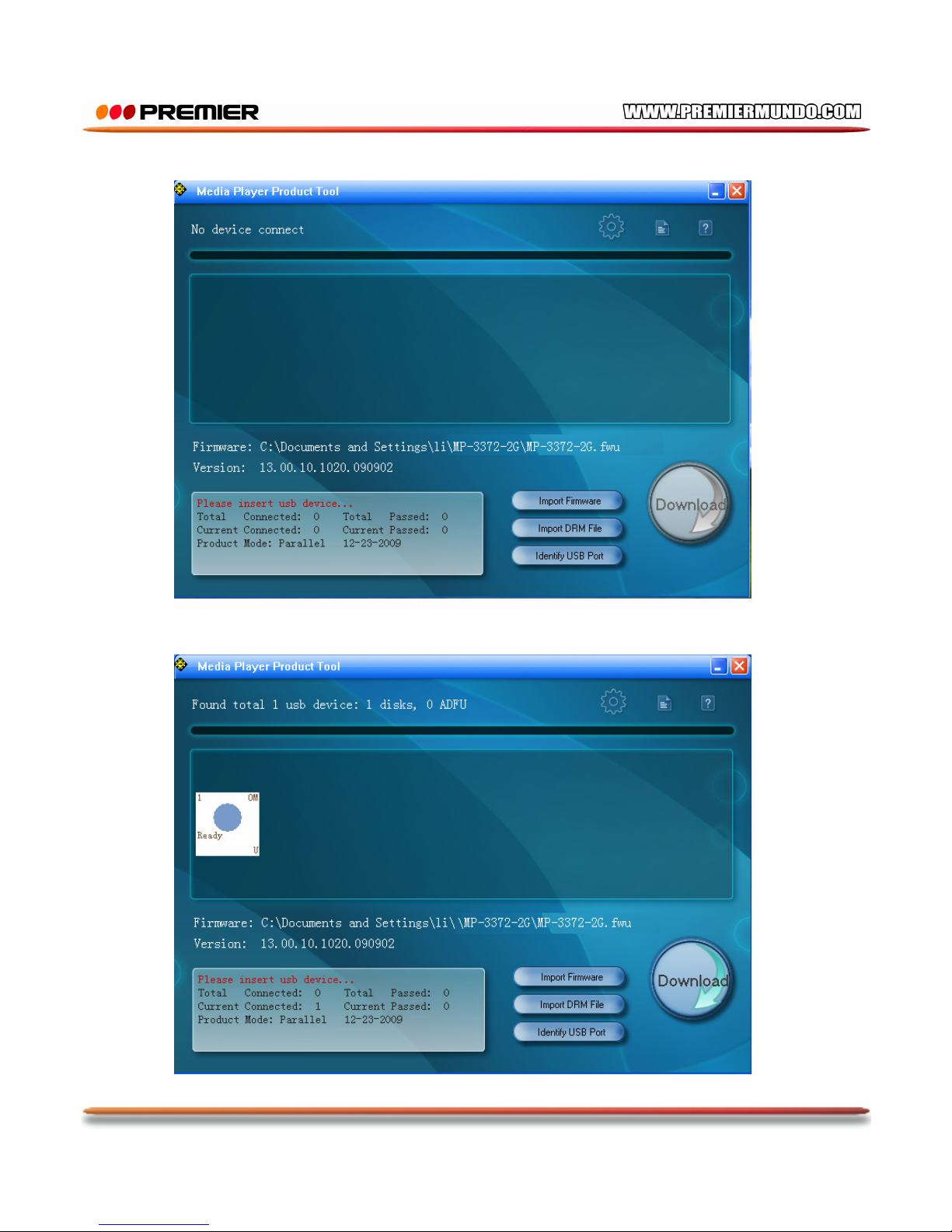
9. In this interface, connect the player to a computer to upgrade, as the following picture:
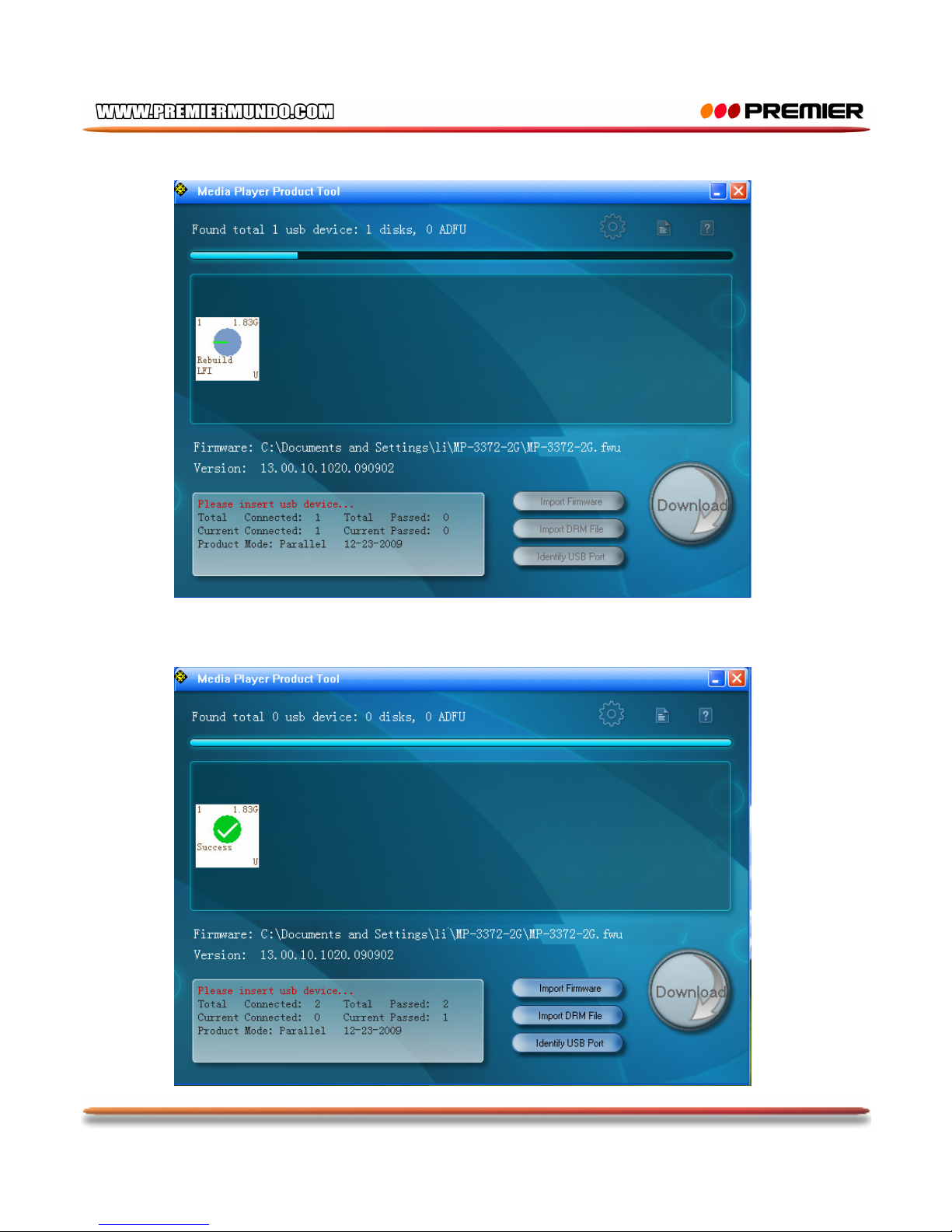
10. After the upgrade tool identify the player: Click download to upgrade , as the following picture:
Page 22
P-21
11. The player has being upgraded, please be patient to wait a few minutes, as the following picture:
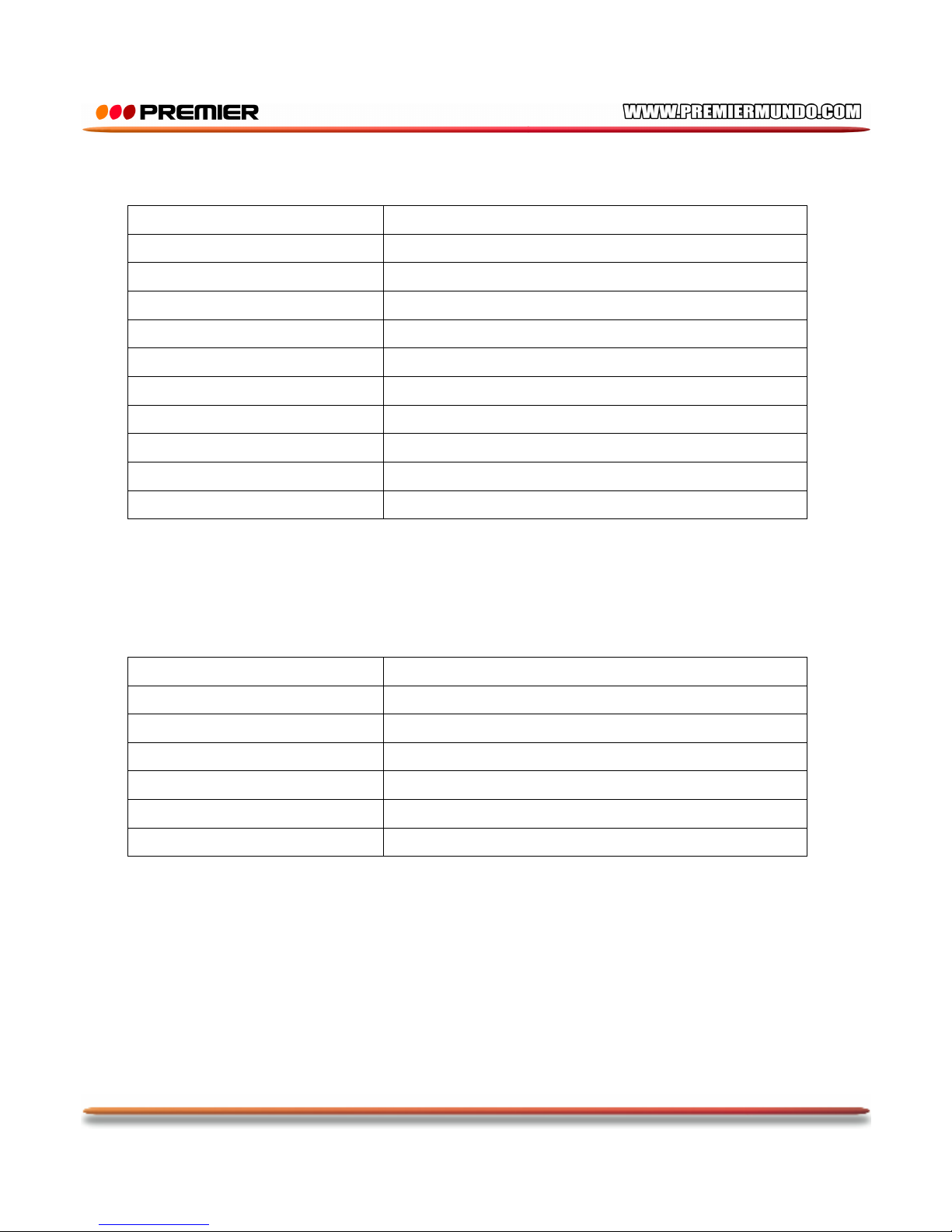
12. The player upgrade is successful. as the following picture:
Page 23
P-22
Factory Setting
Music Play Mode
Repeat All
EQ Mode Normal
Picture Mode
Thumbnail
Picture Play Mode
Manual
Slide Gap
2 sec
Record Type
WAV
Channel Frequency
87.5 MHZ -108MHZ
Auto Reading Gap
4 sec
Backlight Time
10 sec
Power-saving mode
close
Sleep mode close
Specification
Memory Space
2GB
Battery
3.7V lithium battery 250MA
Operation Voltage.
3.7V
S/N Ratio
90db
FM Distortion
0.5%
LCD
320×240 QVGA 260,000 colors, TFT screen
Unit size
9.5cm*4.3cm*0.9cm
 Loading...