

Page 1
INSTRUCTION MANUAL
MP4 PLAYER
MP-3007-4G-X
DEAR CUSTOMER
Congratulations for your purchase!
Please read this manual carefully, and keep it for future reference.
If you need extra support, please write to [email protected]
Page 2

Pagina 1
CONTENTS
CHAPTER 1 -- QUICK GUIDE...............................................................3
1.1 Preface.........................................................................................3
1.2 Copyrights ....................................................................................3
1.3 Precautions...................................................................................3
1.4 Player Overview ...........................................................................4
1.5 Keys and Function Definition........................................................5
1.6 Basic Operations..........................................................................5
CHAPTER2 -- MULTI-MEDIA FUNCTIONS ..........................................6
2.1 Music Mode..................................................................................6
2.1.1 Keys and Operations.................................................................6
2.1.2 Sub-Menu Operations ...............................................................6
2.1.3 Synchronous Lyric Display........................................................7
2.1.4 SRS WOW.................................................................................7
2.2 Movie Mode..................................................................................7
2.2.1 Keys and Operations.................................................................7
2.2.2 Sub-Menu Operations ...............................................................8
2.3 Record Mode................................................................................8
2.3.1 Keys and Operations.................................................................8
2.3.2 Sub-Menu Operations ...............................................................8
2.3.3 Recording Type .........................................................................8
2.4 Voice Mode...................................................................................8
2.4.1 Keys and Operations.................................................................9
2.4.2 Sub-Menu Operations ...............................................................9
2.5 FM Mode ......................................................................................9
2.5.1 Keys and Operations.................................................................9
2.5.2 Sub-Menu Operations .............................................................10
2.6 Photo Browser............................................................................10
2.6.1 Keys and Operations...............................................................10
2.6.2 Sub-Menu Operations .............................................................10
Page 3

Pagina 2
2.7 Ebook Mode ...............................................................................11
2.7.1 Keys and Operations...............................................................11
2.7.2 Sub-Menu Operations .............................................................11
2.7.3 Bookmark ................................................................................11
2.8 Game (SOKUDO).......................................................................11
2.9 System Setting ...........................................................................12
2.9.1 General Settings......................................................................12
2.9.2 Ear Protection..........................................................................12
2.9.3 Firmware Upgrade...................................................................13
CHAPTER 3 -- MOVIE FORMAT CONVERTING................................14
CHAPTERT 4 -- DATA STORAGE......................................................15
4.1 Media Files Storage....................................................................15
4.2 Connecting to PC .......................................................................15
4.3 Repartitioned and Encrypting.....................................................15
CHAPTER 5 -- TECHNICAL SPECIFICATION....................................18
5.1 Battery........................................................................................18
5.1.1 Charging the Battery................................................................18
5.2 Technical Specification...............................................................18
5.3 Trouble Shooting........................................................................19
5.4 Compliance Information..............................................................19
5.5 Protection Clause.......................................................................19
Page 4
Pagina 3
CHAPTER 1 -- QUICK GUIDE
1.1 Preface
This is an u
niversal manual book compatible with digital MP4 players
which are using AK2025 CPU. Keys layout and functions definition may
be different from various models; therefore, operation must be subjected
to actual model. This manual book is for general reference only.
To make the best use of this product’s functions, read this manual
thoroughly before use. Please keep this manual handy for ease of
reference.
The content of the owner’s manual may be changed for better service in
the future, without prior notice.
1.2 Copyrights
Reproduction or alteration of copyrighted documents, magazines,
music and other materials, other than for personal, home or
similarly limited purposes, without the consent of the copyright
holder is prohibited.
Microsoft, MS and Windows are registered trademarks of Microsoft
Corporation.
Macintosh, Power Macintosh and Mac OS are registered
trademarks of Apple Computer, Inc.
All trademarked company and product names mentioned in this
manual are property of their respective owners.
1.3 Precautions
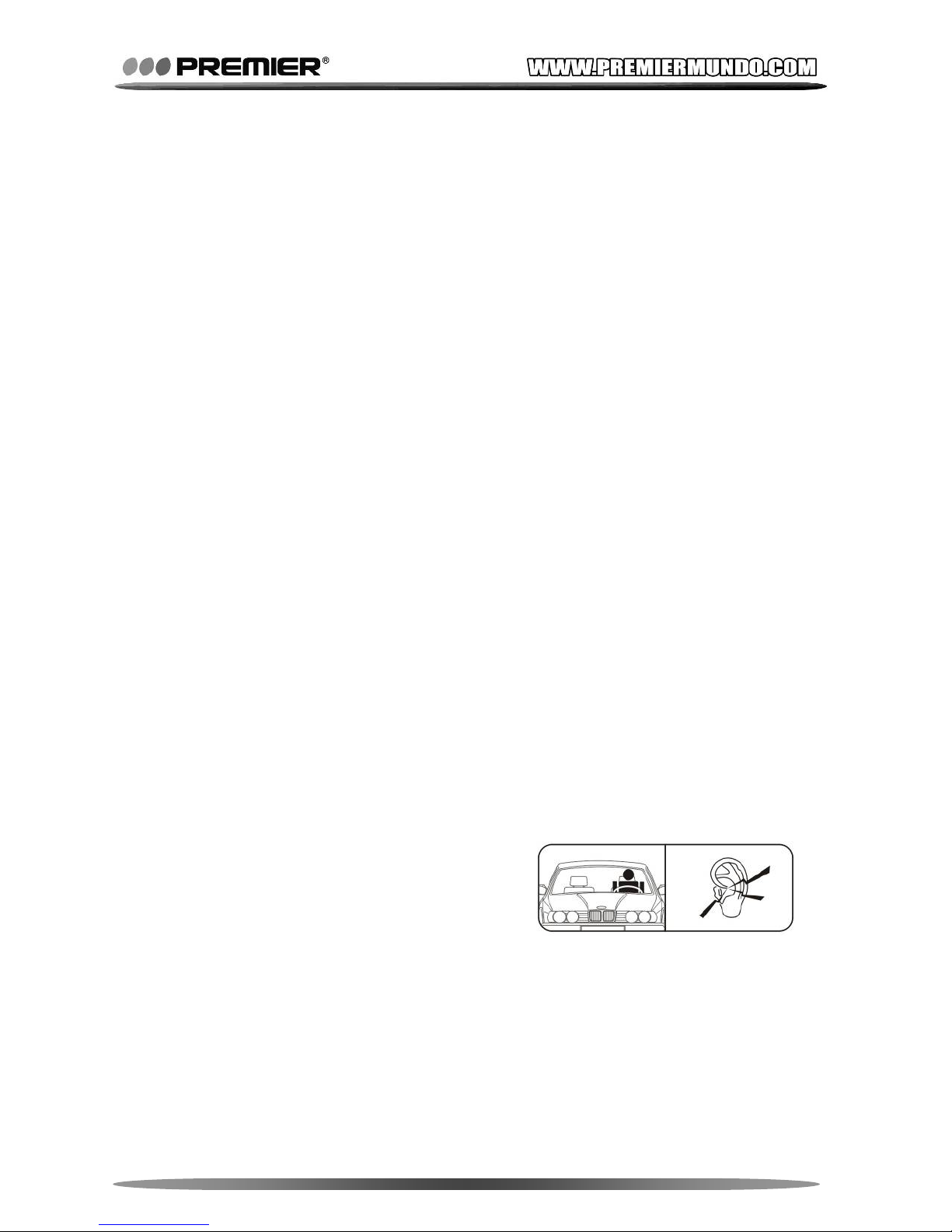
When driving a car, driving is your
first responsibility.
Do not use the earphone when go
crossing the street.
Do not use the earphone for a long
time for audition protection. If you found a drumming in the ears,
please stop using it.
Extreme temperatures (out of the range of -5 degrees to 40 degrees)
will affect the using of your MP4 player. Please cool or warm the
digital MP4 player in such condition before use.
Keep the digital MP4 player dry and do not use the digital MP4
player with a wet hand or it may cause an electric shock to you or
Page 5

Pagina 4
damage to the digital MP4 player.
Humidity, liquids and minerals may corrode electronic circuits.
Do not store the digital MP4 player in hot or sunlight areas. High
temperatures can shorten the life of electronic devices, damage
batteries and warp or melt certain plastics.
Do not use or store the digital MP4 player in dusty, dirty areas, as its
moving parts may be damaged.
Do not drop, knock, collide, or shake the digital MP4 player. Rough
handling can break internal circuit boards.
Do not use harsh chemicals, cleaning solvents or strong detergents
to clean the digital MP4 player. Wipe it with a soft cloth slightly
dampened in a mild soap-and-water solution.
Operating this product in the vicinity of other electronic equipment
may adversely affect the performance of both devices. In particular,
operating close to a radio or television may lead to interference. If
interference occurs, please move the digital MP4 player away or put
it into separate electrical outlets, or reorient the TV or radio antenna.
1.4 Player Overview
Digit
al MP4 player is a simple portable multi-media player supporting
music playing, animation (movie) playing, photo playing, text playing,
FM radio playing and recording, voice recording. It can also be a flash
storage disk with partition division and encryption.
Music format supports *.mp3, *.wma, and *.wav. You can also
display lyric with *.lrc when playing music file synchronously.
Animation format supports *.amv file only which is converted by the
tool in the driver CD from other movie sources such as MPEG files,
RealMedia files or QuickTime files.
Photo format supports *.bmp, *.jpg and *.gif (single and multi frame).
It can play photo slide show with customized interval.
Text format supports *.lrc and *.txt. It can roll pages automatically
with customized interval.
Fm radio frequency supports 87MHz~108MHz. It can automatically
search channel and save 20 preset channels. It can also record FM
radio as *.wav file.
Voice recording function supports voice recording with built-in
microphone as *.wav file.
Simple game playing: SOKUDO.
Page 6
Pagina 5
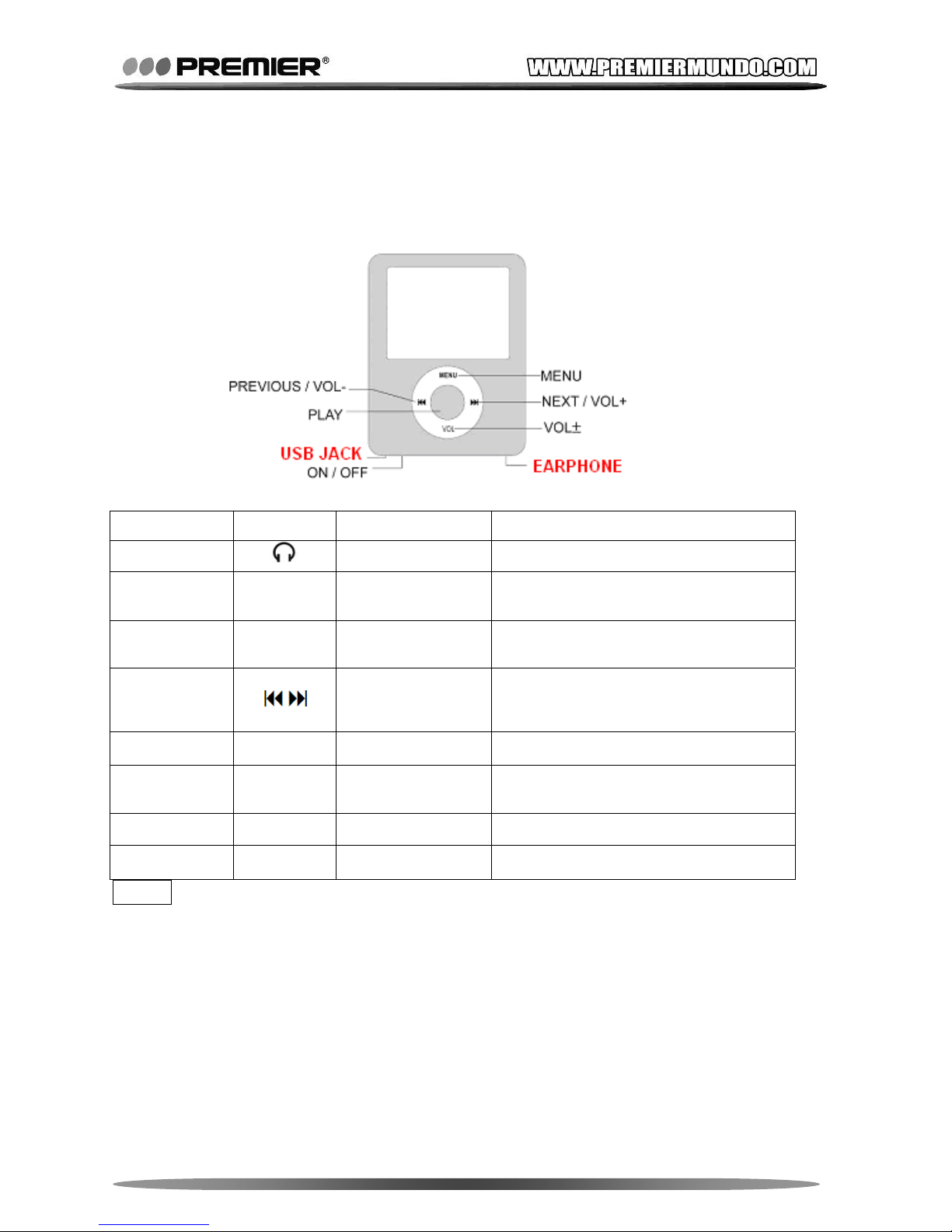
1.5 Keys and Function Definition
The following table shows the general function of the major keys or
sockets in this digital MP4 player. Please read the next chapter for detail
functions in different menu mode
Code
Sign Key or Socket Function Definition
EARPHONE
Headphones
For the headphone input.
MENU MENU
Show menu /
Enter menu
For showing or entering the menu or
sub menu.
PLAY
●
Play / Stop / Turn
on / Turn off
Switch on or off the player. Play or
sto
p
a media file.
PREVIOUS /
NEXT
Item select /
Volume adjust
For selecting a Mode / Sub-Menu /
file, or adjusting volume.
REC REC Voice record A quick key for voice recording.
A-B A-B A-B Repeat
For repeating A-B position of a
media file.
ON / OFF ON / OFF Power switch For switch power on or off.
VOL / ± VOL Volume adjust F or adjusti ng volume.
TIPS:
Keys' function definition may be different according to various models
and functions.
1.6 Basic Operations
Access to Mode or Sub-Menus: in Main-Menu or Mode surface:
press <Menu> to access a selected Sub-Menu.
Access to Main-Menu: in Sub-Menu surface: press and hold
<Menu> to access Main-Menu.
Page 7
Pagina 6
Play media file(s): in media file list surface, press <Play> to play
media file(s).
Turn On / Off: press and hold <Play> to turn on and off.
TIPS:When you TURN ON the player, it will show the menu status as
you turn off last time. But when you SWITCH ON the player, it will show
the Main-Menu only.
Switch POWER to OFF when you will not use the player for long time to
save power.
CHAPTER2 -- MULTI-MEDIA FUNCTIONS
This chapter shows how to operate the 9 different modes of the MP4
player. It’s supposed that your player is in POWER ON status.
2.1 Music Mode
In Main-Men
u, press <Menu> when selecting [Music] mode.
2.1.1 Keys and Operations
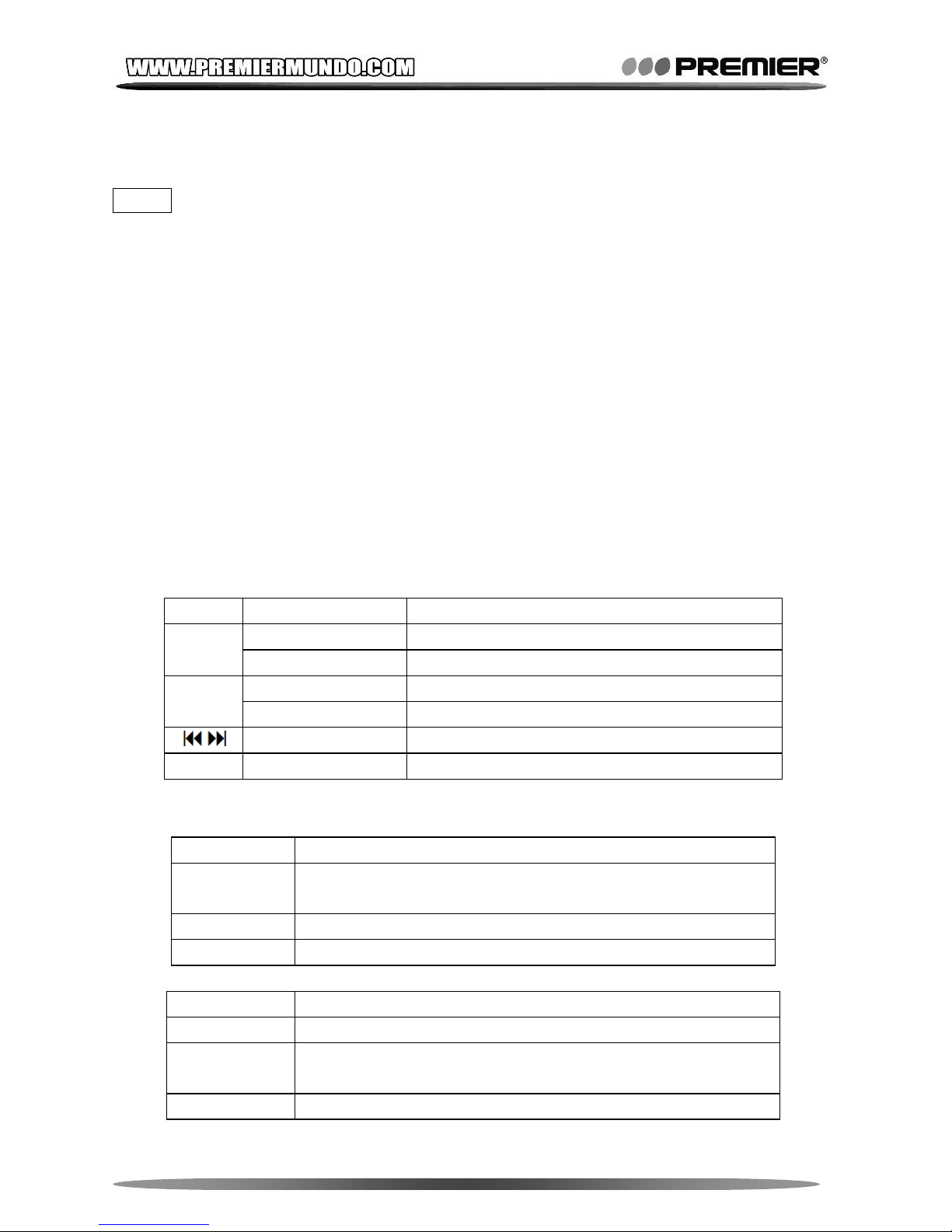
Key Operation Function
Press and Hold Turn off player.
●
Press Start or stop playing music file(s).
Press and Hold Enter lyric display / Back to Main-Menu.
Menu
Press Show Sub-Menu.
Press Select previous / Next file.
VOL / ± Press Show volume controller or adjust volume.
2.1.2 Sub-Menu Operations
When STOP playing music, Sub-Menu shows as following.
Sub-Menu Operation and Function
Local Folder
Select a folder from flash memory to play it’s music
file(s).
Delete File Delete music file(s) from selected folder.
Delete All Delete all music file(s)
When playing music, Sub-Menu shows as following.
Sub-Menu Operation and Function
Repeat Select a repeat mode.
Equalizer
Select a equalizer mode: Natural, Rock, Pop, Classical,
Soft, Jazz, DBB
SRS WOW Select SRS WOW mode to get sound effect for 3D
Page 8
Pagina 7
mode surrounding and bass enhancement.
Tempo Rate
Select a tempo rate. This can slow-down or quicken the
playing speed.
Replay
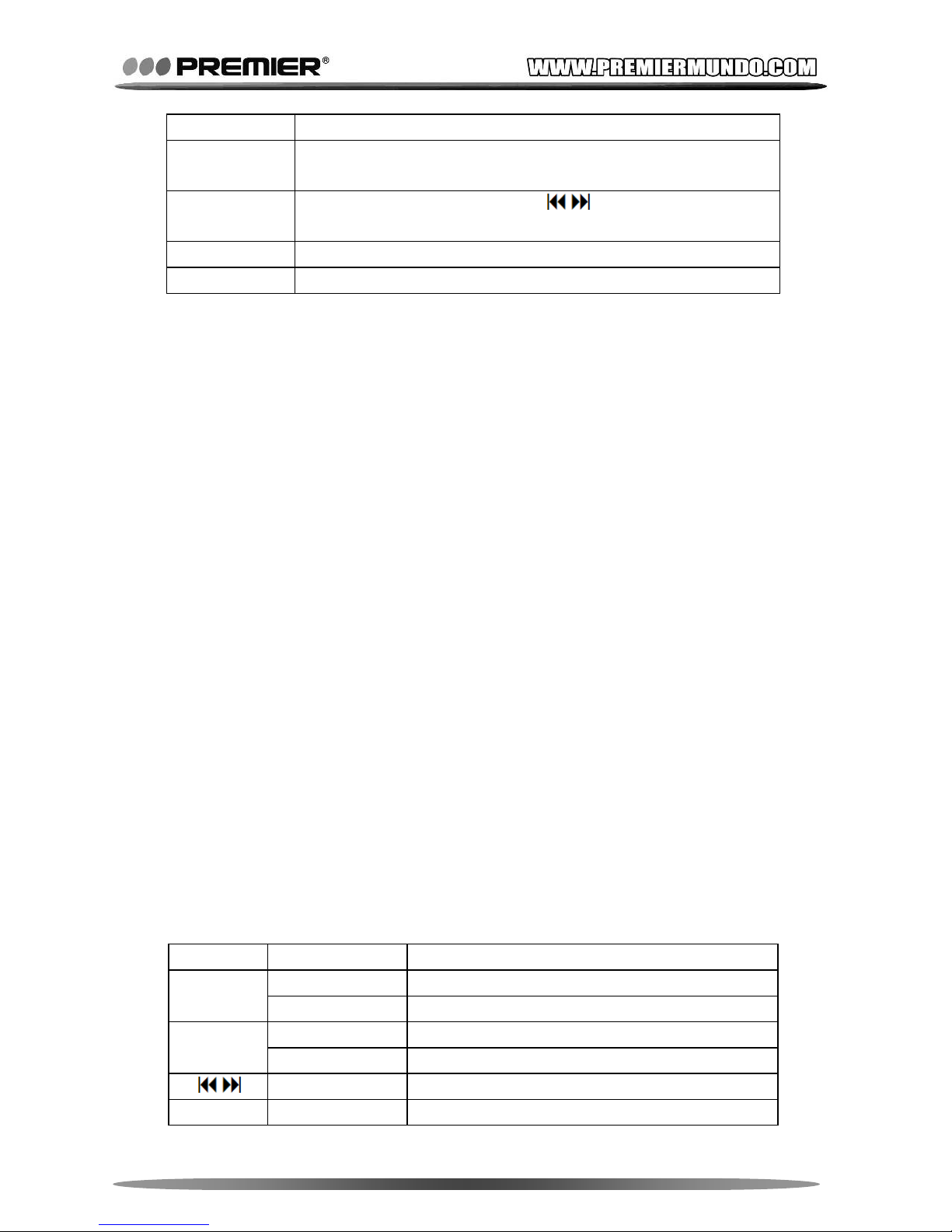
Enter A-B repeat mode. Use
to select A-B position
to play repeatedly. Press [M] to exit replay.
Replay Times Select times to play A-B position repeatedly.
Replay Gap Select gap time to play A-B repeatedly position by second
2.1.3 Synchronous Lyric Display
The player supports lyric files with *.LRC suffix. If you have a lyric
file matching the music file that you have, and make sure both have
the same file name, then you can use this function. For example,
you have ‘Love.mp3’ and ‘Love.lrc’, then put them into the player. If
lyric matched, you can see a 'LYRIC' icon displayed on corner of
screen.
When lyric is available, press and hold <Menu> when playing music
to display lyric synchronously. In this mode, you can press and hold
<Menu> again to go back to Main-Menu.
2.1.4 SRS WOW
SRS W
OW function is a new feature for MP4 players. It’s from SRS
LAB who provides solutions of high-quality audio enhancement for
software and semiconductor producers. SRS WOW is one of their
products embedded in the MP4 player.
There are 3 types of definitions for sound enhancement:
SRS 3D: Delivers higher quality surround sound with 3D effect
from stereo content.
TRUBASS: Provides deeper perception of bass frequencies.
FOCUS: Raises purer audio image up to the natural listening
height.
2.2 Movie Mode
In Main-Men
u, press <Menu> when selecting [Movie] mode.
2.2.1 Keys and Operations
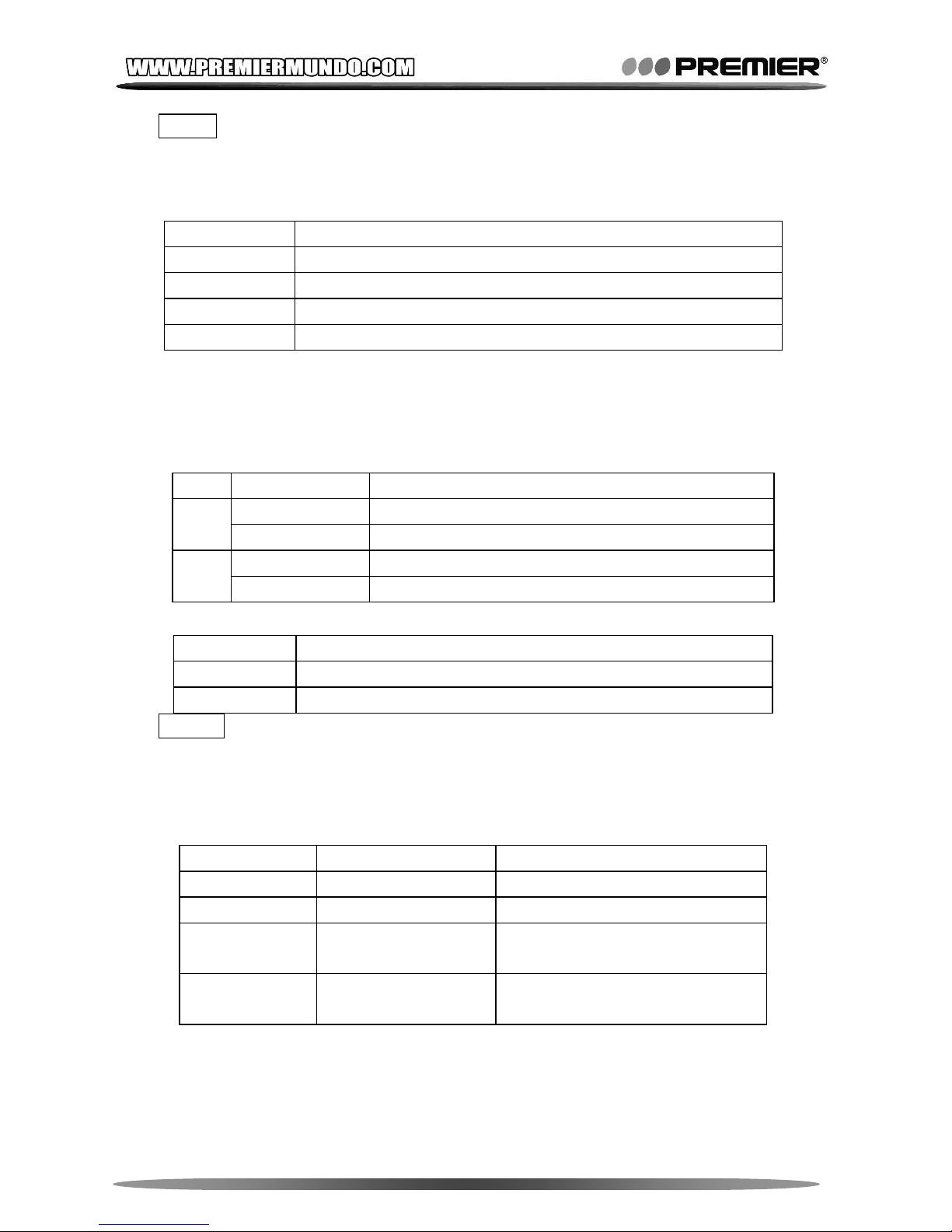
Key Operation Function
Press and Hold Turn off player.
●
Press Start or stop playing movie file(s).
Press and Hold Back to Main-Menu.
Menu
Press Show Sub-Menu.
Press Select previous / next file.
VOL / ± Press Show volume controller or adjust volume.
Page 9
Pagina 8
TIPS: When playing movie, Menu / VOL / ± key maybe unavailable.
In this case, you have to stop the movie and adjust volume in
[Movie] mode menu.
2.2.2 Sub-Menu Operations
Sub-Menu Operation and Function
Local Folder Select a folder from flash memory to play its movie file(s).
Delete Delete movie file(s) from selected folder.
Delete All Delete all movie file(s).
Repeat Select a repeat mode.
2.3 Record Mode
In Main-Men
u, press <Menu> when selecting [Record] mode.
2.3.1 Keys and Operations
Key Operation Function
Press and Hold Stop / save recording when starting.
●
Press Start, pause or continue voice recording.
Press and Hold Stop and save recording / Back to Main-Menu.
Menu
Press Show Sub-Menu.
2.3.2 Sub-Menu Operations
Sub-Menu Operation and Function
Local Folder Select a folder to store recording file(s).
REC Type Select a type of recording file(s).
TIPS: If the player has enough power, recorded file can store max
to memory capacity, until displaying ‘Memory full’. Voice folder can
save max 99 voice recording files, until displaying ‘Folder full’.
2.3.3 Recording Type
Dif
ferent quality of recording types shows as following.
REC Type Format File Quality
Fine REC *.wav file Fine.
Long REC *.act file (optional) Normal.
Fine VOR *.wav file
Fine. Recording controlled by
voice, pause when mute
Long VOR *.act file (optional)
Normal. Recording controlled
by voice, pause when mute
2.4 Voice Mode
In Main-Menu, press <Menu> when selecting [Voice] mode to play
recording files
Page 10
Pagina 9
2.4.1 Keys and Operations
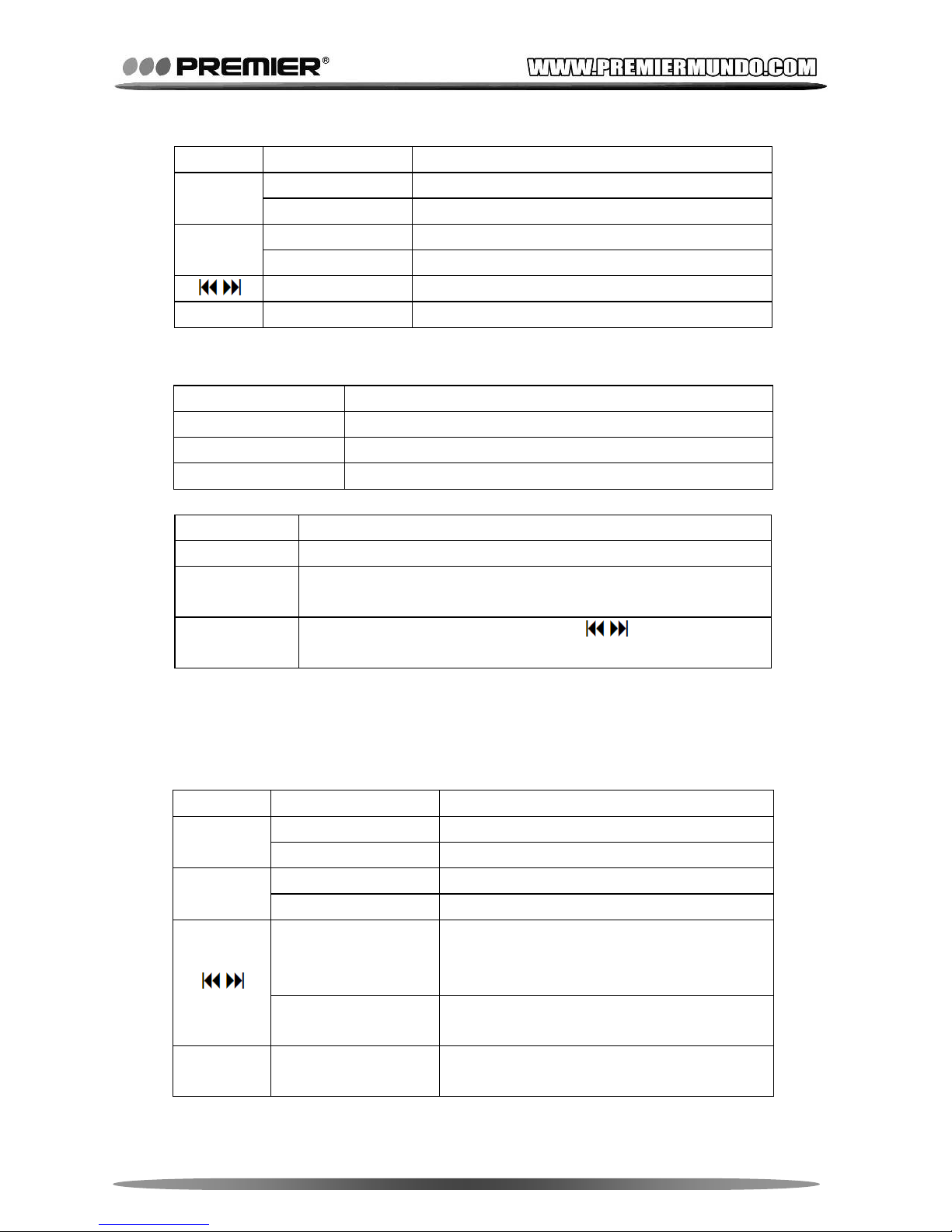
Key Operation Function
Press and Hold Turn off player.
●
Press Start or stop playing recording file(s).
Press and Hold Back to Main-Menu.
Menu
Press Show Sub-Menu.
Press Select previous / Next file.
VOL / ± Press Sho w volume control ler or ad just volume.
2.4.2 Sub-Menu Operations
When STOP playing recording file, Sub-Menu shows as following:
Sub-Menu Operation and Function
Local Folder Select a folder to play recording file(s).
Delete File Delete recording file(s) from selected folder.
Delete All Delete all recording file(s)
When playing recording file(s), Sub-Menu shows as following.
Sub-Menu Operation and Function
Repeat Select a repeat mode.
Tempo Rate
Select a tempo rate. It can slow down or quicken the
playing speed.
Replay
Enter A-B repeat mode. Use
to select A-B
position to play repeatedly. Press [M] to exit replay.
2.5 FM Mode
In Main-Men
u, press <Menu> when selecting [FM] mode.
2.5.1 Keys and Operations
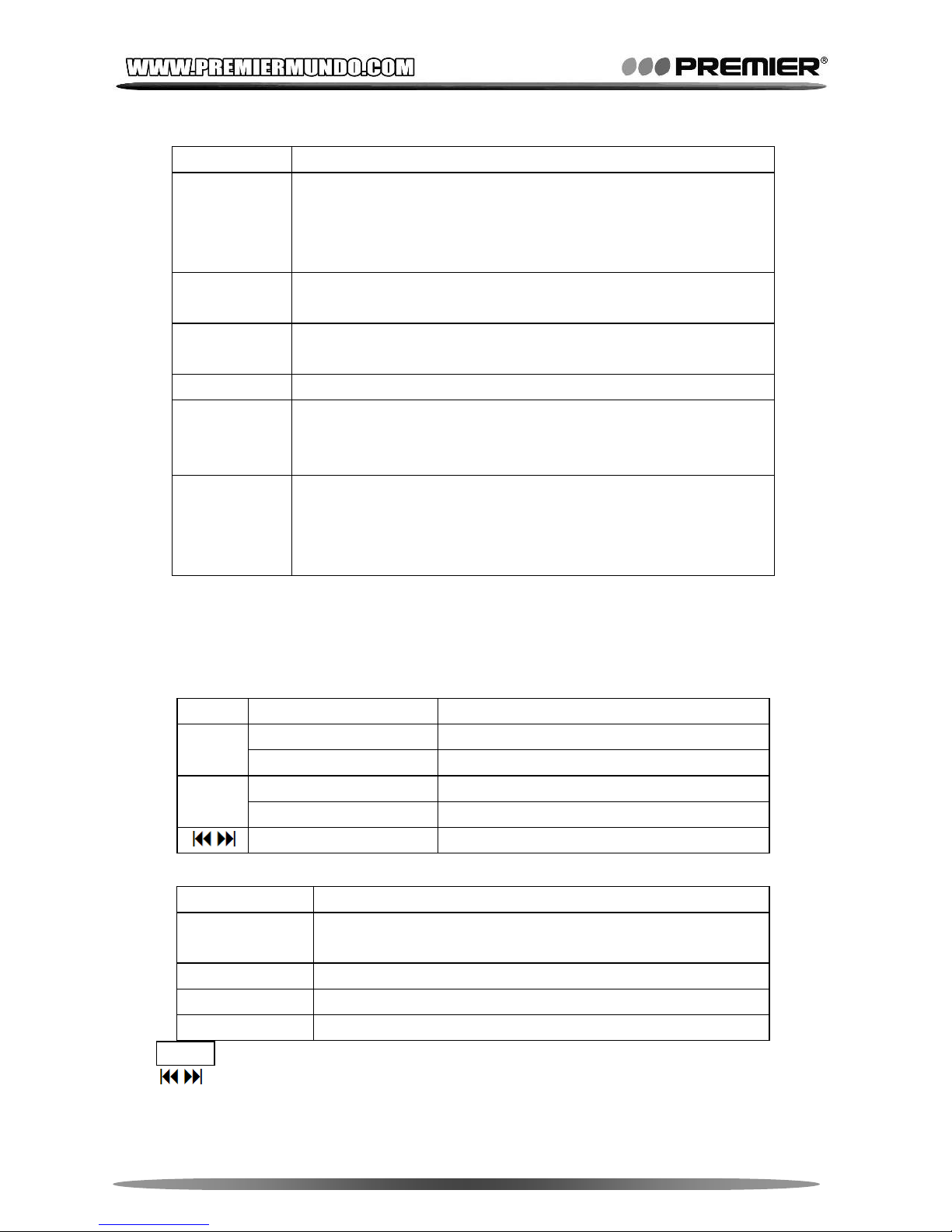
Key Operation Function
Press and Hold Turn off player.
●
Press Play next saved channel.
Press and Hold Back to Main-Menu.
Menu
Press Show Sub-Menu.
Press and Hold
Auto search next available channel
from current frequency. It stops when
there is a channel available.
Press
Move 100 KHz downward or upward.
/ Stop channel auto searching.
VOL / ± Press
Show volume controller or adjust
volume.
Page 11
Pagina 10
2.5.2 Sub-Menu Operations
Sub-Menu Operation and Function
Search
Mode
Select a mode for channel search: Freq Mode for
manually search by each 100 KHz. Search station mode
for each saved channel. Auto Search mode for searchin g
and saving all available channels automatically.
Search level
Select a level for searching precision. Highe r level is for
channels with stronger signal
Save
Save a current channel. Max 20 channels can be saved
each in ‘Normal Band’ and ‘Japan Band’.
Delete Delete all saved channel.
Select Band
Select normal band available in most countries.
Frequency: 87MHz ~ 108MHz, or Japan band 76MHz ~
90MHz for Japan.
Record
Record current channel as *.wav file. Press ● to pause /
continue. Press and hold ● to save recorded file. Press
[MENU] to choose saving folder and bit rate. Press and
hold [MENU] to exit FM Record Mode.
2.6 Photo Browser
In Main-Men
u, press <Menu> when selecting [Picture Browse] mode.
2.6.1 Keys and Operations
Key Operation Function
Press and Hold Turn off player.
●
Press Start or stop playing photo file(s).
Press and Hold Back to Main-Menu.
Menu
Press Show Sub-Menu.
Press Select previous / next photo file.
2.6.2 Sub-Menu Operations
Sub-Menu Operation and Function
Local Folder
Select a folder from the flash memory to play photo
file(s).
Play Set Select Manual or Auto play mode.
Delete Delete picture file(s) from selected folder.
Delete All Delete all photo file(s)
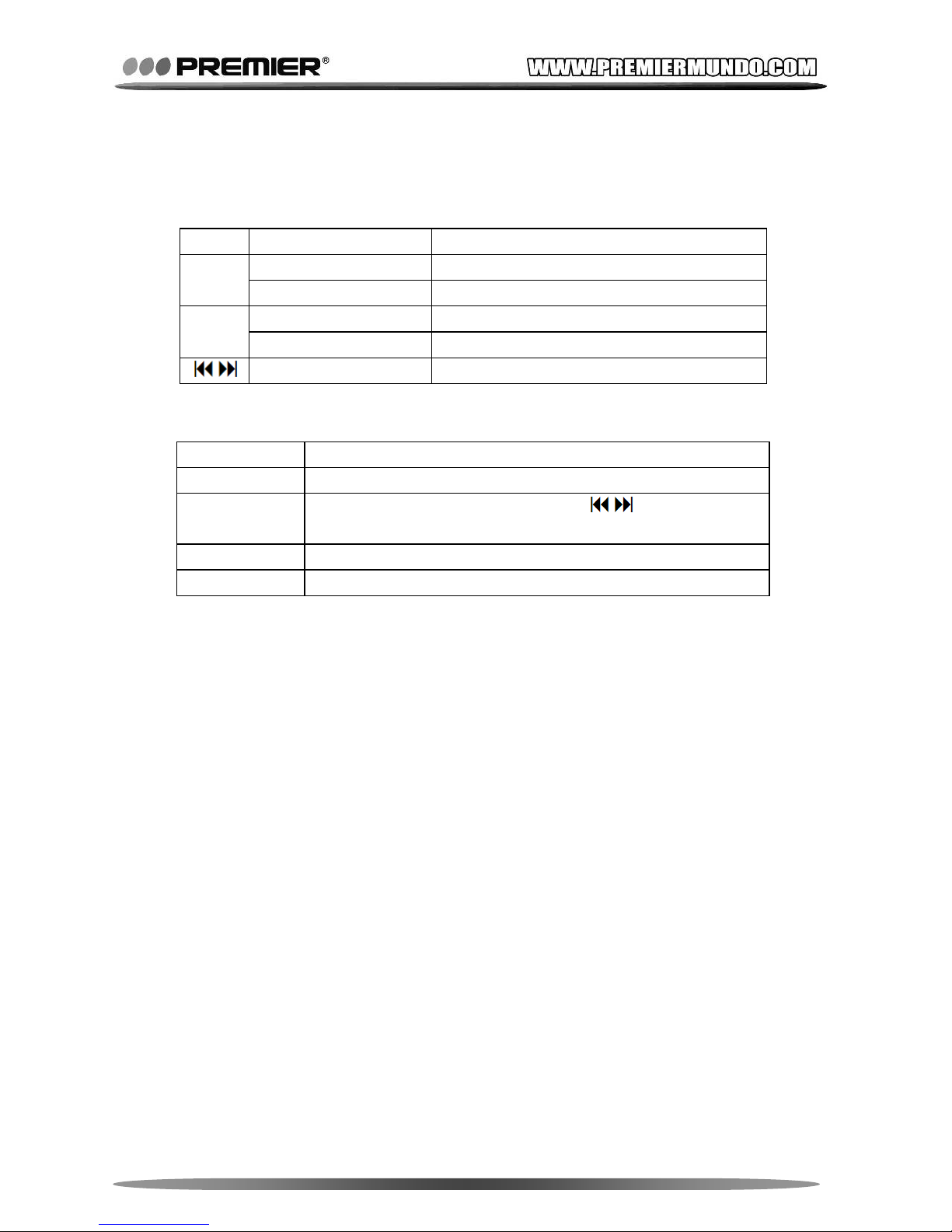
TIPS: In 'Manual play' mode you have to play previous or next by
. In 'Auto play' mode it can play next photo file with chosen
interval time in seconds.
Page 12
Pagina 11
2.7 Ebook Mode
In Main-Men
u, press <Menu> when selecting [Ebook] mode.
2.7.1 Keys and Operations
Key Operation Function
Press and Hold Turn off player.
●
Press Play a text file.
Press and Hold Back to Main-Menu.
Menu
Press Show Sub-Menu.
Press Select previous / next text file.
2.7.2 Sub-Menu Operations
When STOP playing text file, Sub-Menu shows as following.
Sub-Menu Operation and Function
Local Folder Select a folder from flash memory to play text file(s).
Play Set
Select Manual (scroll page by
) or Auto play
mode (scroll page in certain interval time by seconds).
Delete Delete text file(s) from selected folder.
Delete All Delete all text file(s)
2.7.3 Bookmark
When reading ebook, you can save current page as bookmark and
load it for next reading. Press [MENU] to show sub-menu to
manage bookmark when playing text file.
2.8 Game (SOKUDO)
In Main-Me
nu, press <Menu> when selecting [Game] mode to enter
SOKUDO game.
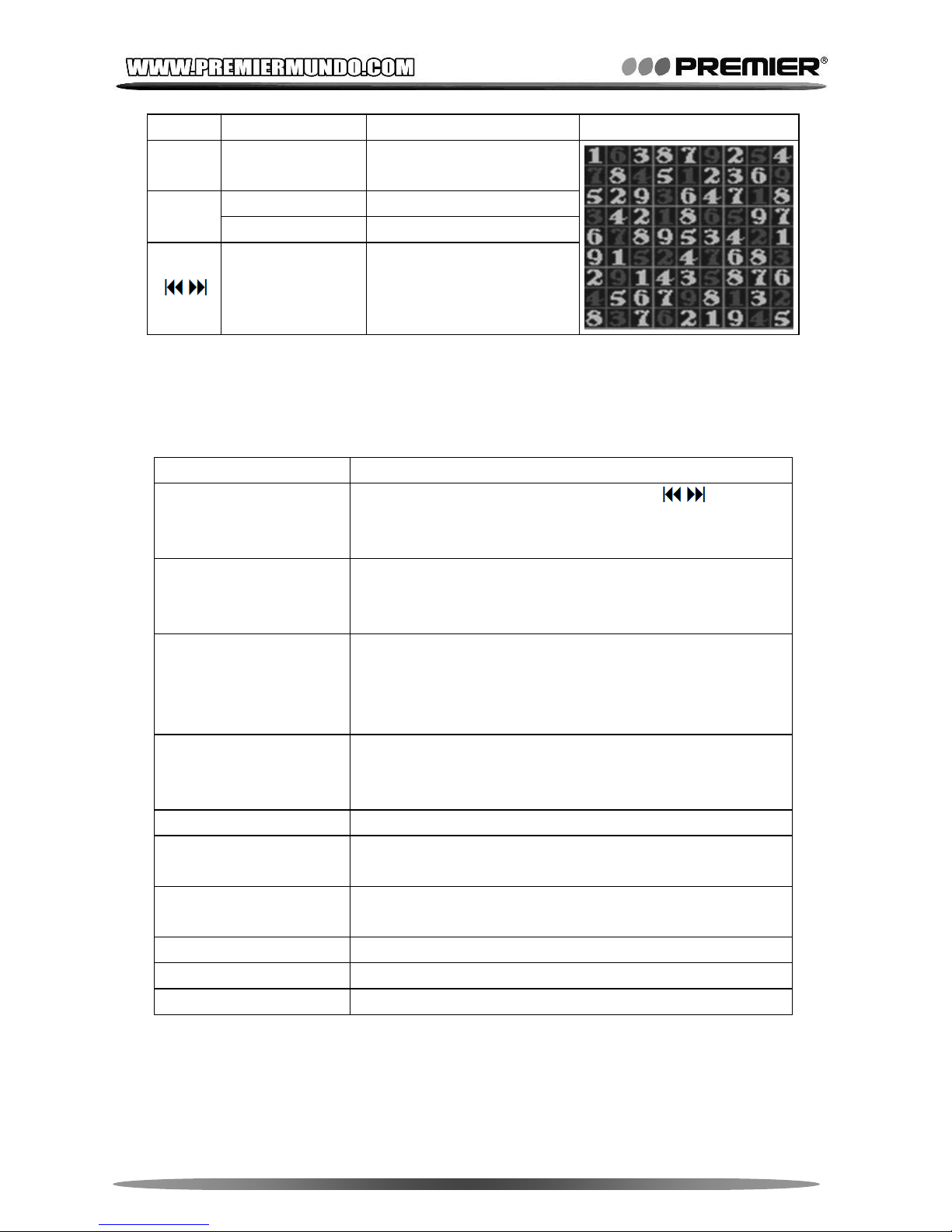
Press ‘Start’ to start a new game, ‘Replay’ to replay last round, and
‘option’ to select difficulty level.
Rules of the game: There are 81 grids in the map, some of which are
already filled in numbers. Your mission is to fill in each blank grid with a
number, to make each grid showing a unique number from 1 to 9 only
once in each row or each column. Please note that the answer is unique
for each grid.
Page 13
Pagina 12
Key Operation Function Sample
●
Press
Place or change a
number.
Press and Hold Back to Main-Menu.
Menu
Press Show Sub-Menu.
Press
Move the target frame t
focus a grid.
o
2.9 System Setting
In Main-Men
u, press <Menu> when selecting [System] mode.
2.9.1 General Settings
Sub-Menu Operation and Function
Clock
Press <VOL / ±> to focus items and
to adjust
items. Clock will be reset when switch power off.
This will be quoted by recording files.
LCD Set
Select idle time for black screen mode or screen
saver mode in seconds. Only one of these two
modes will be activated after enter certain mode.
Language
Select OSD languages: English, Chinese(S/T),
Japanese, Korean, French, Germany, Italian,
Spanish, Portuguese, Dutch, Swedish, Czech,
Danish, Polish, Thai and Russian.
Power Off
Select sleep time for auto power off when normally
operating. This setting is valid only once after set,
you have to set again for next use.
Replay Mode Select MANUAL or AUTO replay for Music Mode
Online Mode
Select a mode of active disk when connected to
computer. See Chapter 4 for further reference.
Memory Info
Display total memory capacity and percentage of
used space.
Firmware Version Display the pla yer’s firmware’s version.
Firmware Upgrade To upgrade the firm ware of the player (see below).
Ear Protection Settings for Ear Protection function.
2.9.2 Ear Protection
Ear Protection function is to protect user’s ear by auto reducing
volume to a healthy level under the premise that the listen
experience does not affect.
Page 14
Pagina 13
Enable ‘attenuation’ to have slower speed to reach the healthy
volume level. You can get different target volume by selecting
different ‘Ear Protect Level’ as following:
Ear Protect Level High Middle Low
Target Volume 22 25 28
2.9.3 Firmware Upgrade
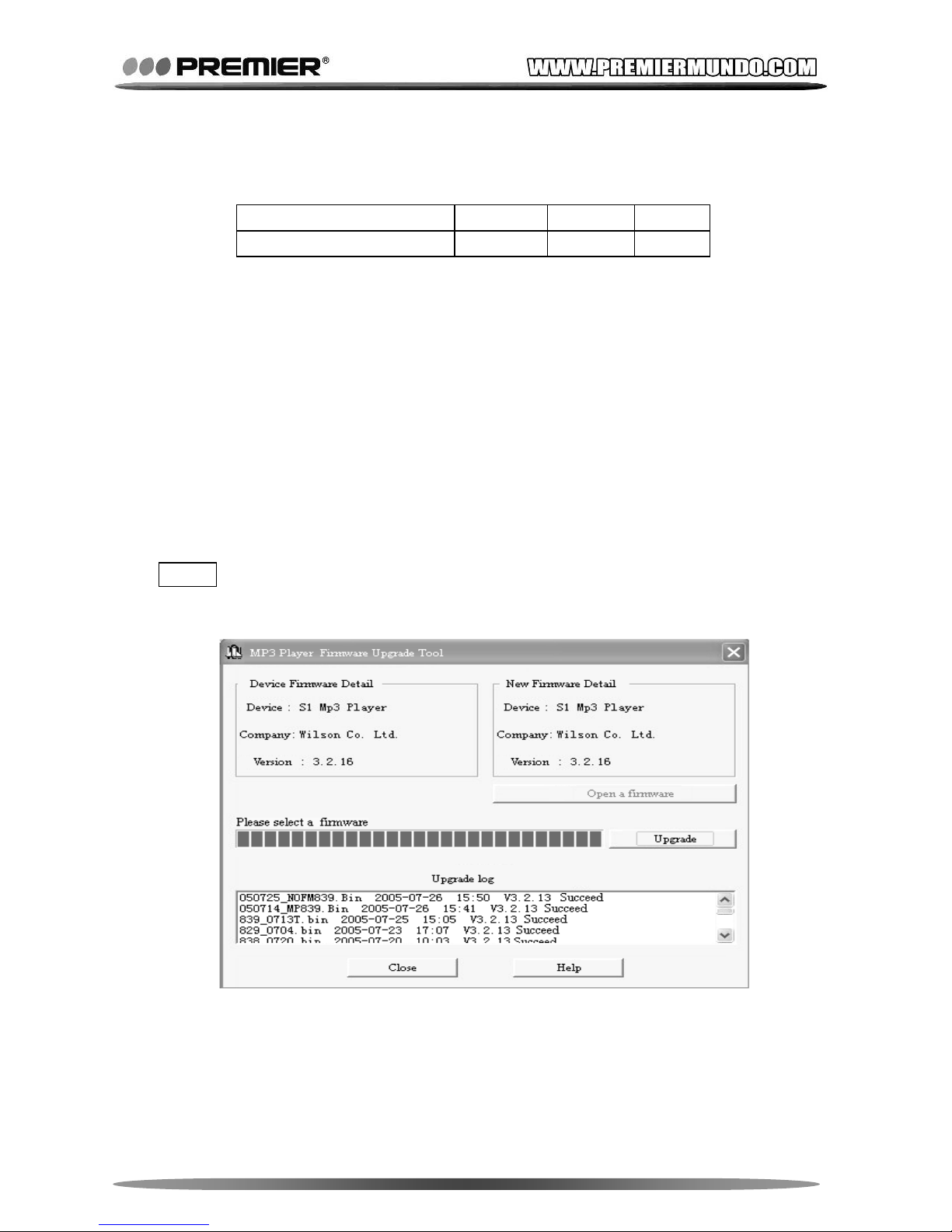
To upgrade the firmware of the player, please run MP3/4 Player
Upgrade Tool from Driver CD (for Windows 98 to Windows XP only),
then you can use these functions from which.
Before using this application, please confirm that only one MP3/4
Player is connected PC normally. When the program runs, it will
show the detail of the existing and new firmware, when you select a
firmware file (*.bin or *.fw) which can be downloaded from the
official website.
Click ‘Start Upgrade’, the upgrade will be on process. After one
minute, process will finish and the player will restart, this shows the
firmware upgrade process succeeded.
TIPS: Firmware upgrade is to improve player’s performance or
recover the damaged internal firmware. If it’s in normal status, it’s
suggested that do not upgrade the firmware.
Please make sure the new firmware software you selected must be
suitable for the model you are about to upgrade. Firmware upgrade
process CANNOT be reversed.
DO NOT disconnect the player during upgrading or recovering
process.
Page 15
Pagina 14
CHAPTER 3 -- MOVIE FORMAT CONVERTING
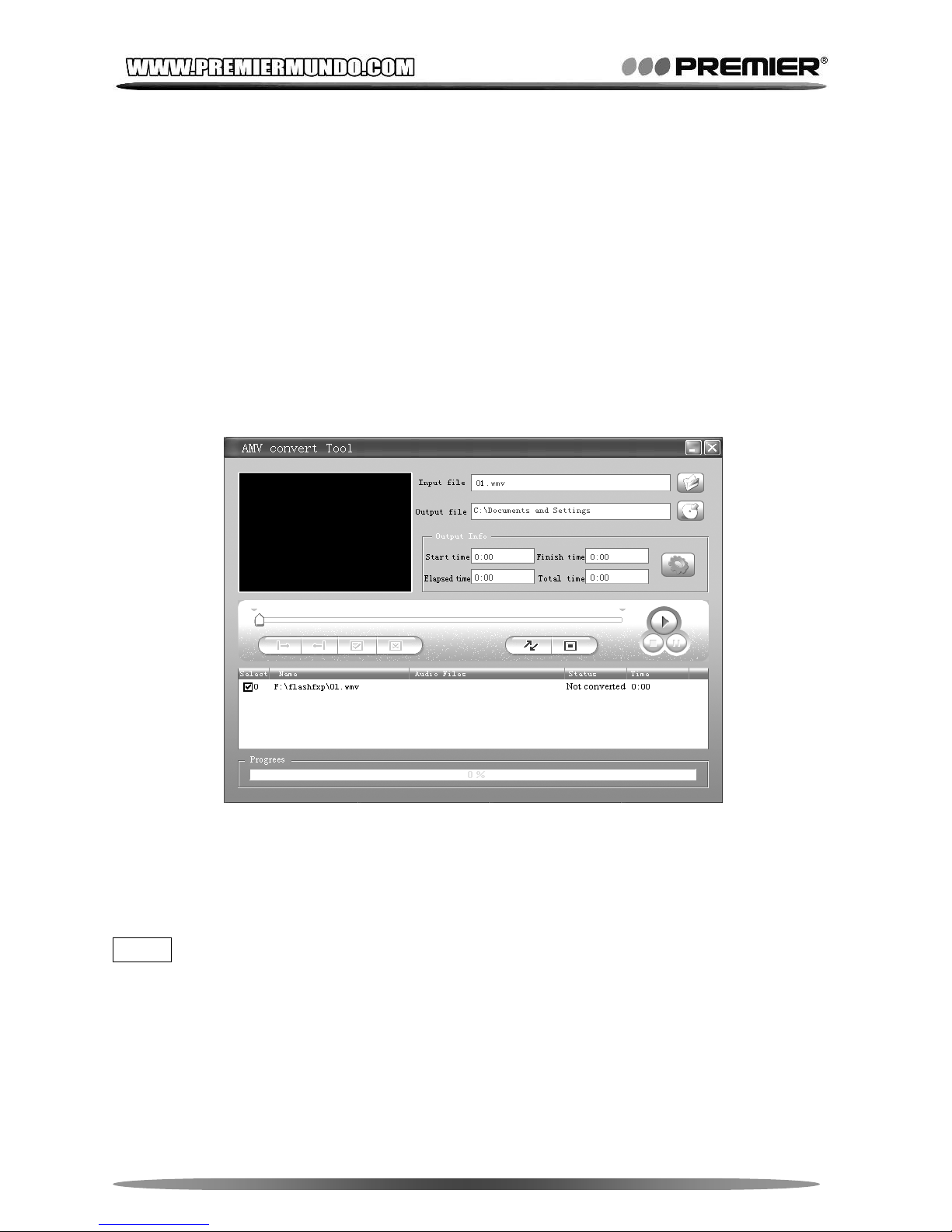
The player supports *.AMV format as video file. Other video formats like
MPEG (VOD / DAT), Windows Media (ASF / WMV), RealMedia (RM /
RMVB), QuickTime (MOV / QT), AVI(DIVX / XVID) can be converted to
*.AMV format by running ’AMV Convert Tool’.
Please make sure that the decoders matching the formats you are going
to convert were already installed in your PC. Or you can try the video
converts found in Driver CD.
If alert message ‘ERROR’ pop-up, it means the decoder for a certain
target video file was not yet installed properly.
First select a single or batch files, then click '↗↙' to start converting.
When finishing converting, the AMV files will be played automatically by
AMV player for preview.
For advanced converting settings please click '○' to show OPTION
dialog box. You can edit time and movie / sound quality there.
TIPS: You must select the correct video file resolution matching the
screen size for your player, otherwise player cannot play a AMV file
bigger than the screen size. Please check the side of the gift box and
Chapter 5.2 (Technical Specificat ion) for choosing the correct resolution.
Software is available for Windows 98 to Windows Vista only.
Page 16
Pagina 15
CHAPTERT 4 -- DATA STORAGE
All types of files can be stored in the flash memory of the MP4 player as
a standard USB Memory Disk, supported by Windows98 (driver
needed), Windows 2000 or above (Plug & Play), Mac OS 10.3, Red hat
Linux 8.0 or above.
4.1 Media Files Storage
Media files
mentioned below can be played by the player in some
certain mode. Other file types will not be displayed in player’s list.
File Type Play in Mode
*.mp2, *.mp3, *.wma, *.wav Music
*.amv Movie
*.bmp, *.jpg, *.gif Photo
*.lrc, *.txt Ebook
4.2 Connecting to PC
When connected to PC, the player
displays a connection interface with
data transfer indication ‘<<‘ and ‘>>‘ shows the downloading or
uploading direction.
PC will found new disk when USB connected, according to ‘Online
Mode’ set in the players System settings.
Online Mode Drive Status on PC
Multi Drive
PC will show all drives on flash memory. Please
note that only Windows 2000 SP4 or above
supports this mode.
Normal Only PC will show only first drive on flash memory.
Encrypted Only
PC will show only encrypted drive on flash
memory.
TIPS: The player supports USB power supply and work without battery
when connected to PC.
To use MP4 player when connected to PC, press and hold <MENU> to
enter Main-Menu then the player can work.
4.3 Repartitioned and Encrypting
To divide and encrypt the flash memory, please run MP3/4 Player Disk
Tool from Driver CD (for Windows 98 to Windows XP only), then you can
use these functions from which:
Page 17
Pagina 16
Format disk
Repartition disk
Set password for encrypted partition
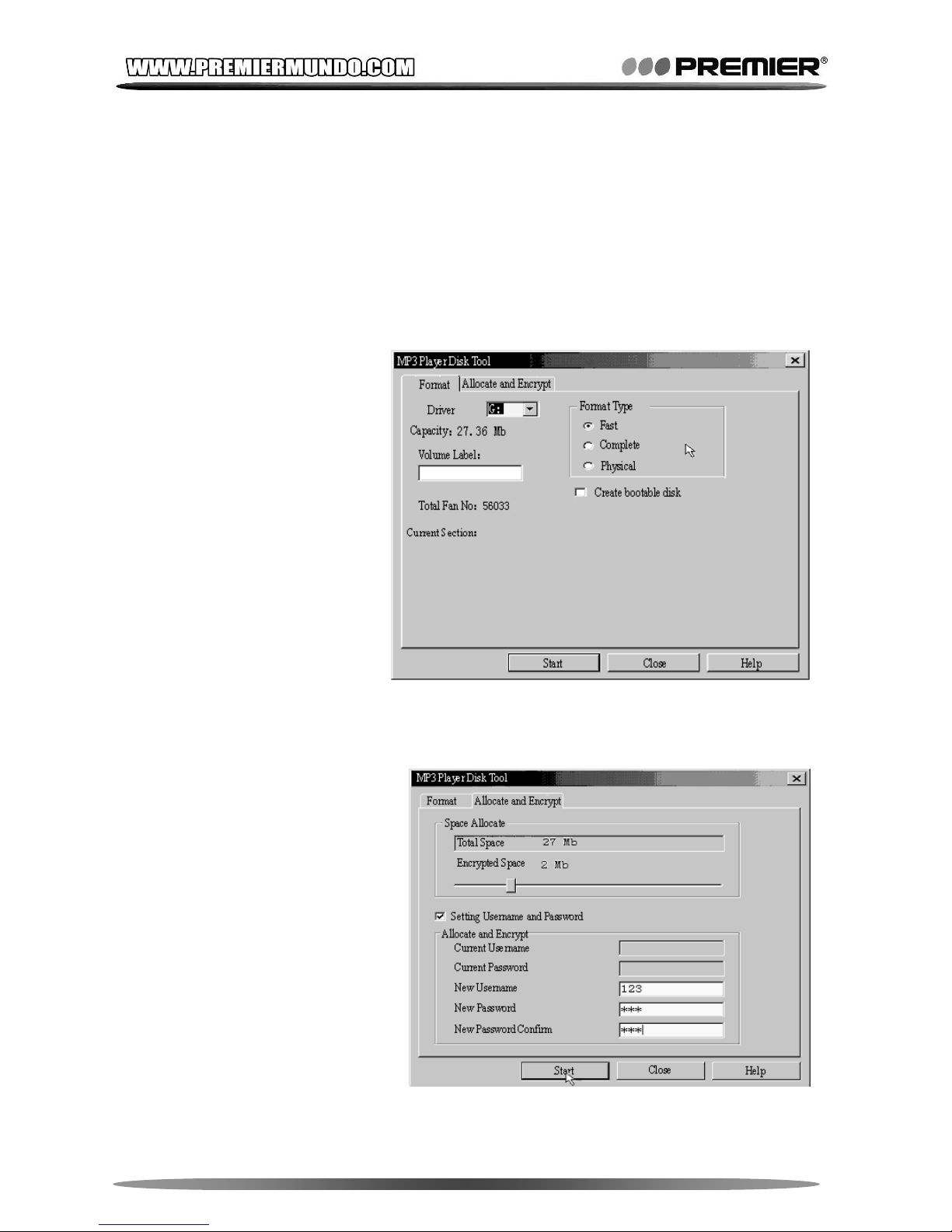
Before using this application, please confirm that only one MP4 player is
connected PC normally. When the program runs, it will show a dialog
box with 2 property pages: ‘Format’ and ‘Allocate and Encrypt’.
‘Format’ shows the list of removable disks by logical drive. You can
select a logical drive to format from the list by selecting ‘Quick’,
‘Complete’ or ‘Physical’ type.
If the check box ‘Make
bootable disk’ has been
checked, the current
logical disk will be
formatted to be an USB
bootable disk. But if the
disk is an encrypted
partition, bootable
function will be
unavailable.
Click 'Allocation and
Encrypt' page and use
the repartition and
encryption function.
'Total Physical Capacity' shows the actual capacity of the removable
disk. ‘Encrypted disk capacity’ shows the capacity of the encrypted
logical disk. If encrypted disk capacity is zero, there will be only one
partition that is normal
partition. By adjusting the
capacity of encrypted
disk, it will be
repartitioned.
If the encrypted disk has
been set a password, the
check box ‘Set username
and password’ will be
checked after the
program runs.
Page 18
Pagina 17
At this time, if you don’t repartition, you can modify the password. If old
user name and password you input are correct, new ones which you
input will be set. If the old ones are incorrect, you have to repartition it by
adjusting the capacity of the encrypted disk, you set new username and
password as well.
TIPS: Repartition a disk will damage all data on the disk.
The minimum capacity of a normal disk is 17 Mb.
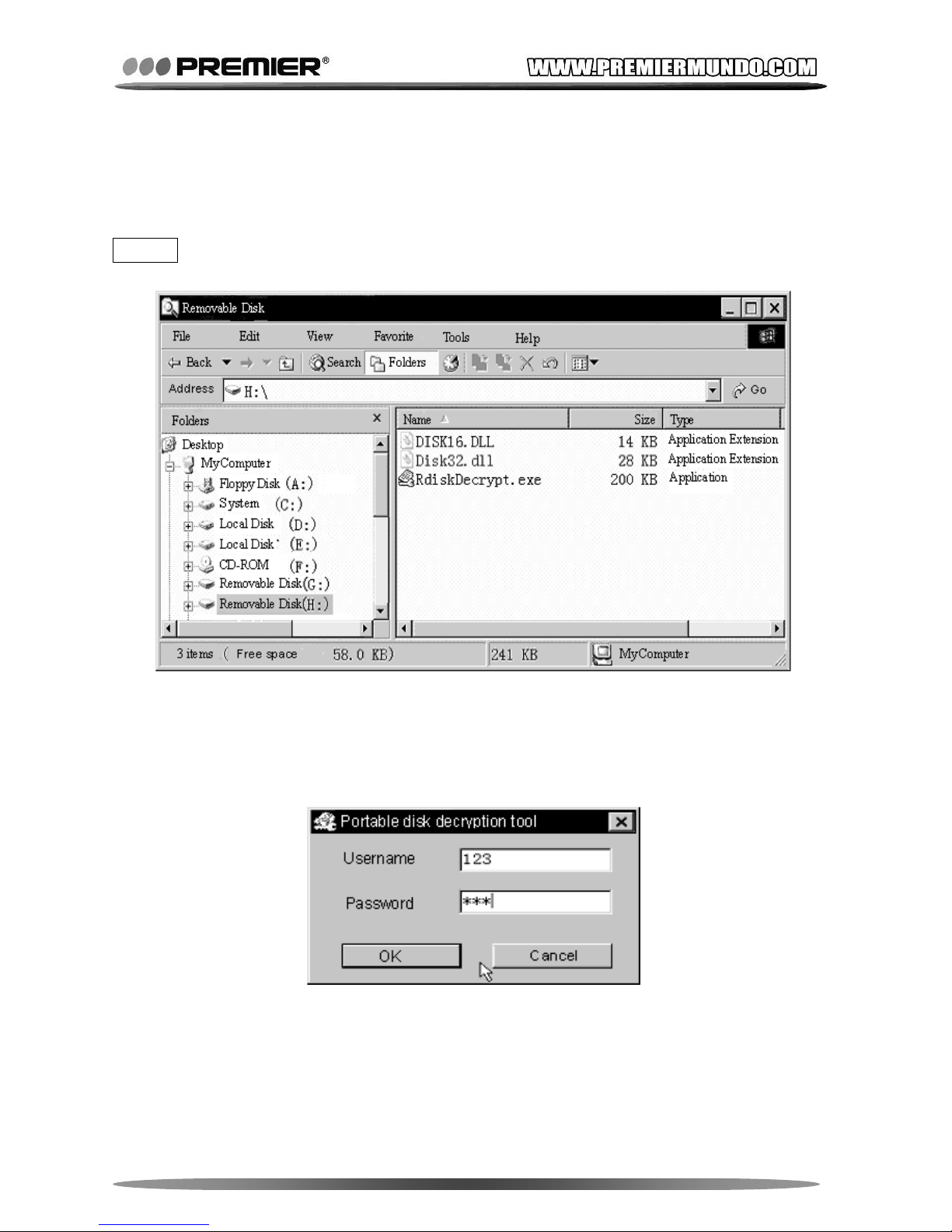
If a disk is encrypted, you have to run executable file ‘RdiskDecrypt.exe’
and input username and password to access it.
In this way, you can protect your private data into the encrypted partition
by username and password. You should remember keep it carefully.
Page 19
Pagina 18
CHAPTER 5 -- TECHNICAL SPECIFICATION
5.1 Battery
This MP3/4 uses rechargeable Li-ion battery. It must use specified
charger only. Please dispose it properly, because it will explode when
damaged or be in fire.
Please switch off power when not using the player for long time.
5.1.1 Charging the Battery
The icon
shows the battery is full. But as time goes on, this
capacity indicator will go down. When indicator shows blank,
battery almost run out and the player will power off automatically.
You should charge the battery with the specified USB cable. When
connected to PC or the specified charger, it will charge
automatically.
TIPS: Please switch the player power ON before charge.
Take out the charger from the electricity plug panel while not
charging or charging for more than 3 hours.
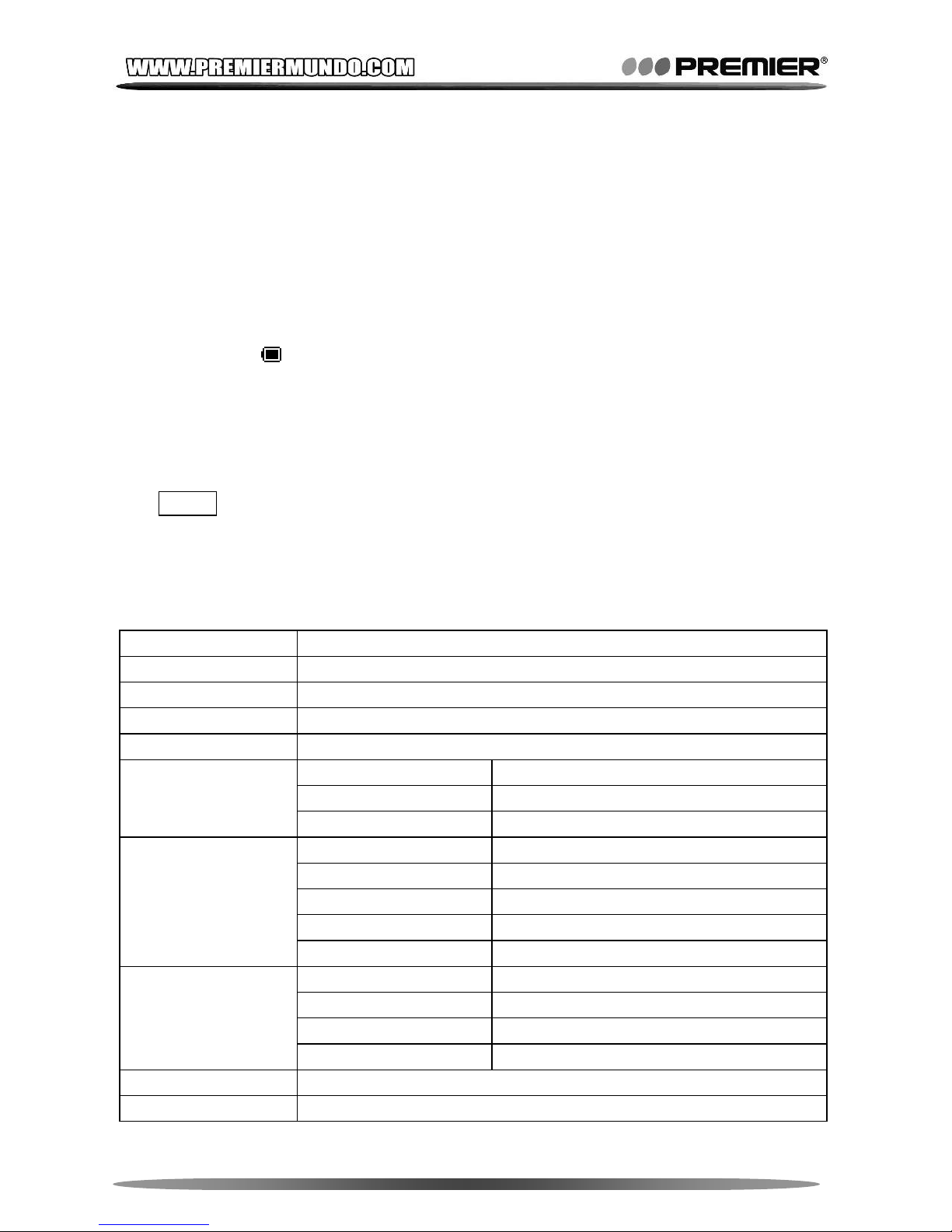
5.2 Technical Specification
Item Specification
LCD Screen 1.8’’ TFT LCD, 128*160 Matrix, 262K Colors
Connecting to PC High Speed USB2.0, 5MB/s
Flash Memory 4GB
Power Supply Lithium battery 230MAH, Max 4 hours playing
Sample rate 8KHz
Format *.wav(32k bps), *.act(8k bps)
Voice Recording
Time 60 hours (1G for reference)
Max Output (L) 10mW + (R) 10mW, (32Ohm)
MP3 Bit rate 8k bps-320k bps
Frame Rate 16 fps
Freq. Response 20Hz to 20kHz
A/V File Playing
SNR 85db
Normal Brand 87MHz – 108MHz
Japan Brand 76MHz – 90MHz
Max Stored Channels 20 (Norm al Brand) + 20 (Japan Brand)
FM Radio
SNR 45db
Operating Systems Windows 98 / ME / 2K / XP / VISTA, MacOS10, Linux2.4.2
Speaker 8ohm, 1W
Page 20
Pagina 19
5.3 Trouble Shooting
Symptom Remedy
No Power
Charge the battery as required.
Make sure you have switched the player POWER ON.
Check if System – Power setting is correct.
Cannot Charge
Check if the USB port of PC works properly.
Use the AC adapter as required.
No Sound
Make sure volume is not on 0 position.
Check if the earphone connecting properly.
Please make sure the earphone is clean and in good
condition.
Check if the music files are not damaged. Damaged music
files may have noise or even cannot be played
Strange Characters
on Display
Make sure you have chosen a correct language.
FM has bad
performance
Check if the earphone is connected to the player. It works
as antenna.
Switch off power appliance nearby.
Cannot Download
Music
Check if the USB cable is fine, and make sure the player is
properly connected to the PC.
Check if the driver has properly installed for Windows 98.
Check if there is enough memory available.
Upgrade or recover firmware.
5.4 Compliance Information
This device complies with part 15 of the FCC rules.
Operation is subject to the following two conditions:
This device may not cause harmful interference.
This device must accept any interference received, including
interference that may cause undesired operation.
See instructions if interference to radio or television reception is
suspected.
5.5 Protection Clause
A
TTENTION:
The unit may be submitted to changes in specifications, characteristics
and / or operation without prior notice to the user, in order to continue
improving and developing its technology.
 Loading...