

Page 1
INSTRUCTION MANUAL
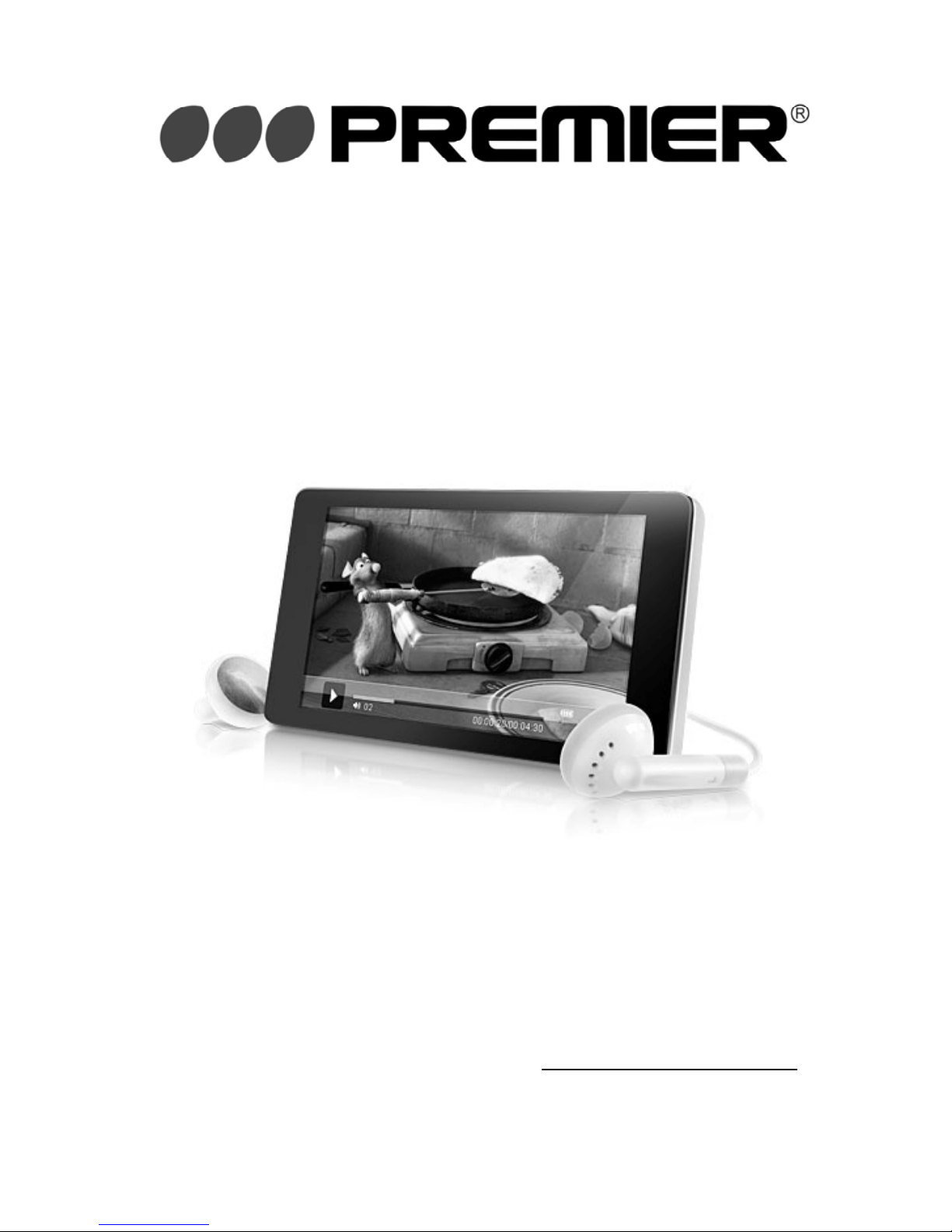
MP4 PLAYER
MP-2663-1G MP-2664-2G MP-2665-4G MP-2666-8G
DEAR CUSTOMER
Congratulations for your purchase!
Please read this manual carefully, and keep it for future reference.
If you need extra support, please write to [email protected]
Page 2

Pagina 1
CONTENS
Chapter 1 -- QUICK GUIDE..........................................................................2
1.1 Preface ..............................................................................................2
1.2 Copyrights.........................................................................................2
1.3 Precautions........................................................................................2
1.4 Player Overview ...............................................................................3
1.5 Keys and Function Definition...........................................................3
1.6 Basic Operations...............................................................................4
Chapter 2 -- MULTI-MEDIA FUNCTIONS..................................................5
2.1 Music Playing...................................................................................5
2.2 Moive Playing................................................................................6
2.3 Photo Playing....................................................................................6
2.4 Text Reading.....................................................................................6
2.5 Voice Recording................................................................................7
2.6 FM Radio Mode................................................................................7
2.7 Explorer Mode..................................................................................8
2.8 System Setting..................................................................................8
Chapter 3 -- TECHNICAL SPECIFICATION...............................................9
3.1 Battery...............................................................................................9
3.2 Data Storage......................................................................................9
3.3 System Recovery ............................................................................10
3.4 Technical Specification...................................................................10
3.5 Trouble Shooting ............................................................................11
3.6 Compliance Information.................................................................11
3.7 Disposal and Recycling ..................................................................12
Page 3
Pagina 2
CHAPTER 1 -- QUICK GUIDE
1.1 Preface
To make the best use of this product’s functions, read this manual
thoroughly before use. Please keep this manual handy for ease of
reference.
The unit may be submitted to changes in specifications,
characteristics and / or operation without prior notice to the user, in
order to continue improving and developing its technology.
1.2 Copyrights
Reproduction or alteration of copyrighted documents, magazines,
music and other materials, other than for personal, home or similarly
limited purposes, without the consent of the copyright holder, is
prohibited.
z Microsoft, MS and Windows are registered trademarks of
Microsoft Corporation.
z Macintosh, Power Macintosh and Mac OS are registered
trademarks of Apple Computer, Inc.
z All trademarked company and product names mentioned in this
manual are property of their respective owners.
1.3 Precautions
z When driving a car, driving is your
first responsibility.
z Do not use the earphone when go
crossing the street.
z Do not use the earphone for a long
time for audition protection. If you found a drumming in the ears,
please stop using it.
z Extreme temperatures (out of the range of -5 degrees to 40
degrees) will affect the using of your MP4 player. Please cool or
warm the MP4 player in such condition before use.
z Keep the digital MP4 player dry and do not use the digital MP4
player with a wet hand, or it may cause an electric shock to you or
damage to the MP4 player.
z Humidity, liquids and minerals may corrode electronic circuits.
z Do not store the digital MP4 player in hot or sunlight areas. High
Page 4

Pagina 3
temperatures can shorten the life of electronic devices, damage
batteries and warp or melt certain plastics.
z Do not use or store the digital MP4 player in dusty, dirty areas, as
its moving parts may be damaged.
z Do not drop, knock, collide, or shake the digital MP4 player.
Rough handling can break internal circuit boards.
z Do not use harsh chemicals, cleaning solvents or strong
detergents to clean the MP4 player. Wipe it with a soft cloth
slightly dampened in a mild soap-and-water solution.
z Operating this product in the vicinity of other electronic equipment
may adversely affect the performance of both devices. In
particular, operating close to a radio or television may lead to
interference. If interference occurs, please move the MP4 player
away or put it into separate electrical outlets, or reorient the TV or
radio antenna.
1.4 Player Overview
Digital MP4 player is a simple portable multi-media player supporting
music playing, animation (movie) playing, photo playing, text playing,
FM radio playing and recording, voice recording. It can also be a data
storage disk with built-in flash memory, or with a extend memory card.
z It supports music format MP3 / WMA / WAV / AAC, and APE /
FLAC lossless format playing back 100% CD sound quality! Plays
LRC file as lyric synchronization.
z It plays AVI / RM / RMVB /FLV movies directly without format
conversion. More formats can be supported direct-play in the
future by firmware upgrade.
z It views photo format BMP / JPG / GIF with zoom / rotate / slide
show with customized interval.
z It reads TXT text with bookmark / page jumping / next page auto
rolling with customized interval.
z Built-in FM radio with 30 preset channels, and records FM radio
as WAV file.
z Built-in microphone for voice recording function to WAV files.
1.5 Keys and Function Definition
The following table shows the generous function of the major keys of
this MP4 player. Read next chapter for operation of multi-media
functions.
Page 5
Pagina 4
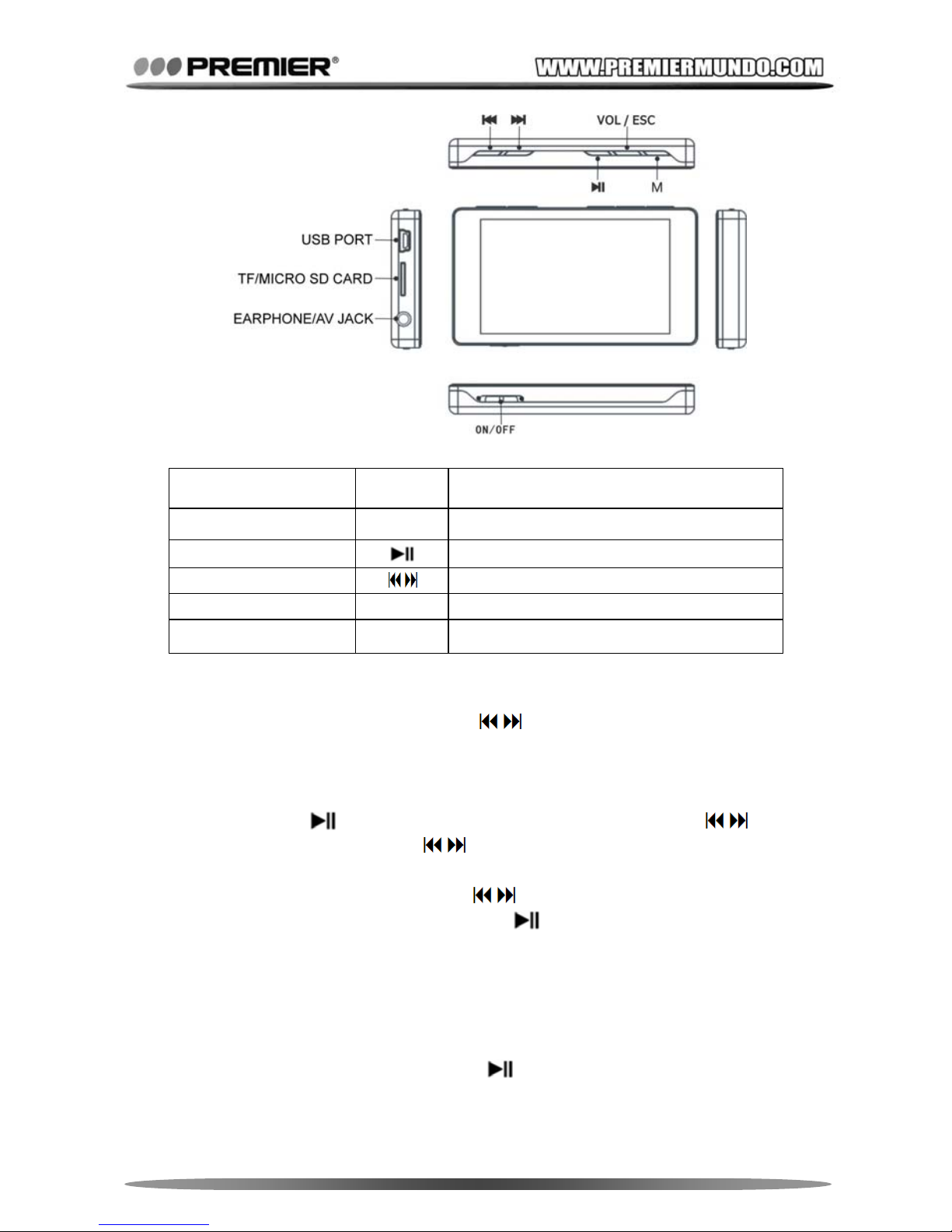
KEY NAME ICON FUNCTION DEFINITION
MENU M Show menu / Enter menu / Apply item
PLAY Play / Stop / Turn on / Turn off
PREVIOUS / NEXT Item select / Volume adjust
VOL / ESC V Show volume controller / Exit item
POWER ON/OFF Switch power ON/OFF
1.6 Basic Operations
z Select and enter item: Press
to select a mode / function /
item or file in main or sub menu, press <M> to access a selected
item.
z Play media file(s): In media file list surface, press <M> to play
media file(s),
to pause / continue playing, press to play
next file, press and hold
to fast forward / rewind.
z Volume control: Press and hold <VOL> to activate / deactivate the
volume controller, then press
to adjust volume.
z Turn On / Off: Press and hold
to turn on and off in any
surface.
z Exit file / folder: Press <VOL> / <ESC> to return file folder or up
folder.
z Show submenu: In any media playing interface, press <M> to
show submenu for option submenu.
z Save settings: Press and hold
(NOT ON/OFF) to turn off the
player, then settings can be saved.
Page 6

Pagina 5
CHAPTER 2 -- MULTI-MEDIA FUNCTIONS
2.1 Music Playing
In Main-Menu, select [Music] mode to play music files.
z Media Library
All music files can be sorted by Artist / Album / Genre of its ID3
information. Enter certain folder to browse music files from the
library. You can also add favorite music by press and hold <VOL>
in file list, then find it in ‘Favorite’ folder.
After files in memory are changed from PC, Media Library will
automatically updated. If you cannot see files from library, use
‘Media Library Update’ to manually update it.
Note:
Corrupt music file may block library updating. Remove the corrupt files
from memory if it hangs when updating music library
z Lyric Synchronization
Switch to Lyric Display mode in submenu, make sure the music file
and the matched lyric file go with the same file name (e.g.,
‘Love.mp3’ and ‘Love.lrc’), and put them into the player, then lyric
will synchronize when playing music file.
z Options
¾ Repeat Mode: Select a mode between Single Once / Single
Loop / All Once / All Loop / Intro
¾ ‘Intro’ means to play first 10 seconds of each music file as
introduction. It will turn to ‘All Loop’ mode after finish all music
introduction.
¾ Play Mode: Select a mode between Sequence and Shuffle
¾ MS PlayFX: It’s sound DSP effect for 3D Headphone, Pure
Bass enhancement, and Auto Volume for ear protection.
¾ EQ: Select EQ mode from Normal / MS PlayFX / Rock / Pop /
Classic / Bass / Jazz / User Define.
¾ User Define EQ Setup: Use <VOL> to switch between
frequency and increase bar,
to control frequency.
¾ Display: Switch display mode between Lyric and Frequency
Chart.
z A-B Repeat
Press and hold <M> when playing music to set the A position
then you can see ‘A’ icon displayed on screen. Do this again to set
Page 7
Pagina 6
the B position, then A-B segment will repeat playing, untill you
press and hold <M> once again.
z Background Music
The player supports Multi-Task function: music playing in
background while operating across in other menus / modes, to
read text / photo when enjoying music. When you return to [Music]
mode, you can see what file is playing in ‘Now Playing’ item.
2.2 Moive Playing
In Main-Menu, select [Video] mode to play movie files.
The player supports FLASH VIDEO, MPEG4 AVI and REAL VIDEO
formats, but with some limitation as below:
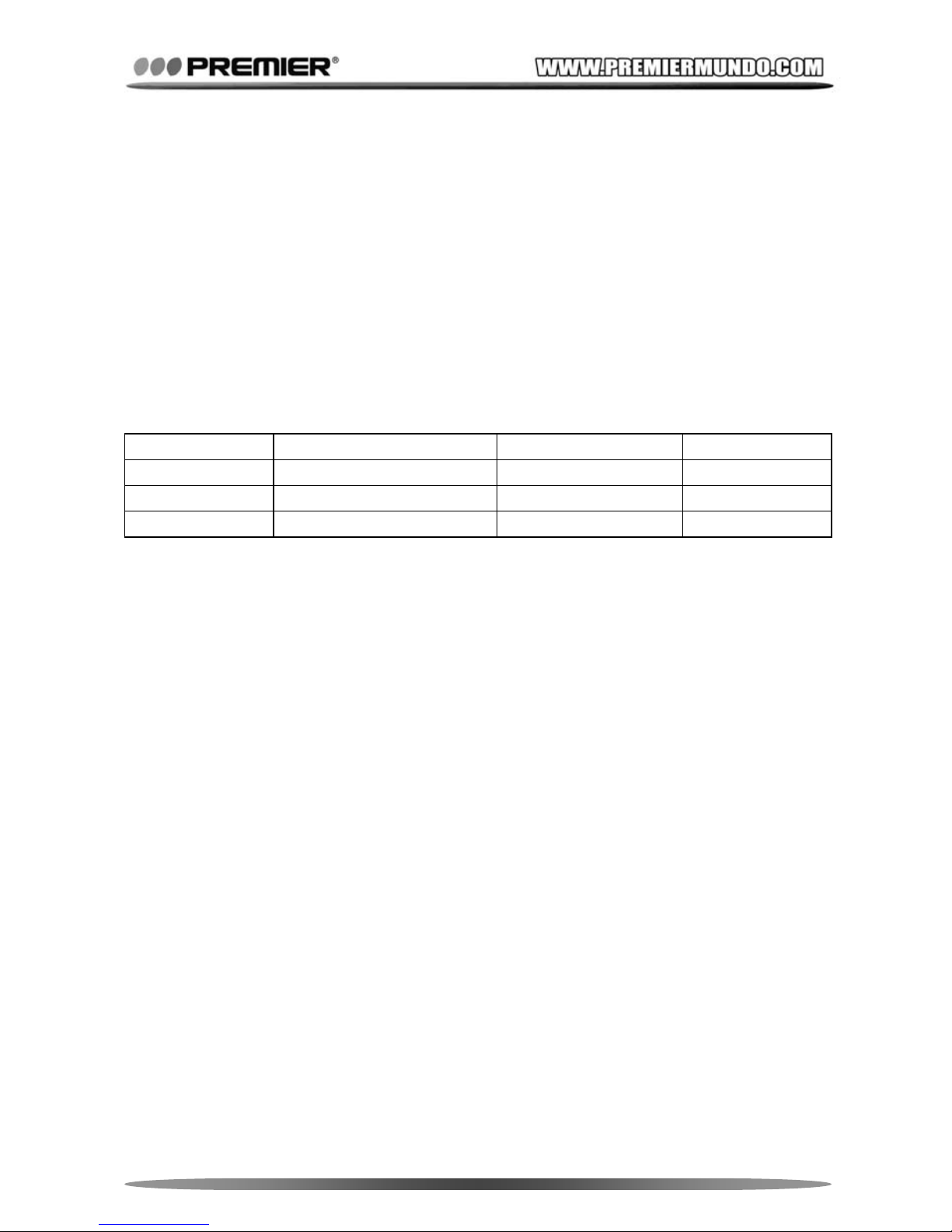
File Type Codec Max Resolution Max Bit Rate
AVI XVID 800 * 480 1200 KBps
RM / RMVB REAL VIDEO 7~10 720 * 576 800 KBps
FLV FLV1.0 720 * 576 600 KBps
z Movie files over limit may not get the best performance, e.g.,
sound not follow the pictures when playing movies, or even
cannot be played. You need to convert those files with proper
parameters for such situations.
z To play or convert the file formats that are not supported by the
player, please try the codec package and tools in the driver CD,
and follow the related help files.
z TV-OUT: This player supports A/V output to TV / monitor via PAL
standard with D1 resolution. When playing movie, press <M> to
show submenu to switch to TV-OUT function. Press <ESC> to
return to player LCD.
2.3 Photo Playing
In Main-Menu, select [Photo] mode to play photo files. Press <M> to
show submenu for rotate / zoom function. You can also play photo
slide show with certain interval time.
Note:
Some JPEG file with none-standard MS-Windows encoder cannot be
play. Use MS-Windows ‘Paint’ tool to re-save the photo files.
2.4 Text Reading
In Main-Menu, select [Text] mode to read text files.
Page 8
Pagina 7
z Play text file: Press <M> to play a text file. While playing a text file,
press
to scroll pages manually. Use submenu ‘Jump to
page’ to position a certain page, press <PLAY> to confirm.
z Auto scroll pages: Use submenu ‘Browser Mode: Auto Mode’ to
activate. Set interval time in submenu ‘Flip Time’.
z You can also make some settings by Set font size / Set font color.
z Bookmark: Manage bookmark from submenu items. ‘Save
Bookmark’ to save current page to bookmark, and ‘Load
Bookmark’ to load a saved bookmark. You can also delete it by
‘Delete Bookmark’.
Note:
The player support ANSI encode TXT files only. Use MS-Windows
‘Notepad’ tool to re-save other encode text files which cannot be read
in the player.
2.5 Voice Recording
In Main-Menu, select [Record] mode to enter voice recording.
Press
to start, pause or continue voice recording. Press <ESC> to
exit and save *.WAV file in ‘Record’ folder in flash memory. Record
volume and quality can be adjusted in submenu. Go to [Music] mode
-> ‘Record’ folder to playback.
Record Quality High Rate Low Rate
Sample rate 32KHz 11 KHz
Bit rate 128Kbps 64Kbps
2.6 FM Radio Mode
In Main-Menu, select [FM] mode to receive FM radio broadcast.
z Search channel: In ‘Manual Search’ submenu, press
to
move 0.1 MHz downward or upward. Press and hold
to
auto search next available channel from current frequency. It
stops when there is a channel available. Go to ‘Auto Search’
submenu to search and save all available channels automatically.
z Save channel: Use ‘Save’ submenu to save current channel to
one of the total 30 available channels in memory.
z Play preset channel: In ‘Preset Mode’ submenu, press
to
select and play a saved preset channel.
z Delete channel: Go to ‘Delete Channel’ submenu to delete each
channel by selecting a preset channel.
z Radio recording: Use ‘Radio Recording’ submenu to enter radio
Page 9
Pagina 8
recording interface. Press to start, pause or continue
recording current channel. Press <ESC> to save *.WAV file in
‘Record’ folder. and save recording file and return to FM record
ready interface.
z Switch FM region: Go to ‘FM region’ for different country / region.
Note:
Please insert earphone to player. It works as antenna and strengthens
signal.
2.7 Explorer Mode
In Main-Menu, select [Explorer] mode to view all files in Flash Memory .
You can play any supported media files in the list. You can also delete
file by press and hold <V> while selecting a file.
2.8 System Setting
In Main-Menu, select [System] mode to enter System Setting.
SUB-MENU OPERATION AND FUNCTION
Display Set Brightness, Light time for LCD off, and Light mode.
System
Setting
z Process firmware upgrade installation: get new version
firmware ‘RK27SDK.RKW’ from official website and put it into
memory, then upgrade here.
z Reset all settings to default.
z Set ‘Key Lock Time’ for auto keyboard lock. Press and hold
<VOL>, and then press
in the same time to unlock.
Wallpaper Select wallpaper for all modes.
Language Set lang uage for OSD.
System
information
View firmware version and memory capacity.
Power Off
Time
Select sleep time for auto power off when normally operating.
Note: This setting will work after set until you set it to OFF for next
use. Otherwise the player will shut down again in a certain time
when you power on next time.
TV Switch Switch between player LCD and TV monitor.
Note:
Press and hold
(NOT ON/OFF) to turn off the player to save
settings, and take effect for next use.
Page 10
Pagina 9
CHAPTER 3 -- TECHNICAL SPECIFICATION
3.1 Battery
This MP4 player uses rechargeable Li-ion battery. It must use
specified charger and 5-pin USB cable only. Please dispose it properly ,
because it will explode when damaged or be in fire.
The icon
shows the battery is full. But as time goes on, this
capacity indicator will go down. When indicator shows blank, battery
almost run out and the player will shut down automatically.
When connected to PC or specified charger, it will charge
automatically, and can work at the same time. Just safely remove this
Storage Device from PC, then press <ESC> to show main menu.
Note:
Please switch off power when not using the player for long time to
save time. Take out the charger from the electricity plug panel after the
LED of charger turns green.
3.2 Data Storage
There are 3 drives in the player:
z System Drive (60MB): stores system files and folders, it’s hidden
in normal state.
z Memory Drive: stores your portable files in flash memory as a
standard USB drive.
z Extend Card Drive: available when inserted microSD (TF) card.
When connected to PC, Memory Drive and Extend Card Drive can be
found without driver (Plug & Play for Windows2000 or above).
Media files formats mentioned below can be played by the player in
some certain mode as below.
File Type Play in Mode
*.mp2, *.mp3, *.wma, *.aac, *.wav, *.ape, *.flac Music
*.avi, *.rm, *.rmvb, *.flv Movie
*.bmp, *.jpg, *.gif Photo
*.lrc, *.txt Ebook
You can play them in the certain mode or in [Explorer] mode, which
shows all stored files in flash memory.
Note:
Total memory of the player is about 100MB less than full capacity of a
piece flash chip. Because the player need some memory space to
Page 11
Pagina 10
store system files and partition information.
3.3 System Recovery
There are 2 situation you need to recover system:
1. System Drive is unhidden, with unknown files and folders.
2. Player cannot turn on, but drives are found when connected to
PC.
These situations mean that system files are corrupt and need to
recover. Please browse Driver CD for System Recovery files and
instructions.
3.4 Technical Specification
Item Specification
Screen 3.0’’ TFT LCD, 400 * 240 pixels matrix
Dimension 8.8*5.5*1.0 cm
Connecting to PC USB2.0(HS), 3. 2 MBps writing, 8.3 MBps reading
Flash Memory 1G / 2G / 4G / 8G (optional)
Earphone Max
Output
(L) 4mW + (R) 4mW (32Ohm)
Power Supply
3.7V Li-Polymer battery 730mAH,
Video Playing: 3.5 hours, Music Playing: 4 hours
Max Output (L)10mW + (R)10mW, (32Ohm)
MP3 Bit rate 8Kbps - 320 Kbps
WMA Bit rate 32Kbps - 384Kbps
Freq. Response 20Hz to 20kHz
SNR 88db
A/V File Playing
Distortion 0.6%
Region Brand
Europe (87.8 ~106.2 MHz), USA (87.8
~ 106.2 MHz), Japan (76 ~ 91 MHz),
China (87 ~ 108MHz), Campus (86 ~
99.9 MHz)
Preset Channels 30 Channels
FM Radio
SNR 45db
Supported Media
Formats
MP2, MP3, WMA, WAV, AAC, APE, FLAC, FLV, AVI, RM,
RMVB, JPG, BMP, LRC, TXT
Operate
Temperature
-5 to 40 degree
Operating Systems Windows2000 /SE/ME/XP/Vista
Page 12
Pagina 11
3.5 Trouble Shooting
Symptom Remedy
No power
Charge the battery as required.
Make sure you have switched the player POWER ON, then
press and hold
for 3 seconds.
Cannot charge
Check if the USB port of PC works properly, if charge from
PC.
Use the specified A/C adapter and USB cable attached.
No sound
Make sure volume is not on 0 position.
Check if the earphone connecting properly.
Make sure earphone is clean and in good condition.
Check if music file(s) are not damaged or mute.
Strange characters
on display
Make sure you have chosen correct OSD lan guage matching
characters in the media file.
FM works bad
performance
Check if the earphone is connected to the player. It works as
antenna.
Switch off power appliance nearby.
Auto Search function only gets channels with strong signals.
Get more channels manually instead.
Cannot transfer
files
Check if there is enough memory available.
Upgrade or recover firmware if system files are corrupt..
Keys no response Check if keyboard is lock. See [System] mode to unlock.
Flash drive not
found in PC
Check if the USB cable is fine and proper, and make sure the
player is properly connected to the PC USB2.0 port. A cable
too long or too thin may attenuation and affect USB device
recognition.
Check if the driver has properly installed for Windows 98.
Check if too many USB devices connected, you may ne ed an
USB HUB with power supply for USB devices.
Player cannot
power on
Check if no power.
System files may be damaged. Try to use the recovery files
and instruction in driver CD.
Settings can not
be saved
Press and hold (NOT ON/OFF) to turn of f the play er, then
settings can be saved.
3.6 Compliance Information
This device complies with part 15 of the FCC rules. Operation is
subject to the following two conditions:
Page 13

Pagina 12
z This device may not cause harmful interference.
z This device must accept any interference received, including
interference that may cause undesired operation.
See instructions if interference to radio or television reception is
suspected.
3.7 Disposal and Recycling
When this product reaches its end of life, or you no longer need it, you
should dispose it according to local laws and regulations
Take it to a collection point designated by local authorities, or recycle it
properly for environment protection.
 Loading...