

Page 1
Dear Customer:
Thanks for choosing our Pico Projector.
We sincerely hope that you can pleasantly experience this device and functions!
About this Manual
You can use your device easily by following this Installation Guide. Check these chapters bolew for
more detail information
Please read this instruction carefully, to make sure using your device correctly, please abide by every
installation instruction. Any losses caused by failure to comply with the instructions, the manufacturer
will not bear the relevant responsibility.
i800Ghost
PRAYTECH (HK) CO.,LTD
Page 2
User Manual
Product Content:
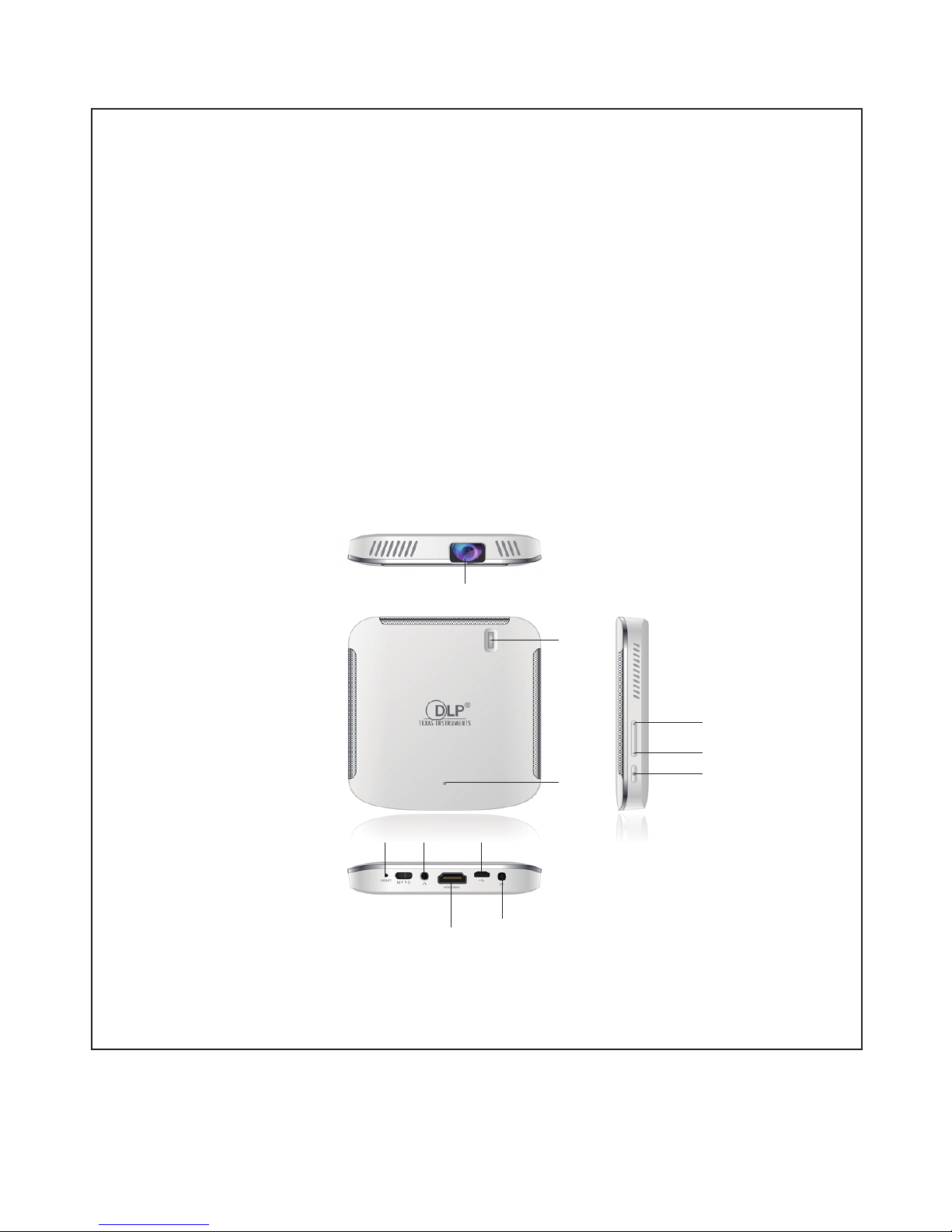
Product View:
Description:
Ghost i800 Smart Pico Projector uses the DLP chip, bright LED and equipped with the Android operating system,
simple intelligent system control; supports multi-screen interactive with Android phones, Android PAD, iPhone, iPad;
Internal dual built-in WIFI supports wireless Internet access, supports 1080P HD HDMI IN input; deep development
of Android 4.X system, supports varieties of Android apps and games;
Compact and lightweight, easy to carry. Keeps you can enjoy visual and acoustical feast everywhere.
1. Ghost i800 Smart Pico Projector
2. Power Adapter
3. HDMI Cable
4. OTG Cable
5. Remote Controller
6. Instrunction
Volume+
Volume -
Power
Lens
Focus
wheel
Charging
LED
Indicator
Reset Ear Phone
HDMI
Micro
USB
DC IN
Page 3
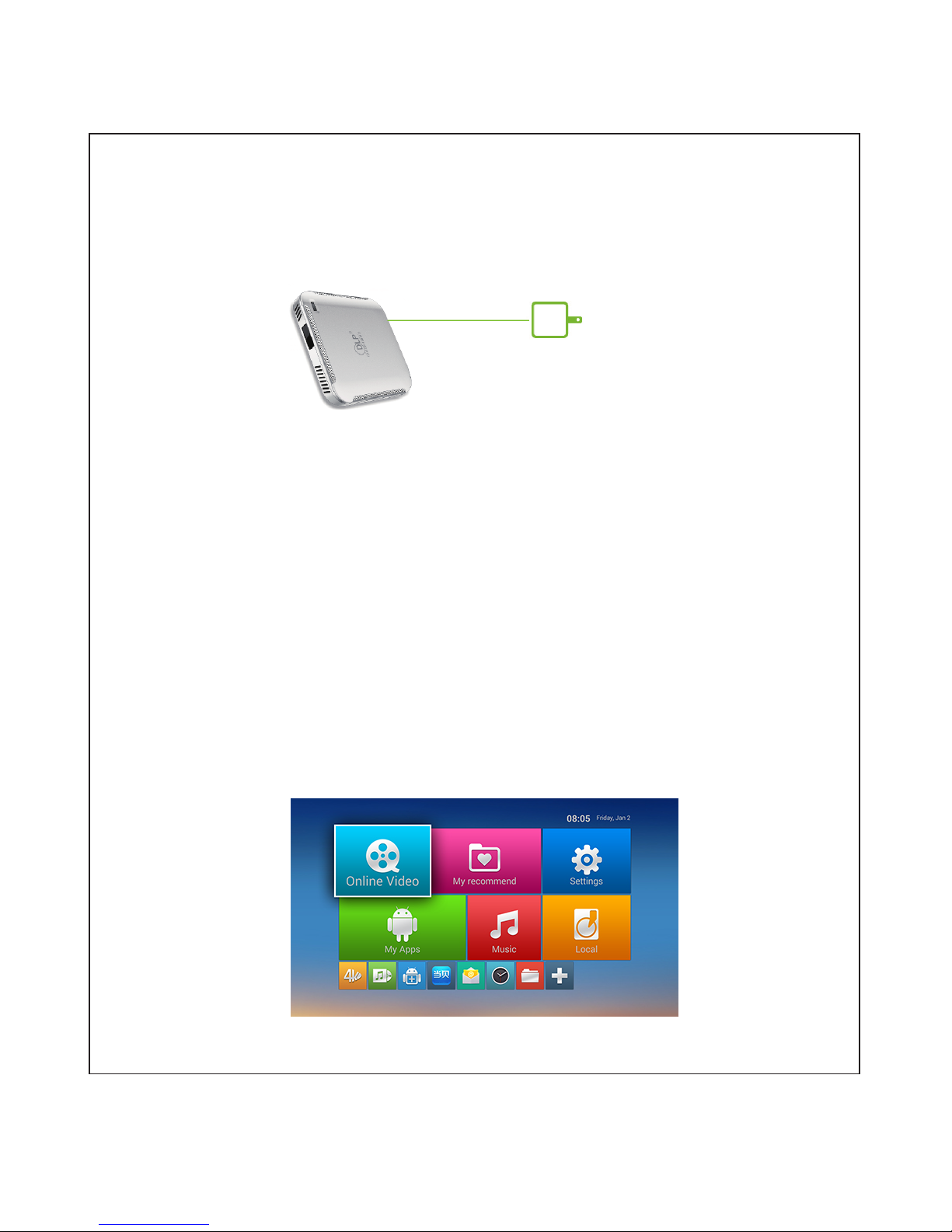
Put the projector on a flat desktop,or fix the nut on the bottom with a tripod,adjust to the right position for watching pefectly.
1. Inital Installation:
NOTE: The battery is built-in, before first start, the power may be insufficient, please use the original charger, then start to use
the projector. in order to ensure the required working power supply, please use the original charger for charging.
Connecting with power adapter
1.1 Plug one end of the power cord to the projector
1.2 Plug the power plug into a power socket or terminal block
1.3 During charging, the LED located on display panel shows red, after the battery is fully charged it will turn green.
2.Power on:
2.1 Tap the power button and turn on the projector
2.2 Toward the projector for suitable projection surface or wall. Note that the distance between projection surface and
device is 0.5 meters to 5 meters, please make sure that the projector is in a stable and secure position
2.3 Rotate the focus wheel to adjust the focus, till a clear picture appears.
3-2. Connect with a mouse
5. Menu introduction
The menu shows as below after turn on the device(P2)
(P2)
3.Pairing Bluetooth remote controller or connect a mouse to operate the projector:
3.1.1 Long press the Bluetooth remote controler power button till the Remote indicator flashes, pairing mode complete.
(the remote controler has been paired as factory default)
3.1.2 Press the power button and volume “-” the same time to pair.
3.1. Pairing Bluetooth remote controller
3.2.1 Plug the attached OTG cable into Micro USB port.
3.2.2 Plug the USB port of a mouse into OTG USB port,then you can use a mouse to operate the projector
4.Operating instruction for Bluetooth remote controller or mouse
4.1 Selecting:
Blutooth RC: Select an icon by pressing “up, down, left, right” button
Mouse: Click an icon by left key to select an icon.
.4.2 Opening:
Bluetooth RC: Click “OK” to open an app after selecting the icon
Mouse: Double click the icon to open an app
4.3 Go Back:
Bluetooth RC: Click the “Back” button;
Mouse: Click the right key to go back;
(P1)
NOTE: The icon is highlighted, means this icon is selected
Page 4
5.1 Interface introduction:
Online Vedio: Commonly used vedio player app. Click
My Recommend: Collect commonly used apps such as “Multimedia” and “Miracast”
Settings: Set WIFI, language, time etc.
My apps: Preinstalled Apps or postinstalled Apps
Music: Music player App, Click
Local: View local pictures, vedios,profiles etc.Click
to add some commonly used music player Apps.
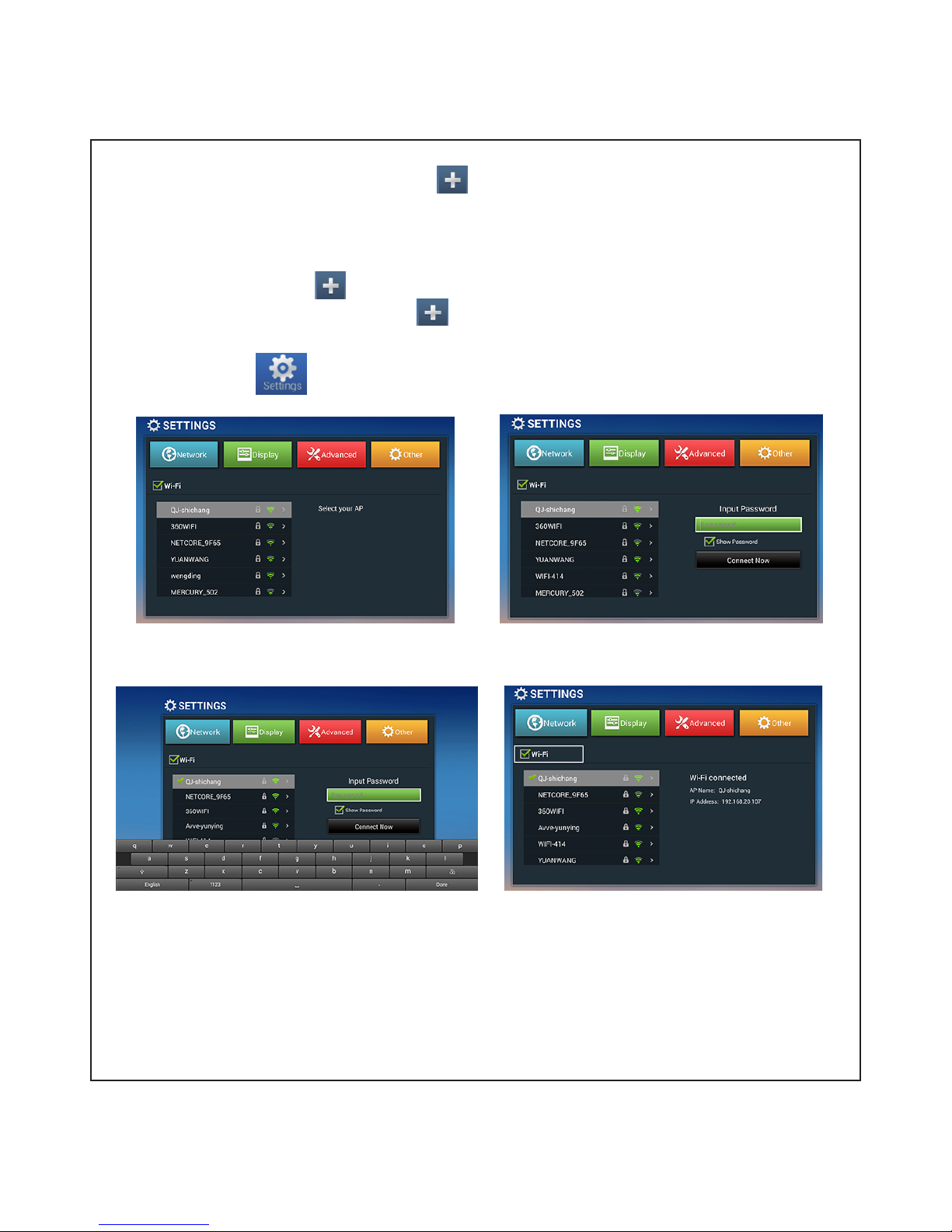
6.Wi-Fi connection:
Click Main Screen
(P3)
as (P3) shows, then tick “Wi-Fi” on, it will shows WiFi resources,choose the right WiFi you want to
if successful, as(P6)。
to add commonly used Apps
(P4)
Click the Password TextBox, will pop software keyboard, as (P5), input the password and connect the network.
(P6)(P5)
7. Install App and browse website.
7.1 Install App: you can download Apps in it such as online player apps, office Apps and games..
7.2 Browse website: Double click “My Apps/Browser” to surf the Internet。
to add more
login in to enter password.(P4)
Page 5
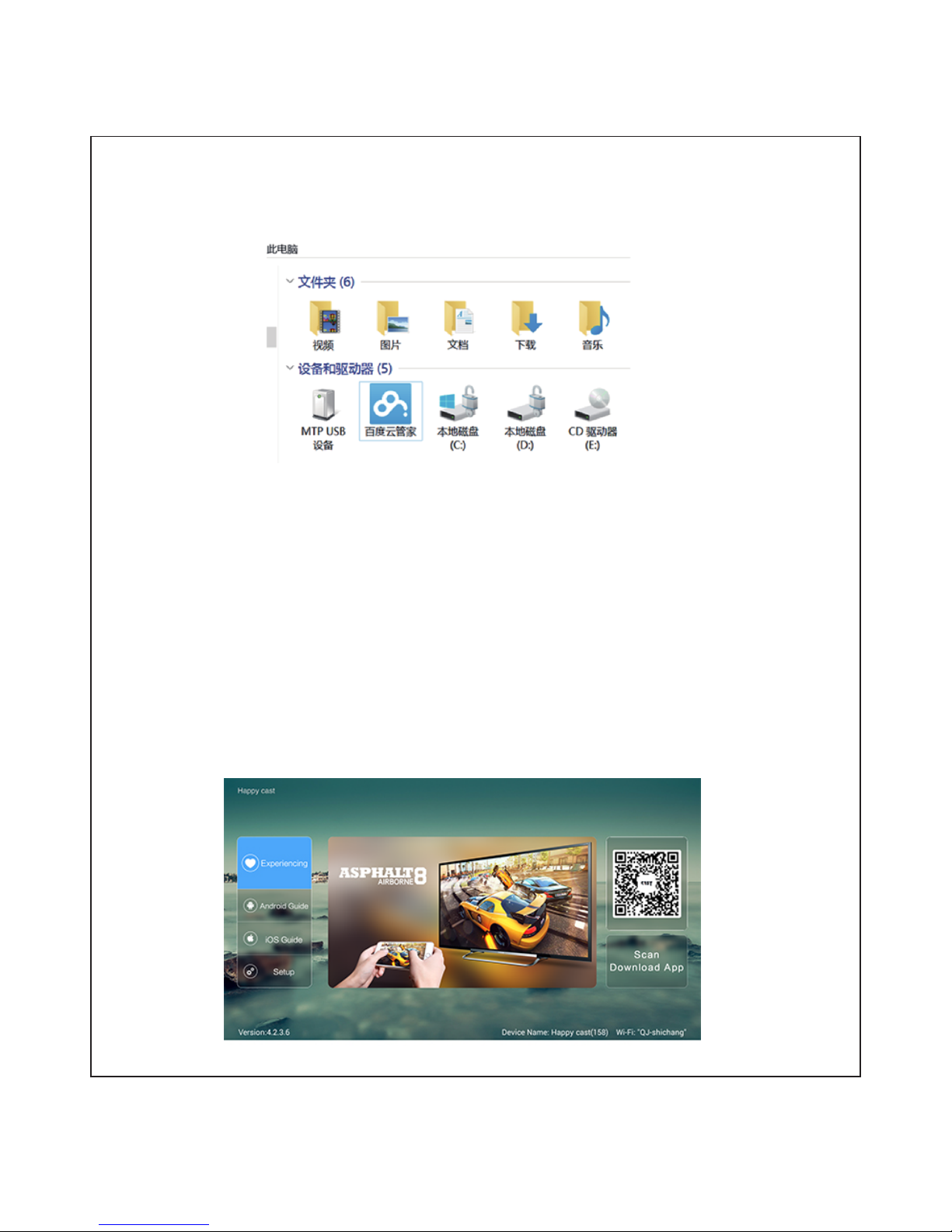
11.1 Connect with your iPhone/iPad by Airplay
11. Wireless Display.
11.1.1 Open “My Apps/Happy Cast” (P8)
Uploaded by USB cable
8. Upload vedios,pictures and profiles to projector:
8.1.2 Open “My computer”, a “MTP USB Device” shows up.(P7)
8.1.3 Open “MTP USB Device/Internal Storage” and find a directory or a root directory you want to upload, then complete
upload by copy and paste
9. Open vedios, pictures and profiles:
9.1 View pictures: Open ”Local/Gallery”
9.2 Watch vedios: Open “Local/4K MoviePlayer”, then find your vedios and play.
9.3 Open profiles: Open “Local/FileBrowser”, find your profiles and open
10. Connecting with a USB flash drive
Plug OTG cable into projector, plug USB flash drive into OTG cable, then you can access data in your USB flash drive.
8.1.1 Plug Micro USB to projector,plug USB to a PC.。
(P7)
NOTE: Before connect the projector with your smartphone,please make sure both the devices are in a same LAN
(P8)
Page 6
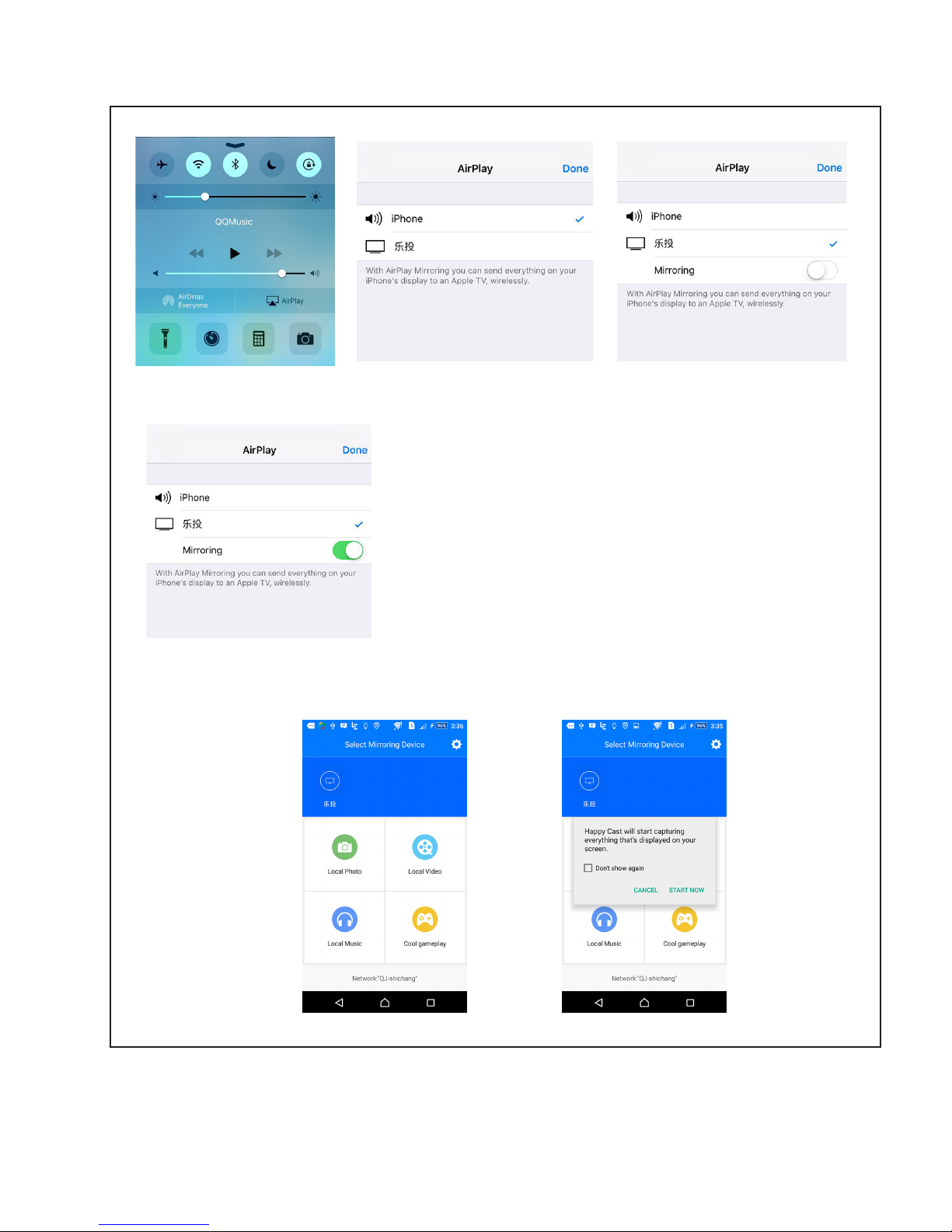
11.1.2 Turn “Airplay” on in your iPhone/iPad, as the picture(P9) shows.
(P9) (P11)(P10)
11.2 Connect with an Android phone by Miracast(Make sure your phone and projector is in a same LAN)
11.2.1 Connect with Android phone by HappyCast
11.2.1.2:Scan the QR Code on the right of screen (P8) by your phone, download mobile app and open, as (P13) shows.
(P13)
(P12)
11.1.3 Select”Happy Cast(xxx)”, as picture(P10) shows, turn on “Mirror”,as (P12) shows, after a few seconds the projector
shows the same screen as your iPhone/iPad does, then wireless display is finished.。
11.2.1.1 Open “My Apps/HappyCast”, as (P8) shows
(P14)
Page 7
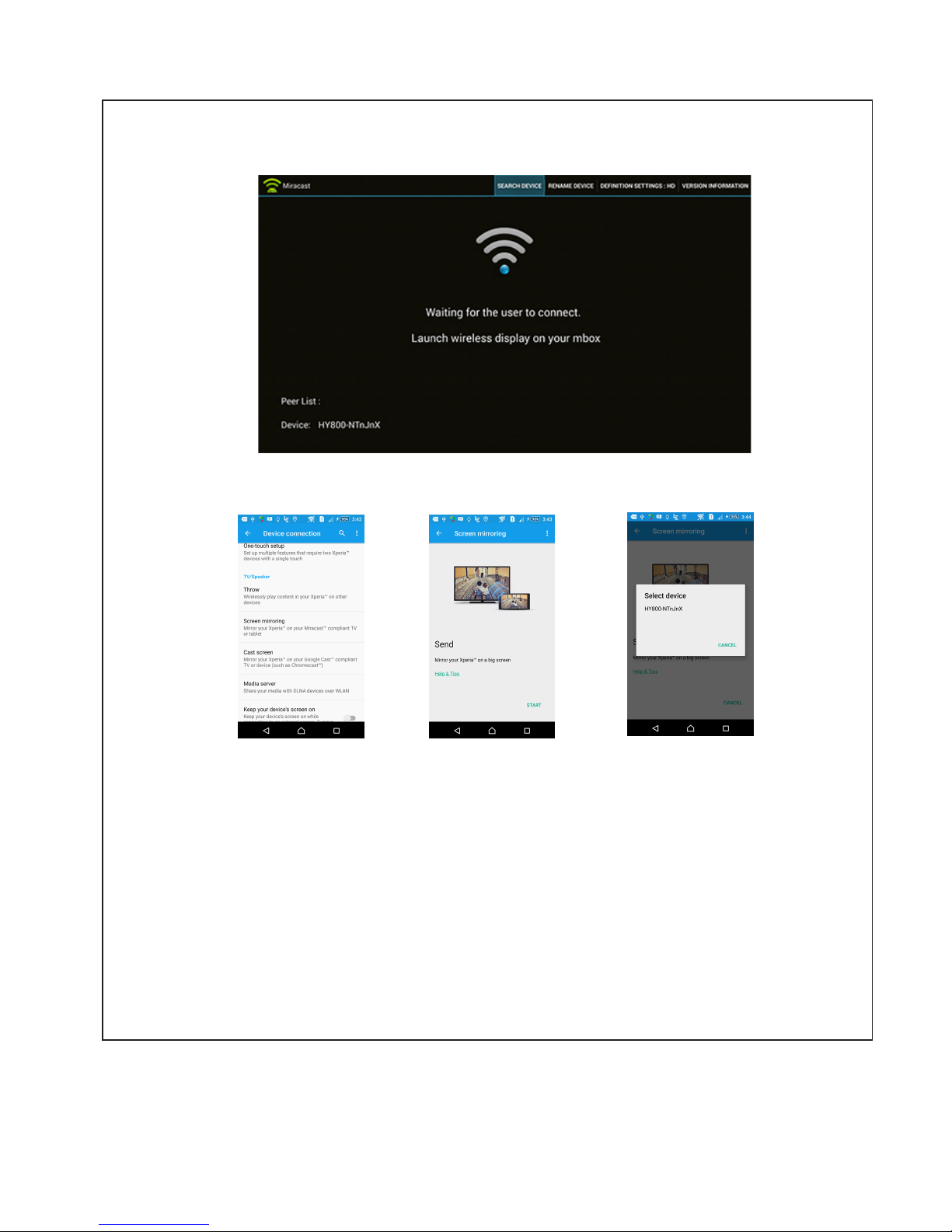
11.2.2.2 Make sure your phone and projector is in a same LAN(We use a sony Xperia smartphone as an example,the
location of wireless display is different due to different phones)
11.2.2.3 Click “Settings” and find “Screen mirroring”, as (P16) shows
(P16) (P17) (P18)
11.2.2.4 Click “START”, will pop as (P17) shows, click “i800-xxxxxx” to connect.
11.2.2.5 Your phone screen will display “connected to” if connection is successful as (P18) shows, the projector shows
the same screen as your phone does.
11.2.1.3 Click “HappyCast(xxx)”, shows as (P14), Click “Start”, then the projector shows the same screen as your phone.
11.2.2 Connecting by Miracast
11.2.2.1 Open “My Apps/Miracast” as (P15) shows
(P15)
11.3 Connecting with an smartphone by DLNA(Make sure your phone and projector is in a same LAN)
11.3.1 Open “My Apps/HappyCast”.
11.3.2 Turn “Airplay” on in your iPhone/iPad, as the picture (P10) shows
11.3.3 Select “HappyCast(xxx)”。(Do not turn on the mirror)
11.3.3 Open vedio player Apps that support DLNA on your smartphone such as Youtube, the vedio on your
phone will sync to the projector automatically
11.3.1 Connecting with your iPhone/iPad by DLNA
11.3.2 Connecting with your Android phone by DLNA
NOTE: Please make sure “Happy Cast” App has been installed on your phone
11.3.3 Open vedio player Apps that support DLNA on your smartphone such as Youtube,the vedio on your
phone will sync to the projector automatically
Page 8
12.2.2 Connect with an Android smartphone by MHL(You need buy a MHL cable separately)
12.1 Connect with Laptop or other HDMI device by HDMI
12 .Connect with an player device by HDMI:
12.2 Connect with a smartphone by HDMI/MHL
12.2.1 Connect with your iPhone/iPad by HDMI (You need buy a HDMI adapter separately for iPhone/iPad)
12.2.1.1 Plug one end of HDMI cable to the projector
12.2.1.2 Plug another end of HDMI cable to the HDMI adapter
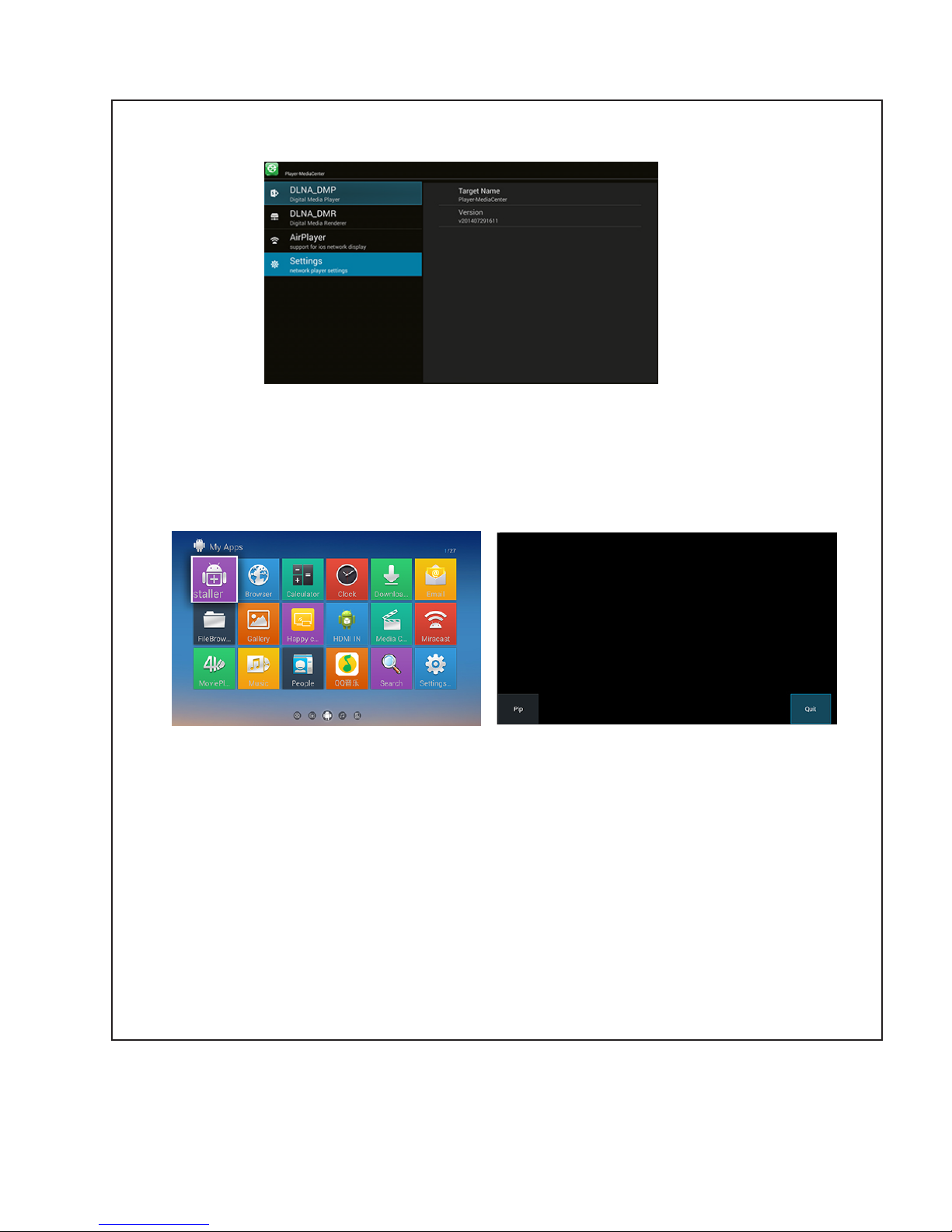
12.2.1.3 Open “My Apps/HDMI IN”, as (P24) shows
12.2.1.1 Plug one end of HDMI cable to the projector
12.2.1.2 Plug Micro USB of MHL into your Android smartphone
12.2.1.3 Plug USB into a 5V/1A charger
12.2.1.4 Open “My Apps/HDMI IN”, as (P24) shows,
NOTE: 1. Make sure your Android smartphone supports MHL
2. The specific connection of MHL can refer to manufacturer’s connection
Does your smartphone support MHL or not?
1. Check your phone charging port is Micro USB or not, the MHL port can plug into your phone charging port or not.
2. Google your phone “model+MHL”,such as “Samsung Galaxy S5 MHL”
11.4 Access router, smartphone that support DLNA
11.4.1 Open “My Apps/Media Center”, as (P23) shows, select the first “DLNA DMP” and open it
(P23)
11.4.2 If your router/smartphone supports DLNA, the name of router/smartphone will be displayed on right side, open it and
view images and watch vedios.
12.1.1 Plug one end of HDMI cable to a laptop or other devices that support HDMI
12.1.2 Plug another end of HDMI to the projector
12.1.3 Open “My Apps/HDMI IN”, as (P24) shows,
(P24) (P25)
12.1.4 if you want to quit, pls click “Quit”,as(P25)
Page 9
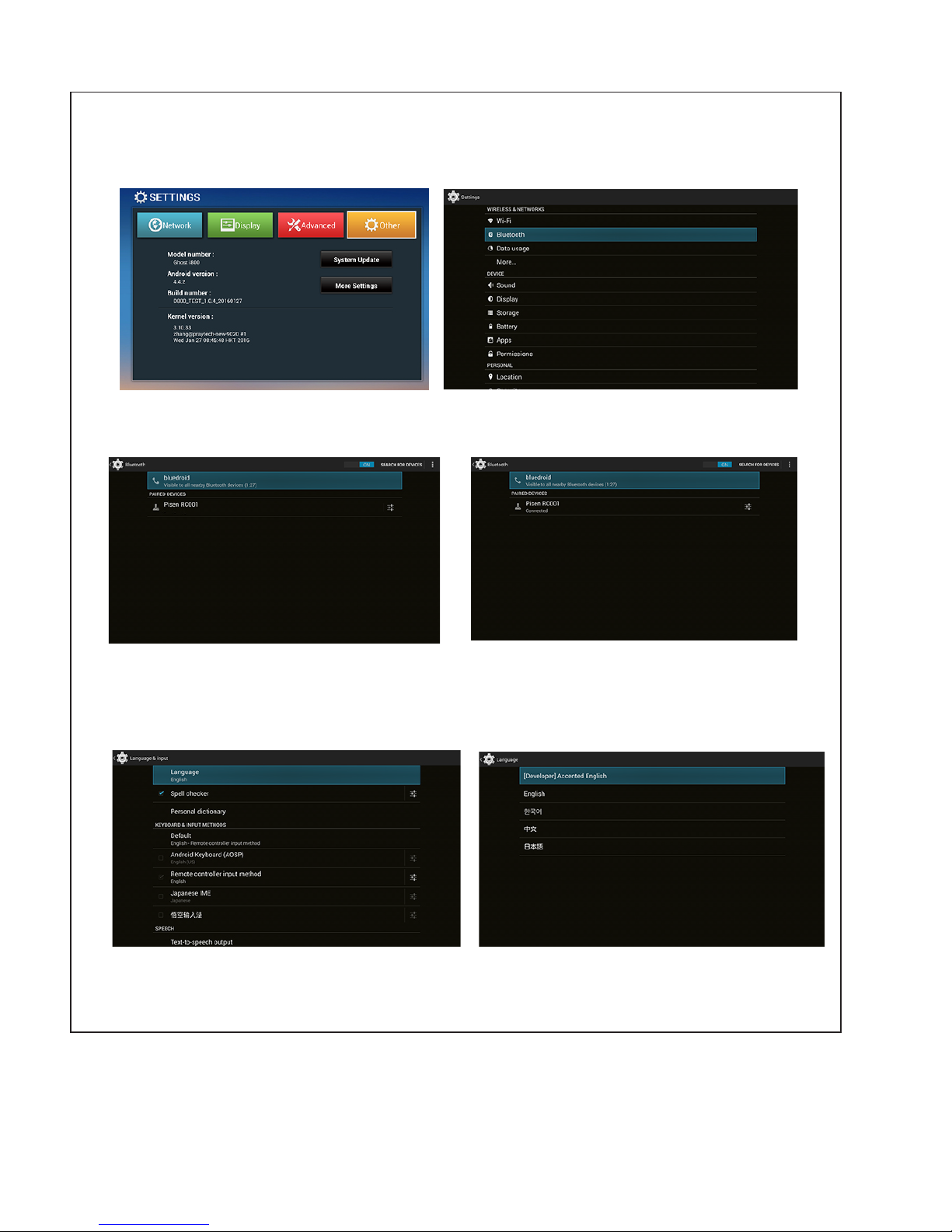
13.Settings
13. 1 Connect with a bluetooth device
13.1.1 Open “Settings”, as (P26) shows, select “Other”, as (P27) shows
(P26) (P27)
(P28) (P29)
13.1.2 Open “Bluetooth”, as (P28) shows, system will search Bluetooth devices automatically
NOTE: Make sure your Bluetooth of device is open
13.1.2 Select your Bluetooth device to pair, it will show “connected” if pairing succeed, as (P29) shows
13. 2 Change luaguages
13.2.1 Open “Settings”, as (P26) shows, select “Other”, as (P27) shows
(P30) (P31)
13.2.3 Select “Luaguages and keyboard”, as (P30) shows, open “Languages” to change your languages, as (P31) shows
Page 10

Projector Parameters
Name: “zhangtou” Smart Pico Projector
Model: Ghost i800
Dimension: 111x112x19mm
Weight: 265g
Battery capacity: 3600mAh
LED: OSRAMLED
LED Life: 30000 hours
Projection Solution: TI DLP
Brightness: 120 Lumens
Projection Ratio 1.4
Projection Distance 0.3m
Max prjection Size: 150 inch
Aspect Ratio: 16:9
NTSC Color gamut: >100%
Color reduction: 99.8%
Color Temp. : 7500K
Contrast: 1000:1
Native Res. : WVGA 854x480
Operation: Manual focusing
Projection Parmeters:
Q & A:
Q1: How can I get a larger screen?
A1: Projected size is relative with your projection distance, the longer the distance between the projector and the
screen, the larger you see the image
Q2: Whether I need a professional projection screen or not?
A2: No, a smooth white wall could be a screen, but professional screen could show brighter and clearer images
Q3: Why does the image look fuzzy?
A3: Please Rotate the focus wheel to adust to the clearest image, besides, if the distance between projector and
screen has changed,you need adjust the focus again
Q4: How can I get higher audio a experience?
A4: The projector has built in a set of stereo speaker. If you want to get a better effect, you can connect it with
Bluetooth speakers
NOTE: Due to upgrades of products, some functions not metioned in this manual,please refer to the manufactureers’ latest
electronic manual,thank you.
FCC Warning Statement
Changes or modifications not expressly approved by the party responsible for compliance could void the
user’s authority to operate the equipment.
This equipment has been tested and found to comply with the limits for a Class B digital device, pursuant
to Part 15 of the FCC Rules. These limits are designed to provide reasonable protection against harmful
interference in a residential installation. This equipment generates uses and can radiate radio frequency
energy and, if not installed and used in accordance with the instructions, may cause harmful interference
to radio communications. However, there is no guarantee that interference will not occur in a particular
installation. If this equipment does cause harmful interference to radio or television reception, which can be
determined by turning the equipment off and on, the user is encouraged to try to correct the interference by
one or more of the following measures: ‐‐Reorient or relocate the receiving antenna. ‐‐Increase the
separation between the equipment and receiver. ‐‐Connect the equipment into an outlet on a circuit
different from that to which the receiver is connected. ‐‐Consult the dealer or an experienced radio/TV
technician for help.
This device complies with part 15 of the FCC rules. Operation is subject to the following two conditions (1) this
device may not cause harmful interference, and (2) this device must accept any interference received, including
interference that may cause undesired operation.
The distance between user and device should be no less than 20cm.
 Loading...