

Page 1
WiFi
Day & Night
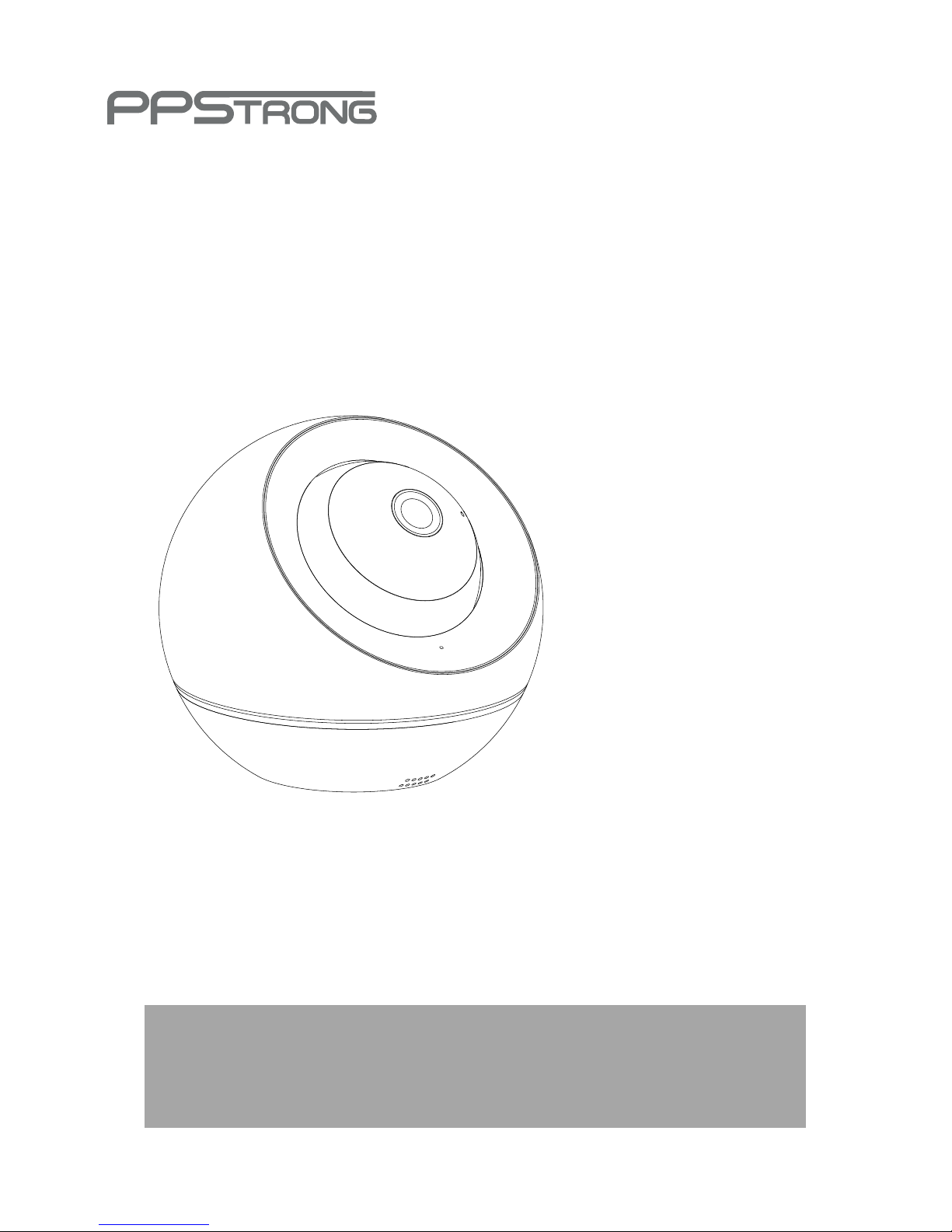
Network PT Camera
Speed
Quick Install Guide
Page 2
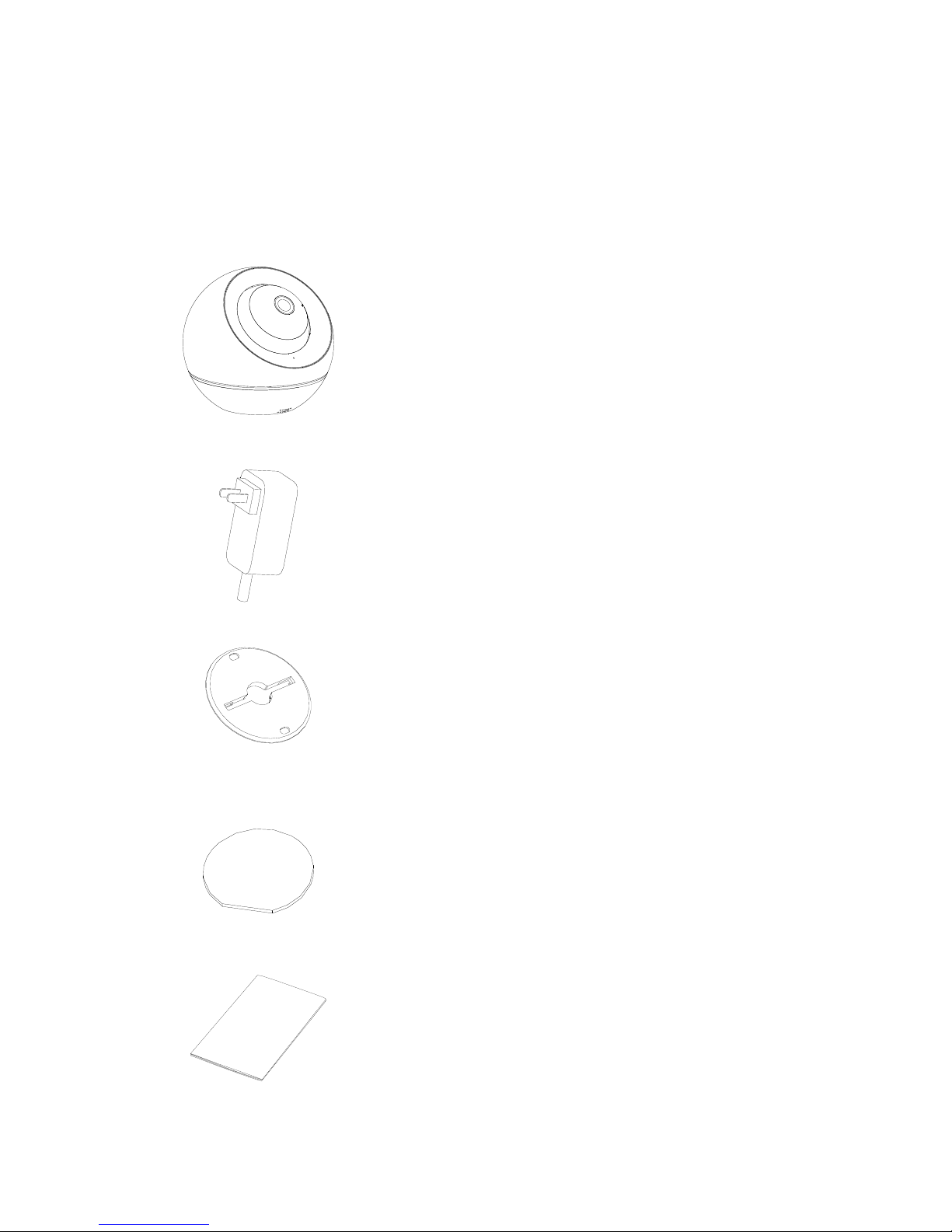
Camera
Power adapter
Adhesive tape
I/M
Bracket
What's in the box
Page 3
Install the App
Two
ways to
download
1
1. Visit the App Store, Google Play to search WeEye
and download the free app on your smartphone.
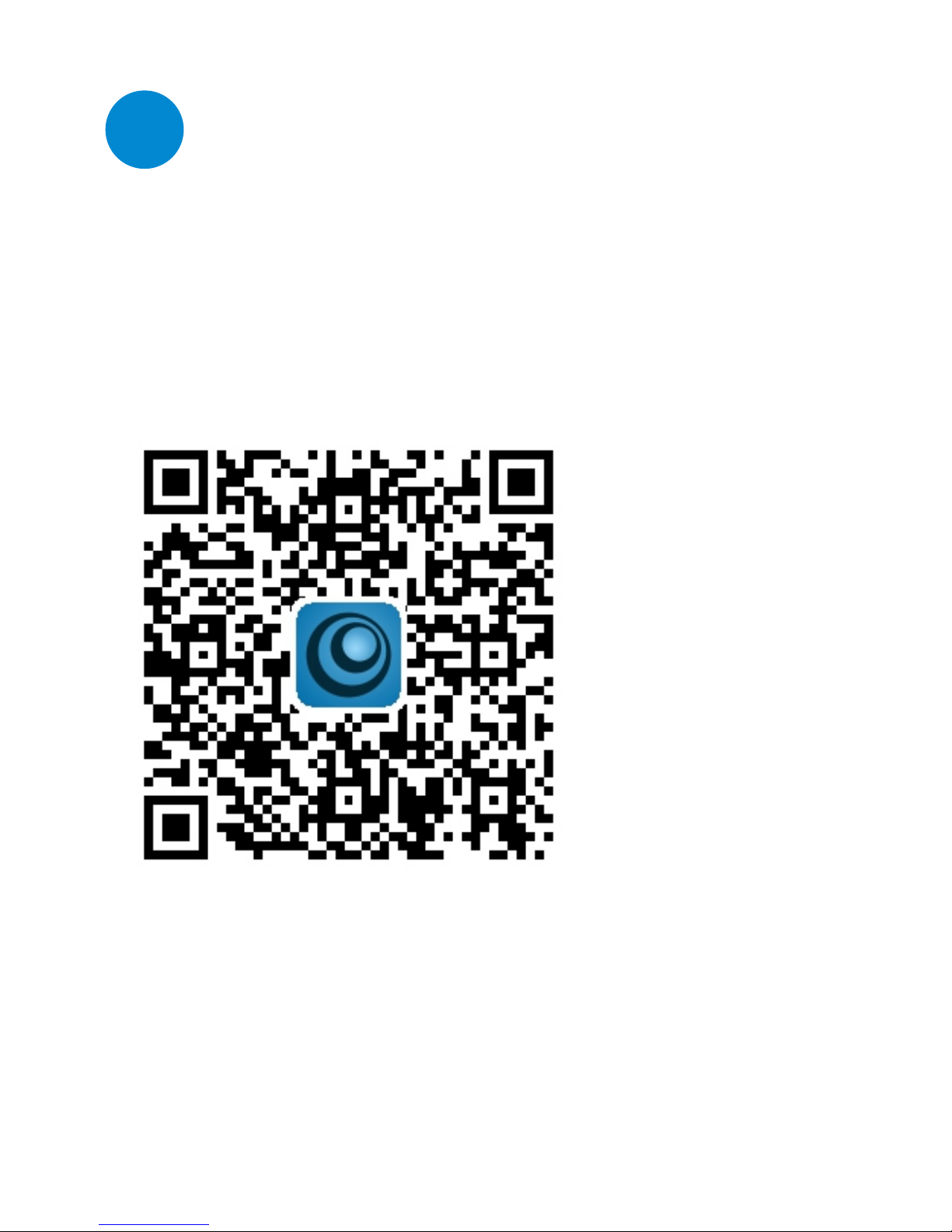
2. Scan the following QR code to download.
Install attention:
For Android, it might pop up the security warning of getting
location permission. Just click Allow to continue.
Page 4
Register / Log in
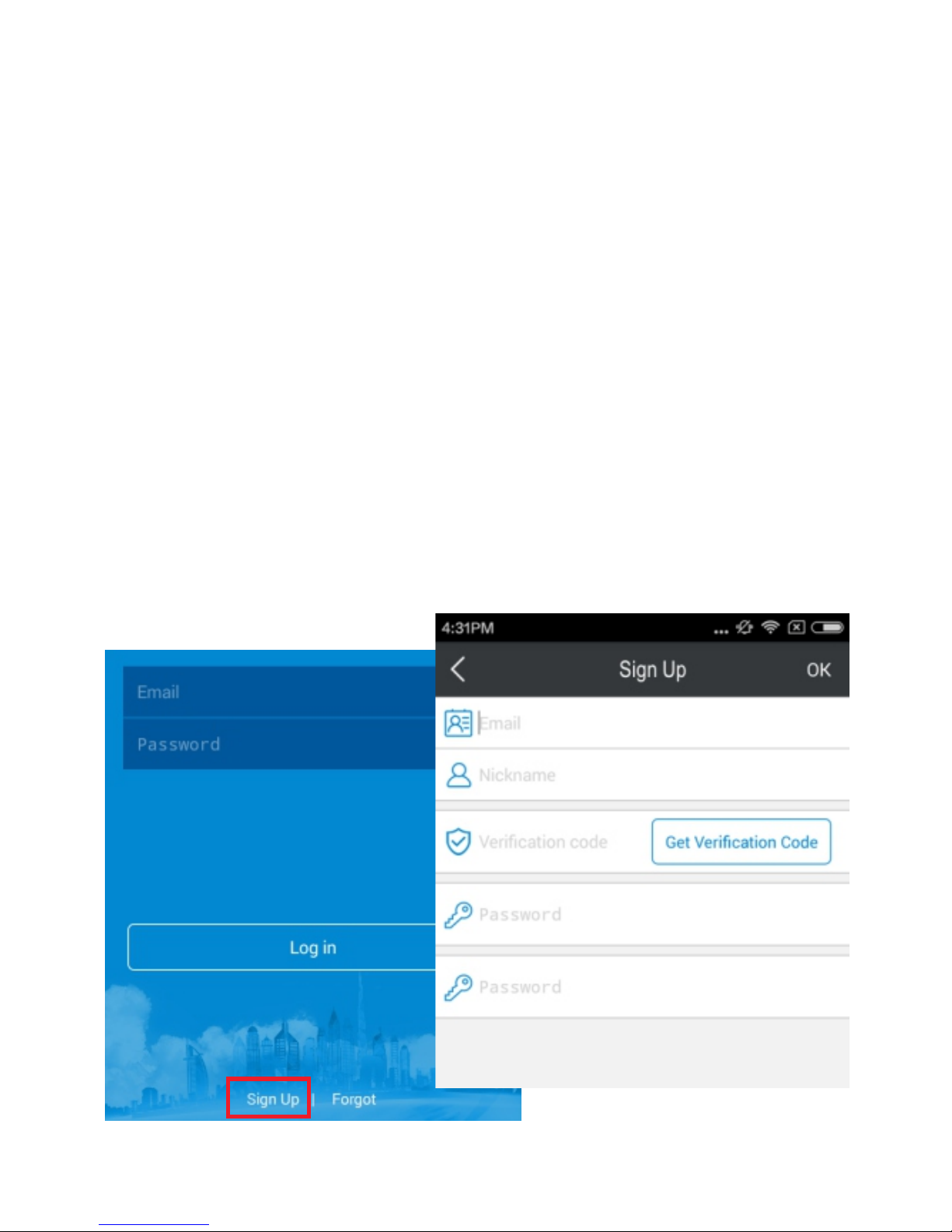
For the new user, you should register an account via
your Email.
Step 1: Sign Up Start the App and tap at the bottom of
the page.
Key in your email address and password in Step 2:
the corresponding fields.
Click on when it is be done. Step 3: OK
Page 5
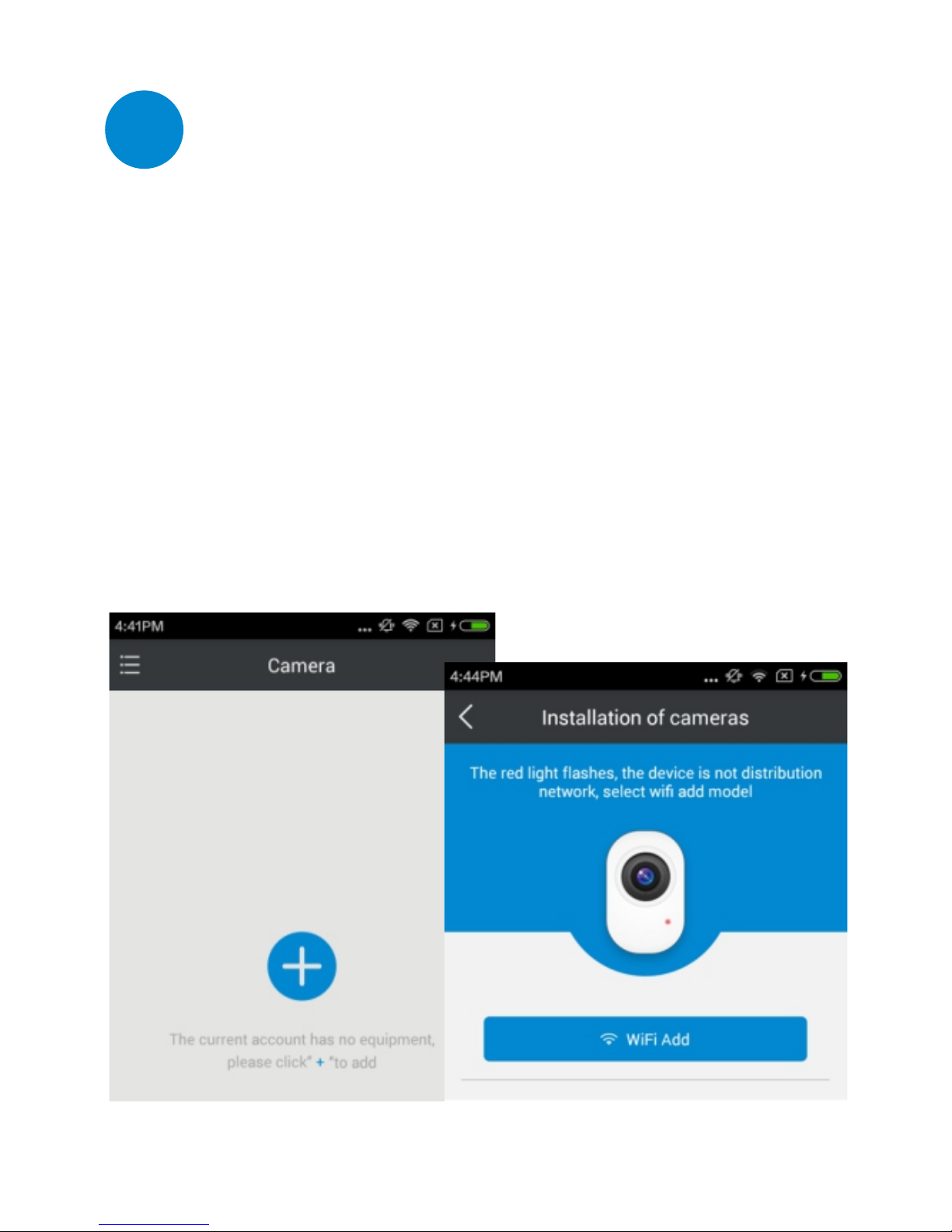
Set-up your camera
2
Step 1: Powered on the camera firstly, then wait for the
voice of , after few seconds the red lightDo-do
will blinked.
Go onto the page, click on the icon Step 2: Camera +
and choose .WiFi Add
Enter the password of the Wi-Fi router that your Step 3:
smartphone connected. Then tap the .Next
1. Set with Smart Wi-Fi
Page 6
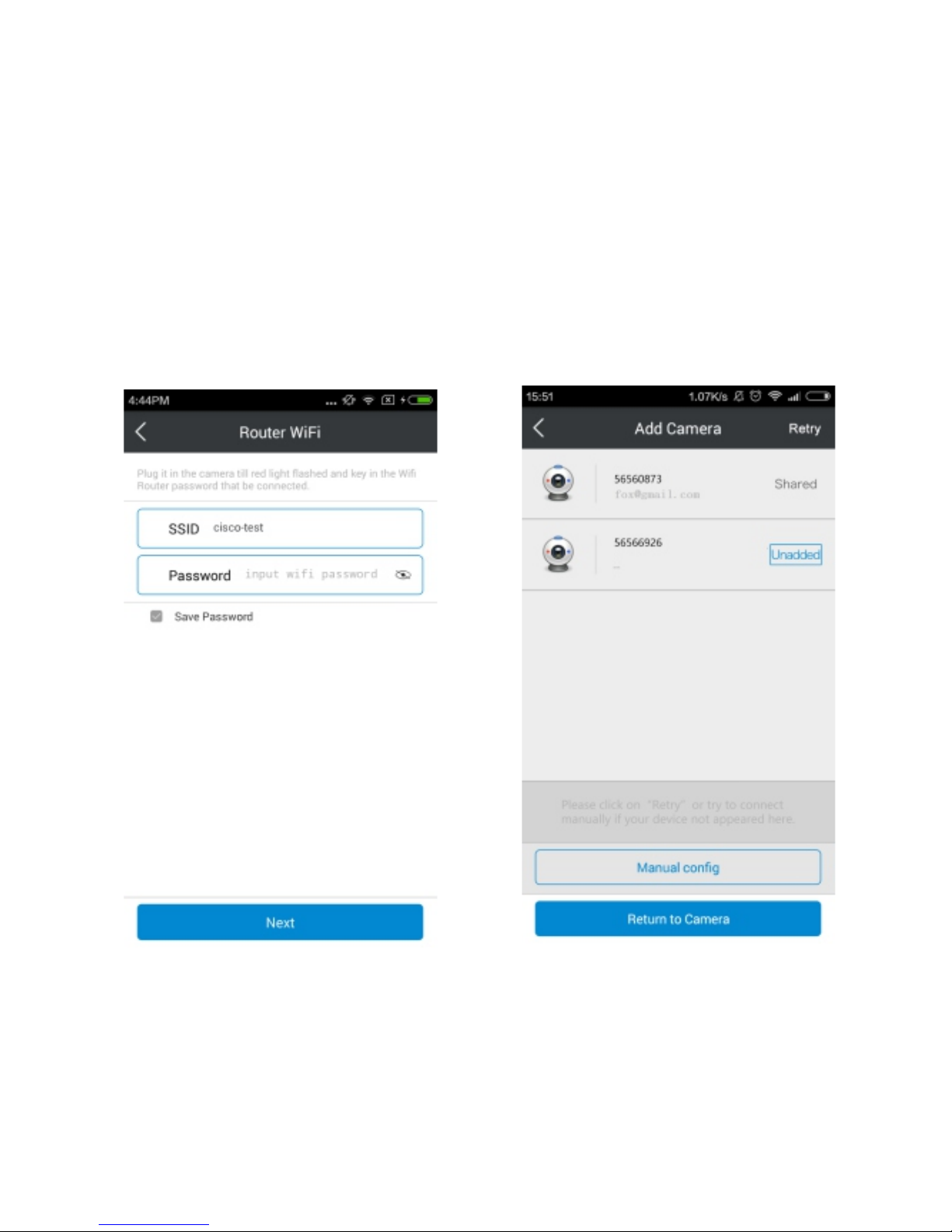
Step 4: Please back to camera list to check the real play
after the light changed to blue.
Camera light instruction
Red light on: network abnormal
waiting for monitorRed light blinked:
network normal AP modeBlue light on: Blue light blinked:
Page 7
1) Check your wireless password.
2) Please ensure your Wi-Fi network broadcasts at
2.4GHz(802.11 b/g/n)
3) Move camera closer to your router. Camera out of
Wi-Fi range cannot connect to network.
4) Restart your Wi-Fi router.
If it failed to set-up the network, please reset the camera
and try once more, meanwhile please double check the
following issues :
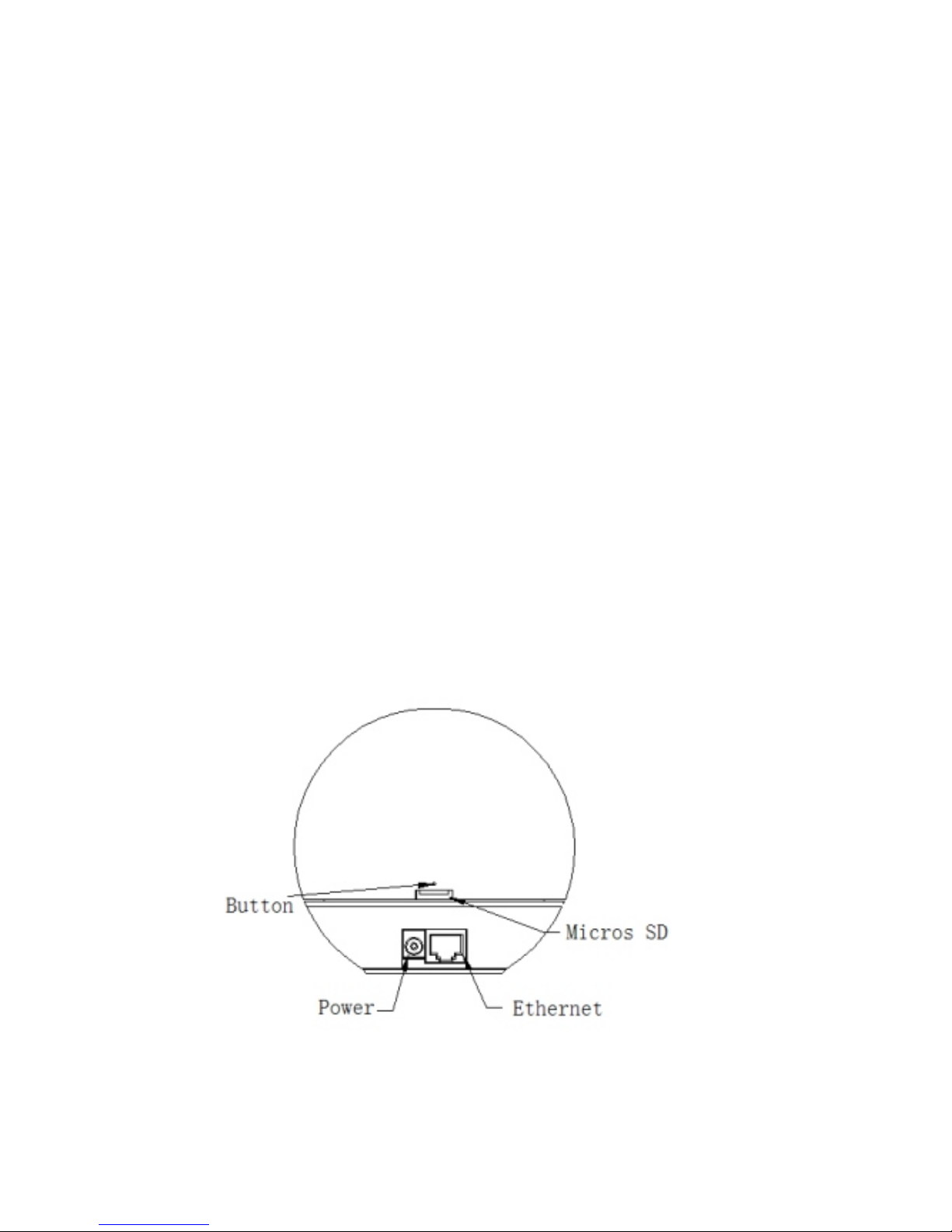
Reset: Button press (shown as the picture) with a Pin until hear
a voice of and the camera red light is on.Dodo
Page 8
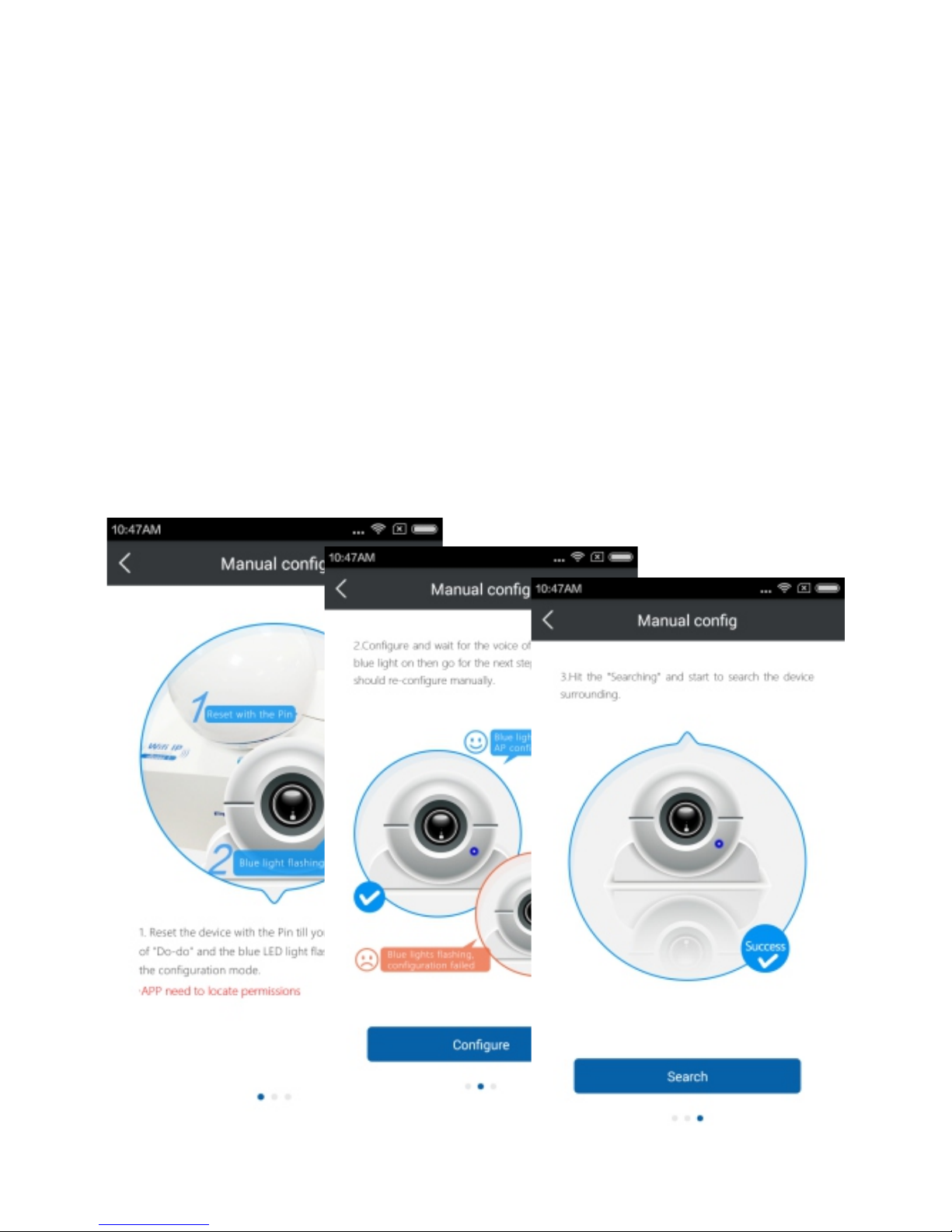
Step 1: Reset Button Press the for 1 second, after a
while the blue light blinked.
Click on and follow the instruc-Step 2: Manual config
-tions there to set-up.
2. Set Wi-Fi manually
Page 9
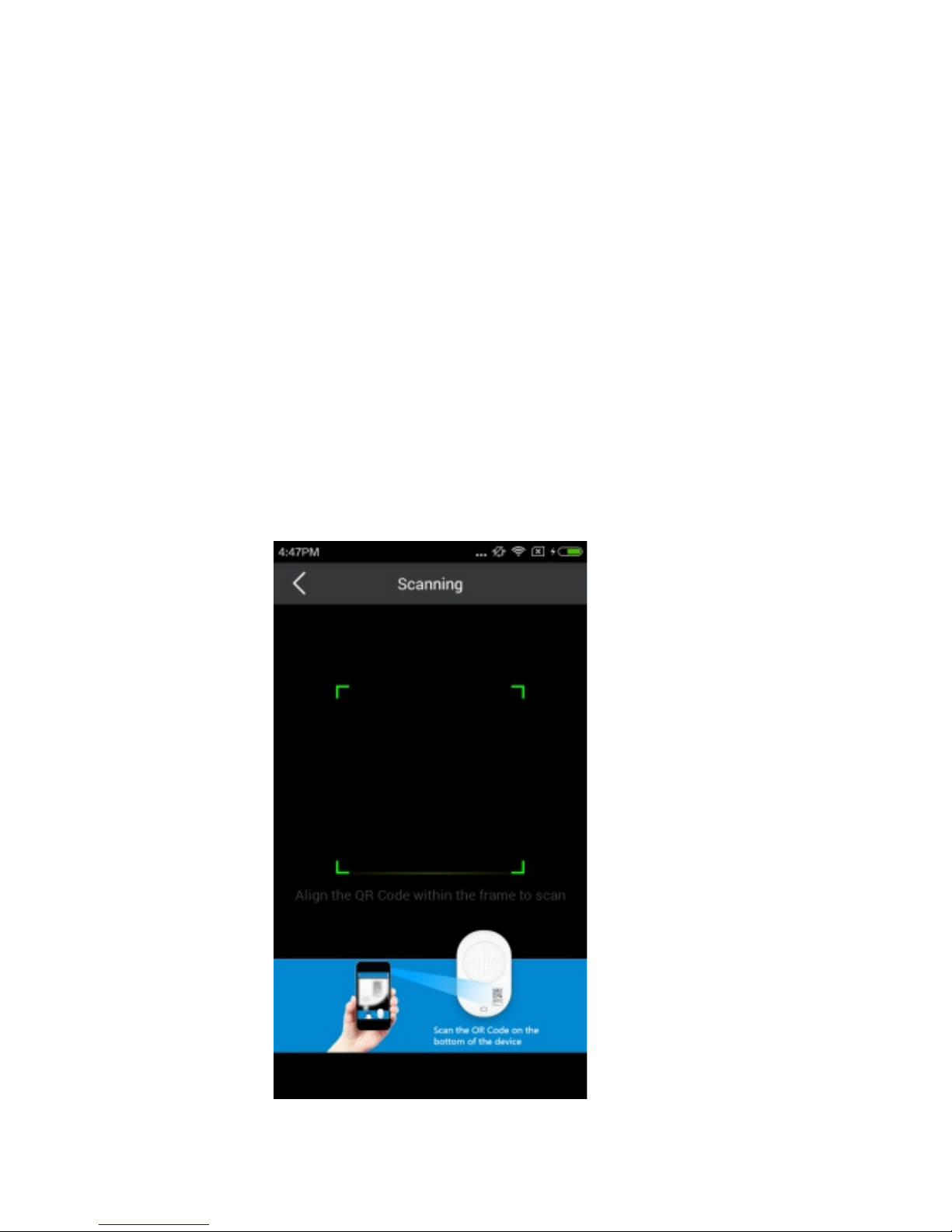
Step 1: Connect your camera to router with an ethernet
cable.
Click on the and tap the .Step 2: + QR Code Add
Scan the QR code (on the back of camera) to Step 3:
add the camera.
3. Set with ethernet cable
Page 10
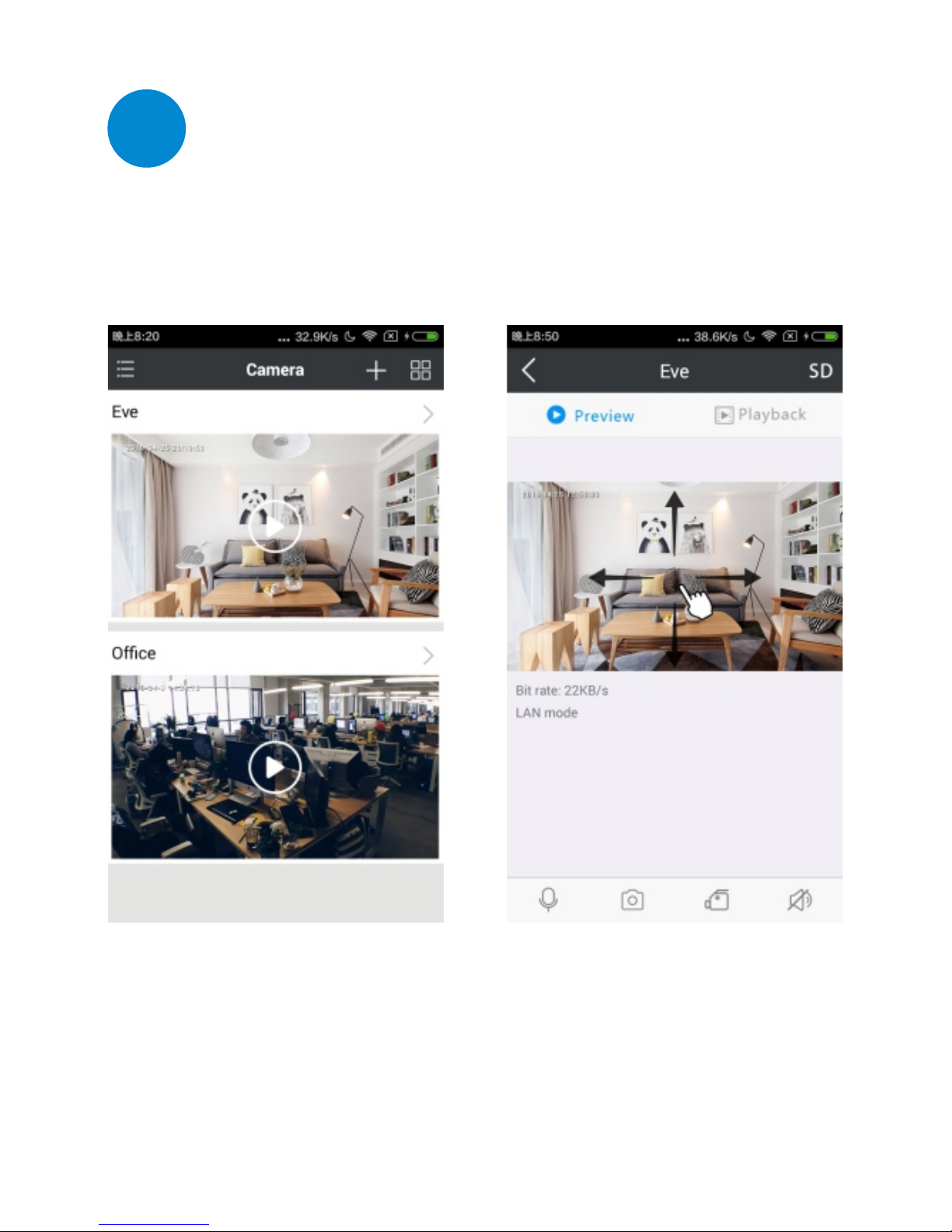
Start live play
3
Select the camera in the camera list to preview.
Pan/Tilt: right/left/up/downslide direction to check
almost 360 degree view.
Page 11
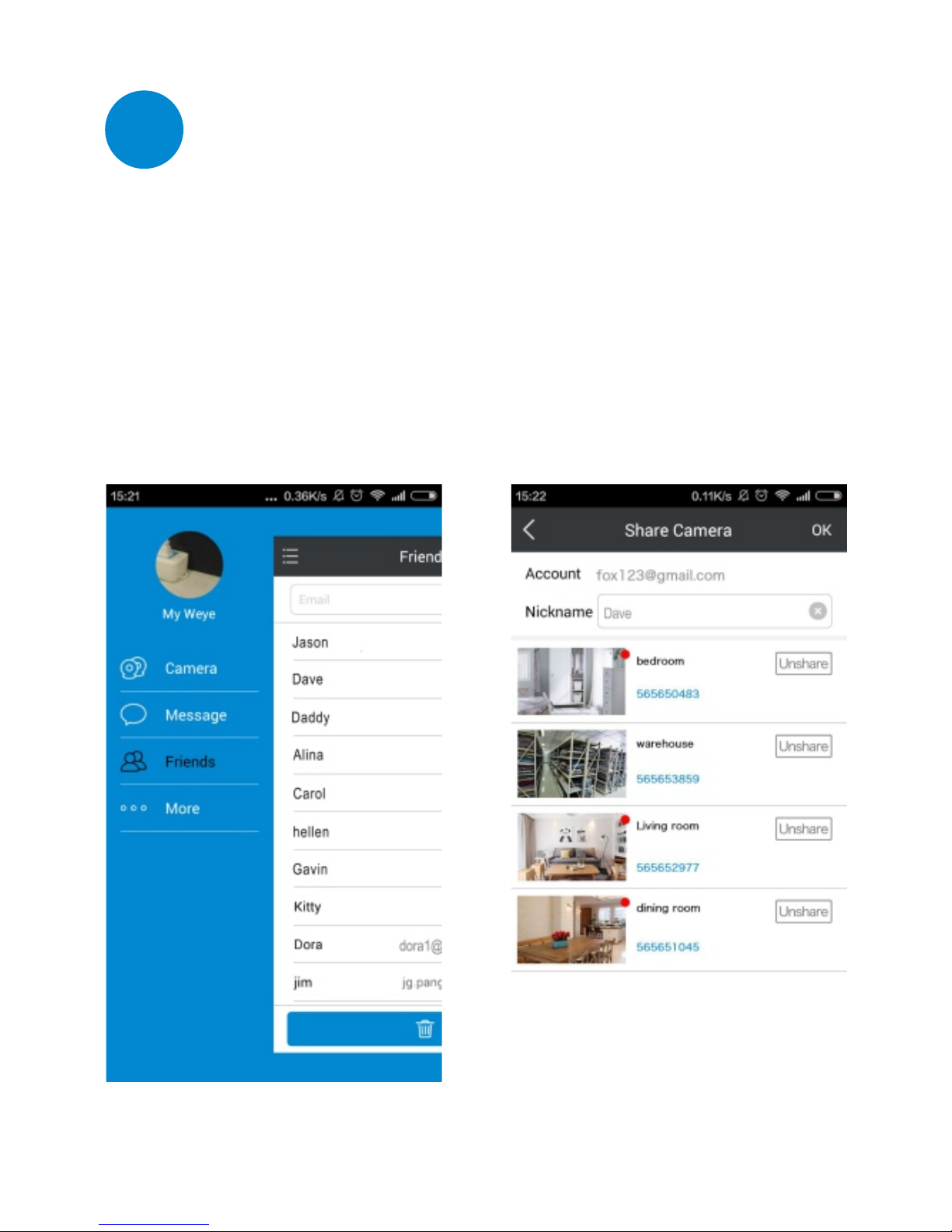
Device sharing
Share the device to your friend
4
Click on the in the home page, Select the friend Friends
which be shared, and then tap the icon to be Unshare
done.
Page 12
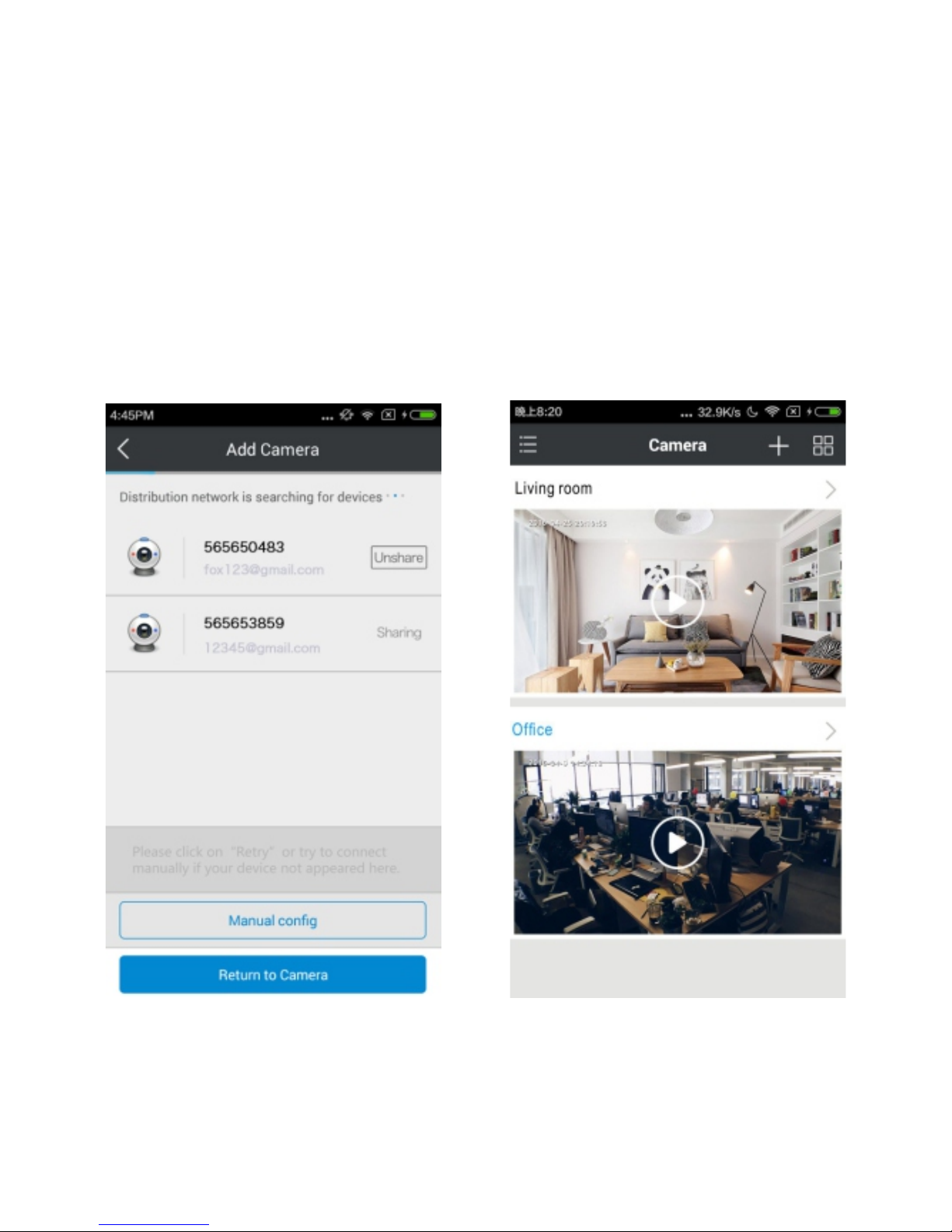
Request to share a device
Search the camera in the LAN by adding the camera,
and tap the icon to wait for the approval.Unshare
Attention: when access to device share from others, you
cannot change its settings.
Page 13
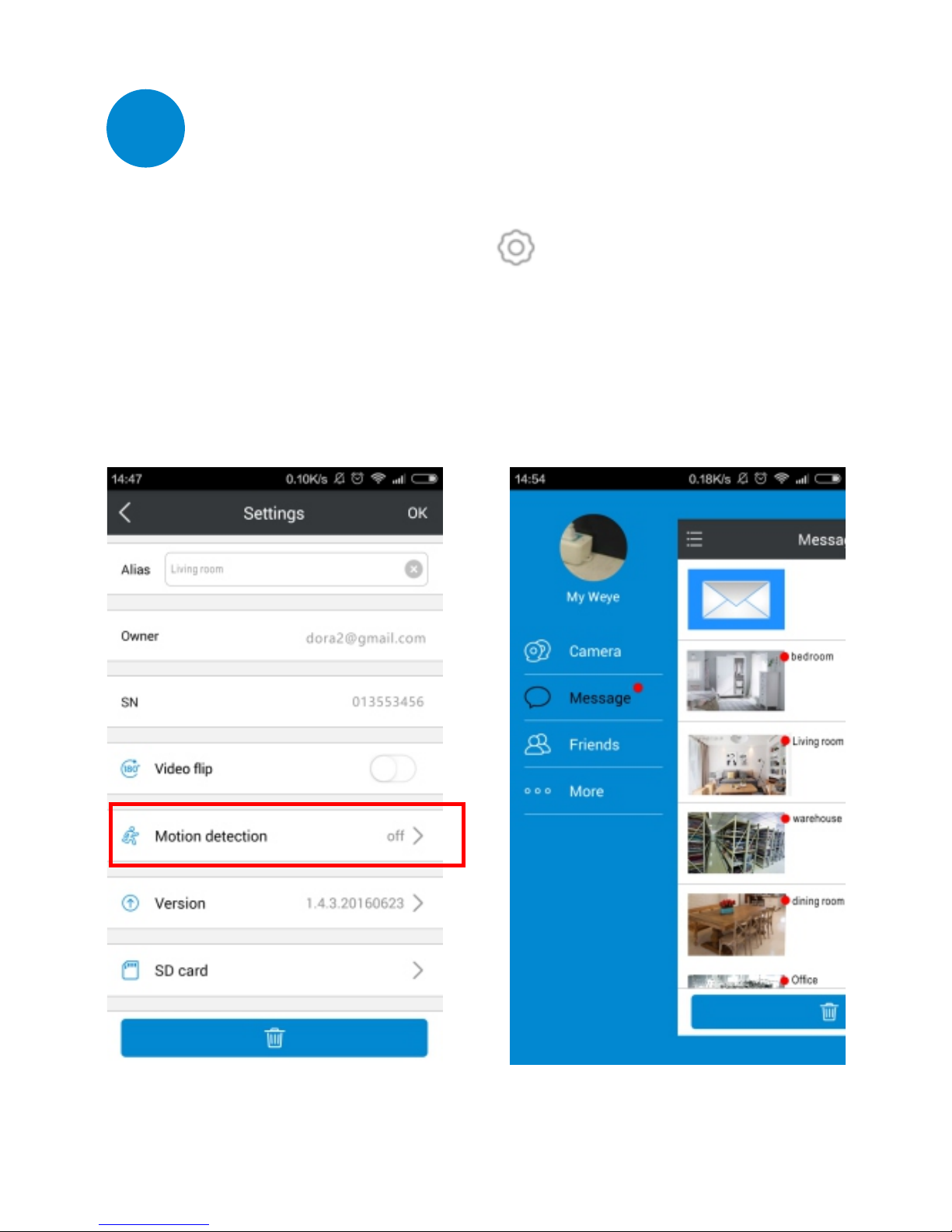
Motion detection
5
Just set by clicking the icon on the up-right of the
device and select the motion detection for low/medium
/high standard.
Page 14
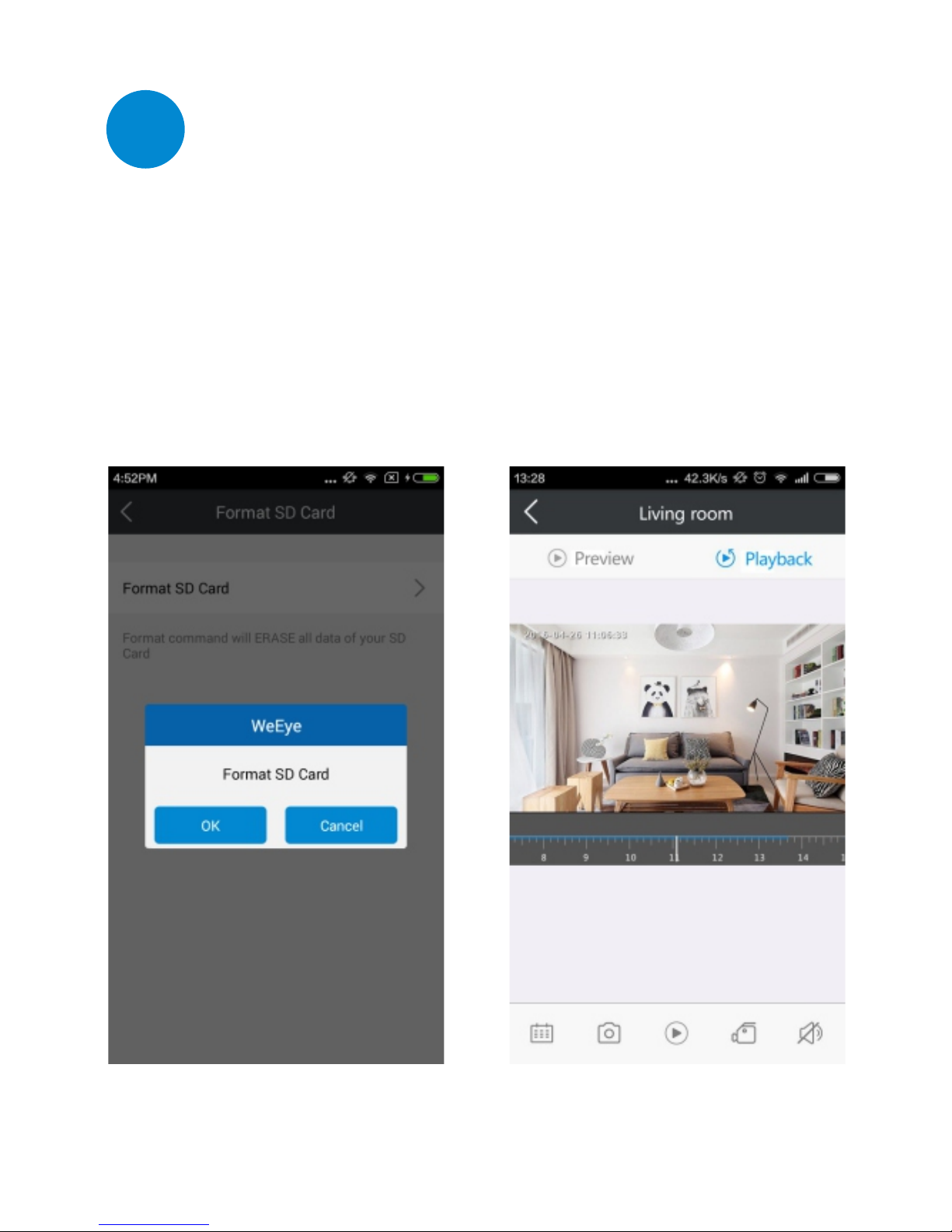
Playback
6
You can playback the video and check the moment
what you missed after it is inserted the SD card.
Slide the timeline to view the image as you like.
Page 15

Information to user
Please pay more attention to the following restrictive
clauses or exemption of liability.
1. We shall not bear any responsibility for you and the third
persons personal injury or property loss if the product is
interrupted or terminated caused by the following reasons:
Not strictly in accordance with the correct setup and usage;
In order to safeguard the interests of the state or the public;
Force majeure; By your own or the third party's problem
(including but not limited to use the third party's product,
software or components etc.)
2. We have never been to warranty by any express or implied
this product suitable for the special purpose or application.
The product is not intended for using in medical, safety
equipment or other application may lead to the danger of
life or personal injury. Any loss or liability caused by the
above purposes will be bear by yourself.
3. We are not responsible for any indirect, incidental, special
or punitive damages claim and any data or files missing.
To the maximum extent permitted, our compensation
liability does not exceed the payment amount what
you purchased
Page 16

Technical Support
when you have any question, please go to
http://www.ppstrong.com for web support. You
can also E-Mail to [email protected] for
help.
Hangzhou PPStrong Technology Co., Ltd
Add: No.91, Chutian Road, Binjiang,Hangzhou
Tel: +86-0571-56565099
Fax: +86-0571-56565100
Website: www.ppstrong.com
Email: [email protected]
Page 17

Federal Communications Commission (FCC) Interference Statement
This equipment has been tested and found to comply with the limits for a Class B digital device, pursuant to Part
15 of the FCC Rules.
These limits are designed to provide reasonable protection against harmful interference in a residential
installation. This equipment generate, uses and can radiate radio frequency energy and, if not installed and used
in accordance with the instructions, may cause harmful interference to radio communications.
However, there is no guarantee that interference will not occur in a particular installation. If this equipment does
cause harmful interference to radio or television reception, which can be determined by turning the equipment
off and on, the user is encouraged to try to correct the interference by one of the following measures:
Reorient or relocate the receiving antenna.
Increase the separation between the equipment and receiver.
Connect the equipment into an outlet on a circuit different from that to which the receiver is
connected.
Consult the dealer or an experienced radio/TV technician for help.
This device complies with Part 15 of the FCC Rules. Operation is subject to the following two conditions:
(1) This device may not cause harmful interference, and (2) this device must accept any interference received,
including interference that may cause undesired operation.
FCC Caution: Any changes or modifications not expressly approved by the party responsible for compliance could
void the user’s authority to operate this equipment.
RF exposure warning
This equipment complies with FCC radiation exposure limits set forth for an uncontrolled environment.
This equipment must be installed and operated in accordance with provided instructions and the antenna(s) used
for this transmitter must be installed to provide a separation distance of at least 20 cm from all persons and must
not be collocated or operating in conjunction with any other antenna or transmitter.
 Loading...