

Page 1
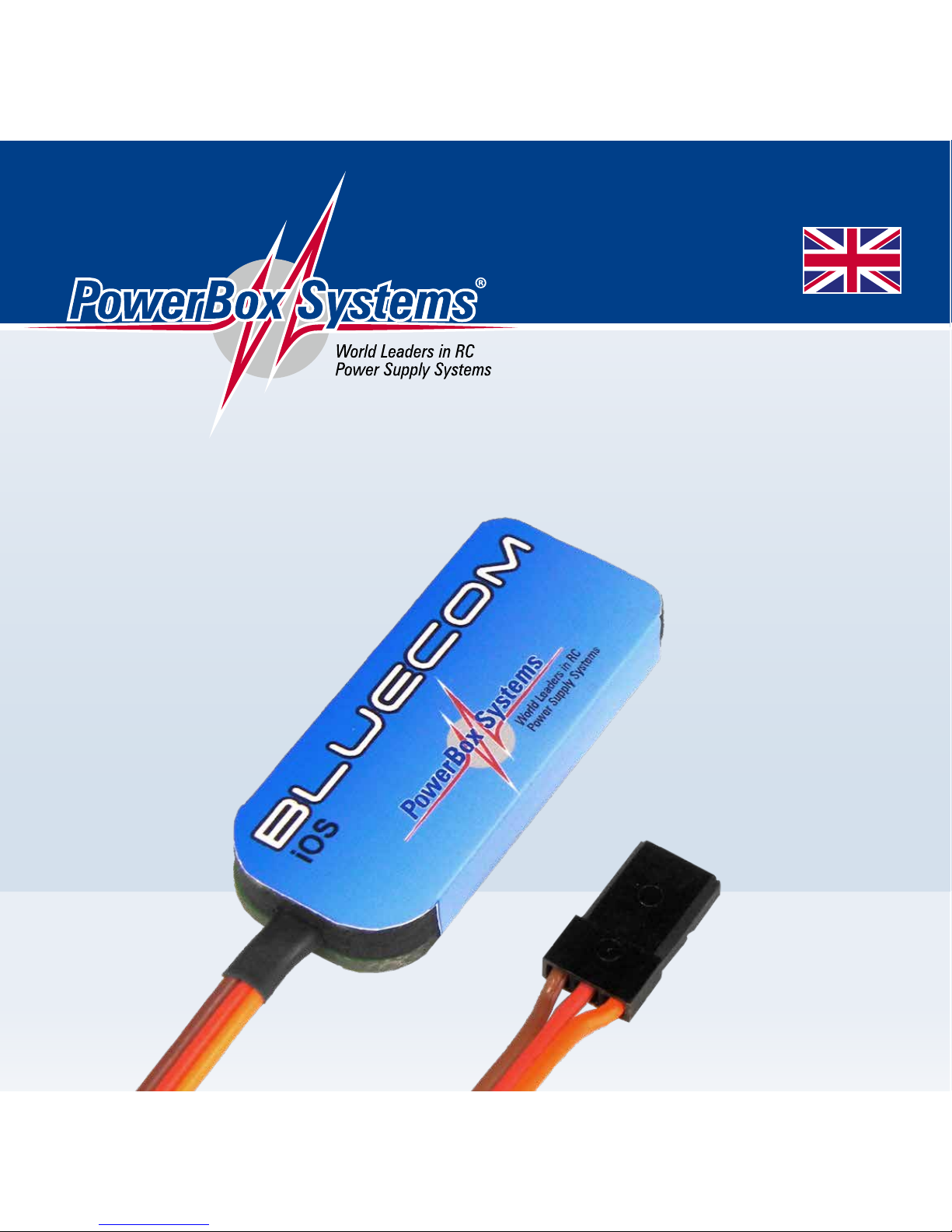
Instruction Manual
BluEcom
Page 2

2
PowerBox-Systems − World Leaders in RC Power Supply Systems
Dear customer,
we are delighted that you have selected the BlueCom adapter from our range of
products. We are confident that this unique accessories unit will bring you much
pleasure and success.
1. PRODUCT DESCRIPTION
The BlueCom adapter provides a means of setting up PowerBox products wirelessly, and of updating the software to the latest version. To use the adapter
all you have to do is simply and conveniently download the corresponding App
„PowerBox Mobile Terminal“ from Google Play and the Apple Appstore - at no
charge!
Once you have installed the App on your mobile telephone, you can plug the Blue-
Com adapter into a PowerBox device. You are then in a position to load the latest
update or alter settings.
For example, the BlueCom adapter enables you to adjust all the various settings
available on the iGyro 3e and iGyro 1e conveniently from your mobile phone.
Features:
+ Wireless Bluetooth connection to the PowerBox device
+ Updates and set-up work carried out very simply using your mobile phone or
tablet
+ Free App for Apple and Android devices
+ Automatic online update function
Page 3

www.powerbox-systems.com
3
2. INSTALLING THE APP
The App required for use with the BlueCom adapter is conveniently available for
downloading. For Android devices the download platform is “Google Play”; for iOS
devices it is the “App Store”.
Please follow the instructions on the screen to install the App.
3. CONNECTING THE ADAPTER TO THE POWERBOX DEVICE
Once you have installed the App, you can plug the BlueCom adapter into the
PowerBox device. Since the methods of connecting PowerBox devices to the
BlueCom adapter vary widely, we provide a table (below) which indicates the
socket to which the adapter should be connected, and the functions which are
supported. Some PowerBox devices require activation of the “PC-CONTROL” function in the device’s internal menu before the BlueCom adapter can be paired
(bound) to it. Other devices also require the connection of a separate power supply by means of a Y-lead.
Our Support forum includes wiring diagrams for the various devices.
Page 4

4
PowerBox-Systems − World Leaders in RC Power Supply Systems
Device Socket for
connection
Functions
supported
PC-Control
activation
required
iGyro 3e
iGyro 1e
PowerExpander
LightBox SR
SparkSwitch PRO
MicroMatch
USB Update,
all settings
No
GPS ll DATA / using Y-lead Update, all settings No
Teleconverter PowerBox Update, all settings No
iGyro SRS GPS / DATA Update Yes
Cockpit
Cockpit SRS
Competition
Competition SRS
Professional
TELE / using Y-lead Update Yes
Champion SRS TELE Update Yes
Royal SRS
Mercury SRS
TELE Update,
General Settings,
ServoMatching
Yes
Page 5
www.powerbox-systems.com
5
4. CONNECTING THE POWERBOX DEVICE TO THE MOBILE DEVICE
The App can be started once you have
plugged in the BlueCom adapter, and - if
necessary - activated the “PC-CONTROL”
function. All the following screen-shots are
typical examples; the actual display may
look slightly different depending on your
telephone and the operating system in use.
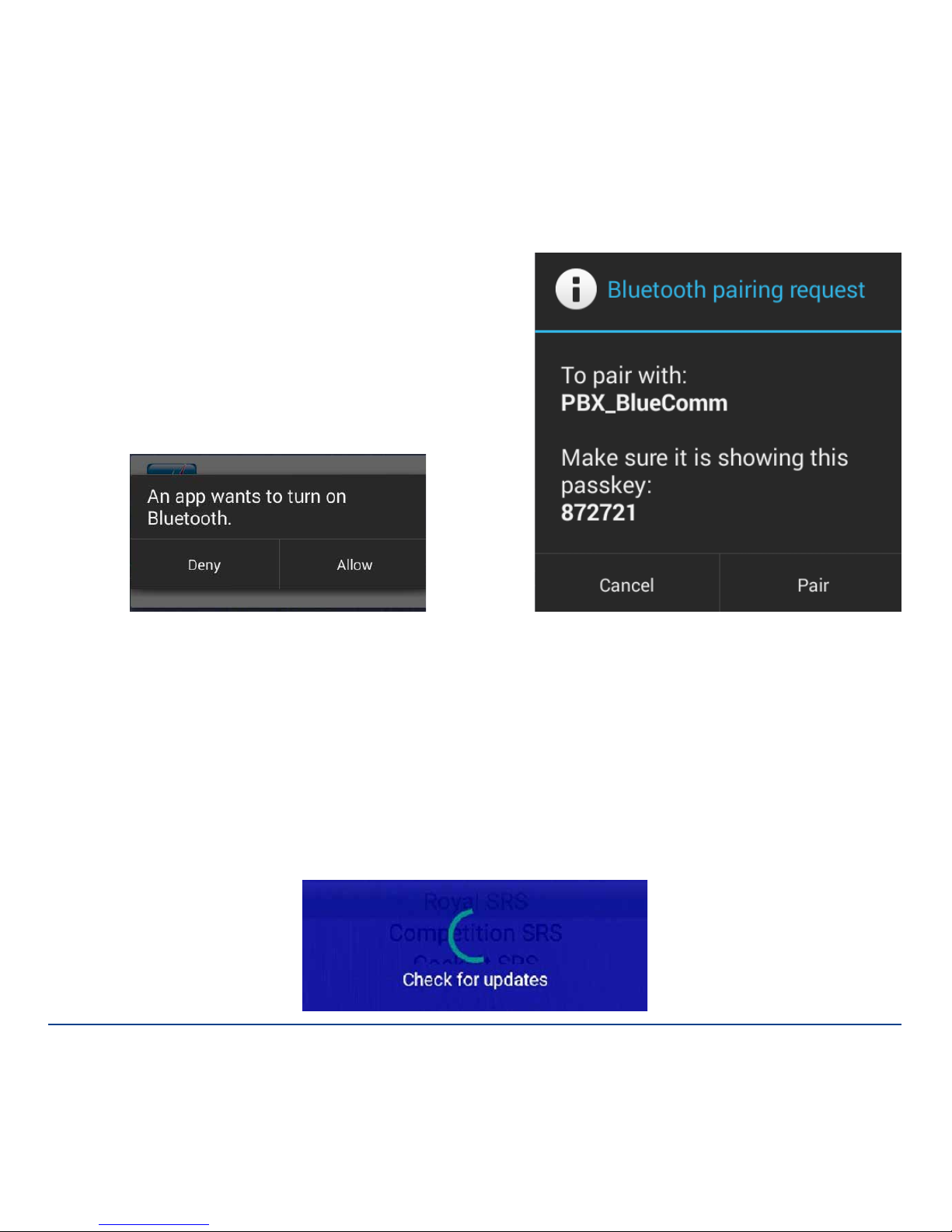
The first time you use the App with an Android device you will need to approve the
Bluetooth connection; the device then looks for the adapter automatically. The
screen displays a second query when the Bluetooth connection is found.
The procedure is automatic in the case of Apple iOS.
To ensure that the App always reflects the latest state of development, all current
updates are downloaded immediately whenever an Internet connection is present; the user can also do this at any other time if necessary:
Page 6
6
PowerBox-Systems − World Leaders in RC Power Supply Systems
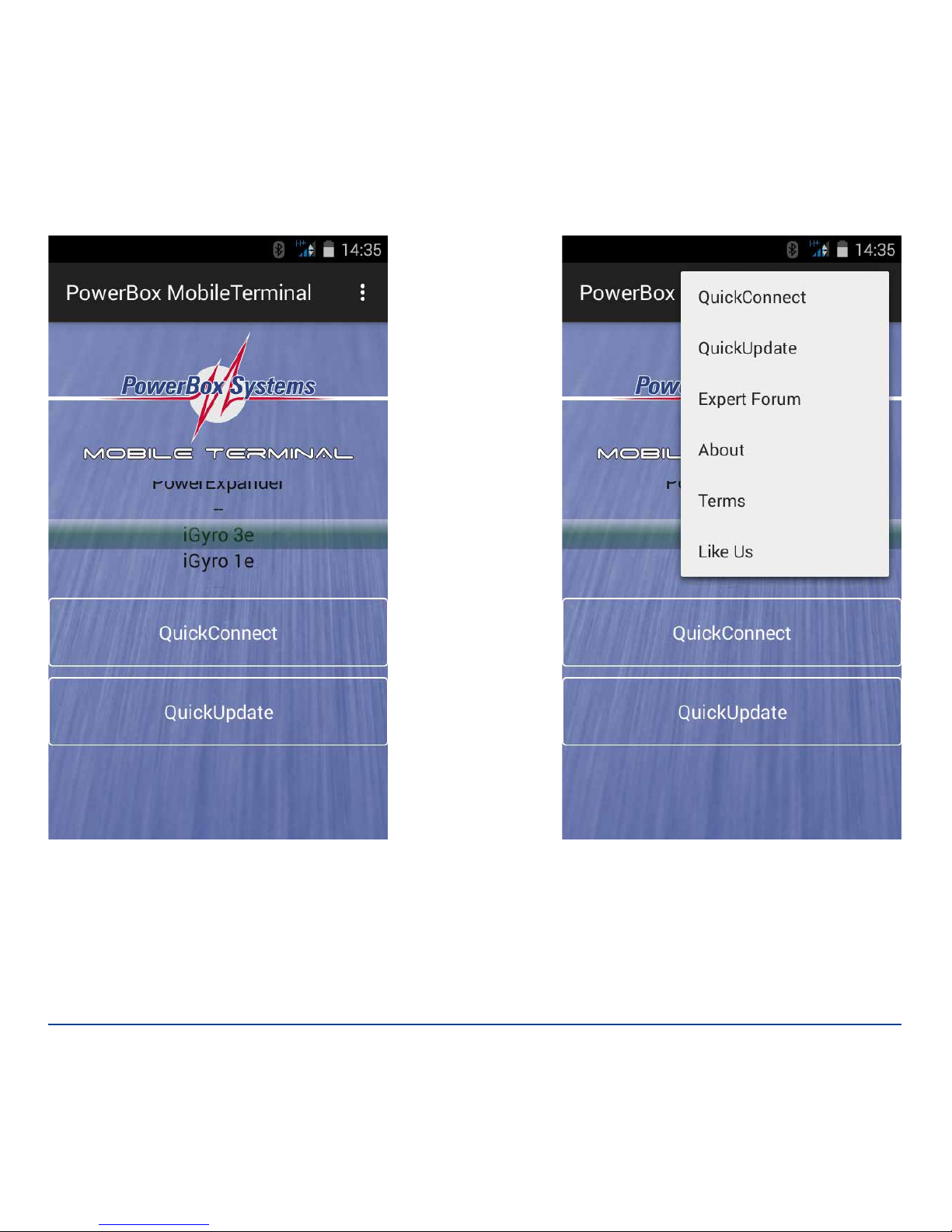
The Start screen now appears:
Start screen
All functions can also be accessed using the mobile device’s
menu function.
Page 7
www.powerbox-systems.com
7
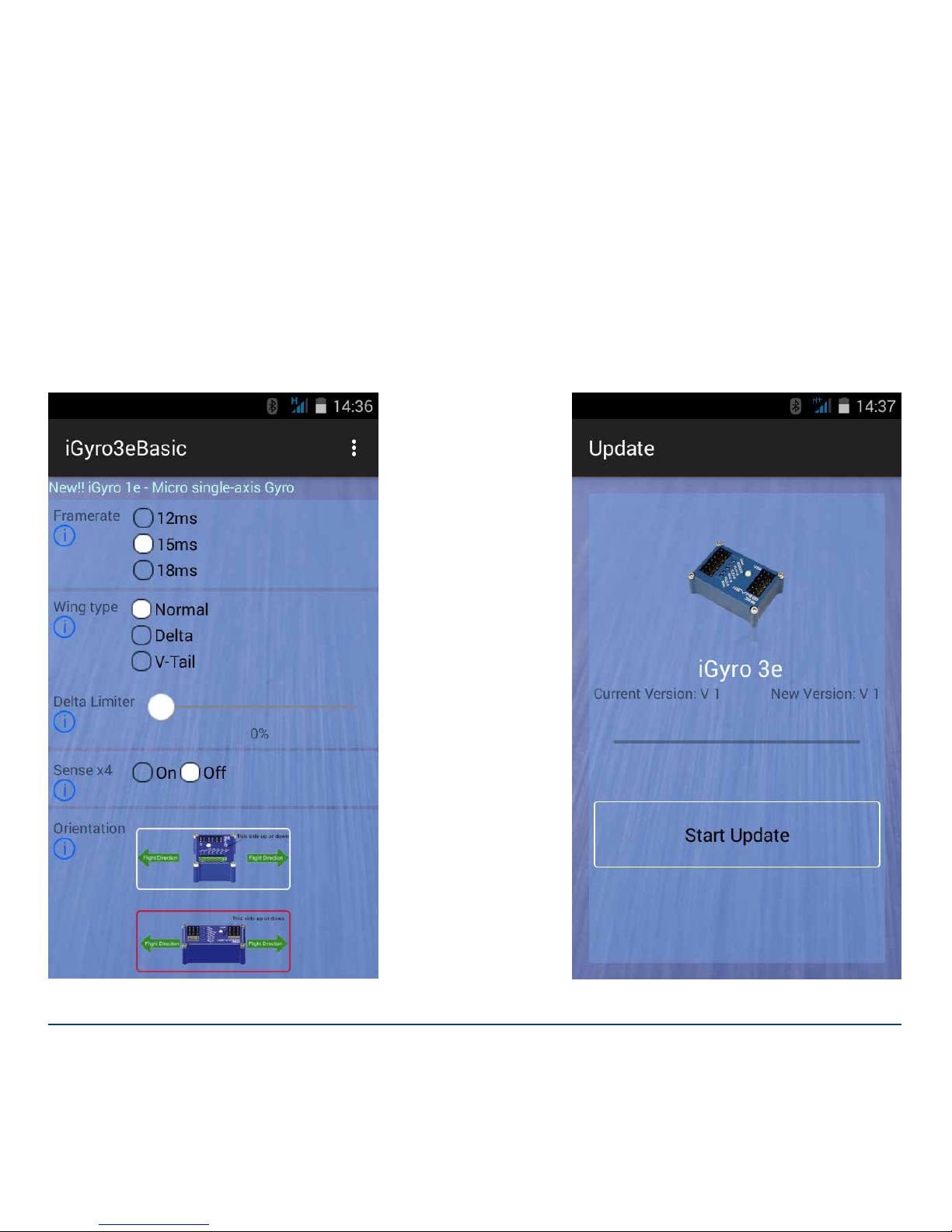
At this screen you have to select your PowerBox device. The “Quick Connect”
function or just the “Quick Update” function will be available, depending on the
range of functions offered by the PowerBox device in question.
The “Quick Connect” function is available for devices such as the iGyro 3e; this
facility enables the user to adjust the device’s parameters. The “Quick Update”
function provides a swift, simple method of updating PowerBox devices.
Set-up screen for the iGyro 3e Quick Update funktion
Page 8

8
PowerBox-Systems − World Leaders in RC Power Supply Systems
5. IMPORTANT NOTE: AFTER USING THE ADAPTER
The BlueCom adapter operates using Bluetooth on 2.4 GHz. Although the transmit
power is very low, it is possible for the BlueCom adapter to interfere with reliable
radio transmission, especially when the model is a long way from the transmitter.
For this reason it is essential to remove the BlueCom adapter once you have
completed the Update process or set-up work!
6. SPECIFICATION
Dimensions: 42 x 18 x 6 mm
Max. range 10 m
Android / WP version
FCC-ID: OC3BM1842, CE2200
Transmit power approx. 2.4 mW
iOS version
FCC-ID: OC3BM1871
Transmit power approx. 5.2 mW
7. SET CONTENTS
- BlueCom Adapter
- Y-lead
- Operationg instructions
Page 9

www.powerbox-systems.com
9
8. SERVICE NOTE
We are anxious to offer good service to our customers, and to this end we have
set up a Support Forum which deals with all queries concerning our products. This
relieves us of a great deal of work, as it eliminates the need to answer frequently
asked questions time and again. At the same it gives you the opportunity to obtain
help quickly all round the clock - even at weekends. All the answers are provided
by the PowerBox Team, guaranteeing that the information is correct.
Please use the Support Forum before you telephone us.
You can find the forum at the following address:
www.forum.powerbox-systems.com
Page 10

10
PowerBox-Systems − World Leaders in RC Power Supply Systems
SERVICE ADDRESS
PowerBox-Systems GmbH
Ludwig-Auer-Straße 5
D-86609 Donauwoerth
Germany
9. GUARANTEE CONDITIONS
At PowerBox-Systems we insist on the highest possible quality standards in the
development and manufacture of our products. They are guaranteed “Made in
Germany”!
That is why we are able to grant a 36 month guarantee on our PowerBox Blue-
Com adapter from the initial date of purchase. The guarantee covers proven material faults, which will be corrected by us at no charge to you. As a precautionary
measure, we are obliged to point out that we reserve the right to replace the unit
if we deem the repair to be economically unviable.
Repairs which our Service department carries out for you do not extend the original guarantee period.
The guarantee does not cover damage caused by incorrect usage, e.g. reverse
polarity, excessive vibration, excessive voltage, damp, fuel, and short-circuits. The
same applies to defects due to severe wear.
We accept no liability for transit damage or loss of your shipment. If you wish
to make a claim under guarantee, please
send the device to the following address,
together with proof of purchase and a description of the defect:
Page 11

www.powerbox-systems.com
11
10. LIABILITY EXCLUSION
We are not in a position to ensure that you observe our instructions regarding installation of the PowerBox BlueCom adapter, fulfil the recommended conditions
when using the unit, or maintain the entire radio control system competently.
For this reason we deny liability for loss, damage or costs which arise due to the
use or operation of the PowerBox BlueCom adapter, or which are connected with
such use in any way. Regardless of the legal arguments employed, our obligation
to pay compensation is limited to the invoice total of our products which were
involved in the event, insofar as this is deemed legally permissible.
We wish you every success using your new PowerBox BlueCom adapter.
Donauwoerth, February 2018
Page 12

PowerBox-Systems GmbH
certificated according to DIN EN ISO 9001
Ludwig-Auer-Straße 5
D-86609 Donauwoerth
Germany
+49-906-99 99 9-200
+49-906-99 99 9-209
www.powerbox-systems.com
02/2018
 Loading...