

Page 1
© 2018. The 8x8 is a registered trademark of 8x8, Inc.
Polycom® VVX® 250, 350, and 450 Business IP Phones - Quick Tips
3725-48827-001A | UC Software 5.8.0
These Quick Tips apply to VVX 250, 350, and 450
business IP phones.
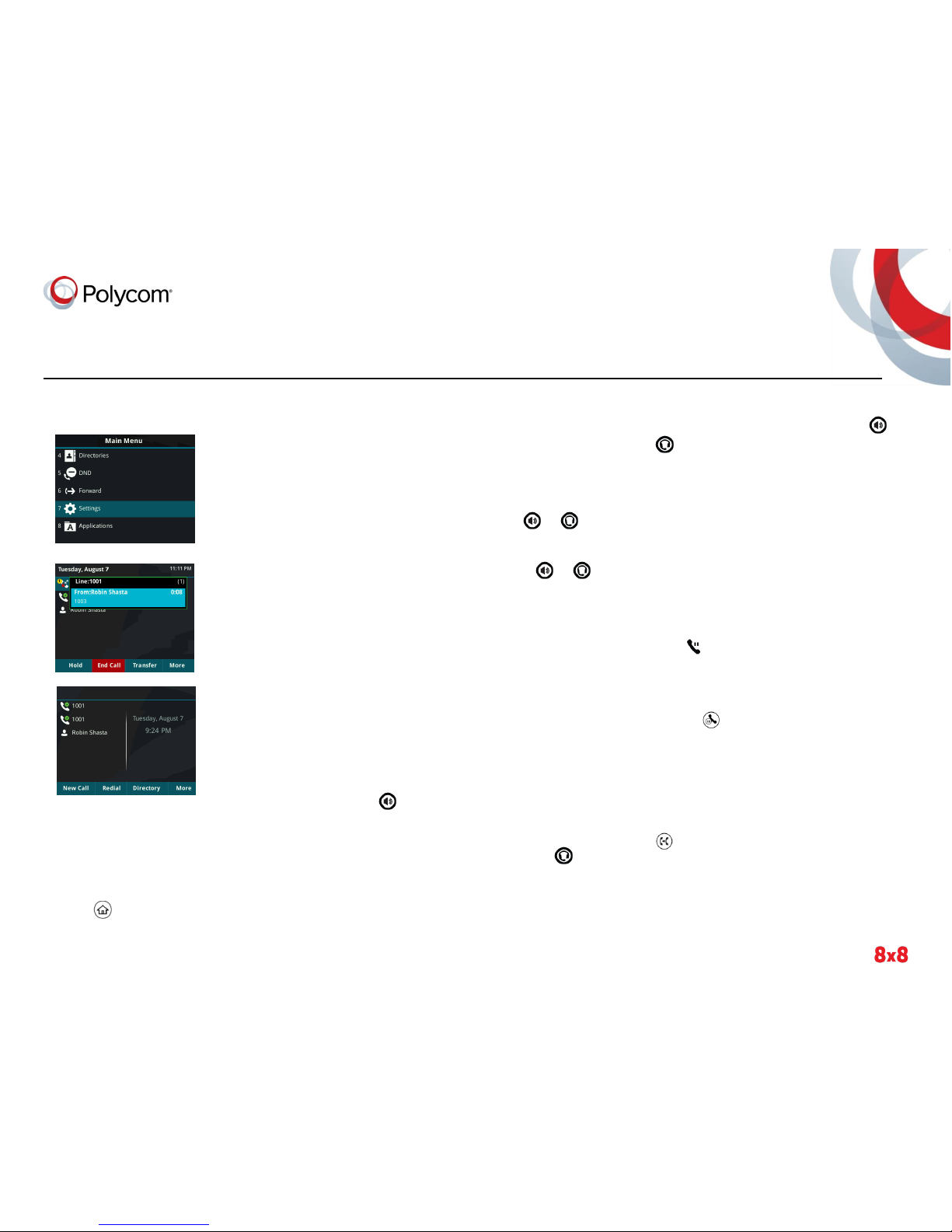
Main Menu
Screen
Displays menu
options for settings
and device
information.
Available anytime.
Calls Screen
Displays all Active
and Held calls.
Available when you
have an Active or
Held calls in
progress.
Lines
Screen
Displays phone lines,
favorites, and
conditional soft keys.
Available anytime.
Switch Between Phone Screens
You can view any screen on your phone from other
screens.
To switch between screens:
» Press to view the Main Menu, Lines, or Calls
screens.
Place Calls
You can only have one active call in progress on
your phone.
To place a call:
» Do one of the following:
➢ Pick up the handset, press or , enter
the phone number, and press Send.
➢ Enter the phone number, press Dial, and
pick up the handset, or press or .
➢ Press a line key, enter the phone number,
and select Send.
➢ From the Main Menu screen, select New
Call, enter the phone number, and press
Send.
Answer Calls
You can answer calls using the handset,
speakerphone, or a headset.
To answer a call:
» Do one of the following:
➢ To answer with the speakerphone, press
, or press the Answer soft key.
➢ To answer with the handset, pick up the
handset.
➢ To answer with a headset, press .
End Calls
You can only end active calls. To end a held call,
you must resume the call first.
To end an active call:
» Replace the handset in the cradle, press or
, or press the End Call soft key.
To end a held call:
1 Highlight the held call, and press Resume.
2 Press End Call.
Hold and Resume Calls
You can have multiple calls on hold, and resume a
call at any time.
To hold a call:
» Highlight the call, and press the Hold soft key or
press .
To resume a call:
» Highlight the call and press the Resume soft key
or press .
Transfer Calls
You can transfer calls to any contact.
To transfer a call:
1 Press and hold the Transfer soft key, or press
.
2 Choose Blind or Consultative. By default,
Consultative is enabled.
3 Dial a number, or choose a contact.
If you chose Blind, the call is transferred
immediately.
Page 2

© 2018. The 8x8 is a registered trademark of 8x8, Inc.
4 If you chose Consultative, press the Transfer
soft key or press after speaking with your
contact.
Forward Calls
You can forward an incoming call to a contact, or
forward all incoming calls to a contact.
To forward an incoming call:
1 From the Incoming Call screen, select
Forward.
2 Enter your contact’s number, and select
Forward.
To forward all incoming calls:
1 From the Main Menu screen, select Forward.
2 If you have more than one line, select a line.
3 Choose either Always, No Answer, or Busy.
4 Enter a contact’s number, and select Enable.
If you chose No Answer, you can enter the
number of rings before the call is forwarded.
To disable call forwarding:
1 From the Main Menu screen, select Forward.
2 If you have more than one line, select a line.
3 Choose your forwarding type, and select
Disable.
Initiate a Conference Call
You can initiate a three-way conference call with
your contacts.
To initiate a conference call:
1 Call a contact.
2 Select Conference (Confrnc), and call your
next contact.
3 When your contact answers, select
Conference.
You can also join an active and held call into a
conference call.
To join two calls into a conference call:
» From the Calls screen, select Join.
Manage Conference Calls
When you initiate a conference call, you can place
the conference on hold.
To manage all conference participants:
» Select Hold to hold all participants.
View Recent Calls
You can view placed, received, and missed calls.
To view recent calls:
» From the Main Menu screen, select Directories
> Recent Calls.
View the Contact Directory
You can view and add contacts to the Contact
Directory.
To view the Contact Directory:
» From the Main Menu screen, select Directories
> Contact Directory.
To add a contact to the Contact Directory:
1 From the Contact Directory, select Add.
2 Enter the contact’s information, and select
Save.
You can enter a number between 1 and 99 in the
Favorite Index field to make a contact a favorite.
Listen to Voicemail
When you have new voicemail messages, the
messages icon displays on your line.
To listen to voicemail:
1 From the Main Menu screen, select Messages
or press .
2 Select Message Center > Connect.
3 Follow the prompts.
Enable Do Not Disturb
You can enable Do Not Disturb when you do not
want to receive calls.
To enable or disable Do Not Disturb:
» From the Main Menu screen, select DND.
Set Ringtones
You can set ringtones for incoming calls from all
contacts and from individual contacts.
To set a ringtone for incoming calls:
1. From the Main Menu screen, select Settings >
Basic > Ring Type, and select a ringtone.
2. If there are multiple lines on your phone, select
a line.
3. Select Play to hear the ringtone.
 Loading...