

Page 1
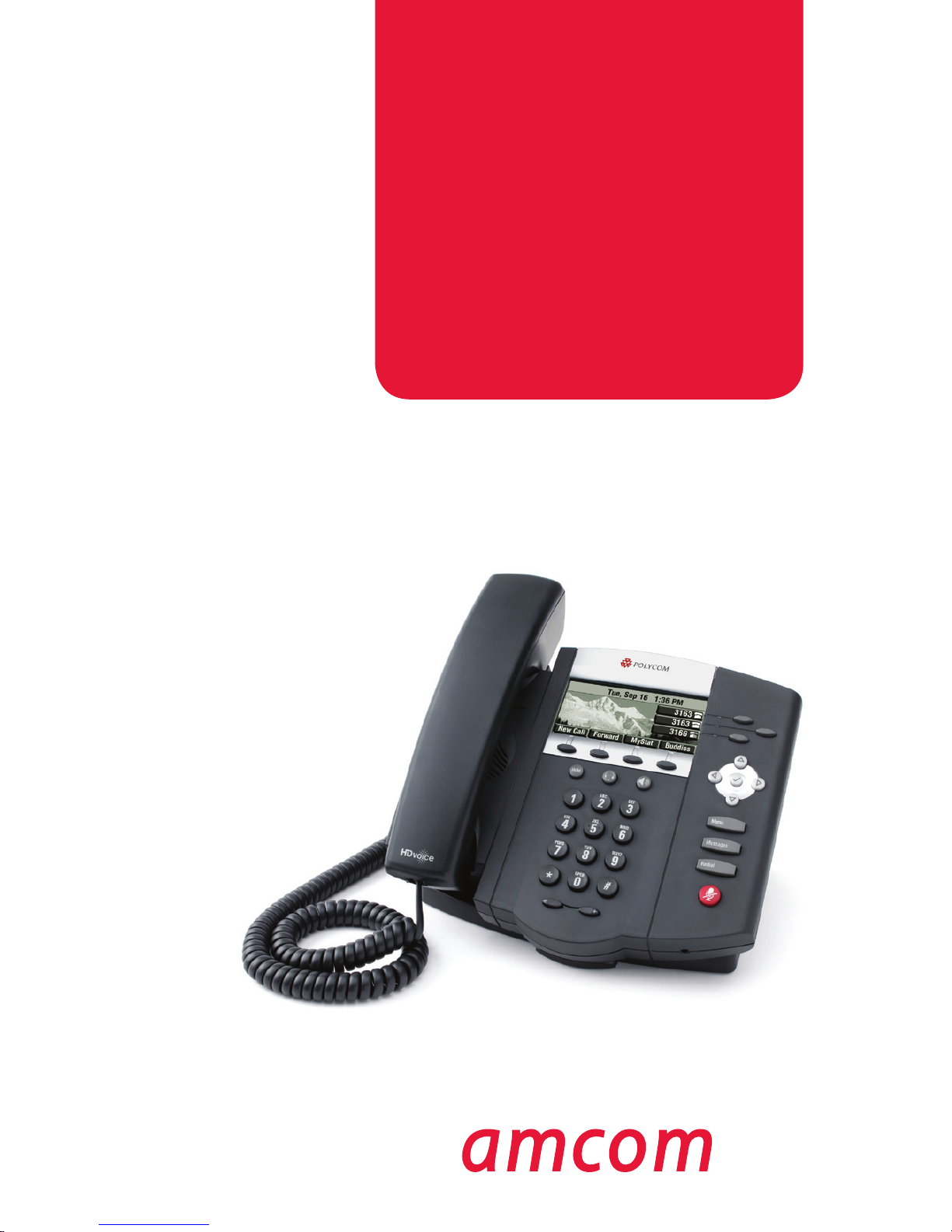
Quickstart Guide
Polycom 400 Series
Page 2
Quickstart Guide | Polycom 400 Series Quickstart Guide | Polycom 400 Series
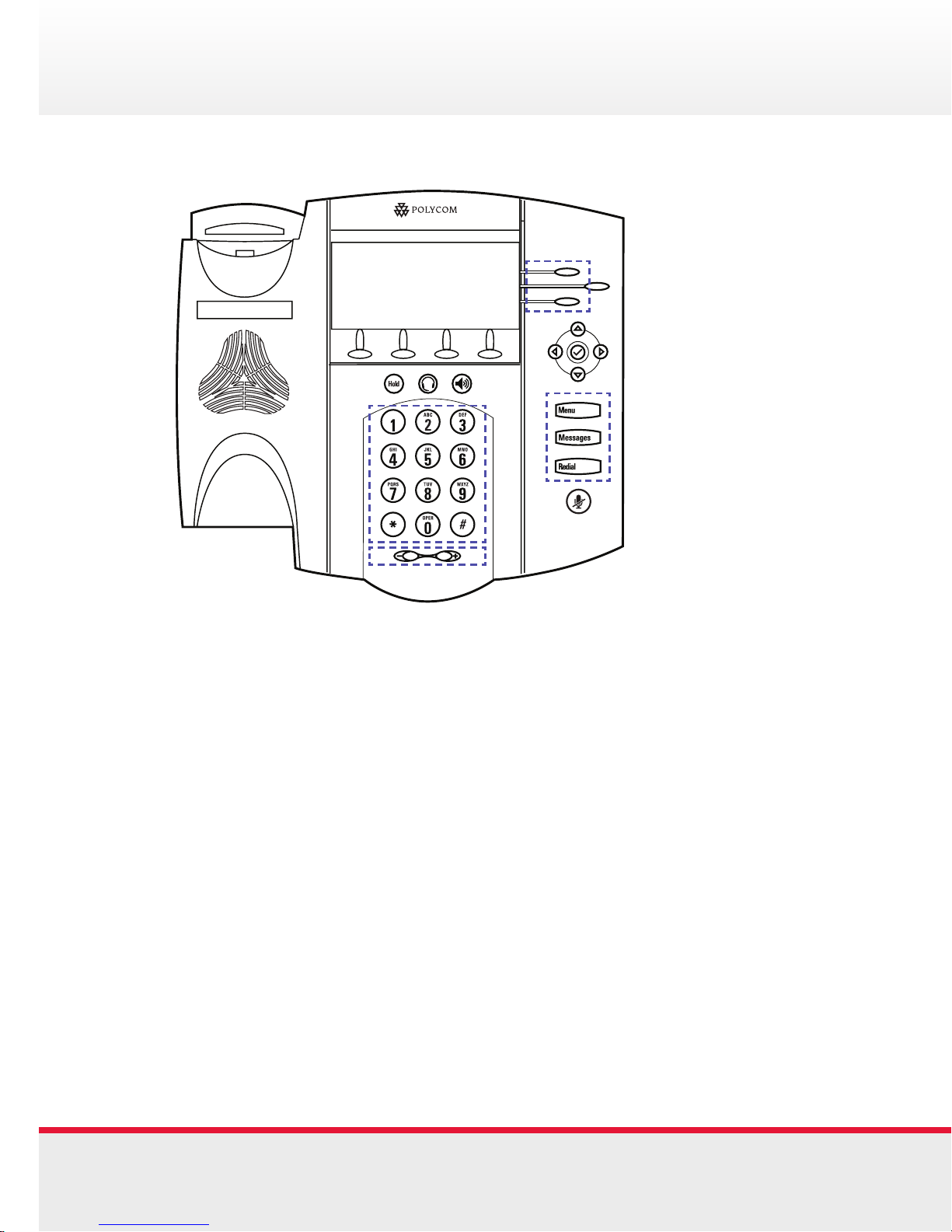
1. Message Waiting Indicator
2. Line Indicators
3. Line/Speed Dial Key
4. Arrow Keys
5. Speaker Phone
6. Feature Keys
7. Microphone Mute
8. Hands-free Microphone
9. Volume Keys
10. Dial Pad
11. Headset
12. Hold
13. Speaker
14. Soft Keys
15. Graphic Display
16. Hook switch
Speed Dial
Adding a Speed Dial Number:
• Press Menu
• Select Features > Contact Directory
• Scroll to highlight the contact.
You can also use the * key to page up and the # key to
page down
• Press the Edit soft key
• Enter the next available speed dial index.
• Press the Save or Cancel soft keys to accept or cancel changes
• Press Menu to return to the idle screen
Assigning to Speed Dial Key:
• Press and hold an unassigned key
A new empty entry in the contact directory is automatically
opened allowing contact information to be added.
• Press the More soft key, and then press the Add soft key
• (Optional.) Enter contact information
• Change the Speed Dial Index field
The index can be any value between the next available index
value and the maximum (value of 9999).
• Press the Save soft key
• Press Menu to return to the idle screen
1 10
Polycom 400 Series | Features
16
1
15
2
3
4
5
6
7
8
9
10
11
12
13
14
Page 3

Basic Phone Features
Place a call:
Use any of the following approaches to place a call:
• Dial the number then lift the handset
• Using the speaker phone
• Using the headset
Answer a call:
• Lift the handset
• Using the speaker phone
• Using the headset
End a call:
To end a call, do one of the following steps:
• Press the End Call soft key
• Replace the handset
• Press the speaker and/or headset button
Redialing the last call placed:
• Press the Redial button
Page 4

Quickstart Guide | Polycom 400 Series Quickstart Guide | Polycom 400 Series
Basic Phone Features
Mute a call:
During a call, press Mute. The Message Waiting Indicator
turns red and a microphone on the screen indicates that the
other party (or parties) cannot hear you.
Microphone Mute applies to all modes: Handset, Headset,
and Hands-free Speakerphone. You can still hear all other
parties while mute is enabled.
To turn off Microphone Mute, press Mute again.
View missed calls:
• Press Menu, and then select Features > Call Lists
> Missed Calls
• Press Menu to return to the idle screen
Adding a Contact:
• Press Menu
• Select Features > Contact Directory
• Press the More soft key, then press the Add soft key.
• Enter first and/or last name of the contact from the keypad
• Enter a contact number
• (Optional.) Change the Speed Dial Index.
It is automatically assigned to the next available index value
• (Optional.) Change the Ring Type and Divert Contact
• Press the Save soft key.
• Press Menu to return to the idle screen
Call Forward Options
Forward calls to another number:
• Dial *72 then enter the number of the destination
• To disable, dial *73
Forward calls, when busy, to another number:
• Dial *90 then enter the number of the destination
• To disable, dial *91
Forward unanswered calls to another number:
• Dial *92 then enter the number of the destination
• To disable, dial *93
Note: You will be notified by the voice prompt when each
function has completed successfully. If you have previously
entered a destination phone number for that call forward
type, you do not need to re-enter it each time the call forward
option is enabled.
3 8
Page 5

Basic Phone Features
Calling a Contact:
• In the Home screen, press the Contacts soft key
• Navigate to the contact you want to call
• Press the Call button
Managing a Contact:
• Press Menu. Select Features > Contact Directory
• Save • Edit
• Dial • Search
• Delete
Place call on hold:
• To place a call on hold, press the Hold button while on a
call or Hold soft key. The hold icon will display on the line
key label. Press Hold again or the Resume soft key to
retrieve the call
Page 6

Quickstart Guide | Polycom 400 Series Quickstart Guide | Polycom 400 Series
Conference Calls
Place a conference call:
• Place the first call
• Press the Confrnc soft key to create a new call (The active
call is placed on hold)
• Call the second party
• Press the Call button
• When the second party answers, press the More soft key,
and then the Confrnc soft key again to join all parties in the
conference
• Press Confrnc soft key to add another party to the conference,
the first and second party are put on hold.
• Call the third party
• After the third party answers, press the More soft key, and
then the Confrnc soft key again to join all parties in the
conference.
To end a conference call:
• From the Active Conference page, press the EndCall soft key
or hang up.
• The other parties will continue to be connected
Transferring Calls
Transferring a call:
• You can transfer calls in two ways:
• Blind Transfer - Transfer a call to another party
without waiting for the other party to answer
• Consultative Transfer - Transfer a call to another
party after speaking to the other person
To perform a blind transfer:
• During a call, press the Trnsfer soft key.
• Press the Blind soft key
• Enter the number to which you want to transfer the call
To perform a consultative transfer:
• During a call, press the Trnsfer soft key. The active call is
placed on hold
• Enter the number to which you want to transfer the call
• As soon as you hear the ring-back sound or after the party
answers (and you speak to the party), press the Trnsfer soft
key.
• You can talk privately to the party to which you are
transferring the call before the transfer is completed.
If you are using a handset, the transfer can be completed by
putting the handset on the cradle.
You can cancel the transfer before the call connects by
pressing the Cancel soft key.
5 6
Page 7

Transferring Calls
Transferring a call:
• You can transfer calls in two ways:
• Blind Transfer - Transfer a call to another party
without waiting for the other party to answer
• Consultative Transfer - Transfer a call to another
party after speaking to the other person
To perform a blind transfer:
• During a call, press the Trnsfer soft key.
• Press the Blind soft key
• Enter the number to which you want to transfer the call
To perform a consultative transfer:
• During a call, press the Trnsfer soft key. The active call is
placed on hold
• Enter the number to which you want to transfer the call
• As soon as you hear the ring-back sound or after the party
answers (and you speak to the party), press the Trnsfer soft
key.
• You can talk privately to the party to which you are
transferring the call before the transfer is completed.
If you are using a handset, the transfer can be completed by
putting the handset on the cradle.
You can cancel the transfer before the call connects by
pressing the Cancel soft key.
Page 8

Quickstart Guide | Polycom 400 Series Quickstart Guide | Polycom 400 Series
Volume Sound & Ringtones
Adjust the Volume:
Press the Volume Keys to adjust the receiver volume during
a call. Pressing these keys in the idle state adjusts the ringer
volume
Using Ringtones:
To change the incoming ring type:
• Press Menu
• Select Settings > Basic > Ring Type
• If multiple lines are configured on your phone, first select
the line to change from the list using the arrow keys
• Scroll to select the desired ring type
To hear the selected ring type, press the Play soft key
• Press the Select soft key to change to the selected ring type
• Press Menu to return to the idle screen
Basic Phone Features
Calling a Contact:
• In the Home screen, press the Contacts soft key
• Navigate to the contact you want to call
• Press the Call button
Managing a Contact:
• Press Menu. Select Features > Contact Directory
• Save • Edit
• Dial • Search
• Delete
Place call on hold:
• To place a call on hold, press the Hold button while on a
call or Hold soft key. The hold icon will display on the line
key label. Press Hold again or the Resume soft key to
retrieve the call
7 4
Page 9

Call Forward Options
Forward calls to another number:
• Dial *72 then enter the number of the destination
• To disable, dial *73
Forward calls, when busy, to another number:
• Dial *90 then enter the number of the destination
• To disable, dial *91
Forward unanswered calls to another number:
• Dial *92 then enter the number of the destination
• To disable, dial *93
Note: You will be notified by the voice prompt when each
function has completed successfully. If you have previously
entered a destination phone number for that call forward
type, you do not need to re-enter it each time the call forward
option is enabled.
Page 10

Quickstart Guide | Polycom 400 Series Quickstart Guide | Polycom 400 Series
VoiceMail
Setting up Voicemail:
• Dial *62
• Enter the default password: 0000# or 1234#
• Change the password to your personal four digit password
and then repeat it to confirm
• Record your name and follow the prompts
Customise Greetings:
• To access your mailbox, press 1
• To record your name, press 3
• To change your password, press 8
Selecting mailbox option:
• To listen to messages, press 1
• To save the message, press #
• To erase/delete the message, press 7
• To repeat the message, press 2
• To play the message again, press 5
• To listen to the next message, press 6
• To call back the caller, press 8
• To change the “busy” greeting, press 2
• To record and activate a new “unavailable” greeting, press 3
• To compose and send a new message, press 5
• To delete all messages, press 7
Basic Phone Features
Place a call:
Use any of the following approaches to place a call:
• Dial the number then lift the handset
• Using the speaker phone
• Using the headset
Answer a call:
• Lift the handset
• Using the speaker phone
• Using the headset
End a call:
To end a call, do one of the following steps:
• Press the End Call soft key
• Replace the handset
• Press the speaker and/or headset button
Redialing the last call placed:
• Press the Redial button
9 2
Page 11

Speed Dial
Adding a Speed Dial Number:
• Press Menu
• Select Features > Contact Directory
• Scroll to highlight the contact.
You can also use the * key to page up and the # key to
page down
• Press the Edit soft key
• Enter the next available speed dial index.
• Press the Save or Cancel soft keys to accept or cancel changes
• Press Menu to return to the idle screen
Assigning to Speed Dial Key:
• Press and hold an unassigned key
A new empty entry in the contact directory is automatically
opened allowing contact information to be added.
• Press the More soft key, and then press the Add soft key
• (Optional.) Enter contact information
• Change the Speed Dial Index field
The index can be any value between the next available index
value and the maximum (value of 9999).
• Press the Save soft key
• Press Menu to return to the idle screen
Page 12

amcom.com.au
All contents are copyright © 2012, Amcom, All rights reserved.
 Loading...