

Page 1
Quickstart Guide
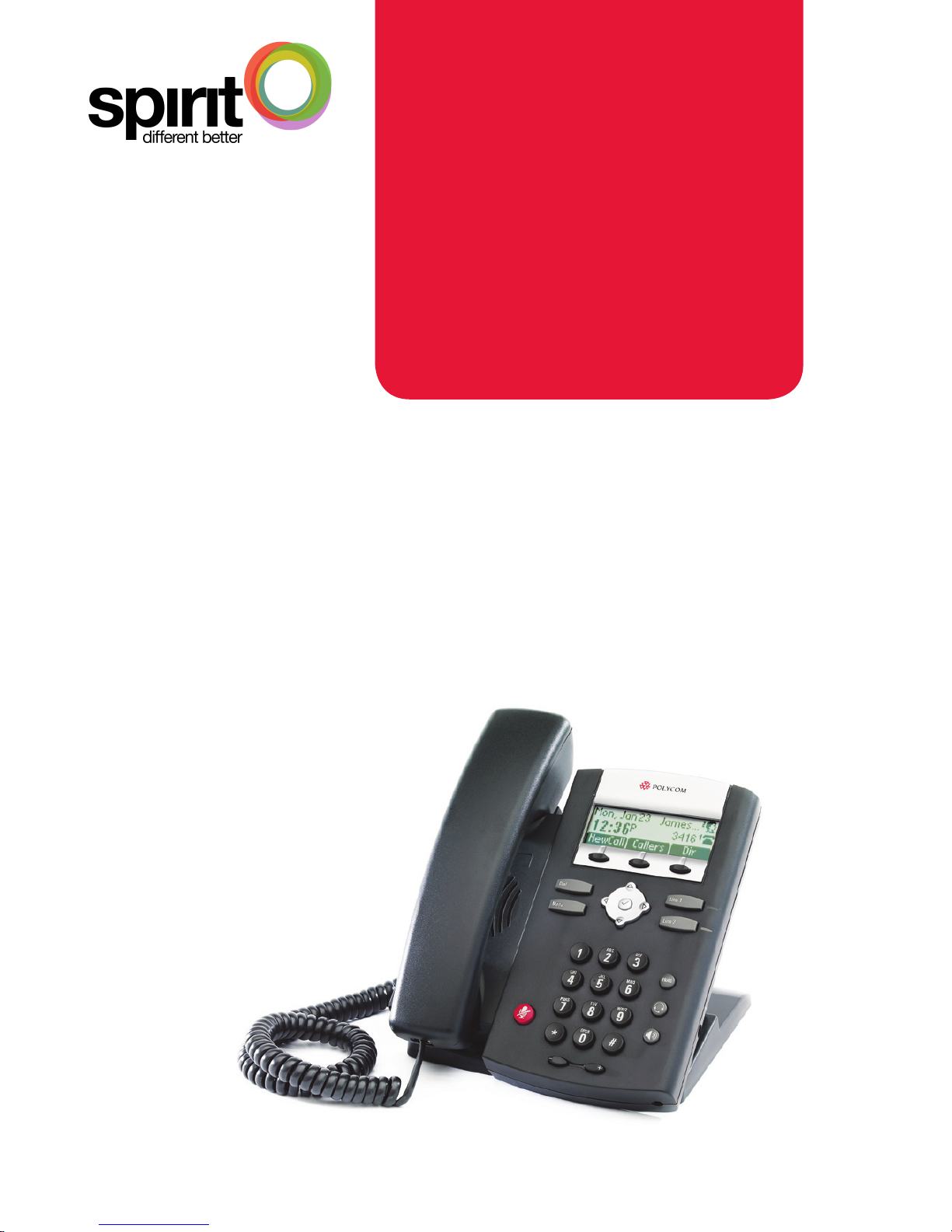
Polycom 300 Series
Page 2
Quickstart Guide | Polycom 300 Series Quickstart Guide | Polycom 300 Series
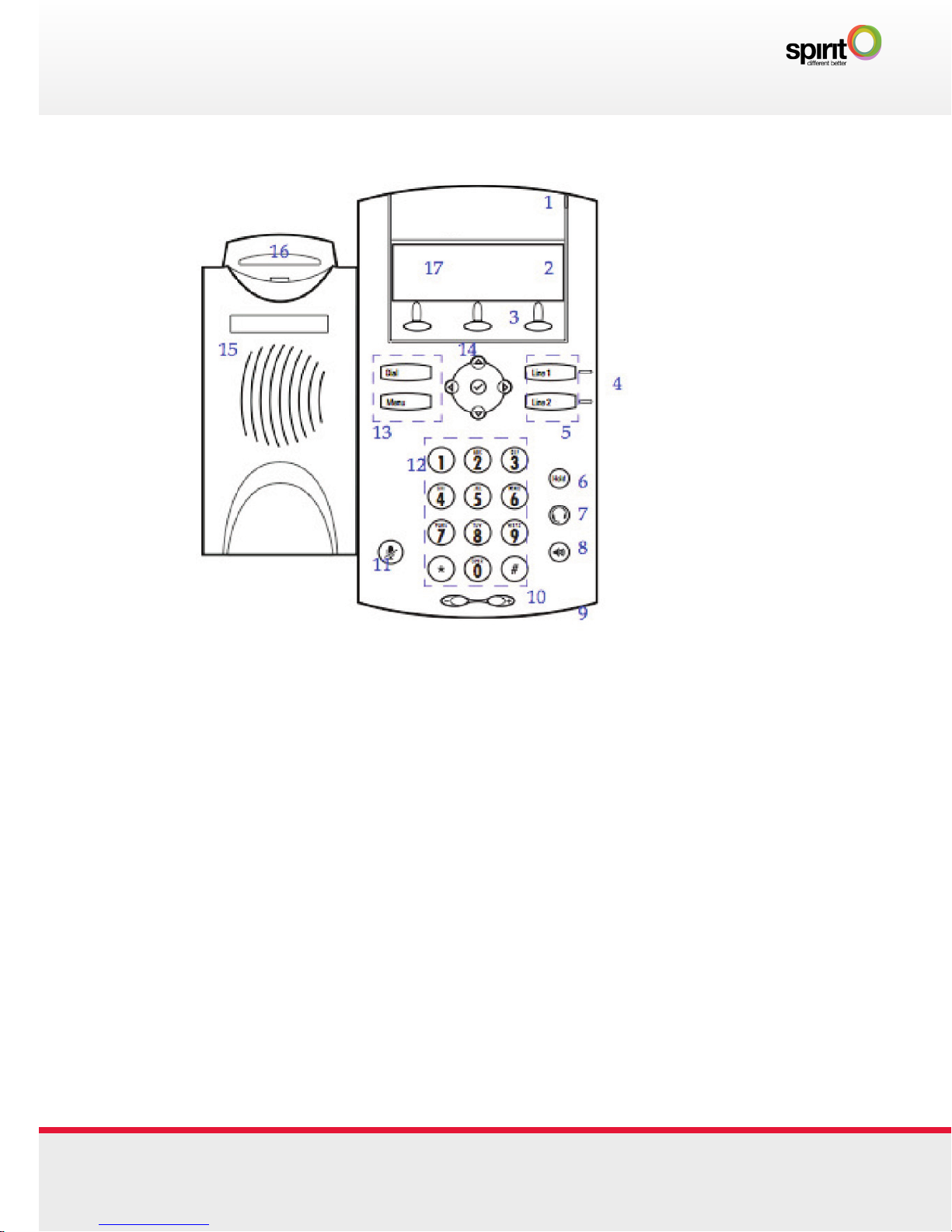
Polycom 300 Series | Features
1. Message Waiting Indicator
2. Line Icons
3. Soft Keys
4. Line Indicators
5. Line Keys
6. Hold
7. Headset
8. Speakerphone
9. Hands-free Microphone
10. Volume Keys
11. Microphone Mute
12. Dial Pad
13. Feature Keys
14. Display Control Keys
15. Speaker
16. Hook switch
17. Graphic Display
Speed Dial
Adding a Speed Dial Number:
• Press Directories soft key
• Select Contact Directory and press Select soft key,
• Press Add soft key, enter details (First name, last name,
Contact = number, label = number / name to display on screen)
• Press Save soft key
1 10
Page 3

Basic Phone Features
Place a call:
Use any of the following approaches to place a call:
• Dial the number then lift the handset
• Press the Line button, then dial
• Press the Speaker button, then dial
• Press the NewCall softkey, then dial
• If you are using a headset, press the Headset button, then dial
• If you have selected a number from a directory, press the
Dial softkey
Answer a call:
• Lift the handset
• If you are using a headset, press the Headset button
• To use the speakerphone, press the Speaker button
• Press the Line 1 or Line 2 button
• Press the Answer softkey
End a call:
• Hang up the handset
• If you are using a headset, press the Headset button or the
EndCall softkey
• If you are using the speakerphone, press the Speaker button
or the EndCall softkey
Page 4

Quickstart Guide | Polycom 300 Series Quickstart Guide | Polycom 300 Series
Basic Phone Features
Mute a call:
Press the Mute button. To disengage mute, press Mute again.
Note: The Mute symbol will show on the display screen when
it is engaged.
Redial a number:
To redial the most recently dialed numbers press the Dial
button to show the numbers on the display screen, then press
Dial again to initiate the call.
Note: You can scroll up and down through the list of recently
dialed numbers, then press Dial to initiate the call.
View missed calls:
If your phone display says new missed call press the Callers
softkey to see the list of missed calls.
Dial from a directory menu:
• Press Menu to open the main menu
• Press 1 to access the Features list
• Press 5 to access the Call Lists
• View received calls by pressing 1, view placed calls by
pressing 2
• To dial any of these numbers from the menu press Dial
Call Forward Options
Forward calls to another number:
• Dial *72 then enter the number of the destination
• To disable, dial *73
Forward calls, when busy, to another number:
• Dial *90 then enter the number of the destination
• To disable, dial *91
Forward unanswered calls to another number:
• Dial *92 then enter the number of the destination
• To disable, dial *93
Note: You will be notified by the voice prompt when each
function has completed successfully. If you have previously
entered a destination phone number for that call forward
type, you do not need to re-enter it each time the call forward
option is enabled.
3 8
Page 5

Basic Phone Features
Calling a Contact:
• In the Home screen, press the Contacts soft key
• Navigate to the contact you want to call
• Press the Call button
Managing a Contact:
• Press Menu. Select Features > Contact Directory
• Save • Edit
• Dial • Search
• Delete
Place call on hold:
• To place a call on hold, press the Hold button while on a
call or Hold soft key. The hold icon will display on the line
key label. Press Hold again or the Resume soft key to
retrieve the call
Page 6

Quickstart Guide | Polycom 300 Series Quickstart Guide | Polycom 300 Series
Conference Calls
Place a conference call:
• During a call press the Conf softkey to open a new line
and put the first party on hold
• Enter the number of the next party
• When the call connects, press Join to add the new party
to the call
Transferring Calls
Transferring a call:
• You can transfer calls in two ways:
• Blind Transfer - Transfer a call to another party without
waiting for the other party to answer
• Consultative Transfer - Transfer a call to another party after
speaking to the other person
To perform a blind transfer:
• During a call, press the Trans soft key. This puts the call
on hold
• Press the Blind soft key to enable blind transfer
• Dial the number to which you want to transfer the call
• If the transfer fails, press the Resume soft key to return to
the original call
To perform an consultative transfer:
• During a call, press the Trans softkey. This puts the call
on hold
• Dial the number to which you want to transfer the call. When
the party answers press Trans to send the original call.
If the transfer fails, press the Resume softkey to return to
the original call
Place call on hold:
• Press the Hold softkey
• To return to the call press the Resume softkey
5 6
Page 7

Transferring Calls
Transferring a call:
• You can transfer calls in two ways:
• Blind Transfer - Transfer a call to another party without
waiting for the other party to answer
• Consultative Transfer - Transfer a call to another party after
speaking to the other person
To perform a blind transfer:
• During a call, press the Trans soft key. This puts the call
on hold
• Press the Blind soft key to enable blind transfer
• Dial the number to which you want to transfer the call
• If the transfer fails, press the Resume soft key to return to
the original call
To perform an consultative transfer:
• During a call, press the Trans softkey. This puts the call
on hold
• Dial the number to which you want to transfer the call. When
the party answers press Trans to send the original call.
If the transfer fails, press the Resume softkey to return to
the original call
Place call on hold:
• Press the Hold softkey
• To return to the call press the Resume softkey
Page 8

Quickstart Guide | Polycom 300 Series Quickstart Guide | Polycom 300 Series
Volume Sound & Ringtones
Adjust the Ringer Volume:
Press the + or – Volume buttons while the handset is in its
cradle.
Adjust the Handset, Speaker or Headset Volume:
During the call press the + or – Volume buttons.
Basic Phone Features
Calling a Contact:
• In the Home screen, press the Contacts soft key
• Navigate to the contact you want to call
• Press the Call button
Managing a Contact:
• Press Menu. Select Features > Contact Directory
• Save • Edit
• Dial • Search
• Delete
Place call on hold:
• To place a call on hold, press the Hold button while on a
call or Hold soft key. The hold icon will display on the line
key label. Press Hold again or the Resume soft key to
retrieve the call
7 4
Page 9

Call Forward Options
Forward calls to another number:
• Dial *72 then enter the number of the destination
• To disable, dial *73
Forward calls, when busy, to another number:
• Dial *90 then enter the number of the destination
• To disable, dial *91
Forward unanswered calls to another number:
• Dial *92 then enter the number of the destination
• To disable, dial *93
Note: You will be notified by the voice prompt when each
function has completed successfully. If you have previously
entered a destination phone number for that call forward
type, you do not need to re-enter it each time the call forward
option is enabled.
Page 10

Quickstart Guide | Polycom 300 Series Quickstart Guide | Polycom 300 Series
VoiceMail
Setting up Voicemail:
• Access the voice portal by pressing Menu, Press 1 for
Features, Press 1 for Messages, Press 1 for Message Centre
• Enter the default password: 0000# or 1234#
• Change the password to your personal four digit password
and then confirm
• Record your name
Customise Greetings:
• Access the voice portal by pressing Menu, Press 1 for
Features, Press 1 for Messages, Press 1 for Message Centre
• Enter your four digit password
• Press 1 to access your Voicemail Box
• Press 3 to change the ‘No Answer’ greeting
• Press 1 to record a new ‘No Answer’ greeting
• Press 2 to change the ‘Busy’ greeting
• Press 1 to record a new ‘Busy’ greeting
Remote Access to your Voicemail:
• Dial your personal number
• When you hear your mailbox greeting being played press *
• Enter your four digit password
• Press 1 to access your Voicemail Box
• Press 1 to listen to your messages
• Press # to save the message, 7 to delete or 2 to repeat.
Basic Phone Features
Place a call:
Use any of the following approaches to place a call:
• Dial the number then lift the handset
• Press the Line button, then dial
• Press the Speaker button, then dial
• Press the NewCall softkey, then dial
• If you are using a headset, press the Headset button, then dial
• If you have selected a number from a directory, press the
Dial softkey
Answer a call:
• Lift the handset
• If you are using a headset, press the Headset button
• To use the speakerphone, press the Speaker button
• Press the Line 1 or Line 2 button
• Press the Answer softkey
End a call:
• Hang up the handset
• If you are using a headset, press the Headset button or the
EndCall softkey
• If you are using the speakerphone, press the Speaker button
or the EndCall softkey
9 2
Page 11

Speed Dial
Adding a Speed Dial Number:
• Press Directories soft key
• Select Contact Directory and press Select soft key,
• Press Add soft key, enter details (First name, last name,
Contact = number, label = number / name to display on screen)
• Press Save soft key
 Loading...