

Page 1

Trrii
T
FII
F
SSeettuupp G
T
T
Guuiiddee
VVeerrssiioonn 22..00..11
005500880022
6
6
2
2
0
0
Polar/HealthFirst Corporation
Voice (505) 344 -1400
Fax (505) 344-1200
Technical Support (505) 344 -9679
www.healthfirstusa.com
© Polar/HealthFirst Corporation 1989-2002. All rights reserved.
1
Page 2

Table of Contents a
SECTION 1: UNPACKIN G AND ASSEMBLING............................................................................3
REQUIREMENTS AND RECOMMENDATIONS.............................................................................................4
RECEIVING Y OUR 620 UNIT......................................................................................................................4
PACKING LIST ..............................................................................................................................................5
Hardware Upgrades............................................................................................................................6
Optional Software Modules...............................................................................................................7
Available Accessories..........................................................................................................................7
SECTION 2: INSTALLI NG YOUR TRIFIT 620 ..............................................................................8
I. HARDWARE INSTALLATION ...................................................................................................................9
II. OPTIONAL EQUIPMENT SETUP............................................................................................................12
Monark Bike.....................................................................................................................................12
620 Blood Pressure..........................................................................................................................12
TriFIT Cart.......................................................................................................................................13
III. SOFTWARE INSTALLATION...............................................................................................................14
IV. LICENSING THE TRIFIT620..............................................................................................................18
Networking the TriFIT 620...........................................................................................................19
V. SETUP DEFAULTS FOR YOUR TRIFIT 620.........................................................................................21
General Defaults...............................................................................................................................21
Blood Pressure Defaults..................................................................................................................23
Monark 828 Defaults.......................................................................................................................24
SECTION 3: OPERATION OF YOUR TRIFIT 620 .......................................................................25
RECOMMENDATIONS FOR S TAFF.............................................................................................................26
CALIBRATION.............................................................................................................................................27
Platform Calibration.........................................................................................................................28
On-line Skinfold Calipers................................................................................................................30
Range of Motion.................................................................................................................................32
Blood Pressure....................................................................................................................................33
Monark 828 Bike ................................................................................................................................35
SECTION 4: TRAINING & REGISTRATION...............................................................................37
TESTING RECOMMENDATIONS................................................................................................................38
TRAINING FOR THE TRIFIT......................................................................................................................39
ON-SCREEN TUTORIAL AND V IDEO TRAINING.....................................................................................39
PRACTICAL TESTING.................................................................................................................................39
REGISTER TO ACTIVATE WARRANTY AND TECHNICAL SUPPORT .....................................................40
TECHNICAL SUPPORT AND WARRANTY.................................................................................................41
REGISTRATION...........................................................................................................................................41
SECTION 5: SUPPORT..........................................................................................................................42
TROUBLESHOOTING..................................................................................................................................43
On-Line Peripherals..........................................................................................................................43
TECHNICAL SUPPORT................................................................................................................................46
RETURN AUTHORIZATION ........................................................................................................................47
POLAR/HEALTHFIRST CORPORATION WARRANTY..............................................................................48
LICENSE AGREEMENT...............................................................................................................................49
2
Page 3

Section 1: Unpacking and Assembling
In this section
• The TriFIT System
• Computer Requirements
• Packing Lists
• Unpacking and Assembling the TriFIT 620 System
3
Page 4

Requirements and Recommendations
The TriFIT 620 evaluation system is designed to work with your existing
computer to gather, process, interpret and display fitness and wellness data.
The TriFIT was designed to be used by exercise professionals and physical
educators.
These items are necessary to operate the TriFIT 620 System:
• Pentium 233 or equivalent PC or faster
• 32 MB RAM (64 MB recommended)
• 2X CD-ROM drive or faster
• Available serial port
• Sound card and speakers (not necessary, but recommended)
• 110v Power outlet to power the 620 unit
• Printer
These items are recommended to operate the TriFIT 620 System:
• Private/quiet environment for fitness testing
• Cool temperature (72°F), moderate humidity and good air circulation (fan
recommended for bike & treadmill testing).
• Telephone with outside line for emergency access and technical support.
• Flat, firm surface for the platform/scale.
Receiving Your 620 Unit
IMPORTANT !
If any item was damaged in shipment, report the
damage within 24 hours to the shipping agent that
delivered your system. You must hold the original
carton and damaged item for inspection – otherwise no
claim can be honored by the shipping agent or by
Polar/HealthFirst.
4
Page 5
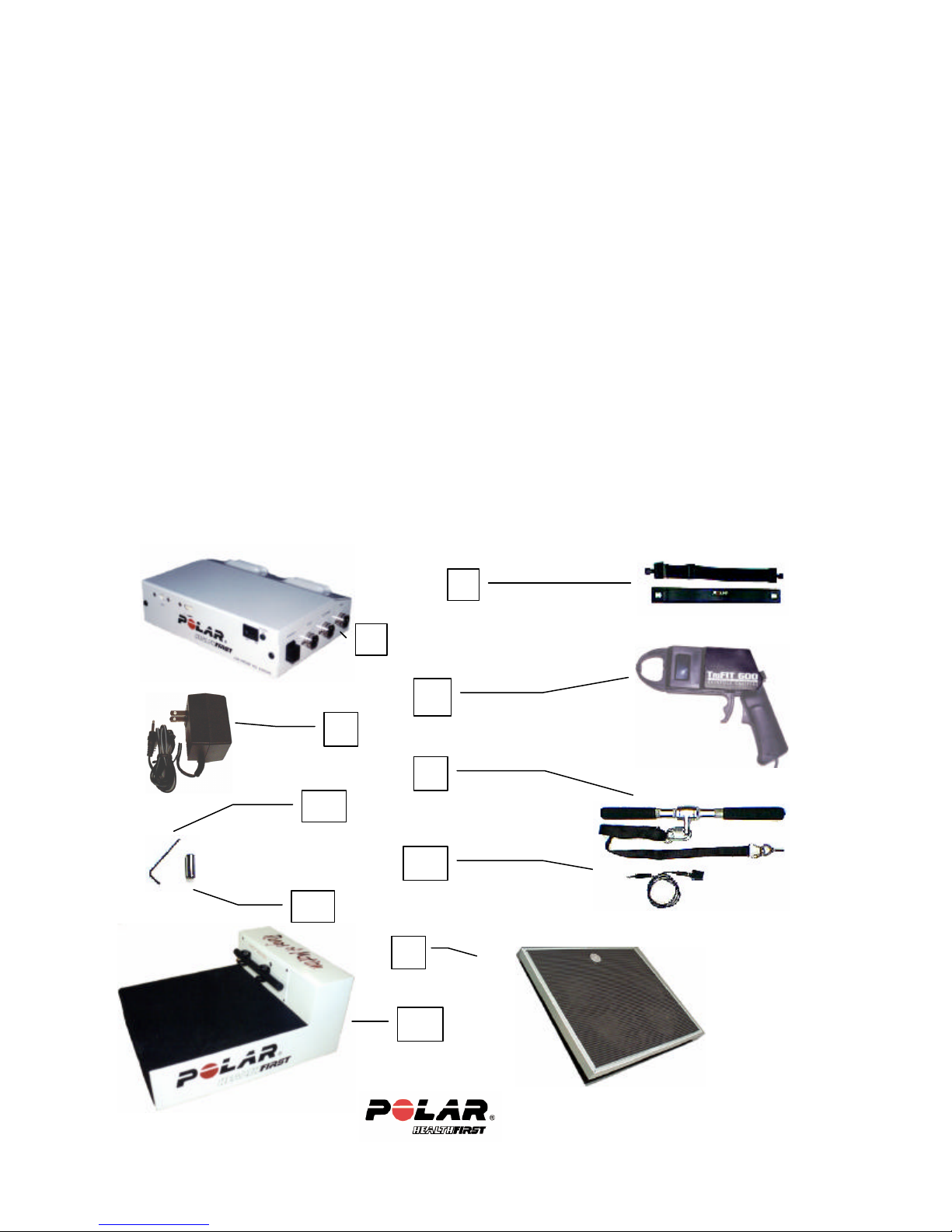
Packing List
The following is a list of all the items which are included with your system:
1. Polar heart rate transmitter belt and elastic strap
2. TriFIT 620 Unit
3. Integrated Skyndex Skinfold calipers (Lange calipers an optional upgrade)
4. TriFIT 620 Power Module
5. Strength handle and strap
6. Allen wrench (for removing R.O.M. unit from Sit & Reach housing)
7. Heart rate receiver and 8’ cable (if no bike was purchased). If bike was
purchased, the receiver is installed in the bike at the factory.
8. Skinfold calibration dowel: 25.4mm in length
9. Platform/scale
10. TriFIT 620 Sit & Reach/Range of Motion (ROM) unit. If a TriFIT cart
upgrade was purchased, the ROM unit is included in the cart.
11. 10’ db-9 male/female cable (not shown here)
12. Polar/HealthFirst Corporation TriFIT Fitness Assessment software (CD-
ROM)
1
2
3
4
5
6
7
8
9
10
5
Page 6
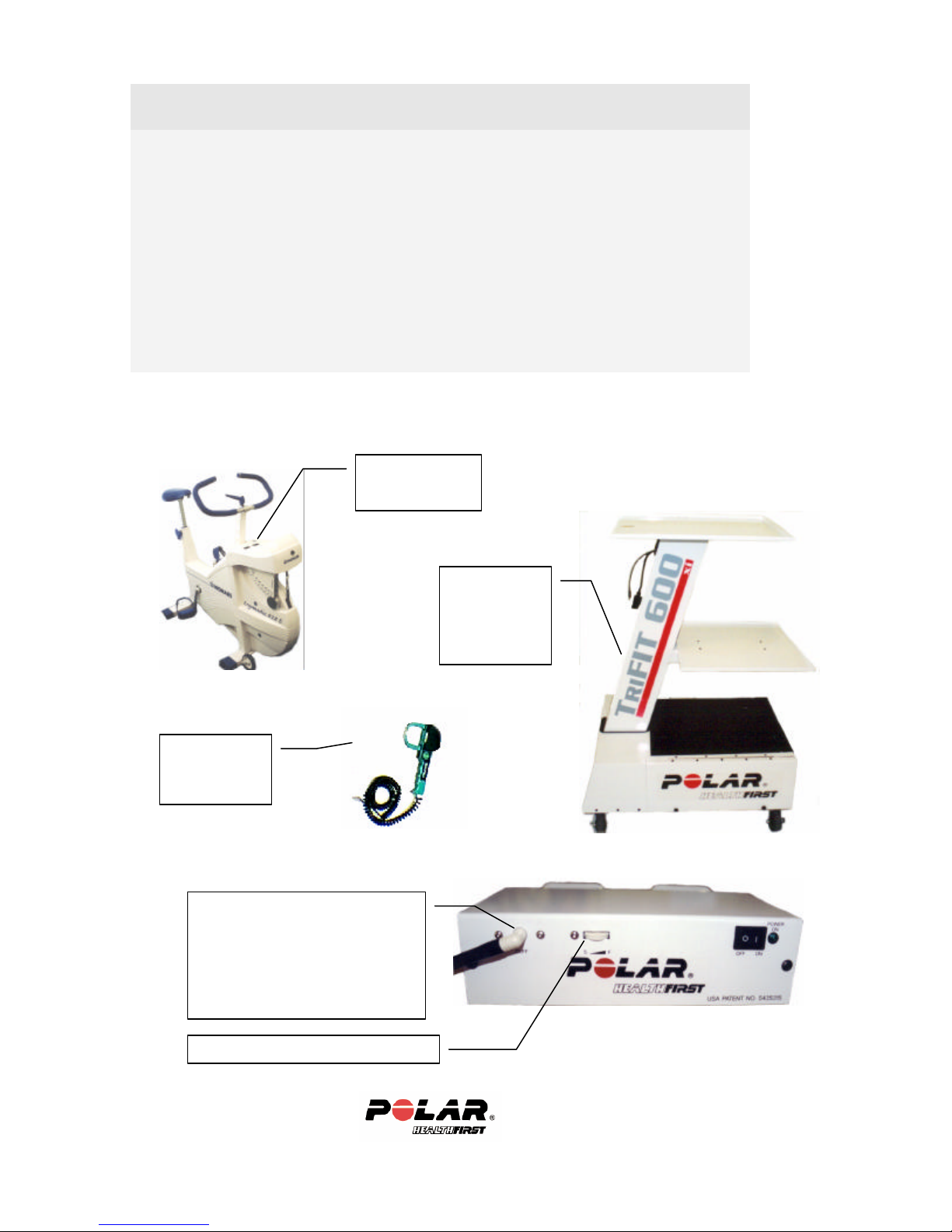
Hardware Upgrades
Monark 828 w/
Interface unit
Lange
TriFIT Cart
620 w/Blood Pressure
Blood Pressure Bleed rate thumbwheel
• Monark 828E Bicycle Ergometer (includes Polar Heart Rate Interface Unit)
• Trackmaster treadmill (includes 15 foot treadmill interface cable and
treadmill interface in TriFIT software) (Treadmill not shown here)
• Lange interactive skinfold calipers
• 620 Blood Pressure. Includes a TriFIT blood pressure device installed in the
TriFIT 620 unit at the factory and three blood pressure cuffs (small,
medium, large).
• TriFIT Medical Grade Cart: Use the cart with your own computer, monitor,
keyboard, mouse and printer.
Heart Rate/RPM
Skinfold
Calipers
The TriFIT 620 Blood Pressure Unit
is factory installed in the 620
interface. BP cuff hose shown with
bleed rate thumbwheel. (If BP is not
ordered, cuff hose and thumbwheel
covered)
Sit & Reach
unit factory
installed in cart
main tube
6
Page 7

Optional Software Modules
• Health Risk Appraisal (HRA) module
• Group Report module
• Meal Planner
• Template Builder
• Network Version (2-5, 10, 25, 99 user license)
• Nutritional Analysis (Nutritionist Pro)
Available Accessories
• Additional Polar heart rate transmitter belt
• Additional Polar elastic belts (available in small and XL)
• Marketing package for Fitness Centers/Health Clubs
7
Page 8

Section 2: Installing Your TriFIT 620
In this section
• Hardware Installation
• Optional Equipment Setup
• Monark Bike
• Blood Pressure
• TriFIT Cart
• Software Installation
• Licensing the TriFIT software
• Setting up TriFIT Software defaults
8
Page 9
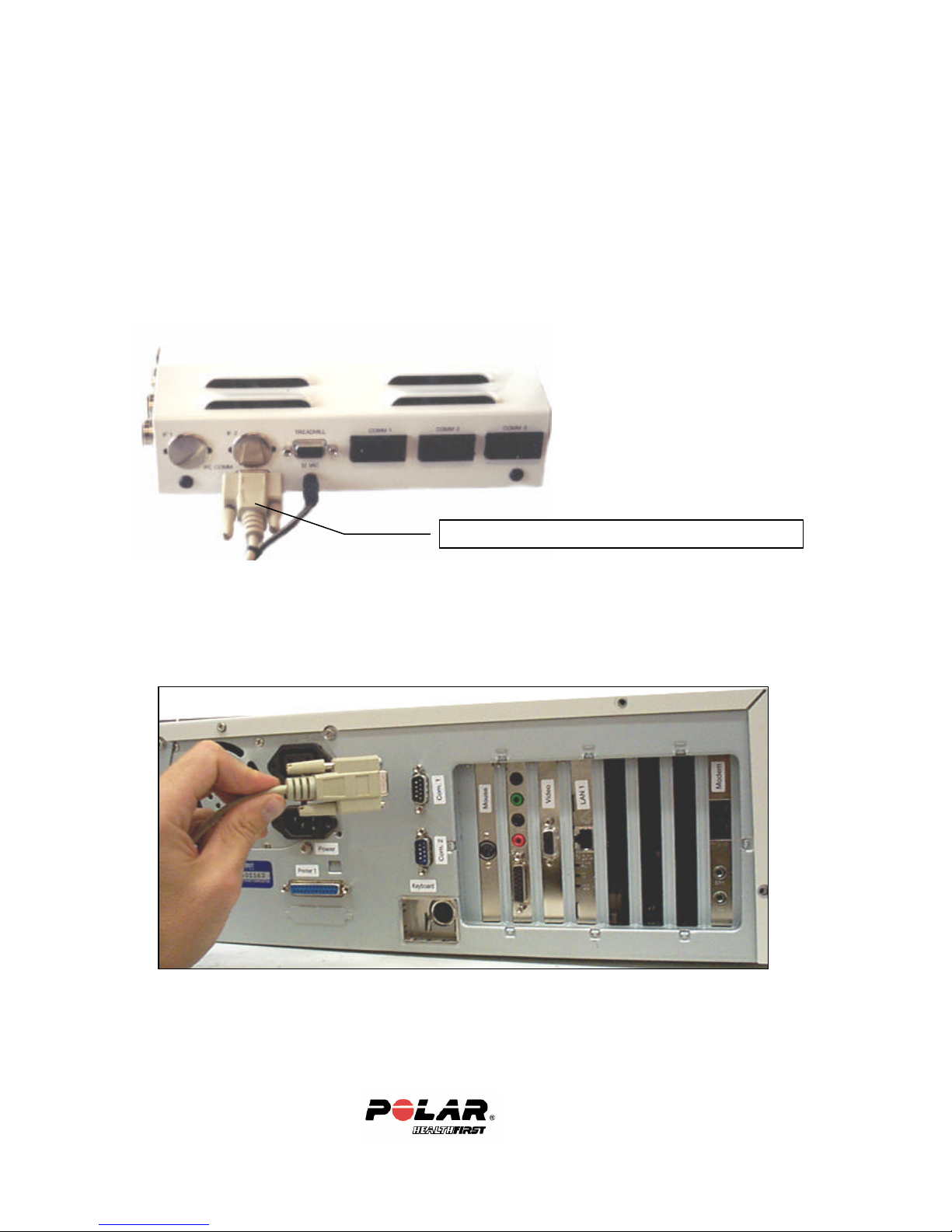
I. Hardware Installation
Db-9 serial cable in back of TriFIT 620 to PC Comm
Once all components are unpacked and the recommended connections and
environment are available, you are ready to start setting up your TriFIT 620.
Step 1
Plug the Male end of the db-9 cable into the connector labeled “PC Comm” on
the back of the TriFIT 620 unit.
Step 2
Plug the Female end of the db-9 cable into an available 9-pin serial port of your
computer (Com 1 or Com 2). If using the TriFIT cart upgrade, this cable routes
out the side of the cart-see cart setup. You can use a laptop or desktop PC.
9
Page 10
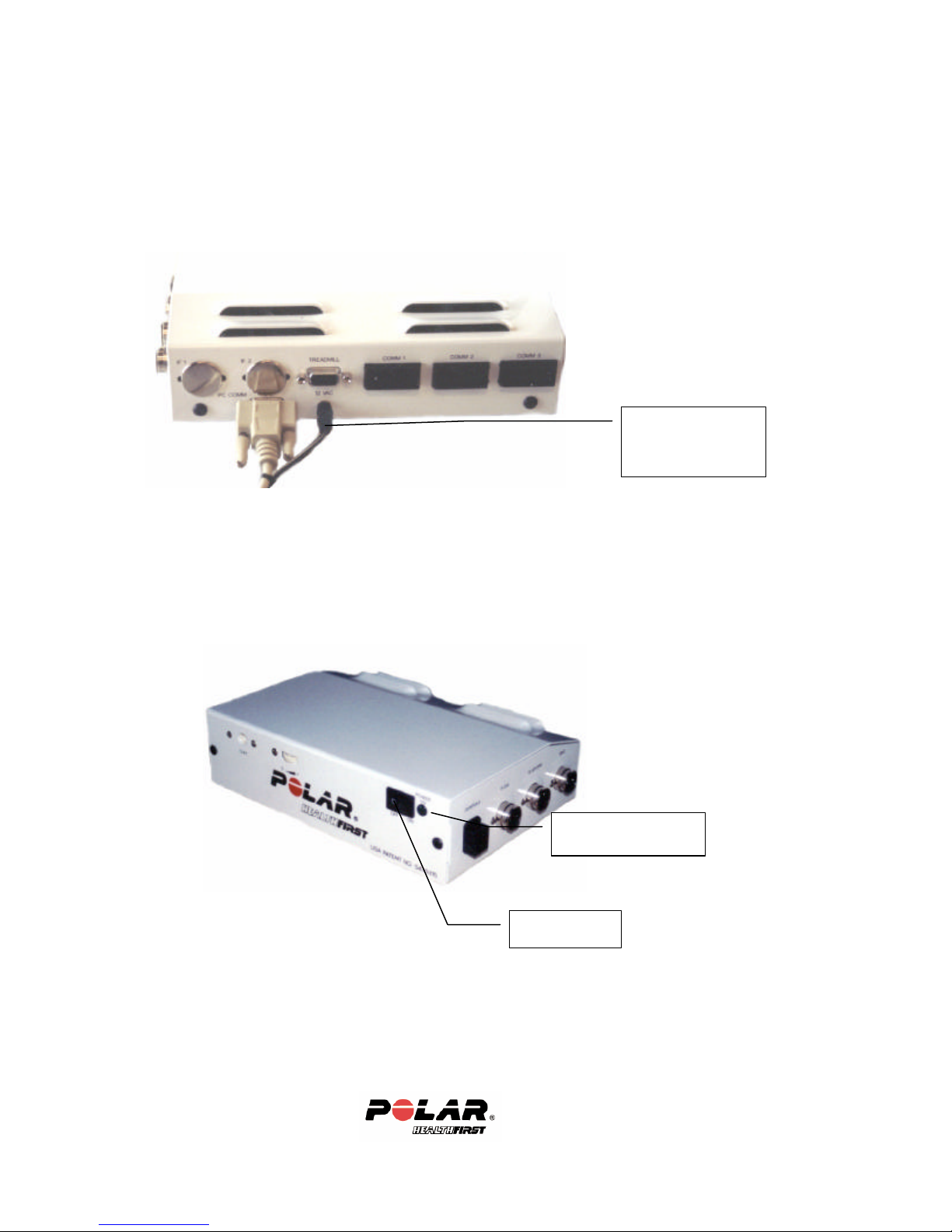
Step 3
Plug the TriFIT 620 power into a wall outlet and then into the TriFIT 620 unit.
(If using the TriFIT cart upgrade, the 620 power plugs into the power strip in the
CPU Compartment)
620 Power Cable:
Plug other end into
wall outlet
Step 4
Turn on the power switch at the front of the 620. The green light
indicates the unit is getting power.
Green Power light
Power switch
10
Page 11
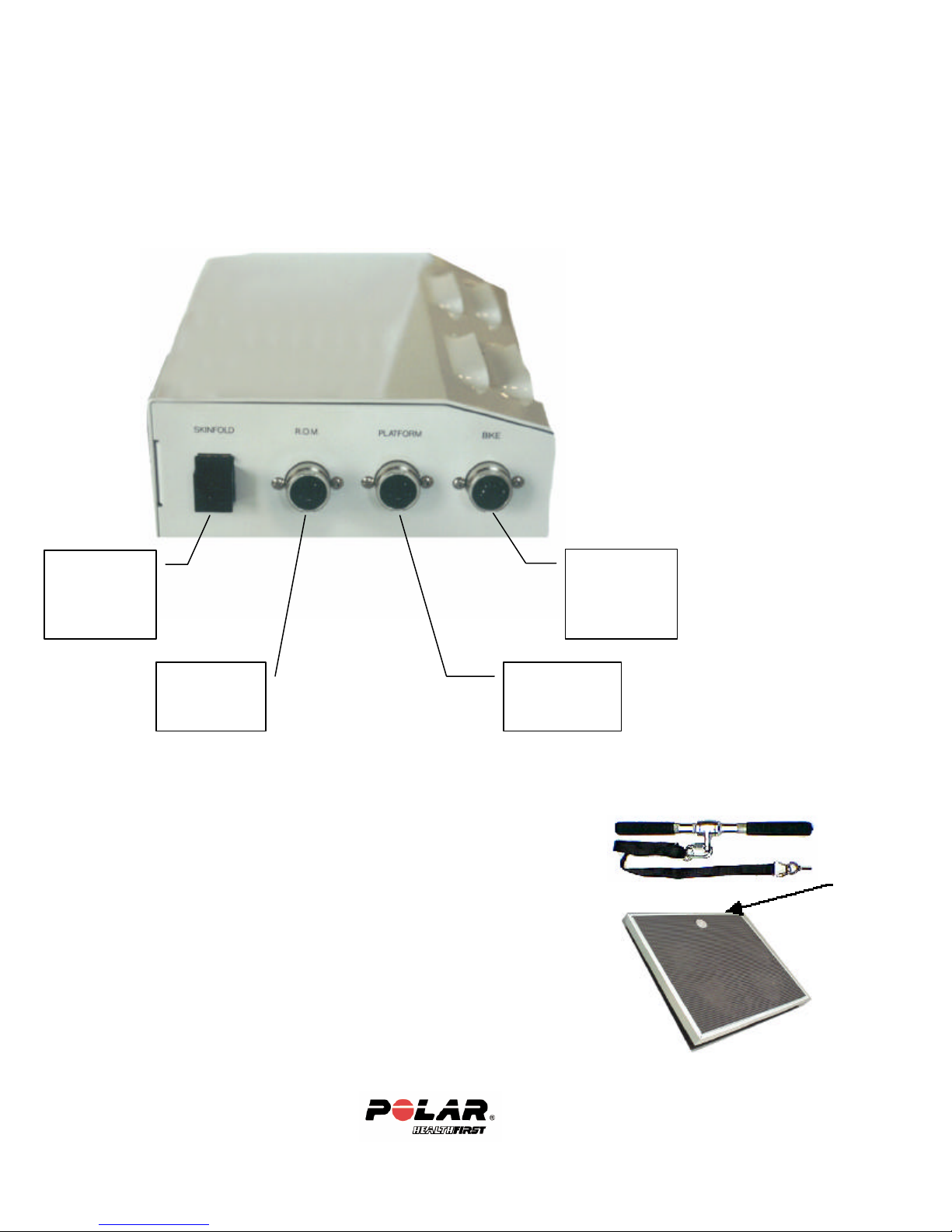
Step 5
Now you are ready to plug the testing devices into the TriFIT 620 unit. They
each have unique connectors, so you cannot plug the wrong device into the
wrong connector.
Skyndex or
Lange
calipers go
here
Bike or Heart
Rate Cable
for Treadmill
goes here
Range of
Motion Unit
goes here
Load
Platform/Scale
goes here
Step 6 –Platform Setup
• Screw in the eyebolt on the scale strap assembly into the
top of the platform. Make sure it is tightened all the
way.
• Attach the “C” connector on the strength strap assembly to the strength
handle. Make sure it is tightened all the way.
•
Check the strap for any wear or defects before each use,
as this could cause injury to the client being tested on the
Biceps Strength Test.
11
Page 12
II. Optional Equipment Setup
Monark Bike
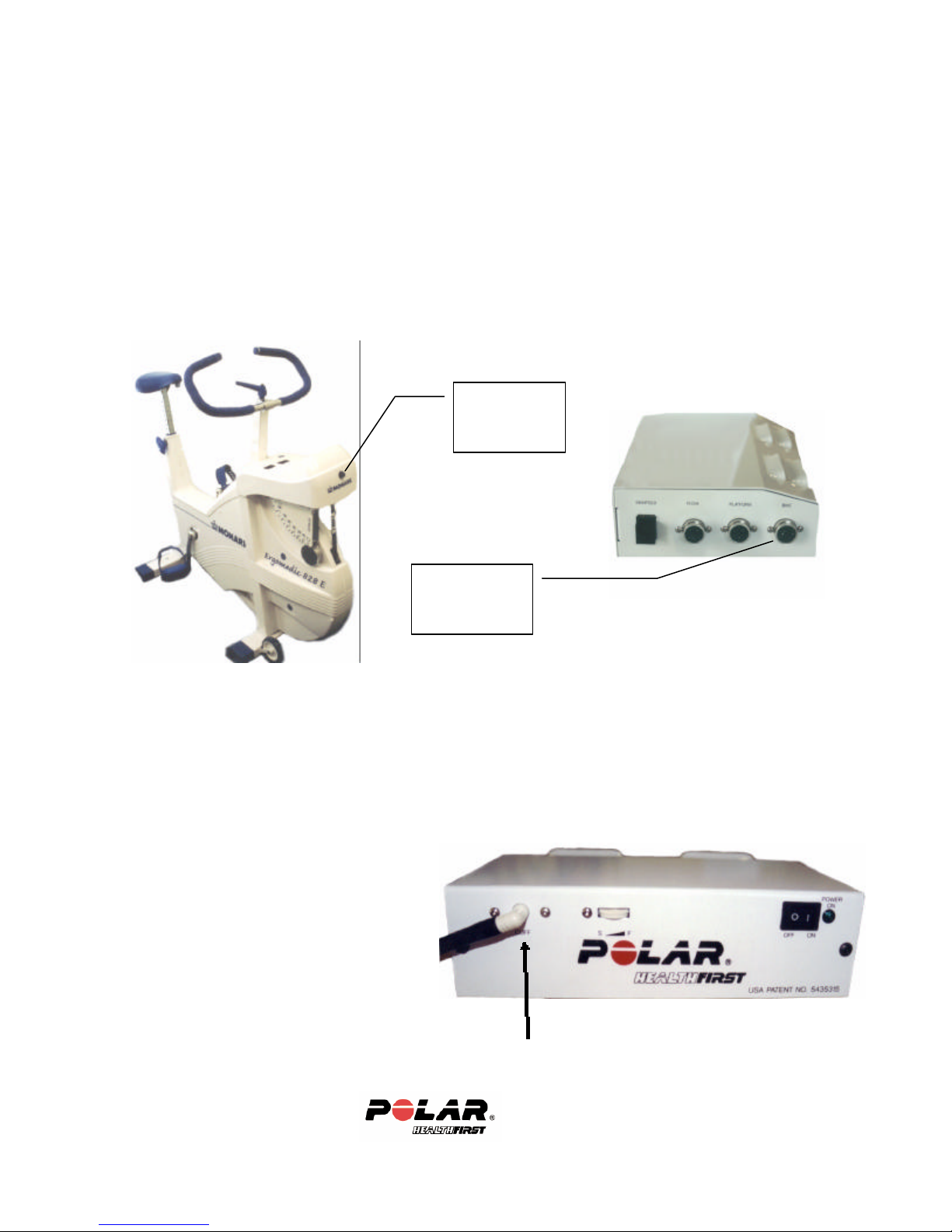
If a Monark 828E was purchased with your TriFIT 620 system, you will receive
a Bike interface cable. This cable plugs into the TriFIT 620 unit where it is
labeled bike and plugs into the connector on the front cover of the Monark 828
Bike. Refer to the Instruction manual that came with t he Monark 828 for setup
instructions. To calibrate the bike and setup defaults for the TriFIT, see the next
sections.
Bike interface
plug on the
Monark 828
Bike interface
Plug on TriFIT
620
620 Blood Pressure
If a Blood Pressure option was purchased, you will receive 3 cuffs; a Small,
Standard and X-Large.
To install the blood pressure
connector into the TriFIT 620 unit,
firmly snap in the white or black
plastic connector as shown here.
You will need to set some defaults in
the TriFIT software to work with the
Blood Pressure unit in the next
section.
12
Page 13
TriFIT Cart
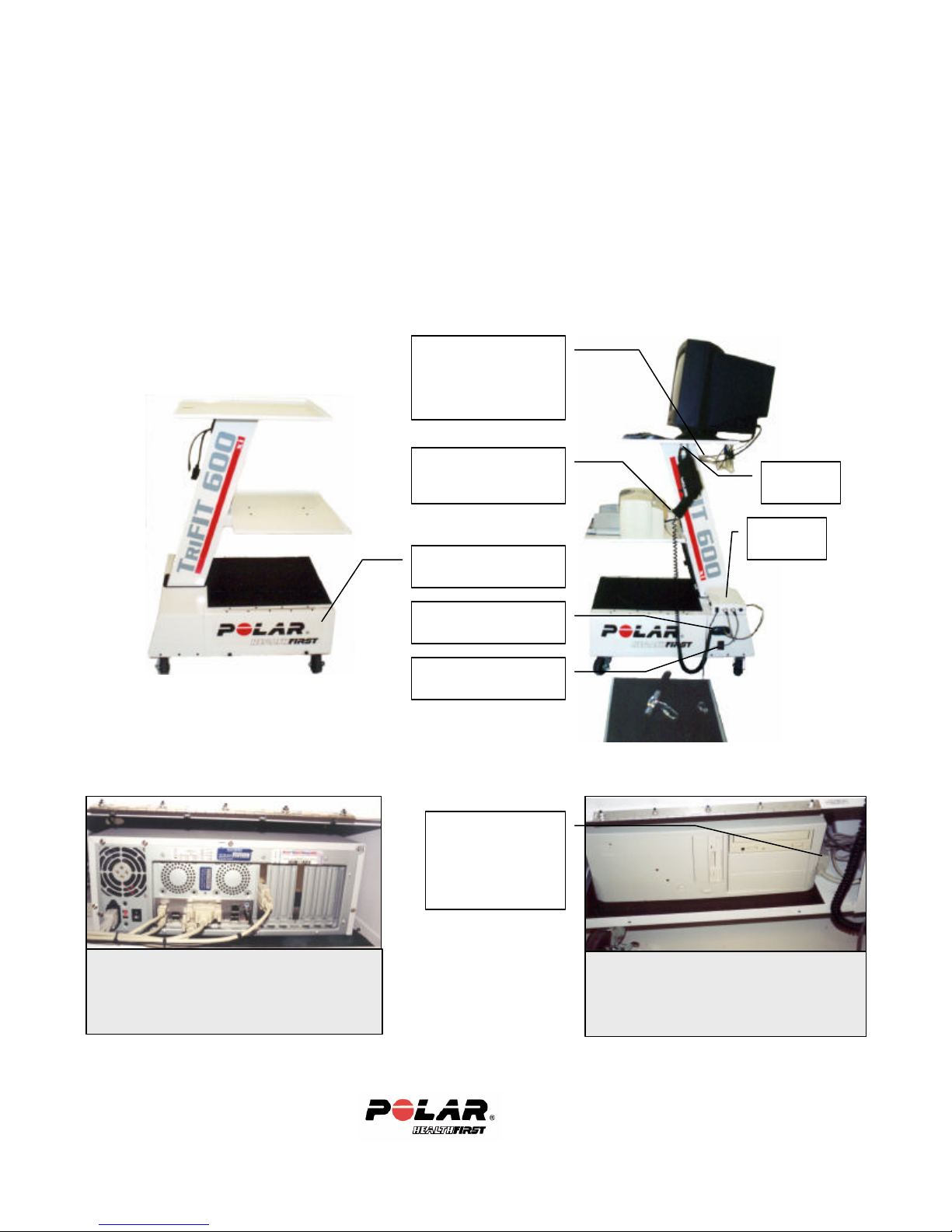
Keyboard, Monitor,
Your printer cables
Cart Tube also.
CPU Compartment
(Left side)
Cable routing hole on
right side of cart
Power Strip Can
620
Interface
Caliper
Hanger
A cart can be purchased with the TriFIT 620 so you may use your own computer,
monitor, keyboard and mouse. Follow the instructions in the previous Section 2:
Installing your TriFIT 620-Hardware Installation to connect the TriFIT 620 to
your computer.
The cart is pre-wired for the most common connectors for computer peripherals.
If you purchased a cart with your TriFIT 620, the 620 interface is attached to the
top of the CPU compartment at the factory as shown below right.
Mouse cables can
route down main cart
tube.
can route down Main
Main Power Switch
be turned on & off
with external main
switch on cart
(shown above)
Common desktop computer installed in the
CPU Compartment of the cart. Most
commonly used connectors and wires are
included. Left side of CPU Compartment.
Right side of cart CPU Compartment
shown here.
13
Page 14
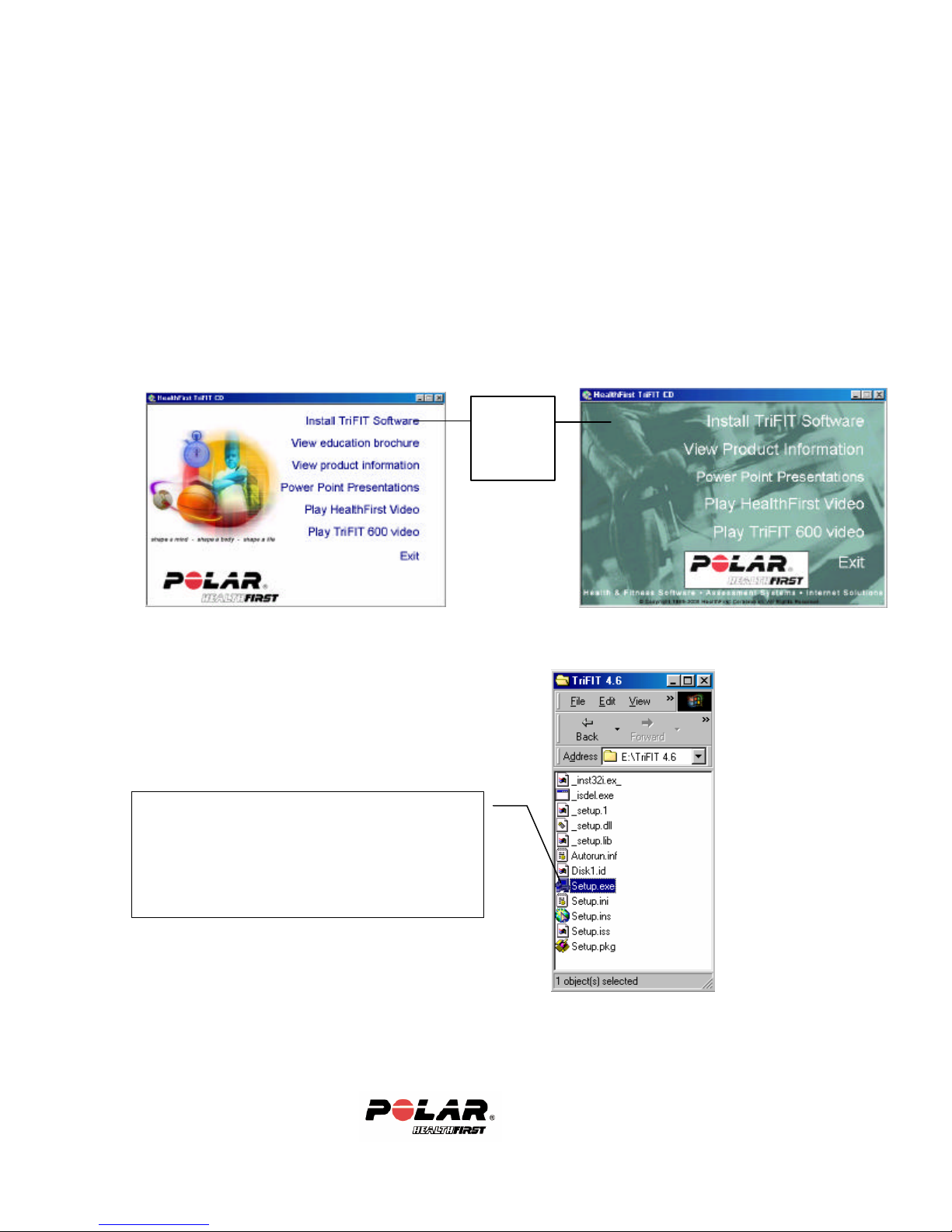
If your CD does not automatically start up
Click
III. Software Installation
Once the TriFIT 620 hardware is setup up, you are now ready to begin the
software installation and setup.
Step 1
Insert the TriFIT CD-ROM into the CD-ROM drive of your computer. After a
minute, a screen will pop-up. Your screen will look like one of the screens
below. Click on Install TriFIT Software.
Install
TriFIT
Software
to one of the screens above, go to your D:
drive (or whatever drive your CD-ROM is),
open the TriFIT 4_6 folder and click on the
setup.exe icon.
14
Page 15
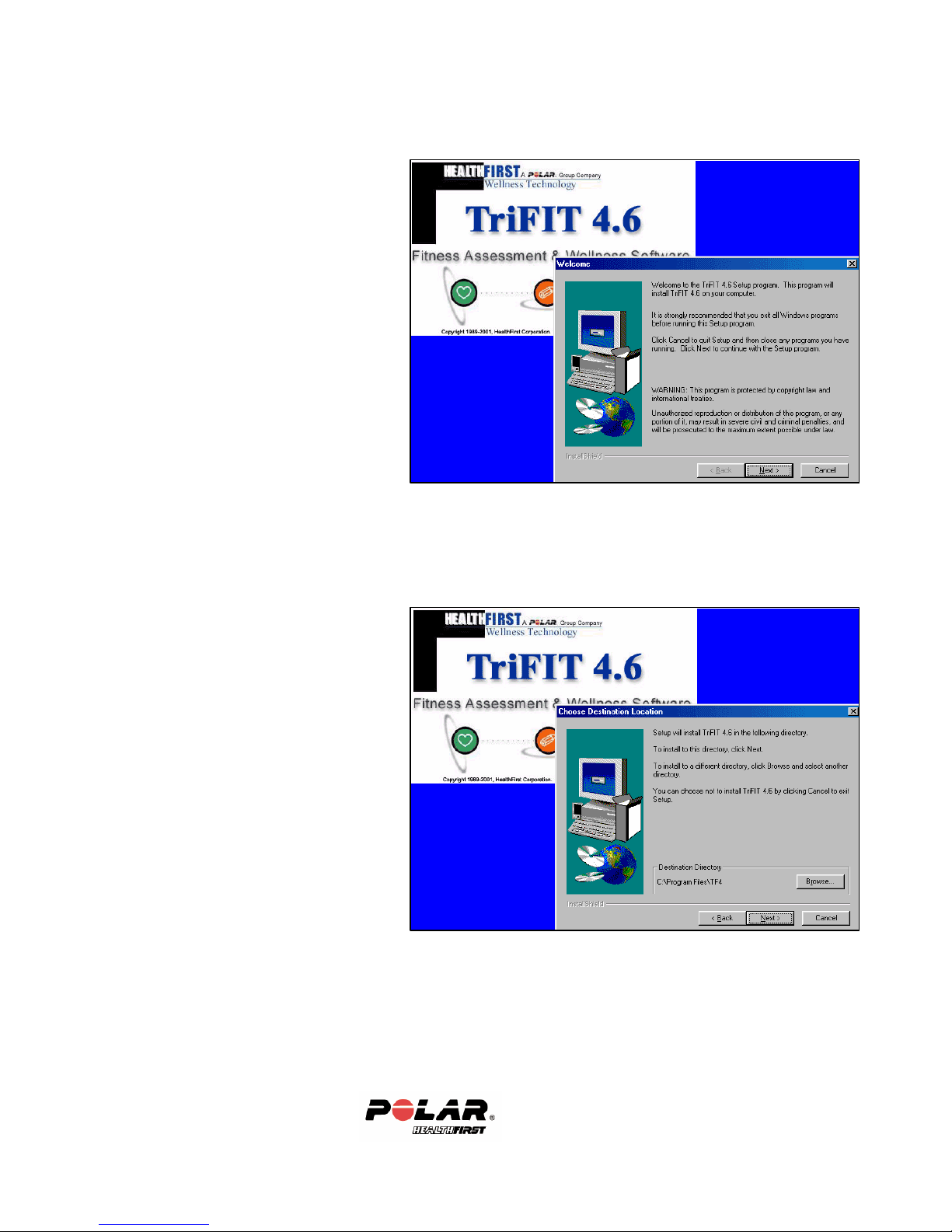
Step 2
Click Next> to begin installation.
Step 3
Click Next> to install in the
C:\Program Files\TF4 directory.
(Keeping the default is
recommended)
15
Page 16
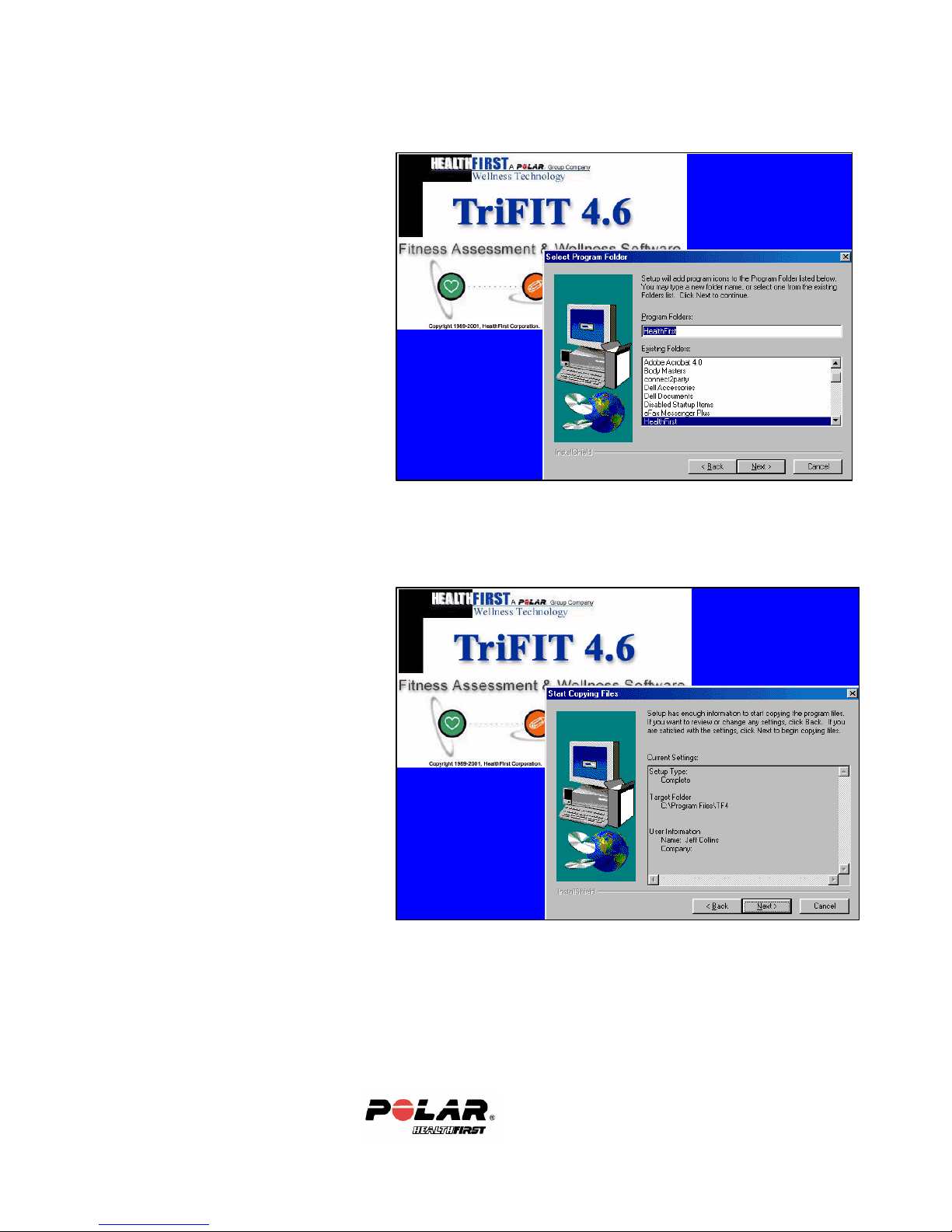
Step 4
Click Next> again.
(Keeping the default is
recommended)
Step 5
Click Next> to start copying the
files.
16
Page 17
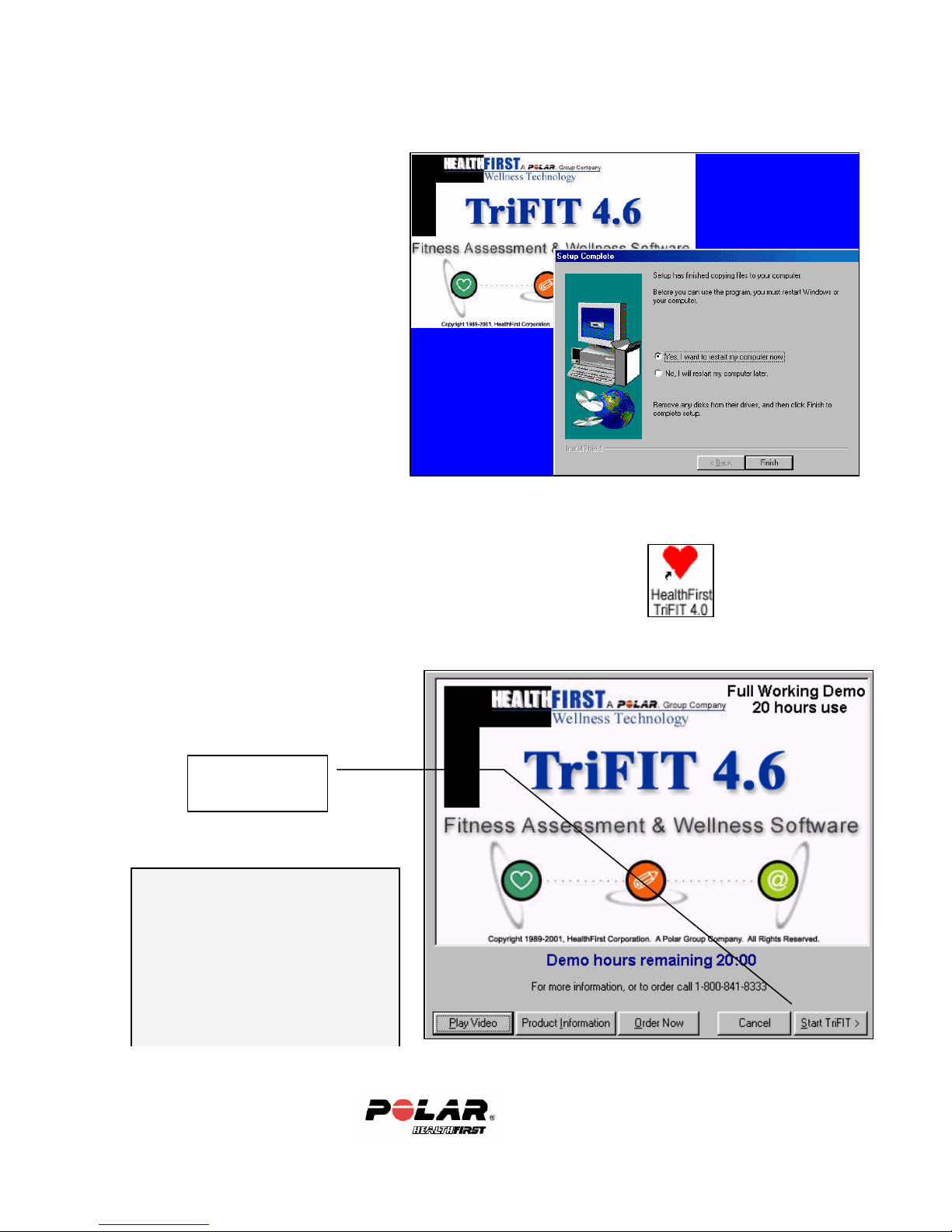
Step 6
Note: This screen will not
Click
Keep the selected option of Yes, I
want to restart my computer now.
You MUST Re-Start in order for
TriFIT to function properly.
Once it has re-started, open the TriFIT software by clicking on the
HealthFirst TriFIT Heart Icon on your desktop.
Start TriFIT>
appear once you are licensed
from Polar/HealthFirst (next
step).
If you do not call to license the
software, when the demo hours
run out, you will be unable to use
your TriFIT 620.
17
Page 18
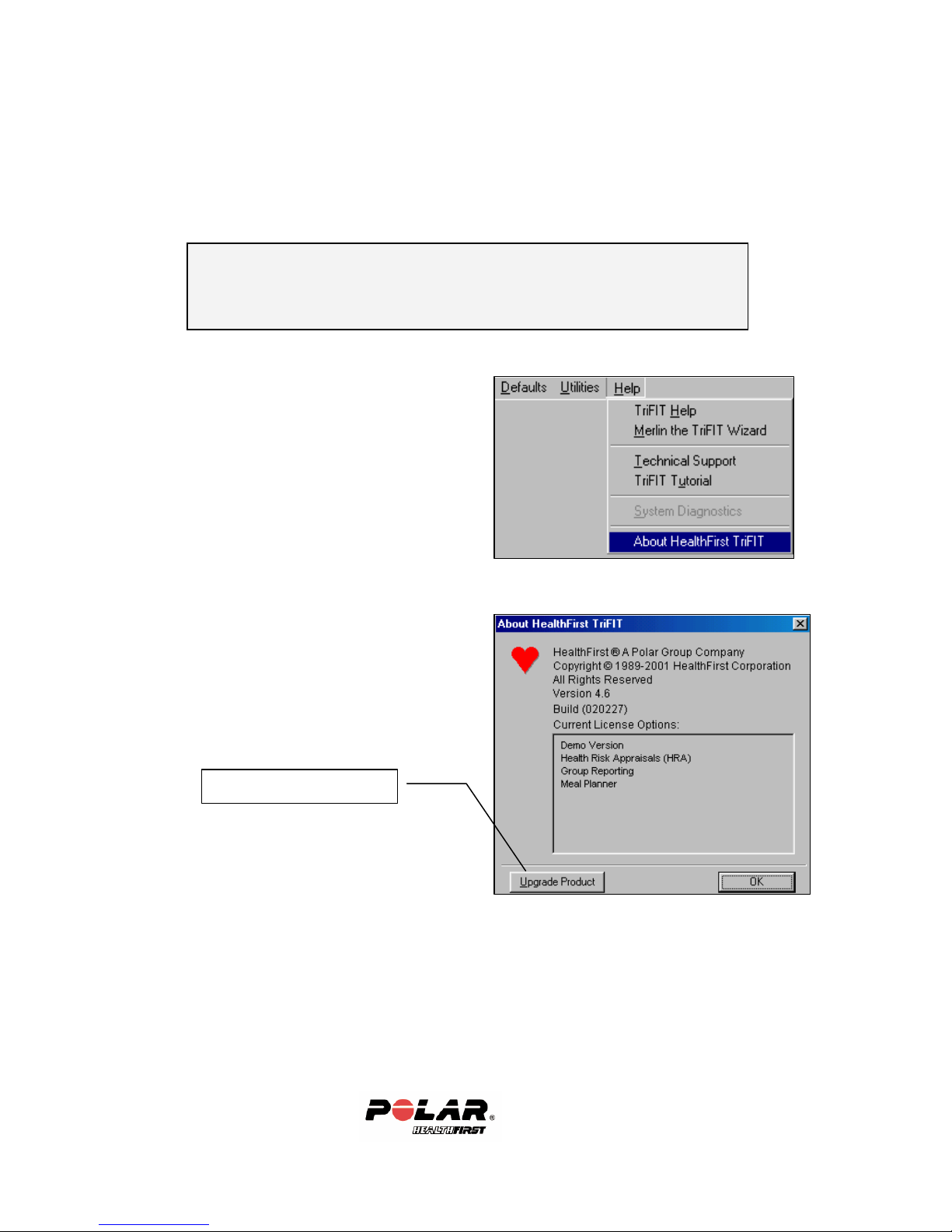
IV. Licensing the TriFIT620
You must call Polar/HealthFirst to license your TriFIT software
(network licenses may be mailed on a 3 ½” floppy disk)
Call 800-717-2070 and say you are a customer and would like
to license your TriFIT 620 System.
Step 1
You will be asked to go into the Help on the
main menu and then to About HealthFirst
TriFIT
Step 2
Click Upgrade Product
18
Page 19
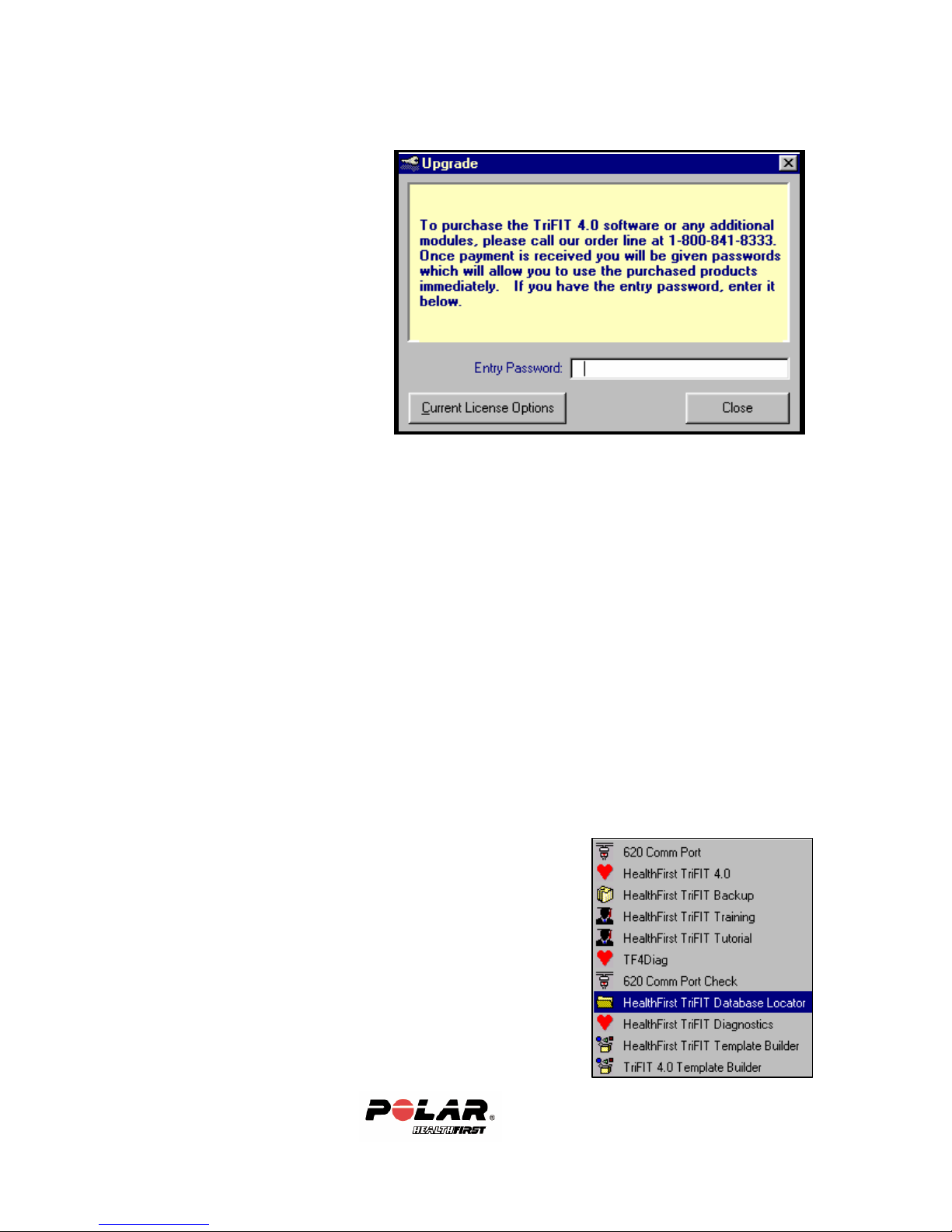
Step 3
You will be given a n entry
password. Type this in making
sure to use the correct case. The
Polar/HealthFirst technician will
walk you through the rest of the
licensing. Once the licensing is
complete, proceed to Setup
Defaults.
Networking the TriFIT 620
To network your TriFIT 620 to other computers, whether they are another TriFIT
620, just TriFIT software or a full TriFIT 600 system, the same instructions
apply.
You can designate one TriFIT computer as the “Server” and all the other TriFIT
systems on your network as “Clients”. The Server has the database that all the
other TriFIT’s will be sharing. The shared database can be on a computer that
TriFIT is not installed on as well. Since network hardware and software can vary
widely the following sequence below is offered as a general guideline.
1. Make sure the TriFIT program is installed on the computer you decide to
make the server. Again, a TriFIT machine may be used as the server for
all the other TriFIT clients.
2. Install the network license on the server ; use
supplied floppy or call 800/717-2070 to be
licensed over the phone. (see previous section for
licensing over the phone )
3. Run the Program HealthFirst TriFIT Database
Locator (DBLocate.exe) from every TriFIT client
computer you want to share the database with.
19
Page 20
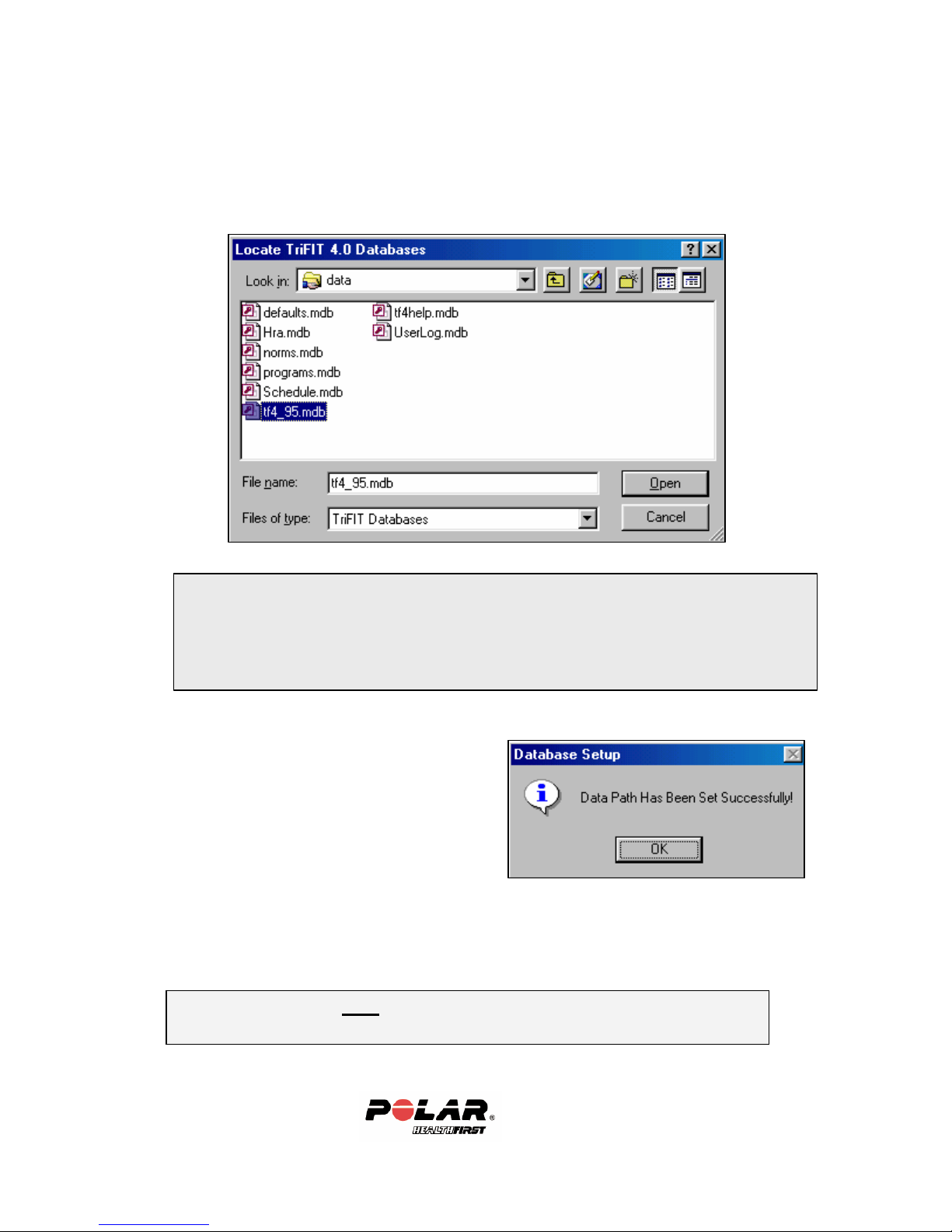
If you run ‘License.exe’ from the diskette, dblocate will run automatically and you
4. To start, go to Start/Programs/HealthFirst/HealthFirst TriFIT
Database Locator. Browse to the Data folder on the machine you wish
to be the server (C:Program Files\TF4\Data) and click on the
TF4_95.mdb file.
will be prompted to browse to the database location. Browse to the location of
theTf4_95.mdb file located on the TriFIT Server. A copy of dblocate will be on
the license diskette and is installed in the HealthFirst programs folder on every
TriFIT client installation.
5. After clicking on TF4_95.mdb, you will
get this message Data Path Has Been
Set Successfully!
6. Repeat for every computer running TriFIT.
NOTE: TriFIT should NOT be running while installing licensing or running the
TriFIT Database Locator Program (dblocate.exe)
20
Page 21
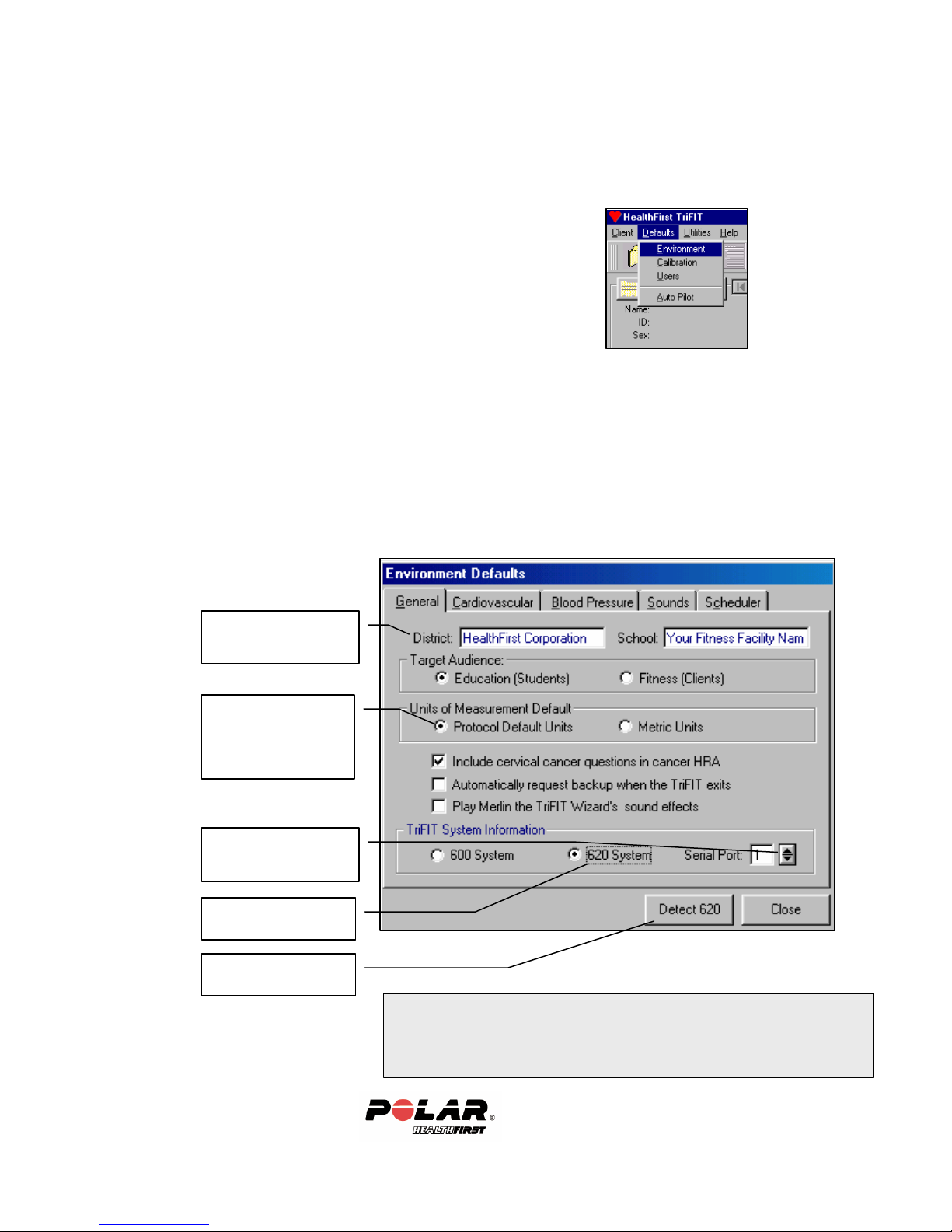
Target Audience: Switching between Education and Fitness changes terms from
V. Setup Defaults for your TriFIT 620
General Defaults
Step 1
To set up the TriFIT software to work with your TriFIT 620,
go to Defaults/Environment.
Step 2
• Select 620 System and the Serial Port you will be using with your
computer.
• Complete the Company Name or District Name and Facility Name or
School Name. These will be printed on the Cover S heet of the reports
you generate and at the bottom of each report page.
• The units of measurement can also be changed to strictly Metric units or
the default units for each test protocol.
• Click the Detect 620 button.
Names that print on
reports
Choose which units
of measurement you
would like to use
Select the correct
Serial Port
Select 620 System
Click Detect 620
Students to Clients and User Field descriptions from Teacher and Period to Trainer
and Referral, etc. WARNING: This will change the fields and may prevent
sorting. Change this only if you are sure this is what you want.
21
Page 22
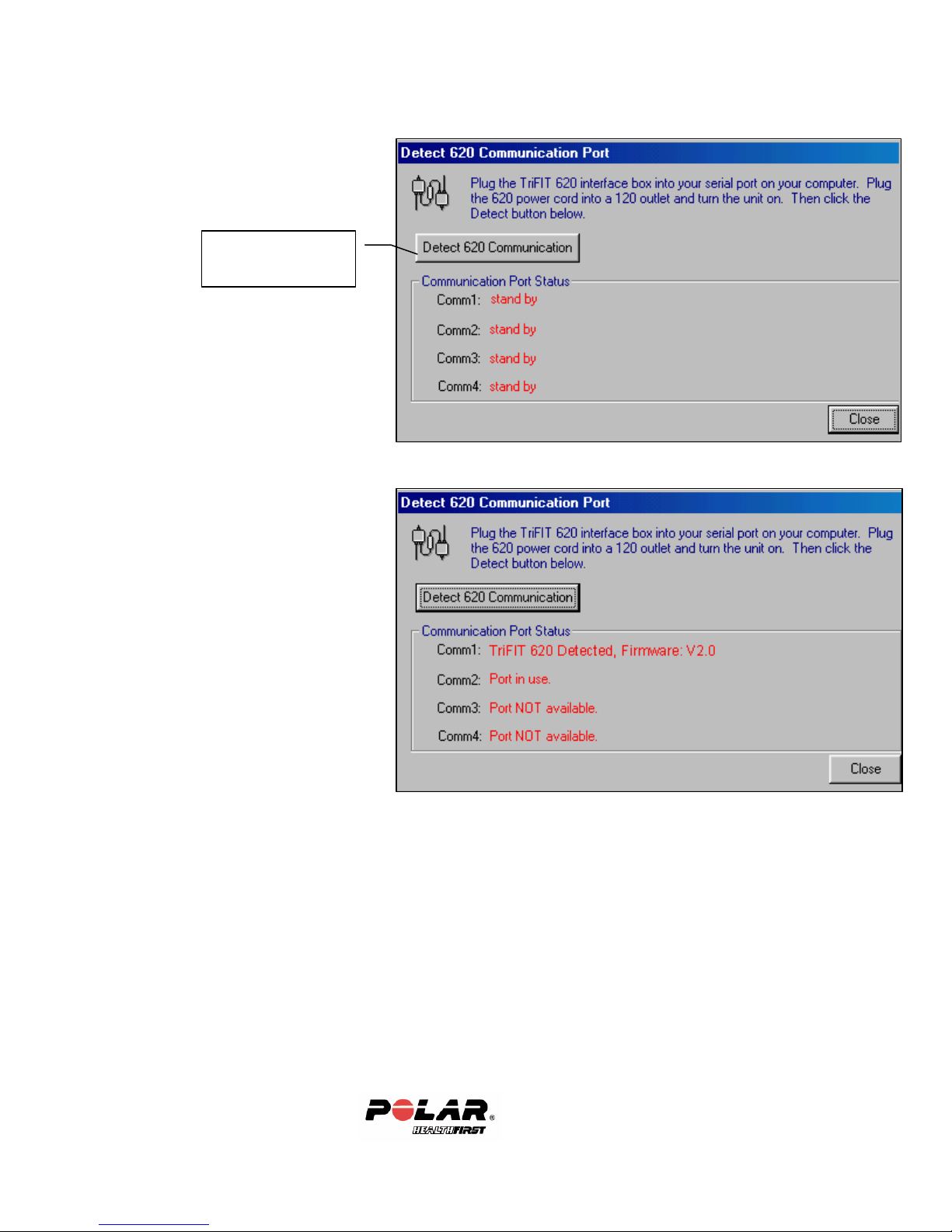
Step 3
Click Detect 620
Communication
Step 4
You should see a message next
to one of the Comm Ports:
Comm1: TriFIT 620 Detected,
Firmware: V2.0
Your TriFIT 620 is setup and working properly!
22
Page 23
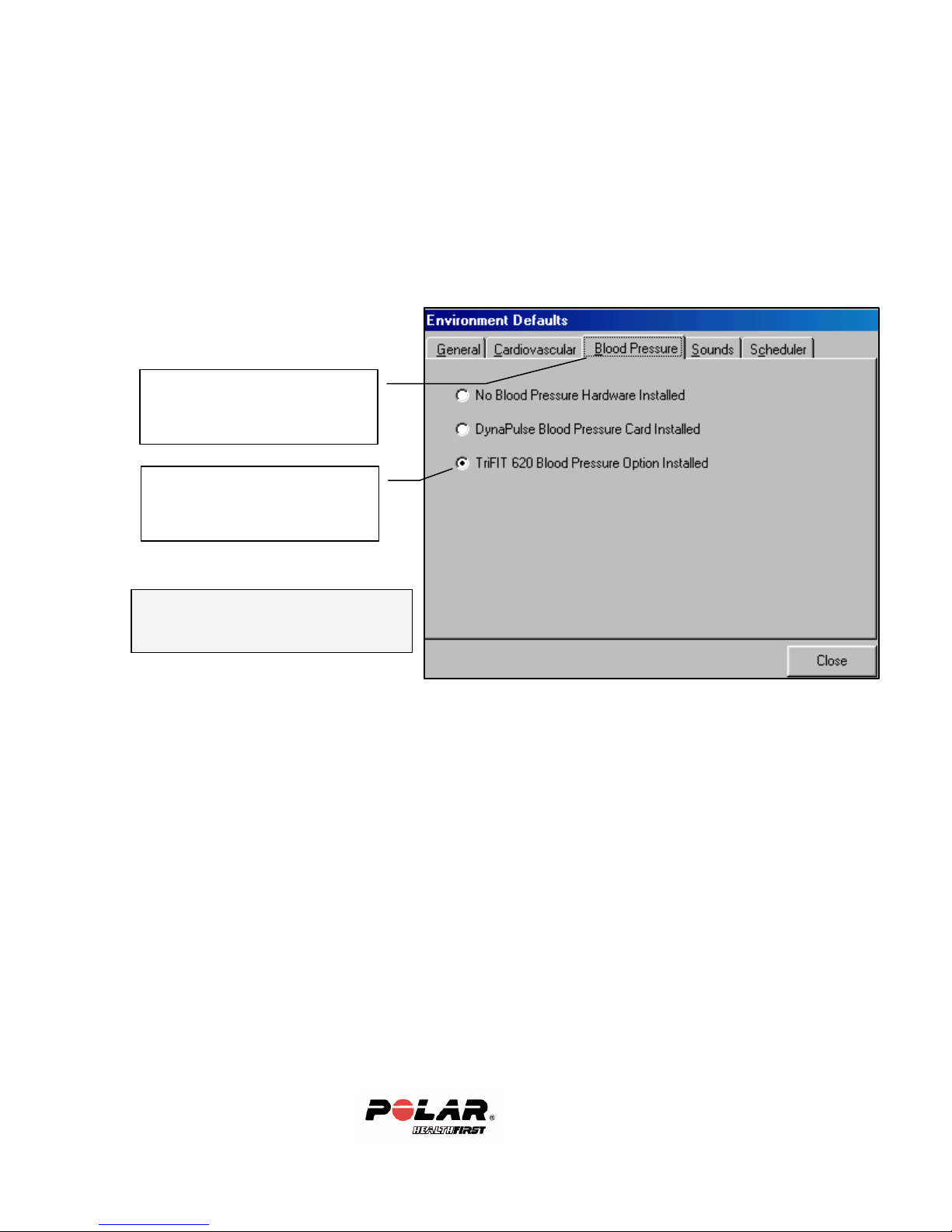
While still in
on the Blood Pressure Tab.
Select TriFIT 620 Blood
Blood Pressure Defaults
If you have the Blood Pressure option, follow the next step-configuring the 620
Blood Pressure. If you do not have the Blood Pressure option, close the screen
and go to the next section.
Step 1
Defaults/Environment, click
Pressure Option Installed.
Calibrating the Blood Pressure
Unit will be covered in Section 3.
23
Page 24
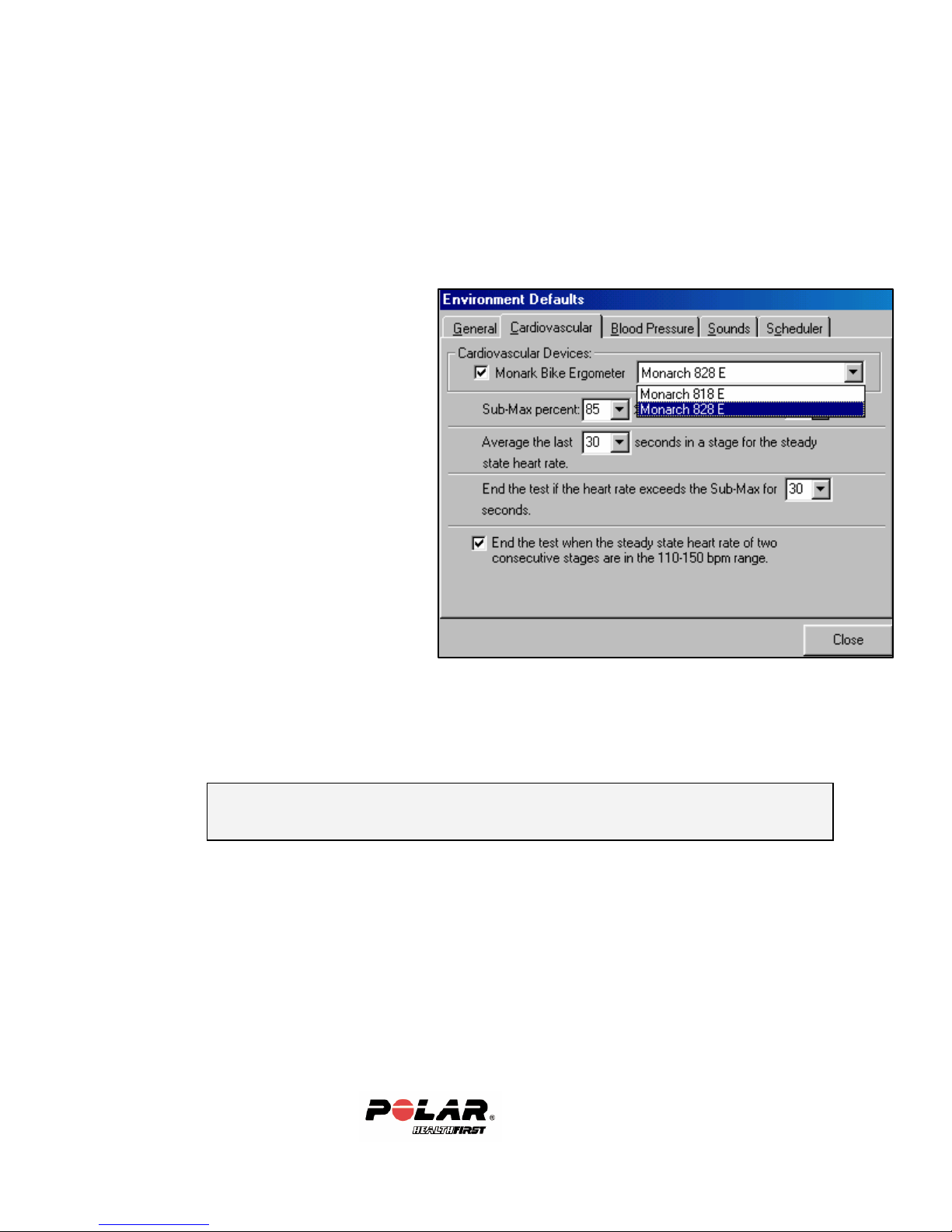
Monark 828 Defaults
While still in the Environment Defaults, click on the Cardiovascular Tab. Select
the Monarch 828E option if it is not selected. It is recommended to keep all
other defaults.
• The Sub-Max Percent
default is 85%. The test will
end when the client achieves
85% of their max heart rate as
estimated from 220-age.
• Average the last 30 seconds
in a stage for the steady state
heart rate is default. This is to
get as close to the clients
steady state HR by taking the
last 30 seconds rather than the
entire 3 minute stage.
• End the test if the heart rate
exceeds the Sub-Max for 30
seconds is default. This is a
buffer system to account for
spikes in the heart rate and to
avoid stopping the test before
the client actually gets to the 85%
of the estimated Max HR.
The bike will need to be mechanically calibrated a nd will be covered in the
next section, or refer to the Monark 828 Instruction Manual.
24
Page 25

In this section
Section 3: Operation of Your TriFIT 620
• Recommendations for the operating staff
• Turning on the system power
• Windows desktop
• Shutting down the system
• Setting up for first time use
• Calibration
• Testing recommendations
• Staff training
• Transporting the system
25
Page 26

Recommendations for Staff
• It is recommended that ALL OPERATORS have a basic understanding of
Windows operating system. If not, it is recommended that the primary
operator take a course in the basic operation of Windows.
• Polar/HealthFirst Corporation recommends that ALL OPERATORS
complete the entire TriFIT 4.0 tutorial and Video Training. The tutorials can
be accessed from the ic ons that are installed on the desktop of the TriFIT
computer.
• Polar/HealthFirst Corporation recommends that the operator of the TriFIT
620 be certified in CPR and hold a certification from the American College
of Sports Medicine (ACSM), American Council on Exercise (ACE), or other
national fitness certification organization.
*Pressing F1 at any time while in the TriFIT software will
activate the on-line help.
26
Page 27
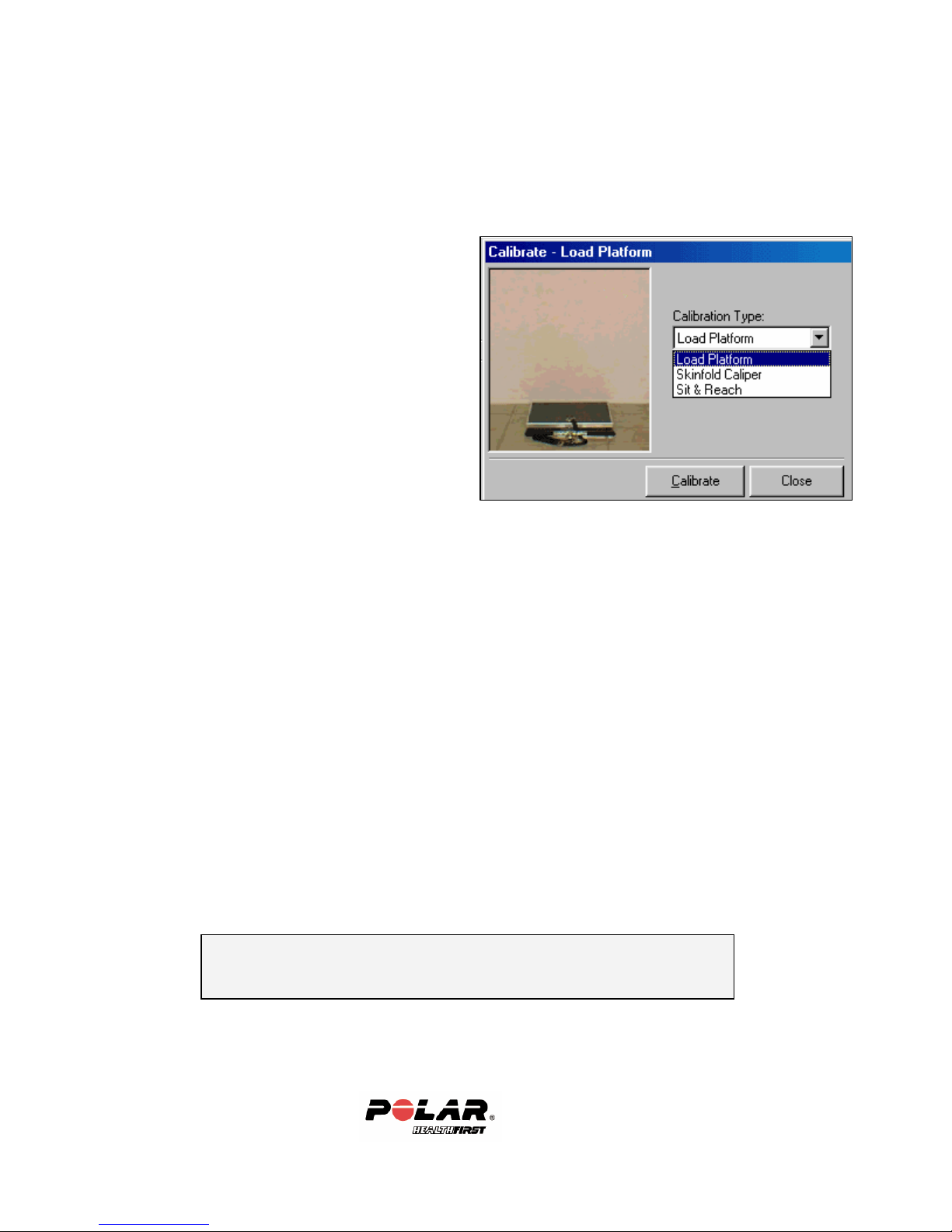
Calibration
There are 3 components to calibrate on the Standard TriFIT 620 system:
• Load Platform (which calibrates both
scale and strength test)
• Skinfold caliper
• Sit & Reach
If a Blood Pressure or Bike option was
purchased, calibration will be covered at
the end of this section.
*Pressing F1 at any time while in the TriFIT software will
activate the on-line help.
27
Page 28
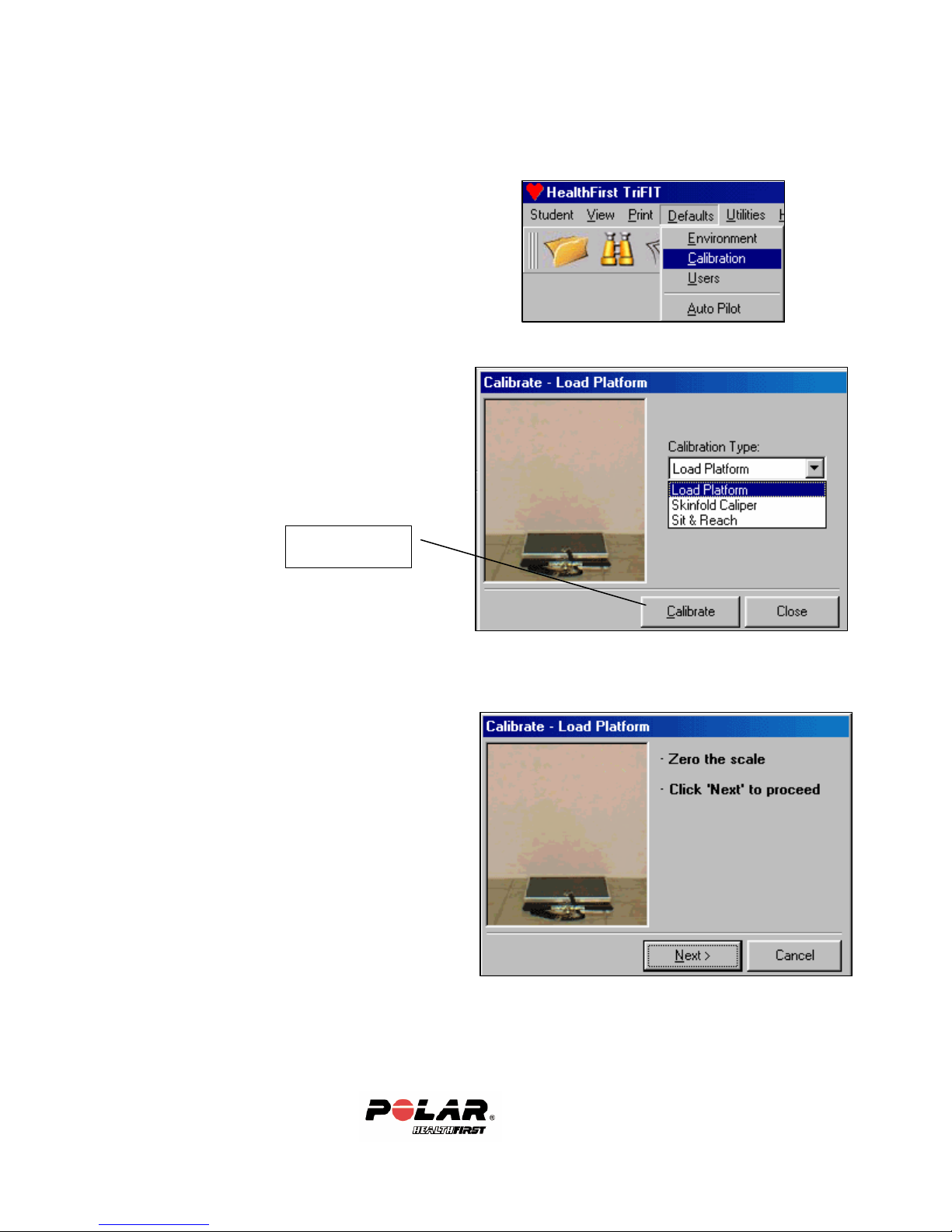
Platform Calibration
1. Select “Defaults” from the Main Menu
2. Select “Calibration”
3. Select Load Platform
click Calibrate
Click Calibrate
4. Make sure nothing is on the scale and
click Next>
28
Page 29
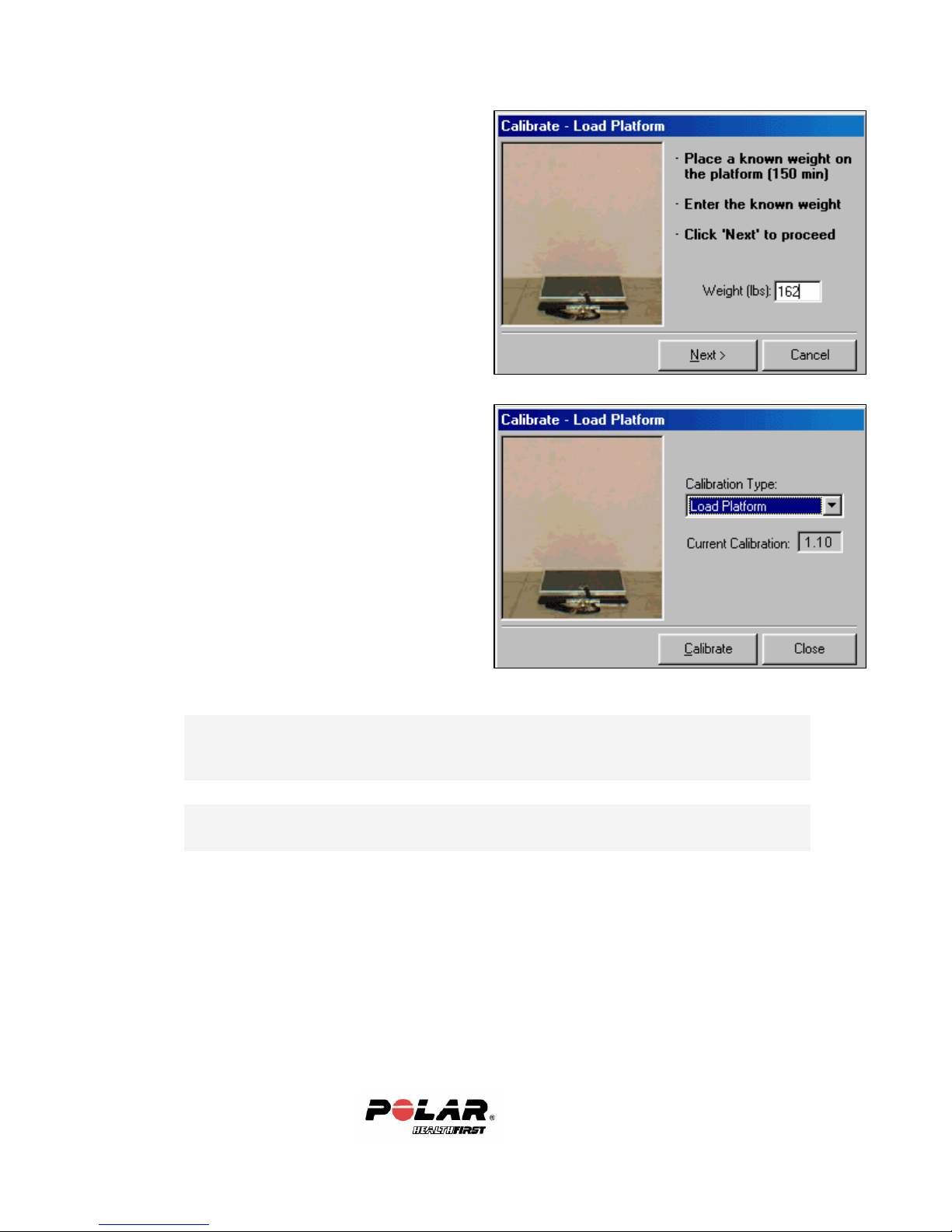
5. Have someone step on the scale that
*
knows their exact weight. The person’s
weight should be between 150 and 190
lbs.*
6. The correct calibration constant is
between 0.70 and 1.30. Select another
item to calibrate or click the close button.
It is best to use a person that knows their exact weight and weighs between
150 and 190lbs to calibrate the scale. It is not recommended to use weight
plates to calibrate the load platform.
**A better calibration will result if two people calibrate the platform -one
standing on the platform and the other typing in the weight.
29
Page 30
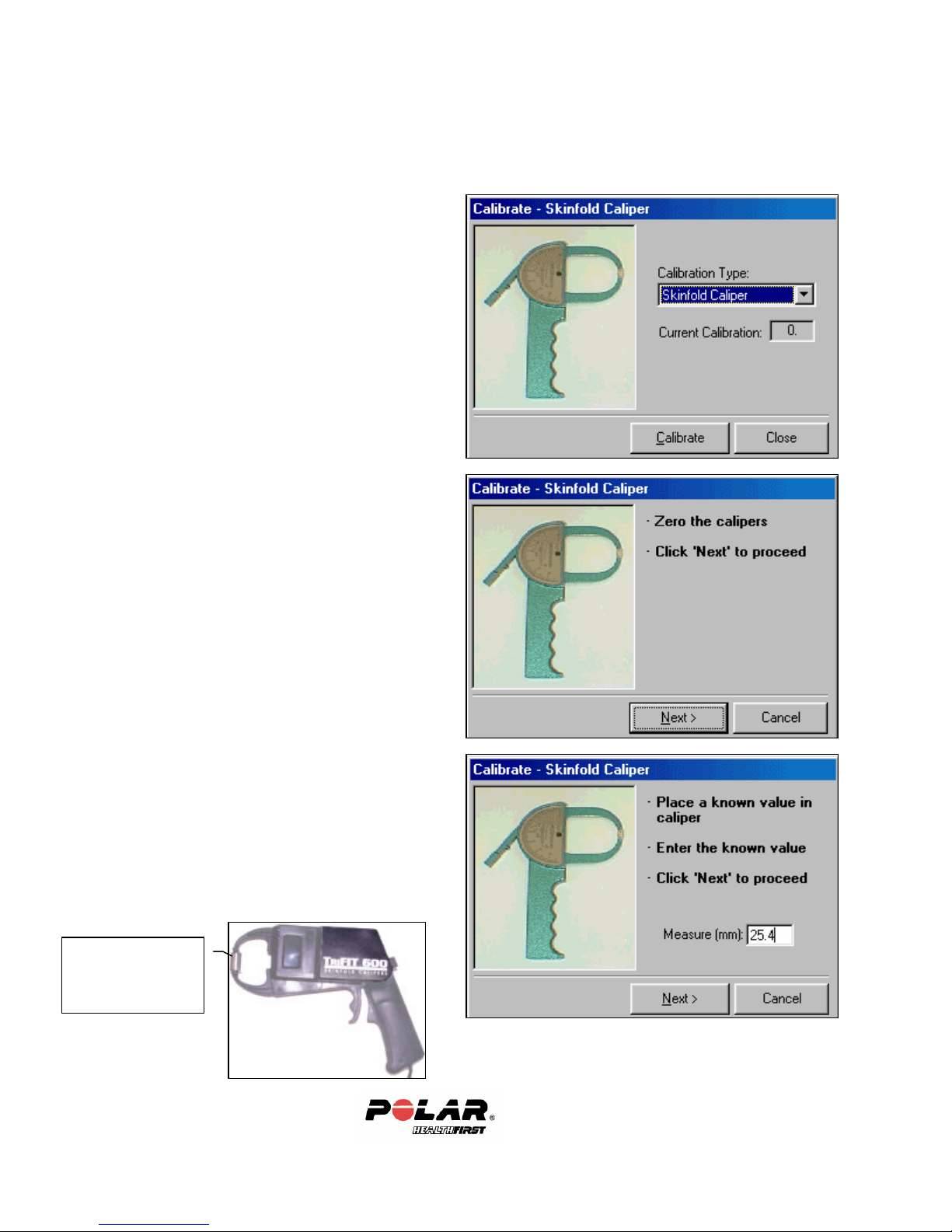
On-line Skinfold Calipers
1. Select Skinfold Caliper
2. Make sure the caliper jaws are
3. Put the calibration dowel in the
Calibration dowel
lengthwise
(25.4mm)
closed and click next.
(An upgraded Lange caliper is
shown in the calibration wizard)
jaws of the calipers lengthwise.
The length of the calibration
dowel is 25.4mm. Type this
value in the box and click Next>
30
Page 31
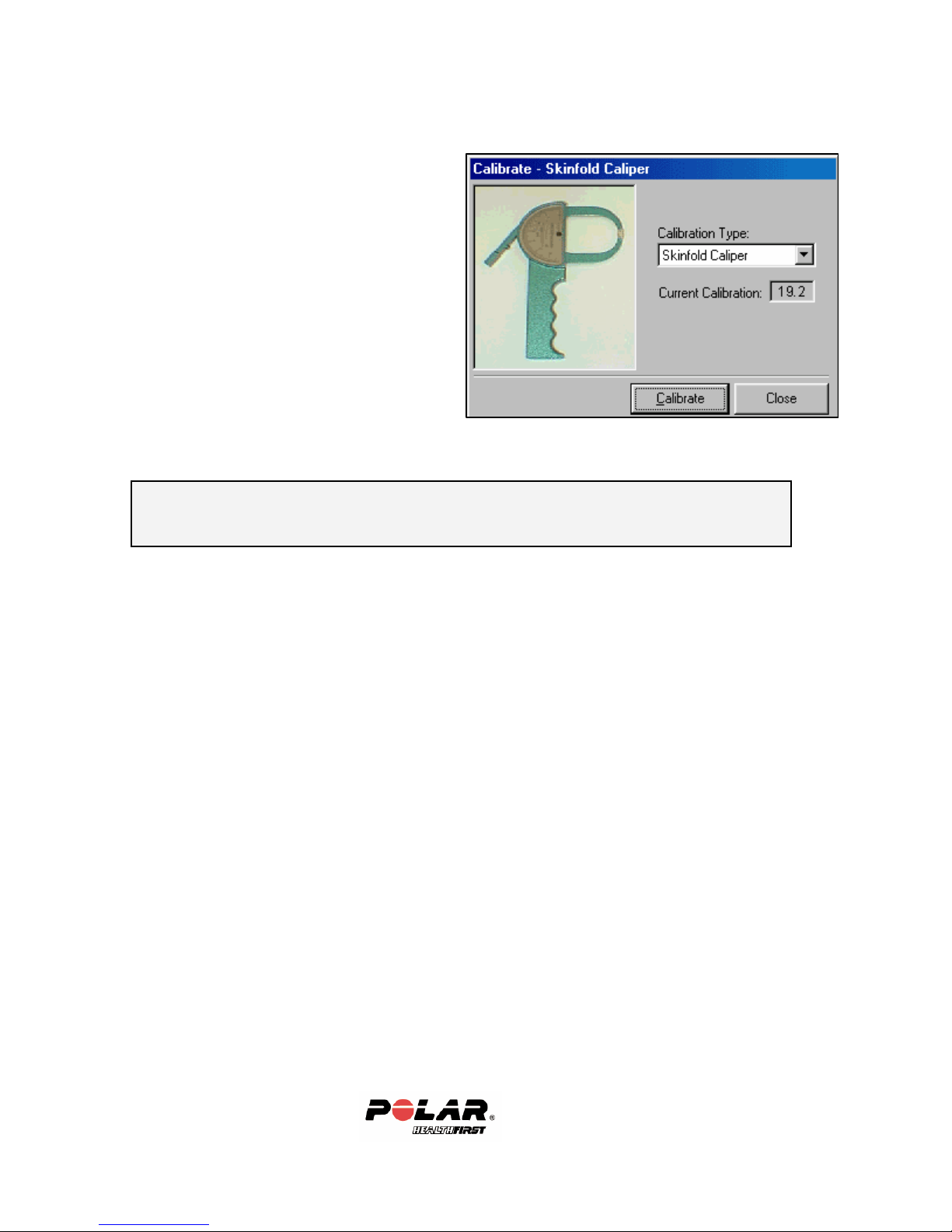
4. The correct calibration constant is
between 14.00 and 16.00 for the
Skyndex and between 18.00 and
22.00 for the Lange calipers.
MORE INFORMATION : For more information on how to properly perform an
accurate skinfold measurement, see the “Taking Accurate Skinfolds” Tutorial.
31
Page 32
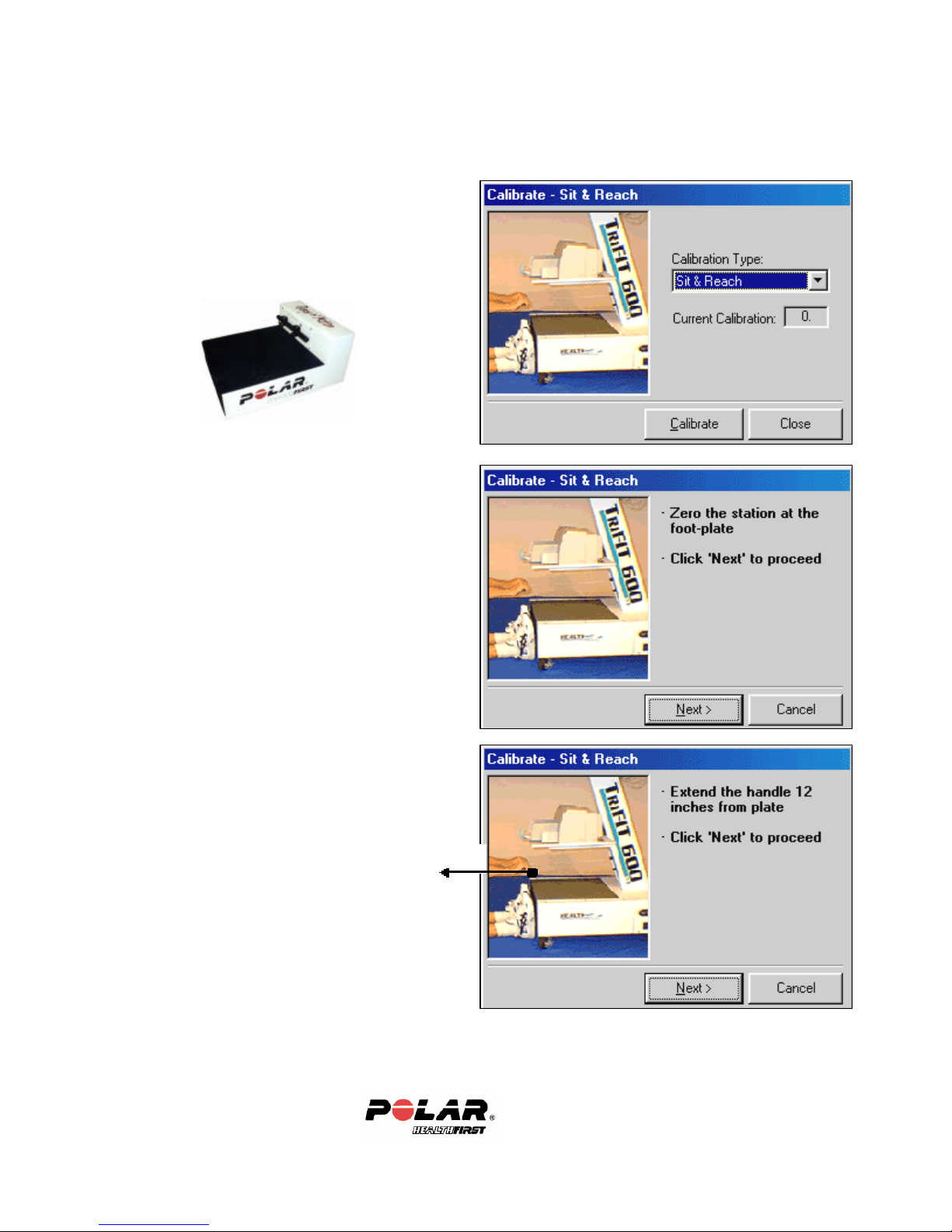
Range of Motion
1. Select Sit & Reach
Click Calibrate.
The portable 620 Sit & Reach station
calibrates exactly the same as the 600
system.
2. Pull the handle slowly out to the foot
plate and click the Next> button.
3. Pull the handle out exactly 12” PAST
the footplate*, then click Next>.
The correct calibration constant is
between 0.45 and 0.60.
12”
* You must have a 12” ruler when performing
this calibration.
Note: It is easier and typically more accurate to
use two people when calibrating the Range of
Motion.
WARNING: Use care when pulling out and returning the handle. Do not pull the handle out
too far and when a client has finished the test be careful they do not let go of the handle and
let it snap back. This is a delicate measurement device.
32
Page 33
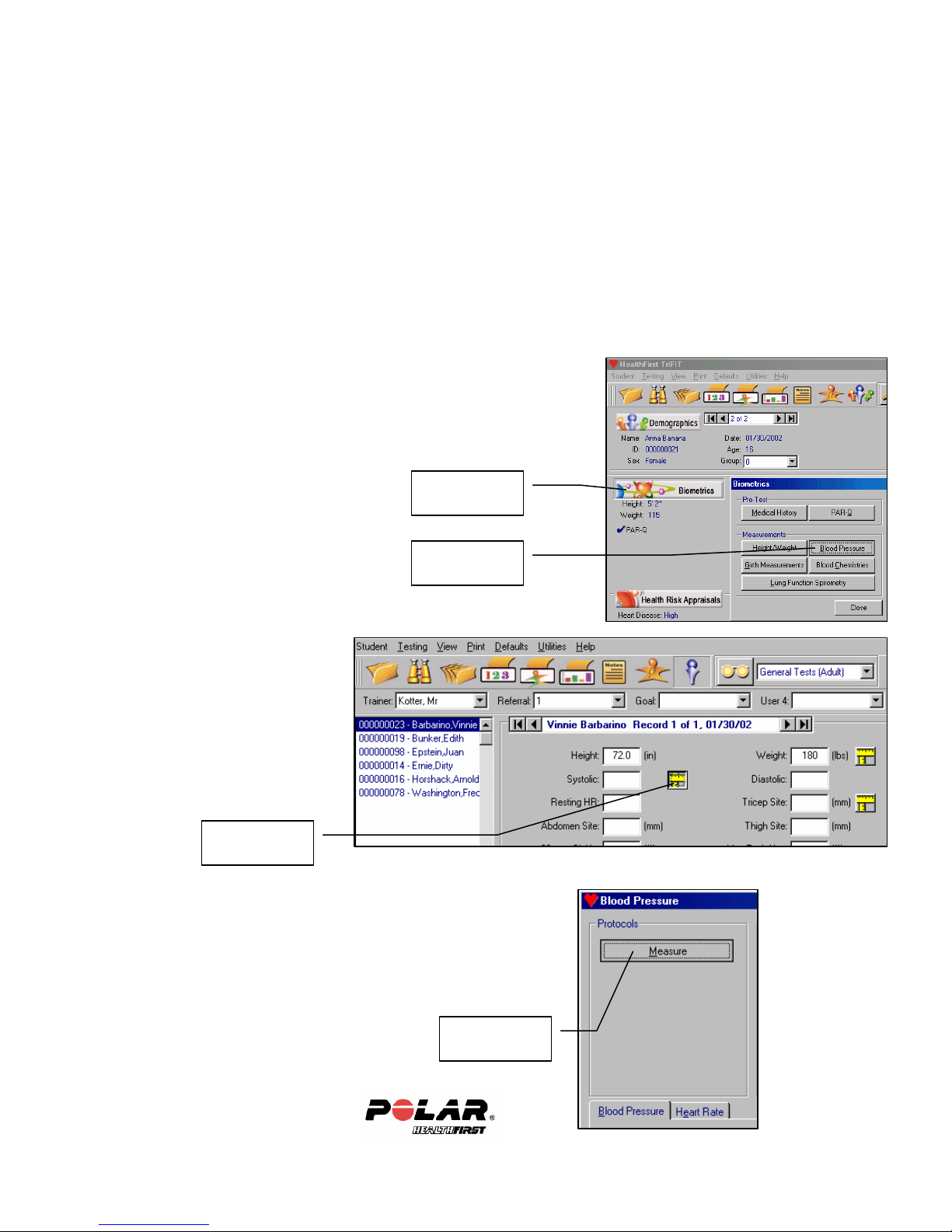
Blood Pressure
Pressure
Bleed rate testing and adjustment
You will need a stopwatch or a watch with a second hand to test the bleed rate.
1. Select a volunteer to test the blood pressure function.
2. Apply the cuff to the non-dominant arm. The cuff should be s nug, but
not tight.
3. Choose an existing client or create a new client to test (add a new test or
edit an old one-if unsure how to do this, follow the
tutorials that were installed on your desktop
computer).
4. Go to Biometrics and choose Blood Pressure. (This
is if using Personal View. If using Quick Entry, see
the next screen).
Biometrics
Blood
If in Quick Entry
View click on the
measure icon next
to the Systolic
field.
Measure
5. Click Measure (skip this step if using the quick
entry view as shown in last screen above)
Measure
33
Page 34
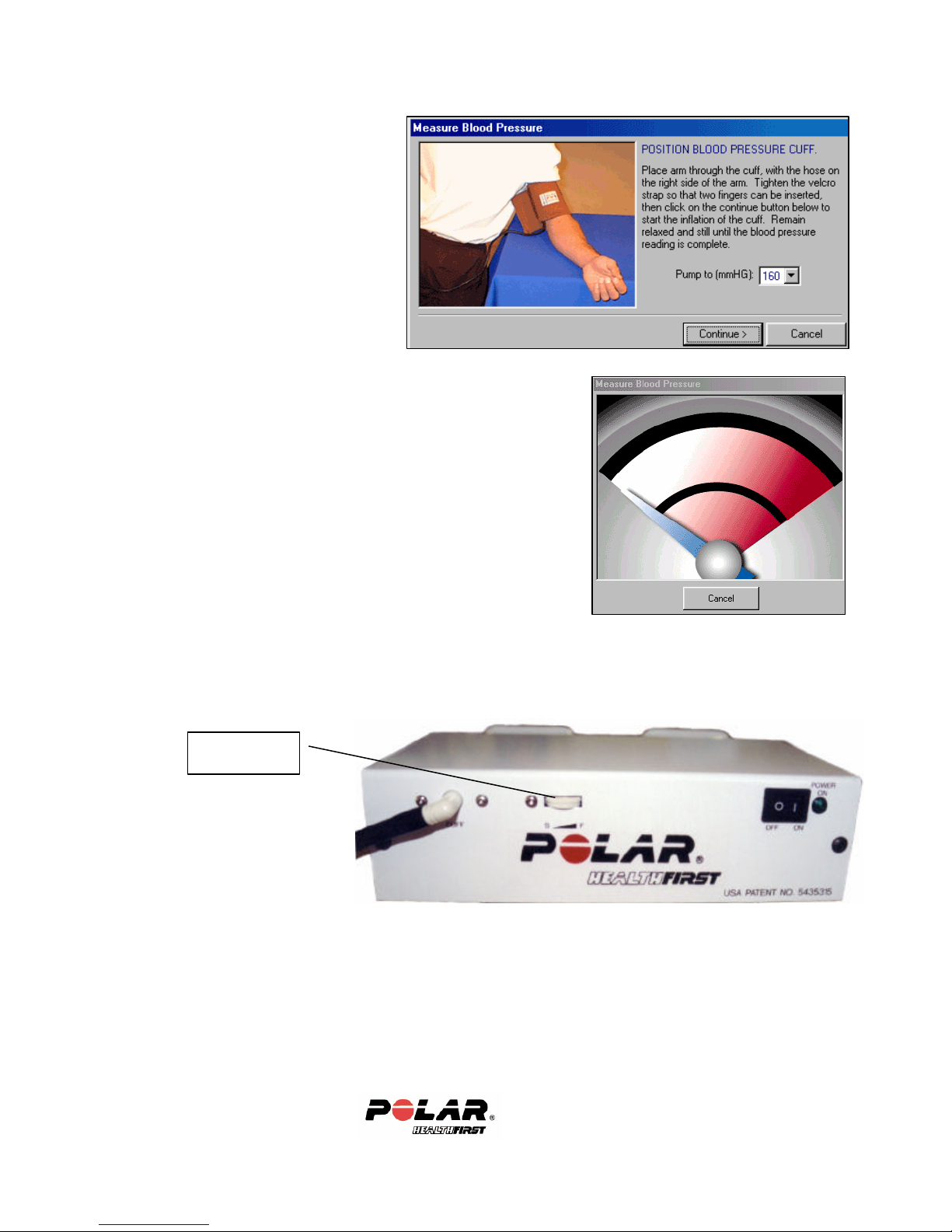
6. Choose the default
Pump to 160, and Click
Continue>
7. Start the test. The unit should begin to inflate the
cuff; when deflation begins, start timing.
8. Stop timing when the cuff releases pressure or
when results are displayed, whichever comes first.
The time should be about 25 seconds +/- 5
seconds.
9. If the time is outside of this range, adjust the rate with the thumbwheel
adjustment located on the front of the 620.
Thumbwheel
10. Adjust the thumbwheel in small increments. Repeat steps 6-8 until the
rate is 25 seconds +/- 5 seconds. The “S” stands for slower bleed rate, the
“F” stands for faster bleed rate. Adjust accordingly.
11. This adjustment sets the general function of the unit. It is not necessary
to repeat for all cuff sizes. The rate will be slightly longer for the extra
large cuff and shorter for the small cuff. This is normal.
34
Page 35
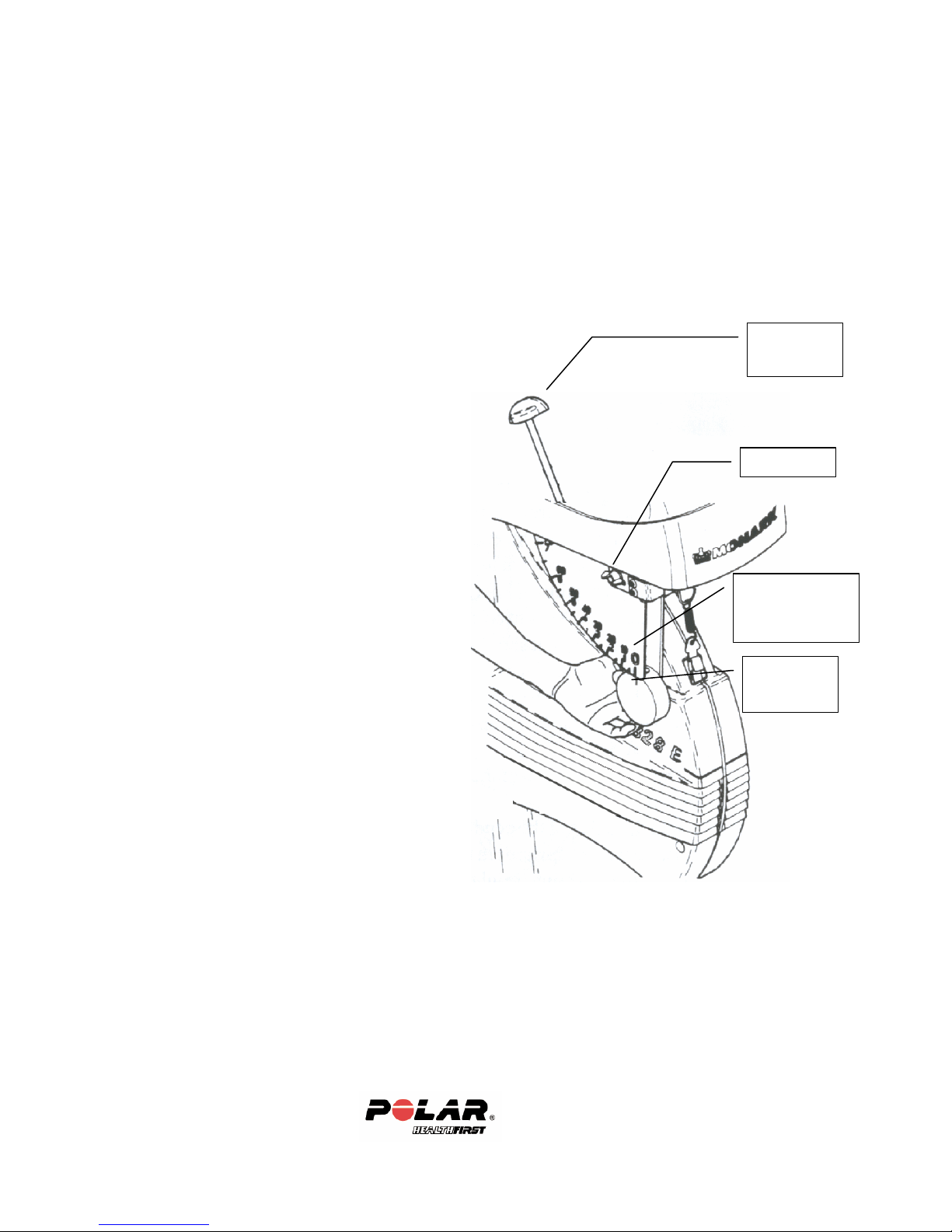
Monark 828 Bike
Lock Nut
“0” Mark on
Scale
Tension
Notch on
Once the bike is assembled, there are 2 adjustments that need to be made to
insure accuracy of a sub -max bike ergometer assessment.
1. Zero Adjustment of the Pendulum Scale
2. Calibration of Pendulum Scale
Zero Adjustment of the Pendulum Scale
1. Remove the transport tape from the
pendulum. Loosen the tension device
so the brake belt feels loose. Check
that the pendulum is hanging in a
vertical position. The notch on the
pendulum weight should now be
aligned with the “0” on the Pendulum
Scale.
2. If the pendulum notch does not line up
with the “0” on the Pendulum Scale,
loosen the lock nut and change the
position of the Pendulum Scale so that
it lines up with the notch on the
pendulum weight. Tighten the lock
nut after the adjustment.
3. When adjusting the resistance during a
bike test, always use the side scale and
not the one on top of the unit next to
the electronic speedometer.
Device
Pendulum
Pendulum
35
Page 36
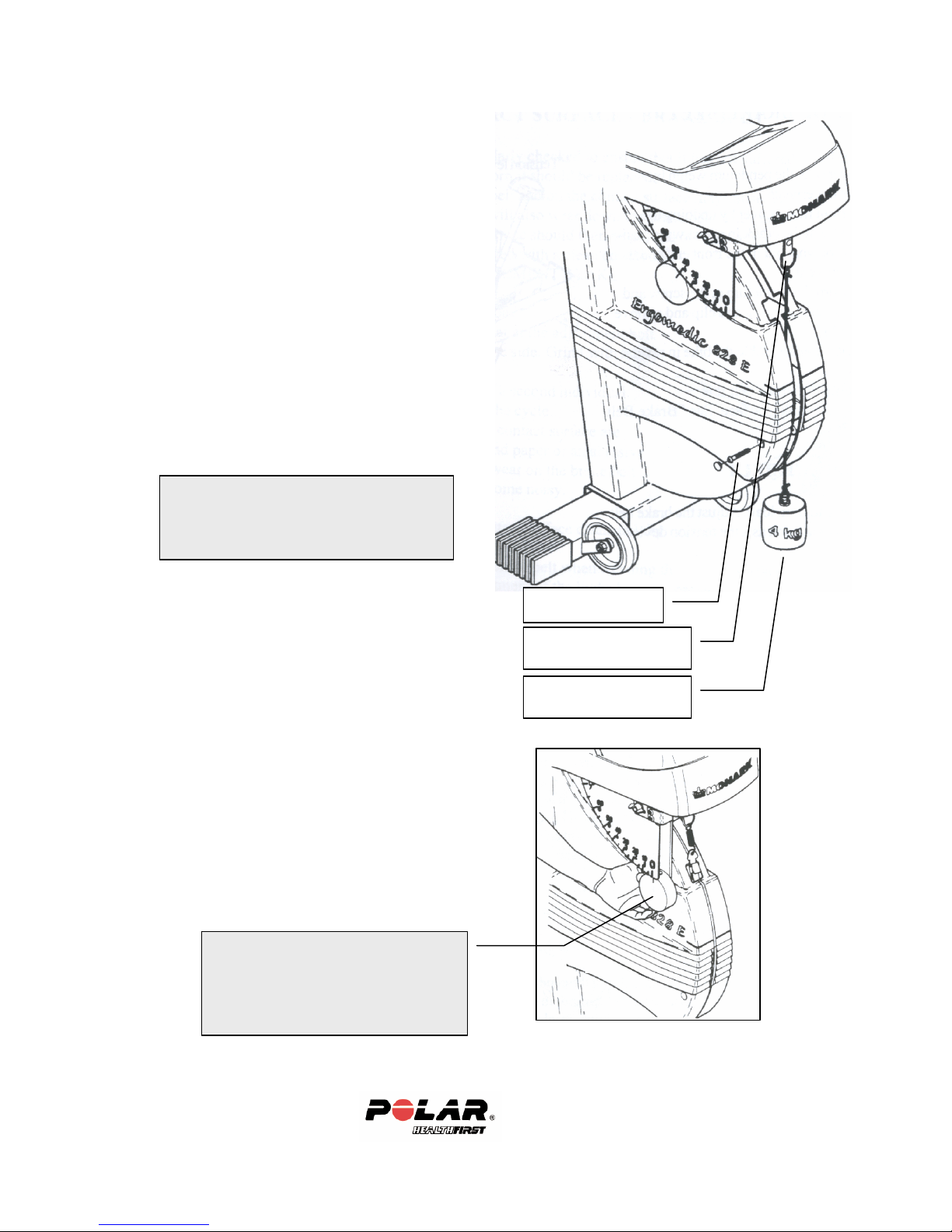
Calibration of Pendulum Scale
Balancing spring
(attach the weight here)
4KG Weight
(10 lbs = 4.5 KG)
1. Loosen the tension device so the brake
belt feels loose.
2. Make sure the “0” on the pendulum scale
lines up with the notch in the Pendulum.
(see previous page)
3. Detach the front screw in the frame
covers.
4. Fasten a 4KG weight at the ba lancing
spring. A 10 lb. weight plate is 4.5KGand this can be used if a 4KG weight is
not available.
NOTE: The weight should not be less
than 3KG. Take the left cover a little to
the side so the weight cord hangs between
the covers.
5. When correctly set, the Pendulum Scale
should read the same as the weight.
Frame Cover Screw
If using a 10 lb. weight, the scale
should read 4.5 KP.
6. If the pendulum scale is not lining up with the
weight being hung (4.5KP), adjust the
pendulum weight so that the notch on the
pendulum lines up exactly with the scale
(4.5KP). To adjust the pendulum weight, use
the hex key provided with the bike. Loosen the
screw at the back of the pendulum and slide the
small adjustment weight up or down.
Pendulum Adjustment Weight
Loosen the hex screw on the back side
of the pendulum. Loosen the screw
and slide the adjustment weight up or
down then tighten the screw.
Check the calibration of the pendulum weight once a year or when needed.
36
Page 37

Section 4: Training & Registration
In this section
• Testing Recommendations
• Training Recommendations
• Registration
37
Page 38

Testing Recommendations
When exercise testing a client or student you must consider the testing battery
order. For example: if a cardiovascular test is given first, then a blood pressure
measurement is taken, the blood pressure measurement will be affected by the
cardiovascular test.
The following is the recommended testing order:
• Enter client data: ID #, Name, age, address, and User field information.
• Medical History Questionnaire
• Par-Q (Physical Activity Readiness Questionnaire)
• Informed Consent
• Resting blood pressure and heart rate
• Body weight and height
• Girth Measurements
• HRA (Health risk appraisal questions)
• Body fat assessment
• Strength test
• Flexibility test
• Cardiovascular test
38
Page 39

Training For the TriFIT
The following training steps are mandatory before testing any clients, students
or patients. The operator should have a thorough understanding of the
function of the system before exercise testing. Any new TriFIT operators
should follow the procedures outlined below.
As Steps 1 and 2 are completed, note any questions or comments on the
Technical Support and Warranty Registration form.
On-Screen Tutorial and Video Training
For on-screen training of the TriFIT system, simply open the TriFIT Tutorials on
the desktop of your computer. These separate tutorials walk you through the
main aspects of the program step-by-step. These will be very helpful in
understanding the system and how to administer a proper and safe exercise test.
Practical Testing
Once you have completed the entire Tutorial and Video Training, you are ready
to begin practicing using the equipment:
1. Write down the tests your facility wants to provide for its members
or clients. Carefully consider which assessments to use and the order
they will be administered. When the member or client returns for a
re-test, it is important to use the same battery of assessments for
comparing the data. Also, the data gathered in Group Reporting and
Statistical Summary is more useful if the clients have been
administered the same tests.
2. Test a minimum of three people on the TriFIT using the same
protocols that will be used during an actual test. It is best to test
individuals that will also be using the TriFIT System, so that you may
share any new information and test administration tips.
39
Page 40

Register to Activate Warranty and Technical Support
Complete the following page and fax to Polar/HealthFirst Corporation. Once
the Technical Support Department receives the form, your Technica l
Support and Warranty will be activated. You will by contacted by a
Polar/HealthFirst customer service representative to review the proper usage of
the TriFIT system and answer any questions you may have.
It is strongly recommended that each person using the TriFIT 620 follow the
recommendations for staff operation guidelines BEFORE testing any clients or
members.
On-Site Training
Training at your facility is available by a Polar/HealthFirst trainer. For more
information on training programs at your facility, call Polar/HealthFirst at
800-841-8333 or visit the website at www.healthfirstusa.com and click on
training.
EDUCATION TRAINING
K-12, College, University
As the Director of Physical Education Services for
the Polar / HealthFirst Corporation, I am pleased to
announce the availability of a comprehensive
professional development training program utilizing
instructional technology.
Since continuing professional development is the
center of all educational progress, the Polar
/HealthFirst training program can be customized to
meet your specific needs. This includes your ability
to determine the length, location and emphasis of the
training sessions. The Polar /HealthFirst training
program can accommodate both new and veteran
staff members while adjusting to the ongoing needs
of your program.
This training program can include any and all of
Polar/HealthFirst products such as the TriFIT 600,
620 or TriFIT software, the Companion,
HealthySchools.net and the Wellness Center.
Yours in health and fitness,
John Moore, Ph.D.
Director of Physical Education Services
Polar / HealthFirst
FITNESS TRAINING
HealthClub, Government, Fitness Center
Don’t get by with using the TriFIT system just for
fitness testing. Learn everything it can do for you
from marketing, sales and member retention to
increasing personal training sales, corporate
membership sales, and customer service.
This training course is held at your facility and
will:
• 4 A.C.E National Continuing
Education Credits for all attendees
• Prepare your staff to use the TriFIT
system immediately
• Qualify your staff to perform skilled
fitness assessments
• Introduce your staff to the TriFIT
marketing program
• Create confidence in your staff’s ability to
use the TriFIT
• Get your staff excited about using TriFIT
• Save time!
Jennifer Collins, M.S., A.C.S.M., A.C.E.
Director of Fitness Training Services
Polar/HealthFirst
40
Page 41

Technical Support and Warranty
Registration
TO: Polar/HealthFirst Technical Support Team
FAX: (505) 344-1200
Number of Pages: ____
Facility Name: ________________________
Product: TriFIT 620
S/N: ______________
Main User Name: Date Tutorials Completed
______________________ ________________
Additional Users:
1. ___________________ ________________
2. ___________________ ________________
3. ___________________ ________________
4. ___________________ ________________
Phone #: ________________
Fax #: __________________
Available times for Technical Support to reach you:
__________________________ ________________________
(A Technical Support Representative will contact you with a reply to any
issues stated below).
Questions/Comments/Suggestions: (Use additional pages if necessary)
41
Page 42

In this section
Section 5: Support
• Troubleshooting
• Technical Support
• Returns
• Warranty
• Software license agreement
42
Page 43

Troubleshooting
If an error message appears on the screen during normal operation, print the error
and fax to Polar/HealthFirst Corporation Technical Support at 505/344-1200. To
print a fax technical request form from TriFIT, go to Help and Technical
Support. Complete the form and click print. You can then fax this form for
quicker response to your question.
For additional technical support, check on the web at
http://www.healthfirstusa.com/support
On-Line Peripherals
PLATFORM
Platform is giving low or high readings
1. Re-calibrate (Defaults/Calibration) being sure to follow the instructions on
the screen exactly.
2. Use a person who has a known weight between 150 and 190lbs.
3. Make sure the person DOES NOT step on the scale before it is zeroed. This
will cause the platform to be mis-calibrated.
4. Make sure the person stands very still. Any movement from side to side will
cause a mis-calibration.
5. Go to a test and perform an actual body weight with the same person that was
used to calibrate the scale. The weight should be within two pounds.
6. If the weight is not within two pounds, re-calibrate and re-measure the body
weight.
7. If the weight is still varying by more than two pounds, call the
Polar/HealthFirst Corporation Technical Support Line (505-344-9679).
8. Write down any error codes, as this will be helpful in correcting the problem.
43
Page 44

CALIPERS
On-Line Calipers are giving inaccurate readings
1. Re-calibrate as instructed on the screen. (Defaults/Calibration).
2. Go into a 3-site Skinfold test.
3. Zero the calipers.
4. Place the 25.4mm calibration dowel in the jaws of the calipers lengthwise.
5. Press the “Measure” switch on the calipers.
6. The reading on the screen should be within 24.5mm and 26.0mm. Do this 3
times and note each reading.
7. If the readings are not within 24.5mm and 26.0mm, re-calibrate and repeat.
8. If the dial on the calipers do not read exactly 25.4mm when the dowel is in
the calipers, do not worry! The dial on the caliper is not as accurate as the
digital reading being sent to the computer.
9. If still not within the above values, call the Polar/HealthFirst Corporation
Technical Support Line (505-344-9679).
SIT & REACH (Range of Motion)
Range of Motion handle is not retracting
1. If the ROM handle is not retracting, the internal mechanism needs to be
repaired by Polar/HealthFirst service personnel.
2. Remove the ROM unit from the Sit & Reach station using a 5/64” Allen
wrench provided with your system.
3. Remove the four screws mounting the unit to the station.
4. Unplug the ROM cable from the TriFIT 620 unit.
5. Remove the ROM unit.
6. If out of warranty, you must complete a Service Form before equipment can
be repaired. Call 505-344-1400 ext 107 to request a form or go to
http://www.healthfirstusa.com/support to download.
Range of Motion is inconsistent
1. Re-calibrate ROM (Defaults/Calibration) according to the instructions on the
screen.
*It is much easier and more accurate to calibrate the ROM with two people.
2. Enter into a client test and perform another Sit and Reach test.
3. When the screen prompts to “Zero the System”, pull the handle out exactly
12” from the foot plate and press the Enter key.
4. Return the handle slowly to the foot plate and allow the TriFIT to take the
reading.
5. The measurement should be within ½ “ of 12”.
6. If the measurement is not within ½”, re-calibrate and repeat.
44
Page 45

7. If still not within ½”, call the Polar/HealthFirst Corporation Technical
Support Line (505-344-9679).
For additional technical support, check on the web at
www.healthfirstusa.com/support
45
Page 46

Technical Support
Technical Support
For one full year from date of shipment, you are entitled to physiology and
software/hardware technical support. After the first year, you can purchase the
Priority Plan. Priority Plan members receive one full year of FREE technical
support and software upgrades. After the first year of free technical support,
non-Priority Plan members will be charged for any software update and $40.00
per call. Our staff is fully knowledgeable on physiology, testing protocols and
procedures as well as operation of the TriFIT 620 system.
For free technical support, check on the web at www.healthfirstusa.com/support
Contacting Polar/HealthFirst Corporation Technical Support
Before calling Technical Support:
1. Be able to tell us your facility name and product.
2. Have your question or problem writte n down as clearly as possible along
with the exact error codes which may appear on your screen. Be sure to
explain exactly which tests or screens you were using before this error
occurred.
3. It is helpful to fax any data in question (i.e.; results from tests, specific
printing questions, reports, etc.)
4. Be at your system when you call.
Voice (505) 344-9679
Fax (505) 344-1200
46
Page 47

Return Authorization
Before sending any parts back to Polar/HealthFirst Corporation for return, repair
or warranty, you must arrange for Return of Materials Authorization. Credit card
information or Purchase Order with a completed Polar credit application must
accompany the part(s) being returned.
• Call 505-344-9679, to obtain a Polar Return for Repair Form.
• You will be issued an RMA number.
• Write this number on the address label next to your return address. Be sure
to include the completed Polar Credit Application form.
• Write down a brief description of the problem and your name and include it
in the box.
• Also, please read the next paragraph on packing returns properly.
Packing Returns
It is very important to pack any item being returned to Polar/HealthFirst
properly. Most items are electronic and somewhat fragile, especially the
computer and monitor. Please follow these guidelines when returning any part to
Polar/HealthFirst:
• For all items, pack in a corrugated box and pad with Styrofoam peanuts,
wadded papers or foam.
• UPS and other commercial shippers may require double boxing electronic
components for insurance claims to be honored. Check with your shipping
agent for more information.
47
Page 48

Polar/HealthFirst Corporation Warranty
Warranty
Polar/HealthFirst Corporation, warrants its equipment for one year from the date
of shipment. This warranty is limited and is in lieu of all other warrants
expressed or implied. Within the warranty period, Polar/HealthFirst Corporation
will repair or replace, without charge, any parts which become defective due to
material or workmanship.
Accessories, components and major sub -assemblies of Polar/HealthFirst
Corporation’s systems not manufactured by Polar/HealthFirst Corporation (i.e.,
Bike Ergometer) will be warranted according to the terms of the original
manufacturer. This warranty shall not apply to any part or parts of the system if
it has been altered, repaired or misused through negligence; nor does this
warranty cover replacements or repairs necessitated by loss or damage resulting
from any cause beyond the control of Polar/HealthFirst Corporation, including
but not limited to acts of God, acts of Government and labor disputes.
The above warranty provisions do not apply to any “consumer products” in that
the products described herein should not and are not normally used for personal
family or household purposes as same is defined in the Maganison-Moss
Warranty – Federal Trade Commission Improvement Act, 15 U.S.C. 2301, et
seg,.
Extended Warranty
The warranty may be extended an additional year (total of two) within 30 days of
the equipment delivery for ten percent (10%) of the purchase price.
Priority Plan
Polar/HealthFirst Corporation provides one year of free technical support for
TriFIT 620 customers. Customers have the option of renewing their Priority
Plan subscription which guarantees on-going support and technical as sistance
annually. As a Polar/HealthFirst Corporation Priority Plan subscriber, you get
the following benefits:
• Automatic software maintenance upgrades.
• A 15% or more discount on all NEW Polar/HealthFirst Corporation software
product releases.
• PRIORITY TO LL FREE telephone assistance for Polar/HealthFirst
Corporation hardware, software and physiology questions.
Non-plan members will be charged a minimum of $20.00 per call for support
questions. Enrollment Fee: TriFIT 620 $490
48
Page 49

License Agreement
Important
By using this software you accept the following terms of this License
Agreement. If you do not agree with these terms, you should not use the
software and promptly return it for a refund.
Ownership
Polar/HealthFirst Corporation retains the ownership o f this copy of the enclosed
software package. It is licensed to you for use under the following conditions.
Grant of License
You may only concurrently use the enclosed software on the number of
computers for which this license grants (for example, single-user version licenses
one concurrent usage; five-user network version licenses five concurrent usages).
If the number of users of the software exceeds the licenses, you must have a
reasonable process in place to assure that the number of persons concurre ntly
using the software does not exceed the number of licenses.
Network versions of the software may be combined to build larger networks (for
example, two five-user versions may be combined to form a ten-user network).
You may add a single-user version to an existing network configuration to
increase the number of network licenses (for example, you may add a single-user
version to a five-user network version to build a six-user network).
Restrictions
You may not copy the documentation or software except as described in the
installation section of this manual. You may not distribute, rent, sub -license or
lease the software or documentation, including translating, decompiling,
disassembling, or creating derivative works. You may not reverse-engineer any
part of this software, or produce any derivative work. You may not make
telecommunication transmittal of this software.
Termination
This license and your right to use this software automatically terminates if you
fail to comply with any provision of this license agreement.
Rights
Polar/HealthFirst Corporation retains all rights not expressly granted. Nothing in
this license agreement constitutes a waiver of Polar/HealthFirst Corporation’s
rights under the U.S. copyright laws or any other Federal or State law.
Limited Warranty
If you discover physical defects in the media, Polar/HealthFirst Corporation will
replace the media or documentation at no charge to you, provided you return the
49
Page 50

item to be replaced with proof of payment to Polar/HealthFirst Corporation
during the 90-day period after having taken delivery of the software.
Polar/HealthFirst Corporation excludes any and all implied warranties, including
warranties of merchantability and fitness for a particular purpose and limits your
remedy to retur n the software and documentation to Polar/HealthFirst
Corporation for replacement.
Although Polar/HealthFirst Corporation has tested the software and reviewed the
documentation, POLAR/HEALTHFIRST CORPORATION MAKES NO
WARRANTY OF REPRESENTATION, EITHER EXP RESSED OR IMPLIED,
WITH RESPECT TO THIS SOFTWARE OR DOCUMENTATION, ITS
QUALITY, PERFORMANCE, MERCHANTABILITY, OR FITNESS FOR A
PARTICULAR PURPOSE. AS A RESULT, THIS SOFTWARE AND
DOCUMENTATION ARE LICENSED “AS IS” AND YOU, THE LICENSEE,
ARE ASSUMING THE EN TIRE RISK AS TO ITS QUALITY AND
PERFORMANCE.
IN NO EVENT WILL POLAR/HEALTHFIRST CORPORATION BE LIABLE
FOR DIRECT, INDIRECT, SPECIAL, INCIDENTAL OR CONSEQUENTIAL
DAMAGES ARISING OUT OF THE USE OR INABILITY TO USE THE
SOFTWARE OR DOCUMENTATION, even if advised of the possibility of
such damages. In particular, Polar/HealthFirst Corporation shall have no liability
for any data stored or processed with this software, including the costs of
recovering such data.
THE WARRANTY AND REMEDIES SET FORTH ABOVE ARE
EXCLUSIVE AND IN LIEU OF ALL OTHERS, ORAL OR WRITTEN,
EXPRESSED OR IMPLIED. No Polar/HealthFirst Corporation dealer, agent, or
employee is authorized to make any modifications or additions to this warranty.
Information in this document is subject to change without notice and does not
represent a commitment on the part of Polar/HealthFirst Corporation. The
software described in this document is furnished under this license agreement.
The software may be used or copied only in accordance with the terms of the
agreement. It is against the law to copy the software on any medium except as
specifically allowed in the license agreement. No part of this manual may be
reproduced or transmitted in any form or by any means, electronic or
mechanical, including photocopying and recording, for any purpose without the
written permission of Polar/HealthFirst Corporation.
Some states do not allow the exclusion of implied warranties or liability for incidental or
consequential damages, so the above limitation or exclusion may not apply to you. This warranty
gives you specific legal rights, and you may also have other rights, which vary, from state to
state.
50
 Loading...