

Page 1
Tab E11
Quick Start Guide
Page 2

2
FCC Declaration of Conformity
This device complies with Part 15 of the FCC Rules. Operation is subject to the following two conditions: (1) this device may not
cause harmful interference, and (2) this device must accept any interference received, including interference that may cause
undesired operation.
This equipment has been tested and found to comply with the limits for a Class B digital device, pursuant to part 15 of the
FCC Rules. These limits are designed to provide reasonable protection against harmful interference in a residential installation.
This equipment generates, uses and can radiate radio frequency energy and, if not installed and used in accordance with the
instructions, may cause harmful interference to radio communications. However, there is no guarantee that interference will not
occur in a particular installation. If this equipment does cause harmful interference to radio or television reception, which can be
determined by turning the equipment off and on, the user is encouraged to try to correct the interference by one or more of the
following measures:
- Reorient or relocate the receiving antenna.
- Increase the separation between the equipment and receiver.
- Connect the equipment into an outlet on a circuit different from that to which the receiver is connected.
- Consult the dealer or an experienced radio/TV technician for help.
Canadian Department of Communications Compliance
Statement
This digital apparatus does not exceed the Class B limits for radio noise emissions from digital apparatus set out in the Radio
Interference Regulations of the Canadian Department of Communications. This device complies with Industry Canada licenceexempt RSS standard(s). Operation is subject to the following two conditions: (1) this device may not cause interference, and (2)
this device must accept any interference, including interference that may cause undesired operation of the device.
Caution:
Any changes or modifications not expressly approved by the grantee of this device could void the user’s authority to operate the
equipment.
CE mark. Declaring compliance to all the applicable European Union (EU) directives. For CE mark related questions:
ENGLISH
RF Exposure Information (SAR)
This device meets the government’s requirements for exposure to radio waves. This device is designed and manufactured not to
exceed the emission limits for exposure to radio frequency (RF) energy set by the Federal Communications Commission of the
U.S. Government.
The exposure standard employs a unit of measurement known as the Specific Absorption Rate, or SAR. The SAR limit set by the
FCC is 1.6 W/kg. Tests for SAR are conducted using standard operating positions accepted by the FCC with the EUT transmitting
at the specified power level in different channels.
Page 3

3
Be sure to keep the power cord away from
younger children
Please ensure the user understand the following:
• As with all electrical products, precautions should be observed during handling and use to prevent electric shock.
The power supply (adapter) should not be handled by the children.”
• The computer, power supply, battery pack or power cord should not be dropped, crushed, stepped on or otherwise abused.
• Ensure the user understand the safe and proper handling of power cord and power supply. Misuse could result in serious injury.
• The user should periodically inspect the computer; power supply and power cord for damage and replace it, if necessary.
• Do not leave the computer plugged in or “on” when enclosed in a non-vented container, such as a backpack,
as overheating may occur.
• It is recommended that user should take a 5-minute break every 30 minutes of use.
.
Safety Precautions
The followings are the precautions for environments while using the product:
1. Do not place near the fire or other sources of heat.
2. Do not expose to magnetic fields.
3. Do not expose to direct sunlight.
4. Do not expose to rain or moisture.
5. Do not place heavy objects to add heavy pressure on the computer.
6. Do not drop the computer.
Caution:
RISK OF EXPLOSION IF BATTERY IS REPLACED BY AN INCORRECT TYPE. DISPOSE OF USED BATTERIES
ACCORDING TO THE INSTRUCTIONS. TO PREVENT POSSIBLE HEARING DAMAGE,
DO NOT LISTEN AT HIGH VOLUME LEVELS FOR LONG PERIODS.
Page 4
4
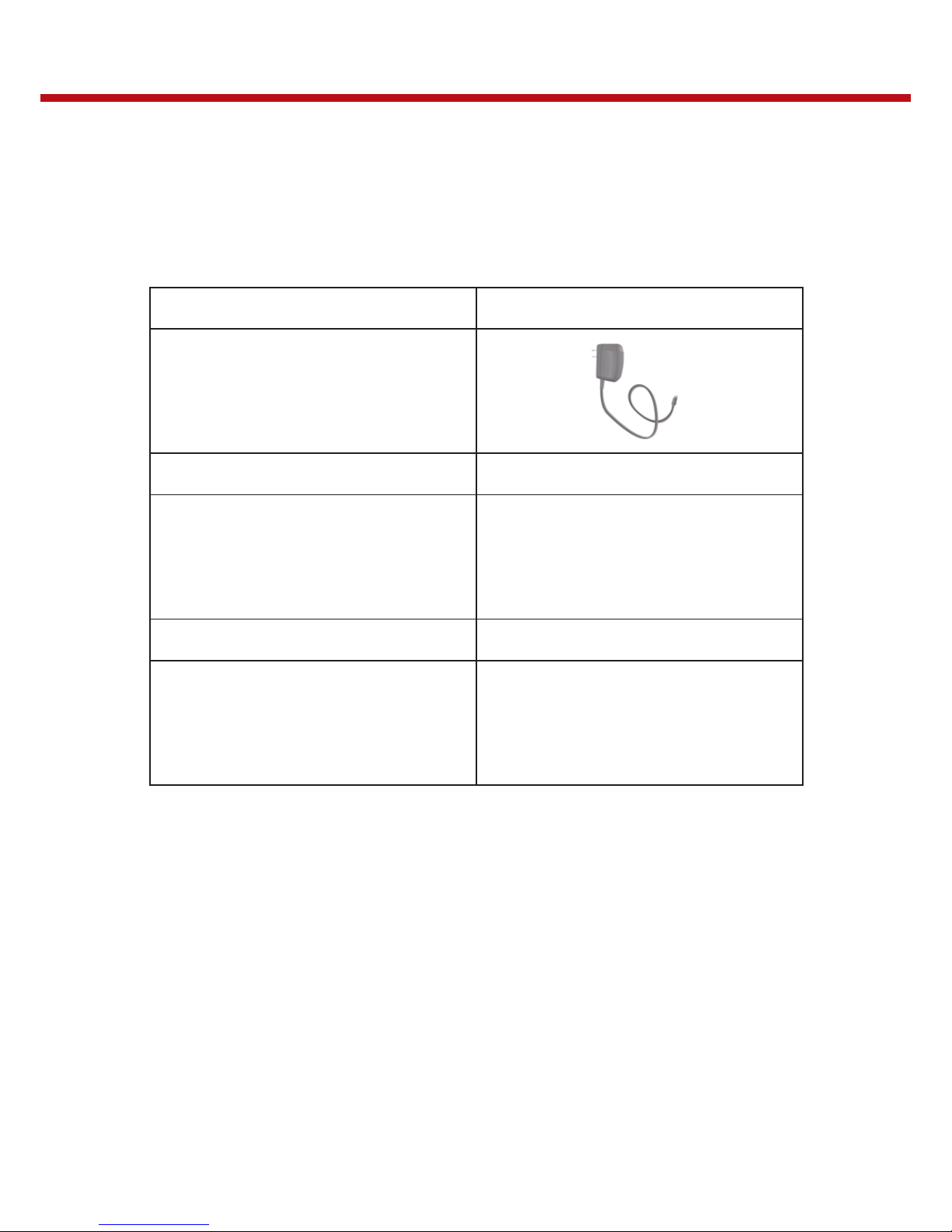
Package contents
One laptop One AC adapter
Digital pen (optional) Macro lens (optional)
This guide Thermal probe (optional)
Carefully unpack your box and take out the items listed below. If any of the items are missing or damaged, please contact your
dealer immediately:
ENGLISH
Page 5
5
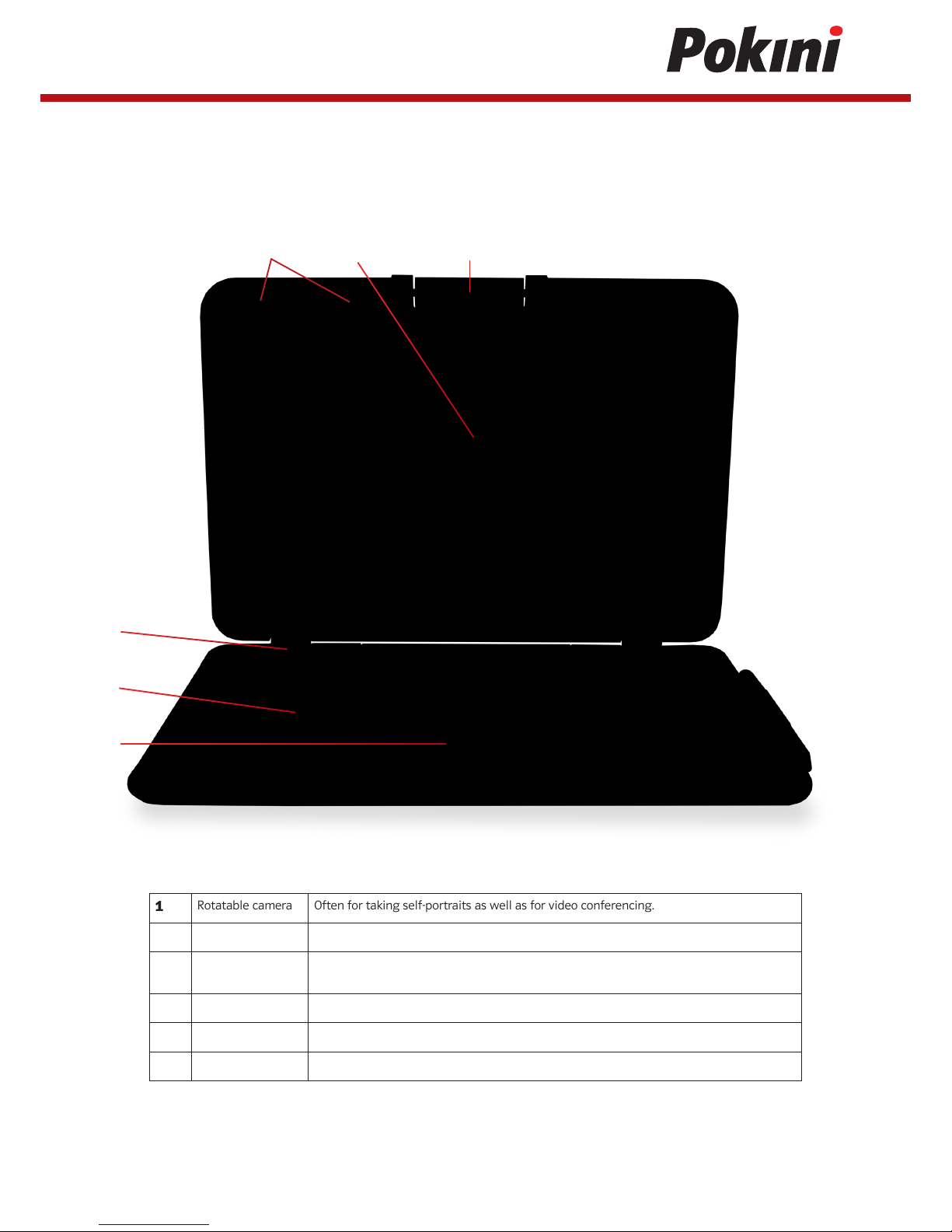
Tablet layout
Front
1
Rotatable camera Often for taking self-portraits as well as for video conferencing.
2
Microphone Mainly for sound and speech recording
3
Touchscreen The main display of your laptop and a see-touch device. You can look at it and also touch
it with your fingers to control it.
4
Power button Press it to power on/off your laptop.
5
Windows key Press here to open the Start menu.
6
Touchpad Allows you to control your system using figure gestures
1
2 3
4
5
6
Page 6
6
ENGLISH
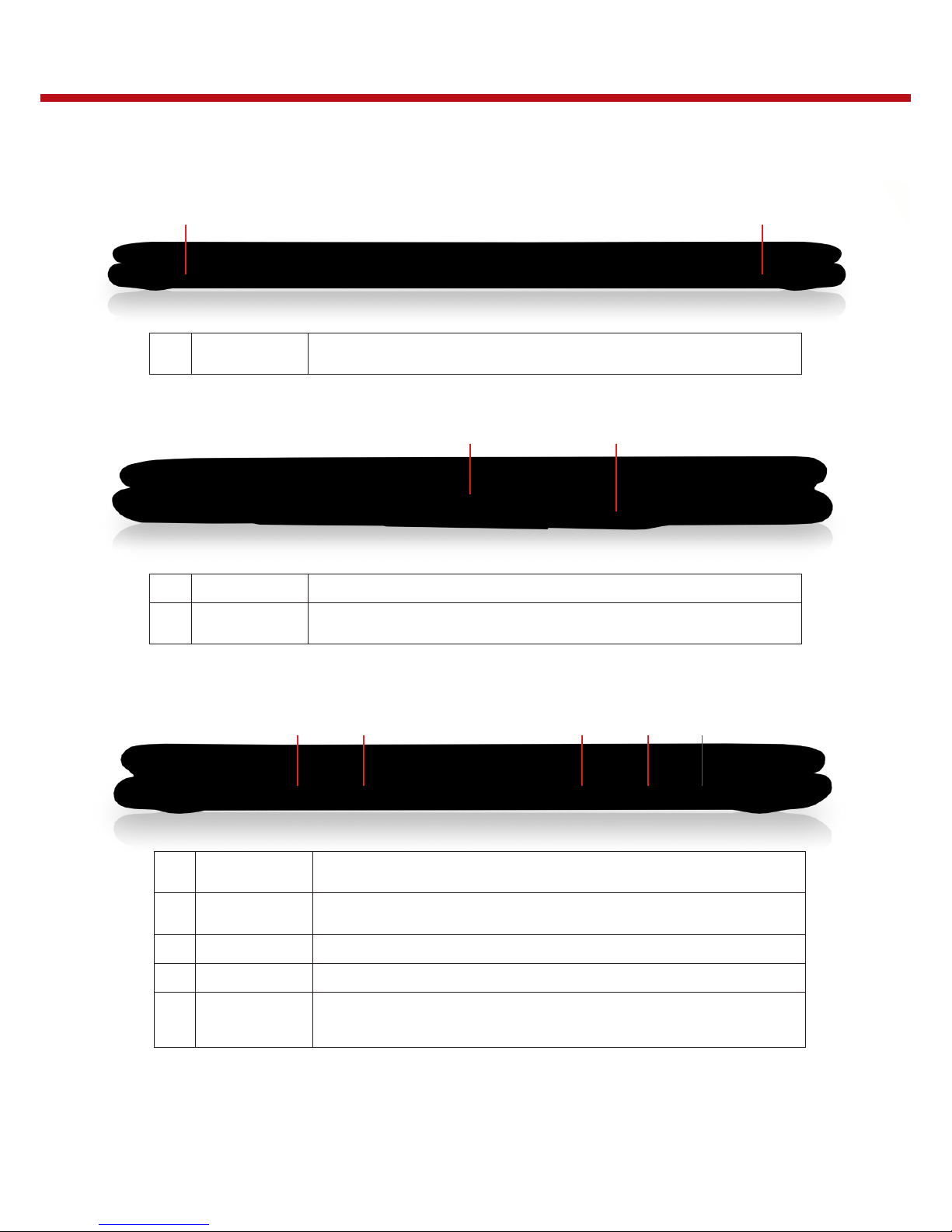
Front end
7 7
7
Speaker The sound system has two speakers for playing music, notification sounds, and other
audio data.
Right
8 9
8
Digital pen holder This is where you rest the provided digital pen.
9
Digital pen
Use it to perform touch operations and typing comfortably as if you were doing them
with your own fingers.
Left
10
USB Type-C port
Plug your USB Type-C supported devices here.
Plug the provided adapter here to charge the battery.
11
Charging indicator
It shows the charging status of your laptop. It shows blue when the battery is fully
charged.
12
Micro SD card slot Plug your micro SD card here
13
USB Type-A port Plug your USB Type-A devices here.
14
Combo Audio jack
for microphone/
headphone
Plug your 3.5mm headphone here
10 11 12 13 14
Page 7
7
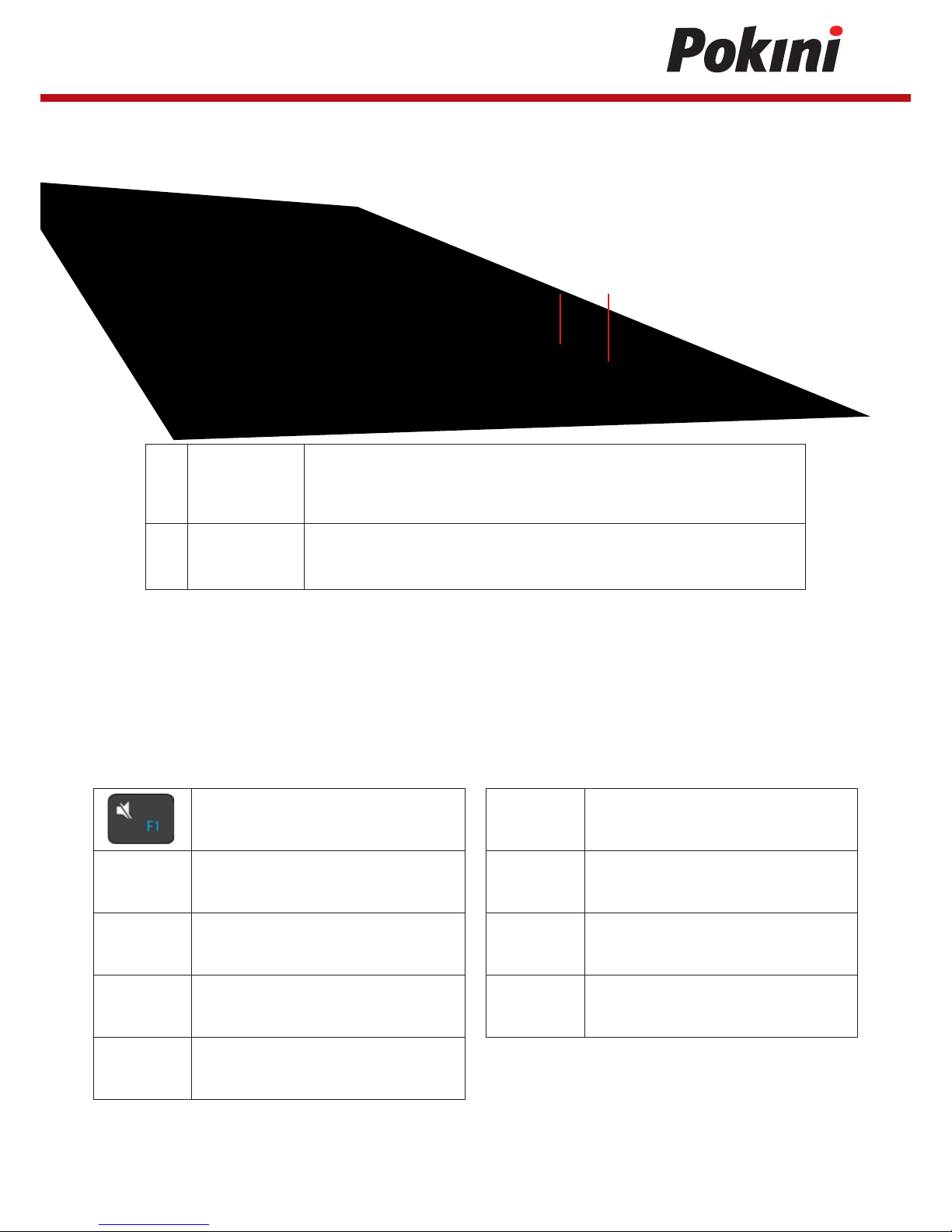
Digital pen
Function keys
15 16
15
Barrel button
This button provides two functions in default:
- Right click: Perform a touch on your desired item or object with the button being pressed.
- Selecting items or objects: Press and hold this button and drag your pen on the screen
over the desired items or objects to select them.
16
Eraser button
With the button being pressed, the tip of your digital pen acts like an eraser and enables
you to erase the content previously made on the touch screen.
- This button may require the support from your application.
The following function keys are no need to press Fn to make them work.
Mute or unmute your system.
Decreases the volume level.
Increases the volume level
Switches display output between your display,
external monitor (if connected) and both.
Decreases the display brightness
Increases the display brightness.
Opens the Settings screen.
Play or Pause
Push here to talk to Cortana, if available.
Page 8

8
ENGLISH
Folding the keyboard
This laptop supports a swiveling 11.6-inch touchscreen that
can be used in several different ways. Opening the device as a
standard laptop gives you access to the keyboard and touchpad, while folding the keyboard behind the screen turns it into
a tablet. You also can prop the notebook’s screen up in stand
mode, which is ideal for viewing videos and presentations.
Your rotatable camera
Form the angle at which the camera facing forward, you can
adjust the camera angle downward to make it facing down at
an angle of 35 degree.
Or, you can turn it over a full 200 degree to use it like a
rear-facing camera.
Powering ON/OFF
1. If this is the first time you turn this computer on,
connect the AC adapter and fully charge the battery.
2. Press the power button (normally 1 to 2 seconds).
You shall see the screen turning on.
Powering on your computer
The laptop will require you to do the initial setup, which including:
- Activate your Windows 10
- Sign in to or create your Microsoft account
- Setup a wireless connection and more
Please follow the instruction to complete the initial setup.
Powering on for the first time
Page 9

9
Save all your data before powering your computer off.
To power off your system, following the steps below:
By Start menu
1. Click the Windows icon in the low-left corner of the
Desktop. Or, press on the Windows key in the keyboard.
2. In the Start menu, click the Power icon, as shown on
the right,
3. Select <Shut down> from the power option menu,
as shown on the right
Powering off your computer
When you will be away from your computer for a short time, put the computer to sleep. Do one of the following:
• Close the display panel
• Press the power button briefly one time.
• Open the Start menu and then select <Power> › <Sleep>
Powering off your computer
Do one of the following:
• Pressing the power button briefly one time.
• Pressing the windows key.
• Tapping the touchpad, or opening the display panel.
Note: It is recommended that you put your computer to sleep before you move it. Especially, if your laptop comes with a
traditional hard disk, instead of a modern SSD, moving your computer while the hard disk is spinning can sometimes damage the
hard disk, causing loss of data.
Waking up your computer
Basic touchpad operations
The touchpad works like a traditional mouse. With it, you can move the cursor and perform left-click, right-click, double-click
actions. However, the actual available actions are application dependent.
Page 10
10
ENGLISH
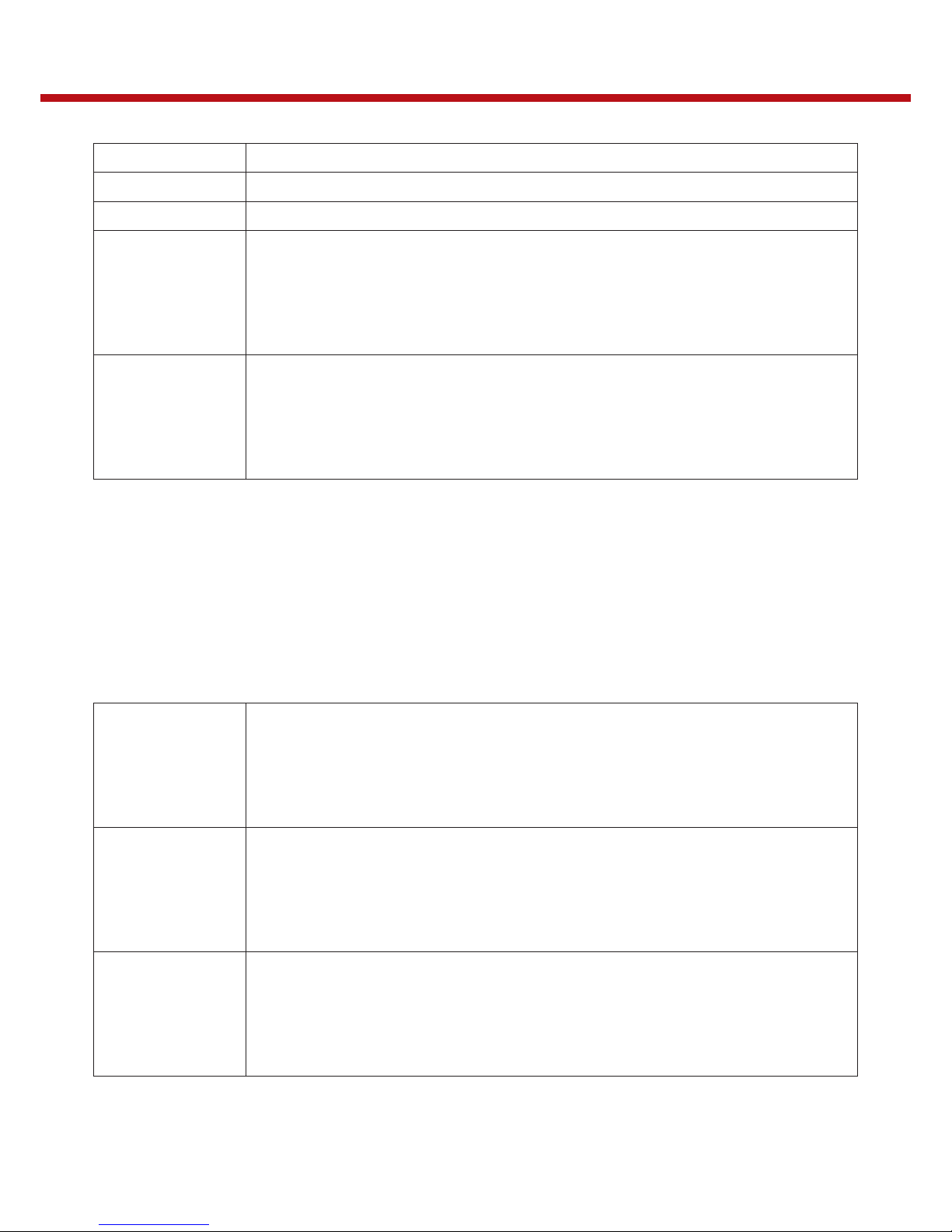
Left-clicking (or Clicking) Tap once on the touchpad surface or press once on the low-left corner of the touchpad.
Right-clicking Press once on the low-right corner of the touchpad.
Dragging Press and continue to hold down the left corner and then move (drag) your finger across the touchpad surface.
Vertical scrolling
Drag two fingers up or down on the touchpad.
Horizontal scrolling
Drag two fingers left or right on the touchpad.
Basic touchpad operations
When you fold your laptop into a tablet, it is ideal for you to use your fingers or the digital pen to perform many actions on it.
- Don’t use sharp objects to touch the screen. Or, the screen may be damaged or scratched.
- Don’t touch the touchscreen with a conductive material. It may cause a malfunction.
- The supporting functions are application dependent.
Tap
Touch once on an item to start an app, open a link, or perform an optional function. This is similar to a left-click
with a mouse.
Double-tap
Slightly press twice with your finger to select an item.
Press and hold
Press and leave your finger on an item. This brings up detailed information or opens a menu with more options
for the item. This is similar to a right-click with a mouse.
Page 11
11
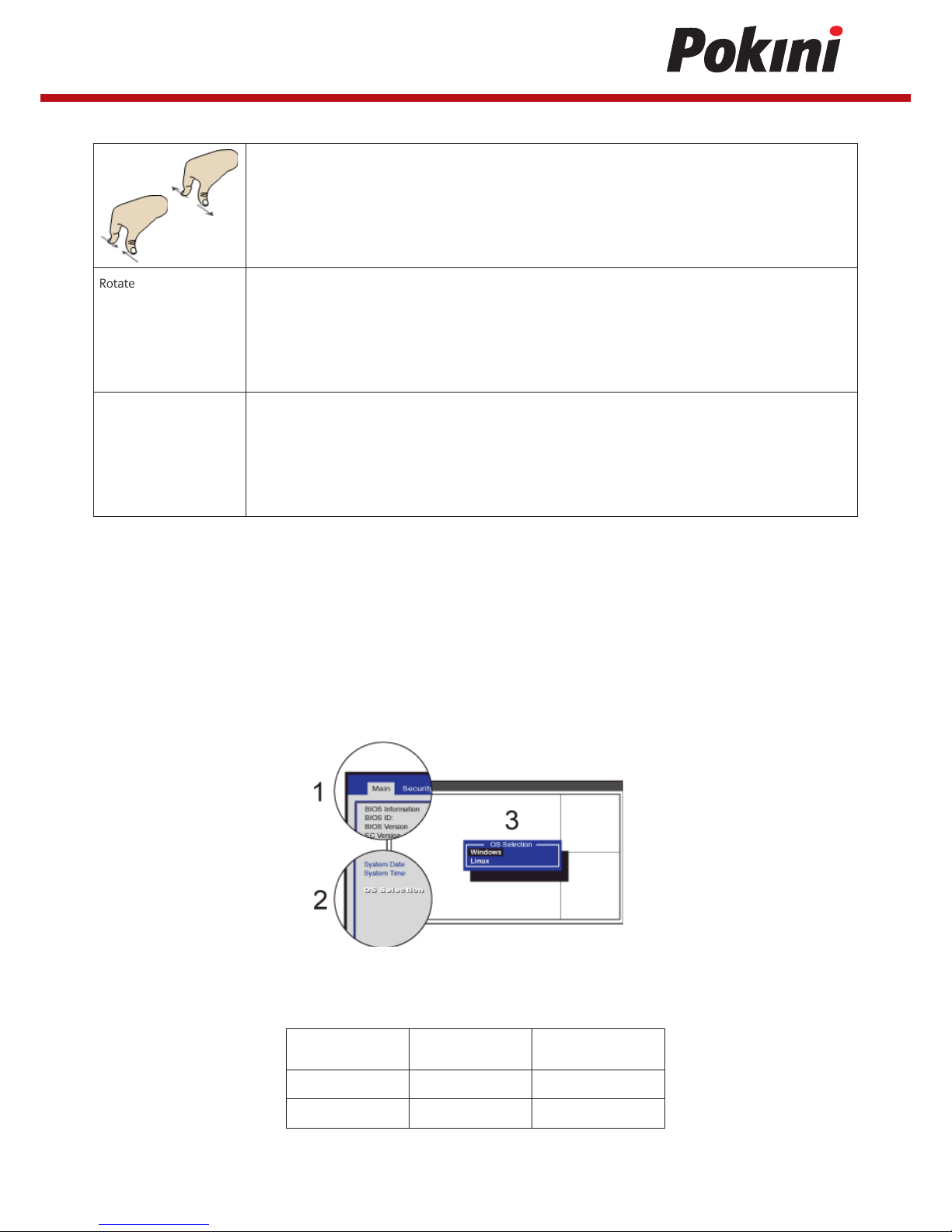
Pinch
Move two fingers together or apart while touching the screen. This is to zoom in and out on visual apps, such
as pictures and maps.
Rotate
Place two or more fingers on an item and then turn your hand.
This enables you to turn an object. (Note: Not all items can be rotated, depending upon the app.)
Slide
Drag your finger across the screen.
This can scroll through lists and pages, and can also move an object or be used to draw or write, depending
upon your apps.
Linux supporting (only on request)
You laptop supports Windows and Linux and you can choose which one to install in the BIOS setup menu.
To make the operating system selection, you need to:
1. Open the BIOS Main menu.
2. Find and click [OS Selection].
3. In the popup menu, select your OS to be installed.
Depending on which OS you have installed, you will need to set following two features accordingly in your BIOS setup menu to
get your operating system booting properly.
Feature name Windows 8.x/10 Linux
8254 Clock Gating Enabled Disabled
CPU Monitor MWAIT Enabled Disabled
Note: Your Linux will not boot if these two features are enabled.
Page 12

12
ENGLISH
Windows Interface
The Desktop screen is as shown below and natively provides virtual desktop feature.
Desktop and virtual desktop experience
To launch the feature you can click the app icon as shown on the
left or just press Window key and TAB key of your keyboard in the
same time.
The black bar on the bottom of the desktop is called Taskbar. It provides several key features and they are:
• Start menu • Search box • App shortcuts area • Notification area
Taskbar
Page 13

13
To open the Start menu, you can either click on the windows icon (which is also known as Start button) located at
the left end of the taskbar or press once on the windows key of the keyboard. And the Start menu will appear, as
shown below
Start menu
Next to the Start menu is the search box, as shown below.
When you select this box, a window will pop out as shown below.
Search box - Cortana
After you setup the Cortana settings, the search box will look like
This is the Cortana icon. Cortana is a new virtual assistant built into your
Windows 10. Click here to finish the setup and you can control Cortana with
either keyboard or voice commands, and use it to perform intelligent searches
and more.
Page 14
14
ENGLISH
In this area, you can put the shortcuts of your frequently used apps
App shortcuts area
Notification area
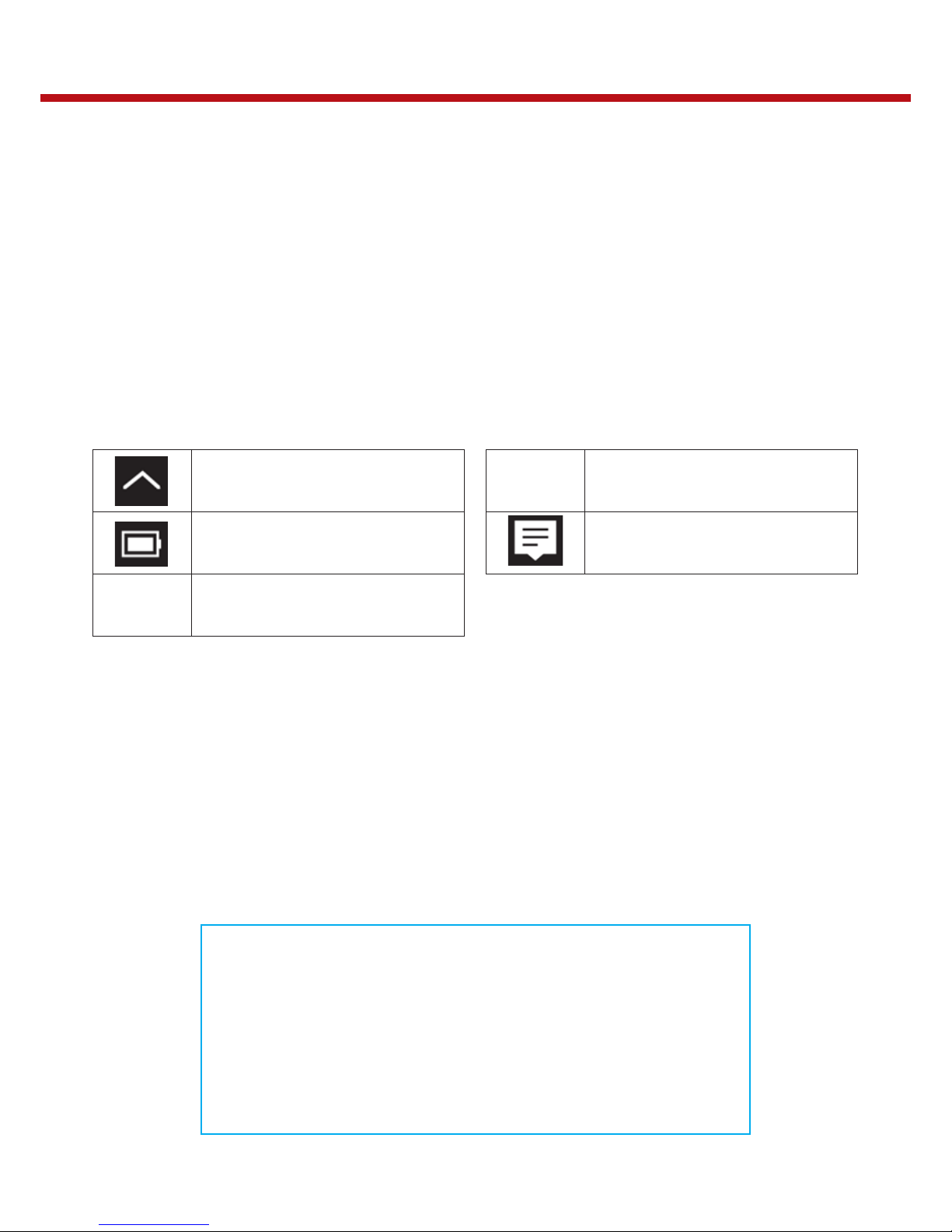
The right part of the taskbar holds several icons that show you the status of your laptop,
as shown below. This is an area called Notification Area, where
Click here to show more hidden status icons.
Shows you the current battery status.
Shows you the status of your wireless network
connection.
Click here to open a touch keyboard, with which
you can type text directly on the screen.
Click here to show the system notifications and
several shortcuts.
To access to the Settings screen:
1. Click the Windows icon in the low-left corner of the Desktop. Or, press on the Windows key in
the keyboard.
2. Click the Settings icon.
This will open the Settings screen, as shown below
Setup and Connection
Settings screen
Next, the following sections will guide you through the basic setup of your windows system.
Page 15

15
Windows Activation
To use all features of your Windows laptop, you may need to activate your Windows system.
Follow the following steps to register and activate your Windows.
1. Open the Start menu and click <Settings >.
2. Click <Update & security>
3. Select <Activate>.
4. Follow the instructions to activate your windows.
Setup Your Microsoft Account
To share files or settings with other devices running Windows 10, you need to setup a
Microsoft Account. Furthermore, if you want to download or purchase apps from the
Microsoft Store, such Microsoft Account is required.
To setup your Microsoft account
1. Open the Settings screen and select <Accounts> .
2. Select <Your account >
3. Select <Sign in with a Microsoft account instead>.
4. Follow the instruction to register your account information.
Replacing Desktop with Start screen
If you are more familiar with the interface similar to the Start screen introduced in Windows
8 series, you can set your laptop to show the Start screen instead of the Desktop every time
when you power on your laptop. To do so, do the following steps:
1. Open the Settings screen.
2. Select <Personalization>.
3. In the Personalization screen, enable the option <Use Start full screen>
After these steps, you will see the Start screen every time you turn on your laptop.
Pin and unpin your app
Pinning/Removing an App to Start menu or taskbar
To add an app:
1. Open the Start menu
2. Right-click on the app that you want to appear on your Start menu or taskbar, and an option menu appears.
3. Click <Pin to Start> or <Pin to taskbar> to add the app to your Start menu or taskbar.
To remove an app:
1. Right click the app that you want to remove from your Start menu or taskbar.
2. Click <Unpin from Start> or <Unpin from taskbar> to remove it from your Start menu or taskbar.
Page 16

16
ENGLISH
Wireless LAN
Enabling wireless connection
1. Open Settings menu and select <Network & Internet>.
2. Select <Wi-Fi> and set the function to ON,
as shown below.
3. Click the option “Show available networks”,
and a network list will appear on the right
part of your screen.
4. Click your desired network’s name in the
list, and then click Connect. Follow the
instruction on the screen to establish the
connection.
Note: Some networks require a network
security key or password for connection. If
necessary, ask the network administrator
or the Internet service provider (ISP) for the
required information.
Micro SD Card Slot
You can utilize your micro SD cards as removable disks and conveniently exchange data with digital devices such as a digital
camera, digital camcorder, MP3, etc.
To insert your micro SD card
1. Insert the micro SD card into the card slot.
2. Follow the message on the screen to open and view the files.
3. A Windows Explorer runs and shows all the folders and files in the micro SD cards, and you can save, move and delete data
as you are handling a storage device.
To remove your memory card
1. Press the card and release. The card will pop up.
2. Pull the card out by holding the end of the card.
Page 17

17
Connecting an External Device
USB Connection
Your computer comes with one USB Type-C and one USB Type-A port supporting a wide range of USB devices.
Once you plug a USB device into a USB port on your computer, Windows automatically loads a driver for that device. After the
driver has been loaded one time, you can disconnect and reconnect the same device without performing any additional steps.
Note: If Windows requires you to install the driver before connecting, check the documentation provided by the device’s manufacturer before connecting the device.
Note: If your USB device uses a power cord, connect the device to a power source before connecting it.
To disconnect a USB storage device, make sure you click the Safely Remove Hardware icon (as shown on the left) in
the notification area of the taskbar to remove the device before disconnecting.
Battery
Charging your battery
1. Plug the USB Type-C head of the adapter into the USB Type-c port, which you can find on the
left side of your laptop.
2. Plug the adapter into a wall-socket.
3. You shall see the battery indicator lights up in red.
4. When the battery is fully charged, the battery indicator will turn into blue
While system is off, it takes around 5 hours to fully charge the battery. After fully charged, the battery Life reaches 6 hours on full
HD video playback
Note: If the remaining power in your battery capacity is 95% or above, plugging the adapter will not fully charge your battery.
Page 18
18
ENGLISH
In Desktop, move the cursor to the battery icon in the taskbar. A pop-up dialog
box appears and shows you the remaining battery percentage, as shown below.
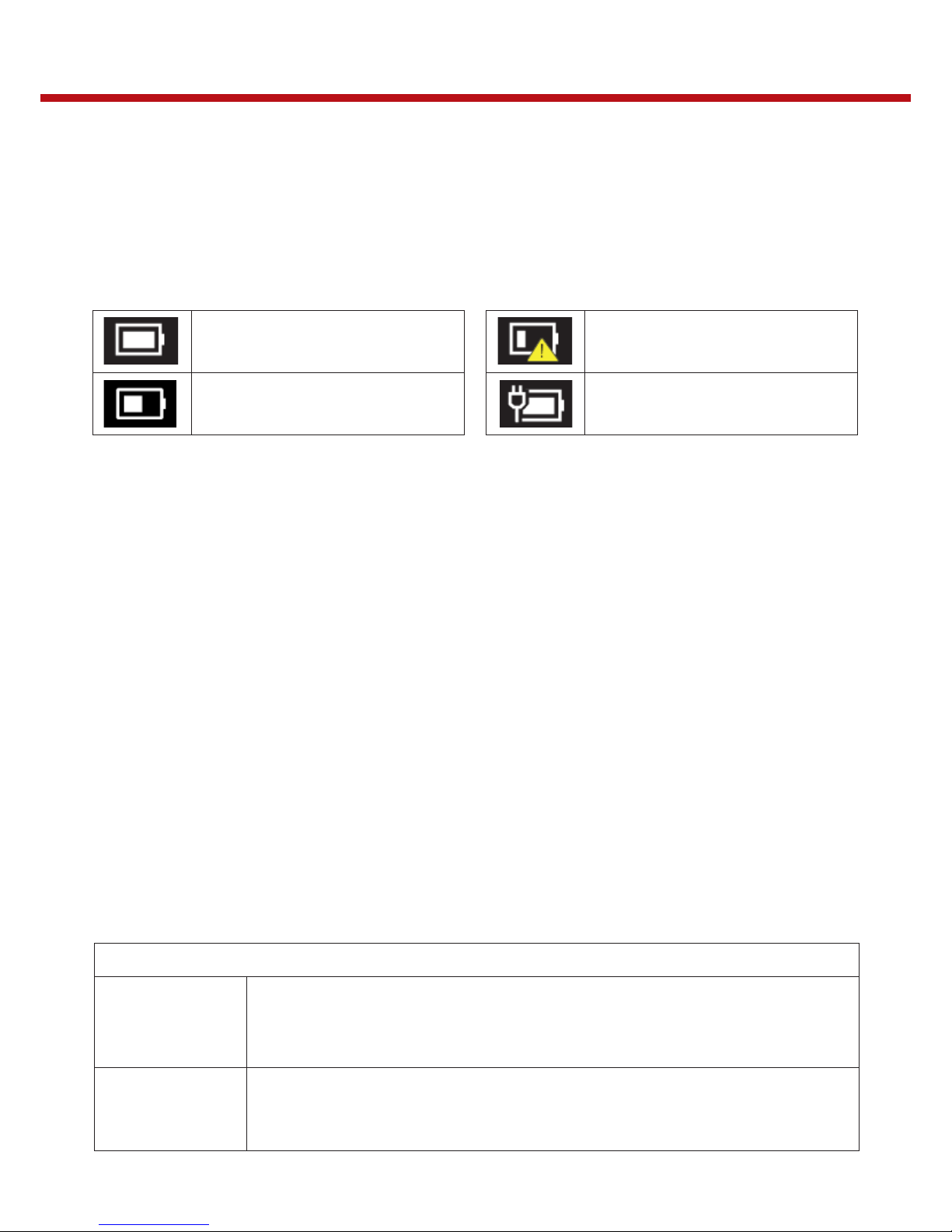
The battery icon reveals the status of your battery, which described as below.
Inspecting your battery status
Battery is fully charged
Battery is starting to drain
Battery is about to completely drain, and you
should stop using your computer and charge it
at once.
Battery is being charged.
The battery is an expendable supply, so when using it over a long time, the capacity/battery life is shortened. If the battery life is
reduced to under half of its initial time, we recommend purchasing a new battery.
When not using the battery for a long time, store the battery after charging it to 30-40% of its capacity. This extends the battery
life time.
Windows Help and Troubleshooting
Troubleshooting
This section describes some common problems and suggested solutions, and ways to recover your computer from a crash.
Be aware that the problems and solutions described here are meant only as a guide. They are not definitive problem solving
techniques. For certain problems, you might need help from your reseller or your service provider.
When you observe a problem, stop operation immediately, because taking further action might result in data loss or damage. Take
a note of what the system is doing and what actions you performed before the problem occurred. Provide detailed information
to your service provider for quicker problem resolution.
For about any problem, follow these steps:
1. Restart your laptop.
2. Check your Wi-Fi connection.
3. Reset your Wi-Fi connection.
4. Plug your laptop to a wall socket to charge it for at least one hour.
Screen problems
When I turn on the
computer, nothing
appears on the screen.
• If the screen is blank, make sure that:
- The AC adapter is connected to the computer and the power cord is plugged into a working electrical outlet.
- The computer power is on. (Press the power button 6 seconds to force the power off, and power it on again.)
• If these items are properly set, and the screen remains blank, have the computer serviced.
My screen goes blank
while the computer is on.
• Your laptop is in its sleep mode. Do one of the following to resume from sleep mode:
- Press the power button.
- Press the windows key button.
Page 19
19
Sleep problems
The critical low-battery
error message appears,
and the computer turns off
• The battery power is getting low. Connect the AC adapter to the computer.
The computer enters
sleep mode immediately
after Power-on.
• Make sure that the battery is charged.
- The operating temperature may be too hot. Move to a cooler environment and try to wake the computer.
The computer does not
return from sleep mode
and the computer does
not work.
• If your computer is in sleep mode, connect the AC adapter to the computer, then press the key button
or the power button.
• If your computer is powered-off, connect the AC adapter to the computer, then press the power button to
resume operation.
Display problem
The screen is blank.
• Do the following:
- If you are using the AC adapter, or using the battery, and the battery status indicator is on, press F6
(do not need to press Fn) to make the screen brighter.
- Press the power button to resume from sleep mode.
- If the problem persists, follow the solution in the next problem “The screen is unreadable or distorted.”
The screen is unreadable
or distorted.
• Make sure that:
- The screen resolution and color quality are correctly set.
- The monitor type is correct.
Incorrect characters
appear on the screen.
• Are the operating system or programs installed correctly? If they are installed and configured correctly,
have the computer serviced.
Sound problems
No sound can be heard
from the speaker even
• Make sure that:
- The Mute function is off.
when the volume is
turned up.
- The combo audio jack is not being used.
- Speakers are selected as the playback device.
Other problems
Your computer does not
respond.
• To turn off your computer, press and hold the power button for 4 seconds or more. If the computer
still does not respond, remove the AC adapter.
• Your computer might lock when it enters sleep mode during a communication operation. Disable the
sleep timer when you are working on the network.
The connected external
device does not work.
• Do not connect or disconnect any external device cables other than USB while the computer power is on.
Otherwise, you might damage your computer.
• When using a high power consumption external device such as an external USB optical disk drive, use an
external device power adapter. Otherwise, the device may not be recognized.
Page 20
20
ENGLISH
Processor
• Intel® Celeron® Processor N3350, 2M Cache, up to 2.4 GHz
Memory
4 GB on board, LPDDR3 single channel, Speed up to 1866MHz
Storage
64GB eMMC
Wireless
• AC3165: Wi-Fi 1x1 802.11 a/b/g/n/ac, Bluetooth 4.0 +EDR
Touchscreen
TFT Color LCD, LED Backlight, 11.6” with 1366 X 768 (HD), 10 point touch
Capacitive Sensing Techniques
Cameras
2.0M, w/o flash LED
- Resolution support 2M (4:3 format) still image and HD720P(1280x720, 16:9) motion image.
- Rotate angle: -35~+200deg.
Battery
3 cells (3250mAh, 37W, 3.85V )
Input/Output
1 x USB 3.0 port Type-A, 1 x Type-C(PD/USB3.0/DP), 1 x combo audio jack for headphone /microphone/
thermal probe, 1 x MicroSD 3.0 card reader, 1 x SIM slot (Optional)
Speaker & Mic
• Build-in 2 Speakers (1W , 8Ω)
• 2 digital mic on base support Mic array
AC-Adapter
• DC Output: 19V/2.1A, 40 Watts, USB type C plug, Automatics Voltage adjustment between 100 and
240VAC, Input Frequency 50/60Hz
Language
English, Spanish, Portuguese, Arabic, Turkish, Russian, Simplified Chinese, Thai, Greek, Hungarian ,
Traditional Chinese, German, Hebrew, Italian, Latin Spanish, Brazil Portuguese, French
Dimension (mm)
• Lid: 295.5 x 204.85
• Base: 298.5 x 207.3mm X 19.9 mm
Weight
• Under 1.5 kg
Certification
• EMC: CE, FCC, NCC
• RF: FCC&SAR / RED
Specifications
Page 21

21
V 2.0 / 05-2018
All rights reserved. © EXTRA Computer GmbH
Brühlstr. 12
89537 Giengen-Sachsenhausen
Deutschland / Germany
 Loading...