

Page 1

For AndroidTM 7.1.2
Enterprise Mobility
PM45
User Manual
Copyright © 2006 – 2018
Point Mobile Co., Ltd. All rights reserved
Google, Android, Google Play and other marks are
trademarks of Google LLC.
Page 2
PM45 Android 7.1.2 User Manual
1
©2006 – 2018 POINTMOBILE Co., Ltd. All rights reserved
User Manual
Please note your phone is battery-embedded design with removable battery and battery cover. Unauthorized
personnel are strictly prohibited from disassembling the phone. Make sure to use only the power adapter (5V
2A Output AC/DC) that came with PM45.
In case your phone does not work as expected, you are strongly recommended to restart it by pressing and
holding the power button for at least 8 seconds until the startup screen appears. If your phone has
encountered a serious error and cannot be recovered, you should reset your phone to factory settings by using
the menu, either “Backup & Reset”, or “Factory Reset”. For more details, please refer to “Factory data reset”
section on page 90
Note: Please be cautious while performing the factory data reset. Because this will erase personalized
settings and data saved in your phone, such as SMS, Contacts, Music, etc.
Body-worn Operation
This device was tested for typical body-worn operations with the front
& back of the phone kept 0.2 inches (0.5 cm) between the user’s body
and the front & back of the phone. A minimum separation distance of
0.2 inches (0.5 cm) must be maintained between the user’s body and
the front & back of the phone. Any belt clips, holsters, and similar
accessories containing metallic components may not be used. Bodyworn accessories that cannot maintain 0.2 inches (0.5 cm) separation
distance between the user's body and the front & back of the phone,
and have not been tested for typical body-worn operations should be
avoided.
PROTECT YOUR HEARING
To prevent possible hearing damage, do not listen at high volume
levels for long periods. Exercise caution when holding your device near
your ear while the loudspeaker is in use.
Rev 01
Page 3

PM45 Android 7.1.2 User Manual
2
©2006 – 2018 POINTMOBILE Co., Ltd. All rights reserved
Table of Contents
User Manual .......................................................................................................................................................................... 1
Table of Contents ................................................................................................................................................................. 2
Getting Started ...................................................................................................................................................................... 4
Major Parts ........................................................................................................................................................................ 4
Accessary .......................................................................................................................................................................... 5
Setup PM45....................................................................................................................................................................... 7
Charge PM45 .................................................................................................................................................................. 11
Turn On/Off PM45 .......................................................................................................................................................... 12
Learning the basics ............................................................................................................................................................ 13
Use a keypad .................................................................................................................................................................. 13
Use a touch screen ........................................................................................................................................................ 15
Setup Wizard ................................................................................................................................................................... 17
Home Screen, Apps and Widget.................................................................................................................................. 25
Status & Notifications Icons .......................................................................................................................................... 36
Set a Lock screen ........................................................................................................................................................... 38
Manage a display ........................................................................................................................................................... 40
Make a call ...................................................................................................................................................................... 45
Add to a contact .............................................................................................................................................................. 47
Send a message ............................................................................................................................................................. 51
Change a SIM card settings ......................................................................................................................................... 54
Connect to your Wi-Fi network ..................................................................................................................................... 57
Make a Wi-Fi hotspot ..................................................................................................................................................... 59
Connect with Bluetooth device ..................................................................................................................................... 62
Use a Camera ................................................................................................................................................................. 65
Manage files and folders ............................................................................................................................................... 68
MTP connection with PC ............................................................................................................................................... 75
Change a Touch Sensitivity .......................................................................................................................................... 78
Use a Google Assistant ................................................................................................................................................. 82
OS Update ........................................................................................................................................................................... 85
OS Image update from a Storage ................................................................................................................................ 85
OS Image update from the FOTA ................................................................................................................................ 87
Page 4

PM45 Android 7.1.2 User Manual
3
©2006 – 2018 POINTMOBILE Co., Ltd. All rights reserved
Factory data reset .............................................................................................................................................................. 90
Factory data reset from Settings .................................................................................................................................. 90
Force Factory data reset ............................................................................................................................................... 92
EmKit .................................................................................................................................................................................... 96
EmKit Secure .................................................................................................................................................................. 97
EmKit Remote ............................................................................................................................................................... 100
EmKit Tools ................................................................................................................................................................... 108
EmKit Demos ................................................................................................................................................................ 116
Page 5
PM45 Android 7.1.2 User Manual
4
©2006 – 2018 POINTMOBILE Co., Ltd. All rights reserved
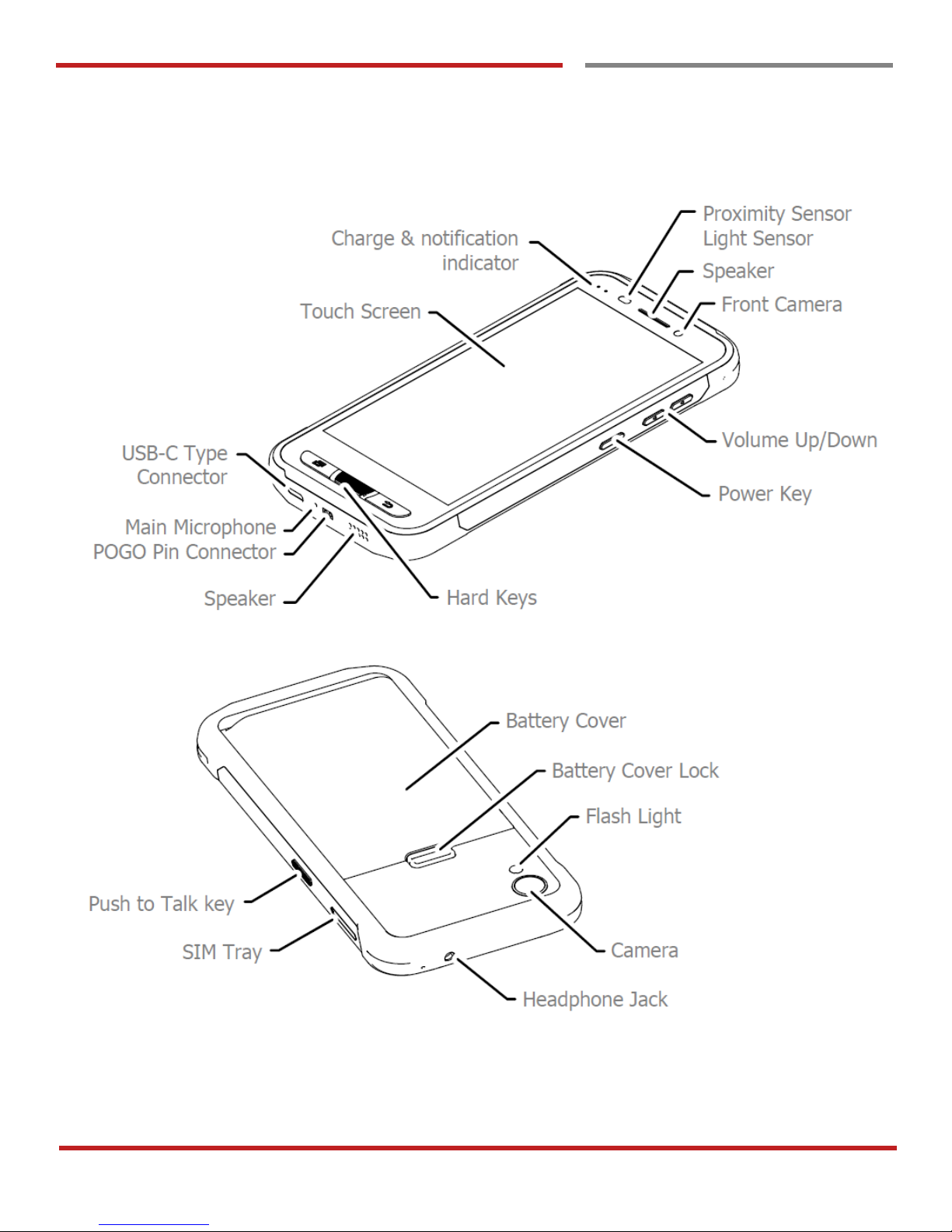
Getting Started
Major Parts
Major Parts
Getting Started
Page 6
PM45 Android 7.1.2 User Manual
5
©2006 – 2018 POINTMOBILE Co., Ltd. All rights reserved
Getting Started
Accessary
Accessary
Getting Started
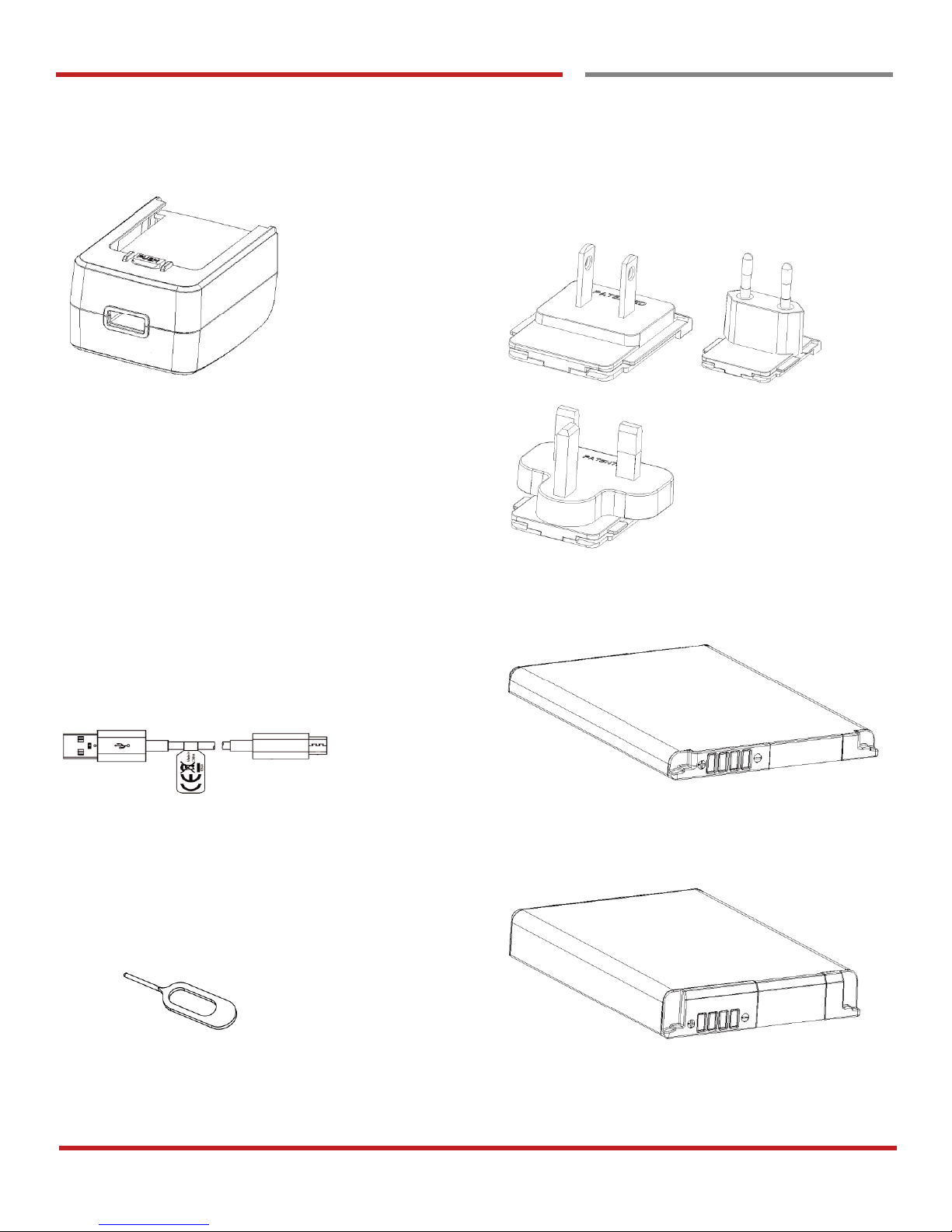
AC/DC adapter (5V2A) Plug (US/ EU/UK)
USB Type-C cable Standard Battery (2,900mAh)
SIM Tray Eject Pin Extended Battery (5,800mAh)
Page 7
PM45 Android 7.1.2 User Manual
6
©2006 – 2018 POINTMOBILE Co., Ltd. All rights reserved
Accessary
Accessary
Getting Started
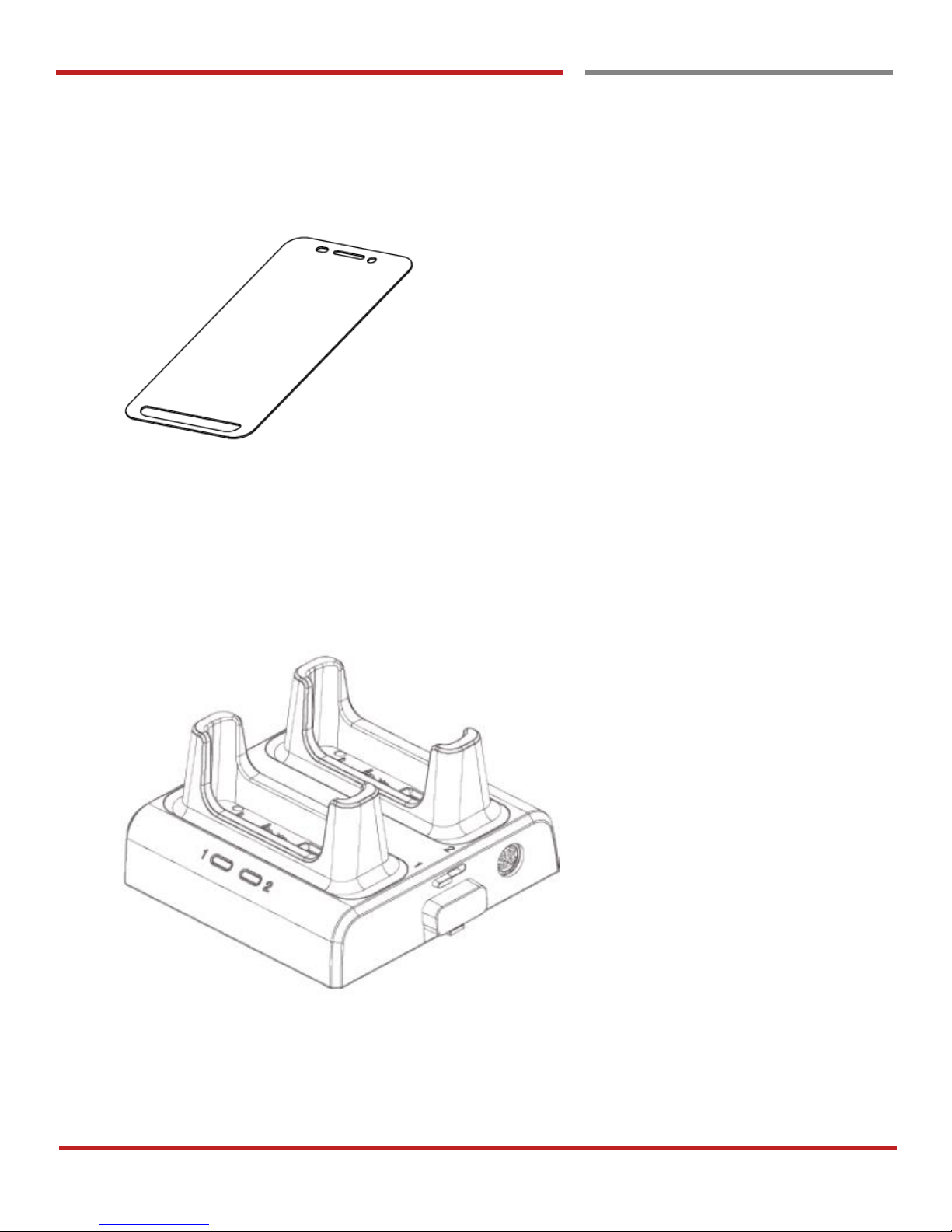
LCD Protection Film
Optional Accessories
2 Slot Cradle
(Up to three 2 slot Cradles can be linked to charge 6 devices at a time
Page 8
PM45 Android 7.1.2 User Manual
7
©2006 – 2018 POINTMOBILE Co., Ltd. All rights reserved
Started
Setup PM45
Setup PM45
Getting Started
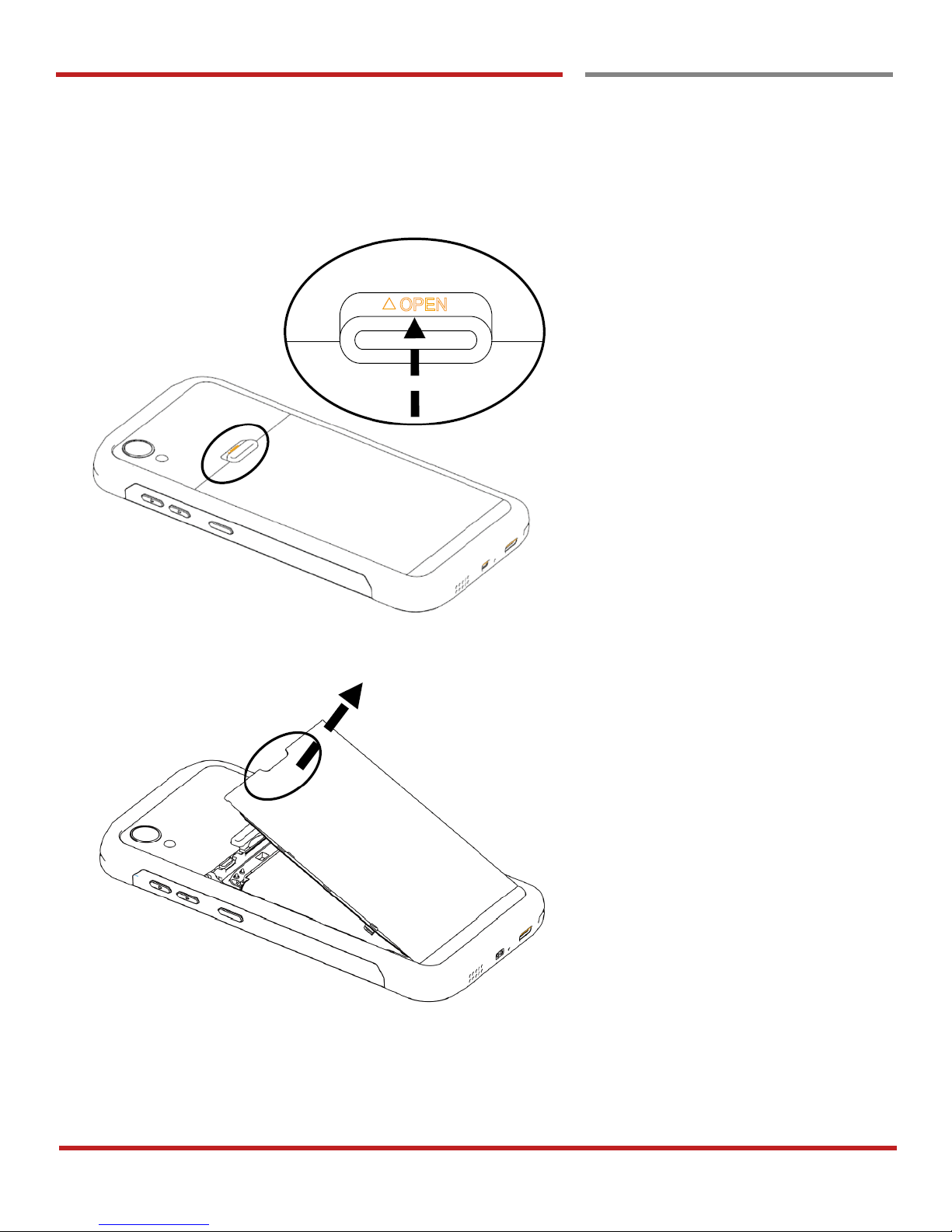
Remove the Battery Cover
1. Push up the Battery Cover Lock
2. Lift up the Battery Cover Lock
3. Remove the Battery Cover Lock
Page 9
PM45 Android 7.1.2 User Manual
8
©2006 – 2018 POINTMOBILE Co., Ltd. All rights reserved
Getting `Started
Setup PM45
Getting Started
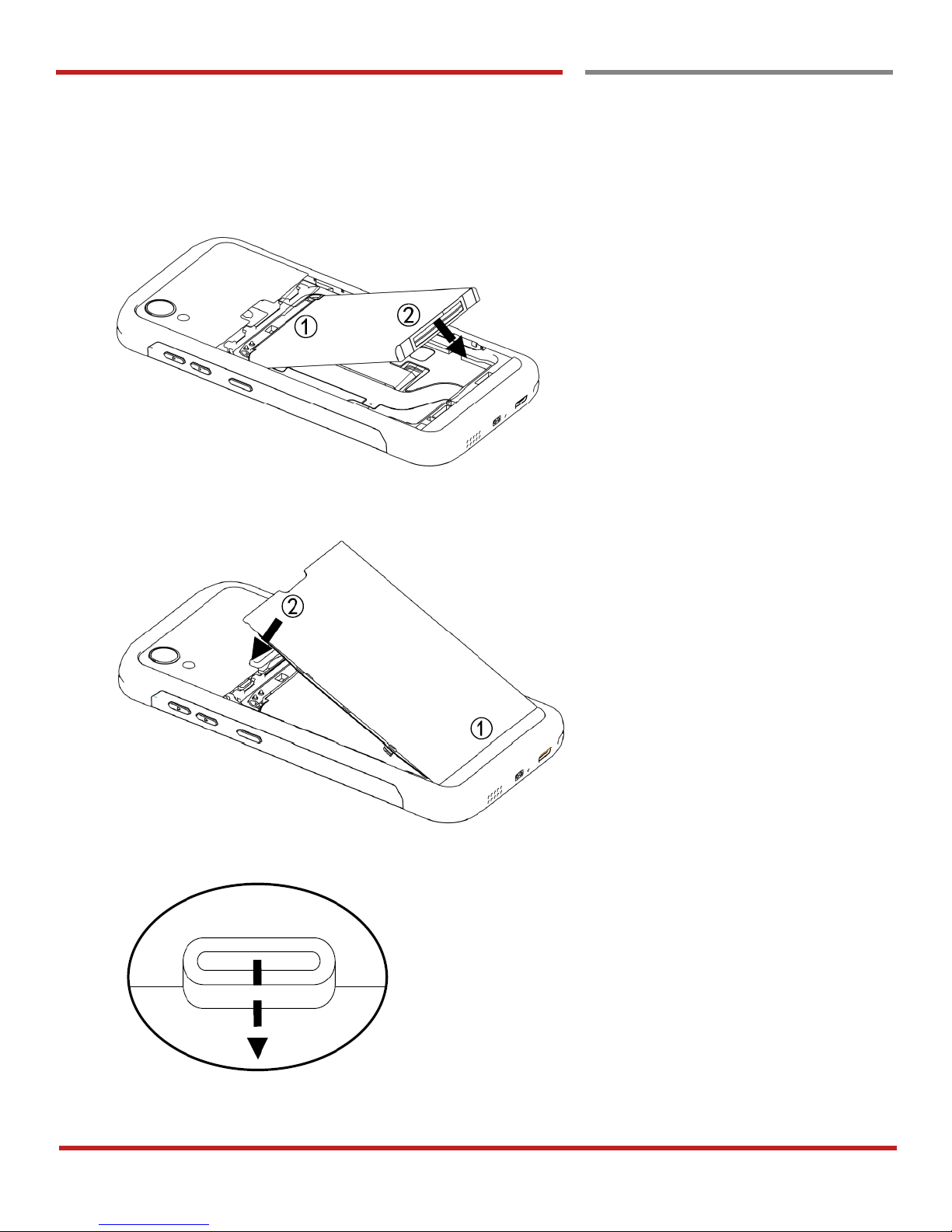
Insert the Battery
1. Insert Battery from the top first, and then put in the bottom
2. Insert the battery cover from the bottom first
3. Push down the battery cover lock
Page 10
PM45 Android 7.1.2 User Manual
9
©2006 – 2018 POINTMOBILE Co., Ltd. All rights reserved
Getting `Started
Setup PM45
Getting Started
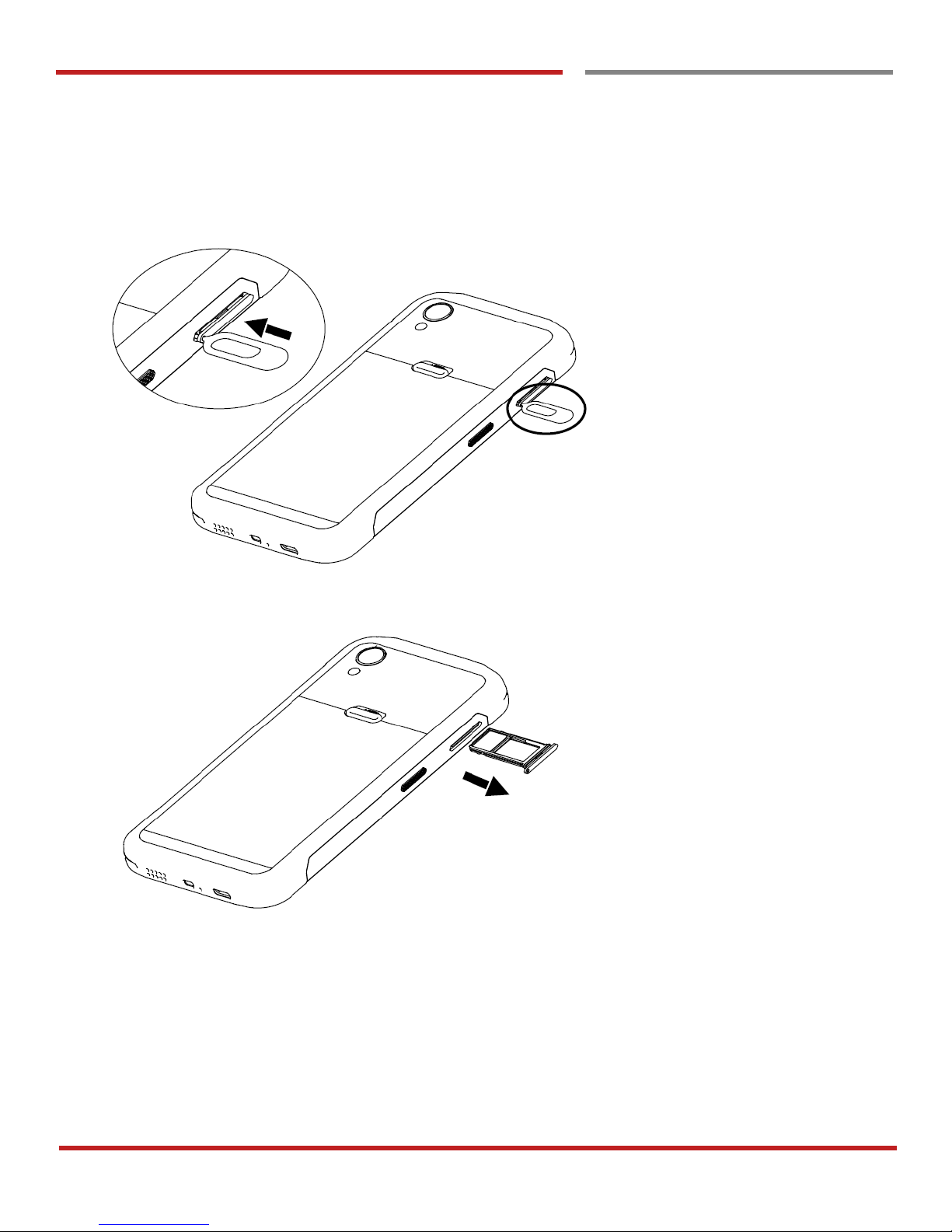
Install SIM card / microSD card
1. Insert the SIM Tray Eject Pin into the tray eject hole.
2. Push the pin all the way into the hole until the tray ejects, and then pull the tray out
Page 11
PM45 Android 7.1.2 User Manual
10
©2006 – 2018 POINTMOBILE Co., Ltd. All rights reserved
Getting `Started
Setup PM45
Getting Started
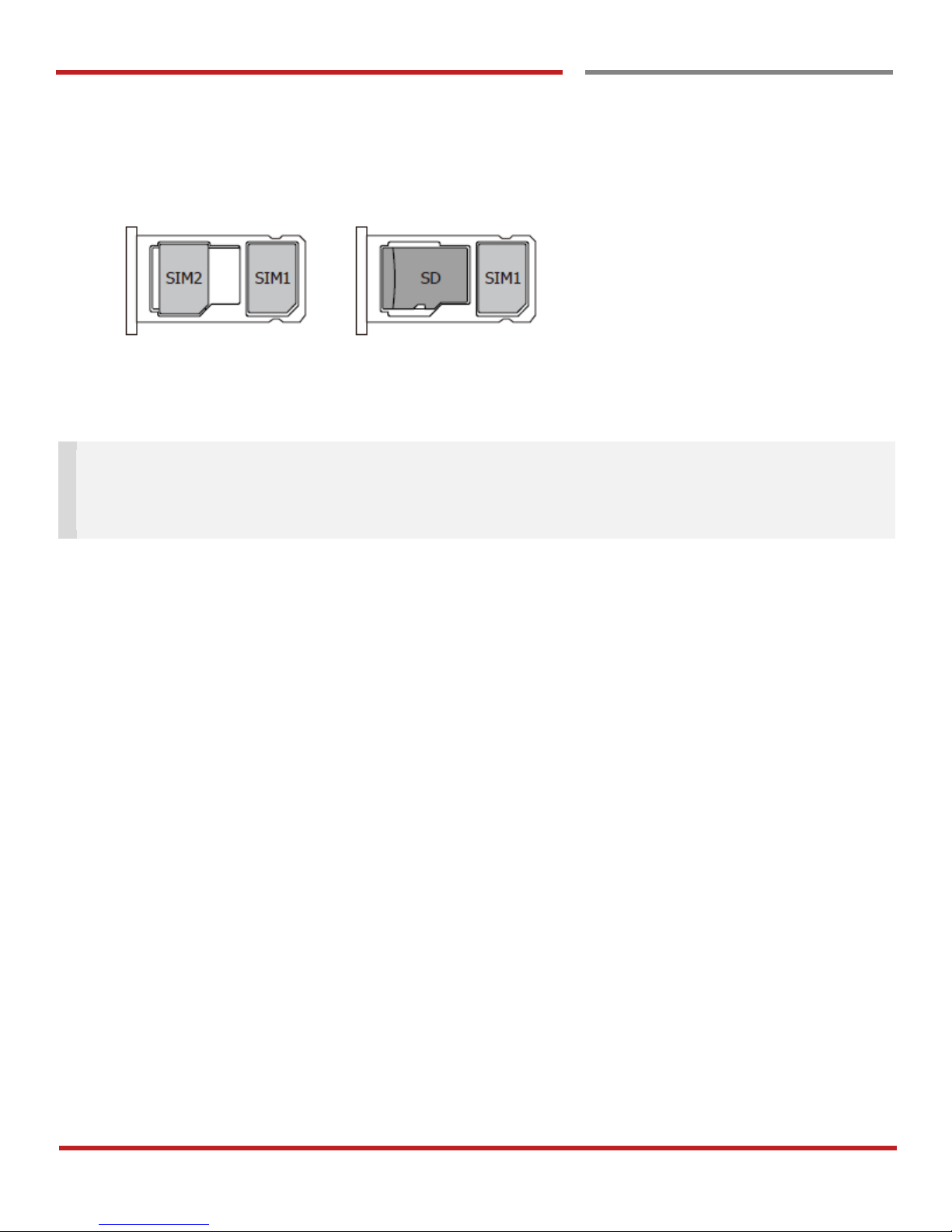
3. Insert the SIM/micro SD card into the slot. Please insert SIM card and SD Card as shown below.
(PM45 is Dual SIM Dual Standby model)
Gold contacts should face down
Note: Your device only supports the Nano SIM cards. Do not insert a modified card which is thicker than
the standard Nano SIM card. Modified card may damage the card slot.
PM45 supports up to 32GB microSD card
4. Press on the cover of the tray to close it tightly.
Page 12
PM45 Android 7.1.2 User Manual
11
©2006 – 2018 POINTMOBILE Co., Ltd. All rights reserved
Charge PM45
Getting started
Charge PM45
Getting Started
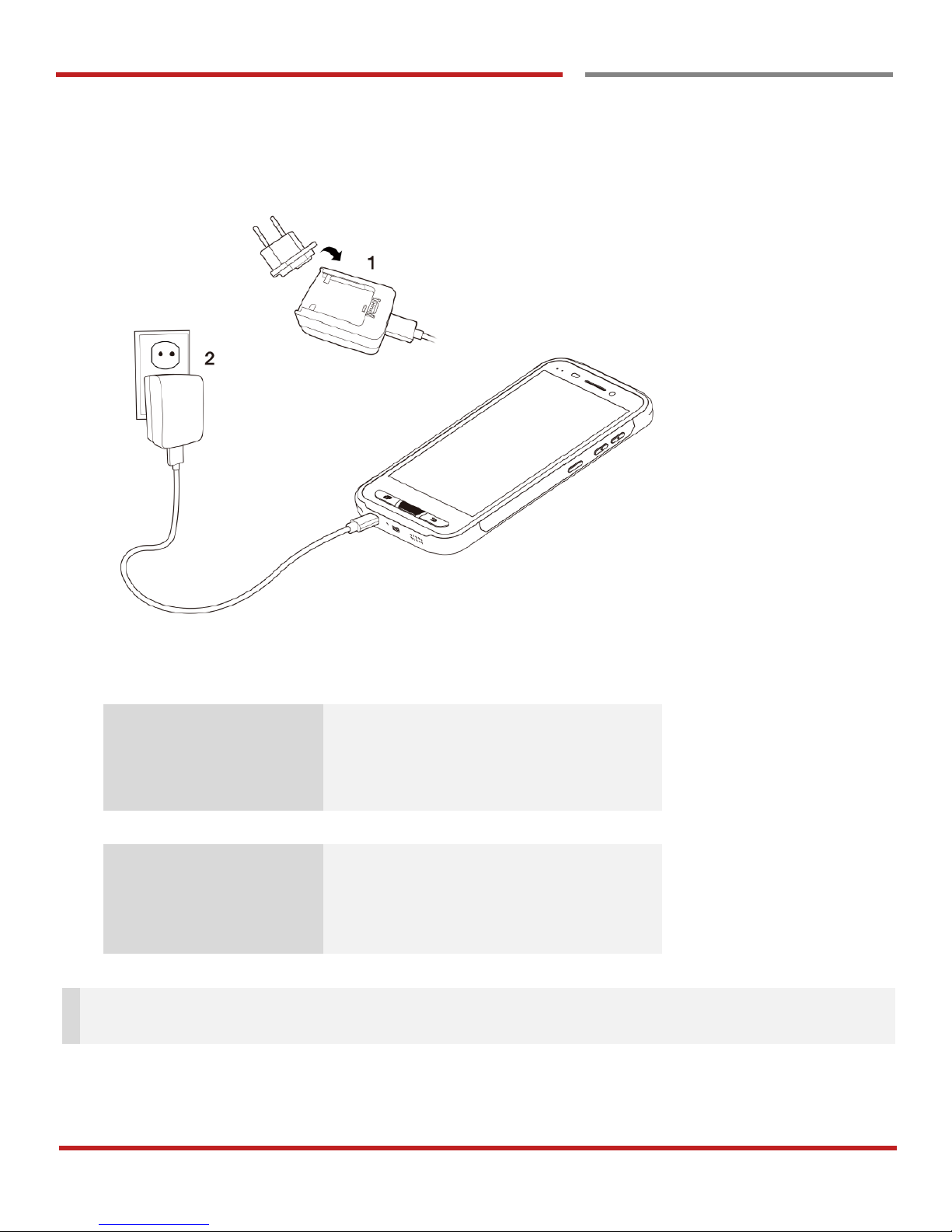
1. Insert USB Type-C cable into the adapter and connect to an electrical socket to charge first. Connect
another side USB cable to the PM45. (You can also charge the PM45 with optional accessory such as
cradle)
2. LED indicator will display charging status.
Steady Red
Battery is charging or Battery level is low
Blinking Red
Battery level is critical low
Steady Green
Battery is fully charged
Standard Battery
2,900mAh 3.85V
Backup Battery
5,800mAh 3.85V
Charging time
Standard Battery : About 4 hours
Extend Battery : About 6 hours
Note: Always use an original charger and cable from the Point Mobile. Other chargers and cables may
damage PM45. In addition, make sure connector, charger, cables are not wet.
Page 13
PM45 Android 7.1.2 User Manual
12
©2006 – 2018 POINTMOBILE Co., Ltd. All rights reserved
Turn On/Off PM45
Getting started
Turn On/Off PM45
Getting Started
Turn On
1. Press and hold the “Power Key” for a few seconds.
2. When PM45 enter to the boot mode, it will display “SMART BEYOND RUGGED” logo
3. Release the “Power Key” and wait until PM45 finish booting
Note: If you cannot turn on your PM45, try below steps
- To turn on PM45, battery needs to be charged certain level. Please charge first
- Press and hold the “Power key” for over 8 seconds to force reboot
Turn Off
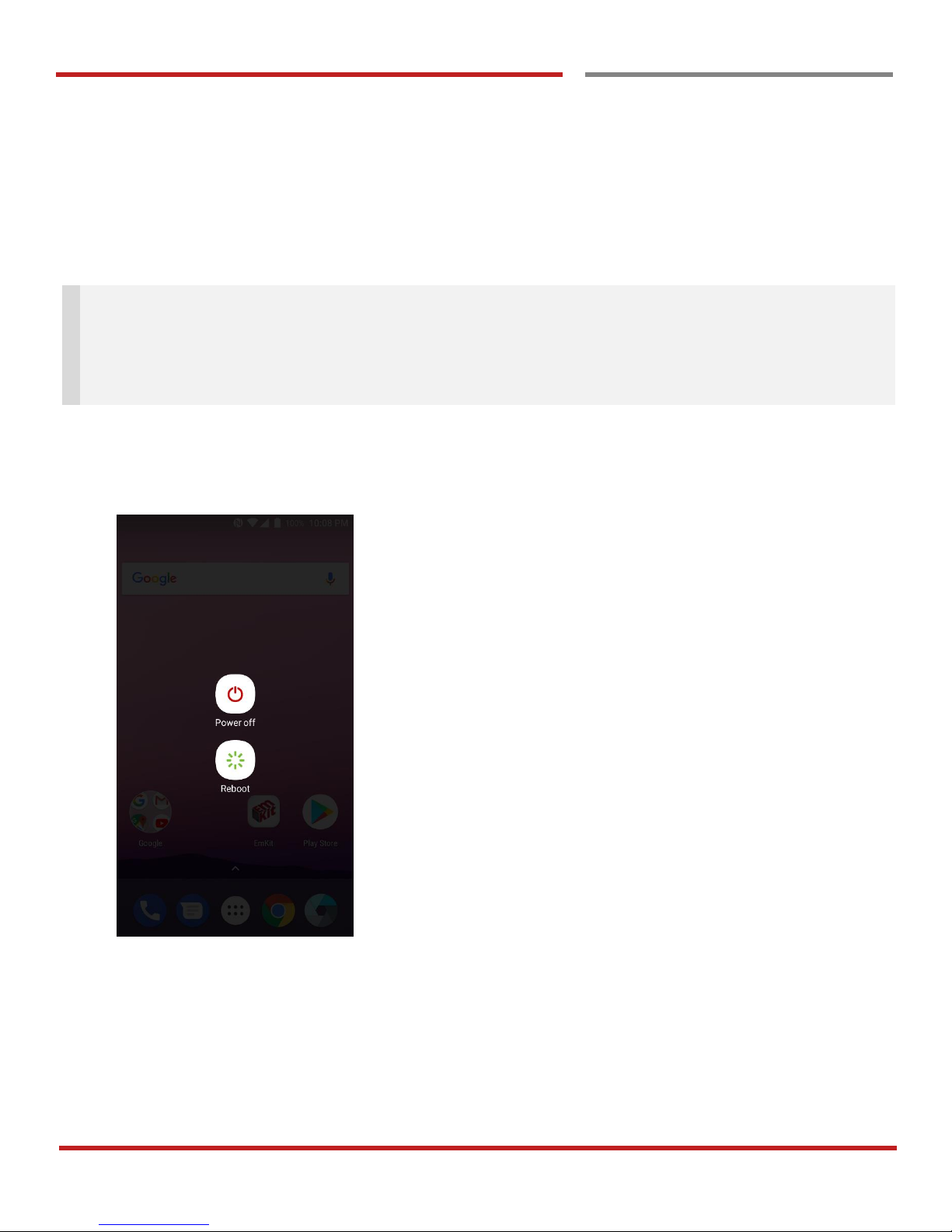
1. Press and hold the “Power Key” until you see the power menu
2. Touch “Power Off”
Page 14
PM45 Android 7.1.2 User Manual
13
©2006 – 2018 POINTMOBILE Co., Ltd. All rights reserved
Learning the basics
Use a keypad
Use a keypad
Learning the basics
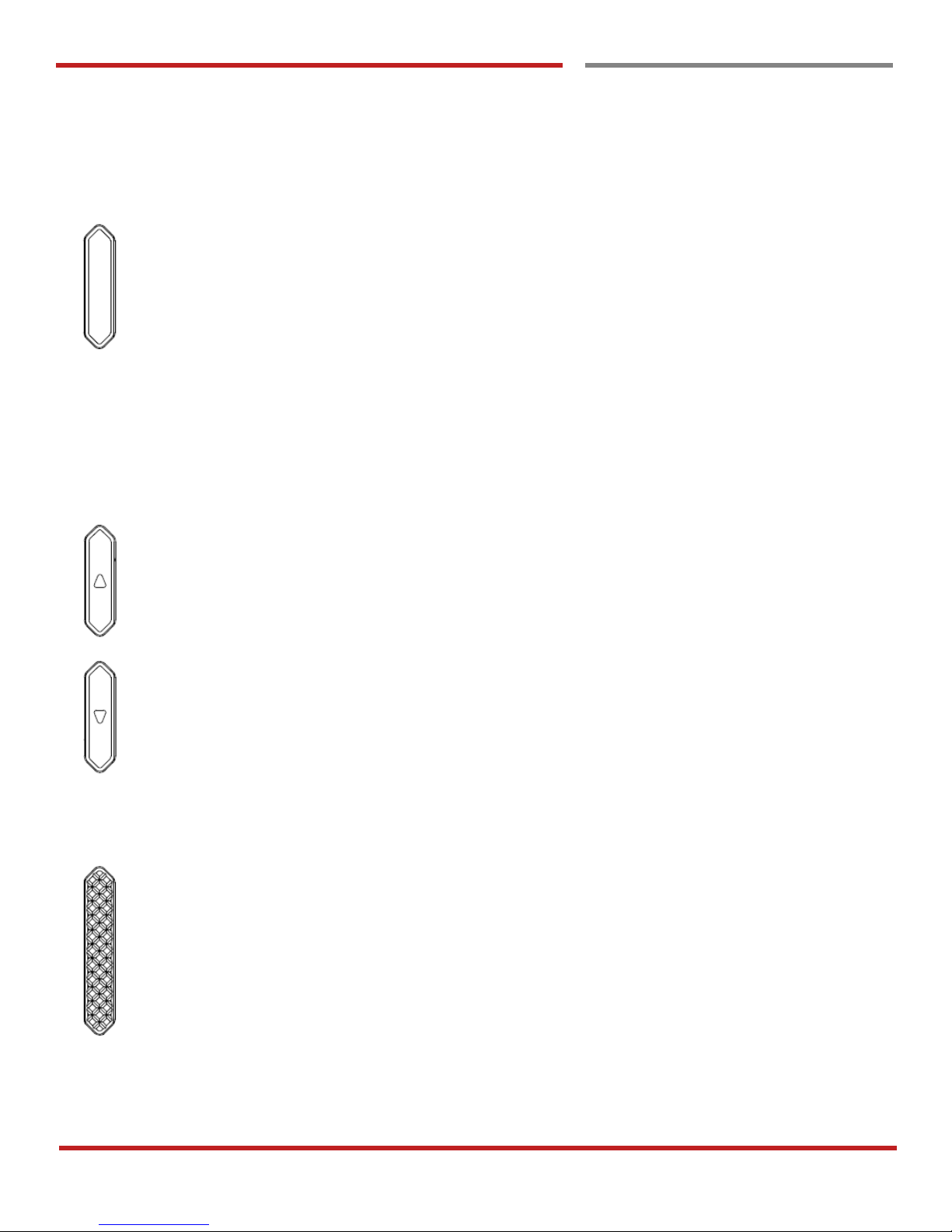
Power key
Press
- Lock the screen / Light up the screen.
Press and hold
- Display the power menu “Power Off / Restart / Airplane mode”
Press and hold for over 8 seconds
- Forced to reboot
Press and hold the “Power” key and “Volume Down” key together
- Screen capture
Volume keys
In general
- Adjusts the ringtone volume or “Mute” the ringtone of an incoming call.
In call mode
- Adjusts the earpiece or headset volume.
In Music / Video / Streaming
- Adjusts the media volume.
In camera preview
- Take the photo by pressing Volume Up or Down key.
Push to Talk key (Programable Key)
In general
- Run Push to Talk service
- Programable key
Please set function in EmKit – Program Buttons. Please find details on page 99
Page 15
PM45 Android 7.1.2 User Manual
14
©2006 – 2018 POINTMOBILE Co., Ltd. All rights reserved
Learning the basics
Use a keypad
Learning the basics
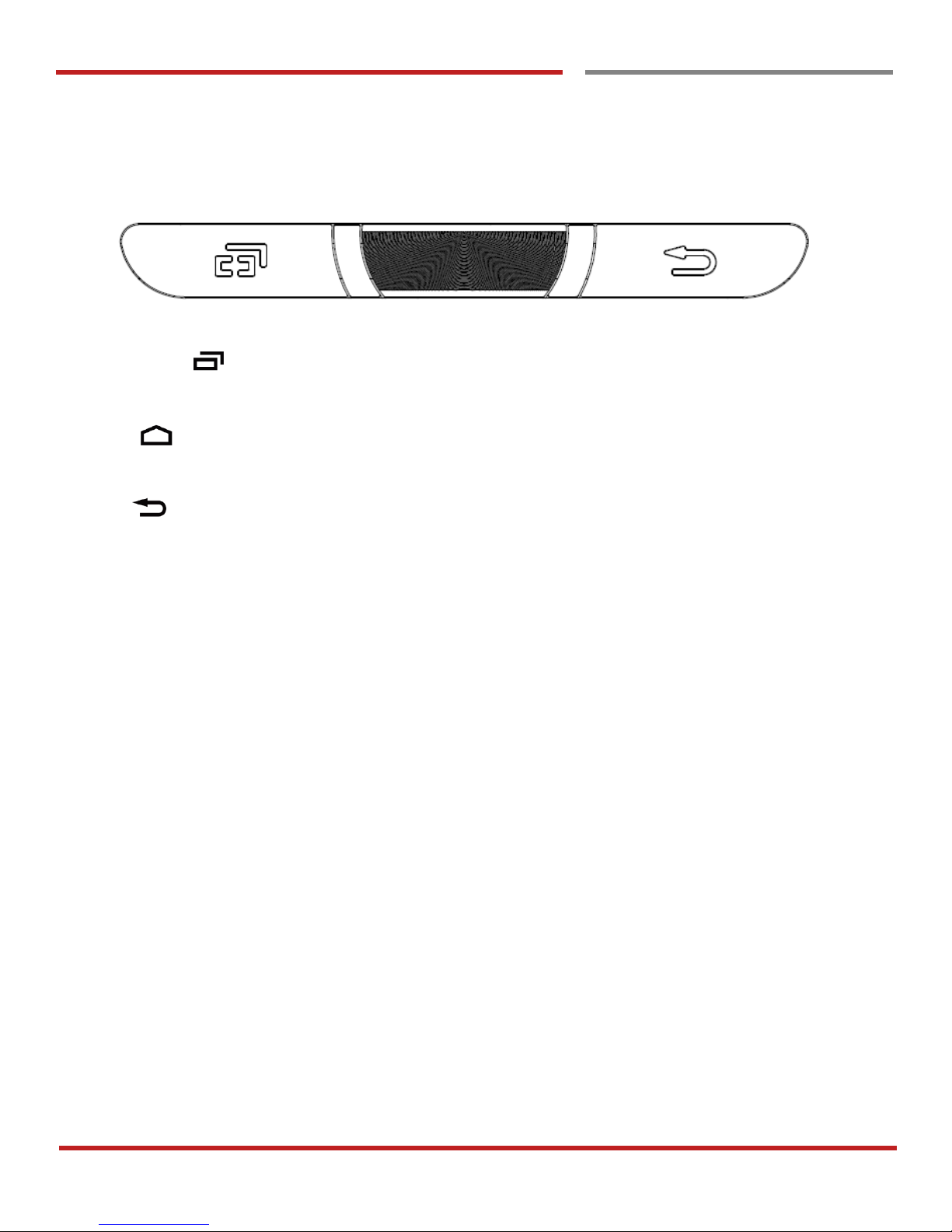
Front panel
Recent Apps key
- Press to see recently used apps.
Home key
- From any apps or screens, press to return to the Home screen.
Back key
- Press to go back to the previous screen, or to close a dialog box, options menu, notification panel,
etc.
Page 16
PM45 Android 7.1.2 User Manual
15
©2006 – 2018 POINTMOBILE Co., Ltd. All rights reserved
Learning the basics
Use a touch screen
Use a touch screen
Learning the basics
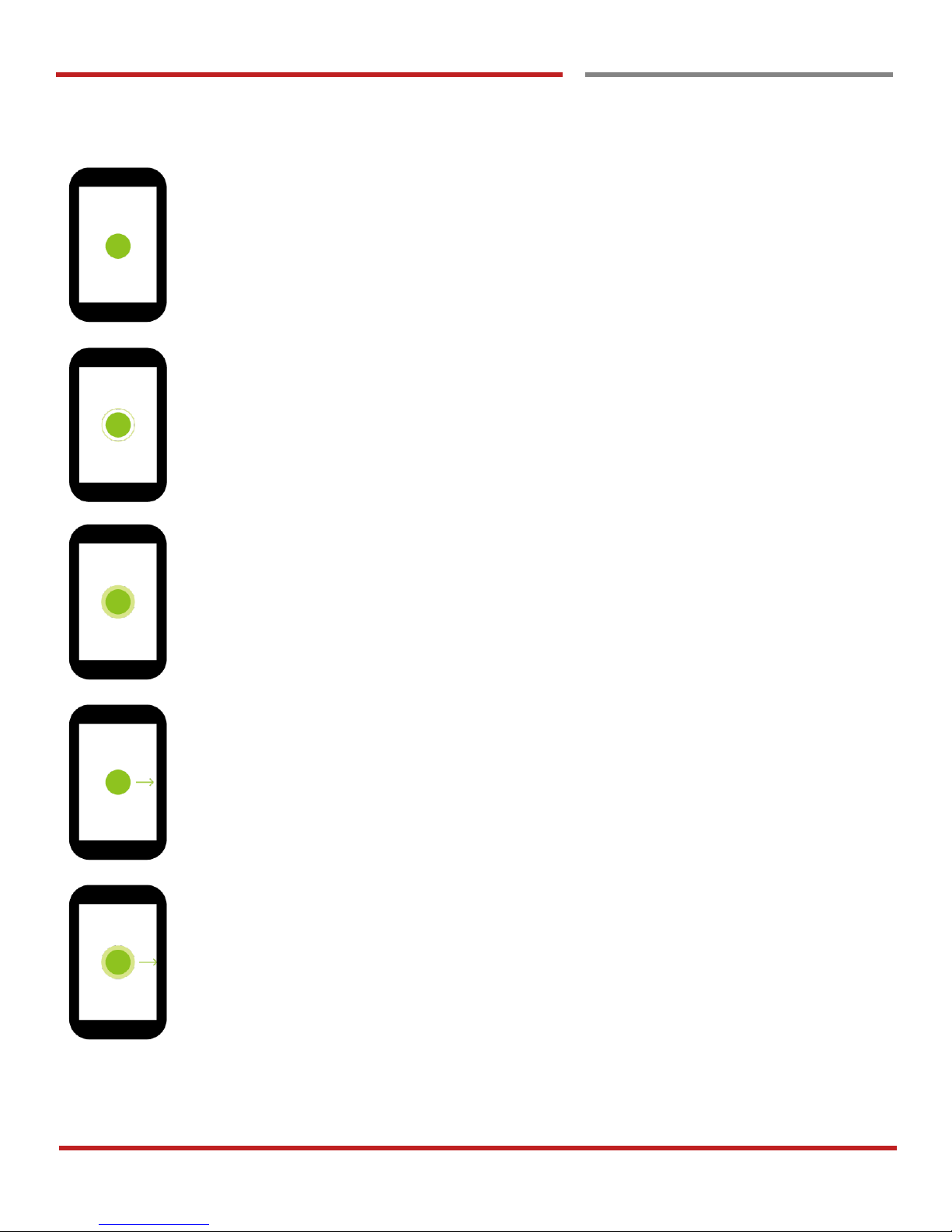
Touch
One-finger press
Double touch
One-finger press, lift, one-finger press, lift for “Zoom in”
Long press
One-finger press, wait, lift for “Select an item”
Drag, Swipe, or Fling
One-finger press, move, lift for “Scroll” or “Tilt”
Long-press drag
One-finger press, wait, move, lift for “Pick up and move” or “select multiple items”
Page 17
PM45 Android 7.1.2 User Manual
16
©2006 – 2018 POINTMOBILE Co., Ltd. All rights reserved
Learning the basics
Use a touch screen
Learning the basics
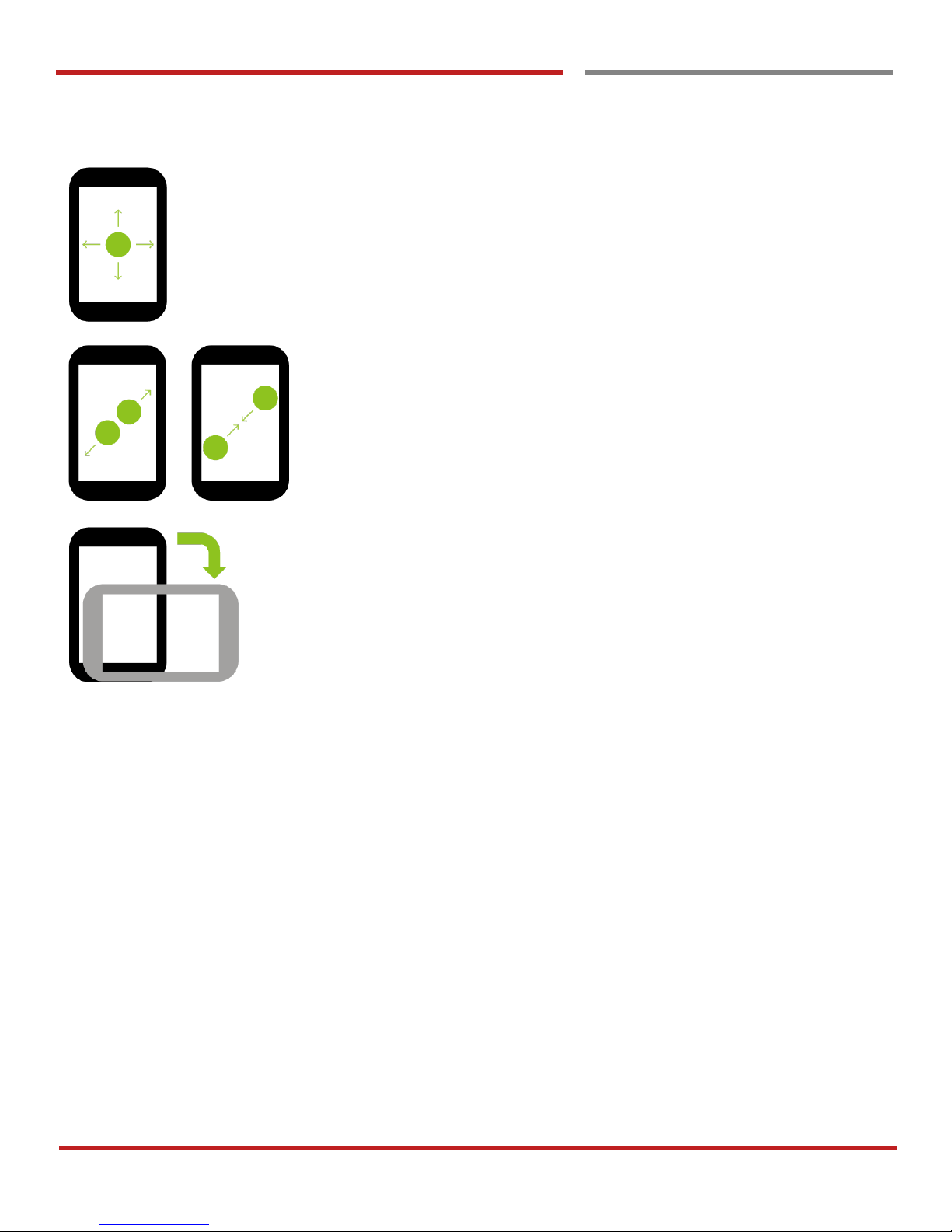
Scroll
Vertical or horizontal swipe in a single direction
Pinch Open & Close
Two-finger press, move outwards and inwords, lift for “Zoom in and out”
Rotate
When PM45 is turning sideways, screen orientation is changing
Page 18
PM45 Android 7.1.2 User Manual
17
©2006 – 2018 POINTMOBILE Co., Ltd. All rights reserved
Learning the basics
Setup Wizard
Setup Wizard
Learning the basics
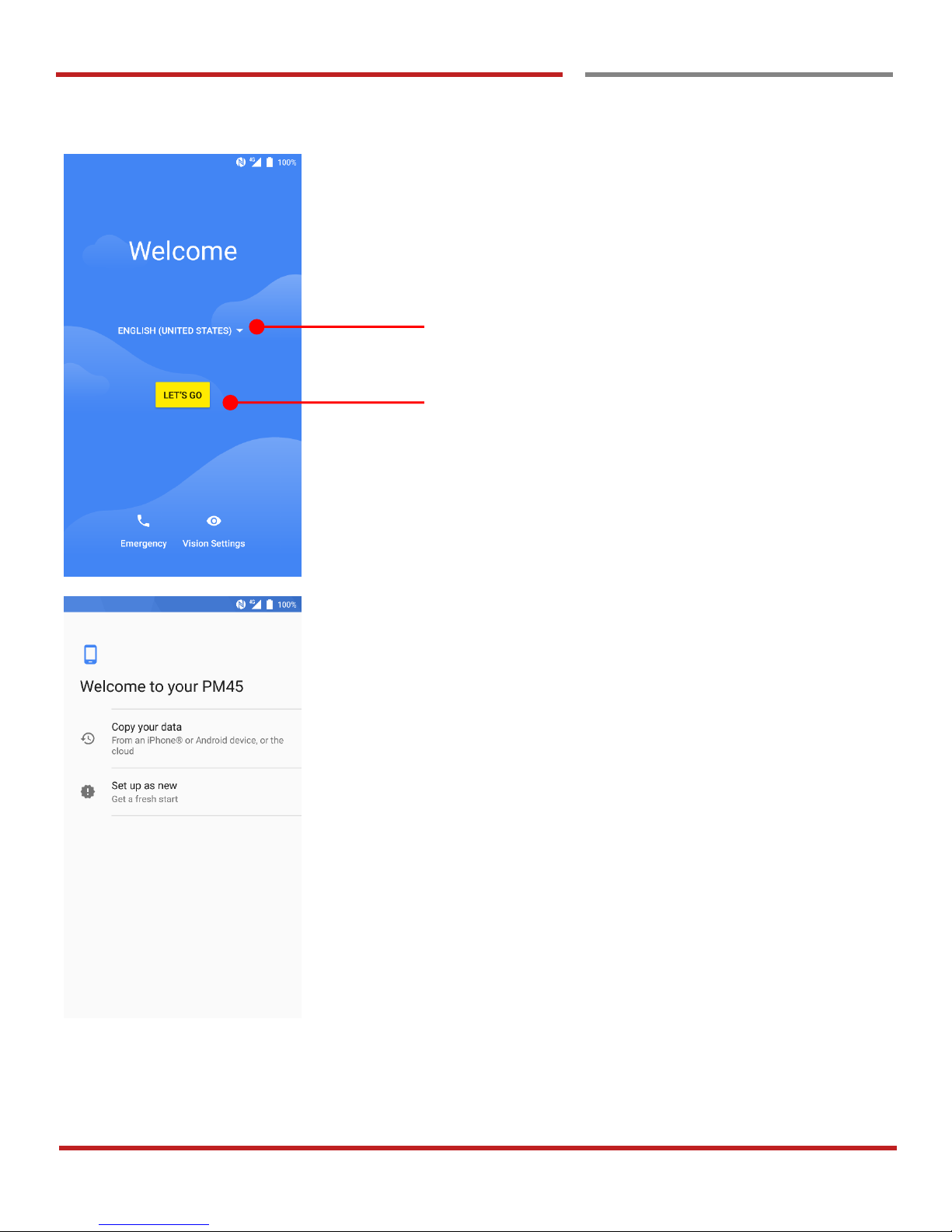
When you power on your device very first time or boot after
factory reset, you need to setup your device
Language Selection
- Choose your language during setup process.
Touch here to start setup your device
You can copy other device’s settings to your PM45 or setup
as a new device
Copy your data
- You can copy your settings from other Android
phone or Google account or iPhone
Set up as new
- Set your PM45 as your new device
Page 19
PM45 Android 7.1.2 User Manual
18
©2006 – 2018 POINTMOBILE Co., Ltd. All rights reserved
Setup Wizard
Setup Wizard
Learning the basics
Copy your data
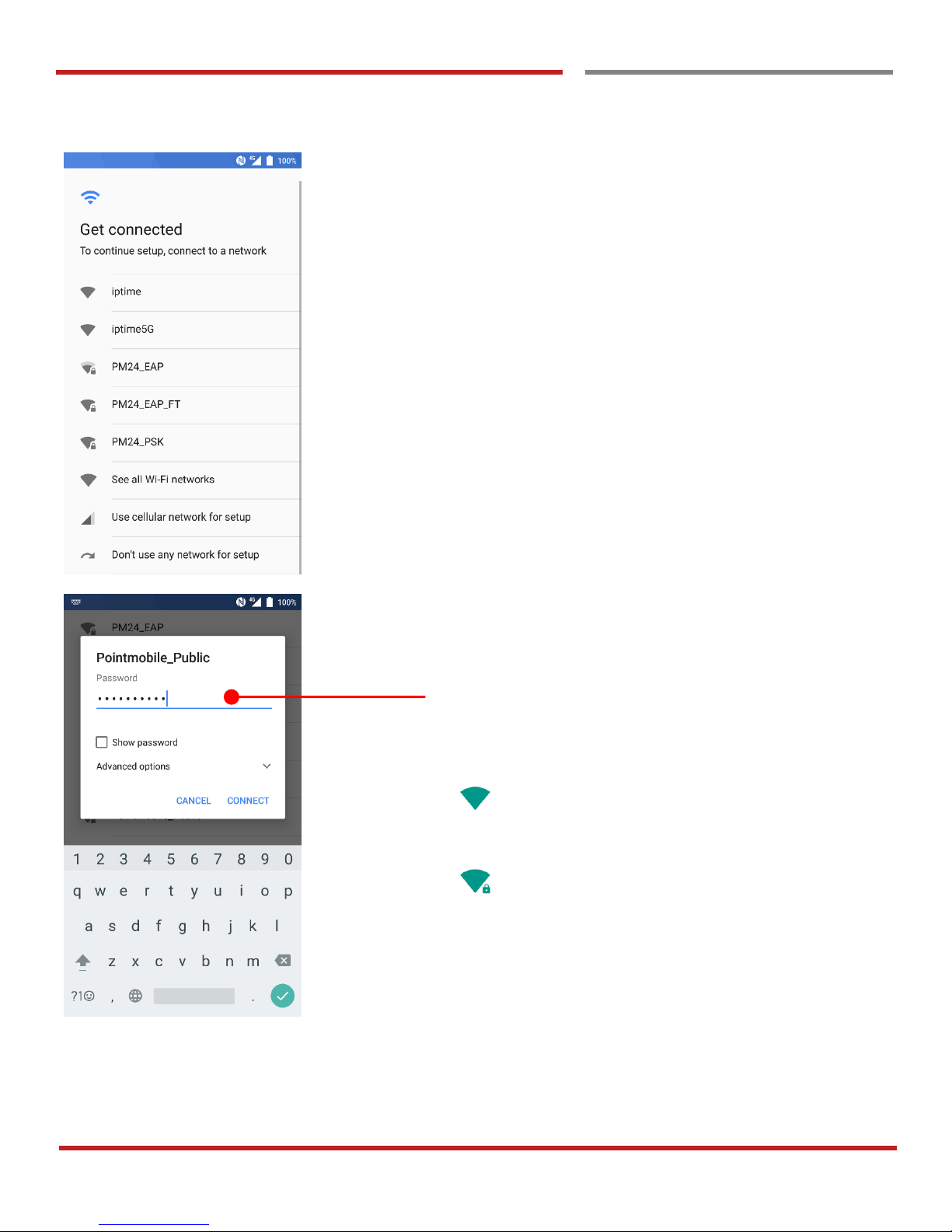
To copy your settings, please connect your PM45 to Wi-Fi
network
Please select Wi-Fi network and input the password (If
required)
Icon means: Open Wi-Fi network. You don’t need
to enter the password
Icon means: Secured Wi-Fi network. To connect
this Wi-Fi, you need to enter the password
Page 20
PM45 Android 7.1.2 User Manual
19
©2006 – 2018 POINTMOBILE Co., Ltd. All rights reserved
Setup Wizard
Setup Wizard
Learning the basics
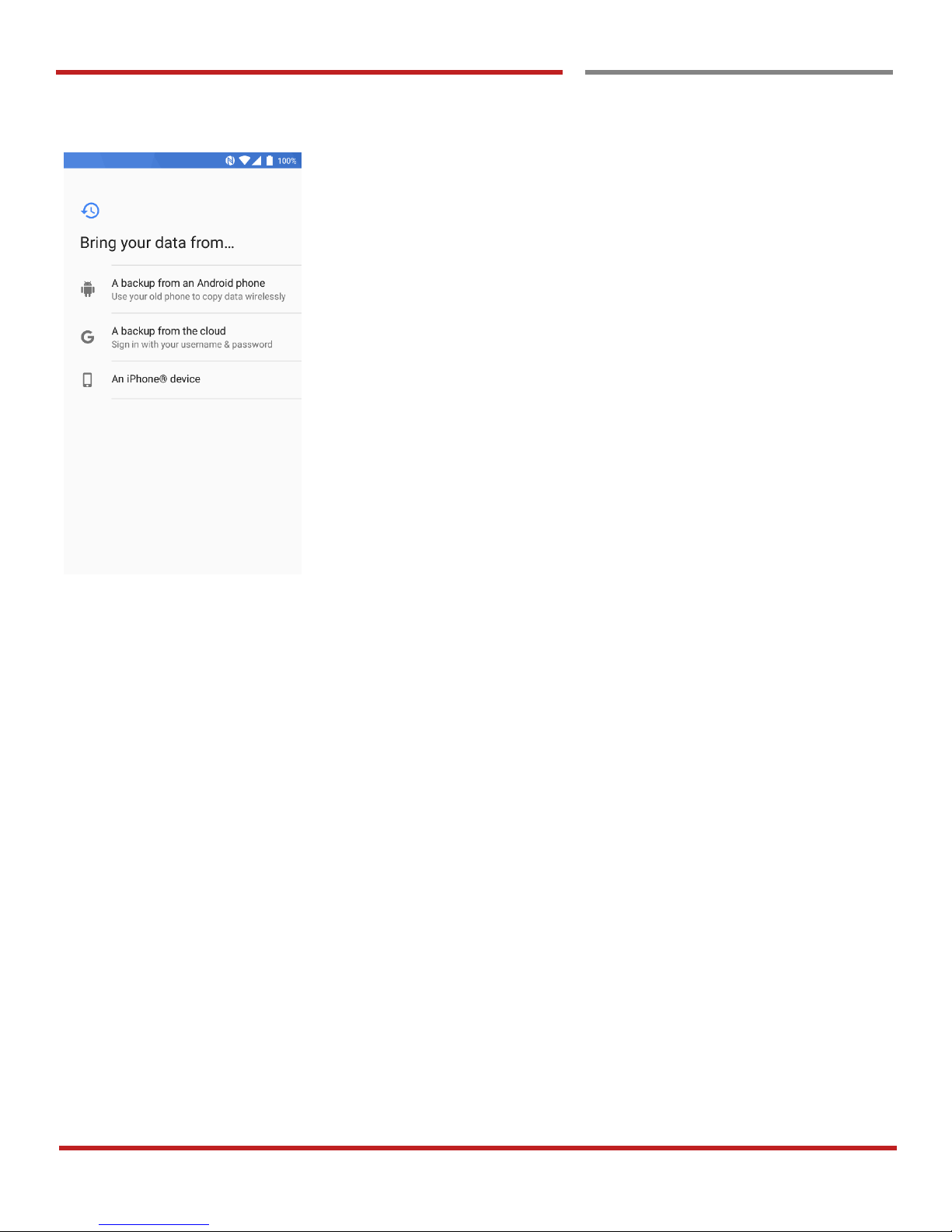
Choose the device or cloud where you want to copy the
settings.
Page 21
PM45 Android 7.1.2 User Manual
20
©2006 – 2018 POINTMOBILE Co., Ltd. All rights reserved
dd
Setup Wizard
Learning the basics
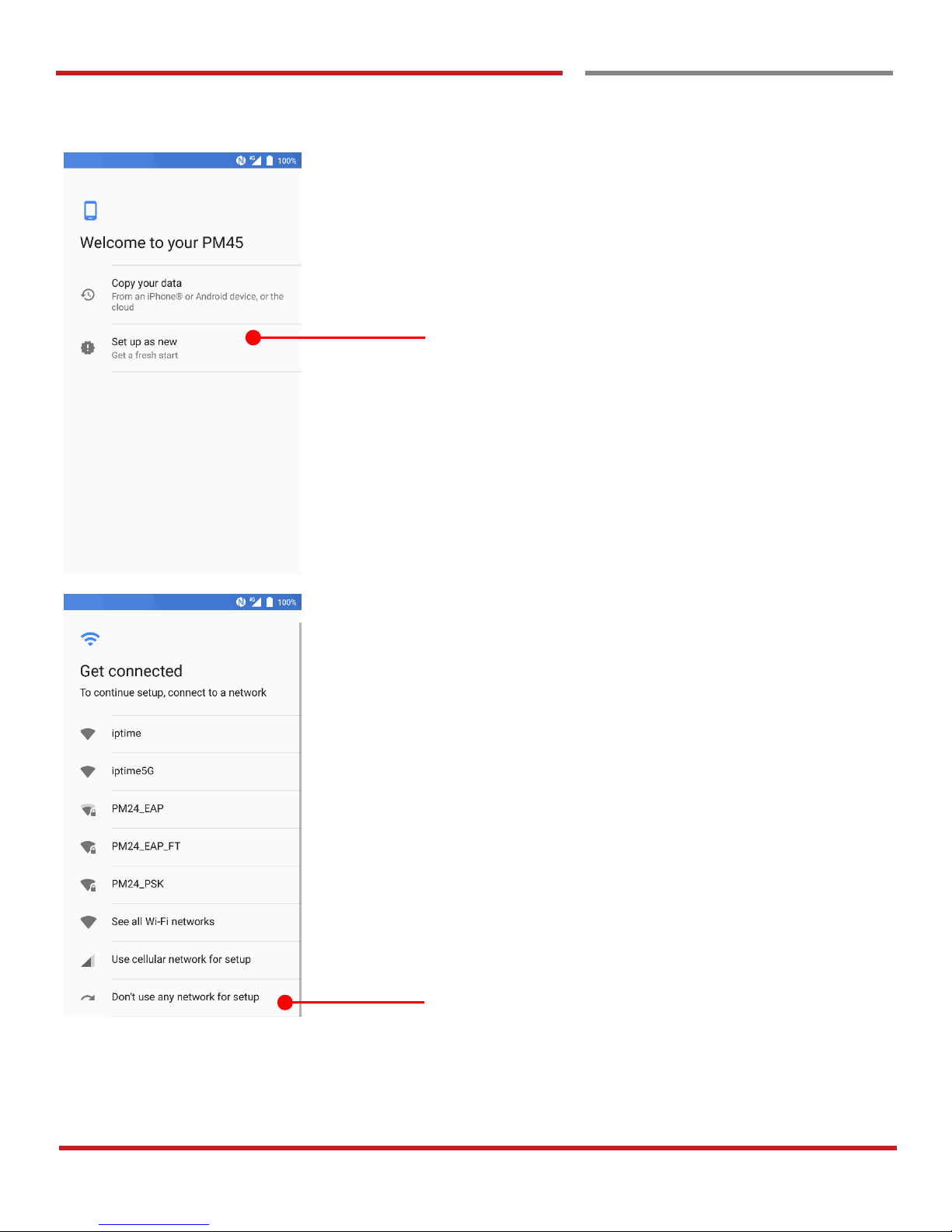
Setup as new
- Touch here to set your PM45 as your new device
During setup process, Google services setup required.
Please connect your device to your Wi-Fi network.
You can skip the Wi-Fi connection process and set later.
Settings → Wi-Fi
Page 22
PM45 Android 7.1.2 User Manual
21
©2006 – 2018 POINTMOBILE Co., Ltd. All rights reserved
Setup Wizard
Learning the basics
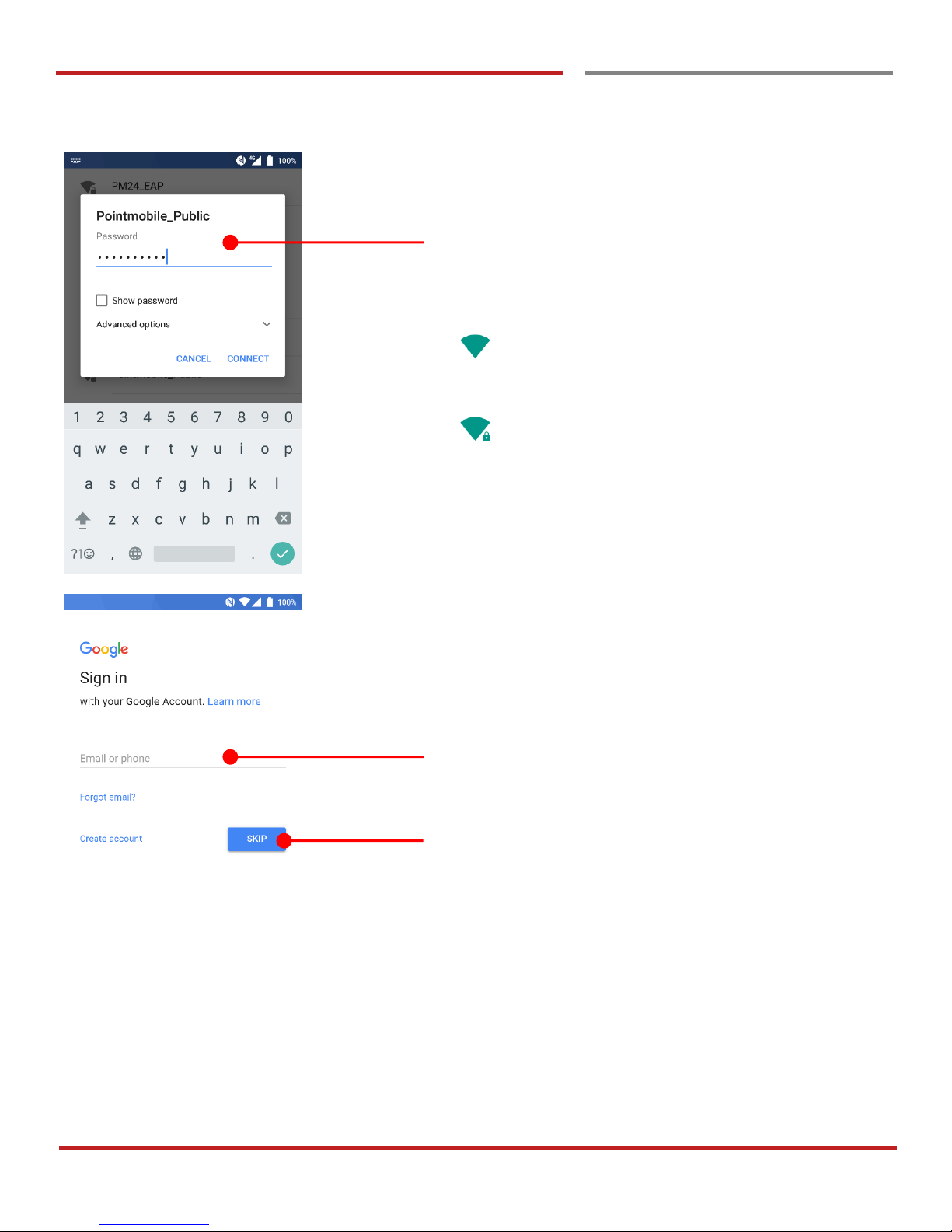
Please select Wi-Fi network and input the password (If
required)
Icon means: Open Wi-Fi network. You don’t need
to enter the password
Icon means: Secured Wi-Fi network. To connect
this Wi-Fi, you need to enter the password
Please sign in to your Google Account.
You may skip this process and sign in later
You may skip the Google account sign in process and set
later. Settings → Accounts → Add account → Google
Page 23
PM45 Android 7.1.2 User Manual
22
©2006 – 2018 POINTMOBILE Co., Ltd. All rights reserved
Setup Wizard
Learning the basics
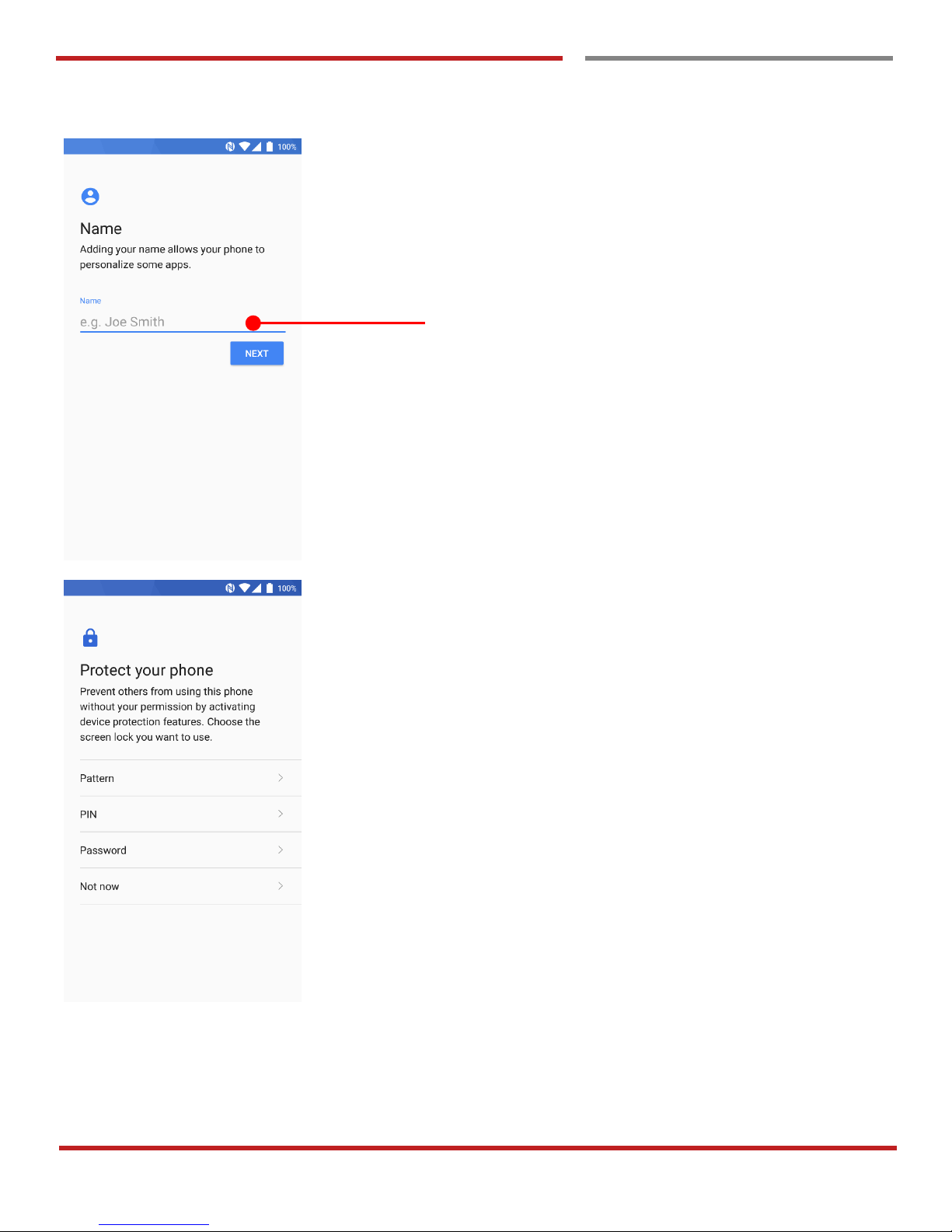
After your Google account login, you can set PM45’s name.
Touch here to set a name
Choose security option for lock screen. You set specific
pattern or PIN or password here.
You may skip this process and set later
Page 24
PM45 Android 7.1.2 User Manual
23
©2006 – 2018 POINTMOBILE Co., Ltd. All rights reserved
d
Setup Wizard
Learning the basics
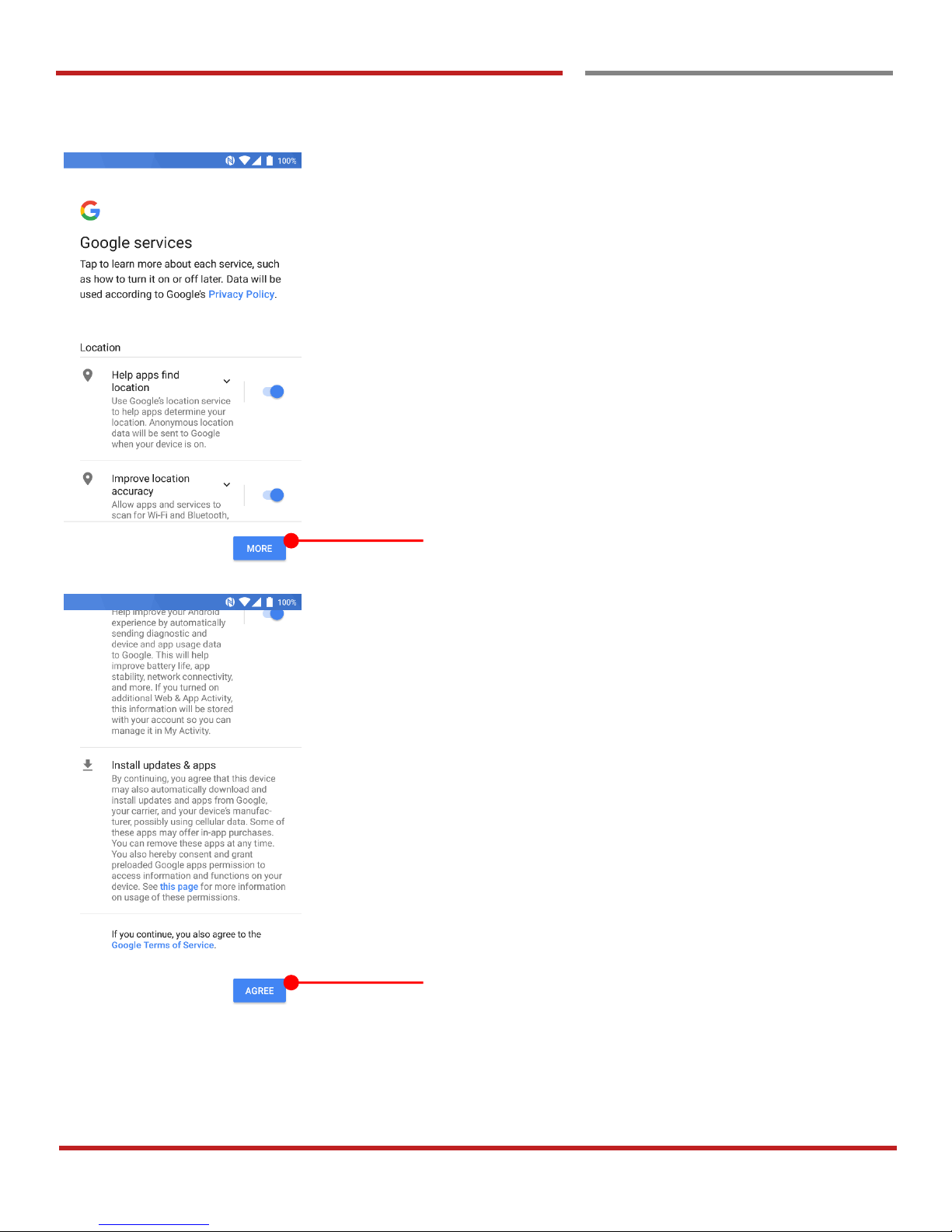
To review the Google services option, please touch MORE
button. You can turn On/Off specific service
After your reviewing and set Google services option, touch
AGREE button for next step
Page 25
PM45 Android 7.1.2 User Manual
24
©2006 – 2018 POINTMOBILE Co., Ltd. All rights reserved
d
Setup Wizard
Learning the basics
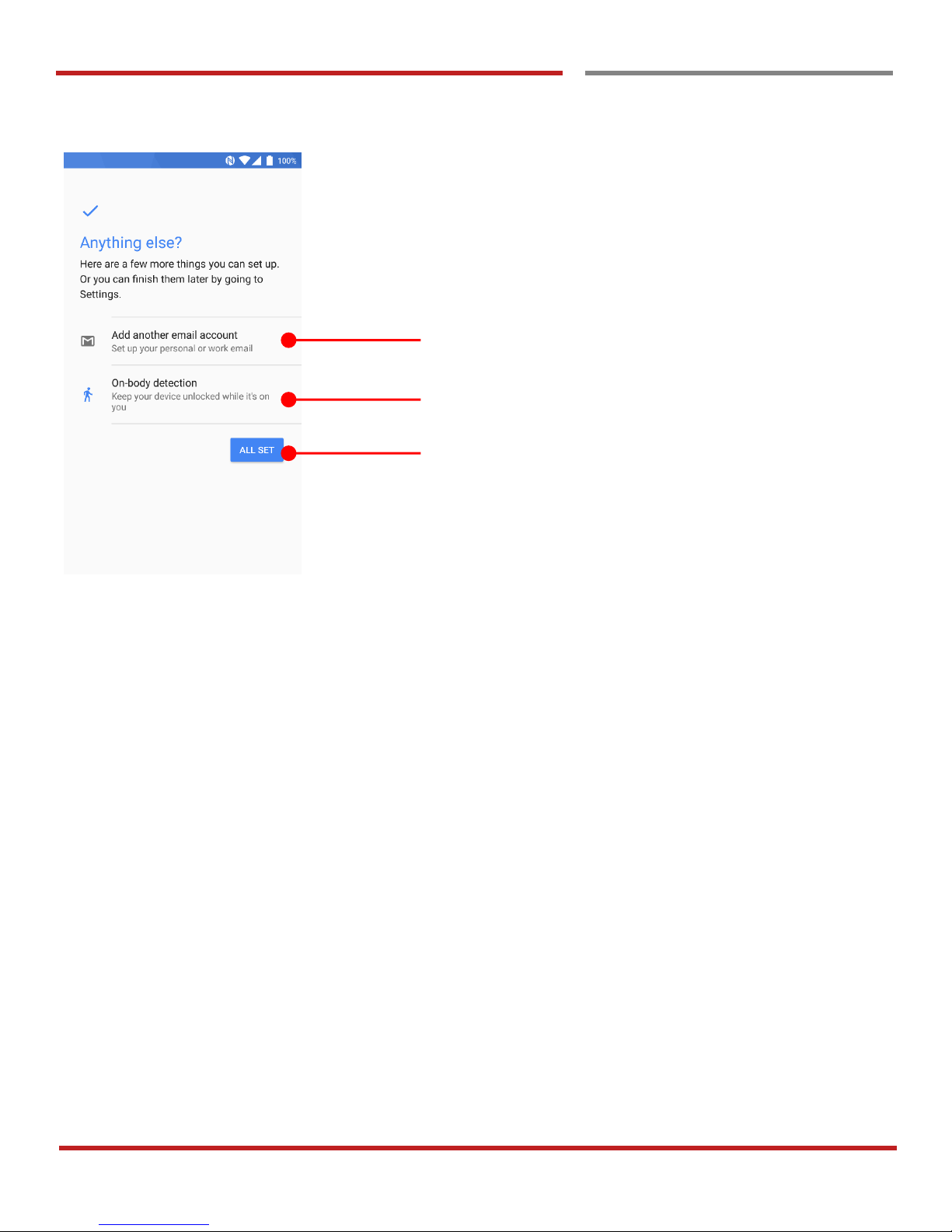
Touch to setup another e-mail account
Touch to use Smart Lock On-body detection
If you set up is done, touch ALL SET extra Touch an icon to
run an app, open folder, etc
Page 26
PM45 Android 7.1.2 User Manual
25
©2006 – 2018 POINTMOBILE Co., Ltd. All rights reserved
cs
Home Screen, Apps and Widget
Home Screen, Apps and Widget
Learning the basics
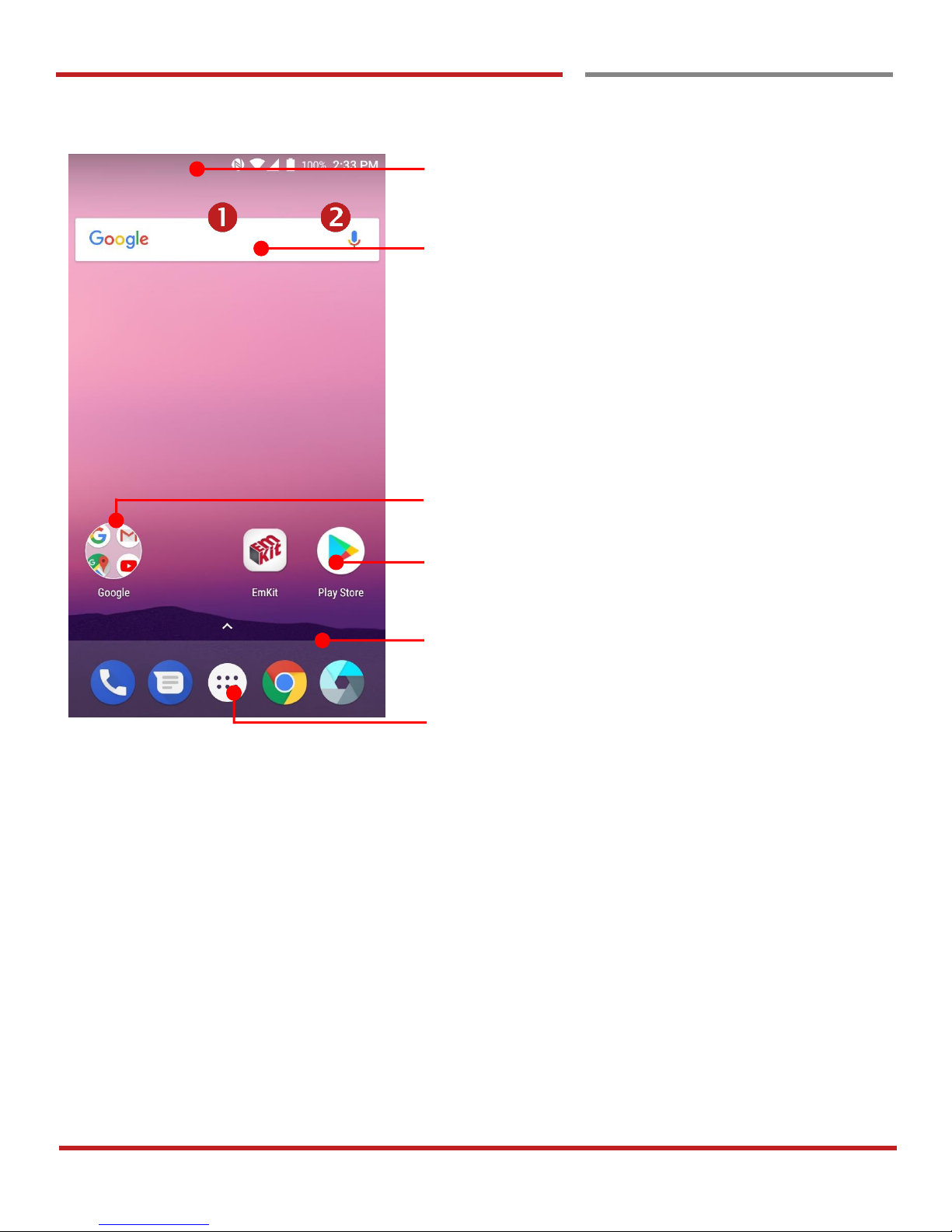
Status Bar
- Status / Notification
- Drag down to open the “Quick Setting Panel”
Search Bar
- Touch 1 to search by text
- Touch 2 to search by voice
App Folder (Google collections)
- App icons are organized in the folder
Touch an icon to run an app, open a folder, etc
Favorite tray apps
- Touch to run an app
- Touch and hold to reorganize
App Drawer
Touch to browse apps in the PM45
Page 27
PM45 Android 7.1.2 User Manual
26
©2006 – 2018 POINTMOBILE Co., Ltd. All rights reserved
basics
Home Screen, Apps and Widget
Learning the basics
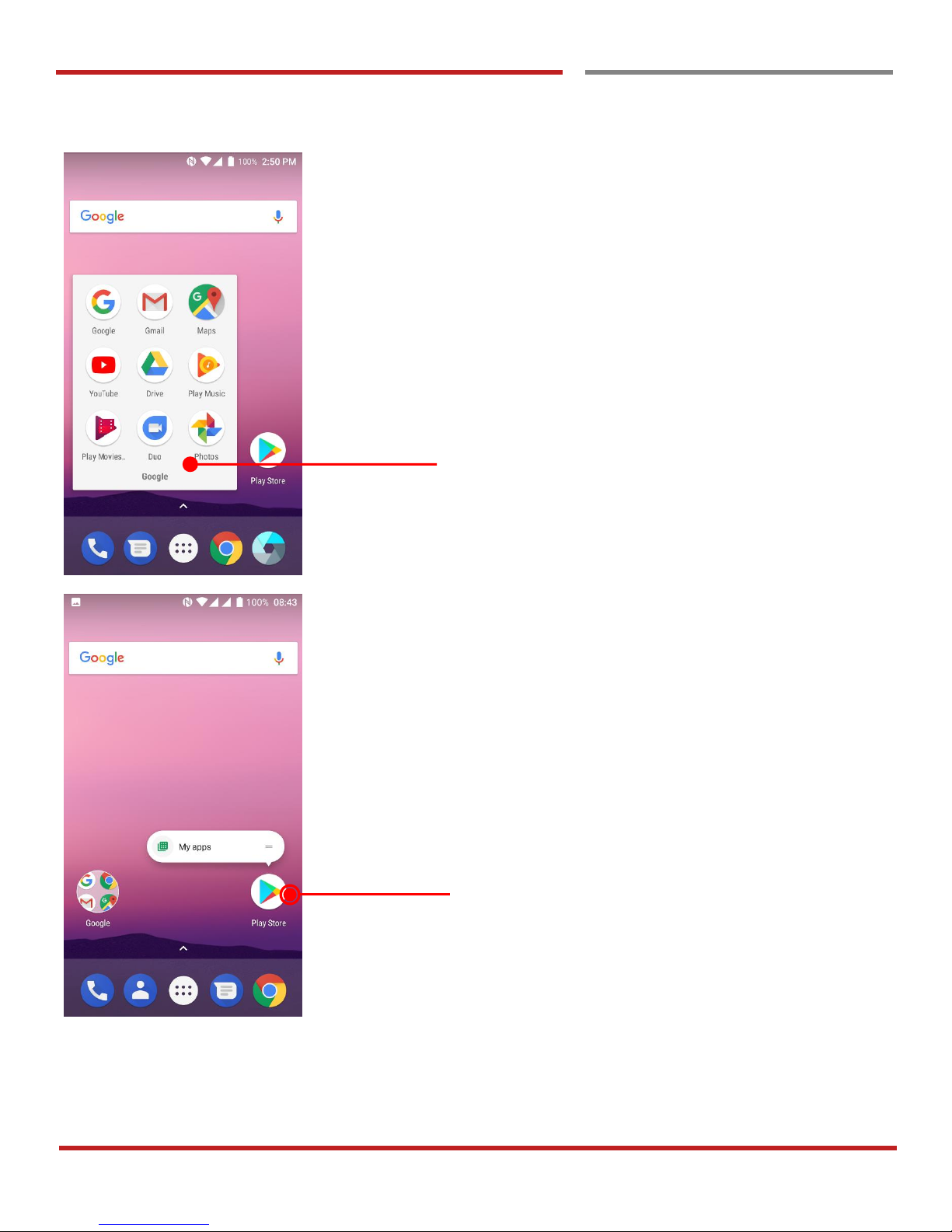
To access app folder (Google collections)
- Touch the app folder then you will see apps in the
folder.
- To change app folder’s name, touch the bottom area
of the folder.
To see App’s option for quick access
- Long press the app icon. Then you will see options
from the app. Here option may different by app
Page 28
PM45 Android 7.1.2 User Manual
27
©2006 – 2018 POINTMOBILE Co., Ltd. All rights reserved
Learning the basics
Home Screen, Apps and Widget
Learning the basics
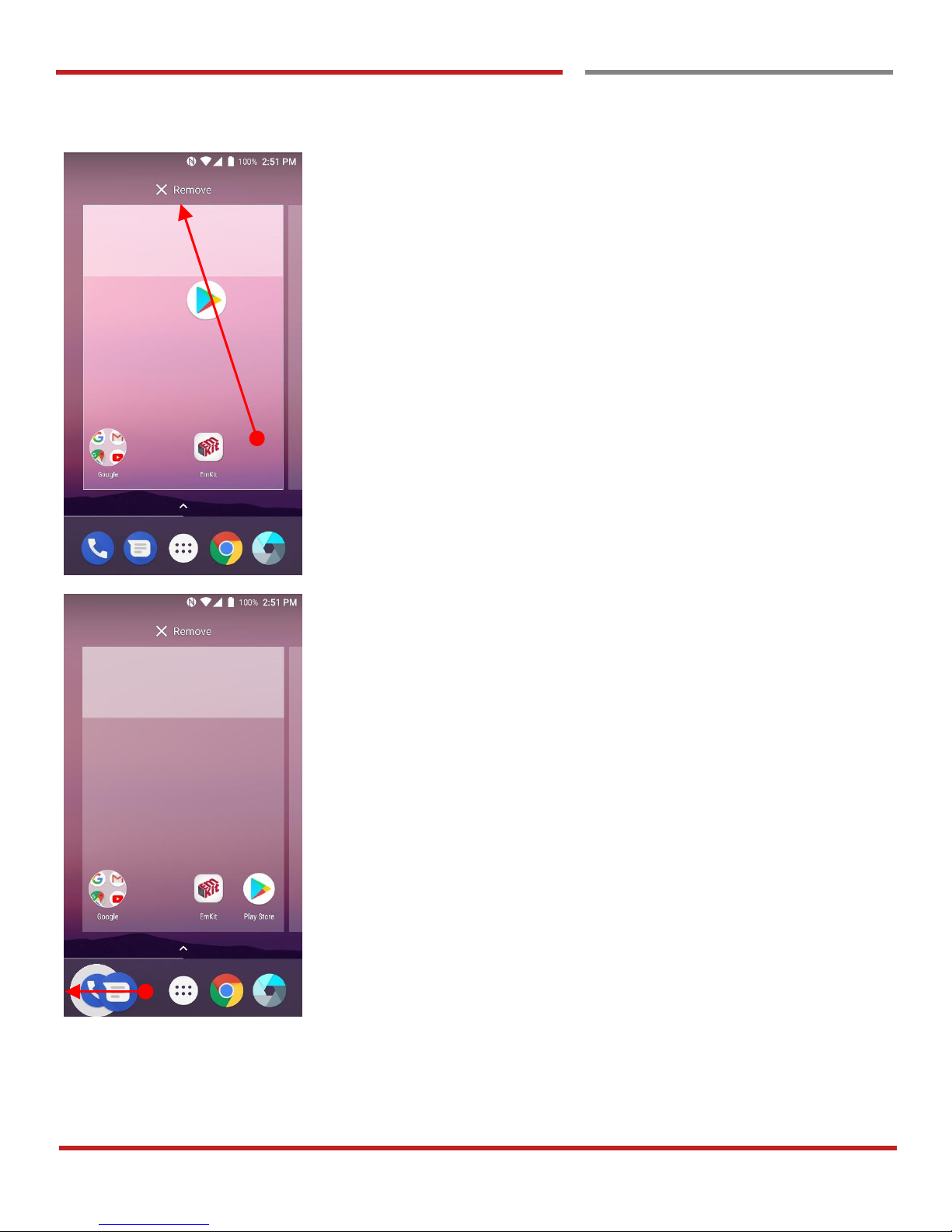
Organize the app icon in the home screen
- Long-press drag the app icon and place where you
want. You may place app icon to next panel
- If you want to remove the app icon, drag it to
“Remove” area and release
Create “App Folder”
- Long press the app icon to another app icon. This
will create the “App Folder”
- To set the folder name, touch the “Unnamed Folder”
and rename it
Page 29
PM45 Android 7.1.2 User Manual
28
©2006 – 2018 POINTMOBILE Co., Ltd. All rights reserved
the
Home Screen, Apps and Widget
Learning the basics
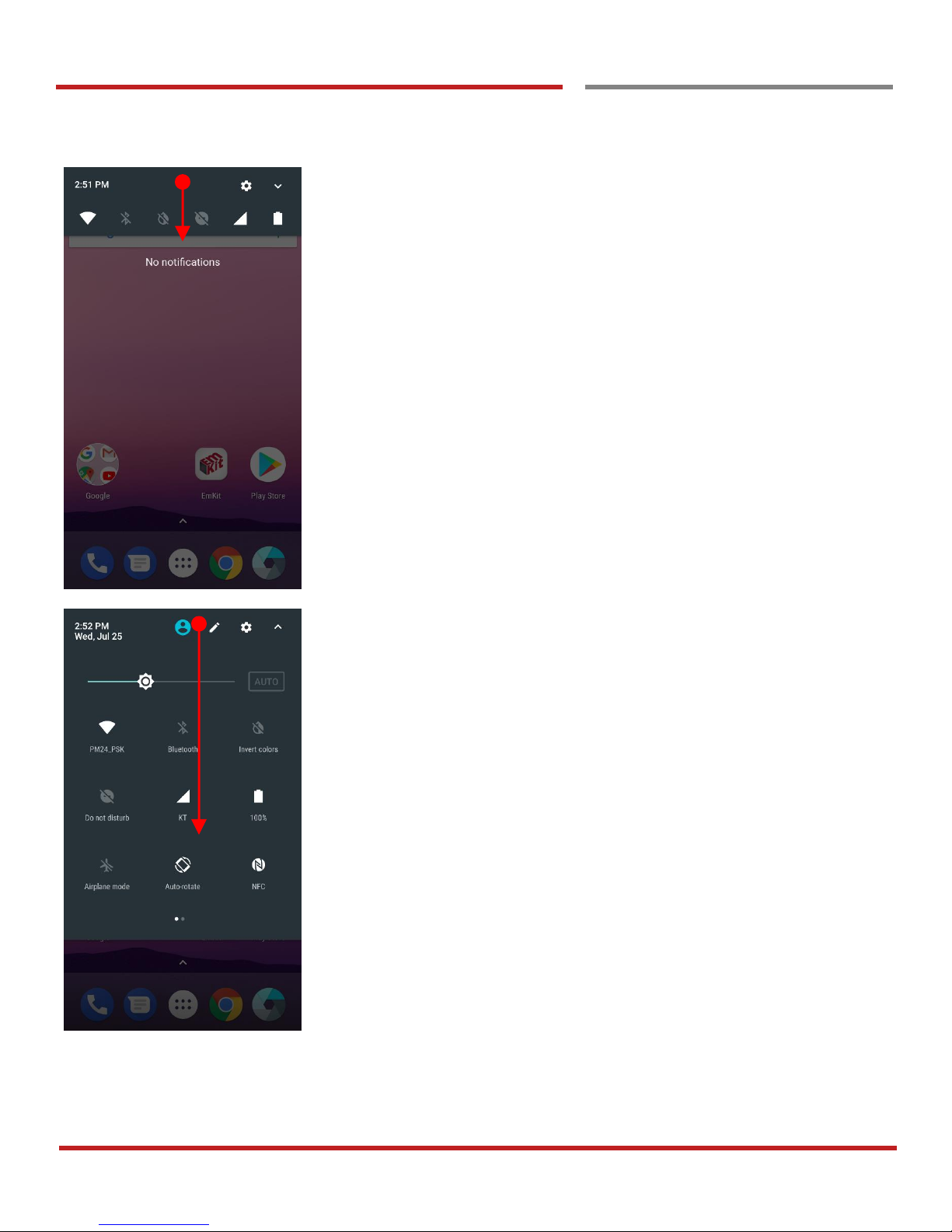
Notification panel
When there is notification from the Android (system) or the
App, you can check details by drag down the “Status Bar”.
Quick setting panel
You can access “Quick setting panel” by drag down the
“Notification panel”. You can enable / disable functions or
change modes easily.
Page 30
PM45 Android 7.1.2 User Manual
29
©2006 – 2018 POINTMOBILE Co., Ltd. All rights reserved
Home Screen, Apps and Widget
Learning the basics
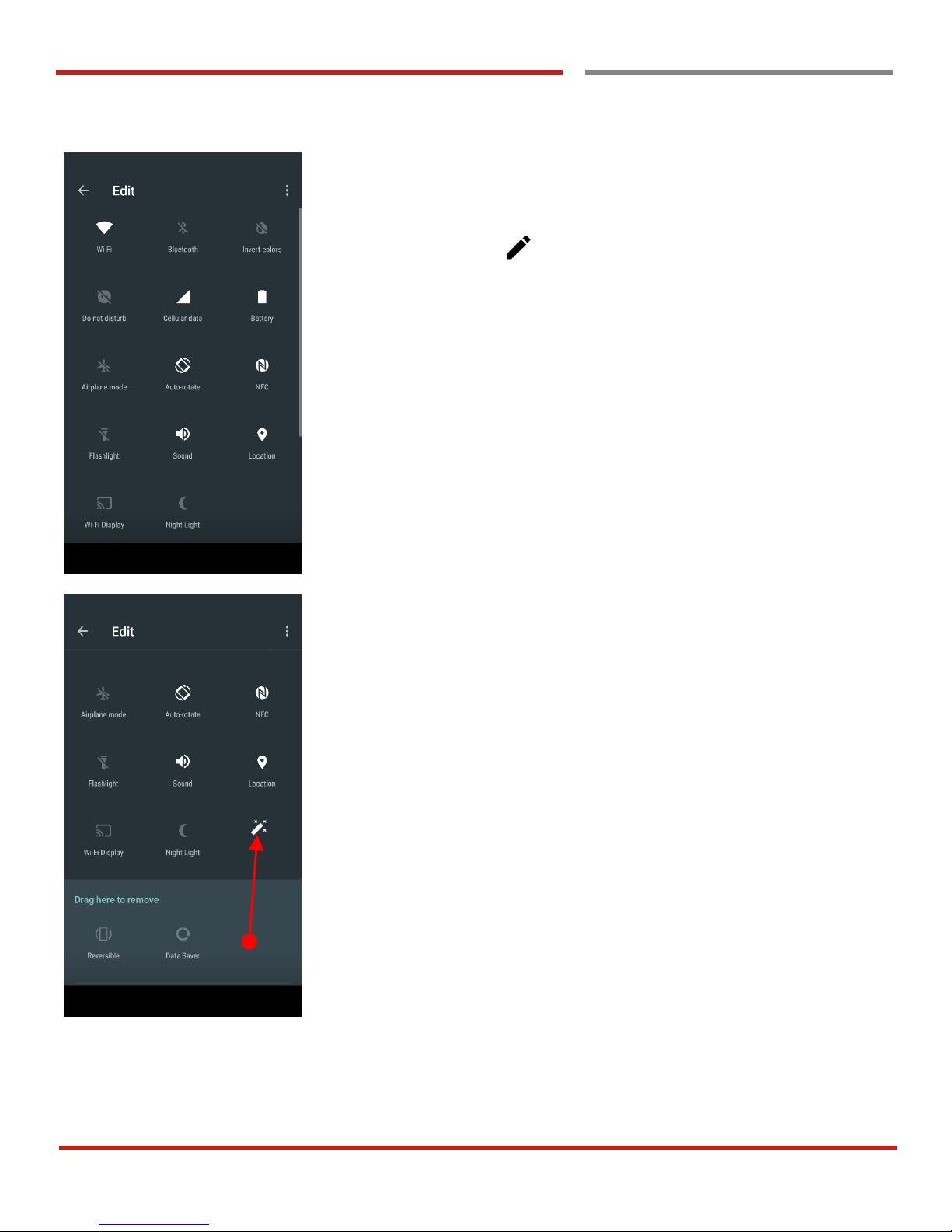
Edit Quick settings panel
To change the order of icon in the Quick settings panel,
touch the Edit icon
By dragging the icon, you can customize the Quick settings
panel
Page 31
PM45 Android 7.1.2 User Manual
30
©2006 – 2018 POINTMOBILE Co., Ltd. All rights reserved
Learning the basics
Home Screen, Apps and Widget
Learning the basics
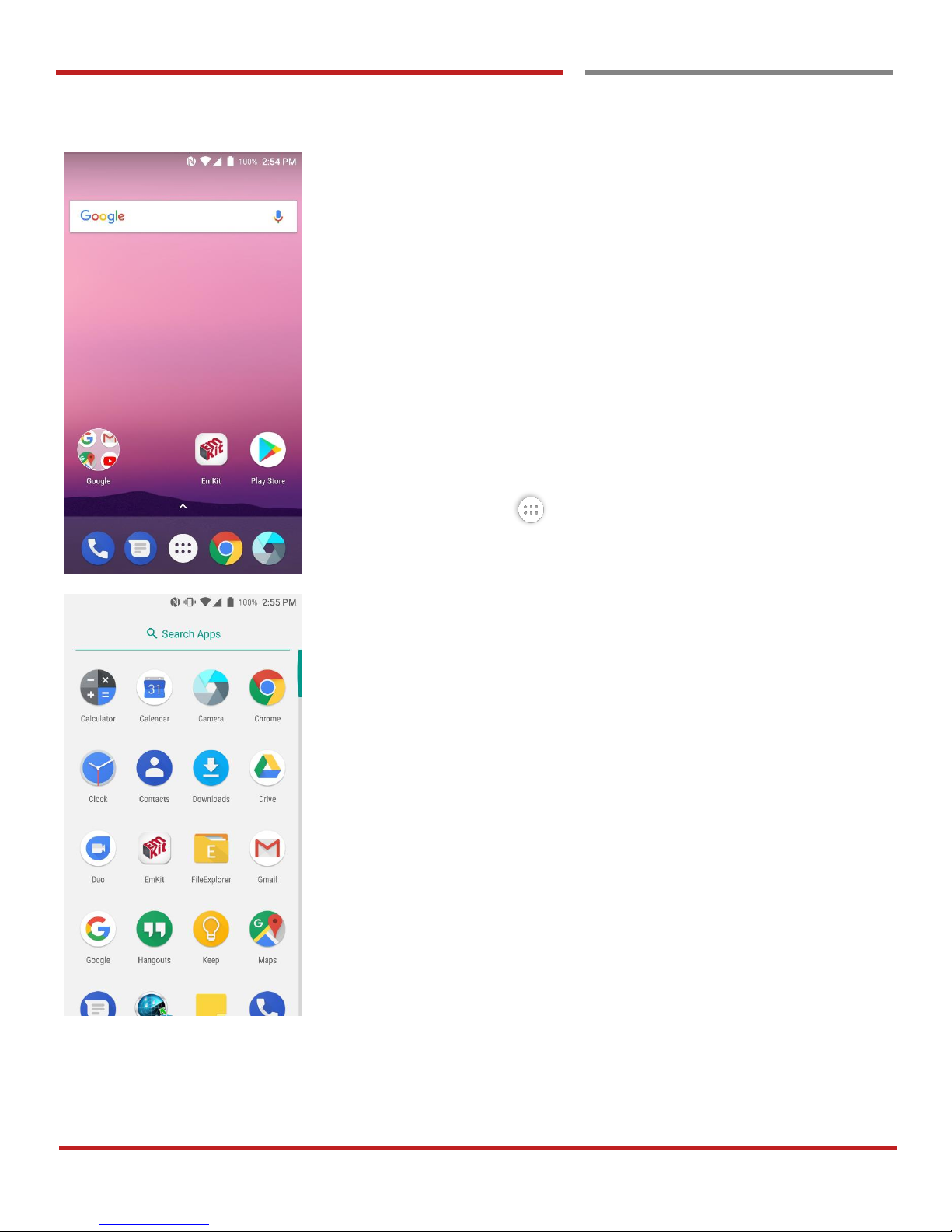
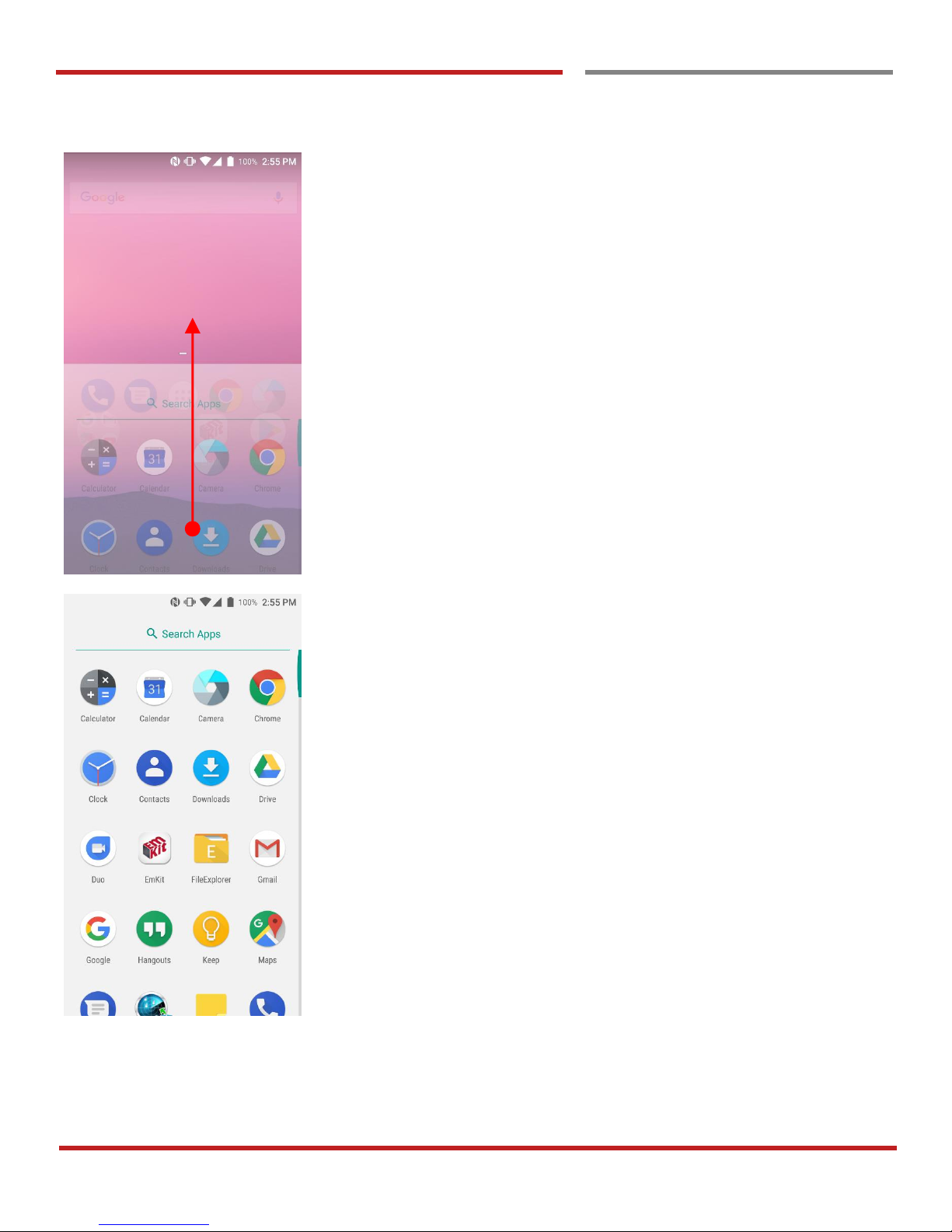
Touch the App drawer icon, to see apps in your PM45
All installed apps are listed alphabetically
- Tap app icon to run.
- Long press, specific app icon to place to the “Home
Screen”.
Page 32
PM45 Android 7.1.2 User Manual
31
©2006 – 2018 POINTMOBILE Co., Ltd. All rights reserved
Learning the basics
Home Screen, Apps and Widget
Learning the basics
By drag up the Favorite tray apps area, you can also access
to app list in your PM45
Page 33
PM45 Android 7.1.2 User Manual
32
©2006 – 2018 POINTMOBILE Co., Ltd. All rights reserved
Learning the basics
Home Screen, Apps and Widget
Learning the basics
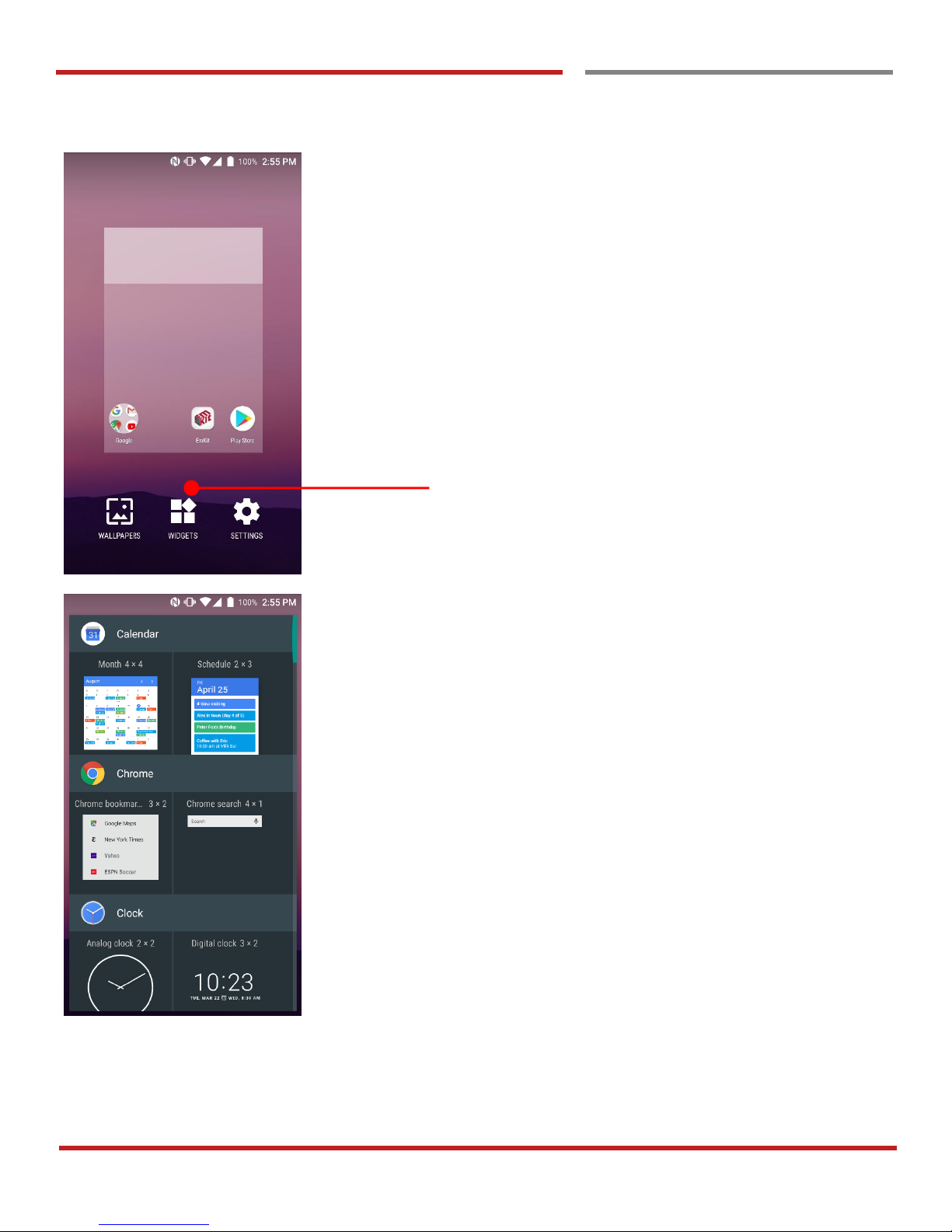
To add a Widget in the Home screen, long press the empty
space. Then you will see WALL PAPERS, WIDGETS,
SETTINS menu. Touch WIDGETS
Available widgets are listed. Among the list select the widget
which you want to add and place it to the Home screen by
drag and drop
Page 34
PM45 Android 7.1.2 User Manual
33
©2006 – 2018 POINTMOBILE Co., Ltd. All rights reserved
Learning the basics
Home Screen, Apps and Widget
Learning the basics
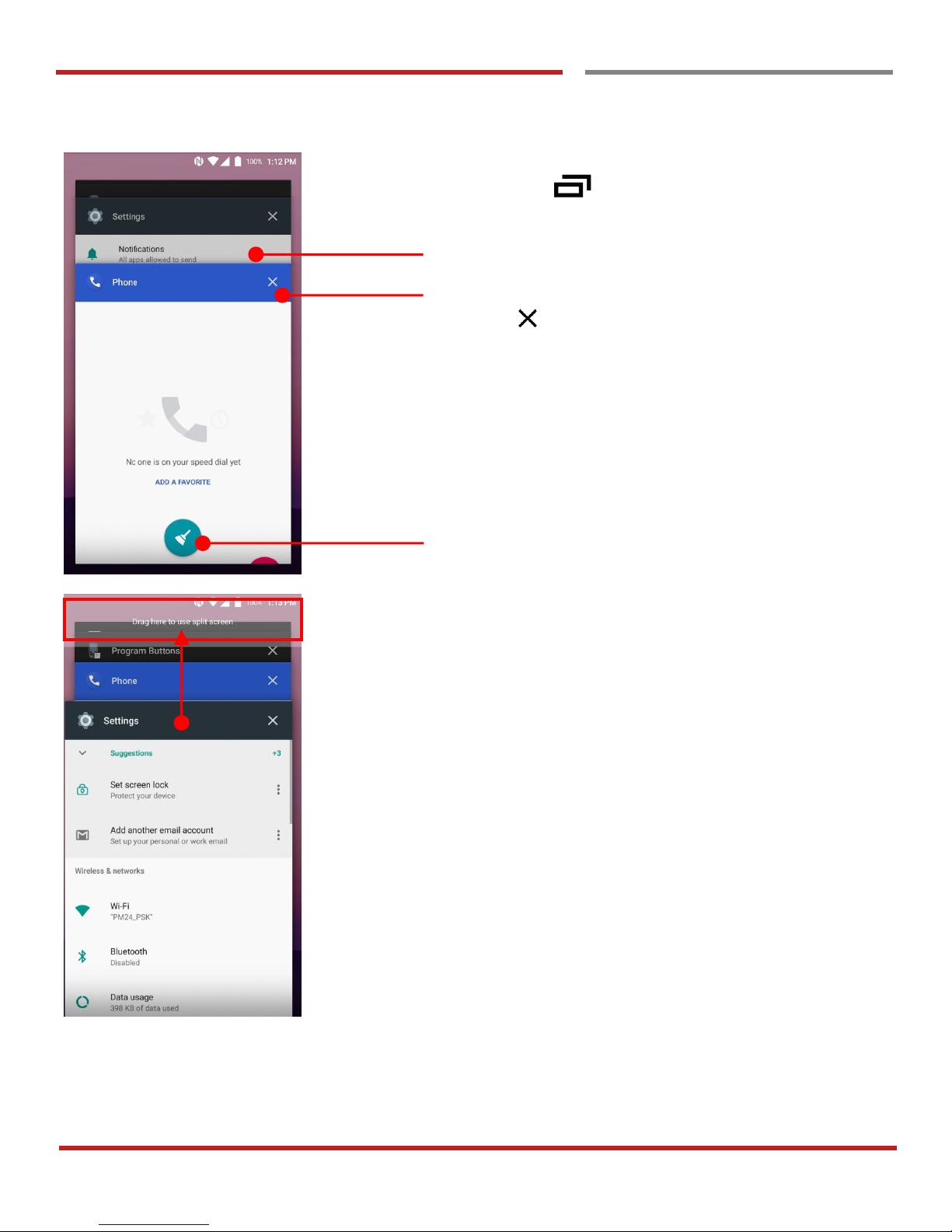
By pressing the Recent button in the keypad, you can
see app list which you access
Touch the app, if you want to use or access the app.
If you want to close individual app, long press the app and
then touch icon
If you close all of the apps, then touch Brush icon
To see the two apps in the screen, please try Split screen
function.
In the recent app list, long press - drag and drop the one of
the app to the top area
Page 35
PM45 Android 7.1.2 User Manual
34
©2006 – 2018 POINTMOBILE Co., Ltd. All rights reserved
Learning the basics
Home Screen, Apps and Widget
Learning the basics
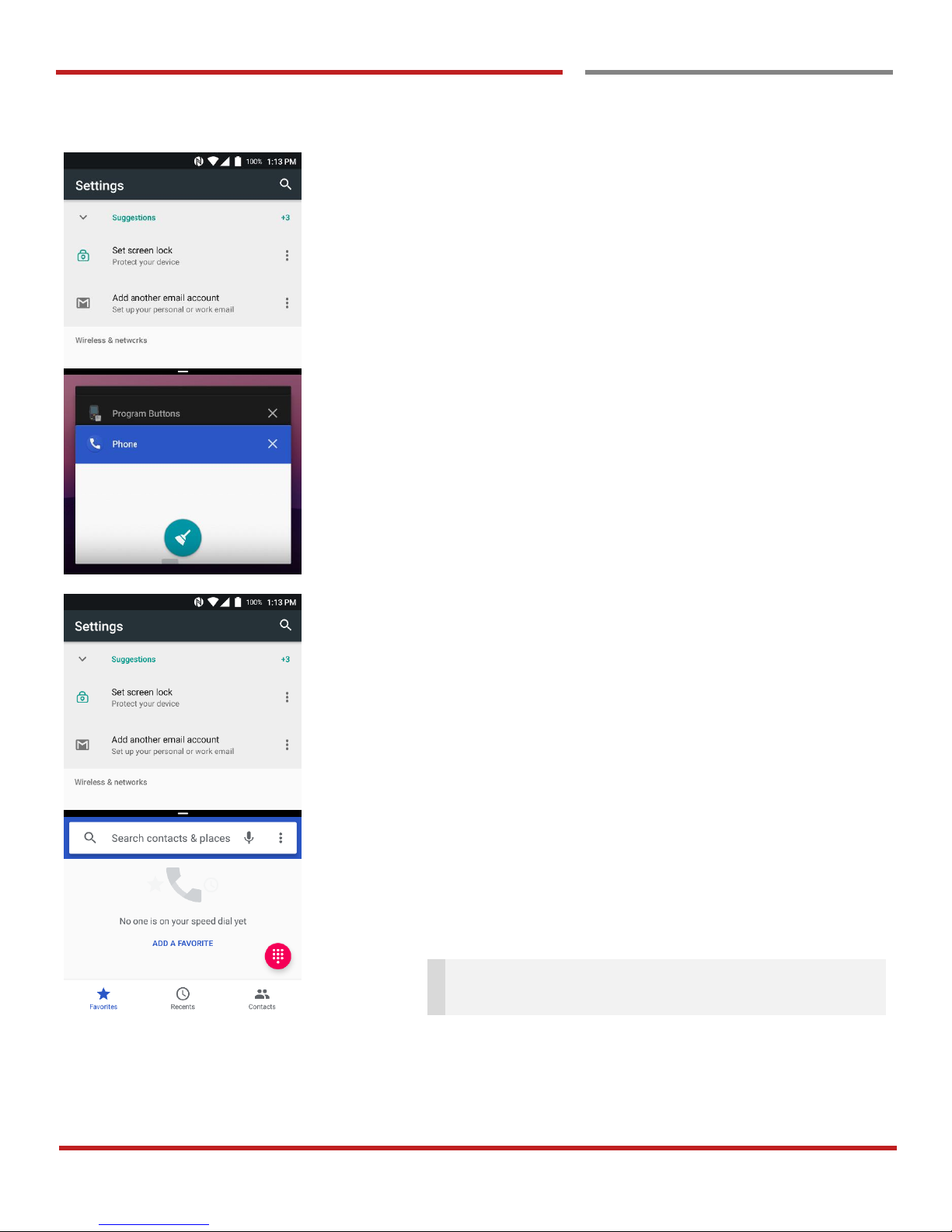
Now primary app is selected. Touch another app to see in
the screen.
By selecting another app, you can see two apps in the
screen
Note: Some of the app may not support split screen
function
Page 36
PM45 Android 7.1.2 User Manual
35
©2006 – 2018 POINTMOBILE Co., Ltd. All rights reserved
Learning the basics
Home Screen, Apps and Widget
Learning the basics
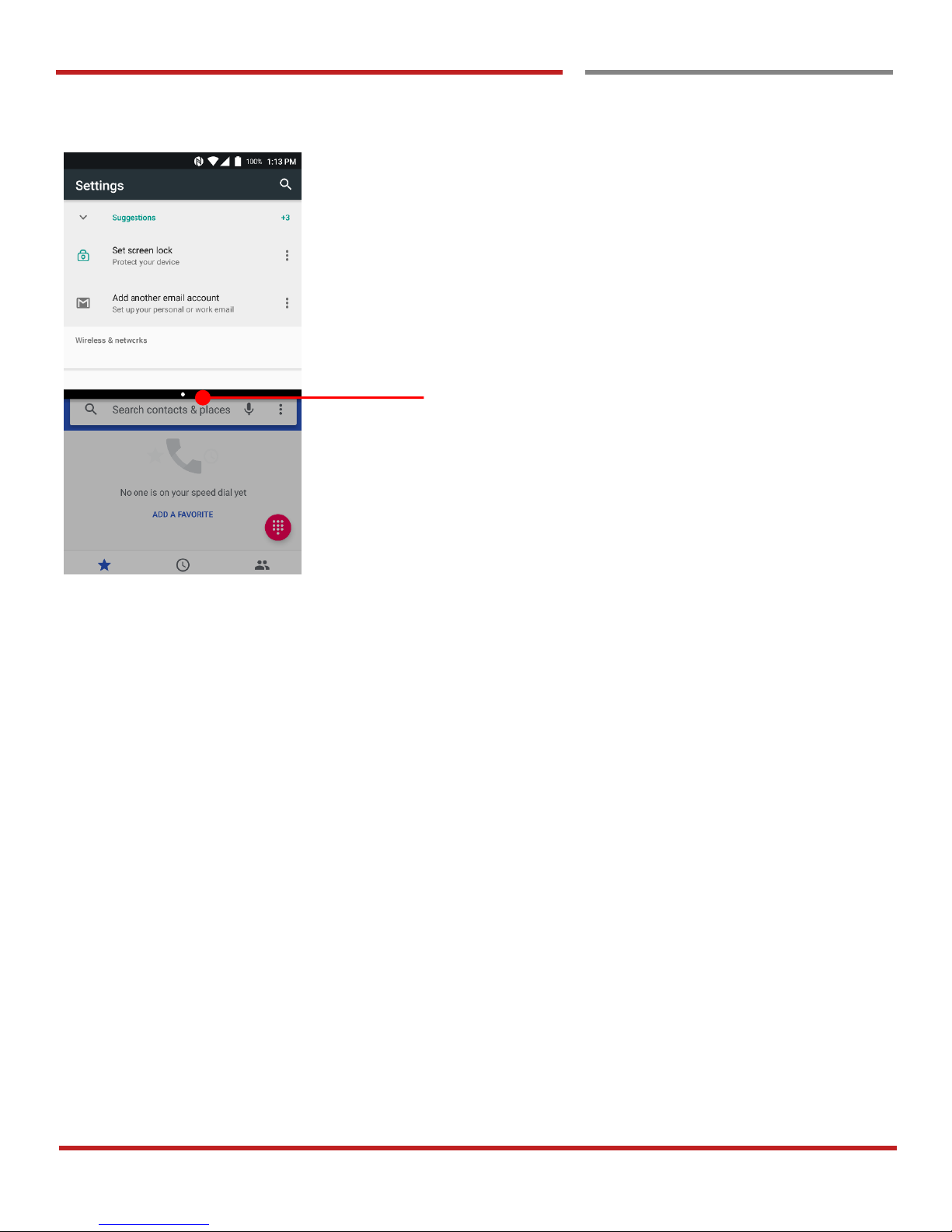
By scroll up or down the black bar in the middle, you can
exit split screen mode.
Page 37
PM45 Android 7.1.2 User Manual
36
©2006 – 2018 POINTMOBILE Co., Ltd. All rights reserved
Learning the basics
Status & Notifications Icons
Status & Notifications Icons
Learning the basics
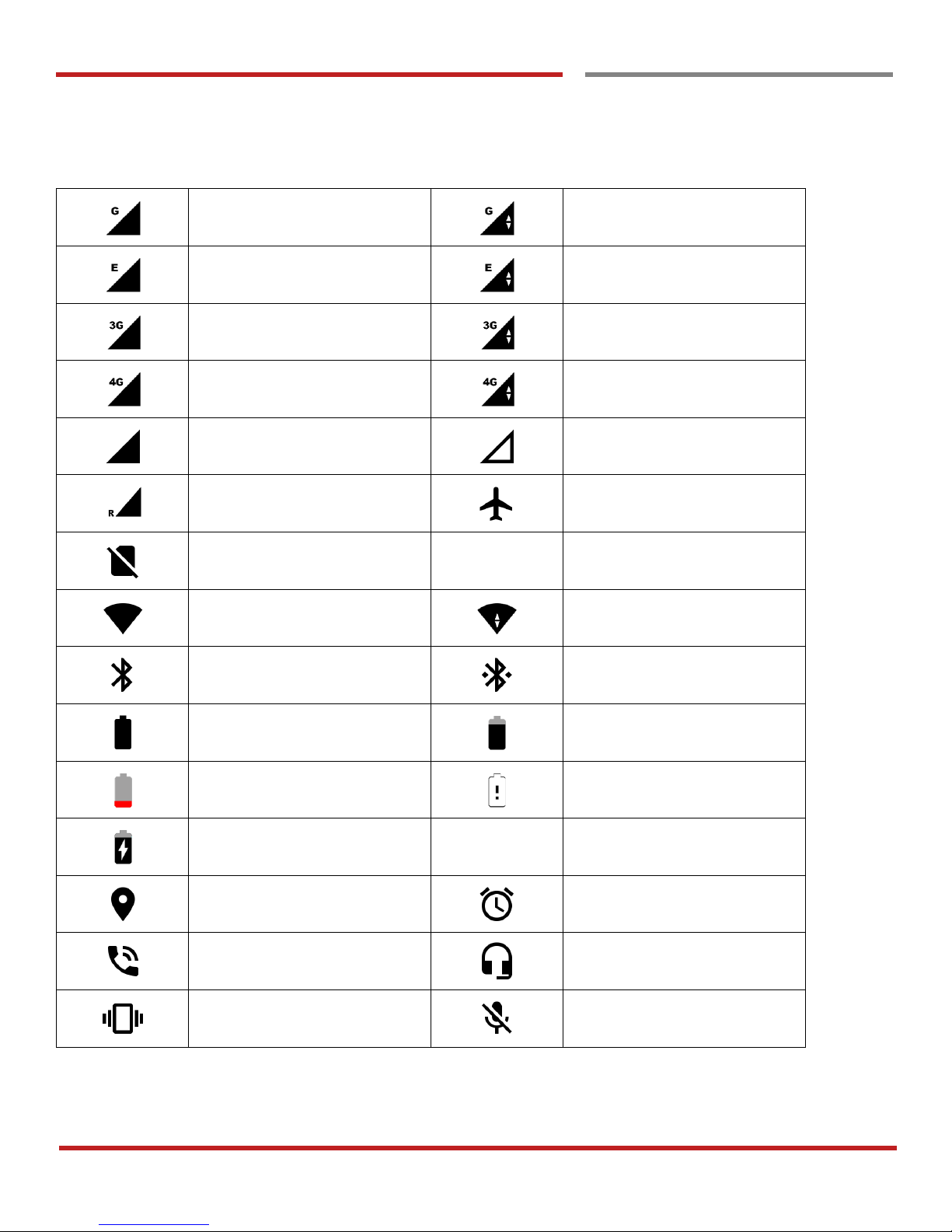
Status icons
GPRS connected
GPRS in use
EDGE connected
EDGE in use
3G connected
3G in use
4G connected
4G in use
Signal strength
No signal
Roaming
Airplane mode
No SIM card installed
WLAN is on
Connected to a WLAN
network
Bluetooth is on
Connected to a Bluetooth
device
Battery is full
Battery is partially drained
Battery is low
Battery is very low
Battery is charging
GPS is on
Alarm is set
Speaker phone is on
Headset connected
Vibrate mode/ Mute
Phone mic is mute
Page 38
PM45 Android 7.1.2 User Manual
37
©2006 – 2018 POINTMOBILE Co., Ltd. All rights reserved
Status & Notifications Icons
Status & Notifications Icons
Learning the basics
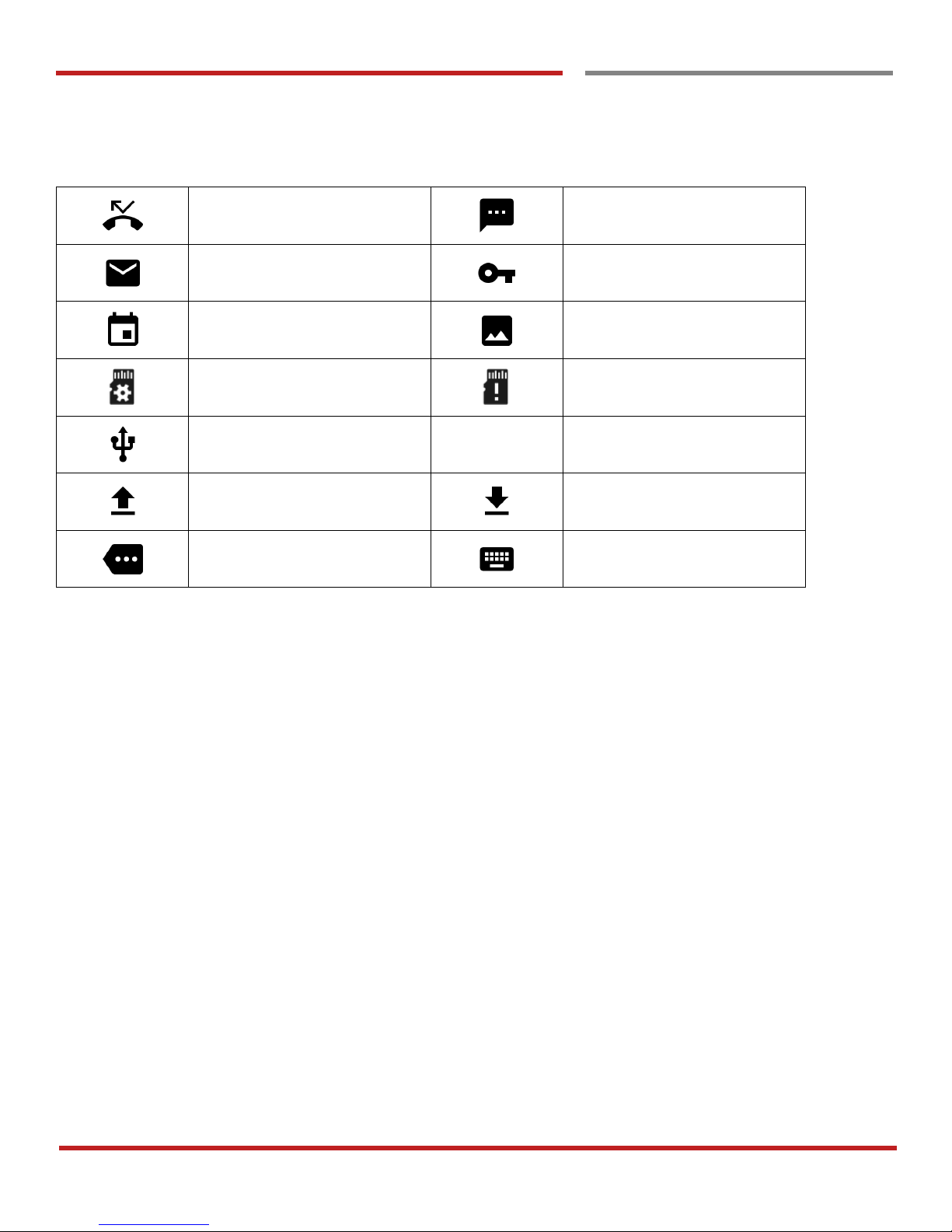
Notification icons
Missed call
New SMS or MMS message
New Email
Connected to VPN network
Upcoming event
Screenshot captured
Preparing SD card
SD card removed,
unexpectedly
OTG device connected
File uploaded
File downloaded
There are more notifications
Other input method available
Page 39
PM45 Android 7.1.2 User Manual
38
©2006 – 2018 POINTMOBILE Co., Ltd. All rights reserved
Learning the basics
Set a Lock screen
Set a Lock screen
Learning the basics
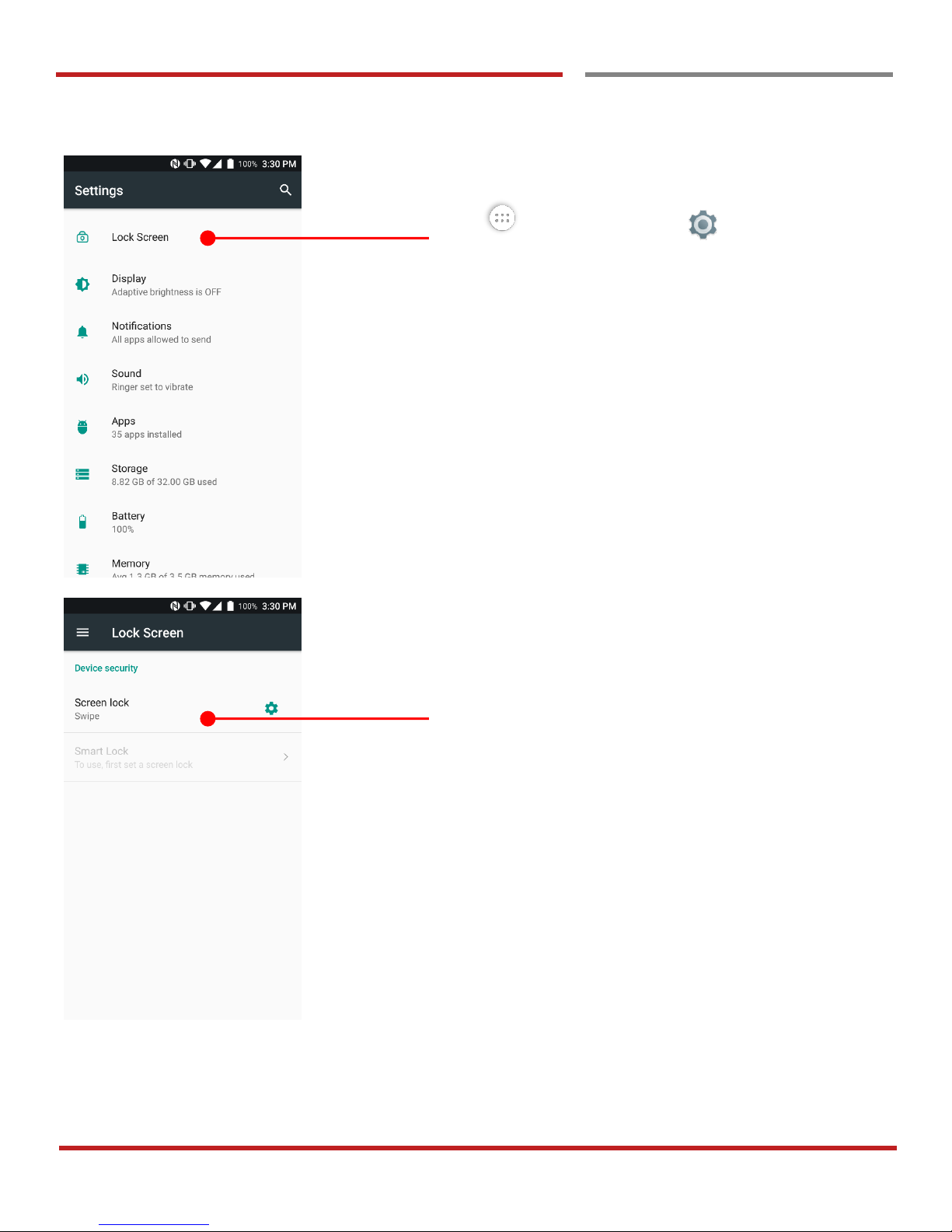
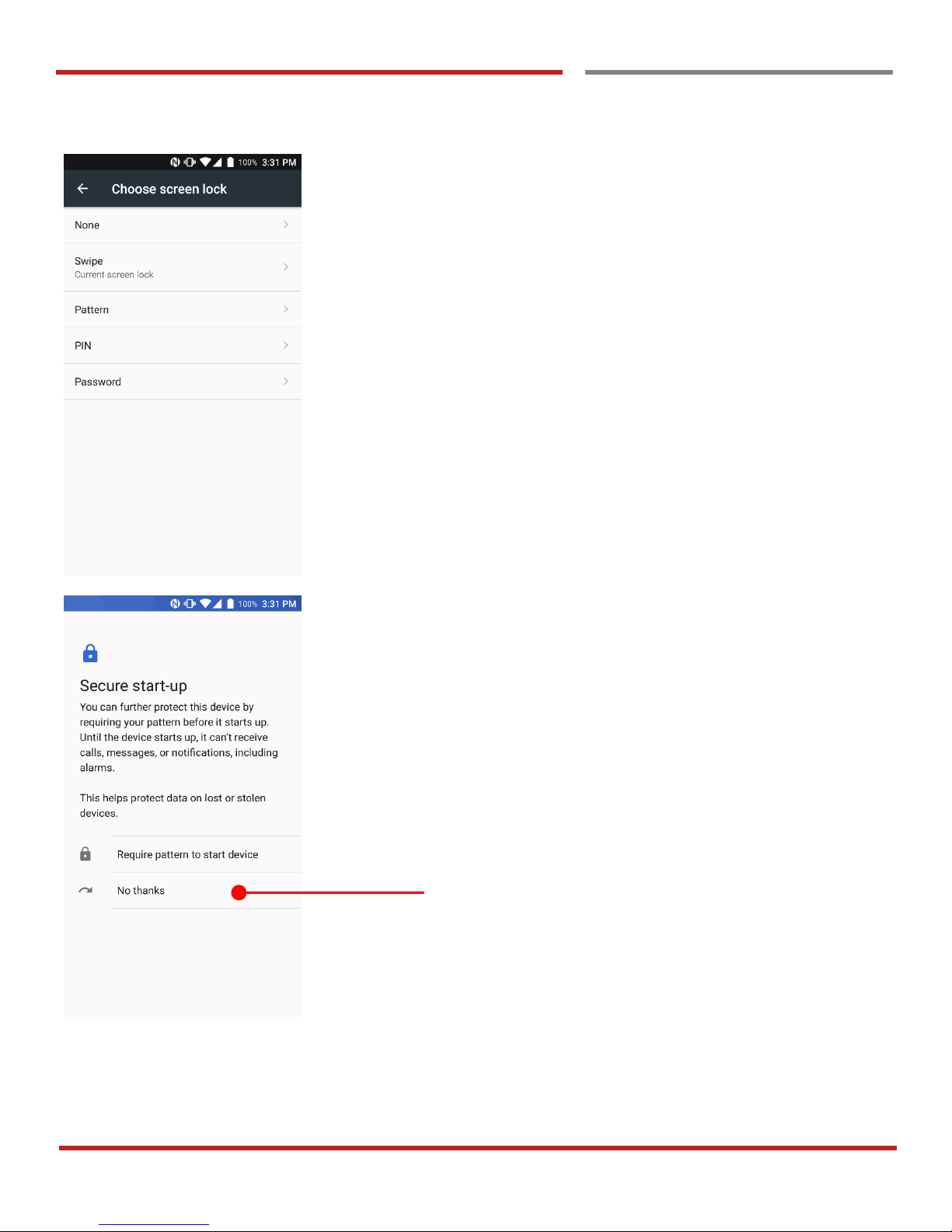
Touch “App drawer” icon → “Settings” and then
“Lock Screen”
You can see Screen lock type which is currently set.
To change the screen lock, please touch the menu.
Page 40
PM45 Android 7.1.2 User Manual
39
©2006 – 2018 POINTMOBILE Co., Ltd. All rights reserved
Learning the basics
Set a Lock screen
Learning the basics
None :
Swipe :
Pattern :
PIN :
Password :
PM45 screen unlock immediately
To unlock the screen, user should swipe the
screen
To unlock the screen, user draw the pattern
To unlock the screen, user should input the
pin
To unlock the screen, user should input the
password
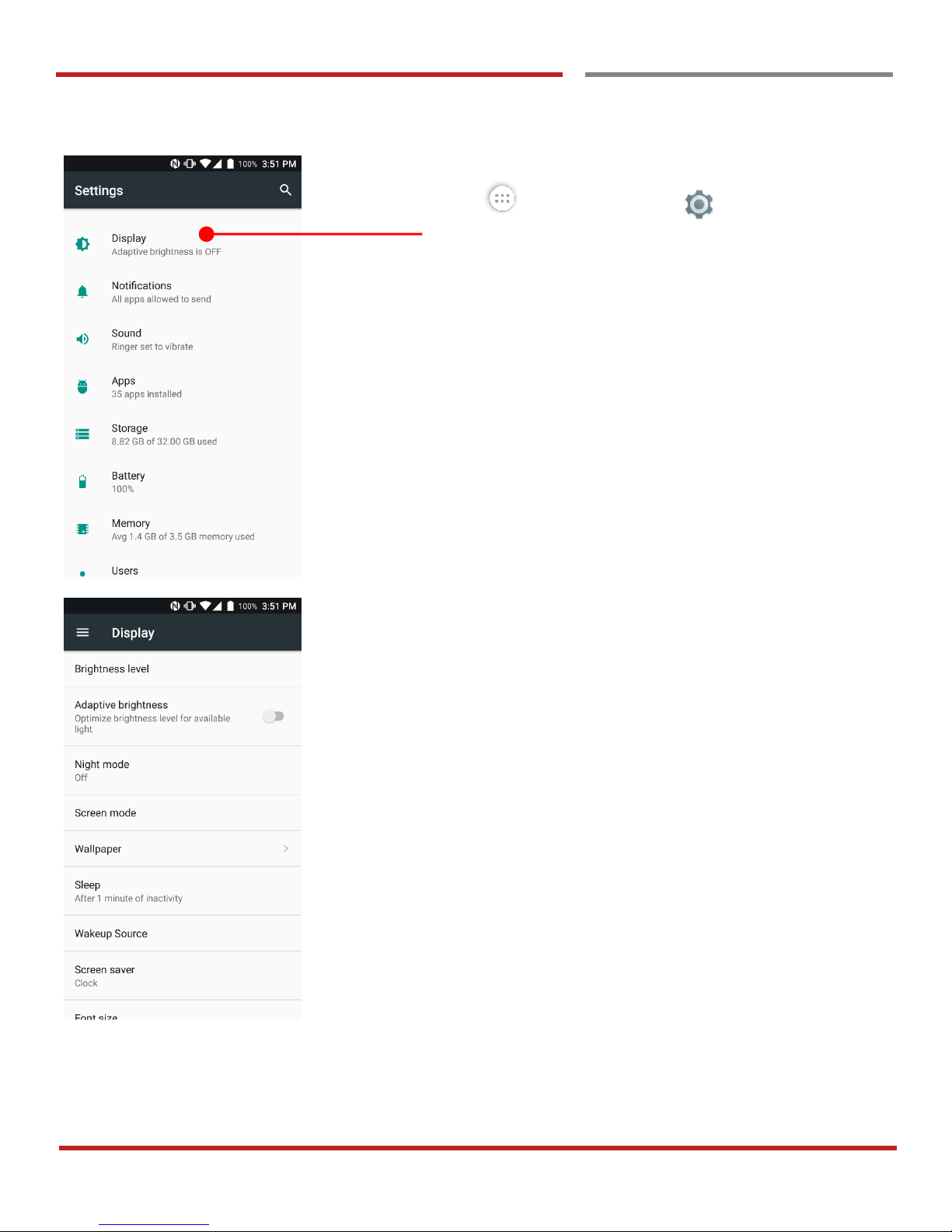
When you choose the Pattern, PIN or Password option, you
can set secure start-up option. This function enables unlock
the PM45 before bootup
If you don’t want secure start-up option, please touch “No
thanks”
Page 41
PM45 Android 7.1.2 User Manual
40
©2006 – 2018 POINTMOBILE Co., Ltd. All rights reserved
Learning the basics
Manage a display
Manage a display
Learning the basics
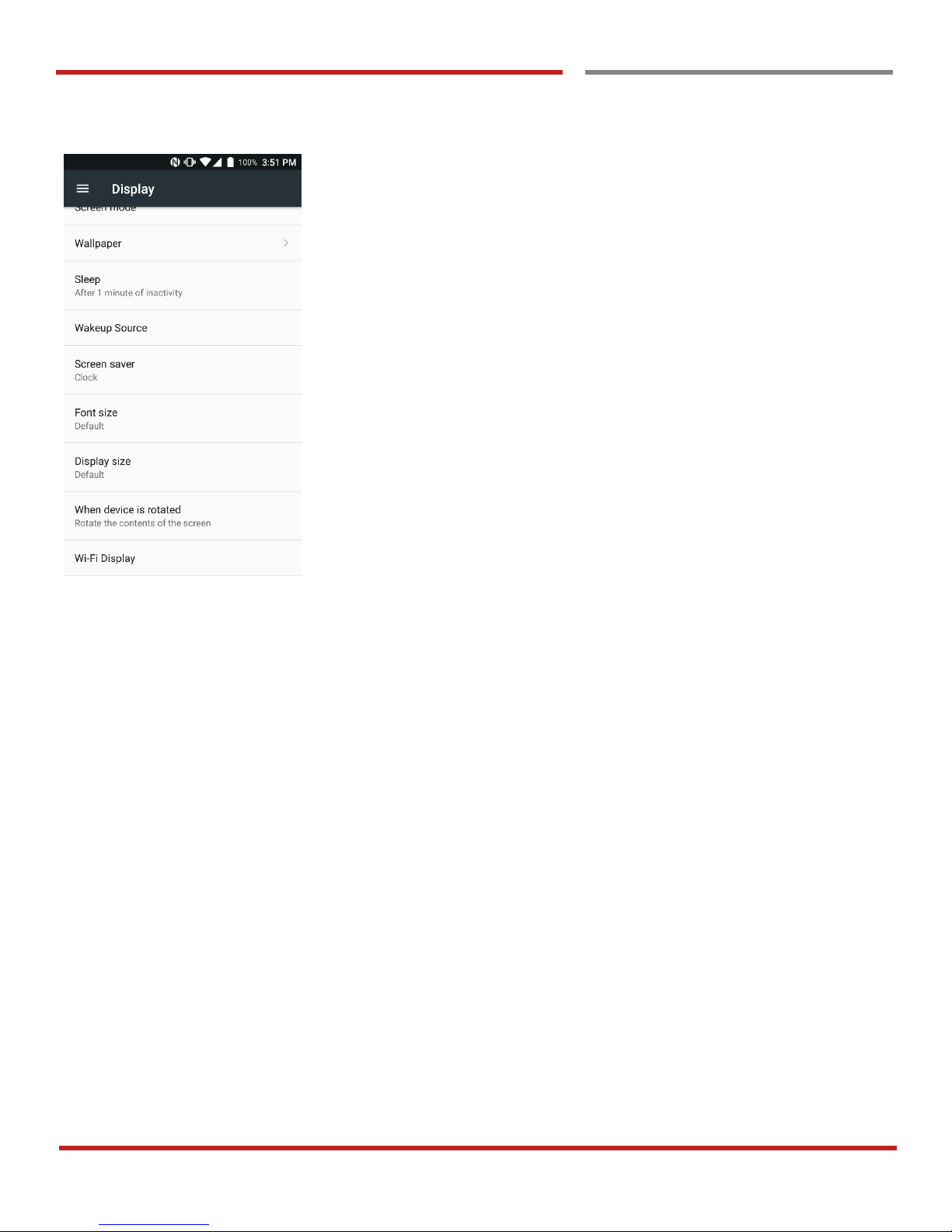
Touch “App drawer” icon → “Settings” and then
“Display”
Brightness
level :
Adaptive
brightness :
Night mode :
Screen mode :
This setting change the screen
brightness level
By enable this option, PM45 adjust the
screen brightness
Set screen color temperature (Warm
level) of PM45
Set overall color temperature and image
mode of PM45
Page 42
PM45 Android 7.1.2 User Manual
41
©2006 – 2018 POINTMOBILE Co., Ltd. All rights reserved
Learning the basics
Manage a display
Learning the basics
Font size :
Display size :
Set overall font size of PM45
Set overall fond display amount of PM45
Page 43
PM45 Android 7.1.2 User Manual
42
©2006 – 2018 POINTMOBILE Co., Ltd. All rights reserved
Learning the basics
Manage a display
Learning the basics
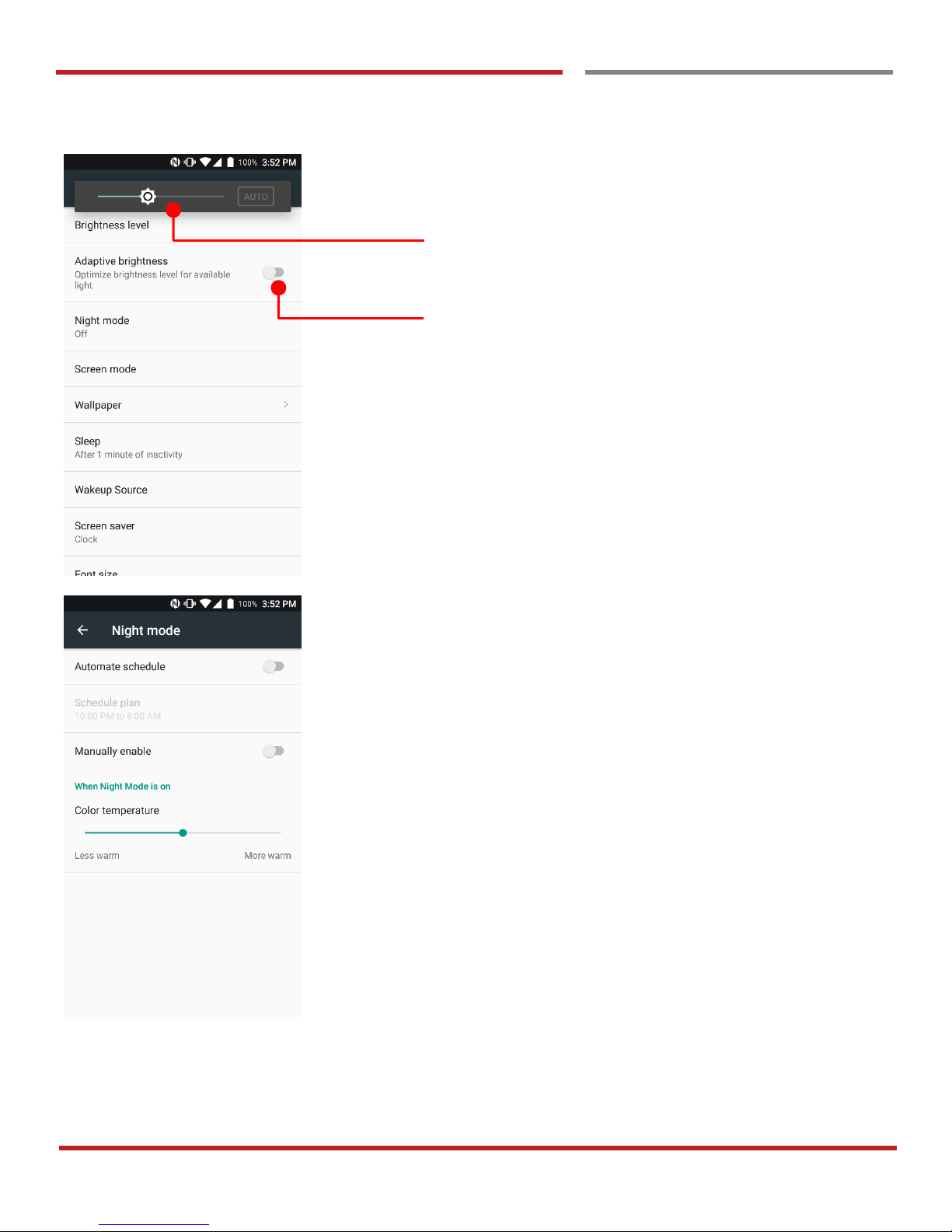
To change the brightness level, please adjust the slider
If you let PM45 auto adjust the brightness level, please
touch “Auto” or enable “Adaptive brightness” option
By setting this option, PM45 change warm level of color
temperature
Most of usage is prevent eye fatigue during the night time or
dark room
Page 44
PM45 Android 7.1.2 User Manual
43
©2006 – 2018 POINTMOBILE Co., Ltd. All rights reserved
Learning the basics
Manage a display
Learning the basics
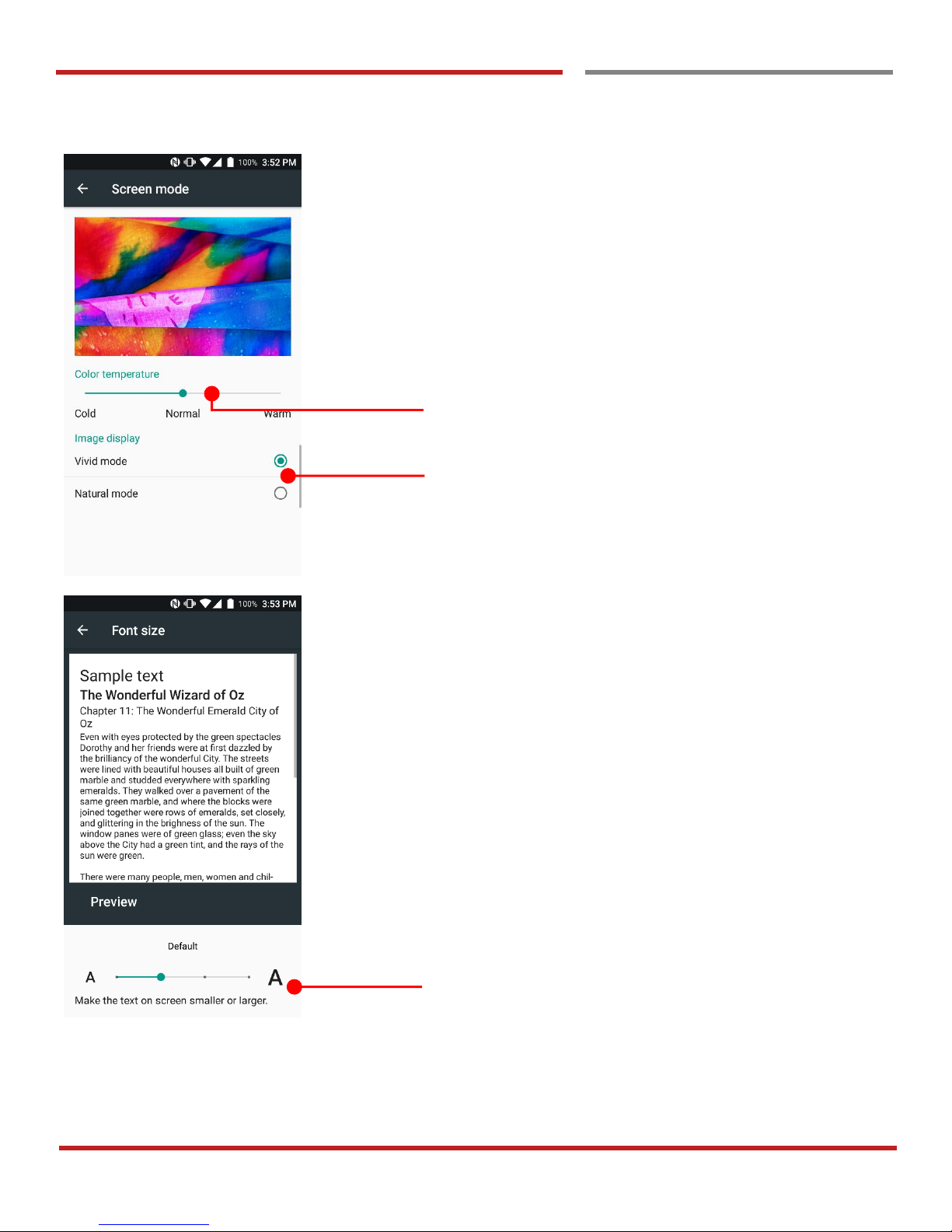
To change the overall color temperature of PM45, please
adjust the slider
Select image’s color displaying mode of PM45.
Change the overall font size of PM45. Please adjust the
slider
Page 45
PM45 Android 7.1.2 User Manual
44
©2006 – 2018 POINTMOBILE Co., Ltd. All rights reserved
Learning the basics
Manage a display
Learning the basics
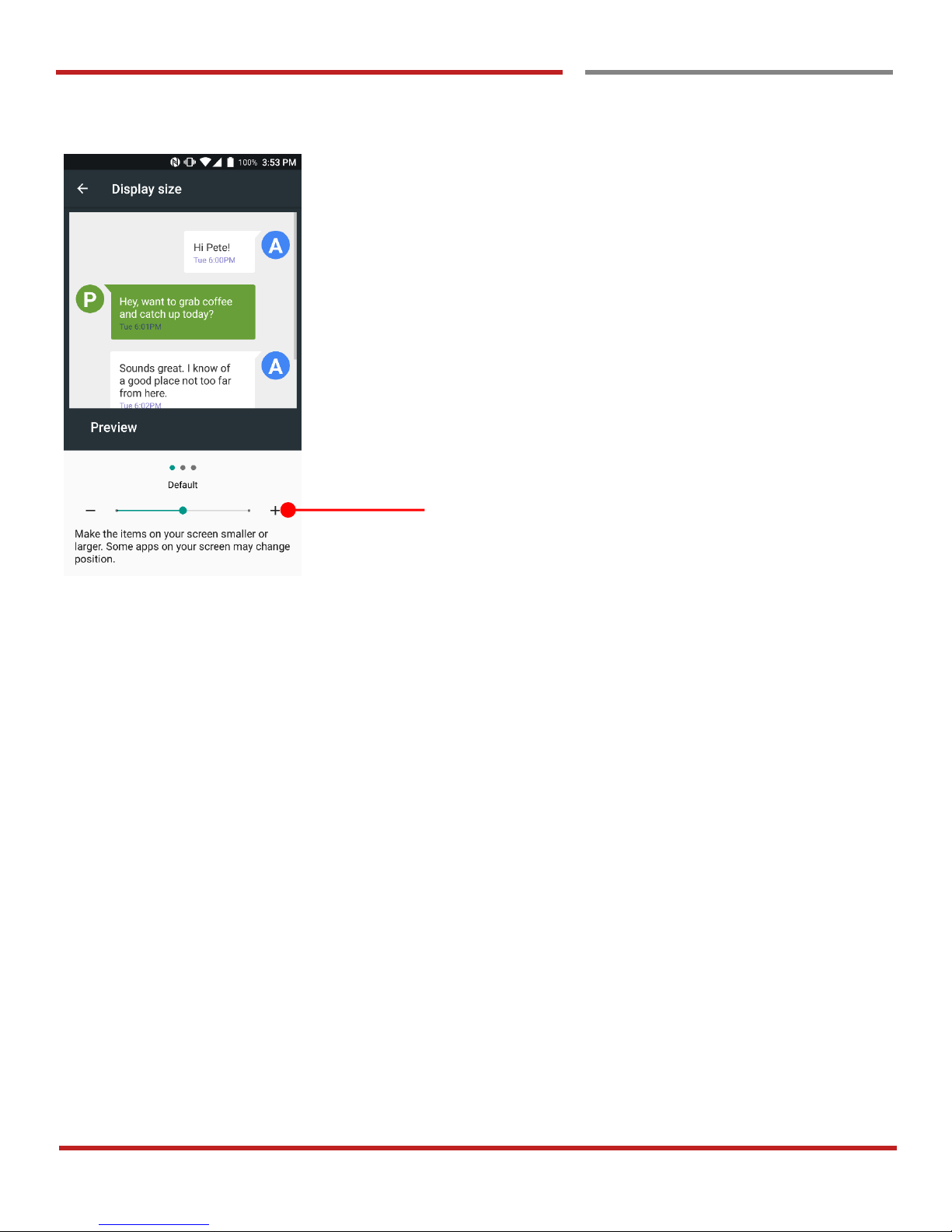
Change the amount of the display item of PM45. Please
adjust the slider
Page 46
PM45 Android 7.1.2 User Manual
45
©2006 – 2018 POINTMOBILE Co., Ltd. All rights reserved
Learning the basics
Make a call
Make a call
Learning the basics
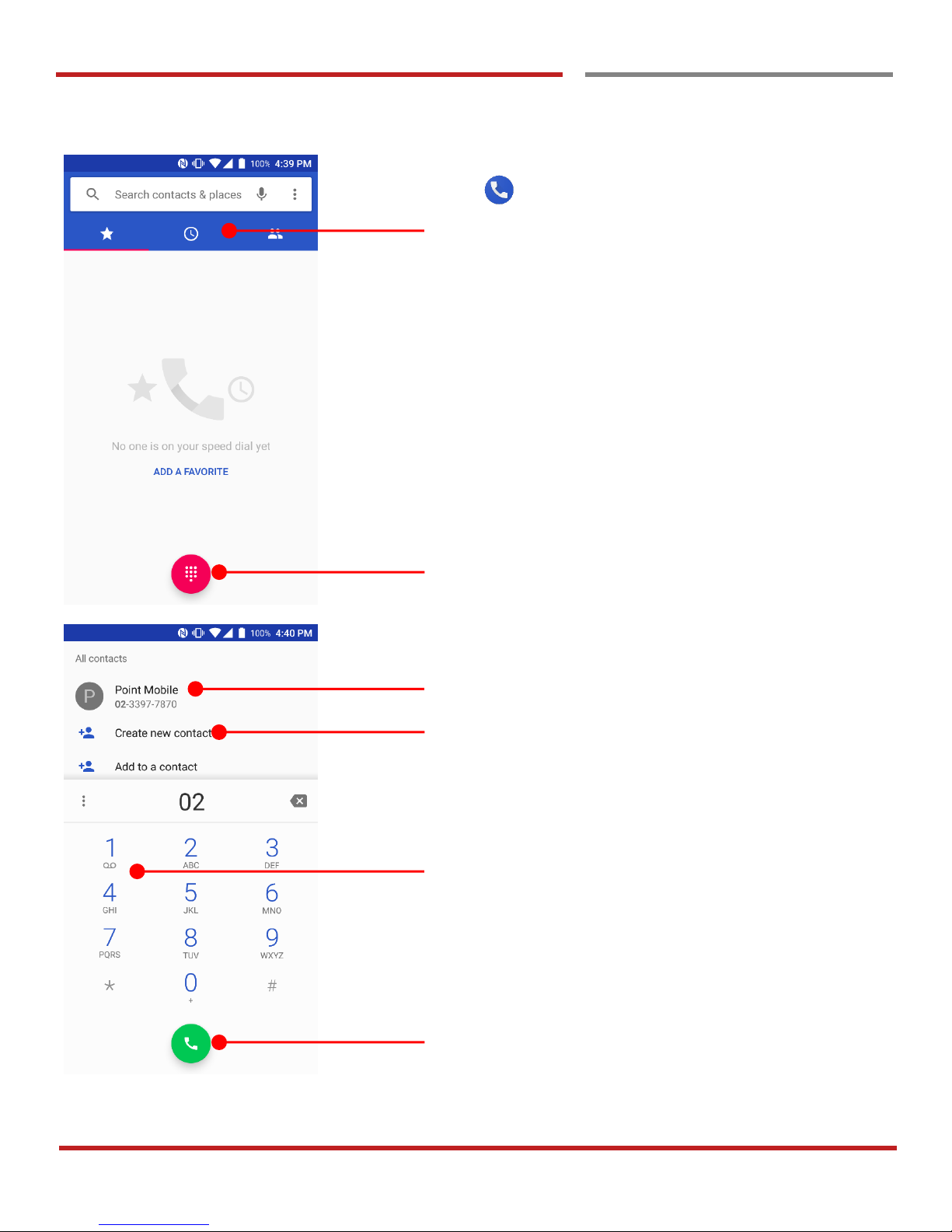
Touch icon in the Favorite tray apps
Slide to access the “FAVORITE”, “RECENTS” and
“CONTACTS”.
- To make a call from recent call list or missed call,
select “RECENTS” tab
- To make a call from your contact list, select
“CONTRACTS”
Touch to use a dialer
Suggested phone number(s)
Phone number can be saved to “CONTACTS”
Touch and hold the dial pad #1, to access voicemail.
Touch to place a call
Page 47
PM45 Android 7.1.2 User Manual
46
©2006 – 2018 POINTMOBILE Co., Ltd. All rights reserved
Make a call
Make a call
Learning the basics
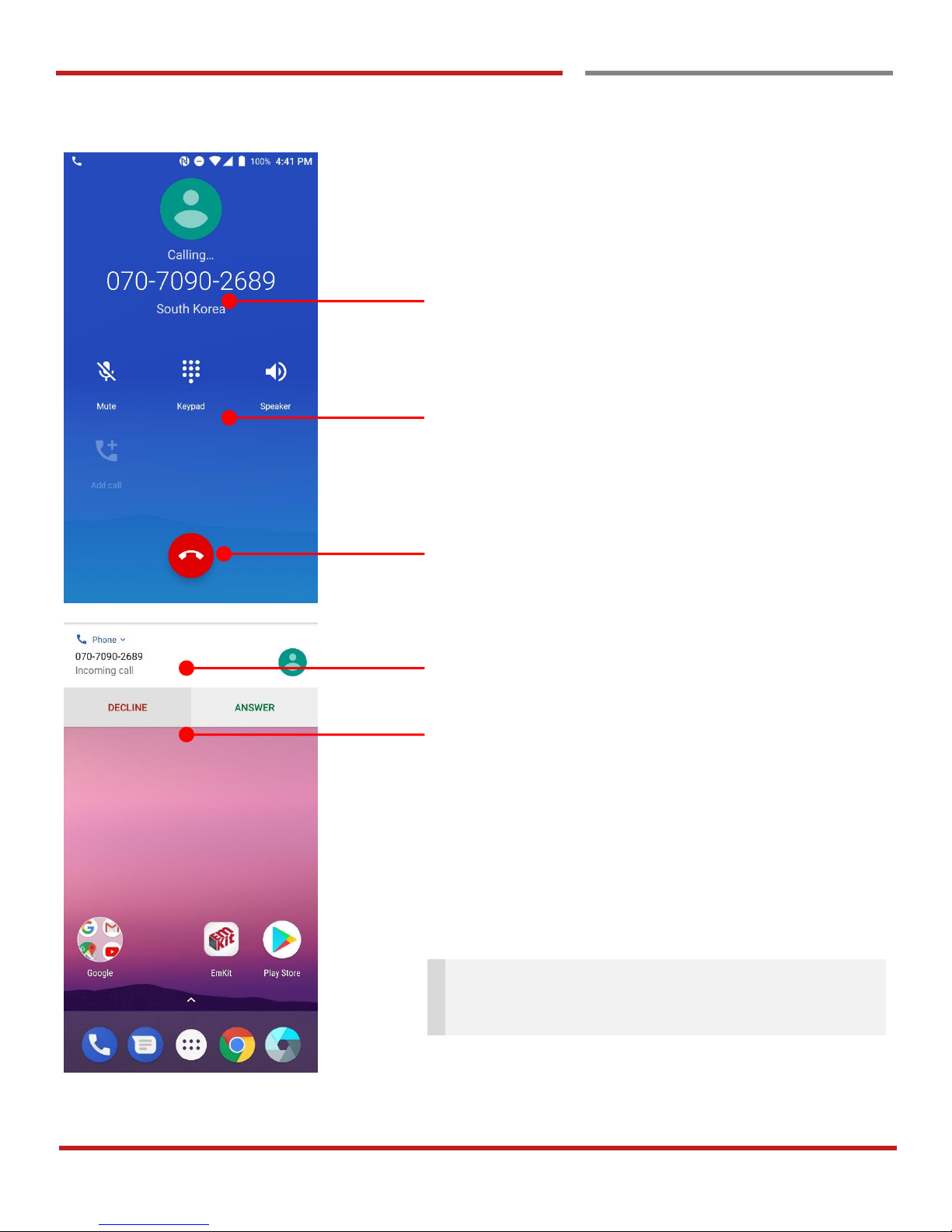
Calling information
- Mute : Touch to mute the mic
- Keypad : Touch to dial during a call
- Speaker : Touch to make a speaker phone call
Touch to end a call
Caller information
- Decline : Touch to refuse a call
- Answer : Touch to answer a call
Tip: To mute the ringtone volume of an incoming call,
keep press the “Volume down” key or turn your PM45
over.
Page 48
PM45 Android 7.1.2 User Manual
47
©2006 – 2018 POINTMOBILE Co., Ltd. All rights reserved
Learning the basics
Add to a contact
Add to a contact
Learning the basics
Learning the basics
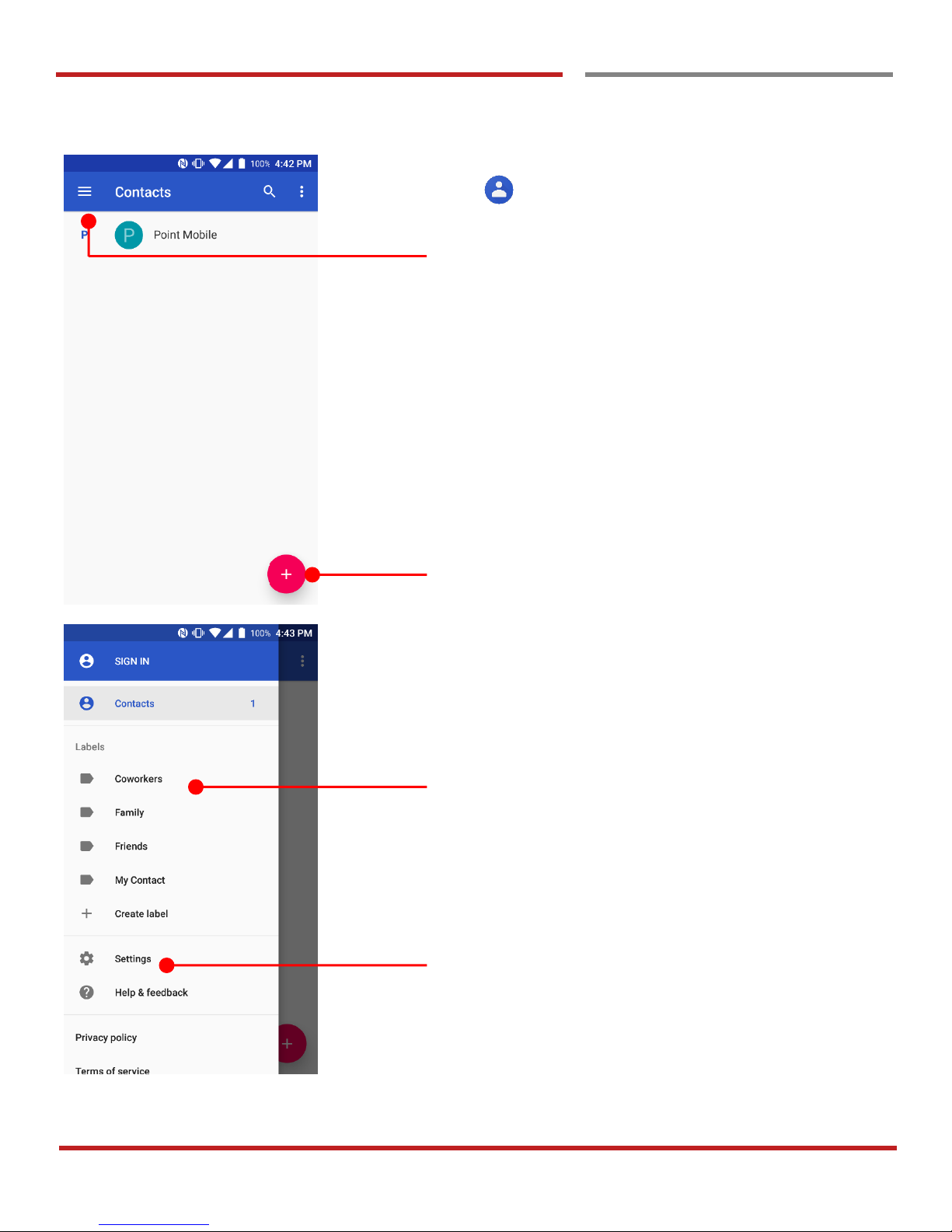
Touch icon in the Favorite tray apps
Touch to see Contacts options
Touch to add a new contact
Labels which you set in your google account
Touch to set more detail settings
Page 49
PM45 Android 7.1.2 User Manual
48
©2006 – 2018 POINTMOBILE Co., Ltd. All rights reserved
Add to a contact
Add to a contact
Learning the basics
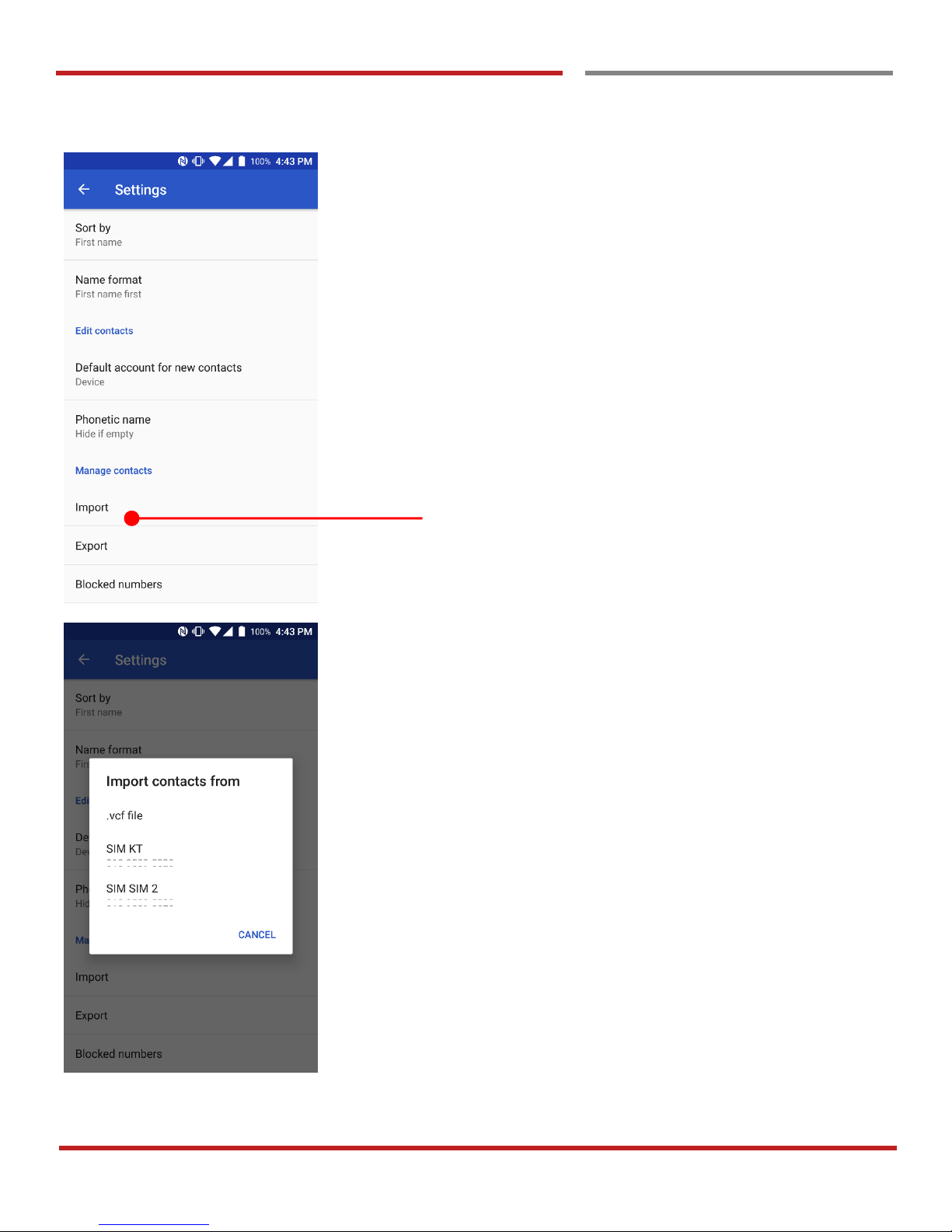
Touch to import contact information in your SIM card
Page 50
PM45 Android 7.1.2 User Manual
49
©2006 – 2018 POINTMOBILE Co., Ltd. All rights reserved
Add to a contact
Add to a contact
Learning the basics
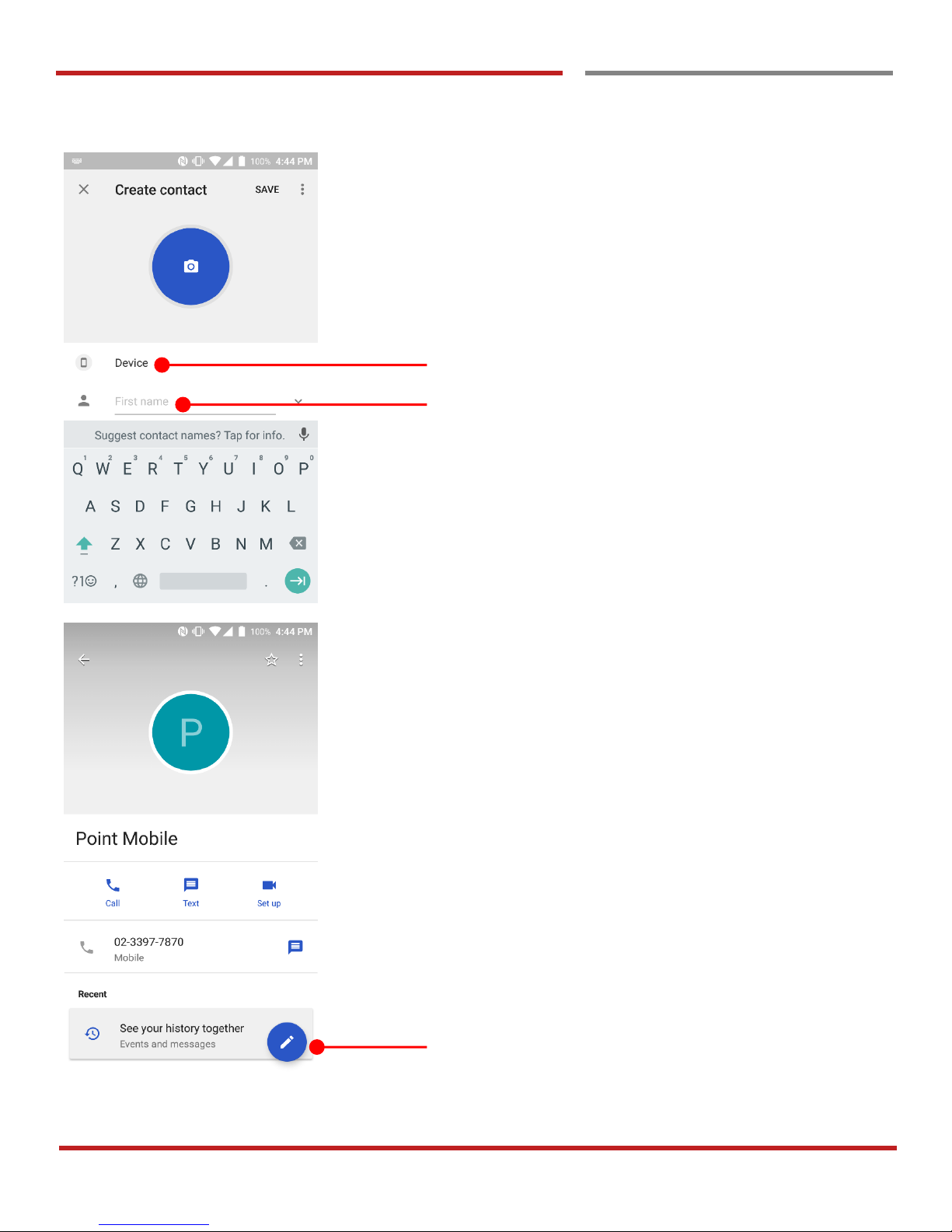
Save location for the new contact
Input Contact name, phone numbers and other information
in the form
Touch to import contact information in your SIM card
Touch to edit contact information
Page 51
PM45 Android 7.1.2 User Manual
50
©2006 – 2018 POINTMOBILE Co., Ltd. All rights reserved
Add to a contact
Add to a contact
Learning the basics
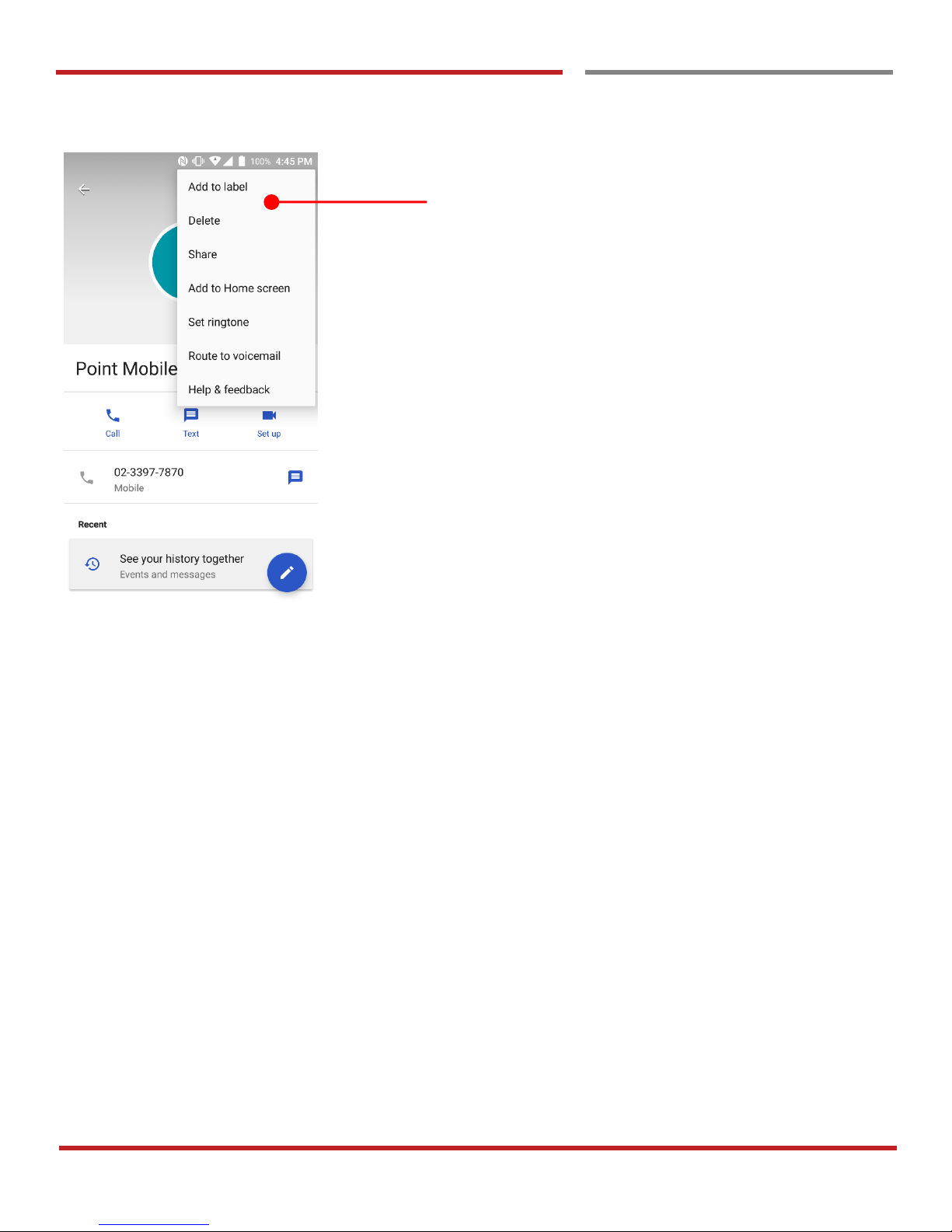
Touch an option you would like to edit or change
Page 52
PM45 Android 7.1.2 User Manual
51
©2006 – 2018 POINTMOBILE Co., Ltd. All rights reserved
Learning the basics
Send a message
Send a message
Learning the basics
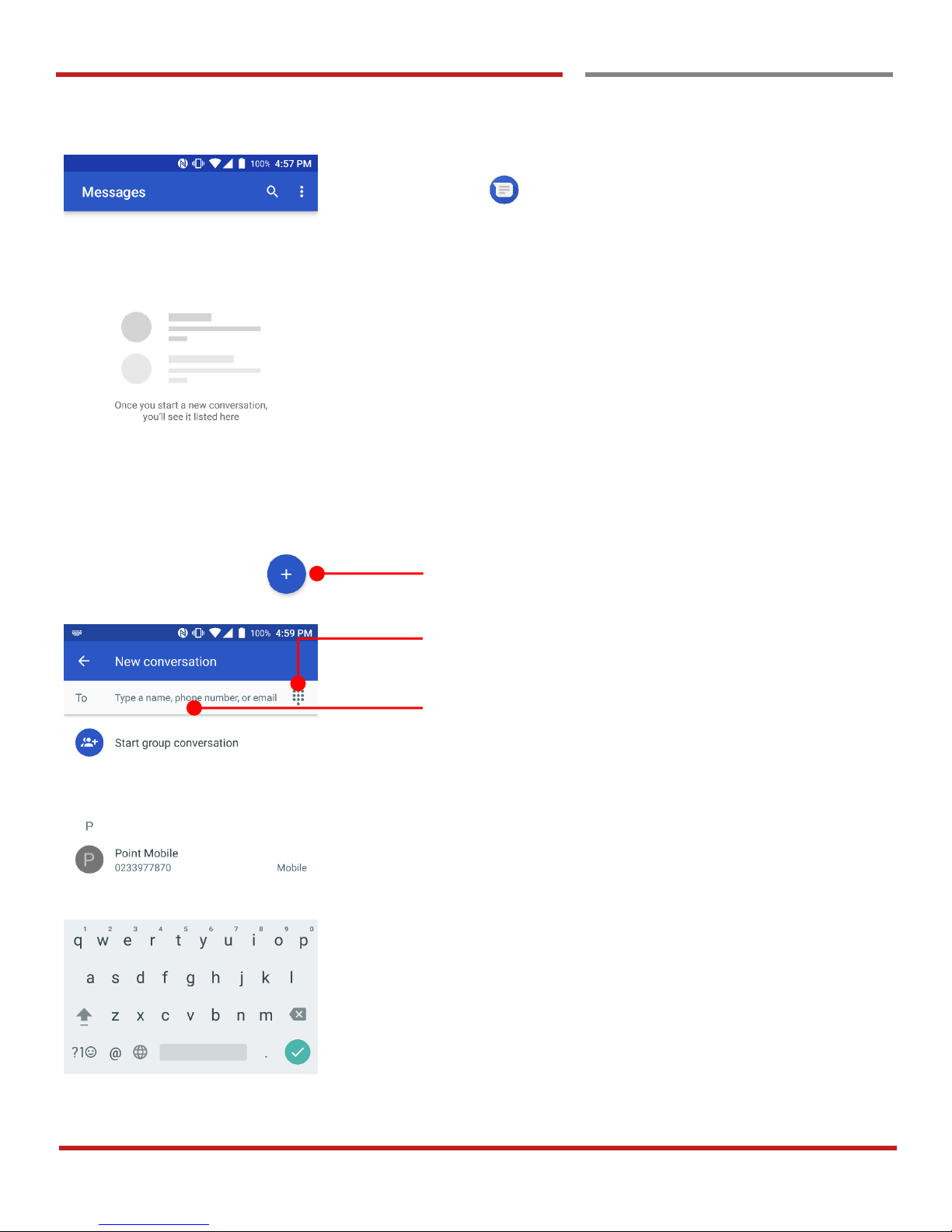
Touch icon in the Favorite tray apps
Touch to send a new message
Touch to use a dialer
Touch to type a name, phone number or email
Page 53
PM45 Android 7.1.2 User Manual
52
©2006 – 2018 POINTMOBILE Co., Ltd. All rights reserved
Learning the basics
Send a message
Learning the basics
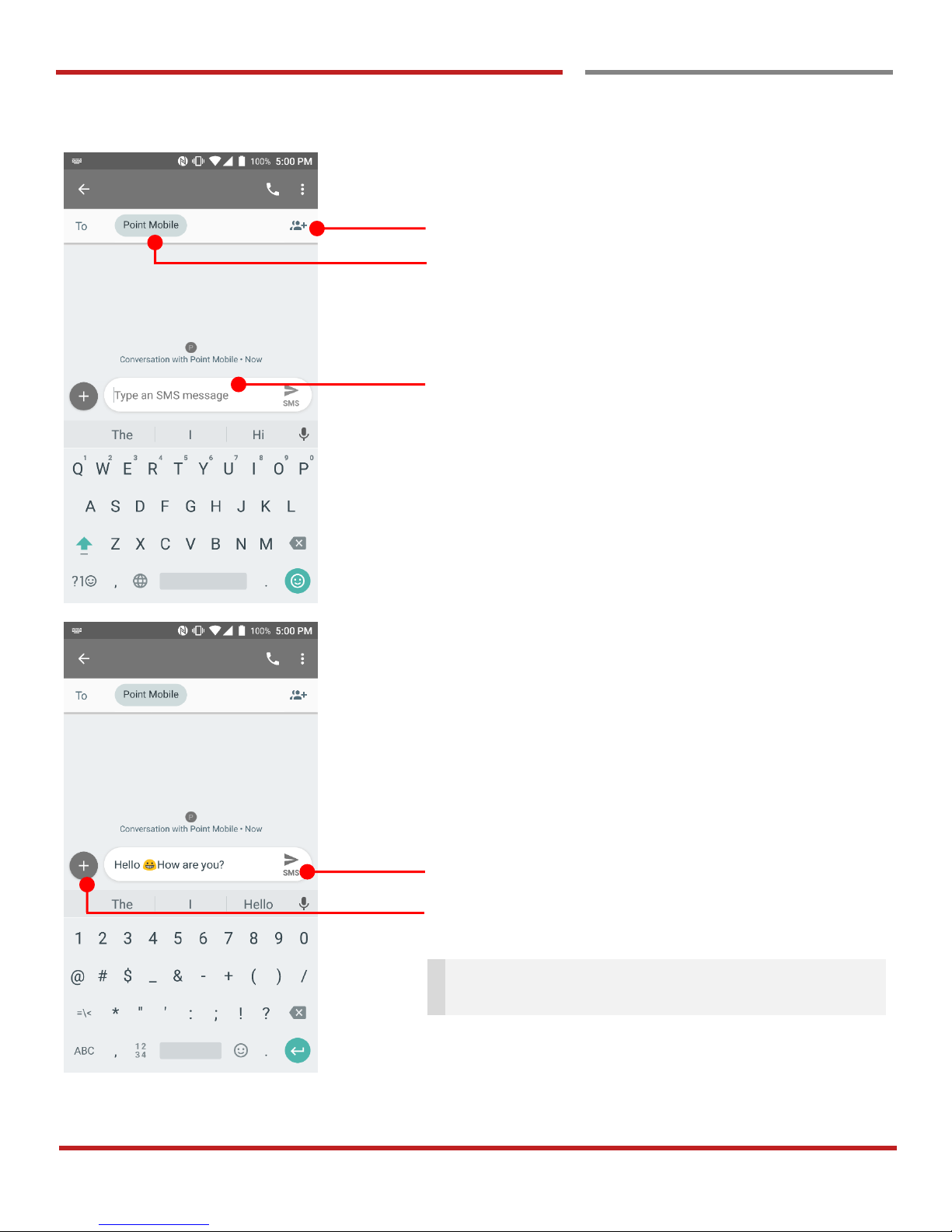
Touch to add other contacts to send a message
Your message display here
Touch to send the composed message
You can attach photo, saved picture, voice or location
Note: You may allow granting “Message App” access
specific app or service.
Page 54
PM45 Android 7.1.2 User Manual
53
©2006 – 2018 POINTMOBILE Co., Ltd. All rights reserved
Learning the basics
Send a message
Learning the basics
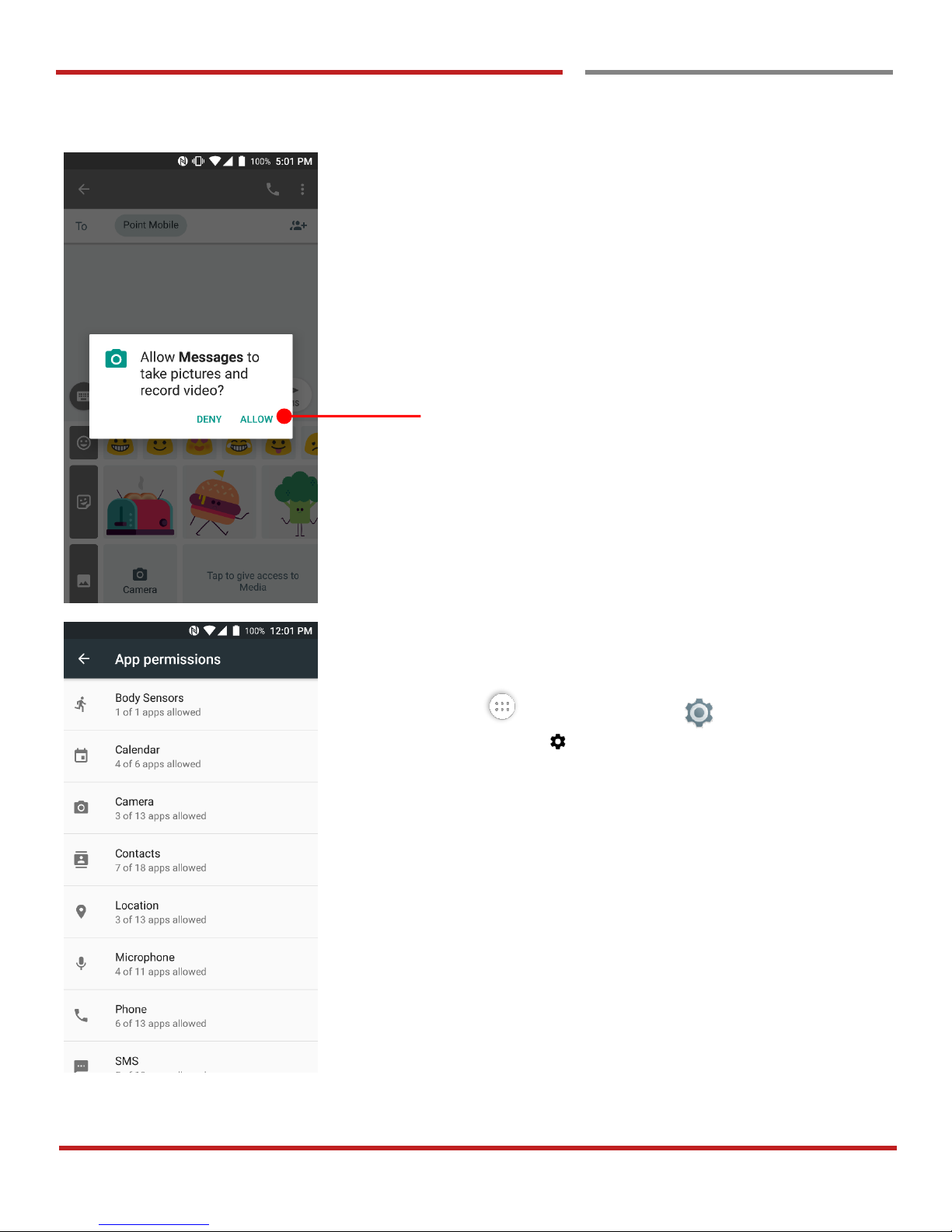
Android ask a grant app’s specific permission access for first
time use. To send a photo or a saved media file or a voice
recode file or a location, please touch ALLOW
You can review granted permission info at
Touch “App drawer” icon → “Settings”→ Apps →
Configure apps → App permissions
Page 55
PM45 Android 7.1.2 User Manual
54
©2006 – 2018 POINTMOBILE Co., Ltd. All rights reserved
Learning the basics
Change a SIM card settings
Change a SIM card settings
Learning the basics
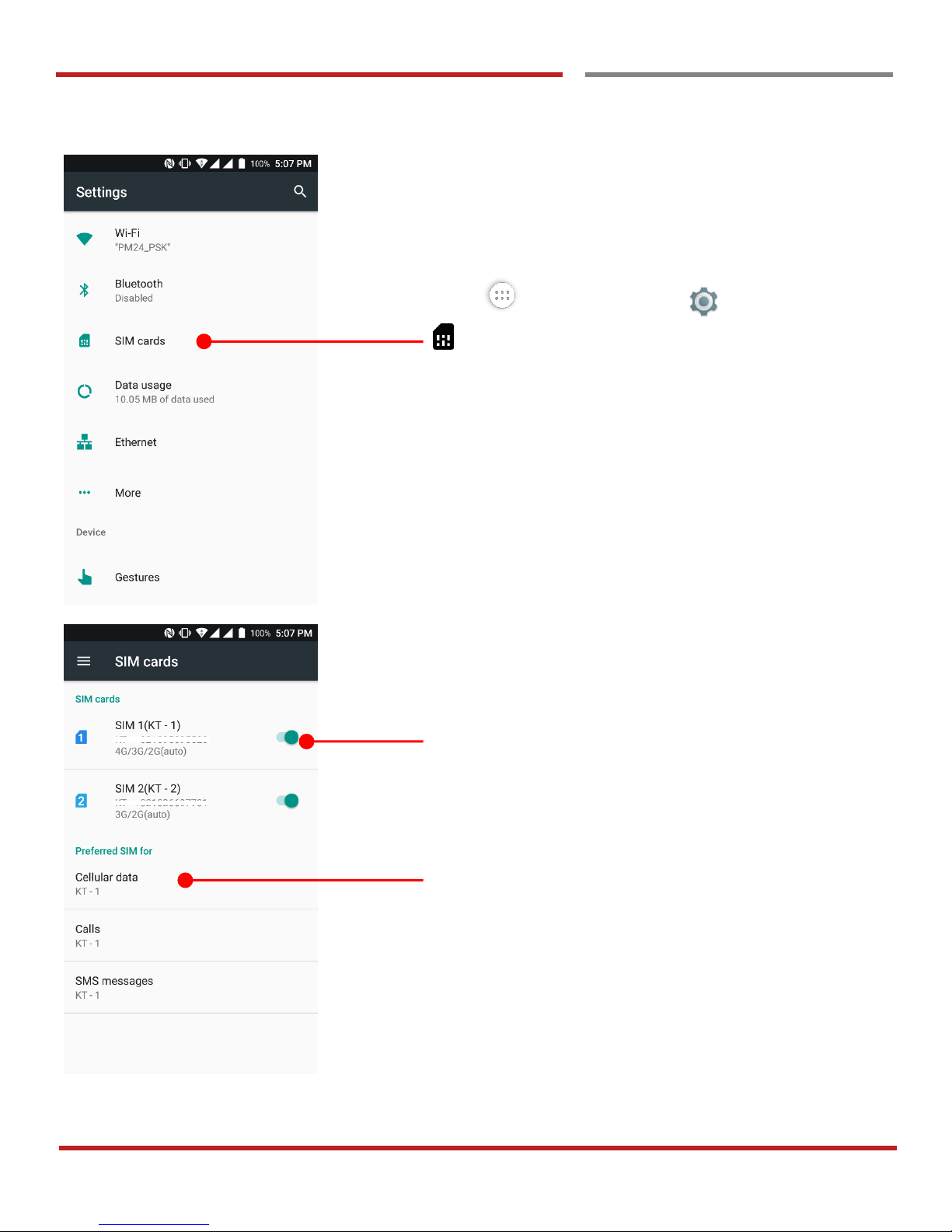
Touch “App drawer” icon → “Settings” and then
“SIM cards”
Touch to enable/disable using a SIM card
(PM45 is Dual SIM Dual Standby model)
Currently set SIM card information
Touch to change each option
Page 56
PM45 Android 7.1.2 User Manual
55
©2006 – 2018 POINTMOBILE Co., Ltd. All rights reserved
Change a SIM card settings
Change a SIM card settings
Learning the basics
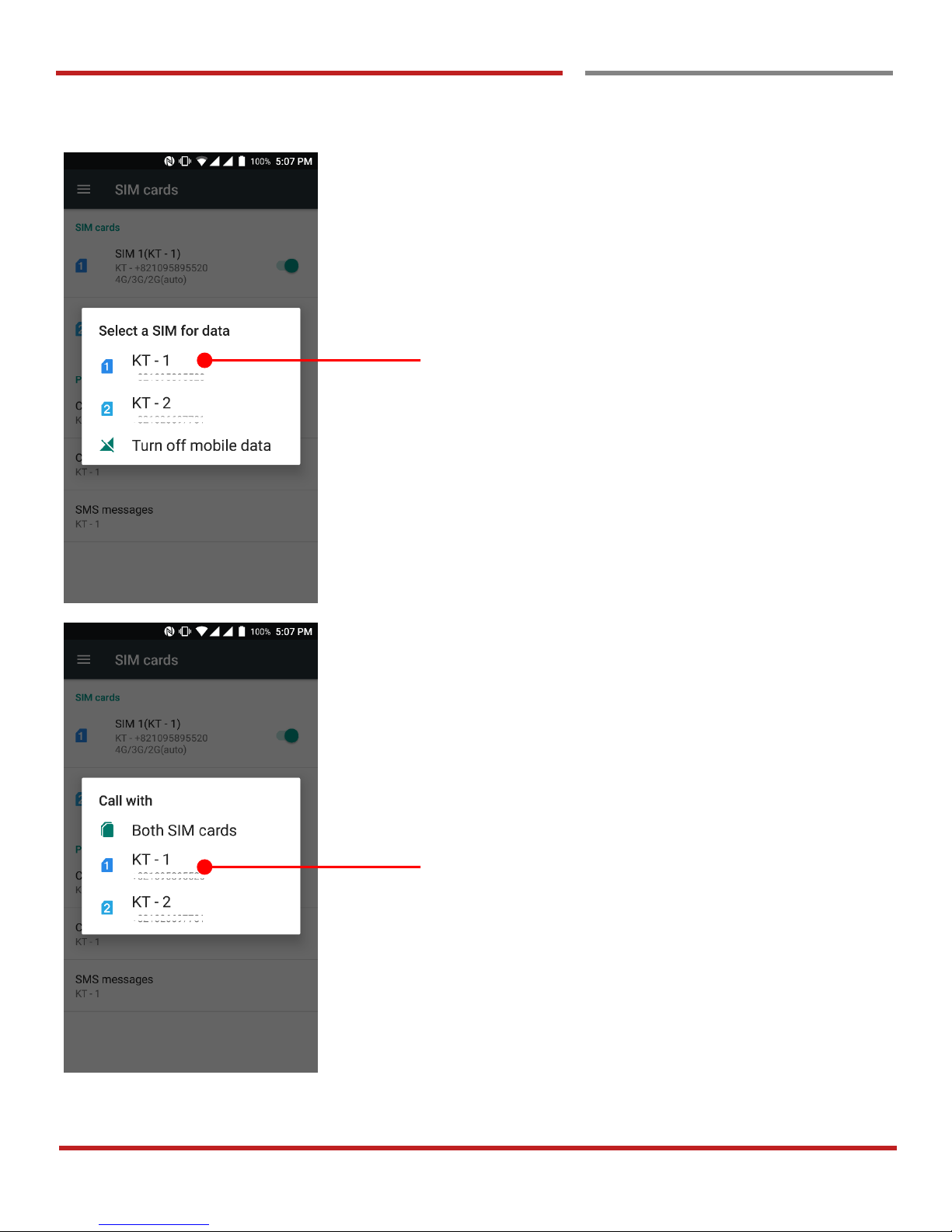
Select SIM card for mobile data or turn off mobile data
Select SIM card for calling. You can select Both SIM cards
Page 57
PM45 Android 7.1.2 User Manual
56
©2006 – 2018 POINTMOBILE Co., Ltd. All rights reserved
Change a SIM card settings
Change a SIM card settings
Learning the basics
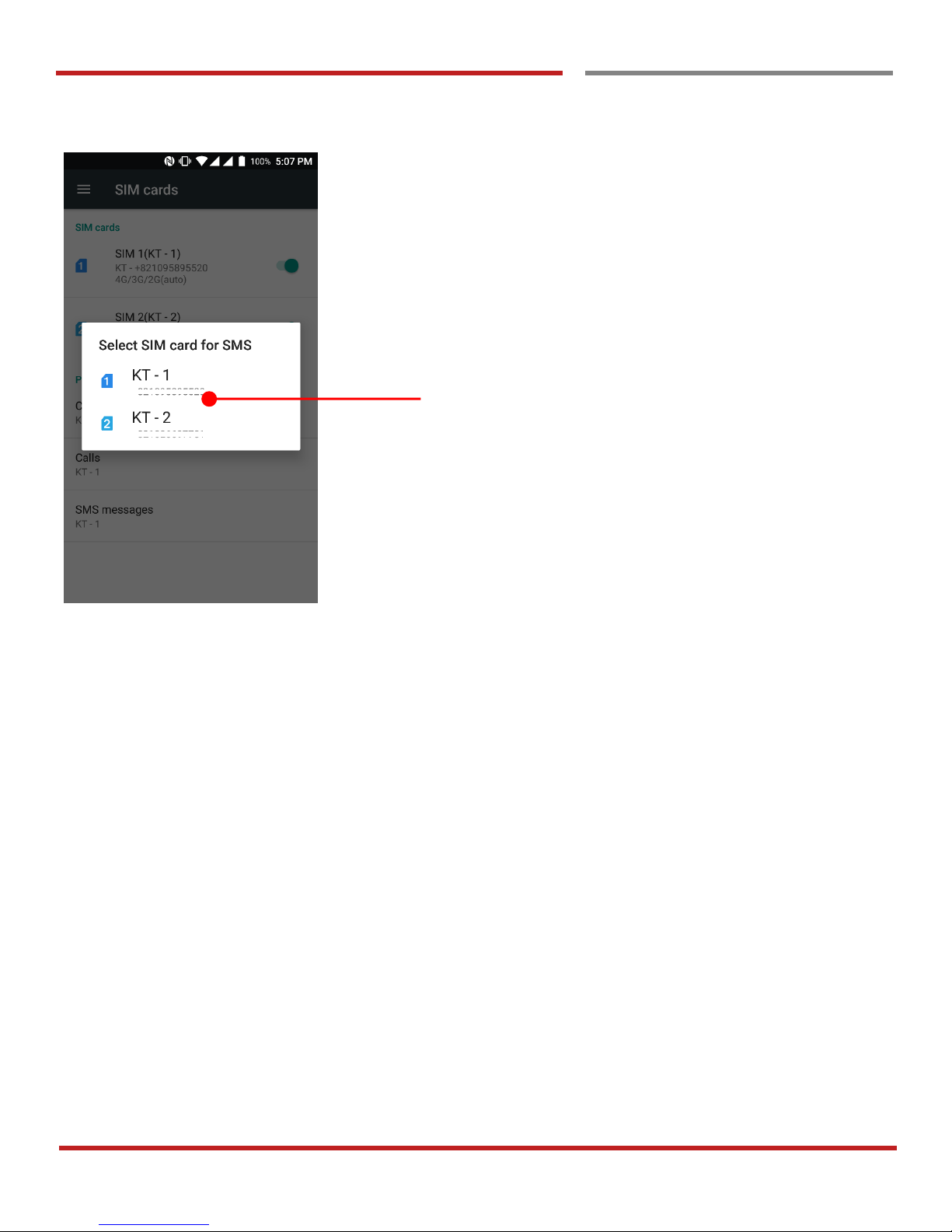
Select SIM card for messaging. You can select Both SIM
cards
Page 58
PM45 Android 7.1.2 User Manual
57
©2006 – 2018 POINTMOBILE Co., Ltd. All rights reserved
Learning the basics
Connect to your Wi-Fi network
Connect to your Wi-Fi network
Learning the basics
Touch “App drawer” icon → “Settings” and then
“Wi-Fi”
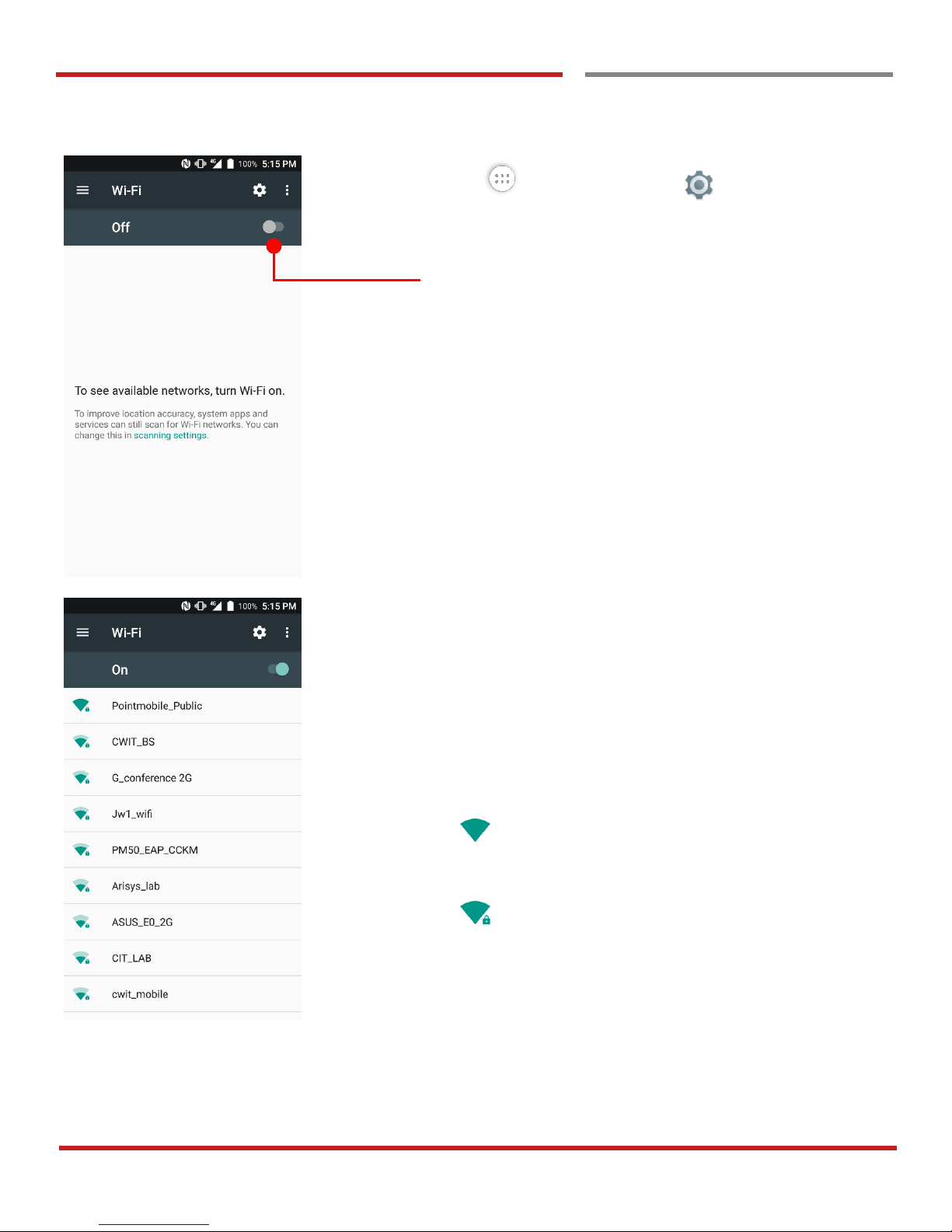
Touch to turn On/Off the W-Fi
You can see nearby Wi-Fi network. Each AP’s SSID
information listed by signal strength
Icon means: Open Wi-Fi network. You don’t need
to enter the password
Icon means: Secured Wi-Fi network. To connect
this Wi-Fi, you need to enter the password
Page 59
PM45 Android 7.1.2 User Manual
58
©2006 – 2018 POINTMOBILE Co., Ltd. All rights reserved
Learning the basics
Connect to your Wi-Fi network
Learning the basics
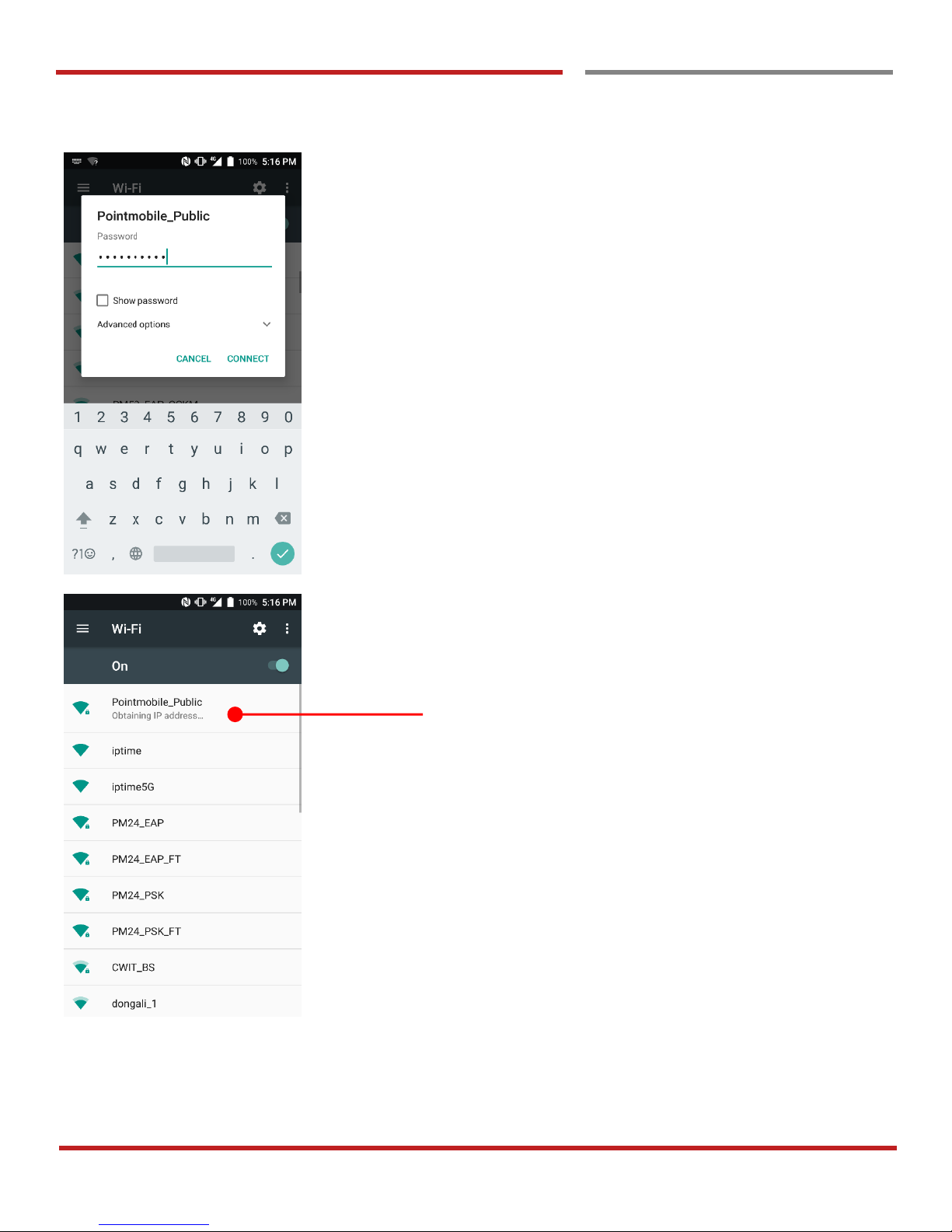
Touch SSID, which you want to connect.
To connect to the secured Wi-Fi network, enter the
password
Your PM45 is obtaining the IP address from the selected AP
Page 60
PM45 Android 7.1.2 User Manual
59
©2006 – 2018 POINTMOBILE Co., Ltd. All rights reserved
Learning the basics
Make a Wi-Fi hotspot
Make a Wi-Fi hotspot
Learning the basics
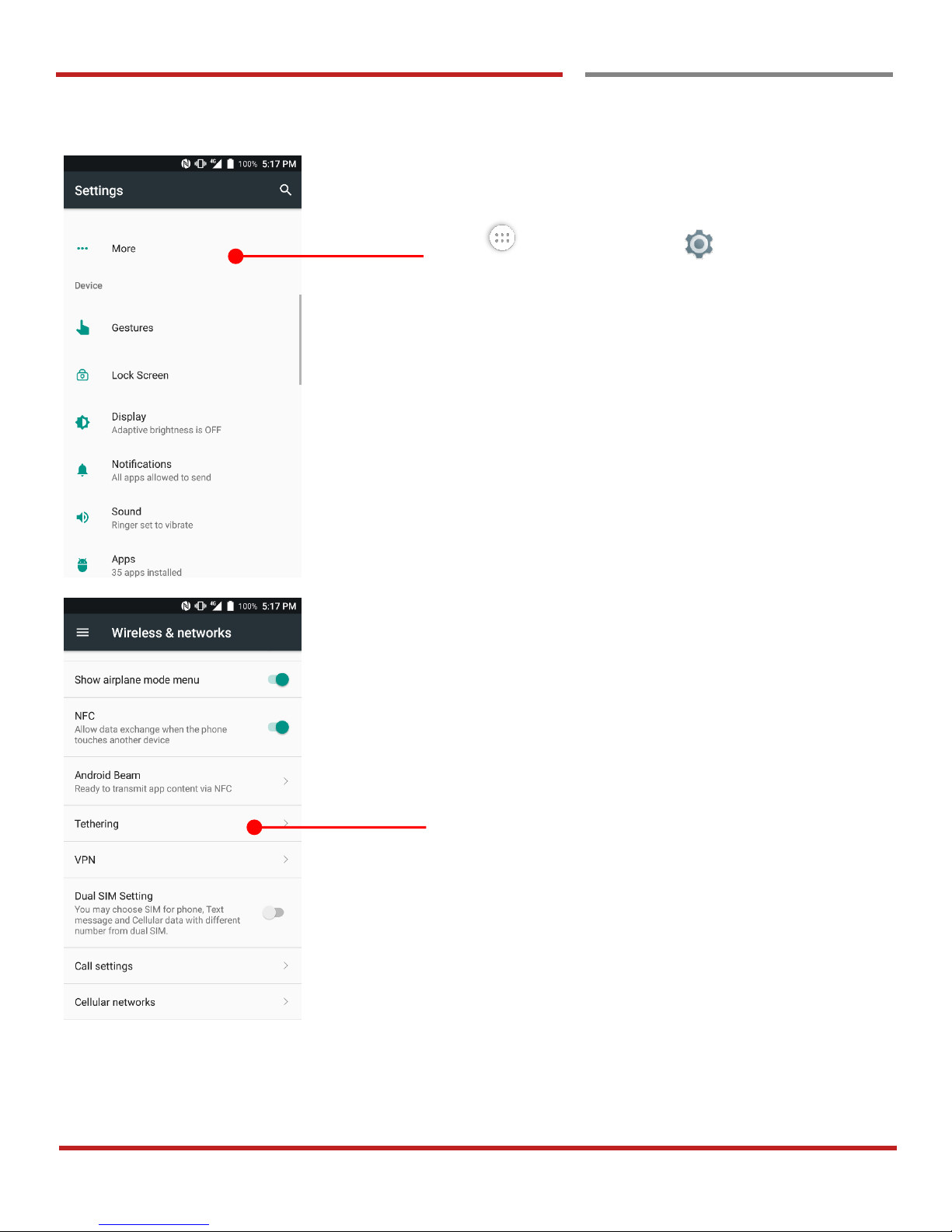
Touch “App drawer” icon → “Settings” and then
“More”
Touch “Tethering”
Page 61
PM45 Android 7.1.2 User Manual
60
©2006 – 2018 POINTMOBILE Co., Ltd. All rights reserved
Make a Wi-Fi hotspot
Make a Wi-Fi hotspot
Learning the basics
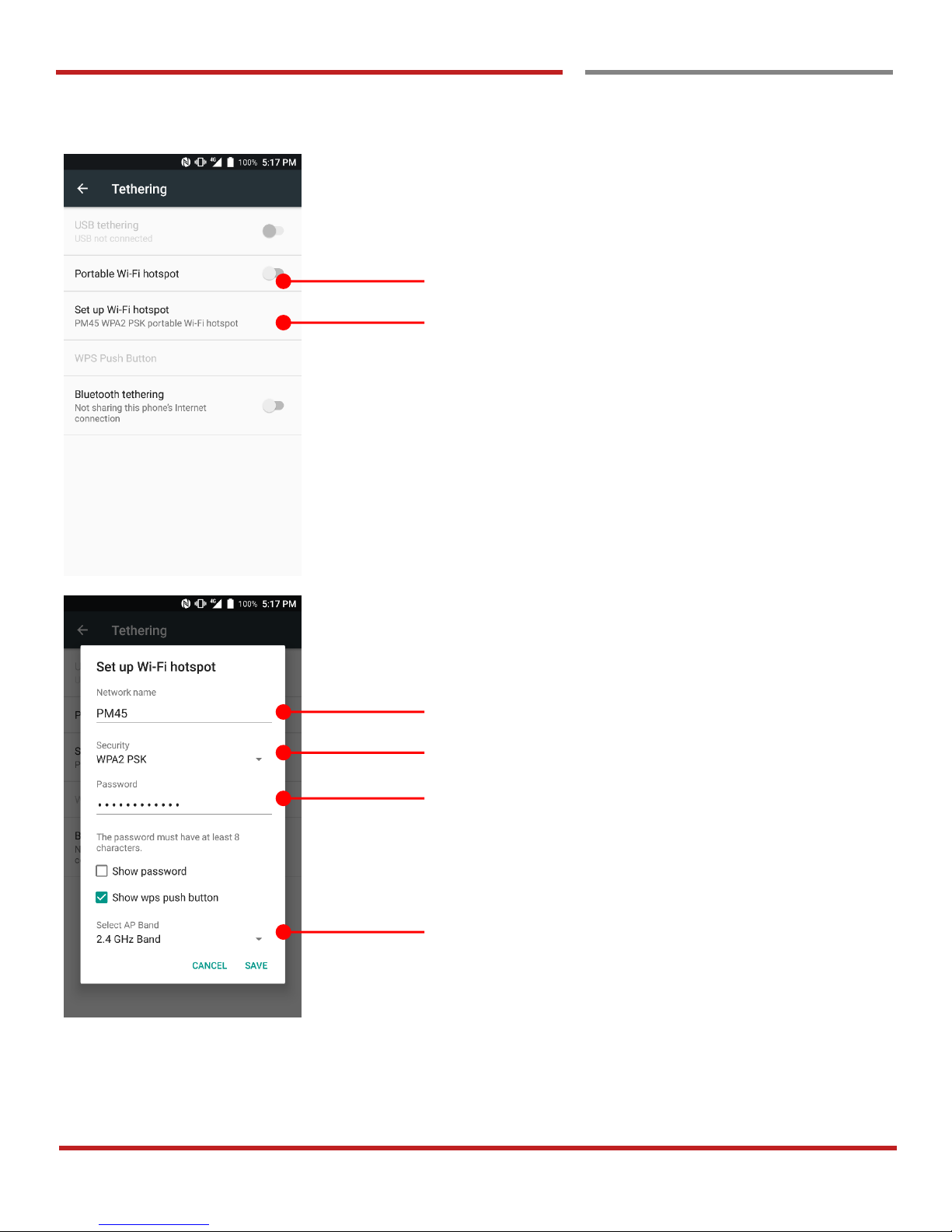
Touch to turn On/Off the W-Fi hotspot
Touch to set Wi-Fi hotspot setting
Set hotspot name
Set hotspot security type : None / WPA2PSK
Set password for hotspot
Set hotspot band : 2.4GHz / 5GHz
Page 62
PM45 Android 7.1.2 User Manual
61
©2006 – 2018 POINTMOBILE Co., Ltd. All rights reserved
Make a Wi-Fi hotspot
Make a Wi-Fi hotspot
Learning the basics
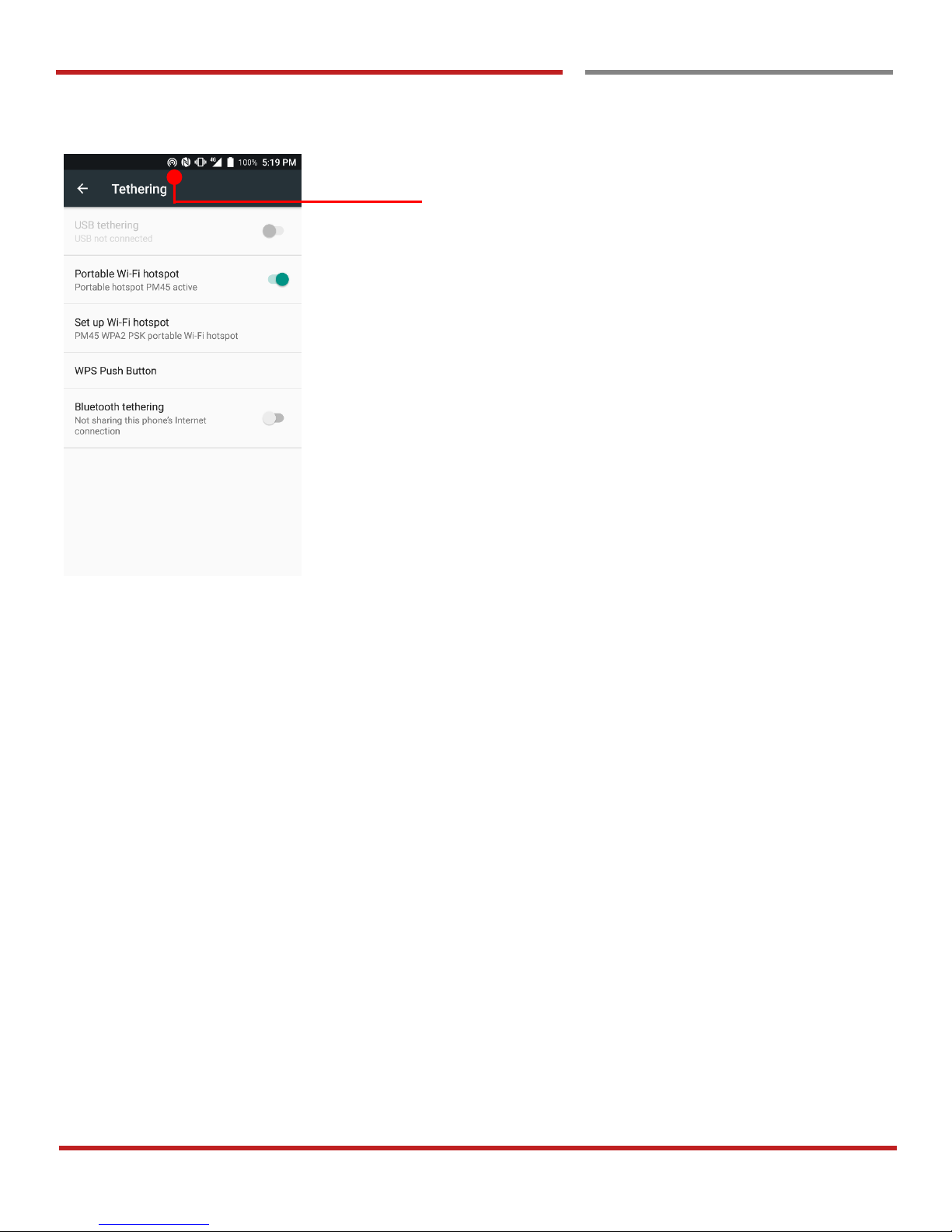
When hotspot is ready, you will see this icon
Page 63
PM45 Android 7.1.2 User Manual
62
©2006 – 2018 POINTMOBILE Co., Ltd. All rights reserved
Learning the basics
Connect with Bluetooth device
Connect with Bluetooth device
Learning the basics
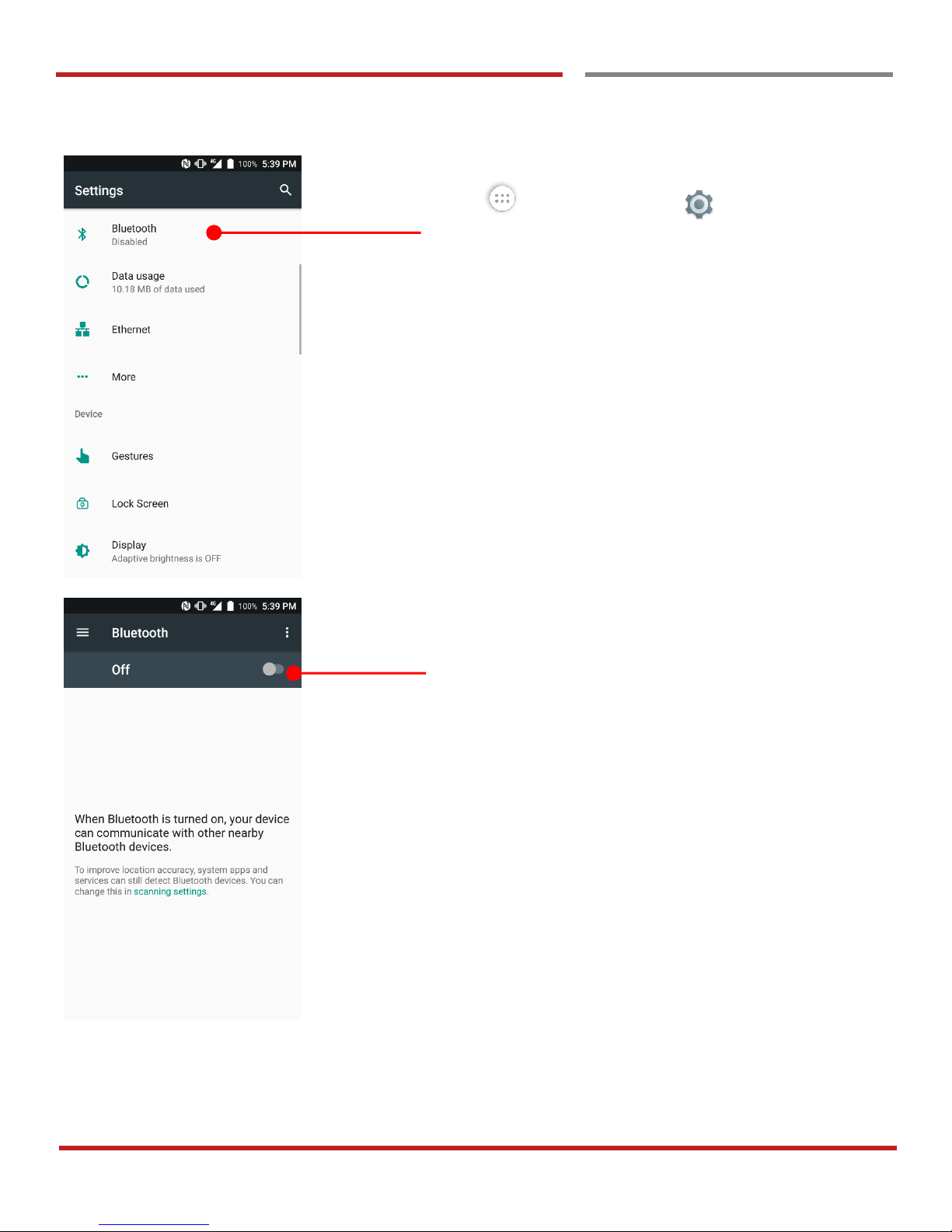
Touch “App drawer” icon → “Settings” and then
“Bluetooth”
Touch to turn On/Off the Bluetooth
Page 64
PM45 Android 7.1.2 User Manual
63
©2006 – 2018 POINTMOBILE Co., Ltd. All rights reserved
Make a Wi-Fi hotspot
Connect with Bluetooth device
Learning the basics
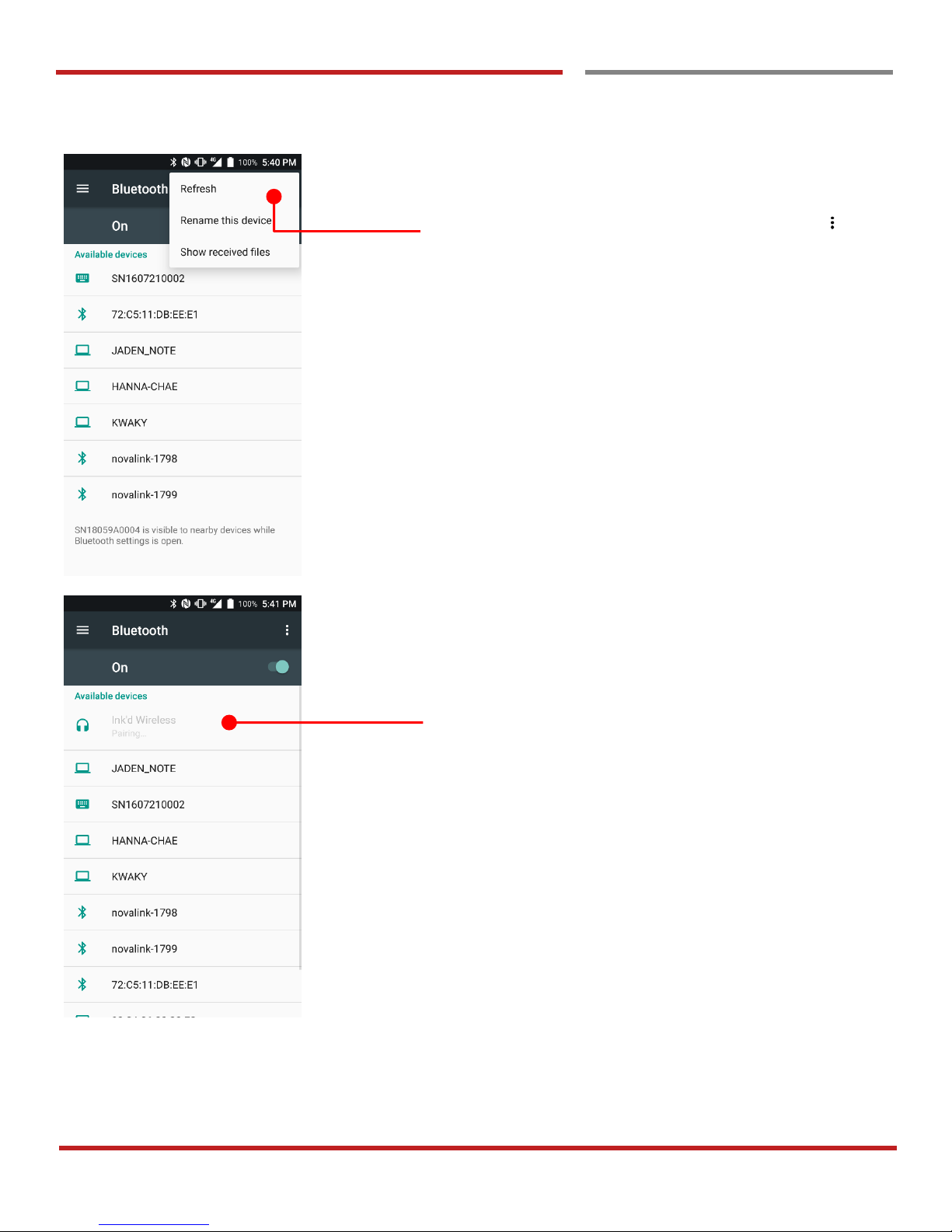
PM45 will list up nearby Bluetooth devices. If you don’t find
the device which you want to pair, touch option icon in
top-left corner and touch “Refresh”
By touching the device name in the list, PM45 start to pair
with Bluetooth device. (You may input the password)
Page 65
PM45 Android 7.1.2 User Manual
64
©2006 – 2018 POINTMOBILE Co., Ltd. All rights reserved
Make a Wi-Fi hotspot
Connect with Bluetooth device
Learning the basics
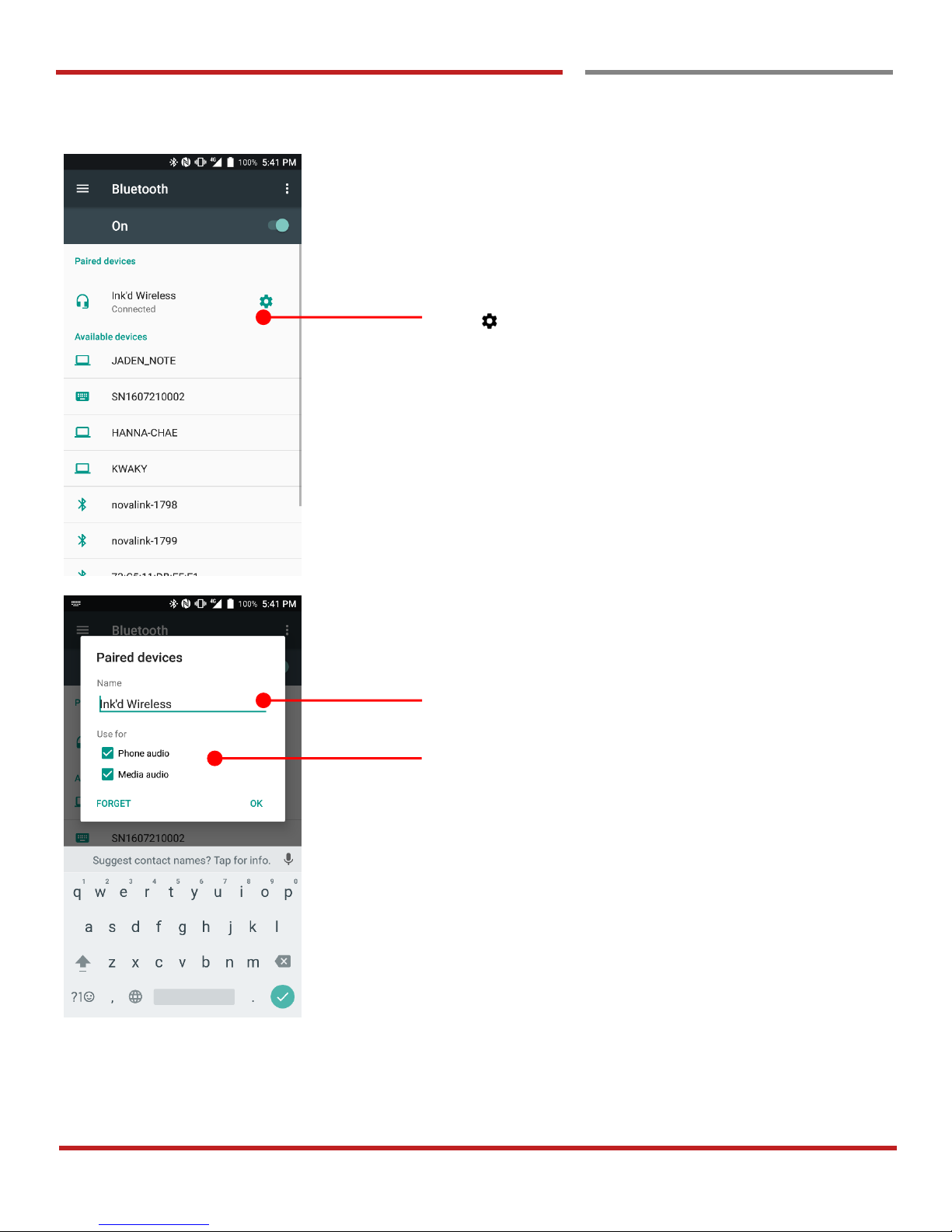
Bluetooth device is connected with PM45.
Touch icon for advanced setup
Set Bluetooth device name
Set Bluetooth device permission (This option could be
various by types of the Bluetooth device)
Page 66
PM45 Android 7.1.2 User Manual
65
©2006 – 2018 POINTMOBILE Co., Ltd. All rights reserved
Learning the basics
Use a Camera
Use a Camera
Learning the basics
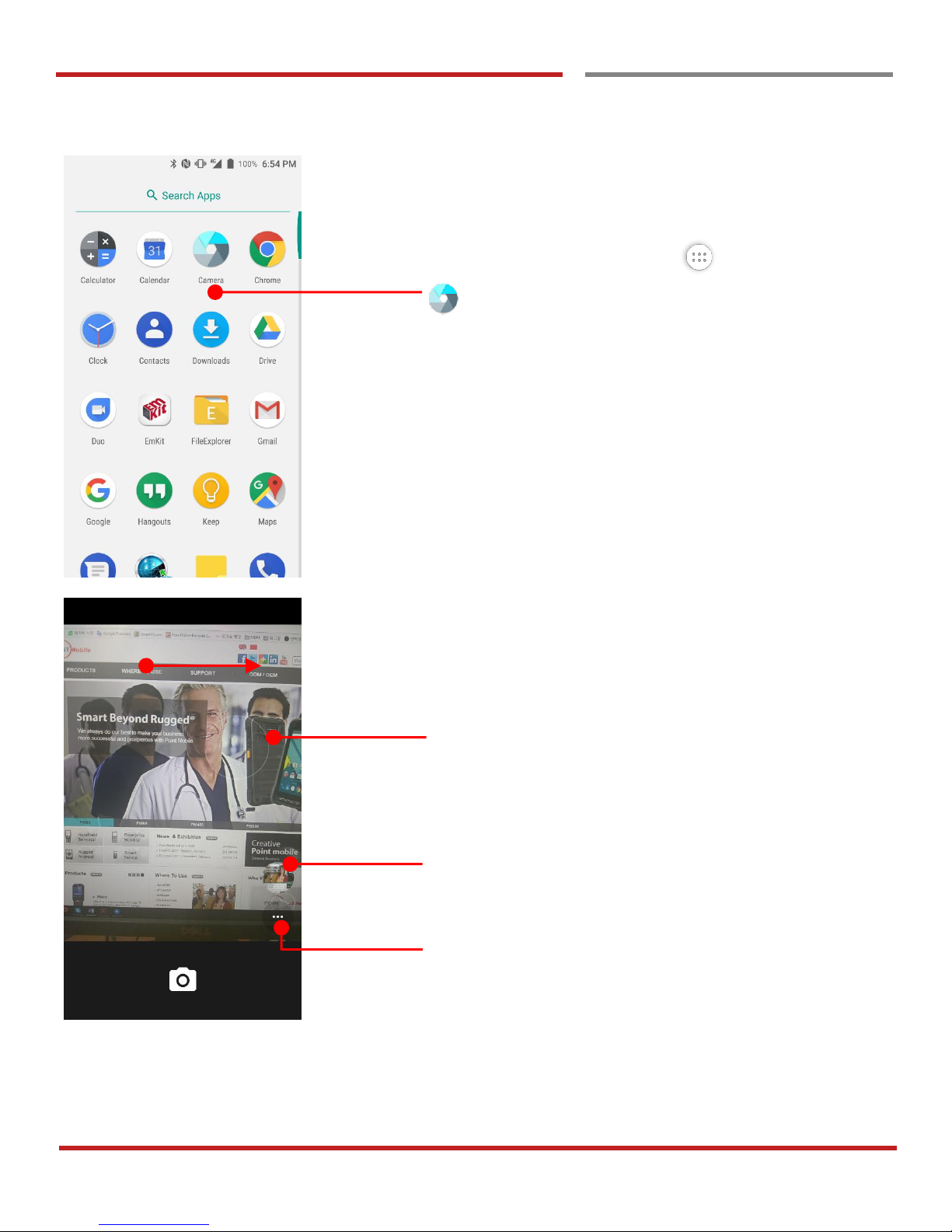
Touch icon in the favorite tray or “App drawer” icon →
“Camera” icon
Swipe to change the Camera / Video mode or Settings
Touch for auto focusing the target area
Saved image or video
Camera or Video menu
Page 67
PM45 Android 7.1.2 User Manual
66
©2006 – 2018 POINTMOBILE Co., Ltd. All rights reserved
Make a Wi-Fi hotspot
Use a Camera
Learning the basics
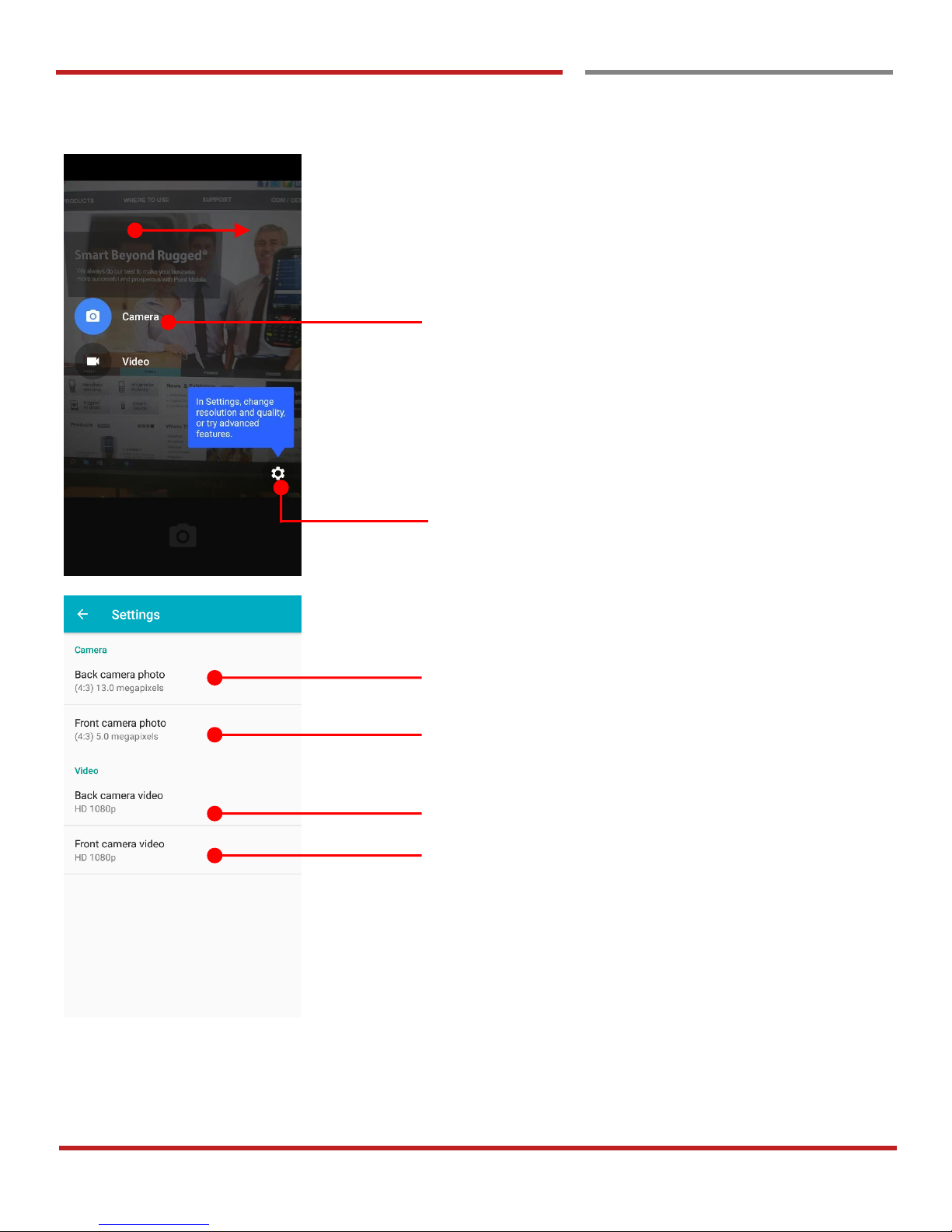
Swipe to enter the menu
Touch to change the Camera mode / Video mode
Touch to change resolution and image quality
Set rear camera image saving quality
Set front camera image saving quality
Set rear camera video saving quality
Set front camera video saving quality
Page 68
PM45 Android 7.1.2 User Manual
67
©2006 – 2018 POINTMOBILE Co., Ltd. All rights reserved
Make a Wi-Fi hotspot
Use a Camera
Learning the basics
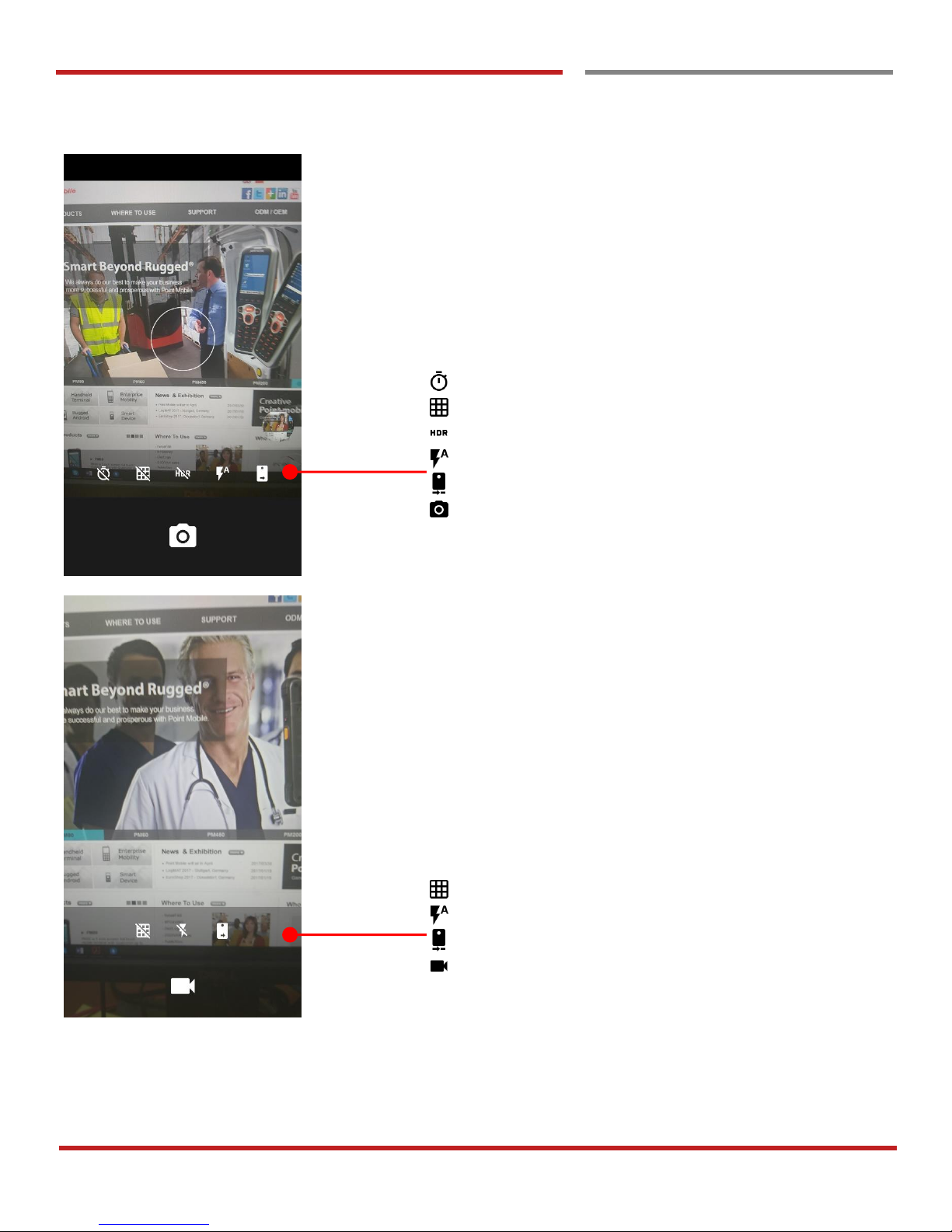
Camera Menu
Timer option : 3seconds / 5seconds
Grid On / Off
HDR option
Flash option : Auto flash / Flash / No flash
Change Rear / Front camera
Take a photo. You may press volume up or down key
Video Menu
Grid On / Off
Flash option : Auto flash / Flash / No flash
Change Rear / Front camera
Take a video
Page 69
PM45 Android 7.1.2 User Manual
68
©2006 – 2018 POINTMOBILE Co., Ltd. All rights reserved
Learning the basics
Manage files and folders
Manage files and folders
Learning the basics
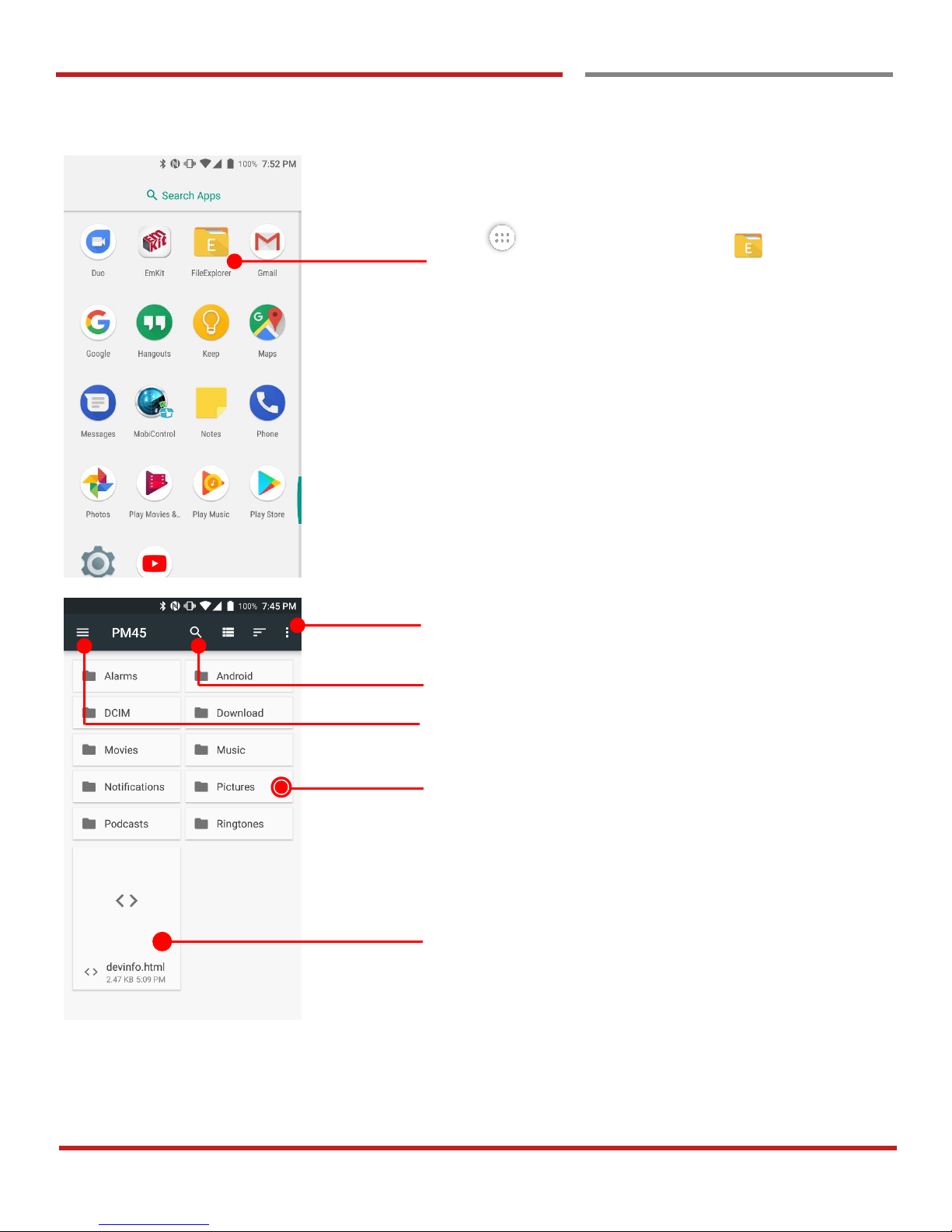
Touch “App drawer” icon and then “File Manager”
Touch for advanced menu
File search
Select storage
Long tap to select a file or folder
Touch to navigate folder / open the file or install an apk file
Page 70
PM45 Android 7.1.2 User Manual
69
©2006 – 2018 POINTMOBILE Co., Ltd. All rights reserved
Make a Wi-Fi hotspot
Manage files and folders
Learning the basics
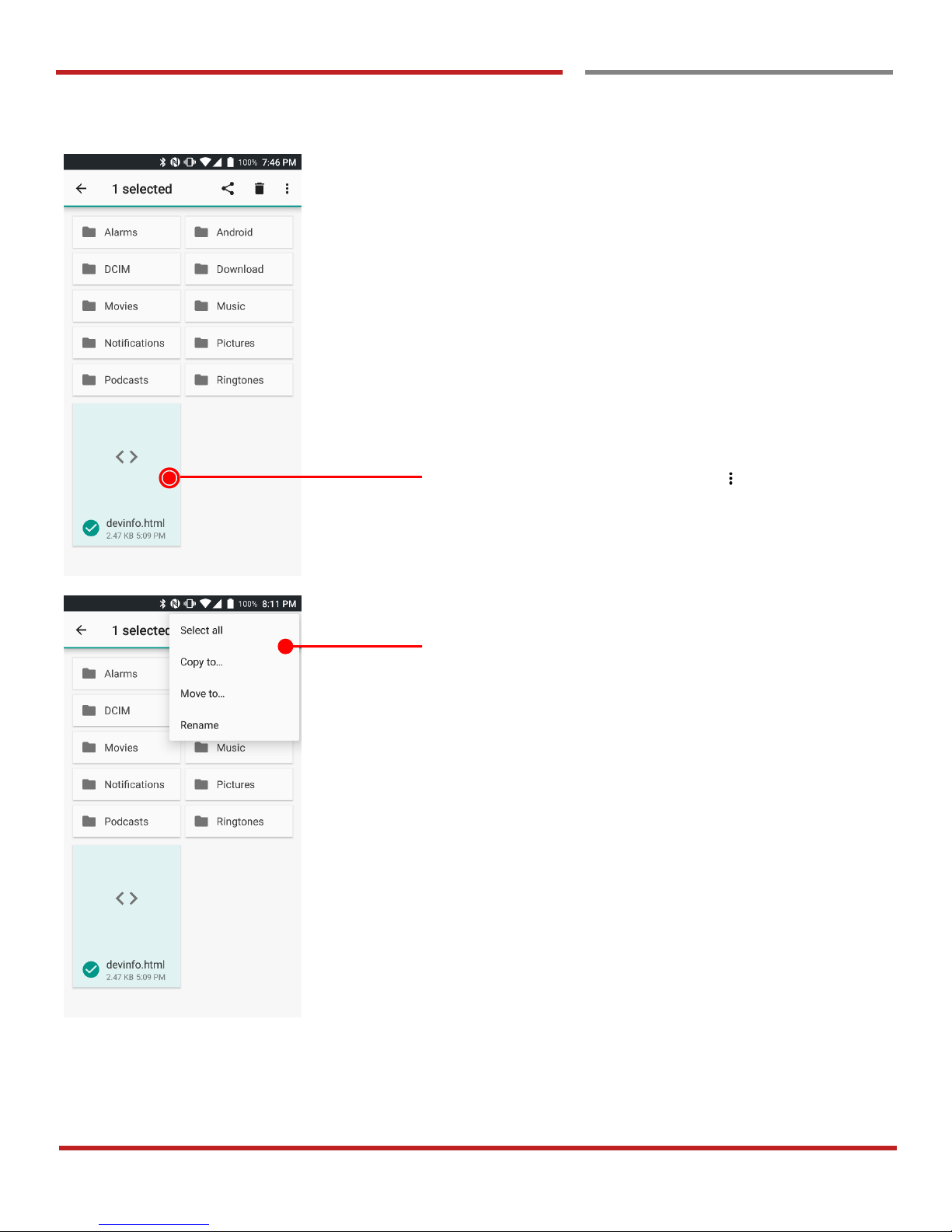
Long tap action
Long tap the file and touch option icon in top-left corner
Now you can copy the file, move to specific folder or rename
the file or folder
Page 71
PM45 Android 7.1.2 User Manual
70
©2006 – 2018 POINTMOBILE Co., Ltd. All rights reserved
Make a Wi-Fi hotspot
Manage files and folders
Learning the basics
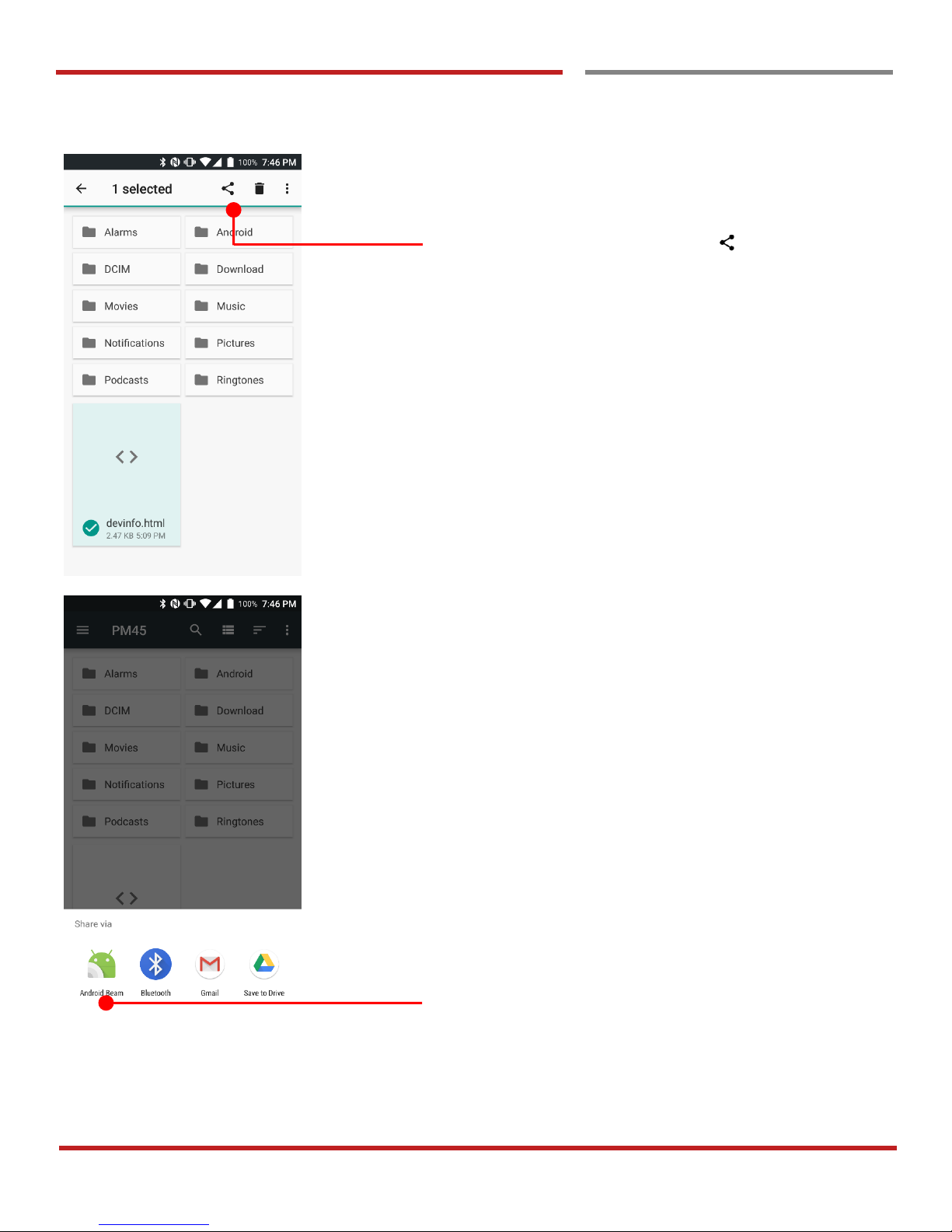
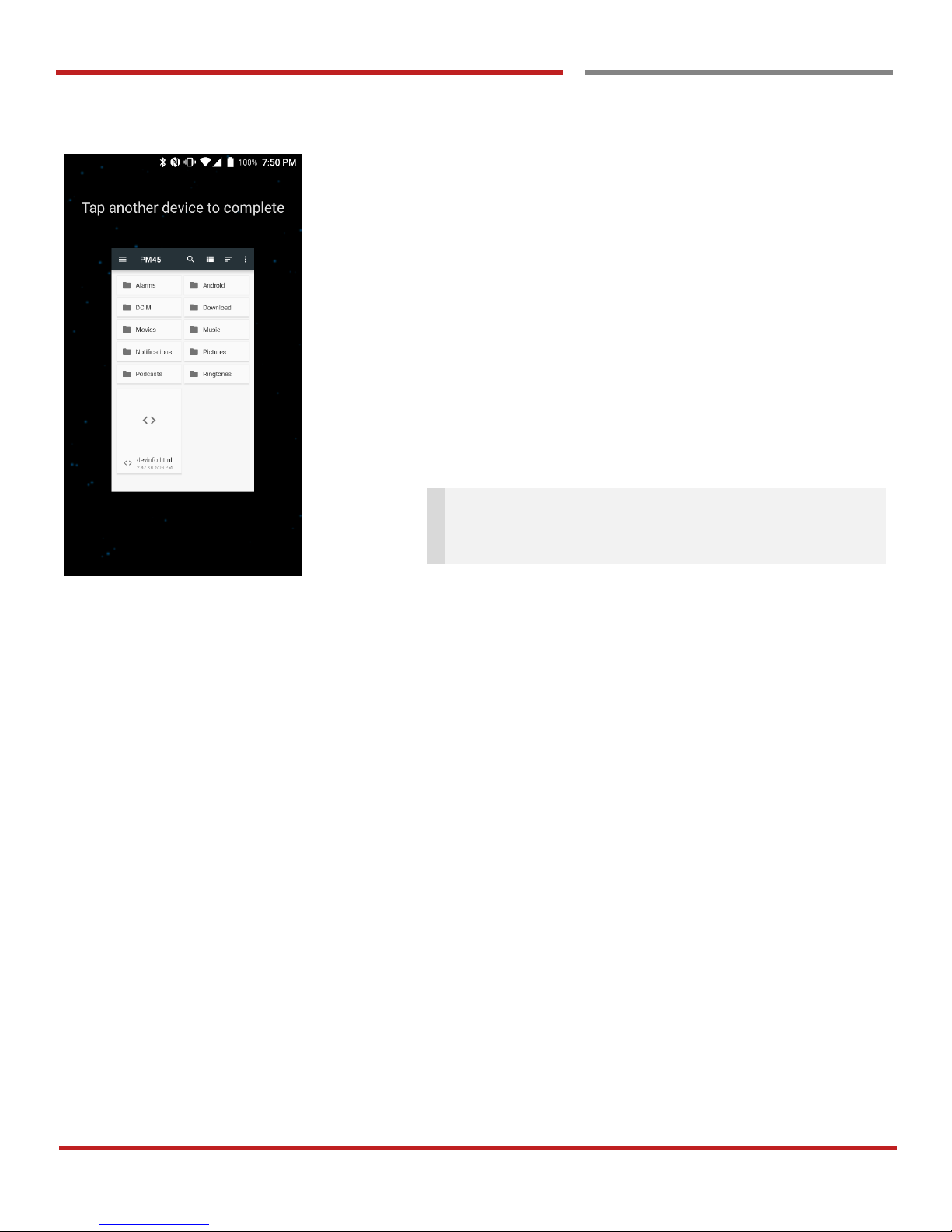
Share a file
Long tap the file and touch share icon in the menu
Now you can share selected file to nearby device or attach
to Gmail or upload to Google Drive. Manual describe
Android Beam sharing via NFC
Page 72
PM45 Android 7.1.2 User Manual
71
©2006 – 2018 POINTMOBILE Co., Ltd. All rights reserved
Make a Wi-Fi hotspot
Manage files and folders
Learning the basics
Now tag another device to PM45’s battery cover. PM45 will
transfer the file
Note: Please make sure NFC is activated. NFC
antenna is in the battery cover. Please lock the battery
cover firmly
Page 73
PM45 Android 7.1.2 User Manual
72
©2006 – 2018 POINTMOBILE Co., Ltd. All rights reserved
Make a Wi-Fi hotspot
Manage files and folders
Learning the basics
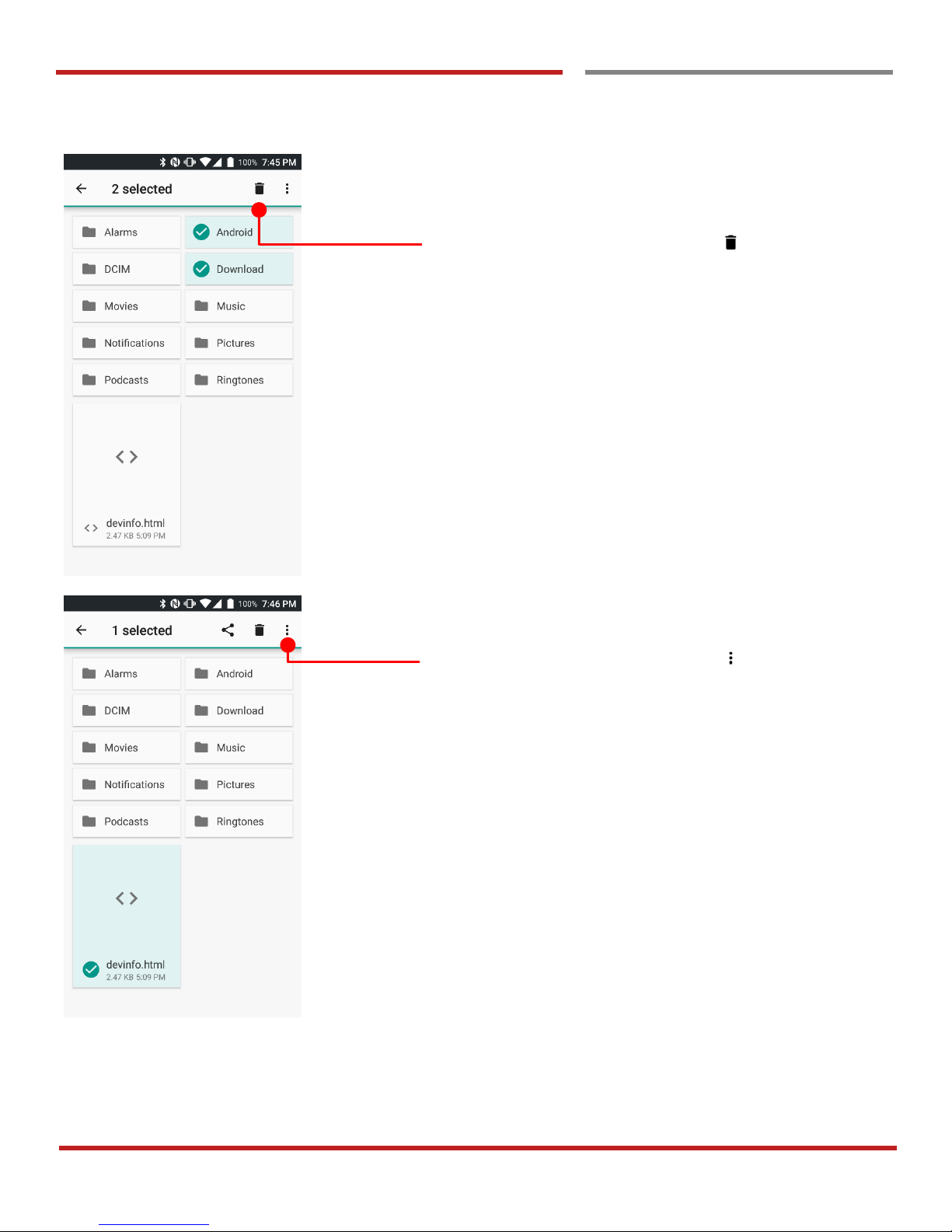
Delete a file
Long tap the file and touch delete icon in the menu
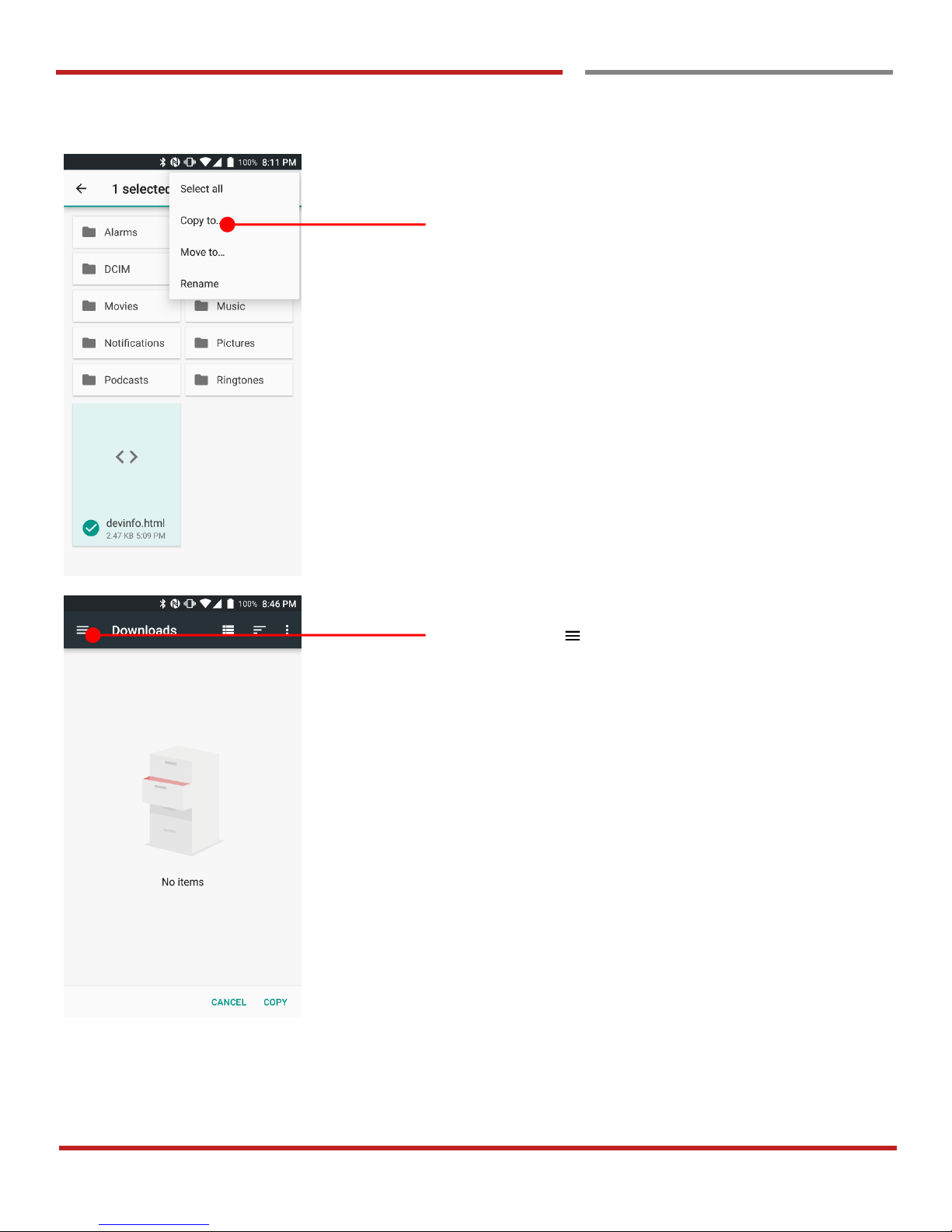
Copy or move a file
Long tap the file and touch option icon in top-left corner
Page 74
PM45 Android 7.1.2 User Manual
73
©2006 – 2018 POINTMOBILE Co., Ltd. All rights reserved
Make a Wi-Fi Make a Wi-Fi hotspot
Manage files and folders
Learning the basics
Touch “Copy to…” or “Move to…” in the menu
Touch menu icon to navigate file location
Page 75
PM45 Android 7.1.2 User Manual
74
©2006 – 2018 POINTMOBILE Co., Ltd. All rights reserved
Make a Wi-Fi Make a Wi-Fi hotspot
Manage files and folders
Learning the basics
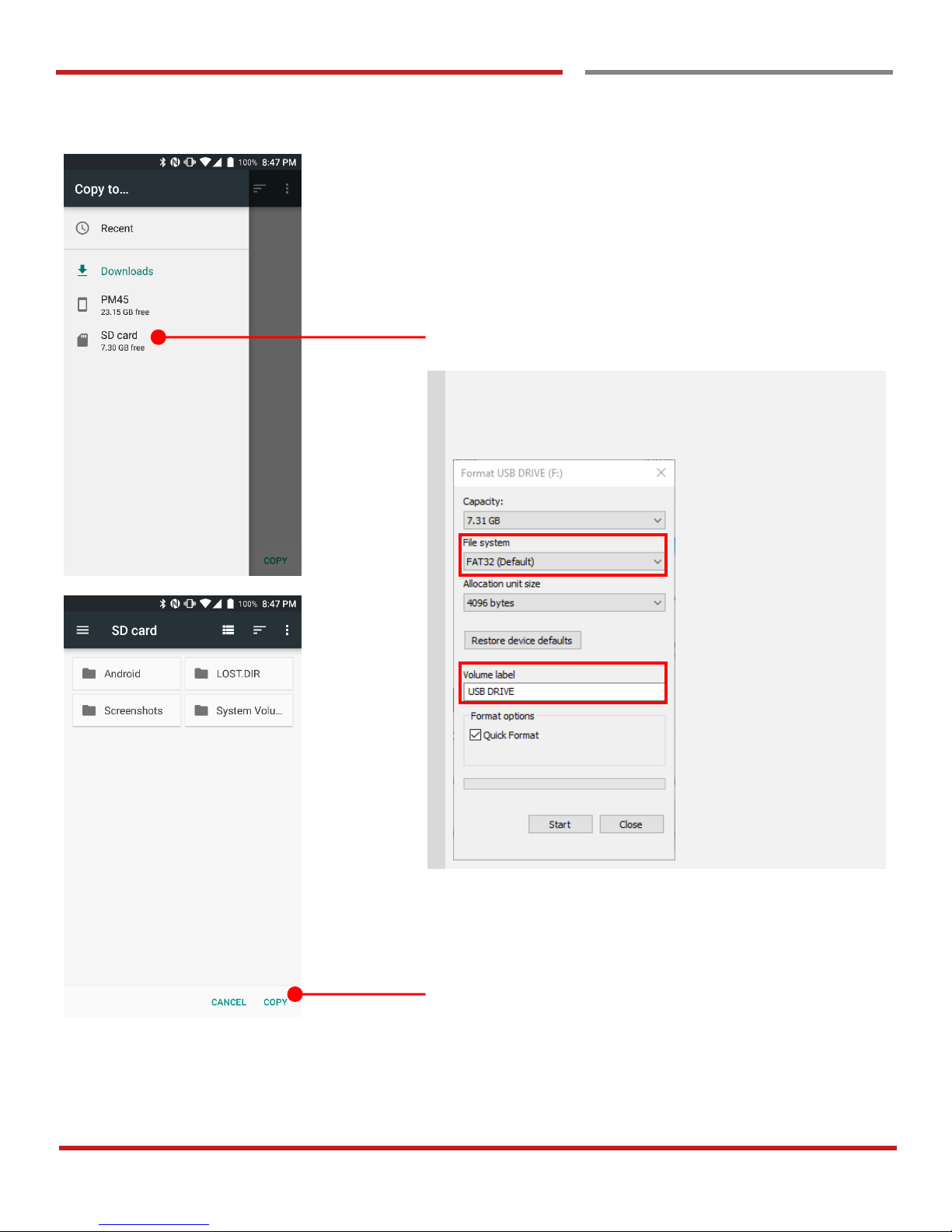
Touch the storage where copy or move to
Note: Please format the SD card as FAT32 and make
sure set the label as below screenshot from the
computer
Touch “Copy”
Page 76
PM45 Android 7.1.2 User Manual
75
©2006 – 2018 POINTMOBILE Co., Ltd. All rights reserved
Learning the basics
MTP connection with PC
MTP connection with PC
Learning the basics
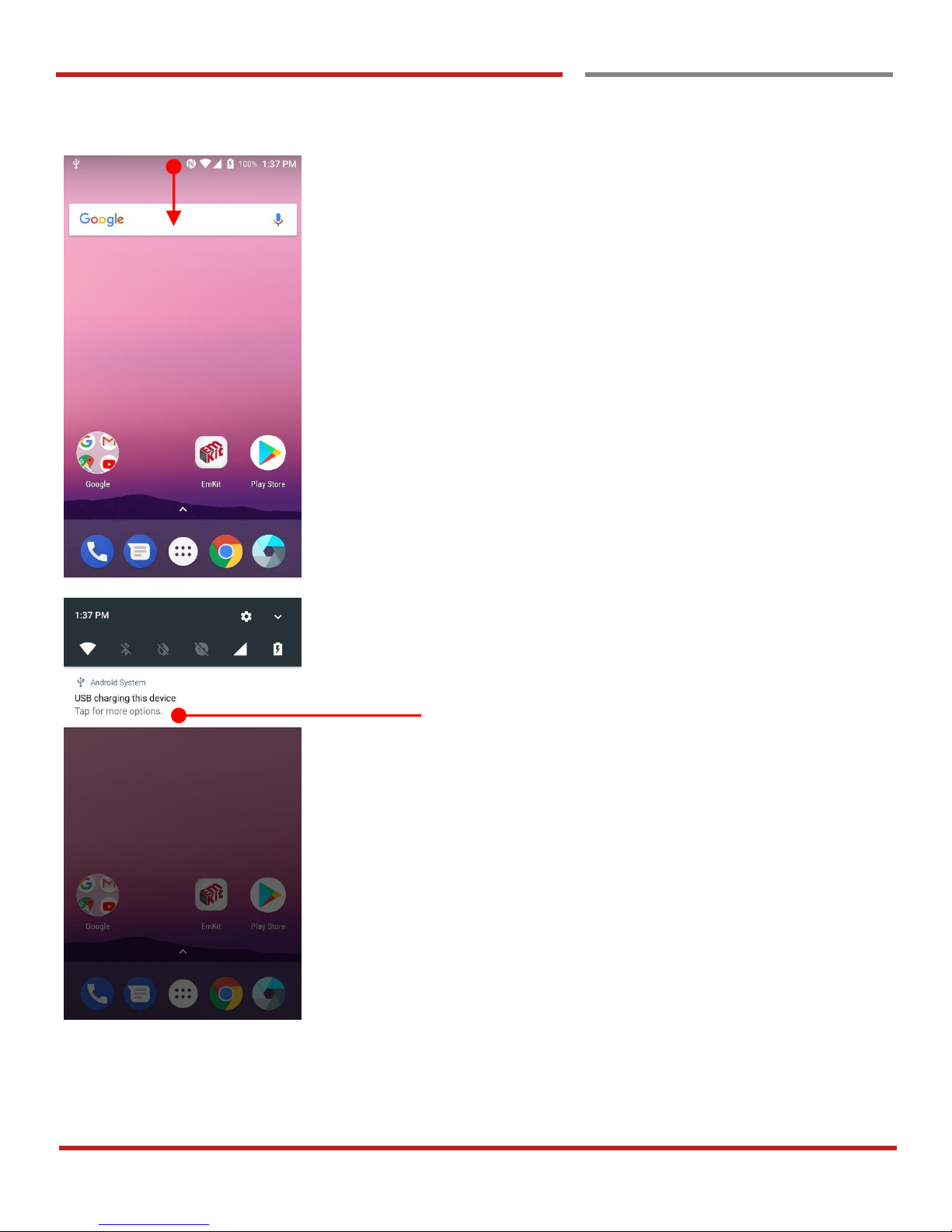
To browse files and folder in the PM45 in your PC, please
change USB connect option
Scroll down the notification panel
Touch USB connect option
Page 77
PM45 Android 7.1.2 User Manual
76
©2006 – 2018 POINTMOBILE Co., Ltd. All rights reserved
Make a Wi-Fi hotspot
MTP connection with PC
Learning the basics
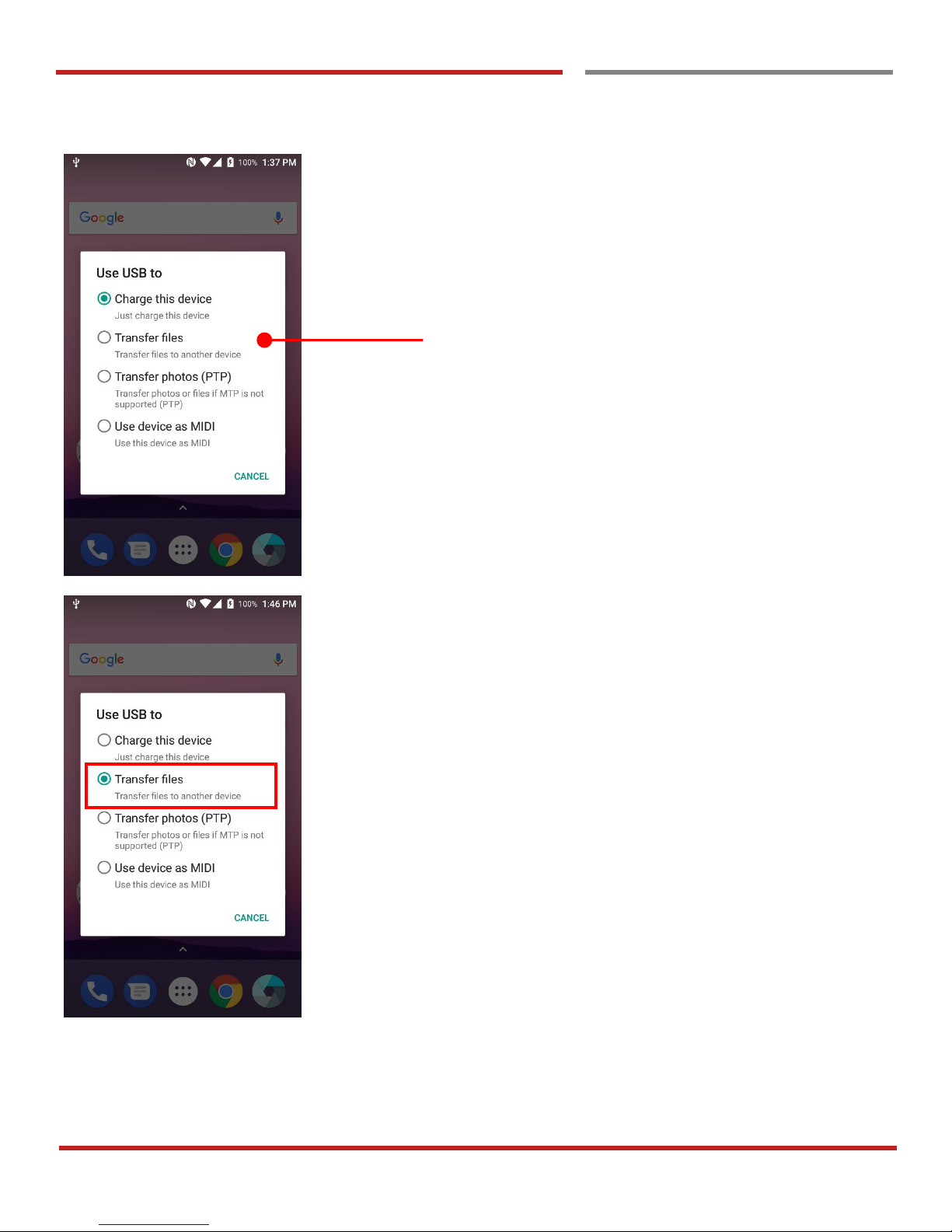
Change option to “Transfer files” from “Charge this device”
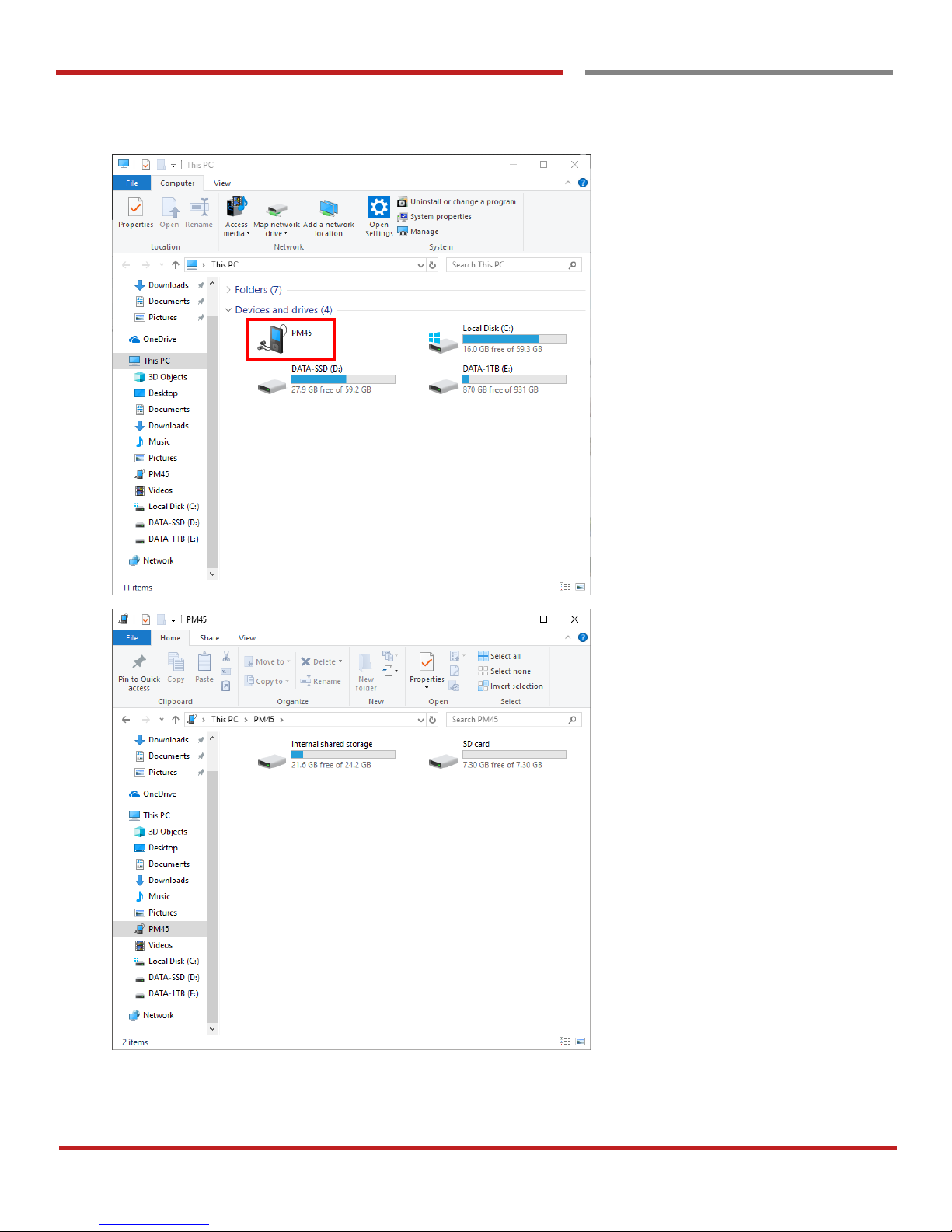
Now your PC recognize PM45 as MTP device
Page 78
PM45 Android 7.1.2 User Manual
77
©2006 – 2018 POINTMOBILE Co., Ltd. All rights reserved
Make a Wi-Fi hotspot
MTP connection with PC
Learning the basics
Page 79
PM45 Android 7.1.2 User Manual
78
©2006 – 2018 POINTMOBILE Co., Ltd. All rights reserved
Learning the basics
Change a Touch Sensitivity
Change a Touch Sensitivity
Learning the basics
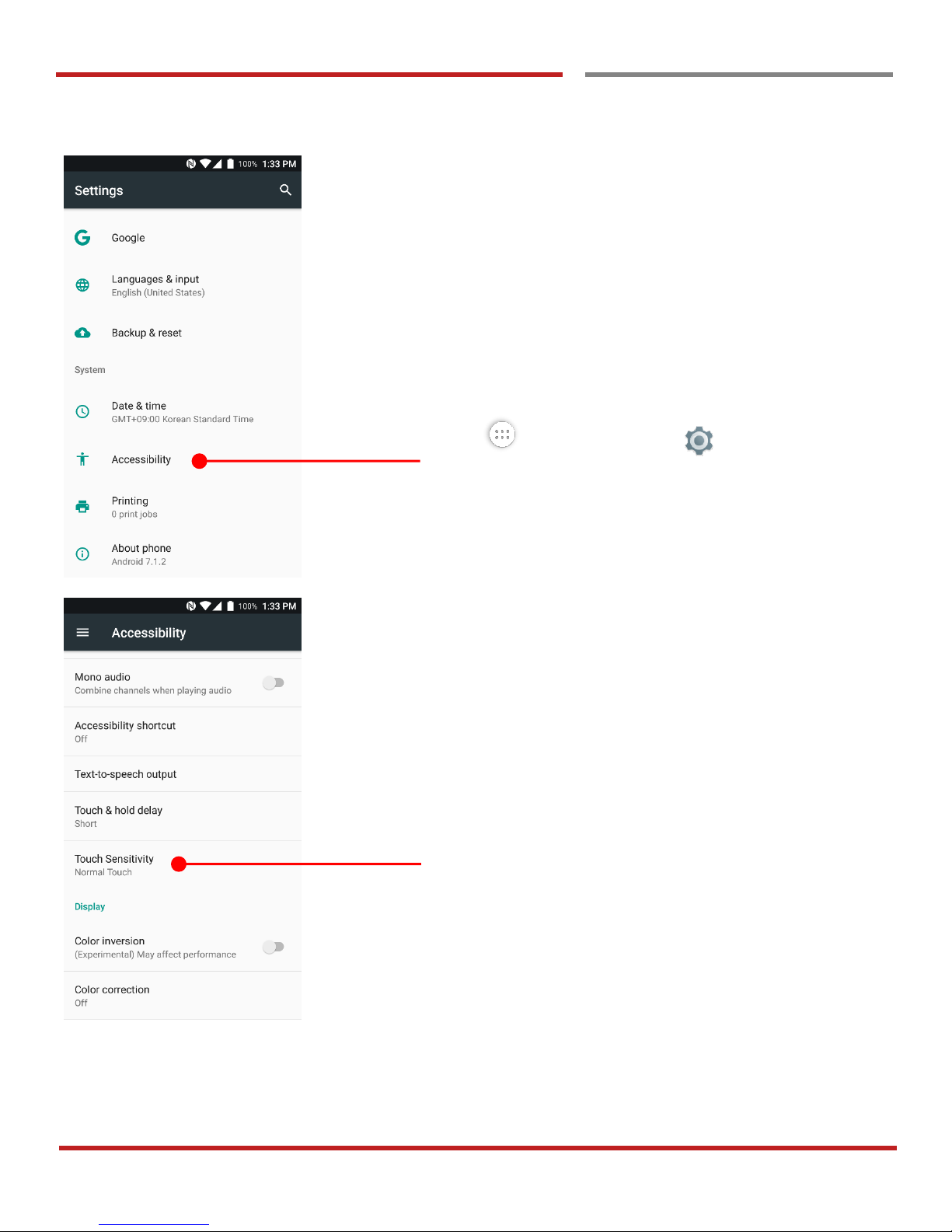
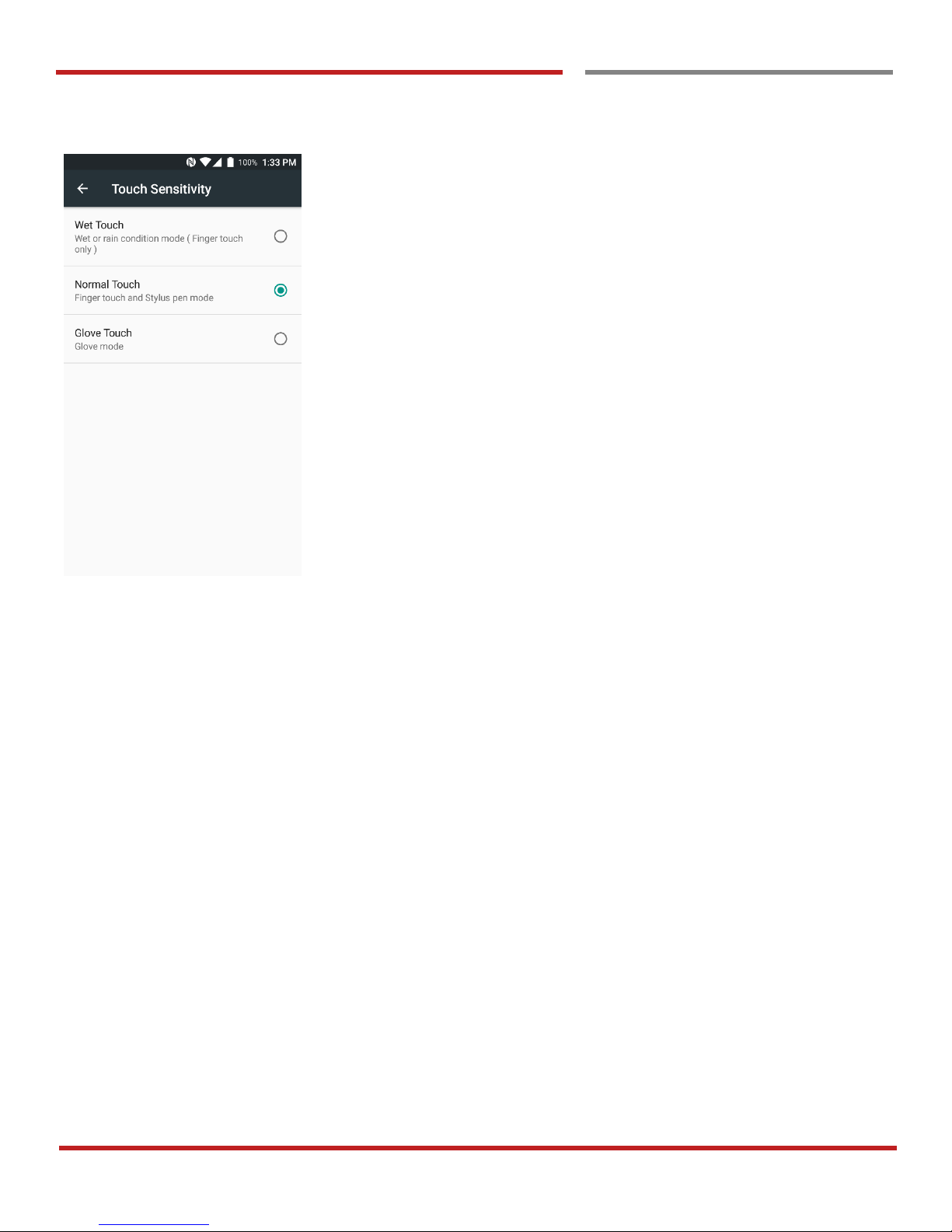
PM45 support touch sensitivity change option
Touch “App drawer” icon → “Settings” and then
“Accessibility”
Touch “Touch Sensitivity”
Page 80
PM45 Android 7.1.2 User Manual
79
©2006 – 2018 POINTMOBILE Co., Ltd. All rights reserved
Make a Wi-Fi hotspot
MTP connection with PC
Learning the basics
Default setting is Normal Touch. Please change sensitivity
option for your usage or environment
Page 81
PM45 Android 7.1.2 User Manual
80
©2006 – 2018 POINTMOBILE Co., Ltd. All rights reserved
Make a Wi-Fi hotspot
Use a Google Assistant
Learning the basics
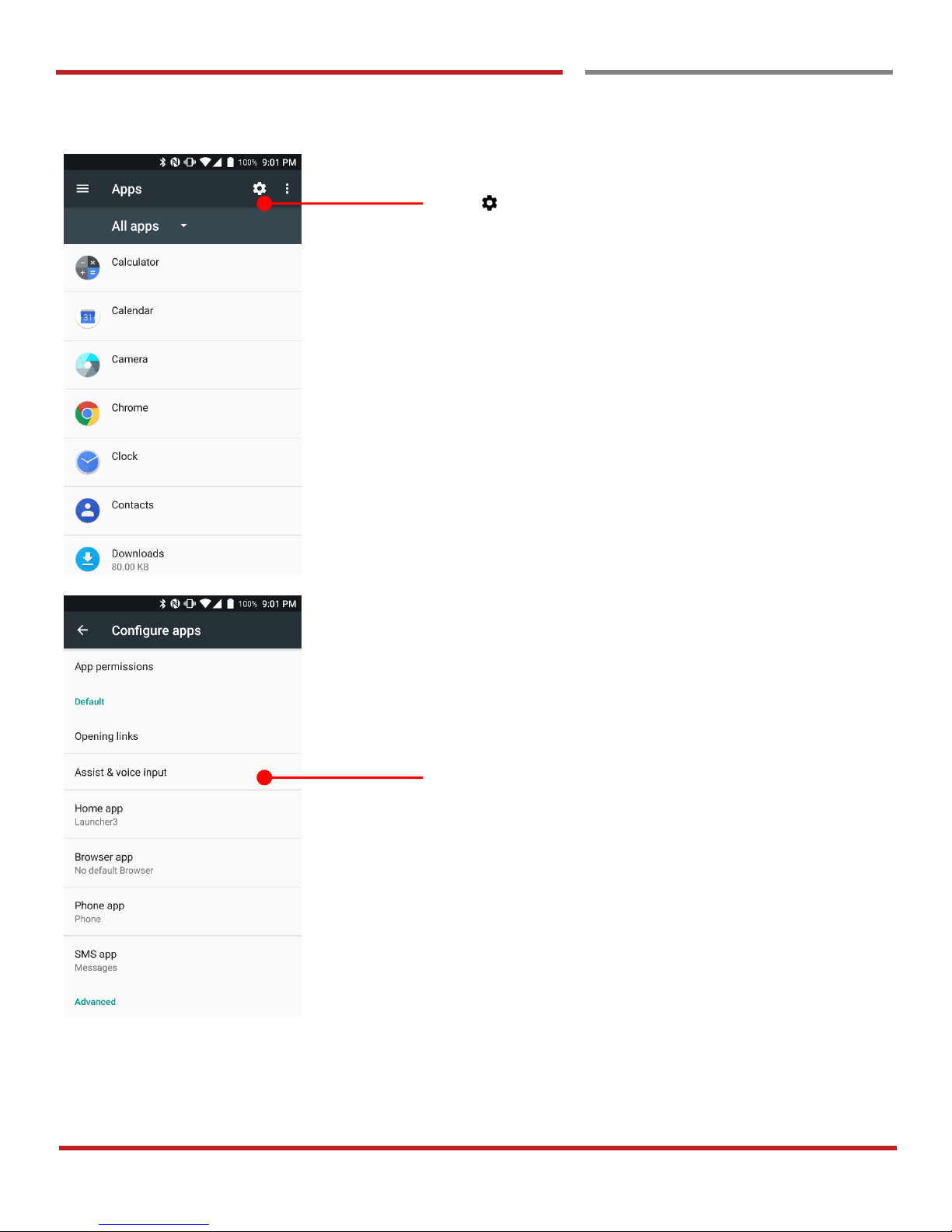
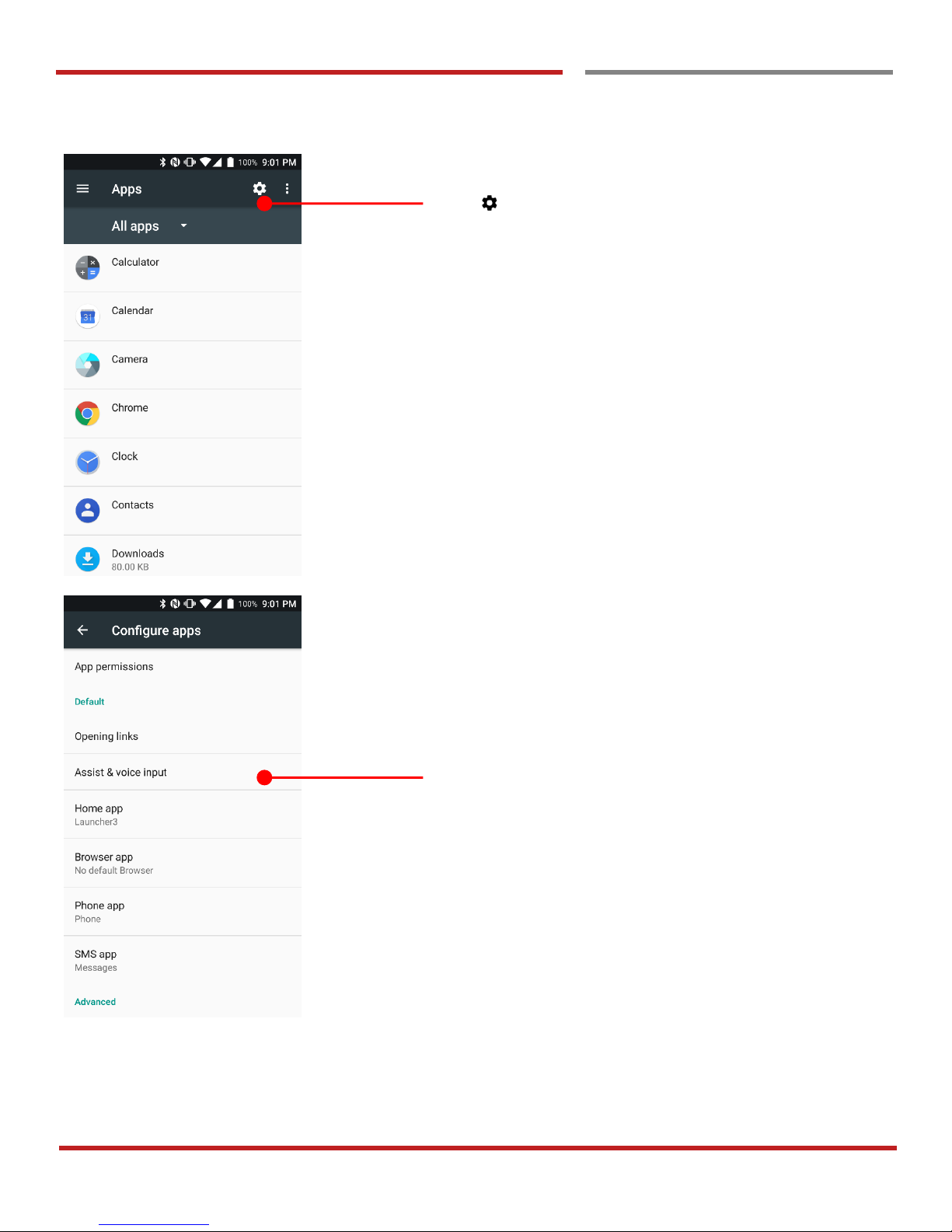
Touch icon for app configuration change
Touch Assist & voice input
Page 82
PM45 Android 7.1.2 User Manual
81
©2006 – 2018 POINTMOBILE Co., Ltd. All rights reserved
Make a Wi-Fi hotspot
Use a Google Assistant
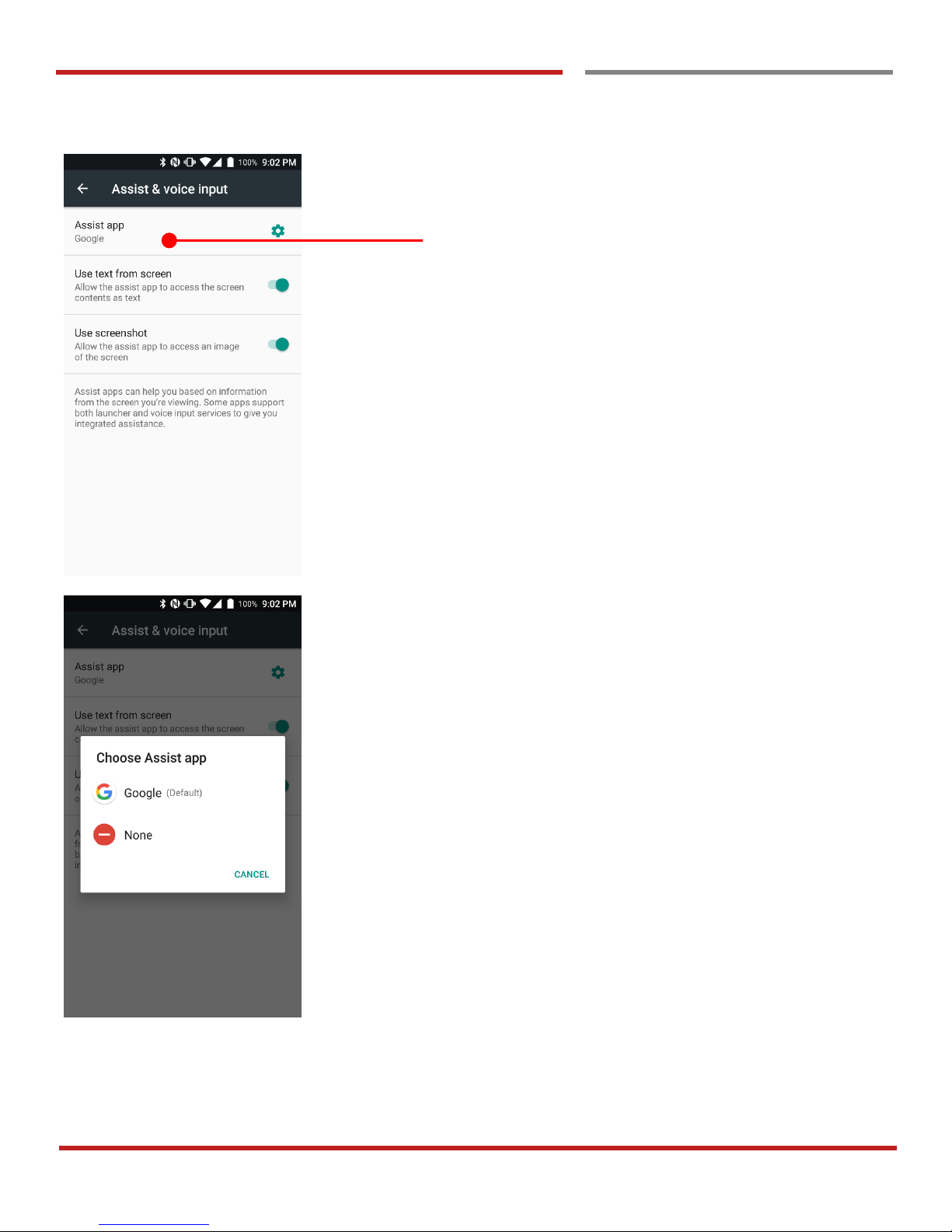
Learning the basics
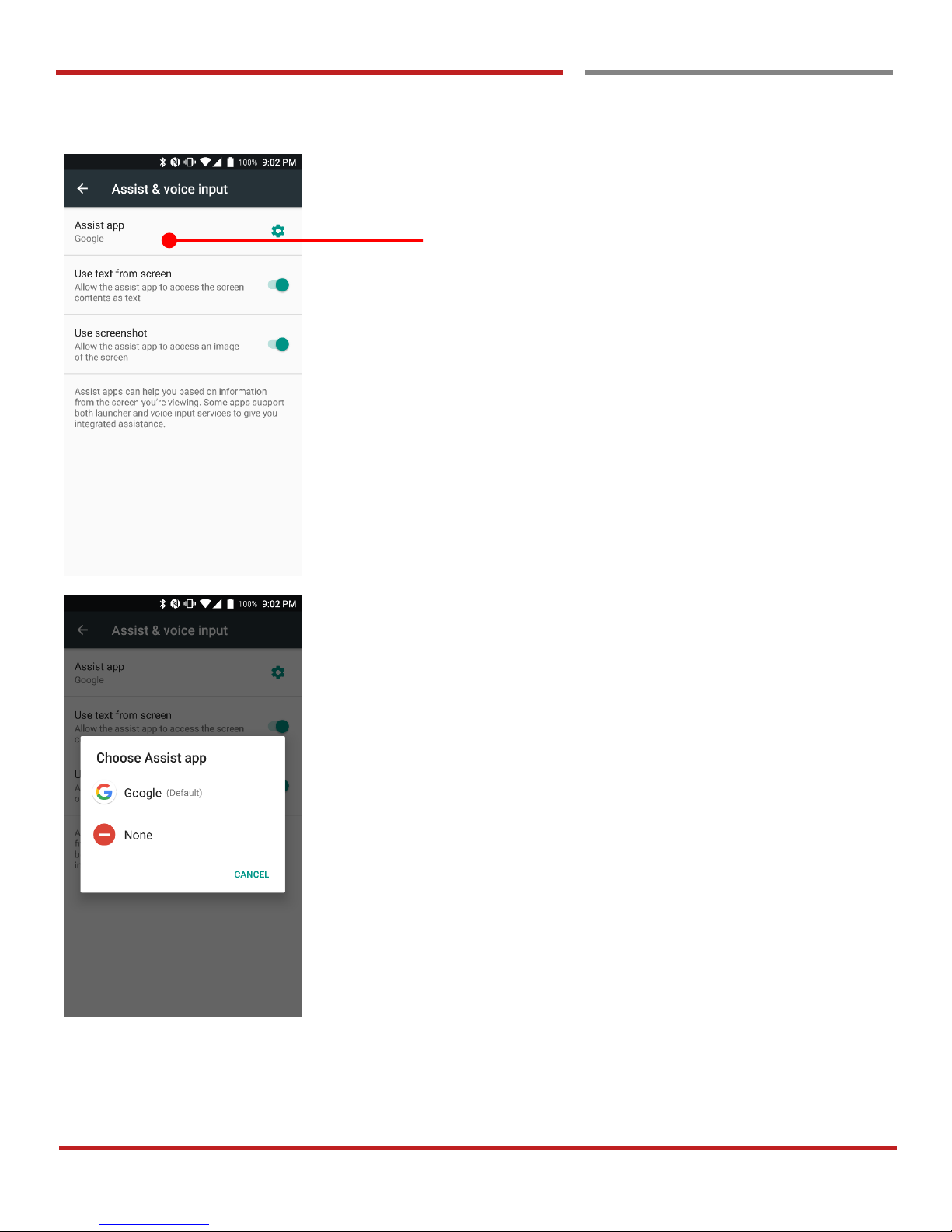
Make sure “Google” is selected
Page 83
PM45 Android 7.1.2 User Manual
82
©2006 – 2018 POINTMOBILE Co., Ltd. All rights reserved
Learning the basics
Use a Google Assistant
Use a Google Assistant
Learning the basics
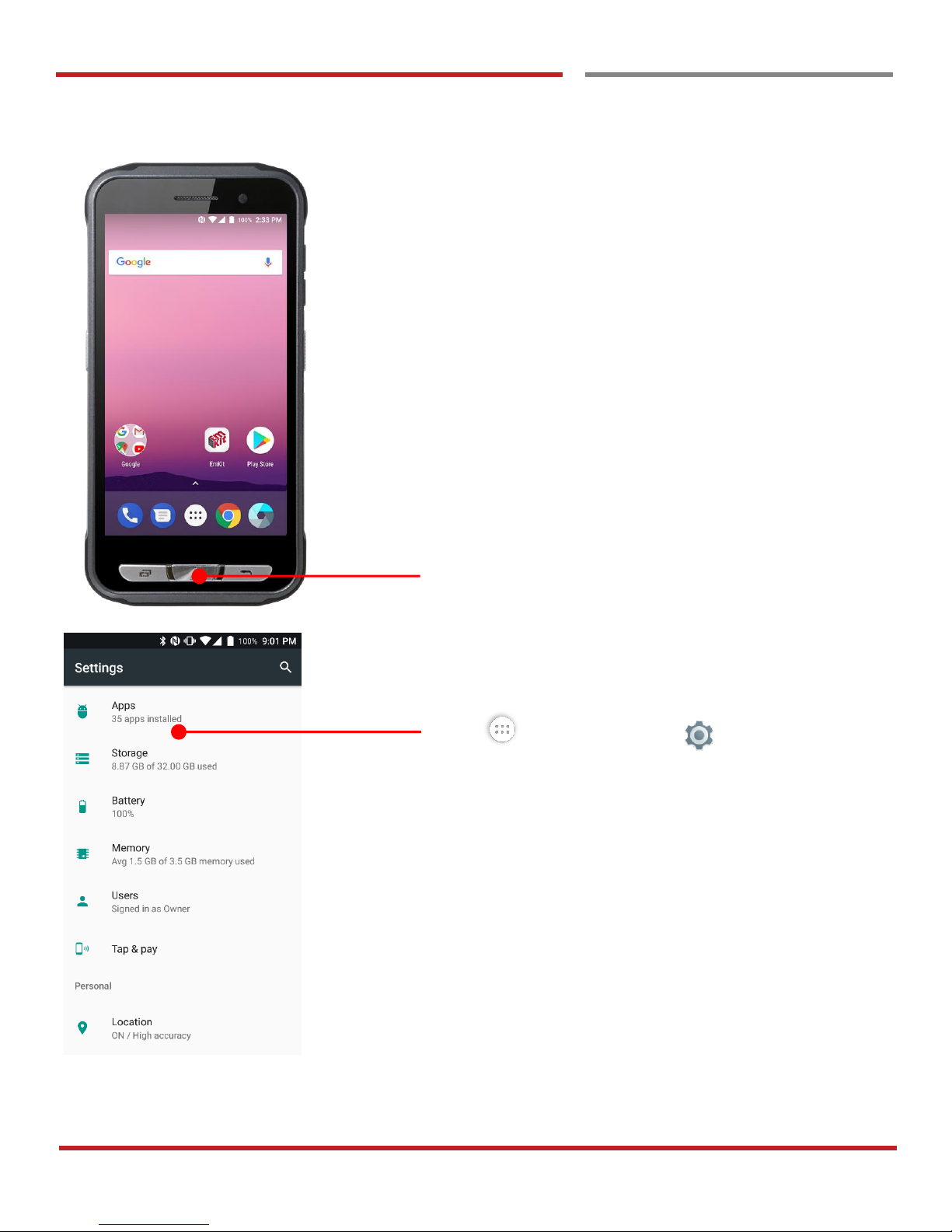
Touch and hold the home button key to use Google
Assistant function
If Google Assistant doesn’t work, please try followings
Touch “App drawer” icon → “Settings” and then
“Apps”
Page 84
PM45 Android 7.1.2 User Manual
83
©2006 – 2018 POINTMOBILE Co., Ltd. All rights reserved
Make a Wi-Fi hotspot
Use a Google Assistant
Learning the basics
Touch icon for app configuration change
Touch Assist & voice input
Page 85
PM45 Android 7.1.2 User Manual
84
©2006 – 2018 POINTMOBILE Co., Ltd. All rights reserved
Make a Wi-Fi hotspot
Use a Google Assistant
Learning the basics
Make sure “Google” is selected
Page 86
PM45 Android 7.1.2 User Manual
85
©2006 – 2018 POINTMOBILE Co., Ltd. All rights reserved
OS Update
OS Image update from a Storage
OS Image update from a Storage
OS Update
To update OS image, copy or place OS image file into
the root folder of “Internal Storage” or “External
Storage”
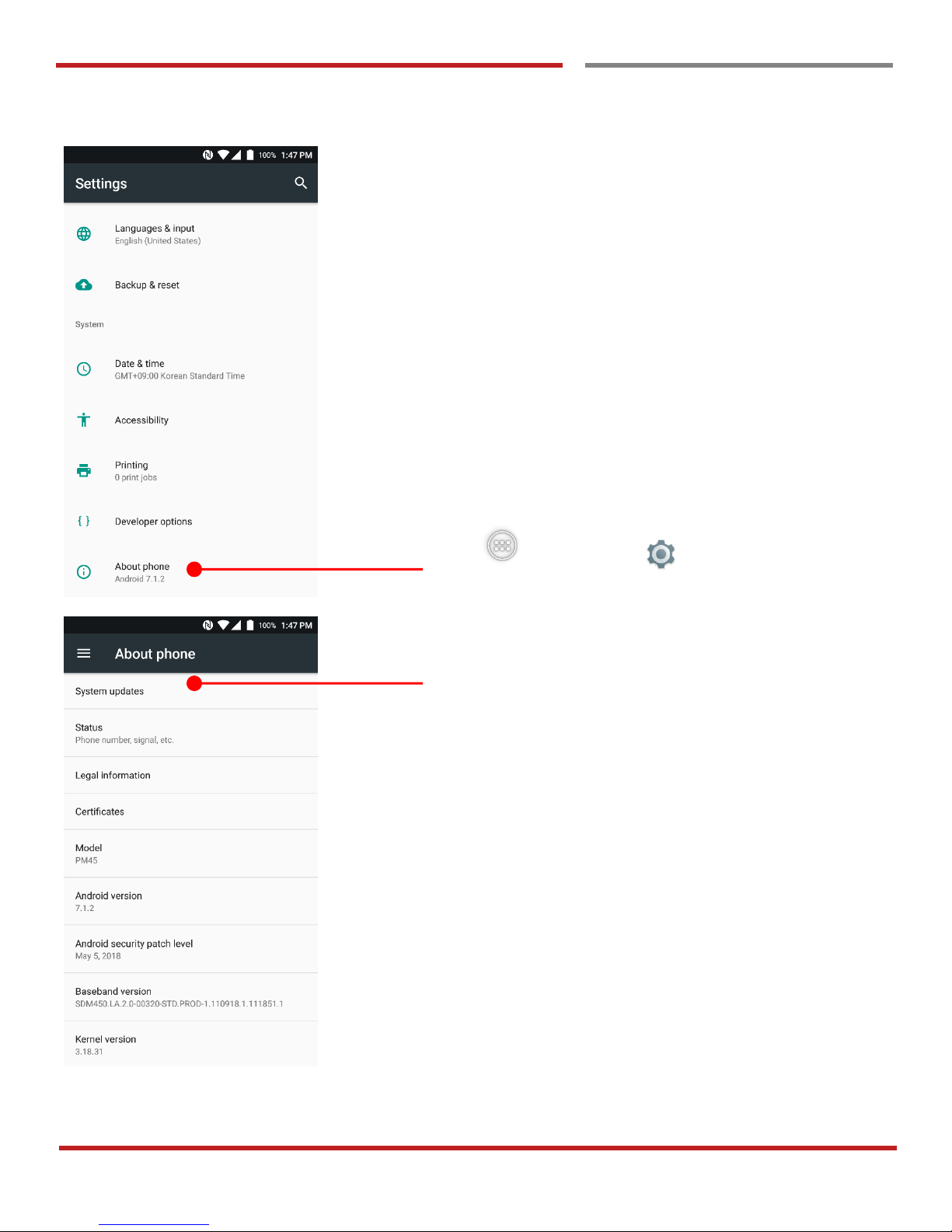
Touch “App Drawer” → “Settings” and then “About
phone”
Touch “System Updates”
Page 87
PM45 Android 7.1.2 User Manual
86
©2006 – 2018 POINTMOBILE Co., Ltd. All rights reserved
OS Update
OS Image update from a Storage
OS Update
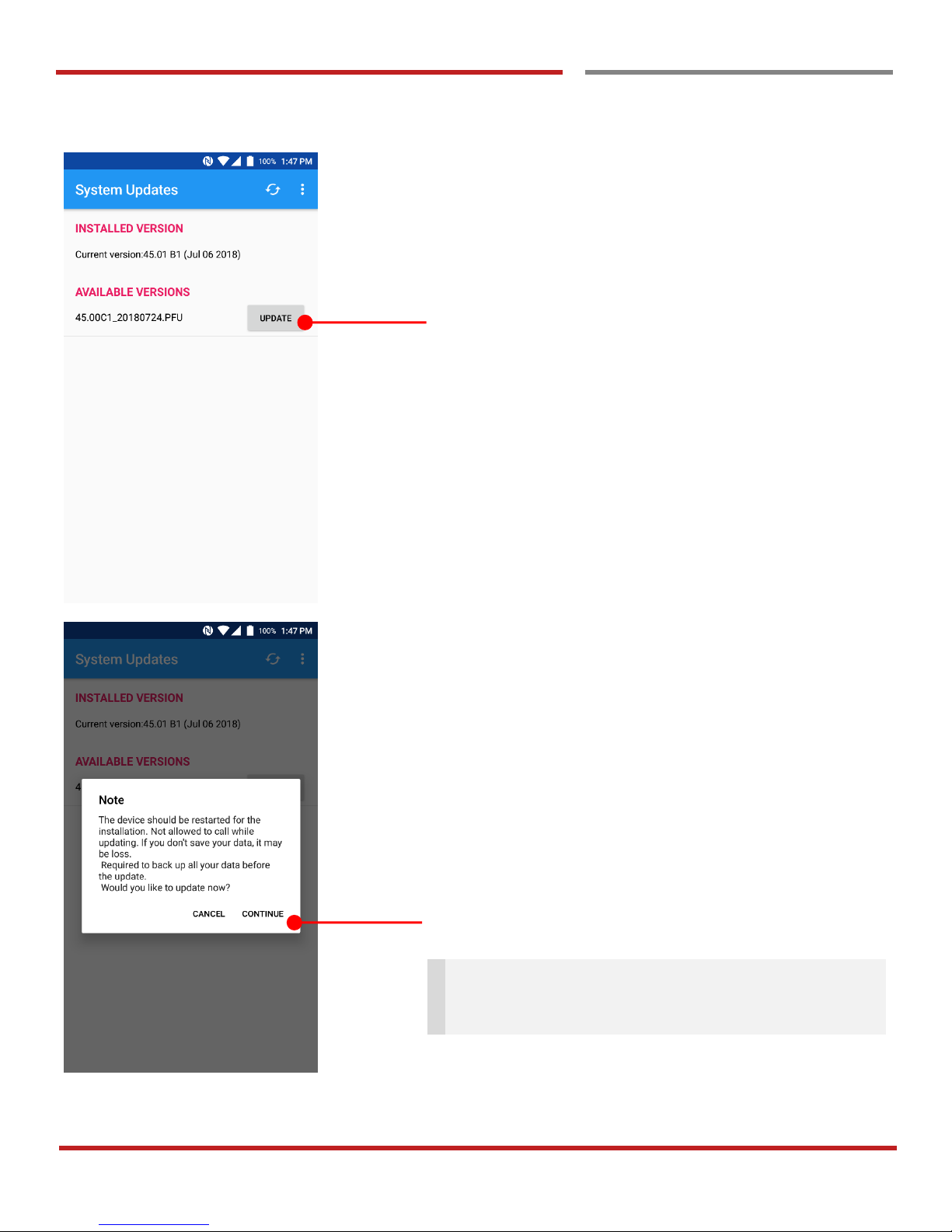
Your PM45 will check storage and display available OS
image
Touch “Update” button
By touching the “CONTINUE” button, your PM45 start to
update the OS image. During this time, you cannot use your
PM45. Please save the data before start, the OS update
process.
Note: Remaining battery level must be higher than
20%. Otherwise PM45 will not start OS update process.
Please check battery level first
Page 88
PM45 Android 7.1.2 User Manual
87
©2006 – 2018 POINTMOBILE Co., Ltd. All rights reserved
OS Update
OS Image update from the FOTA
OS Image update from the FOTA
OS Update
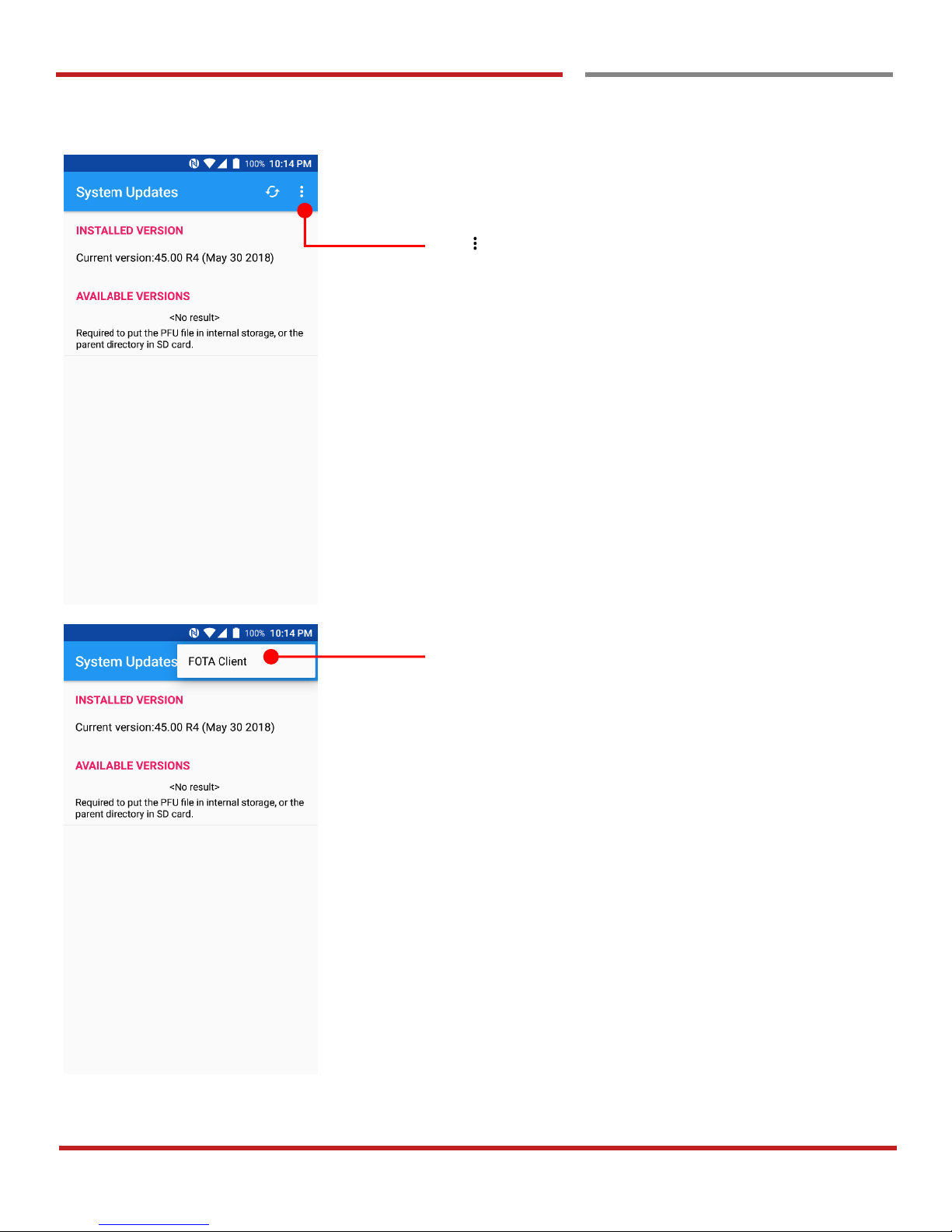
Tap icon for the advanced option
Touch “FOTA Client”
Page 89
PM45 Android 7.1.2 User Manual
88
©2006 – 2018 POINTMOBILE Co., Ltd. All rights reserved
OS Update
OS Image update from the FOTA
OS Update
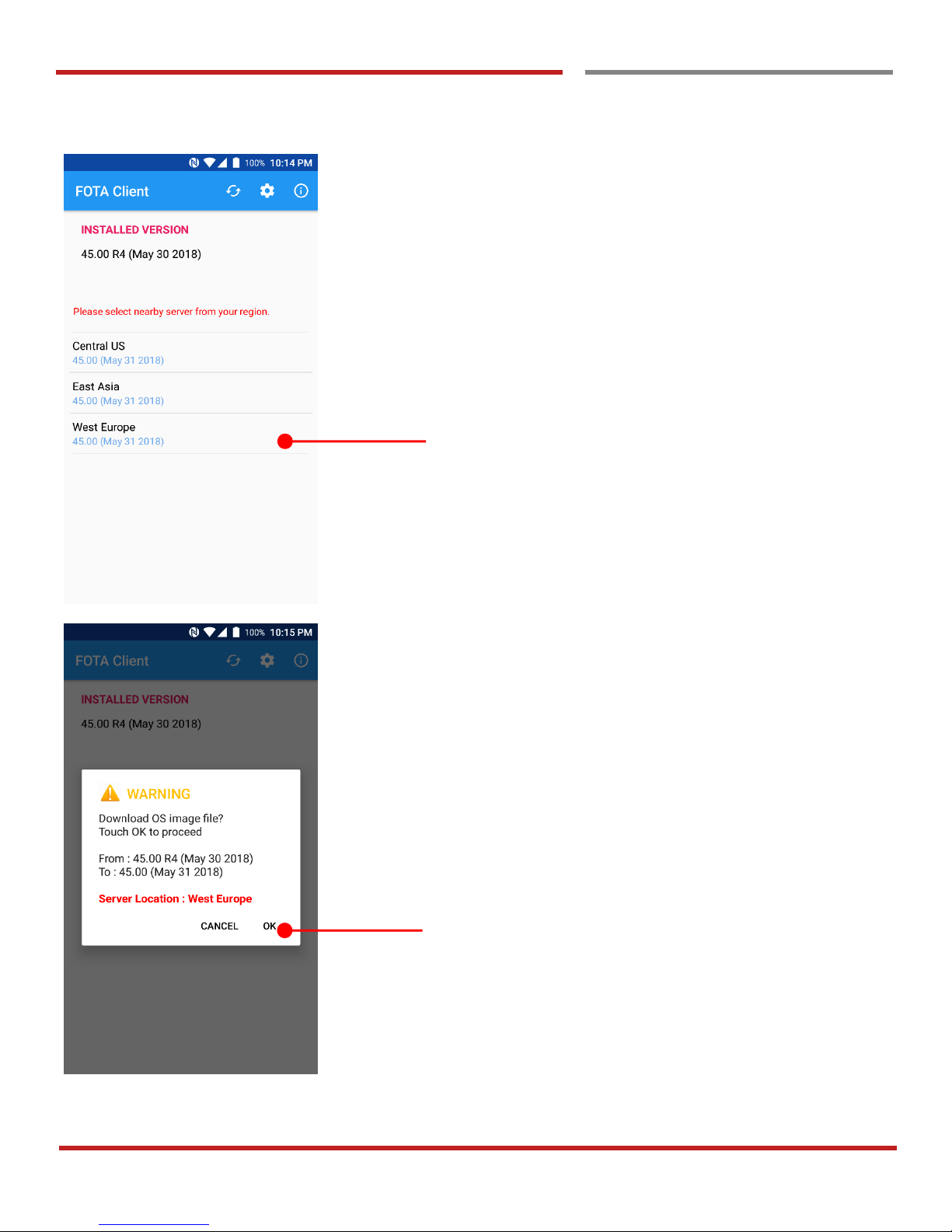
PM45 will compare the OS image between FOTA server
and current OS image. If there is newer OS image in the
FOTA server, FOTA server will suggest downloading.
Touch the nearby server from your region
Touch “OK” to start download the image in the FOTA server
Page 90
PM45 Android 7.1.2 User Manual
89
©2006 – 2018 POINTMOBILE Co., Ltd. All rights reserved
OS Image update from the FOTA
OS Update
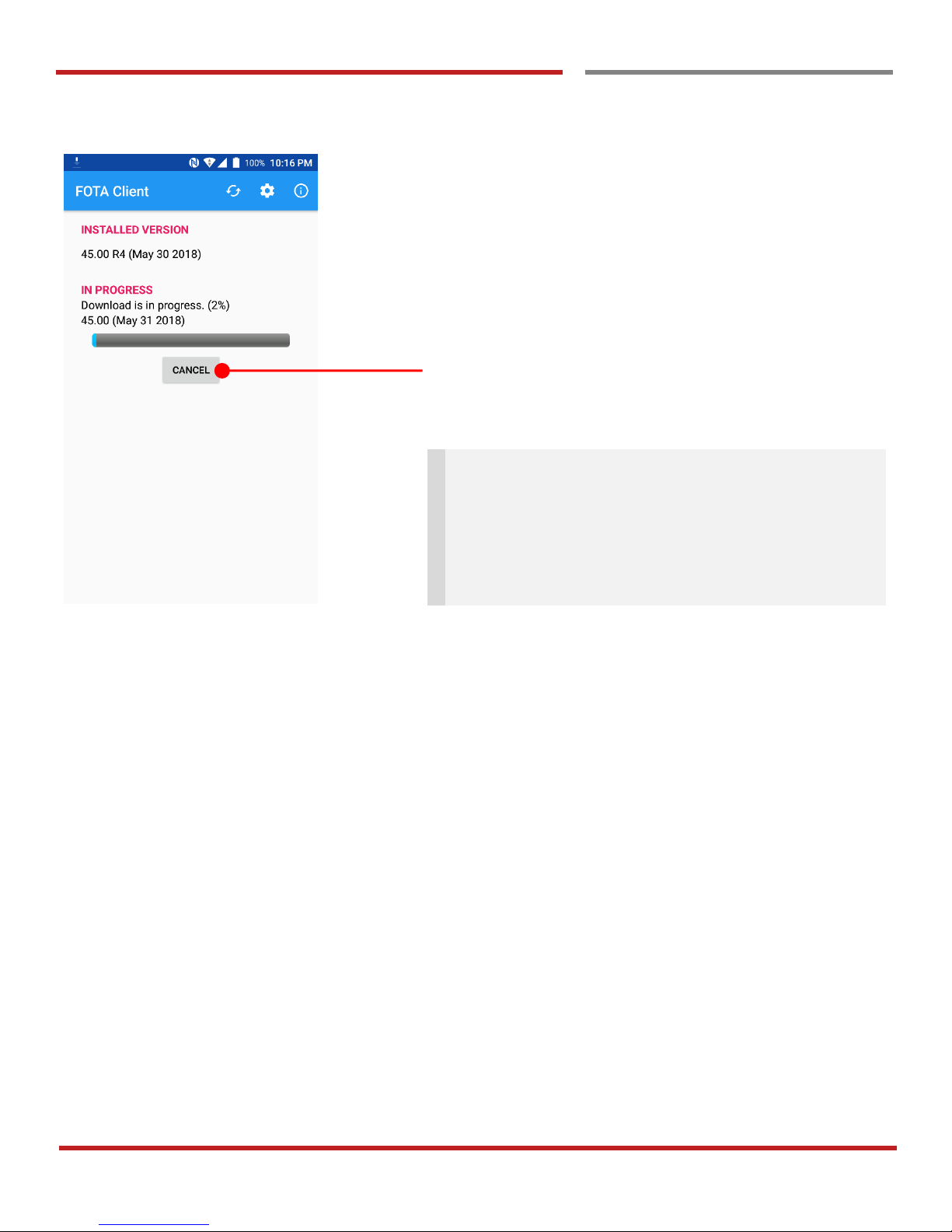
You can cancel OS image download process
Note: Default OS image download setting of FOTA
Client is “Download over Wi-Fi only” Please connect to
the nearby Wi-Fi network for FOTA service
Remaining battery level must be higher than 20%.
Otherwise PM45 will not start OS update process.
Please check battery level first
Page 91
PM45 Android 7.1.2 User Manual
90
©2006 – 2018 POINTMOBILE Co., Ltd. All rights reserved
Factory data reset
Factory data reset from Settings
Factory data reset from Settings
Factory data reset
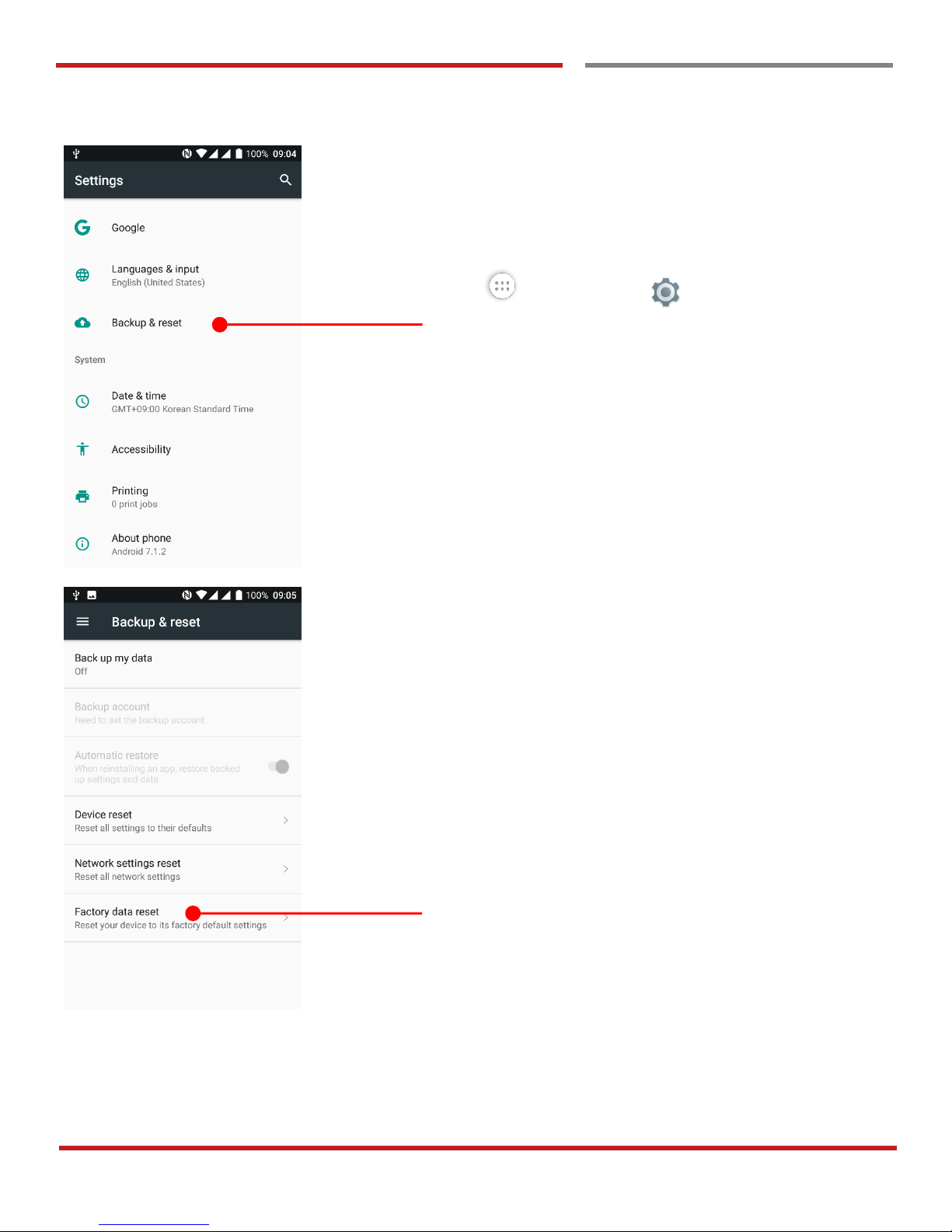
When your PM45 system is unstable and abnormal behavior
occur but could not recover by rebooting, you may need to
“Factory data reset” your PM45
Touch “App Drawer” → “Settings” and then
“Backup & reset”
Touch “Factory data reset”
Page 92
PM45 Android 7.1.2 User Manual
91
©2006 – 2018 POINTMOBILE Co., Ltd. All rights reserved
Factory data reset from Settings
Factory data reset
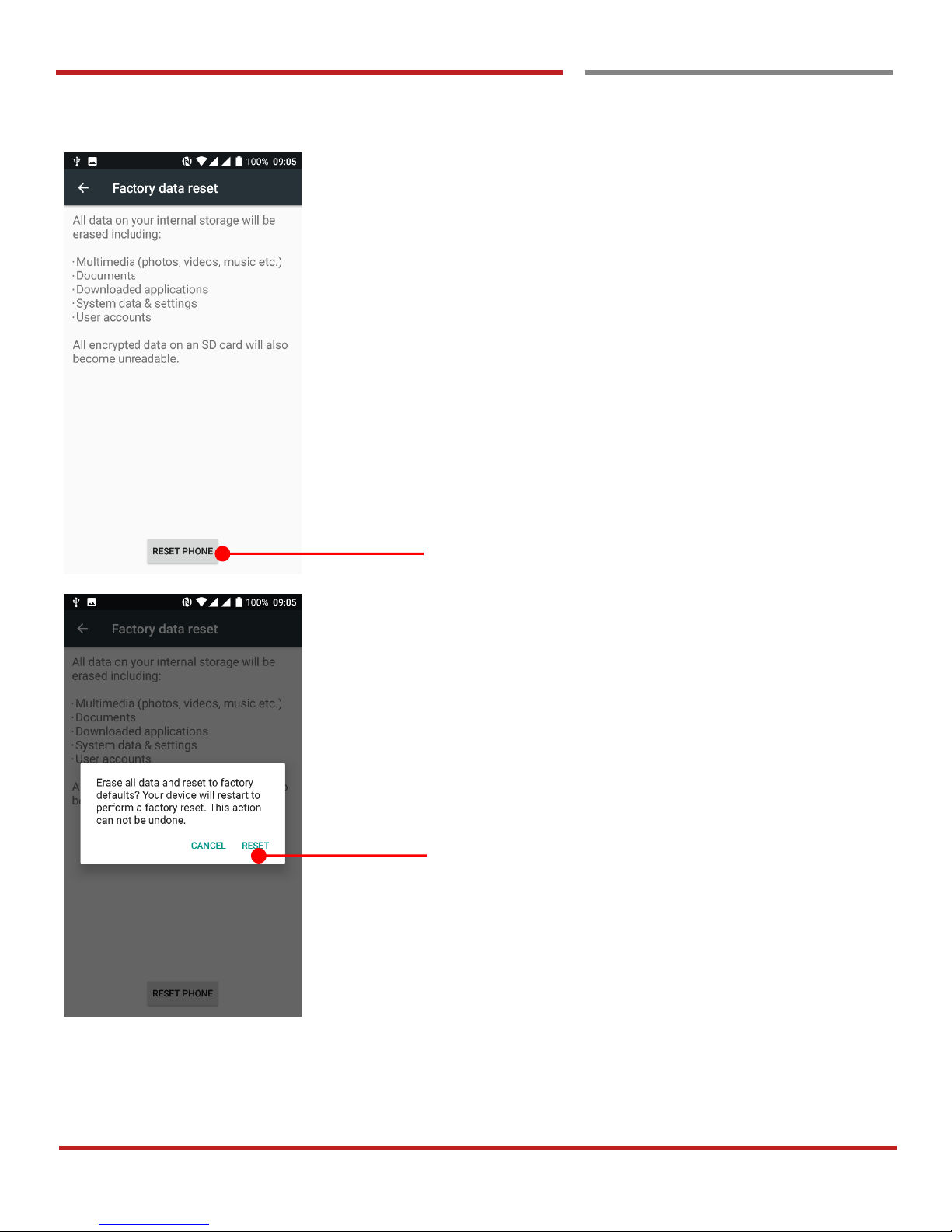
Please note, all apps and data in the internal storage will be
deleted and restored to “Factory default” and this process
cannot “Undo”
Touch RESET PHONE button to start “Factory Reset”
process
Touch Reset to perform a factory reset
Page 93
PM45 Android 7.1.2 User Manual
92
©2006 – 2018 POINTMOBILE Co., Ltd. All rights reserved
Factory data Reset
Force Factory data reset
Force Factory data reset
Factory data reset
Force Factory data reset your PM45
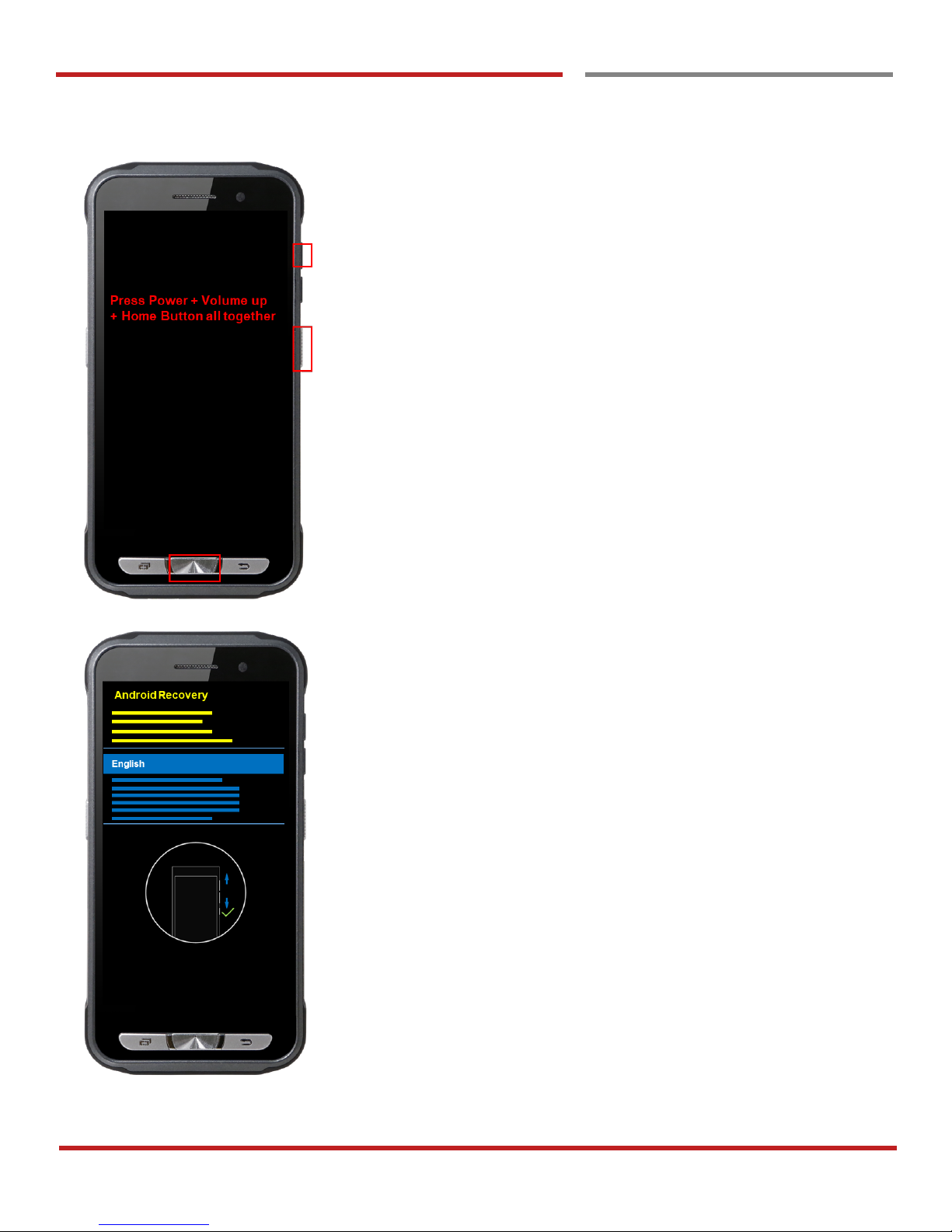
You can perform “force” factory data reset your PM45.
When your PM45 turned off, press “Power” + “Volume Up” +
“Home” button all together. After you see “Smart Beyond
Rugged” logo display, you may release the keys.
PM45 enter to the “Android Recovery” mode. In this mode,
“Volume up” is “Move Up” in the menu tree and “Volume
down” is “Move Down” in the menu tree. “Power Button” is
“Select
Page 94
PM45 Android 7.1.2 User Manual
93
©2006 – 2018 POINTMOBILE Co., Ltd. All rights reserved
Factory data Reset
Force Factory data reset
Factory data reset
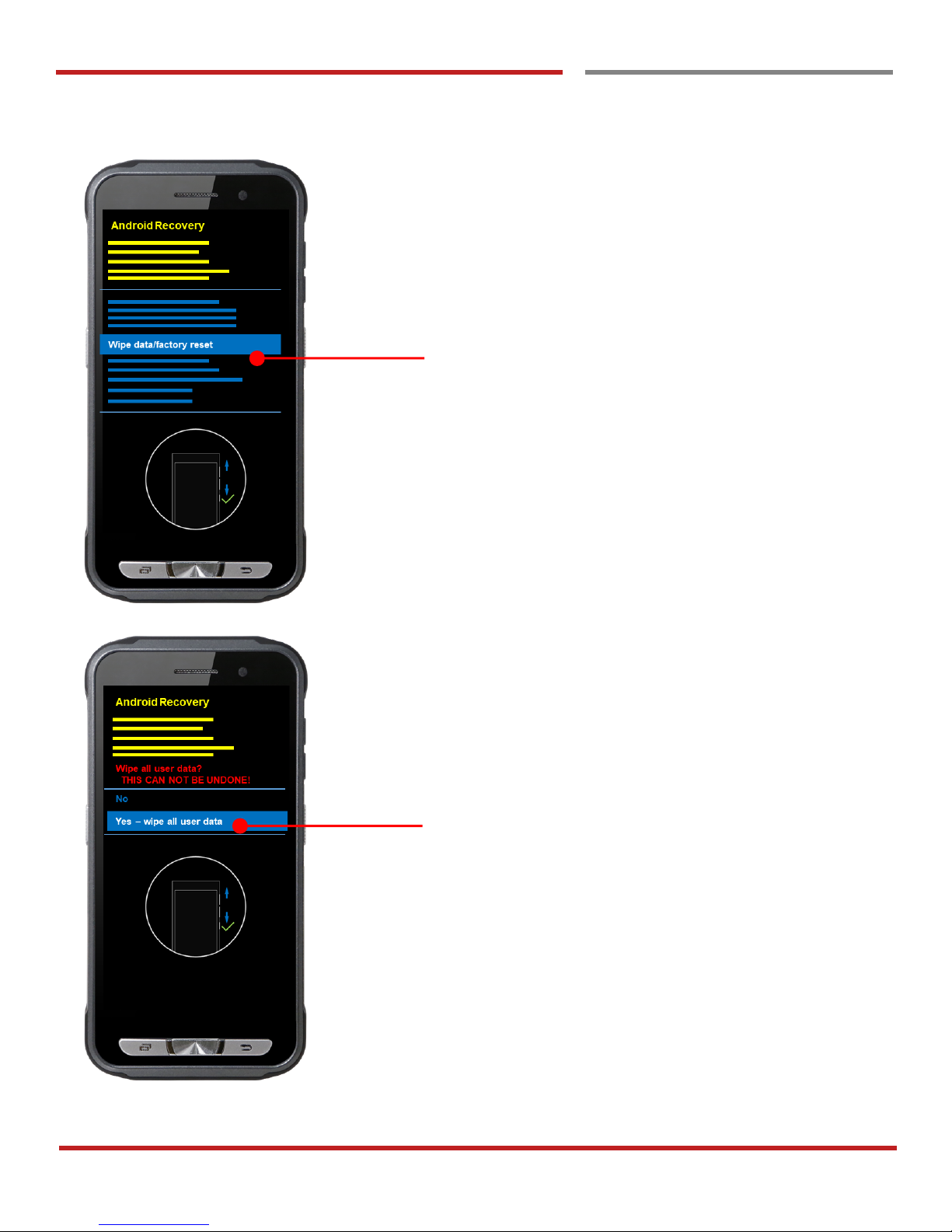
Select “Wipe data/factory reset”
Select “Yes” to perform the “Factory data reset”
After that, your PM45 start wiping the data
Page 95
PM45 Android 7.1.2 User Manual
94
©2006 – 2018 POINTMOBILE Co., Ltd. All rights reserved
Factory data Reset
Force Factory data reset
Factory data reset
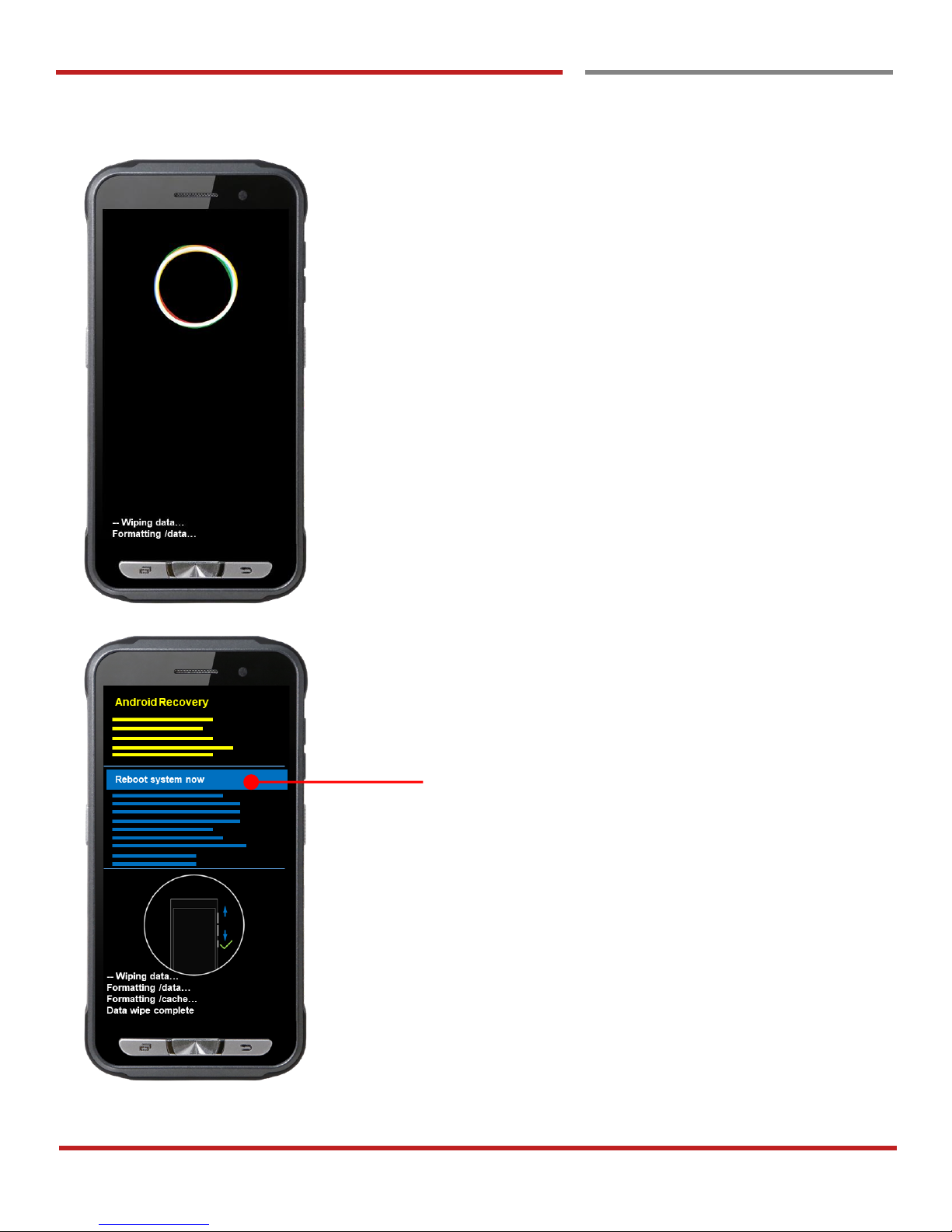
After data wiping, please select “Reboot system now” to
finish the “Force Factory data reset” process
Page 96
PM45 Android 7.1.2 User Manual
95
©2006 – 2018 POINTMOBILE Co., Ltd. All rights reserved
data Reset
Force Factory data reset
Factory data reset
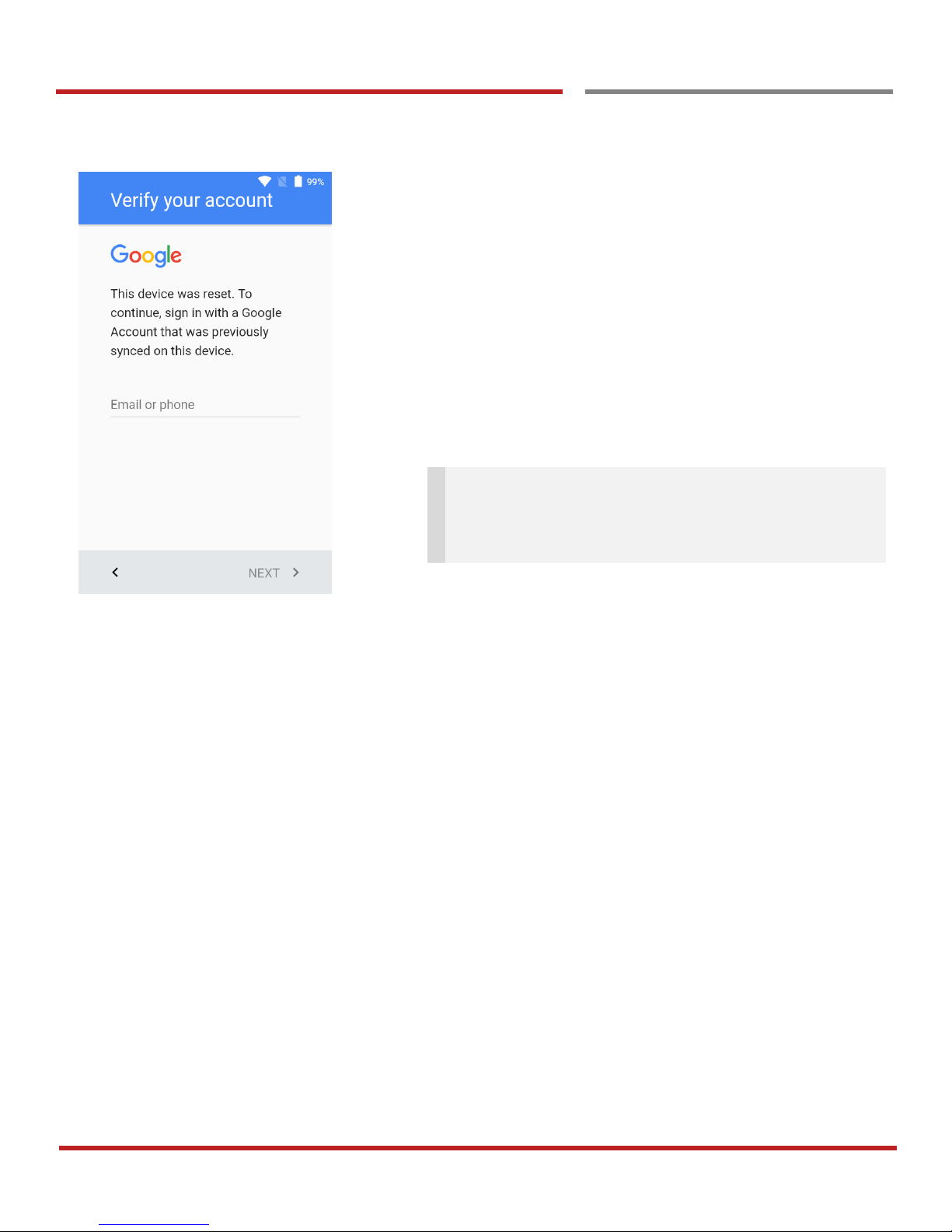
After Force factory reset, if PM Android Device locked by
Factory Reset Protection, then please enter to Fast Boot
mode and execute command
- fastboot erase config
- fastboot reboot
Note: Factory Reset Protection (FRP) is a security
method that was designed to make sure someone can't
just wipe and factory reset your device if you've lost it or
it was stolen
Page 97
PM45 Android 7.1.2 User Manual
96
©2006 – 2018 POINTMOBILE Co., Ltd. All rights reserved
EmKit
Enterprise Mobility Kit
EmKit
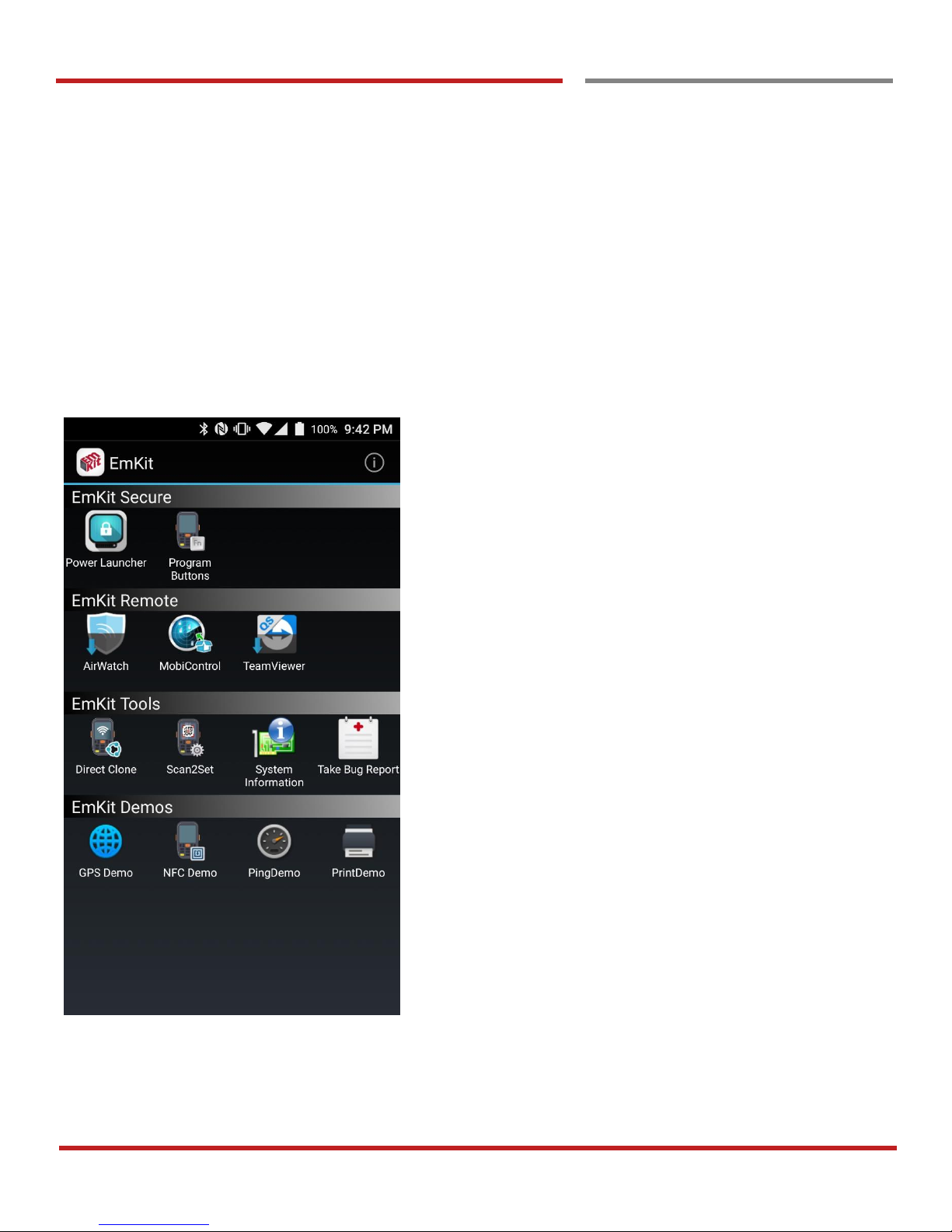
Enterprise Mobility Kit – Truly, what Enterprise needs
Point Mobile announces new software solution – called “EmKit” is new software solution for enterprise mobility
users. Our every Android device shall have EmKit pre-installed and every use can access them for free of
charge*. EmKit offers truly-value-added advantages, for enterprise users, which are against consumer-centric
& non-customizable smartphones. Every solution in EmKit is 100% compatible with Point Mobile Android GMS
certified devices.
* Necessary MDM license subjects upon individual subscribers
EmKit consist with “EmKit Secure”, “EmKit Remote”,
“Emkit Tools” and “EmKit Demos”
- EmKit Secure “Lock Your Device”
- EmKit Remote “Mobile Device Management”
- EmKit Tools “Smarty Tools Ease Enterprise”
- EmKit Demos “Friendly For Programmers”
Page 98
PM45 Android 7.1.2 User Manual
97
©2006 – 2018 POINTMOBILE Co., Ltd. All rights reserved
EmKit Secure
EmKit Secure
EmKit
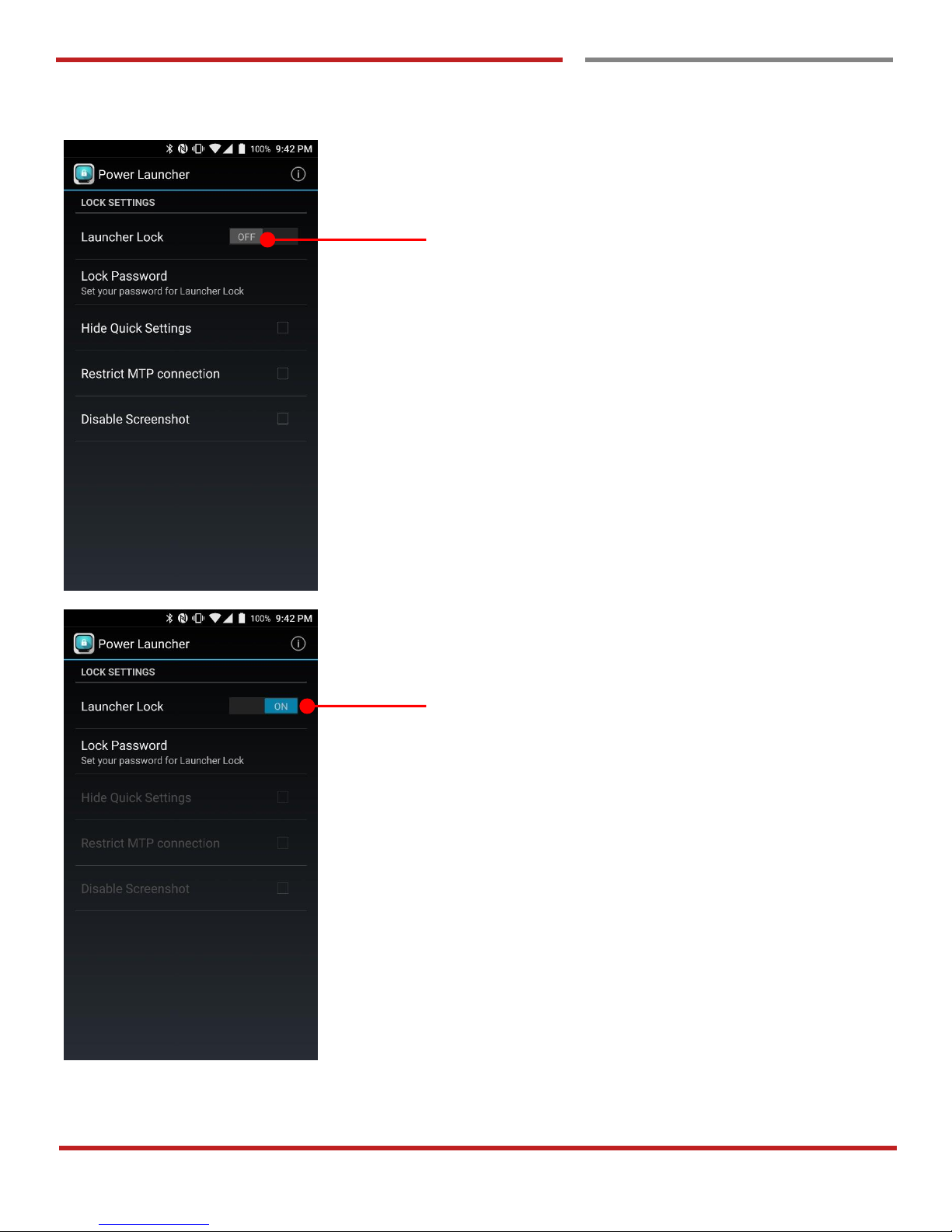
Power Launcher
You can lock your Point Mobile Android model’s Home
Screen and limit to access app drawer or specific function.
This function as known as Kiosk mode.
- Hide Quick Settings : Limit to access quick setting
panel
- Restrict MTP connection : Limit to access Point
Mobile Device’s MTP connection
- Screenshot Disable : Disable screenshot capture in
OS level
Restriction feature will be keep added.
After restriction feature check, switch Launcher Lock to On.
Page 99
PM45 Android 7.1.2 User Manual
98
©2006 – 2018 POINTMOBILE Co., Ltd. All rights reserved
EmKit Secure
EmKit Secure
EmKit
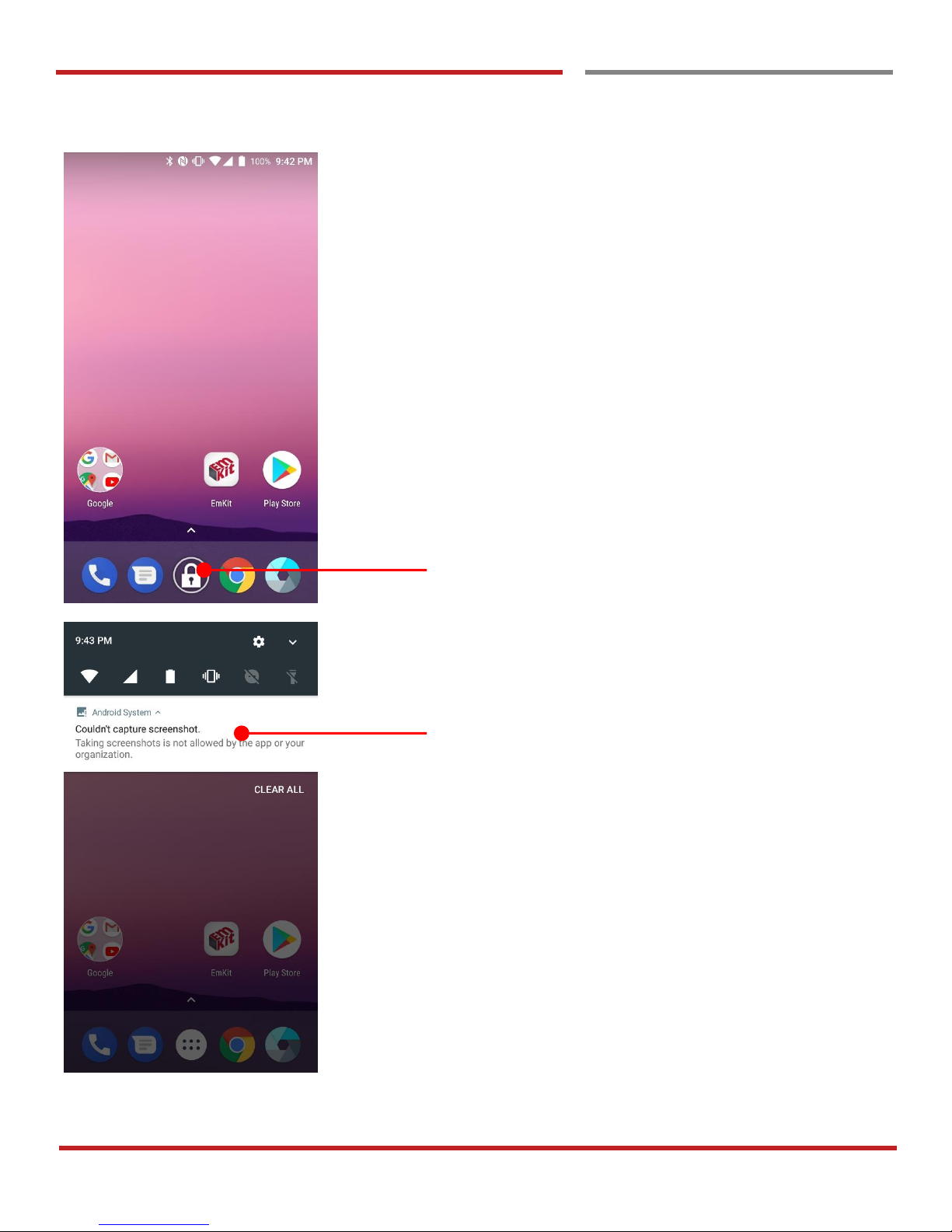
When Power Launcher is locked, operator could not access
to App drawer.
Example of Screenshot Disable restriction.
Page 100
PM45 Android 7.1.2 User Manual
99
©2006 – 2018 POINTMOBILE Co., Ltd. All rights reserved
EmKit Secure
EmKit Secure
EmKit
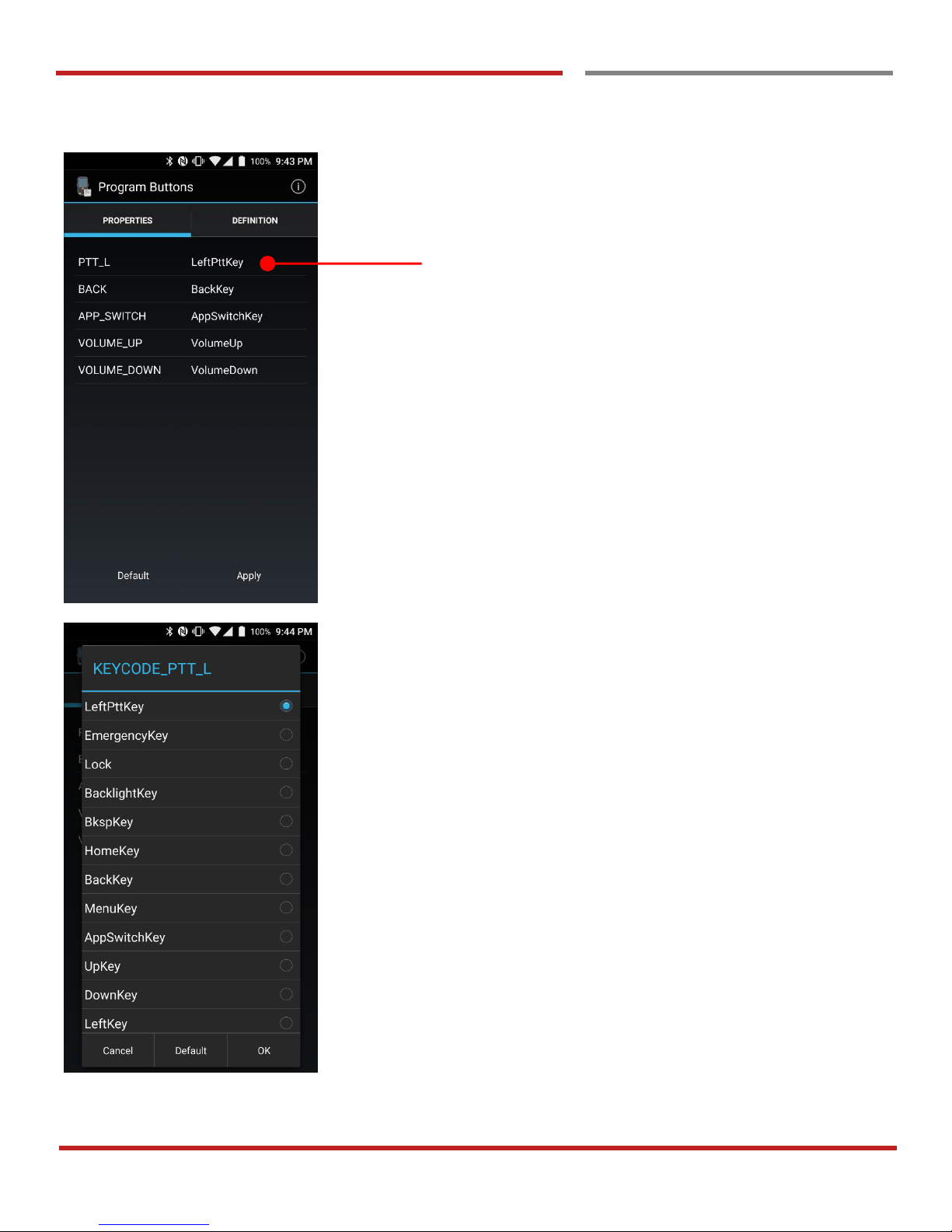
Program Buttons
You can assign Hardware buttons function to rich preassigned functions.
Also you can applying the customized KCM file (Key
Character Map Files) here.
 Loading...