

Page 1
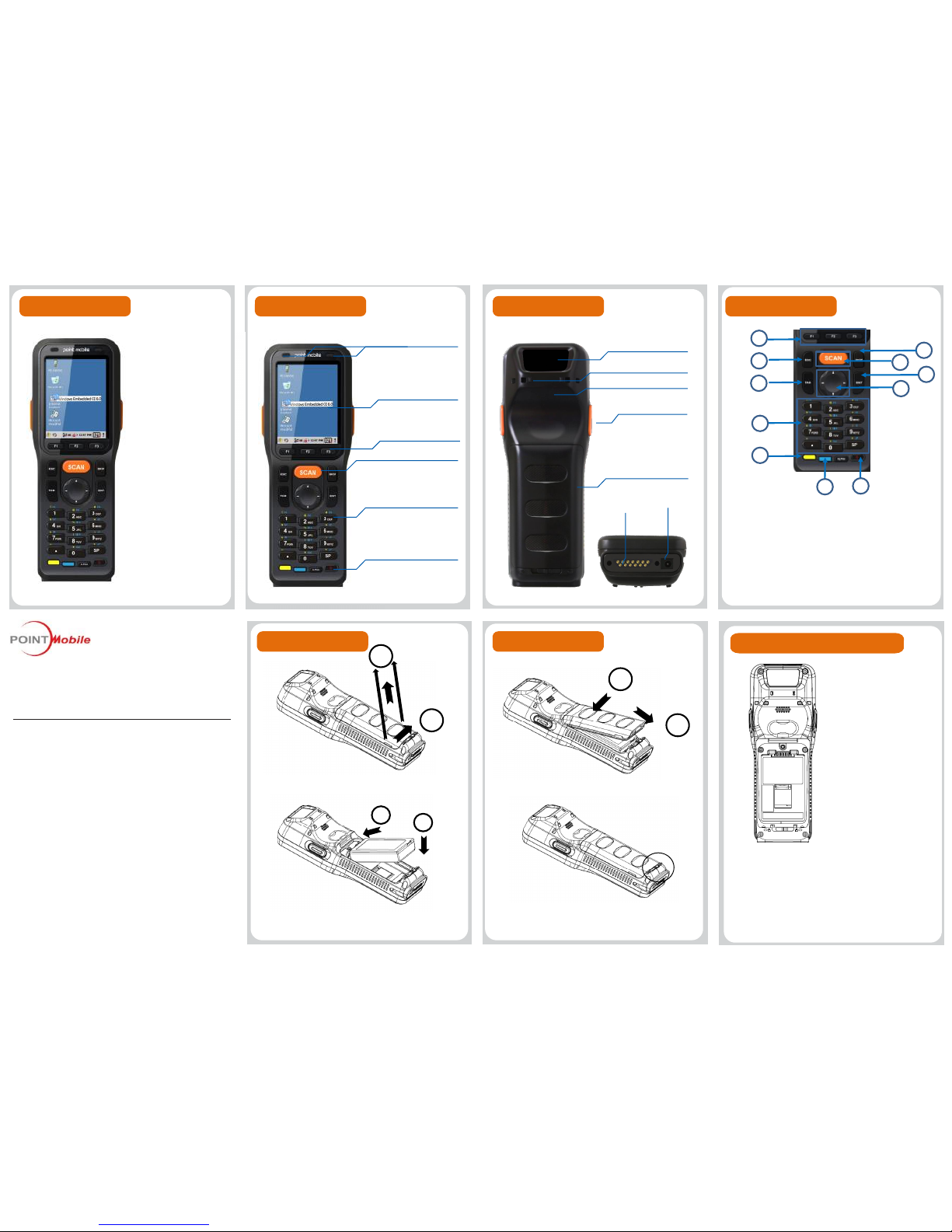
Front
Package Contents Product Overview
Installing/ Removing Micro SD card
PM200 Terminal
Lanyard with Guitar Pick
5V/2A Power Supply
Battery pack
Manual with COA
LCD Protector Film
Display
Scan Key
LEDIndicator
Installing battery
HANDY TERMINAL
Quick Reference Manual
PM200
Keypad
1. Power Key
2. Scan Key: Bar cord Scanner (front, left/right side Orange)
3. Function key (F1-F3) Program Function Key
4. Navigation Key: left/right/upper/down move
5. ESC : returns to closing stage of program and stage before
6. TAB : Moves to next control (Indent function to Text editor)
7. Yellow Key: Modifies the next key pressed to type specific
functions.
8. Blue Key: Modifies the next key pressed to type specific
function
9. Enter: Performs the same function as the Enter key on a
workstation.
10. Backspace: moves the cursor back one space.
Keyboard
Down
I/O Connector
USB Port
Back
Product Overview
Battery Cover
Scanner
Removing battery
4. Check the battery lock.
• For more details of product information and user guide,
please refer to our website (www.pointmobile.co.kr)
Function Key
Power Key
Speaker
Hole for Lanyard
with Guitar Pick
Side Scan Key
1
3
5
6
2
7
8
10
2
9
4
3. Replace the battery door to start from top to bottom
door’s lock downwards.
2
1
1
2
1
2
1. Remove the battery compartment door by moving
the Battery door’s locks Push.
2. Insert the battery well with the battery cells facing top.
<Caution>
• Micro SD card is not standard, it is optional accessory.
Do purchase it from distributor.
• Device supports storage extension up to 32GB with Micro
SD card. Turn off the device before removing battery
• Due to installing/removing battery, save the working data
first and then install or remove Micro SD card.
Installing Micro SD card
1. Remove battery from device and
insert Micro SD card.
2. Insert battery again after installing
Micro SD card.
Removing Micro SD card
1. Press Micro SD card gently and
slide it out.
2. Remove Micro SD card from
device
3. Insert battery again.
Page 2
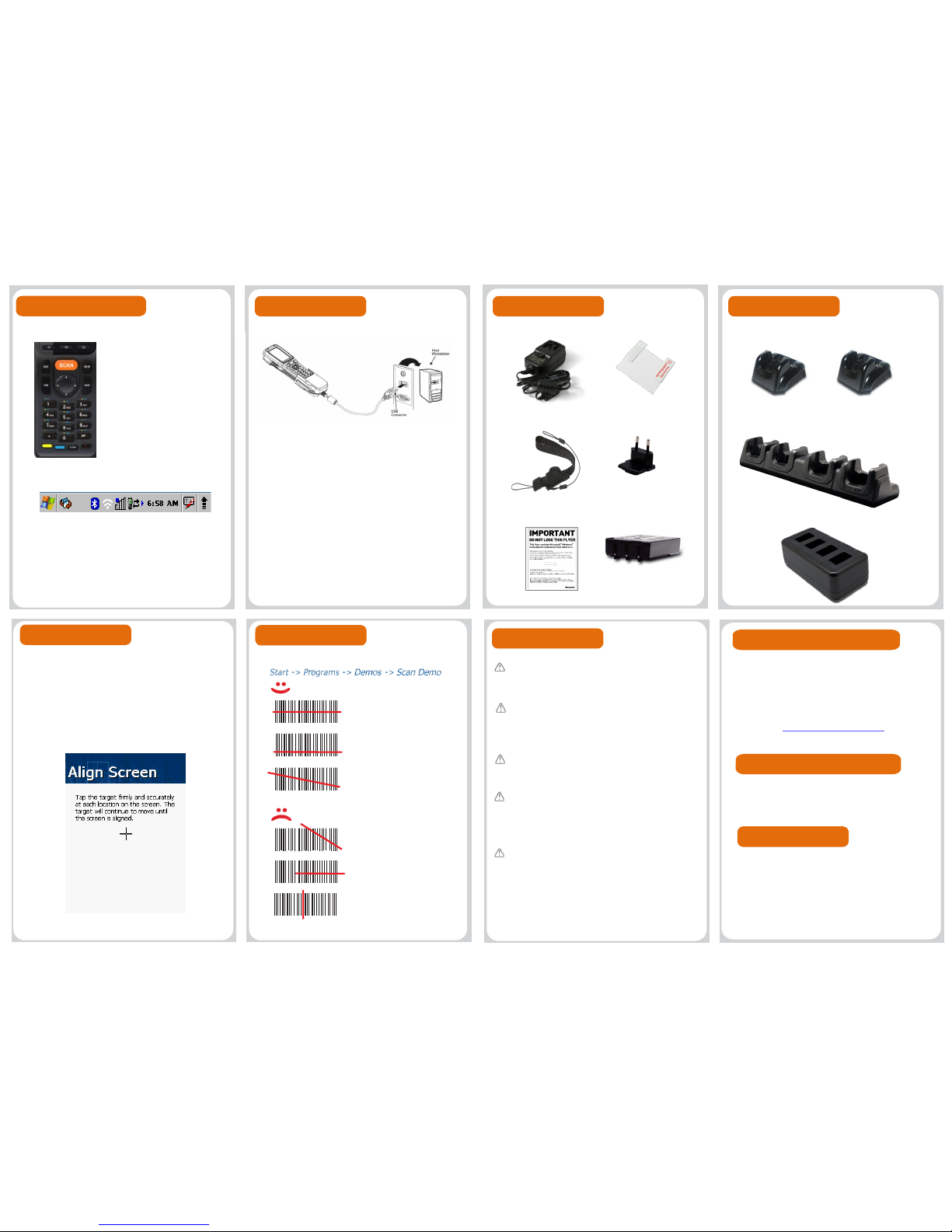
Standard accessory
Align Screen
Connecting to PC
Getting Started and Set up
5V 2A AC/DC Adaptor
Lanyard with Guitar Pick
Battery (2400mAh)
AC Plug
Manual with COA
LCD protection film
Optional accessary
4 Slot Cradle)
4 Slot Battery Charger
To suspend and resume
operation, press the Power
button. You may also press the
front Scan key to wake a
suspended device unless the
battery door has been removed
and replaced.
.
Home screen items
Left and right arrows are used to scroll through additional icons
Press the Power key to wake the terminal again.
For maximum performance, recalibrate the screen.
Tap Start > Settings > Control Panel > Double Tap
Stylus > Calibrate tap.
Using stylus pen, please press (+) of center, and press
left of top, left of bottom, right of bottom and right of top
which is moved the (+) exactly.
.
Ideal position
A bit low- will read correctly
A bit angled – will read
correctly
Too angled – cannot read the
entire bar code
Positioned too far to the right.
Will not read entire bar code.
Cannot read bar code.
Bar code scanner should
be positioned perpendicular
to the bar code bars.
How to Scan
Set up
Press power key on bottom of right of front device to
turn on. After few seconds, device will turn on. Press
and hold power key for a while till you and tap power
off on the screen options.
For scan please move out below ;
Connecting USB data Sync cable
Connect to PC and transfer data in Micro SD card /
device storage with I/O USB data Sync cable.
ActiveSync Set UP
1) Connecting
Connect USB cable to USB port of PC and I/O connector.
Tab media device connection on notification panel of statu
s bar. Select file transfer on pop up window.
2) Disconnecting
Tab to show notification panel and select media device con
nection. Select media device (MTP) and disable the conne
ction.
Getting Started and Set up
Li-ion battery follows varied regulations in each
region/ country. Accordingly, recycle or disuse li-ion
battery properly. Do not leave or store it in fire or
heat it or disassemble or short circuit it.
Prevent plug and consent from dust and dirt to
keep them clean. Improper storing or misuse may
cause fire, electric shock, etc.
Warning
Do not allow any strong pressure or impact on the
touch screen. Do not touch any interior liquid from
LCD panel breakage that may cause skin irritation.
Use only approved AC/DC power adaptor
provided with device or from distributor.
Disapproved products may cause unexpected
problems as fire, electric shock, etc.
Disapproved modification or repair is not
guaranteed. Inquire to distributor for any
troubleshooting.
Offline
• Tel: +82-2-3397-7879
• Fax: +82-2-3397-7872
• Address: B-9F Kabul Great Valley, 32, Digital-ro
9-gil, Geumcheon-gu, Seoul, Korea 08512
Online
• Website: http://www.pointmobile.co.kr/
• Email: [email protected]
Please refer to the usual guide for more information
on safety & regulations of device and accessories..
Technical support & A/S
For more information
Certification
• Equipment name: Mobile computer
• Model: PM200
• Trade name of certified: POINT MOBILE CO.LTD
• Manufacturer/ Country of origin: POINT MOBILE
CO.LTD/ China
• CE/FCC/IC/CCC/KC/TELEC
Single Slot Ethernet CradleSingle Slot Cradle
 Loading...