

Page 1
Page 2

Greetings
Congratulations on your purchase of the model SP430BT made by POINT-FIVE, Inc.
Welcome to the diversified and convenient world of Portable Multimedia Navigation SP430BT.
SP430BT is designed and manufactured to be in compliance with all international and internal quality standards.
They are subject to severe quality tests, including humidity, impact (drops), wear and tear, and vibration tests to name a few.
This User Manual is intended to be a help to facilitate the operation of the diversified and convenient functions of this product.
Any damage or trouble on the product arising from failure to be fully aware of warnings or cautions is excluded from free customer service. Please be
advised that you should read them before using the product.
Thank you.
2
Page 3

Contents
Greetings ---------------------------------------------- 2
In-car Installation ---------------------------------------------- 5
Safety Precautions ---------------------------------------------- 6
Chapter 1 Before Use
Features ---------------------------------------------- 10
Contents in the packaging
Description of Parts
Description of Buttons
LCD Screen ---------------------------------------------- 14
Battery Charging
Battery Removal/Installation
Connect to TV/External Unit
Basic Operation
---------------------------------------------- 11
---------------------------------------------- 12
---------------------------------------------- 13
---------------------------------------------- 16
---------------------------------------------- 17
---------------------------------------------- 18
---------------------------------------------- 19
3
Page 4

Chapter 2 Use of Media Player
Media Player Menu ---------------------------------------------- 21
File List
Movie Player
MP3 Player
Image Viewer
Text Viewer
Chapter 3 Utility Function
Utility Menu ---------------------------------------------- 32
Bluetooth ---------------------------------------------- 33
Calculator
GAME/Mad Man
GAME/Black Jack
GAME/Bacteria ---------------------------------------------- 38
Personal Setting
Chapter 4 Troubleshooting
Check the Following Points before Referring to ---------------------------------------------- 42
---------------------------------------------- 22
---------------------------------------------- 23
---------------------------------------------- 26
---------------------------------------------- 28
---------------------------------------------- 30
---------------------------------------------- 34
---------------------------------------------- 35
---------------------------------------------- 36
---------------------------------------------- 39
the Customer Service Center
Product Specification
Refer to the Customer Service Center
Warranty Card ---------------------------------------------- 46
---------------------------------------------- 43
---------------------------------------------- 45
4
Page 5
In-car Installation
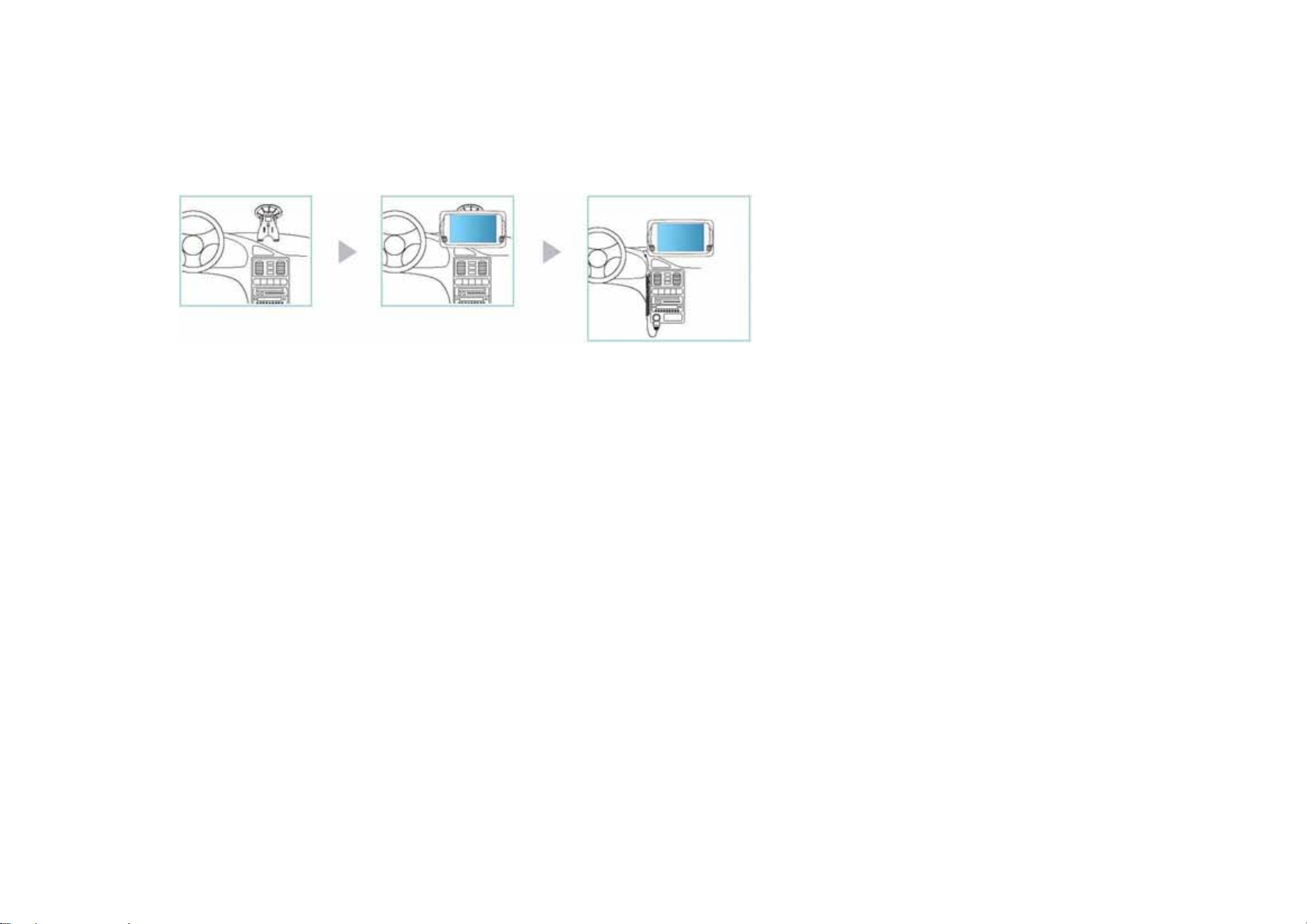
The description on this page illustrates how to install PMP, GPS antenna, stand, power cable in the car.
1. Dust off the area of the windshield. You should mount the stand in a position that will not hinder your vision.
2. Attach the main body to the installed stand.
3. Plug in the adaptor to vehicle DC charger
☞ Caution
♣ The DC 12V adaptor supplied may be used exclusively. General adaptors are not applicable and may cause electrical failure.
♣ Begin installation with your car parked and the engine shut off.
5
Page 6

Safety Precautions
The Safety Precautions are to prevent any damage to the GPS device, by using the product properly. Follow the guidelines below.
z Car Use
Operation prohibited while driving
If you operate the product while driving, it may cause a traffic accident due to carelessness in fixing
your eyes on the front. Stop at a safe place for operation.
Continuous watching prohibited
Driver’s continuous gazing at the screen may cause a traffic accident.
The driver should pay attention to driving and road environment once he/she starts driving.
If the product is used for an extended period of time without a running engine,
be advised that your automobile battery may become depleted.
Poor reception due to areas with extensive electrical signals or from areas with interfering landscape will recover
into normal mode once you are out of the blacked out areas.
Extreme seasonal temperature changes may affect the GPS product. Do not store the device in your automobile
when temperatures exceed 120 °F or falls below 40 °F.
6
Page 7
z Power Supply
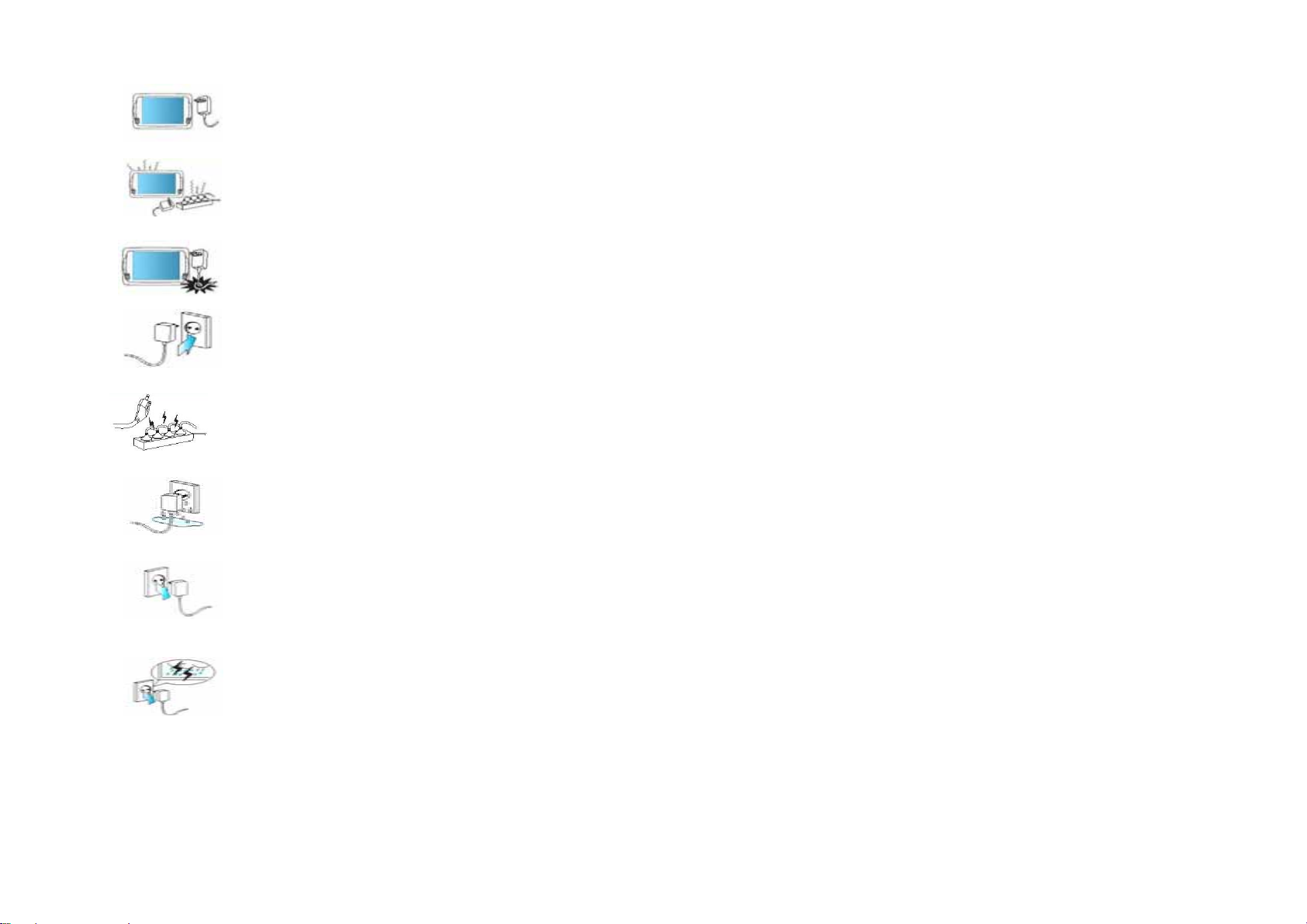
For electrical stability, use only AC power adaptors approved for this product.
If an irregular smell emits from the device or adaptor, stop the usage immediately.
Unplug the adaptor and contact the service center.
Do not excessively bend the adaptor cord or allow the head to come under a great deal of pressure.
Firmly insert the adaptor plug so that it will not be loose.
Do not plug too many A/C adaptors in one outlet; it may cause abnormal heating and a fire.
Take hold of the plug and adaptor with a dry hand while handling; otherwise, it may cause an electric shock.
When you are not using the device, unplug it at all time.
On occasion of thunder or lightning, remove the plug.
7
Page 8

z Use
If foreign substance or liquid permeates through the device, immediately turn off the power supply,
take out the AC adaptor from the outlet, and contact a qualified engineer for inspection.
Do not disassemble, repair, and remodel. It may cause damages and your warranty will be voided.
Do not put this device in a place with much humidity, dust or black dirt.
Do not place the device around a heat source or in an area of extremely high temperatures.
Do not use around any magnetic devices.
The device may be damaged by a magnetic object such as magnet, CRT TV, monitor and speaker, etc.
Do not spray water on the device or wipe the device with chemicals such as benzene, thinner etc.
It may deteriorate the surface or peel the coating.
8
Page 9

Do not put heavy objects on the device. It may cause damage to the LCD display.
Do not put a metal (coin, hair pin etc.) or a flammable foreign substance in the product or drop them onto the device.
Do not drop the device or allow it to incur heavy impact.
Reduce the volume or power off the device if the sound is uncomfortable (shaking sound).
Do not use earphones or speakers to listen to loud music for a long period of time; otherwise, the hearing may be hurt.
Do not listen to music using earphones when riding a bicycle, motorcycle or driving a vehicle. It is dangerous and it may be against
the law in some regions.
When storing important data, please make a back-up copy. POINT-Five, Inc will not be responsible for any data loss due to
any reason except troubleshooting in the manual.
9
Page 10

Chapter 1 Before Use
z Features
1. Application Upgrade / Multi-Codec Player
Application Upgrade
Always up-to-date performance - Firmware Upgrade With Multi-Media Player capable of Firmware Upgrade and
always up-to-date performance, you can directly enjoy new and diversified multimedia contents through the addition
of new functions, upgrade and performance improvements.
Multi-Media Player
Image files and high definition moving image files (MPEG4, XviDencoded AVI/ASF) may be played.
(Please refer to Page 49 for the play file specification.)
2. Portable Entertainment
Separable lithium polymer (Li-Polymer) charging battery
The battery is rechargeable even if the product is used by connecting the DC 12V adaptor.
The battery has an extended life, approx.
An extra Li-Polymer battery may be purchased to further extend the usage of the device.
Built-in speaker
With the built-in speaker, you can hear play sound without needing to connect an earphone.
3. Simple and Convenient Interface Design
Most menus can be selected directly by hand or stylus without operation on any button.
10
Page 11
Contents in the Packaging
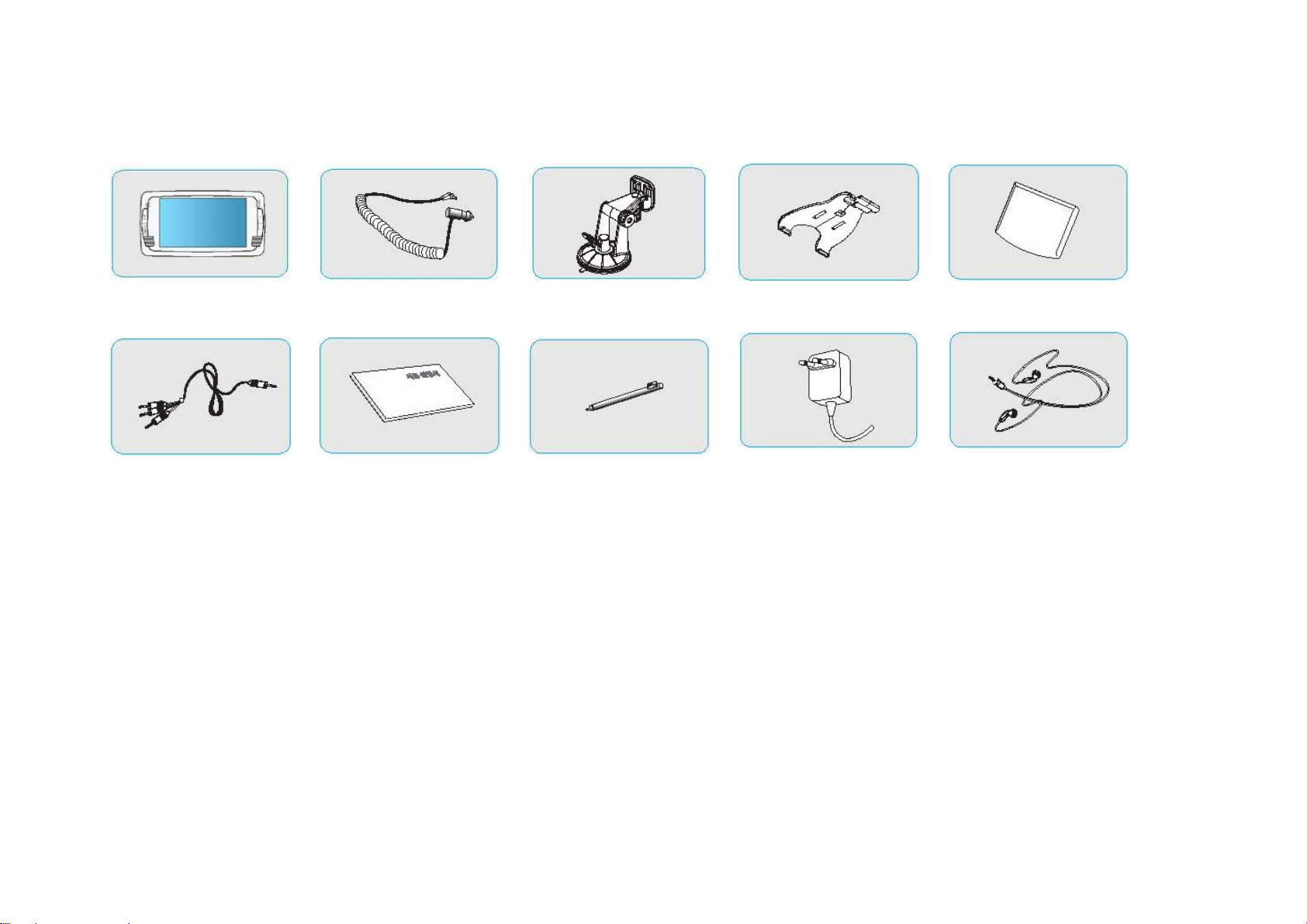
Undo the packaging, and you can see the contents as below:
The following illustrations are to facilitate your understanding of the description, and they may be different from the actual appearance.
Main Body Car Charger Car Stand Cradle Battery Pack
AV Cable (Option) User Manual Stylus Pen AC Adaptor (Optional) Earphone (Optional)
11
Page 12
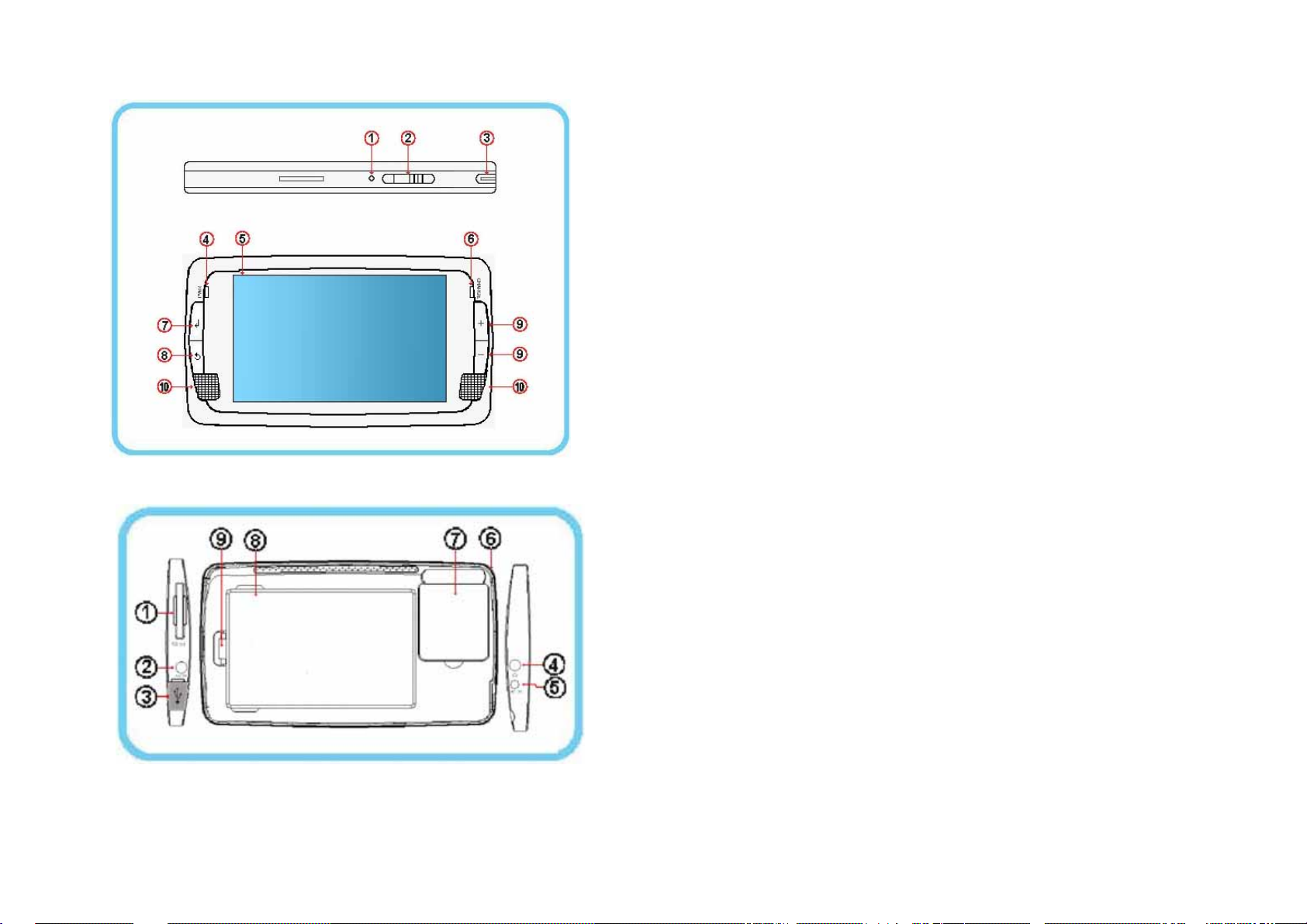
z Description of Parts
Top and Front
Side and Back
① Reset
② Power ON/OFF, HOLD
③ Set Key: Make relevant settings in Movie or Music menu.
④ Power Supply LED
⑤ TFT-LCD: Display screen
⑥ Battery Charging Indication Lamp
⑦ Enter key : Press this key to select the foccused item.
⑧ Return Key : Press this key to return to the menu. (This key is disabled when
Navigation is running)
⑨ +, -: Turn the volume up or down.
⑩ Built-in Speaker: Used to listen to audio without earphone
① SDMMC Inlet: Take in or out the SDMMC.
② AV-OUT/
③ USB Connection Terminal
④ Earphone Connection Terminal
⑤ DC 12V Adaptor Connection Terminal
⑥ Portable String Ring
⑦ GPS Module
⑧ Separable Charging Battery
⑨ Separable Charging Battery Separate/Lock Switch
12
Page 13
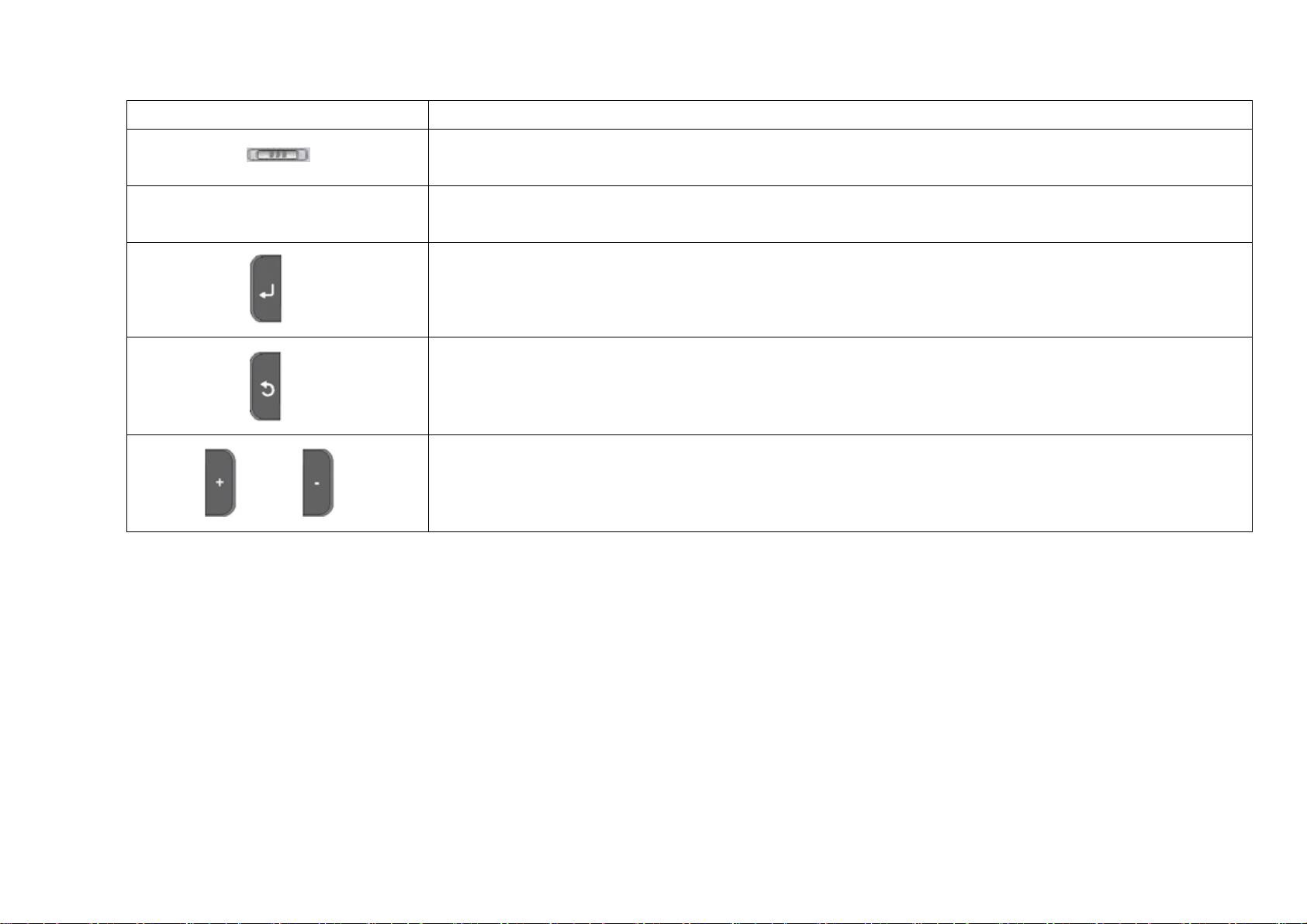
Description of Buttons
Buttons Functions and Use
HOLD Power
▶ Push to the right for 3 seconds to power on/off the device.
▶ Push to the left to lock the interface.
▶ In the case of abnormal operation or freezing of the device, press this button with the tip of the stylus or other
Reset ♦
peaked objects to restart the device.
▶ Select the focused item.
▶ Return to the upper menu
▶ Increase or decrease volume, or make a selection up and down.
13
Page 14
z LCD Screen
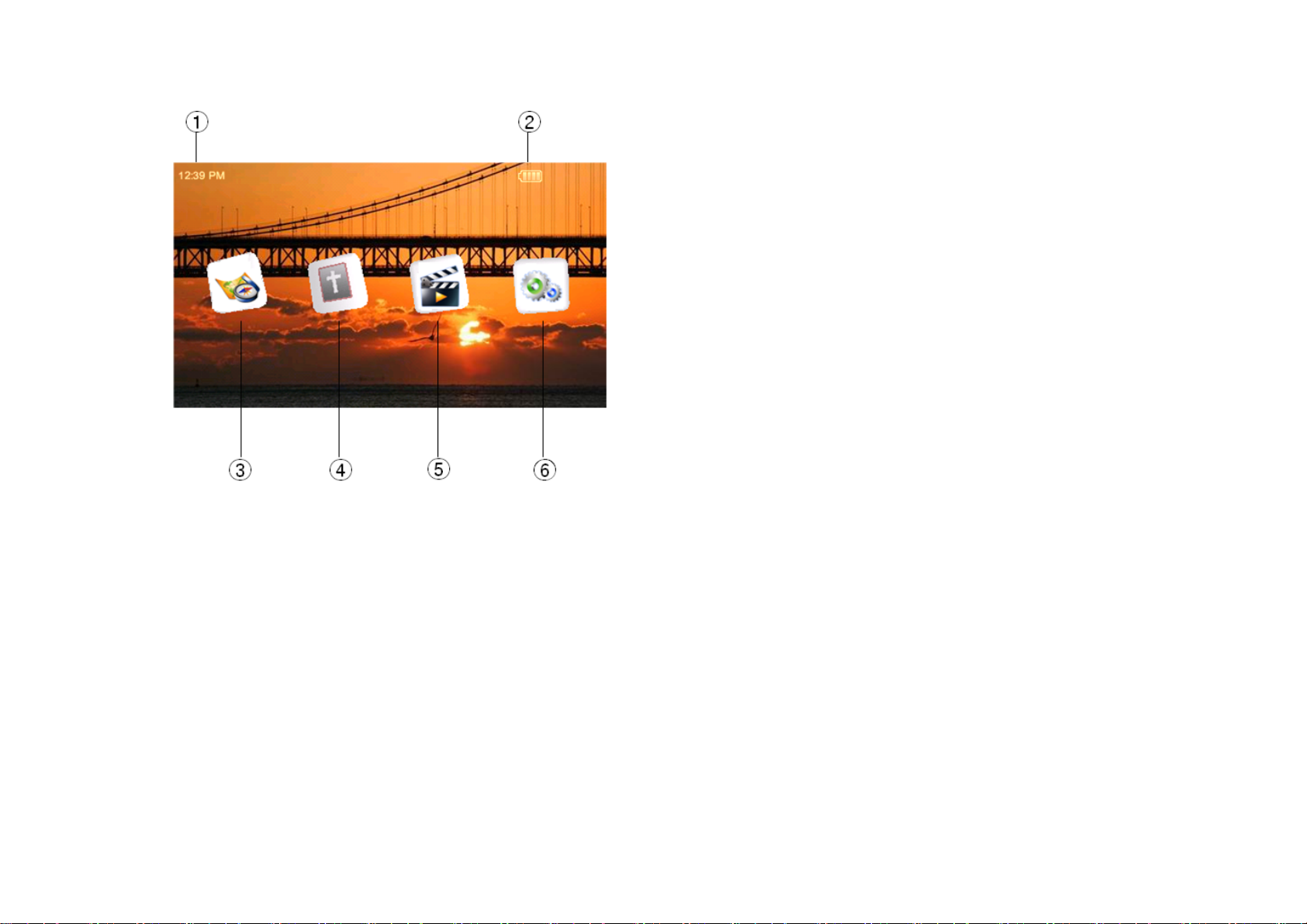
Main Menu
① Current Time Display time.
② Battery State: Display the remained battery volume
③ Navigation.
④ BibleLink Player.
⑤ Media Player Functions. (Please refer to Page 21)
⑥ Utility Functions. (Please refer to Page 16)
14
Page 15
Functions
15
Page 16
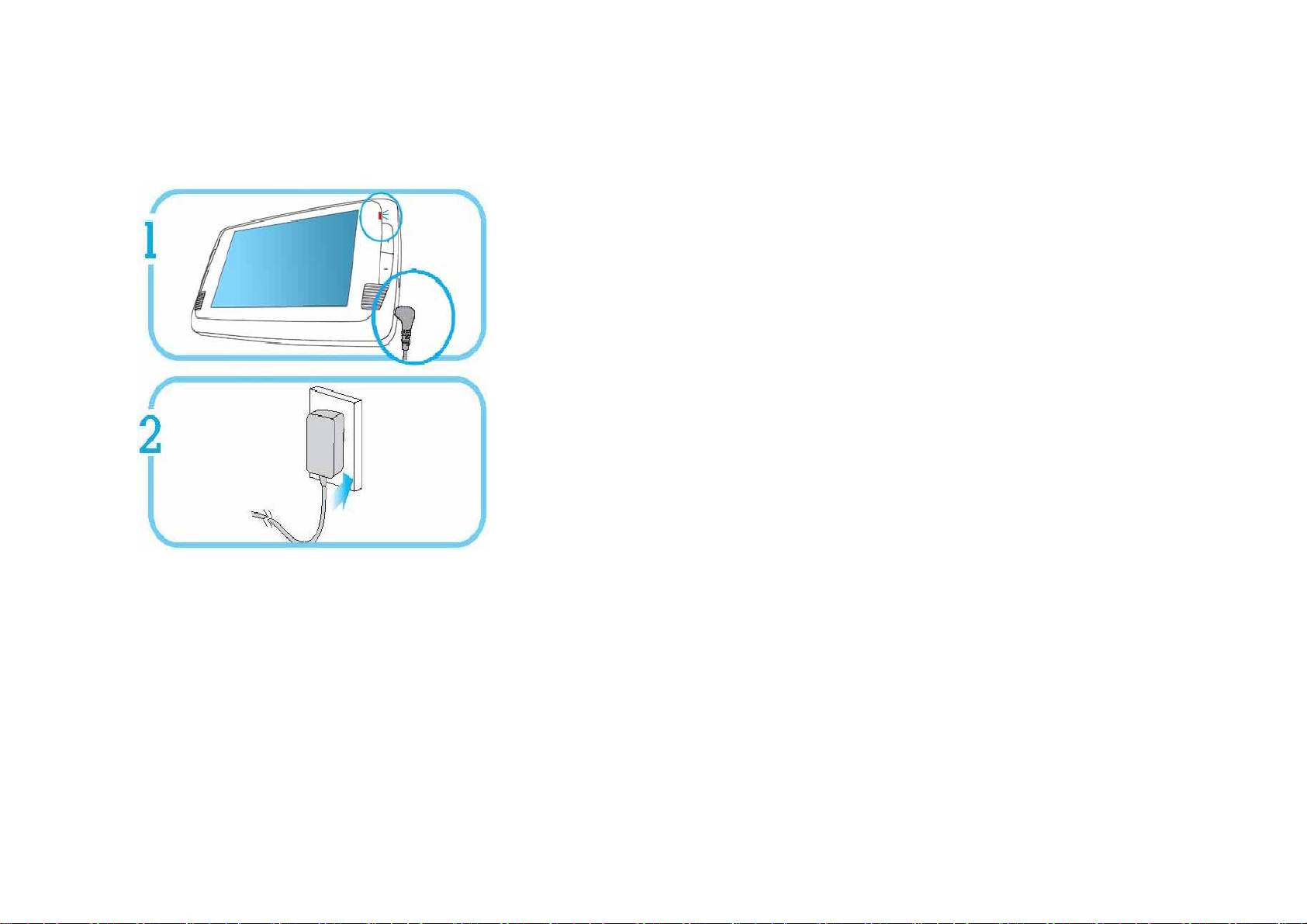
z Battery Charging
Fully charge the battery when you purchase a new device or battery for 2.5 hours.
1. Connect the power cable as shown in the figure.
2. Put the plug in the outlet.
3. Once charging is started, the charging LED on the right top becomes red. About 2.5
hours are needed to fully charge.
How to use the battery
☻
▶ Maintain room temperature(5℃ - 35℃) while charging.
▶ As the battery is used for an extended period of time, the periods
between recharging may increase.
▶ When using solely for the multimedia functions or in an area with an outlet,
it is recommended to use the power supply adaptor.
▶ While the battery is fully charged, the available time
to play media and music may vary according to user environment.
16
Page 17
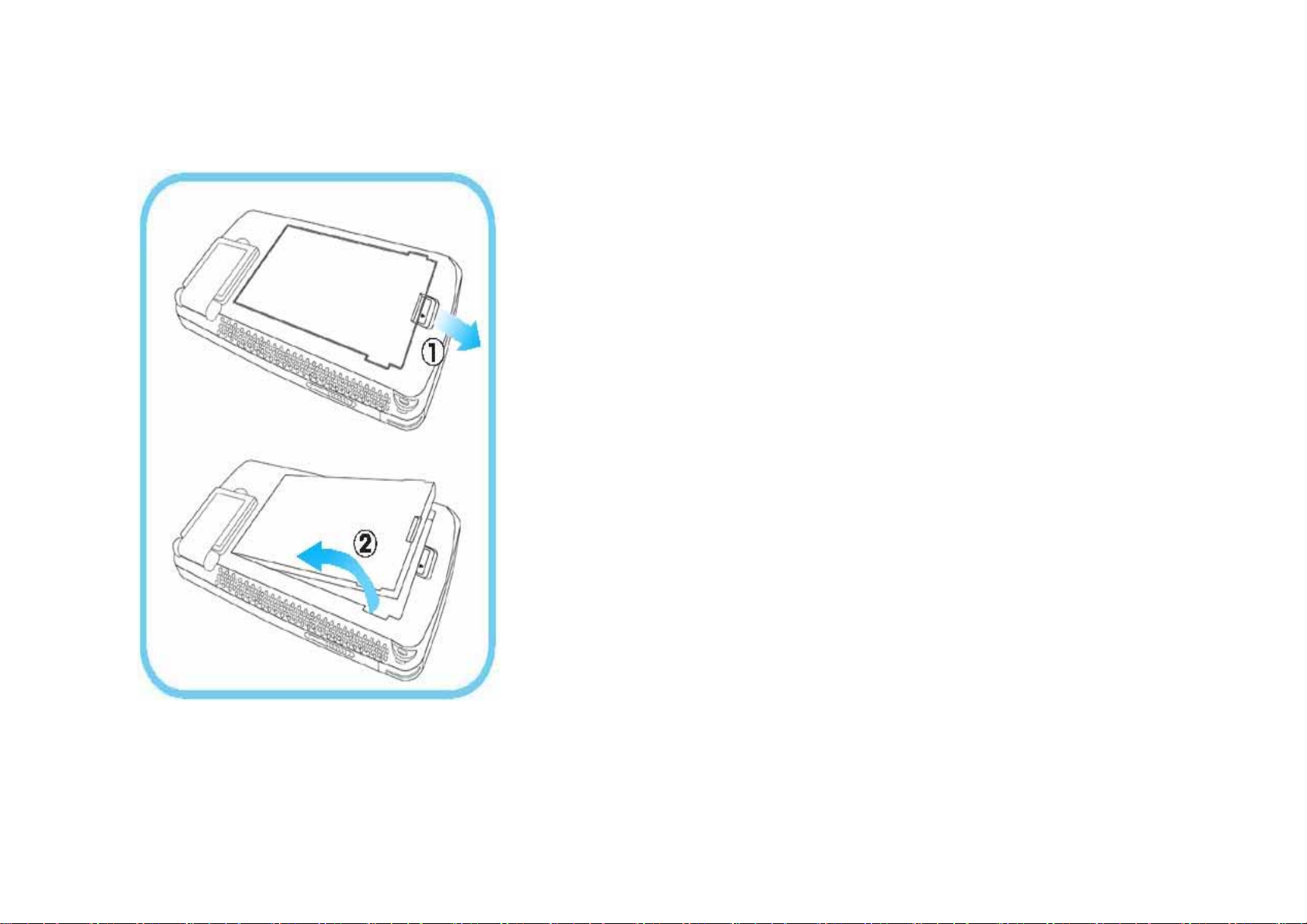
z Battery Removal/Installation
If a malfunction occurs, remove the battery and re-insert it. If the battery life decreases due to extended use, replace with a new battery.
Press and hold the power switch to the right (POWER) for about 3 seconds to turn off the power supply.
1. Removing the Battery
Remove the battery while pressing the Separate/Lock unit toward ① and carefully
pulling the charging battery to ②.
2. Press in the battery until it clicks.
☞ Caution
▶ Charge and store the battery at room temperature.
▶ Do not disassemble the battery or store it near a heat source.
This may result in decreased lifespan of your battery.
▶ If the battery contact fracture is short-circuited by a metal such as coin
or key, it may cause damage or an explosion.
▶ If you leave it as is for a long period of time, fully charge it prior to use.
▶ As the battery is consumed, the available period becomes shorter.
▶ If a child or a pet bits the battery, it may cause elements within the battery
to become exposed. In such cases, contact your Poison Control Center immediately.
17
Page 18
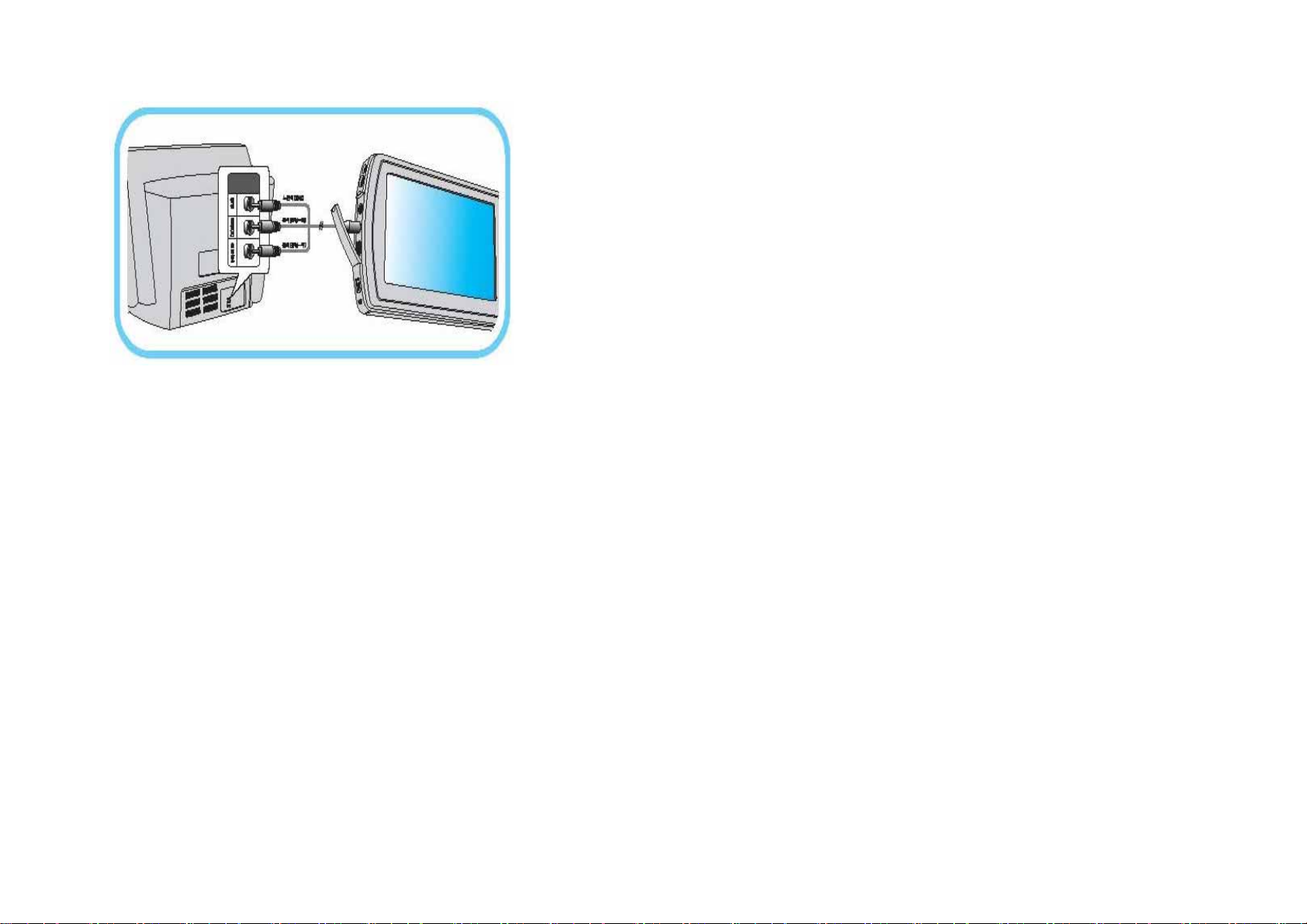
z Connect to TV/External Unit
Connect to TV
1. Put the AV OUT cable to the AV OUT connection terminal of the main body.
2. Put the yellow terminal of the TV cable in the video input terminal of the TV.
3. Put the white (left) and red (right) terminals of TV cable in each sound
input terminal of the TV.
▶ If TV has one sound input terminal, connect only the white(left) terminal.
Connect to External Unit
Connect the AV Out of the external unit with the AV In cable of the main body.
18
Page 19
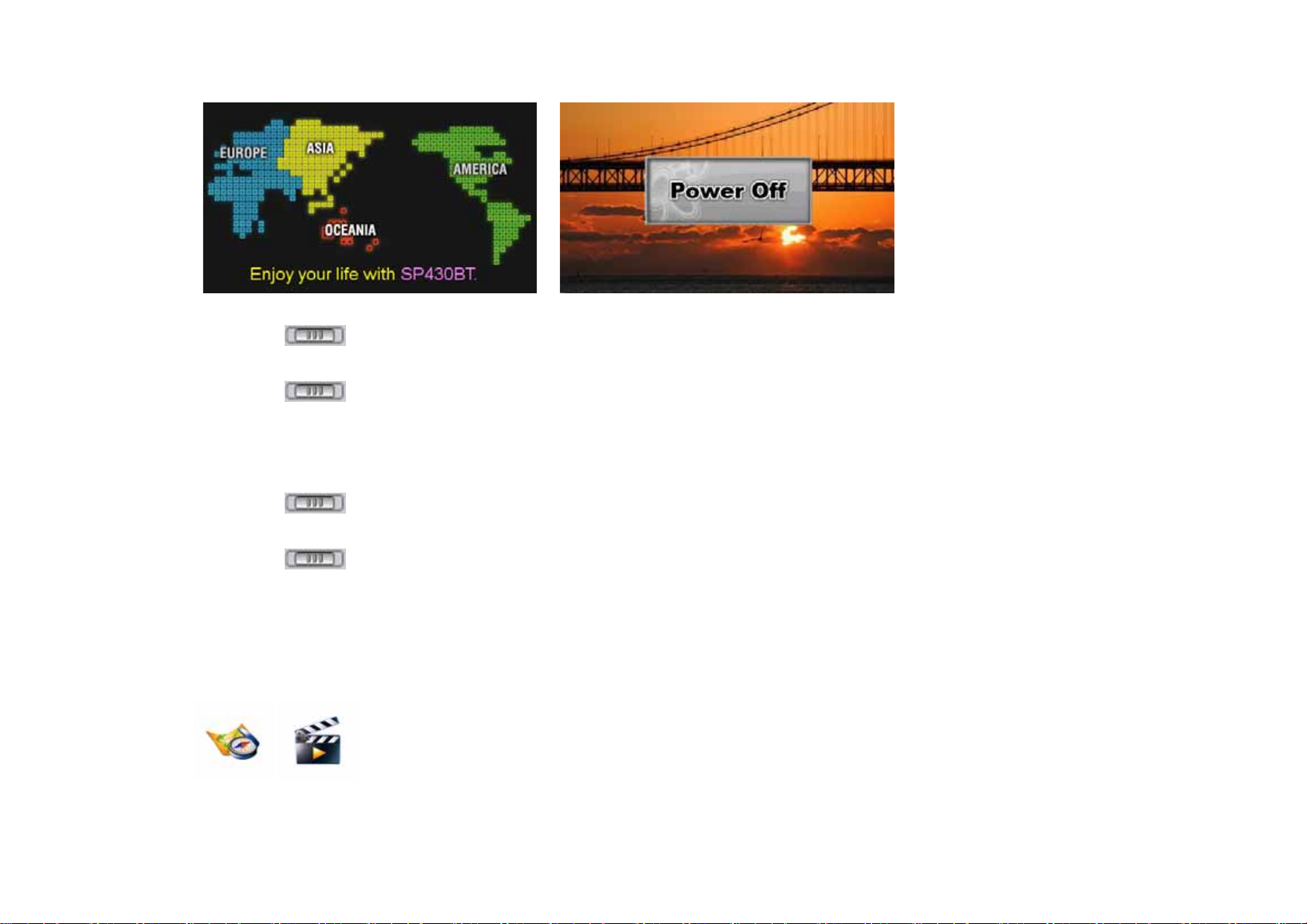
z Basic Operation
Power On/Off
Power On
HOLD POWER Push the [Power/Hold] button to the right for more than 3 seconds until the interface is displayed.
Power Off
HOLD POWER Push the [Power/Hold] button to the right for more than 3 seconds until the message of “Power Off”
Set Lock
is displayed. .
Set
HOLD POWER Push the [Power/Hold] button to the left.
Cancel
HOLD POWER Push the button to the right to return to the original middle position.
☞ In LCD OFF state, when the device is set to lock, the touch screen will not response once touched, and the LED OFF state will be
kept unchanged.
Enter Menu
(Power LED shows blue)
☞ Click the ICON for a while.
19
Page 20
SD / MMC Card
SD / MMC Card Insert
SD / MMC Card Removal
☞ Caution
♣ If any SD/MMC(SD/MMC Card) not complying with the specification is used, it may be damaged.
♣ Do not remove the SD/MMC while reading, formatting, deleting, recording or reading text.
♣ Do not insert the SD/MMC in any other manner than stated above.
♣ Please be advised that the manufacturer shall not be responsible for any data lost as a result of a damaged SD/MMC.
With the direction of the contact on the SD/MMC card facing the back, insert exactly as shown in the figure.
Slightly press the edge of the SD/MMC card. The SD/MMC card automatically pops out.
Stylus Use
Touch: Gently press the desired icon in the screen.
Pressing gently instead of tapping will greatly prolong the life of any touch screen monitor.
Drag: Drag the icon or screen while pressing down on the icon with the stylus and simply remove the pen
when the object is at your desired location.
♣ If you do not have a stylus, you can use many blunted objects in its place such as your finger.
♣ If the icon pressed by the stylus is not the target icon, please set Touch Set in Set menu.
20
Page 21
Chapter 2 Use of Media Player
z Media Player Menu
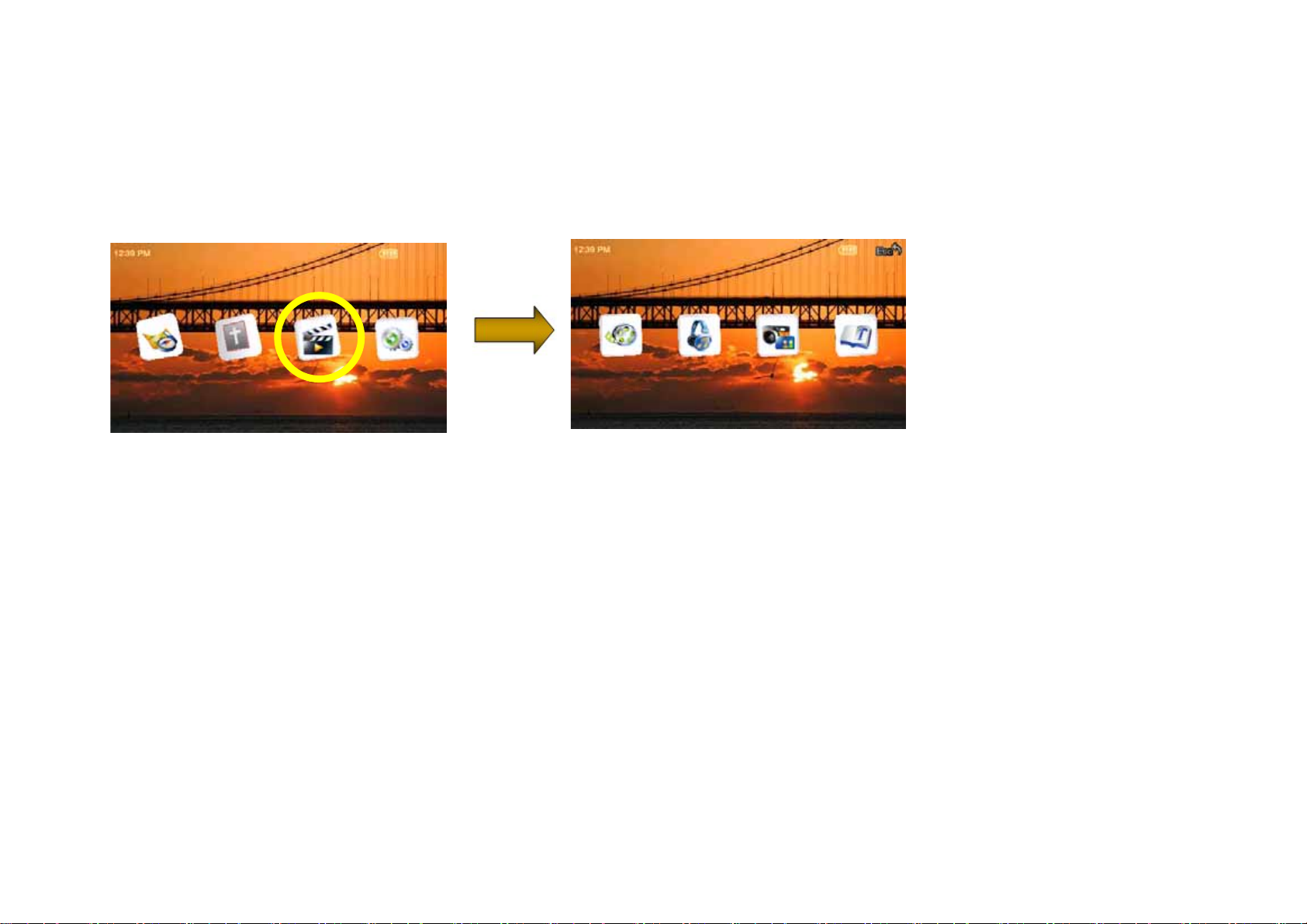
1. Power on the device and enter the main menu.
2. Click the Media (multimedia) menu.
3. Display media menu.
4. Select the desired movie file to play.
21
Page 22
z File List
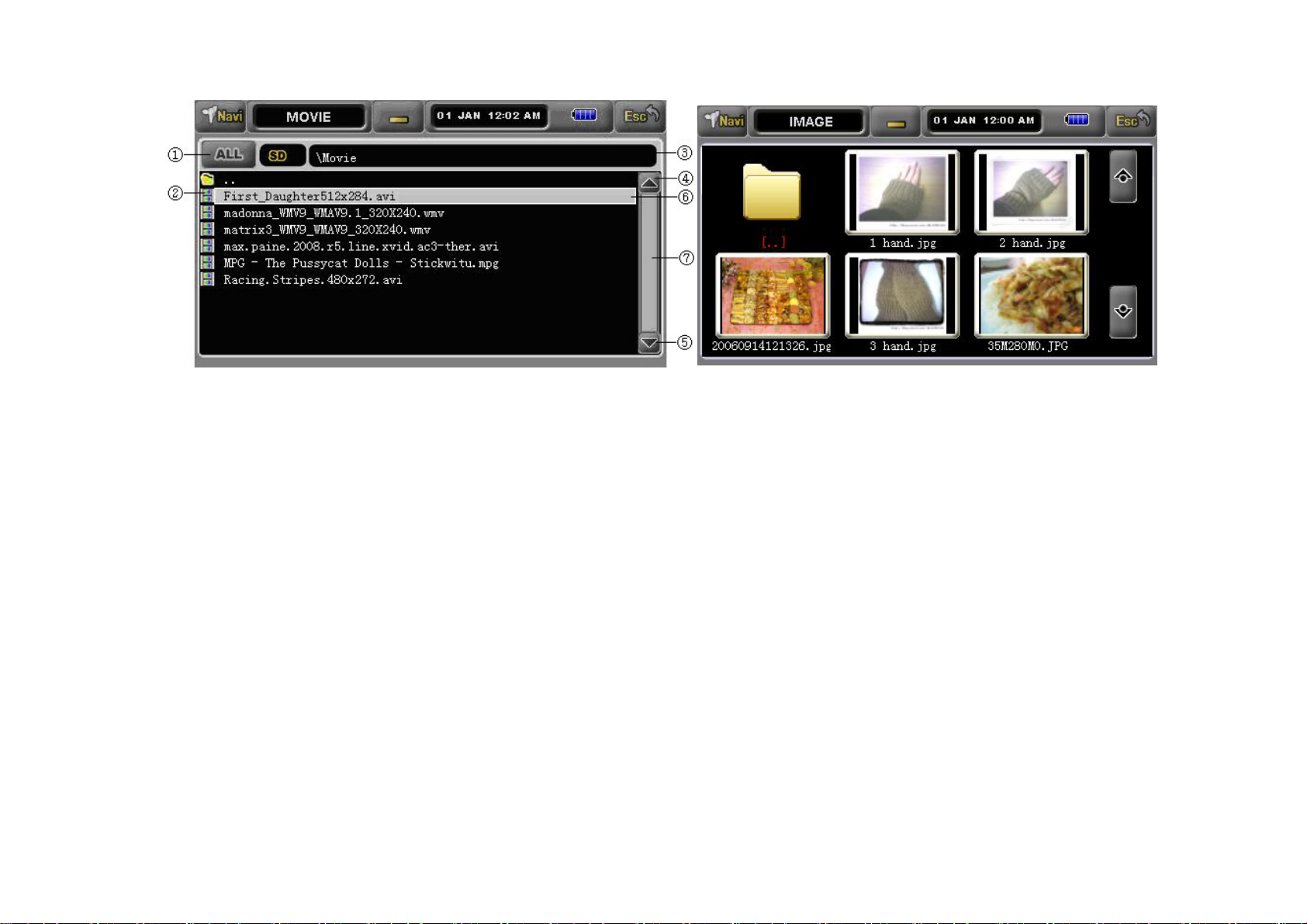
①
Select all the playable movie files and music files in the list, or cancel all the files (this function is unavailable in IMAGE and TEXT))
②
Display the selected movie files (this function is unavailable in IMAGE and TEXT).)
③ Display the list name, and the first one is the root list.
④ Move the window upwards.
⑤ Move the window downwards.
⑥ Indicate the selected movie files. Press this list and the relevant interface will be displayed.
⑦ Only display present windows when select several files, if you want to move to next file please select drag key.
* Thumbnail function can slideshow all the image in file list, please take above picture for your reference.
22
Page 23
z Movie Player
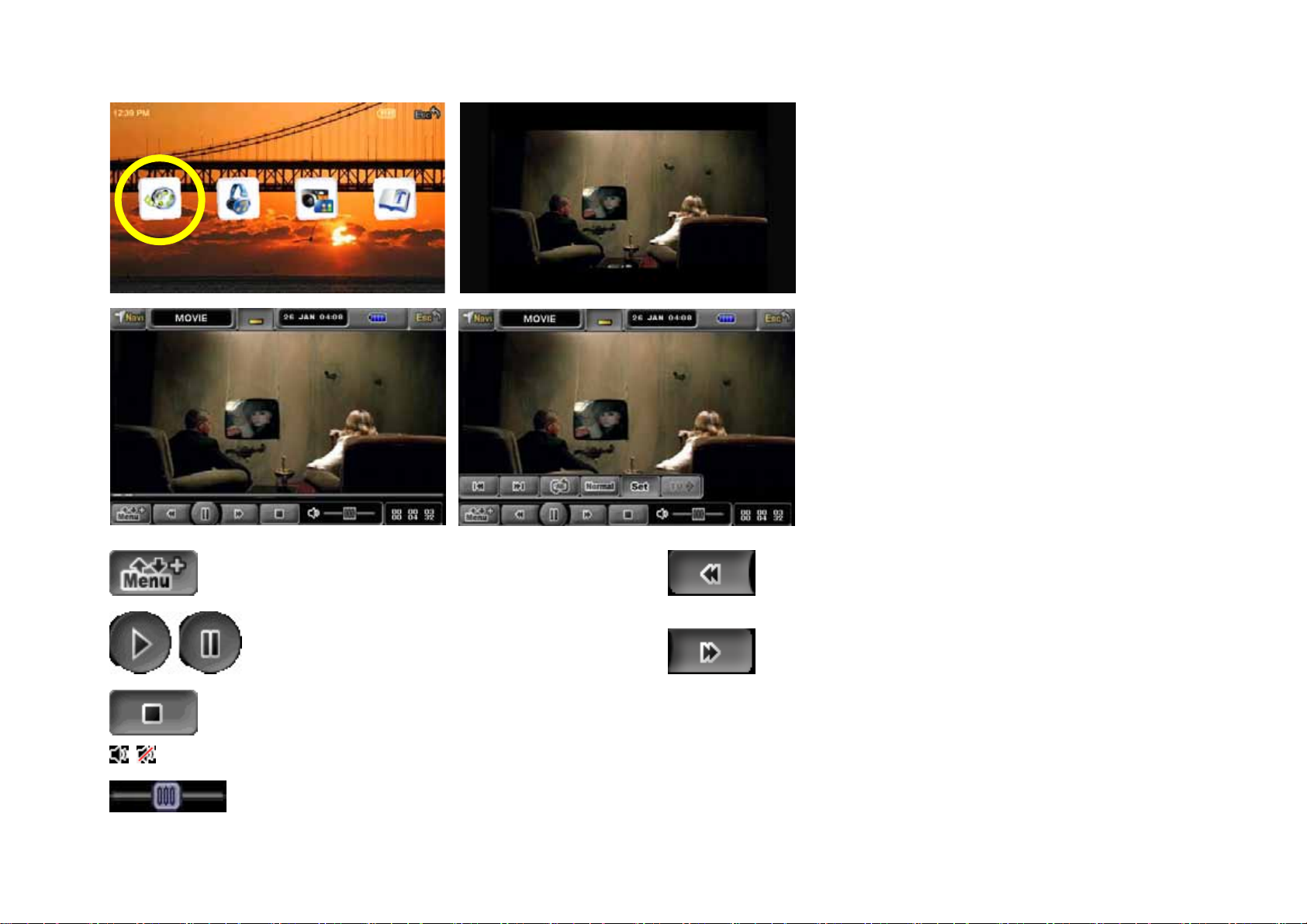
Display or hide the added menus. Rewind 5 seconds to play.
Play/Pause Move forward 5 seconds to play.
Stop play and resume to the initial ready -to-play state.
Enable Mute function, and press the button again to exit Mute state.
Adjust volume, with stylus or by pressing “+” or “-“ Key.
23
Page 24
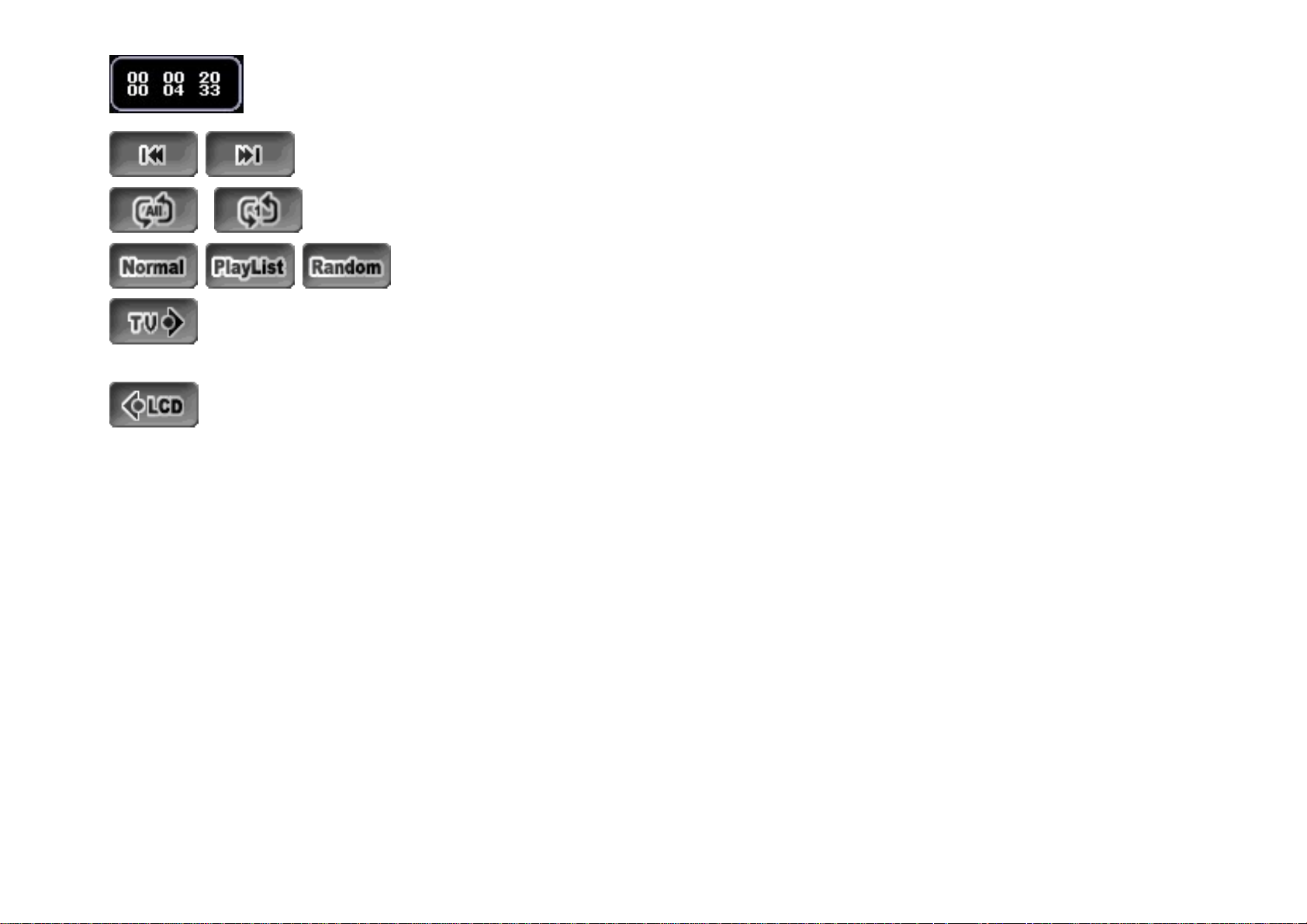
Display total play time and progress status.
Backward/Forward
Repeat mode (Repeat All->Repeat one)
Play mode (Normal-> Play List-> Random)
Under A/V Out mode setting A/V playing button, LCD only show playing key but can not see video image
During setting,Button is disable when Video Mode
Can transfer to normal button under A/V out mode.
option showing OFF.
24
Page 25
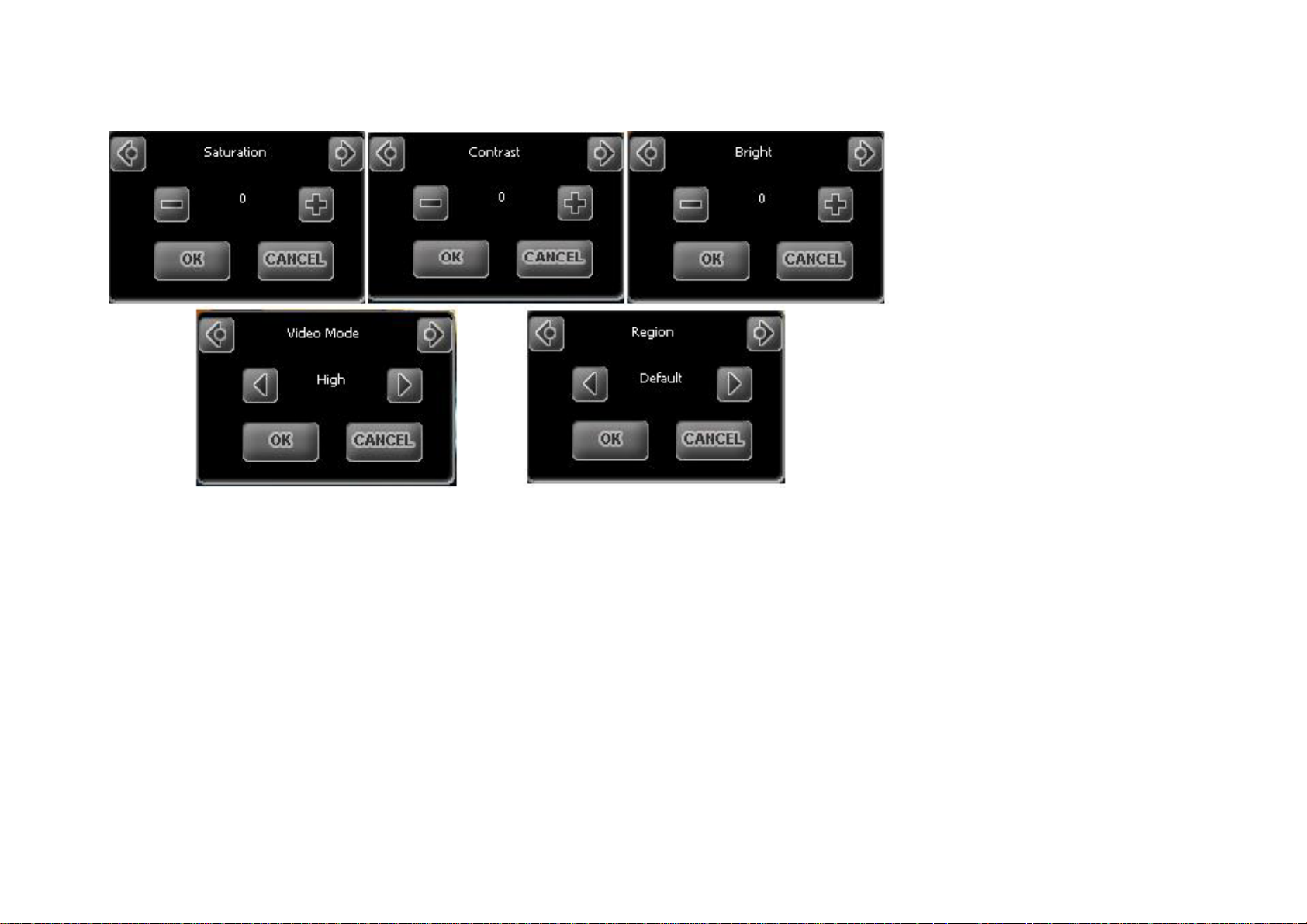
Movie Set
- Press “Set” button to set Saturation, Contrast, Bright, Video Mode, Region.
- Press “OK” to confirm and press “Cancel” to resume to previous setting.
☻ The starting speed for some Files may be slow.
☻ Some files in inappropriate Audio format can only be played with images, but with no sound.
☻ When some character display is abnormal, use Region and Subtitle to set proper languages.
25
Page 26
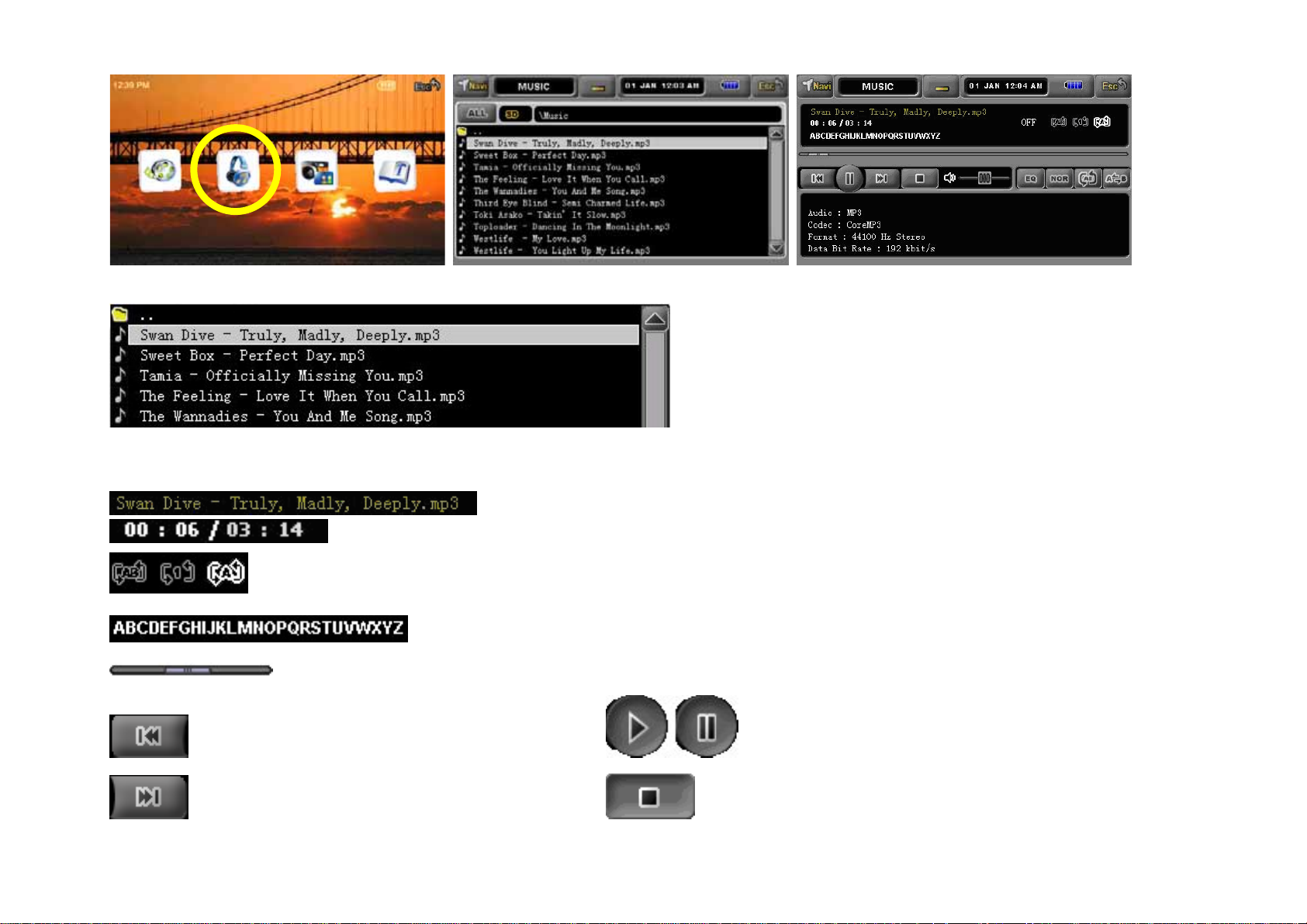
MP3 Player
z
Display the files to be played. Double click the directory, and the device will play the files under the directory. )
Display the name of current playing song.
Display the progress status and total play time.
Display the current repeat mode.
Display lyrics
Display progress status, and the device will start to play from the section it is dragged to.
The previous song Play/Pause
The next song Stop play and resume to the initial ready -to-play state.
26
Page 27
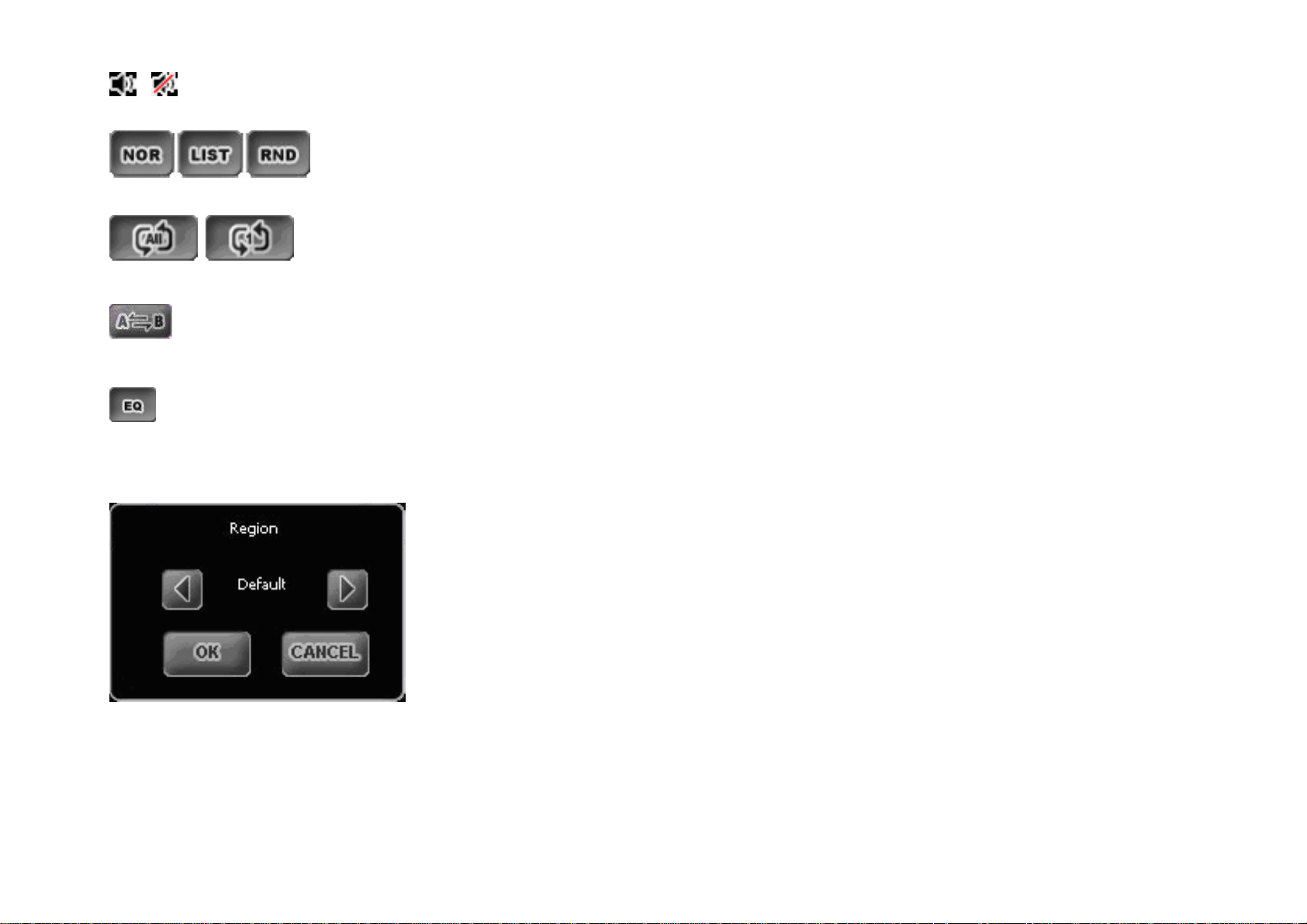
Enable Mute function, and press the button again to exit Mute state.
Play mode (Normal-> Play List-> Random)
Repeat mode (Repeat All->Normal->Repeat one)
Activate or deactivate A TO B repeat function. (Set beginning -> set ending->deactivate A To B repeat function
7 EQ mode (NORMAL->CLASSIC->CLUB->DANCE->LIVE->POP->ROCK->OFF)
MP3 Set
- Press “Set” button to set and change the displayed Region.
- Press “OK” to confirm and press “Cancel” to resume to previous setting.
☻ When some part of songs character display is abnormal please use Region to change to proper languages.
27
Page 28
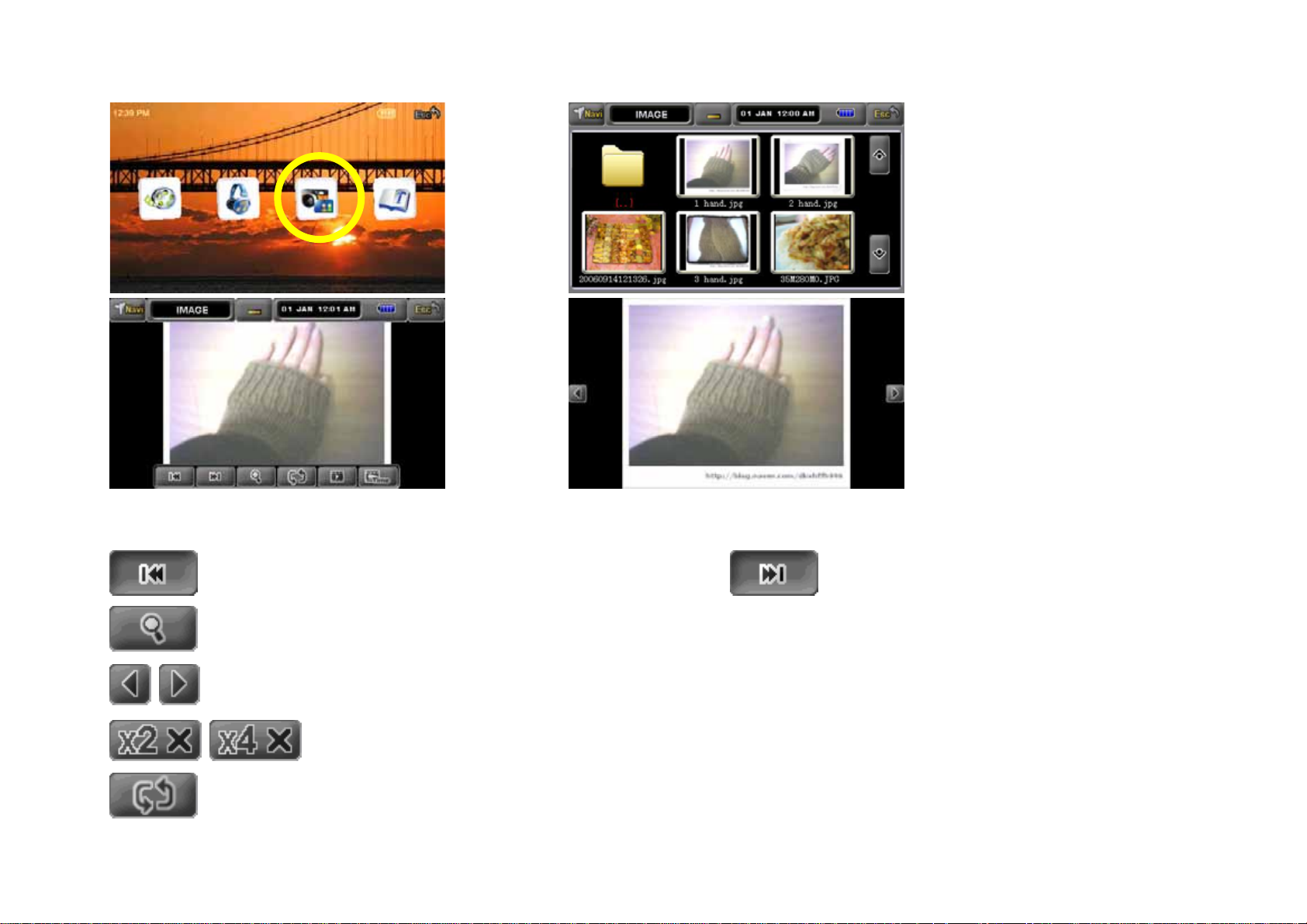
Image Viewer
z
Display the next image. Display the previous image.
Zoon in the displayed images. (LCD Size-> x 1 -> x2 -> x4 -> LCD Size)
Display the next and previous image at full screen mode.
Close the current zoom mode.
Rotate the displayed image. (90° -> 180° -> 270° -> 0°)
28
Page 29

View slides.
Set display time. (1s - 10s)
33
* Click this button or double click the center of the image to realize full screen display. Double click the center of the image again to resume to
Menu Mode.
☻ Some high-capacity images may affect the display speed.
☻ Some high-capacity images may affect the display size; as a result, the images cannot be displayed in x1.
29
Page 30
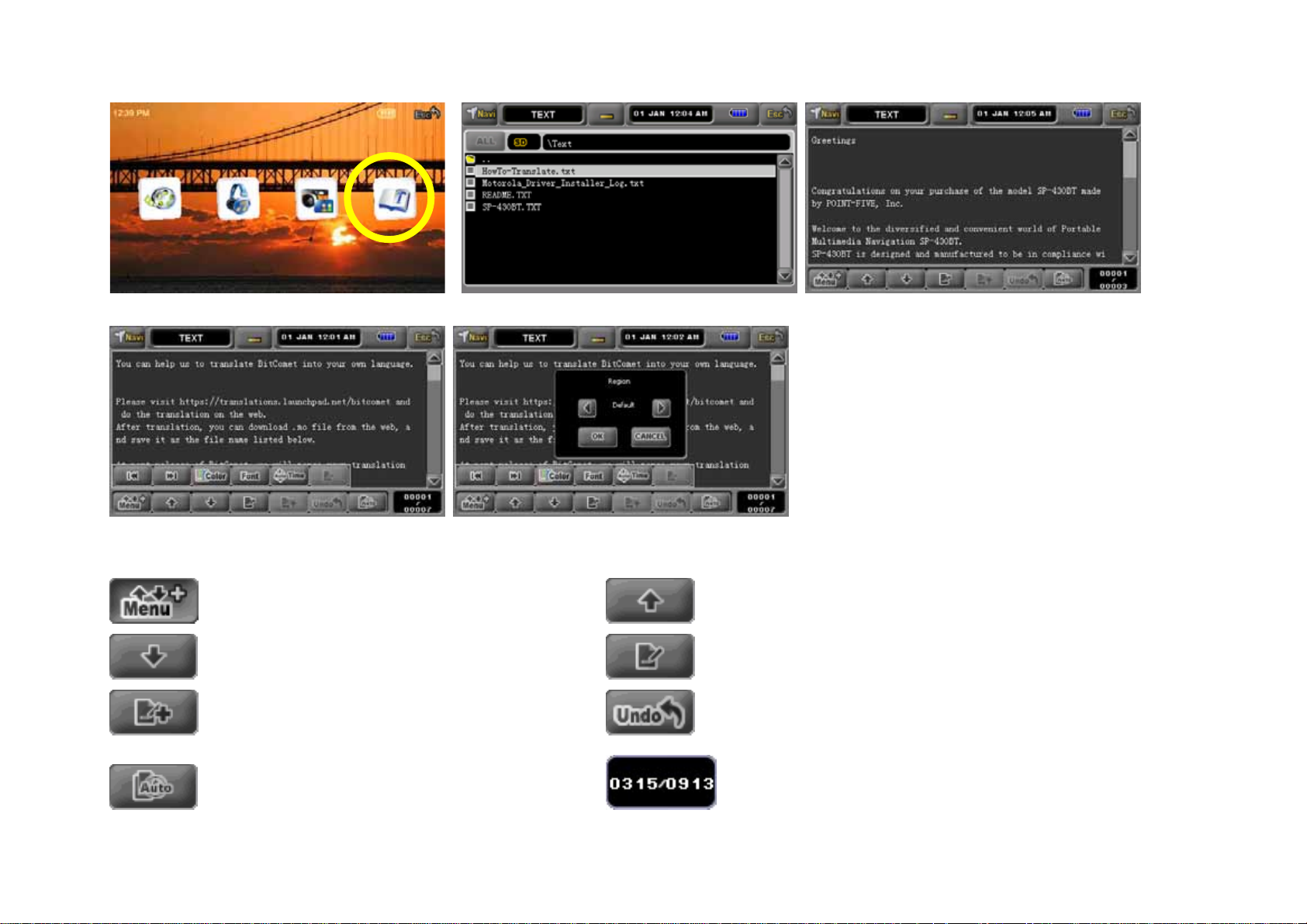
Text Viewer
z
Display or hide the added menus. Previous page
Next page Memorize the current page
Jump to memorized page Undo moving page
Automatic page turning Display the current page number and total number of pages.
30
Page 31

Set the background and font color
Set the font size (12,14,16,18,20)
Set the time of automatic page turning (5s - 180s)
Cancel the memorized pages.
☻ Some files saved in Text format may not be displayed normally. In this case, convert the Text format into UNI Code in the computer, and then
the saved file will be normally displayed.
31
Page 32
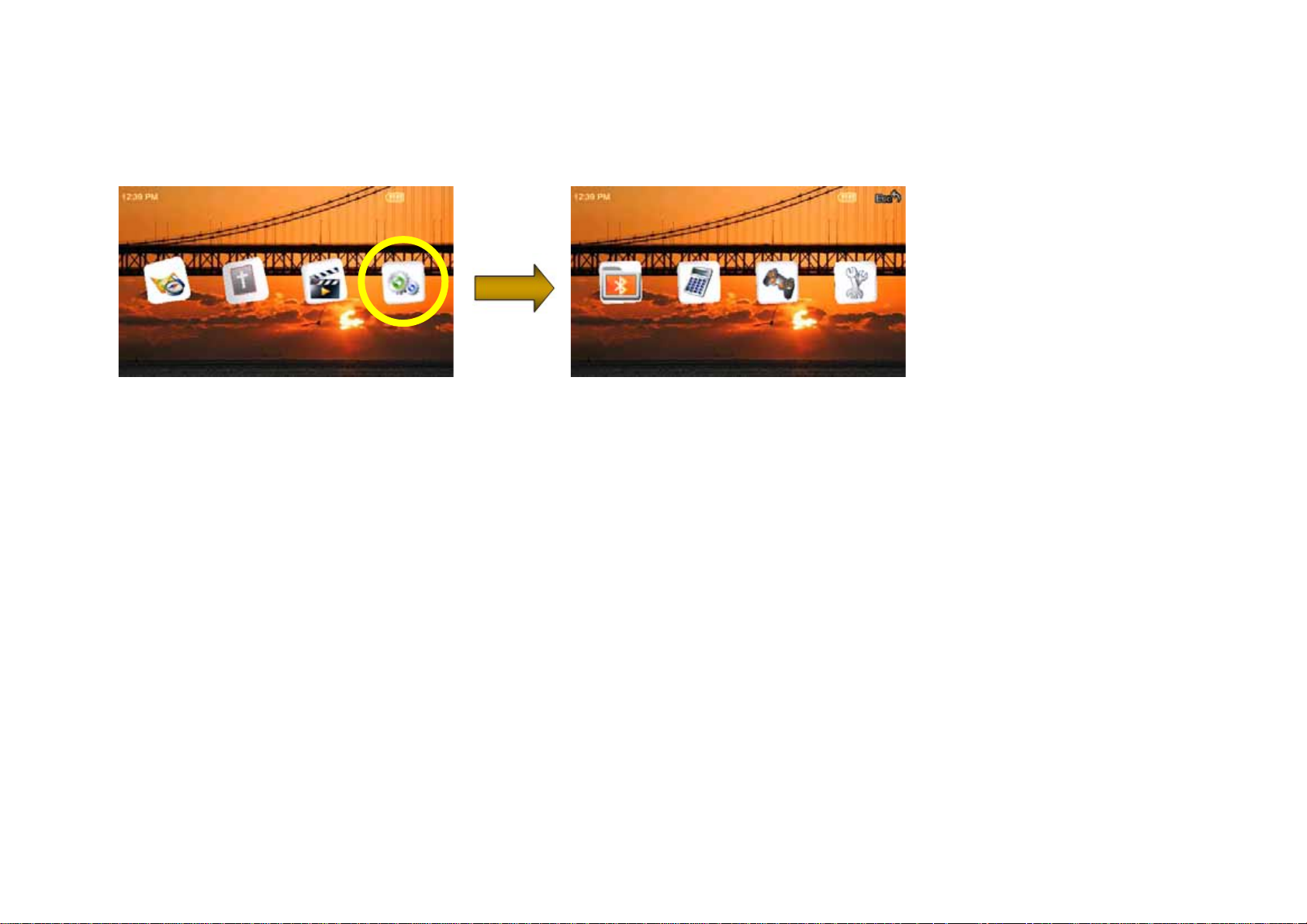
Chapter 3 Utility Function
Utility Menu
z
1. Return to the main menu when the device is turned on.
2. Click Utility menu
3. Display the Utility menu.
4.
Select the desired menu to enter
32
Page 33
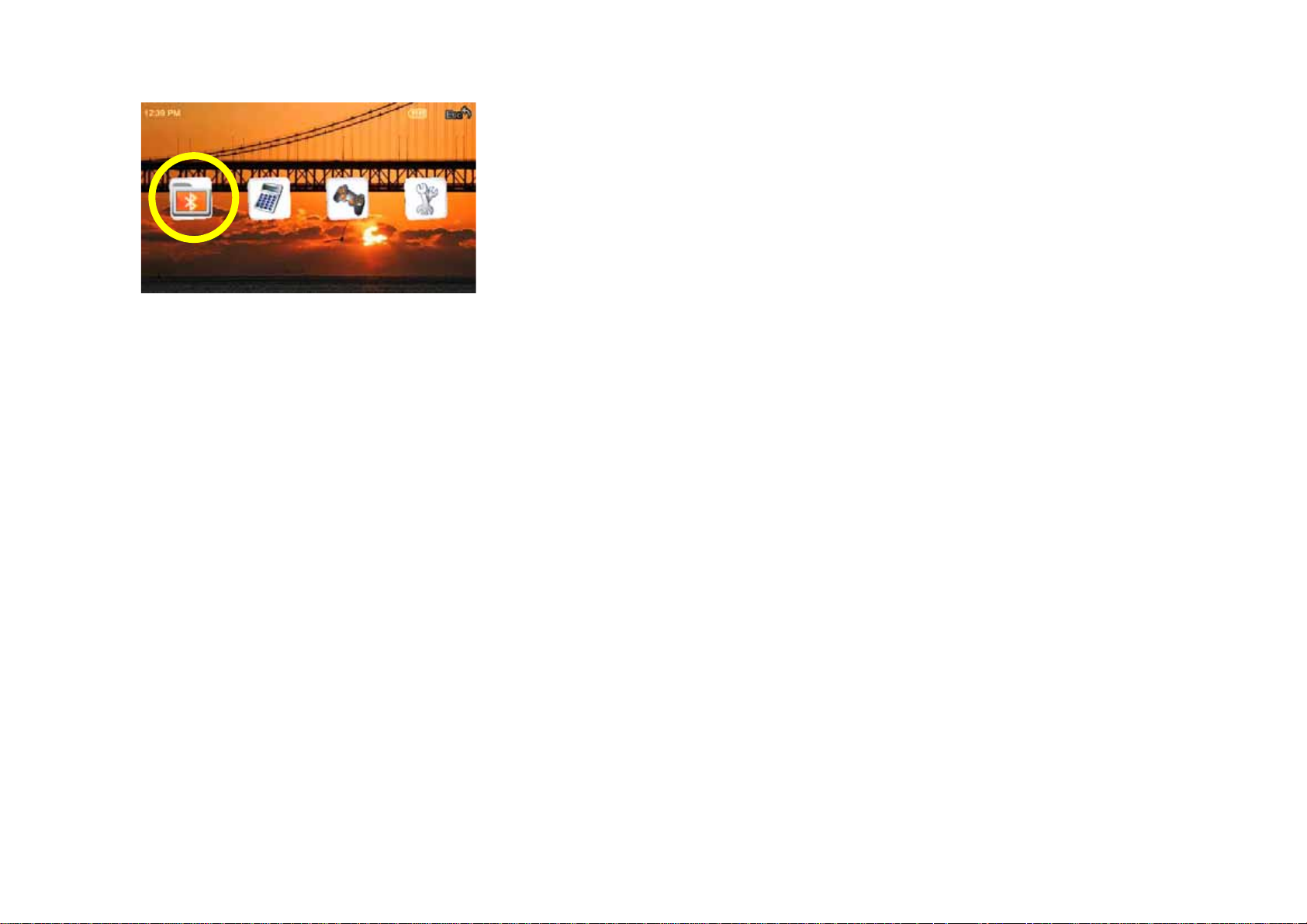
z Bluetooth
This page is reserved for the Bluetooth function.
33
Page 34
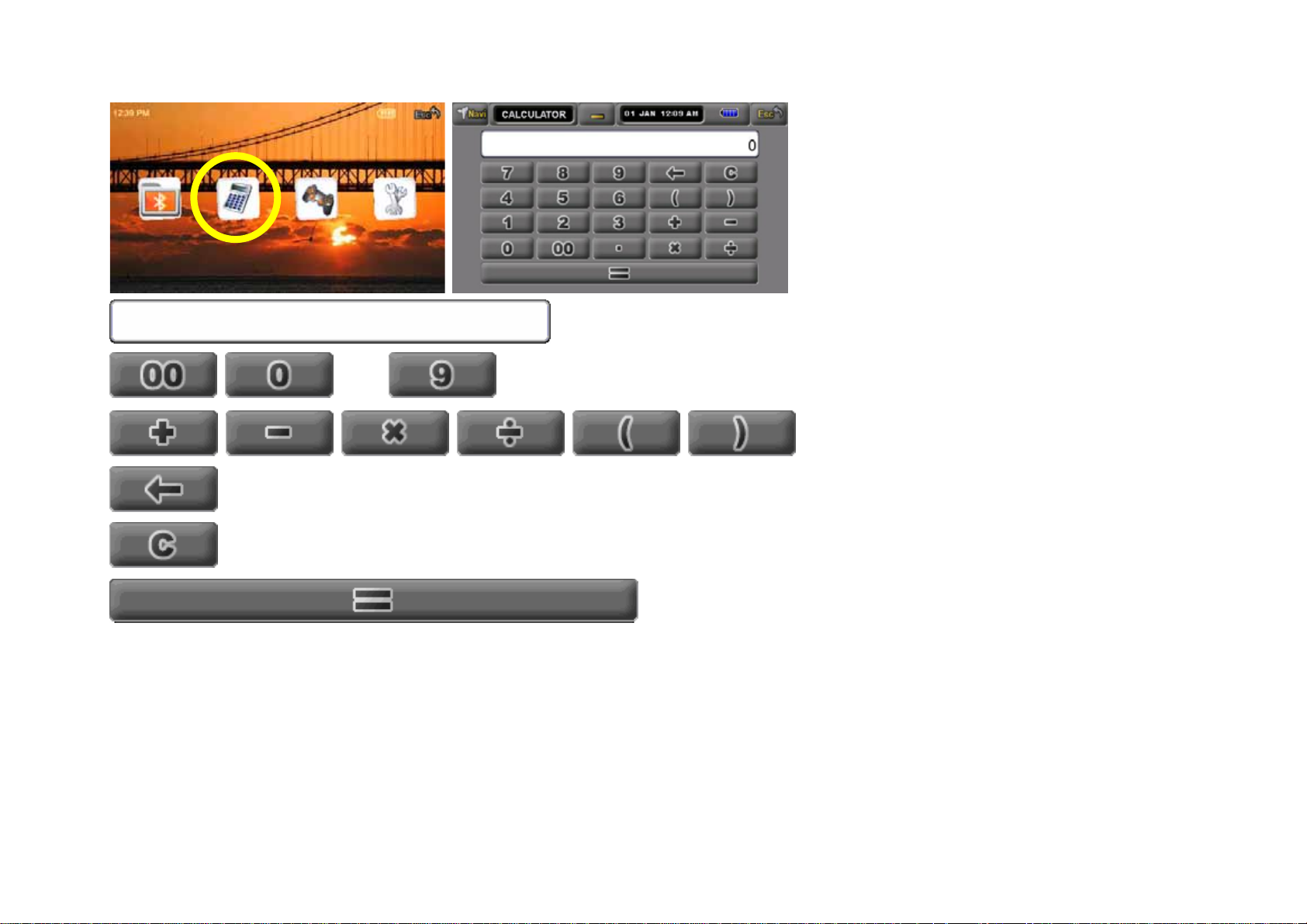
z Calculator
Display numbers of the calculator.
~ Number button
Symbol button
Delete button
Delete all data
Display results
☻ Used in the same way as normal calculators.
☻ () indicates the priority calculation, e.g. 5*(3+2) = 25
☻ Able to calculate up to the number of million and zero point one hundred thousand.
34
Page 35
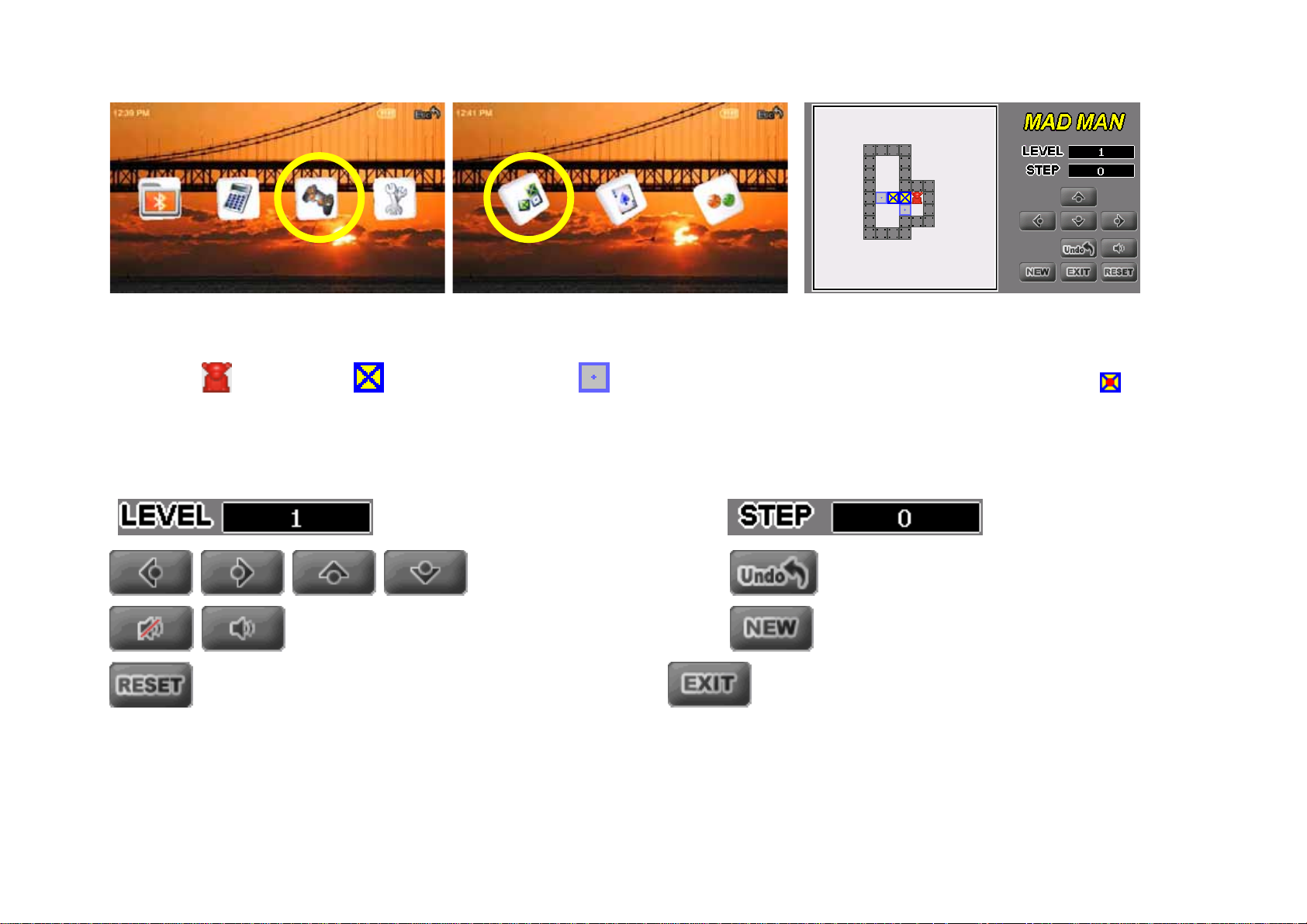
z Game / Mad Man
Game Rules (Sokoban Puzzle)
- Move
displayed.
, and push Box to the specified position , and when the box is successfully pushed to the target position, icon will be
- When two Boxes lean against each other, it is impossible to push them together.
Display how many barriers are passed. Display the push times.
Move the position Cancel (return to the previous position)
Game sound Mute On/Off Restart game
Restart game from the current position. Stop game and return to the previous interface.
35
Page 36
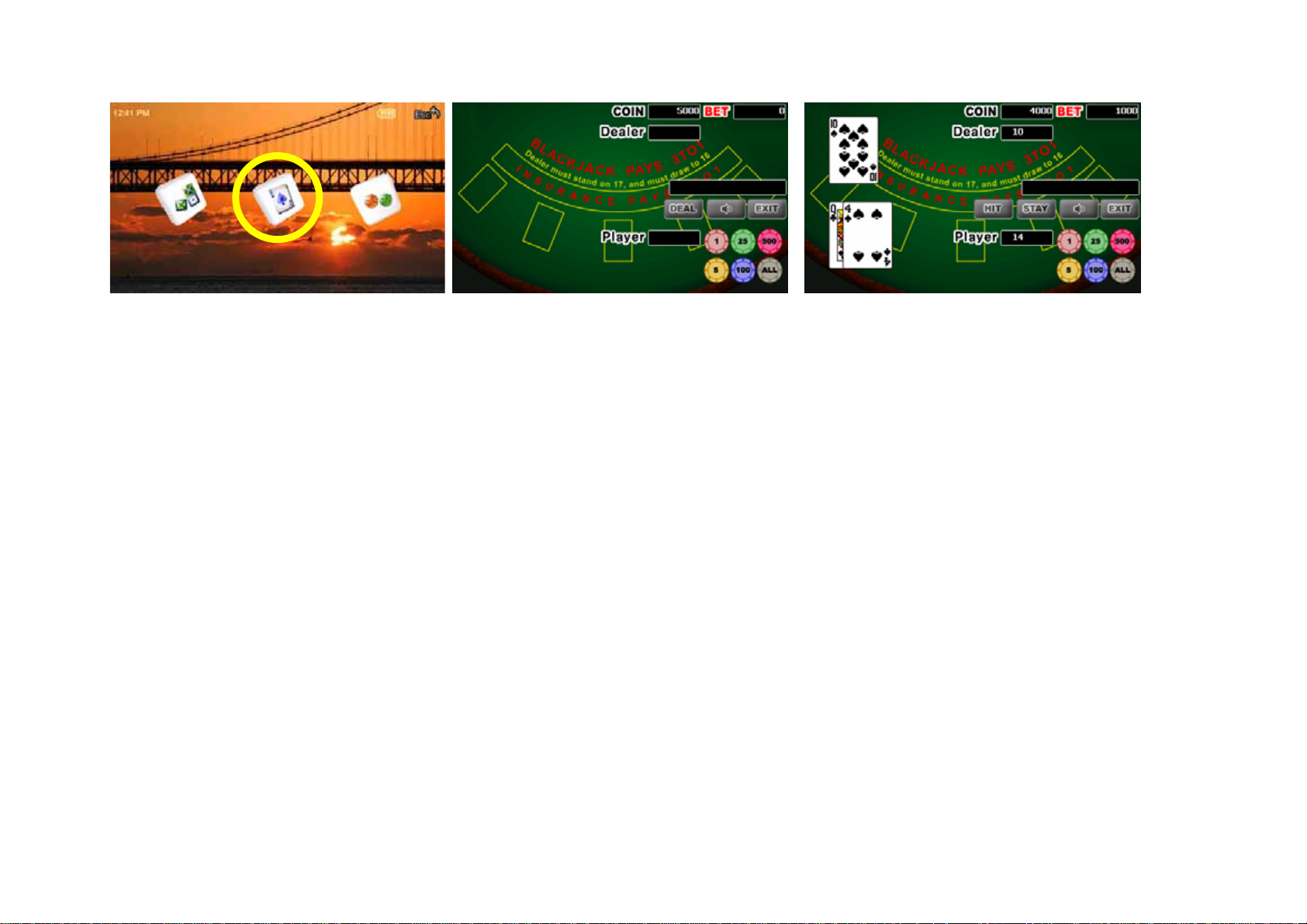
z
Game / Back Jack
Game Rules
- Blackjack is a card game where the goal is to get closer to 21 points.
A Card serves as “1” or “11”, and J, Q, K serves respectively as “10”.
- If two cards amounts to 21 points, it is a Black Jack, and the player will be awarded by 3 times of the bet.
- The player can receive cards unconditionally if the points is less than 17 points, and should not receive any card if the points go over 17 points.
- If the total points exceed 21 points, it is a Busted. It means the player is a loser.
- If the Player has won, he/she can be awarded with the double of the bet.
Play Order
1. Set the bet. (Press the Coin button below)
2. Press Deal button to distribute cards.
3. Decide on stopping or continuing distribution.
4. Press STAY button to receive a card from the dealer.
36
Page 37
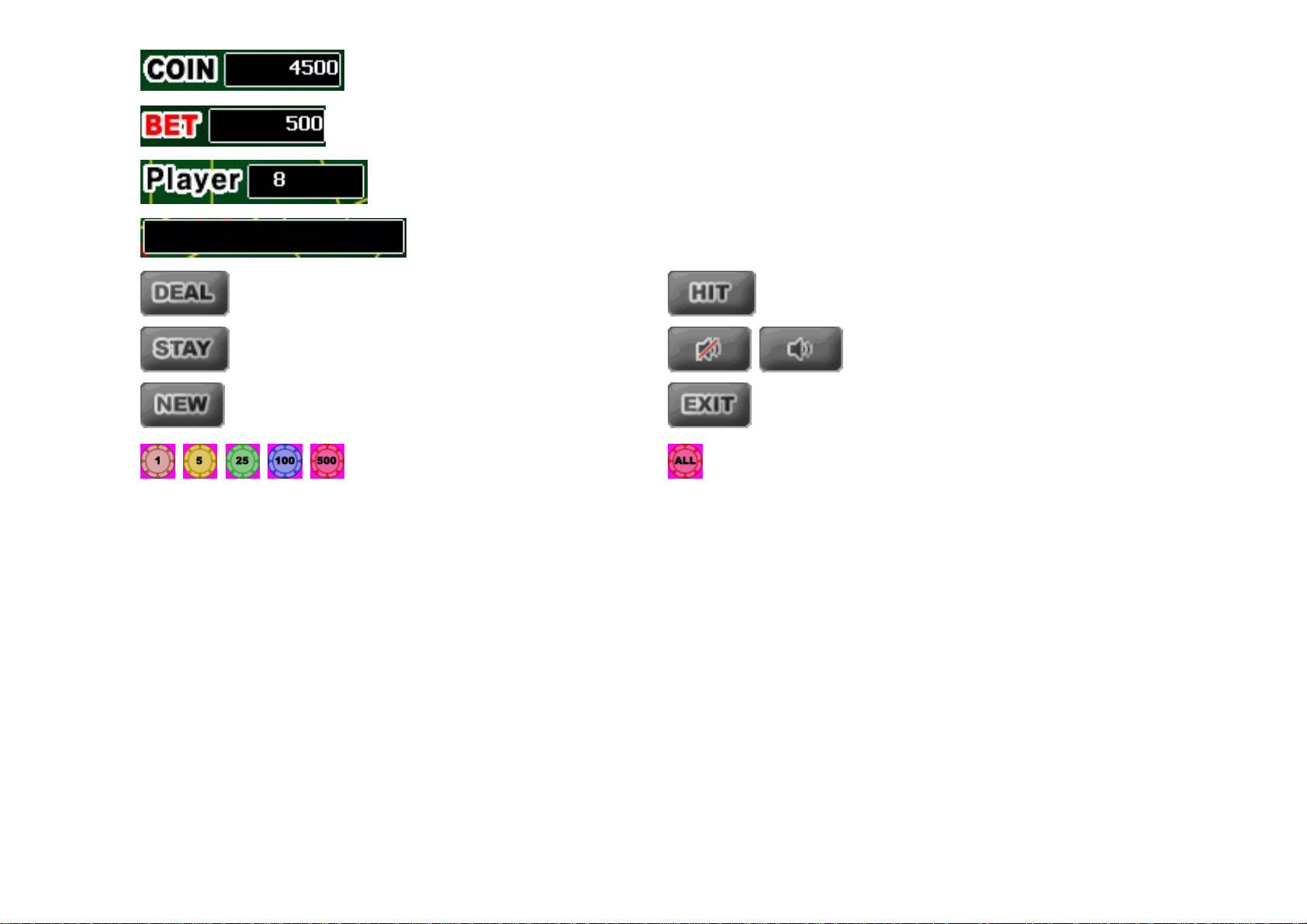
Display the current coins
Display the betted coins.
Display the total points of cards.
Display information.
Distribute cards. Continue distributing carts.
Stop at the current status. Game sound Mute On/Off.
Restart game Stop game and return to the previous menu.
Convert the coins to BET. Convert all gained coins to Bet.
37
Page 38
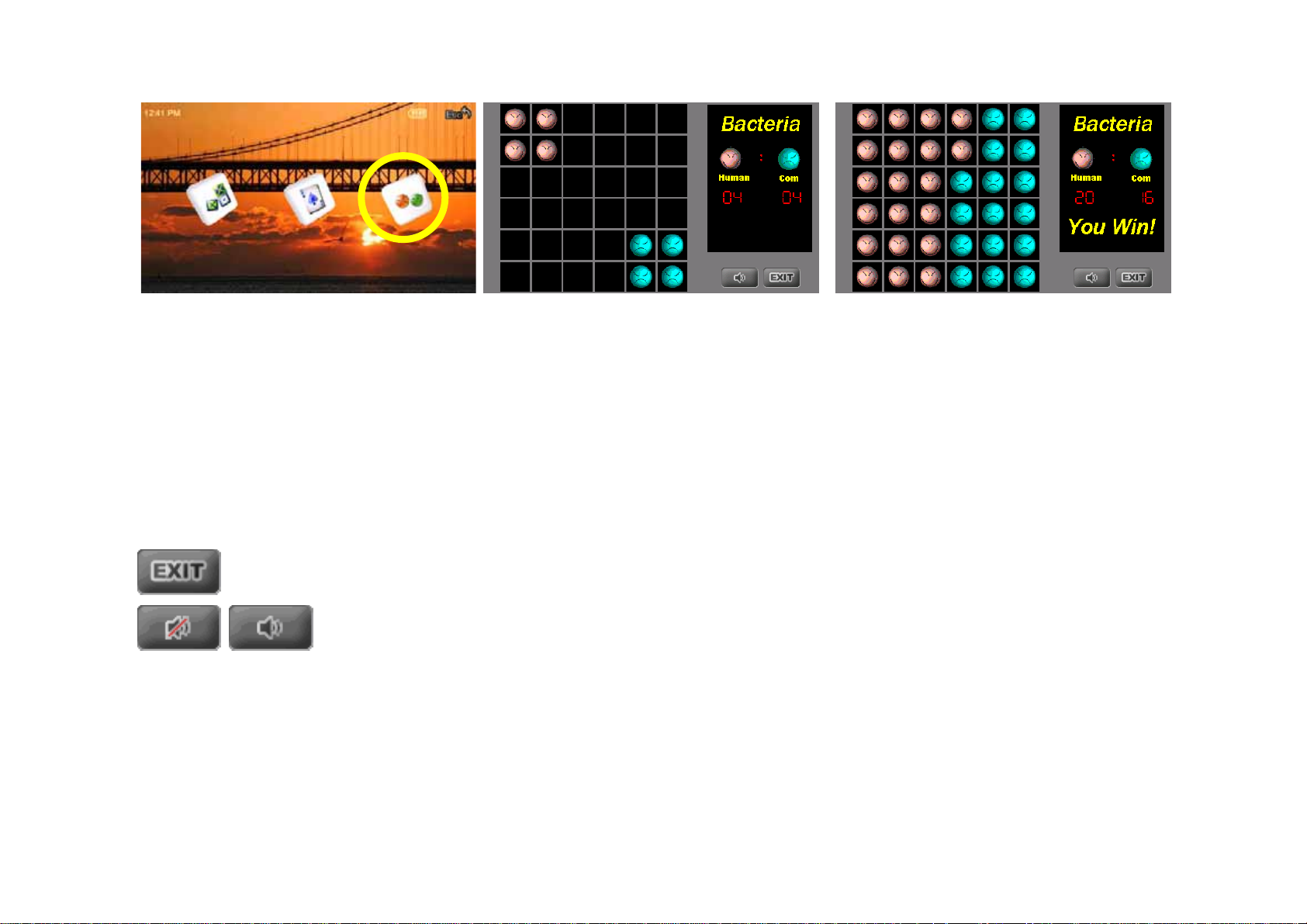
z Game / Bacteria
Instructions
Copy or move self-Bacteria, transfer the rival’s Bacteria as your own Bacteria, reproduce self-Bacteria quantity more than your rival side.
Reproduce Bacteria : copy and move Bacteria of rival around you , reproduce self-Bacteria .
Copy Bacteria : after pressing copy Bacteria , then press the interfacing location
Move Bacteria : after pressing the Bacteria which will to be moved , then press the location where will to be moved in. Moving range is limited
to only one grid range apart.
The Quantity of bacteria will decide winner or loser at the end of game. then start new game
Close game , exit to last page interface
play or close game music
38
Page 39
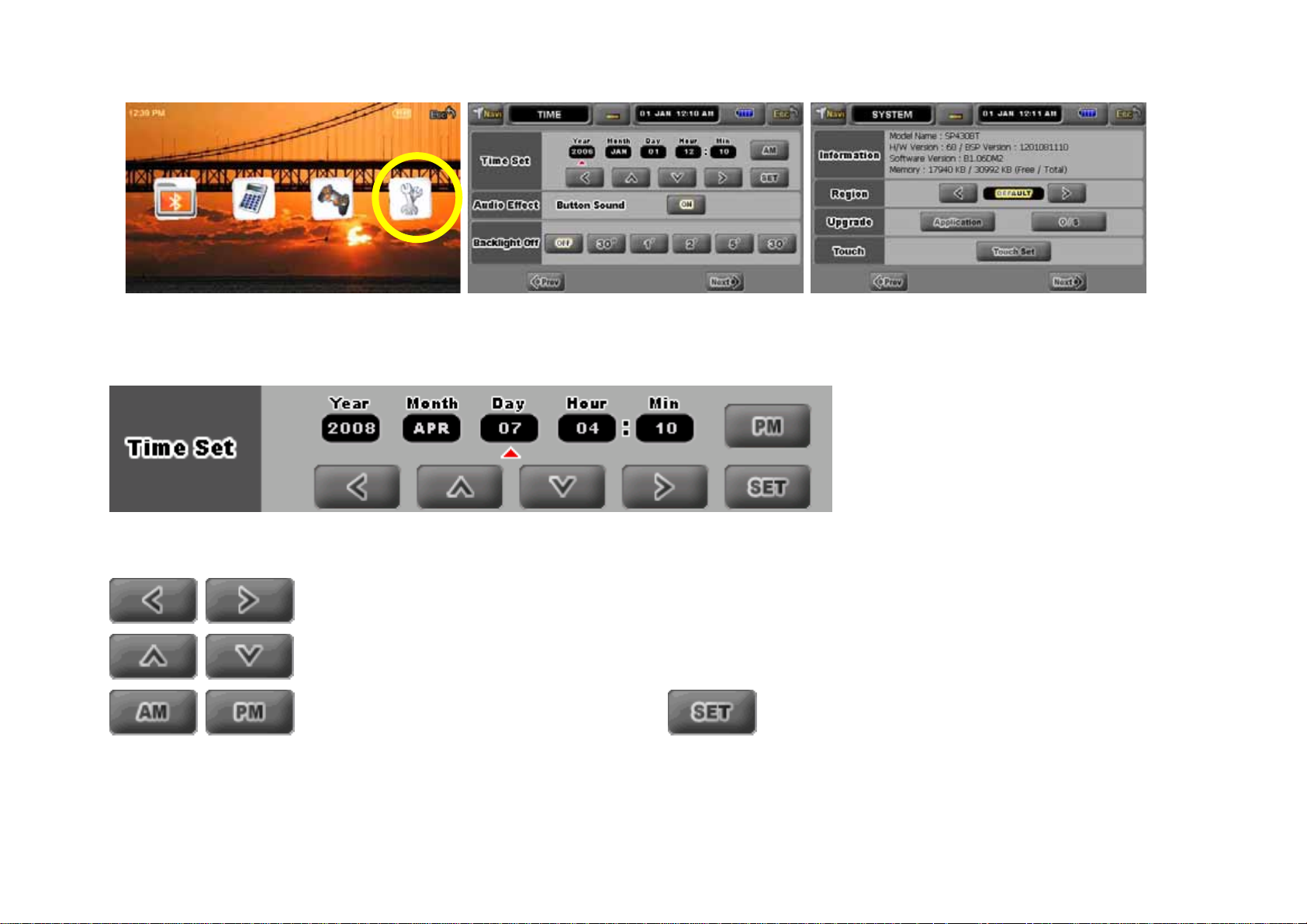
Personal Setting
z
Set Time
Set display time.
Jump position or change mode.
Adjust values.
Convert between A.m. and P.m. Set the current displayed time and date.
39
Page 40
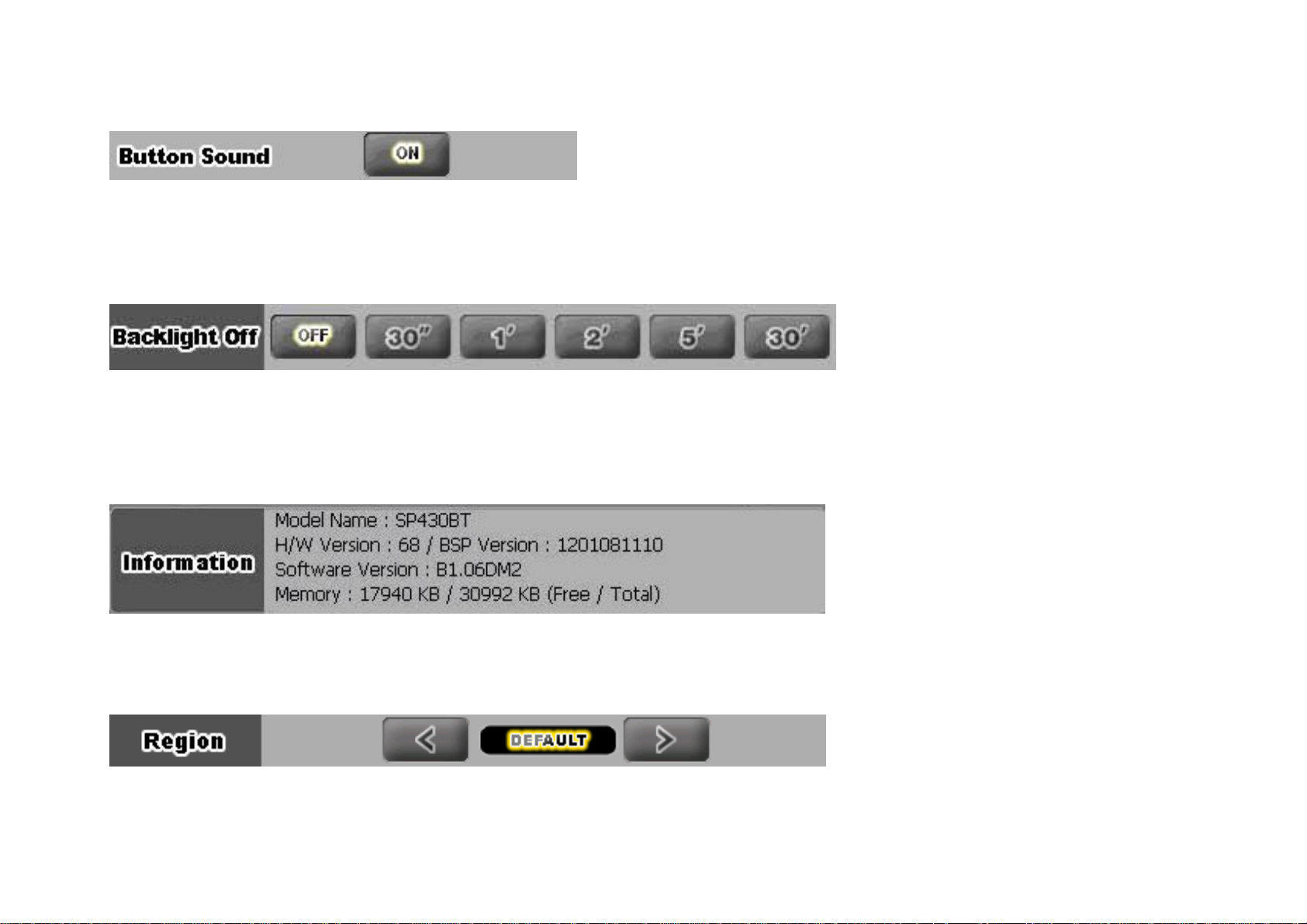
Set Audio Effect
Set or cancel button sound.
Set LCD backlight off
Set or cancel LCD OFF Time (30 s. ~ 30 min.)
Set Information
Information of the device software and memory.
Language Set
Select the language region.
40
Page 41
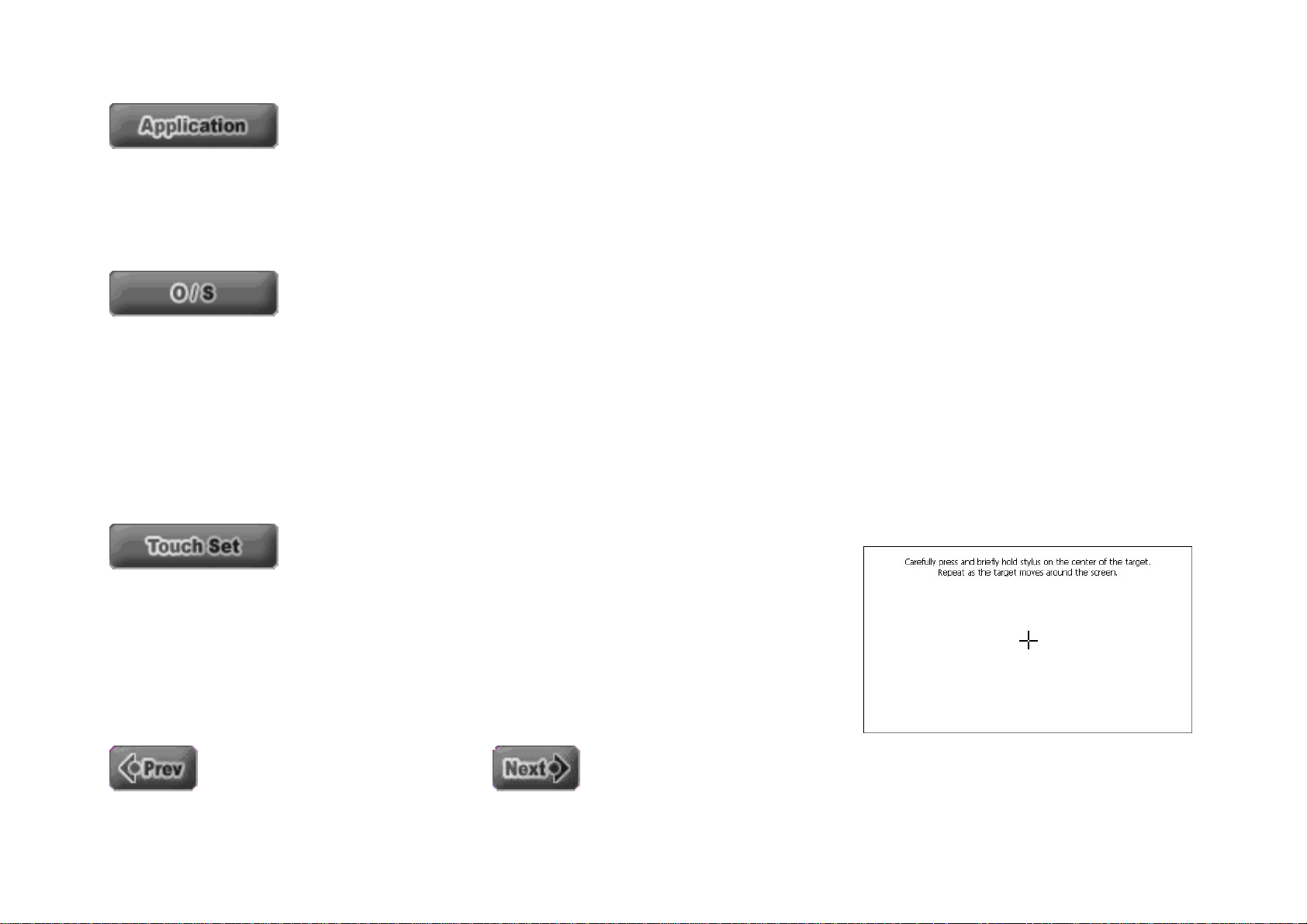
Software Upgrade
After the applications are updated, the system will automatically restart.
☞ Caution!
- If the power is cut off during updating, the device may freeze or the system may not be started.
(When updating, keep charging the power adapter (DC 12V) in order to prevent auto power off.)
- Add or modify any updated file name or content in the machine will cause mistakes.
Update OS Image. After updating, the system will automatically restart.
☞ Caution!
- If the power is cut off during updating, the device may freeze or the system may not be started.
(When updating, keep charging the power adapter (DC 12V) in order to prevent auto power off.
- Don’t change any updated files in the machine, otherwise will cause mistakes.
Touch Set
Calibrate the touch screen.
- Press and hold “+” symbol for 2 seconds to move the symbol.
(Center -> Upper left -> Lower Left -> Lower Right -> Upper Right)
After this operation, new calibration value will be formed, and the touch screen will automatically
resume to previous state if not being touched within a certain period.
Jump to the previous setting page. Jump to the next setting page..
41
Page 42

Chapter 4 Troubleshooting
z Check the Following Points before Referring to the Customer Service Center
- If the device is not operated properly, check the following points.
- If the problem is not solved, contact the Customer Center.
Troubles Check & Solutions
The power supply is not switched
on.
Operation failed even when the on
button is pressed down.
The screen is not viewable.
The power supply is switched off.
Battery needs frequent recharging.
Sound is not played.
Files (data) are lost.
The device is heated. The device may be heated during charging. However, it does not influence the life and performance of the product..
When the battery is fully consumed, the power supply is not turned on. Charge it and try to turn on the power sup
ply.
If the HOLD button is locked, the function is not selected. See if the button is proper or not and press it again.
If it is used under direct sunlight, the screen may not be viewed well.
In LCD OFF state, no interface can be seen. (POWER LED shows blue)
When the battery is fully consumed, the power supply is automatically switched off. See if the battery needs
to be recharged. Also check your settings to see if it is at stop status.
As the battery is a consumable, the battery life may shorten gradually. If the charged product is left at high
or low temperatures, the available period may be shortened. The available period may also decrease according
to frequency of use.
See whether or not a playable file is saved.
See whether or not there is a music file saved in the SDMMC (SDMMC Card). Check battery level.
See if or not power supply/USB cable is removed while the files or data are transmitted. Then, a fatal error
as well as loss df a file or data may occur. Our company is not responsible for damage from data loss.
No movie files are displayed, and
it returns to the file list.
The image file is not played. Some image files not conforming to the product specification may not be played. See the product specification.
The TEXT files appear fragmented.
See whether or not a playable file is saved.
See whether or not there is a movie file saved in the SDMMC (SDMMC Card). Check battery level.
Some Text files may be displayed abnormally. Please confirm again after the files are converted to
UNI CODE format or REGION.
42
Page 43
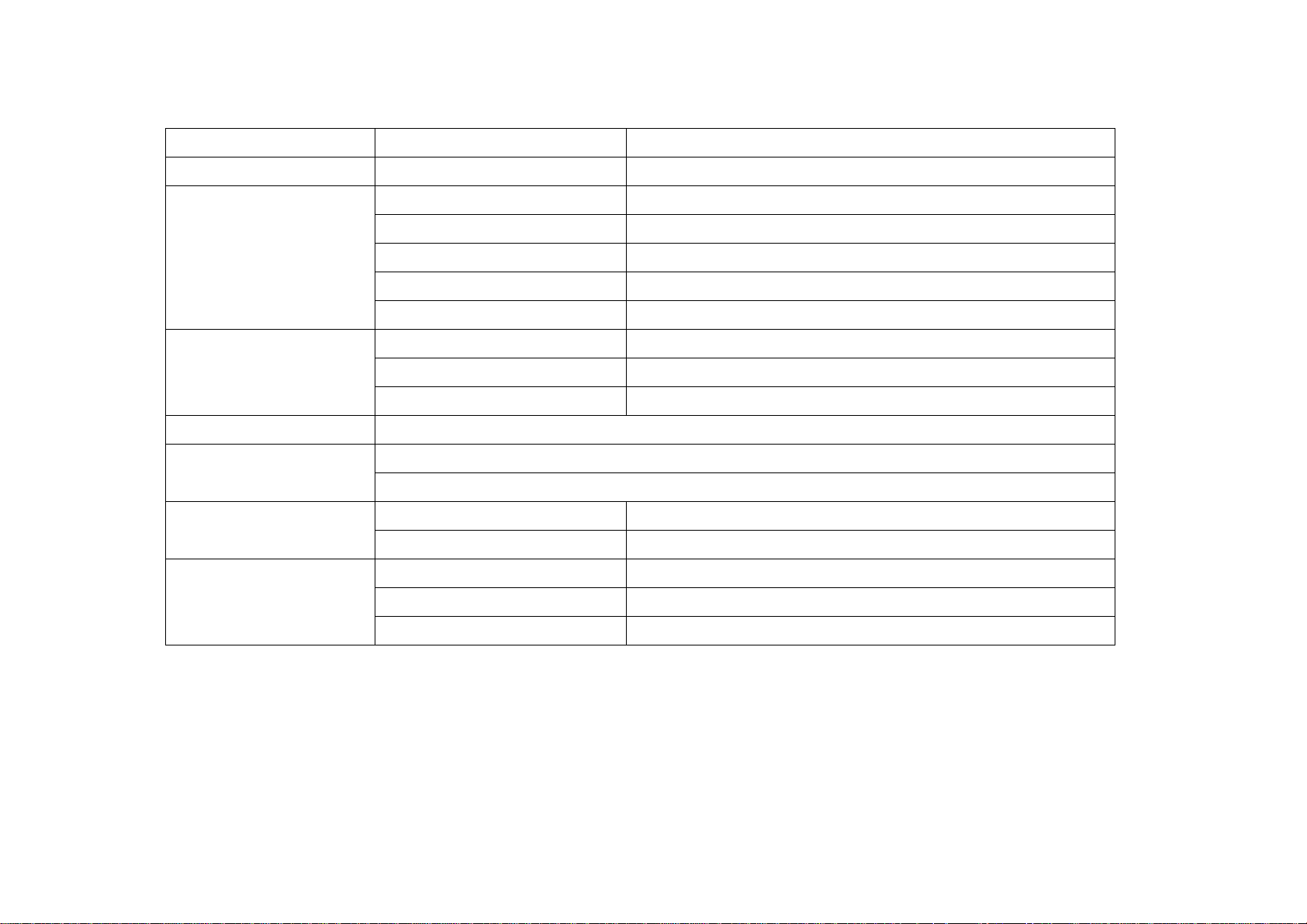
z Product Specification
General product specification
Category Item Specification
Navigation GPS
GLONAV
Frequency range 20Hz - 20KHz
Earphone output Left 20mW + Right 20mW
Audio
S/N ratio 94dB
Frequency feature
± 3dB
Channel 2 CH Stereo
LCD 4.3” TFT LCD
Video
Resolution WQVGA (480x272)
Composite output format NTSC/PAL
Play time 3 hours for Movie (earphone connection)
DDR RAM : 64MB
Memory
NAND Flash Memory : 64MB or 2GB
Adaptor 12V 1A
Power supply
Built-in battery DC3.7V Li-polymer 1850 mAH
Dimensions 141(W) x 78.3(H) x 20.5 (D) mm
General spec.
Product type Personal Navigation Device
File system FAT/FAT32 File System
43
Page 44
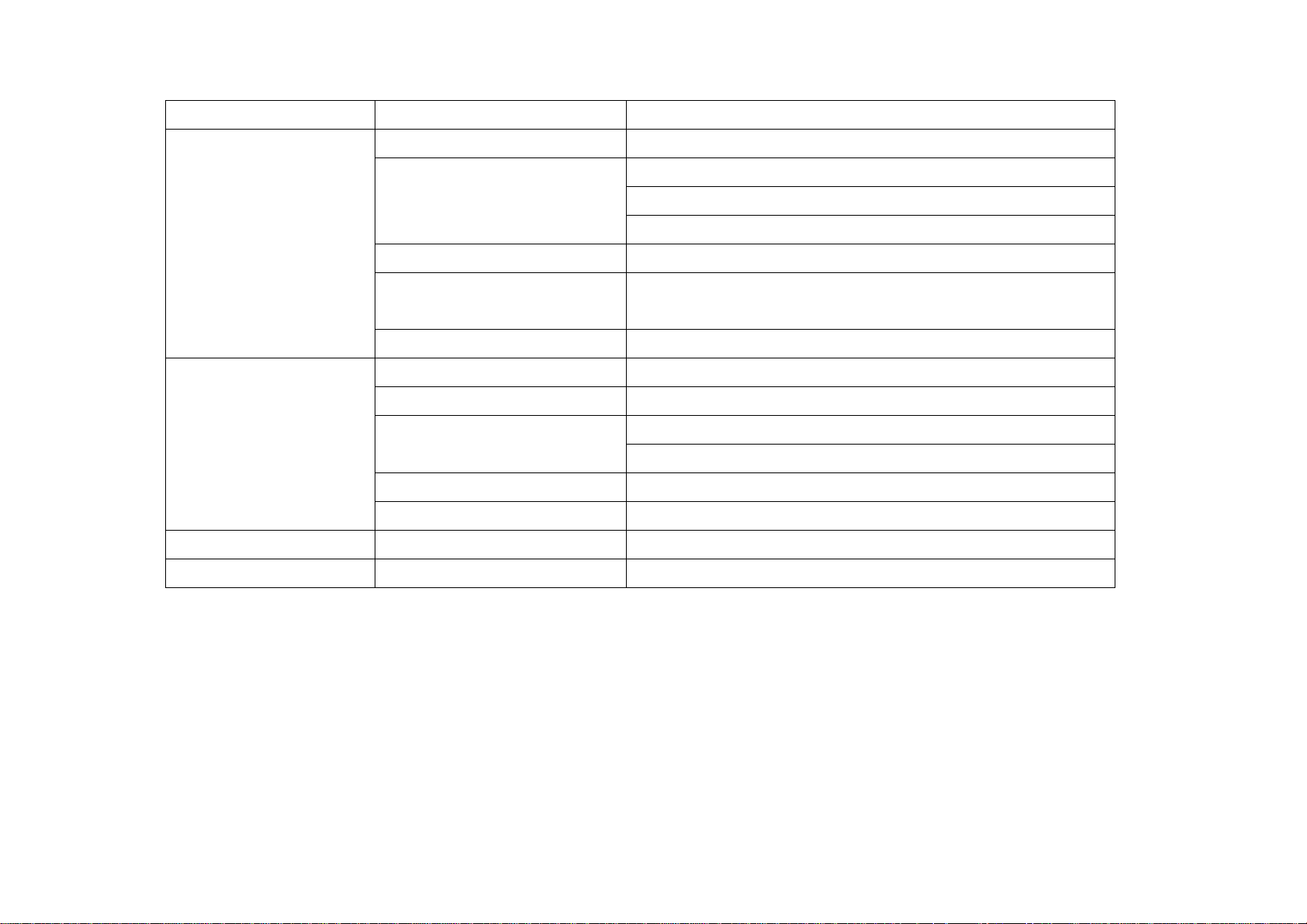
Play File Spec.
Category Item Specification
Support file WAV, MP3, WMA, OGG
MPEG 1/2/2.5 Layer 3, 8kbps~320kbps
Audio Codec
WMA7/8/9, 8kbps~320kbps
OGG Q0~Q10
Audio
Text Support Lyrics File format
7 preset EQ
EQ
(
NORMAL, CLASSIC, CLUB, DANCE, LIVE, POP, ROCK)
Channel 2 Channel (Stereo)
Support file AVI, WMV, MPG, MPEG
Video Codec MPEG-4(SP,ASP), XviD, WMV7/8/9, MPEG-1
XviD, MPEG-4: D1 (720x480) @30fps
Video
Resolution
WMV: WQVGA (480x272), 500kbps
Audio Type MP3, WMA, AC3
Text Support smi format support
Image Support file Non-Progressive JPG, BMP, GIF, PNG
Text Support file MS-DOS type, UNI-CODE, Normal Text
44
Page 45

z Refer to the Customer Service Center
Homepage : www.iwave-device.com
Address :
If you directly visit Customer Center
z You may visit at 10:00 am ~ 5:00 pm on weekdays.
z The Center is closed on Saturday, Sunday and national holidays. Please check this before visit.
z For more details, refer to Homepage.
Repair with charge
● Even in the warranty period, a fixed repair fee shall be required or replacement with charge shall be inevitably charged for the
following cases:
♠ Trouble arising out of user error or negligent use.
♠ Disassembles and remodels the product for any reason.
♠ Damage due to impact.
♠ Corrosion due to submersion or pollution from foreign substance.
♠ A fault arising out of wrong use of peripherals not provided by POINT-FIVE, Inc.
♠ Recognized as user’s mistake.
♠ Impossible to identify the product number due to damage to the product number.
45
Page 46
 Loading...