

Page 1
Page 2

P 1
P 5
P 6
P 7
P 8
P 9
P 4
INDEX
General Information
Preface
Main Features
For your safety
Safety Precaution
Accessory
Panel
System Connection
RCU
QUICK INSTAL LAT IO N
MENU OPERATI ON
Main Menu
1. Program Guide
1.1 TV Li st
1.2 NVOD
1.3 Program Forecast
1.4 Classified Programs
1.5 Booking Manage
2. Channel Manage
2.1 Auto Search
2.2 Search Scan
2.3 Manual Search
2.4 Channel Edit
3. Special Service
3.1 Game
3.2 Stock
3.3 Browser
3.4 MailBox
P9
P10
P10
P10
P11
P11
P11
P12
P12
P12
P12
P13
P14
P15
P15
P15
P15
P1
P1
P2
P3
Page 3

P 2 1
P 2 2
INDEX
Trouble Shooting
Tech ni ca l Sp ec if ic at io n
4. System Option
4.1 System Option
4.1.1 Frequency Setup
4.1.2 Audio & Vi de o Se tu p
4.1.3 Menu Setup
4.1.4 Parental Control
4.1.5 Power Control
4.2 Restore Default
4.3 Language
4.4 STB Info
5. Smart Card
5.1 Setup Password
5.2 X-Certificate Setup
5.3 Smart Card Info
5.4 Authorization Info
P16
P16
P16
P17
P17
P17
P18
P18
P18
P19
P19
P19
P20
P20
P20
Page 4

1
Thank you for selecting C5800 Digital Cable Receiver. We purchase the
perfection in every steps of the product during design, development, manufacture,
check and market. We will try our best to satisfy you, provide you faster and better
service. Through our product, you will enter into a colourful world, where you can get
information in digital era conveniently and enjoy the wonderful modern life.
We will reserve the rights of any updates or improvements of the feature
described in this manual. If there is some change, please forgive that we don't
inform any more.
Please read this manual carefully before you do any operation.
Pref ac e
1. Conditional access system support
2. Chinese EPG (Electronic Program Guide, needs support from operator
3. Software update online
4. Chinese operation menu
5. High resolution output (beyond 500 line)
6. change the channel rapidly
7. automatic memory when power off
8. lower doorsill extra strong receiving
9. strong program setup function
)
,
Main F ea tu res
GENER AL INFO RMATIO N
Page 5
2
For Your S afety
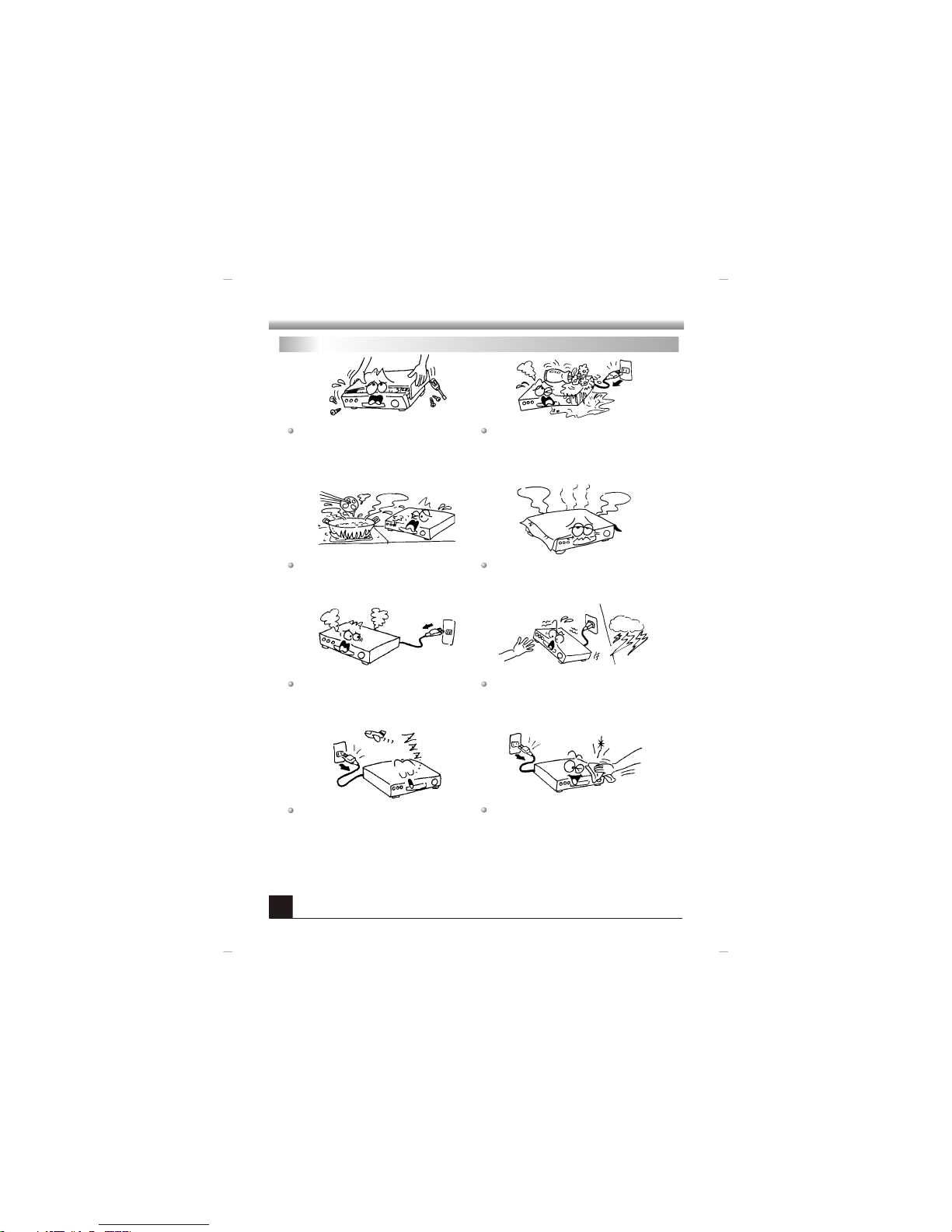
Be sure to turn the Receiver off and
disconnect the AC power cord before
cleaning the Receiver surface. If the
surface is dirty, wipe clean with a cloth
which has been dipped in a weak soap-andwater solution and wrung out thoroughly,
and then wipe again with a dry cloth.
Switch the receiver off whenever it remains
out of service for an extended period.
Do not touch the receiver during thunder,
since that might crea te electric-shock
hazards.
Do not block ventilation holes of the
Receiver so that air can circulate freely.
Do not expose the receiver un-der the
sunlight. And keep it away from the heat
source.
Keep the receiver away from flower vases,
tubs, sinks, etc., in order to avoid damaging
the equipment.
To avoid electric-shock hazards, do not
open the cabinet, refer servicing to qualified
personnel only.
When the abnormal phenomenon occur,
you should cut off the power immediately.
GENER AL INFO RMATIO N
Page 6
GENER A L I N FORMAT I O N
GENER A L I N FORMAT I O N
3
Safety Precautions
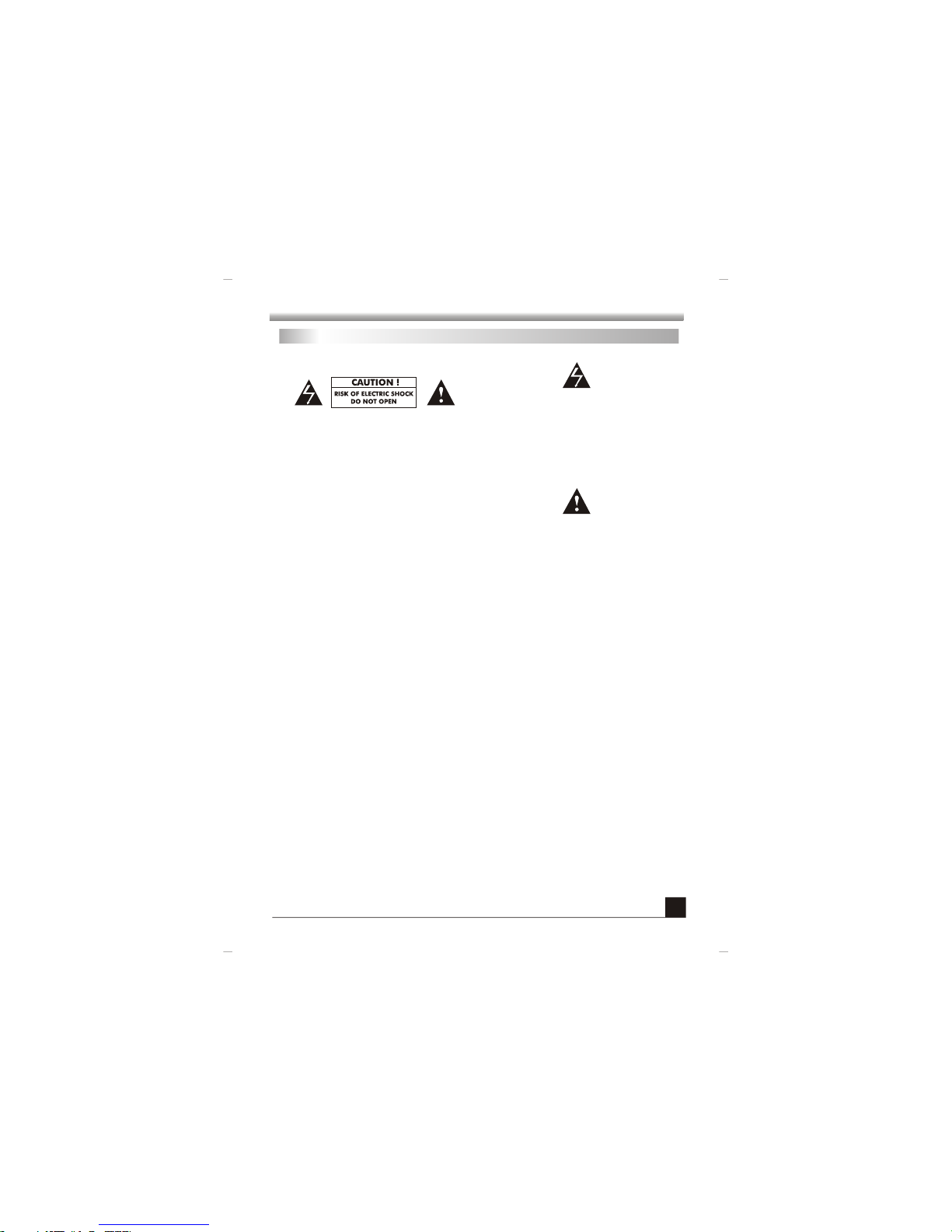
Th e li g h t ni n g fl a s h wi th a rr o w h ea d
sy m b o l, w i t h in a n e q u il a t e ra l t r i an g l e ,
is in te n d e d t o ale r t t h e use r to t h e
pr e s e nc e o f u n i n su l a t ed da n g e ro u s
vo l t a ge wi t h i n t h e p r o d uc t s e n c l os u r e
th a t m a y b e o f s u ff i c i en t m a g n it u d e t o
The exc la ma ti on p oi nt w it hi n an equ il ate ral
tri angle is in te nde d to ale rt t he u ser t o the
p r e se nc e o f i mp or ta nt o p e r at io n a nd
mai ntena nce (se rvici ng) ins tr uc ti on in t he
lit eratu re acco mpany ing the a pplia nce.
CAUT IO N:
TO PRE VE NT EL EC TR IC AL SH OC K. DO
NOT REM OV E THIS CO VER, NO USR SE RV IC EA BL E P A RT S I NS ID E. R E FE R
SE RVI CI NG TO QU ALI FIE D S ERV IC E
PER SONNE L.
WARNI NG :
TO P REV EN T D A MA GE WH ICH M AY
RES ULT I N FIR E OR SHOC K H AZ AR D. DO
NOT E XPOSE T HI S AP PLIAN CE TO R AI N
OR MO ISTUR E.
CA UTI ON : DANG ER OF EX PLO SI ON IF BATTE RY IS INCO RRE CT LY REPL AC ED. REPL AC E ONLY
WIT H THE SAM E OR EQUI VALEN T TY PE.
WAR NI NG : TO RED UC E THE R IS K O F FI RE FO E LE CT RI C SH OC K, D O N OT E XP OS E TH IS
APP LIANC E TO RA IN OR M OI ST UR E. DANGE ROUS HIGH VOLTA GES ARE PRES EN T
INS IDE TH E E NCL OSU RE. DO N OT OPEN TH E CA BI NE T. RE FE R SE RV IC IN G TO
QUA LIFIE D PERSO NNEL ON LY.
WAR NI NG : T HE AP PAR ATU S SH ALL N OT BE EXPO SE D TO DR IPP IN G OF SPLA SH IN G A ND TH AT
NO OBJ EC TS FIL LE D WITH LIQ UI DS, SU CH AS VAS ES SHA LL BE PLA CED ON TH E
APPA RAT US.
CA UTI ON : TO PR EVENT EL EC TR IC S HO CK, MAT CH W ID E BL ADE OF PLU G TO WID E S LOT, F UL LY
INS ERT.
CA UTI ON : T HE SE S ER VI CI NG I NS TR UCT IONS A RE F OR US E BY QUA LI FI ED S ER VI CE P ER SO NN EL
ONLY. TO RE DU CE TH E RISK OF EL EC TR IC SH OC K DO NOT P ER FORM AN Y
SER VICIN G OTHE R TH AN THA T CO NTAIN ED I N THE O PE RAT IN G I NST RU CT IO NS
UNL ESS YOU A RE QUAL IFIED T O DO S O.
Page 7
4
red
whi te
yel low
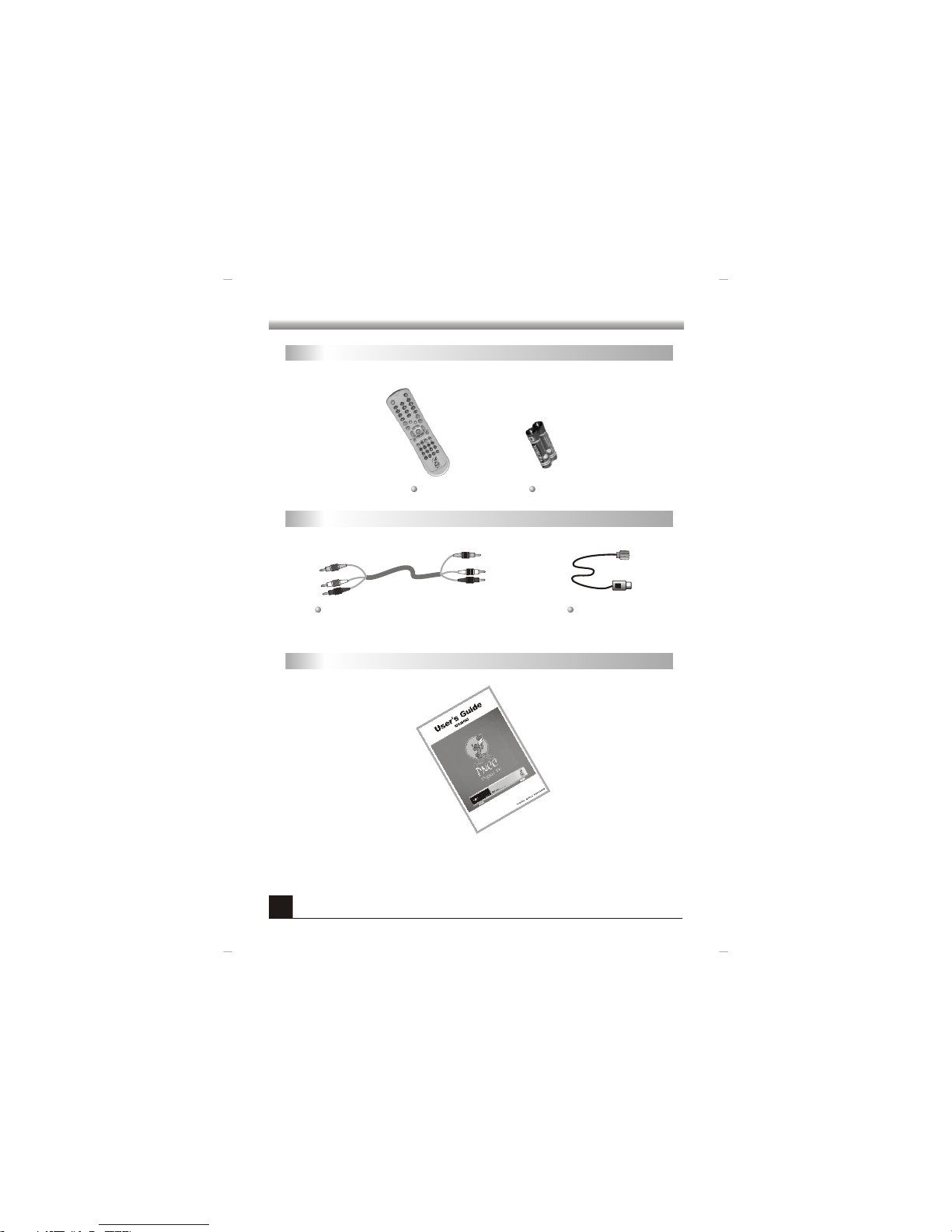
Remo te /B atter y
Cabl e
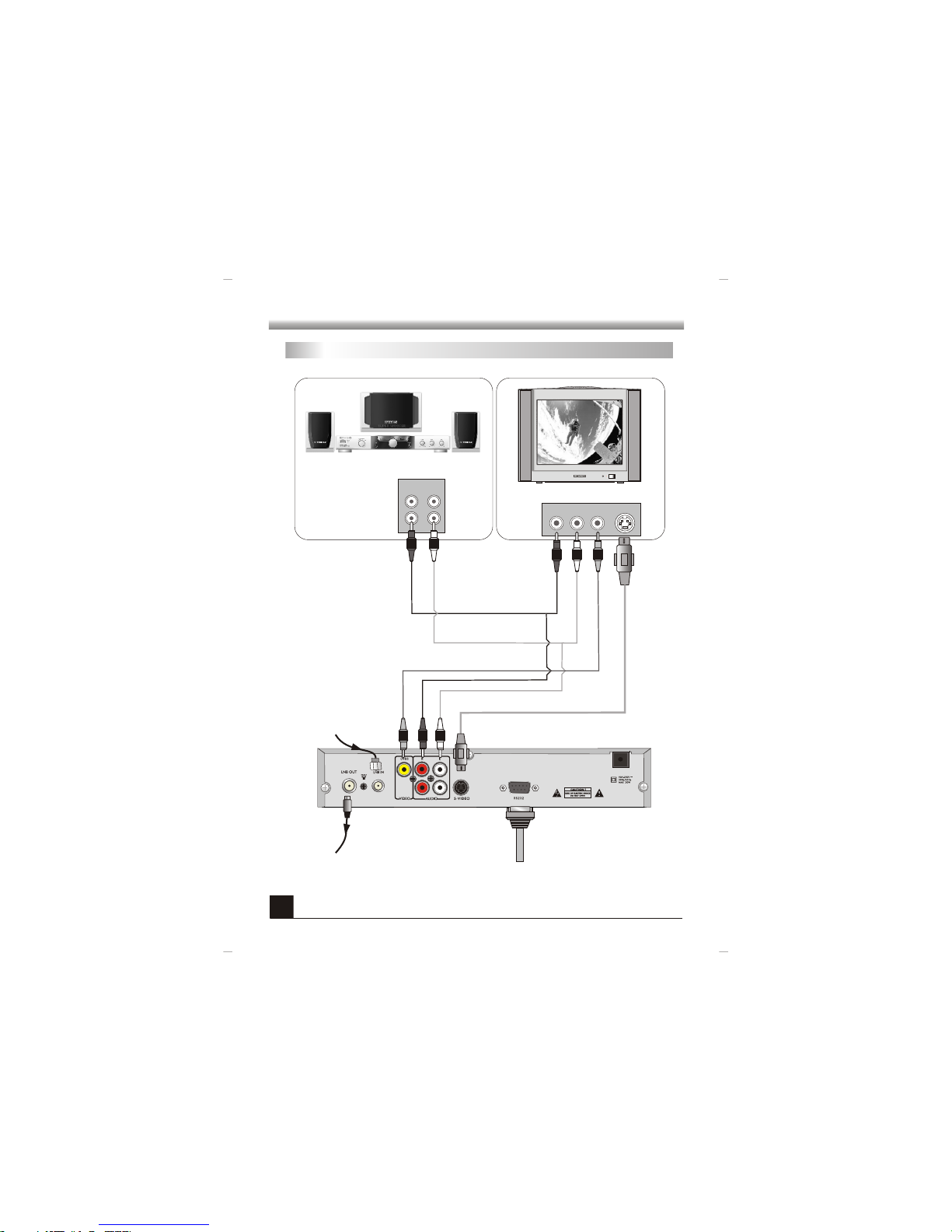
Vid eo c ab le (y el lo w) , Audi o cable ( white , red)
Rem ote Bat tery
Cab le TV sig na l ca ble
Manu al
AC CESS O RY
Page 8
5
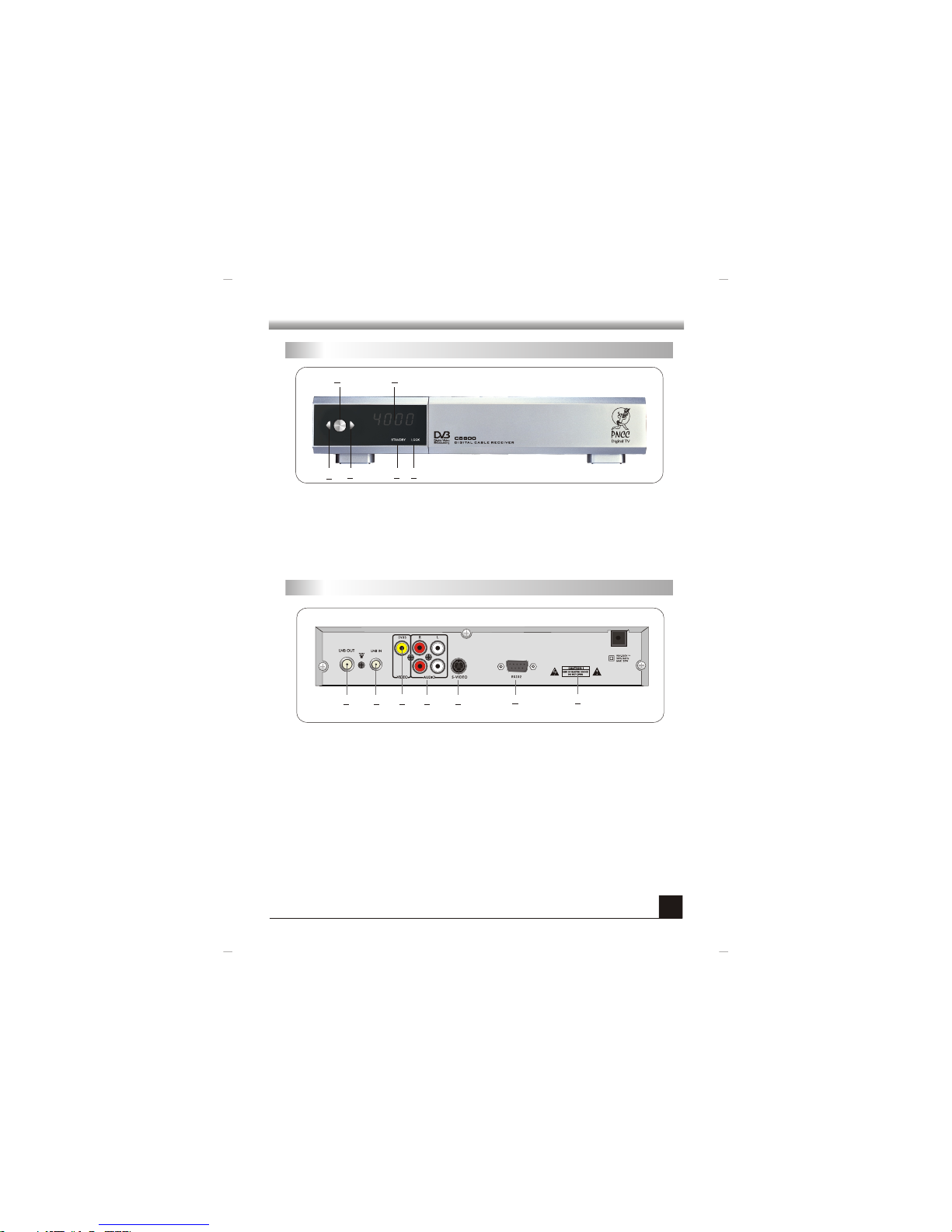
1. POWER SWITCH 2. Digital display 3. LEFT
4. RIGHT 5. STANDBY LED 6. LOCK LED
1. LNB OUT: connect to other receivers
2. LNB IN: connect to cable TV signal
3. VIDEO: connect to the TV set or Monitor
4. AUDIO: Two audio output, left audio and right audio, connect to the Hi-Stereo or
TV.
5. S-VIDEO: S- video output, connect to the TV set or Monitor
6. :RS232 data connector
1
Fron t Pa ne l
Back P an el
PAN EL
1 3
4
5
7
2
6
2
3
4 5 6
Page 9
6
AUDIO IN
R L
LEFT
VIDEO
RIGHT VIDEO
Hi-Stereo
RS232 cable(Optional)
SYS T EM CONN ECTIO N
Conn ec ti on
TV Set
red
right
Audio cable
Audio cable
red
right
yellow
Vid eo c ab le
yellow
red
right
S-VIDEO Cable (Optional)
Signal Input
Signal Output (Optional)
Page 10
7
RCU
1
2
3
4
5
17 18
12
13
14
15
16
6
8
9
11
21
19
22
20
25
29
30
26
23
24
31
7
10
27
28
Note: During the operation, some keys on the
RCU can not realized its function due to the
specific software.
32
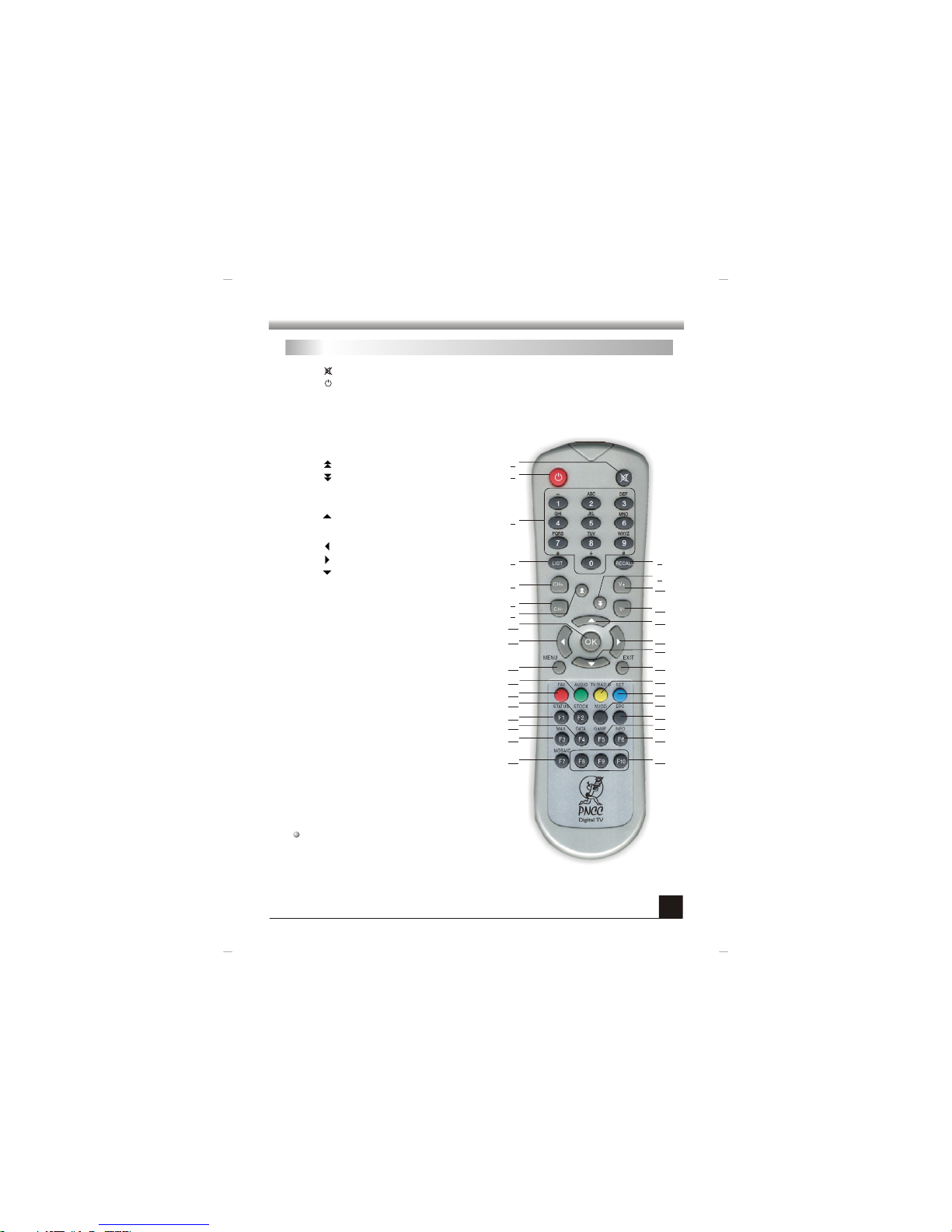
1. : Press to mute the volume, and press again to restore the volume.
2. : Press to get into the standby mode, and press again to power on.
3. Numeric keys(0-9): Input the channel number or input the characters .
4. LIST: Short-cut key for TV list.。
5. RECALL: Switch between current channel and the previous channel.
6. CH+: Select the channel up
7. CH-: Select the channel down
8. : Select the page up
9. : Select the page down
10. V+: Increase the volume
11. V-: Decrease the volume
12. : Up arrow key
13. OK: Confirm or execute the selections.
14. : Left key
15. : Right key
16. : :Down key
17. MENU: Pop up the main menu.
18. EXIT: Escape from the current status.
19. AUDIO: Select among left, right, stereo
and mix audio.
20. TV/RADIO: :Switch between TV mode
and Radio mode.
21. FAV: Short-cut key for the favourite list.
22. SET: :Short-cut key for the Channel Edit
23. STOCK(F2)): :Short-cut key for STOCK.
24. NVOD: :The short-cut key for the NVOD.
25. STATUS(F1): :Short-cut key for STB Info.
26. EPG: Short-cut key for Program Guide.
27. DATA(F4): Short-cut key for DATA.
28. GAME(F5): Short-cut key for Game.
29. MAIL(F3): Short-cut key for Mail.
30. INFO(F6): Short-cut key for information bar.
31. MOSAIC(F7): Short-cut key for Mosaic.
32. F8~F10: No function temporary.
RC U
Page 11
8
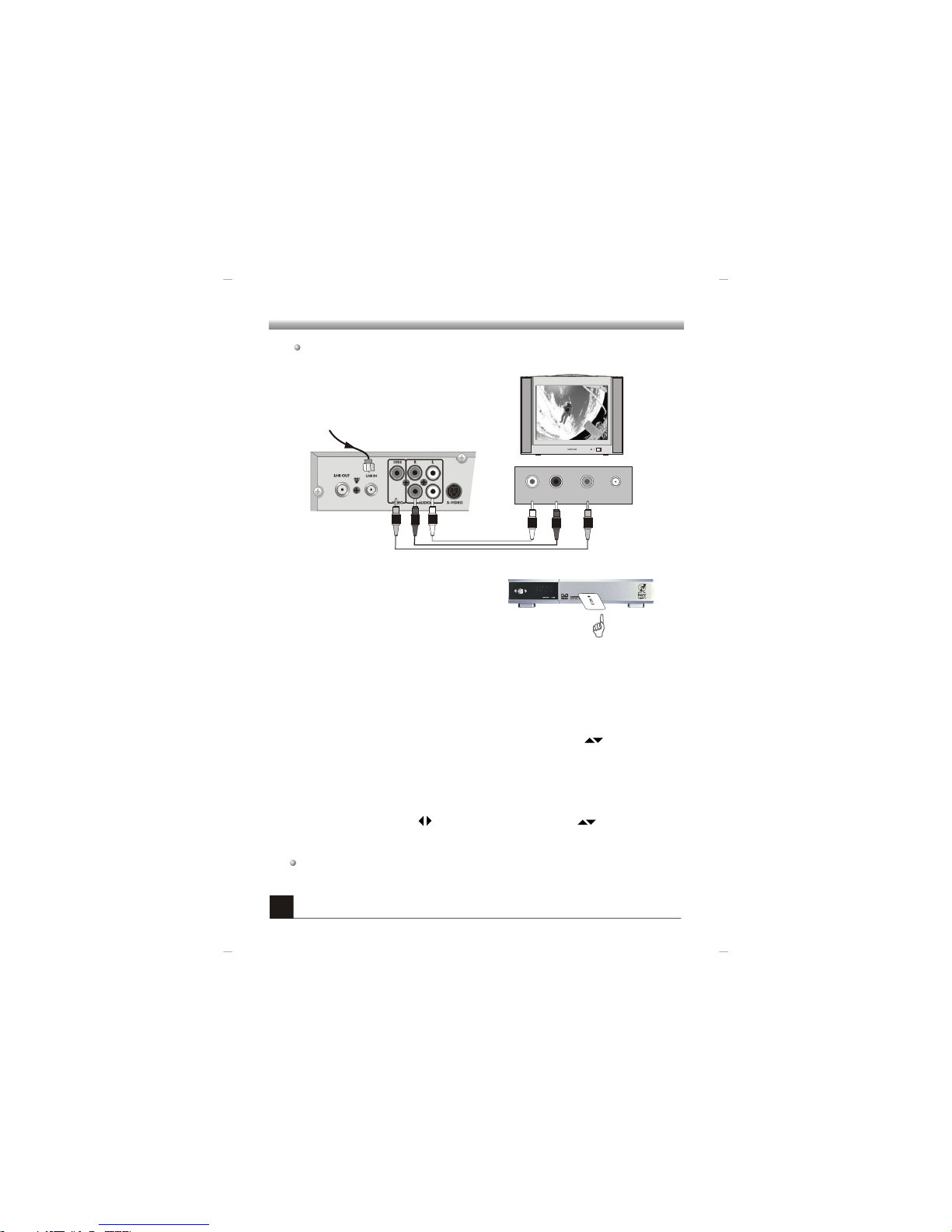
3. Se arch Ch annel s
Pre ss M EN U ke y on the RCU, the n se lec t Ch an nel Man ag e→ Au to Sear ch , an d
the n pr ess O K key t o sta rt se ar ch ing . Afte r sea rc hi ng, pre ss EX IT ke y to th e
nor mal vie wing mo de.
Not e: For th e fi rs t ti me to p ow er o n t he n ew ly -bo ught r ec ei ver, sy st em w il l pop u p a
win dow in fo rm in g yo u t o st art se ar ch in g pr og ra ms b y p re ssi ng OK k ey on t he RCU .
If th ere is no s uch pro mpt, pl ease re fer to th e detai l descr iptio n in the fo llowi ngs.
2. Power ON
Power on the TV set and switch to Video/AV status.
Power on the receiver.
(Note: please insert the smart card when you can
enjoy the scrambled programs.)
1. Connect to the TV set
Tha nk you for pu rc ha si ng C5 800 dig ital cabl e re ce iv er. Fo r the first t im e to u se t his
rec eiver, p lease r efer to t he foll owing s etups .
LEFT RIGHT RF IN
VIDEO
Cab le Sign al inpu t
4. Se lect Ch annel
Pre ss LIS T ke y on t he R CU t o en te r in to t he T V Li st w ind ow. U se k eys to s ele ct
the c hanne l up or dow n.
Pre ss OK k ey t o view th e se le ct ed c ha nn el o n t he b ac kg rou nd scr ee n. Pr es s EX IT
key t o view it i n full- scree n.
5. Ad just th e vo lu me
Dur ing th e vi ew ing , pr ess ke ys t o ad ju st t he v ol ume; p res s ke ys to ch an ge
the c hanne l up or dow n.
QUICK O PERATI ON
white
yellow
red
Page 12

9
MENU OP ERATIO N
Main M en u
SPECIAL ATTEN TI ON !
1. T he gr ey ite ms can not r eal ize its f un ct io n. I f there i s d if fer ence, pleas e ref er t o
the r eal one .
2. A ll th e par am ete rs di sp la yed on t he pi ct ure s in thi s man ua l a re on ly fo r
ref erenc e.
3. Pl ease in sert sm art car d when yo u enjoy t he scra mbled p rogra ms.
4. Th e t wo wa ys to i np ut th e val ue . T he ba ck gr ou nd of the sel ected item will turn
blu e w hen th e curs or is plac ed on this it em. (S et exa mp le for Fre qu enc y S etu p
win dow, ple ase see t he next p age).
Dur ing the v iewin g mode, o nce MEN U key is pr essed o n the RCU , the Mai n Menu
win dow wil l be disp layed o n the scr een.
Pro gram Gu ide
TV Li st, NVO D, Prog ram For ecast ,
Cla ssifi ed Fore cast, B ookin g Manag er
Cha nnel Ma nage
Aut o Searc h, Chan nel Sca n, Manu al Sear ch,
Cha nnel Ed it
Spe cial Se rvice
Gam e, Stoc k, Brow ser, Mai lbox
Sys tem Opt ion
Sys tem Opt ion, Re store D efaul t, Lang uage,
STB I nfo
Sma rt Card
Set up Pass word, X -Cert ifica te Setu p, Smar t Box Inf o, Autho rizat ion Inf o
Use ke ys t o se le ct u p or dow n, c orres pondi ng the s ub-me nu of se le ct ed i tem
wil l be dis pl ayed o n th e ri ght drop- do wn l is t. U se k ey s to s wi tc h be twe en Mai n
Men u and s ub-me nu. In the sub- me nu s, sel ec t t he des ir ed it em a nd pre ss OK k ey
to en ter int o its win dow.
In th e Main Me nu wind ow, EXIT k ey is use d to retu rn the no rmal mo de.
In th e other w indow s, EXIT k ey is use d to retu rn to the p revio us wind ow.
Page 13
10
1. Pro gr am G uide
In Pr ogr am Gu id e m en u, us ers can n ot on ly l ook u p t he TV li st an d t he Prog ram
For ecast , but als o can boo k the pro grams a s you wan t.
1.1 TV L is t
Sel ect TV L ist i tem in t he P ro gra m Gu id e me nu , an d pre ss OK ke y to e nt er in to the
TV Lis t win dow. Duri ng the norm al mode, you c an pr ess LIST or OK k ey to e nt er
int o this wi ndow di rectl y.
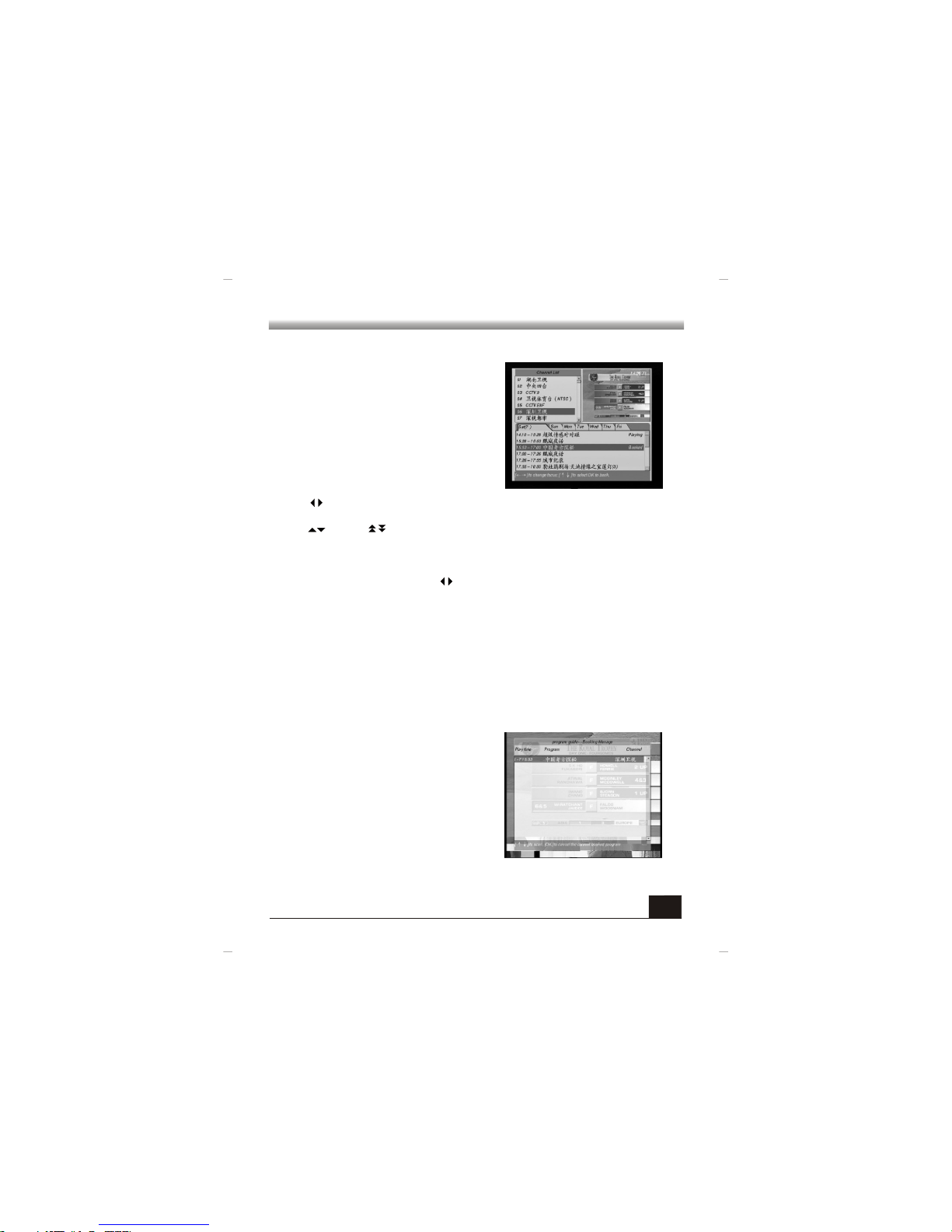
Use ke ys t o se le ct b etw ee n TV l ist a nd
Fav ourit e List . T he way to set fa vo urite li st ,
ple ase ref er to 2.4 C hanne l Edit.
All s ea rc hed p ro gr ams are l is ted i n th is
win dow. Us e ke ys or k ey s to s elect
the pr og ra m up or do wn . Pres s OK key at
the se le cte d p ro gram t o v iew it on t he
bac kgrou nd scre en.
1.2 NV OD
Thi s item is g rey and i ts func tion ha s not bee n reali zed.
1) Us e nume ri c k ey s (0~ 9) on the RC U to
inp ut the de sired v alue di rectl y;
2) Press OK key on the RCU or the fron t
pan el. Us e ke ys t o ch an ge v al ue, an d
use k ey s to se le ct th e val ue th at you
wan t to modi fy.
Aft er sett ing, pr ess OK ke y to conf irm.
Two wa ys t o in put t he v al ue :
MENU OP ERATIO N
Page 14
11
1.3 Pr og ra m Forec as t
P r o gr am F or ec as t i s m or e l ik e t h e
ele ctron ic pro gr am new sp aper. From he re,
you can k now th e pr og ram s in the fut ure
sev en d ay s and bo ok the prog rams as yo u
wan t.
Dur ing the no rmal mo de , you ca n pr ess
EPG k ey o n the R CU to e nter in to th is
win dow dir ectly.
ke ys or RE CA LL ke y are used to se le ct betwe en up -l eft c ol umn and dow n
col umn.
key s or keys a re u se d to s ele ct u p or d ow n in ea ch c ol um n.
In c ha nn el l is t, s el ect th e de si re d ch an ne l, w hi le t he c onten ts sho wn i n righ t
PIG (pict ure in g ra phic) and i n th e do wn f or ec ast ing co lum n will v ar y wi th t he
sel ected c hanne l.
In th e f oreca sting colu mn , use keys or t he nu me ric k ey s ( 1- 7) to se le ct from
Mon day to Su nd ay. In the pro gr am lis t of the sele cte d d ay, mov e curs or to the
pro gram th at yo u w an t t o boo k and pres s O K to bo ok it . I f y ou wa nt to ca nce l the
boo king, j ust pre ss OK key a gain.
1.4 Cl as si fied Pr og ra ms
Thi s item is g rey and i ts func tion ha s not bee n reali zed.
1.5 Bo ok in g Manag e
Al l boo ked pr og ra ms are li sted i n th is
win dow. If you want t o can cel the bo ok ed
pro grams , ju st s el ect t he m an d pre ss OK
key.
MENU OP ERATIO N
Page 15
12
In C ha nne l Ma na ge m enu , us er s ca n
sea rch cha nnels a nd edit c hanne ls.
2. Cha nn el M anage
2. 1 Au to S earch
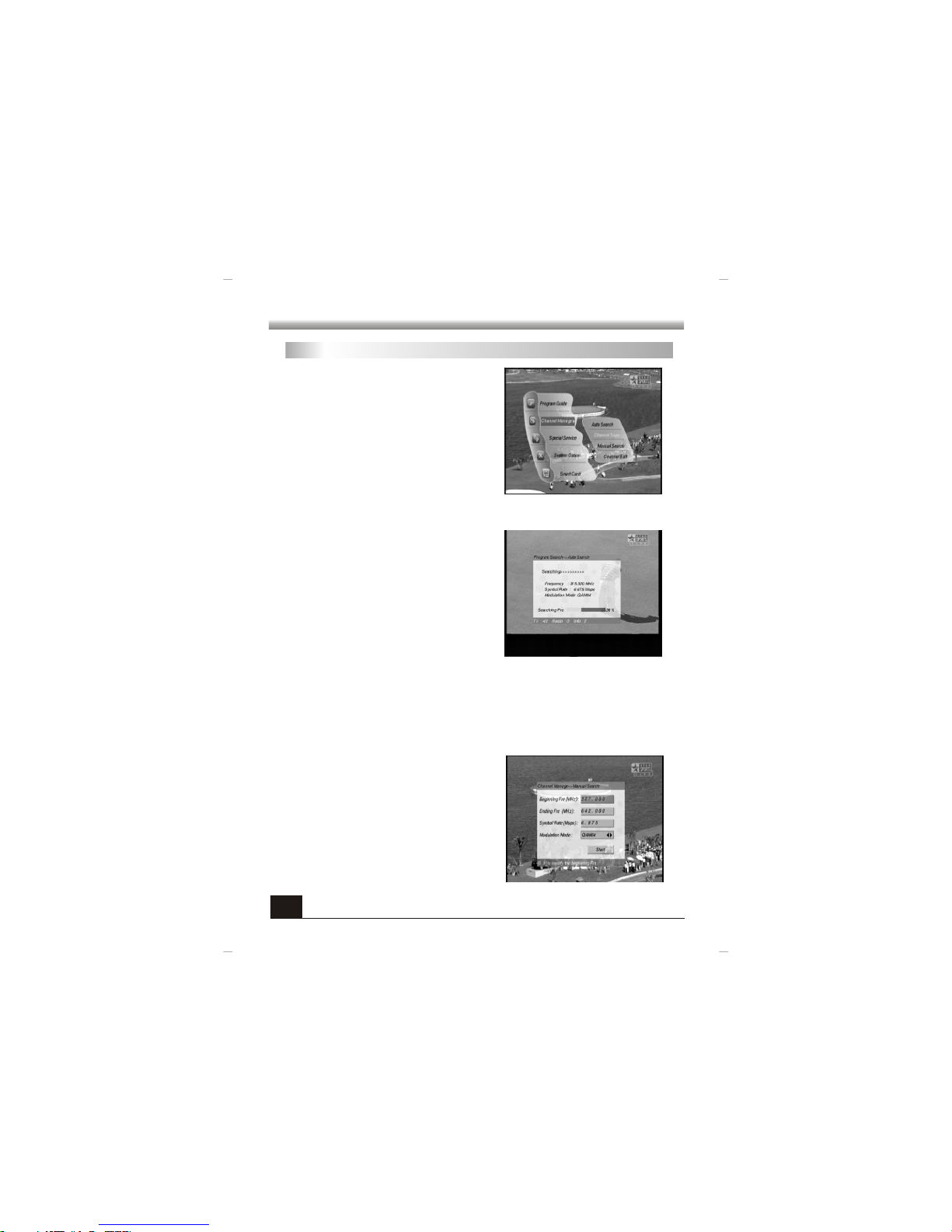
Onc e OK ke y is pr ess ed a t the AUT O
Sea rch item , y ou wil l ente r into th e Auto
Sea rch wi nd ow a nd sta rt sea rc hi ng t he
cha nnels und er the pre pa red fre qu en cy by
the f actor y.
Fo r th e ne w or un fami li ar u se rs , A ut o
Sea rch is a ve ry g oo d way t o se ar ch th e
cha nnels .
Aft er se arc hi ng , p ress E XIT k ey t o t he
nor mal vie wing mo de.
2. 2 Sea rc h Sc an
Thi s item is g rey and i ts func tion ha s not bee n reali zed.
2. 3 Man ua l Se arch
Acc ordin g to the fre quenc y list pr ov id ed by
th e lo ca l op erat or, y ou c an a dd m or e
cha nnels b y yours elf.
In Man ua l S ea rch windo w, input t he pro per
fre quenc y an d sy mb ol rate . A ft er inpu tt in g,
sel ect Sta rt Se ar ch bu tt on an d pre ss OK
key t o start s earch ing pro grams .
MENU OP ERATIO N
Page 16
13
2.4 Ch an ne l Edit
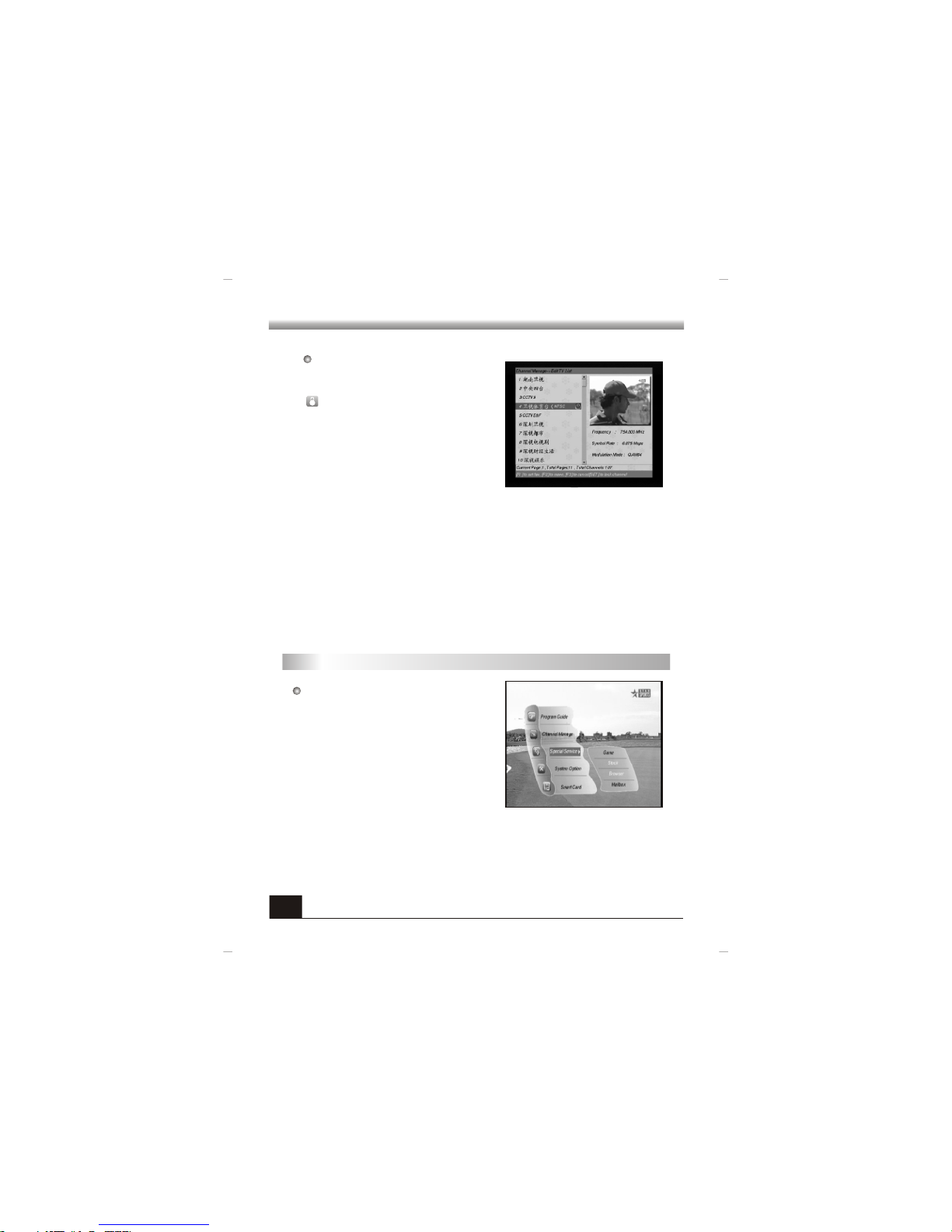
In Ch ann el Ed it wi nd ow, yo u c an se t t he chan nel s as y ou li ke . D ur ing the nor ma l
mod e, you ca n press S ET key on t he RCU to e nter in to this w indow d irect ly.
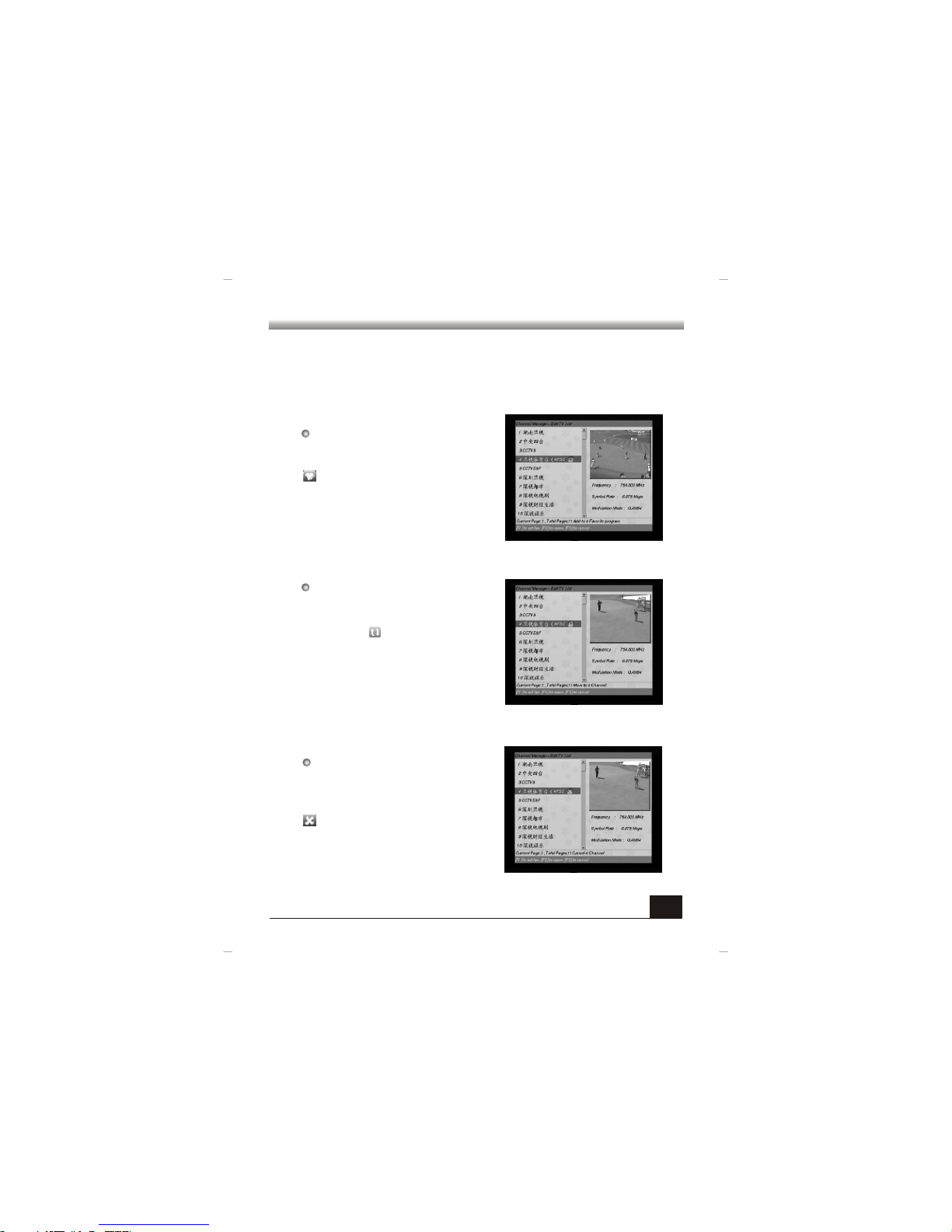
Sel ect th e de si red cha nn el a nd p re ss F 1
key on t he RCU , t he n yo u will fi nd t he m ark
wil l be disp layed a t the rig ht side .
I f you w ant t o c an ce l t hi s f av our ite
cha nnel, j ust pre ss F1 key a gain.
In t he sa me w ay, yo u ca n ad d m or e
cha nnels t o the fav ourit e list.
Favourite (F1)
Move (F2)
Sel ect the cha nn el tha t you wan t to mov e
and pr es s F2 key on t he RCU , the n yo u wi ll
fin d the mark w il l b e di sp la ye d at th e
rig ht side .
Mov e t he sel ec te d chan ne l to the posi ti on
tha t you want to loca te , and then pres s O K
key o r F2 key to c onfir m.
Cancel (F3)
Sel ect t he chan ne l t ha t you want to dele te
fro m the ch an nel list an d t he n p re ss F3 ke y
on t he RCU , t hen yo u w ill fi nd the mar k
wil l be disp layed a t the rig ht side .
If yo u want to canc el the del eti on, ple ase
pre ss F3 key a gain.
MENU OP ERATIO N
Page 17
14
Lock (SET)
Sel ect the desir ed c hanne l an d pres s SET
key on the RC U, th en y ou wil l f ind th e ma rk
wil l be disp layed a t the rig ht side .
If you w ant to ca nc el th e l oc k, ple ase p re ss
SET k ey agai n.
1. Th e lo ck f unc ti on c an n ot ta ke e ffect u nl es s you had a pp li ed t he pr og ra m lo ck in
4.1 .4 Pare ntal Co ntrol .
2. Be fore yo u can loc k the pro gram, s ystem w ill pop u p a passw ord box i nform ing
you t o input a f our-d igit pa sswor d. The de fa ul t pas sw or d is 0 000 .
Aft er set tin g, pre ss E XI T ke y to t he p re vi ous me nu. A wa rn ing box wi ll b e di pla yed
on th e scree n. Pres s OK key to s ave and e xit, ot herwi se pres s EXIT ke y.
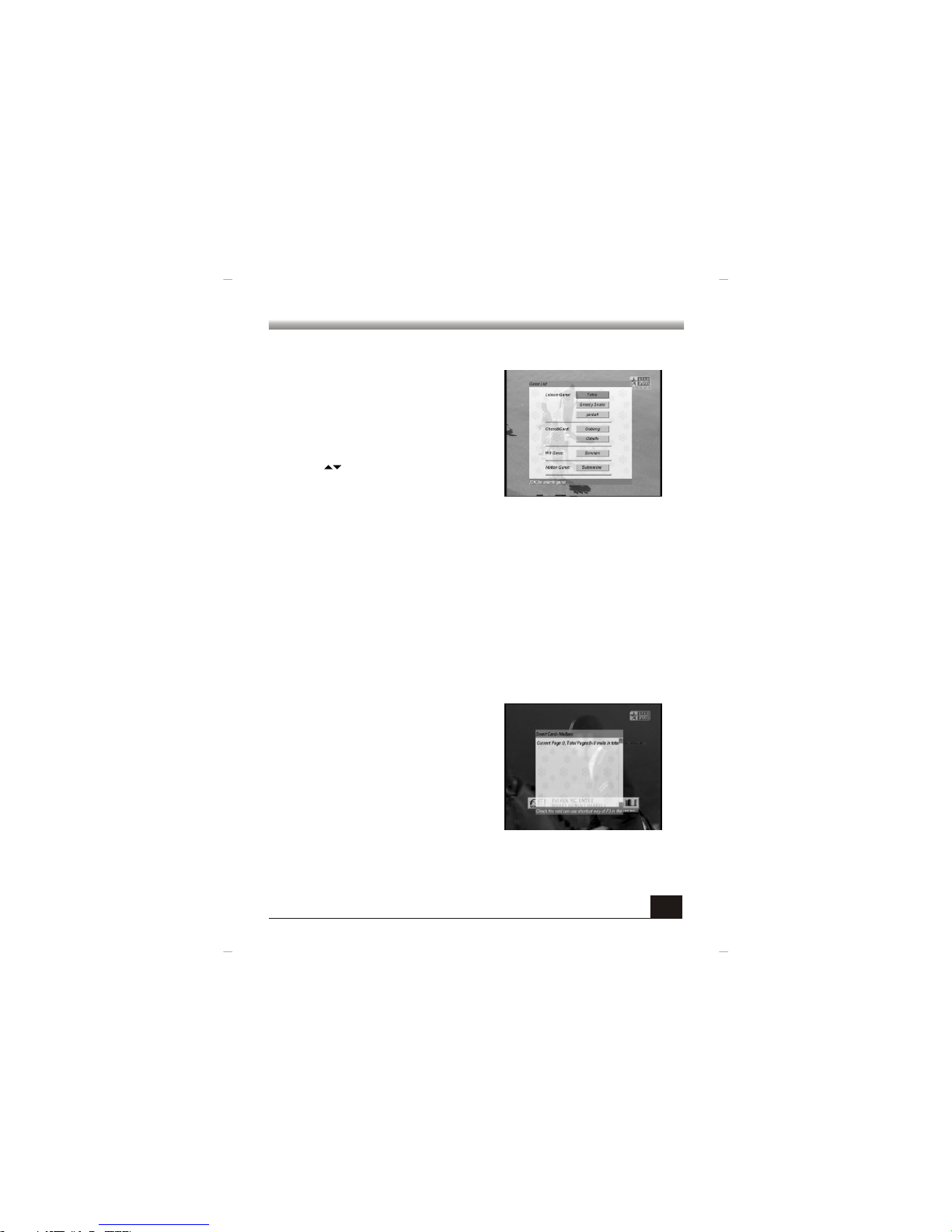
3. Spe ci al S ervic e
In S pe ci al S er vi ce m en u, s ys te m ha s
pro vided g ame fun ction t o relax t he user s.
Not e:
MENU OP ERATIO N
Page 18
15
3.1 Ga me
In Sp ecial S ervic e me nu , se lec t Ga me
ite m and pr es s OK k ey t o ente r in to t he
Gam e List wi ndow.
The re are f ou r ki nds of g ame s for se le cti on:
Lei sure Gam e, Ch es s & Card, Wi t Gam e
and M otion G ame.
Use keys to sel ect the gam e that you
wan t t o p la y, an d p re ss OK k ey to its
win dow. Durin g th e pl aying , yo u ca n pr ess
INF O key to po p up the he lp wind ow.
3.2 St oc k
This item is grey and this feature is not available.
3.3 Br ow se r
This item is grey and this feature is not available.
3.4 Ma il bo x
All mail s f ro m t he ope rator are l is te d i n t his
win dow. During the norm al mod e, you can
pre ss F 3 ke y to e nt er i nt o th is w ind ow
dir ectly.
MENU OP ERATIO N
Page 19
16
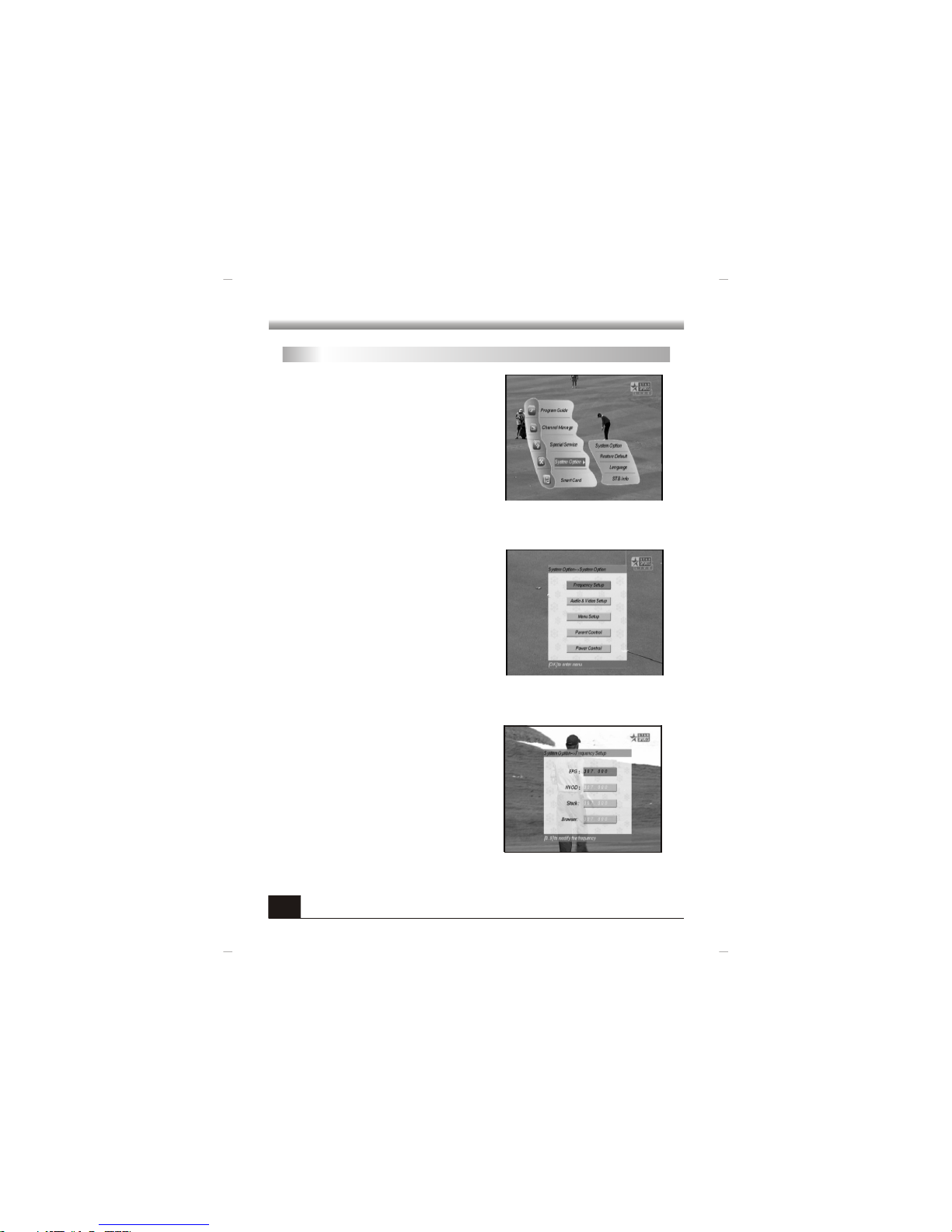
4. Sys te m Op tion
The Sy st em Opt ion s ub -me nu is a v er y
imp ortan t menu.
Thr ough t his m enu, y ou c an s et n ot o nly se t
the s ys tem o pt ion a nd la ng ua ge, b ut al so
res tore defa ul t an d lo ok up t he i nf orm ation
of th is rece iver.
Not e: T he unsu it ab le sett in gs in t his me nu
may be t ak e you int o th e tr ou ble , so p le ase
rea d caref ully be fore th e opera tion.
4.1 Sy st em O ption
In Sy stem Op tion wi ndow, th ere are f ive
ite ms: F re que nc y Setu p, A udi o & Vid eo
Set up, Men u Setup , Paren tal Con trol an d
Pow er Cont rol.
Sel ect th e it em t ha t yo u wa nt t o op er at e an d
pre ss OK key t o its win dow.
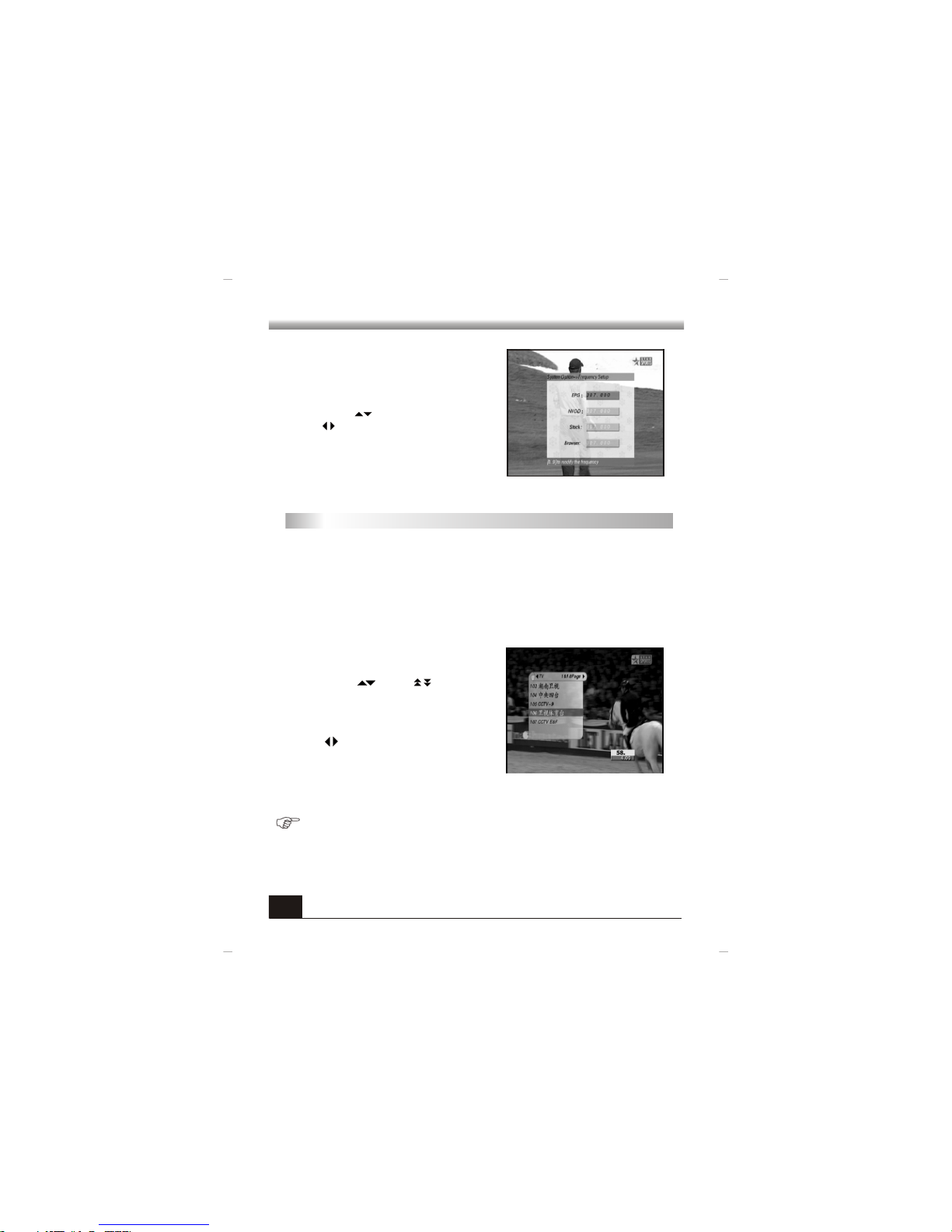
4.1.1Frequency Setup
In Fr eq uen cy S etu p windo w, inp ut th e
pro per pa ra me ter s o f EP G, N VO D, S tock
and d ata.
All the se are pro vi ded by th e
lo ca l o p er at o r. I n c ommo n, i t i s n ot
nec essar y for yo u to cha ng e the de fa ult
set ting.
par amete rs
MENU OP ERATIO N
Page 20
17
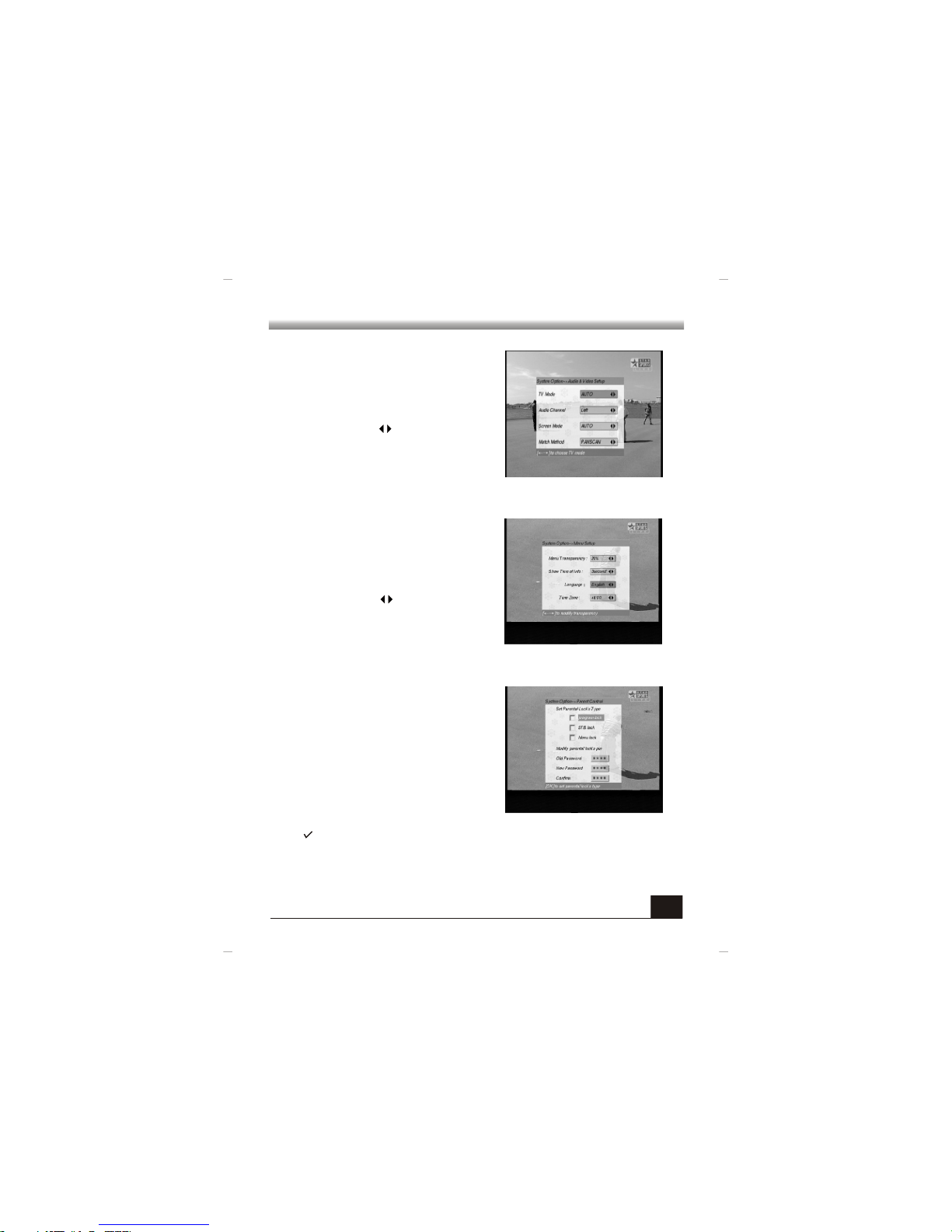
4.1.2 Aud io & Video Setup
In Aud io & Vi deo Se tu p wind ow, you can
sel ect th e prop er opt io ns f or TV Mo de,
Aud io Cha nn el, Scree n Mo de, or M atch
Met hod.
In ea ch item , use key s to sele ct dire ctly.
4.1.3 Menu Setup
In Menu Setu p win dow, you can sele ct the
pro per o pt io ns fo r M en u Tr an s- par en cy,
Sho wn Time of In fo , Lan g- ua ge an d Time
Zon e.
In each i te m, u se k eys to s ele ct
4.1.4 Parental Control
The re are th ree typ es of par ental l ock:
Pro gram lock : I f ap pl y this lock , you can
loc k the cha nnels i n 2.4 Cha nnel Ed it.
STB Lo ck: If a pp ly t hi s lo ck , yo u ne ed inp ut
the pas sword bef ore yo u en ter int o the Ma in
Men u.
Men u Lock : If ap pl y th is loc k, y ou nee d
inp ut the p as sw or d be fo re y ou e nt er i nt o
som e menus .
Sel ect th e desi red ty pe loc k and p re ss OK key to ap ply, th en you will f ind th e mark
will be d is pla yed in t he lef t fr am ew ork . If you wa nt t o ca nc el, ju st p re ss O K ke y
onc e again .
MENU OP ERATIO N
Page 21
18
You c an also ch an ge th e p as sw ord o f t he parenta l loc k. Firs t u se nu me ri c k ey s t o
inp ut the ol d passw ord, an d then tw ice inp ut the ne w passw ord.
Not e: T he defa ul t va lu e is 0000 . To a void gett in g in to the trou ble, plea se don 't
for get you r new pas sword .
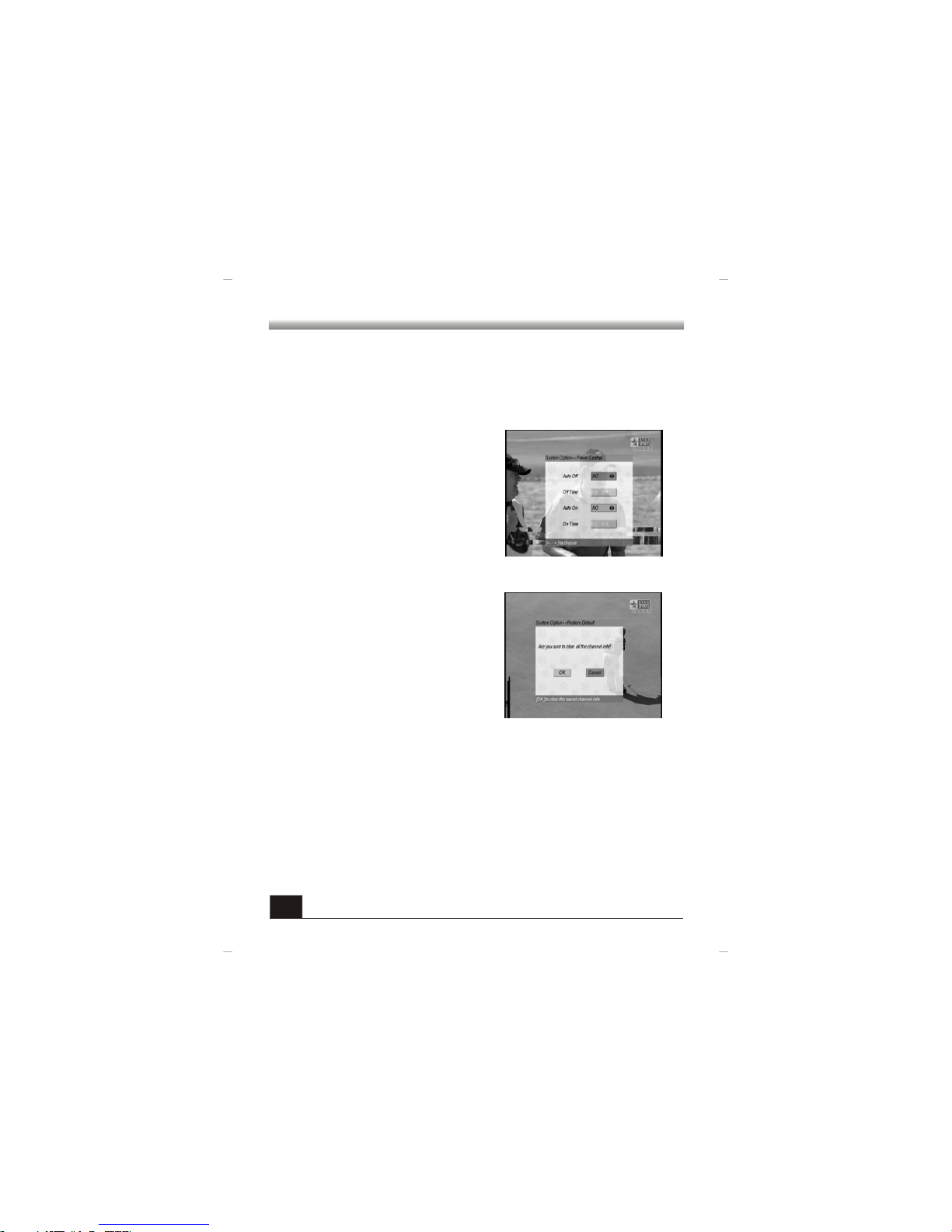
4.1.5 Power Control
In Power Cont rol w indow, you can s et th e
tim e to po we r on an d po wer of f th e rece iv er
whe n the rec eiver i s in stan dby mod e.
Aut o off/ Auto o n: Sel ect the f re qu ency f or
the e vent( day, eve ry da y, or No )
Off Tim e/On Time : Use the num er ic key s
(0- 9) to inp ut the de sired t ime.
.
4.2 Re st or e Defau lt
In Sys te m Opti on menu , sele ct Res to re
Def ault item and pres s OK key. A w arnin g
mes sage bo x w il l be dis playe d on th e
scr een. S ele ct OK bu tt on a nd p re ss O K ke y
to rest ore defaul t, othe rw is e pre ss O K key
at t h e C a n ce l b ut t o n t o c an ce l th e
ope ratio n.
Not e: Aft er r es tor ing, a ll c ha nne ls and p ar am ete rs i n this r ec ei ver wi ll b e er ased t o
the f actor y defau lt. So pl ease th ink car efull y befor e you res tore de fault .
Aft er rest ori ng , syst em wi ll po p up the Se ar ch Gu ide wi ndow. If yo u want t o
sea rch prog ra ms no w, pl ease pre ss OK ke y t o st art sear ch in g. If n ot, plea se pr es s
EXI T key.
4.3 Language
The s ame win dow and o perat ion as 4. 1.3 Men u Setup
MENU OP ERATIO N
Page 22
19
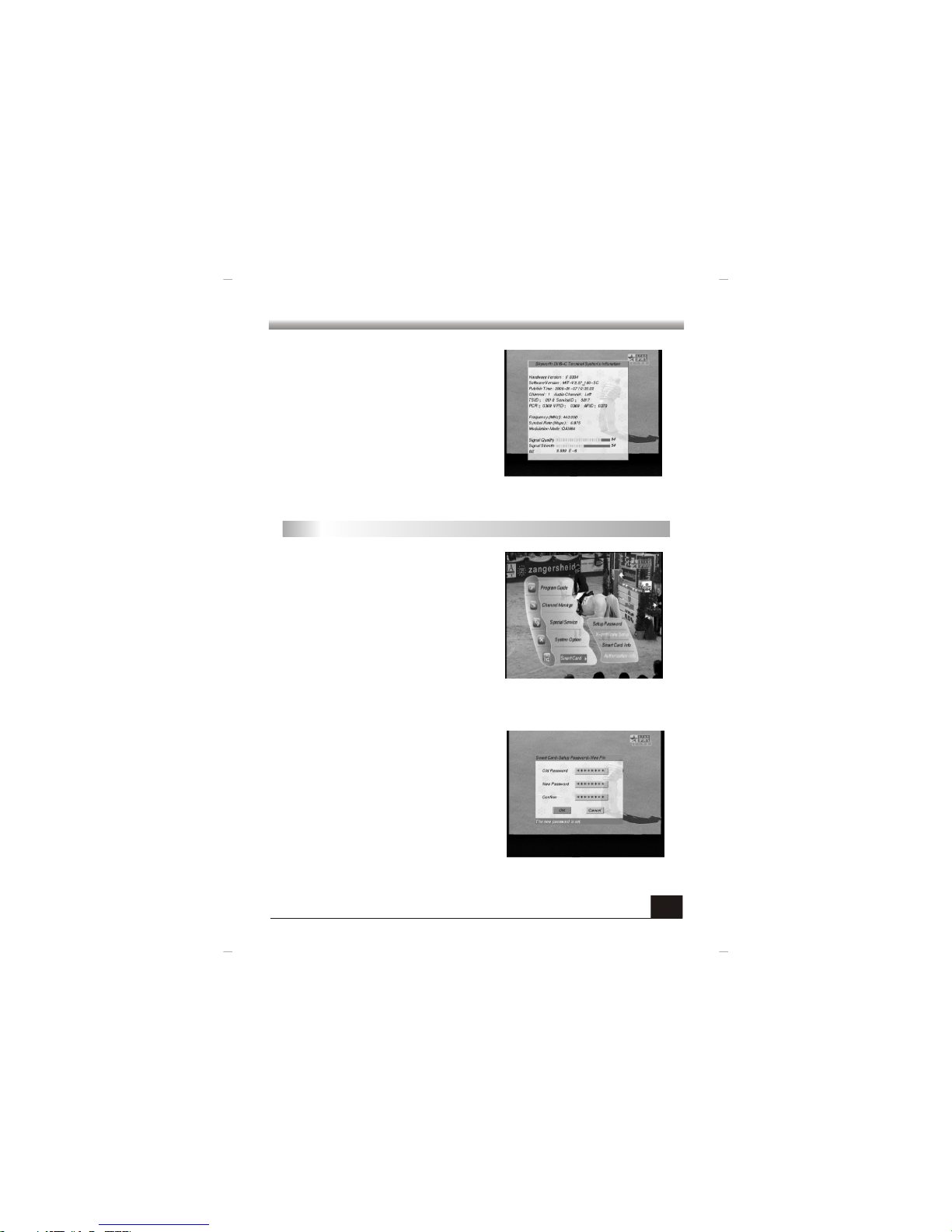
4.4 ST B In fo
Fr om th is wi nd ow, you c an kn ow al ll
inf ormat ion o f t he rec ei ver s uch as har d
ver sion, s of tw are v er si on, p ublis h ti me,
cha nnel an d so on.
Thr ough Smar t Ca rd men u, you can kno w
the inf or mat ion ab out car d an d ch ang e th e
pas sword .
5. Sma rt C ar d
5.1 Se tu p Pa sswor d
In S etu p Pa ssw or d w in dow, y ou ca n
cha nge the pass word of t he inserte d sm ar t
car d.
Use nu me ric ke ys (0- 9) to i nput t he old
pas sword , and th en tw ic e i np ut th e n ew
pas sword . Sel ec t OK bu tt on to appl y, the
bot tom tex t will te ll you th e chang ing res ult.
Not e : The sma rt car d will be lock ed aft er
inp uttin g sever al erro r old pas sword .
MENU OP ERATIO N
Page 23
Info of the operator
You ca n know th e in fo rmati on a bo ut t he op er at or s of th is s ma rt c ard .
Clean CA In fo i n st or ag e
Onc e OK k ey is p resse d on t his item , a war ning mes sa ge bo x w ill be di spl ay ed on
the scr ee n. Sele ct Yes bu tto n and pr es s OK key to c le an the stor ag e, othe rw ise
sel ect Can cel but ton and p ress OK k ey.
Wat ch g ra de s et ti ng
You can s el ec t t he pr op er wa tch grad e s et ting. The o pt ion s for sele ction are : No
lim it, fro m 4 years o ld to 18 ye ars old .
20
5.2 X-cerfiticate Setup
Thi s item is g rey and i ts func tion ha ve not be en real ized.
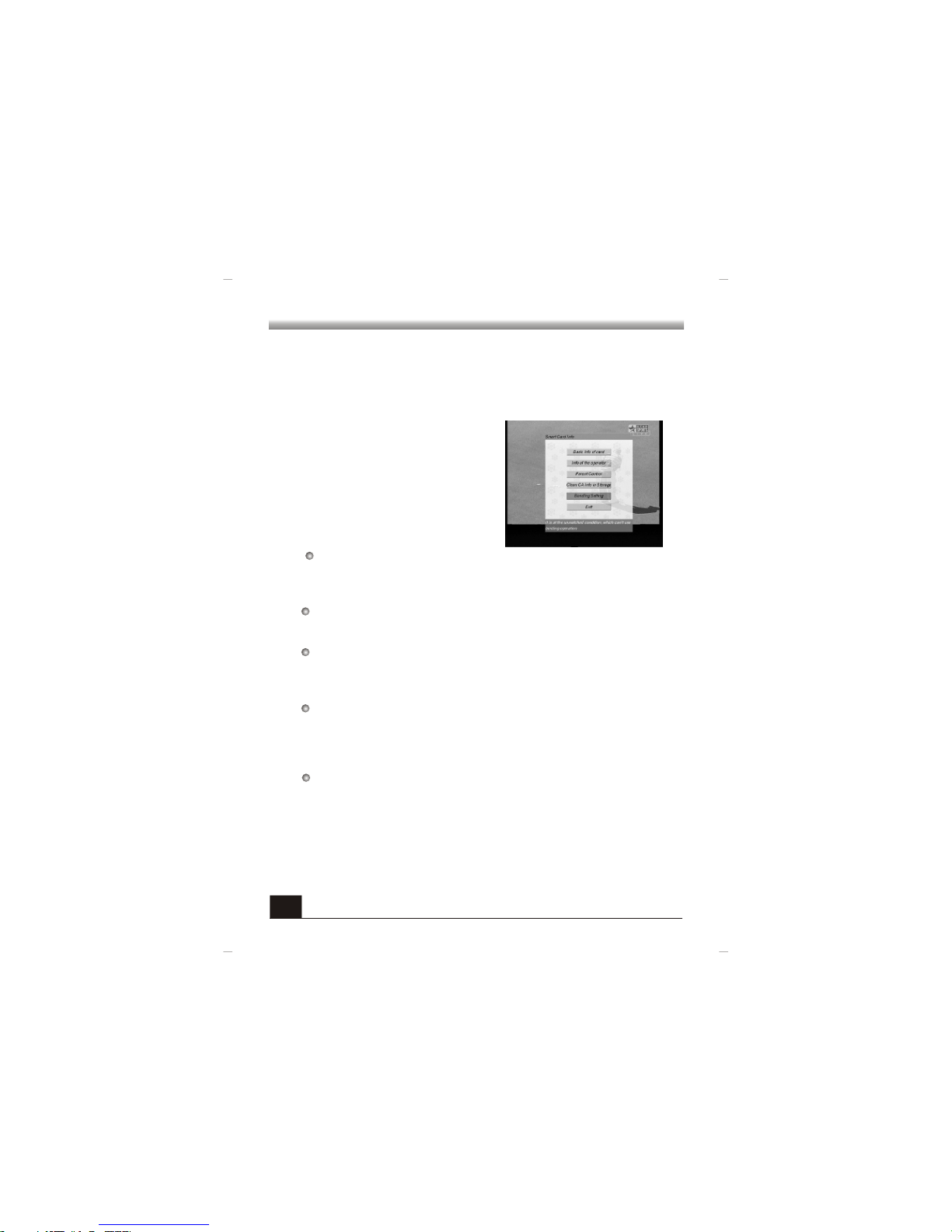
5.3 Sm ar t Ca rd Info
In Sm ar t Car d wi ndo w, it co nsist s of fi ve
it em s: B asic in fo o f ca rd , In fo o f th e
ope rator, Watch in g gr ad e s et tin g, Cle an CA
Inf o in Stor age, Bo nding S ettin g and Exi t.
Sel ect th e de si re d it em a nd p re ss O K ke y to
ent er into i ts wind ow.
Basic info of card
You c an k no w th e b as ic i nf o of th is c ard su ch as c on di ti on, nu mb er, m ar k, g rade o f
par ental , the val idity a nd so on.
Bonding Setting
Thi s item is g rey and i ts func tion ha s not bee n reali zed.
MENU OP ERATIO N
5.4 Aut horiz at io n Info
Thi s item is g rey and i ts func tion ha s not bee n reali zed.
Page 24

Some ti me s the pic tu re i s stopp ed o r th ere is Mo sa ic p henom en on
Can op er at e the men us , wh ile the re i s no s ignal
Pict ur e on ly , no voi ce
1. Check that the volume is not in mute mode and is not in the lowest volume level.
2. Check that audio cables are connected with the receiver well
1. Check the power cable is connected well
2. If there is display on the front panel, check that the audio and video
cables are connected well
3. If there is display on the front panel, the receiver is in trouble, please contact
the dealer.
4. Check the TV set is in AV mode.
Voic e on ly , no pict ur e
1. Check that the current program is not a audio(broadcasting) program
2. Check that the current program is not scrambled
3. Check that the video cable is connected well
1. Check that the set program parameters are correct
1. Check that the signal transmission of the cable is not attenuated greatly
2. Check that the TV signal cable is connected with the receiver well
1. Check that the TV signal cable is connected with the receiver well
2. Check that the set program parameters are correct
3. Check that the program is not scrambled
4. Check that whether the program is broadcasting.
1. Check that the RCU aims to the remote receiver on the front panel
2. Check that there is enough power in the battery
21
"Sea rc hi ng" sta ye d on t he scre en f or a l ong tim e
RCU is o ut o f wo rk
No pic tu re , n o voice
TROUBL E S HOOTIN G
Page 25

Video
Sta ndard: M PE G- II M P@M L
Vid eo M od e: PAL/ NT SC/ SECAM
Vid eo F or mat: 4:3 o r 16:9
Out put Sta ndard: 7 20×576( maxim um)
Vid eo O ut put: C VB S;S- VIDEO
Out put Imp edanc e: 75Ω
Inp ut Freq uency: 5 1-858 MHz
Inp ut Leve l: 45-85 dBμV
Mod ulato r mode: QA M 16/32 /64/1 28/25 6
RF In put: Bri ti sh F -f ema le , 75Ω
RF lo op Outp ut: IEC 16 9- 2 (M ) 75Ω
Mai n Chip: St i5 51 8,Ma in fr eq ue nc y 81M Hz
Fla sh ROM: 4M by te s (8 M opt io na l)
SDR AM: 8Mby te s (1 6M o pti on al )
22
C58 00 rece iver is t he digi tal cab le rece iver. It f ully co mply wi th Chin ese sta ndard
and t he gene ral Eur opean sta ndard .DVB
Software
Con ditio nal Acce ss (CA) s uppor t
Chi nese El ectro nic Pro gram Gu ide (EP G)
Sof tware u pdate o n the aut omati cally
Rap id chan ge the ch annel
Aut omati c searc hing ch annel s
Hard ware
Channel Decoder
TECHN ICAL SP ECIFI CATION
Page 26

Parameters
Power Supply 90 250V 50/60Hz
Consumption 20W (maximum)
Input Plug CSA
Standard ISO7816 Standard
Pure Size 260 L 213 W 45 H mm
Weight about 1.5kg
Operate Temperature ~
RS232 Connector support
Video
Standard MPEG-I II
Video Decoder Layer I&II
Sample Frequency 32/44.1/48KHz
Video Output Lfet audio right audio RCA Connector
Output Impedance 600
23
Data Output
Input Voltage
Smart Card
TECHNICAL SPECIFICATION
Page 27

 Loading...