

Page 1
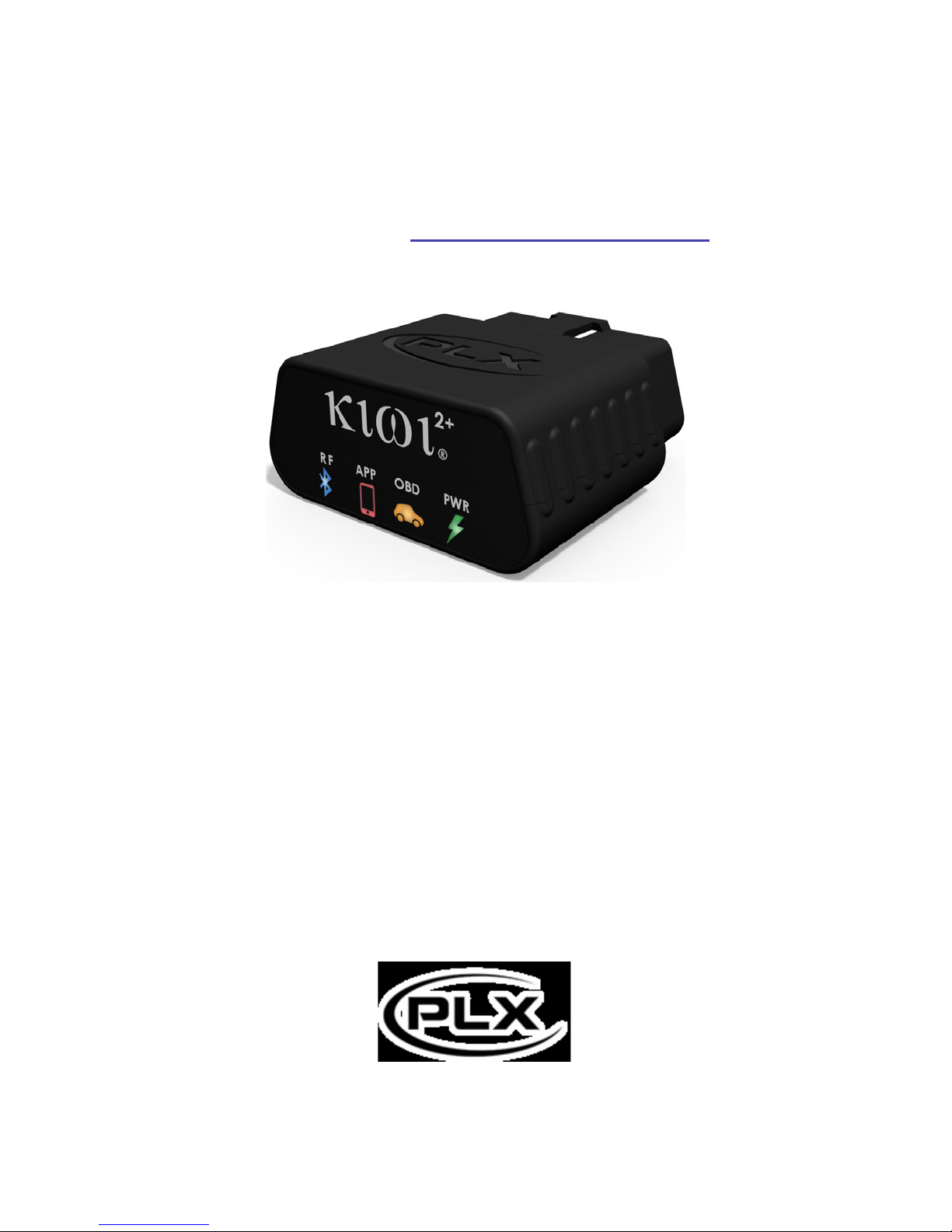
Your smartphone is now a
Kiwi 2+ Android User Manual
V0.99
powerful automotive tool.
Page 2
Setup
Configuring Kiwi 2+
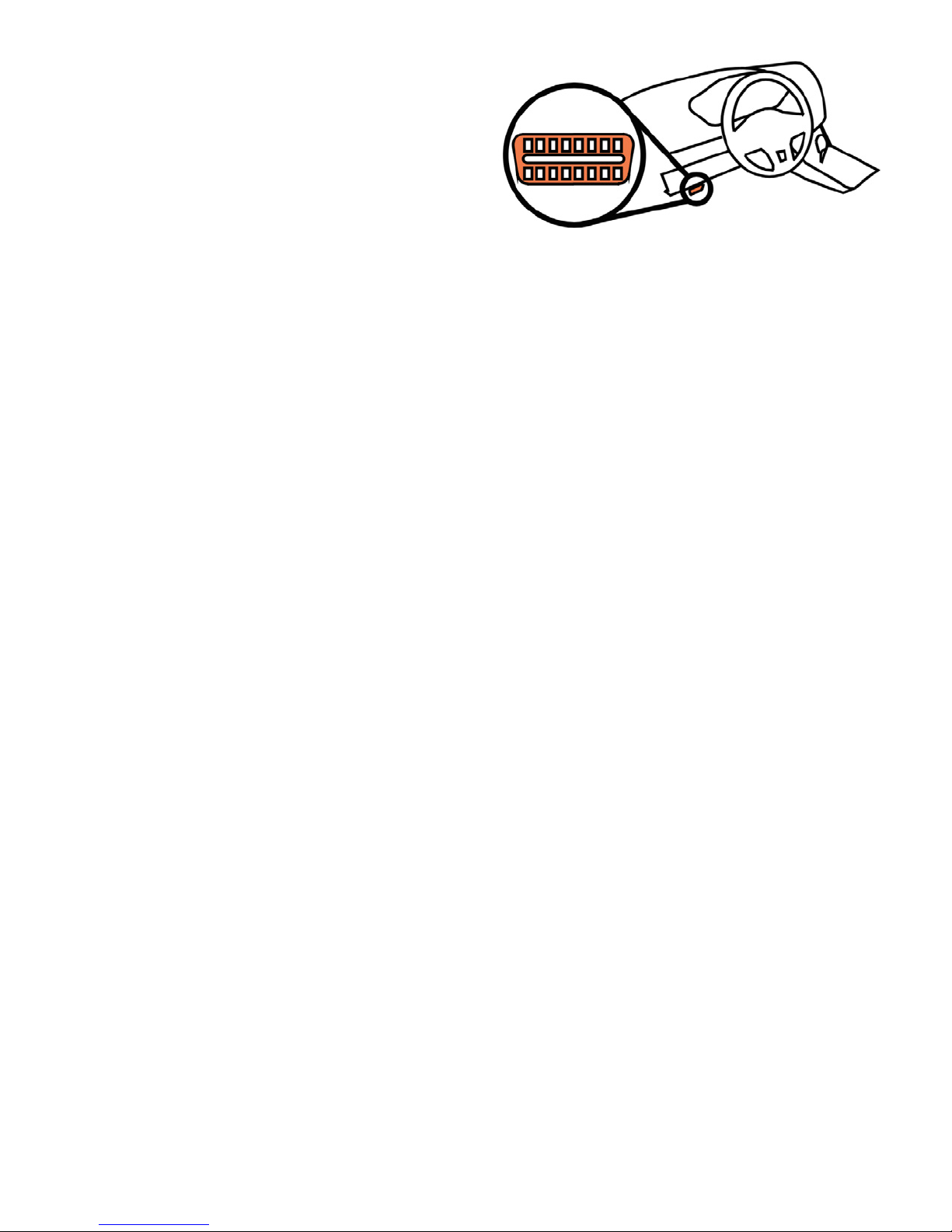
1. Locate your car’s OBDII port
and plug in Kiwi 2+
Most cars have OBD located on the driver’s side below the steering wheel.
By OBD standards the connector must be located within three feet of the driver and must
not require any tools to be revealed. If your OBD port is not visible in plain sight trying
looking under the dash, behind ashtrays, and around/in fuse boxes.
2. Pair Kiwi 2+
Open your Android phone’s Bluetooth Settings and select Scan.
Select PLXDevices and pair. If prompted for a passkey enter 1234
3. Launch your favorite app and enjoy
Some apps may need additional configuration. Please see the next section for details.
Page 3

4. Configuring specific apps
Torque Lite /
Torque Pro
1. Go to the Torque home screen (says TORQUE across the top)
2. Click the gear icon in the bottom left corner of the screen
3. Select Settings > OBD2 Adapter Settings > Connection Type
4. Make sure that Bluetooth is selected
5. Select Choose Bluetooth Device
6. Select your Kiwi (PLXDevices–XXXX)
Torque should automatically connect and reconnect in the future.
OBD Auto
Doctor
1. From the OBD Auto Doctor home screen select your phones
menu button (usually or ) and select Settings
2. Verify that the selected Connection Method is Bluetooth
3. Under Bluetooth device select Search/Change
4. Select your Kiwi (PLXDevices–XXXX)
5. Select your phones back button
6. Select CONNECT
OBD Auto Doctor should now connect with your Kiwi 2+ and ECU.
Harry's
LapTimer
Rookie /
Petrolhead /
Grand Prix
1. From LapTimer’s home screen select Admin > Sensor list
(You can also select the menu button in button in the top right
corner of any screen and select Switch view … > Settings)
2. Select the Add Bluetooth ( ) button
3. Select your Kiwi (PLXDevices–XXXX)
(If Harry’s does not automatically connect, click on the sensors
name leave the field blank and select Set and OK)
4. Select OBD
Harry's should automatically connect and reconnect in the future.
OBD Car
Doctor
1. Select the menu button at the top right corner of the screen and
select Configuration > Connection > Connection mode
2. Make sure that Bluetooth (not Kiwi 3) is selected
3. Select BT connection
4. Select your Kiwi (PLXDevices–XXXX)
5. Tap your phone’s back button twice to return to the main menu
6. Select connect
DashCommand
1. Select Connect (DashCmd can take up to 30 seconds to connect.)
2. If DashCommand fails to connect select Settings >
OBD-II Input Type and ensure that ELM is selected
Page 4
Troubleshooting
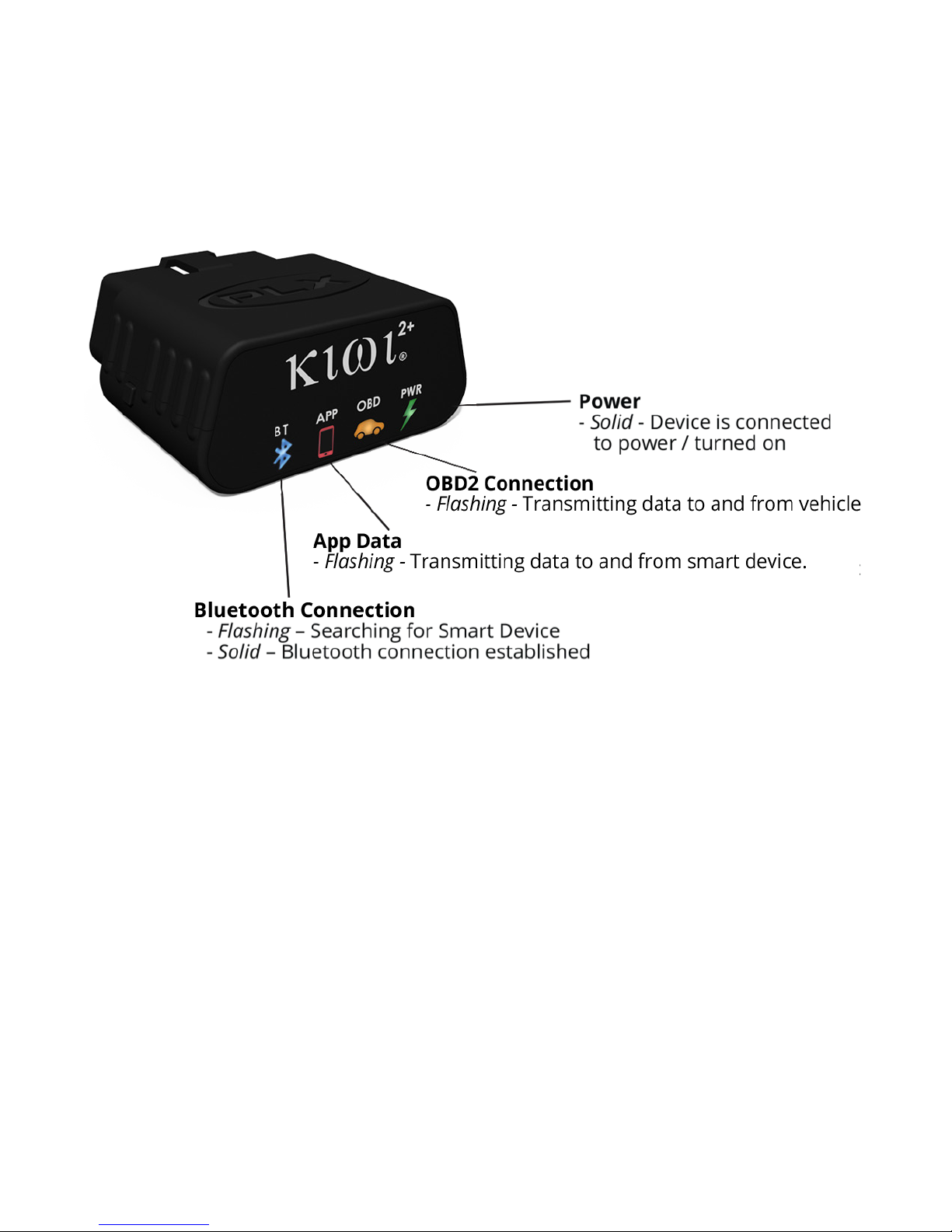
Kiwi 2+ Indicator Lights
Kiwi 2+ does not have power (no lights)
A. Disconnect and reconnect Kiwi 2+ ensuring that the device is firmly connected to
your car’s OBDII port.
B. Test your Kiwi 2+ in another vehicle (again ensuring that the device is firmly
connected to the OBDII port)
a. If Kiwi 2+ works on the other vehicle– Kiwi 2+’s hardware is functioning
properly. Check with your local car manufacturer/dealer to verify the health
of your car’s OBD port.
Page 5

Kiwi 2+ will not connect
(BT continues to blink after app is launched)
A. Make sure your vehicle is turned on.
B. Verify that your Bluetooth is turned on (On most devices go to Settings > Bluetooth)
C. Verify that the app version you have is current
App
Version
DashCommand
4.6.12
OBD Car Doctor
5.0.0
OBD Auto Doctor
2.6.2
Harry's LapTimer
19.0.29
Torque
1.8.80
D. Relaunch
a. Restart you smart device
b. Disconnect and reconnect Kiwi 2+ ensuring that the device is firmly
connected to your car’s OBDII port (PWR should be solid and BT should
be blinking)
c. Relaunch the app on your smart device
Kiwi 2+ connected, but does not receive data from OBDII port
(PWR and BT are solid but OBD and APP are idle)
A. Verify that your vehicle is turned on
B. Follow the troubleshooting steps for ‘Kiwi 2+ will not connect’ (above)
Page 6
Apps for All
Choose the Right App for You
Kiwi 2+ supports a variety of industry
apps for every level of car enthusiast.
The following apps can be downloaded
from iTunes App Store, Google Play
Store, and Windows App Store
(depending on operating system
availability).
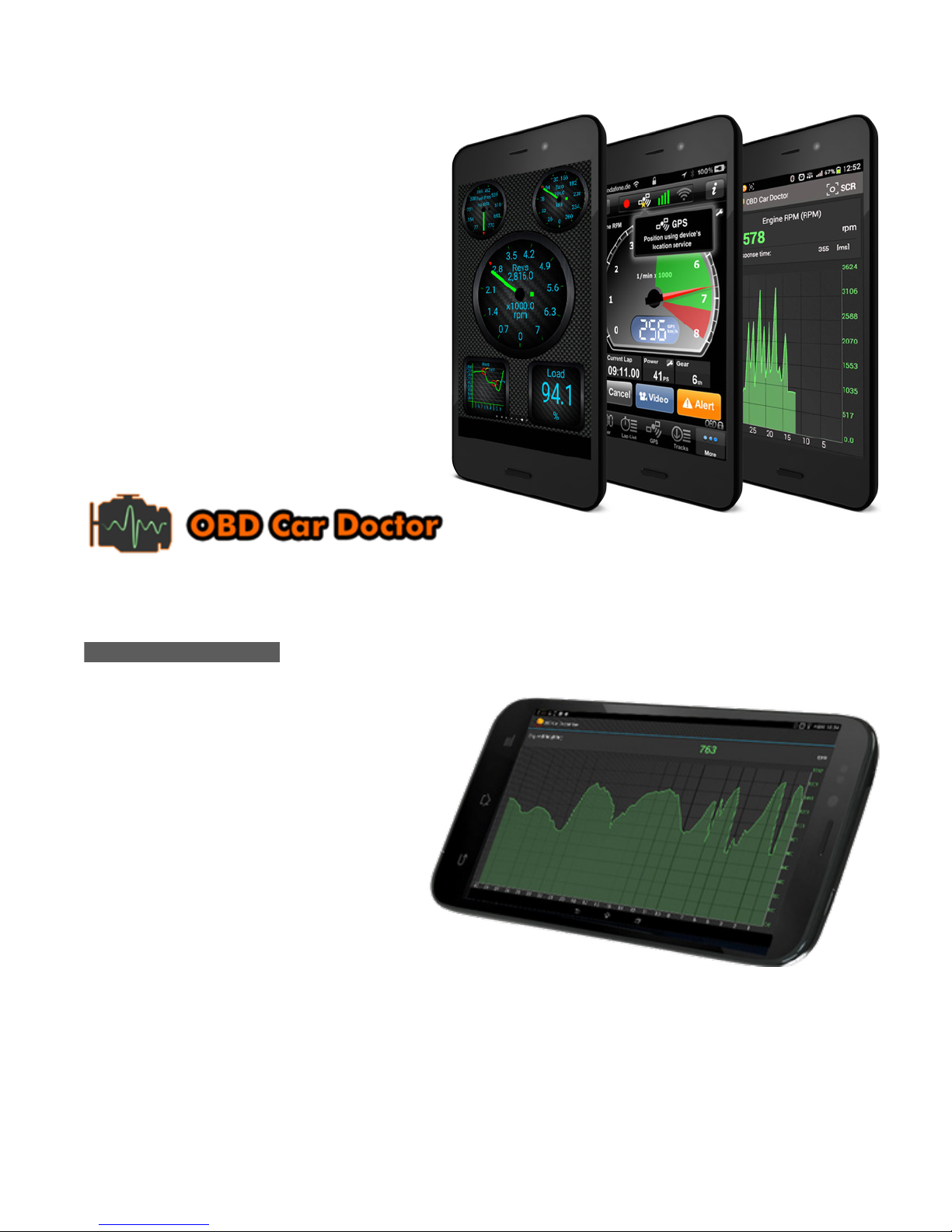
OBD Car Doctor– simple, intuitive OBD tools and gauges
Operating System: Android and iOS / iPhone
OBD Car Doctor (free) features:
§ Check engine light code reader
and reset
§ Real-time gauges and data
including speed, rotation,
temperature, pressure, and
lambda
§ Fuel economy tracker
§ Real-time parameter recording
§ Multiple parameters display
§ Parameter recorder (with background mode)
§ View and sending recorded parameters traces
§ GPS support
OBD Car Doctor Pro features:
Page 7
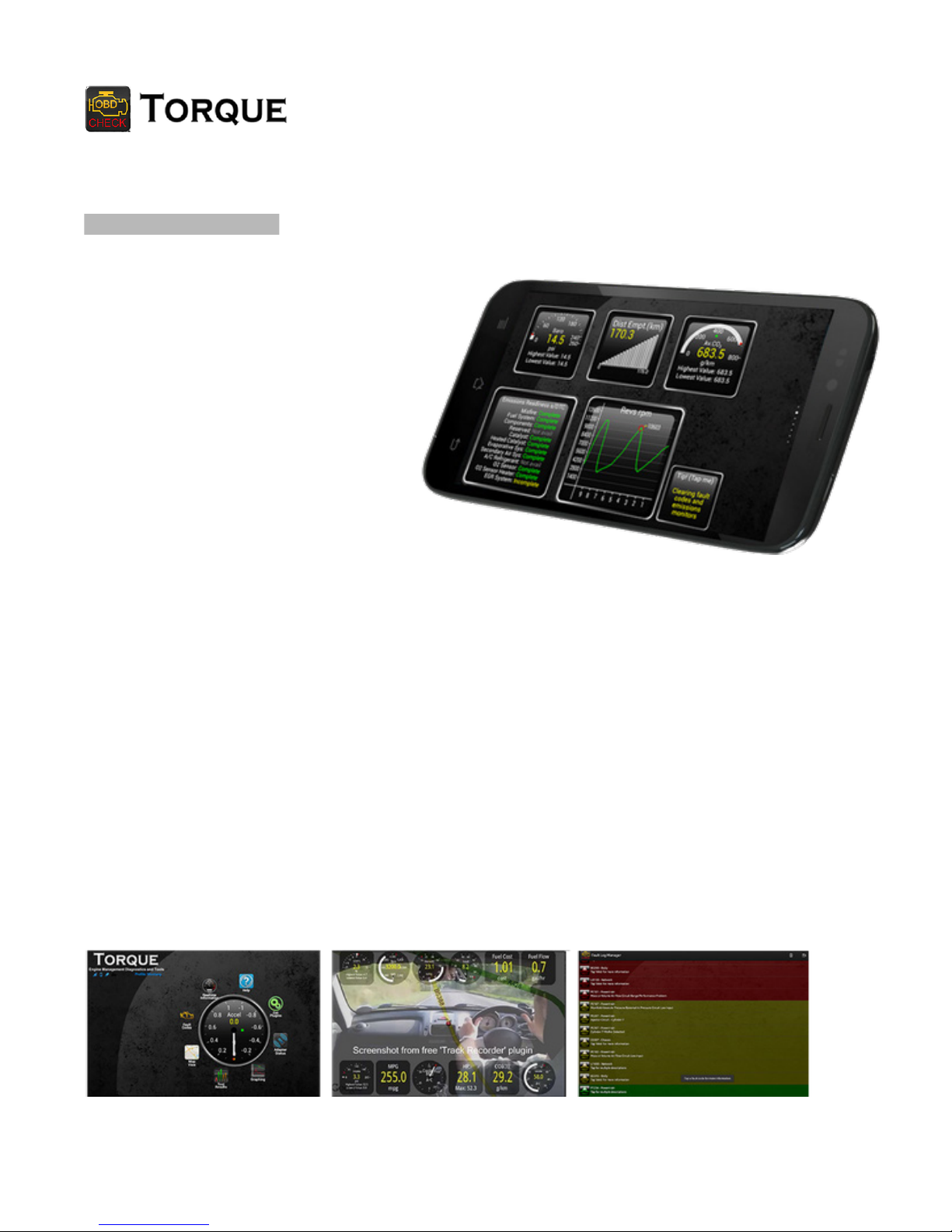
Torque– for the car enthusiast who wants it all.
Operating System: Android
Torque Lite (free) features:
§ Fully customizable real-time
gauges
§ Check engine light code
reader and reset
§ Massive fault code database
for lookup of fault codes from
different manufacturers
§ Dynamometer (Dyno)
including horsepower, torque,
and transmission temp
§ Turbo boost feature for
vehicles that support MAP and MAF sensors
§ Support for more vehicles and ECU types
§ Cleaner user interface without ads
§ Alarms and warnings (for example if your coolant temperature goes over 120ºC)
§ Video Track Recorder with real-time gauges and mapping overlay
§ Fully customizable dashboard, profiles, and themes
§ AIDL API for third party apps,
§ Horsepower, Torque, 0-60 , and quarter mile tests
§ Data logging / graphing
§ Map / track views
§ ABS / Knock sensor
§ And much more ...
Torque Pro features:
Page 8
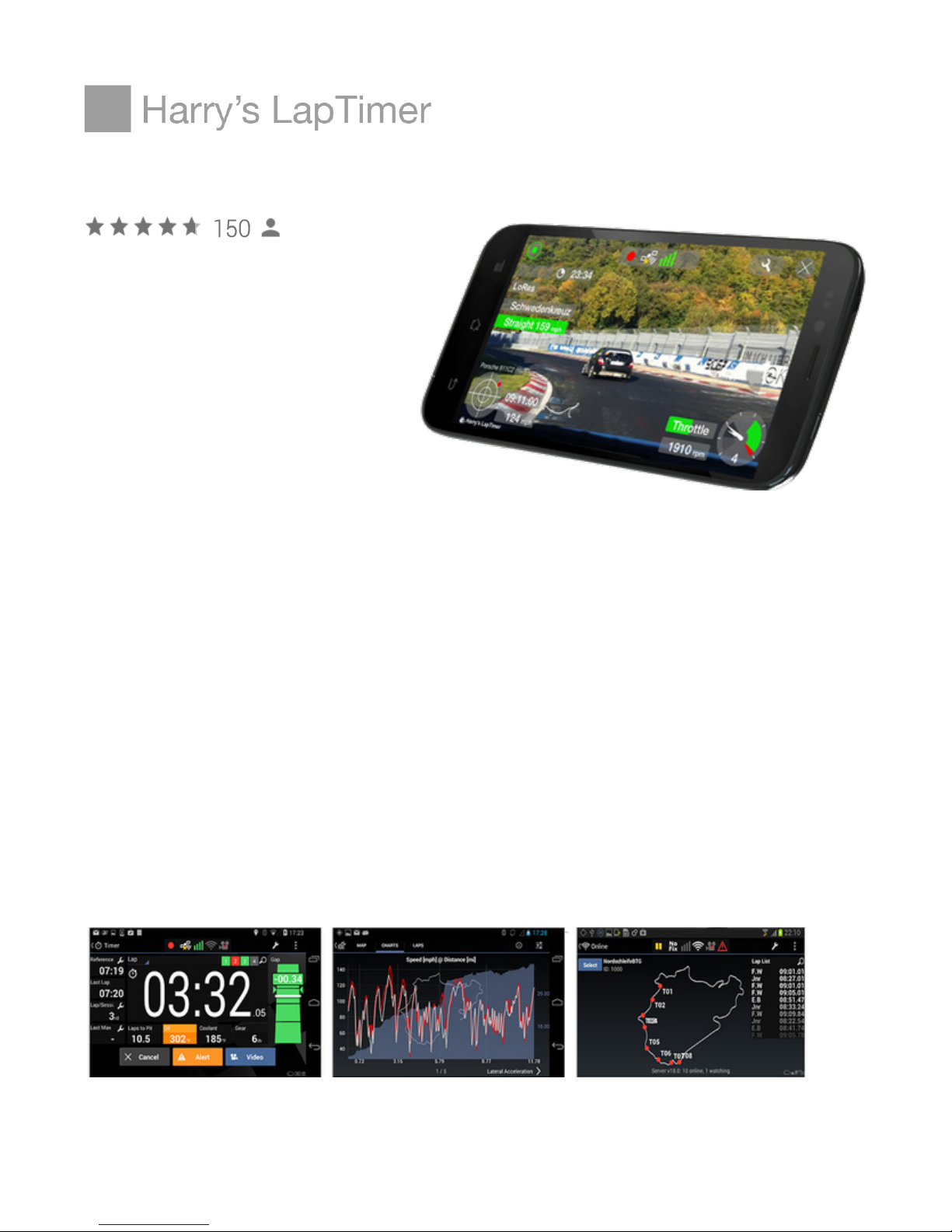
Harry’s LapTimer– for the driver that lives for the track
Operating System: Android and iOS
§ Lap time and data recording
§ Support for dozens of
external GPS and OBD
sensors
§ State of the art predictive lap
timing
§ Repository of more than 750
tracks world wide
§ Upgradeable to Petrolhead and Grand Prix editions
§ Everything from Rookie Edition
§ Video recording and overlaying (including Picture in Picture)
§ Realtime / Online View showing your peers
§ Enhanced data analytics
§ Full range of timer and specialized views
§ Everything from Petrolhead and Rookie Editions
§ Professional sensor support (>20 Hz GPS, engine data)
§ Video reference lap comparison
§ MultiCam for iOS devices, GoPro HERO and Sony cams
§ Even more enhanced data analytics
Harry’s LapTimer Rookie
features:
Harry’s LapTimer Petrolhead features:
Harry’s LapTimer GrandPrix features:
Page 9
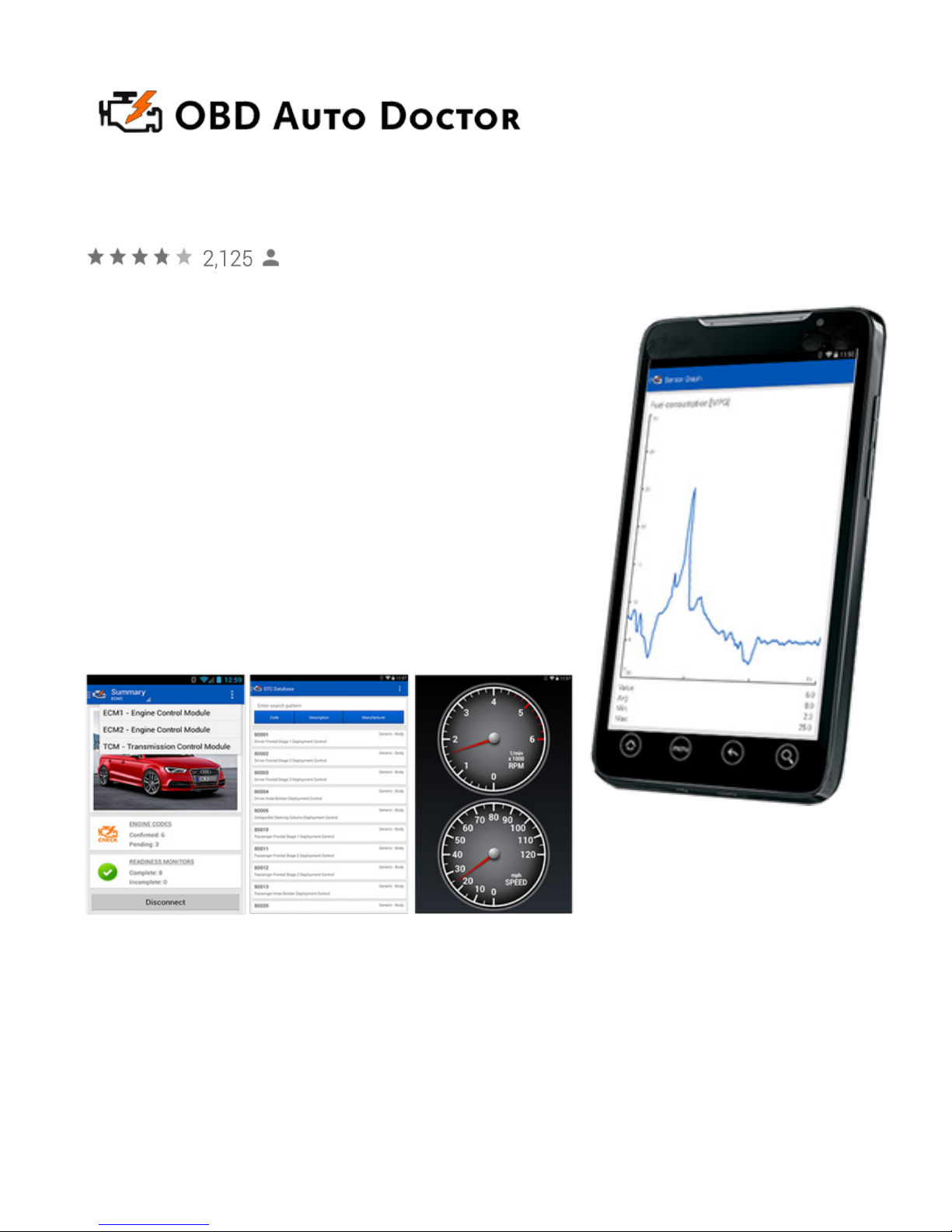
OBD Auto Doctor– The most popular app available for Android, iOS,
and Windows
Operating Systems: Android, iOS / iPhone, and Windows Phone
OBD Auto Doctor (free with in-app purchases) features:
§ Smog readiness monitor indicates whether or not
your car is ready for emissions testing
§ Diagnostic Trouble Codes (DTCs) reader for
reading, freeze framing, and clear the codes and
MIL
§ Fuel consumption monitor for gas and diesel
§ Real-time OBD-II parameter and sensor for
detecting abnormalities
§ OBD-II monitor including numerical or graphical
presentation
§ Support for multiple electronic control units such
as engine, transmission, etc.
Page 10
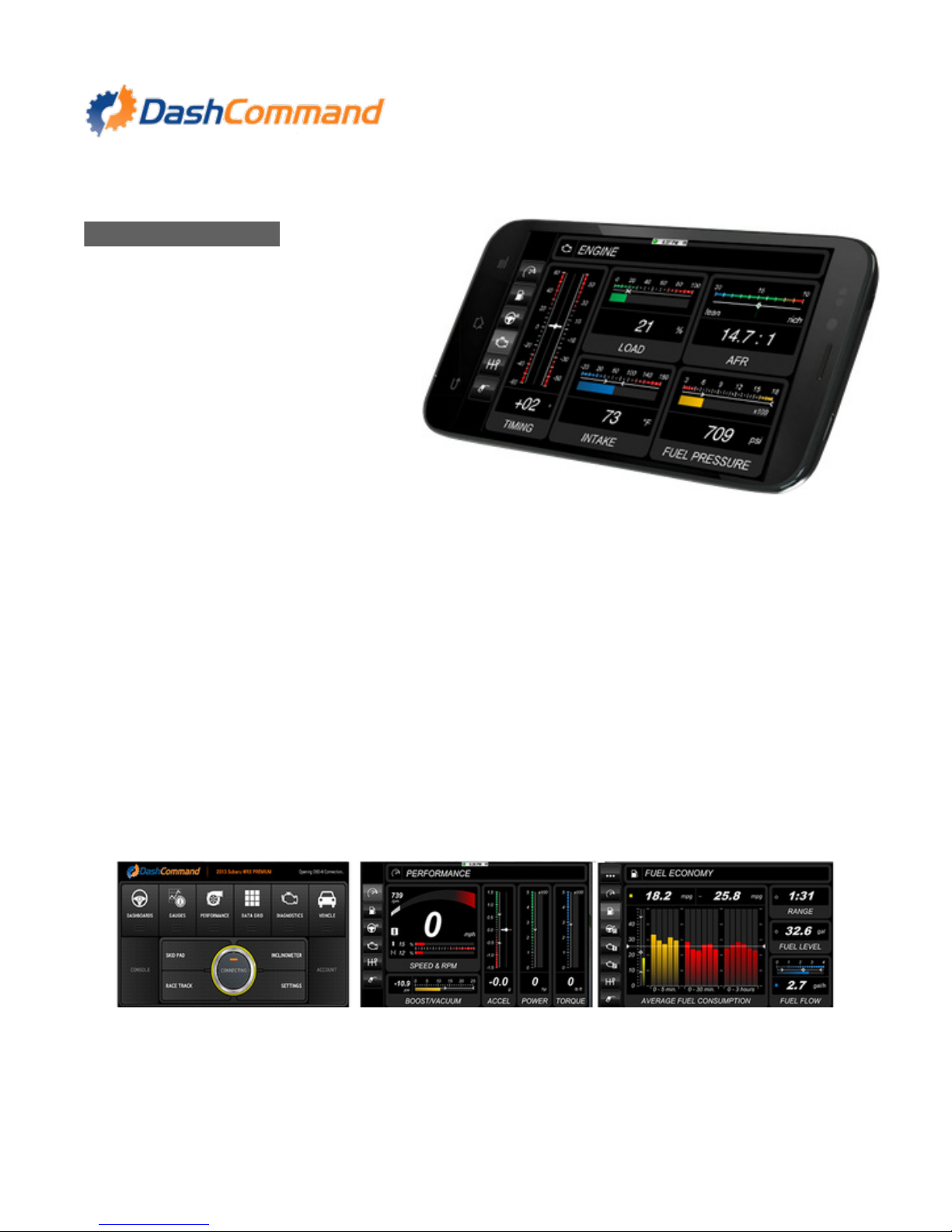
DashCommand– a comprehensive tuner's toolbox.
Operating Systems: iPhone only
§ Performance gauges including
engine speed, corrected
vehicle speed, open/closed
loop, boost/vacuum combo,
acceleration, braking, and
torque
§ Fuel economy including
instant fuel economy, average
fuel economy, distance to empty, time to empty, fuel level %, fuel remaining, fuel
flow rate gauge
§ Engine gauges including timing/spark advance, engine coolant temp, intake air
temp, ambient air temp, manifold absolute pressure, mass air flow, fuel trims (short
and long term), percent engine load, catalyst temp, fuel pressure, air/fuel ratio T
§ Trip computer that maintains stats for up to 5 trips and includes distance travelled,
fuel consumed, average fuel economy, fuel cost, elapsed time, drive time, average
carbon dioxide emission rate, total carbon dioxide emission, start date & time
§ Emissions Testing allowing you to read and clear diagnostic trouble codes and
know your IM readiness status
§ Professional skid pad showing lateral and acceleration/braking Gs with min/max
indicators.
§ And much more ...
DashCommand features:
Page 11
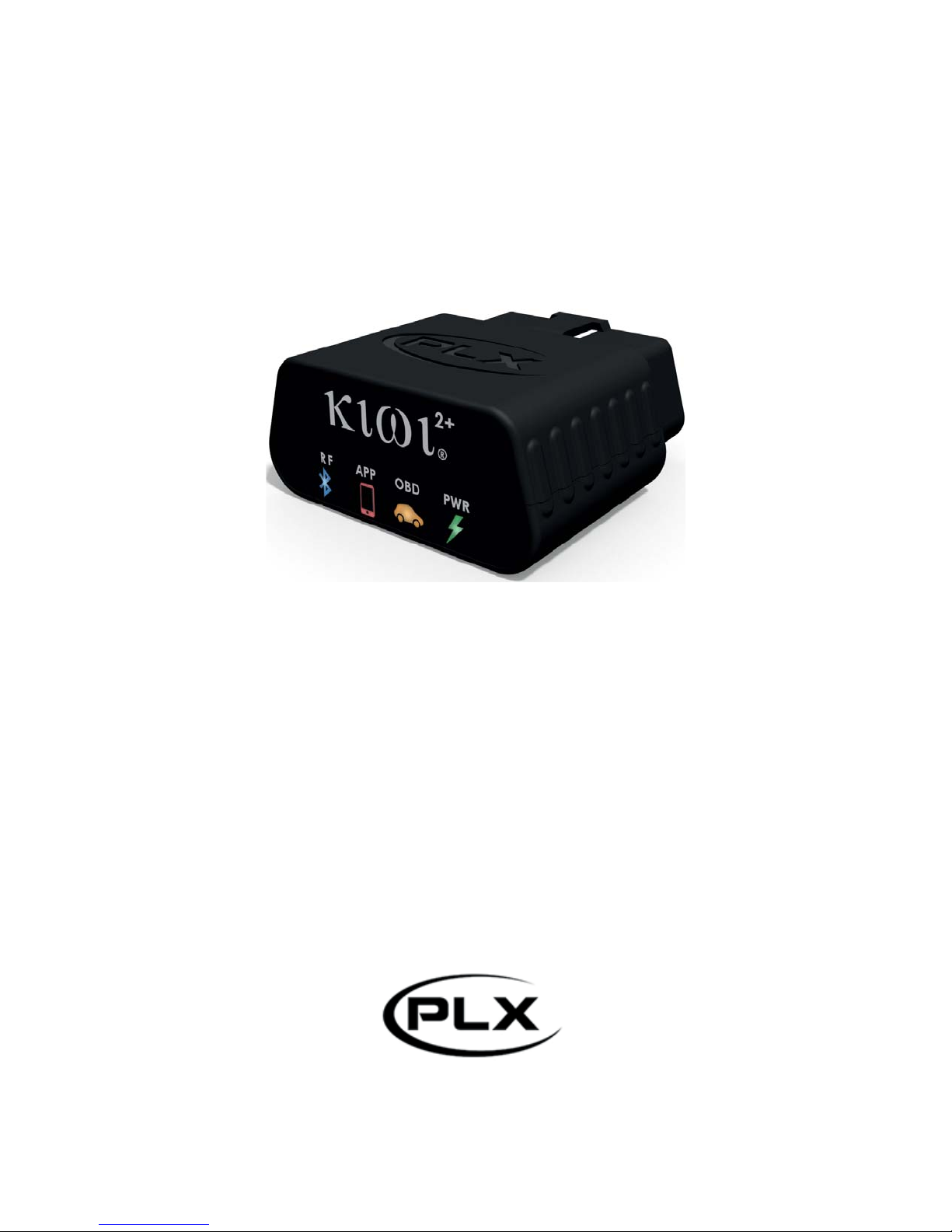
Your iPhone is now
a powerful automotive tool.
Kiwi 2+ iPhone User Manual
V0.99
Page 12

Setup
Configuring Kiwi 2+
1. Locate your car’s OBDII port and
plug in Kiwi 2+
Most cars have OBD located on the driver’s side below the steering wheel.
By OBD standards the connector must be located within three feet of the driver and must
not require any tools to be revealed. If your OBD port is not visible in plain sight trying
looking under the dash, behind ashtrays, and around/in fuse boxes.
2. Pair Kiwi
A. For maximum compatibility and the best user experience please make sure your
operating system has been updates to iOS 9.1
B. Open your iPhone’s Wi-Fi Settings and turn Wi-Fi on
C. Select Scan
D. Scroll down to Devices and Select PLXKiwi2
E. Select PLXKiwi2 to modify advanced settings
F. Under IP ADDRESS select Static Enter IP: 192.168.0.11 and Subnet: 255.255.255.0
G. Leave all other fields blank Hit the home button
3. Launch your favorite app and enjoy
Some apps may need additional configuration. Please see the next section for details.
Page 13

4. Configuring specific apps
OBD Auto
Doctor
Harry's
LapTimer
Rookie /
Petrolhead /
Grand Prix
1. Select ‘Extras’ (bottom right corner of the screen)
2. Under Settings select ‘Connectivity’
3. Select the WiFi option
The IP address should be 192.168.0.10 the port 35000
4. Select Status (bottom left corner of the screen)
5. Select the Connect (Chainlink icon in the top right corner of the
screen)
OBD Auto Doctor should now be connected and reading
parameters from your car.
Harry’s should automatically connect after 10–15 seconds. If
Harry’s does not automatically connect:
1. Select Administration > Settings > Expert Settings
2. Make sure that Use Wi-Fi Sensors is turned on
3. Select < Settings then < Administration and select Sensor List
4. KiwiWifi OBD should be a listed sensor.
If still experiencing problems skip to the troubleshooting sect
ion
OBD Car
Doctor
OBD Car Doctor is currently not compatible with Kiwi 2+ for
iPhone. Updates coming soon.
DashCommand DashCommand should automatically connect. Follow the Kiwi 2+
will not connect troubleshooting steps.
Page 14
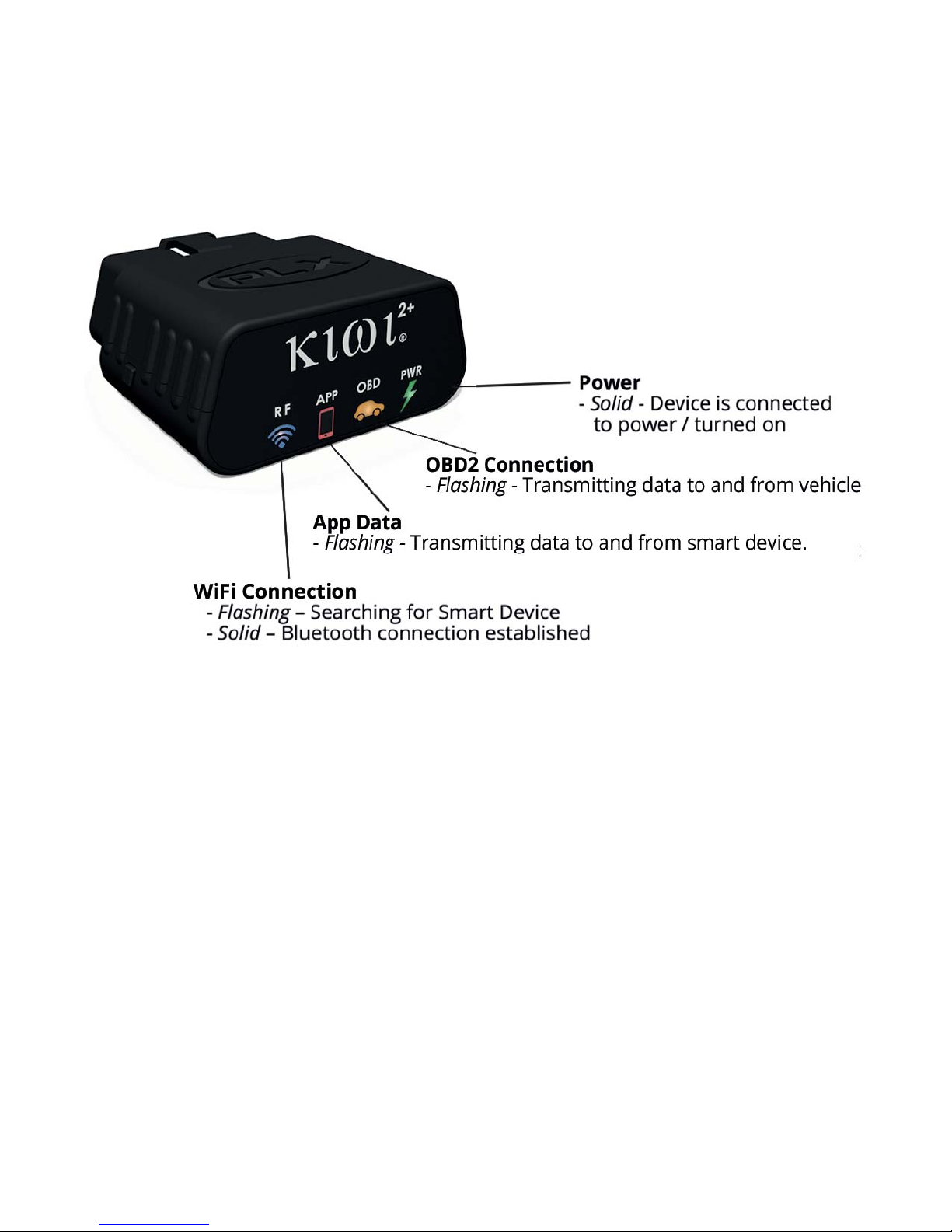
Troubleshooting
Kiwi 2+ Indicator Lights
Kiwi 2+ does not have power (no lights)
A. Disconnect and reconnect Kiwi 2+ ensuring that the device is firmly connected to
your car’s OBDII port.
a.
B. Test your Kiwi 2+ in another vehicle (again ensuring that the device is firmly
connected to the OBDII port)
a. If Kiwi 2+ works on the other vehicle– Kiwi 2+’s hardware is functioning
properly. Check with your local car manufacturer/dealer to verify the health
of your car’s OBD port.
Page 15

Kiwi 2+ connected, but does not receive data from OBDII port
(PWR and RF are solid but OBD and APP are idle)
A. Verify that your vehicle is turned on
B. Follow the troubleshooting steps for ‘Kiwi 2+ will not connect’ (above)
Kiwi 2+ will not connect
(RF continues to blink after app is launched)
A. Make sure your vehicle is turned on.
B. Verify that your Bluetooth is turned on (On most devices go to Settings > Bluetooth)
C. Verify that the app version you have is current
App iOS
DashCommand 4.6.12
D. Relaunch
a. Restart you smart device
b. Disconnect and reconnect Kiwi 2+ ensuring that the device is firmly
connected to your car’s OBDII port (PWR should be solid and RF should be
blinking)
c. Relaunch the app on your smart device
OBD Car Doctor 1.8.0
OBD Auto
2.0.0
Doctor
Harry's
19.0.24
LapTimer
Page 16
Apps for All
Choose the Right App for You
Kiwi 2+ supports a variety of
industry apps for every level of car
enthusiast.
The following apps can be
downloaded from iTunes App
Store, Google Play Store, and
Windows App Store (depending
on operating system availability).
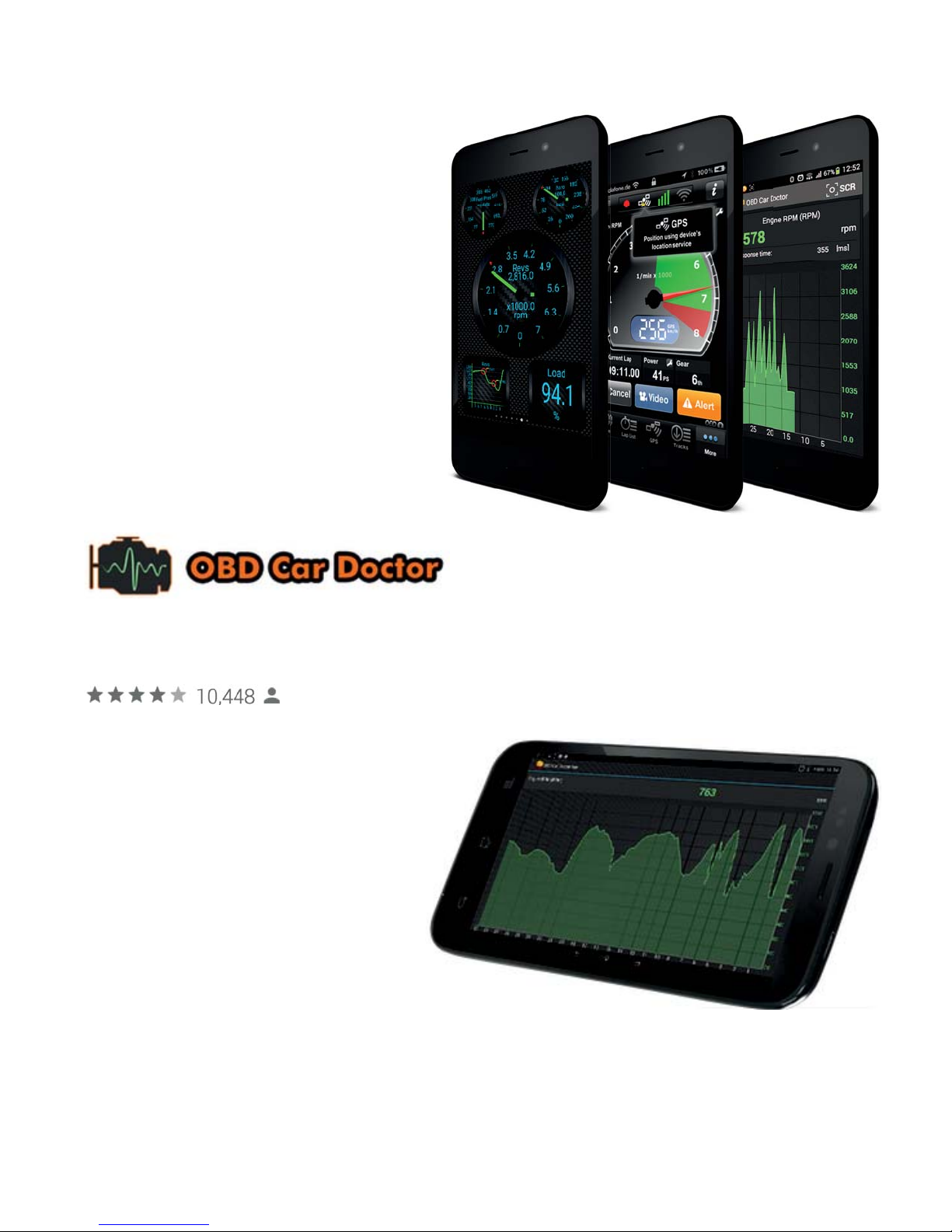
OBD Car Doctor– simple, intuitive OBD tools and gauges
Operating System: Android and iOS / iPhone
OBD Car Doctor (free) features:
Check engine light code reader
and reset
Real-time gauges and data
including speed, rotation,
temperature, pressure, and
lambda
Fuel economy tracker
OBD Car Doctor Pro features:
Real-time parameter recording
Multiple parameters display
Parameter recorder (with background mode)
View and sending recorded parameters traces
GPS support
Page 17
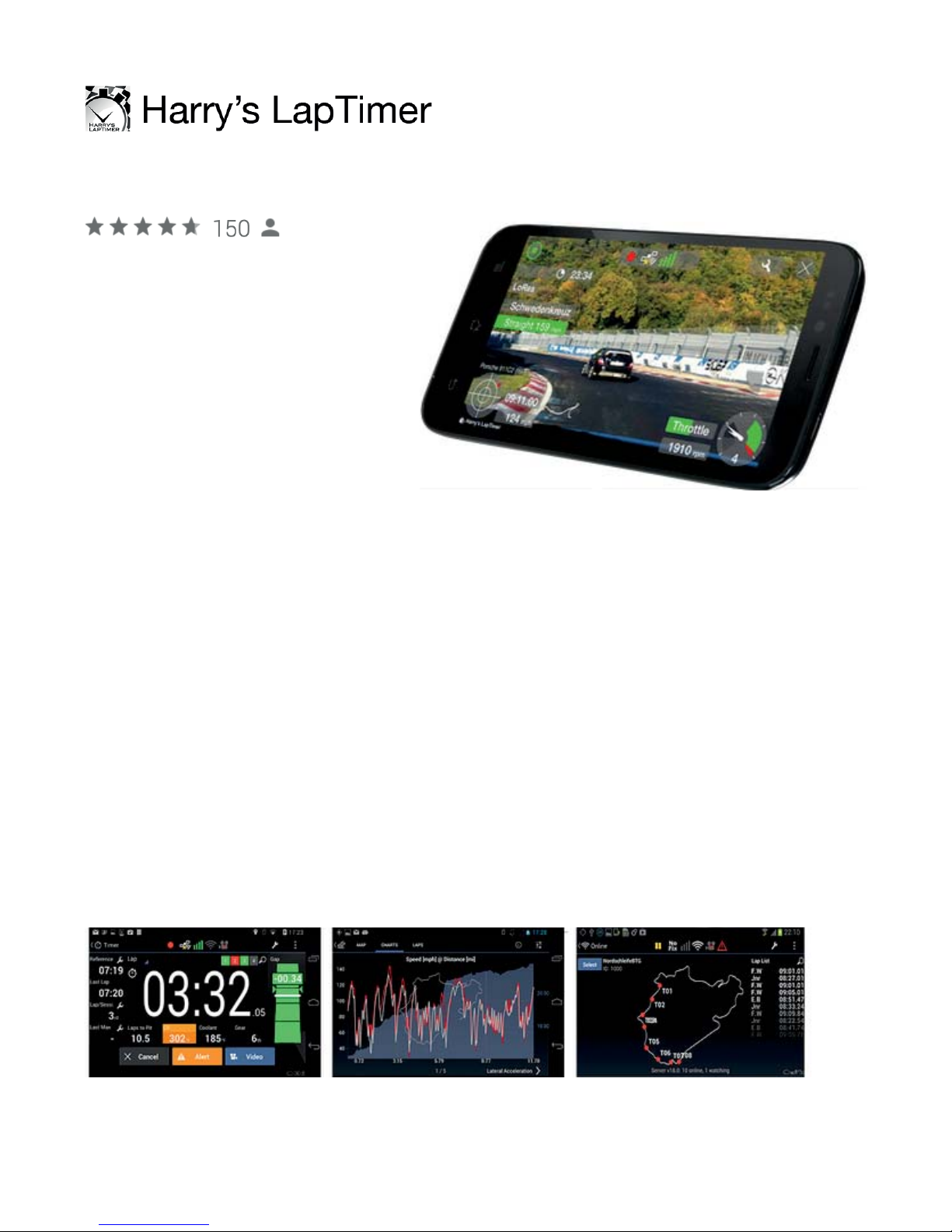
Harry’s LapTimer– for the driver that lives for the track
Operating System: Android and iOS
Harry’s LapTimer Rookie
features:
Lap time and data recording
Support for dozens of
external GPS and OBD
sensors
State of the art predictive lap
timing
Repository of more than 750
tracks world wide
Upgradeable to Petrolhead and Grand Prix editions
Harry’s LapTimer Petrolhead features:
Everything from Rookie Edition
Video recording and overlaying (including Picture in Picture)
Realtime / Online View showing your peers
Enhanced data analytics
Full range of timer and specialized views
Harry’s LapTimer GrandPrix features:
Everything from Petrolhead and Rookie Editions
Professional sensor support (>20 Hz GPS, engine data)
Video reference lap comparison
MultiCam for iOS devices, GoPro HERO and Sony cams
Even more enhanced data analytics
Page 18
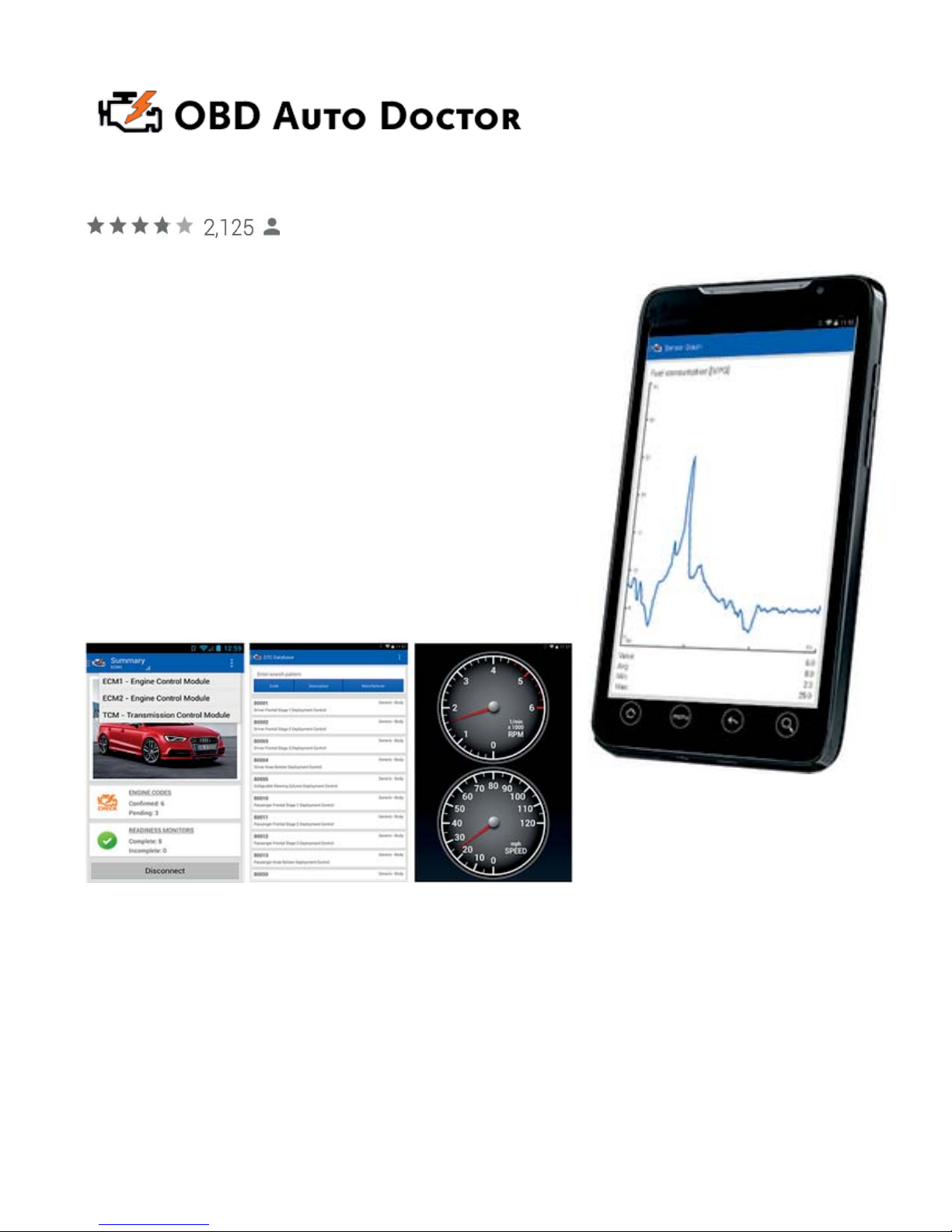
OBD Auto Doctor– A simple reliable OBD app
Operating Systems: Android, iOS / iPhone, and Windows Phone
OBD Auto Doctor (free with in-app purchases) features:
Smog readiness monitor indicates whether or not
your car is ready for emissions testing
Diagnostic Trouble Codes (DTCs) reader for
reading, freeze framing, and clear the codes and
MIL
Fuel consumption monitor for gas and diesel
Real-time OBD-II parameter and sensor for
detecting abnormalities
OBD-II monitor including numerical or graphical
presentation
Support for multiple electronic control units such
as engine, transmission, etc.
Page 19
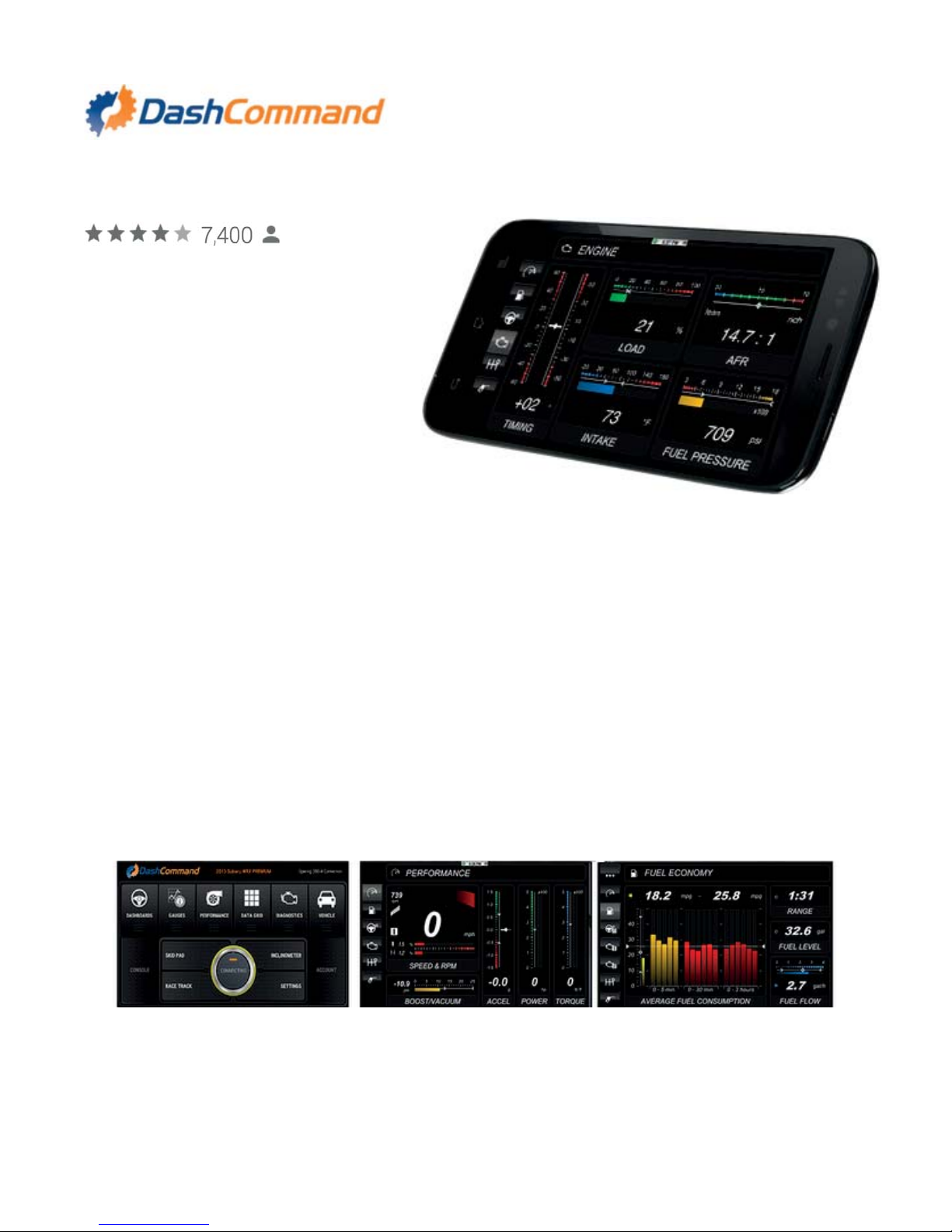
DashCommand– a comprehensive tuner's toolbox.
Operating Systems: iPhone only
DashCommand features:
Performance gauges including
engine speed, corrected
vehicle speed, open/closed
loop, boost/vacuum combo,
acceleration, braking, and
torque
Fuel economy including
instant fuel economy, average
fuel economy, distance to empty, time to empty, fuel level %, fuel remaining, fuel
flow rate gauge
Engine gauges including timing/spark advance, engine coolant temp, intake air
temp, ambient air temp, manifold absolute pressure, mass air flow, fuel trims (short
and long term), percent engine load, catalyst temp, fuel pressure, air/fuel ratio T
Trip computer that maintains stats for up to 5 trips and includes distance travelled,
fuel consumed, average fuel economy, fuel cost, elapsed time, drive time, average
carbon dioxide emission rate, total carbon dioxide emission, start date & time
Emissions Testing allowing you to read and clear diagnostic trouble codes and
know your IM readiness status
Professional skid pad showing lateral and acceleration/braking Gs with min/max
indicators.
And much more ...
 Loading...