

Page 1
Vision Screener
Short Manual 8
“Downloading software updates”
Plusoptix GmbH
Neumeyerstrasse 48
90411 Nuremberg
Germany
www.plusoptix.com
Edition: 09/17/2018
Page 2

Seite 2 von 6
Table of Contents
1 Downloading software updates – an overview ................................................................. 3
2 Downloading software updates on the workplace computer ............................................ 3
3 Downloading the software update directly onto the Plusoptix Vision Screener
(LAN/WLAN or Mini-USB) ................................................................................................ 4
4 Downloading Software Update via LAN/WLAN (only plusoptiX S12C and S16) ............... 5
5 Downloading Software Update via Mini-USB-cable (only S12C and S12R) ..................... 6
List of figures
Figure 1: Downloading software updates ............................................................................... 4
Figure 2: Downloading the software update via LAN/WLAN .................................................. 5
Figure 3: Software Update via Mini-USB-cable ...................................................................... 6
This manual is a supplementary short manual. For general information about your
Plusoptix device, such as its intended use, basic handling, technical information,
maintenance, service, and warranty information, please refer to the user manual that
was delivered with your device. This user manual can also be downloaded on our
homepage www.plusoptix.com, under support.
List of further supplementary short manuals
1. Adjusting settings and setting up WLAN
2. Preparing and performing a measurement
3. Viewing the measurement results
4. Entering, retrieving or deleting patient data
5. Documenting measurement results electronically
6. Documenting measurement results on paper
7. Exporting back-ups and reports (only plusoptiX S12C and S16)
8. Downloading software updates
9. Troubleshooting malfunctions and measuring interruptions
Page 3

Seite 3 von 6
1 Downloading software updates – an overview
We recommended checking regularly to see if there is a new software version to download. If
your Plusoptix Vision Screener is already up-to-date, the message “The software version is
up-to-date” will be shown. To download a software update, you will need an empty SD card
(plusoptiX 12) or USB stick (plusoptiX 16).
You have following options to download the latest software version:
- Downloading software updates on the workplace computer (see chapter 2)
- Downloading the software update directly onto the Plusoptix Vision Screener (LAN/WLAN
or Mini-USB) (see chapter 3)
- Downloading Software Update via LAN/WLAN (only plusoptiX S12C and S16) (see
chapter 4)
- Downloading Software Update via Mini-USB-cable (only S12C and S12R) (see chapter 5)
Attention:
During the update process, all the data saved on the SD card or USB stick will be
deleted. For this reason, make sure you only use an empty storage medium.
Note:
After the software update has been installed, you will see a message about
formatting the SD card or USB stick. Confirm this message if you want to use the
SD card or USB stick to save screening reports after the update. Do not format it
if you want to use it to update further Plusoptix Vision Screeners.
2 Downloading software updates on the workplace computer
If you cannot establish an internet connection to the Plusoptix Vision Screener, the software
update can also be downloaded to the workplace computer.
The latest software update and instructions to update the software can be found on our
homepage www.plusoptix.com.
Page 4
Seite 4 von 6
3 Downloading the software update directly onto the Plusoptix
Vision Screener (LAN/WLAN or Mini-USB)
If you want to download the software update using LAN/WLAN or Mini-USB, take the
following precautions for updating the software:
- Insert an empty SD card (plusoptiX 12) or USB stick (plusoptiX 16)
- Connect the Plusoptix device to the power network
- Establish internet access (either over a LAN/WLAN-connection or over a Mini-USB cable
to your workplace computer)
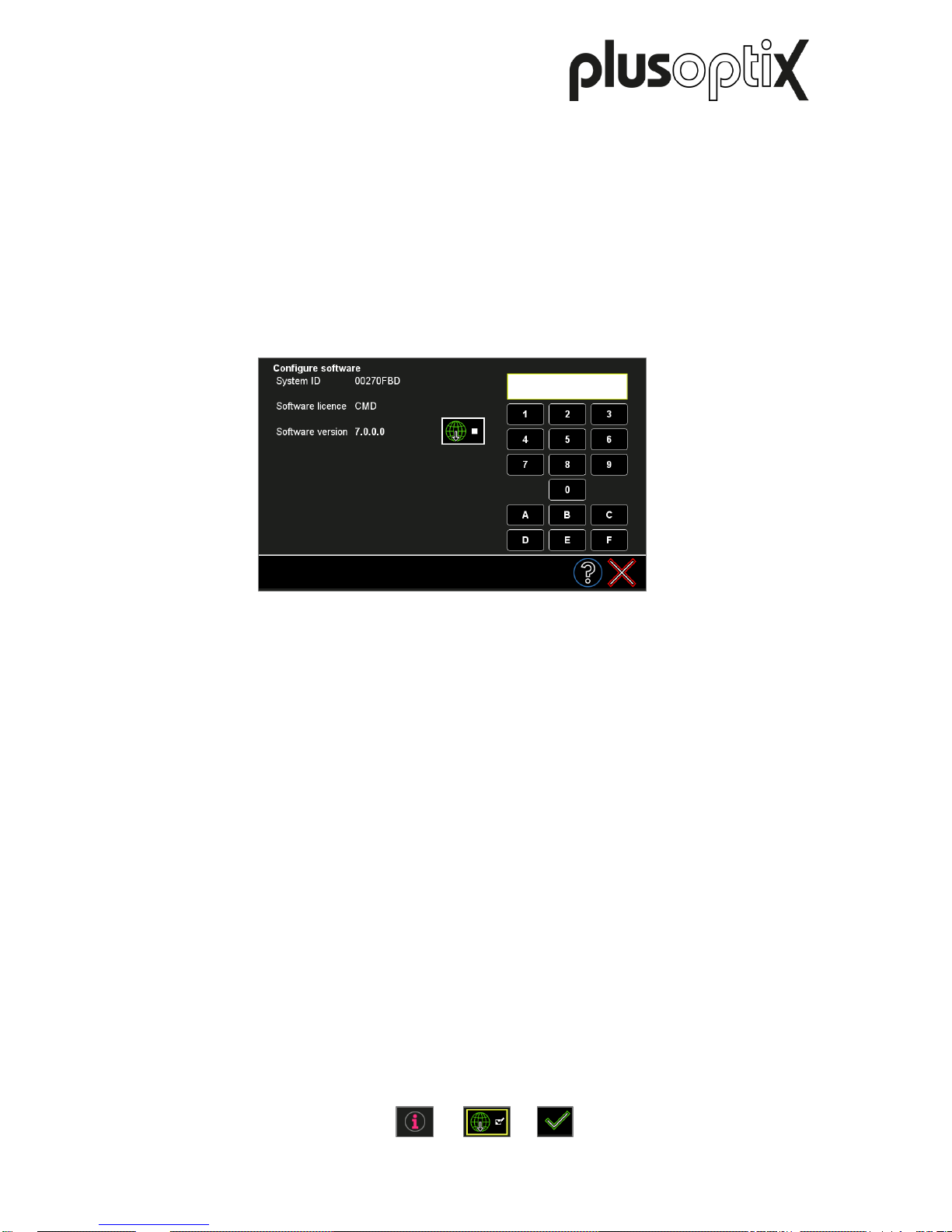
- Touch the button to configure the software (1) in the settings.
- Then touch the button (2) to download the latest software
- Confirm with the green checkmark (3). You will be guided through the download (see
figure 2).
When downloading, the software update will be saved on the SD card or USB stick and a
confirmation will be displayed. As soon as you touch OK, the Plusoptix Vision Screener will
automatically restart and install the software update saved on the SD card or USB stick.
1) 2) 3)
Figure 1: Downloading software updates
Page 5
Seite 5 von 6
4 Downloading Software Update via LAN/WLAN (only plusoptiX
S12C and S16)
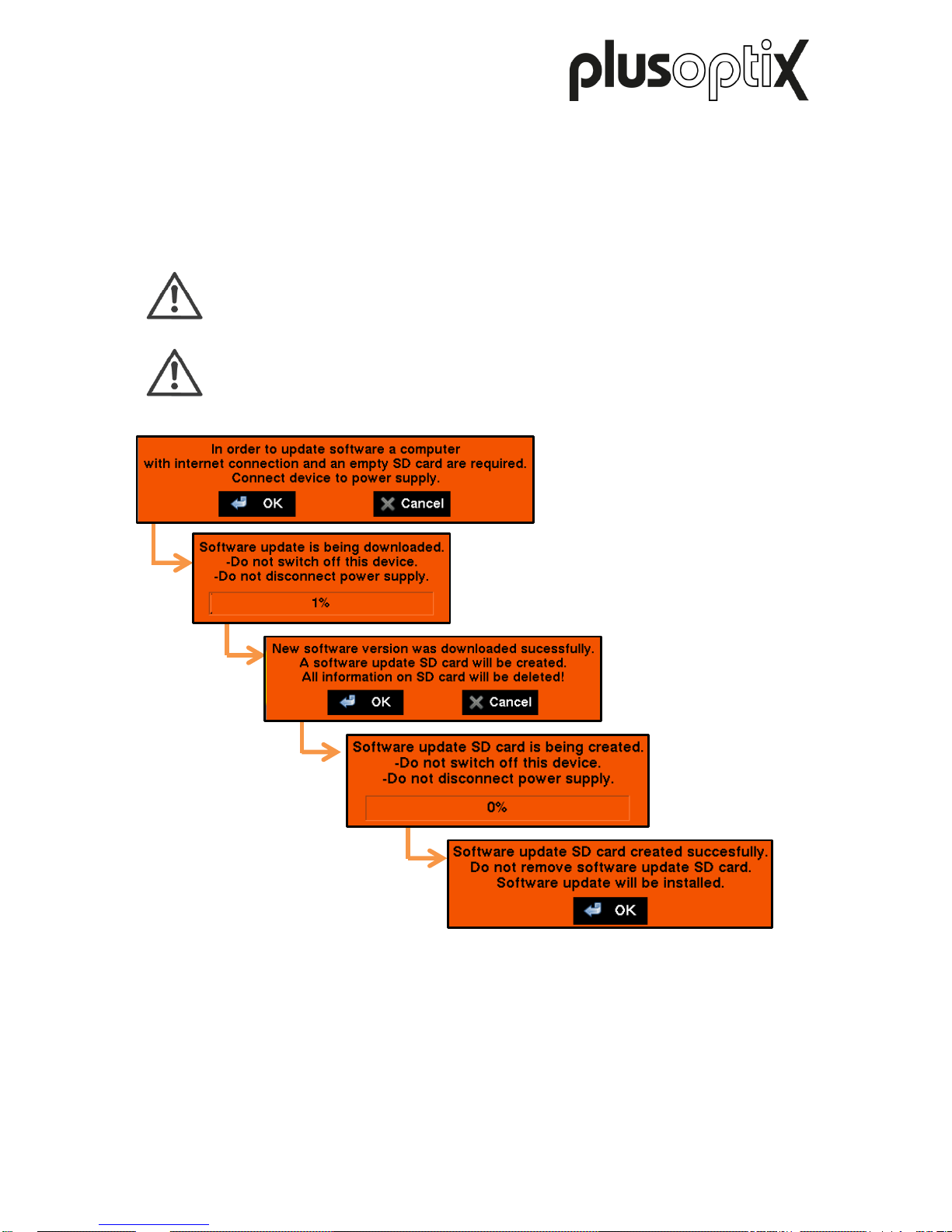
With active WLAN connection in the plusoptiX S12C model or active LAN or WLAN
connection in the plusoptiX 16 model, you will be guided through the update with the help of
the following status messages (see Figure 2).
Note:
Depending on the signal strength of the LAN/WLAN- and the Internet connection,
a software update can take about 30-40 min.
Note:
Depending on the device, you either need an empty SD card (plusoptiX 12) or an
empty USB stick (plusoptiX 16). The following status messages are the same for
the plusoptiX S12C and S16 model, and only differ in the storage medium.
Figure 2: Downloading the software update via LAN/WLAN
Page 6
Seite 6 von 6
5 Downloading Software Update via Mini-USB-cable (only S12C and
S12R)
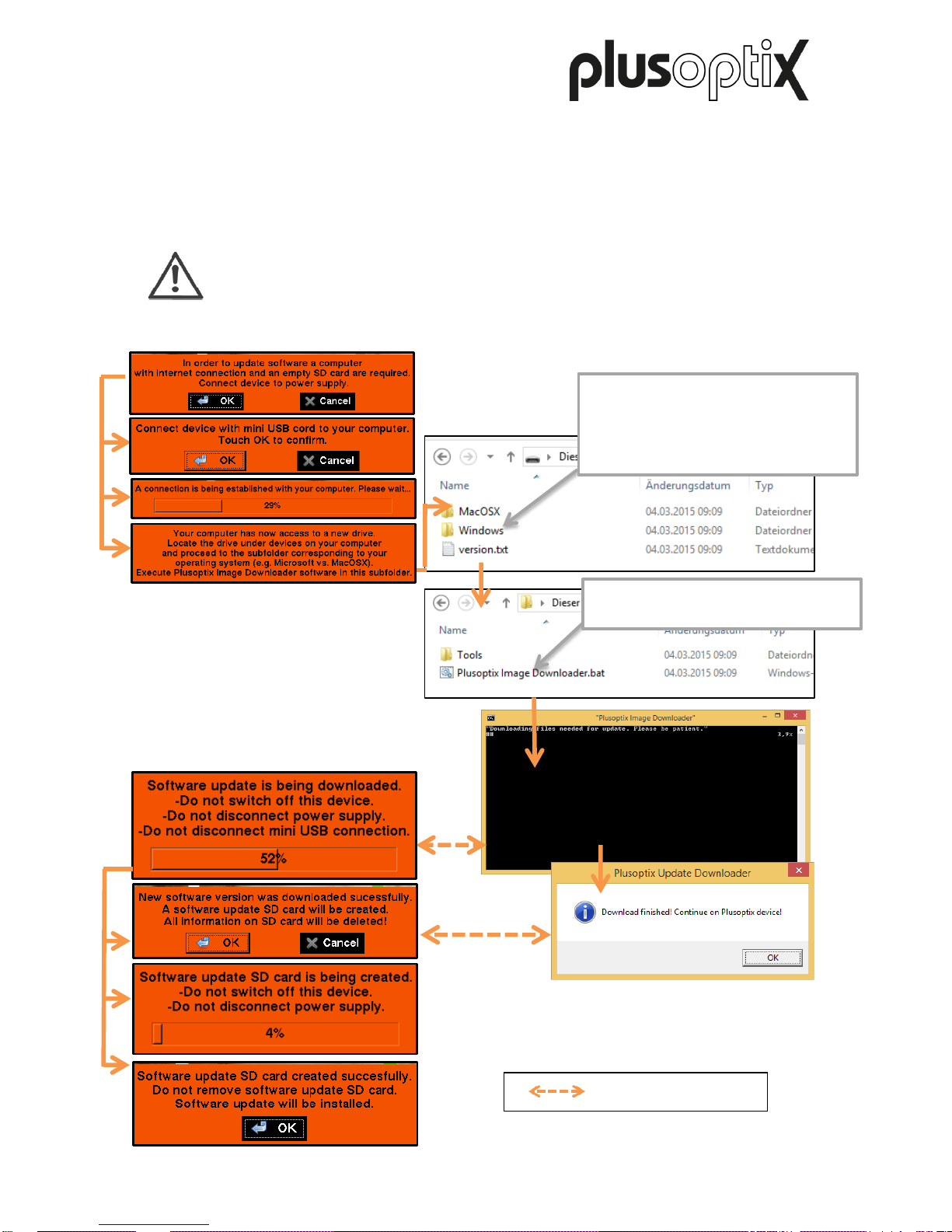
If there is no WLAN-connection available, the software update can be downloaded via MiniUSB cable (see Figure 3).
Note:
Depending on the internet connection, a software update via Mini-USB cable can
take about 15-25 min.
Figure 3: Software Update via Mini-USB-cable
Action recommendations on the device Action recommendations on your workplace computer
Parallel processes
Please open Windows Explorer or
Apple Finder and choose the
corresponding file folder.
File access with URL:
Removable medium\pdf
Start Plusoptix Image Downloader to
download the Software Update.
 Loading...