

Page 1
SIMPLY
SMART
TV
Your YouView Guide
Page 2
Use this guide to see what’s what with your new YouView service.
Grab your remote and get going 4
The main menu 6
Watching live TV 8
Pausing live TV 10
Now and next 11
The YouView app 11
Searching for programmes 12
Players & Apps 13
Here’s what’s in this guide Need some help?
70+
Live TV and
radio channels
Pause and
rewind live TV
Seven-day
catch-up
TV
on demand
SD and HD
channels
HELLO
Help with set-up 15
Help with saving power 15
Help with Freeview 16
Help with extra channels 16
How to control your TV using your
YouV iew re mot e
17
Get to know your set-top box 18
Accessibility tools 19
Parental Controls and PINs 21
3 Welcome to YouView
Page 3
Want to contr ol y our T V us ing your
new remote?
Sometimes it’s hard enough keeping
track of one remote, let alone two.
Why not just use one? To work your TV
using your YouView remote, see page 17.
GRAB YOUR REMOTE
AND GET GOING
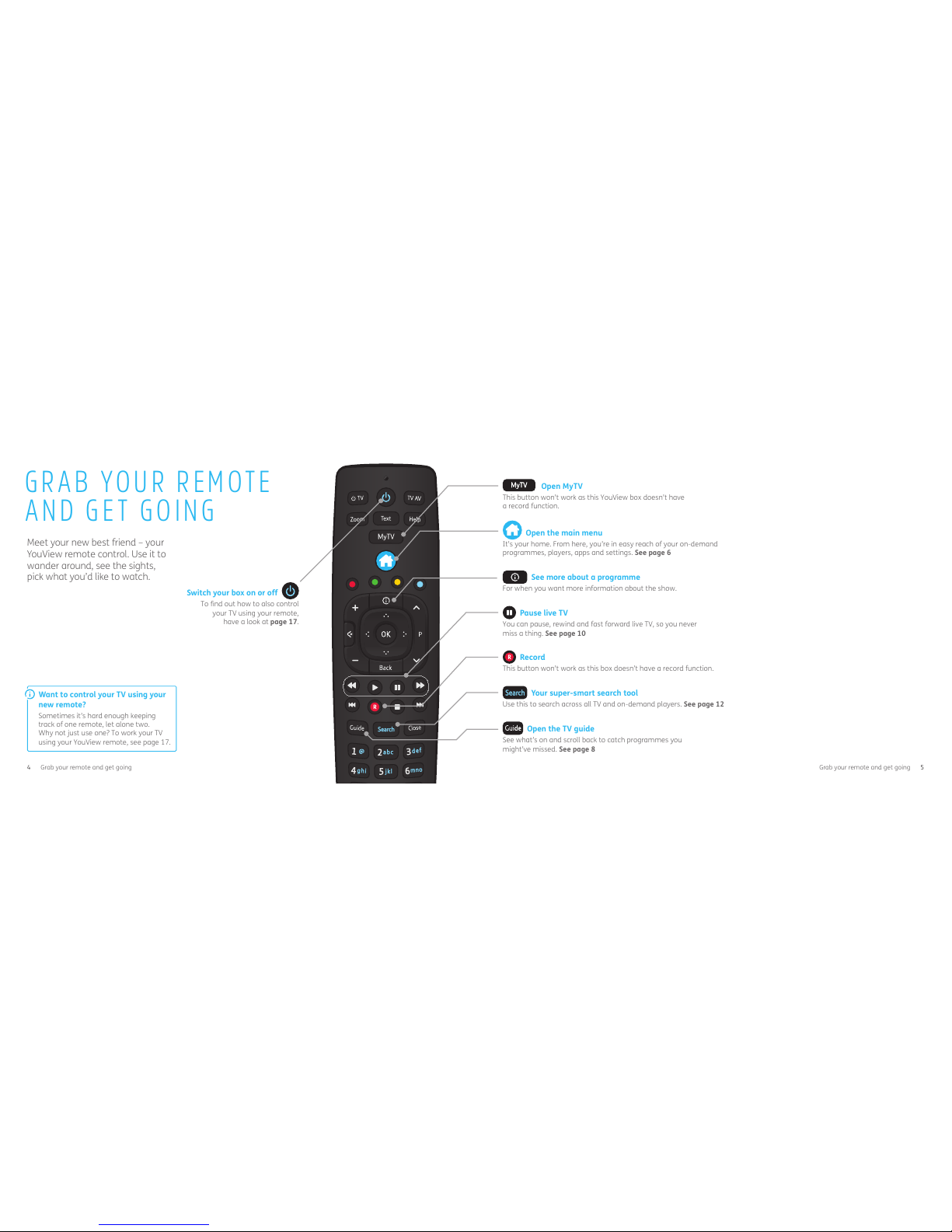
Switch your box on or off
To find out how to also control
your TV using your remote,
have a look at page 17.
Meet your new best friend – your
YouView remote control. Use it to
wander around, see the sights,
pick what you’d like to watch.
MyTV
Open MyTV
This button won’t work as this YouView box doesn’t have
a record function.
Open the main menu
It’s your home. From here, you’re in easy reach of your on-demand
programmes, players, apps and settings. See page 6
See more about a programme
For when you want more information about the show.
Pause live TV
You can pause, rewind and fast forward live TV, so you never
miss a thing. See page 10
Record
This button won’t work as this box doesn’t have a record function.
Your super-smart search tool
Use this to search across all TV and on-demand players. See page 12
Open the TV guide
See what’s on and scroll back to catch programmes you
might’ve missed. See page 8
4 5 Grab your remote and get goingGrab your remote and get going
Page 4
Tw
ON NO
Celebrity Big Bro…
ON NOW
QI
ON NOW
Location, Locatio…
ON NOW
Coronation Street
ON NOW
Casualty
ON NOW
Players & Apps SettingsGuide
8:20PM
Tw
ON NO
Celebrity Big Bro…
ON NOW
QI
ON NOW
Location, Locatio…
ON NOW
Coronation Street
ON NOW
Casualty
ON NOW
Players & Apps SettingsGuide
8:20PM
Tw
ON NO
Celebrity Big Bro…
ON NOW
QI
ON NOW
Location, Locatio…
ON NOW
Coronation Street
ON NOW
Casualty
ON NOW
8:20PM
THE MAIN MENU
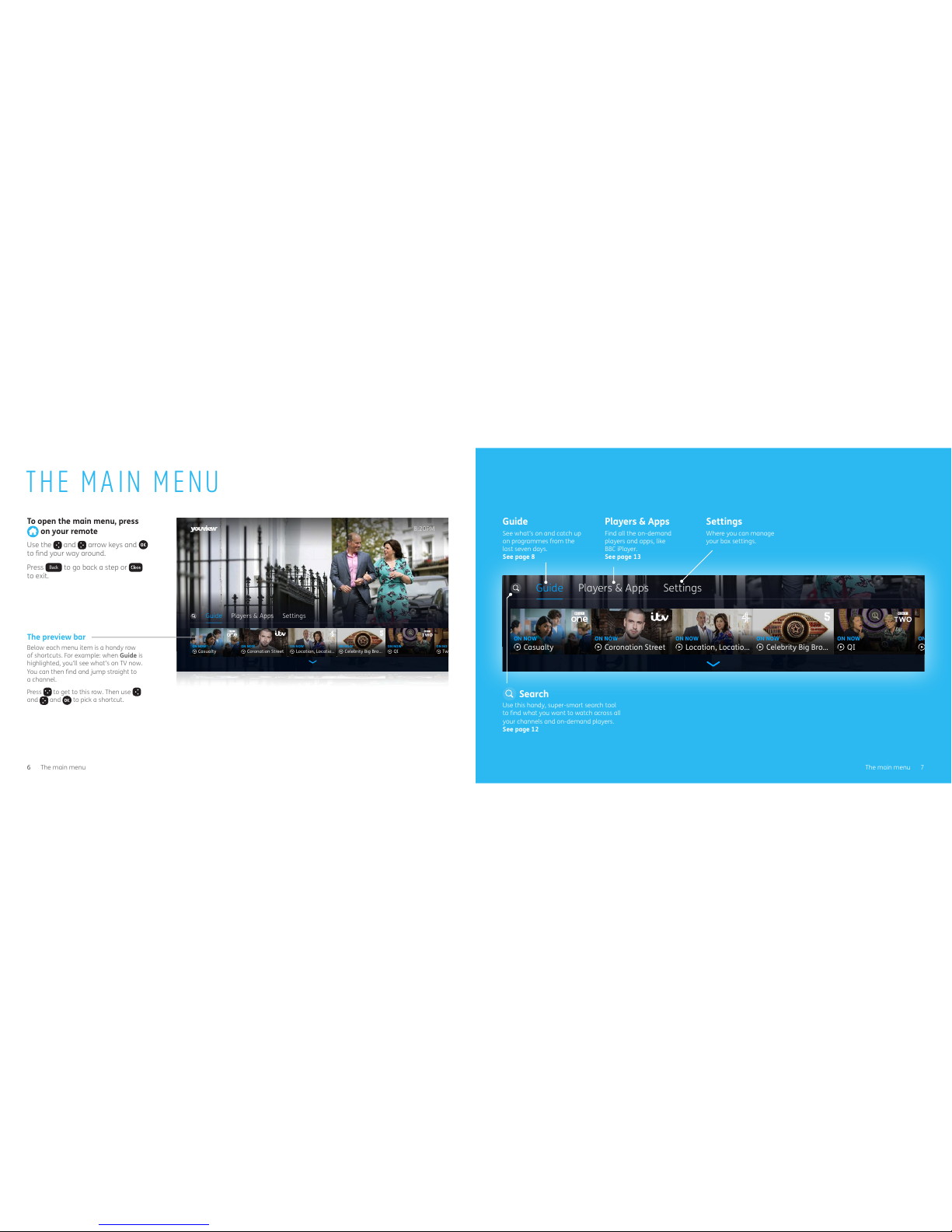
To open the main menu, press
on your remote
Use the and arrow keys and
to find your way around.
Press
Back
to go back a step or
to exit.
The preview bar
Below each menu item is a handy row
of shortcuts. For example: when Guide is
highlighted, you’ll see what’s on TV now.
You can then find and jump straight to
a channel.
Press
to get to this row. Then use
and and to pick a shortcut.
Search
Use this handy, super-smart search tool
to find what you want to watch across all
your channels and on-demand players.
See page 12
Guide
See what’s on and catch up
on programmes from the
last seven days.
See page 8
Players & Apps
Find all the on-demand
players and apps, like
BBC iPlayer.
See page 13
Settings
Where you can manage
your box settings.
6 The main menu 7 The main menu
Page 5
001
002
003
004
005
006
Call the Midwife
Casualty
James May's Cars of the People
New: Big Star’s Little Star
The Jonat han Ross Show
Night at the Museum 2
Walkin g the Hima layas
The Wedding Date
Celebrity Big Brothe r
Cats and Dogs: The Revenge of K itty Galore
Skyfall
8:00 9:00 9:308:30
Dragons’ Den Dad’s Army
5 News
INFO
ON NOW CATEGORIES
CHANGE PAGE
CHANGE DAY
ALL CHANNELS HD SUBSCRIBED ENTERTAINMENT CHILDREN’S NEWS SPORT FILMS FACTUAL & LIFESTYLE RADIO
8:20PM
13
TUE
12
MON
11
SUN10SAT09FRI
08
THU07WED
21
WED
20
TUE
19
MON18SUN
17
SAT16FRI15THU
14
TODAY
WATCHING L IVE TV
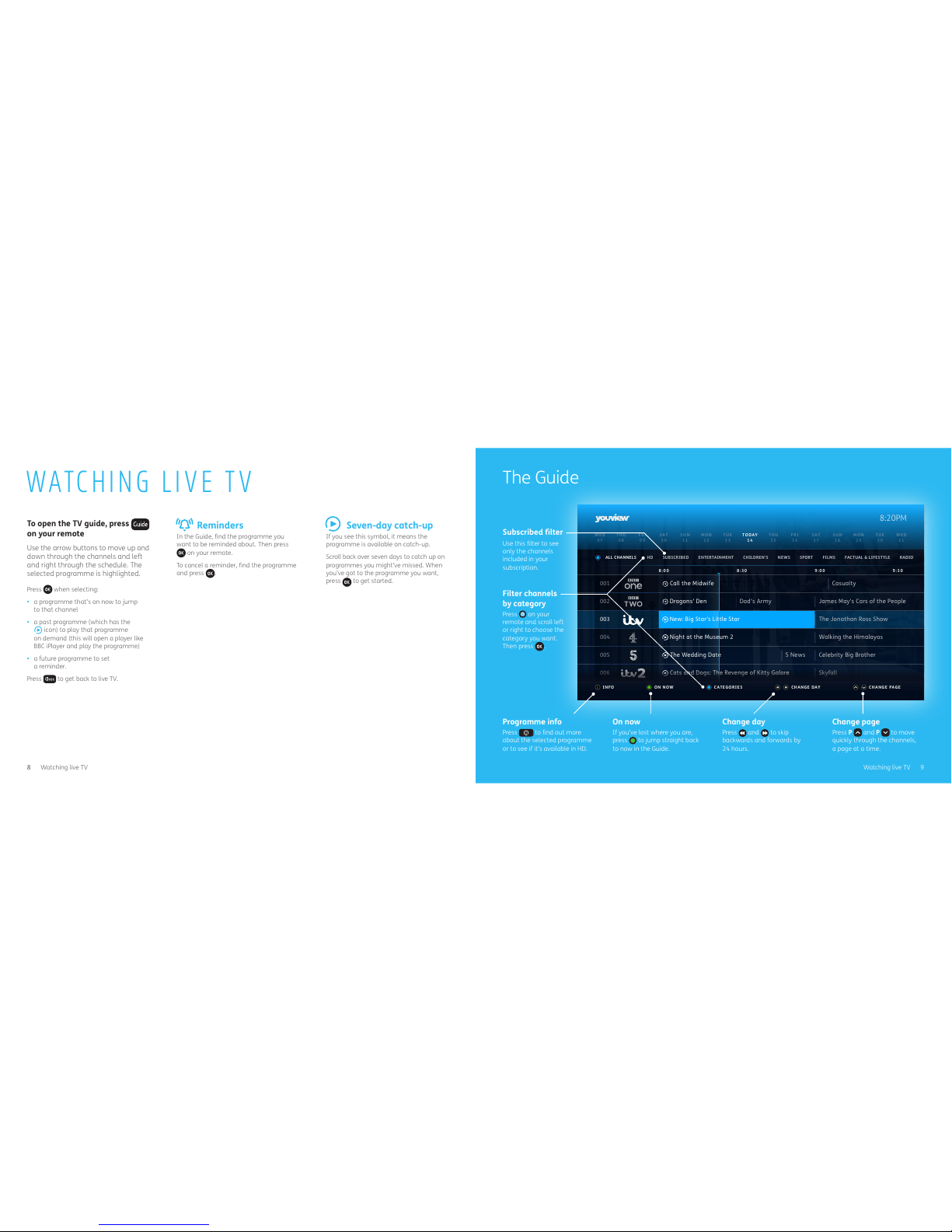
Seven-day catch-up
If you see this symbol, it means the
programme is available on catch-up.
Scroll back over seven days to catch up on
programmes you might’ve missed. When
you’ve got to the programme you want,
press
to get started.
To ope n th e TV gu id e, pr ess
on your remote
Use the arrow buttons to move up and
down through the channels and left
and right through the schedule. The
selected programme is highlighted.
Press when selecting:
• a programme that’s on now to jump
to that channel
• a past programme (which has the
icon) to play that programme
on demand (this will open a player like
BBC iPlayer and play the programme)
• a future programme to set
a reminder.
Press
to get back to live TV.
The Guide
Reminders
In the Guide, find the programme you
want to be reminded about. Then press
on your remote.
To cancel a reminder, find the programme
and press
.
Subscribed filter
Use this filter to see
only the channels
included in your
subscription.
Filter channels
by category
Press on your
remote and scroll left
or right to choose the
category you want.
Then press .
Programme in fo
Press to find out more
about the selected programme
or to see if it’s available in HD.
On now
If you’ve lost where you are,
press
to jump straight back
to now in the Guide.
Change day
Press
and to skip
backwards and forwards by
24 hours.
Change page
Press P and P to move
quickly through the channels,
a page at a time.
8 Watching live TV 9 Watching live TV
Page 6
8:00PM
9:00PM
ON NEXT
Location, Location, Locatio n
004
8:20PM
8:00PM
9:00PM
ON NEXT
Locat ion, Locati on, Loc ation
004
8:20PM
The YouView mobile app is a perfect companion to your box.
It lets you browse the guide, search for a programme and set
reminders – all on the go. So you never have to miss a thing.
Now and next
To see what’s on next, press . The mini guide will show you what’s
coming up over the next 24 hours. Scroll up and down to see what’s
on other channels.
You can also set reminders and get more information on programmes
using the mini guide.
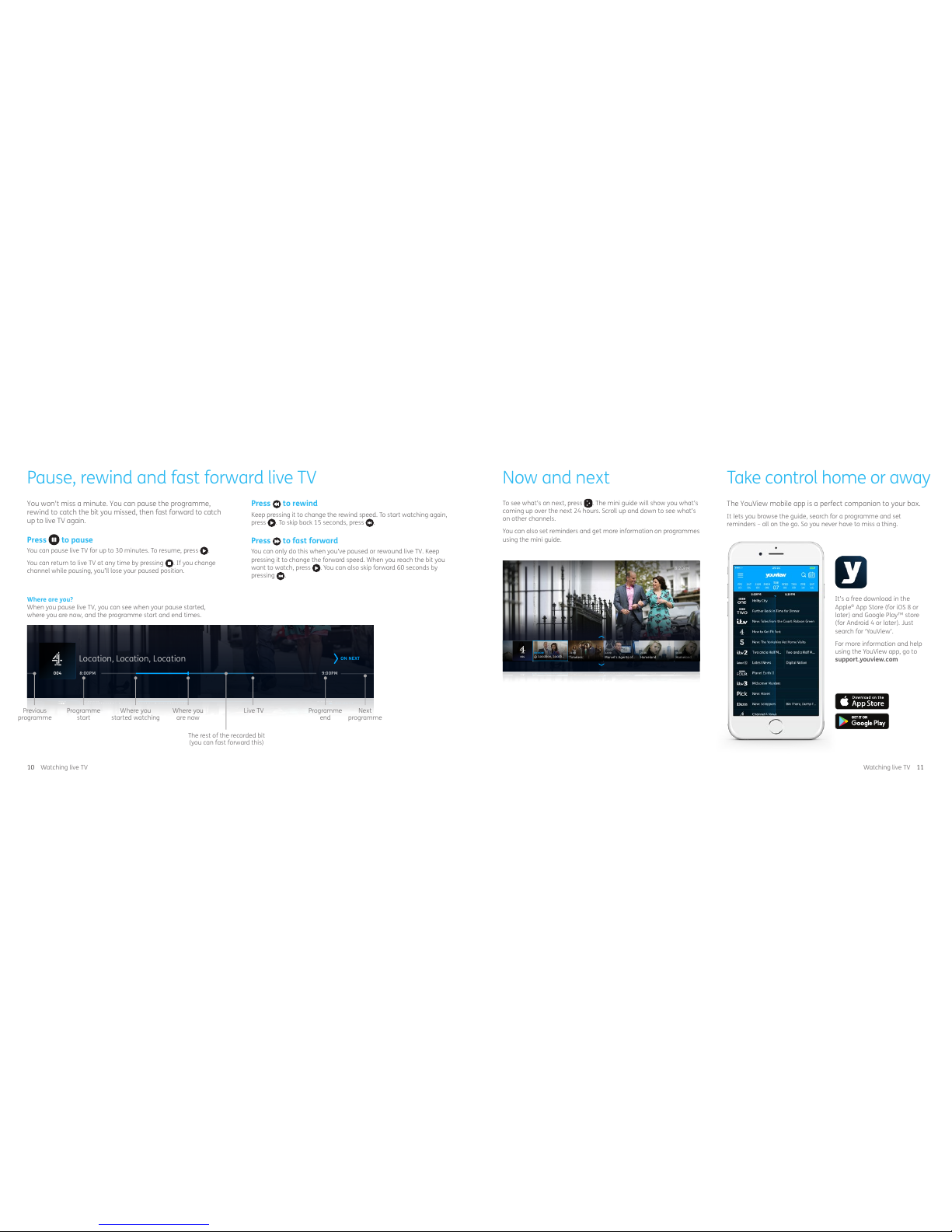
Pause, rewind and fast forward live TV
Programme
start
Previous
programme
Next
programme
Where you
started watching
Where you
are now
The rest of the recorded bit
(you can fast forward this)
Live TV Programme
end
Take con trol h ome or a way
It’s a free download in the
Apple® App Store (for iOS 8 or
later) and Google Play™ store
(for Android 4 or later). Just
search for ‘YouView’.
For more information and help
using the YouView app, go to
support.youview.com
You won’t miss a minute. You can pause the programme,
rewind to catch the bit you missed, then fast forward to catch
up to live TV again.
Press to pause
You can pause live TV for up to 30 minutes. To resume, press .
You can return to live TV at any time by pressing
. If you change
channel while pausing, you’ll lose your paused position.
Where are you?
When you pause live TV, you can see when your pause started,
where you are now, and the programme start and end times.
Press to rewind
Keep pressing it to change the rewind speed. To start watching again,
press . To skip back 15 seconds, press .
Press to fast forward
You can only do this when you’ve paused or rewound live TV. Keep
pressing it to change the forward speed. When you reach the bit you
want to watch, press . You can also skip forward 60 seconds by
pressing .
Location, Locati...
ON NOW
004
Marvel’s Agents of…
22:00
Homeland
23:00
Homeland
00:00
Timeless
21:00
8:20PM
Location, Locati...
ON NOW
004
Marvel’s Agents of…
22:00
Homeland
23:00
Homeland
00:00
Timeless
21:00
8:20PM
10 11 Watching live TVWatching live TV
Page 7
Breaking Bad
On Demand (9) Now & Next (12)
Breaking Bad
BUY, SUBSCRIPTION
65 EPISODES
Breaking Bad
SUBSCRIPTION
Breaking Bad
SUBSCRIPTION
Breaking Bad
SUBSCRIPTION
Breaking Bad
SUBSCRIPTION
Breaking Bad
SUBSCRIPTION
8:20PM
NEW SEARCH
Breaking Bad
On Demand(9) Now & Next (12)
Breaking Bad
BUY, SUBSCRIPTION
65 EPISODES
Breaking Bad
SUBSCRIPTION
Breaking Bad
SUBSCRIPTION
Breaking Bad
SUBSCRIPTION
Breaking Bad
SUBSCRIPTION
Breaking Bad
SUBSCRIPTION
8:20PM
NEW SEARCH
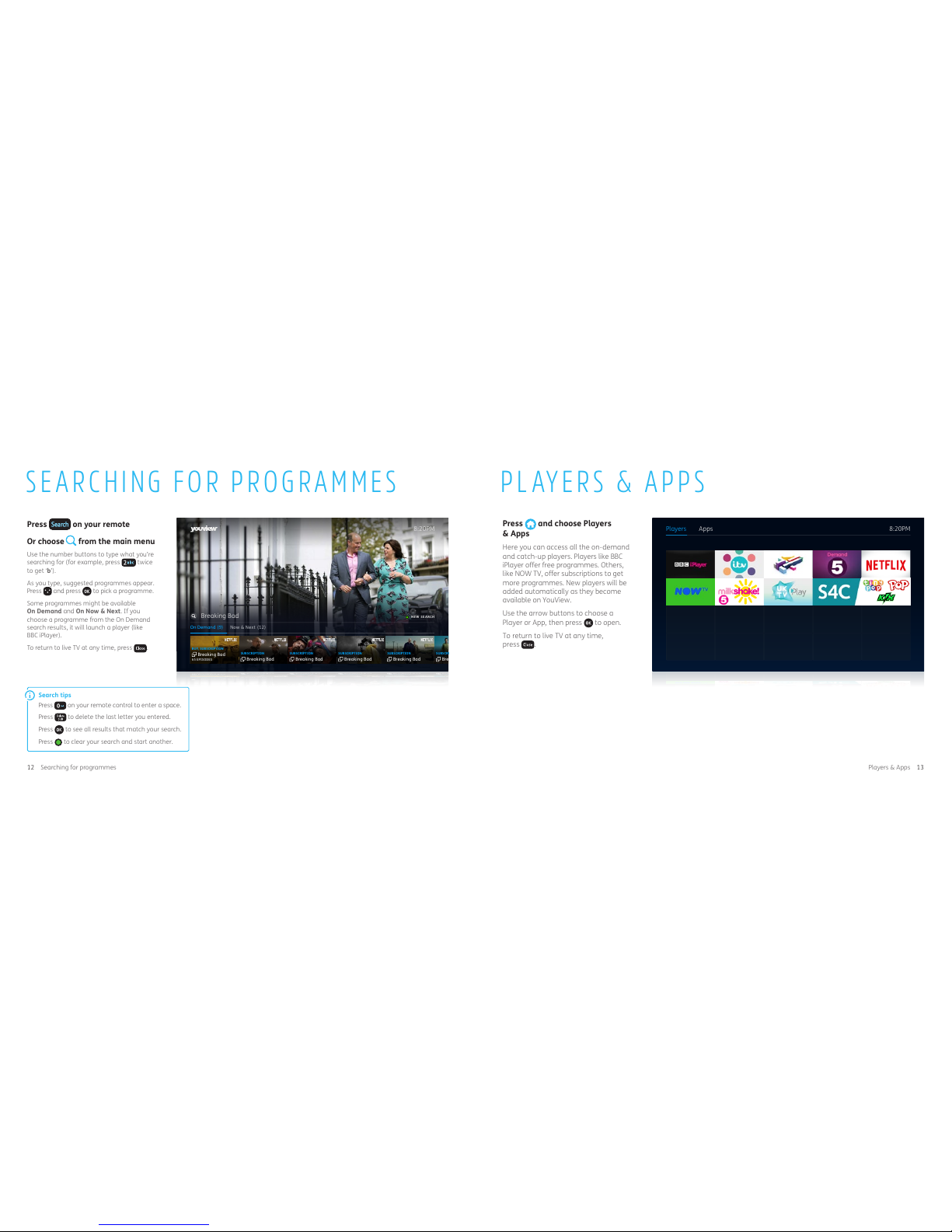
SEARCHING FOR PROGRAMMES
Press on your remote
Or choose
from the main menu
Use the number buttons to type what you’re
searching for (for example, press twice
to get ‘b’).
As you type, suggested programmes appear.
Press
and press to pick a programme.
Some programmes might be available
On Demand and On Now & Next. If you
choose a programme from the On Demand
search results, it will launch a player (like
BBC iPlayer).
To return to live TV at any time, press
.
Search tips
Press
on your remote control to enter a space.
Press
to delete the last letter you entered.
Press
to see all results that match your search.
Press
to clear your search and start another.
PLAYERS & APPS
Press and choose Players
& Apps
Here you can access all the on-demand
and catch-up players. Players like BBC
iPlayer offer free programmes. Others,
like NOW TV, offer subscriptions to get
more programmes. New players will be
added automatically as they become
available on YouView.
Use the arrow buttons to choose a
Player or App, then press
to open.
To return to live TV at any time,
press
.
8:20PM
Players Apps
8:20PM
Players Apps
12 13 Players & AppsSearching for programmes
Page 8

NEED SOME HELP?
Here’s what’s in help
Help with set-up 15
Help with saving power 15
Help with Freeview 16
Help with extra channels 16
How to control your TV using your
YouView remote
17
Get to know your set-top box 18
Accessibility tools 19
Parental Controls and PINs 21
Tak e a l oo k at plus.net/help/tv or
support.youview.com
Or chat with us any time between 7.30am
and 10pm at plus.net/help/chat
If you need to talk to us, give us a ring on
0800 013 2634 (option 2) between 7.30am
and 10pm.
Help with saving power
There are three different standby modes. To change these, go to
Settings, then Power and Standby. You can adjust Deep Sleep
timings here, too.
Standby mode Approximate energy use
When connected
using Ethernet
With no network
connection
Energy Saver 0.3 watt 0.3 watt
Always Ready 8.3 watts 8 watts
Smart Standby
(default 1am – 5am)
0.3 watt 0.3 watt
Smart Standby
(default 5am –1am)
8 watts 8 watts
Other box states Approximate energy use
In full operation Up to 8.0 watts
Off n/a
Time to switch from On to Standby in Energy Saver mode
180 seconds
Note that if you switch power off (at the socket) overnight to save
energy, it won’t pick up software updates during this time.
Help with set-up
Can’t c onnect us ing powerl ine adapte rs?
Try connecting your router directly to your set-top box using an
Ethernet cable. If they’re both in the same room, the ten-metre
cable that came with your set-top box should be long enough.
If it isn’t, or they’re in different rooms, use a longer Ethernet cable
or try your powerline adapters again. For more help on this, take a
look at plus.net/help/tv or support.youview.com
Can’t see the welcome screen or the screen says
‘No Signal’?
This could mean your TV is using the wrong source or input.
Here’s what to do.
1 Check that your set-top box is correctly connected to an HDMI port
on your TV.
2 If they’re connected okay, check that your set-top box has a blue
light on its top. (You can find out more about lights on page 18.)
3 If the light’s blue, press the ‘Input’ or ‘Source’ button on your TV
remote (it’ll look something like
) and select HDMI 1, 2 or 3.
You should have the right input now. If not, please have a look at
your TV maker’s guide for more help.
What’s the best way to connect surround sound?
You should be able to find this in the maker’s guide that came
with your surround sound equipment.
You can connect your box to a surround sound system using an
HDMI cable. But there are some programmes you might not be
able to get in surround sound. Take a look at plus.net/help/tv for
more information.
14 15 Need some help?Need some help?
Page 9
Help with extra channels
Extra TV channels are only available through a Plusnet Unlimited
Fibre or Plusnet Unlimited Fibre Extra broadband connection, with a
minimum estimated line speed of 15Mb.
Your Extra channels appear in the TV guide from channel 307. These
channels are delivered through your broadband connection, so you’ll
need to make sure it’s working to watch them, and that your set-top
box is always connected.
1 Check your box is up to date by pressing the
MyTV
button on
your remote. Then go back to the channels you’re trying to watch.
If they’re still not working, follow the steps below.
2 Check the connection between your TV box and broadband is
working by playing an on-demand programme. If that doesn’t
work, check the connection to your router. If your broadband isn’t
working on other devices, get in touch to let us know.
3 If you’re able to watch other on-demand programmes, you’ll need
to check the box software is up to date by going to Settings, then
Software Information and then Update Software.
4 If that doesn’t work, switch your router off at the power and then
back on again and do the same with your set-top box.
5 If you’re still having problems, let us know at plus.net/help/chat
or give us a ring on 0800 013 2634.
Help with Freeview
You might find some or all of your Freeview channels are missing or
they’re poor quality. Most of the time, the problem will right itself.
Or you might need to make a quick and easy fix. Here’s what to do.
1 Check the coverage in your area at digitaluk.co.uk. Just type
in your postcode and house number to see which channels you
should be able to get.
2 Check your aerial connections. Your aerial needs to be in good
working order to get Freeview channels. Make sure the aerial cable
is going straight into the Aerial IN socket on the back of your set-
top box. You might also get a better picture quality by removing
any amplifiers or splitters that you’ve got connected.
3 If you’re stuck, check your aerial. It might be out of place, or
something might be restricting the signal. If you need outside or
roof access to your aerial, we recommend getting someone in to
do it for you.
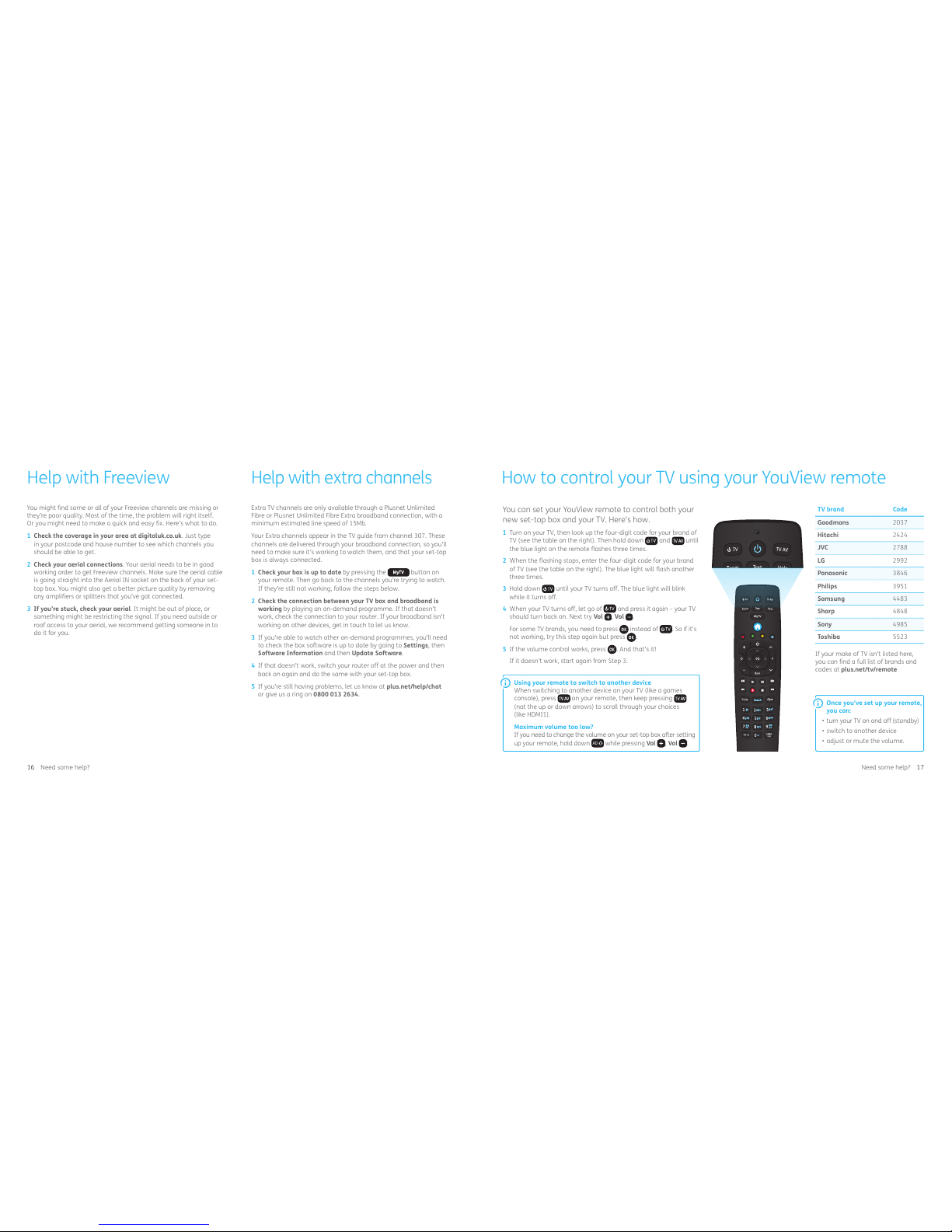
How to control your TV using your YouView remote
TV brand Code
Goodmans 2037
Hitachi 2424
JVC 2788
LG 2992
Panasonic 3846
Philips 3951
Samsung 4483
Sharp 4848
Sony 4985
Toshiba 5523
If your make of TV isn’t listed here,
you can find a full list of brands and
codes at plus.net/tv/remote
You can set your YouView remote to control both your
new set-top box and your TV. Here’s how.
1 Turn on your TV, then look up the four-digit code for your brand of
TV (see the table on the right). Then hold down and until
the blue light on the remote flashes three times.
2 When the flashing stops, enter the four-digit code for your brand
of TV (see the table on the right). The blue light will flash another
three times.
3 Hold down
until your TV turns off. The blue light will blink
while it turns off.
4 When your TV turns off, let go of
and press it again – your TV
should turn back on. Next try Vol , Vol .
For some T V brand s, you need t o press
instead of . So if it’s
not working, try this step again but press .
5 If the volume control works, press
. And that’s it!
If it doesn’t work, start again from Step 3.
Using your remote to switch to another device
When switching to another device on your TV (like a games
console), press on your remote, then keep pressing
(not the up or down arrows) to scroll through your choices
(like HDMI1).
Maximum volume too low?
If you need to change the volume on your set-top box after setting
up your remote, hold down
AD
while pressing Vol , Vol .
Once you’ve set up your remote,
you can:
• turn your TV on and off (standby)
• switch to another device
• adjust or mute the volume.
16 17 Need some help?Need some help?
Page 10
Accessibility tools
There are lots of things you can do to make your
set-top even easier to use. To review and change your
accessibility settings, press then select Settings and
scroll down to Accessibility and Language. Here’s a
summary of what’s what.
Turn on Subtitles, Audio Description (AD) and
Sign Language
If the broadcaster provides these features, they’re available on live
TV and on-demand programmes.
On your remote, use
and AD to turn Subtitles and Audio
Description on and off.
For sign language settings, go to Settings and scroll down to
Accessibility and Language to get to the options available. All on-
demand programmes have a subtitles or audio description option.
Using audio feedback
If you aren’t sure you’ve pressed a key or not, turn on audio
feedback so there’s a bleep on the TV every time you press a key
on the remote. Partially sighted and blind viewers might find it
makes navigation easier.
To s wi tc h t hi s on or o ff , go to Settings and scroll down to Accessibility
and Language and choose Audio feedback. When pressing
, you
can go left or right to turn audio feedback off or on.
Switchi ng on the high-contra st colour scheme
If you find the menus difficult to read, there’s a high-contrast colour
scheme you can use instead. It has white text on black and the
menu options don’t blend in with the background.
To switch this on, go to Settings and scroll down to Accessibility
and Language and choose Appearance.
Remove channe l logos
You can stop these logos appearing in the Guide to make it easier
to read.
Remove transpa rency
You can change settings so that you don’t see the ‘transparent’
background image of a programme while you’re browsing the Guide.
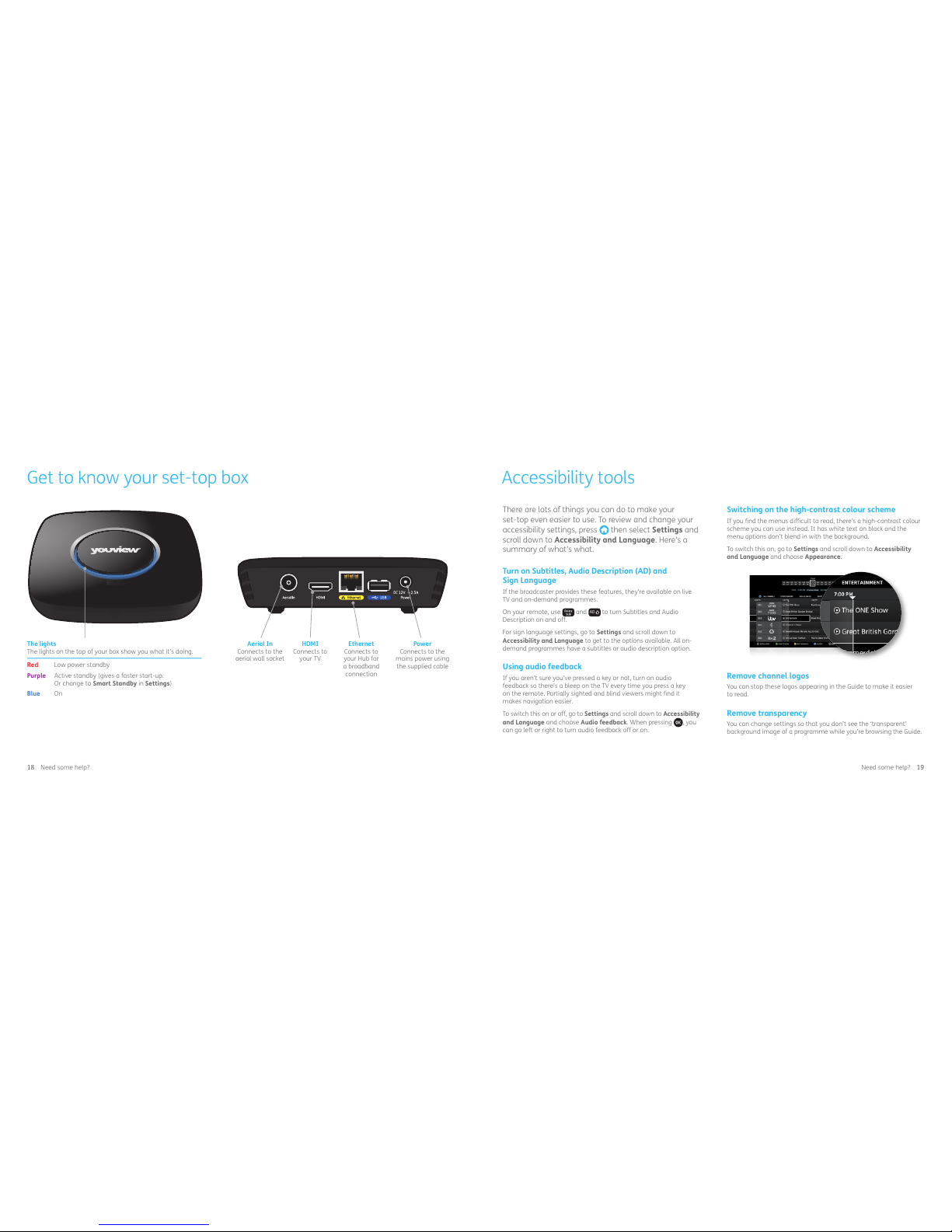
Get to know your set-top box
Aerial In
Connects to the
aerial wall socket
HDMI
Connects to
your TV
Ethernet
Connects to
your Hub for
a broadband
connection
Power
Connects to the
mains power using
the supplied cable
The lights
The lights on the top of your box show you what it’s doing.
Red Low power standby
Purple Active standby (gives a faster start-up.
Or change to Smart Standby in Settings)
Blue On
18 19 Need some help?Need some help?
Page 11
Using Zoom
The button has two functions: one for the main menu and one
for the Guide (where you find live TV channels).
How to zoom when using the main menu
If you’re finding it difficult to read some of the text while you’re in
the main menu or sub-menus (such as Settings), you can use Zoom
to make it bigger.
For example: press
on your remote to bring up your main menu,
then press
on your remote to make the text bigger (you’ll be
able to use the options on the screen as usual). Press again and
you can use the arrow buttons on your remote to move around the
screen. Press Select to use the options again. Press
for the third
time to go back to the normal view.
How to zoom when in the Guide
Press
. When you can see the TV listings, press to make the
text bigger (you’ll be able to use the options on the screen as usual).
Press again to return the text to its original size.
Using Grid 2
Grid 2 is software for Windows computers. You can use it to control
your set-top box without a remote or keyboard. It accepts input from
a wide range of devices, like switches, head pointers and eye gaze
systems.
You can find out more about this at support.youview.com and
sensorysoftware.com
Using your keyboard as a remote
You can use a UK USB keyboard to interact with your BT TV box,
either alongside the remote or instead of it. There’s a USB connection
on the back and the left-hand side of the box.
• This option supports popular USB keyboards.
• Certain keys imitate the buttons on the remote.
• You can use the standard alphabet keys to enter text.
• The ‘1’ key also cycles through punctuation.
• The keyboard number keys work in just the same way as the
number keys on the remote.
A number of keyboard layouts are supported, like Jumbo, Clevy
and multimedia.
For more about YouView accessibility features go to
support.youview.com/youview-box/accessibility
Parental Controls and PINs
It’s easy to control access to your YouView service,
if you want to.
Parenta l Controls
With your YouView service, you only need to set these once.
They’ll cover all channels, players and programmes.
About your PIN
You use your Parental Control PIN to control access to programmes
with certain age or guidance ratings.
Your default PIN is always 1234. But you can change it at any time.
To do that, go to Settings, scroll down to Parental Controls and
choose Change Parental Control PIN. You’ll also need to create
a security question, which you’ll be asked for the answer to if you
forget your PIN.
Can’t remember your Parental Control PIN and security question?
You’ll need to reset the box. To find out how, pop over to
support.youview.com
Unhiding age-rated programmes and films
When you activate Parental Controls, all programmes rated PG, 12,
15 and 18 are hidden. You can also choose to put Parental Controls
on programmes that have a guidance warning.
You might need to type in your Parental Control PIN if you try to
watch a live programme with an age rating of 15 or above between
5.30am and 9pm.
20 21 Need some help?Need some help?
Page 12

The small print
Safety instructions and precautions
Your set-top box has been made to comply with
international safety standards. Please read the
following safety precautions carefully.
Liquid
Keep all kinds of liquids away from your set-top box. Don’t
put anything filled with liquid (like a vase of flowers or an
oil-burning candle) on it.
Cleaning
• Unplug your set-top box from the wall outlet before
cleaning.
• Use a light damp cloth (no solvents) to dust it.
Ventilation
• Keep the ventilation slots uncovered to allow proper
airflow into your set-top box.
• Don’t stand it on soft furnishings, carpets or delicate
surfaces.
• Don’t stack other electronic equipment on top of it.
• Don’t keep it in a confined, unventilated space (like a
cupboard).
Environment
• Don’t expose your set-top box to direct sunlight.
• Avoid putting your set-top box on a delicate surface or
antique or veneered wood.
Warni ng
To avoid damaging the power cord or plug
• Don’t change the power cord or plug.
• Don’t bend or twist the power cord.
• Make sure you unplug the power cord by holding the plug.
• Keep heating appliances as far away as possible from the
power cord to avoid the vinyl cover melting.
• You sho uld hav e e asy acc ess to the ma ins pl ug at a ll tim es.
To avoid electrical shock
• Don’t open the main body of your set-top box.
• Don’t insert metal or flammable objects into it.
• Don’t touch the power plug with wet hands.
• Unplug it to install the aerial cable.
A set-top box over 28 days old from the date you bought it
may be replaced with a refurbished or repaired product.
Guarantee conditions
• Only covers defects that occur during the guarantee period.
• Proof of purchase is needed.
• The equipment is returned to Plusnet or its agents as
instructed.
• Doesn’t cover any faults or defects caused by accidents,
misuse, fair wear and tear, neglect, tampering with the
equipment, or any attempt at adjustment or repair other
than by approved agents.
• Doesn’t affect your statutory rights.
Within the 12-month guarantee period
If you have problems using your set-top box, don’t return it
before you’ve contacted the Plusnet Technical Helpdesk on
0800 432 0200. In the unlikely event of a occurring, please
follow the Helpdesk’s instructions for replacement or repair.
Outside the 12-month guarantee period
If your set-top box needs repair after the end of the
guarantee period, the repair must meet the approval
requirements for connection to the broadband and
telephone network. Contact the Plusnet Technical
Helpdesk on 0800 432 0200 for details of Plusnet’s
approved repair agents.
Recycling
How to recycle your equipment
Your set -to p bo x, rem ote con tro l an d p owe rli ne
adapters (if you have them) are classed as electrical
or electronic equipment, so DO NOT put them in
your normal rubbish bin. It’s all part of the Waste Electrical
and Electronic Equipment (WEEE) Directive (2002/96/EU) to
recycle products in the best way – to be kinder to the planet,
get rid of dangerous things more safely and bury less rubbish
in the ground.
The Plusnet Electrical Take Back Scheme
If you’d rather send your kit back to us, for details of
our WEEE take back scheme, please visit our website
at plus.net/support/WEEE
Sorry, but we can only deal with Plusnet equipment.
You can usually take other old equipment to your local
recycling centre.
Remember, batteri es need to be di sposed of respons ibly too.
To avoid damaging your set-top box
• Don’t use your set-top box if it’s out of order. If you keep
using it when there’s something wrong with it, you might
cause serious damage. Please contact Plusnet if it isn’t
working properly.
• Unplug it from the mains socket if there’s severe lightning.
To avoid damaging the hard disk drive
• Don’t move your set-top box or turn the power off
suddenly while the hard disk drive is running.
• Plusnet won’t be liable for any corruption of data on the
hard disk drive caused by carelessness or misuse.
Other information
YouView
YouView is subject to terms of use, suitable broadband
speed, TV aerial and coverage. See www.youview.com.
Software contained in this device is licensed on a limited
basis. All other rights are reserved. YouView and the YouView
logo are trademarks of YouView TV Limited and are used
under licence. © YouView TV Limited 2010 – 2017. All logos
and content images are trademarks and/or copyright of their
respective owners. Images are for illustration only and may
differ on screen. Content is subject to availability.
Open source software
Your set-top box uses open source software. To find out
more, go to plus.net/tv/opensource
EMC and Low Voltage Directives Declaration
of Conformity
This product is intended for use within the UK for connection
to the public telephone network and compatible switchboards.
This equipment complies with the essential requirements
for the EMC Directive (2014/30/EU) and the Low Voltage
Directive (2014/35/EU).
The full text of the EU declaration of conformity is available
at uk.humaxdigital.com/ec
Warra nty
Your set-top box is guaranteed for 12 months from the
date you bought it.
Subject to the terms listed below, the guarantee covers the
repair or, at Plusnet’s or its agent’s discretion, the option to
replace the set-top box or any of its components (other than
batteries) – if any are found to be faulty or below standard,
or not put together well or using unsuitable materials.
22 The small print
Page 13

HUMAX Electronics Co. Ltd
The Mille Building, 8th Floor, 1000 Great West Road, Brentford, London, TW8 9HH, UK
humaxdigital.co.uk
080992 / Issue 3 / ADP 02-17
YouView is subject to terms of use, suitable broadband speed, TV aerial and
coverage. See www.youview.com. Software contained in this device is licensed
on a limited basis. All other rights are reserved. YouView and the YouView logo
are trademarks of YouView TV Limited and are used under licence. © YouView
TV Limited 2010 – 2017. All logos and content images are trademarks and/or
copyright of their respective owners. Images are for illustration only and may
differ on screen. Content is subject to availability.
 Loading...