

Page 1

Page 1
User Manual
Page 2

Page 2
Thank you for purchasing this mobile. For the best
performance, we recommend that you read the manual
carefully.
1.SAFETY INFORMATION..............................................5
2. MOBILE PHONE EXTERIOR...................................19
3. SPECIFICATIONS......................................................20
4. PREPARATORY WORK BEFORE USE.................22
5. THE BRIEF INTRODUCTION OF THE MOBILE...28
6. BASIC OPERATION OF THE MOBILE...................31
7. MENU.............................................................................39
CALL LOGS...........................................................................39
CONTACTS...........................................................................41
ALARM.................................................................................43
Page 3

Page 3
MULTIMEDIA .........................................................................44
MESSAGE ............................................................................48
TOOLS.................................................................................51
PASTIME ..............................................................................53
FILE LIST..............................................................................54
SETTINGS ............................................................................55
OPERA TION INSTRUCTION FOR ENGLISH INPUT
METHODS.......................................................................62
APPENDIX 1 TROUBLESHOOTING........................63
APPENDIX 2 TROUBLESHOOTING OF THE
BLUETOOTH...................................................................69
APPENDIX 3 ABBREVIATIONS AND
EXPLANATION ...............................................................71
Page 4

Page 4
Statement: Our company reserves the right, in customer's
interest, to improve and alter its products without prior notice,
and reserves the final right to the technical specification of its
products. We are devoted to the production improvement
and put forward the updating version time after time. The
content of this manual may be slightly different in the actual
function, size or design from your mobile. Please refer to
your purchased mobile, and accept our apology for updating
without prior notice.
Page 5

Page 5
1.Safety Information
Please read the precautions carefully before using to ensure
the correct use of the phone against the dangers of body hurt,
electronic shock, fire burning or phone damage. Please
carefulness read following guidelines and abidance. Not
following them may be dangerous or illegal.
Serious Safety Precautions
Combustible and Explosive Area
◆ Do not switch the phone on in the place where is
combustible and explosive. For avoiding the explosion
and fire, please don’t install/Pop/charge the battery or
use the phone in the dangerous places which include
but not limited to:
Chemical plant, area where contain the chemical
substances or particulate (such as grain, dust, metal
power, etc).
Gas station, oil storage.
Page 6

Page 6
Fuel Storage (such as the cabin-body under the
deck).
The area where is marked with the explosion of
danger.
The place where is the "Dual Wireless Electronic
Equipment" forbids.
The auto energy switches off as recommended
usually, etc.
Precautions against the use of phone
◆ For preventing from thunder hurt or other, please don’t
use the phone when it is charging in thunder storm day.
◆ Do not dispose of batteries in high temperature (results
the continuous quality heat), otherwise, there maybe
afire or explosion.
For avoiding firing or burning, Please don’t Chage too
long and make the charging phone far away from human
body and other object flammable
◆ Please shut off the phone in the place of mobile phone
forbids!
Page 7

Page 7
◆ Please don’t dispose the phone, battery and charger in
the apparatus which has strong electromagnetism, such
as the electromagnetism pan and microwave oven,
otherwise, there may be circuit error, fire or explosion.
◆ Please don’t fiercely impact, shake or throw the phone,
battery and charger for fear of troubles or burning of the
phone.
Precautions against the battery/charger
◆ Don’t disassemble or refit the phone and the
accessories, or else, it may lead to the fire, explosion,
only the authorized institution is permitted.
◆ Don’t disassemble or refit the batteries, or else, it may
lead to the liquid leakage, overheat, burst and burning of
the batteries.
◆ Don’t use any scathing charger, battery or fittings, the
usage of the accessories and fittings produced by other
factories will offend the guarantee articles, and only the
authorized special designed charger, battery and fittings
Page 8

Page 8
permitted, or else, we are from any compensation
responsibility of the explosion or other dangers.
◆ Don’t throw the batteries to fire, or else, it shall lead to
the burning and burst of batteries. Forbids the battery
and charger short circuit, or else, there may be the error,
smoke and fire.
◆ Don’t connect the battery pole with the conductor such
as metals, key, and jewel, etc. or else, it shall lead to the
body hurt of battery over heat (such as burning).
◆ Don’t use the charge when the power line is damaged
(exposure, or rupture) or the connector is loosen, or else,
it shall lead to firing, charger short circuit and electric
shock.
◆ Don’t press the battery forcibly when it can’t be installed
properly, or else, it shall lead to the liquid leakage,
overheat, burst and burning of the battery. Don’t pop the
battery when the phone works.
◆ Don’t place the heavy goods on the charger power
supply line, and don’t damage, refit, or pull the wire, or
Page 9

Page 9
else, it shall lead to the electric shock and fire.
◆ If such phenomena as abnormal warning-up, color
changing and distortion in the process of use, charging
or storage, please stop using and replace it with new
battery, or else, it shall lead to the liquid leakage,
overheat, burst and burning of the battery.
◆ If the charger comes into contract with water or any
other liquid, cut off the power supply immediately to
prevent short circuit, firing, electric shock and failures of
the charger.
◆ Don’t charge the battery in fire and over heat
environment; Don’t use or store the battery near the
place of heat (such as fire or heater); Forbid using the
battery when it is liquid leakage, smoking or giving off
strange smell, place it far away from the open fire, to
avoid the firing and burst. For safety guarantee, the
battery should be disposed in the authorized
department.
Safety information and precautions
Page 10

Page 10
Electronic Equipments/Medical Treatment Place
◆ Please shut off the phone near the electronic
equipments which are high precise required, or else,
there may be the error or intervention, such as the fire
alarm, automatism door and other self control
equipments, etc,
◆ Please shut off the phone in hospital or other places
where the use of phones is prohibited. Or else, the
normal operation of electronic equipment and medical
instruments shall be affected, such as the heart
pacemaker, hearing aid and other medical electronic
equipments, etc.
◆ The pacemaker manufacture suggests that distance
between mobile phone and the pacemaker should be
15cm at least, or else, there may be the potential
interference. And the phone shouldn’t be taken away in
the chest package, and for reducing the potential
interference, please answer the phone with the ear
which is different from the one for pacemaker.
Page 11

Page 11
◆ Don’t bring the phone into the operating room, intensive
care unit (ICU) or coronary heart disease care unit
(CCU).
◆ For preventing from the influence on heart disease,
please care the settings of the ring, volume and
vibration.
Traffic Safety
◆ Please strictly keep to the laws and regulations on use
of phones of the places where you drive your car. If you
use the phone while driving, please observe the
following regulations: concentrate on driving and pay
attention to the road status; please talk in the manner of
hand free if available(may be additional payment); in
case of uncomfortable driving condition, please dial or
answer after stop the car.
◆ Don’t put your phone on the sir bag or the area where
the air bag shall reach after expanding, to avoid the
grievous injury to the owner due to the strong outside
force on the phone caused by the expanding of the air
Page 12

Page 12
bag.
◆ Using the phone on the airplane is forbidden strictly,
please switch off your phone before on plane. You’d
better pop the battery from phone for error connection
for starting.
Phone Storage
◆ For preventing the phone from degaussing, please keep
the phone away from the magnetism materials, such as
disk, credit card, etc.
◆ If the phone comes into contract with water or any other
liquid, cut off the power supply and move the battery
immediately, and then contact the supplier as soon as
possible.
◆ Please leave the sharp metal goods such as pin, etc
away from the phone headphones, the magnetism will
grip the goods and there may be the damage when
using the phone.
◆ Please don’t carry the phone in the rear pocket of
trousers or skirt, or else, it may be damaged when
Page 13

Page 13
sitting down. As it is recommended, the phone should
be put in the package, and don’t hang before the chest.
Precaution against Phone for Children
◆ Please put the phone, batteries and charger in the place
where it is difficult for children to reach, to avoid that the
children use the phone, batteries and charger with the
supervisor.
◆ Avoid that the children swallow the battery, because the
electrolyte may result poisoning.
◆ Care the children from touching the small phone fittings,
or else, the swallowing of the parts may result to choke,
gullet blocking.
Usage Environment
◆ Unless it is necessary that the inner antenna (on Button
of the phone) shouldn’t be touched when the phone is
switched on, or else, the communication effect may be
influenced.
◆ For avoiding influence on the body health, please don’t
switch on/off the phone near the ear. When your phone
Page 14

Page 14
is under the status of hand-free, please leave the phone
away from ear and prevent the large voice from ear
damage.
◆ For according with the regulations of radio-frequency
leakage, please keep the antenna away from your body
at least of 1 inch(2.5cm)
◆ If there are some un-comforts (such as failing sickness,
giddy) after long time usage of phone game, please
consult the doctor for help.
Clean and Maintenance
◆ Before cleaning and maintenance, please switch off the
phone. If the connector is connected, please draw the
charger from power socket and disconnect it from the
phone, or else, there may be the electric shock, battery
or charger short circuit.
◆ Please don’t use the chemical materials (such as
alcohol, benzene, etc), chemical lotion, and abrasive
cleaners to clean the mobile phone or charger, or else,
there may be the damage or fire. Wet and static proof
Page 15
Page 15
soft cloth can be used to clean the dirt.
◆ Please don’t scratch or alter the phone cell, or else, the
falling off dope may be sensitive to body. If there are the
allergic reactions, please stop to use the phone
immediately and consult the doctor for help.
◆ If the phone and its fittings can’t work normally, please
contact the nearby authorized agency and there will be
help from service center.
◆ Please clean the dust on the power supply socket, and
keep dry from firing.
Environment Protection
◆ Please stand to the local regulations of packaging
material, consumption battery and disposal methods on
old mobile phone, and support the callback action with
all hearts, and don’t throw the abandon handset and
battery in garbage bin.
◆ Please delivery the old or unused lithium battery to our
designated place or our company, don’t throw garbage
bin.
Page 16

Page 16
Emergency Call
◆ Please make sure your phone is switched on, and
covered by the network under the emergency, but not all
network can be connected, so the phone can’t be
considered as the only communication mode.
Battery/Charger Usage
◆ Please don’t put the container of water and other liquids
beside the charger and buttery, or else, there may be
the battery electric leakage and other troubles of the
phone.
◆ Please don’t charge the battery under the circumstance
where is excessive dust, damp, over or low temperature
(the permitted charging temperature is from 0℃ to 40℃),
and the power line couldn’t be close to the heater.
◆ Avoid influencing on the phone performance, please
don’t charge the phone when there is none battery.
◆ The battery level is not full after the delivery, when you
bring the phone and buttery from the case, as of the
Page 17

Page 17
environment difference, the phone may not be switched
on, it is suggest that charging the battery before the
phone usage. The charger plug should be inserted
properly, or else, there may be fire or explosion. After
the charging, the power supply should be switched off
and draw the plug, when the phone is charging, please
don’t move the battery randomly.
◆ Splashing the liquid into eye may lead to the danger of
blindness. If so, please flush the eye with clean water,
no kneading of the eye, and see a doctor immediately.
◆ If the battery is not to be used for a long period, please
pick up the battery for storage under the room
temperature.
◆ Don’t touch the charger, wire and outlet with wet hand,
or else, it shall lead to an electric shock.
◆ Don’t use the phone in the place where is excessive
dust, damp, dirty or near the magnetic field, for
preventing the phone from circuit error. Make sure the
phone is dry, and don’t make the phone, battery and
Page 18

Page 18
charger contacting the water and vapor or operating the
phone with wet hand, or else, there may be short circuit,
or personal electric shock from corrosive.
Safety Usage
◆ This phone has camera\ video record\sound record
functions, please use these function under the law.
Make bold to take photo/ record video/record sound
maybe violate the law. It maybe aggrieve another’s
copyright by using those functions out of the way.
◆ Our company is not responsible for the losses of
abnormal phone due to the virus file from the network.
Virus. Our company won’t bear the burden of that.
◆ The loading files of damage picture, ring, etc are
forbidden, and our company is not responsible for the
losses resulting from malice loading.
◆ Please don’t make phone for a long time which may
bring the battery heat, the inner circuit and telephone
receiver may be heat as well, the rapid growth
temperature may result danger.
Page 19

Page 19
◆ Please don’t use the phone when it is charging, the
rapid growth heat of calling and charging phone may
bring danger.
Warm Tips
Descriptions:The user manual carries the direction for
use under the on the English operation mode.
Warning: Our Company is not liable for the losses for
nonobservance of above suggestion.
Notice: Value added service of the cell phone shall be
provided by corresponding facilitator, and need the support
of network. Please make sure you have activity the GPRS.
Please refer to relevant help information or descriptions of
facilitators for details. D ue to SIM1 and SIM2 involved to
the third sides, related GPRS function only can use in SIM1.
2. Mobile phone exterior
This is a type of multi-media phone, which have two SIM
Page 20
Page 20
card to support two standby . Phone with color screen display,
built-in vibration motor, and one charging/earphone and data
transmission jack respectively..
3. Specifications
Touch screen/ UnSu
pp
orted
SIM card
Type*
3V Small Card
Phone book
ca
p
acity*
SIM according to card’s type, 100 in the
mobile
Hands free Supported
WAP/GPRS * UnSupported
MP3/Record Supported
VibrationMoto Supported
Call Supported
Page 21
Page 21
Incoming
number
Supported
Alarm
clock/Calenda
r
Supported
Phone
Book/Groupin
Supported
Auto
Redialing *
Auto Redialing *
USB
Mode/Memory
Card
Supported (T-flash card)
File Browsing
Supported
Note: * shows that the relative function or service
needs support from network or SIM.
Page 22

Page 22
4. Preparatory work before use
What is SIM?
This phone can support two SIM cards and two stand-by,
there are two slot to place the two SIM cards (SIM1 & SIM2) .
When you register your mobile number., you will get the SIM
cards (Subscriber Identity Module). And you put the SIM
cards into the slots then you’ll got the functions includ
communication data, mobile number, PIN code (for identity
verification), phonebook, message,as well as other
additional system service. Note: please take care usage of
the SIM card, friction or bend may damage it. If it is lost,
please contact the network operator, The SIM cards is
pretty small , do not allow children to touch it to avoid
swallowing it by mistake!
Insert your SIM cards
Switch off the mobile before inserting the SIM card. The SIM
card is at the back of the mobile. Please follow the steps as
Page 23

Page 23
bellow:
1、 Turn to the back, press the cover button then slide the
back cover along the phone body, unclip the battery
from the slot and remove it.
2、Place the SIM card with the chip facing downwards and
slide it into its housing by aligning the SIM card’s nick and
the slot’s one, push the SIM card as deep as possible.
Note: This mobile has two slots for Sim1 a nd Sim2, the
phone reads the SIM1 under factory setting (you can
exchange SIM1 and SIM2 by “settings/Dual SIM
settings” ), or enter “menu/settings/Dual SIM settings”
to exchange or choose the Dual SIM settings” without
SIM card, it’s no need to execute switch on/off.
3、Insert and engage the battery into the fixing slot, press the
battery downwards, and then slide the back cover upwards
along the phone body until it is locked.
PIN1 Code
Page 24

Page 24
The PIN1 Code is the Personal Identification Number for
entering a SIM card. ‘Input PIN’ is requested each time the
phone is switched on if this PIN1 code is activated.
You can get this code with the SIM card by your network
operator. It usually has 4 digits. When you inputting the PIN1
code, ‘*’ will display on the main screen instead of the digits.
PIN2 Code
The PIN2 Code is the Personal Identification Number for
certain network features (Cost information, etc.) requested
during their use when this code is activated.
<Warning>:If y ou ente r 3 in corre ct PIN 1 Codes , the S IM card will b e
locked. You have to contact your network vendor for decoding.
Unauthorized decoding may cause the SIM card to be invalid
forever.
Page 25

Page 25
Charging your battery
■ The battery of this mobile is the rechargeable lithium
battery.
Note:New batteries are partially charged, we recommend
you to charge the battery before using your phone. It will take
4 hours to fully charge. The battery has no memory effect, so
discharge it before charging is not necessary, and charging a
battery that is not empty dose not affect the lifetime of the
battery also. We suggest that you charge the battery when
its power is low to avoid the drained status.
■ It is normal for batteries with slightly heat during
charging. Your mobile will activate automatic protection
when the temperature is rising in order to control the
temperature.
■ When battery power is low, the alarm rings and a
low battery message displays. If battery power is completely
drained, the mobile turns off automatically.
Page 26
Page 26
■ Turn off your phone before removing the battery,
otherwise the data stored in the mobile will be lost and the
lifetime of the mobile will be affected.
Battery Type Standby T ime Communication Time
Lithium Battery 200-400Minutes 240-400 Minutes
Note:The battery life depends on the operation modes,
network, calling amd Bluetooth status.
Battery Charging Steps
■ Plug the charger into the electrical outlet, and then
plug the charger connector into the socket at the right side of
the mobile The side with the direction signal is upward, the
charge direction is correct.
■ When your phone is on during the charging, ‘charger
connected!’ displays if the charger is connected successfully.
Then the battery power level indicator in the external dis pla y
shows how much of the charging modify is complete
Page 27

Page 27
dynamically.
■ When the mobile is off during the charging, an
animation displays the charging modify.
■ When the battery is fully charged, the charging
modify will stop automatically with a full battery icon
displayed. After charging is finished, please disconnect the
charger as soon as possible.
Note:
1. When battery power is drained, we suggest you charge it
in time.
If the battery has not been charged for 2 days, the mobile will
change into slow charging mode without anything displays
temporarily when you charge it again. The charging indicator
may take about 15 minutes before appearing in the external
display.
2. Do not alter the components and accessories of battery or
Page 28

Page 28
open it by yourself to ensure the safe usage of the battery.
3. We suggest that you should use your telephone with the
batteries compatible with your model to avoid any damage to
your mobile.
4. Mains powered chargers will operate within the
temperature range: 0℃ to 40℃,do not charge your phone
under higher or lower ambient temperature.
Warning:Only use your telephone with qualified batteries, chargers
and accessories compatible with your model authorized by our
company. Do pull out the plug but not the cable when you cut off
the power of any component. Please consult your vendor about the
purchase of relative components.
5. The brief introduction of the mobile
The Communication Control Keys
Page 29

Page 29
The Call Key is used to make a call (when the numbers have
been input or in the phone book) and pick up a call. In the
stand-by status, press this key to accesses call memory
(including answered, dialed and missed call records.)
The End Key is used to end a call (in dialing or calling status)
or exit current menu and return to the stand-by status. Press
and hold this key for 2 seconds to switch on or switch off
your telephone.
Number Keys
Press the Number Keys from 0 to 9, Symbol* and # Keys to
dial and input password, English words , etc.
Main screen icons (No notification about further change
for icons)
Language and Input modes
The mobile provides multi-language inputing modes of
English and so on ,Please refer to the chapters of “Input
Page 30

Page 30
modes” for details about how to use and change Input
modes.
Grouping
Phone group is divided into friends, family, classmates,
business, blacklist, other.
Nouns Explanations
【Domestic calls】
Dial the region number followed by the number you are
calling.
【International Calls】
In standby mode, press the "*" key twice until "+ "sign, and
then enter the key area code, area code and telephone
number.
Page 31

Page 31
【Emergent calls】
Dial 112 to make an emergency call for help. This works
even without a SIM card.
【IMEI】
International Mobile Equipment Identity. You can see a
bar-code label with IMEI number at the back of the mobile if
switching off the mobile and removing the battery. The
number is also stored in the mobile, when inputting ‘*#06#’, it
displays on the screen if the phone is in the stand-by status.
The IMEI, unique globally without any duplication, must be
printed on the every phone all over the world, no mater which
brand the mobile belongs to.
6. Basic Operation of the mobile
Switching on your mobile phone
Page 32

Page 32
Press and hold on the End Key to switch on (or switch off)
the mobile. If the password protection of the SIM card and
telephone is not activated, the mobile will search for a
network automatically. The name of the network will be
displayed on the screen when the mobile is registered on the
network, then you can make or answer calls.
Your phone will keep on searching a network if an available
network couldn’t be found temporarily.
If ‘Insert the SIM card’ is displayed after switching on your
phone, please press and hold the End Key to switch off and
check your SIM card is inserted correctly or not.
If the password or PIN code of the mobile is requested when
switching on, please input the correct password. * will be
displayed instead of the digits, and then confirm with the left
soft key. The registered network name and signal intensity
will be displayed after unlocking.
If you do not know your PIN code, please contact your
Page 33

Page 33
network operator.
The default password is ‘1234.’
Switching off your mobile phone
Press and hold on the End Key to switch off the mobile. The
telephone is power off after the power-off animation
displayed. Do not switch off the mobile by removing the
battery directly , which w ould result in the lost of the un-stored
information in SIM cards.
Using USB data cable
This mobile supports USB function. Connecting your mobile
phone to computer by the USB data cable, you can not only
copy and move files between the mobile and computer, but
also view photos, videos, and recording files, etc which are
Page 34

Page 34
saved in the mobile through computer. The method of
using a USB data cable is:Insert one end of the USB data
cable into the USB socket of a PC (Personal Computer);
connect the other end to the ‘Charge/Data Transfer Socket’
at the bottom of the mobile.
Installing a T-Flash card
The mobile supports a T-flash card (maybe needs to be
purchased additionally). The T-flash card is a multimedia
storage card used to extend the memory of your mobile. The
card is small, so please be careful when you installing or
removing it to avoid damaging it. in the upper left side of the
phone will be T-flash card is inserted into T-flash release
slot.
Note: T-flash cards that compatible list as follows:
Kingston 128MB、256MB、512MB、1G card; And
SanDisk 128MB、512MB、1G、2G card; Lexar 1G card;
Especially, please bring your handset when you purchase
the T-FLASH card, and please make sure the T-flash
Page 35

Page 35
card is compatible with your handset
Making a call
You can delete the last incorrect digit by pressing the right
soft key and long pressing will delete all the digits you input.
When the call is connected, call timer displays. If the
sending call is not answered, the possible r easons are as
follows:
◆ “Busy” indicates that the called number is busy or n o
free line can be used. If the automatic redial function is
activated, the person you called will be called back
automatically.
◆ “Rejected” indicates that the call is not allowed for
reasons such as that Call Barring function is activated.
The caller’s name is displayed if the incoming number ha s
been stored.
Press the End Key or the right soft key to hang up the call.
Page 36

Page 36
Receiving a call
When an incoming call, in accordance with the phone set will
ring, vibrate, ring and vibrate ,vibrate then ring ,silent to the
manner suggestive of Caller ID calls.
◆ Press the Call Key to talk
◆ Press the End key to reject
The caller’s number is displayed if the Calling Line
Identification Presentation
is activated. The caller’s name
is displayed if the incoming number has been stored.
To hang up a call is basically the same as the method
mentioned above.
Speed Dial
The mobile offers 8 shortcut keys (2-9) that can be
Page 37
Page 37
customized to assign corresponding speed dial numbers.
You can make a speed dial call by pressing and holding the
number keys (2-9) in the stand-by status.
Note:You should press and hold the key (2-9) for more than 2
seconds for speed dial. If the shortcut key pressed is not defined in
‘speed dial’ function, you cannot make the speed dial.
Use the earphone
When insert the earphone, you can receiving and dialing
the call. Please operate it as followed form.
Receiving the call Press the button one time
End the call Press the button when
end the calling
Recent Call numbers
The mobile can store recent call numbers. In the stand-by
Page 38

Page 38
status, you can access call memory by pressing the Call key .
Press the Up and Down Navigation keys to select the
number and make a call directly by pressing the Call Key.
During the call
During a call, you can access the “menu” menu to choose
the different functions (as followed). Press the right software
to use “hand-free” function; Such as the service which need
to operate according the voice prompt (Such as China
mobile Customer Care Hotline 10086 、 China Unicom
Customer Care Hotline 10010 and so on ) Notes : If the
Customer Care Hotline exchange in future, please
subject to the note of operators
◆ Turn o handfree: Open the speakerphone
◆ Switch: Call to maintain or restore
◆ Contacts: During a call, enter the address book
and make the appropriate action
Page 39

Page 39
◆ Message: During a call, enter the information
function and the corresponding operation
◆ Call logs: During a call, enter the call log feature,
and the appropriate action
◆ Start to record: call, recording.
◆ Mute: Mute, the other party can not hear your
voice, but you
Can hear each other's voices.
Missed calls
A prompt sound or an icon would display on the main screen
if you have missed calls in Sim1 and Sim2. You can view the
missed calls by pressing the left soft key.
7. MENU
Call logs
You can view your recent call situation.
Page 40

Page 40
[Dialed calls]
:
Show all dialed calls list, select a view after
a dialed calls occurred in the date and time, phone number
and times.
[Received calls] :
Show all answered the phone list, select a
view after a phone that has the date and time of occurrence,
telephone number, frequency,
[Missed calls] :
Show all missed calls list, select a view after
a missed call occurred the date and time, phone number and
times.
[Rejected calls]
Show all refused to answer the phone list,
select a view after a missed call occurred the date and time,
phone number and times.
Press the OK softkey to enter the options menu can be more
than the number of call records in the following:
◆
Details: View the current record date, time, type.
◆
Dial directly: call the current number.
◆
Save: You can save the current record to the phone or
SIM card
Page 41

Page 41
◆
Send SMS: send the current record of SMS or MMS
◆
Add to existing contact: the number of the record the
name added to the existing record which
◆
Add to blacklist: the current record to reject a call which
◆
IP Call: IP Call to the record
◆
Delete: Delete the currently selected record
◆
Delete All: delete all call records
Contacts
You have 2 phonebooks in this mobile phone: SIM card and
the mobile. The mobile can store 100 phone numbers and
the SIM card’s capacity depends on its type.
I In standby mode, enter a number, press the call key pieces
to make a call, press the OK key to save
◆ If ‘To SIM 1/2’ is selected, users can edit name and
number.
◆ If ‘To phone’ is selected, the user can edit the name,
Page 42

Page 42
mobile number, home number, e-mail address, image,
ringtone, caller groups
Into the phone book list, the list on the left displays a small
icon indicates that the record exists SIM card or mobile
phone, the right is the record of the name and number
information.
Standby mode, press the right soft key to enter into the
address book or from the menu
Into the address book, do the following:
[View]:
View the details of the contact
[Edit]:
Edit the selected contact
[New]:
Selection into the select group interface: into the
phone or SIM card.
[Search]:
Enter the contact name and press the Enter key to
find
[Write SMS]:
Choose to write messages into the a pprop riate
function interface
[Dial]:
Choose to allocate or direct IP dialing
Page 43

Page 43
[Send vcard]:
Select the contact card with the message
sent
[Delete]:
choose to delete the selected contact record
[Mark]:
marker-all or the currently selected record
[Copy]:
Select Copy to SIM, or cell phone or storage card
[Copy all]:
Select Copy to a memory card from SIM1, SIM2
copied to the memory card, memory card to the phone
[Others]
[Speed dial settings]: start and set the speed dial
[Caller ID]: Query and edit the phone numbers
[Memory]: Query the current SIM card and mobile phone
storage capacity
[Single line display]: rting Contact records show single or
double lines
Alarm
This machine has three alarm times available for your
settings. Access any time, you can set its status to on / off,
ring time, repeat mode, ring tones, alarm clock name, etc.
Page 44

Page 44
Multimedia
【
Camera
】:
The phone supports photo, so you can capture
your favorite scenes anywhere. Photos will be saved in the
phone comes with a file system, photographs as JPG format,
you can phone provides photographs sent to a com puter via
USB connection to view, can also be set Image for the
standby
Note:This function can work without driver under Windows XP by
directly connecting your mobile to the computer
Capture:press OK key to catch the picture
Press the left key into the “option” function
[Gallery]: View saved photo
[Settings] Set camera parameters
[Storage]: Choose a photo is stored
【Video】:
Page 45

Page 45
[View]:View saved videos
[Settings]: Set video parameters
[Storage]: Choose a video is stored
【
Audio player
】
Play audio files, MP3 songs; to play audio files, MP3 songs,
press the Up and Down keys to adjust the volume, press the
left and right keys to select the present, the next song, press
the OK button for the on / off Music
[Music list]:
Into playlist interface. Can be added to the play
list editing and other operations
[Music mark]: Bookmarks in the music songs in the
operations (including play / delete / multiple selection delete /
rename / details and other operations)
[Add]: Add songs or music playlist bookmark
[Set as ringtone]: The song is set to call or alarm tone
[Play mode]: Select play modes: single repeat, all repeat or
random
Page 46

Page 46
[Settings]:
◆ Equalizer:
Choose a variety of equalizer effects
◆ Lyrics display: Select Open / backlight is on and
constant on / off display lyrics, etc.
[Open review]: Repeat function on or off (in the music player
interface, press the left soft key "start"to repeat)
[Exit]: Exit menu audio player
【
Video player
】
[Play list]
list stored in the player's video files
◆ Play:
Play the selected videoυ file
◆ Add video: nside the storageυ space from the
phone to add video files
◆ Update list:
update theυ current playlist
◆ Delete from list: Deleteυ the currently selected from
the list of video files
◆ Details: View detailedυ information on the currently
Page 47

Page 47
selected video
◆ Set as: Set for the switch machineυ animation
◆ Mark: Select a single tag orυ all, and then operate
[Fullscreen play]
full-screen video playback on the current
[Order paly]
Select whether to open the playlist on the
current order of play inside the video file
[Set as]
set to turn off the animation or animation
[]File attribute]
View the current video for more
information.
【
FM radio
】
[Auto search and save]: Channel auto search and save
[Channel list]: View channel list
[Save]: Save the channel to the channel list
[Manual search]: Manually enter the channel and find
[Open speaker] Choose whether to open the microphone
[background paly] Choose whether to open the Background
Page 48

Page 48
Play
[Help]: FM Help
Message
The Messaging function is a network service. Sending and
receiving Text/MMS can only be used if the service is
proposed by your network operator.
You can send ordinary Text messages, enhanced Text
messages (Text messages containing pictures, ring tones
and animation as attachments, EMS for short). The SMS is
sent to the Text messages center in the network firstly, and
then to the target user. If the receiver’s mobile is power off or
cannot receive messages, the network will store the message
temporarily and the store duration is determined by the user
configuration and the service provider. I
The message will be directly stored in the SIM card if
the capacity is not full. A blinking icon at the head row of the
Page 49

Page 49
main screen will be displayed if the capacity is full.
Messages unread
If the Text message has been sent to the receiver, a
beep will sound. (If the tone for Text messages and message
report are activated).
[Write message]
◆ Send: Enter the appropriate number of the recipient or
from the phonebook add
◆ Insert template: to the current content of the message
being edited into the common language
◆ Add contact info: Insert the contact person
◆ Add phiz: emoticons into the meaning of the
representative
◆ Save:
to save the information to Drafts.
[Inbox]:
Page 50

Page 50
◆ Reply: reply to SMS to each other.
◆ Delete: Delete short message
◆ Call: choose a voice call or a call to the sender IP calls
◆ Lock: lock can not be deleted
◆ Mark: single marker or markers in whole or in text
messages stored in SIM1/SIM2, mark or unmark after
delete records
◆ Sort: In accordance with time / contact / theme /
message type sort
◆ Delete same number:
choose to delete the same
number of records.
[Outbox]:
Reading or processing stored in the Outbox of the
SIM card message.
[Drafts]:Reading or processing stored i n the Drafts of the
Page 51

Page 51
SIM card message
[Sentbox]
: read and process the mail stored in the SIM card
has been sent information
Tools
[Bluetooth]:
[Open bluetooth]: Choose to activate the Bluetooth
[Bluetooth visibility] ;Bluetooth visibility set
[Paired device] ;Search and paired Bluetooth devices
[My bluetooth name]; Local Bluetooth name
[Storage]; Storage location
[Help] ;Help Documentation
[Calendar]: Press the left soft key to access the calendar
display interface, the first line shows the year, month, and
the third line shows the week, the middle section shows the
specific date of a month, the last line shows the right and left
soft key in the message. Interface in the calendar, press the
arrow keys on the date forward one week, press the arrow
Page 52

Page 52
keys to move one week after the date, press the left arrow
key date forward one day, press the right arrow keys to move
the day after the date, select the date to a dark display
[Add task]: a new agenda
[View tasks]:
View the schedule one day save
[All tasks]: View the schedule all day
[Clear tasks today]: Clear the calendar day
[Clear all]: Empty all the schedules
[Go to date]: Enter the dates you want to find, the cursor will
jump to that date quickly
[Weekly]: the week / month display calendar.
[Calculator]:
Can be continuously mixed arithmetic, the
operation is simple, practical, convenient
[Recorder]
[Audition]:
hear the currently recording
[Record again]:
re-recorded sound recordings of the current
[Delete]:
Delete the current recordings
[Send]: Sound recordings sent by BT
[Record file list]; The memory card
inside the recording file list
Page 53

Page 53
[STK]:
Full name of the SIM card application toolkit (SIM
Application Toolkit). It can provide you with flexible
information functions, such as stock information, traffic
information, weather and so on. STK functionality provided
by the network operator decision. The business needs the
support of SIM cards and network
[Purple]:
Choose whether to open the flashlight
Pastime
View or processing pictures stored in the phone
[Image browsere]
[Change folder] Select a stored phone image folder storage
space
, this view picture
[Send] send pictures with BT
[Slide play]
choose a slide show to view pictures
[Delete]
Delete the currently selected image
[Set image as wallpaper];
The currently selected image as
wallpaper
Page 54

Page 54
[rename]: the current rename the selected pictures
[mark]; tag for a single or multiple pictures, and then operate
[Detail]:
View the details of the selecte d pictures
[Slide settings]
Select the slide show effects and delay time
[Game]:
Provide an interesting game
File list
【MemoryCard】:
SD card needs to support T card
[New folder]: Create a new folder.
[delete];
delete the specified folder.
[Details] View the folder or file for more information
[Edit] the selected folder or rename the file or copy
[Search] Enter the folder name to find out.
[Sort] By the way you choose to sort the files.
[mark] Select Mark / Unmark single / all
Page 55

Page 55
[More]
◆ Phone memort capacity;
:View the phone's capacity
◆ Memory Card capacity: View the memory card
capacity
◆ Format Phone; format phone memory
◆ Format memoryCard; Format memory card
Settings
【Call settings】
[Dual-SIM]
[Set dual SIM call divert]
the first set in the address book
of two SIM card phone number case, when one card to
another card single standby when the call will be transferred
to a single card.
[Standy mode]:
Dual SIM standby or standby only SIM1 or
SIM2 only
Page 56

Page 56
[MainSim settings] Set in the call / send SMS / MMS send /
access the Internet / speed dial / back of the card is set when
the main and sub card
* This card is set back Call back function takes precedence
over "the main and call card settings"
[Set SIM name] SIM1 and SIM2 in the card slot to set the
display name
[Dual SIM settings] enter the dual card setup wizard
[Help]
Help for dual card setup instructions
[
Network selection
]:
A network of SIM1/SIM2 manual or
automatic selection
[Call divert]: transfer a call, respectively SIM1/SIM2
◆ Unconditional transfer: Set a forwarding number, for
forwarding all calls are
◆ Divert if busy: set the forwarding number, transfer
calls when in busy
◆ Divert if no answer: Set a forwarding number, in
case of no response transfer
Page 57

Page 57
◆ Divery if unreachable: to set the forwarding
number in the phone unable to connect the case
of
transfer
◆ Cancel all diverts: cancel all of the transfer
[Call barring] respectively SIM1/SIM2 call for restrictions
[Call waiting]
open call waiting, respectively SIM1/SIM2
[Hide ID]
respectively SIM1/SIM to hide the machine when
the power numbers.
* SIM card, operators need to support
[Select line]
select lines respectively SIM1/SIM2
[Fight mode]
Select the active flight mode
[Others]
[IP shortcut key]
Select the start of the IP number SIM1 or
SIM2
[50 sec voice call alert]
Select the open or closed during a
voice call has prompted every 50 seconds
[Alter for voice all connected]
Select the phone is turned
on or off the tone when
Page 58

Page 58
[Answer/Reject mode] Select whether to reject messages
or return after any key answer
[Auto redial]
Select whether to open automatically redial
function
【Phone settings】
[Time and date]
Set time:
set the phone to display the time
Set date:
set the phone to display the date
Time format:
Set the display time format
Date display type:
Set the date display format
[Select language]
Select phone display language. The unit
provides both simplified Chinese and English languages.
[Shortcut settings] Set up and down arrow keys to quickly
access the function menu
[Auto power on/off]
Set the time and frequency of
Automatic Turning
[Power managerment] check the battery's current charge
[Restore settings] restore the factory settings
Page 59

Page 59
【Display settings】
[Wallpaper settings]
Set wallpaper
[Idle screen style] Select the standby interface style as
the basic style or smart style
[Idle display settings] Select whether the standby time /
operator / day schedule / personal terms
[Contrast] adjust the screen's backlight brightness
[Backlight] Set the screen's backlight time
[Keypad light] Set the backlight time key
[Animation effect] Set the main menu, special effects /
animation startup / shutdown animation / other.
【Security settings】
[PIN] Select open or modify the phone's PIN code
[PIN2]
PIN2 choose to modify the phone code
[Privacy]
set access to enter the password to view
functionality. (Including: call log / messages / camera /
address book / document management / e-book /
calendar schedule / U disk)
Page 60

Page 60
The default password is: 1234
[Auto keypad lock]
set the time automatically lock the
keyboard
[Lock screen by end-key]
press the end key to select
whether the off-screen function
[Power-on password]
Set the need to enter a password to
open the boot function of the normal boot
The default password is: 1234
[
Guardlock
] to
set the security password and open the
feature, open the opportunity for the card and then prompts
for security password, if the wrong password is entered three
times, the phone can receive within 24 hours of alarm
information
Default password: 123456
【
Profile
】
The phone offers a variety of patterns and make
the default settings. When you insert the headset
automatically goes into headset mode phone. Enter the
conventional model, quiet, vibration mode, bass, treble
several vibration modes, you can enter the "Options /
Page 61

Page 61
Settings " to set the following options
[
Activate
]:
Activate the selected mode
[
Settings
]: set the selected mode
[Ring settings]
SIM call ring:
set the SIM card of the ringing tone
SIM MSG ring;
set the SIM card message tone
Power on ring: set the boot tone
Power off ring: set the tone off
[Adjust volume]
Caller ringtone: set the ringing tone volume
Message ringtone: ring volume settings information
Call volume:
Set the volume of calls
Alarm volume; set the alarm tone
Power on/off tone: the voice of setting switch
[Call alert] a ring, vibration, quiet, vibration and ringing and
ringing after the first five vibration incoming call alert for you
to choose
[Message alert] a ring, vibration, mute, ringing and message
alert vibration four ways for you to choose
Page 62

Page 62
[Alarm&calendar remind] a ring, vibration, mute, ringing and
message alert vibration four ways for you to choose
[Key tone] set the key tone of voice
[Battery low alert] Set whether to open the touch tone.
[Power on/off tone]: Set the sound is turned Off
[
Rename
] rename the selected mode
[
Enhance sound
] whether the selected mode is set to open
the sound enhancement
Operation Instruction for English Input Methods
Your mobile supports English languages, and so on .The
Few languages can be used not only in the main screen
and menus, but also in the Text message, phonebook, etc.
by different inputing methods. You can use the different
inputing methods as follows. You can also switch the
mehtods quickly by pressing ‘#’ key and enter symbol
inputting mode by the key.
Numeric Input mode
Page 63
Page 63
Press the number keys to input the corresponding number
in this input mode.
Appendix 1 Troubleshooting
Facts Possible reasons
My mobile does
not switch on
1、Check the battery charge level?
2、Check whether the battery has been
installed correctly
My mobile does
not charge
properly
1、 Check whether the charger is
connected to the mobile correctly
2、 Make sure your battery is still
useful. The capacity of a battery may
decline after being used for several
years.
3、 Make sure you r battery is not over
discharged The battery charger may
Page 64
Page 64
take several minutes before charging.
My mobile
does not
connect to a
network
1、 The network coverage is so week
or there is wireless interference. Check
whether the signal level indicator
displays vertical lines on the main
screen.
2、 Check whether your SIM card has
been installed correctly Make sure it is
not out of touch or damaged. Contact
the network operator to change the SIM
card if damaged.
Unable to make
outgoing calls
1、 Make sure whether your mobile is
connected to a network? Check
whether the trademark of network
vendor displays on the main screen?
Page 65
Page 65
2、 Make sure that you have not barred
outgoing calls?
3、 Make sure you do not owe charge?
4、 Make sure that you have not set
fixed dial function?
5、 Check whether you have chosen
user line 2 or hiding number while your
network provider does not support
these services
Unable to
receive
incoming calls
1、 Make sure your mobile is
connected to a network?
2、 Make sure you do not owe
charge?
3、 Make sure you have not forwarded
incoming calls?
Page 66
Page 66
4、 Make sure that you have not
barred certain calls
5、 Make sure that you have not set
certain calls into the blacklist by the
calls guarder
Unable to set
function
The function is not supported by your
network operator or needs to be
registered. Please contact your
network operator.
The incoming
call portrait does
not display
animation.
Check whether the portrait is set into
GIF format or its size is not larger than
128*92 , otherwise the animation
cannot be displayed.
PIN is locked
Input PUK1 code provided with the
SIM card by the network provider to
unlock, or contact the network vendor.
Page 67
Page 67
PIN2 is locked
Input PUK2 code provided with the SIM
card by the network provider to unlock,
or contact the network vendor.
The call costs
counter is invalid
No transfer pulse, please contact your
network operator.
SIM card error
1、Make sure the SIM card is not dirty,
clean the SIM card
2、 Make sure the SIM card correctly
insert. Re-install the SIM card
3、 Make sure the SIM card is not
damaged. Replace it if damaged.
The photo is too
dark.
1、 Luminance setting is low
2、 The environment is dark.
The photo is too
vague
1、 The object is moving
2、 Slight shake at the moment of
Page 68
Page 68
pressing the Camera key.
Distortion of
photos
Maybe too close to the object
Can only see
part of the
stand-by picture
Make sure the picture is in the right
format or not too big.
Unable to play
music
1、Check whether the song is deleted or
renamed while the original name still
remains in the folder. You should update
the play list.
2、 Check whether the downloaded
music is in the folder “Mobile/My
Music”?The player could only play the
music in this folder.
Slow operation
Make sure you haven’t set the
stand-by wallpaper (or screen saver)
Page 69
Page 69
with too large GIF picture. The GIF
decoding needs large memory which
may result in the slow operation.
Please try to decrease the size of GIF
pictures or lower the frames. We
recommend you to use a JPG picture
as the wallpaper (or screen saver).
Appendix 2 Troubleshooting of the Bluetooth
Facts Possible reason
Bluetooth
earphone
Can not
power on
The power of earphone may be
exhausted, please charge it.
No indication
when
charging
The bluetooth earphone maybe switch
to self –protect mode automatically
when first time to charging or unused
for long time . It will recover to the
normal mode after 30-90m.
Page 70
Page 70
BT earphone
can not
paired with
handset
1.Check whether the led on earphone
is winking in blue color and red color
alternately, and whether the frequency
is proper.
2. Check whether the handset BT
function has been turned on and the
BT icon has been shown on the
screen.
Unconnected
1.when this happened during a phone
call, first make sure the signal strength
is above two blocks, and check the BT
earphone’s power.
2.BT earphone should be full charged
when be used in first time.
3.BT earphone charge time: 3~9 hr at
first time ,and the red led will be off
after fully charged.
NOTE: The bluetooth earphone
Page 71

Page 71
maybe switch to self –protect mode
automatically when be charged in first
time or unused for long time .It will
take 30 minutes to active the cell, then
the red charge led will be turned
on .
Appendix 3 Abbreviations and explanation
GSM Global System for Mobile Communications
GPRS General Packet Radio Service
SMS Short Message Service
SMS-CB Short Message Service-cell broadcast
WAP Wireless Application Protocol
FDN Fixed Dial Numbers
SIM Subscriber Identity Module
PC Personal Computer
Page 72

Page 72
PIN Personal Identification Number 1, provided with SIM
card, is the password to activate SIM card.
PIN2 Personal Identification Numb er 2, provid ed by the
network provider for certain SIM card features
(FDN,etc.)
PUK Personal Unblocking Key,provided with the SIM
card. It is used to unlock the SIM card if you have
entered 3 incorrect PIN code or to modify your PIN
code.
PUK2 Personal Unblocking Key 2,provided with the SIM
card, is used to modify or unlock the PIN 2 code.
IMEI International Mobile Equipment Identity,consisted
of 15 numbers,is unique for each mobile
MCC Mobile Country Code, for example: China
(Mainland) is 460
MNC Mobile Network Code, for example:
China Mobile is 00 and China Unicom is 01.
Page 73

Page 73
Call waiting Calling waiting is a network service, which
allows you to answer the incoming call when
you are already on line without hanging up the
current call. It is different from Conference
calls because you can only talk to one
correspondent but hold on another call.
Call forwarding It is a network service,which allows you
to forward calls to a special number. The
following 5 configurations are possible:
Unconditional, Conditional if
unreachable, Conditional if no reply,
Conditional if busy, and Forwarding all
the digital calls.
Roaming It means that the mobile is used in a network
doesn’t belong to. There are two kinds of
roaming: international roaming and domestic
roaming. The roaming in this manual means
Page 74
Page 74
the international roaming.
STK STK is a new service of GSM. Its full name is
SIM toolkit. You can receive flexible informati on
as the Stoke, Traffic, Weather forecast, and so
on by the STK. The function of the STK
depends on the network operator and needs the
support from SIM card and network.
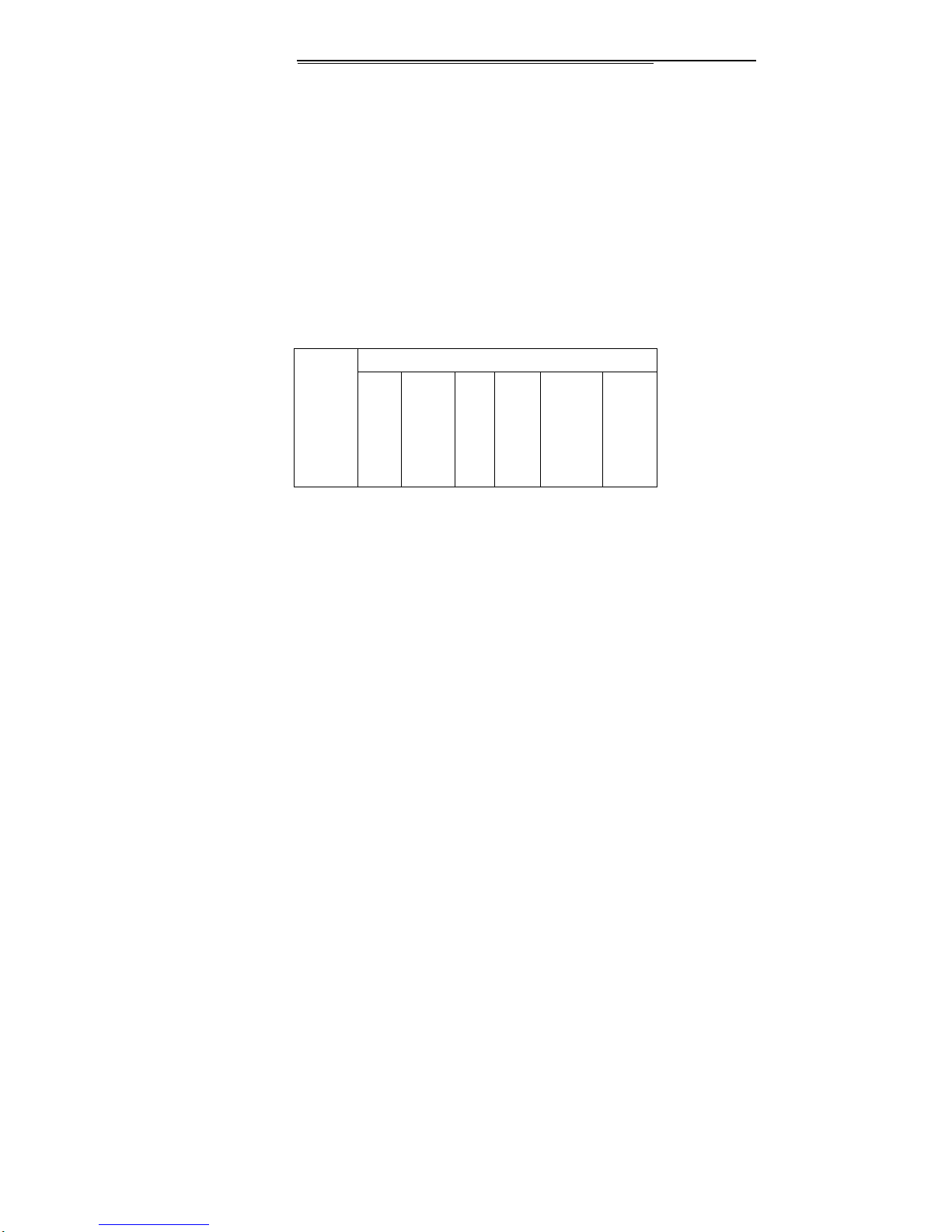
Explanation for Limited Quantity Substance or
Element of XXX Mobile Communication
Poisonous and harmful substance or elment
Part na
m
Plum
b
um
(Pb)
Hydrar
g
yrum
(Hg)
Cad
miu
m
(Cd)
Hexa
v
alent
chrom
e
(Cr(VI
)
Polybro
m
inated
diphenyl
(PBB)
Polybro
minate
d
Diphen
y
lethers
(PBDE)
Page 75
Page 75
)
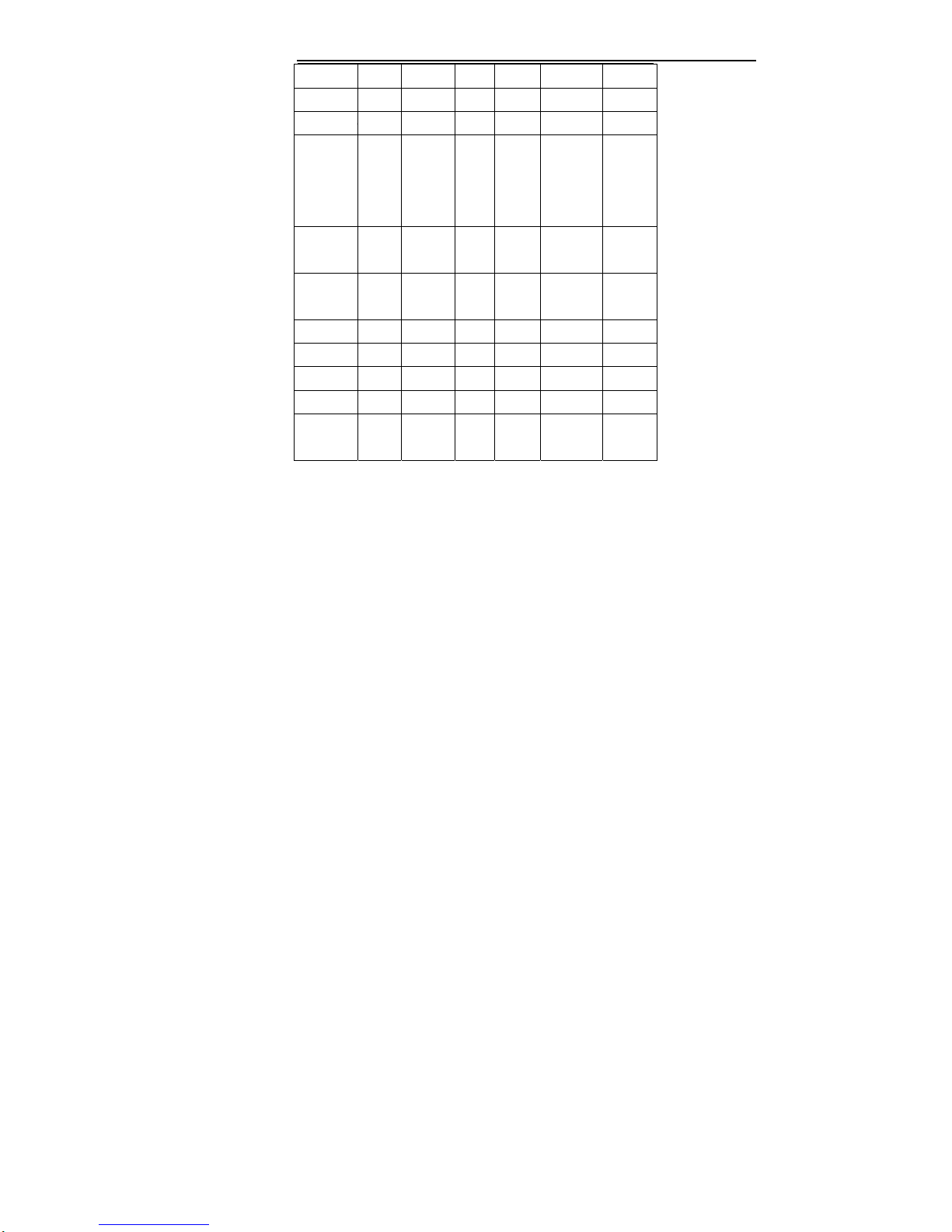
EnclosureO O O O O O
MainboardX O O O O O
Galvaniz
a
on
decoratio
n
part
O O O X O O
Assembli
n
device
X O O O O O
Installatio
nut
X O O O O O
Charger X O O O O O
Cell X O O O O O
EarphoneX O O O O O
Data line X O O O O O
Packing
material
X O O O O O
Page 76

FCC RF Exposure Information and Statement
The SAR limit of USA (FCC) is 1.6 W/kg averaged over one gram of tissue.
Device types: P200(FCC ID: Y7WPLUMP200) has also been tested against this
SAR limit. The highest SAR value reported under this standard during product
certification for use at the head is 0.484W/kg and when properly worn on the body-worn
is 0.487W/kg. This device was tested for typical body-worn operations with the
back of the handset kept 1.5cm from the body. To maintain compliance with FCC
RF exposure requirements, use accessories that maintain a 1.5cm separation
distance between the user's body and the back of the handset. The use of belt
clips, holsters and similar accessories should not contain metallic components
in its assembly. The use of accessories that do not satisfy these requirements
may not comply with FCC RF exposure requirements, and should be avoided.
This device complies with part 15 of the FCC rules. Operation is subject to the
following two conditions: (1) this device may not cause harmful interference,
and (2) this device must accept any interference received, including
interference that may cause undesired operation.
NOTE: The manufacturer is not responsible for any radio or TV interference
caused by unauthorized modifications to this equipment. Such modifications
could void the user’s authority to operate the equipment.
NOTE: This equipment has been tested and found to comply with the limits for
a Class B digital device, pursuant to part 15 of the FCC Rules. These limits
are designed to provide reasonable protection against harmful interference in
a residential installation. This equipment generates uses and can radiate
radio frequency energy and, if not inst
alled and used in accordance with the
instructions, may cause harmful interference to radio communications.
However, there is no guarantee that interference will not occur in a particular
installation.
If this equipment does cause harmful interference to radio or television
reception, which can be determined by turning the equipment off and on, the
user is encouraged to try to correct the interference by one or more of the
following measures:
- Reorient or relocate the receiving antenna.
- Increase the separation between the equipment and receiver.
-Connect the equipment into an outlet on a circuit different from that to which
the receiver is connected.
-Consult the dealer or an experienced radio/TV technician for help.
 Loading...