

Page 1
1"
Page 2

2"
Content"
Assembling"................................................................................................................................."4"
Install"the"SIM"card"................................................................................................................"4"
Install"the"memory"ca rd "........................................................................................................."4"
Charge"the"battery"................................................................................................................."5"
Getting"started"..........................................................................................................................."5"
Turn"your"device"on"and"off"..................................................................................................."5"
Airplane"mode"........................................................................................................................"5"
Use"the"touch"panel"..............................................................................................................."6"
Home"screen".........................................................................................................................."7"
Notification"panel"..................................................................................................................."8"
Lock"&"unlock"the"screen"......................................................................................................."8"
Security".................................................................................................................................."9"
Auto"rotation".........................................................................................................................."9"
Enter"text".............................................................................................................................."10"
Manage"applications"............................................................................................................"10"
Reset"device"........................................................................................................................."10"
Communication"........................................................................................................................"11"
Phone"..................................................................................................................................."11"
Contacts"..............................................................................................................................."12"
Messaging"............................................................................................................................"13"
Email"....................................................................................................................................."15"
Gmail"...................................................................................................................................."15"
Web".........................................................................................................................................."16"
Browser"................................................................................................................................"16"
Play"Store"............................................................................................................................."17"
Entertainment".........................................................................................................................."17"
Gallery".................................................................................................................................."17"
Camera"................................................................................................................................."19"
Tools"........................................................................................................................................."21"
Calendar"..............................................................................................................................."21"
Alarm"...................................................................................................................................."21"
File"Manager"........................................................................................................................"22"
Sound"Recorder"...................................................................................................................."22"
Calculator"............................................................................................................................."22"
Connectivity"............................................................................................................................."22"
WLAN"..................................................................................................................................."22"
Page 3

3"
BT"........................................................................................................................................."23"
Find"and"connect"to"BT"....................................................................................................."23"
Safety"Precautions"................................................................................................................"24"
Care"&"Maintenance"............................................................................................................"25"
Other"Warning"........................................................................................................................."25"
Page 4

4"
Assembling
"
You"need"to"remove"the"back"cover"before"you"can"install"the"SIM"card,"
memory"card"and"battery.""
"
Install the SIM card
"
You"need"to"insert"SIM"card(s)"to"enable"the"Phone"function.""
"
Please"follow"the"instructions"below"for"the"SIM"installation."
"
1."Make"sure"that"the"card’s"gold"contacts"face"into"the"device."
"
2."Push"the"SIM"card"into"the"slot"until"it"fixed."
"
"
"
"
"
"
"
Install the memory card
"
You"need"to"inserts"the"memory"card"for"the"extra"storage."
"
1."Insert"a"memory"card"with"the"gold"contacts"facing"downwards."
"
2."Push"the"memory"card"into"the"slot"until"it"fixed."
Page 5

5"
Charge the battery
"
Please"make"sure"to"always"turn"off"the"power"before"installing"or"
replacing"the"SIM"card"and"battery."
"
1.""You"can"charge"the"device"with"a"travel"adapter"or"by"connecting"the"
device"to"a"PC"with"a"USB"cable."
"
2.""Battery"full"icon"will"show"when"finished"if"your"device"is"power"off."
"
!"#$%$&:Please"use"original"charger"and"battery."Unapproved"
accessories"and"Battery"can"cause"explode"or"damage"your"device."
"
"
"
"
"
"
"
Getting started
Turn your device on and off
Press"and"hold"the"power"key"to"turn"on"your"device,"
to"turn"off"your"device,"p res s"and"hold"the"power"key"then"tap"Power"Off."
Airplane mode
The"Airplane"Mode"will"interrupt"all"the"wireless"communication"on"your"
device."Please"follow"the"instructions"below"to"turn"on"flight"mode:"
"
Tap"Settingsà"WIRELESS"&"NETWORKSà"Moreà"Airplane"mode"to"
enable/disable"airplane"mode."
"
"
"
"
"
Page 6
6"
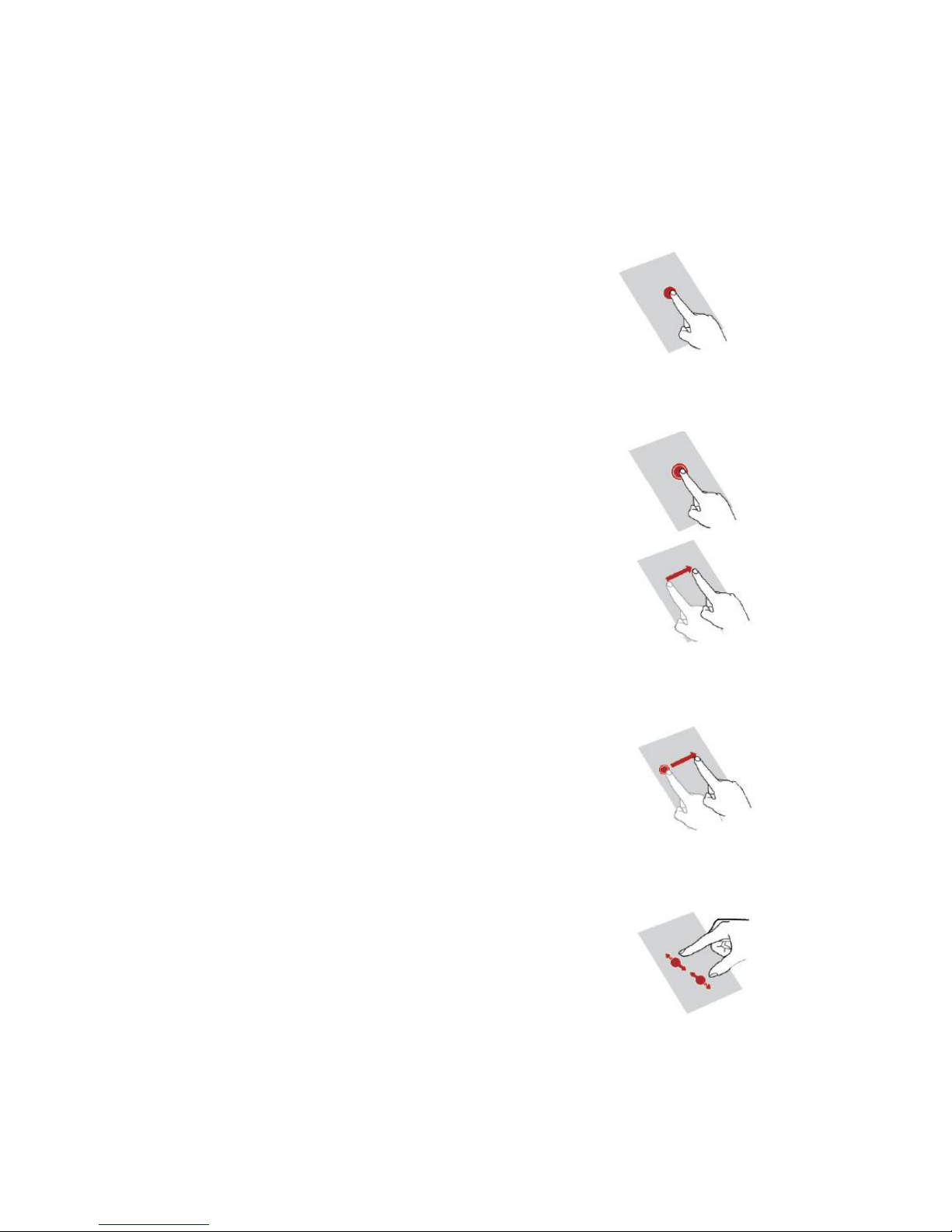
Use the touch panel
You"can"operate"the"icon,"button,"keyboard"by"
the"touch"panel."Including:"
"
Touch:"
"
To"access"an"application,"touch"it"with"
your"finger."For"example:"Touch"an"
application"icon,"you"can"open"the"
application."
"
"
Touch"and"Hold:"
"
To"enter"the"available"options"for"an"item,"
touch"and"hold"the"item."
"
"
Slide/Swipe:"
"
Slide"the"screen"to"scroll"up"and"down"
the"applications,"images,"and"web-
pages…"at"your"convenience."You"could"
slide"the"screen"horizontally"too."
"
"
Drag:"
"
Place"your"finger"on"the"screen"to"
drag"an"object"to"another"location."
"
"
"
"
"
"
Pinch/Spread:"
"
Place" your" fingers" of" one" hand" on" the"
screen" surface" and" draw" them" apart" or"
together" to" scale" an" element" on" the"
screen."
Page 7
7"
Home screen
You"can"bring"all"the"items"(applications,"shortcuts,"folders"
and"widgets)"you"want"to"your"Home"screen"for"quick"access.""
"
"Slide"the"Home"screen"horizontally"left"and"right"to"get"a"
complete"view"of"the"Home"screen.""
"
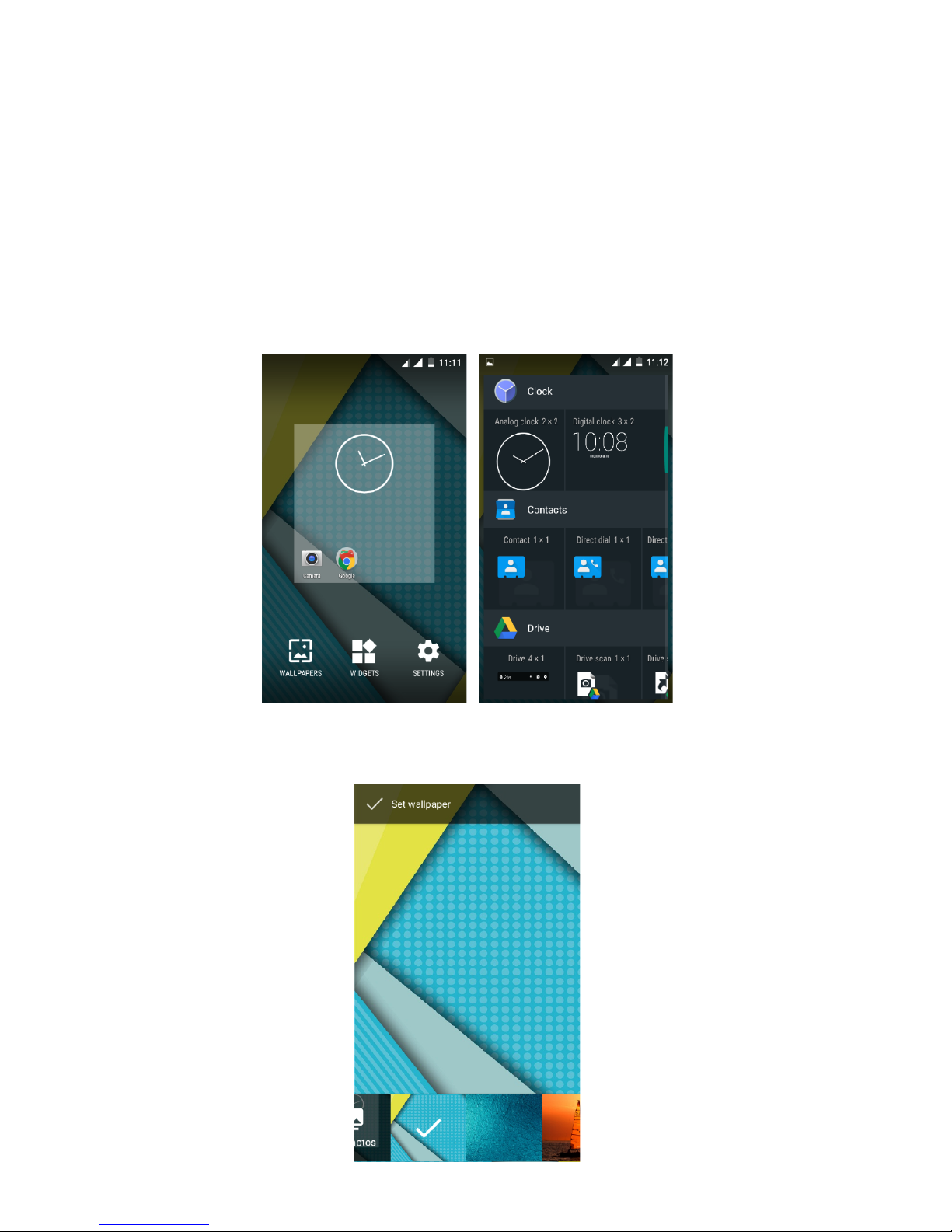
To"add"the"widget,"press"the"menu"key"to"enter"the"interface"
below,"then"choose"the"Widgets"button"
You"are"able"to"change"the"wallpaper"by"choose"the"
wallpapers"in"the"above"interface."
"
Page 8
8"
"
Notification panel
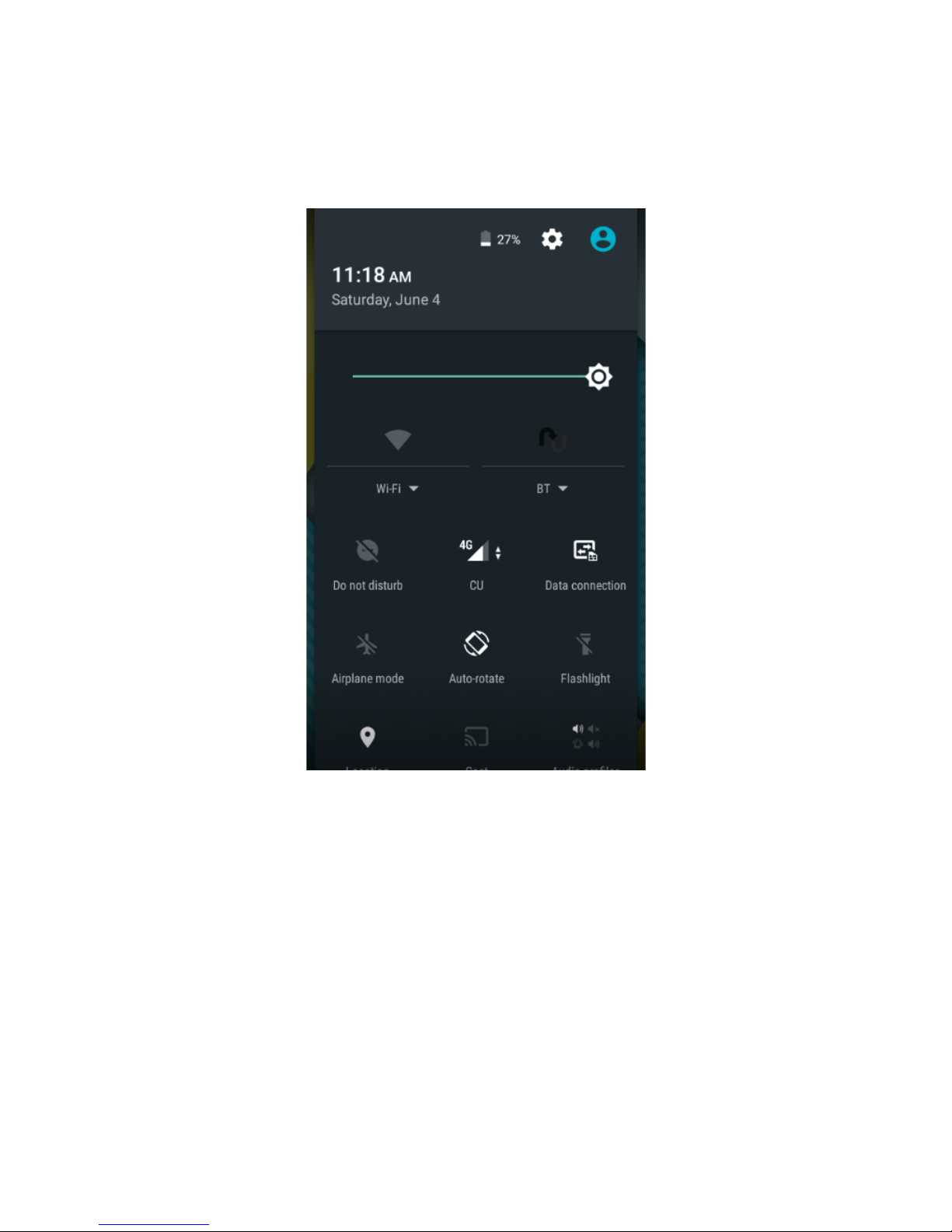
Slide"the"notifications"area"down"to"open"the"notification"panel"shown"
below."You"can"access"a"list"of"notifications."
"
You"may"tap"the"related"icons"to"activate"or"deactivate"wireless"
connection"features"or"other"function"like"the"Airplane"mode"or"
Flashlight."
Lock & unlock the screen
To"lock/awake"the"screen"manually,"press"'()*#"key"once."
"
Tap"and"hold"the"lock"icon,"then"slide"it"up"to"unlock"the"device."
"
Page 9

9"
Security
You"can"protect"your"device"and"data"by"setting"screen"lock"or"
encrypting"your"device."
"
+*,-"-./#**$-0(/1
To"set"a"screen"lock,"tap"Settingsà"Securityà"Screen"lock"from"
application"list."
None:Deactivate"the"screen"lock."
"
"
'23:Enter"a"numeric" PIN"to" unlock."When" prompted," enter"
the"PIN"to"unlock"the"screen."
"
'",,*#$:Draw"a"pattern"to"unlock."Follow"the"instructions"to"
draw"your"lock" pattern."When"prompted,"draw"the" pattern"to"
unlock"the"screen."
"
'"..)(#4: Enter" a" passcode" to" unlock." W hen" prompted,"
enter"the"passcode"to"unlock"the"screen."
+/#**$-,%5*6(7,-
Select"SettingsàDisplayàSleep"from"application"list,"you"can"set"the"
time"before"the"screen"times"out"and"goes"into"lock"mode."
Auto rotation
If"you"rotate"the"device"while"using"some"features,"th e"in te rfac e"will"
automatically"rotate"as"well."To"prevent"the"interface"from"rotating,"
open"the"notifications"panel"and"select"Auto-rotate"screen ,"then"
scroll"it"to"Off."
Page 10

10"
Enter text
You"can"enter"text"by"selecting"characters"on"the"virtual"keyboard."
"
Tap"the"text"input"field"to"display"the"virtual"keyboard."
"
From"a"text"field,"you"can"use"the"copy"and"paste"feature"for"fast"
inputting."
Manage applications
To"manage"the"applications"installed"on"your"device,"tap"SettingsàApp."
To"uninstall"an"application,"select"the"application"and"tap"Uninstall,"tap"
OK"to"confirm."
"
To"stop"or"change"the"settings"of"an"application,"select"the"application"
and"click"Force"stop."
Reset device
You"can"reset"system"and"desktop"settings"to"their"original"values"by"the"
following"steps:"
"
Select"Settingsà"Backup"&"reset"from"application"list."
"
Tap"Factory"data"reset."
"
Tap"Reset"phone"
"
The"device"resets"to"the"factory"default"settings"automatically."
"
!"#$%$&89"Factory"data"reset"will"erase"all"data"from"your"device"and"SD"
card,"including"your"google"account,"system"and"application"data"and"
settings,"and"downloaded"applications."
Page 11

11"
Communication
Phone
To"use"calling"functions,"tap"Phone"from"application"list."
:"1*-/"00.
To"make"calls,"you"can"use"any"of"the"three"ways:"
"
1."Enter"numbers"by"using"the"virtual"numeric"keypad"on"the"screen"
2."Make"a"call"from"call"log."
3."Make"a"call"from"contacts."
"
;$.)*#-"-/"00-
To"answer"a"call,"drag"the"circled"button"to"the"blue"button."
"
To"decline"a"call,"drag"the"circled"button"to"the"red"button."
"
To"end"a"call"in"progress,"tap"the"red"button."
"
<"00-.*,,%$&.
To"change"call"settings,"tap"the"option"button"at"the"upper"right"inside"
the"call"interface."
=%$&,($*->-?%@#",*-
-
You"can"set"different"ringtones"for"incoming"calls."Select"Phone"ringtone"
to"open"a"list"of"ringtones,"select"the"desired"ringtone,"and"then"select"
OK"to"confirm."
"
Tap"Vibrate"when"ringing"to"create"a"checkmark"and"the"device"vibrates"
to"notify"you"of"incoming"calls."
A%"0-B"4-,(7/C-,($*.-
-
Tap"Dial"pad"touch"tones"to"create"a"checkmark"and"your"device"will"
sound"a"tone"once"you"tap"the"dial"pad."
-
Page 12
12"
Contacts
Tap"People"from"application"list"to"access"contacts."
"
" Favorites:List"the"contacts"that"you"have"set"as"favorites"or"the"
" contacts"that"you"have"sent"message"to"or"dialed.-
;44-$*)-/($,"/,
1. Access"People."
"
2. Tap" ."
"
3. Enter"necessary"fields."
"
4. Tap"DONE."
"
D4%,-"-/($,"/,"
-
1. To"edit"a"contact,"scroll"to"the"contact"you"want"to"change."
"
2. Tap"the"pen"button"at"the"upper"right."
"
3. Change"necessary"fields."
"
4. Tap"DONE."
"
<#*",*-$*)-&#(7B"
1. Tap"the"option"button"at"the"upper"right" ."
"
2. Tap" "at"the"upper"right."
"
3. Enter"a"category"name."
"
4. Tap"DONE."
-
=*$"5*-&#(7B-
1. To"rename"the"group,"scroll"to"the"group"you"want"to"change."
"
2. Tap" " at" the" upper" right"or"tap" the" option"button"and" then" select"
Edit."
"
3. Enter"a"new"category"name."
"
4. Tap"DONE."
Page 13

13"
25B(#,EDFB(#,-/($,"/,.-
- -
25B(#,-G#(5-,C*-+2:-/"#4-
To"copy"the"contacts"from"the"SIM"card,"tap"the"option"button"at"the"
upper"right"and"then"select"Import/Exportà"Import"from"the"SIM"card,"
select"contacts,"and"then"select"Import."
-
25B(#,-G#(5-+A-/"#4-
To" import" contact" files" (in" vcf" format)" from" a" memory" card" to" your"
device,"tap"the"option"button"at"the"upper"right."
"
And"then" select"Import/ExportàImport" from"SD" card,"select" a"memory"
location"and"contact"files"to"import"and"select"OK."
"
DFB(#,-,(-+A-/"#4-
To"export"contacts"from"your"device"to"a"memory"card,"tap"the"option"
button"at"the"upper"right"and"then"select"Import/ExportàExport"to"SD"
card,"select"OK"to"confirm."
-
+C"#*-H%.%@0*-/($,"/,.-
With"this"feature,"you"can"send"the"visible"contacts"via"Email."
"
+*"#/C-G(#-/($,"/,.-
1. Tap" "at" the" title" bar" from" contact" list" screen," enter" the" desired"
information,"then"your"device"shows"the"result."
"
2. Tap" the"search"icon" at" the" upper" left" from" home" screen," enter" the"
contact’s"name"or"number,"your"device"shows"the"result"immediately."
Messaging
Learn"to"create"and"send"a"text"or"multimedia"message,"and"view"or"
manage"messages"that"you"have"sent"or"received."
?%*)-5*.."&*.-
1."Tap"Messaging"from"application"list."
"
2."Tap"the"message"to"view"the"detailed"information."
Page 14
14"
<#*",*-"$4-.*$4-+:+-
1."Tap"3*)-:*.."&*-button"on"the"upper"right."
"
2."In"To"field,"enter"the"recipient’s"mobile"phone"numbers"manually."
If"you"enter"more"than"one"number,"separate"the"num bers"with"a"
comma."
"
3."In"Type"message,"enter"the"text"of"the"message."
"
4."Tap "to"send"the"message."
"
<#*",*-"$4-.*$4-::+-
Multimedia"message"can"include"pictures,"sound"and"text."
1."Tap"3*)-:*.."&*."
"
2."Tap" at"the"title"bar."
"
3."Select"one"of"the"items"below."
"
" '%/,7#*.9"Insert"image."
"
" <"B,7#*-B%/,7#*:Capture"new"picture"and"insert"the"picture."
"
" ?%4*(.:"Insert"video"clip."
"
" <"B,7#*-H%4*(:"Capture"new"video"clip"and"insert"the"video"clip."
"
" ;74%(:"Insert"sound"clip."
"
" =*/(#4-"74%(9"Record"sound"clip"and"insert"the"sound"clip."
"
" +0%4*.C()9"Add"more"than"one"slide."
"
Tap ""to"send"the"message."
Page 15

15"
Email
To"receive"and"send"mail,"you"must"have"a"remote"mailbox"service."
This"service"may"be"offered"by"a"service"provider."Your"device"is"
compliant"with"applicable"internet"standards"for"
POP3/IMAP/Exchange."
"
Gmail
You"can"retrieve"new"email"messages"from"the"Google"Mail"webmail"
service"to"your"inbox."Before"you"can"send"or"receive"mail"on"your"
device,"you"need"to"set"up"a"Gmail"account."
<#*",*-"-I5"%0-"//(7$,-
If"you"don’t"have"a"Google"Account,"tap"New,"then "fo llo w "th e "onscreen"instructions"to"create"a"new"one."
"
+*,-7B-"-I5"%0-"//(7$,-
If"you"want"to"add"an"existing"account,"tap"Existin g,"en te r"yo u r"em a il"
address"and"password,"and"then"select"Next,"when"you"are"finished"
setting"up"the"email"account,"the"email"messages"are"downloaded"to"
your"device."
"
?%*)-*5"%0-5*.."&*.-
When"you"open"the"email"account,"the"amount"of"unread"email"
messages"is"displayed"at"the"title"bar"and"the"unread"email"messages"
are"displayed"in"bold."
"
<#*",*-"$4-.*$4-"$-*5"%0-
-
1."Tap" ."
"
2."In"To"field,"enter"the"recipient’s"email"addresses"manually"and"
separate"them"with"a"comma"
"
3."Add"more"recipients"by"tapping"Cc/Bcc."
"
4."To"insert"attachments,"tap"the"option"button"at"the"upper"right"and"
select"Attach"file."
"
5."Enter"the"subject"and"the"text."
"
6."Tap"+D3A"to"send"the"email.
Page 16

16"
Web
Browser
Tap"Browser"from"application"list"to"access"to"the"web."
J#().*#-)*@B"&*.-
1."Select"Browser"to"launch"a"specified"homepage."
"
2."To"access"a"specific"webpage,"select"the"URL"input"field,"enter"the"
web"address"of"the"webpage,"and"select"Go."
"
3."To"zoom"in,"place"two"fingers"on"the" screen"and"spread"them "apart."
To"zoom"out,"move"your"fingers"closer"together."You"can"also"doubletap"the"screen."
"
+*,-C(5*B"&*-
1."Tap"the"option"button"at"the"upper"right."
"
2."Select"SettingsàGeneralàSet"homepage."
"
3."Enter"the"web"address"of"the"desired"webpage."
"
;44-@((15"#1.-
While"navigating"a"website,"tap"the"menu"key"then"tap"“Save"to"
bookmarks”."
"
?%*)-@((15"#1.-"$4-C%.,(#K-
Tap" "to"open"the"bookmark"list"and"the"recent"history."Tap"a"
bookmark"or"any"entry"to"display"the"webpage."
Page 17

17"
"
<7.,(5%L*-@#().*#-
To"make"adjustments"in"your"browser"settings,"tap"the"option"button"
at"the"upper"right,"and"then"select"Settings."
Play Store
Play"Store"allows"you"to"easily"download"an"abundanc e"o f"
applications"directly"to"your"device."Before"using"the"Play"Store,"you"
must"have"a"Google"Account."
"
-
-
3(,*-
l
All" applications" offered" by" Play" Store" are" developed" by" third"
party."To"get"the"information"about"the"developers,"you"can"read"
the"descriptions"of"each"application.
l
Our" company" is" not" liable" for" performance" issues" caused" by" third-
party"applications.
l
;$4#(%4M-I((&0*- '0"KM-"$4- ,C*-I((&0*-'0"K- 0(&(-"#*- ,#"4*5"#1.-(G-
I((&0*-2$/N
Entertainment
Gallery
To"view"or"organize"your"images"and"video"clips,"or"edit"and"send"
your"files"to"other"devices,"or"set"photos"as"wallpapers,"select"Gallery"
from"application"list."
"
3(,*:"It"takes"a"few"more"minutes"to"enter"this"appli ca t io n "if "yo u "
store"more"files.
Page 18

18"
?%*)-"-BC(,(-
Select"a"folder."
"
Select"a"photo"to"view."To"view"more"photos,"scroll"left"or"right."
"
To"zoom"in,"place"two"fingers"on"the"screen"and"spread"them"apart."
To"zoom"out,"move"fingers"closer"together."You"can"also"double-tap"
the"screen."
To"start"a"slideshow,"tap" "at"the"title"bar."
"
To"view"the"details" of"a"file,"tap"the"option"button,"then"select"Details."
"
To"share"a"photo"with"others"via"Email,"Gmail"or"Messaging,"tap" "
at"the"title"bar."
"
."
D4%,-"-BC(,(-
1."To"crop"the"image,"tap"the"option"button"at"the"upper"right,"then"
select"Crop."
"
2."To"move"the"crop"box,"tap"and"hold"the"crop"box"and"drag"it"to"the"
desired"location."
"
3."To"add"or"subtract"from"the"selection"border"of"the"crop"box,"drag"
the"crop"box"to"the"desired"size."
"
4."When"you"are"finished,"tap"Save."
"
5."To"edit"photos"and"apply"various"effects,"tap"the"option"button"at"
the"upper"right,"then"select"Edit."
"
"
"
'0"K-"-H%4*(-
1."Select"a"folder."
"
2."Select"a"video"to"play."
"
3."Control"playback"with"the"virtual"keys."
Page 19
19"
Camera
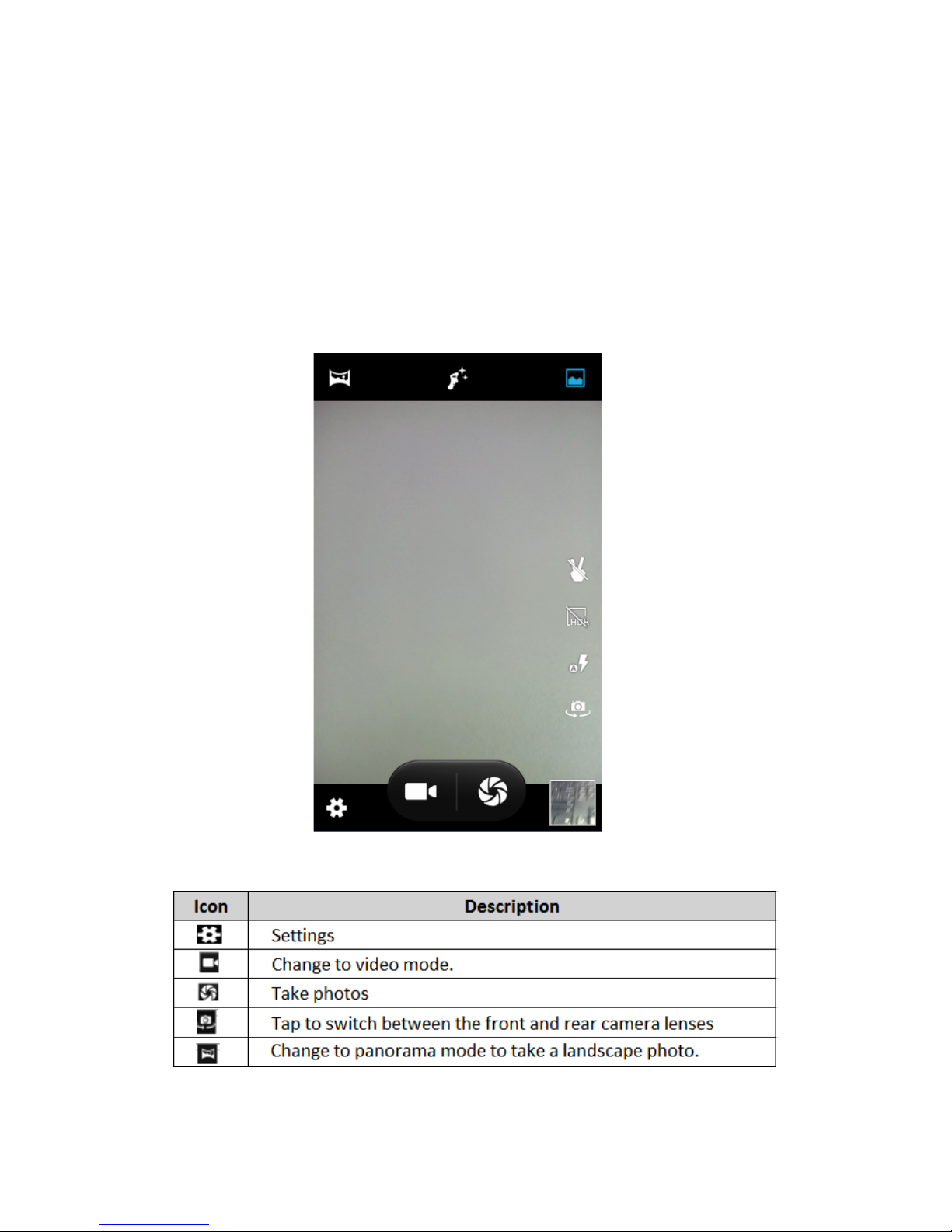
With"the"camera"function,"you"can"capture"photos"and"take"videos."
"
<"B,7#*-"-BC(,(-
"
1."Open"the"application"list"and"select"Camera."
"
2."Before"taking"a"picture,"you"need"to"know"some"settings."
"
"
"
"
"
"
Place"two"fingers"on"the"screen"and"spread"them"apart"or"move"
fingers"closer"together"to"zoom"in"or"zoom"out.
Page 20
20"
3."Aim"the"lens"at"the"subject"and"tap" "to"take"a"photo."The"photo"
is"saved"automatically"to"the"folder"DCIM."
"
4."Select"the"image"viewer"icon"at"the"upper"right"to"view"the"pictures."
"
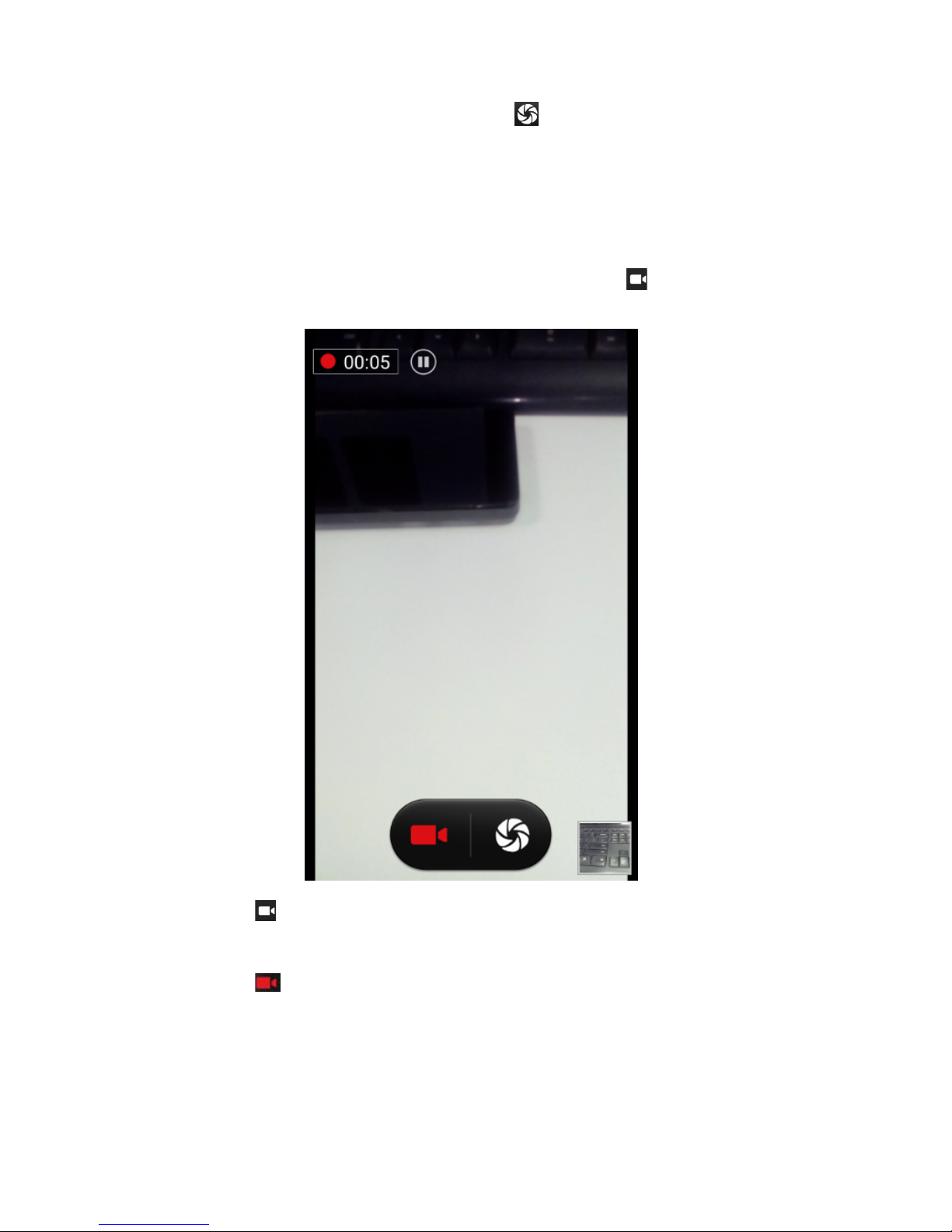
=*/(#4-"-H%4*(-
-
1."Open"the"application"list"and"select"Camera."Tap" "to"change"to"
video"mode."
"
"
"
"
"
"
"
"
"
"
"
"
"
"
"
"
"
"
"
"
"
"
"
"
"
2."Tap" "to"start"recording."The"length"of"the"video"recording"is"
restricted"by"the"available"space"on"your"storage."
"
3."Tap" "to"stop"recording."The"video"is"saved"automatically"to"the"
folder"DCIM."
"
4."After"recording"videos,"select"the"image"viewer"icon"at"the"upper"
right"to"view"the"recorded"videos."
Page 21

21"
Tools
Calendar
"
With"the"Calendar"feature,"you"can"consult"the"calendar"by"day,"week,"
or"month,"create"events,"and"set"an"alarm"to"act"as"a"reminder,"if"
necessary."
"
To"access"the"calendar,"tap"Calendar"from"application"list."
"
"To"create"an"event,"tap"the"date"and"tap"the"pop"up"+"icon."
" Fill"in"the"fields,"and"set"category,"date,"time"&"an"alarm."
" After"you"finish,"select"DONE."
You"can"view"calendar"in"different"views,"Day,"Week,"Month"and"All."
"
To"delete"an"entry,"tap"the"event"to"open"it,"and"then"tap"the"icon"on"
the"right"top"corner,"then"select"Delete."
Alarm
From"application"list,"tap"Clock,"and"then"select" ."
"
Tap"the"+"button"on"the"bottom"screen"to"add"alarm."
"
" Tap"the"numeric"pad"to"set"alarm"time,"and"then"select"AM"or"PM,"
when"you"are"finished,"tap"OK."
"
" Tap"the"time"to"change"alarm"time."
1."Set"alarm"time,"repeat"cycle,"and"alarm"ringtone,"taps"OK"after"
finished."
"
2."Tap"“cancel”"to"shut"down"the"alarm,"and"tap”"ring"again”","then"
the"alarm"will"stop"ringing"for"a"few"minutes."
"
3."Untick"the"clock"to"stop"using"the"clock."
"
4."Long"taping"the"clock"then"it"can"be"deleted."
Page 22
22"
File Manager
Many"features"of"the"device,"such"as"images,"videos,"documents,"
received"attachments"and"downloaded"files"or"applica tion s,"u se "
memory"to"store"data.""
"
With"File"manager,"you"can"store"and"browse"files"and"folders"in"your"
device,"or"edit,"move,"copy"files;"you"can"send"files"to"compatible"
devices"as"well."
3(,*:"Some"files"formats"are"not"supported"depending"on"the"
software"of"the"device."
"
Some"files"may"not"play"properly"depending"on"how"they"are"
encoded."
Sound Recorder
With"Recorder,"you"can"record"a"voice"memo."From"application"list,"
tap"Recorder."
"
To"record"a"voice"memo,"tap" ."
"
To"pause"the"recording,"tap" ."
"
To"listen"to"a"voice"recording"that"you"just"recorded,"tap ."
Calculator
"
With"this"feature,"you"can"use"the"device"as"a"calculator."The"
calculator"provides"the"basic"arithmetic"functions."Tap"the"virtual"
numeric"and"calculation"keys"to"perform"a"calculation."
"
"
Connectivity
WLAN
With"WLAN,"you"can"connect"to"the"internet"or"other"network"
devices"anywhere"an"access"point"or"wireless"hotspot"is"available."
;/,%H",*-,C*-!O;3-G*",7#*-
" "
" 1."From"application"list,"tap"Settings."
"
Page 23

23"
" 2."In"the"field"of"WIRELESS"&"NETWORKS,"turn"on"the"WLAN"
feature."
"
P%$4-"$4-/($$*/,-,(-!O;3-
1."Once"the"WLAN"feature"is"activated,"the"device"automatically"
search"for"available"WLAN"connection."
"
2."Select"a"network."
"
3."Enter"a"password"for"the"network"(if"necessary)."
"
4."Select"Connect."
BT
P%$4-"$4-/($$*/,-,(-JQ--
1."Once"you"need"to"use"the"BT,"you"should"open"BT"option."And"find"
other"devices"which"also"need"to"open"BT.""
"
"
2."Select"a"found"device"
"
"
3."Choose"pair"
"
"
4."Select"pair"and"use"BT."
Page 24

24"
Safety Precautions
Read"these"simple"guidelines"before"using"your"device."Not"following"
them"may"be"dangerous"or"illegal."
l
;%#/#"G,
Switch"off" in"aircraft"and"follow"any"restrictions."Wireless"devices"can"
cause"interference"in"aircraft."
l
?*C%/0*.
Never"use"your"device"while"driving."Place"it"in"a"safe"place."
Position"your"device"within"easy"reach." Be"able"to"access"your"device"
without"removing"your"eyes"from"the"road."
l
D0*/,#($%/-4*H%/* .
In" some" circumstances" your" device " may" cause" interference" with"
other"devices."
l
'(,*$,%"00K-*FB0(.%H*-*$H%#($5*$,.
Switch"off"your"device"when" in"any"area"with"a" potentially"explosive"
atmosphere,"and"obey"all"signs"and "instructions." Sparks"in"such"areas"
could" cause" an" explosion" or" fire" resulting" in" bodily" injury" or" even"
death."
l
'"/*5"1*#.-"$4-(,C*#-5*4%/"0-4*H%/*.
Pacemaker"manufacturers"recommend"that"a"minimum"separation"of"
8"inches"be" maintained" between" a"wireless"device"and" a"pacem aker"
to"avoid"potential"interference"with"the"pacemaker."
Operation" of" any" radio" transmitting" equipment," including" wireless"
phones" may" interference" with" the" functionality" of" inadequately"
protected"medical" devices." Consult"a" physician"or"the" manufacturer"
of" the" medical"device" to" determine" if"they" are" adequately" shielded"
from"external"RF"energy"or"if"you"have"any"questions."
Switch"off" your"device" in"health" care"facilities"when"any"regulations"
posted"in"these"areas"instruct"you"to"do"so."
l
RB*#",%$&-*$H%#($5*$,
When" connecting" to" other" device," read" its" user" guide" for" detailed"
safety"instructions."Do"not"connect"incompatible"products."
Do"not"place"your"device"in"the"air"bag"deployment"area."
Use"the"device"only"in"its"normal"operating"positions"as" explained"in"
the"product"documentation."
Always"switch" off"your"device" when"its" use"is" prohibited"or" when"it"
may"cause"interference"and"danger."
Page 25

25"
l
;#*".-)%,C-B(.,*4-#*&70",%($.
Switch" off" your" device" when" any" regulations" posted" in" these" areas"
instruct"you"to"do"so."
Care & Maintenance
l
Use"only"manufacturer-approved"accessories."Use"general"accessories"
may"shorten"the"life"of"your"device"or"cause"device"to"malfunction.
l
Keep" your"device"dry." Humidity"and"all" types" of"liquids" may"damage"
device"parts"or"electronic"circuits.
l
Do"not"use"or"store"the"device"in"dusty,"dirty"areas.
l
Do"not"store"the"device"in"hot"or"cold"areas.
l
Do"not"store"your"device"near"magnetic"fields.
l
Do" not"store"your" device"with"such" metal"objects"as" coins,"keys"and"
necklace.
l
Do"not"drop"your"device"or"cause"impacts"to"your"device.
R,C*#-!"#$%$&-
Any"Changes"or"modifications"not"expressly"approved"by"the"party"
responsible"for"compliance"could"void"the"user's"auth ority "to"o p era te"
the"equipment."
"
This"device"complies"with"part"15"of"the"FCC"Rules."Operation"is"subject"
to"the"following"two"conditions:""
"
(1)"This"device"may"not"cause"harmful"interference,"and""
"
(2)"this"device"must"accept"any"interference"received,"including"
interference"that"may"cause"undesired"operation.""
"
Note:"This"equipment"has"been"tested"and"found"to"comply"with"the"
limits"for"a"Class"B"digital"device,"pursuant"to"part"15"of"the"FCC"Ru les .""
"
These"limits"are"designed"to"provide"reasonable"protection"against"
harmful"interference"in"a"residential"installation."This"equipment"
generates,"uses"and"can"radiate"radio"frequency"energy"and,"if"not"
installed"and"used"in"accordance"with"the"instructions,"m ay"c au se"
harmful"interference"to"radio"communications."
"
Page 26

26"
"However,"there"is"no"guarantee"that"interference"will"not"occur"in"a"
particular"installation."If"this"equipment"does"cause"harmful"interference"
to"radio"or"television"reception,"which"can"be"determined"by"turning"the"
equipment"off"and"on,"the"user"is"encouraged"to"try"to"correct"the"
interference"by"one"or"more"of"the"following"measures:"
"
—Reorient"or"relocate"the"receiving"antenna."
"
—Increase"the"separation"between"the"equipm e nt "an d "rec eiv er."
"
—Connect"the"equipment"into"an"outlet"on"a"circuit"different"from"that"
to"which"the"receiver"is"connected."
"
—Consult"the"dealer"or"an"experienced"radio/TV"technician"for"help."
SAR"tests"are"conducted"using"standard"operating"positions"accepted"by"
the"FCC"with"the"phone"transmitting"at"its"highest"certified"power"level"
in"all"tested"frequency"bands,"although"the"SAR"is"determine d"a t"the "
highest"certified"power"level,"the"actual"SAR"level"of"the"phone"while"
operating"can"be"well"below"the"maximum"value,"in"general,"the"closer"
you"are"to"a"wireless"base"station"antenna,"the"lower"the"power"output."
"
Before"a"new"model"phone"is"available"for"sale"to"the"public,"it"must"be"
tested"and"certified"to"the"FCC"that"it"does"not"exceed"the"exposure"limit"
established"by"the"FCC,"Tests"for"each"phone"are"performed"in"positions"
and"locations"(e.g."at"the"ear"and"worn"on"the"body)as"required"by"the"
FCC."
"
For"body"worn"operation,"this"model"phone"has"been"tested"and"meets"
the"FCC"RF"exposure"guidelines"when"used"with"an"accessory"design ated "
for"this"product"or"when"used"with"an"accessory"that"contains"no"metal"
and"that"positions"the"handset"a"minimum"of"1.0"cm"from"the"body."
"
Non-compliance"with"the"above"restrictions"may"result"in"violation"of"RF"
exposure"guidelines."
Page 27

27"
www.plum-mobile.com"
 Loading...