

Page 1

USB 2.0 10-Port Hub
User’s Manual
Page 2

USB 2.0 10-Port Hub User’s Manual
Safety Instructions
Always read the safety instructions carefully:
Keep this User’s Manual for future reference.
Keep this equipment away from humidity.
If any of the following situation arises, get the equipment checked by a service technician:
The equipment has been exposed to moisture.
The equipment has been dropped and damaged.
The equipment has obvious sign of breakage.
The equipment has not been working well or you cannot get it work according to User’s
Manual.
Copyright Statement
No part of this publication may be reproduced in any form by any means without the prior written
permission. Other trademarks or brand names mentioned herein are tradema rks or registered
trademarks of their respective companies.
Disclaimer
Information in this document is subject to change without notice. The manufacturer does not make
any representations or warranties (implied or otherwise) regarding the accuracy and completeness
of this document and shall in no event be liable for any loss of profit or any commercial damage,
including but not limited to special, incidental, consequential, or other damage.
i
Page 3

USB 2.0 10-Port Hub User’s Manual
ii
Table of Contents
Introduction...........................................................................................................1
Features.................................................................................................................1
Package Contents.................................................................................................1
Installation.............................................................................................................1
Notice.....................................................................................................................3
Specifications........................................................................................................4
Page 4

USB 2.0 10-Port Hub User’s Manual
Introduction
Thank you for purchasing our USB 2.0 10-Port hub that allows you to add multiple
high performance USB 2.0 peripheral devices to your computer. The USB 2.0
10-Port hub is fully compliant with the USB 1.1 specification, i.e., your previous
USB 1.1 devices can continue to function as usual. The hub requires no
complicated installing procedures. Just connect it to your computer and it’s ready to
use.
Features
USB 2.0 high-speed interface, supports data rates of 1.5/12/480 Mbps
Backwards compatible with USB 1.1
Supports bus-powered (without power adapter) and self-powered (with power
adapter) modes
Plug-and-Play; hot-plugging
Over-current detection and protection
Automatic connection and speed detection
Package Contents
USB 2.0 10-Port Hub x1
Power Adapter x1
USB Cable x1
Installation
Connect the USB cable to your computer. (If your hub is not attached with a USB
cable, use the provided USB cable and connect the smaller end to the hub’s
mini-USB port and the other end to your computer). After the connection, the
system will detect the hub and automatically complete the installation.
1
Page 5
USB 2.0 10-Port Hub User’s Manual
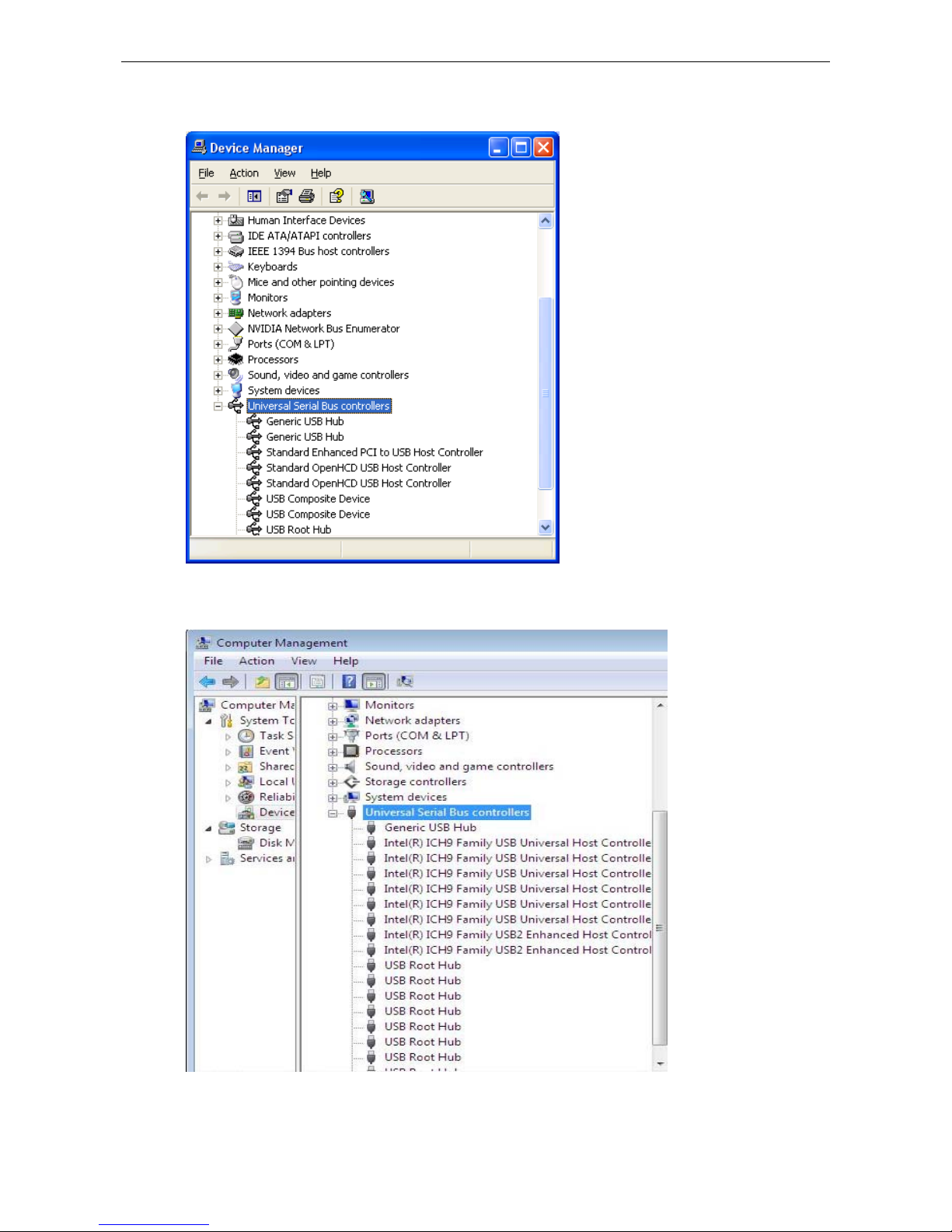
Windows 2000/XP:
Windows Vista /Windows 7:
Under Windows: Go to Device Manager to verify the installation. Under the
Universal Serial Bus controller group, an item Generic USB Hub should appear.
2
Page 6
USB 2.0 10-Port Hub User’s Manual
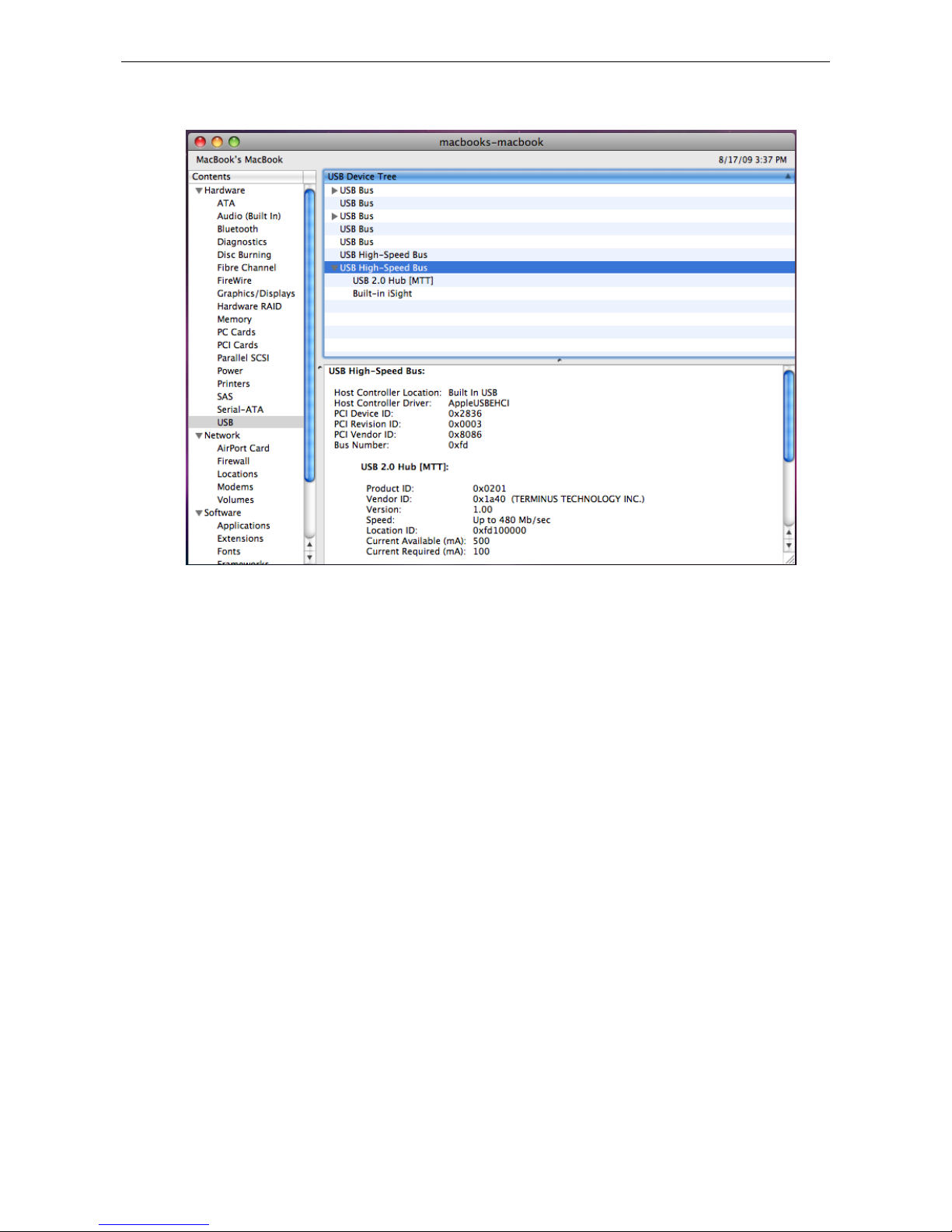
Mac OS:
Mac OS: Go to Apple System Profile > Device and Volumes > USB to verify the
installation.
Notice
Make sure to connect your USB device to the hub only after the
auto-installation is completed.
USB 2.0 performance (high-speed of up to 480 Mbps) can only be expected
when connected to USB 2.0 port.
The power adapter is recommended to use for connecting multiple USB
devices.
3
Page 7

USB 2.0 10-Port Hub User’s Manual
4
Specifications
USB Interface USB 2.0 High-Speed
Power Mode Bus-powered mode (without power adapter)
Self-powered mode (with power adapter)
Supported OS
Windows 2000 , Windows XP, Vista , Win 7
Mac OS 10.x & above
Certifications CE, FCC
 Loading...