

Page 1
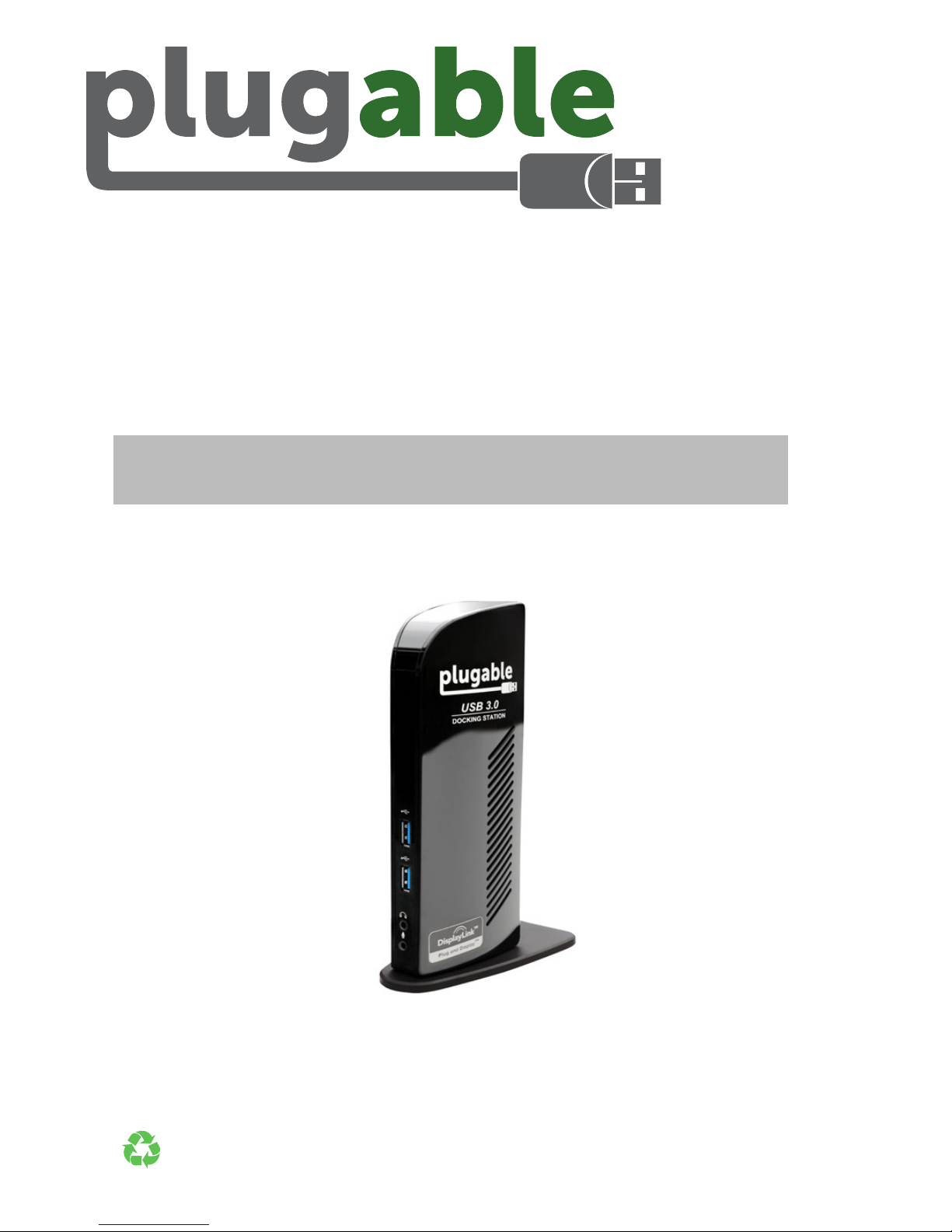
SuperSpeed USB 3.0
Dual Monitor
Docking Station
For information on Drivers, FAQ, and Support, visit:
plugable.com/products/ud-3900
Quick Installation Guide
English • Deutsch • Français • 日本語
© 2015 Plugable Technologies | August 3, 2015
Recyclable
Material
Page 2
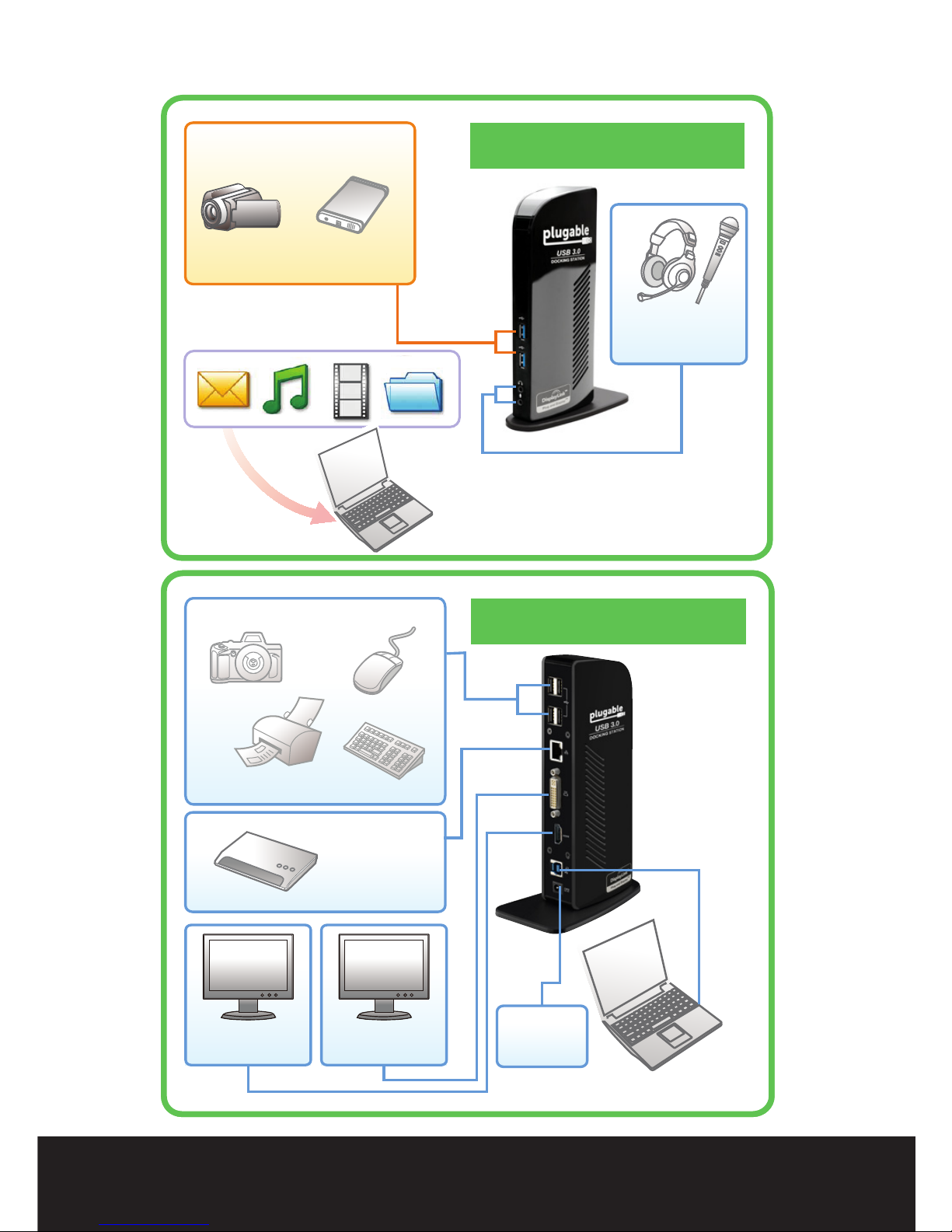
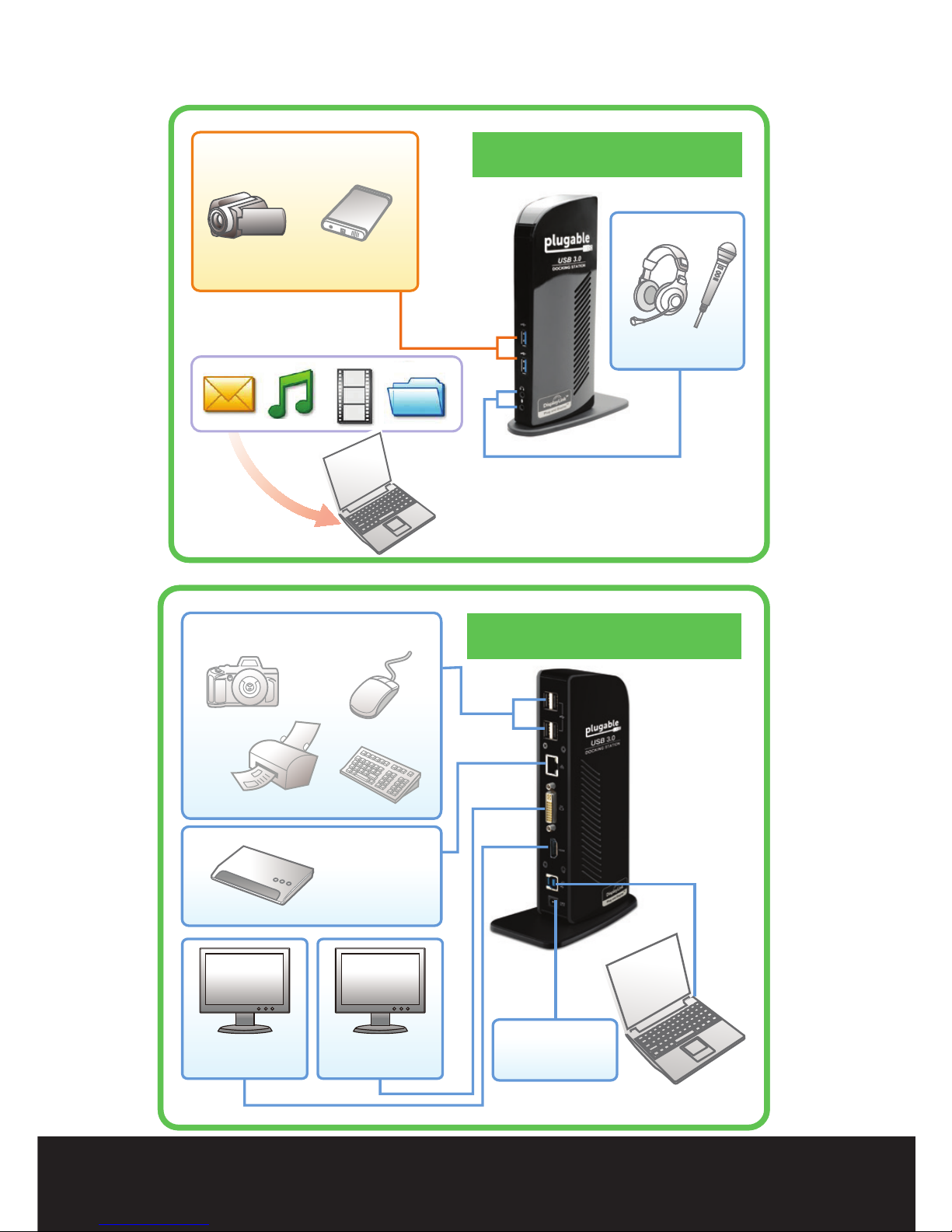
Connections
DV
USB 3.0 Devices
USB Enclosure
Headphones
& MIC
Front Connections
SuperSpeed (
5Gbps)
to transfer files
Ethernet
USB 2.0 Devices
Notebook / Tablet
Mouse
Printer
Keyboard
Camera
Back Connections
Power
Supply
HDMI
Monitor
DVI / VGA
Monitor
2 |
Drivers - FAQ - Support - Visit:
plugable.com/products/ud-3900
Page 3

Driver Installation
NOTE: Monitors may blink during driver installation
and system may need to be rebooted
Windows® 10 / Windows 8.1 / Windows 7
Windows Vista® / Windows XP and
Mac OS® 10.8.3 or higher
Step 1. Do not connect network cable to docking
station until drivers are installed
Step 2. Make sure PC or tablet has an open
internet connection
Step 3. Connect docking station to PC or tablet
using provided USB cable
Step 4. Windows Update will install the most
recent drivers automatically
Step 1. If drivers were not received from Plugable
via email soon after purchase, download most
recent drivers from:
plugable.com/products/ud-3900
(If internet connection is not available, drivers are
located on enclosed CD. For optimal performance,
updated drivers should be downloaded periodically.)
Step 2. Install drivers and connect UD-3900
Questions? We’re here to help. Email:
| 3
Page 4
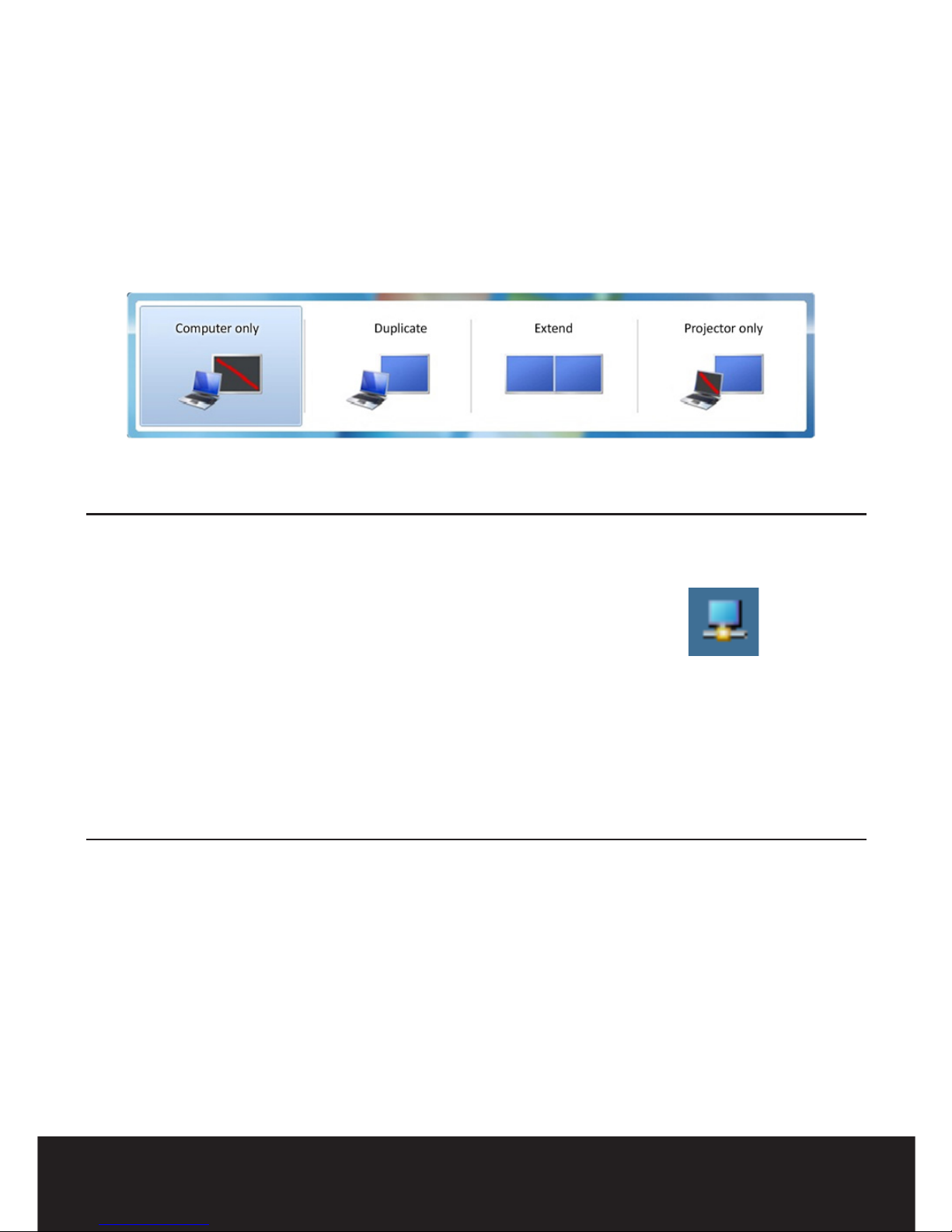
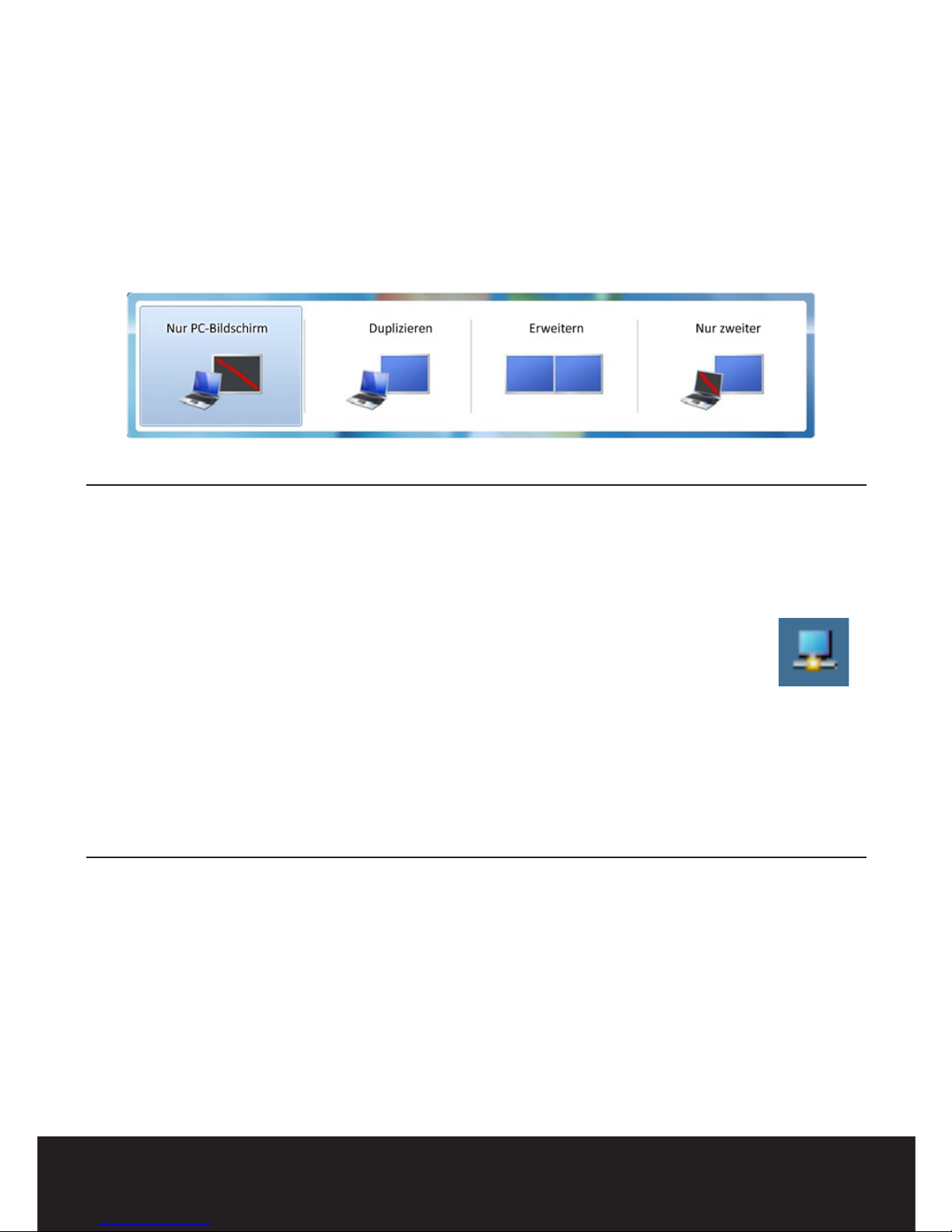
Changing Display Mode
Windows Vista / Windows XP
Mac OS 10.8.3 or higher
Step 1. Shortcut Key = Windows Key + P
Step 2. Select preferred display mode
Step 1. Click DisplayLink Manager
icon in system tray
Step 2. Scroll to Extend on menu
Step 3. Select preferred display mode
Step 1. Select Apple menu > System Preferences
Step 2. Click Displays, then Arrangement
Step 3. Arrange displays to preferred positioning
Windows 10 / Windows 8.1 / Windows 7
4 |
Drivers - FAQ - Support - Visit:
plugable.com/products/ud-3900
Page 5
Informationen über Treiber, unsere FAQ sowie Details
zu unserem Support nden Sie unter:
plugable.com/products/ud-3900
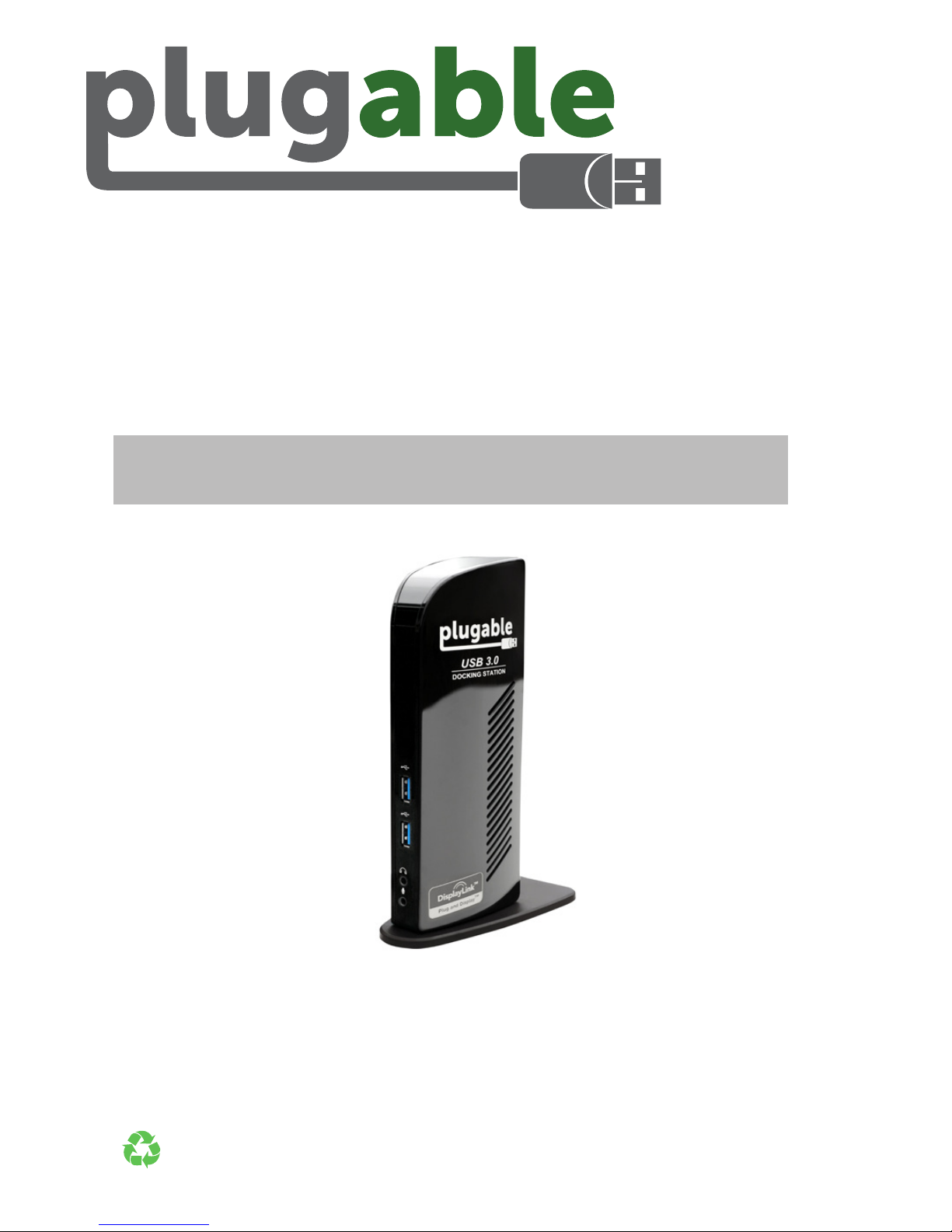
Kurzanleitung
Dual-Monitor
Docking-Station
© 2015 Plugable Technologies | August 3, 2015
Recyclable
Material
| 5
Page 6
Anschlüsse
DV
USB 3.0-Einheiten
Externe Festplatte
Vordere Anschlüsse
SuperSpeed (5Gbps)
für Dateiübertragungen
Ethernet
USB 2.0-Einheiten
Hintere Anschlüsse
Stromversorgung
HDMI-Monitor
DVI/VGA-Monitor
Notebook/Tablette
6 |
Treiber – FAQ – Support: Besuchen Sie :
plugable.com/products/ud-3900
Page 7

Treiberinstallation
Windows Vista® / Windows XP und
Mac OS® 10.8.3 oder höher
Schritt 1.
Wenn Sie die Treiber nicht kurz nach
dem
Kauf per E-Mail von Plugable erhalten haben, laden Sie
die neuesten Treiber von der folgenden Adresse herunter:
plugable.com/products/ud-3900
(Falls Ihnen kein Internetanschluss zur Verfügung steht, nden Sie
die Treiber auf der beiliegenden CD. Für eine optimale Leistung
sollten regelmäßig die aktuellsten Treiber heruntergeladen werden.)
Schritt 2.
Installieren Sie die Treiber und schließen
Sie den UD-3900 an
Schritt 1.
Schließen Sie das Netzwerkkabel erst nach
der Installation der Treiber an die Dockingstation an
Schritt 2. Vergewissern Sie sich, dass Ihr PC oder Ihr
Tablet-Computer mit dem Internet verbunden ist
Schritt 3.
Schließen Sie die Dockingstation mit Hilfe des
mitgelieferten USB-Kabels an einen PC oder Tablet-Computer an
Schritt 4. Windows Update installiert automatisch die
neuesten Treiber
ACHTUNG: Während der Treiberinstallation können Monitore
blinken und ein Neustart des Systems kann erforderlich sein.
Windows® 10 / Windows 8.1 / Windows 7
Noch Fragen? Wir helfen Ihnen gerne weiter! Senden Sie eine E-Mail an:
| 7
Page 8
Anzeigemodus ändern
Windows Vista / Windows XP
Mac OS 10.8.3 oder höher
Schritt 1
. Tastenkombination = Windows-Taste + P
Schritt
2.
Wählen Sie den gewünschten Anzeigemodus aus
Schritt 1
. Klicken Sie in der Systemsteuerung
auf das Symbol DisplayLink Manager
Schritt 2
. Scrollen Sie im Menü bis zu Erweitert
Schritt 3
.
Wählen Sie den gewünschten Anzeigemodus aus
Schritt 1
.
Wählen Sie Apple-Menü > Systemeinstellungen
Schritt 2
.
Klicken Sie auf Anzeige und dann auf Anordnung
Schritt
3.
Ordnen Sie die Anzeige wie gewünscht an
Windows 10 / Windows 8.1 / Windows 7
8 |
Treiber – FAQ – Support: Besuchen Sie :
plugable.com/products/ud-3900
Page 9
Double Station
d’accueil Moniteur
Pour des informations sur les pilotes, la FAQ et
l’assistance, rendez-vous sur:
plugable.com/products/ud-3900
Guide rapide d’installation
© 2015 Plugable Technologies | August 3, 2015
Recyclable
Material
| 9
Page 10
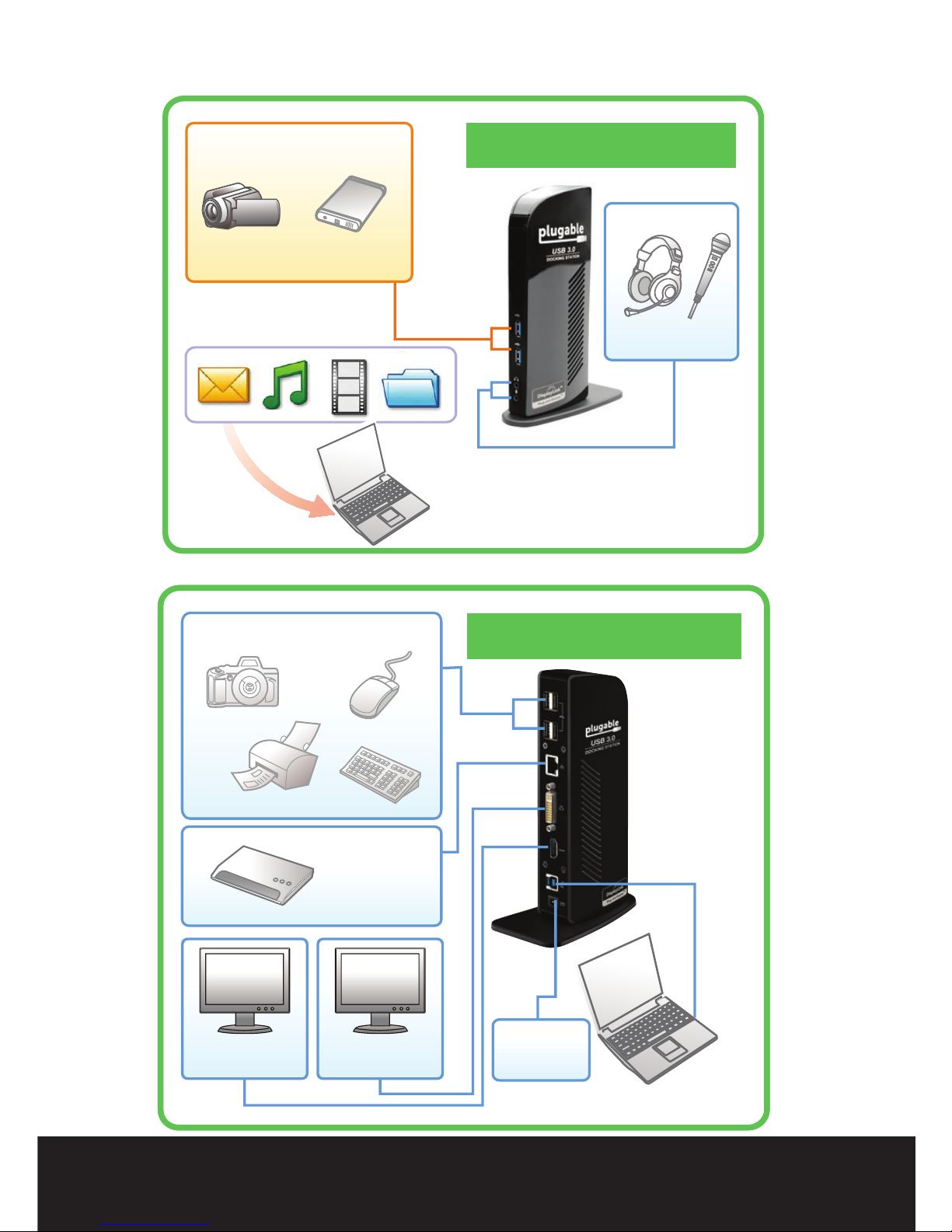
Connexions
DV
Périphériques USB 3.0
Disque dur externe
Connexions avant
SuperSpeed (5 Gbit/s)
pour les transferts de fichiers
Ethernet
Périphériques USB 2.0
Notebook/Tablette
Connexions arrière
Alimentation
électrique
Moniteur
HDMI
Moniteur
DVI/VGA
10 |
Pilotes, FAQ et assistance : rendez-vous sur:
plugable.com/products/ud-3900
Page 11

Installation des pilotes
Windows Vista® / Windows XP et
Mac OS® 10.8.3 ou supérieur
Étape 1.
Si vous n’avez pas reçu par e-mail les
pilotes de la part de Plugable juste après votre achat,
téléchargez les pilotes les plus récents depuis
:
plugable.com/products/ud-3900
(Si aucune connexion Internet n’est disponible, les pilotes sont
sur le CD inclus. Pour une performance optimale,il est recommandé
de télécharger des pilotes mis à jour.)
Étape 2.
Installez les pilotes et connectez votre
UD-3900
Étape 1. Ne pas brancher le câble réseau à la station
d’accueil avant l’installation des pilotes
Étape 2. Assurez-vous que le PC ou la tablette dispose
d’une connexion Internet ouverte
Étape 3.
Brancher la station d’accueil à un PC ou à
une tablette à l’aide du câble USB fourni
Étape 4. Windows Update installera automatiquement
les pilotes les plus récents
NOTE : Il se peut que les moniteurs clignotent durant l’installation
du pilote et il peut être nécessaire de redémarrer le système.
Windows® 10 / Windows 8.1 / Windows 7
Des questions? Nous sommes là pour vous aider. E-mail :
| 11
Page 12
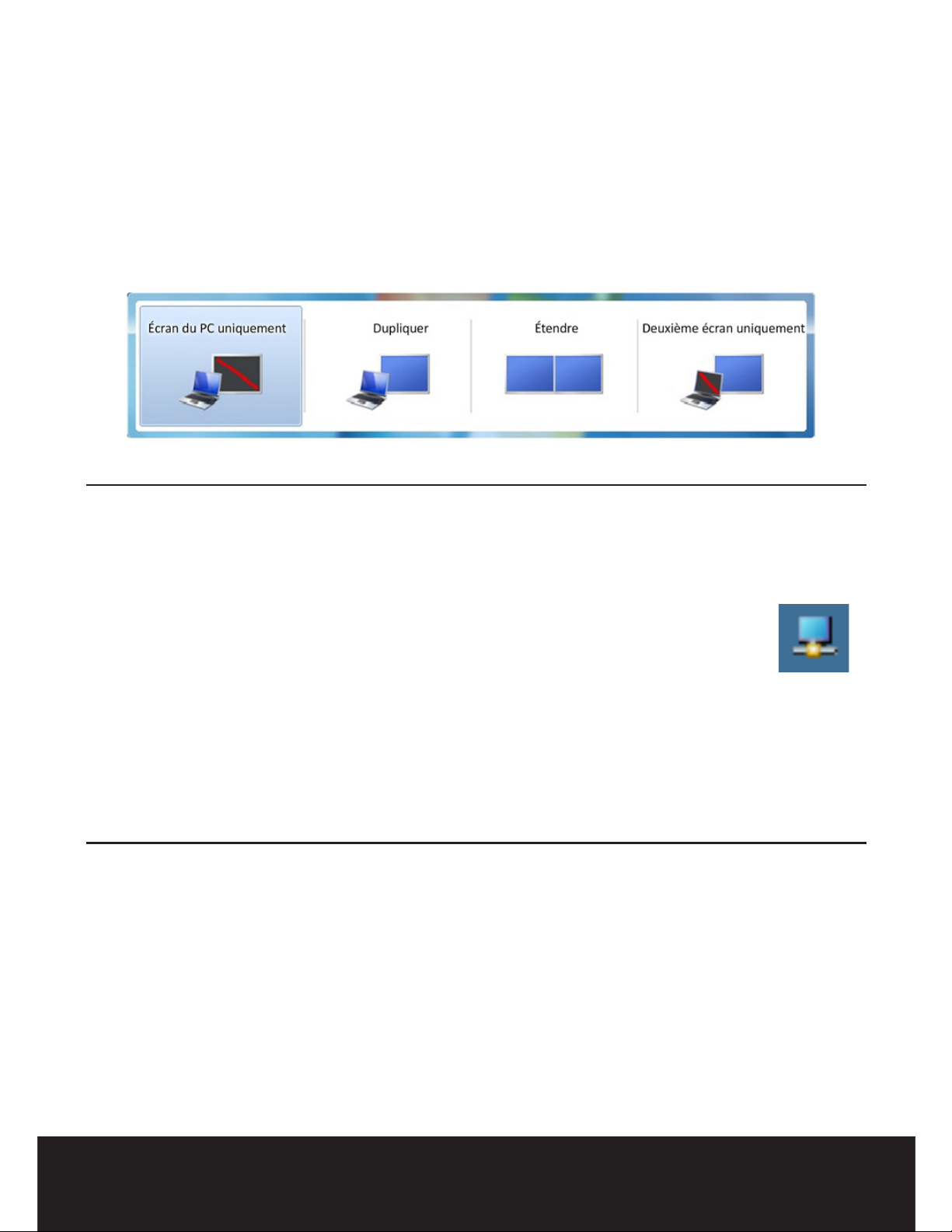
Changement de mode d’afchage
Windows Vista / Windows XP
Mac OS 10.8.3 ou supérieur
Étape 1
.
Touche de raccourci = Touche Windows + P
Étape
2.
Sélectionnez le mode d’afchage préféré
Étape 1
. Cliquez sur l’icône du gestionnaire
DisplayLink dans la barre d’état du système
Étape 2
. Faites déler le menu jusqu’à Étendre
Étape 3. Sélectionnez le mode d’afchage préféré
Étape 1
.
Sélectionnez dans le menu pomme >
Préférences système
Étape 2
.
Cliquez sur Moniteurs, puis sur Arrangement
Étape
3.
Arrangez les écrans dans votre position préférée
Windows 10 / Windows 8.1 / Windows 7
12 |
Pilotes, FAQ et assistance : rendez-vous sur:
plugable.com/products/ud-3900
Page 13
デュアルモニタドッキングステーション
ドライバ、FAQ およびサポートについてはこちらをご覧ください:
plugable.com/products/ud-3900
クイックインストールガイド
© 2015 Plugable Technologies | August 3, 2015
Recyclable
Material
| 13
Page 14
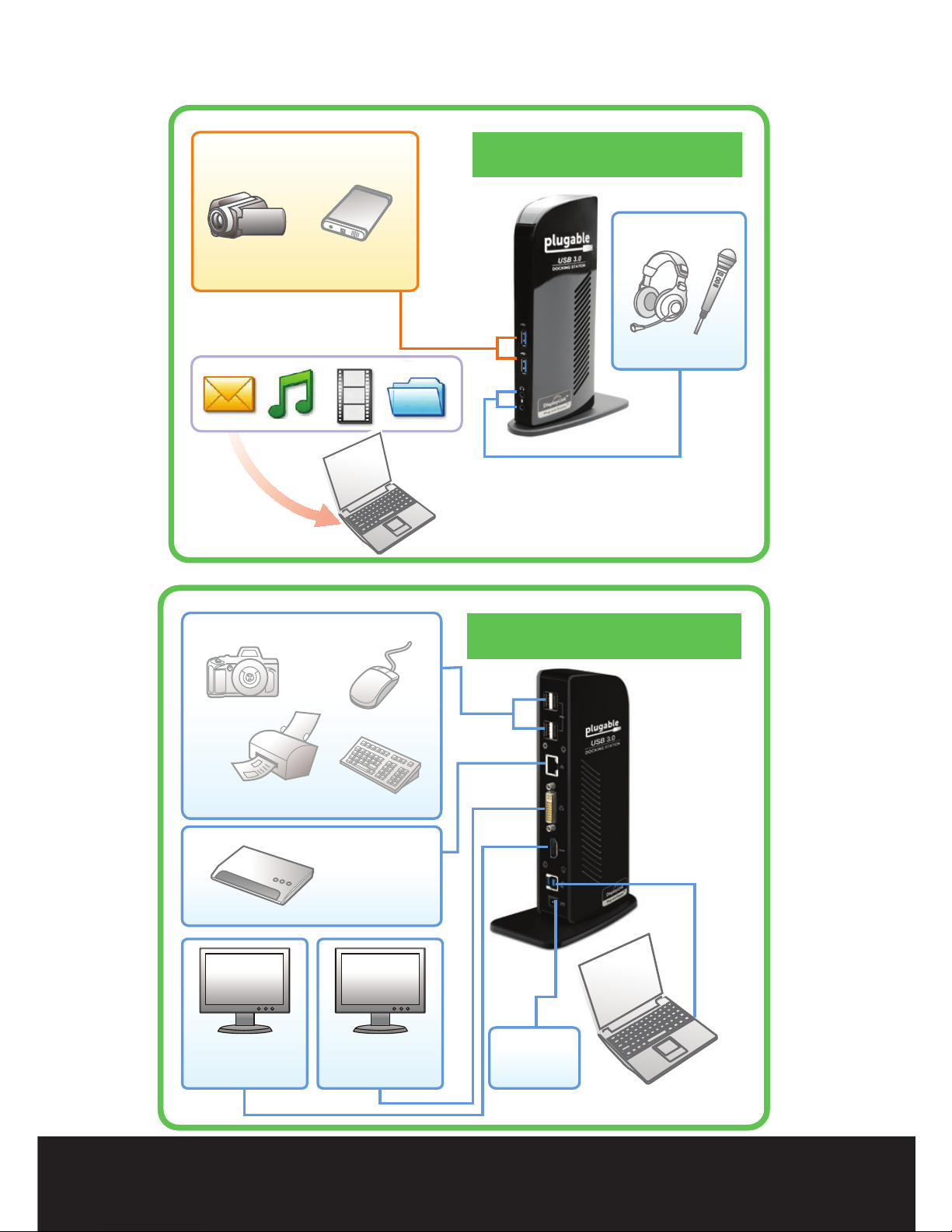
接続
DV
USB 3.0 デバイス
外付け HDD
フロントコネクタ
ファイルの転送
SuperSpeed (5Gps)
イーサネット
USB 2.0 デバイス
ノートパソコン/タブレット
バックコネクタ
電源
HDMI
モニタ
DVI/VGA
モニタ
14 |
ドライバ – FAQ – サポートはこちらへ:
plugable.com/products/ud-3900
Page 15

ドライバ のインストール
注記:
ドライバのインストール中にモニタが点滅したり、
システムの再起動が必要な場合があります。
Windows Vista® / Windows XP および
Mac OS® 10.8.3 以降
ステップ
1.
購入後すぐにドライバがPlugableからメールで
送られてこなかった場合は、こちらから最新版の
ドライバをダウンロードしてください:
plugable.com/products/ud-3900
(インターネットに接続できない場合は、同梱のCDに収録されたド
ライバをご利用ください。最適なパフォーマンスを確保するため、
定期的に最新のドライバをダウンロードしてください。)
ステップ
2.
ドライバをインストールして UD-3900 に
接続します
ステップ
1.
ドライバがインストールするまで、ネットワークケ
ーブルをドッキングステーションに接続しないでください。
ステップ
2. PCまたはタブレットがインターネットに接続し
ていることを確認してください
ステップ
3. 提供したUSBケーブルを使って、ドッキングステ
ーションをPC、またはタブレットに接続してください
ステップ
4. Windowsアップデートが自動的に最新のドライ
バをインストールします
Windows® 10 / Windows 8.1 / Windows 7
ご質問がございましたら、こちらにお問合せください 電子メール:
日 本 語 で どう ぞ!
| 15
Page 16
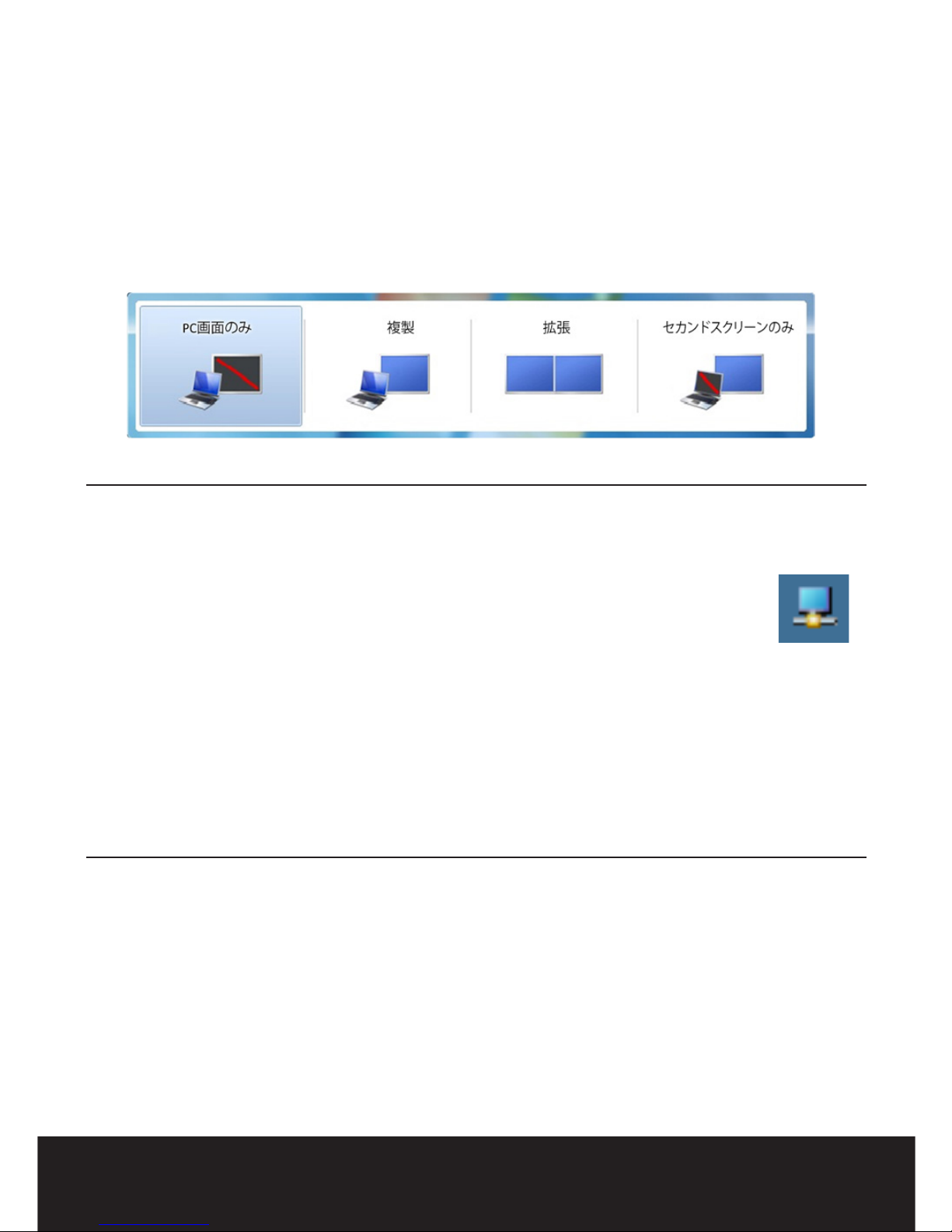
表示モードの変更
Windows 10 / Windows 8.1 / Windows 7
Windows Vista / Windows XP
Mac OS 10.8.3 以降
ステップ
1.
ショートカットキー = Windowsキー + P
ステップ
2.
優先表示モードを選択してください
ステップ
1.
システムトレイの ディスプレイマネ
ージャのアイコンをクリックします
ステップ
2.
メニューをスクロールして移動を
選択してくださいてください
ステップ
3.
優先表示モードを選択します
ステップ
1.
アップルメニューからシステム環境設定を選択します
ステップ
2.
ディスプレイをクリックし、調整を選択してください
ステップ
3.
ディスプレイをお好みの位置に調整します
16 |
ドライバ – FAQ – サポートはこちらへ:
plugable.com/products/ud-3900
 Loading...