

Page 1
Tablet PC
MC1217V1
Page 2

NOTICE
● Keep the device and all accessories out of the reach of
small children.
● Do not use or store the device in dusty, hot, cold, electric,
chemical, moist, or magnetic areas.
● Do not drop, shake or knock the device. Rough handling
can break the device.
● Do not leave the device into areas that may become hotter
without attention, like tables in sunshine, a car with all
windows closed, or on bed & charging, because the device
can get to very high temperature and may cause accident.
● Never play the device while driving! Keep your eyes
focusing on the road.
● Please turn off the watch in aircraft and follow any
restrictions. Wireless devices can cause interference in
aircraft.
● Please do not disassemble the device or change the case
personally, as it will void your warranty.
● Please use proper power adapter along with packing, or
suggested by qualified sellers.
● Due to different marketing period, product update,
regional disparities, Microsoft’s Windows System update
or such reasons, we may, without notifications to you,
change or modify some functions which could be different
from the content in this page, please refer to real product
received.
Page 3

Meet this Tablet PC
This Tablet PC device has most same functions as your
laptop, you can use the device for business, learning,
entertainment, etc. Just like on smartphones, you can
use your finger on the touchscreen of this Tablet PC.
For example, drag your fingers across the screen to
scroll.
Before start it, make sure there is a wireless network
around and you have password of the network if it is
secured. See more in Settings >> Connect to Network.
Here are some main features of this device.
● Operation System: Windows 10
● Wireless connections via Wi-Fi and more.
● Bluetooth function.
● Photographing and Video recording
● Built-in G-Sensor.
● Built-in speaker and microphone.
● External Micro-SD card is supported.
● External mouse and keyboard is supported via USB.
● Personal digital assistant (Cortana).
● Gaming (Xbox).
Page 4

Touch Gestures
● Tap
Tap once on something.
To open, select or activates
something you tap, just like clicking
with a mouse.
● Tap and hold
Press your finger down on and hold
for about a second
To show options related to what
you are doing, just like right-clicking
with a mouse.
● Tap-tap slide
Tap, then tap and hold. And slide
your finger in any direction.
To drag an item you’ve tapped, or
select text on Webpages, etc.
On the touchscreen of this Tablet PC, different
movements by fingers lead to different effect. Here is
a glossary of touch gestures that you often use.
Page 5
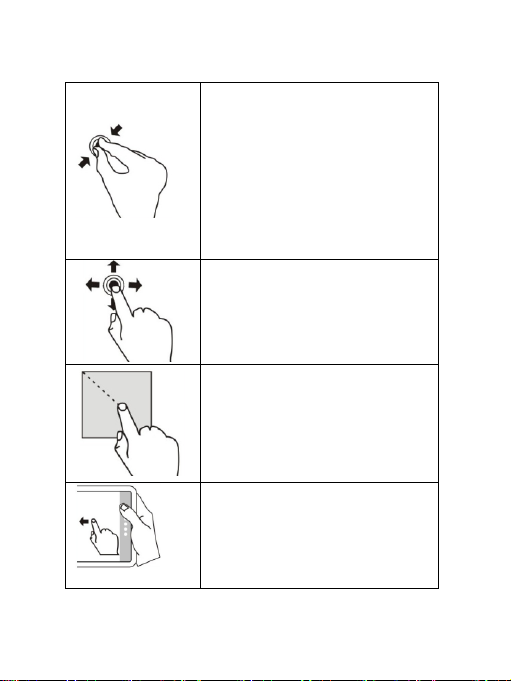
● Pinch or Stretch
Touch the screen or an item with
two or more fingers, and move
fingers toward each other (Pinch)
or away from each other
(Stretch).
To zoom in or out of a map,
picture, or a website.
● Slide to scroll
Drag your finger on the screen.
Scrolls through on the screen,
like scrolling with a mouse.
● Frame Selection
Press your finger down on screen
and hold to draw a frame.
To make frame selection, just like
what you do with a mouse.
● Swipe from right edge
Starting on right edge, swipe in.
To view notifications and
function switches.
Page 6
The Basics
Power On
Press POWER button for around 2 seconds, the device
starts up and displays the Start screen, or enter
password if it is secured.
Shut down & Restart
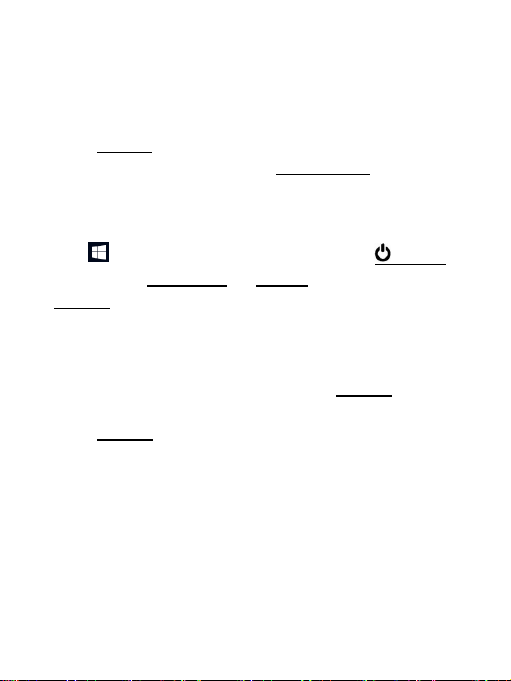
Tap from left bottom of screen, tap Power,
and choose Shut down or Restart. Or, you can press
POWER button for more than 3 seconds and release,
slide down to shut down the device.
Sleep
When the device is working, press POWER button
shortly to shut the screen and it goes into Sleep mode.
Press POWER button again to awake the device, then
swipe up on the touchscreen.
Recharging
When the device cannot be turned on normally or
shut down automatically, it may need to be recharged.
Notice: Please use proper chargers provided or guided
by the manufacturer of this Tablet PC.
Page 7

Setup & Windows Activation
The first time you use this Tablet PC, it enters Setup
Wizard, After the Setup W izard, just wait for one or
two minutes to let system finish initialization, and
then it goes to desktop.
To experience complete functions of Windows 10
System, you need to activate Windows on this Tablet
PC device. W ithout activation, most functions are not
available.
Start Menu
The Start Menu is at left bottom of screen, tap it and
you can find All apps, Power, Settings and Tiles. See
more in Chapter: Start Menu.
Go to Desktop
You can always tap right bottom corner of screen to
go to desktop.
Notification & Shortcuts
Slide leftwards from right edge of screen, you can see
Notifications and Function Shortcuts. You can tap a
notification to view details, or tap function shortcuts
to switch ON/OFF or adapt them.
Page 8
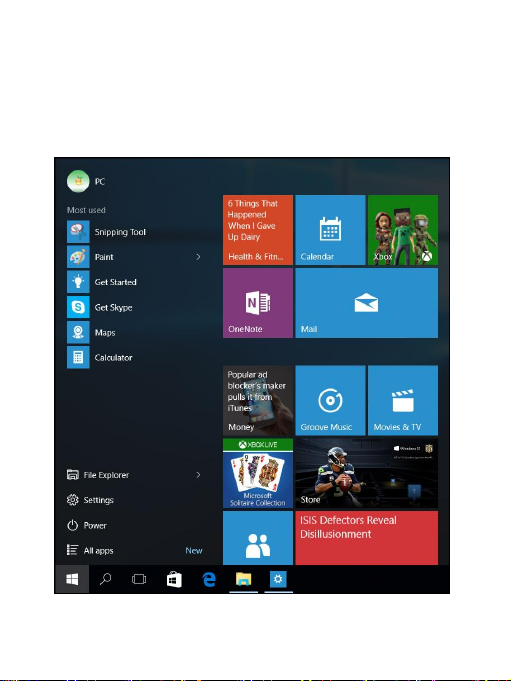
Start Menu
Here you can find all apps, Power, Settings and Tiles.
Page 9
Apps
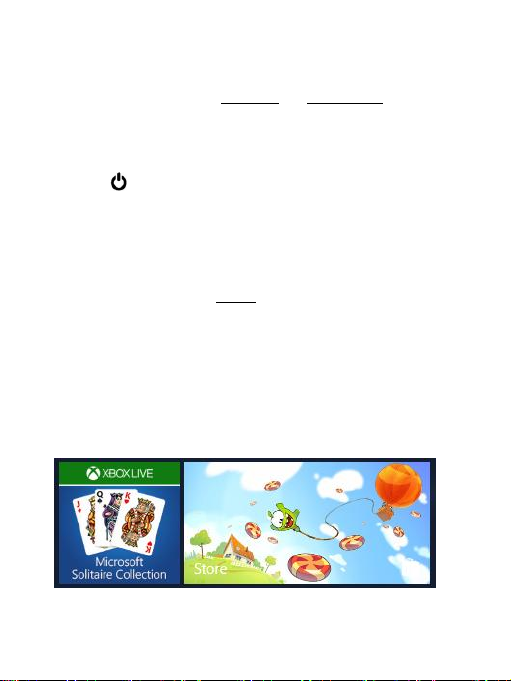
You can see apps from All apps, or Most used. Tap app
name to open it, or long press to view options: Pin to
Start, Pin to taskbar, Uninstall, etc.
Power
Tap it and select: Sleep, Shut down or Restart.
Tiles
You can pin your favorite apps, programs, folders,
people, or websites to Start, then you can fast access
to them. You can also move some of your pinned apps
into different groups, here is how: Just move a tile to
an open space, and when a gray divider bar appears,
release the tile. Then move more tiles in or out of the
group to suit your needs. Long press an app tile, you
can unpin it, change tile size, or turn on/off live tile.
Page 10
Taskbar
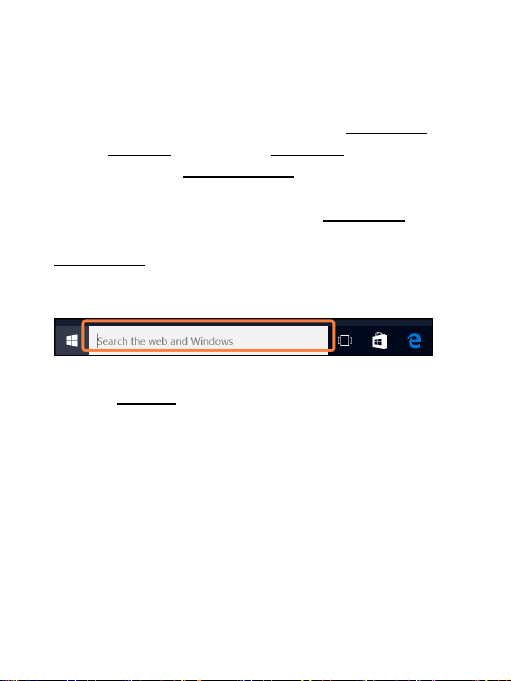
Taskbar is at bottom of screen, showing Start menu
button, Cortana (Search bar), Task View button,
pinned Apps (like Microsoft Edge), running tasks,
battery, network, keyboard, time information, etc.
Since you may be quite familiar with Windows 7, we
are going to introduce only something new that
Windows 10 brings.
Cortana (Search bar)
Think of Cortana as a personal digital assistant who
works across all your Windows 10 devices to help you
get things done. By learning more about you over
time, Cortana becomes more useful every day.
Cortana Home is the place to go for personal
suggestions, a daily glance of the day ahead,
recommendations for restaurants to check out, and
more.
Page 11
The Notebook is where Cortana keeps track of what
you like and what you want. Use it to control what
Cortana knows about you, including your interests
and favorite places.
Cortana can remind you about all the important
things in your life. Time-based, people-based, and
location-based reminders all trigger at the right time
on any device, making sure that you never miss a
thing.
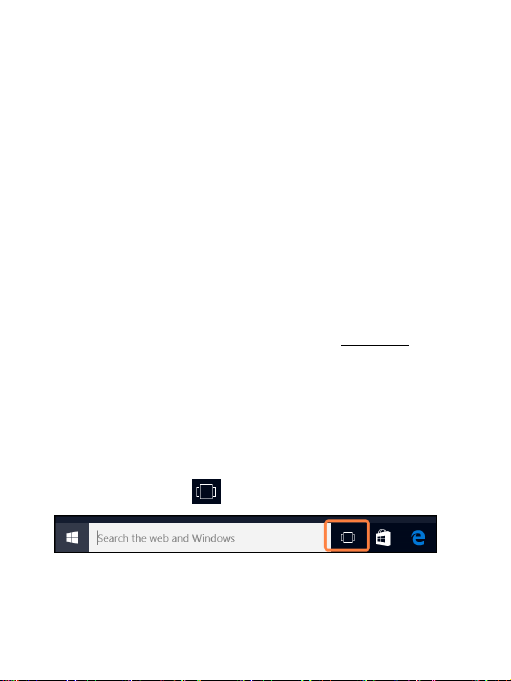
When you search from the taskbar, Cortana will show
you results from your PC, the web, and OneDrive. You
can also use Cortana for help with troubleshooting. If
you run into a problem or have a question about how
to get things done, just type something about it into
the Windows search box. Cortana will provide instant
answers or links to helpful websites.
Task V iew button
Here you can view tasks clearly and manage them
more conveniently.
Page 12
Microsoft Edge
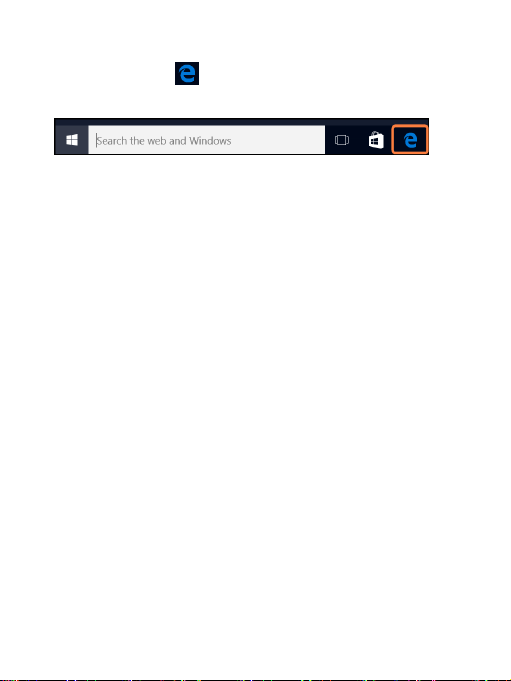
Microsoft Edge is the all-new browser designed to go
beyond browsing. With inking capabilities built-in,
you can write or type directly on webpages and share
your mark-ups with others.
If you value a premium reading experience, there’s a
feature that allows you to clear away distractions
from your online articles and a reading list that
organizes your favorite reads to enjoy later.
The improved address bar helps you to find things
faster, and with Cortana enabled, you can instantly
move from searching to doing.
All in all, Microsoft Edge sweeps away the obstacles
between you and your favorite online activities – for a
web experience that’s more personal, responsive, and
all about getting things done.
Page 13
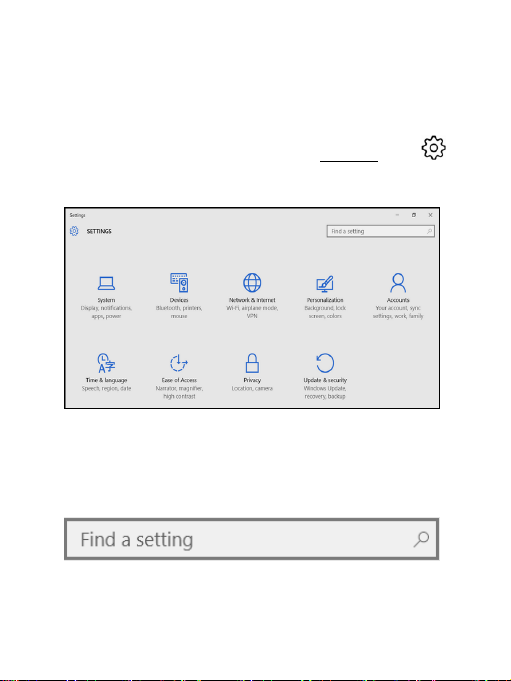
Settings
Windows 10 system enables a lot of personalized
settings to the Tablet PC device. Tap Settings icon
at Start Menu, and choose options.
You can go quick access via search bar from top right
corner of the interface.
Page 14
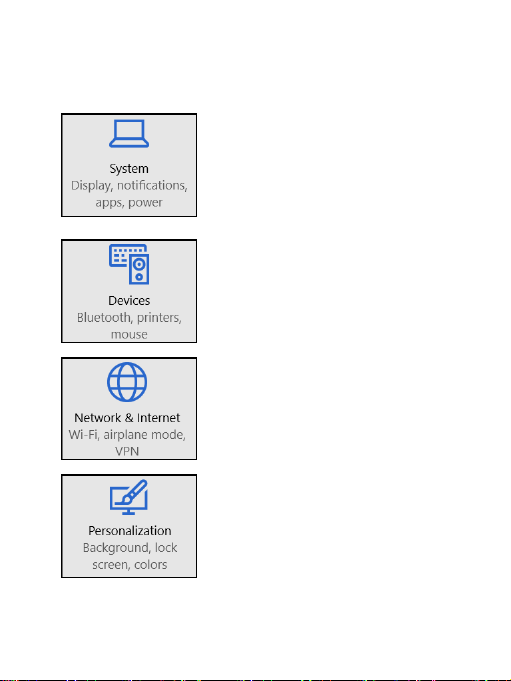
Following are general view of settings options.
● System
Display, Notifications & actions,
Apps & features, Multitasking,
Tablet PC mode, Battery saver,
Power & sleep, Storage, Offline
maps, Default apps, About.
● Devices
Printers & scanners, Connected
devices, Bluetooth, Mouse &
touchpad, Typing, AutoPlay.
● Network & Internet
Wi-Fi, Airplane mode,
Data usage, VPN,
Dial-up, Proxy.
● Personalization
Background, Colors,
Look screen, Themes,
Start.
Page 15
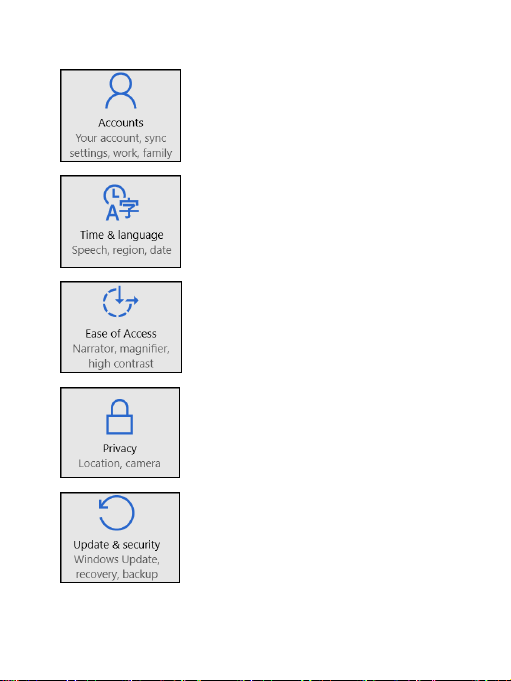
● Accounts
Your account, Sign-in options,
Work access,
Family & other users,
Sync your settings.
● Time & language
Date & time,
Region & language,
Speech.
● Ease of Access
Narrator, Magnifier, High contrast,
Closed captions,
Keyboard, Mouse,
Other options.
● Privacy
General, Location, Camera, MIC,
Speech, inking & typing, Account
info, Contacts, Calendar, Messaging,
Radio, Other devices, etc.
● Update & security
Windows Update,
Windows Defender, Backup,
Recovery, Activation,
For developers.
Page 16

Connect to Network
This Tablet PC has built-in Wi-Fi that you can use to
get online. After you get online, you can browse the
Internet, get apps, send emails, and access other
computers and devices on your network.
Slide leftwards from right edge of screen, tap the
wireless network icon , tap a network name and
choose Connect. (If you want to connect this network
every time it’s in range, select Connect automatically).
If prompted, enter the password and tap Next.
To disconnect from a Wi-Fi network, tap the wireless
network icon , tap the network name which
shows connected status to turn off it.
If there is no W i-Fi network, you can use a portable
USB dongle with 3G networks. Please notice fees may
apply.
You can also use an USB Ethernet adapter to connect
to wired networks.
Page 17

Accounts
An user account determines how you personalize your
Windows 10 Tablet PC, and you may have different
types of account. To see which type of account you're
using, open Settings, and tap by following steps:
Settings >> Accounts >> Your account.
● If you see Local Account, this means your account is
on this Tablet PC, you cannot connect to the cloud.
● If you see your name & email address, you’re using
a Microsoft account.
What is a Microsoft account?
A Microsoft account is the email address and
password that you use to sign in to Microsoft services,
like Outlook.com, OneDrive, Windows Phone, and
Xbox. To switch from a local account to a Microsoft
account: Open Settings, and tap Accounts >> Your
account >> Sign in with a Microsoft account instead.
Two more sign-in options are available to you: PIN
and picture password. (These sign-in options may not
be available if you’ve added a work email account or
joined a network domain.)
Page 18
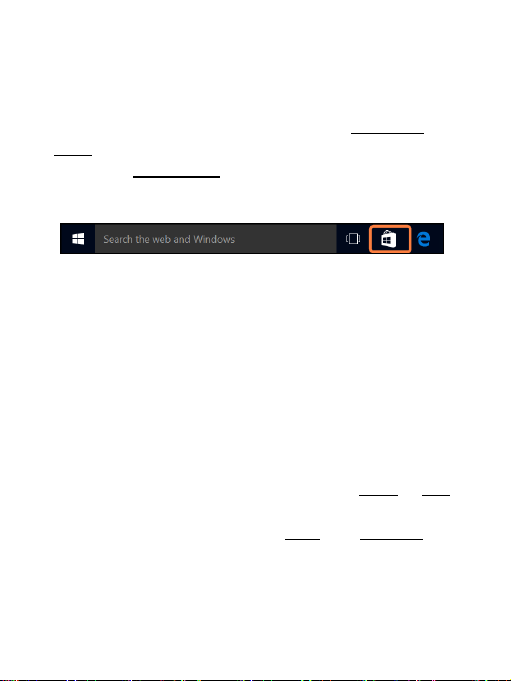
Apps and Programs
There are a lot of apps and games in the Windows
Store. To open it, you can click on the Windows Store
tile on the Start screen, or the Windows Store icon in
the taskbar.
● Install Apps from Windows Store. You can browse
for apps in Top charts, Categories, Collections, etc.
You can use Search function.
Tips: Some apps and games might not be available
in your country or region.
● Install programs from the Internet. Make sure you
trust the publisher of the app and the website that
offering it. In your web browser, tap the link to the
app. To install the app immediately, tap Open or Run,
and then follow the instructions on your screen. To
install the app later, tap Save or Save as to
download it.
● Uninstall. To uninstall an app if you are not using it,
Page 19

go to the Start screen or Apps list (by name), tap
and hold it for a couple seconds. Tap Uninstall.
● Update. Sometimes app publishers update their
apps to add new features and fix problems. The
Windows Store can automatically install app
updates when they become available. To make sure
your apps get updated automatically, from the Store
app, open Settings, then tap App updates and set
Automatically update my apps to Yes. You can also
manually check for app updates at any time, tap
Check for updates.
OneDrive
OneDrive is online storage that comes with your
Microsoft account.
It’s like an extra hard drive that’s available from any of
the devices you use. When you save your documents,
photos, and other files on OneDrive, they're available
from any web-connected device (your smartphone or
any PC), and to share files with other people.
Page 20

You can go to Start menu and tap OneDrive to see
what’s on your OneDrive, tap a folder name to see the
contents, and tap a file to open it. You can swipe
down from the top edge of the screen to see
commands. From the OneDrive app, you can open the
Settings charm and then tap Help to learn more about
OneDrive.
To save files, you can choose OneDrive or This PC as
the location. You can also save documents to
OneDrive by default from Settings >> System >>
Storage, and change save locations according to your
favorites.
Tips: To choose OneDrive as save location, you must
sign in with a Microsoft account first.
To share files on OneDrive with your friends, there is
no need for them to sign up for a new account, and
they can use any web browser to get to the files you
share with them. Simply two steps below,
● Select the files on OneDrive that you want to share.
● You’ll need to provide their email, or choose Get a
link to let them view by webpage.
Page 21

System Update & Recovery
Windows Update automatically installs important
updates when available. You can also manually check
for Windows updates: Open Settings >> Update &
Security >> Windows Update. If updates are available,
tap View details and Install if you want.
Recovery function helps you to refresh or reinstall
Windows, or change Windows startup settings.
Open Settings >> Update & Security >> Recovery,
There are three options for recovery function:
1) Reset this PC (You can choose to keep your files or
remove everything)
2) Go back to Windows 8.1 (if you don’t like Win 10)
3) Advanced startup (which is only for professionals)
Windows Defender is built-into Windows 10 to help
guard against viruses, spyware, and other malicious
software. You can directly open Windows Defender
from Start menu, or search W indows Defender from
Cortana (Search bar). To learn more about protecting
PC from viruses, you can visit Windows.com.
Page 22

FAQ
Q: What to do if you forget your Windows password?
● If you're using a Microsoft account, you can reset your
password online. For more information, go to
https://account.live.com/password/reset
● If you're using a local account, use your password hint as a
reminder.
If you've tried above suggestions and still can't sign in, you'll
need to reinstall Windows 10. Please contact the
manufacturer for more information.
Q: What to do if the Tablet PC can’t be turned on?
The most likely reason is that the battery is drained. Often,
it’s a simple problem that is easily fixed after recharging. If
still not working, the device might crash with screen shut but
it is not turned off completely. In this condition, you can
press and hold the POWER button for more than 10 seconds
to turn off the device completely, and then turn on again.
Anyway, try to avoid this operation.
Q: I tried to install Windows 10 Update, but it failed. How
do I get this to work?
● Free up some disk space. Before you install Windows 10
Update, make sure you have enough free disk space on
your device. You may need to move some files to OneDrive,
or a TF card, at least until you finish installing the update.
Page 23

● Plug in. Have your Tablet PC plugged into a power source
during the update.
● Stay connected to networks. Make sure you have a good
Wi-Fi signal (or connect to a wired network.)
Q: About Windows 10 System and Microsoft Office 365, are
they free?
The pre-installed Windows 10 System (or updated from
official Windows 8.1 System) is free for you (factory has
pre-installed License Key of Windows 10 or 8.1 system), and
Microsoft Office 365 app is free for one year after you
activate it properly. When it expires, see screen prompts
how to renew it. For more info, please visit Microsoft.com.
Q: How can I change System languages?
Firstly, make sure that the Firmware of your Tablet PC device
contains the language pack you need (you need to enquire
to qualified seller). Open Settings >> Time& language >>
Region and language, choose Add a language. Tips: Without
language pack, the above operation does not work.
Page 24

FCC Statement
Changes or modifications not expressly approved by the
party responsible for compliance could void the user's
authority to operate the equipment.
This equipment has been tested and found to comply with
the limits for a Class B digital device, pursuant to Part 15 of
the FCC Rules. These limits are designed to provide
reasonable protection against harmful interference in a
residential installation. This equipment generates uses and
can radiate radio frequency energy and, if not installed and
used in accordance with the
instructions, may cause harmful interference to radio
communications. However, there is no guarantee that
interference will not occur in a particular installation. If this
equipment does cause harmful interference to radio or
television reception, which can be determined by turning the
equipment off and on, the user is encouraged to try to
correct the interference by one or more of the following
measures:
-- Reorient or relocate the receiving antenna.
-- Increase the separation between the equipment and
receiver.
-- Connect the equipment into an outlet on a circuit different
from that to which the receiver is connected.
-- Consult the dealer or an experienced radio/TV technician
for help
This device complies with part 15 of the FCC rules. Operation
is subject to the following two conditions (1)this device may
Page 25

not cause harmful interference, and (2) this device must
accept any interference received, including interference that
may cause undesired operation.
This device has been evaluated to meet general RF exposure
requirement. The device can be used in portable exposure
condition without restriction.
 Loading...