

Page 1
Speaker
Snom 710/715/D710/D715 Instructions
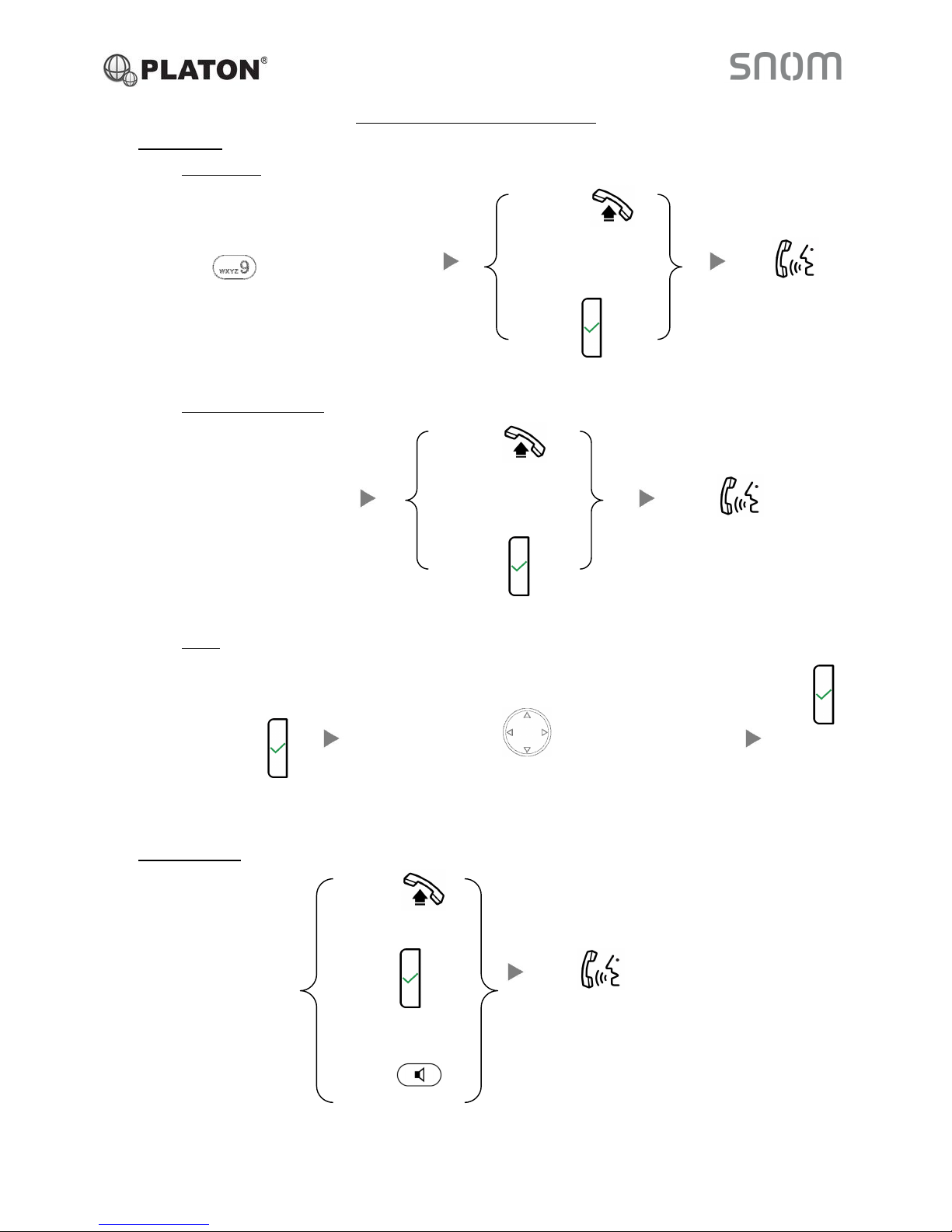
1. Making Calls
i. Outside Calls
Off-Hook
Press and Desired Phone Number Or Talk
Press
ii. Calling Other Extension
Off-Hook
Dial Extension Number Or Talk
Press
iii. Redial
Press Press the Navigation Key to reach the desired number Press
2. Answering Calls
Off-Hook
Or
Press Talk
Or
Press
Page 2
Line 2
Line 2
Line 2
Line 1
Line 2
Line 1
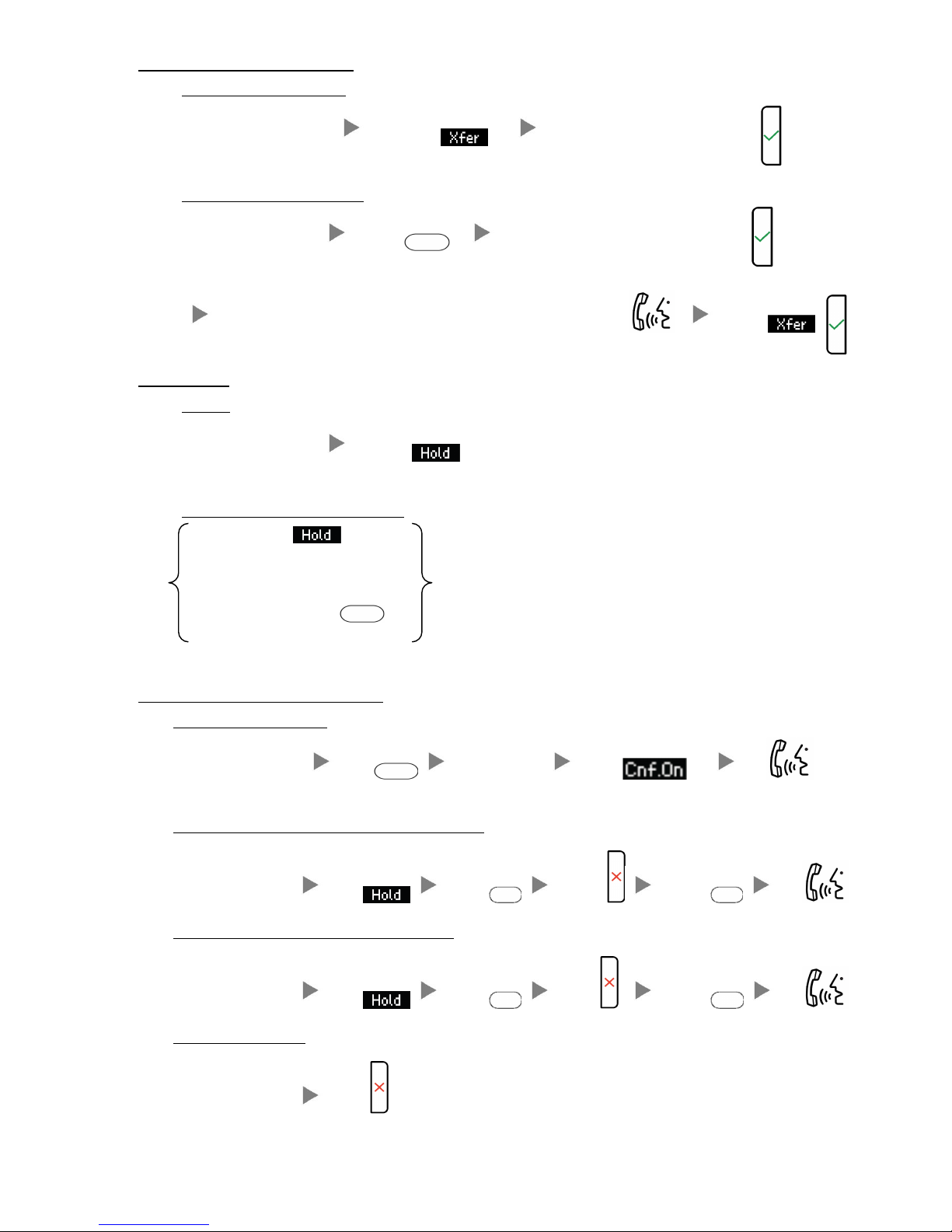
3. Transferring a Call / Call Transfer
i. Blind / Unattended Transfer
During a conservation Press Dial Extension Number and Press
ii. Supervised / Attended Transfer
During a conservation Press Dial Extension Number and Press
Optionally, you can Talk and Inform about the call you are transferring Press
4. Holding a Call
i. To Hold
During a conservation Press
ii. To Retrieve a call (Call Hold retrieve)
Press
Or
Press Flashing Line Key
5. Making a conference (Conference Call)
i. To Establish a Conference
During a conservation Press Dial to 3rd Party Press Talk
ii. To Leave a conference and talk to the original person
During a conference Press Press Press Press Talk
iii. To Leave a conference and talk to the 3rd person
During a conference Press Press Press Press Talk
iv. To Leave a conference
During a conference Press
Page 3
Message
Message
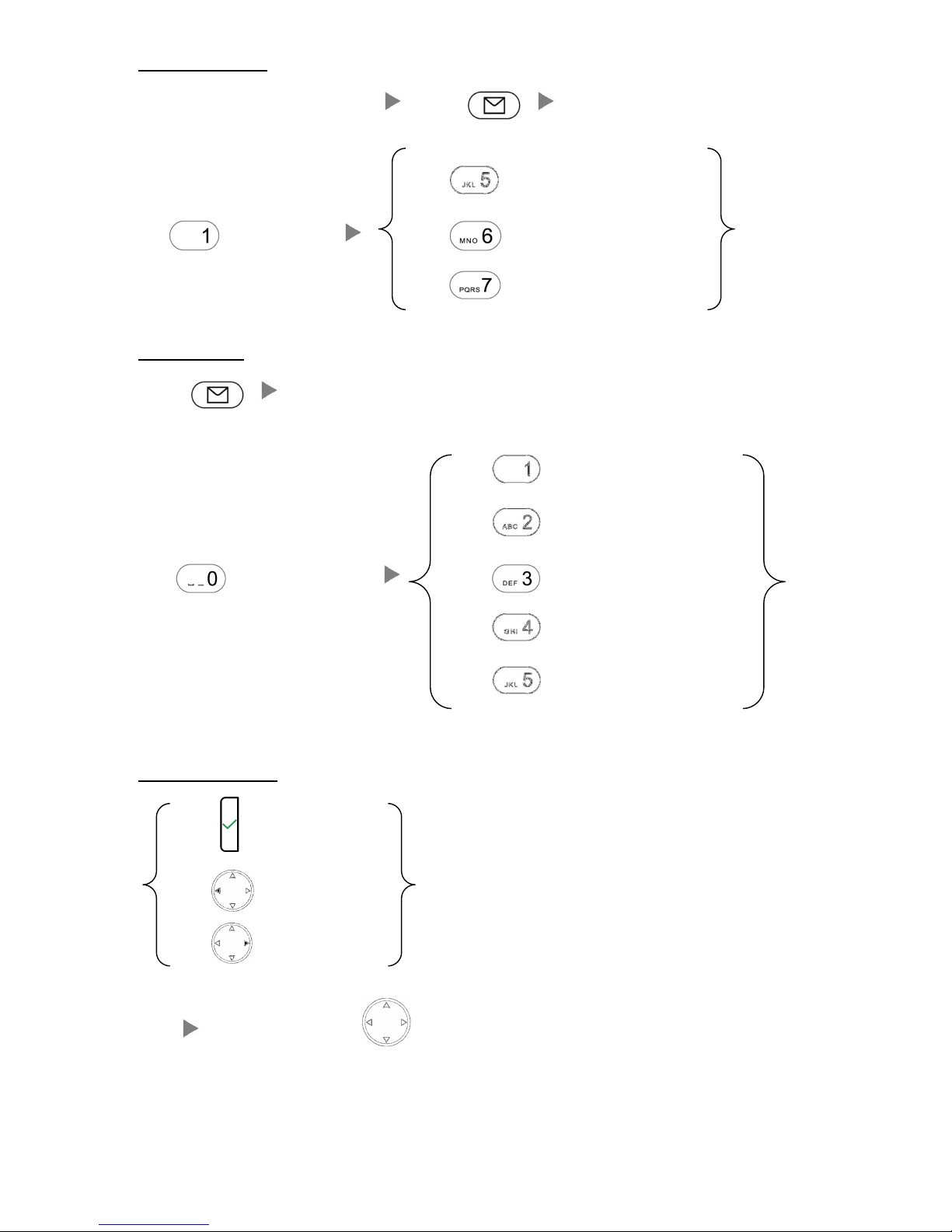
6. Checking Voice Mail
When message LED light is flashing Press Enter Password
Press to Repeat Message
Press to Listen Message Press to Play Next Message
Press to Delete/Un-Delete Message
7. Voice Mail Setup
Press Enter Password (if any)
Press to record Unavailable Message
Press to record Busy Message
Press to reach mailbox option Press to record Your Name
Press to record Temporary greeting
Press to Change Password
8. Checking Call History
Press for Redial;
Press for Received Calls;
Press for Missed Calls;
Press the Navigation Key to screen out the record
Page 4
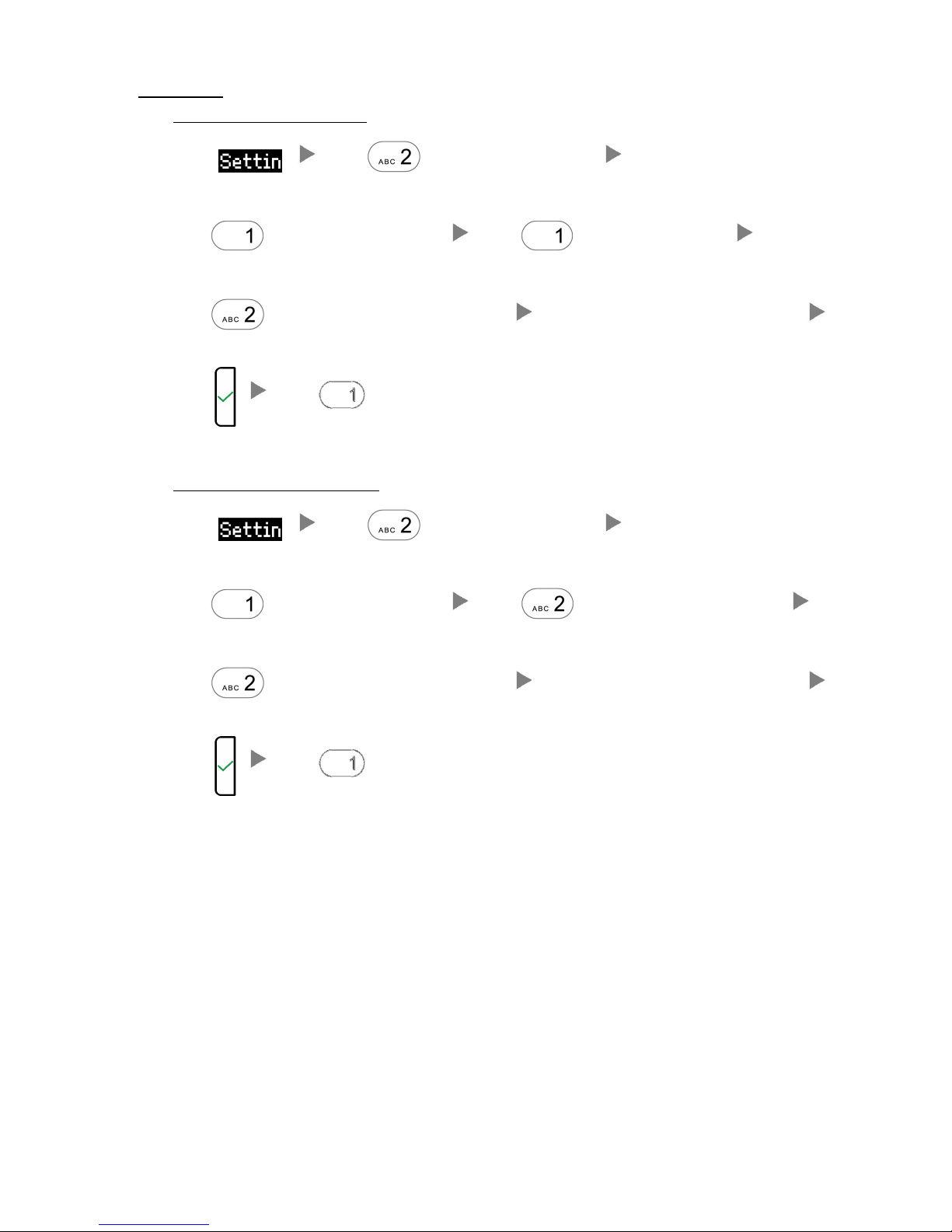
9. Forward Call
i. To set up All Call Forward Mode
Press Press (or choose “Call Features”)
Press (or choose “Call Forwarding”) Press (or choose “Forward All”)
Press (or choose “Target when Forwarding”) Input the target extension Number (e.g. 108)
Press Press until the screen shows “Activate”
ii. To set up Busy Call Forward Mode
Press Press (or choose “Call Features”)
Press (or choose “Call Forwarding”) Press (or choose “Forward when Busy”)
Press (or choose “Target when Forwarding”) Input the target extension Number (e.g. 108)
Press Press until the screen shows “Activate”
Page 5
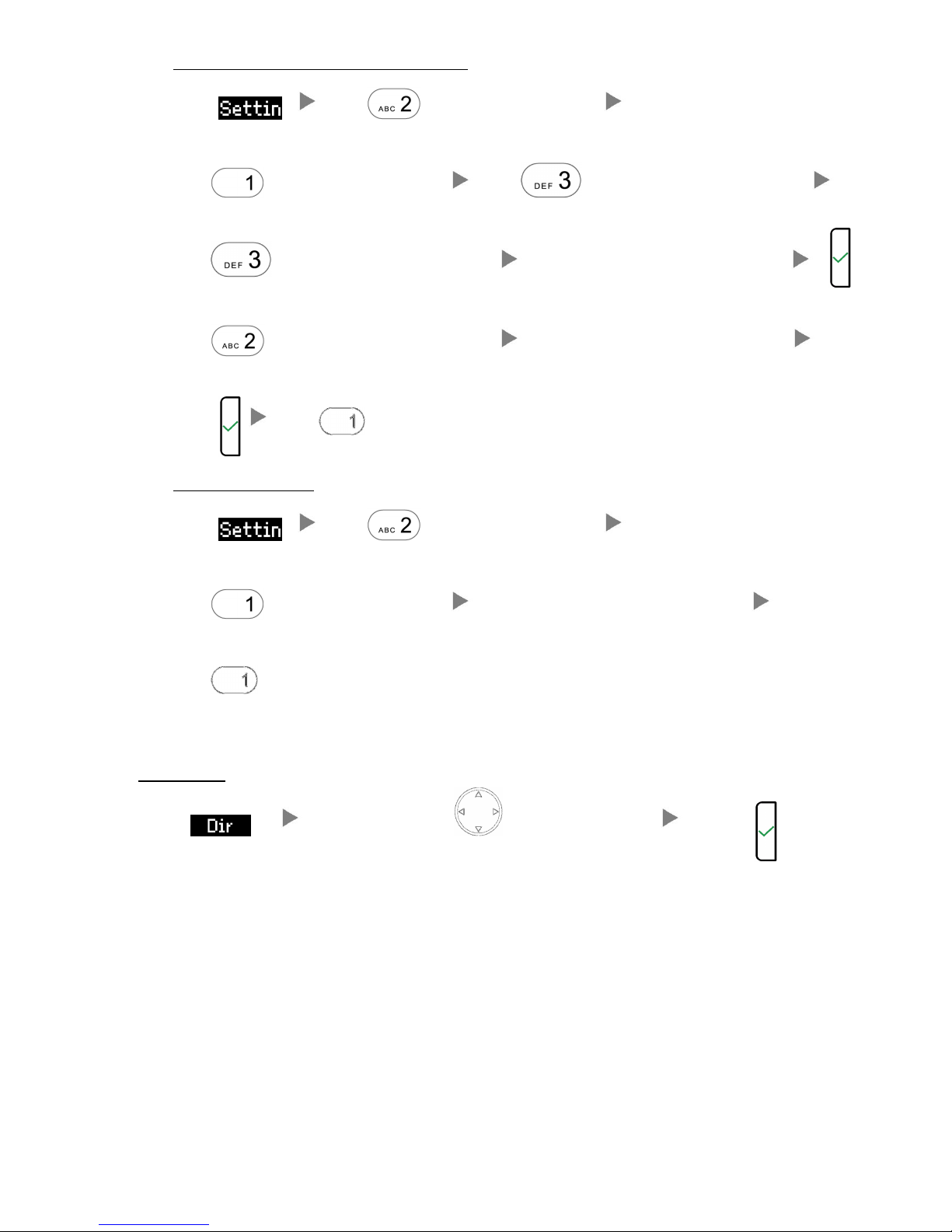
iii. To set up Time / No Answer Call Forward Mode
Press Press (or choose “Call Features”)
Press (or choose “Call Forwarding”) Press (or choose “Forward after Timeout”)
Press (or choose “Call Forwarding Time”) Input the No Answer Time (e.g. 20 seconds)
Press (or choose “Target for Forwarding”) Input the target extension Number (e.g. 108)
Press Press until the screen shows “Activate”
iv. To Cancel Call Forward
Press Press (or choose “Call Features”)
Press (or choose “Call Forwarding”) Choose the Forwarding mode to be canceled
Press until the screen shows “Activate”
10. Address Book
Press Press the Navigation Key to select the Address Press
 Loading...