

Page 1

QUICK START
BT600 USB-A
BT600 USB-C
Designed in Santa Cruz, California
Page 2
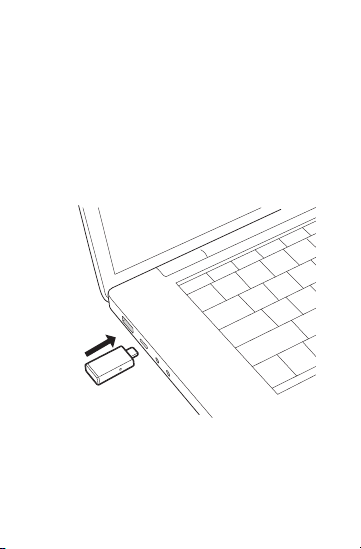
PAIR
To pair your high-fidelity Bluetooth®
USB adapter to your headset, do the
following:
1 Insert the USB adapter into your laptop
or computer and wait for your computer
to recognize it.
2 Put your headset in pair mode (refer to
your headset’s user guide).
Page 3
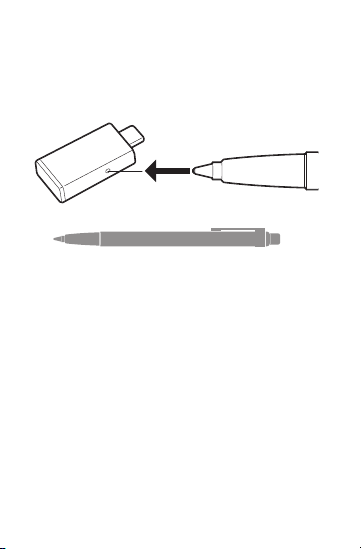
1 Put your USB adapter into pair mode by
pressing and holding the red Pair button
until the USB adapter flashes red and
blue.
Pairing is successful when you hear
“pairing successful” and the USB adapter
LED is solid blue.
Page 4

CONFIGURE
Windows
Your USB adapter comes ready to take
calls. If you want to listen to music, you
need to configure your USB adapter.
1 To configure your USB adapter to play
music, go to Start menu > Control
Panel > Sound > Playback tab. Select
Plantronics BT600, set it as the Default
Device and click OK.
2 To pause music when you place or
receive calls, go to Start menu > Control
Panel > Sound > Communications tab
and select the desired parameter.
Mac
To configure the USB adapter, go to
Apple menu > System Preferences >
Sound. On both the Input and Output
tabs, select Plantronics BT600.
Page 5

plantronics.com/documentation
plantronics.com/support
Plantronics, Inc.
345 Encinal Street
Santa Cruz, CA 95060
United States
©2018 Plantronics, Inc. Bluetooth is a registered trademark of
Bluetooth SIG, Inc. and any use by Plantronics, Inc. is under license.
All other trademarks are the property of their respective owners.
208272-05 09.18 MODEL ID: BT600C
Plantronics B.V.
Scorpius 171
2132 LR Hoofddorp
Netherlands
 Loading...