

Page 1

Blackwire® C710™/C720™
Corded USB headset with Bluetooth
User guide
®
Page 2

ContentsContents
Welcome 3
What’s in the package 4
Headset features 5
Accessories/Spares 6
Using your headset 7
Inline controls 7
Wearing the headset 8
Connect, charge and make a mobile phone call 9
Connect headset to PC 9
Charge your headset 9
Make a mobile phone call 9
Make a PC call 12
Advanced features 14
Plantronics Spokes software 18
Useful tips 21
Troubleshooting 22
2
Page 3

Welcome
Congratulations on purchasing your new Plantronics product. This user guide contains
instructions for setting up and using your Blackwire C710/C720 Bluetooth headset.
Please refer to the separate safety instructions for important product safety information prior
to installation or use of the product.
Blackwire C710/C720 next generation technology.
Featured highlights and Smart Sensor™ technology:
• Auto answers calls by simply putting on your headset.
• Auto transfers calls between mobile phone and headset
• Softphone presence can be automatically updated.
• Integrated A2DP (Advanced Audio Distribution Profile for Bluetooth) lets you listen to media
audio.
• Voice prompts announce power on/off, battery level, connection status and more.
System requirements
Computer
• Supported Operating Systems:
Windows XP®SP3 or later,
Windows Vista® SP1 or later,
Windows® 7 SP1 or later recommended
MAC OS X 10.6.8 or later
• Processor: 400 MHz Pentium® processor or equivalent (Minimum); 1 GHz Pentium processor or
equivalent (Recommended)
• RAM: 96 MB (Minimum); 256 MB (Recommended)
• Hard disk: 280 MB (Minimum); 500 MB (Recommended)
Browser
• Internet Explorer® V6 or better must be on the user’s system (Required)
Registering your product online
Visit plantronics.com/productregistration to register your product online
so we can provide you with the best possible service and technical support.
Technical assistance
Visit our website at plantronics.com/support for technical support including frequently asked
questions, compatibility and accessibility information.
3
Page 4
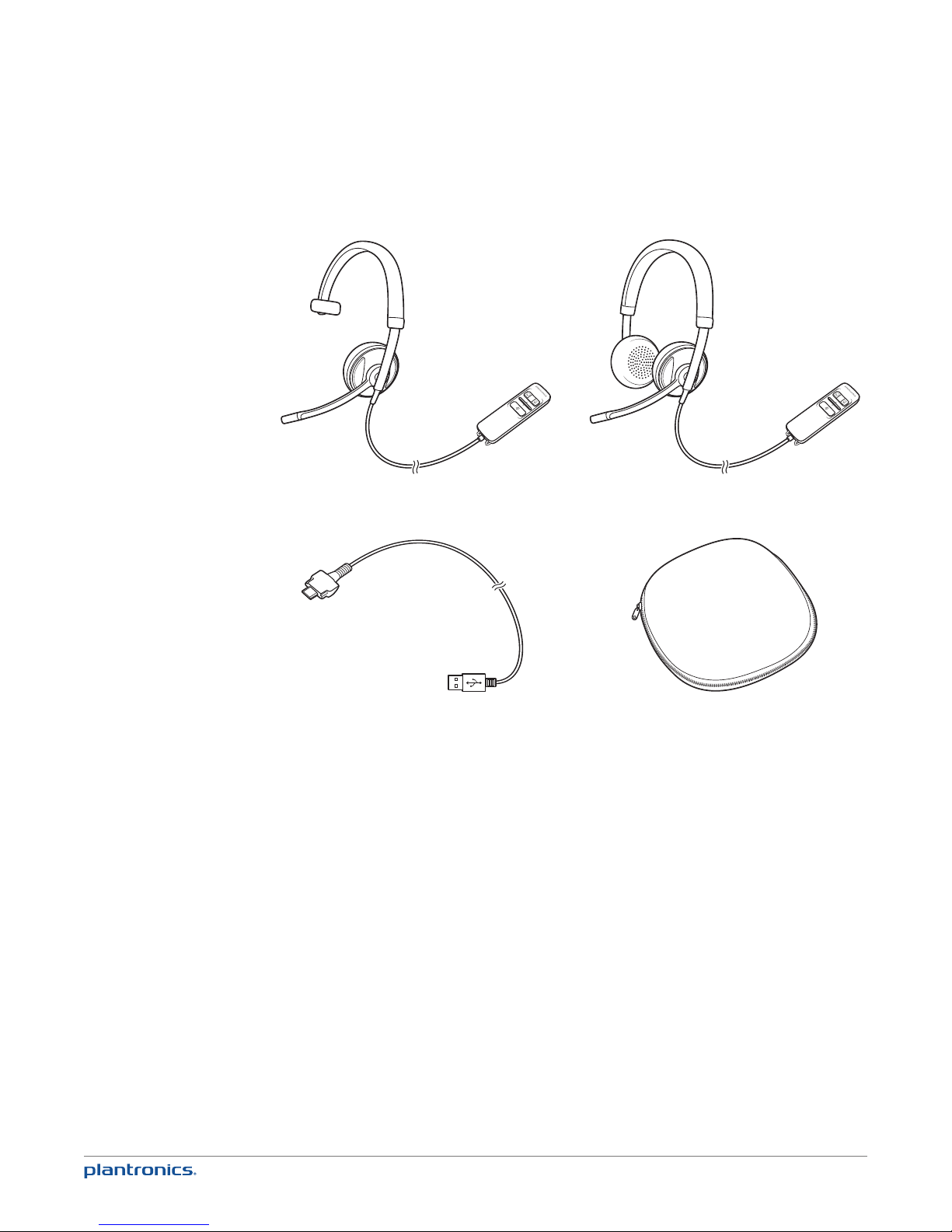
What’s in the package
OR
1
3
1 Blackwire C710 Headset with inline controller (monaural) or
2 Blackwire C720 Headset with inline controller (stereo)
3 Blackwire C710/C720 USB cable
4 Carrying case
2
4
4
Page 5
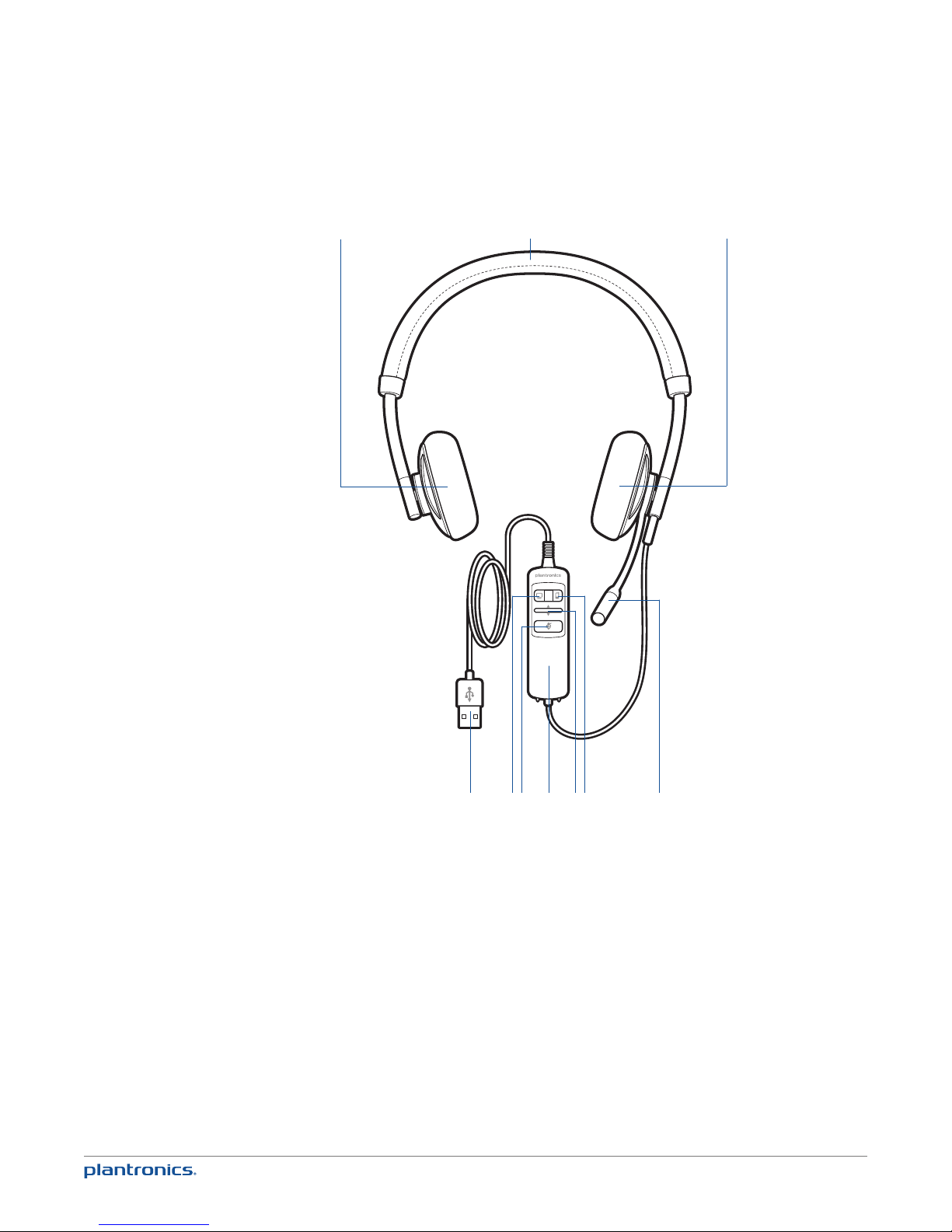
Headset features
1
2
3
1 Right ear cushion
2 Adjustable headband
3 Left ear cushion
4 Noise-cancelling microphone
5 Mobile talk and Bluetooth on/off button
5
6
10
9 8
5
7
4
6 Volume up/volume down bar
7 Inline controller
8 Mute/unmute button
9 PC talk button
10 USB cable/connector
Page 6
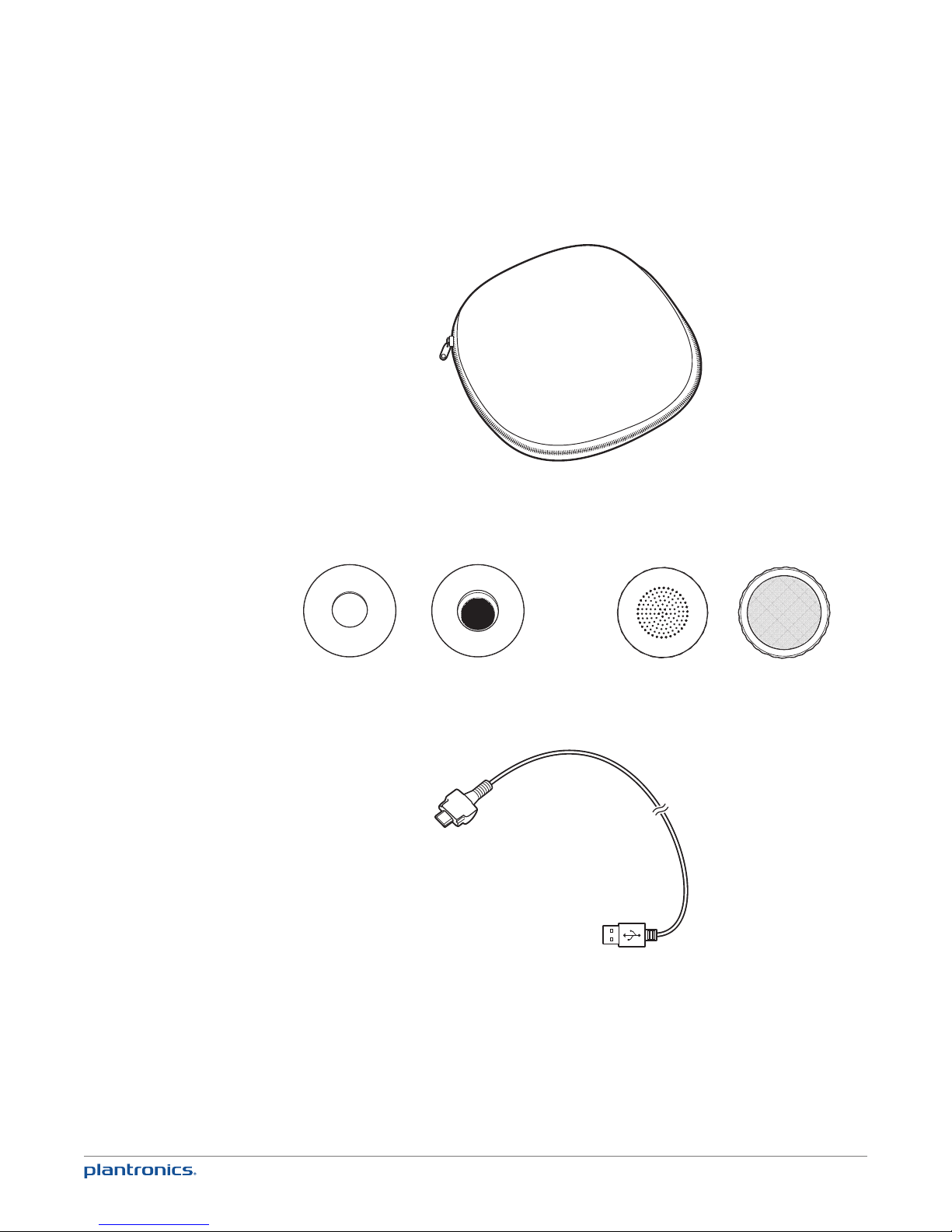
Accessories/Spares
(Sold separately)
Carrying case
Foam ear cushions
Blackwire C710/C720 USB cable
NOTE For more information on accessories and spares, please visit us at
plantronics.com/accessories.
Leatherette ear cushions
6
Page 7
Using your headset
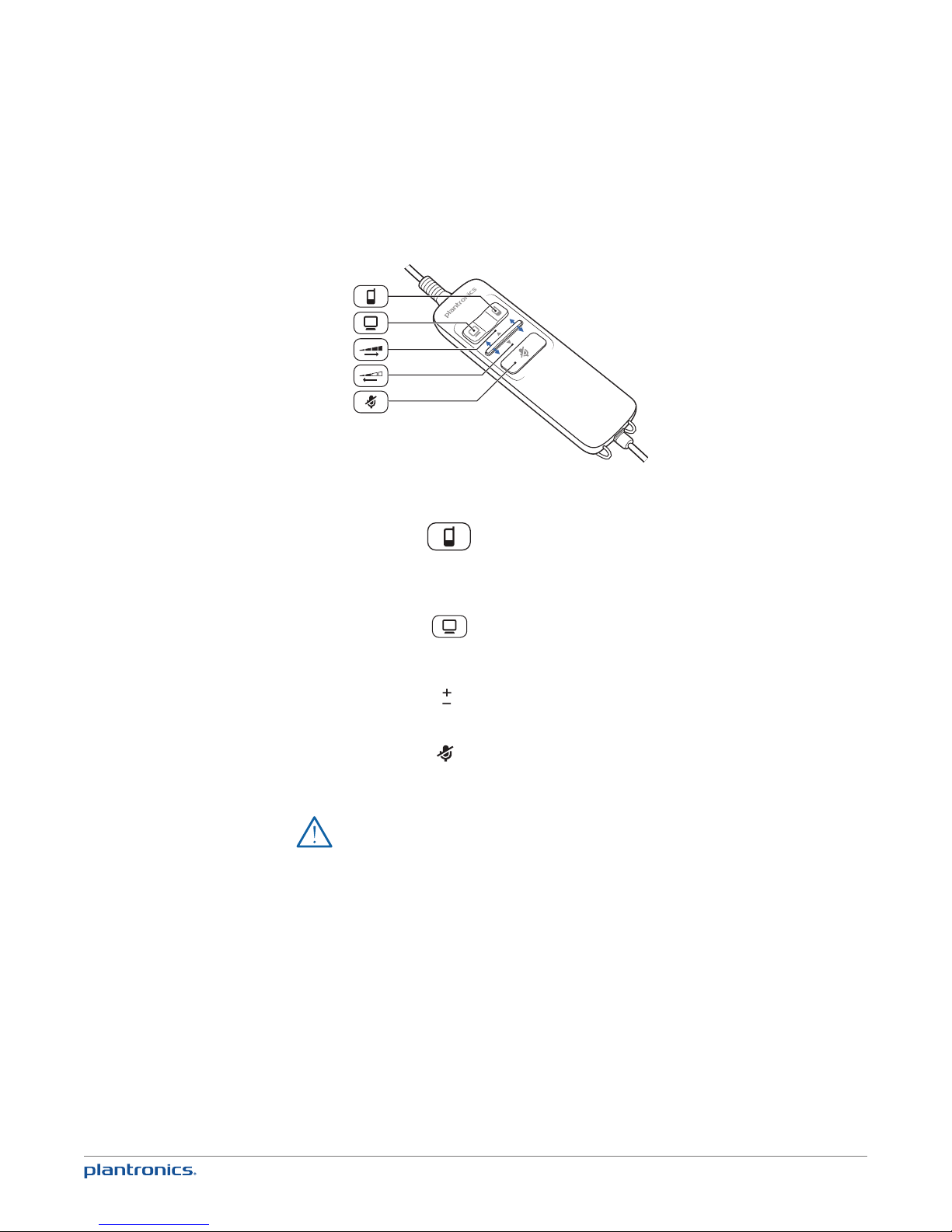
Inline controls
Mobile talk button
PC talk button
Volume
Mute
CAUTION For your safety, do not use the headset at high volumes for extended periods
of time. Doing so can cause hearing loss. Always listen at moderate levels. For more
information on headsets and hearing visit: plantronics.com/healthandsafety.
Can be used to answer or end a call directly from the headset with
a single press. LED will rapid flash blue when a call is coming in and
slow flash blue when on a call. Can be used to manually turn on or off
the Bluetooth radio with very long press; Bluetooth status will stay in
last known state.
Can be used to answer or end a call directly from the headset with a
single press. LED will rapid flash green when a call is incoming and
slow flash green when on a call. Can also be used to put a caller on
hold with medium press.
Volume up and down are available by pushing the bar up and down.
A single press of the mute button will mute the microphone. A red LED
will be on when you are muted. Pressing this button again will take
the microphone off mute.
7
Page 8
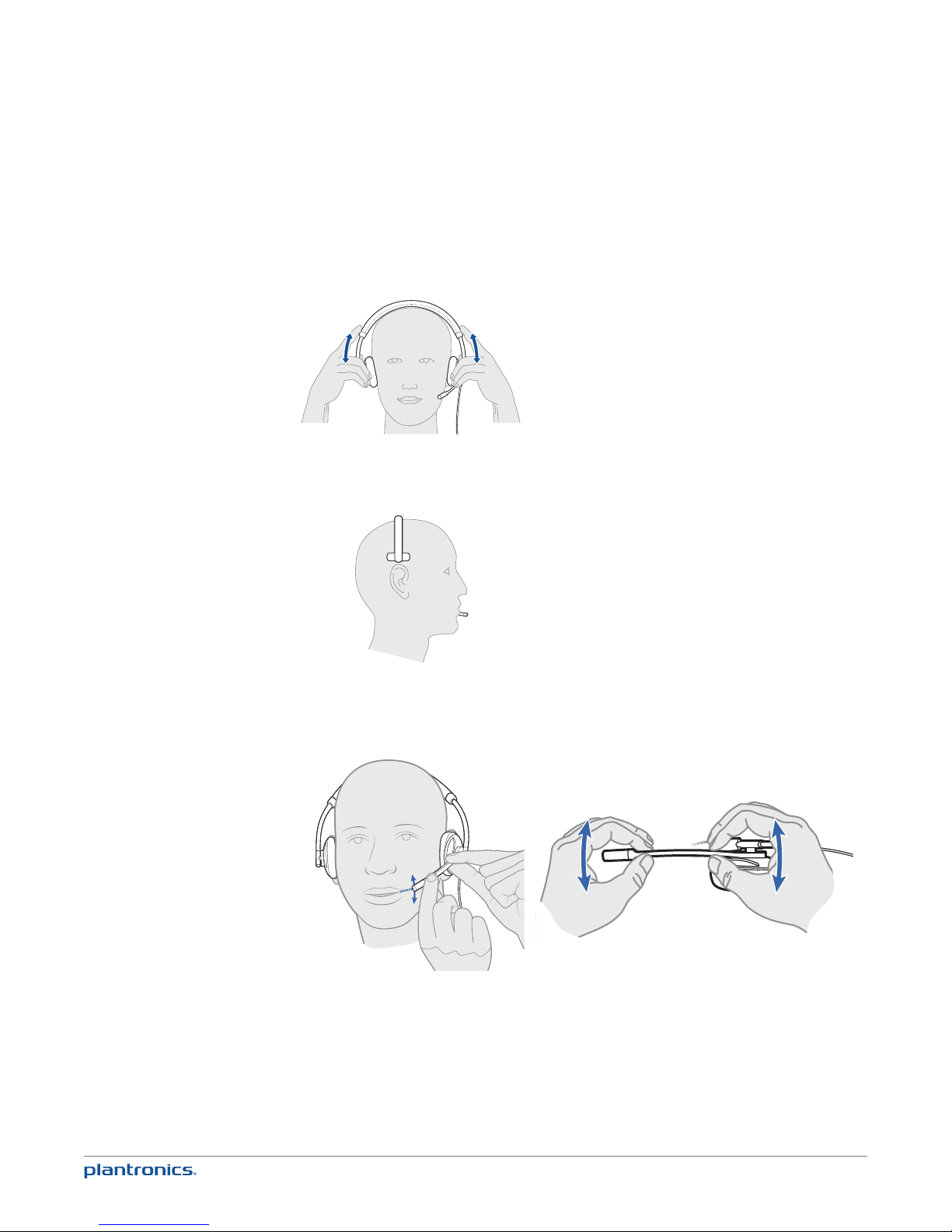
Wearing the headset
1 To adjust the headband, lengthen or shorten the band until it fi ts comfortably. Position the
headset receivers so that the cushions sit comfortably over the centre of your ears.
2 For the C710 headset, position the stabiliser T-bar above your ear.
3 Once the headset is positioned on your head, adjust the fl exible boom so the tip of the boom
points to the corner of your mouth. The boom can be shaped to follow the curvature of your
face.
NOTE The headset is designed for the boom to be worn on the left side of your face. To wear the
headset so the boom is on the right side, rotate the microphone boom upwards until it aligns with
the right corner of your mouth. Left and right audio channels will be switched.
8
Page 9
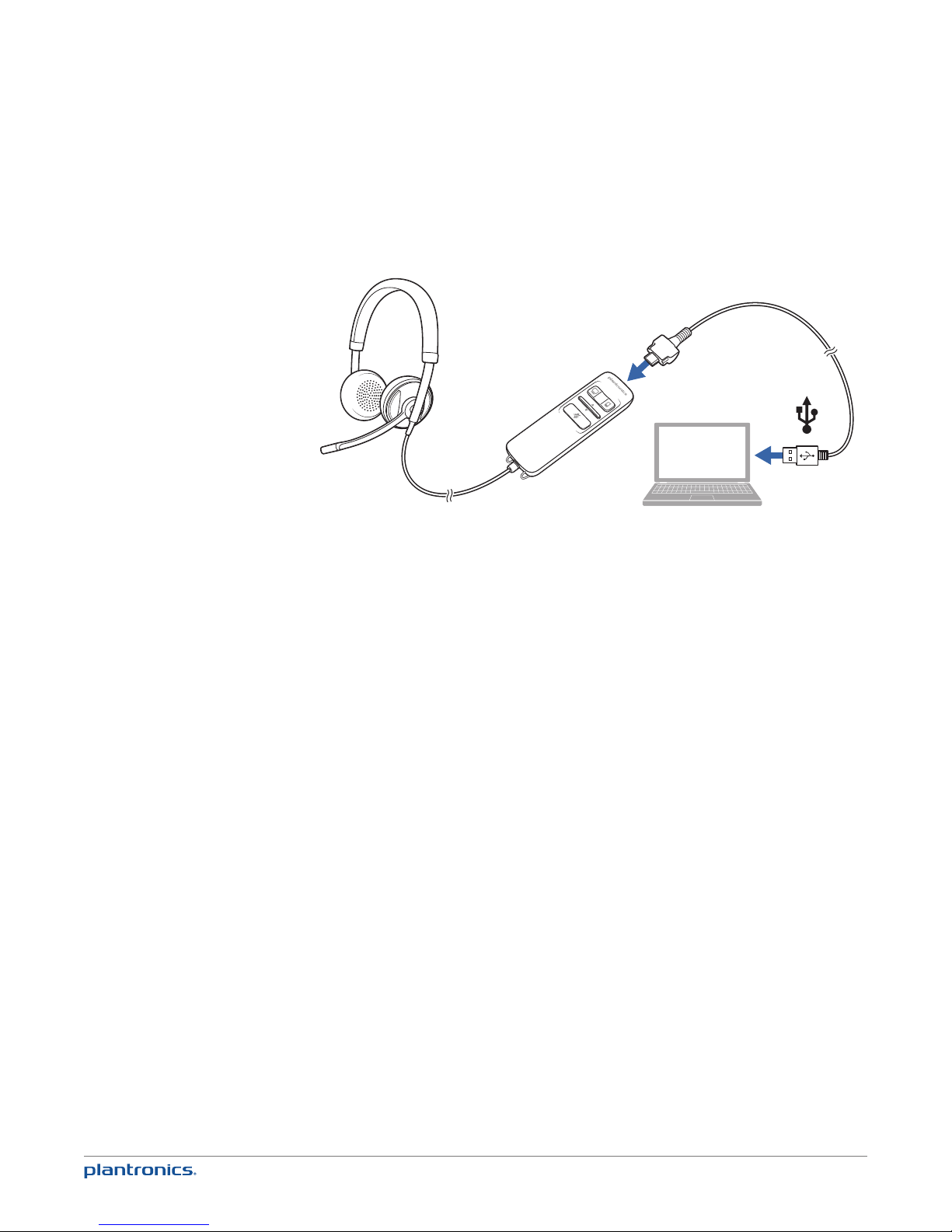
Connect, charge and make a mobile phone call
Connect headset to PC
1 Connect the USB cable to the PC and the inline controller.
The first time you connect your headset to the PC, the mobile talk button on the headset will
flash red and blue indicating the initial pairing process of your mobile phone.
NOTE If you do not want to pair your mobile phone now, press and hold the mobile talk button
more than five seconds to power off the bluetooth radio. The LED will turn solid red for two seconds.
See Other features for more information.
Charge your headset
NOTE Your new headset has enough power to make a few mobile calls before charging is needed.
When your headset is connected to the PC the mobile talk button will be solid red when charging and
off when fully charged.
1 Plug in your headset and place it on a flat non-metallic surface. The sensors in your headset
fully calibrate while charging.
A full charge will take approximately two hours. When fully charged, the LED goes off.
Always charge at near room temperatures; never charge the battery at temperatures below 0º
NOTE
C (32ºF) or above 40º C (104ºF).
Headset battery levels
With Plantronics Spokes® software installed, a headset icon will appear in your system tray,
displaying battery status. The Plantronics battery status will notify you of four different battery
levels (25%, 50%, 75% and 100%). Fully charge the headset at least once to properly calibrate
the battery status.
Make a mobile phone call
1 Activate the Bluetooth feature on your phone, then use the phone’s settings to add/search/
discover new Bluetooth devices.
BlackBerry® Settings/options > Bluetooth: On > Search for devices.
iPhone Settings > General > Bluetooth > On (starts the search for devices)
Android™ Phone Settings > Wireless > Bluetooth: On > Scan for devices.
Other Consult phone manual
9
Page 10
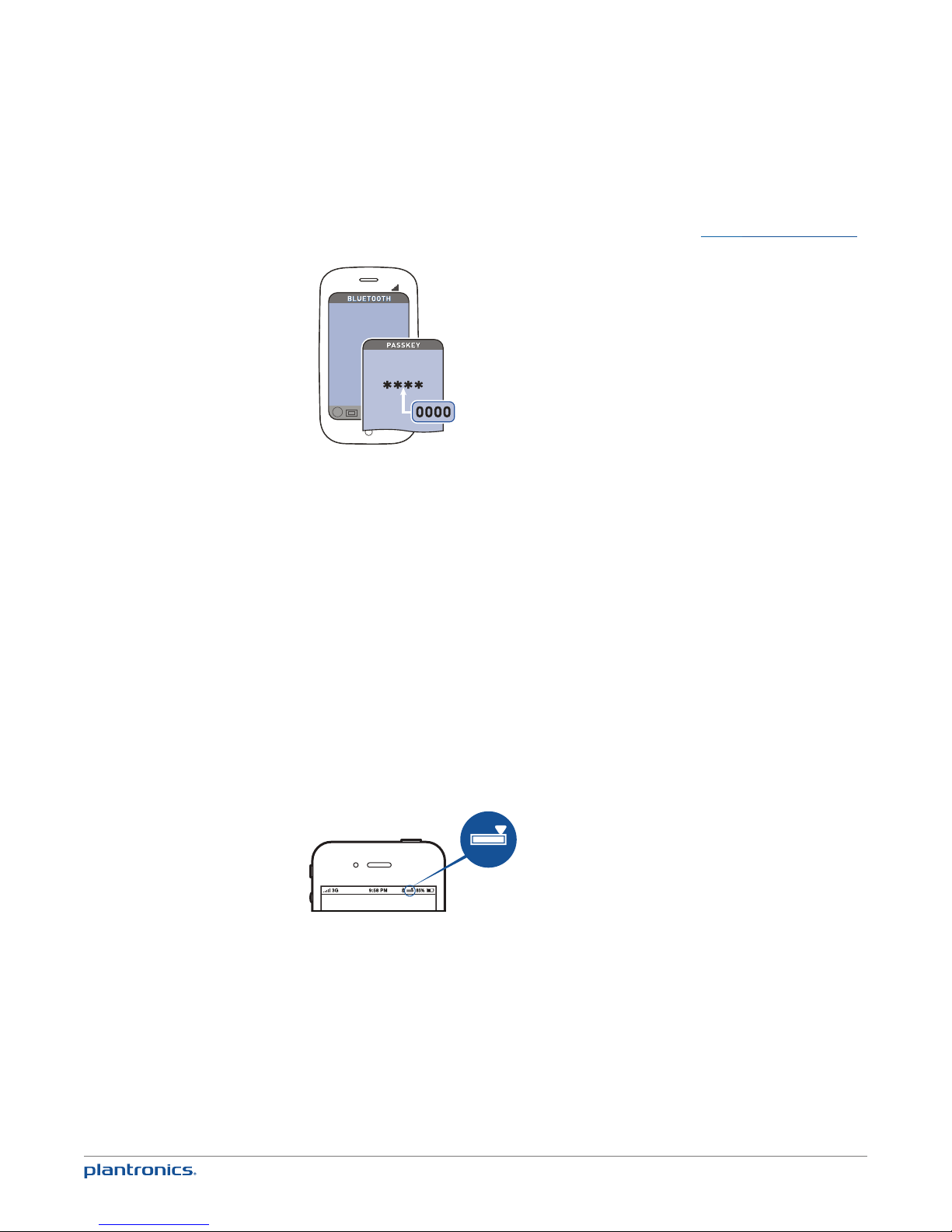
NOTE For detailed pairing instructions for popular mobile phones visit plantronics.com/easytopair
Blackwire C700
2 If prompted by the mobile phone, type 0000 as the passcode.
The mobile talk button will stop flashing when the headset has an active connection with the
mobile phone.
3 While wearing your headset, make a test call from your mobile phone.
During an active call, the mobile talk button will flash blue.
4 To use the mobile phone away from the PC, disconnect the USB cable from the inline controller.
NOTE When a fully charged headset is disconnected from the PC there is enough power to make
four to five hours of mobile calls before charging is needed. Reconnect the headset to the PC and
the mobile talk button will be solid red when the headset is charging, and off when fully charged.
5 End the call by pressing the mobile talk button.
TIP For iPhone users, the headset battery level is displayed on the iPhone home screen. The headset
must be connected to the iPhone.
The call does not end if you remove your headset without pressing the mobile talk button. See
Advanced features.
NOTE For call control and other features, download Plantronics Spokes software at
plantronics.com/software.
10
Page 11

Placing a call with your headset and Bluetooth mobile phone
Place a call Dial number on your mobile phone keypad.
Redial last number* Double press the mobile talk button. There will be a double low tone
Activate voice dialling* Press and hold the mobile talk button for two seconds. You will hear a
* Only available on mobile phones that support these features.
on each press. A low-low-high tone indicates the last number has been
redialled.
tone followed by a second tone which indicates voice dial is activated.
Answering and ending calls with your headset and Bluetooth mobile phone
Answer a call Short press the mobile talk button.
Answer a call when already on
an active PC softphone call
End a call Short press the mobile talk button.
Reject a call Press the mobile talk button for two seconds until you hear a second
Transfer a call from your
mobile phone to your
headset
Transfer a call from your
headset to your mobile phone
Short press the PC talk button to end the PC softphone call. Then press
the mobile talk button to answer the mobile phone call.
long single low tone.
While on a call, press the mobile talk button for two seconds until you
hear a single tone followed by a long low tone.
While on a call, press the mobile talk button for two seconds until you hear
a long low tone followed by low-low-high tones. Or, if using smart sensors,
remove the C710/C720 headset to transfer audio to your mobile phone.
* Only available on mobile phones that support this feature.
Mobile talk button behaviour with PC and mobile connected (not on a call)
Redials last number on
mobile phone*
Starts voice dialling on
mobile phone*
* Only available on mobile phones that support this feature.
Double press the mobile talk button.
Press the mobile talk button for 2 seconds.
NOTE For call control and other features, download Plantronics Spokes software at
plantronics.com/software.
Mobile talk button LED indicators
Incoming call
Active call
Media audio
Pairing mode
Powering on
Power off
Rapid flash blue
Slow flash blue
Slow flash blue
Flash red and blue
Solid blue (two seconds)
Solid red (two seconds)
11
Page 12
Make a PC call
1 Load Plantronics Spokes software by visiting plantronics.com/software and clicking
2
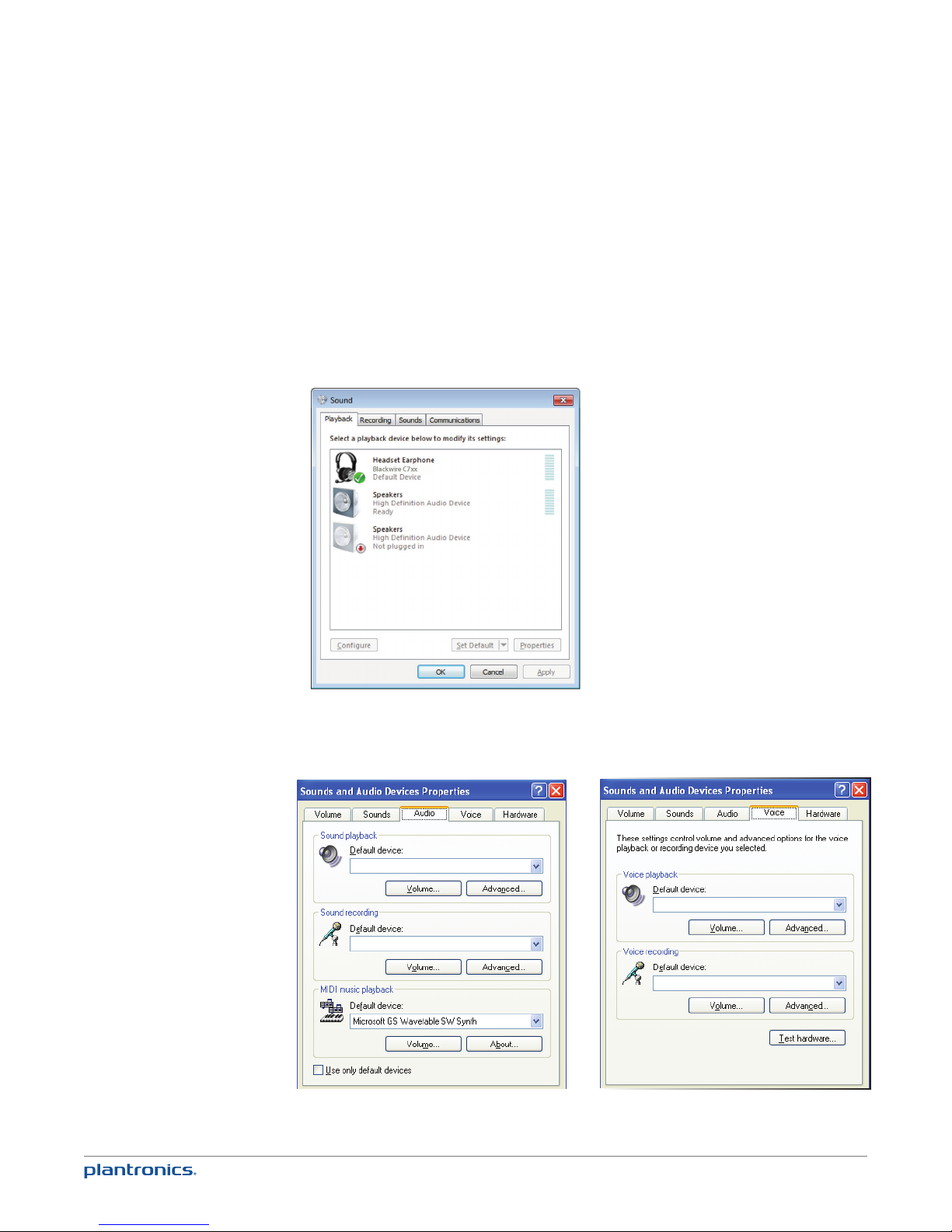
3 Confirm the speaker and microphone settings for your PC softphone are set to Plantronics
"Download".
Reconnect USB cable to the inline controller and the PC if disconnected.
Blackwire C710/C720 as shown below:
PC audio setup for Windows 7 (To reach this screen: Control Panel > Sound)
Default setting: All PC sounds and audio is played in the headset.
PC audio setup for Windows XP (To reach this screen: Start > Control Panel> Sound and Audio
Devices)
Default setting: All PC sounds and audio is played in the headset.
Blackwire C7xx
Blackwire C7xx
Blackwire C7xx
Blackwire C7xx
4 Place a call from your PC softphone. During an active call, the PC talk button will slow flash
green.
12
Page 13

NOTE If you choose to NOT install Spokes software, your headset will still function as a standard
audio device but the inline control buttons may not work with your softphone.
Placing a call with your headset and PC Softphone
To place a call Dial the number from your PC softphone.
Answering and ending calls with your headset and PC Softphone
To answer a call Short press the PC talk button.
To answer a call when already
on an active mobile phone call
To end a call Short press the PC talk button.
Short press the mobile talk button to end the mobile phone call. Then
press the PC talk button to answer the softphone call.
PC talk button LED indicators
Incoming call
Active call
Media audio
Rapid flash green
Slow flash green
Slow flash green
13
Page 14

Advanced features
Smart Sensor technology
Sensors detect whether or not you are wearing the headset. Sensors are located in the speaker
capsule on the microphone boom side.
Auto answer call:
When you are not wearing your headset.
Auto pause media:
When you are listening to media audio.
Auto transfer call:
Whether you are wearing your headset or not.
When you have an incoming call on your mobile
or PC softphone, put on the headset and the call
will be answered automatically. You do not have
to press the call button.
When you are listening to media audio from
your mobile phone, remove the headset and the
audio pauses. Place your headset back on and
the audio resumes.
Note If the media player has been playing
less than 10 seconds you will have to
manually restart the media player.
Note If the audio remains paused for more
than 5 minutes you will have to manually
restart the media player.
Note Auto pause media feature is only
available with your mobile phone. PC media
audio does not auto pause.
If you are not wearing your headset and you
answer an incoming call on your mobile phone,
the audio will be routed to the mobile phone.
When you put the headset on, the audio will be
automatically transferred to the headset.
If you are already wearing your headset and
there is an incoming call, the audio will be
routed to the headset and you will need to
press the mobile talk button to answer the call.
NOTE These features are enabled by default and can be disabled in the Plantronics Control Panel.
The Plantronics Spokes software must be downloaded to access the Control Panel. Changes to the
settings require that you are connected to the PC. Load Plantronics Spokes software by visiting
plantronics.com/software and clicking "Download".
Other features
Auto connect
When you are wearing your headset
Manual pairing If powered on, press and hold the mobile talk
14
Automatically connects headset to mobile
phone when Bluetooth headset is turned on
and within range of devices. Voice prompt will
announce you are connected.
button for more than five seconds to power off
the bluetooth radio.
If powered off, press and hold the mobile talk
button until the button flashes red and blue.
Page 15

Simultaneous call handling behaviour (PC & mobile)
You can be on a call using a PC softphone application and receive a mobile phone call. The
ringtone for the mobile phone call is heard in the headset. Tapping the PC call button on the
headset will end the PC softphone call. Tapping the mobile call button will answer the mobile
phone call.
NOTE
Answering the call on your mobile phone sends the audio to the mobile phone and leaves the
PC softphone call active on the headset.
You can be on a mobile phone and receive a call on your PC softphone. The ringtone for the PC
softphone call is heard in the headset during the call.
Tapping the mobile talk button on the headset ends the mobile phone call. Tapping the PC talk
button answers the PC softphone call.
If you receive a PC softphone call and mobile call at the same time, tapping the mobile or PC
talk button will answer the respective call.
Listening to Audio via A2DP
(Advanced Audio Distribution Profile for Bluetooth)
Your Blackwire C710/C720 headset can play media files (music, podcasts etc.) from any A2DPenabled mobile device.
Play/Pause
See Auto pause media in the Smart Sensor features table.
Customise
Make it more personal
Visit plantronics.com/myheadset to update and customise your headset with features like:
• Language options for voice prompts
• Disable/enable the sensors
• Disable/enable "Mute off" voice prompt
• Set "Mute on" reminder voice prompt
• Firmware updates as they are released
• Plantronics apps to improve your hands-free experience
You may hear unexpected voice prompts and tones when updating your headset.
NOTE
Transmission range
If you are on a mobile call, you will hear the audio degrade as you move out of range of
your mobile phone. If you stay out of range, active calls will be suspended. Calls will be reestablished when you walk back into range.
Your Blackwire C710/C720 allows you to roam as far as 30 feet between devices before the call
is dropped. You will hear a voice prompt "Lost Connection" when the link is dropped.
15
Page 16

Headset controls, indicators and voice prompts
Action LED Tone Voice prompt
Incoming PC call
alert
PC Call answer/end Short press the PC
PC Call “Flash” Two second Press
Adjust the listen
volume (during a
call)
Muting your
microphone
Mobile (Bluetooth)
Power on/off
N/A Rapid green flash Programmable
Talk button
the PC Talk Button
Press volume up/
volume down bar
Press and release
the Mute Button
Press the Mobile
Talk button for 5
seconds
ringtone
Short green flash Answer: Single low
Short green flash Low Tone N/A
Single PC LED
flash
On: Mute LED On
Off: Mute LED Off
On: solid blue for
2 seconds
Off: solid red for 2
seconds
tone followed by lowlow-high tones End:
Single low tone
Tone at each change
in volume. Double
tone when min/max
volume level reached
On: Low-High Tones
Off: High-Low Tones
N/A On: "Power on"
N/A
N/A
N/A
On: “Mute On”
Off: “Mute Off”
followed by "Phone
Connected",
"No Phone is
connected", or
"Pairing".
Off: "Power off"
Check if Mobile
(Bluetooth) is
powered on
Incoming Mobile
call alert
Mobile Call
answer/end
Reconnect Mobile
Phone after leaving
range for more
than 30 seconds
Mobile redial last
number *
Mobile Activate
Voice Dialling *
16
Short press the
Mobile Talk button
N/A Rapid blue flash Programmable
Short press the
Mobile Talk button
Short press the
Mobile Talk button
Double Press the
Mobile Talk button
Press and hold the
Mobile Talk button
for 2 seconds
Short blue flash Short Low Tone N/A
ringtone
Short blue flash Answer: Single low
tone followed by lowlow-high tones
End: Single low tone
Single blue flash Single low tone "Phone connected"
Two blue flashes Two low tones
followed by low-lowhigh tones
Single blue flash Short low tone,
followed by long low
tone
N/A
N/A
N/A
N/A
Page 17

Action LED Tone Voice prompt
Mobile Reject Call * Press and hold the
Transfer Call Audio
to/from Mobile
Phone *
Mobile (Bluetooth)
Pairing Mode
Mobile Talk button
for 2 seconds
Press and hold the
Mobile Talk button
for 2 seconds
With Bluetooth
powered off, press
and hold the
Mobile Talk button
for 5 seconds.
Single blue flash Short low tone,
followed by long low
tone
Single blue flash Short low tone,
followed by long low
tone. When a call is
transferred to the
headset you will also
hear the low-lowhigh indicating it is
connected.
Red/Blue Flashing Short Low Tone "Power on"
* Only available on mobile phones that support this feature.
N/A
N/A
followed by
"Pairing".
17
Page 18
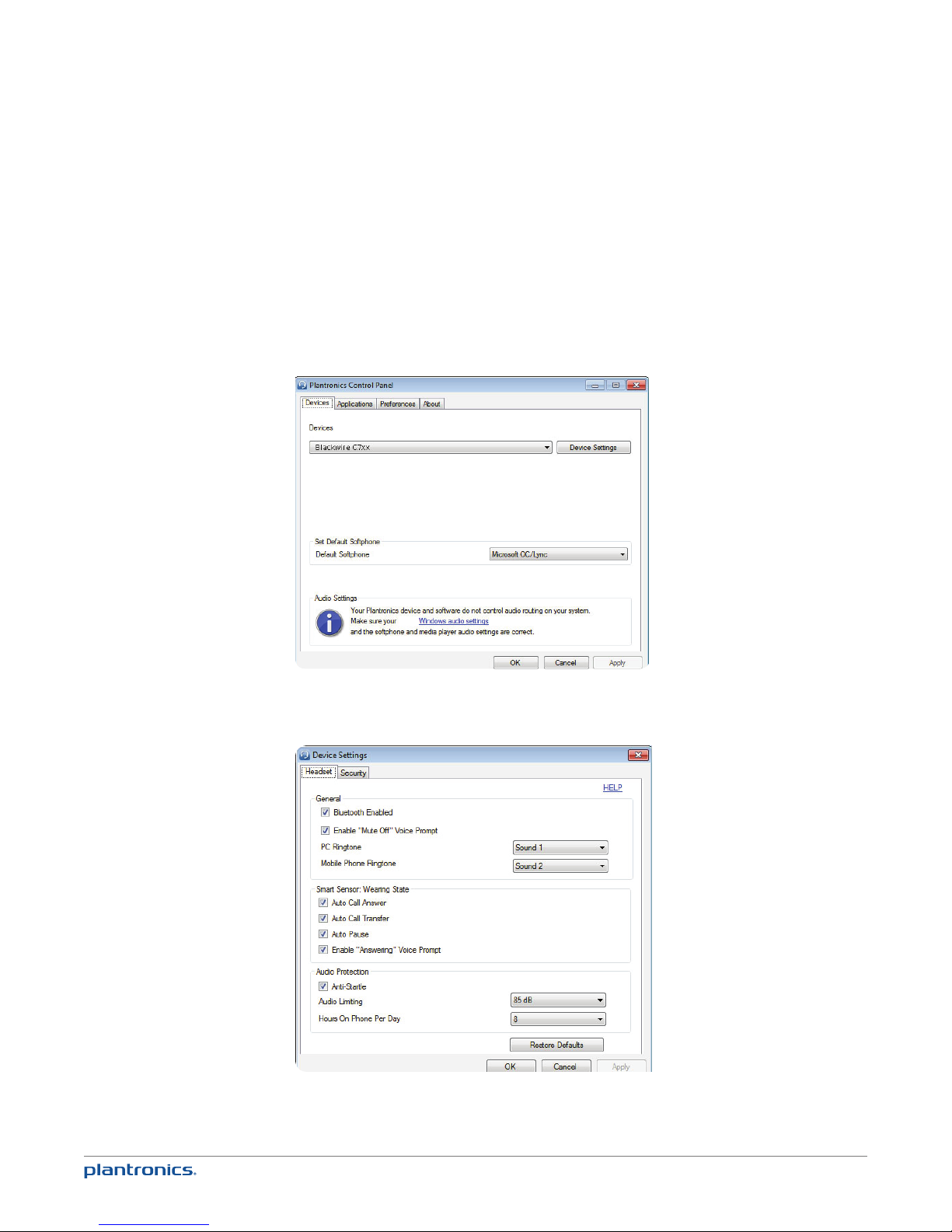
Plantronics Spokes Software
Plantronics Control Panel
User preferences and device settings that affect the performance of your headset can be
changed using the Plantronics Control Panel.
To access the Plantronics Control Panel, load Plantronics Spokes software by visiting
plantronics.com/software and clicking on the download button.
To start this utility, click Start > Programs > Plantronics > Plantronics Control Panel.
Devices settings
Select your Blackwire C7xx from the pull-down menu then select Device Settings to configure
settings for your headset system.
18
Page 19
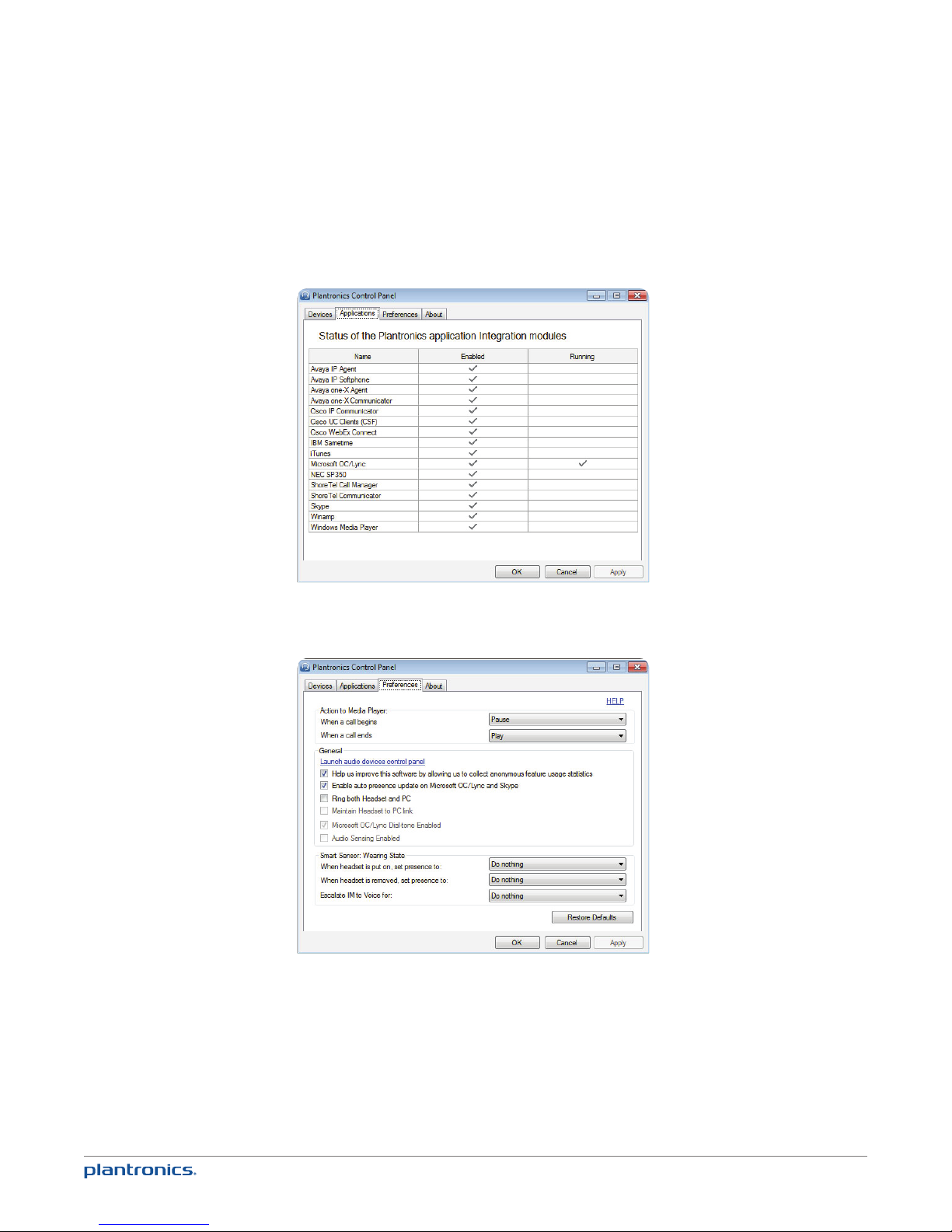
Applications tab
Displays the status of Plantronics support for various applications such as softphones and
media players.
Preferences tab
Allows you to set preferences for the media player as well as other general settings.
19
Page 20
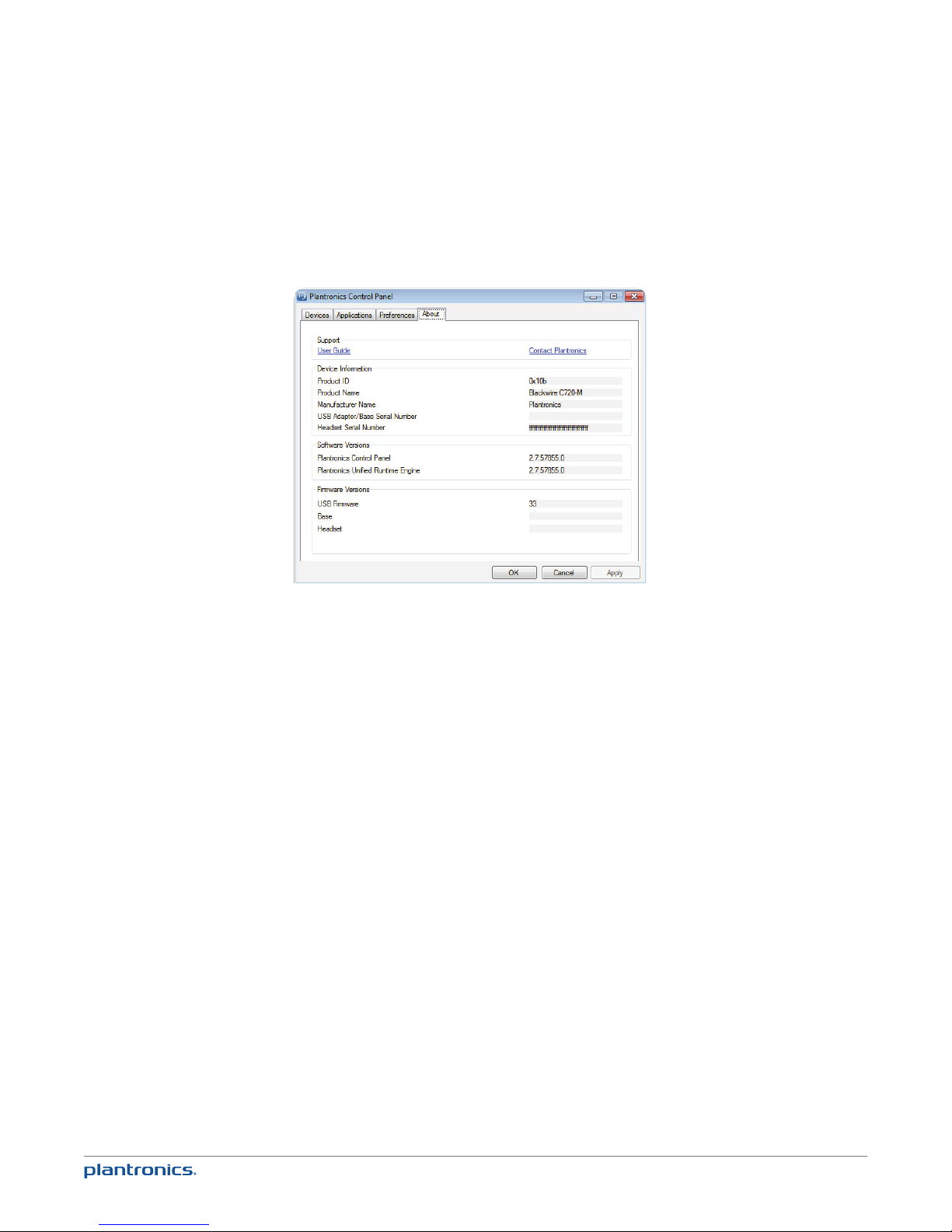
About tab
Provides online access to the user guide and support and displays your headset system’s
information.
Plantronics Update Manager
Check for updates automatically
By enabling this tick box, you will activate a periodic automatic check for available software
updates.
Check for updates now
You can choose to check for available software updates at any time by clicking on the Check
For Updates Now button in Update Manager: From the Start menu, click Programs, then
Plantronics, then open Plantronics Update Manager.
Install ticked updates
Following an AUTOMAT IC or MANUAL CHECK FOR UPDATES, this field will be populated with
any applicable software updates and the INS TALL CHECKED UPDATES will begin installation.
20
Page 21
Useful tips
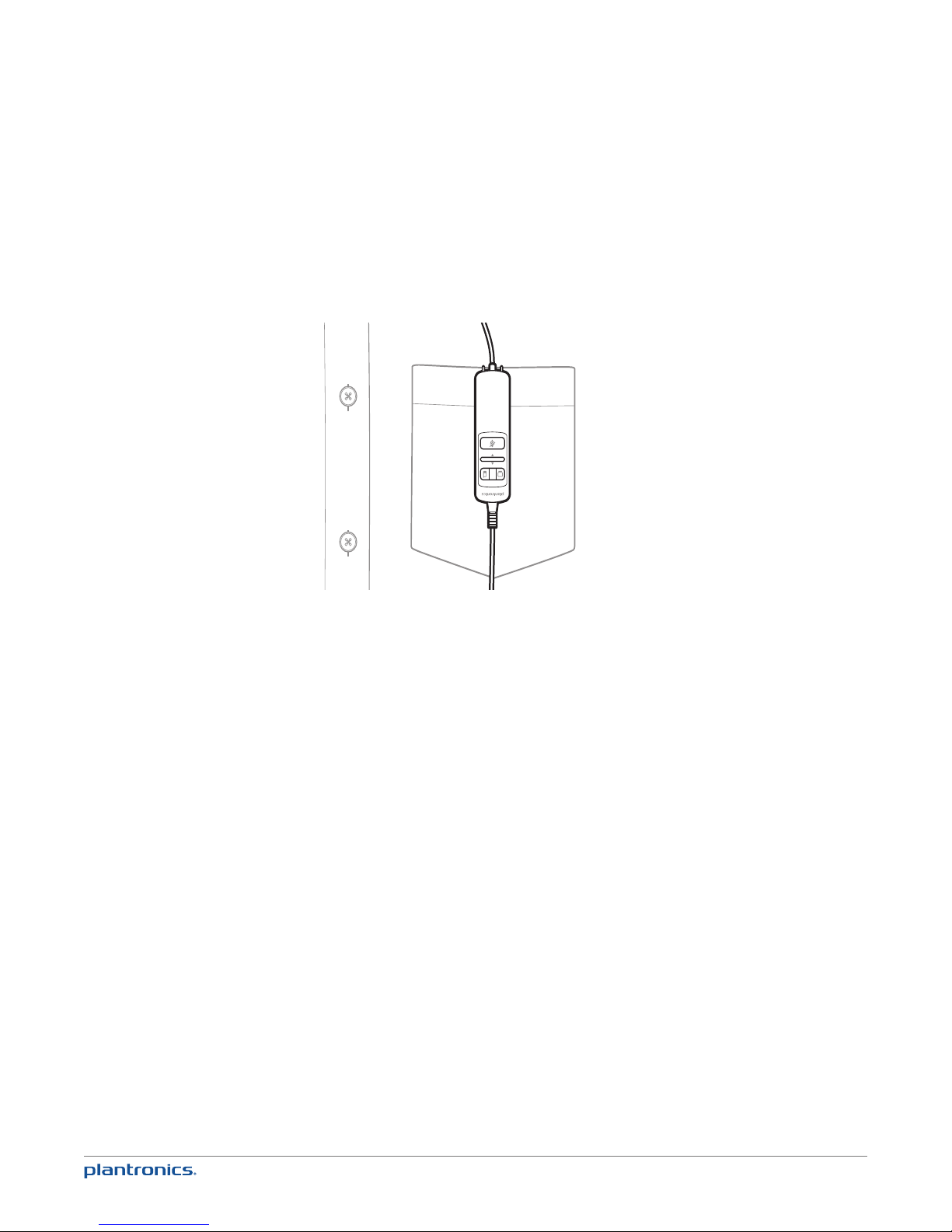
Clothing clip
Attach the clip to your clothing at about chest level. When at your PC, the clothing clip will
reduce the weight of the inline controller for greater comfort. When using your mobile phone
away from the PC, the clip keeps the inline controller conveniently in place.
21
Page 22

Troubleshooting
Troubleshooting — PC softphone usage
I cannot hear. Ensure that the Blackwire C710/C720 is set as the default playback
I cannot be heard. Ensure that the Blackwire C710/C720 is set as the default recording
I cannot answer a call with
the headset.
I cannot take my headset off
mute using the softphone / I
cannot take the softphone off
mute using my headset.
device in Windows.
Ensure that the Blackwire C710/C720 is set as the audio device in
the softphone (refer to softphone manufacturer for instructions on
changing the audio output).
Make sure that the individual volume settings on the headset, Windows
and softphone are not turned down too low.
device in Windows.
Ensure that the Blackwire C710/C720 is set as the audio device in
the softphone (refer to softphone manufacturer for instructions on
changing the audio output).
Make sure that the individual volume settings on the headset, Windows
and softphone are not muted.
Ensure that the Blackwire C710/C720 is set as the audio device in
the softphone (refer to softphone manufacturer for instructions on
changing the audio output).
Refer to the Plantronics compatibility guide
http://www.plantronics.com/compatibiltyguide; you may need
to download software to enable call control with your particular
softphone.
plantronics.com/software
Your softphone may need Plantronics Spokes software to synchronise
the mute control on the PC with the headset.
Refer to the Plantronics compatibility guide
http://www.plantronics.com/compatibiltyguide
plantronics.com/software
The volume control on the
headset does not adjust
Windows volume.
The headset volume is local unless you have installed Plantronics
Spokes software. With the software, the headset volume is
synchronised to Windows.
plantronics.com/software
Troubleshooting — Mobile phone usage
My headset does not work
with my mobile phone.
My phone did not locate
the headset.
I could not enter my PIN
code.
Audio quality is poor. Your headset is out of range. Move the headset closer to the mobile phone.
22
Ensure that the headset is fully charged.
Make sure the headset is paired with the mobile phone you are trying to
use. See plantronics.com/easytopair
Turn both your mobile phone and headset off, then restart the mobile
phone and repeat the pairing process. (See "Connect headset to PC").
Turn both your mobile phone and headset off and on and then repeat the
pairing process. (See "Connect headset to PC"). Your PIN code, or password,
is 0000 (4 zeros).
NOTE Many mobile phones input the password automatically during
the pairing process. Your phone may not ask you to manually input a
password.
Page 23

Congratulations!
The product you have just purchased carries the TCO Certified Headsets 1 label. This means that your headset is designed and
manufactured according to some of the strictest performance and environmental criteria in the world. The manufacturer of this
headset has selected it to be certified to TCO Certified Headsets 1 as a sign of usability, high performance and reduced impact on the
Products certified to TCO Certified Headsets 1 are specifically designed for limiting the risk of hearing impairment. The headsets have acoustic limit
protection to protect the user from sudden “sound-spikes” caused by interference on the telephone lines.
Other features of TCO Certified Headsets 1:
Ergonomics
• Volume control, individual adjustment and adaptation, replaceable parts and quality durability.
Energy
• Low energy consumption on the charging station.
Emissions
• Low SAR value. Low electromagnetic fields surrounding the charger.
Ecology
• Product is designed for recycling. Manufacturer must have a certified environmental management system such as EMAS or ISO 14 001
• Restrictions on
o Chlorinated and brominated flame retardants and polymers
o Hazardous heavy metals such as cadmium, mercury, hexavalent chromium and lead.
All TCO labelled products are verified and certified by TCO Development, an independent third party labelling organization. For over 20 years, TCO
Development has been at the forefront of moving the design of IT equipment in a more user-friendly direction. Our criteria are developed in collaboration
with an international group of researchers, experts, users and manufacturers. Since the program’s inception, TCO labelled products have grown in
popularity and are now requested by users and IT-manufacturers all over the world.
Full specifications and lists of certified products can be found on our homepage – www.tcodevelopment.com
natural environment.
NEED MORE HELP?
plantronics.com/support
Plantronics, Inc.
345 Encinal Street
Santa Cruz, CA 95060
United States
© 2012 Plantronics, Inc. All rights reserved. Plantronics, Blackwire, C710, C720, Spokes and Smart Sensor are trademarks or registered trademarks of Plantronics, Inc. Microsoft, Internet
Explorer, Lync, Windows, Windows Vista and Windows XP are registered trademark of Microsoft Corporation in the United States and/or other countries. BlackBerry is the property of
Research In Motion Limited and is registered and/or used in the U.S. and countries around the world. The Bluetooth trademark is owned by Bluetooth SIG, Inc. and any use of the mark
by Plantronics, Inc. is under licence. All other trademarks are property of their respective owners.
Patents Pending
89282-07 (10.12)
Plantronics BV
South Point Building C
Scorpius 140
2132 LR Hoofddorp
Netherlands
EEE Yönetmeliğine Uygundur
 Loading...