

Page 1
Getting started:
The Plantronics Blackwire headset is ready to use with
your computer and Avaya one-X® Communicator.
1. Connect your headset to the computer. If this
is the first time you are connecting, wait for
the installation process to complete.
2. To get call control features, please download
the latest version of Plantronics software at
plantronics.com/software.
Note: Check with your IT staff before installing
software on your computer.
Configuring Avaya one-X Communicator to always
route call audio to the headset:
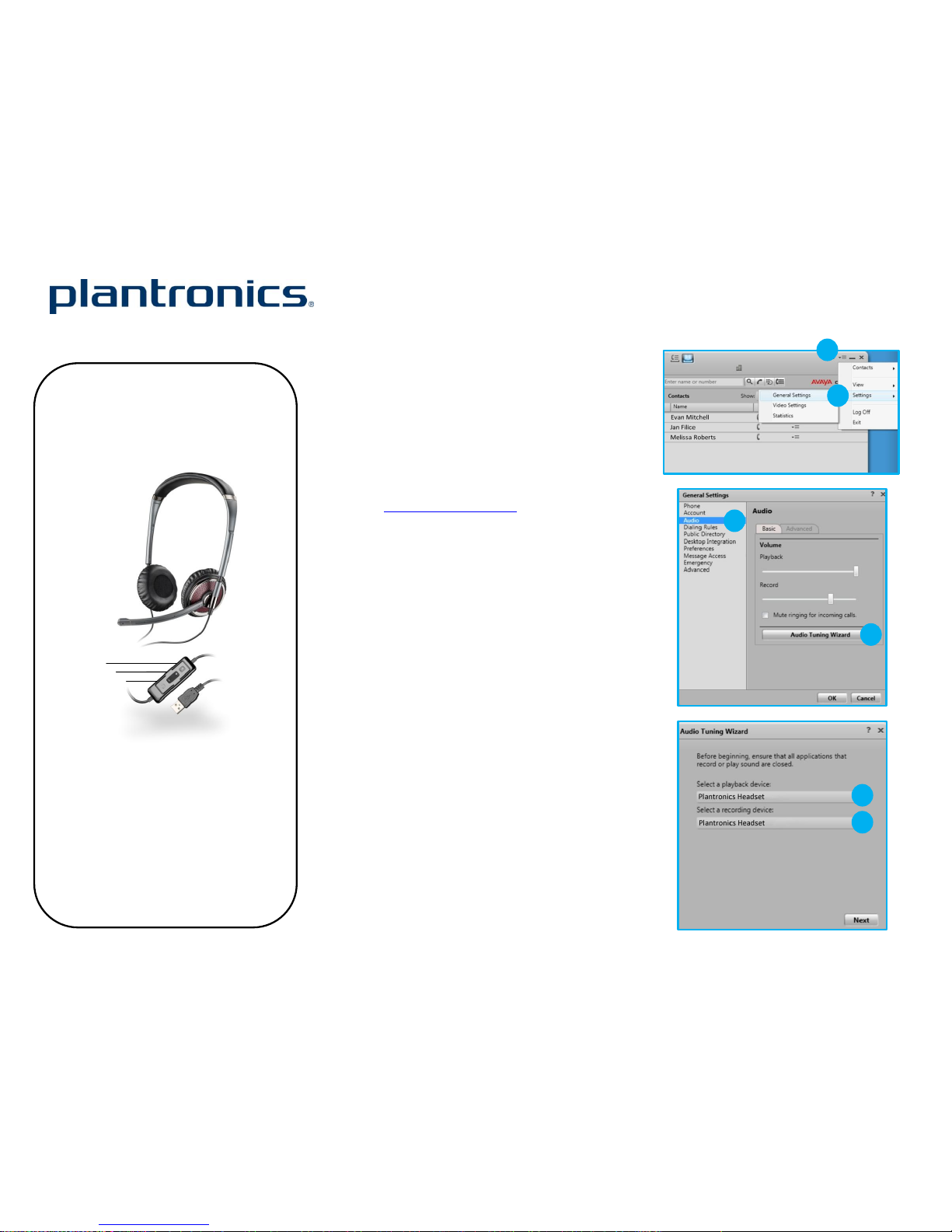
3. Click the Menu icon in the Avaya one-X
Communicator main screen.
4. Select Settings, then General Settings.
5. Next choose Audio.
6. Click Audio Tuning Wizard.
7. Select your Plantronics headset as the default
device for both Playback and Recording. Click
Next.
8. In these next screens, you can test and adjust
volume, recording level, and identify
background noise for optimal noise
cancellation.
9. When adjustments are complete, select
Finish.
Note: USB configuration settings are unique for each USB
port. If you connect the headset to a different port you will
need to make these changes again to set behavior for that
USB port.
Blackwire™ C420™ Quick Setup Guide
©2011 Plantronics, Inc. All rights reserved, Plantronics, the logo design, Black wire and C420 are trademarks or registered trademarks of Plantronics, Inc. Avaya o ne-X is a trademark of Avaya Inc. Published 01.11
3
4
5
6
6
Blackwire C420 Key Features:
Wideband for best PC audio telephony
Folds flat and tucks into carrying case for
use on the go
Dynamic EQ stereo automatically adjusts
for voice and multimedia use
Noise-canceling microphone filters out
background noise
6
7
7
Control Functions:
Welcome:
Using a Plantronics Blackwire headset for PC
calls will deliver a simpler, more comfortable
and better sounding audio experience than
you could get using just your computer’s
internal microphone and speaker.
A
B
C
Page 2
Making and Receiving Calls with Avaya one-X Communicator
To MAKE a call:
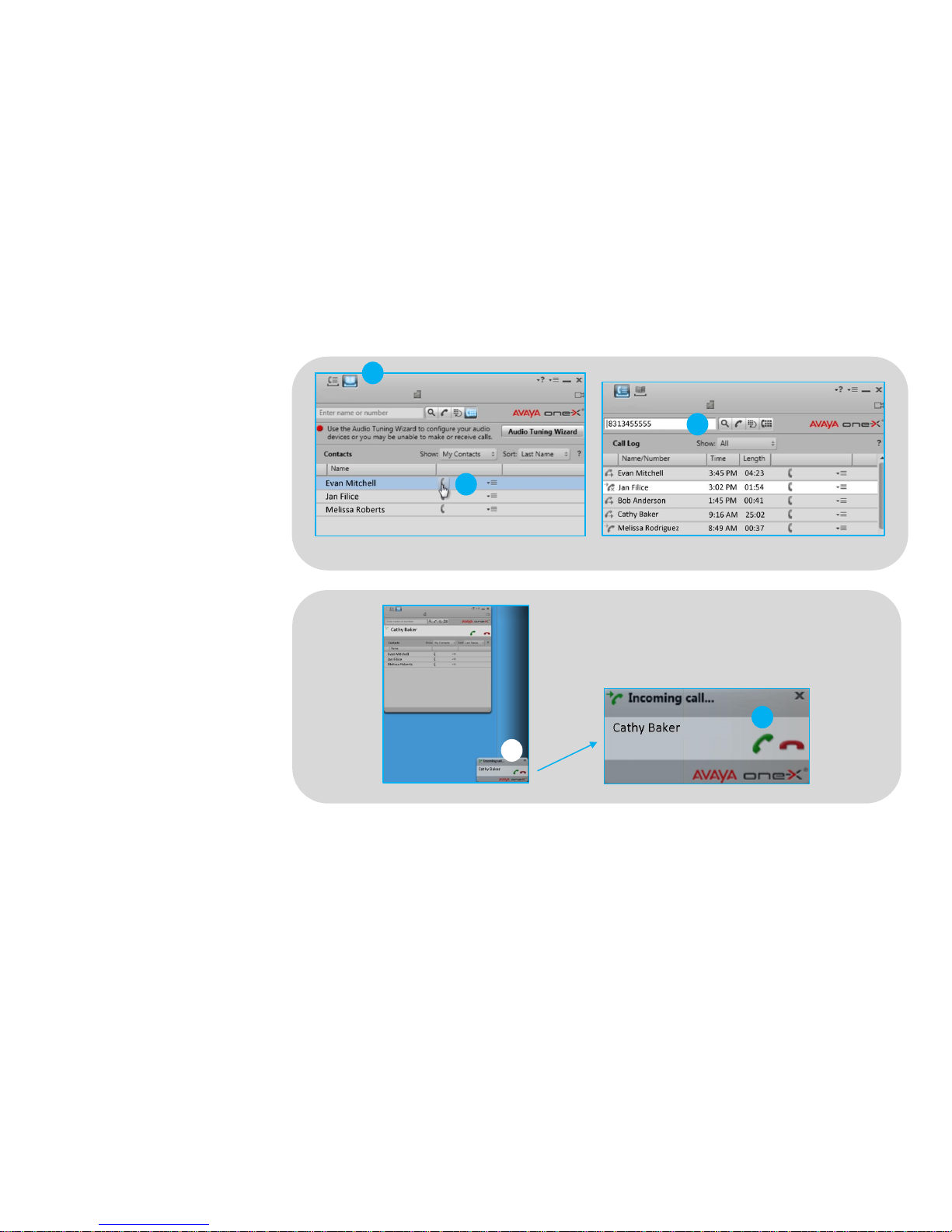
To call an existing contact, select the
address book icon at the top of the
Avaya one-X Communicator main
screen (1). Then click the phone icon
to the right of the contact’s name that
you would like to call (2).
You can also enter a phone number
manually using the text box near the
top of the Avaya one-X Communicator
main screen (3).
When a call is placed, a call notification
will appear in the Avaya one-X
Communicator main screen, and the
audio will be routed to your headset.
To RECEIVE a call:
When you receive a call, a notification
window will appear in the lower right
corner of your computer screen (4).
To answer the call, use the controls on
your headset or click the green phone
icon in the call notification window (5).
1
©2011 Plantronics, Inc. All rights reserved, Plantronics, the logo design, Black wire and C420 are trademarks or registered trademarks of Plantronics, Inc. Avaya o ne-X is a trademark of Avaya Inc. Published 01.11
1
2
3
5
4
 Loading...