

Page 1
Blackwire 710/720 Quick Setup Guide
WELCOME
Using a Plantronics Blackwire headset for PC calls will
deliver a simple, comfortable and better sounding audio
experience than just using your computer’s internal
microphone and speaker.
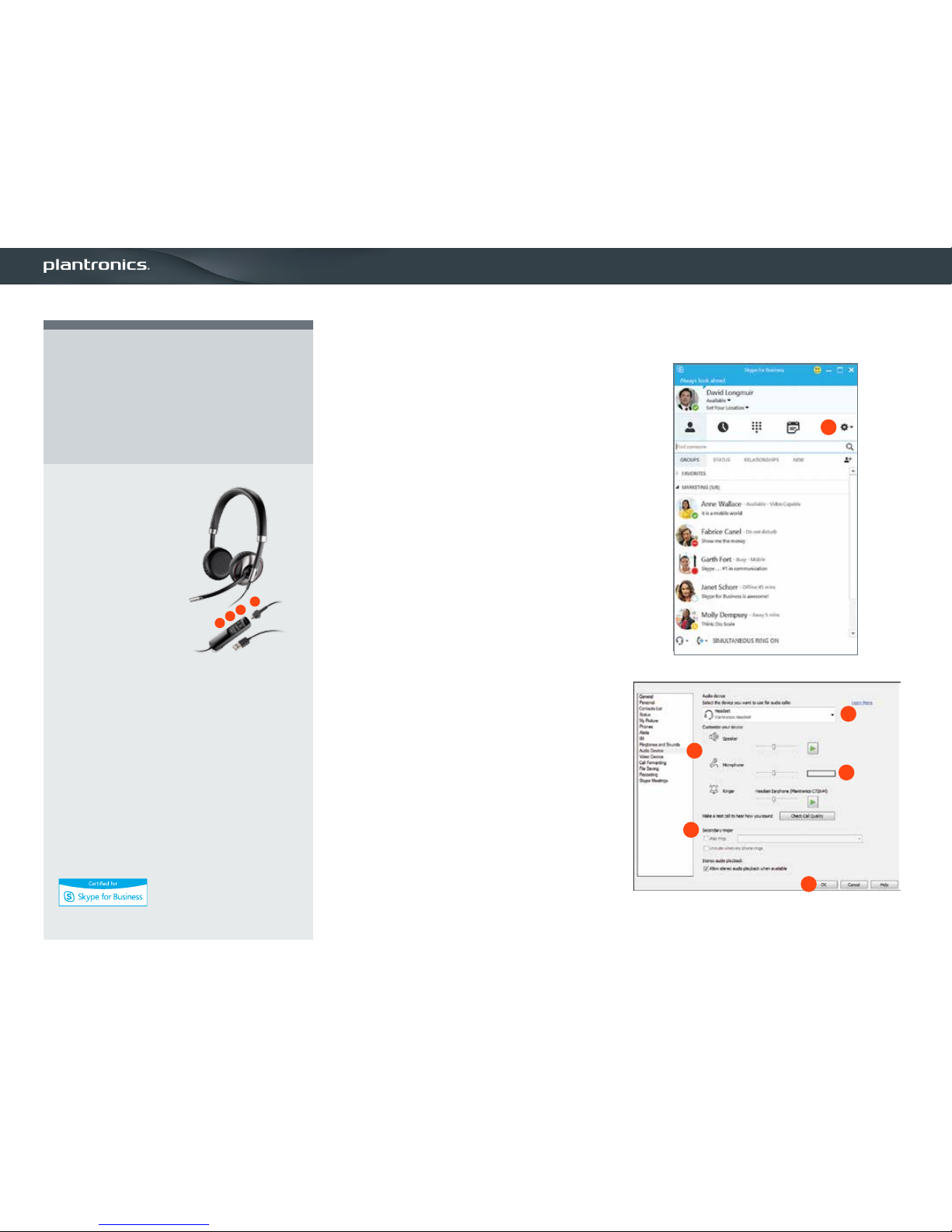
CONTROL FUNCTIONS
A Mute Microphone
B Volume Adjust
C Call Answer/End
D Detachable cable to go
wireless on mobile call
BLACKWIRE 710/720 KEY FEATURES
• Manages calls to and from your PC and mobile
devices with smart sensor convenience
• Wideband audio with noise-canceling microphone
for high quality PC audio
• Indicator lights and audio alerts give call, mute,
and volume status
• Bluetooth A2DP streams music and podcasts
from mobile phones
• Monaural (C710-M), Stereo (C720-M)
GETTING STARTED:
The Plantronics Blackwire headset is ready to use with your
computer and Skype for Business.
1. Connect your headset to the computer. If this is the first
time you are connecting, wait for the installation process
to complete. Restart the computer if directed to do so.
CONFIGURING SKYPE FOR BUSINESS TO ALWAYS ROUTE
CALL AUDIO TO THE HEADSET:
2. Click on the Options button in the main Skype for Business
window.
3. Select the Audio Device option.
4. Choose your Plantronics headset for Audio Device.
5. Check the Also Ring box for Secondary Ringer and choose your
PC speakers from the drop down menu if you would like them
to ring for incoming calls.
6. In this screen you can also test and adjust volumes.
7. Click Ok when finished.
Note: USB configuration settings are unique for each USB port. If
you connect the headset to a different port you will need to make
these changes again to set behavior for that USB port.
C
D
A
B
2
3
4
6
5
7
Page 2
Making and Receiving Calls with Skype for Business
©2015 Plantroni cs, Inc. Black wire and Pla ntronics ar e trademark s of Plantron ics, Inc. regi stered in the US a nd other count ries. Micro soft and Sk ype are trade marks or reg istered tra demarks of Mi crosoft Co rporation i n the United Sta tes and/or other c ountries. 7.15
To MAKE a call:
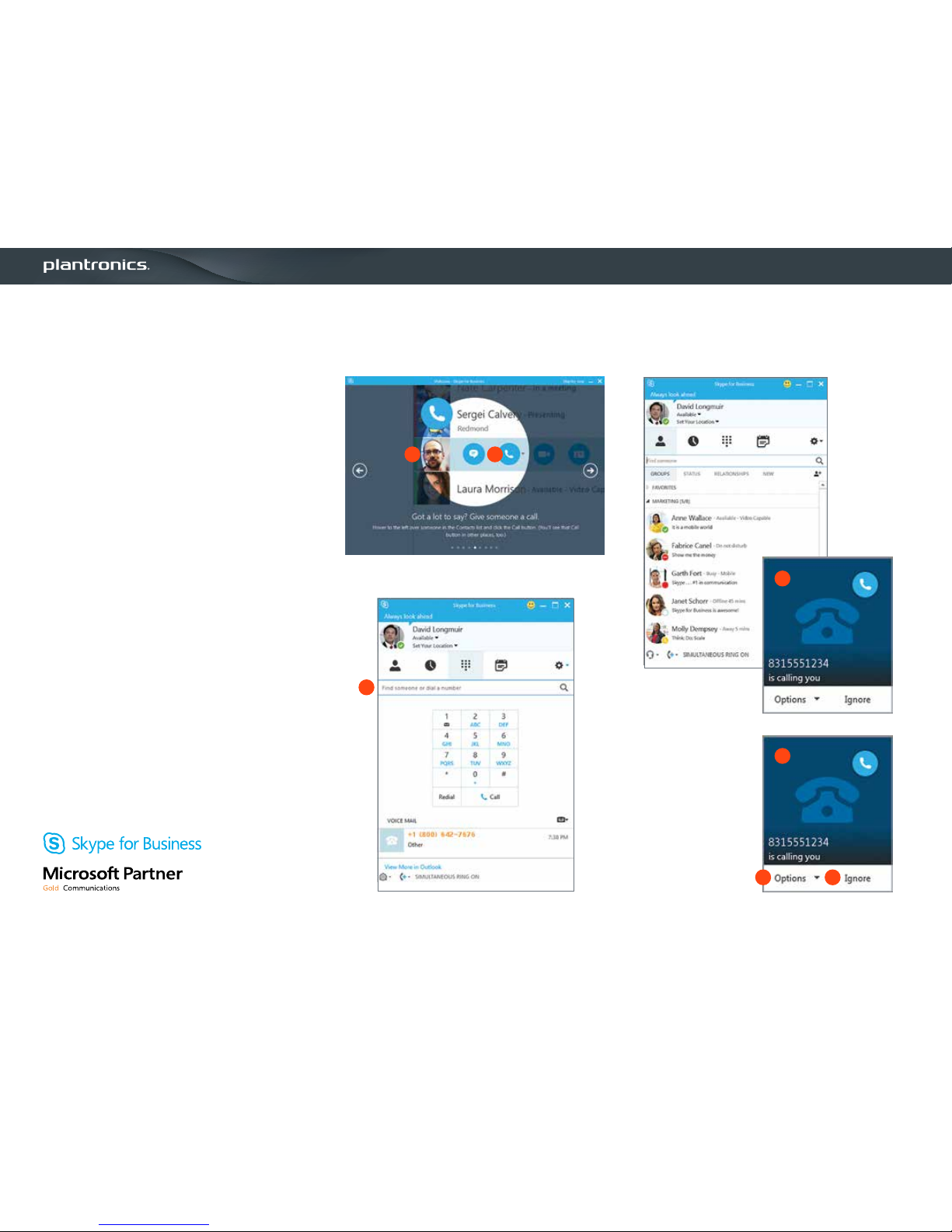
Hover over the image of the contact you’d like to call so your
communication options appear to the right (1).
Then click the phone icon to place the call (2). You can also
click the arrow next to the phone icon and choose a different
calling option.
You can also enter a phone number manually using the search
box located at the top of the main Skype for Business screen (3).
When a call is placed, a call window will open and the audio will
be routed to your headset.
To RECEIVE a call:
When you receive a call, a notification window will appear in the
lower right corner of your computer screen (4).
To answer the call, use the controls on your headset or click on
the call notification window (5).
To REDIRECT a call:
You can also redirect the call with one of the choices from the
options menu (6) or ignore it (7).
3
4
5
6 7
1 2
 Loading...