

Page 1
0 0 0
Plantronics . a u d i o ™ 910
BLUETOOTH® HEADSET SySTEm
USER GUIDE
Page 2
3
REGISTER YOUR PRODUCT ONLINE
Visit www.plantronics.com/productregistration to register your product online
so that we can provide you with the best possible service and technical support.
TABLE OF CONTENTS
PACKAGE CONTENTS
Package contents 3
Features 4
Charging 5
Powering 6
Pairing 7
Installing PerSonoCall software 9
Adjusting fit 12
Using your headset 14
Indicator lights 17
Troubleshooting 18
Technical assistance 20
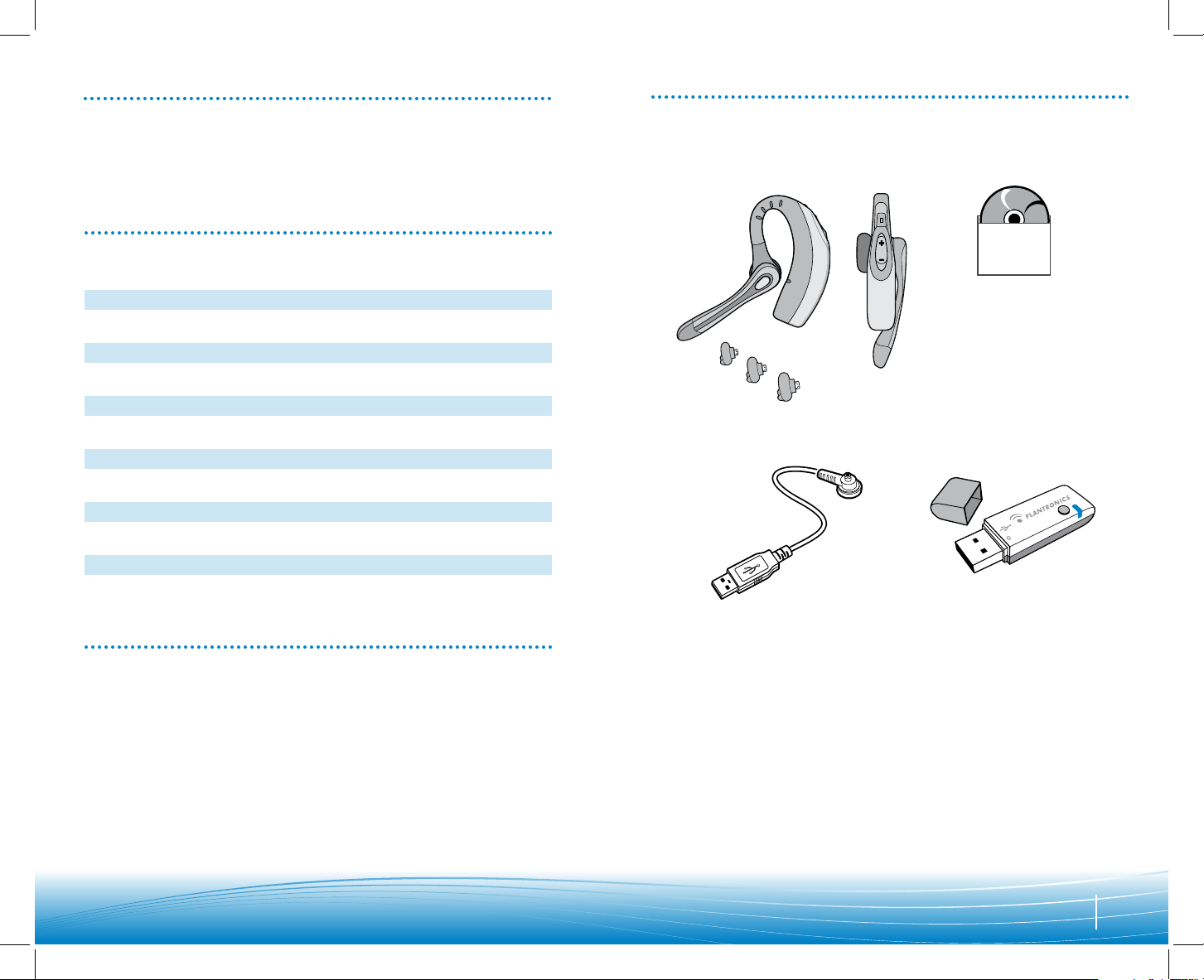
Headset
Voyager 510
(front and side view)
PerSonoCall®
software CD
Headset USB charging cable
USB Bluetooth adapter
BUA-100
3 ear tips
(small, medium, large)
WELCOME
This User Guide provides instructions on the setup and usage of the Plantronics Voyager
510 USB Bluetooth headset system. Before getting started, please review the safety
booklet included in your package. For additional help, service or support information,
refer to the product warranty card or visit www.plantronics.com.
Please refer to the separate Safety Instructions booklet for important product safety
information prior to installation or use of the product.
Page 3
4 5
FEATURES CHARGING
Before using, you must first charge your headset. The indicator light flashes red while
charging and turns solid blue when the headset is fully charged.
20 minutes = minimum charge
3 hours = full charge
NOTE: Do not use headset while charging and do not connect the charger while headset is in use.
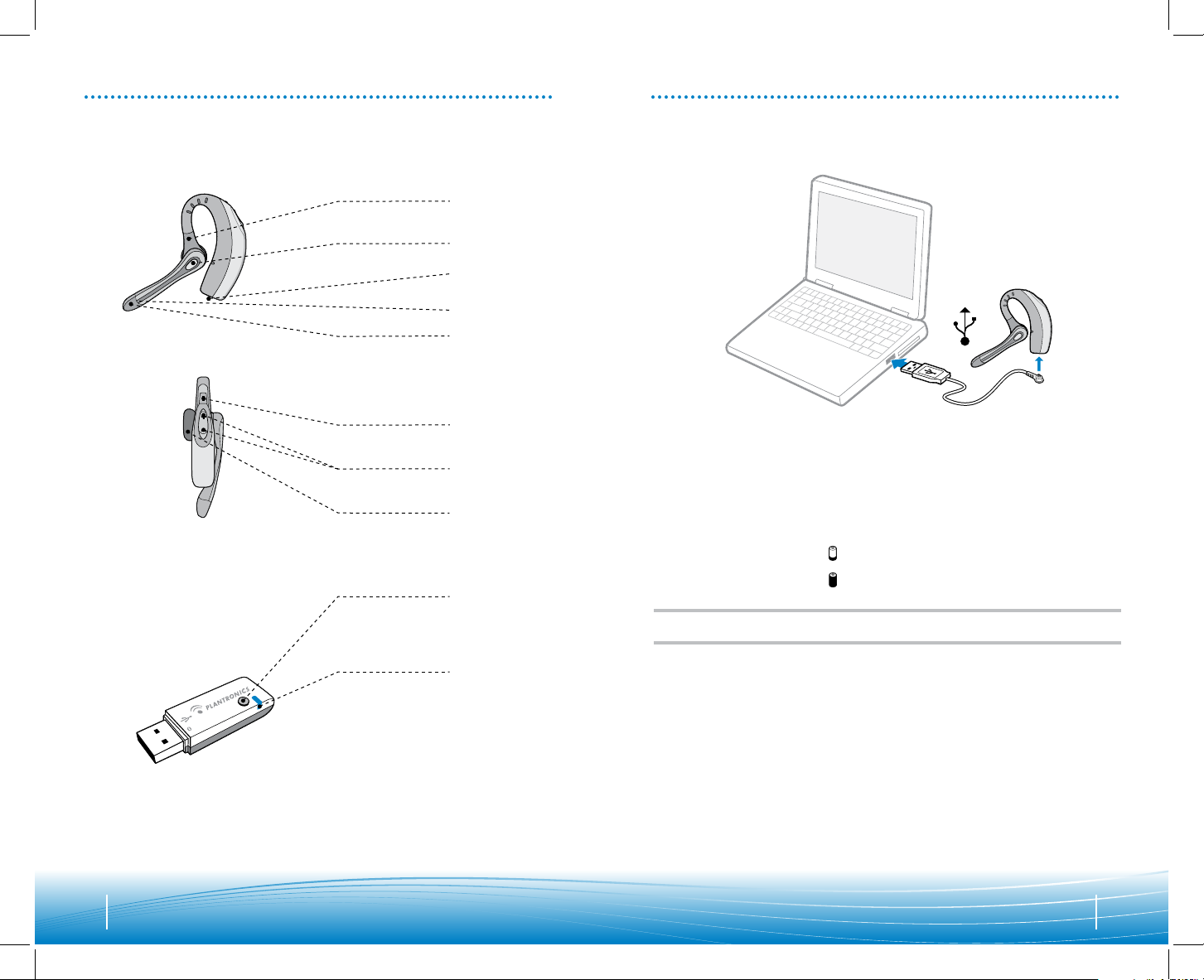
Pairing/connect
button
Indicator light
Power/mute button
Listen volume
adjust button +/-
Ear tip
Horizontal boom
adjustment
Call control
button
Charge
connection
Noise-cancelling
microphone with
WindSmart® technology
USB charging
Status indicator light
Page 4
Before using your headset for the first time, you must pair it with your Bluetooth phone or
device. Ensure that the headset is fully charged. For instructions on setting up and pairing
with Bluetooth devices other than mobile phones, please consult your Bluetooth device
user guide.
Turn on both devices.
6 7
POWERING PAIRING
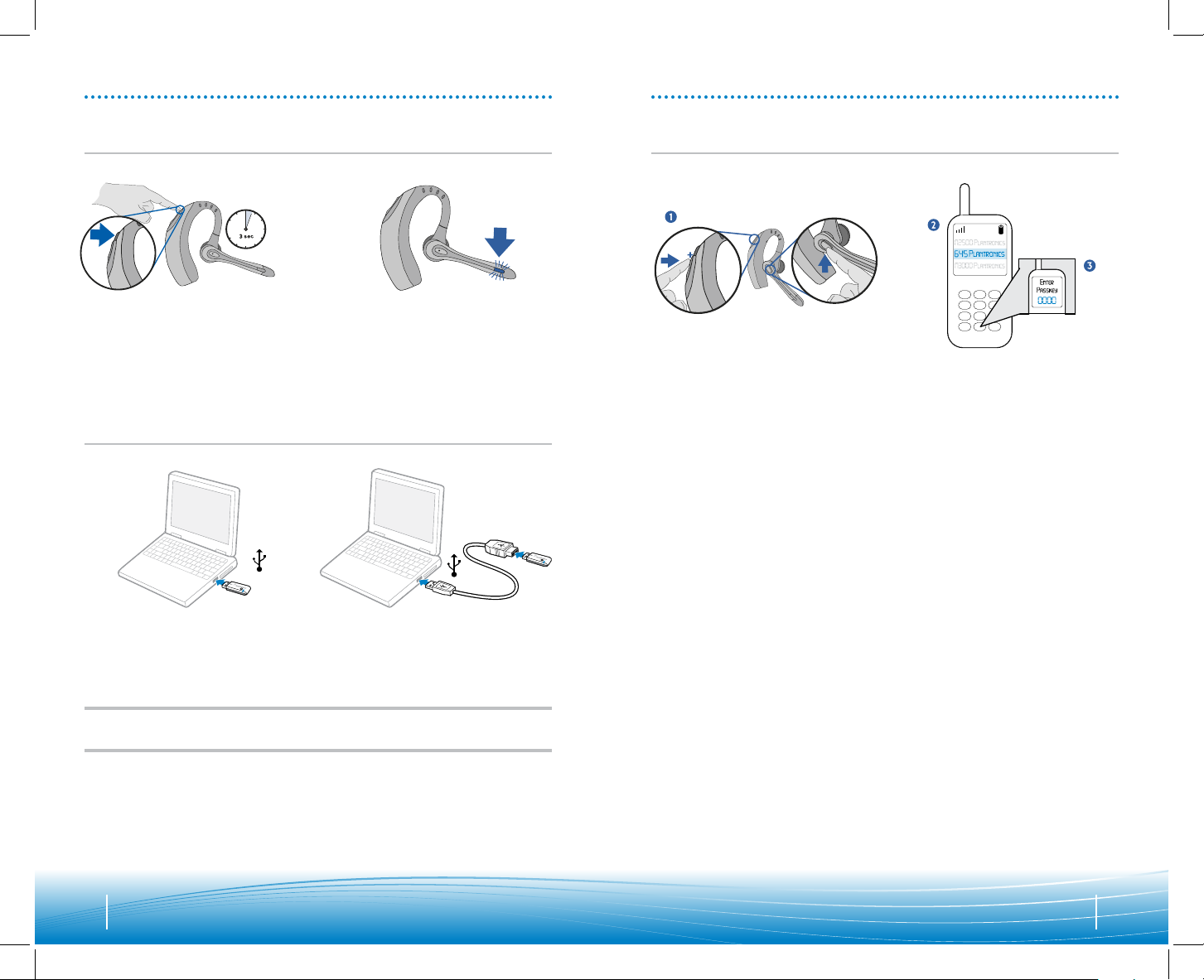
Powering headset
Powering USB Bluetooth adapter
Pairing headset with Bluetooth phone
The USB Bluetooth adapter is automatically powered on upon inserting into the USB port
of the computer. If the USB port on your computer is hard to access, you can use the USB
extension cable.
NOTE: The USB Bluetooth adapter is automatically active with the current paired headset
when powered on.
Press and hold the power/mute button
for three seconds to turn the headset
on or off.
The indicator light flashes blue when the
headset is on.
The indicator light will flash red when
the battery becomes low.
1. Simultaneously press the volume
adjust button marked + (volume up)
and the call control button. Release
the buttons when the indicator light
begins to flash red then blue.
2. While the headset is flashing red and
blue, use the phone menu to search
for Bluetooth devices and select “510
Plantronics”.
3. When prompted for password, enter
0000. The headset will flash blue when
paired successfully.
Page 5

8 9
PAIRING
Pairing headset
with USB Bluetooth adapter
NOTE: The headset and USB Bluetooth adapter are paired to each other at the factory. However, if you
have purchased a USB Bluetooth adapter separately, or if you wish to use a replacement headset
with your existing adapter, the units must be paired.
Power on the headset. Insert the USB Bluetooth adapter into the USB port of your computer.
1. Simultaneously press the headset
listen volume adjust button marked
+ (volume up) and the call control
button. Release the buttons when
the indicator light begins to flash
red then blue.
NOTE: Take caution when manually pairing the USB adapter. Do not press hard. Please “pinch”
with both fingers rather than push on the adapter to avoid damage to the adapter or USB port.
2. Pinch the USB Bluetooth adapter
pairing/connect button for at least
2 seconds until adapter flashes red
and blue and begin pairing with your
Bluetooth headset.
2 sec.
INSTALLING PERSONOCALL® SOFTWARE
Plantronics PerSonoCall® software provides the link between your Bluetooth headset and
compatible softphone applications on your computer. PerSonoCall software provides the
ability to remotely detect and answer/end a call from your softphone application via the
headset call control button.
In addition, PerSonoCall provides some basic configuration and status information about
the system. See page 10 for more details.
Check the PerSonoCall compatibility list at www.plantronics.com/personocall for the
most current information on softphone compatibility. If your softphone is not currently
supported by PerSonoCall, please refer to page 14.
1. With the CD inserted, go to the PerSonoCall main screen and click on “Install the
PerSonoCall Software”.
2. Your softphone may require you to choose which audio device you wish to use. Please
refer to softphone documentation for details.
NOTE: When the USB Bluetooth adapter is installed, it becomes the default audio device in
your computer. You can set preferences manually in the Windows® operating system through
the Sounds and Audio Devices option in the Control Panel.
NOTE: Once installation is complete, we recommend that you set PerSonoCall to launch
whenever the Windows® operating system starts. See page 10 for details.
System tray icons
After installing the software, one of the four system tray icons will appear in the tray
bar at the bottom of your screen showing the status of headset communication with
PerSonoCall.
: No headset detected
: Headset detected, no radio link to USB Bluetooth adapter
: Headset detected and radio link to USB Bluetooth adapter active
: Headset detected and radio link to USB Bluetooth adapter is locked on
Page 6

NOTE: Some PerSonoCall features are grayed out and not applicable to the .Audio 910 system.
Headset status box
Provides information you may need for technical assistance. The headset indicators
listed will be checked if active.
Softphone status box
Lists the selectable outgoing lines as well as the number of calls active, ringing, on
hold and completed.
NOTE: In some cases compatible softphones may not show the available outgoing line in the
softphone status box. This will not affect how the softphone operates with PerSonoCall.
Current Status screen
10 11
INSTALLING PERSONOCALL SOFTWARE
NOTE: Some PerSonoCall features are grayed out and not applicable to the .Audio 910 system.
Launch PerSonoCall whenever Windows® starts
Check this box to automatically launch the PerSonoCall application whenever you
start your computer. This is recommended.
Lock headset radio link on
Check this box to prevent PerSonoCall from turning off the radio link when no calls
are present. See “Answering/ending/making calls with PerSonoCall on softphone”
on page 14 to learn more. Be aware that locking the headset radio link on will
dramatically reduce headset standby and talk time.
Allow call control button to toggle the headset’s radio link
Check this box to turn the radio link to the headset on and off to support multipoint
functionality. See page 15.
Show warning if the headset’s radio link is left on for a long time
Check this box to be given a reminder if your headset radio link is left on for more
than 30 minutes. Leaving the headset radio link on for long periods of time will
dramatically reduce headset standby and talk time.
Right-click on the headset system tray icon and choose “Options”. This will bring up the PerSonoCall Basic Options and Current Status screens.
Basic Options screen
Page 7

1312
Replacing the ear tip
Rotate the microphone horizontally and vertically as illustrated, to select for left or right
ear wearing. The illustration shows conversion from right to left ear wearing. Reverse the
procedure to convert from left to right ear wearing.
Slide the headset over and behind your ear. Press gently towards your ear for a snug fit.
Adjust the microphone position so that it is directed towards your mouth.
Inserting a new ear tip
ADJUSTING FIT
Wearing the headset
Page 8

0 0
To make a call, press the call control button to take the softphone off the hook. You
should hear a dial tone.
To answer or end a call, press the call control button.
When using PerSonoCall, the radio link between the headset and the USB Bluetooth
adapter will only be active during a call. This is the default setting intended to preserve
the battery life of the headset. However, you may wish to have the radio link active when
not on a call so you can listen to other audio sources, such as streaming audio on your
PC. You can lock the radio link on in two ways:
• Basic Options screen—check the box for "Lock headset radio link on"—see page 10.
• Right click on system tray icon—and choose "Lock radio link on".
NOTE: Locking the radio link on for extended periods of time will significantly reduce the
standby and talk time of the headset.
For softphones not compatible with PerSonoCall
Check the PerSonoCall compatibility list at www.plantronics.com/personocall for the most
current information on softphone compatibility.
If your softphone is not currently supported by PerSonoCall, remote detection and
answer/end via the headset does not function. Pressing the call control button on the
headset will only open and close the radio link providing audio; you must answer the call
from the softphone.
To answer or end a call, briefly press the call control button.
To make a call, enter number on your phone, press send and the call is automatically
transferred to headset; no need to press the call control button.
1514
USING YOUR HEADSET
Additional features
Only with mobile phone
Answering/ending/making calls
with PerSonoCall on softphone
Redialling last number
To activate last number redial, doubleclick the call control button. You will
hear a high tone for each key press.
When you hear a further tone, the last
number has been redialled.
Rejecting a call
When receiving an incoming call, press
and hold the call control button. You will
hear a tone. When you hear a second
tone, the call has been rejected and you
can release the button.
Using voice dialling
With the headset on, press and hold
the call control button for 2 seconds,
until you hear a second tone, to activate
voice dialling.
NOTE: To use voice activated dialling, the
voice dialling feature must be enabled
on your phone. See your Bluetooth phone
manual for instructions.
Switching a call from phone to headset
To switch an active call from your phone
to your headset, briefly press the call
control button.
Switching a call from headset to phone
To switch an active call from your
headset to your phone, press and hold
the call control button until you hear a
tone. When you hear a second tone, the
transfer has been completed and you can
release the button.
Answering/ending/making calls
with mobile phone
The .Audio 910 headset has multipoint technology which allows you to switch seamlessly
between two audio devices. You can answer a call from either your PC-based softphone or
your mobile phone by pressing the call control button. The headset must be paired to both
devices and then to enable this functionality, see "Allow call control button
to toggle the headset’s radio link" on the Basic Options screen on page 10.
Multipoint versatility
Page 9

0 0
INDICATOR LIGHTS
1716
Bluetooth USB adapter indicator lights
Headset indicator lights
Headset status Light
Power Flashes blue
Charging Flashes red
Fully charged Solid blue
Battery low Flashes red
Pairing Flashes red and blue
Bluetooth device
Connected to headset
Flashes blue
Action Light
Disconnected from the headset Flashes purple
Connected to the headset Solid blue
Radio link active Flashes blue
Pairing mode Flashes red and blue
USING YOUR HEADSET
During a call, briefly press the power/mute button to mute the microphone. When muted,
the headset will sound two tones every 30 seconds.
To unmute press the button again.
Adjusting volume
Muting a call
To increase listening volume, press the upper end (+) of the volume button. To decrease
listening volume, press the lower end (-).
To adjust the listen or speak volume of the softphone, please refer to the softphone
user documentation.
To adjust the listen or speak volume of the audio device on the computer, use the Sound
and Audio Device section on the Control Panel.
Page 10

1918
TROUBLESHOOTING FOR .AUDIO 910
• Lower the listen volume on your softphone until
the distortion disappears.
• If the distortion is still present, lower the listen
volume control on the computer.
• Adjust volume on headset. See page 16.
• Speak volume is too high. Lower the speak
volume on your softphone until the noise
disappears. If the noise is still present, lower the
microphone volume control on the computer.
• The USB Bluetooth adapter will set itself as the
default audio device in Windows
®
. Use the Audio
settings in Windows
®
under Sounds and Audio
Devices to change the device used for audio.
• Headset battery may be dead, so ensure the
headset is fully charged. See page 5.
• When a PC goes into standby or hibernation, the
USB Bluetooth adapter is no longer powered on.
Ensure your PC is in an active state.
• The headset radio link is locked on. Ensure you do
not lock the radio link on for long periods of time
as it will significantly reduce the standby and talk
time of the headset. See page 10.
• Battery may be deteriorating. Call your supplier
or Plantronics.
• One beep every 10 seconds is caused by a low
battery warning. Recharge battery by returning
headset to the charging stand for one to three
hours until indicator light turns blue.
• One beep is an out of range warning.
Move closer to the USB Bluetooth adapter.
• Two beeps every 30 seconds indicate your mute is
on. Press the mute button once to turn mute off.
• Uncheck the box in the Basic Options screen for
“Allow headset call control button to toggle the
headset’s radio link”. See page 10.
• Check the box in the Basic Options screen for
“Allow headset call control button to toggle the
headset’s radio link”. See page 10.
Sound in headset is distorted.
I can hear echo in headset.
I can hear too much background
conversation or noise.
The other headset I was using to listen to
music does not work any more.
My headset stops responding
to button presses.
Battery talk time or standby time is
significantly degraded even after a
full charge.
I hear beeps in the headset.
Pressing the call control button on the
headset when I have an incoming call
on my softphone hangs up the call.
I am using my headset to answer calls
from both my softphone and my mobile
phone, and pressing the call control
button on the headset takes my softphone
off the hook instead of answering my
ringing mobile phone.
• Check compatibility list on www.plantronics.com/
personocall to ensure your softphone is
compatible for remote answer and disconnect.
• Headset battery needs to be charged. See page 5.
• Headset is not paired to the USB Bluetooth
adapter. See page 8.
• When a PC goes into standby or hibernation, the
USB Bluetooth adapter is no longer powered on.
Ensure your PC is in an active state.
• Ensure PerSonoCall software is installed
and running. See page 9.
• Headset is not paired to the USB Bluetooth
adapter. See page 8.
• Headset battery needs to be charged. See page 5.
• Headset may be out of range of the USB
Bluetooth adapter. Move closer to adapter until
the headset is within range. Range varies with
office environment.
• When a PC goes into standby or hibernation, the
USB Bluetooth adapter is no longer powered on.
Ensure your PC is in an active state.
• Headset is not paired to the USB Bluetooth
adapter. See page 8.
• Headset is not paired to the USB Bluetooth
adapter. See page 8.
• Headset battery needs to be charged. See page 5.
• The USB Bluetooth adapter is not set as the
default audio device. Use the Audio settings in
Windows® under Sounds and Audio Devices to
select “Plantronics BT Adapter” as the audio
device.
• Listening volume is too low. Press the volume up
button on the headset. See page 16.
• Headset is muted. Press the mute button on
headset to unmute the microphone. See page 16.
• Headset microphone boom aligned incorrectly.
Align the headset boom with your mouth.
• Speak volume is too low. Increase the speak
volume on your softphone until you can be heard
by callers. If the volume is still too low, increase
the microphone level on your computer.
• Headset battery needs to be charged. See page 5.
• The USB Bluetooth adapter is not set as the
default audio device. Use the Audio settings in
Windows® under Sounds and Audio Devices
to select “Plantronics BT Adapter” as the audio
device.
My Voyager headset does not work
with the softphone I am using on my
PC (I cannot answer or disconnect
from the headset call button).
I’ve plugged in the USB Bluetooth
adapter, but my headset does not respond
to button presses.
I’ve installed PerSonoCall and the USB
Bluetooth adapter but the system tray icon
shows a red X (denoting no connection).
I cannot hear caller/dial tone.
Callers cannot hear me.
Problem Solution Problem Solution
Page 11

© 2006 Plantronics, Inc. All rights reserved. Plantronics, the logo design, .Audio, PerSonoCall,
and Sound
Innovation are trademarks or registered trademarks of Plantronics, Inc. The Bluetooth name and
the
Bluetooth trademarks are owned by Bluetooth SIG, Inc. and are used by Plantronics, Inc. under licence.
Windows is either a registered trademark or a trademark of Microsoft Corporation in the United States
and/or other countries. All other trademarks are the property of their respective owners. Patents U.S.
5,210,791; 6,923,688; D512,984; Australia 303054; EM 293964-0004-0006 and Patents Pending.
74146-08 (08/06)
S OU ND I NN OV ATI ON
TECHNICAL ASSISTANCE
Visit our web site at www.plantronics.com/support for technical support including
frequently asked questions, compatibility and accessibility information. The Plantronics
Technical Assistance Center (TAC) is also ready to assist you on 0800 410 014.
2120
AUT, BEL, DEU, DNK , ESP,
FRA , GRC, ITA, IRL , LUX,
NLD, PRT, SWE , FIN, CYP,
CZE, ES T, HUN, LVA, LTU,
MLT, POL, SVK , SVN.
GBR
Plantronics Ltd
Wootton Bassett, UK
Tel: 0800 410 014
Plantronics B.V.
Hoofddorp, Nederland
Tel: 0800 752 6876 (NL)
00800 752 687 66 (BE/LUX)
Plantronics Sarl
Noisy-le-Grand, France
No Indigo : 0825 082599
0, 15 4 TTC / mn
+33 14167 4141
Plantronics GmbH
Hürth, Deutschland
Tel: 0800 9323400
Österreich: 0800 242 500
Schweiz: 0800 932 340
Plantronics Acoustics
Italia Srl
Milano, Italia
Numero Verde: 800 950 934
Plantronics Iberia, S.L.
Madrid, España
Tel: 902 415 191
+34 91 640 47 44 (ES)
Tel: 800 844 517 (PT)
Nordic Region
Tel: Finland: 0800 117 095
Tel: Sverige: 02002 14681
Tel: Danmark: 8088 4610
Tel: Norge: 800 113 36
Plantronics Middle East,
Eastern Europe, and Africa
Tel: +44 1793 842 443
Plantronics, Inc.
345 Encinal Street
Santa Cruz, CA95060 USA
Tel: 1 831 426 5868
www.plantronics.com
 Loading...