

Page 1

Blackwire™ C420
USER GUIDE
Page 2
Welcome
Welcome to the Plantronics family of headset products. Plantronics provides a wide range of
products from mission-critical and business-critical applications to personal communications
and entertainment. For additional information visit our web site at plantronics.com where
you can visit our 24/7 support, browse through our knowledge base, chat live or ask a
question. We also feature a variety of installation tutorials to make set up quick and easy.
Please refer to the safety information found in the Quick Start Guide for important
product safety information prior to installation or use of the product.
Table of Contents
Package Contents
Registering your Product Online 2
Technical Assistance 2
Package Contents 3
Features 3
Powering On 4
Installing Plantronics Software 4
Headset Features 5
Using the Headset 6
Media Manager 7
Troubleshooting 8
Registering Your Product Online
Visit plantronics.com/productregistration to register your product online
so we can provide you with the best possible service and technical support.
Technical Assistance
Visit our Web site at plantronics.com/support for technical support including frequently
asked questions, compatibility and accessibility information. The Plantronics Technical
Assistance Center (TAC) is also ready to assist you. Dial (800) 789-4971.
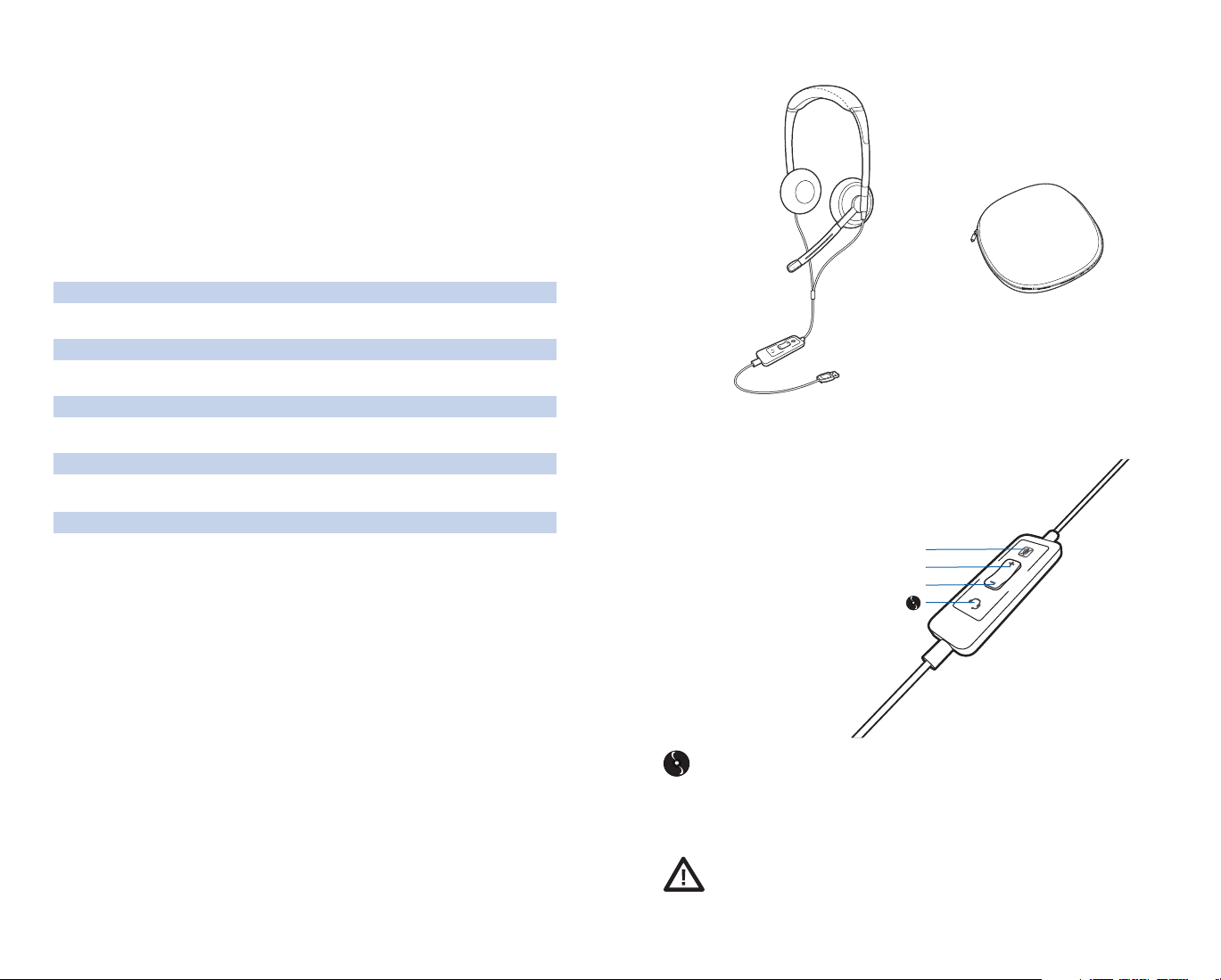
Blackwire C420
Case
Features
Mute/Unmute LED
Volume Up
Volume Down
Answer/End
We recommend that you install the Plantronics software. Though your headset will
operate without it, the soft ware is required in order to use the call answer/end function
with your Unif ied Communications application from the inline control. Go to
plantronics.com/software and click the Software Downloads tab. Follow the instructions
to download and install the software.
WARNING Do not use headphones/headsets at high volumes for an extended
period of time. Doing so can cause hearing loss. Always listen at moderate levels. See
plantronics.com/healthandsafety for more information on headsets and hearing.
2
3
Page 3
Powering On
Powering on the Blackwire C420
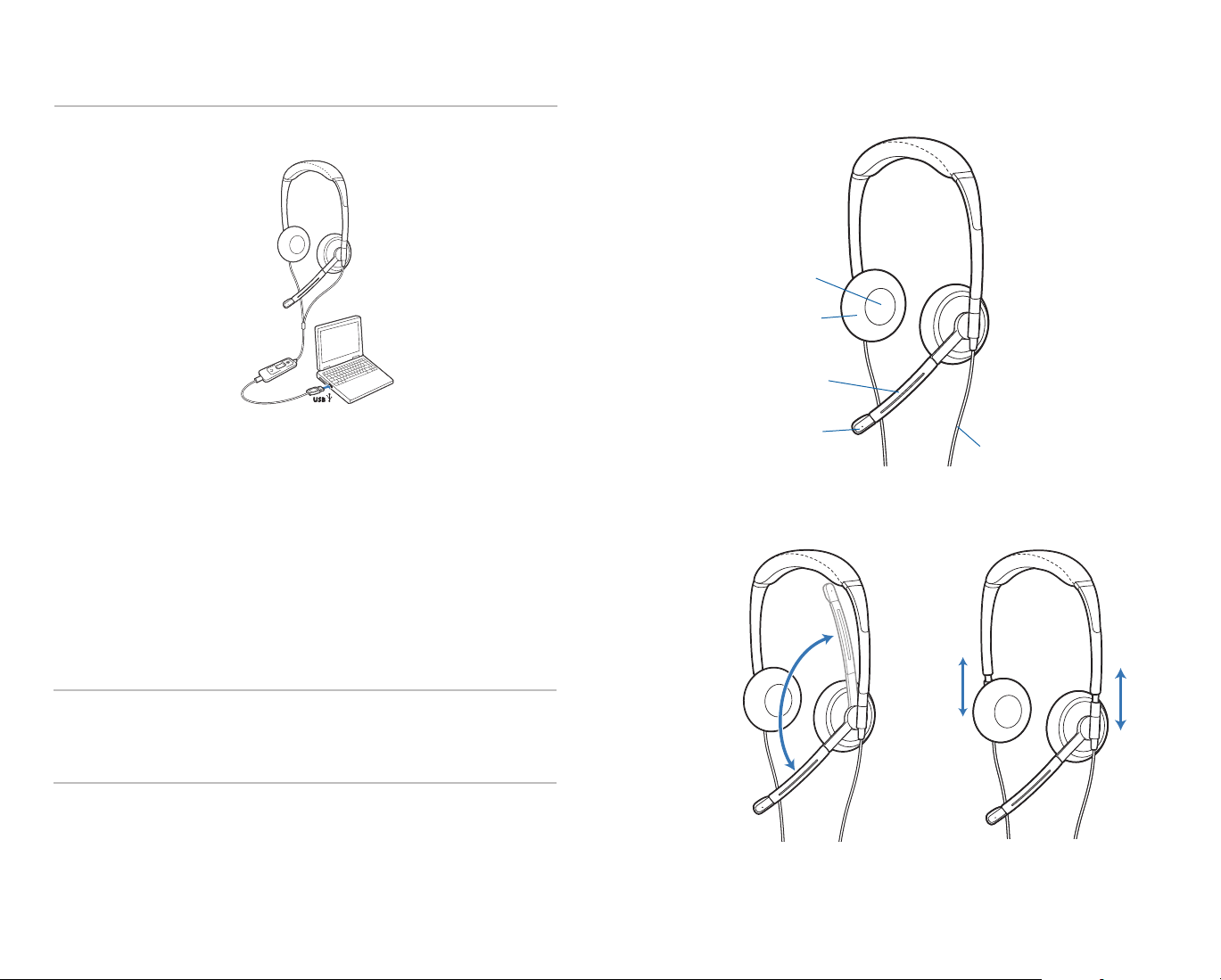
The USB headset is automatically powered on upon inser ting into the USB por t of the
computer.
Installing Plantronics software
For the abilit y to remotely detect and answer/end a call from your softphone application
via the headset call control button install Plantronics Unified Runtime Engine provided with
the Plantronics product or download from a convenient web site.
1. If a Plantronic s CD is provided, insert the CD and follow the installation instructions.
2. Or, you may download the latest version of this software from the
plantronics.com/software page.
3. Your softphone may require you to choose which audio device you wish to use.
Please refer to softphone documentation for details.
Configuration and status
The Plantronics Control Panel is included in a Typical Install option. Start the Plantronics
Control Panel from the Windows Star t Programs menu. The Plantronics Control Panel
screen will let you view status, change device parameters, set preferences, etc.
Headset Features
1
Receiver
Ear Cushion
Boom
Noise-Canceling
Microphone
2
2.1
Headset Cord
2.2
Software Update Manager
All sof tware for your Plantronics device can be remotely updated if and when updates
are available. Start Plantronics Update Manager from Windows Start Programs menu to
change settings such as automatic or manual check for updates.
2. Adjust the Microphone Boom and Headband
2.1 Rotate the microphone boom until it is aligned with your mouth.
2.2 Lengthen or shorten the headband until it fits comfortably. The foam
cushions should sit comfortably over the center of your ears.
4 5
Page 4
3
3.1
3.2
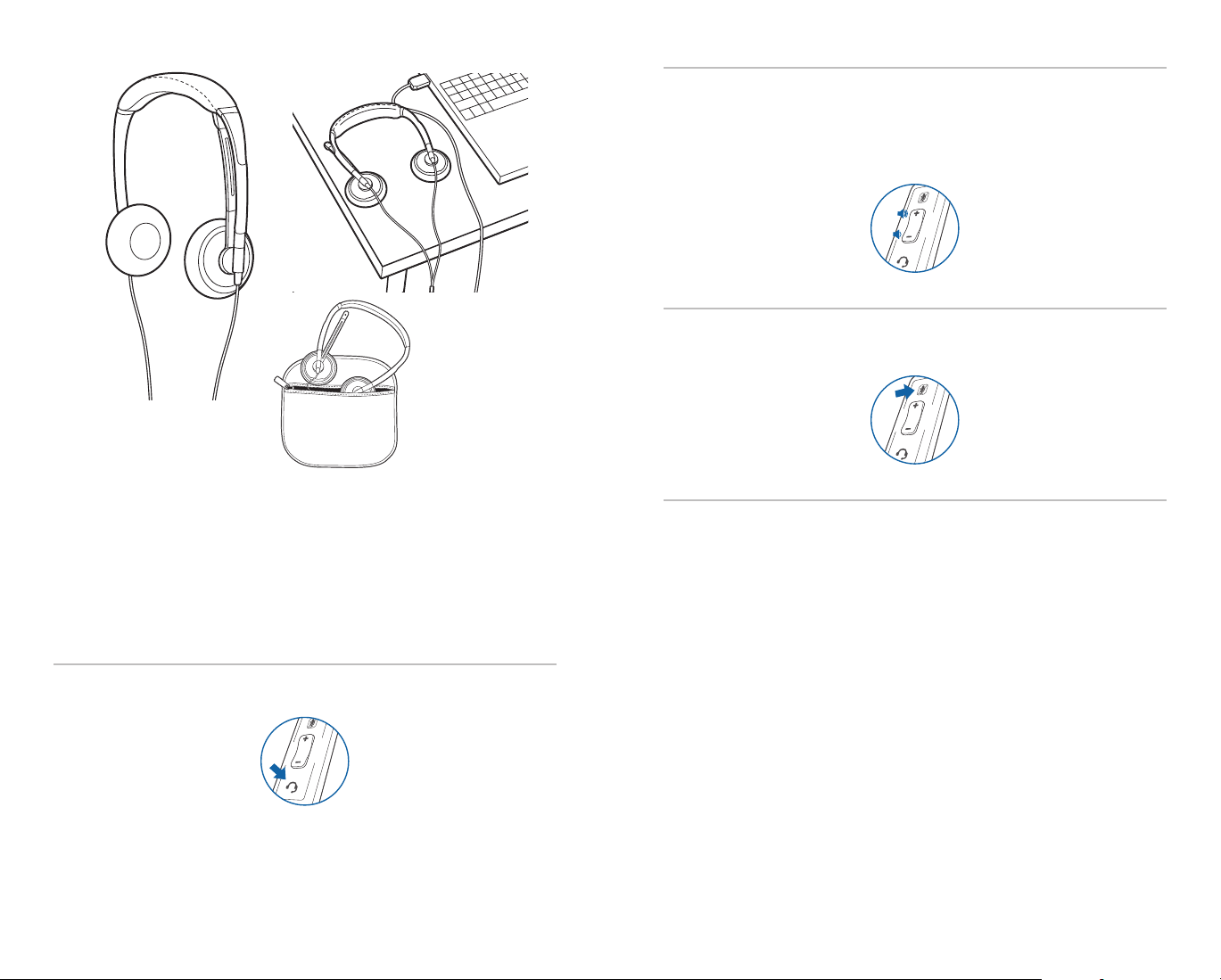
Adjusting Volume
To increase listening volume, press the upper end (+) of the volume button. To decrease
listening volume, press the lower end (–).
To adjust the listen or speak volume of the softphone, please refer to the softphone
user documentation.
To adjust the listen or speak volume of the audio devic e on t he comput er, use the
Sound and Audio Device section on the control panel.
Muting a Call
During a call, briefly press the m ute b utton to mute t he mi crop hone. When muted,
the Mute LED will be lit.
To unmute press the button again.
3.3
3. Rotate the Boom for Storing in Case
3.1 Rotate the boom up so it is aligned with the headband as shown.
3.2 Fold the ear cushions flat as shown.
3.3 Place in case.
Using Your Headset
Answering/ Ending/ Making Calls
To make a call, simply dial the number via your sof tphone application.
To answer or en d a ca ll, press the answer/end button.
For softphones not compatibl e wit h Plantronics software Check the Plantronics
softphone compatibility list at plantronics.com/software for the most current information.
If your softphone is not cur rently suppor ted by Plantronics software, remote detection
and answer/end via the headset does not function. Pressing the call control button on the
headset will not function; you must answer the call from the softphone.
6
Putting a call on hold
If your softphone supports this feature, holding down the answer/end button for 2
seconds will place the call on hold. Refer to your softphone’s user guide for additional
features availa ble while on hold. Pressing the answer/end button again will take the call of f
hold.
Media Manager
Plantronics software provides user selectable options to manage the output to your headset
from supported media players when a call comes in and when it ends. The Media Player
feature is in the Preferences tab of the Plantronics Control Panel. Select Start Menu>
Programs>Plantronics>Plantronics Control Panel.
7
Page 5

Troubleshooting
Problem Solution
I cannot hear caller.
Callers cannot hear me.
Sound in headset is disto rted.
I can hear echo in headset.
The other headset I was us ing to
listen to m usic does not work any
more.
My headset stop s res pond ing
to button presses.
My headset does not work with the
headset I am using on my PC. (I cannot
answer or disconnect from the headset
call button).
• The USB headset is not set as the
default audio device. Use the Audio
settings in Windows under Sounds
and Audio Devices to select “Blackwire
C420” as the audio device.
• Listening volume is too low. Press the
volume up button on the headset.
• Headset is muted. Press the mute
button on headset to unmute the
microphone.
• Headset microphone boom aligned
incorrectly. Align the headset boom with
your mouth.
• The USB headset is not set as the
default Voice device. Use the Voice
settings in Windows under Sounds
and Audio Devices to select “Blackwire
C420” as the voice device.
• Lower the listen volume on your
softphone until the distortion disappears.
• Adjust volume on headset.
• The USB headset will set itself as the
default audio device in Windows. Use
the Audio settings in Windows under
Sounds and Audio Devices to change
the device used for audio.
• When a PC goes into standby or
hibernation, the USB headset no longer
is powered on. Be sure your PC is in an
active state.
• Check compatibility list on
plantronics.com/software to ensure
your softphone is compatible for remote
answer and disconnect.
• When a PC goes into standby or
hibernation, the USB headset is no
longer powered on. Be sure your PC is
in an active state.
• Be sure Pla ntronics software is installed
and running.
Plantronics, Inc.
345 Encinal Street
Santa Cruz, CA 95060
United States
Tel: 800-789-4971
plantronics.com
For product support contact us at plantronics.com/support.
©2010 Plantronics, Inc. All rights reserved. Plantronics, the logo design, Blackwire, and Sound Innovation are
trademarks or registered trademarks of Plantronics, Inc. Windows is a registered trademark of Microsoft Corporation
in the United States and other countries. All other trademarks are the property of their respective owners.
82873-16 (03.10)
8
 Loading...