

Page 1
PIVOTEL.COM.AU | PIVOTEL.CO.NZ
SETTING UP YOUR INMARSAT ISATHUB TERMINAL
BETTER CONNECTIONS, EVERYWHERE, ALWAYS.
This setup process must be completed for BYO Inmarsat IsatHub
terminals BEFORE you use your Pivotel IsatHub service.
Page 2
APN UPDATE
Connect the IsatHub terminal to your computer via WiFi.
The default WiFi name (SSID) and password (SSID PW) can be found
on the back of the IsatHub terminal.
Open a web browser and enter the address: 192.168.1.35 to access
the web console. The default username is ‘admin’ and password
‘1234’.
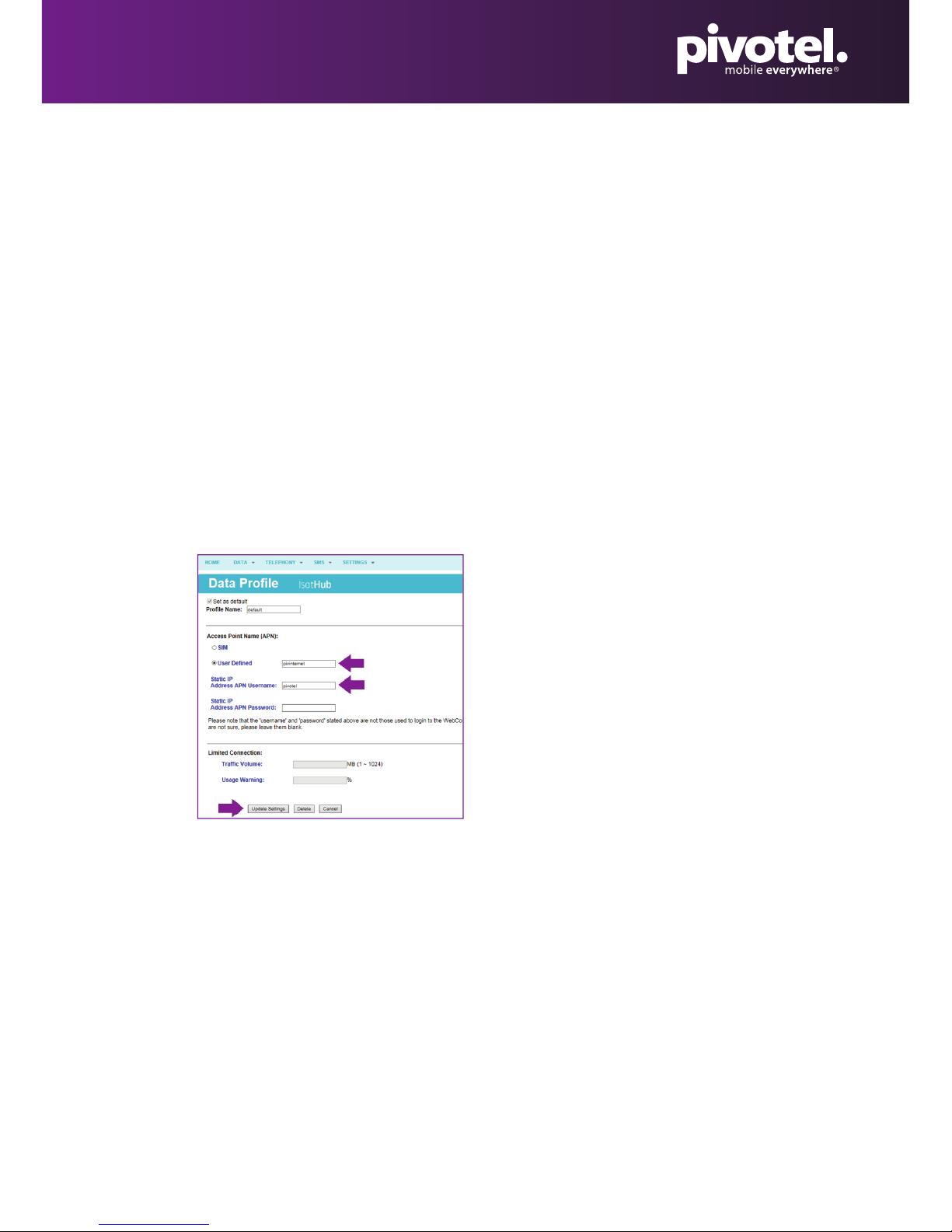
Go to ‘Data’ > ‘Data Profile’ > Click ‘Edit’ on the default profile
> Select Access Point Name (APN) to be ‘User Defined’ and Enter
‘pivinternet’
> Enter Static IP Address APN Username as ‘pivotel’
> Leave Password Blank
> Click ‘Update Settings’
Go to ‘Settings’ > ‘Terminal Settings’ >‘Reboot Terminal’ > Click
‘Reboot’ to reboot the terminal.
After the IsatHub restarts, connect your smartphone or tablet to
the IsatHub via WiFi. You are now ready to connect to Data using
the Control app.
1.
2.
3.
4.
5.
SETTING UP YOUR INMARSAT ISATHUB TERMINAL
1
Page 3
If your IsatHub terminal does not work with a Pivotel SIM card, please check
that the firmware version of your IsatHub terminal is 2.0.0 or above.
Please be informed that firmware upgrade is done at your own risk. The
equipment manufacturer and Pivotel will not be held responsible for any
possible malfunction or damage to the system due to upgrading the
firmware. If you encounter any problems or have any questions, please
contact Pivotel Satellite Customer Care on 1300 882 448 (Australia), 0508
882 448 (New Zealand) or +61 1300 882 448 (International).
If your IsatHub terminal firmware version is earlier than version 2.0.0, follow
the steps on the next page and upgrade the firmware. It is recommended that
you use cellular internet to download the latest version of firmware.
To check the firmware version on your IsatHub terminal:
FIRMWARE VERSION
Connect the IsatHub terminal to your computer via WiFi. The
default WiFi name (SSID) and password (SSID PW) can be found on
the back of the IsatHub terminal.
Open a web browser and enter the address: 192.168.1.35 to access
the web console. The default username is ‘admin’ and password
‘1234’.
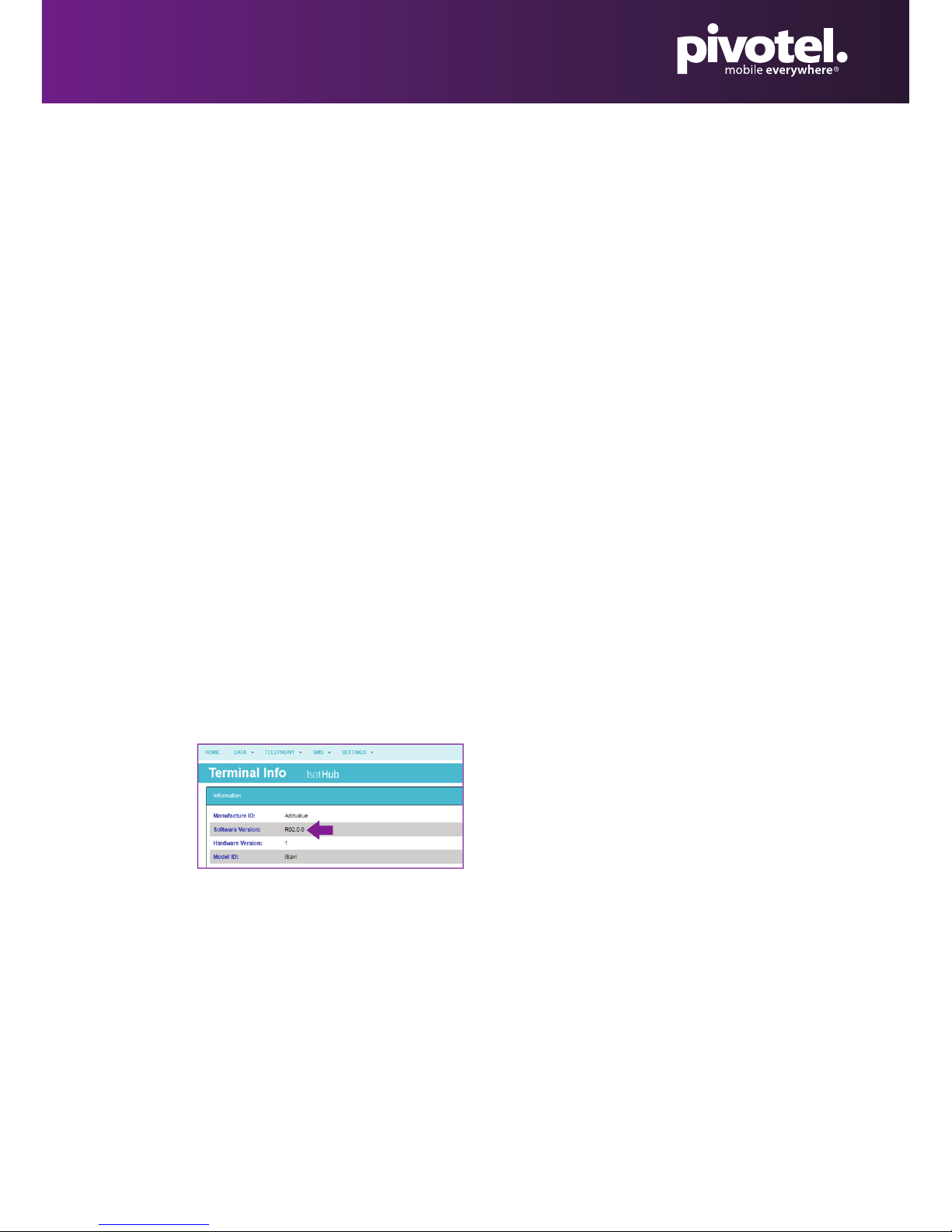
Go to ‘Settings’ > ‘Terminal Info’ > ‘Information’ and check the
Software Version.
1.
2.
3.
SETTING UP YOUR INMARSAT ISATHUB TERMINAL
2
Page 4
DOWNLOADING & INSTALLING THE LATEST FIRMWARE VERSION
To download and install the latest firmware version for your IsatHub terminal:
Visit https://www.inmarsat.com/support/bgan-firmware/
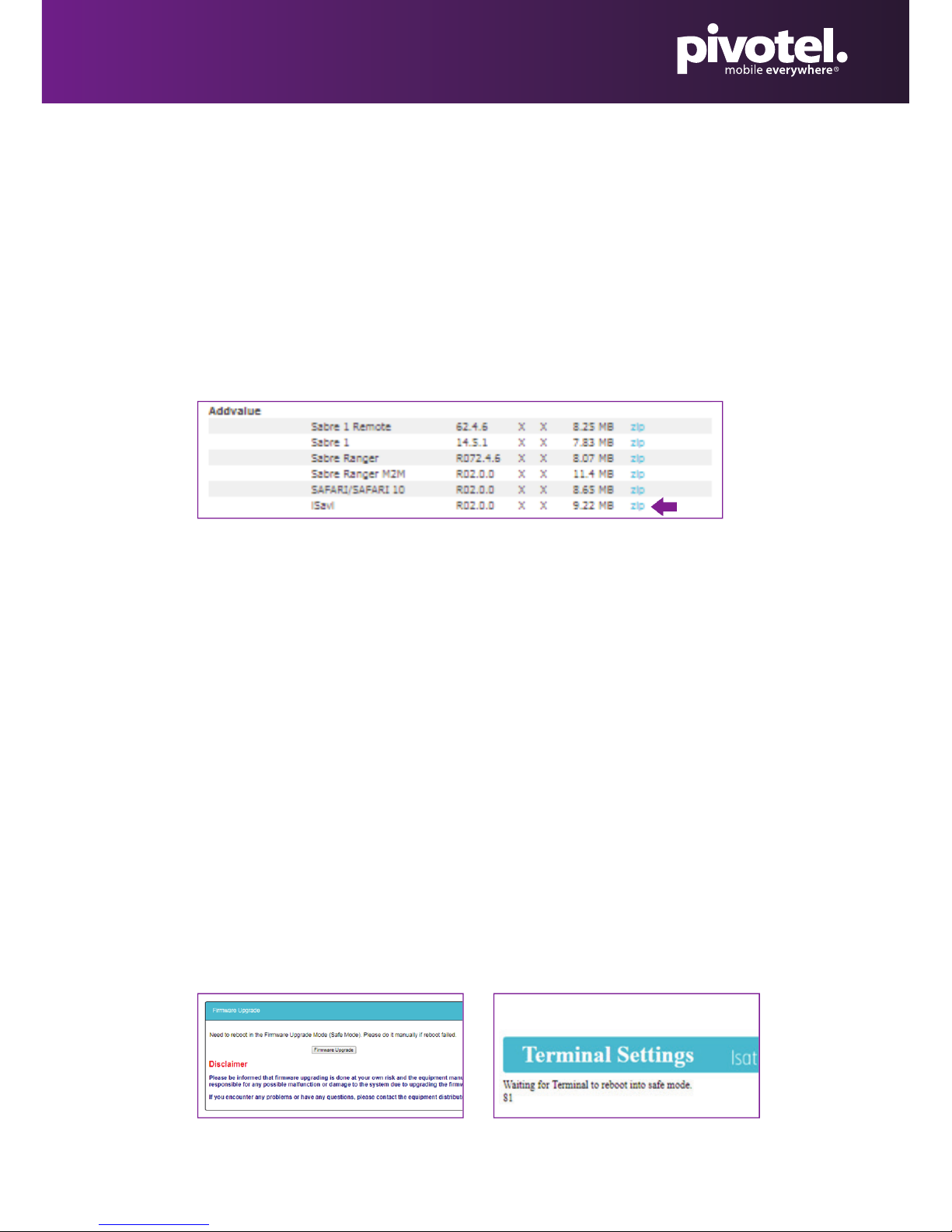
Scroll down to ‘Addvalue’ and next to ‘iSavi’ select ‘zip’ to download
the latest firmware to your computer.
The firmware R02.0.0 zip file is 9.22MB.
1.
2.
Unzip the downloaded file - there will be Firmware Release Notes
and an .isv file (the new firmware file). Follow the Firmware Upgrade
Instructions in the Firmware Release Notes or see steps 4 - 12.
Connect your IsatHub terminal to an external power supply before
starting the firmware upgrade process.
Connect the IsatHub terminal to your computer via WiFi. The
default WiFi name (SSID) and password (SSID PW) can be found on
the back of the IsatHub terminal.
Open a web browser and enter the address: ‘192.168.1.35’ to access
the web console. The default username is ‘admin’ and password ‘1234’.
Go to ‘Settings’ > ‘Terminal Settings’ > ‘Firmware Upgrade’ click
‘Firmware Upgrade’. Your IsatHub terminal will reboot into safe
mode after you click the Firmware Upgrade button.
Terminal entering into safe mode:
3.
4.
5.
6.
7.
To Download the latest firmware version for IsatHub terminal:
SETTING UP YOUR INMARSAT ISATHUB TERMINAL
3
Page 5
DOWNLOADING & INSTALLING THE LATEST FIRMWARE VERSION
Reconnect the IsatHub terminal to your computer via WiFi. The
default WiFi name (SSID) and password (SSID PW) can be found on
the back of the IsatHub terminal.
Open a web browser and enter the address: 192.168.1.35 to access
the web console. The default username is ‘admin’ and password
‘1234’.
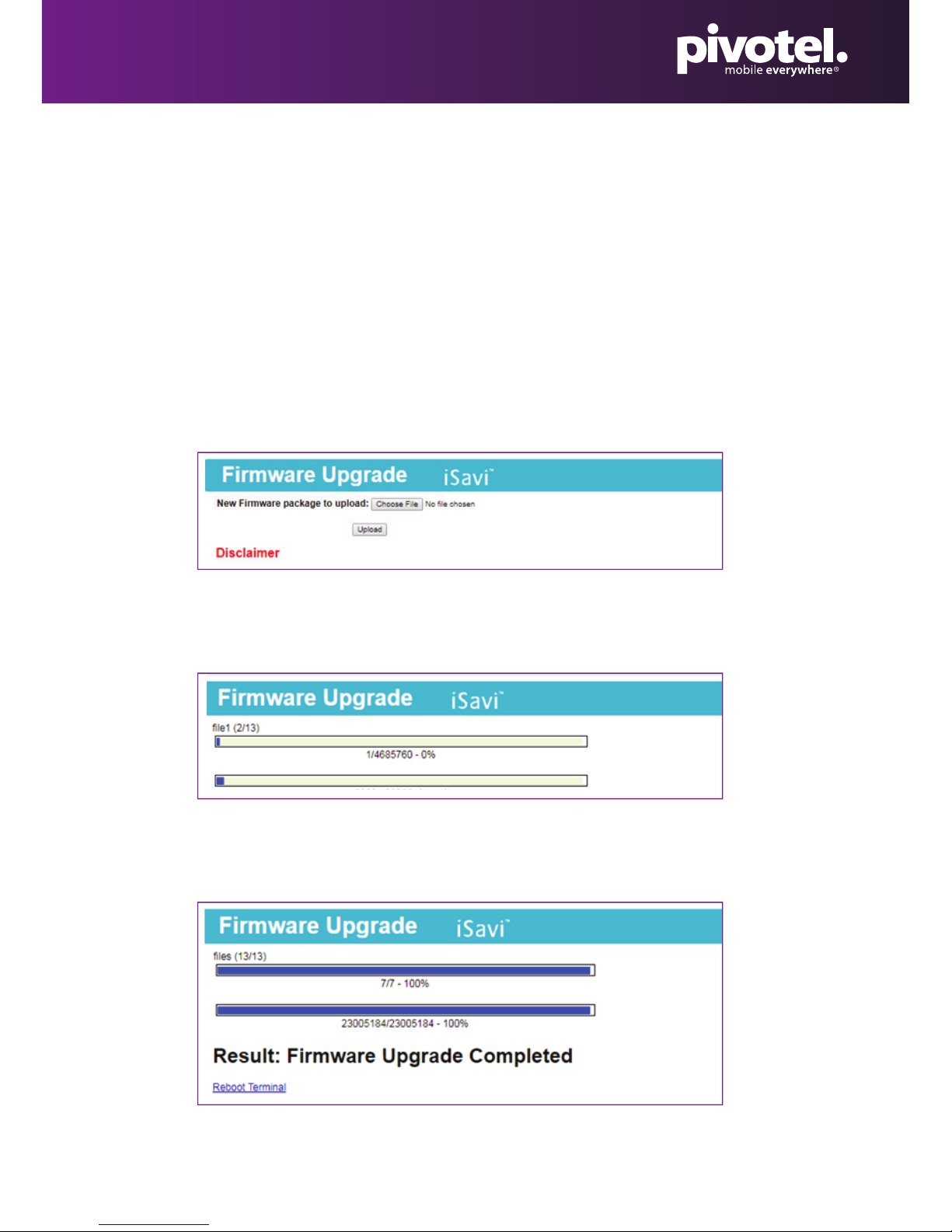
Click ‘Choose File’, navigate to the file location of the new firmware
file, select the new firmware file – click ‘Upload’.
8.
9.
10.
The firmware file will be transferred to your IsatHub terminal and
the firmware upgrade process will begin.
11.
The firmware upgrade will take less than 10 minutes to complete.
Click ‘Reboot Terminal’ to complete the process.
12.
To Download the latest firmware version for IsatHub terminal:
To Download the latest firmware version for IsatHub terminal:
To Download the latest firmware version for IsatHub terminal:
SETTING UP YOUR INMARSAT ISATHUB TERMINAL
4
 Loading...