

Page 1
Empowering Mobility Page 1 of 47 Bluebird Soft Inc.
BI-500 User Manual
BI-500
User Manual
Page 2

Empowering Mobility Page 2 of 47 Bluebird Soft Inc.
BI-500 User Manual
● This User’s Manual is protected under the related copyright laws
● This User’s Manual is produced by Bluebird Soft Inc. The company has made every effort to
avoid errors and omissions.
Please understand that some parts may not reflect the actual state
● The supplied basic programs are protected under. Reproduction, transfer or deletion of the
programs without prior consent is strictly prohibited.
● Depending on users’ environments, programs or peripherals, some parts of this Product may
not work normally
● This wireless device may cause propagation interference, and so, it cannot be used for lifesaving services
Trademark
PIDION aims for leading brand in the future mobile industry.
As a global brand representing the image of reliability, representativeness, and cutting-edge
technologies, this mark has been registered by Bluebird Soft Inc. around the world to be
protected under trademark-related laws.
Page 3

Empowering Mobility Page 3 of 47 Bluebird Soft Inc.
BI-500 User Manual
Contents
P.4 Safet y Instructions
P.6 About the Product
P.7 Checking names of parts
P.8 Product Features
P.9 Learning scan,communication, battery LEDs
P.10 Battery removal
P.11 Insert the battery
P.12 Battery charging
P.13 Power On/Off
P.14 Barcode scan Function
P.15 Button
P.16 Menu
P.17 PC Data Sync (Win XP)
- The process for PC sync
- Install of PC driver
P.20 Sending data to PC
- Installing PidionScan Program
P.24 Sending data by PDA
- Procedures for data transmission
- Installing Activesync.
- Installing PidionScan Program.
- Bluetooth Power On/Power Off
- Bluetooth setting
P. 36 Using P idionSc an Progr am
- Connect
- Download
- Setting
- General
- Trigger
- System
P.46 Q&A
P.47 Customer Service
Page 4

Empowering Mobility Page 4 of 47 Bluebird Soft Inc.
BI-500 User Manual
Safety Intructions
Read these instructions and warnings to use the Product in a safe manner and to prevent
accidents.
1. Caution for Product Use
• This Product is EMC-compliant. For safety and health, use the authentic parts supplied by
the manufacturer. Any inauthentic part may affect safety.
• Do not modify, disassemble or repair the Product at your discretion. Manufacturer if there is
a problem in the Product. Also, make sure to follow the warnings and Instructions. If you fail
to follow any of the above instructions, no warranty service will be provided.
• If the Product is wet, do not put it in a device that may heat the terminal (heater, microwave
oven, etc.). Heating batteries may cause an explosion, deformation or fault.
(Water or any other liquid will change the color of the label inside the terminal. In this case,
no warranty service will be provided.)
• Do not use the product on an airplane or in a hospital and also do not operate the product
while driving a car.
• Do not use this Product in a hot or humid place. Using the Product under a hot/humid
temperature such as rain or sauna may cause a trouble. In this case, no warranty service
will be provided.
Avoid vibration and impact. When not in operation or when you are absent, pull out the
power cord, and keep the Product in a safe place.
• Keep this Product away from magnetic products such as credit card, telephone card,
bankbook and traffic ticket. The magnetic field of the terminal may affect the data
• Use dedicated batteries only and do not use the batteries for any other purpose than
operating this Product. Using an inauthentic battery may reduce life of the Product, or cause
an explosion. (In this case, no warranty service will be provided..
• Do not place the eyes of a person and/or pet near the scanner exit window. Doing so can
result in retinal damage and/or reduced vision.
Page 5

Empowering Mobility Page 5 of 47 Bluebird Soft Inc.
BI-500 User Manual
2. Battey
[Warning]
• Do not shock,disassemble or short-circuit the battery pack.
• Do not expose the battery in hot or high humidity places.
• Never heat the battery not throw into a fire.
• Keep away from metal objects.
[Caution]
• Use only specified original batteries and chargers.
• Keep indoors the temperature between 0~40 (32~104F)
• The guarantee duration of the battery is 6 month from the sales.
Page 6
Empowering Mobility Page 6 of 47 Bluebird Soft Inc.
BI-500 User Manual
About the Product
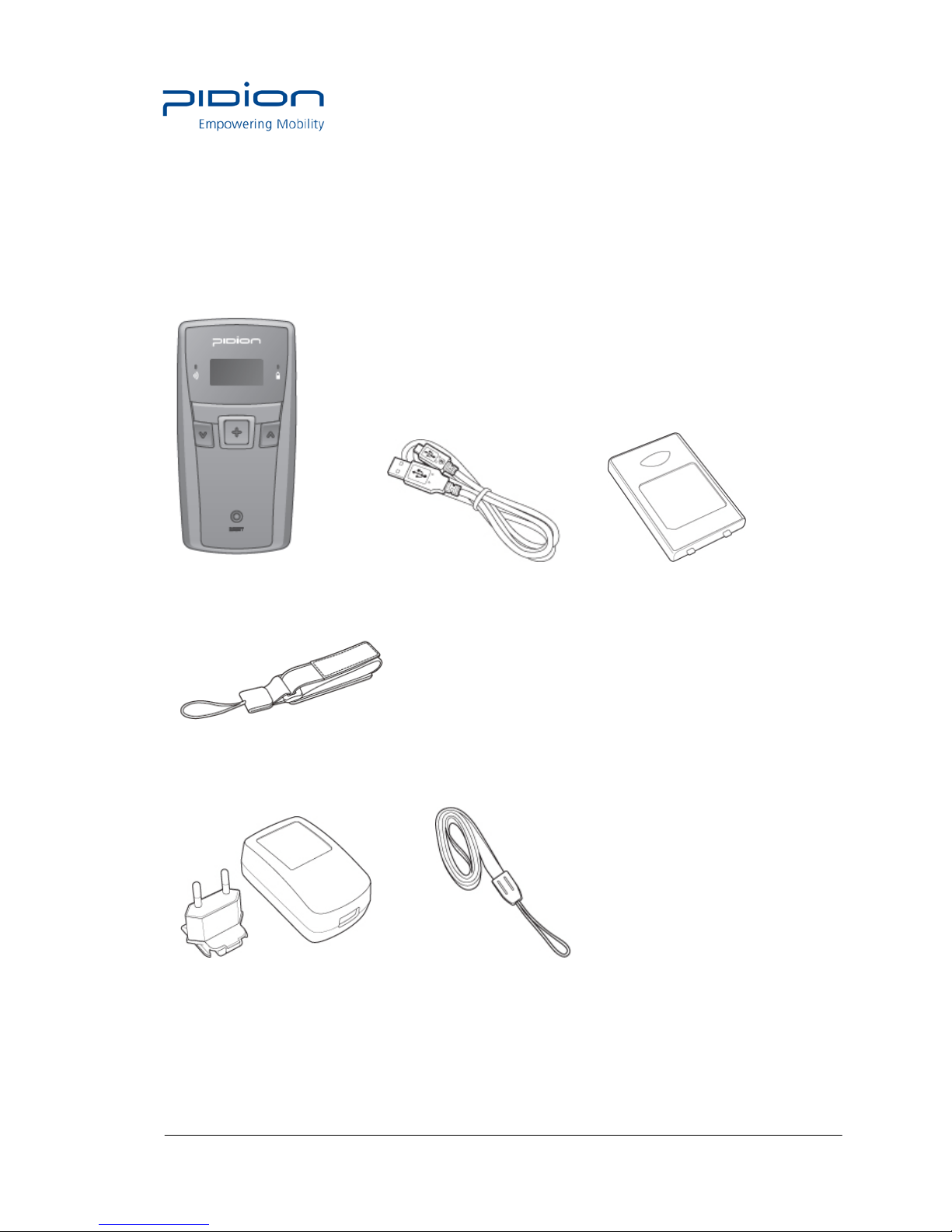
Please make sure all the above components are included.
1. Basic Components
Main set, AC/DC Adapter, Clip ,USB Cable, Neck s trap, Wrist strap
[ Main set] [ USB Cable ] [Battery]
[ Wrist strap ]
2. Option Accessaries
[ Adapter+Clip] [Neck strap]
* The images in this User’s Manual may not reflect the color and shape of the actual product.
Page 7
Empowering Mobility Page 7 of 47 Bluebird Soft Inc.
BI-500 User Manual
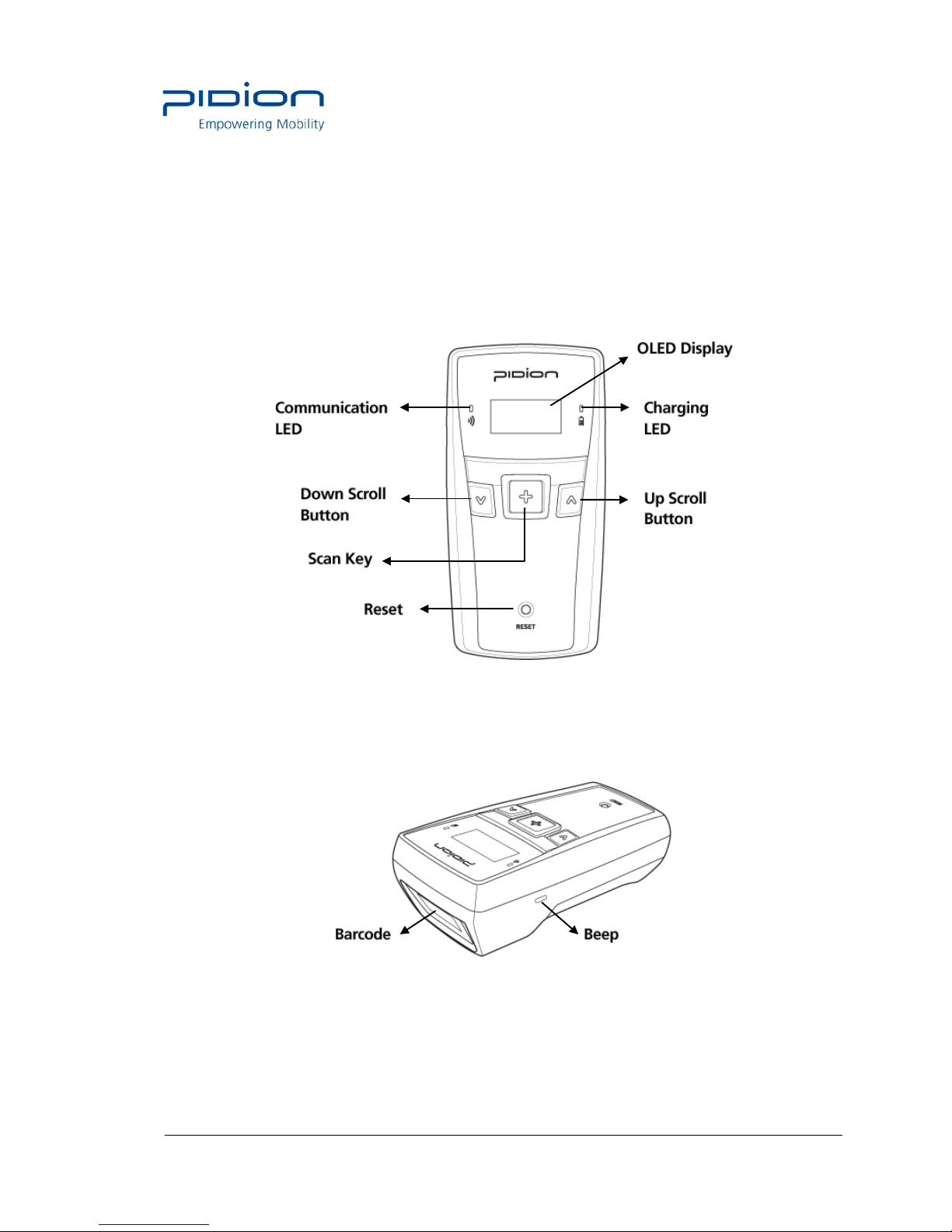
Checking names of parts
Be familiar with the name and function of each component before using the product.
1. Front
2. Side
Page 8
Empowering Mobility Page 8 of 47 Bluebird Soft Inc.
BI-500 User Manual
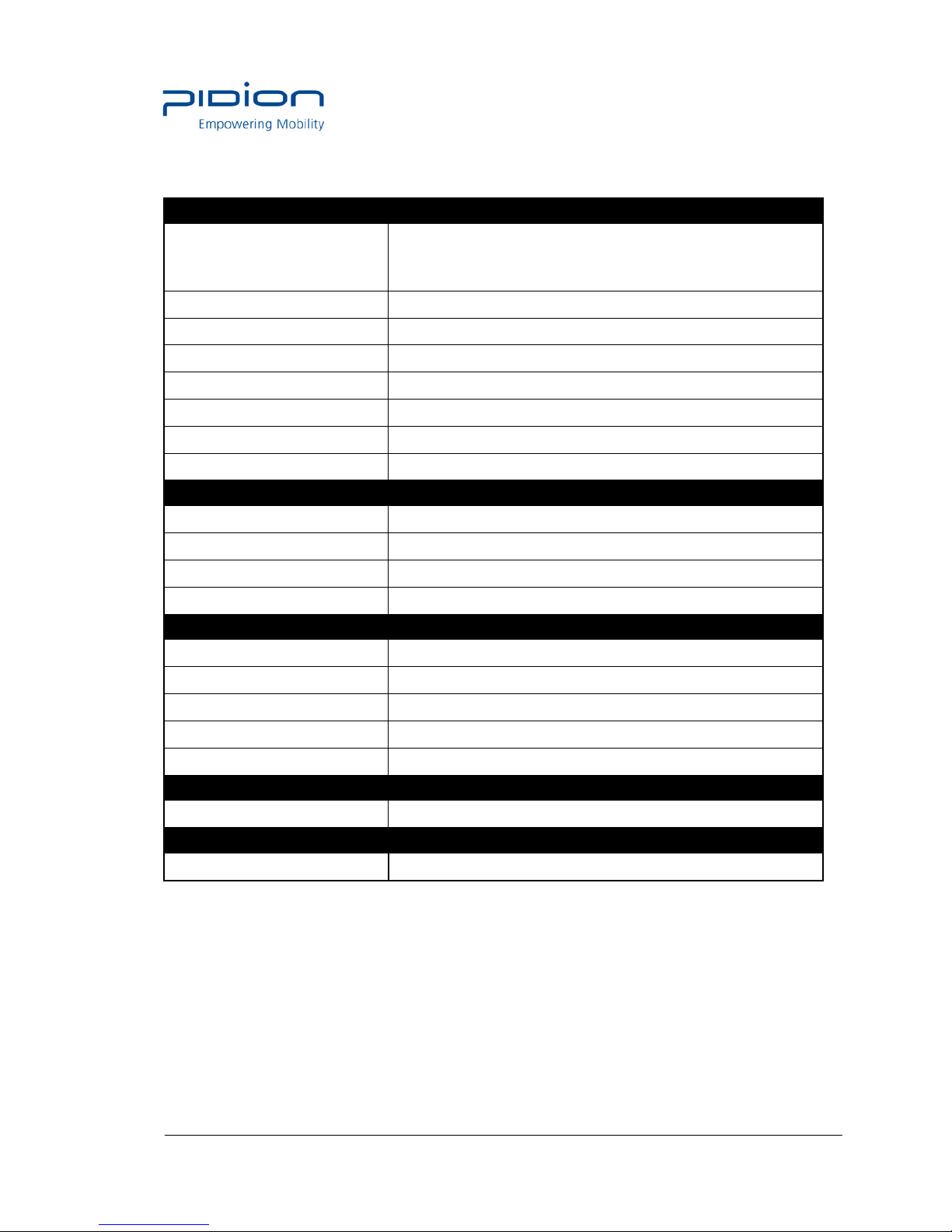
Product Features
Physical Characteristic s
OLED Display
128*64
Max.8 Linesx16 characters.
Dimensions (W x H x D) 50 x 99 x 34mm / 2.0 x 3.9 x 1.3 inch
Weight Excluding battery: 80g / Including battery: 110g
Indicator (LED) Three-color LED (blue, re d and green)
Alert Type Beep sound
Input Scan, up/Down Key, Reset Key
Standard Batter y Rechargeable, 3.7V, 1,130mAh, Li-ion
GPS Integrated GPS
Performance Characteristics
CPU S3C2440A40, 400MHz
OS Window CE Core
Memory 32MB RAM / 32MB ROM
Interface USB 1.1 Client
User Environment Characteristics
Operating Temp -10℃ to 40℃ / 14℉ to 104℉
Storage Temp -20℃ to 60℃ / -4℉ to 140℉
Humiditiy 90% non-condensing
Drop Spec 5ft. / 1.5m drop to steel surface, 3 drops per 6 sides
Rain/Dust Protection IP54
Integrated Radio
WPAN Radio Bluetooth Class Ⅱ V2. 0 + ED R
Data Capture
Barcode Scanner 1D Laser Class II / 1D&2D CMOS Imager
Page 9

Empowering Mobility Page 9 of 47 Bluebird Soft Inc.
BI-500 User Manual
Learning scan,communi c a ti on, battery LEDs
Notifies the operating information of the scanner to the user by tone volume or sequence.
Division
LED [Left]
- Barcode reading
- Communication
LED [Right]
-Battery status
Beep
Power On or Reset Purple/Red/Green/Blue Low/medium/high once
Power Off Red once time blink High once
USB connection Blue High once
USB disconnection - - Low/High Once
Barcode reading Green once time blink High once
Storage Overflow High 3 times
Data error Red 3 times blinks High once
Data delete Purple once time blink Low/medium/high once
All Data delete Purple once time blink Low/medium/high once
GPS disconnection Yellow 5sec blinks / cycle
BT connection Blue High once
BT discon nection Low/High Once
Battery not enough Blue
Battery charging Red
Full charged battery Green
Page 10
Empowering Mobility Page 10 of 47 Bluebird Soft Inc.
BI-500 User Manual
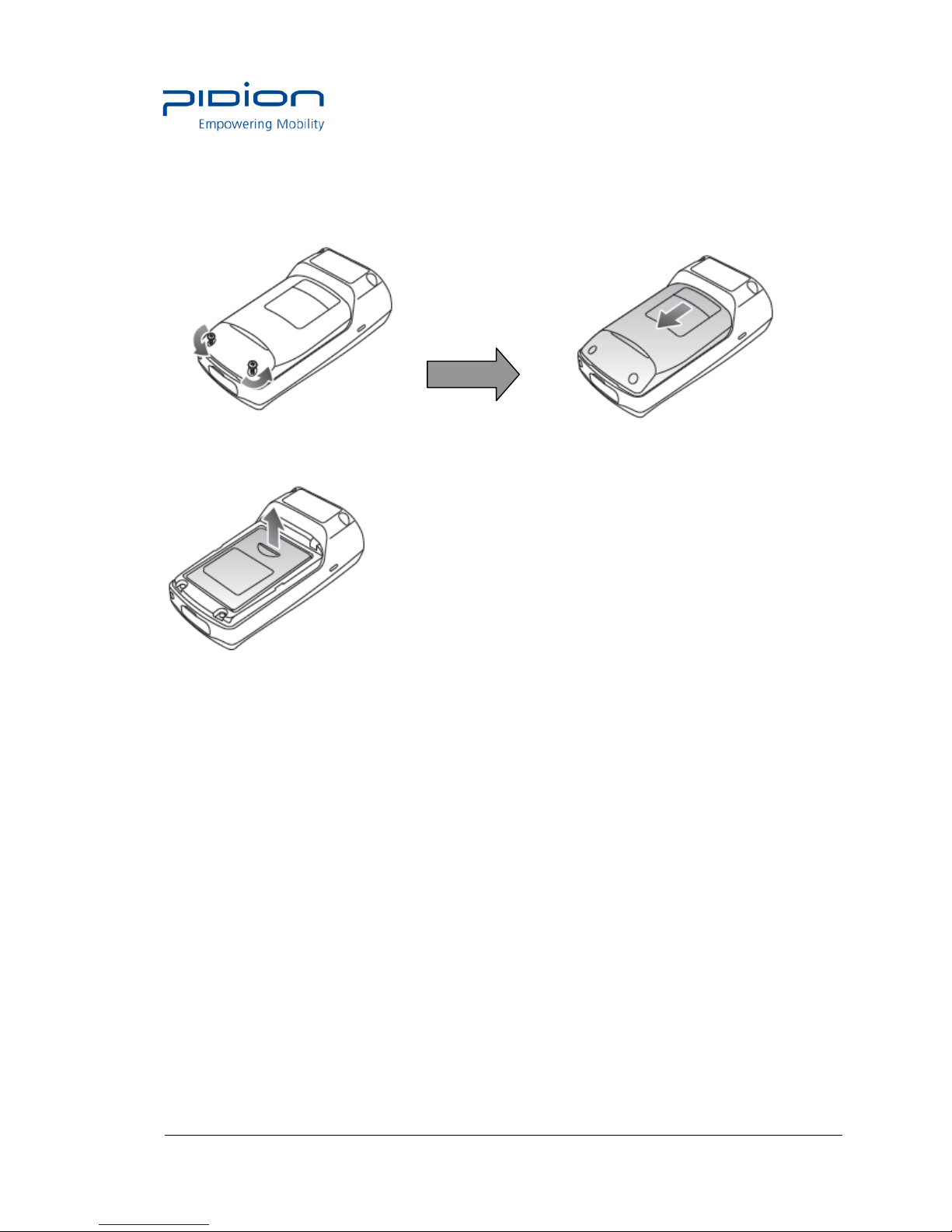
Battery removal
1. Turn the product power off
2. Turn the screw on the battery cover counter-clockwise to loosen, then remove
3. Lift off the battery cover in the direction of the arrow.
4. Pull up a doorknob for battery and battery removed.
Page 11
Empowering Mobility Page 11 of 47 Bluebird Soft Inc.
BI-500 User Manual
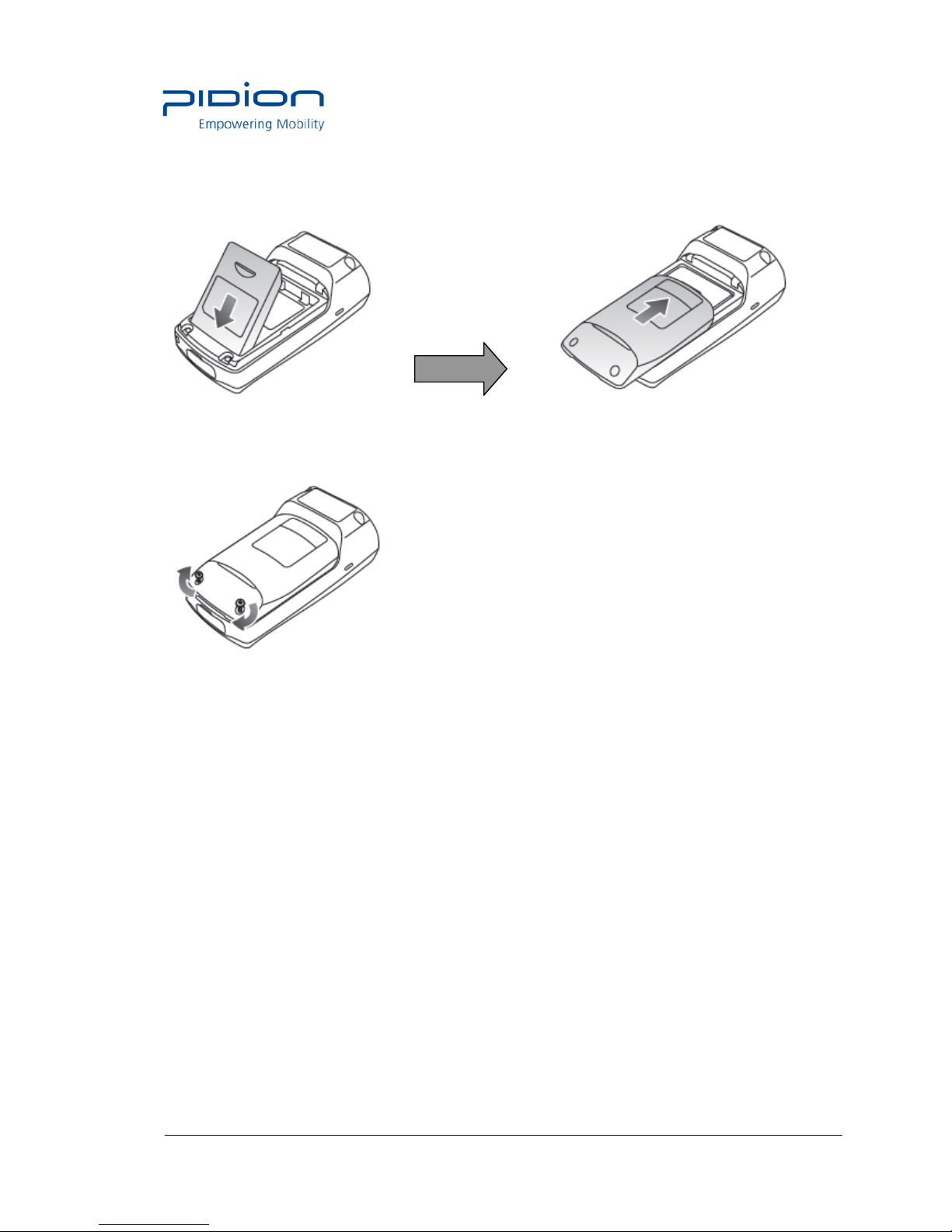
Insert the Battery
1. Put the battery in line.
2. Fit the battery cover to groove and close of battery cover.
3. Tighten 2 screw clockwise.
Page 12
Empowering Mobility Page 12 of 47 Bluebird Soft Inc.
BI-500 User Manual
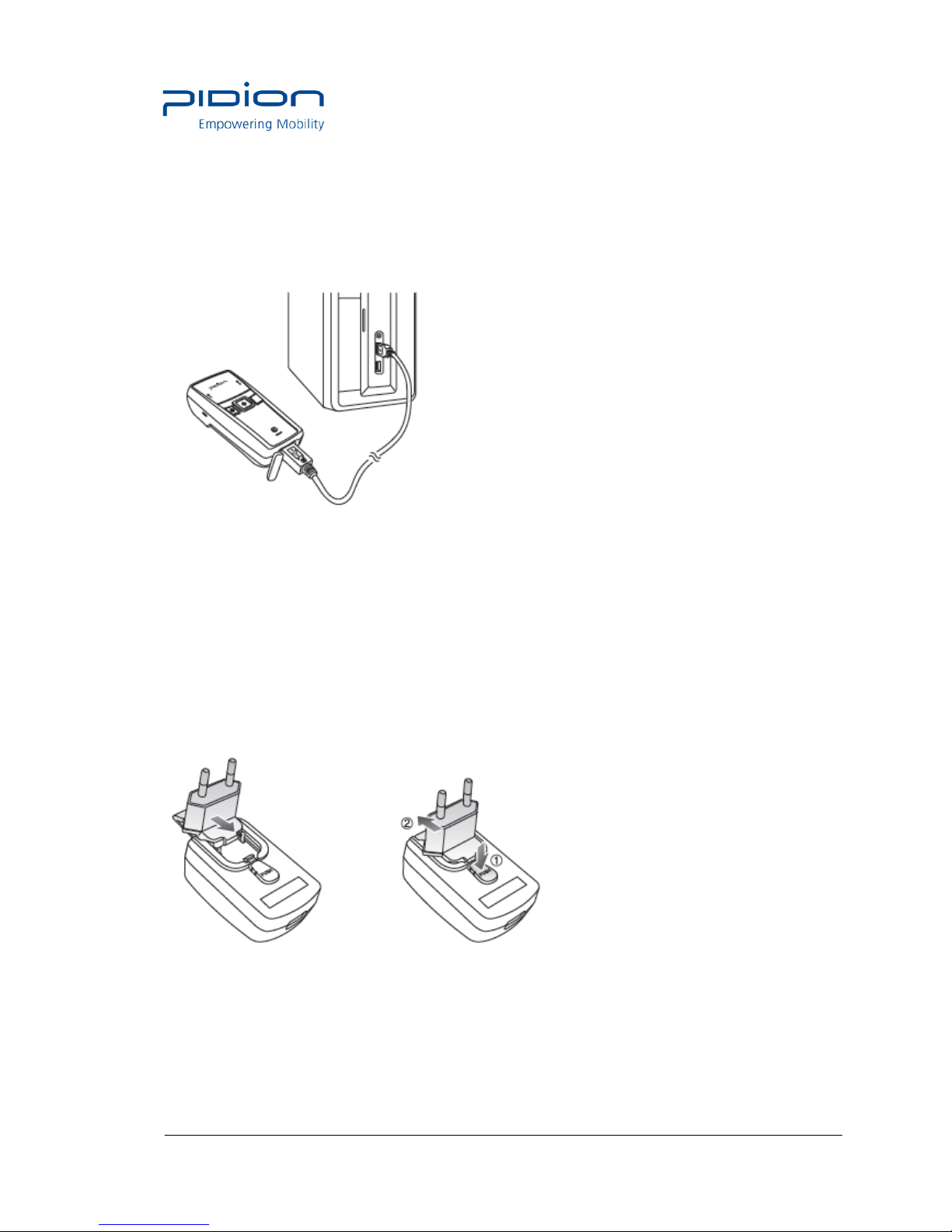
Battery Charging
1. Charging with a charge cable
Connect the charge-USB cable to the micro-USB port at the bottom of the product and then
connect to the PC of USB.
2. Charging with DC adapter
1) Connection Adapter and Adapter clip.
Page 13
Empowering Mobility Page 13 of 47 Bluebird Soft Inc.
BI-500 User Manual
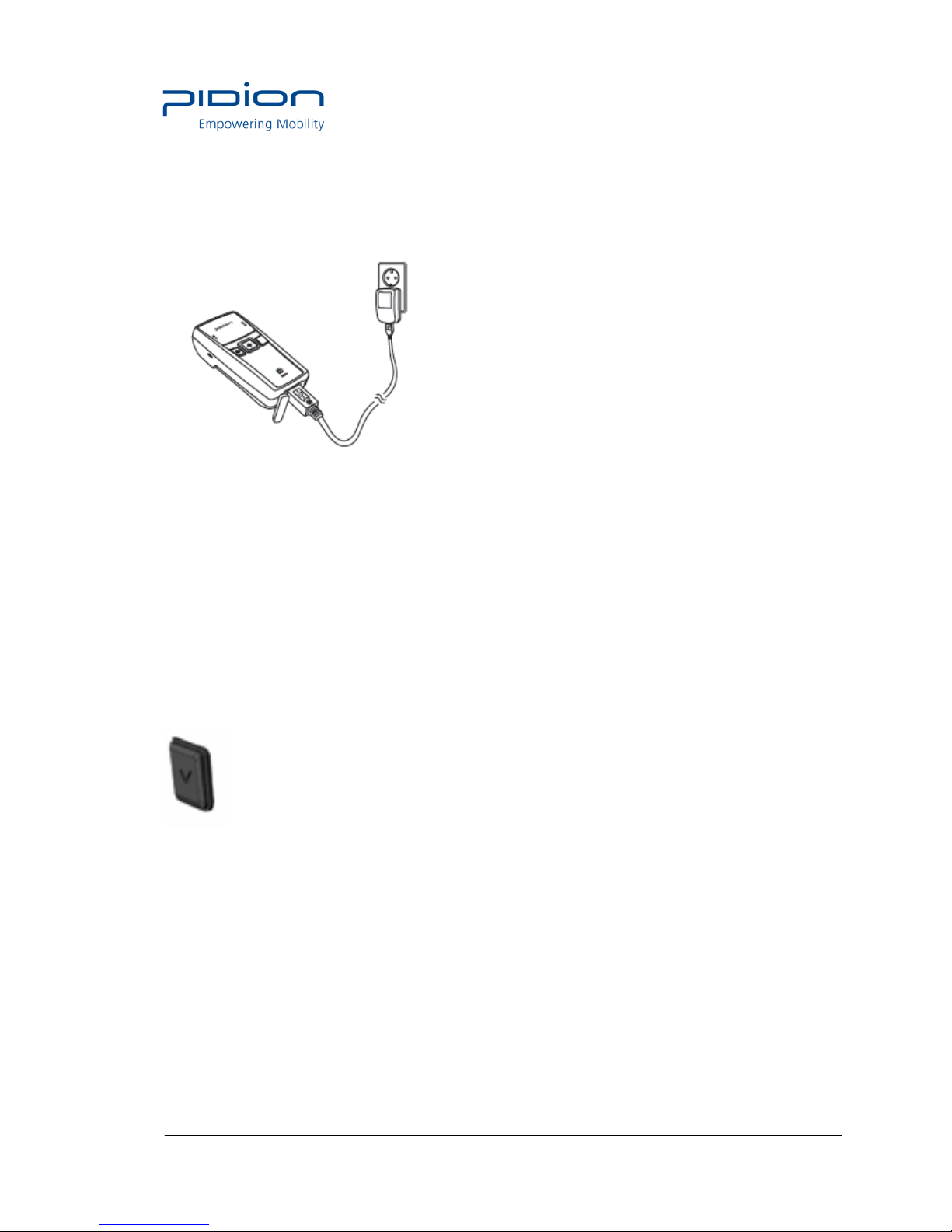
2) Connect the charge-USB cable to the micro-USB port at the bottom of the product and then
conect to the DC adpater and AC plug.
Power On/Off
Please press V button on your left for 3 seconds to turn power on or off.
Sleep mode
If the terminal stops operating more than 10 seconds while you are using, it becomes
automatically turn into sleep mode. You can press any buttons to restart the terminal.
Page 14
Empowering Mobility Page 14 of 47 Bluebird Soft Inc.
BI-500 User Manual
Barcode scan function
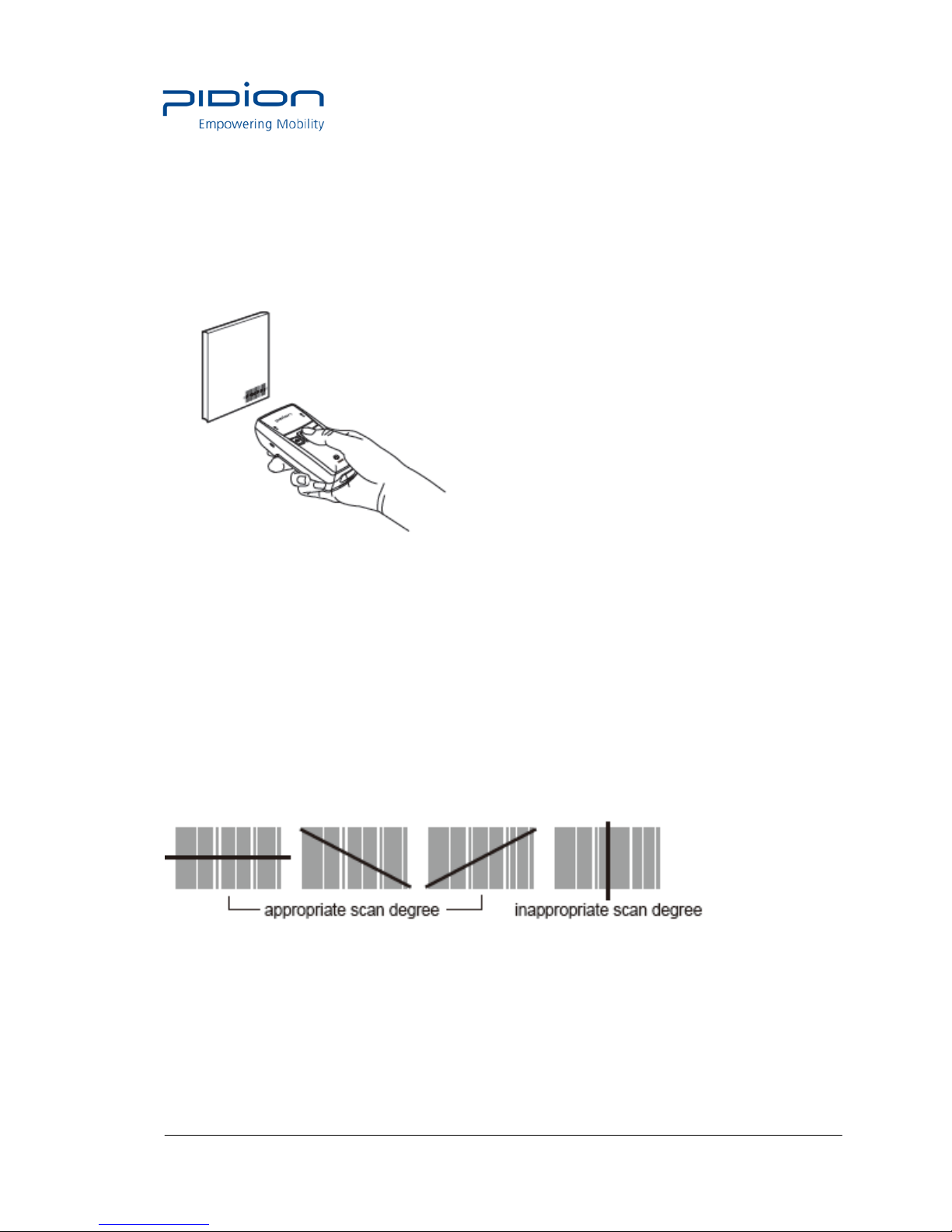
Face the scanner window toward the barcode at intervals of approximately 10cm, and press
the scan button to read the barcode.
When scanning barcode, do not direct the scanner window toward eyes of a man •
an animal. It may cause damage to the retina and eyesight damage.
If you use the product at a place with a big difference in ambient temperature,
barcode can’t be recognized temporarily due to moisture or frost in the barcode
window.
If the scanner window is perpendicular (0°) to the barcode, it is impossible to read
barcode due to characteristics of the laser barcode engine. Thus, scan at a little
inclined angle, not a right angle.
[ ○ ] [ X ]
Page 15
Empowering Mobility Page 15 of 47 Bluebird Soft Inc.
BI-500 User Manual
Button
Reset
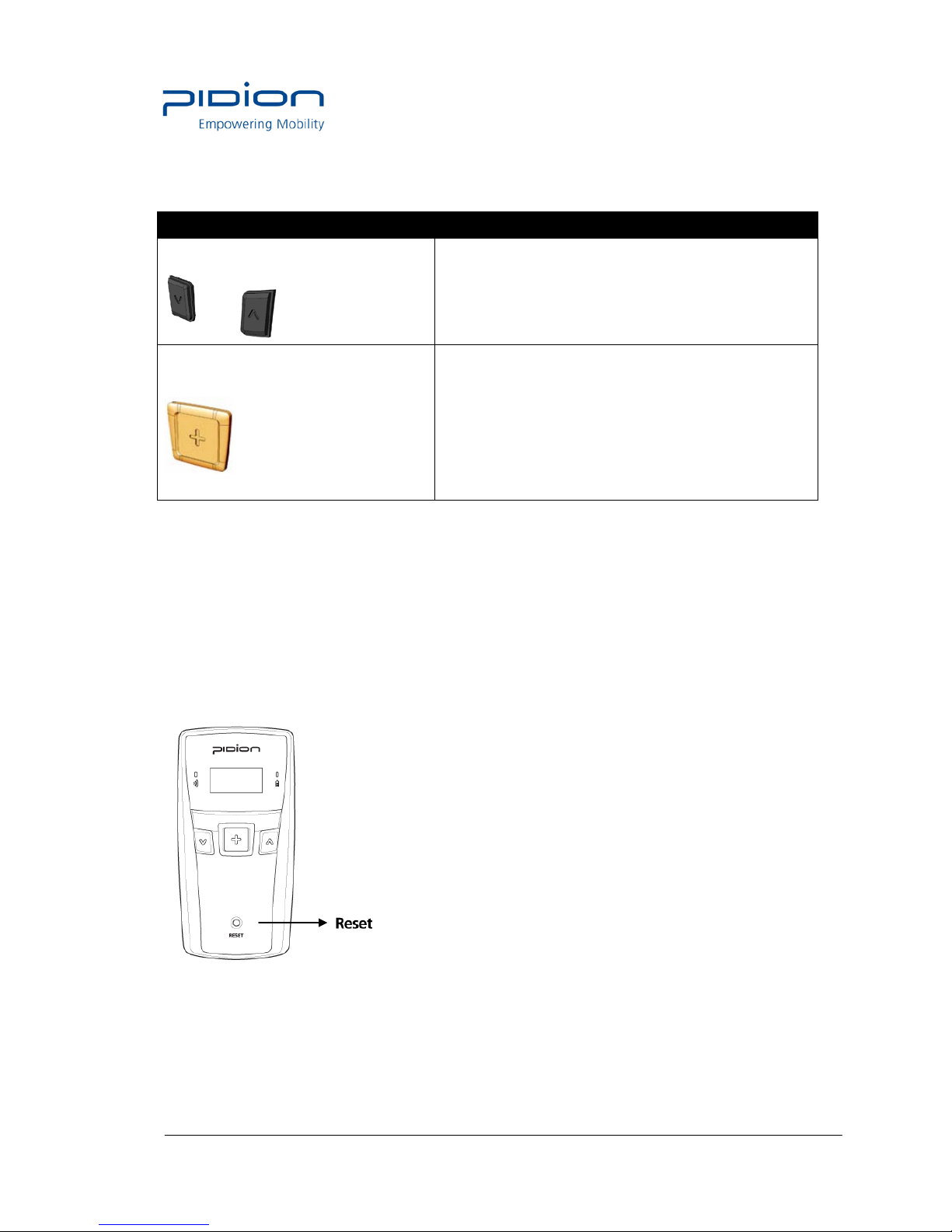
Press the [Reset] button on the front of the terminal slightly with the stylus pen.
If there is a collision between programs or a program is stopped due to an unexpected situation,
you may use the soft reset function. It is like rebooting a computer. Any information that is not
saved is lost.
Key Function
Up /Down Scroll button
These key buttons are for scrolling up and down to see
the menus in OLED display.
( V: Scroll down/ ^ :Scroll up)
Barcode Scan Button.
Barcode scanning and optional RFID Reading.
Page 16
Empowering Mobility Page 16 of 47 Bluebird Soft Inc.
BI-500 User Manual
Menu
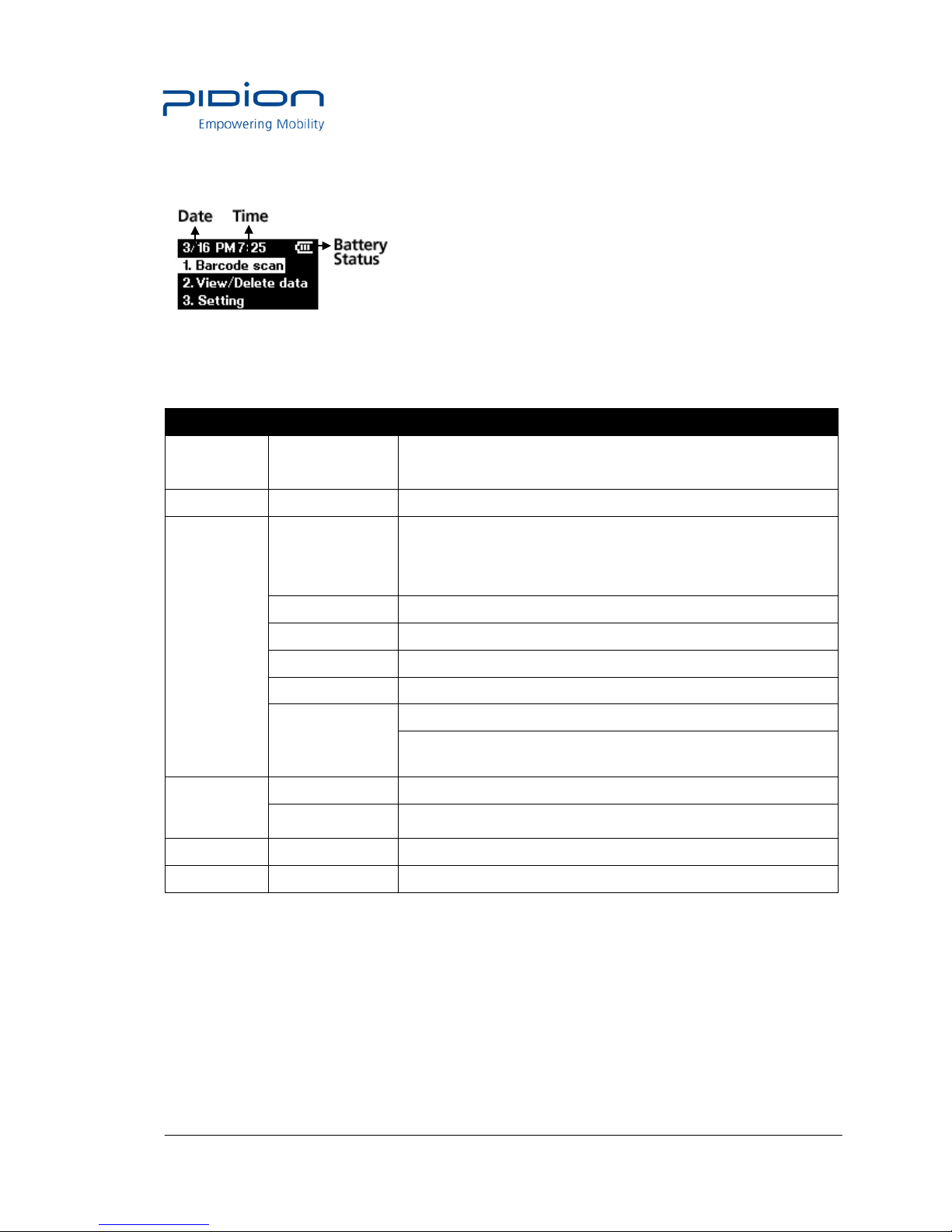
* The above menu can be displayed different ly accor d ing to OS image.
Top Menu Sub Menu Option/Note
Barcode
scan
Barcode operation
View data
View data list of barcode reading
Setting
Barcode
symbology
This menu lists all the barcode symbologies supported by your
BI-500 and allows you to select the barcode symbologies you will
be scanning.
Battery status View the current battery status
Storage View current memory capacity
Date/Time Set date and time
Prefix suffix Input fixed numbers or ID at the front or back of the barcode
Scan Mode
Scan mode
Time out
Delete data
Delete data Delete selected data
Clear data Remove the data completely
Version
View the version of the terminal
Power off
Power off the terminal
Page 17
Empowering Mobility Page 17 of 47 Bluebird Soft Inc.
BI-500 User Manual
PC Sync
1. Installation of Driver – Window XP
If Microsoft ActiveSync is installed in a PC, set [Microsoft ActiveSync] ▶ <File> ▶ <Connection
Setup> ▶ <Permit USB Connection> as inactivate. Driver is not installed if USB connection is
permitted.
① Select the PC driver folder [BI500_PidionScan_Windows XP, Vista], and copy the driver file
[usbser.inf] in the PC.
You can download the driver at our homepage. (http:// www.mypidion.com)
② Power the terminal on and connect it to the PC using the USB cable
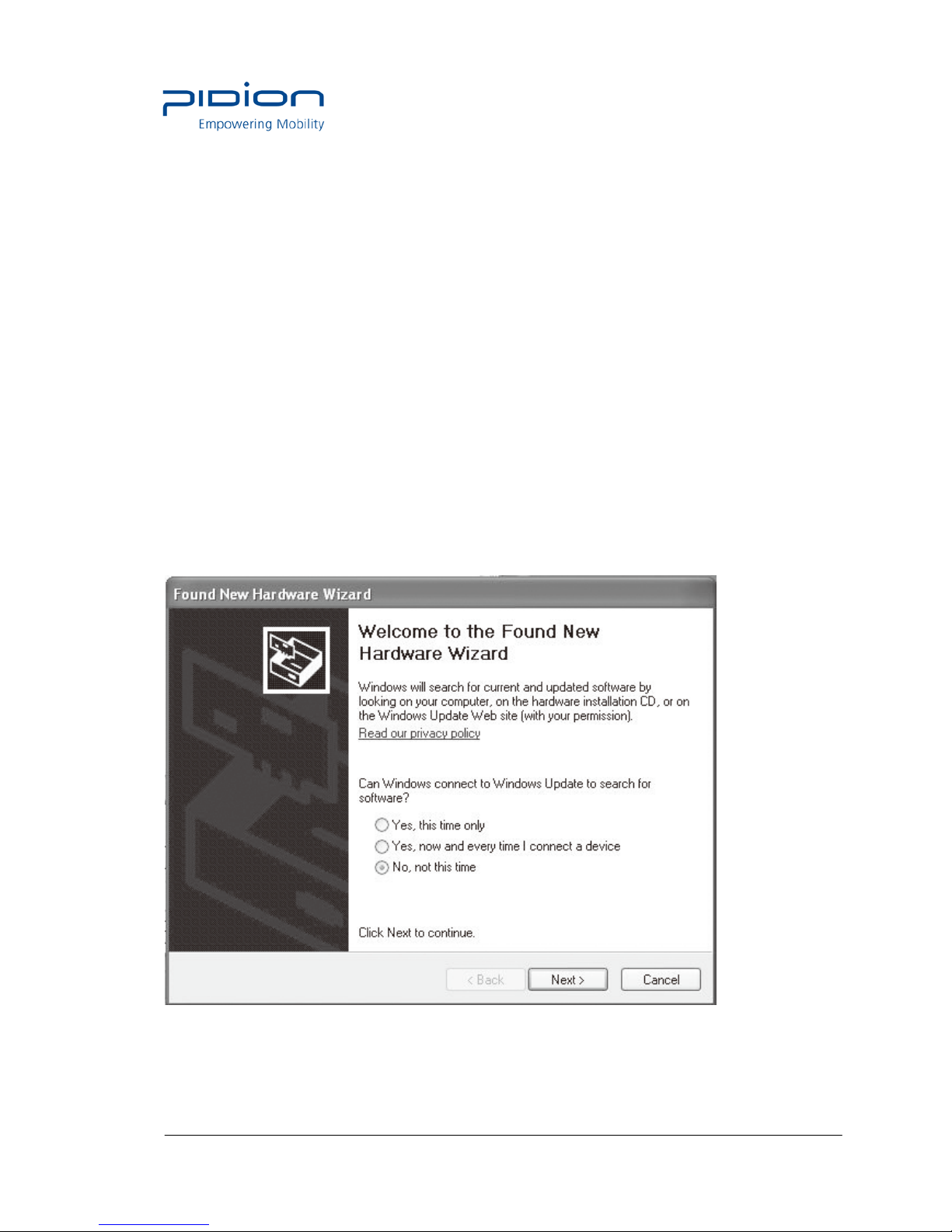
③ The [Found New Hardware Wizard] program is automatically run, and select <No, not this
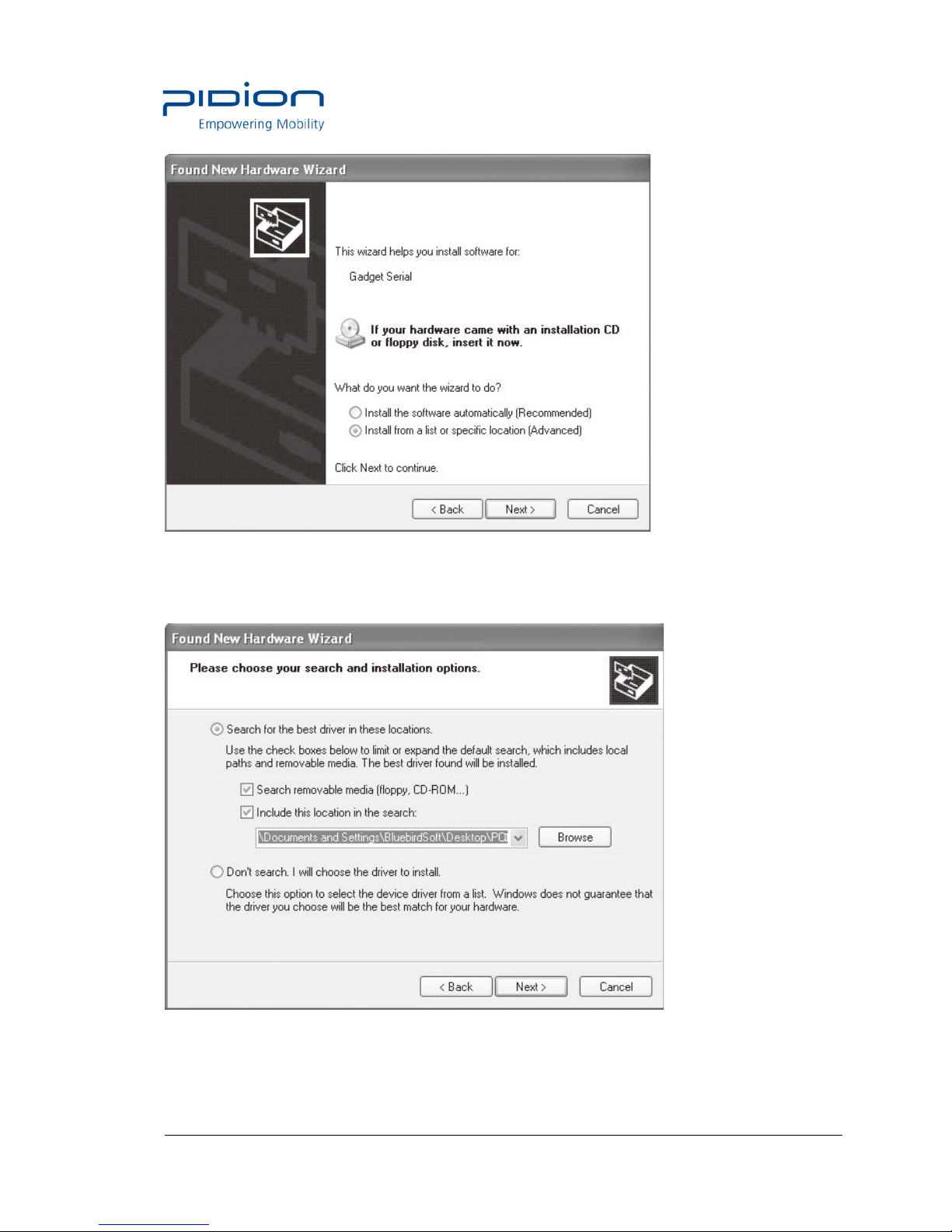
time>, and select the <Next> button.
④ Select the <Install from a list or specific location [Advanced]> menu and select the <Next>
button
.
Page 18
Empowering Mobility Page 18 of 47 Bluebird Soft Inc.
BI-500 User Manual
⑤ Select the <Include this location in the search> menu and select the <Search> button, and
select a folder in which the driver file [usbser.inf ] is saved, and then select the <Next> button.
⑥ After the <Install Hardware> window appears, press the <Continue> button.
Page 19
Empowering Mobility Page 19 of 47 Bluebird Soft Inc.
BI-500 User Manual
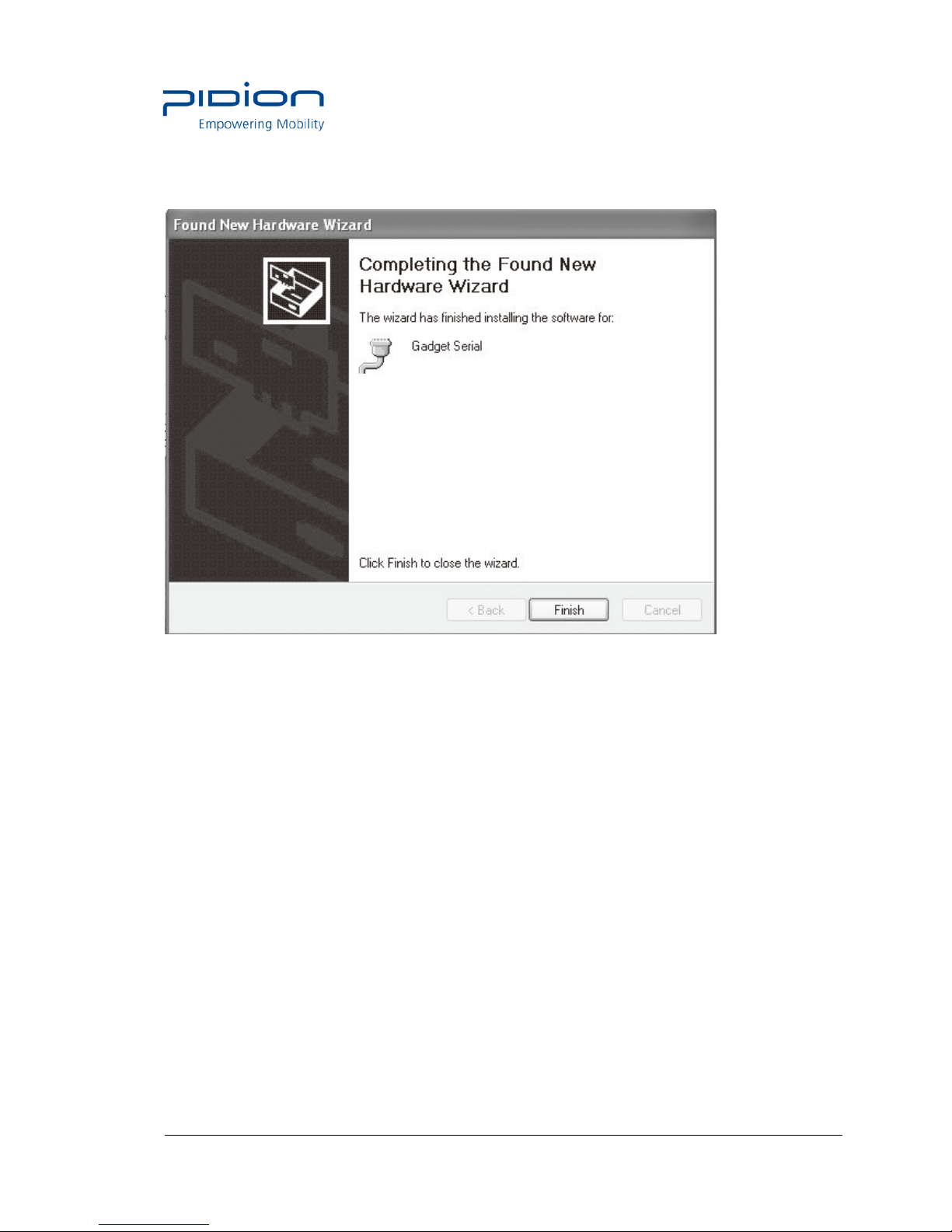
⑦ If you check <Finish> in the [Found New Hardware Wizard], the program is successfully
installed.
TIP.
• If the window to search for [usbser.sys] file does not appear, or the device is not properly
recognized even after the driver file [usbser.inf] is normally installed, separate the terminal
from the PC, ▶ copy the [usbser.sys] file of in the <C:\WINDOWS\ system32\drivers> folder,
▶ connect the terminal to the PC again.
• You can download the driver at our homepage. (http://www.mypidion.com)
Page 20
Empowering Mobility Page 20 of 47 Bluebird Soft Inc.
BI-500 User Manual
Sending data to PC
2. Installing PidionScan Program.
(Warning)
• The seen screen corresponds to the [Windows XP] version and it depends on
the software version used.
• Image seen in the [Windows Vista] screen is different, but the function is the same as
[Windows XP].
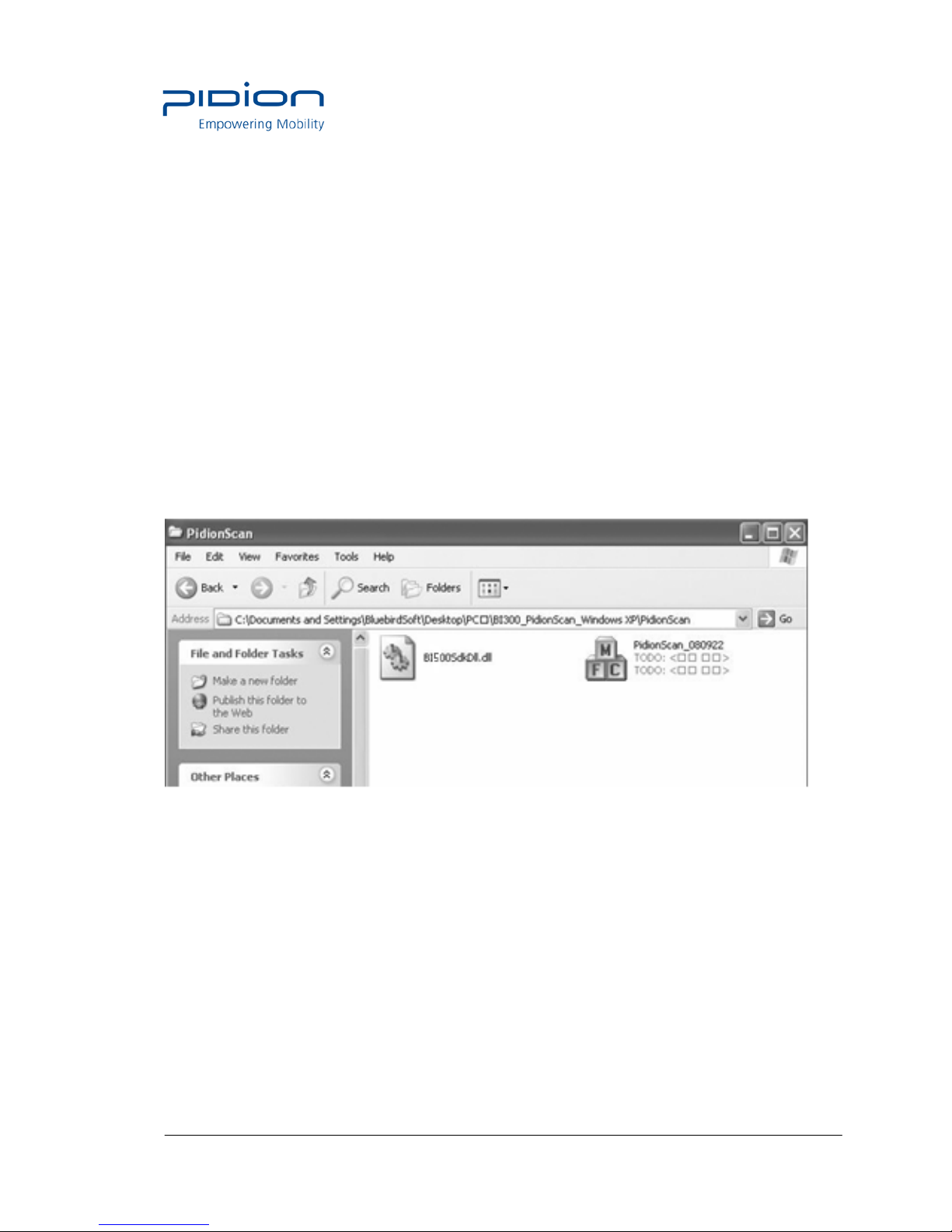
① Select the PC driver folder [BI500_PidionScan_Windows XP, Vista], and copy the
[PidionScan_ Winxp,Vista] folder in the PC, and select the [PidionScan_WinXp,Vista.exe]
program.
You can download the driver at our homepage.
Page 21
Empowering Mobility Page 21 of 47 Bluebird Soft Inc.
BI-500 User Manual
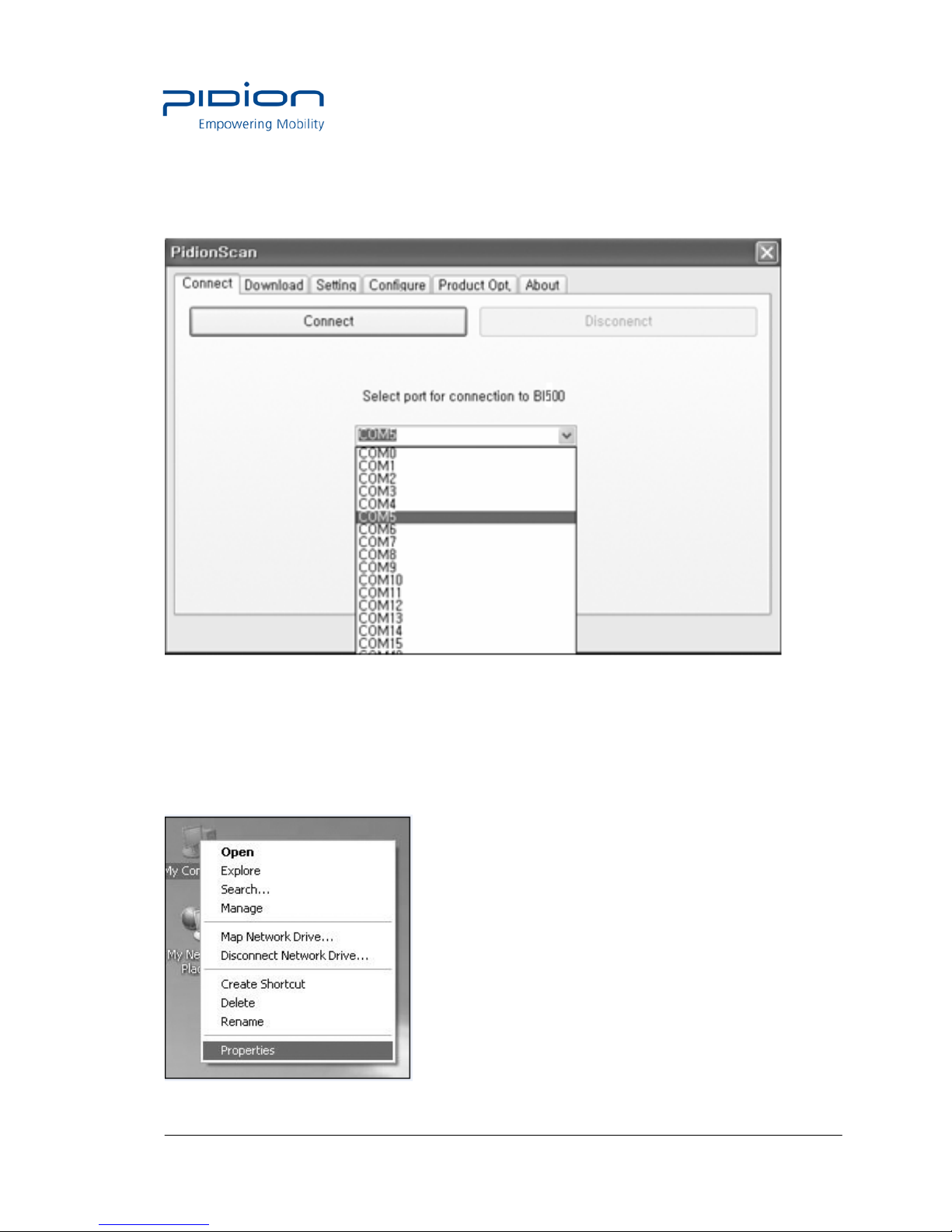
② Set <COM Port> in the [Connect] tab and select the <Connect> button.
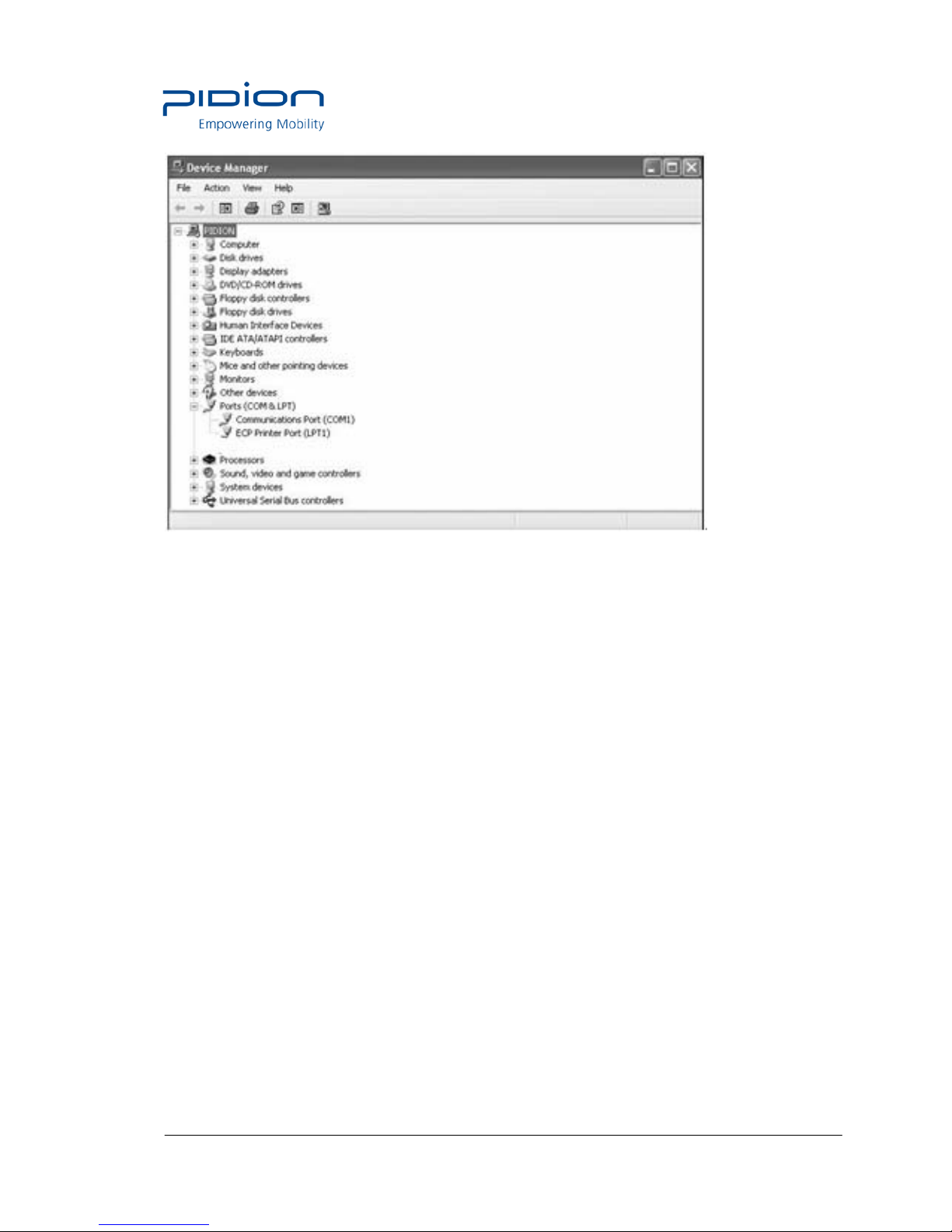
TIP. <COM Port> of <Communication Port> is changed at each PC, so that check the number
to which the Gadget Serial COM port is set.
To check <COM Port> to be set,
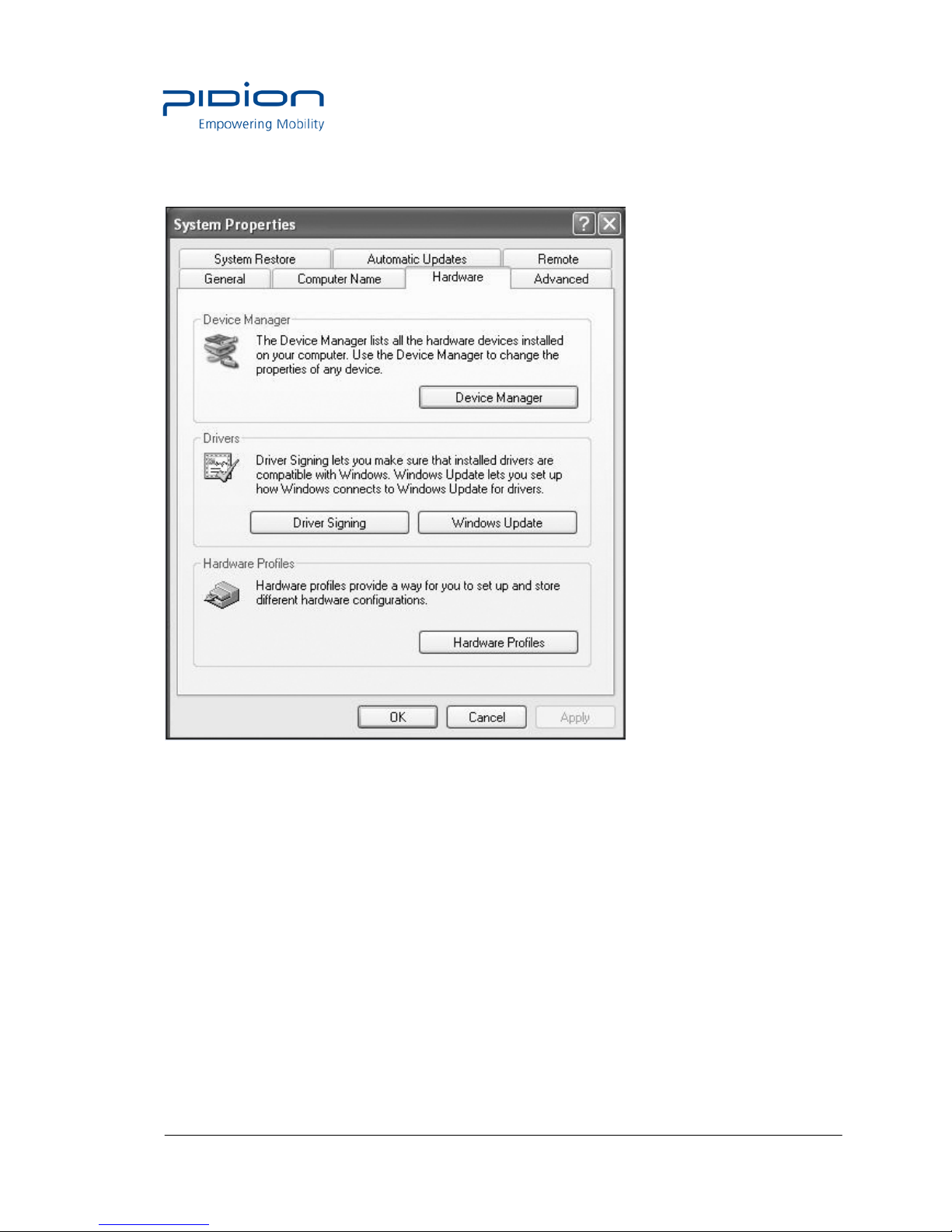
a. Right-click the mouse in [My Computer] of the PC, and select <Properties>.
Page 22
Empowering Mobility Page 22 of 47 Bluebird Soft Inc.
BI-500 User Manual
b. Select [System Restore] ▶ [Hardware] ▶<Device Manager>.
c. If you select <POrt (COM and LPT)> in <Device Manager>, you can check
< Communication Port >.
Page 23
Empowering Mobility Page 23 of 47 Bluebird Soft Inc.
BI-500 User Manual
③ For how to use the [PidionScan] program, refer to <Use PidionScan Program> on page 37.
Tip. Image seen in the PC screen is different, but the function is quite similar to PDA.
Page 24

Empowering Mobility Page 24 of 47 Bluebird Soft Inc.
BI-500 User Manual
Sending data by PDA
You can exchange data by connecting the terminal to the PDA supporting Bluetooth, without
the USB cable.
1. Procedures for data transmission.
① Install [Microsoft ActiveSync] in a PC. (See P-23)
② Connect the PDA and PC with the USB cable and install [PidionScan] in PDA, and
disconnect.(See P-35)
③ Power the terminal on. (See P-13)
④ Set <Bluetooth> of the PDA. (See P-31)
⑤ Set the [PidionScan] program of the PDA. (See P-35)
⑥ Scan barcode with the terminal. (See P-14)
⑦ Scanned barcode information is displayed in the screen of the [PidionScan] program or in
the Word/Memo of the PDA.
Tip.
• If the PDA and Bluetooth are properly connected, the Barcode reading communication lamp
turns blue, and high signal tone is generated once.
• Even if the Bluetooth transmission fails after barcode scanning, the barcode data is
automatically stored in the scanner.
• Because the Bluetooth interworking is disconnected while PDA is in Power Save
mode, do not use Power Save mode when interworking with Bluetooth.
2. Installing ActiveSync.
To install the [PidionScan] program in the PDA, install the [MicroSoft ActiveSync]
progr am in a PC.
If the [ActiveSync] program is already installed in the PC, you need not install the program
separately.
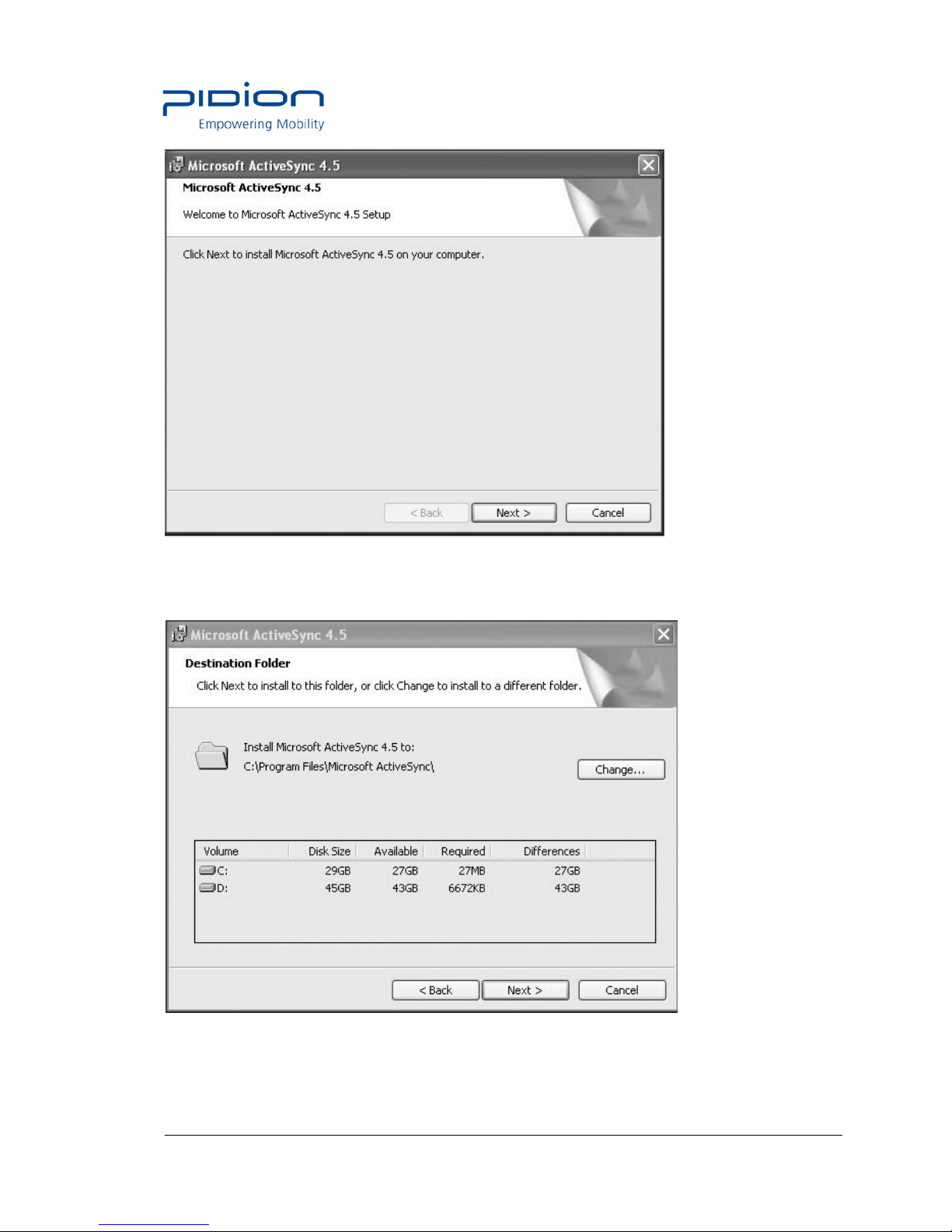
The seen screen corresponds to the [Microsoft ActiveSync 4.5] version and it depends on the
software version used.
① Access the Microsoft’s Website, and download [Microsoft ActiveSync], and install.
Page 25
Empowering Mobility Page 25 of 47 Bluebird Soft Inc.
BI-500 User Manual
② Select the <Accept> button in the [License Contract] window, and ▶ fill in the <User ID>
<Organization> in the [Customer information] window, and ▶ set <Installation Location> in the
[Target Folder] window.
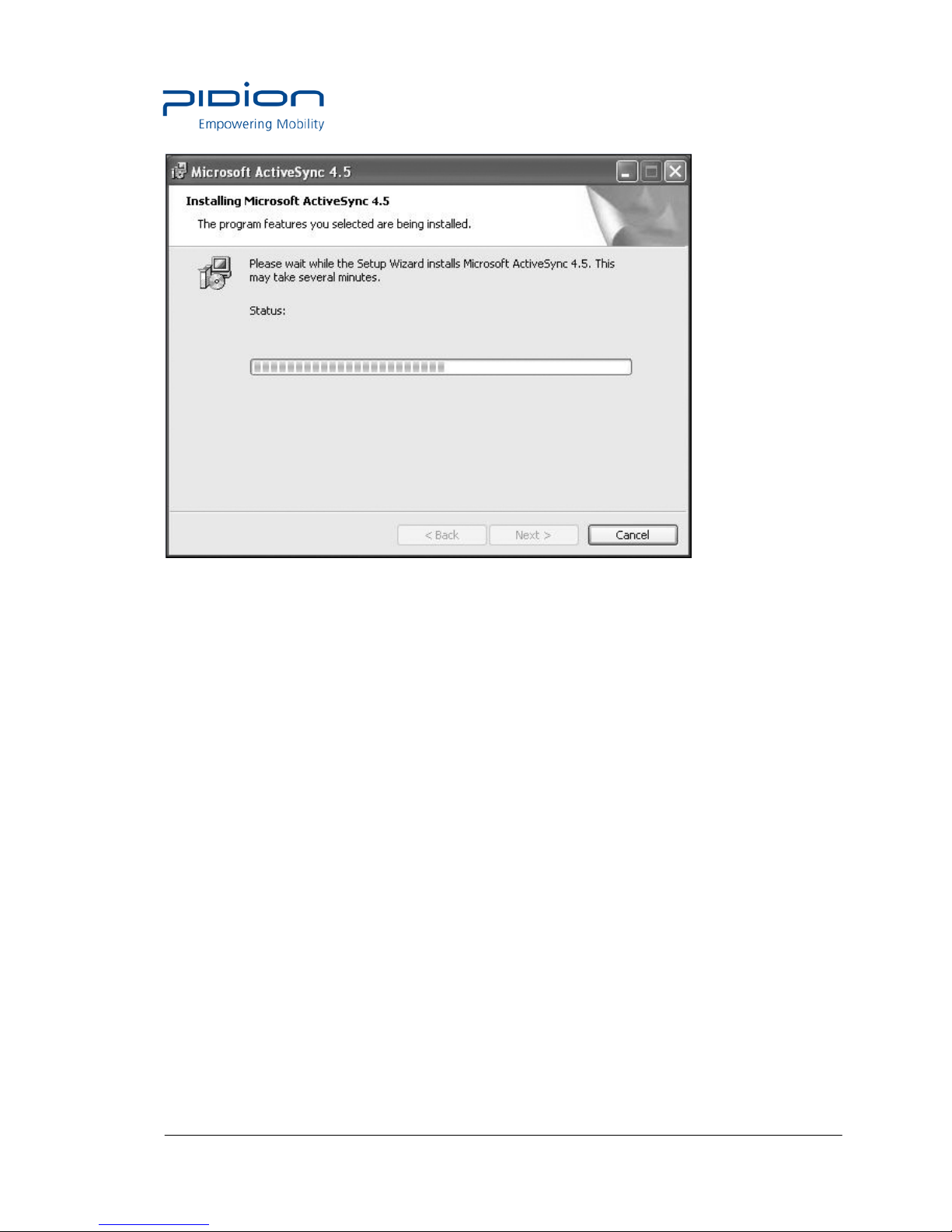
③ If ready to install, [Microsoft ActiveSync] is installed.
Page 26
Empowering Mobility Page 26 of 47 Bluebird Soft Inc.
BI-500 User Manual
④ [Microsoft ActiveSync] installation is completed.
3. Installing PidionScan Program
• The seen screen corresponds to the [Windows Mobile] version and it depends
on the software version used.
• Image seen in the [Windows CE] screen is different, but the function is the same as [Windows
Mobile].
Page 27
Empowering Mobility Page 27 of 47 Bluebird Soft Inc.
BI-500 User Manual
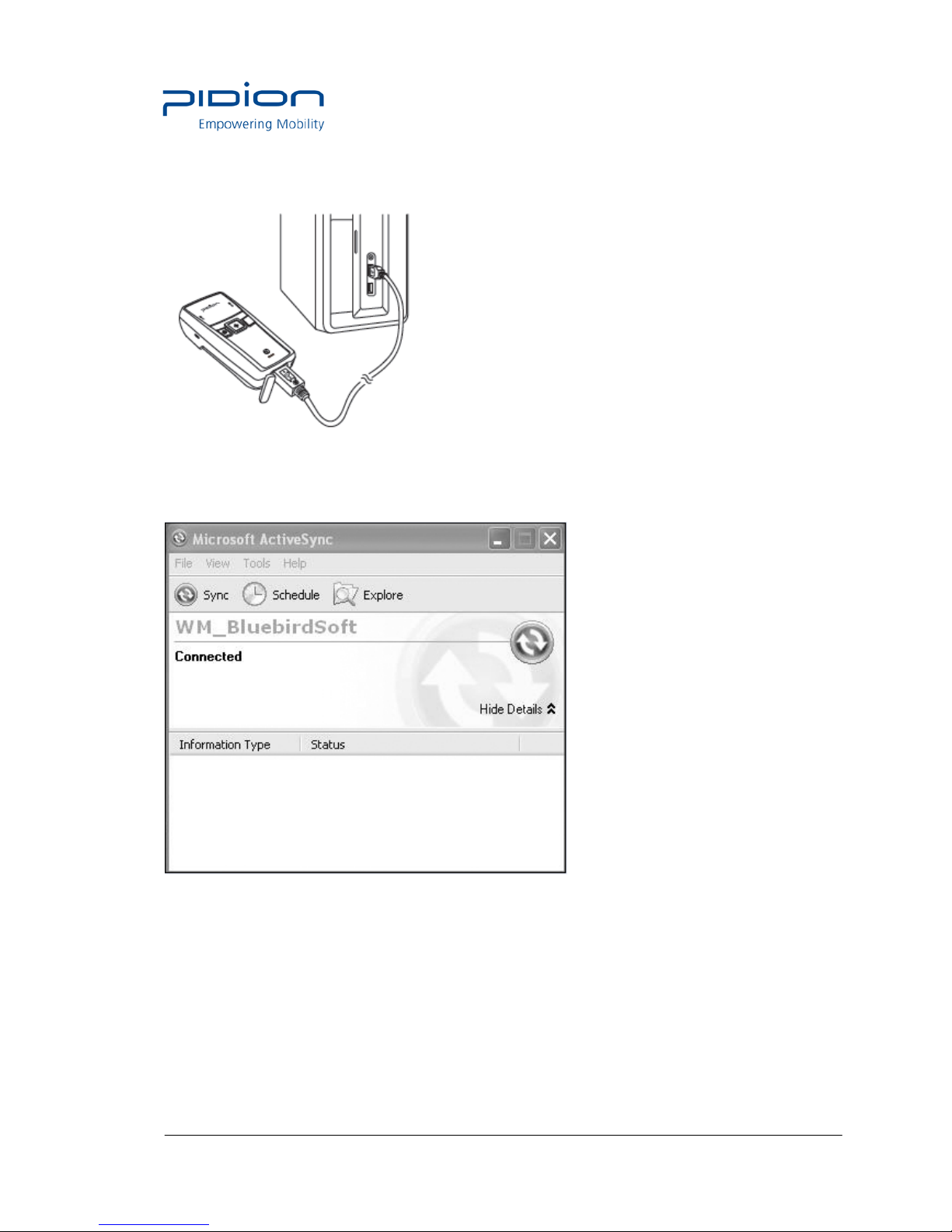
① Connect the PDA and the PC using the USB cable.
② Execute [Microsoft ActiveSync], and select the <Browse> button.
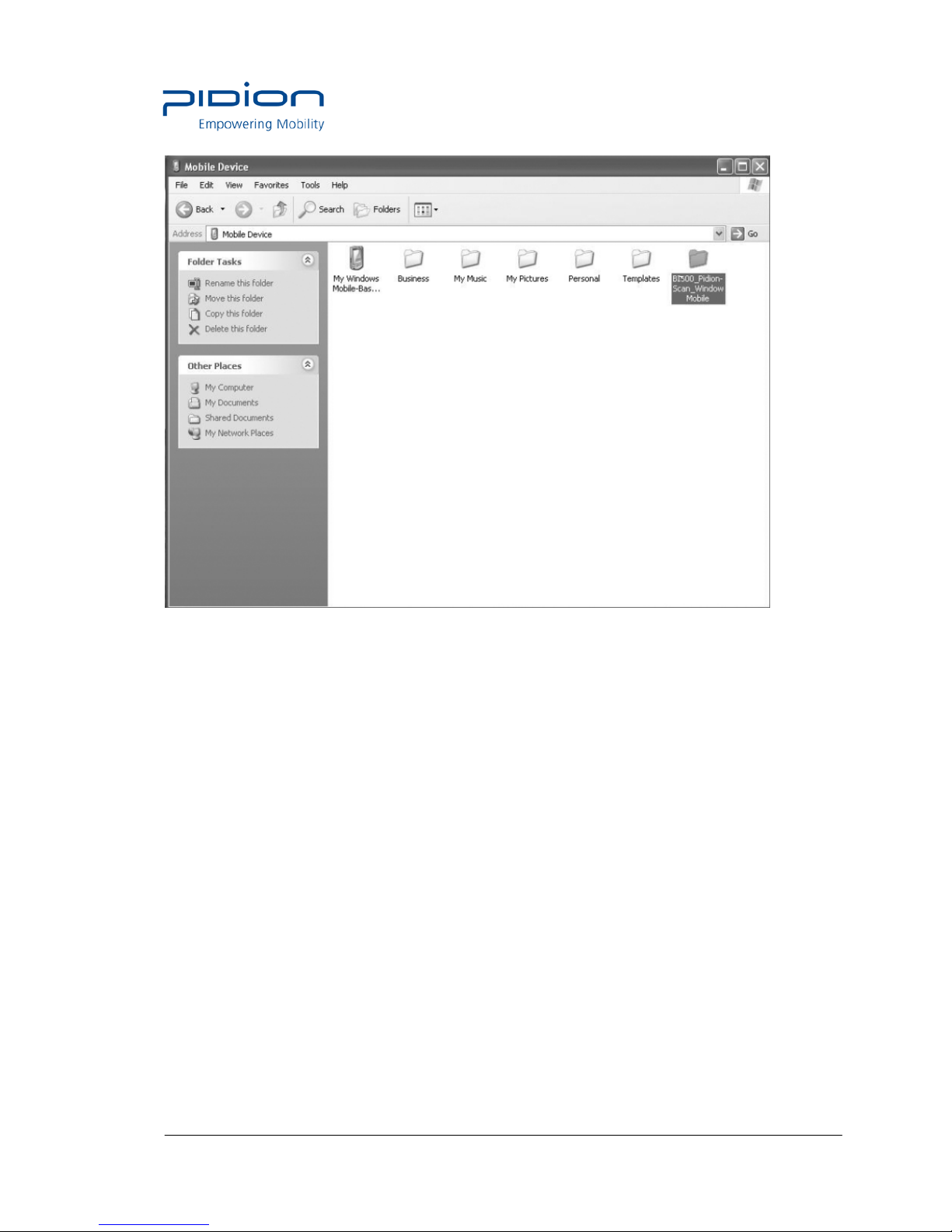
③ Copy the [BI500_Pidion-Scan_Windows Mobile] folder in the provided CD in the [Mobile
Device] folder.
Page 28
Empowering Mobility Page 28 of 47 Bluebird Soft Inc.
BI-500 User Manual
• Depending on software version used in PDA, install the [BI500_ PidionScan _Windows CE]
folder for Windows CE, and install the [BI500_PidionScan_Windows Mobile] folder for Windows
Mobile.
• The <PidionScan_WinCE.exe, PidionScan_WinMobile.exe> file and the <BI500SdkDll.dll> file
and the <BIDevSearch.dll> file are enabled only if they are installed in the same folder.
Page 29
Empowering Mobility Page 29 of 47 Bluebird Soft Inc.
BI-500 User Manual
4. Bluetooth Power On/Power Off -1
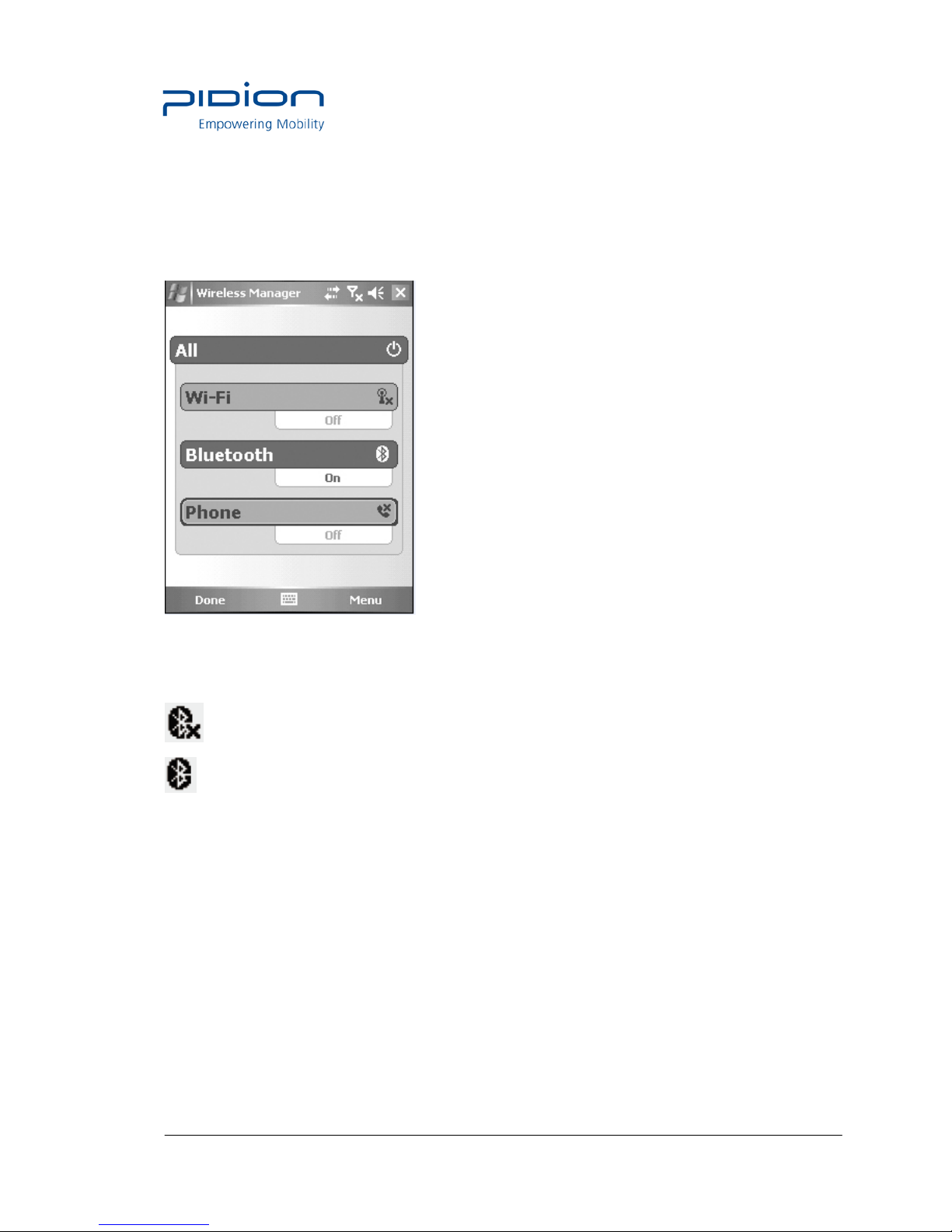
If you want to connect other equipment using the Bluetooth, execute the Bluetooth function fir st.
① Select the [Start] ▶ [Set] ▶[Connect], and ▶ [Wireless Administrator].
② Select <Bluetooth>.
: Bluetooth off (release)
: Bluetooth on (set)
Page 30
Empowering Mobility Page 30 of 47 Bluebird Soft Inc.
BI-500 User Manual
4. Bluetooth Power On/ Power Off -2
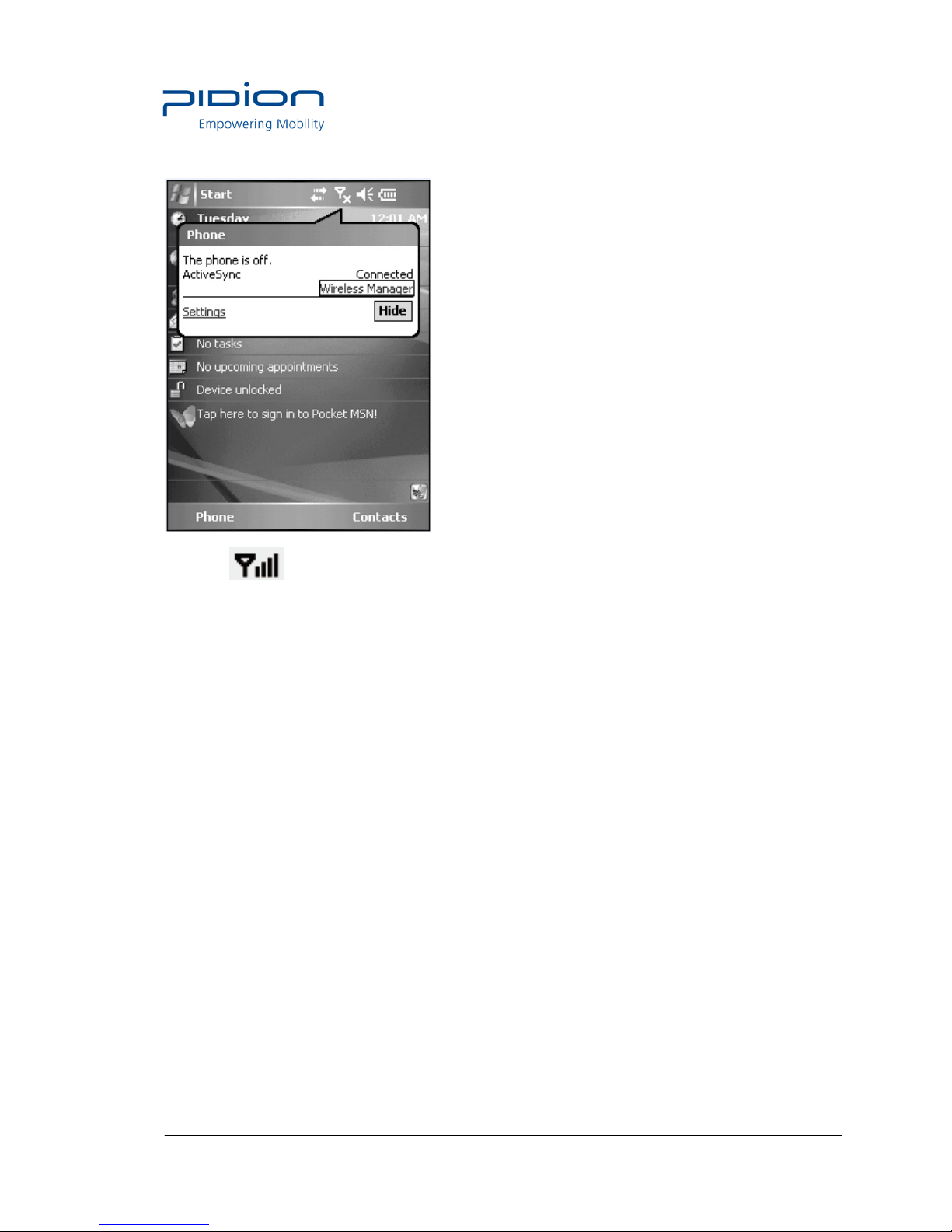
① Select at the top of the screen and select [Wireless Administrator].
② Select <Bluetooth>.
Tip. Terminal equipped with Bluetooth can be connected without setting Bluetooth.
5. Bluetooth setting-Windows Mobile
The seen screen corresponds to the [Windows Mobile 5.0] version and it depends
on the software version used.
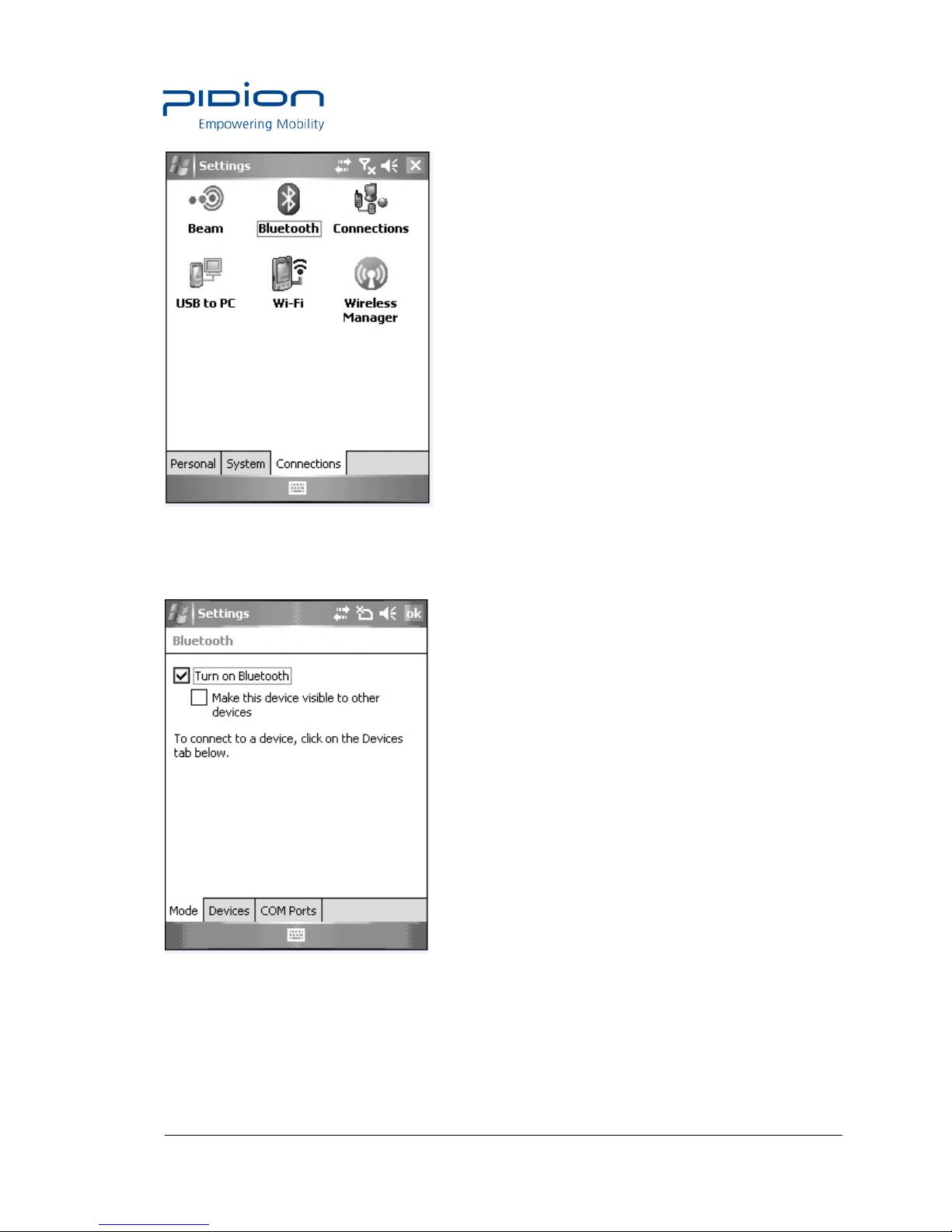
① Select the [Start] ▶ [Set] ▶ [Connections] and ▶ [Bluetooth].
Page 31
Empowering Mobility Page 31 of 47 Bluebird Soft Inc.
BI-500 User Manual
② Select <Turn on Bluetooth> in [Mode] tab.
③ Select <Add New Device> in the [Device] tab.
Page 32
Empowering Mobility Page 32 of 47 Bluebird Soft Inc.
BI-500 User Manual
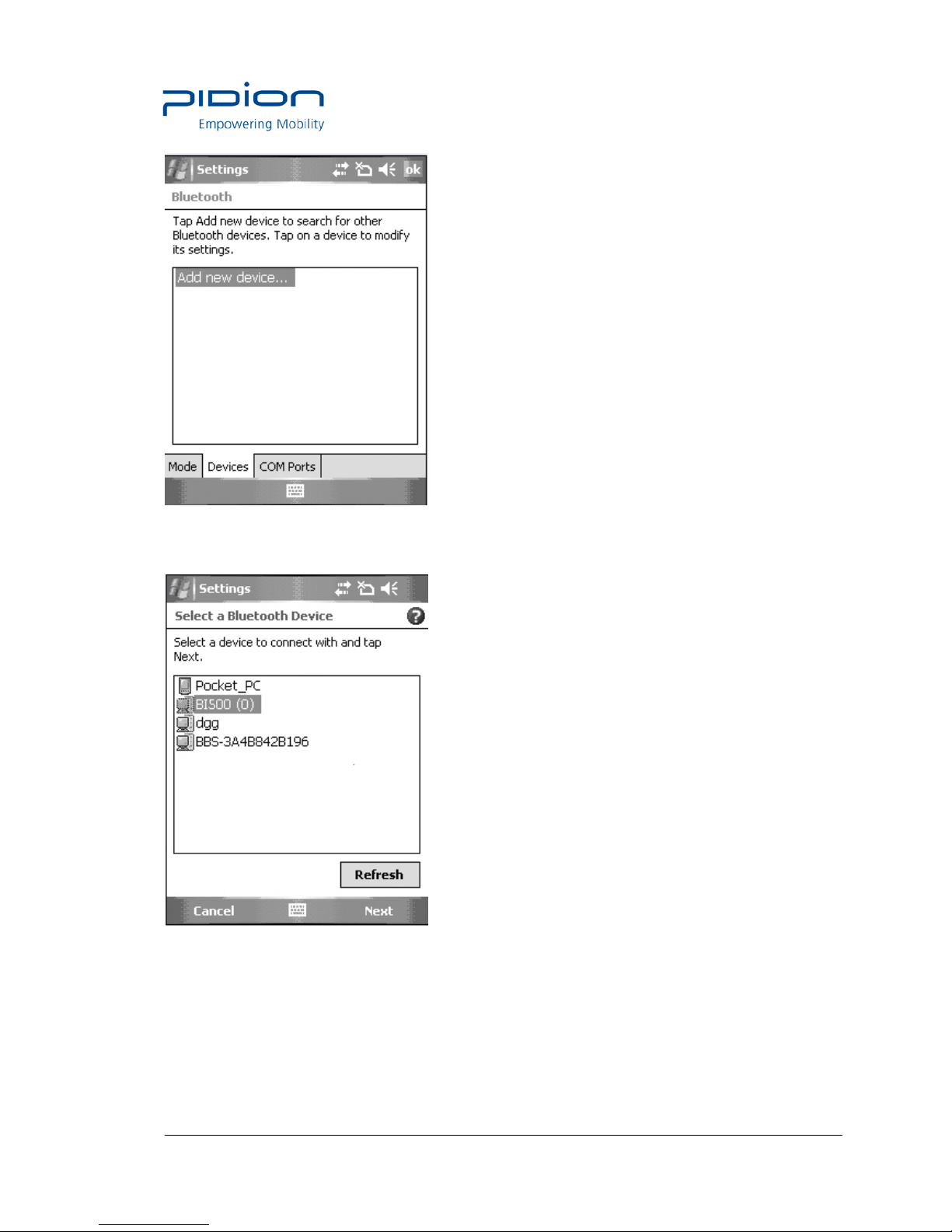
④ Select <BI-500> among the searched Bluetooth devices, and select the <Next>button.
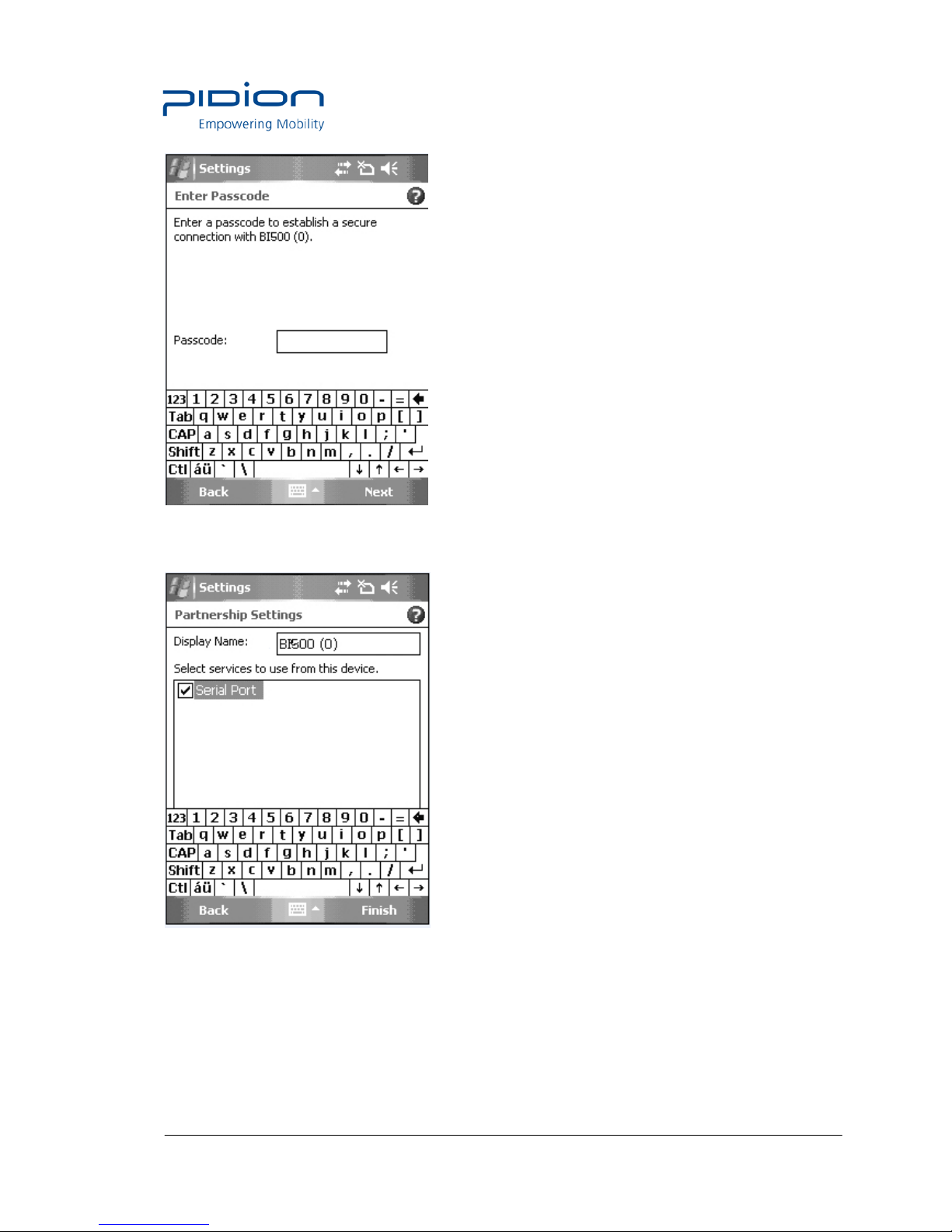
⑤ Enter password and select <Next> button.
※ If the PDA and the terminal are connected for the first time, enter password to
register.
Default password is 1234, and the user can change the password.
Page 33
Empowering Mobility Page 33 of 47 Bluebird Soft Inc.
BI-500 User Manual
⑥ Select <Serial Port> and select the <Finish> button.
Page 34
Empowering Mobility Page 34 of 47 Bluebird Soft Inc.
BI-500 User Manual
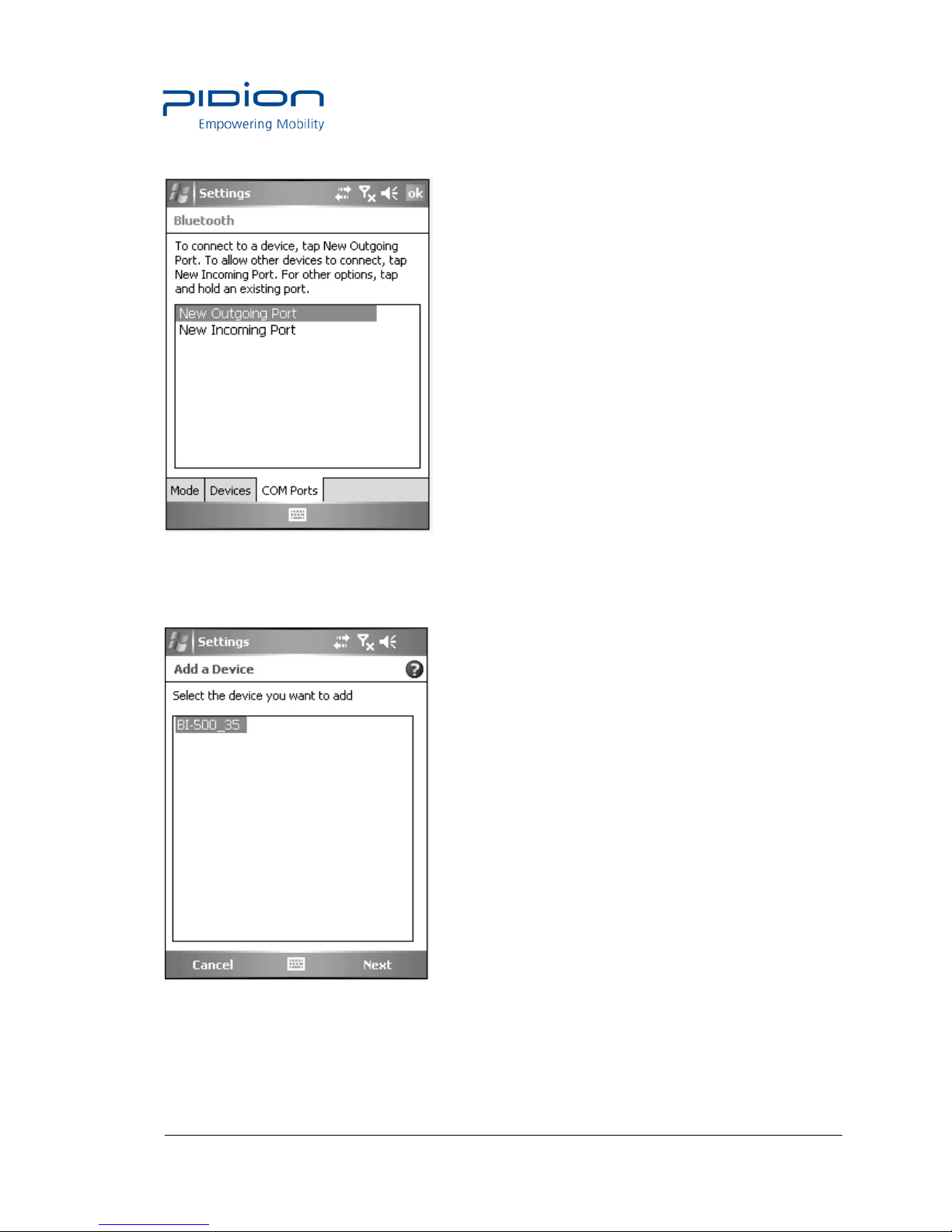
⑦ Select <New Outgoing Port> in the [COM Port] tab.
⑧ Select <BI-500> and select the <Next> button.
Page 35
Empowering Mobility Page 35 of 47 Bluebird Soft Inc.
BI-500 User Manual
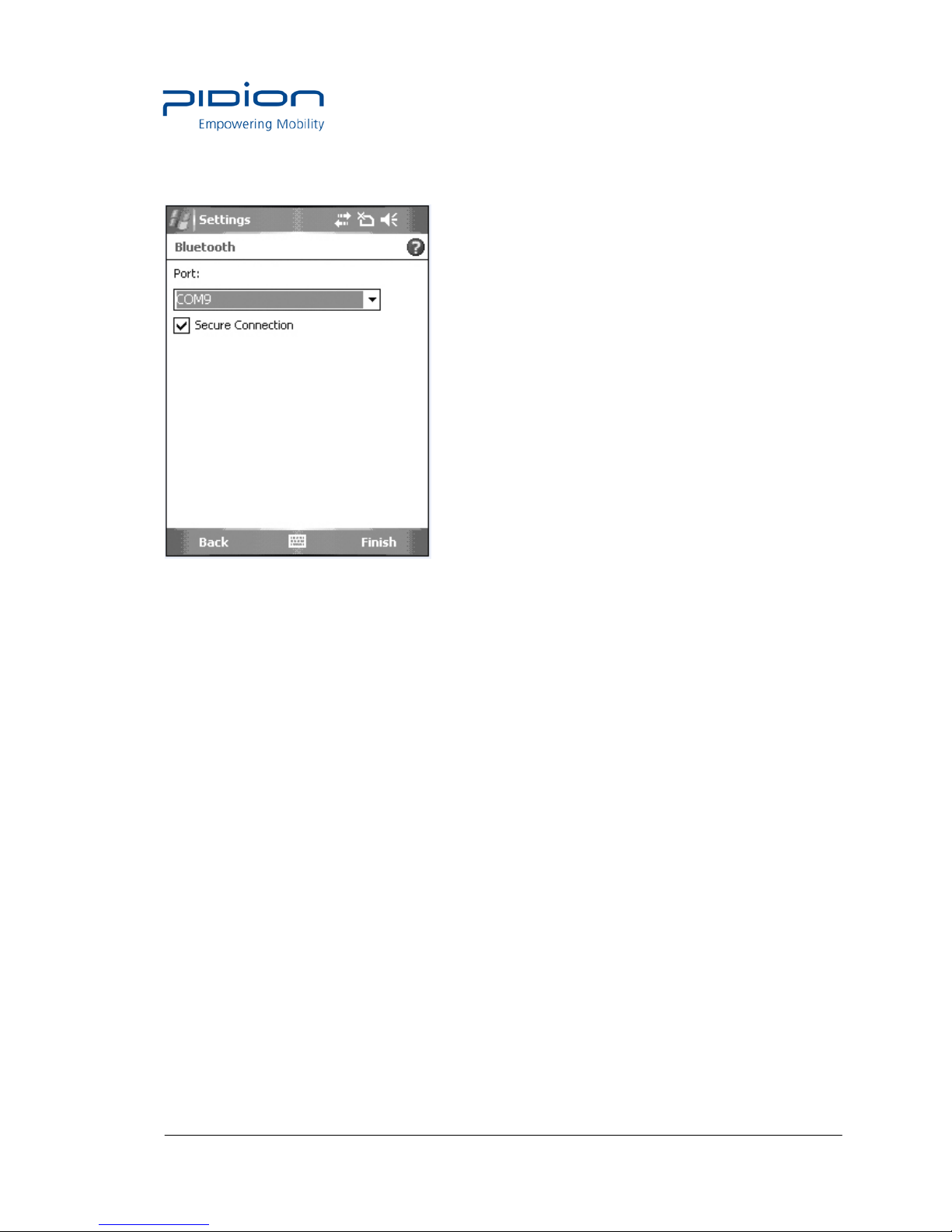
⑨ Select an unused port address and select the <Finish> button.
TIP. Unavailable if a port in use is selected and available only if a port not in use is selected.
Page 36
Empowering Mobility Page 36 of 47 Bluebird Soft Inc.
BI-500 User Manual
Using PidionScan Program
Using the program named PidionScan, you can perform data communication with the PDA/PC,
and set the function of a terminal.
Image seen in the PC screen is different from that of PDA, but the function is quite similar each
other.
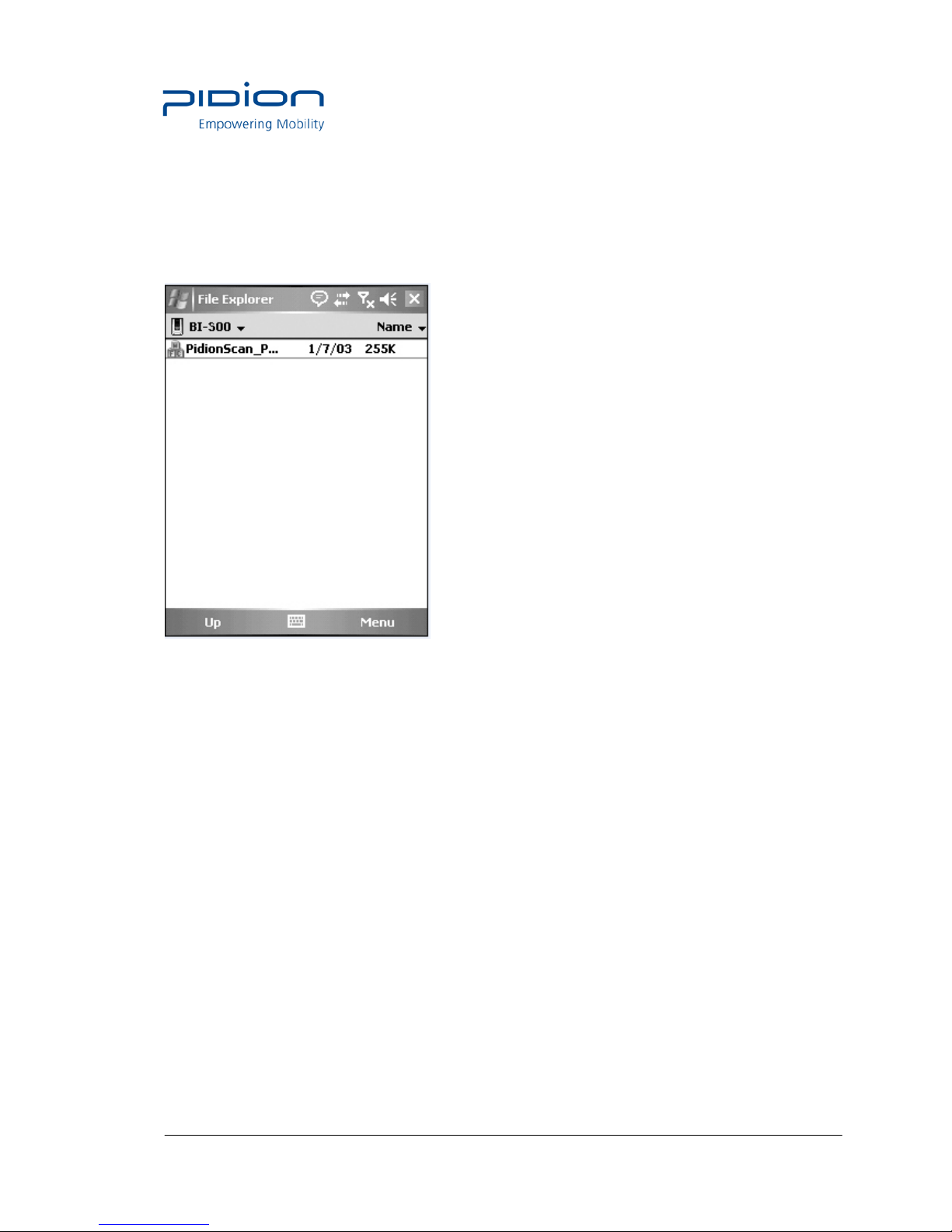
Click [PidionScan] installed in PDA/PC to execute the program.
In case of PDA, go to [Start] ▶ [File Browser], and then search for the folder saving
PidionScan. Select [PidionScan] in the folder.
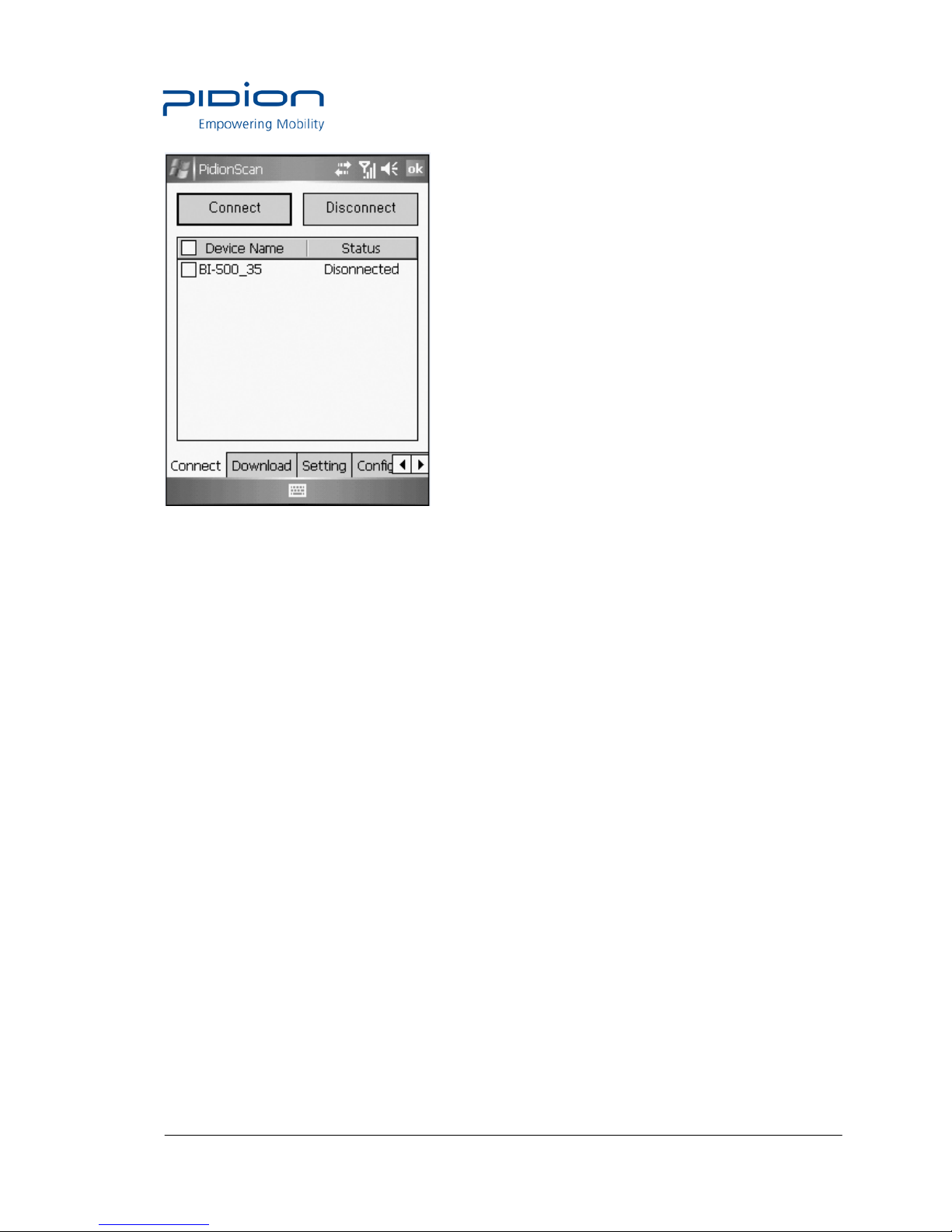
1. Connect
You can connect/disconnect communication between the terminal and PC/PDA through
Connect/Disconnect.
Page 37
Empowering Mobility Page 37 of 47 Bluebird Soft Inc.
BI-500 User Manual
• Connect : Connect to the ticked device in the list.
• Disconnect : Disconnect to the ticked device in the list, among connected devices.
• Device Name; It is possible to distinguish many devices by the terminal serial number.
• Status : Display the progress status and results.
- Connected : Connected normally.
- Connecting : Attempting to connect.
- Connect Fail : Fail in connection.
- Disconnected : Disconnect.
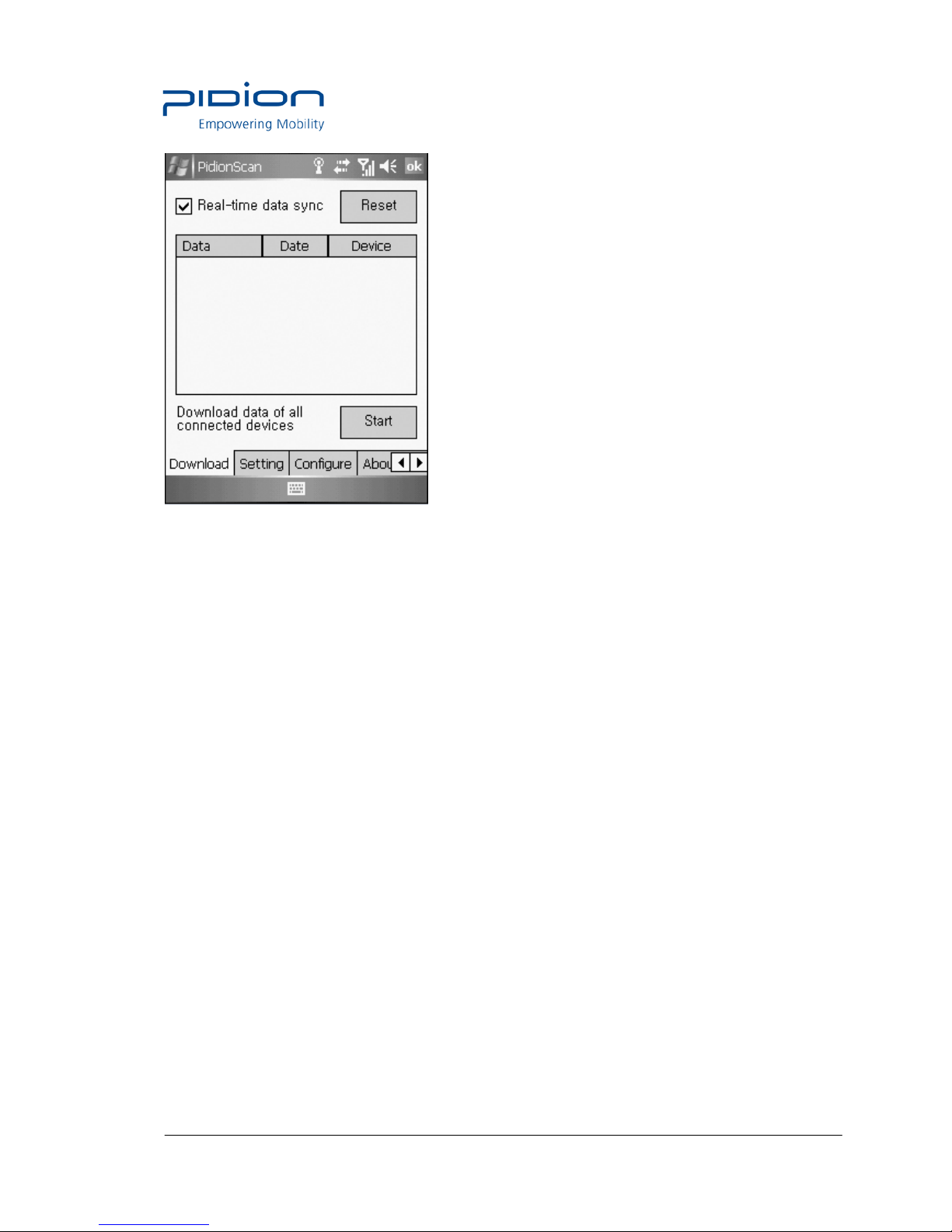
2. Download
You can download data stored in the terminal.
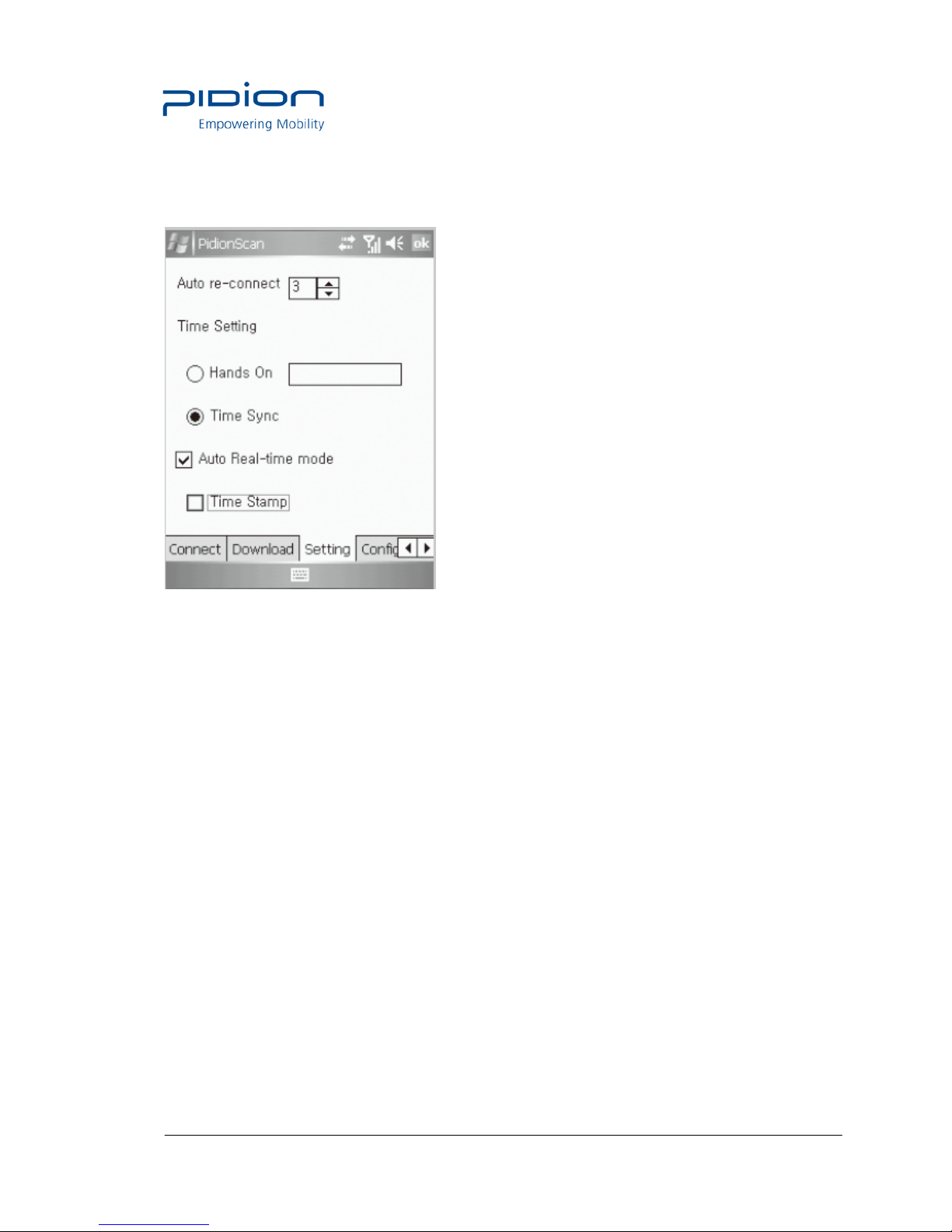
• Real-time data sync : If ticked off, barcode values read in all connected devices are displayed
in data sheet in real time.
Page 38
Empowering Mobility Page 38 of 47 Bluebird Soft Inc.
BI-500 User Manual
• Reset
If you press Reset, barcode values read as Real-time data sync is cleared only from t h e sc r een.
Tip. If too many barcode values are displayed in a data sheet in Real-time data sync state,
sometimes, there may be a problem with program performance.
• Data sheet
- Possible to adjust the width of each row by drag.
- Scroll is automatically created if an item goes beyond the window.
- Unless otherwise, size only is left as blank.
• Download data saved in the device
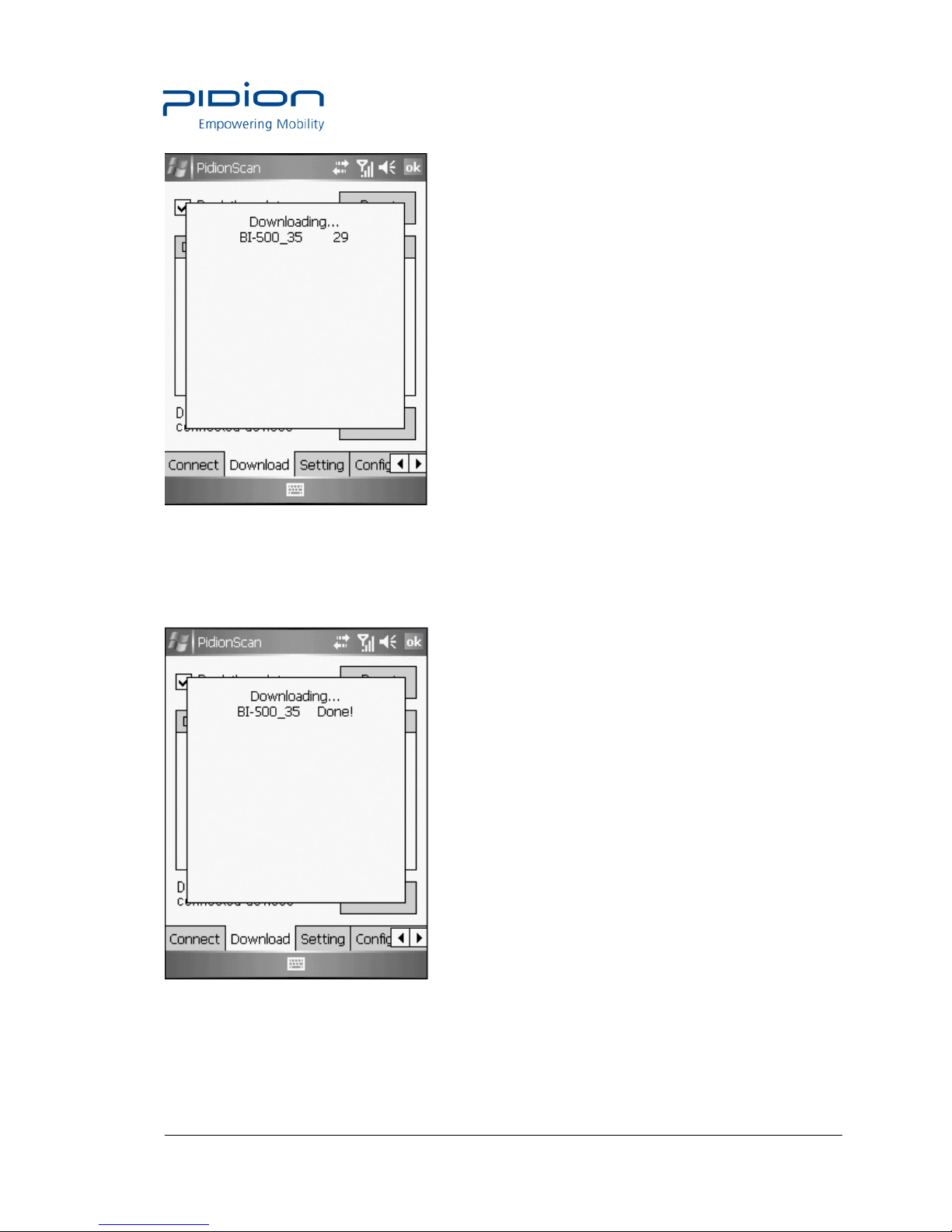
① If you press the <Start> button in the [Download] tab, the <Downloading>
popup window appears (If the Popup window appears, the Download button is
deactivated, and activated again after the completed Popup window disappears)
Page 39
Empowering Mobility Page 39 of 47 Bluebird Soft Inc.
BI-500 User Manual
② Device IDs of all connected devices are displayed in the Popup window, and the download
status per device is progressed by %.
IF download is completed, the <Done!> message is displayed, and the download of the next
device gets started.
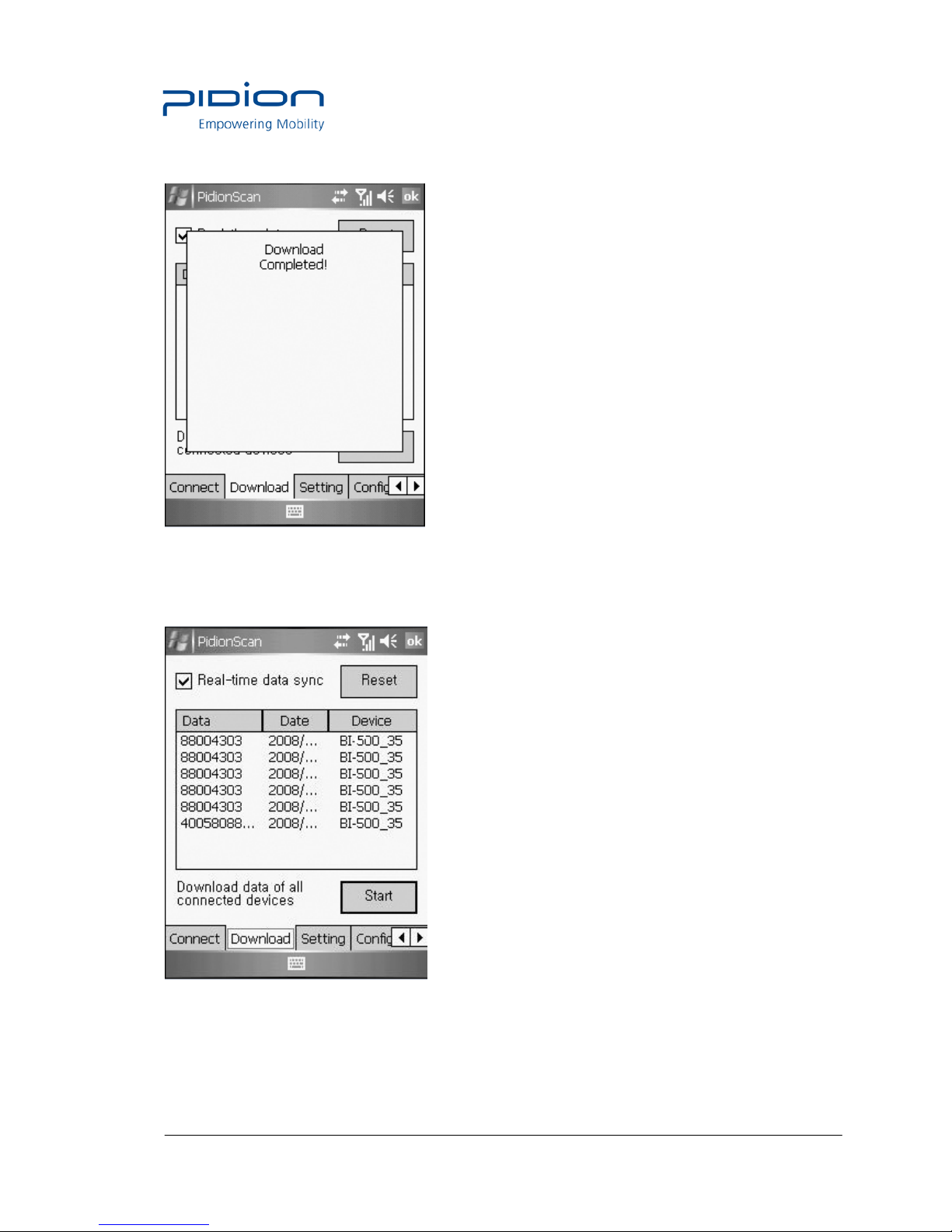
③ If download of all devices is completed, the <Download Completed!> message is displayed,
Page 40
Empowering Mobility Page 40 of 47 Bluebird Soft Inc.
BI-500 User Manual
and automatically disappears in one second.
④ File name of download location is saved as <Device name_scandata.extension>. For PDA,
downloaded files are saved in the <Device(my device)> folder, and for PC, downloaded files
are in a folder where the EXE file of [PidionScan] exists
Page 41
Empowering Mobility Page 41 of 47 Bluebird Soft Inc.
BI-500 User Manual
3. Setting
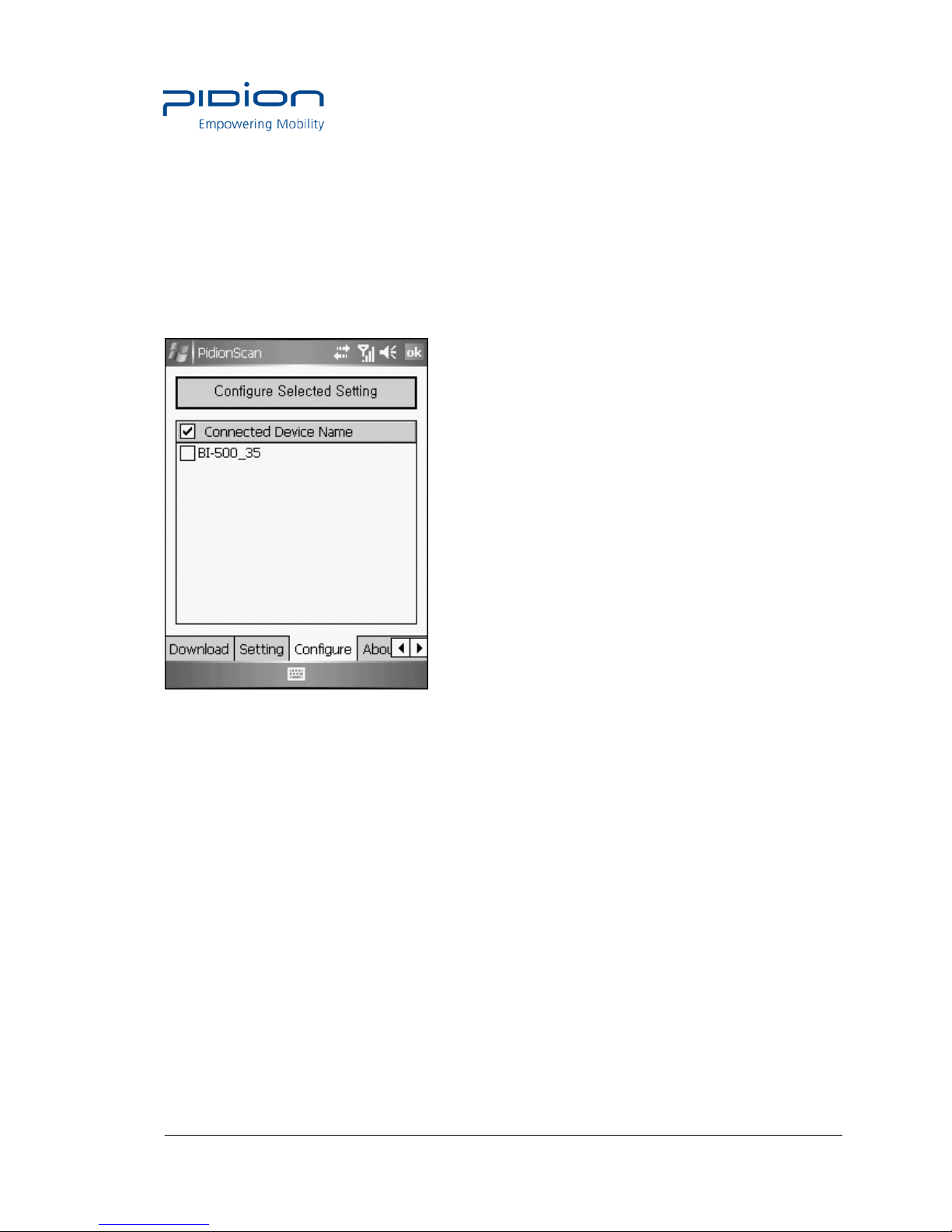
Auto re-connect
• Automatically re-connect if Bluetooth connection is disconnected.
• You can set the maximum number of attempt.
- Time interval default is 5 seconds, the maximum number of attempt is 0~10
(impossible to automatically re-connect if 0)
• Default : 3times
Auto Real-time mode
• If you select the checkbox, barcode values read by If you click the check box, the barcode
data from the terminal will be indicated on the exe window of
notepad or word at your PC or PDA in real time.
• If you do not select the checkbox, barcode values are not displayed in real time.
• Time Stamp
Used to display date and time in the barcode information.
Example) 2010/11/20 19:26:13 01223334
date time Barcode information
Tip. If you select the <Auto Real-time mode> checkbox, the <Time Stamp> checkbox is
activated.
Page 42
Empowering Mobility Page 42 of 47 Bluebird Soft Inc.
BI-500 User Manual
4. Configure
You can configure the environment such as terminal volume, memory.
For multiple accesses, you can select many terminals and apply set value at a time.
If you select the checkbox of a target terminal and click the <Configure Selected Setting>
button, you can move to the submenu of Configure.
Tip. Change settings in each submenu, and check <Configure this tab>, and select the <OK>
button at the right top, and then settings are applied.
Page 43
Empowering Mobility Page 43 of 47 Bluebird Soft Inc.
BI-500 User Manual
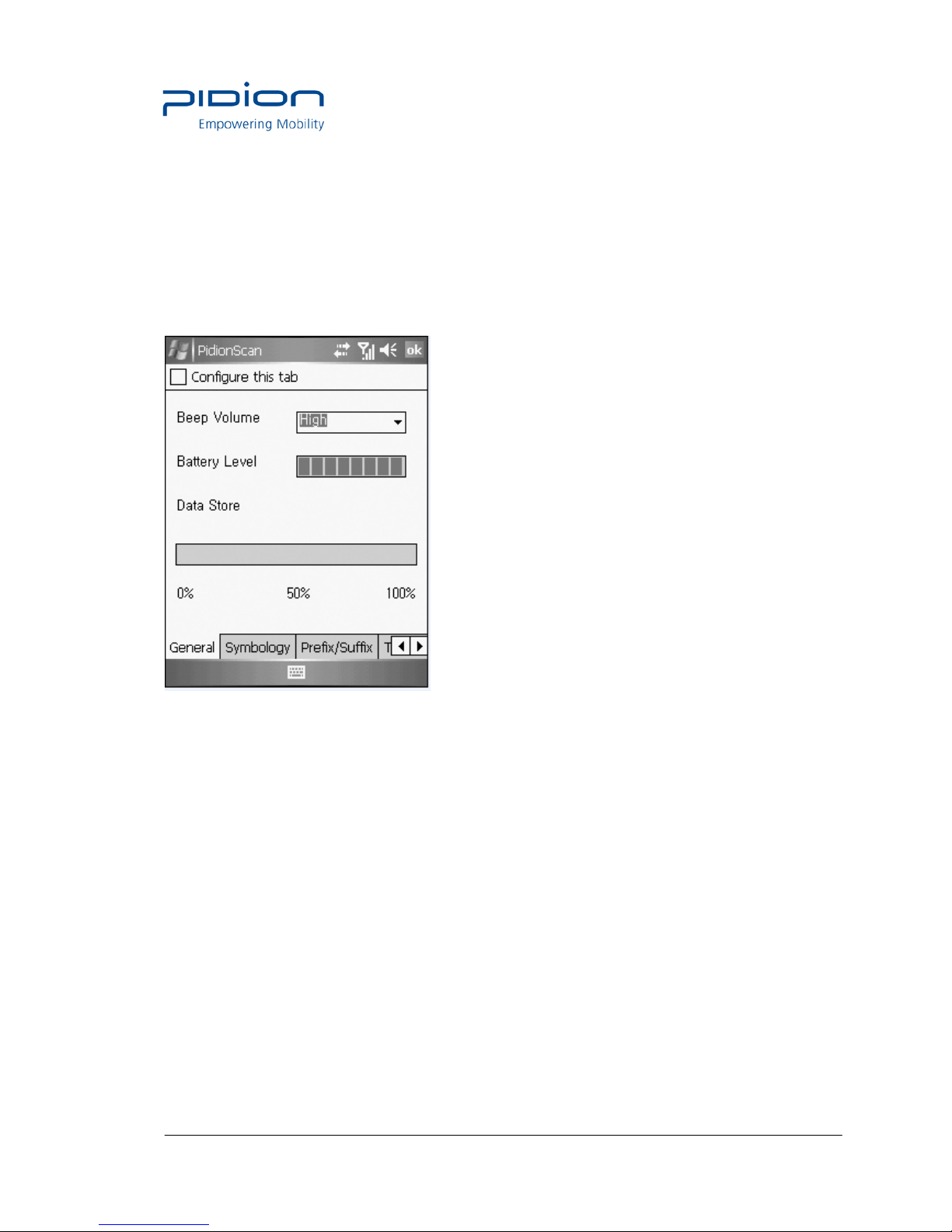
General
Beep Volume : You can adjust the beep volume to level 4(Off/Low/Medium/High).
(Default : High)
Battery Level : Battery level is displayed as High/Medium/Low.
Data Store : Memory usage is displayed and available memory is indicated as %.
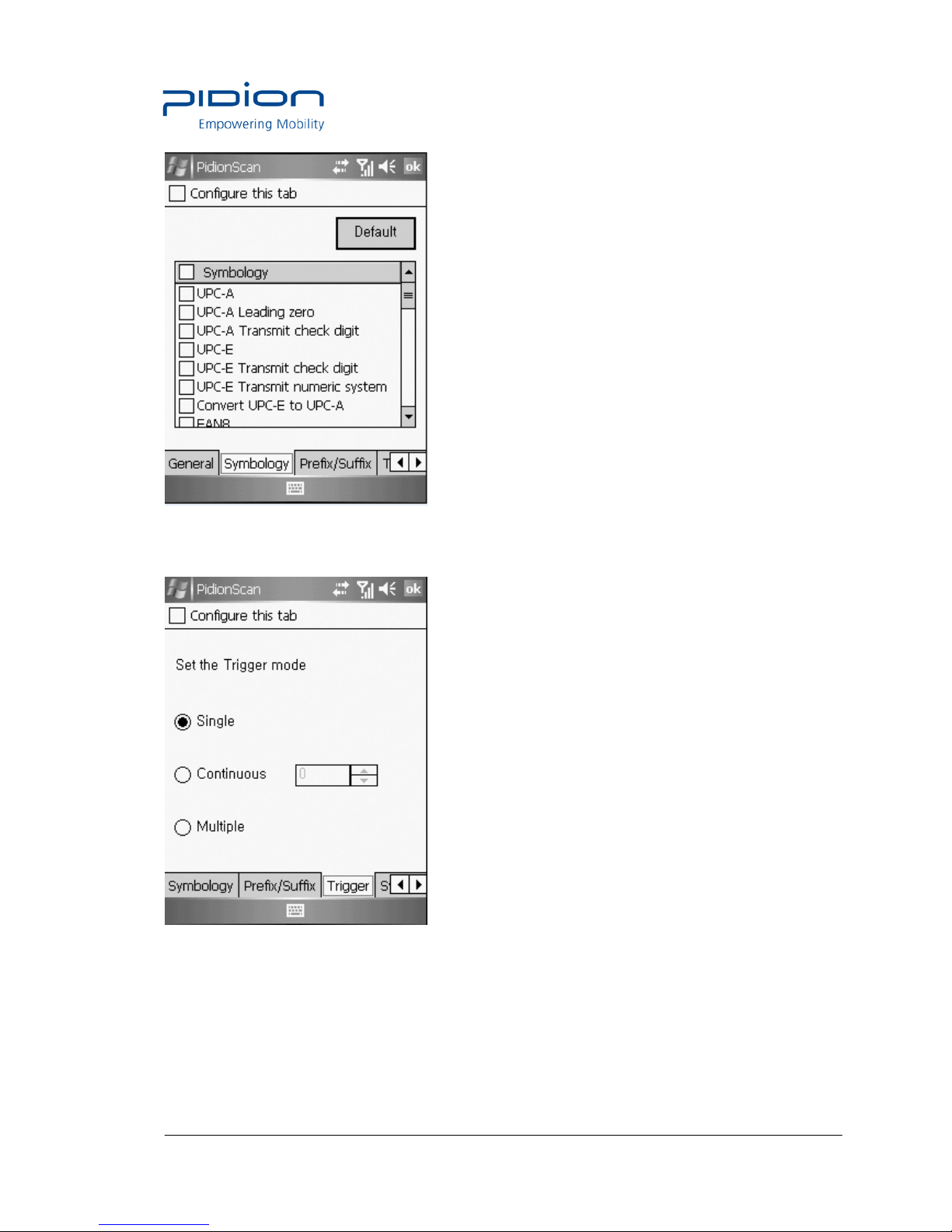
Symbology
You can set a barcode symbol. Select the checkbox of a barcode symbol.
Default : Default barcode is selected.
Among the barcode symbols, Supplement code, Interleaved 2 of 5 Length Min, Interleaved 2 of
5 Length Max, MSI check digit, MSI check digit algorithm are
needed to put the default value of symbol.
If you click the check box of barcode symbol, Sub Option which you can input the default value
will pop up. Then, input the default value as below and push Set button
.
Page 44
Empowering Mobility Page 44 of 47 Bluebird Soft Inc.
BI-500 User Manual
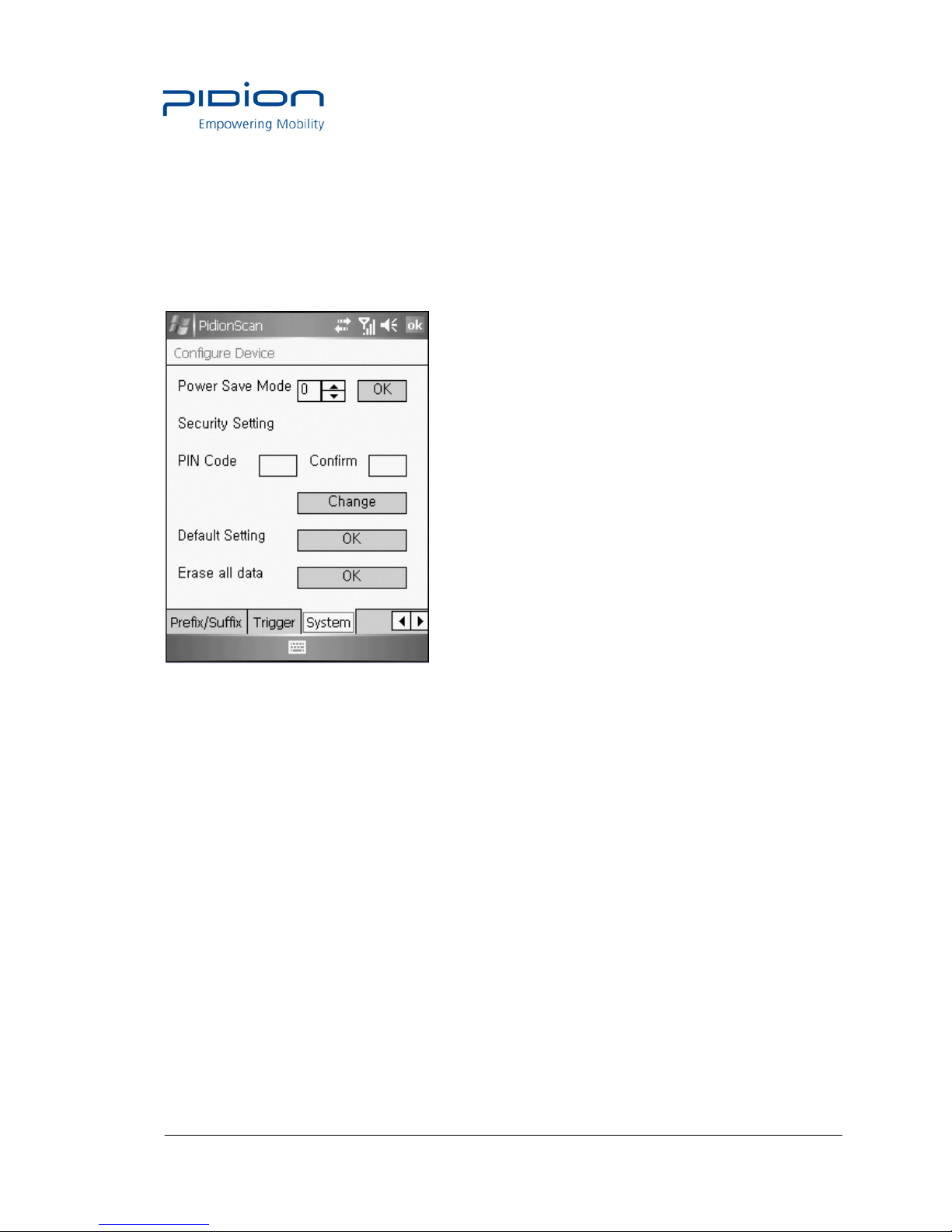
Trigger
You can the Scan mode of the Scan button.
Single : Scans one barcode each time you press the Scan button once.
Continuous : If you press the Scan button once, the laser is continuously emitted, so that
barcodes are read in a row.If you press the Scan button once again, laser emission is stopped.
If you scan the barcode, after a certain period of time, even if it is read once, additional data
can be read. You can set a certain period of time, and the range is 0~9999, unit is ms(1/1,000
Page 45
Empowering Mobility Page 45 of 47 Bluebird Soft Inc.
BI-500 User Manual
of 1 second), Default is 2222ms.
Multiple: If you press the Scan button once, laser is continuously emitted, so that barcodes
can be read in a row, but a read barcode is not read again.
If you press the Scan button one more time, laser emission is stopped.
System
You can change the Power Save mode and password of the terminal.
Power Save Mode : Set to the Power Save mode for saving power.
If you do not use a terminal for a certain period of time (minute), the terminal is
changed to the Power Save mode.
Security Setting : Set password.
• Password is up to 4 numeric characters.
• PIN Code : Set password.
• Confirm : Confirm password to be set.
• Press the Change button and turn off and on the terminal again, then, password is changed.
Default Setting : All settings for the terminal are initialized to default setting. If you execute this,
theterminal reboots as initialization.
Erase all data : Clear all barcode values saved in theterminal.
Page 46

Empowering Mobility Page 46 of 47 Bluebird Soft Inc.
BI-500 User Manual
Q&A
If the terminal does not operate normally, please refer to
Q: Water comes into the barcode scanner. What shall I do?
A: First, remove the battery from the barcode scanner, and dry it up at the dry place for a
certain period of time.
Q: Power is not on.
A: Check if the battery is inserted properly and use after charging the battery for a certain
period of time.
Q: A battery is not charged.
A: Check if the barcode scanner is properly connected to the charger.
Q: Barcode is not scanned.
A: 1. Angle of scan many be incorrect. Scan at a right angle.
2. Barcode cannot be read if you scan barcode too far. Move close and scan barcode.
3. The barcode may be damaged. Scan other barcodes for check.
Q: Barcode data scanned by PDA is not transmitted.
A: 1. When transmitting Bluetooth, check if PDA supports the Bluetooth function.
2. Check if the Bluetooth of PDA is set properly.
3. When sending Bluetooth through data cable, check if cable is connected correctly.
Q: Data is not sent from PC.
A: 1. Check if data cable is connected properly.
2. Check if the connection program is correctly installed in a PC.
Q: Heat is generated in the barcode scanner
A: If you use the product for a long time, heat is generated sometimes. Use the product in relief
because product performance is not affected.
Q: Lifetime of a battery is reduced.
A: Batteries are consumables. Lifetime may be reduced depending on period of use. Please,
replace by a new battery.
If the terminal does not operate normally, please refer to:
Page 47

Empowering Mobility Page 47 of 47 Bluebird Soft Inc.
BI-500 User Manual
- If a problem still remains even if you check the above items, please contact a nearby
Customer Service Center.
- The warranty period (one year after the purchase date) for the product is one year.
Customer Service
1. Before asking for after-sales service
• Before requesting af ter-sales service, the user needs to back up data in the device in person.
• We do not backup products registered at the customers service center.
Therefore, we are not responsible for any damage or loss of data.
2 Customer care center of Bluebird Soft Inc.
• Phone : +82-2-1588-1380
• Fax : +82-2-548-0870
• E-Mail : [email protected]
• Address : 1242, Gaepo-dong, Gangnam-gu, Seoul, Korea
3. Work hours
• Mon.-Fri. : 9 A.M. ~ 6 P.M. (GMT Time: +9 Hours)
• We do not work on Saturday, Sundays and National Holidays.
4. How to ask for after-sales service
• For after-sales service, please contact your local dealer or our customer care center.
• Do not remove the label of the product on purpose.
• Make sure to deliver the product in a safe way.
Bluebird Soft is not liable for device loss during delivery.
For any enquires of problems or inconveniences while using the product please call +82-21588-1380.
 Loading...