

Page 1
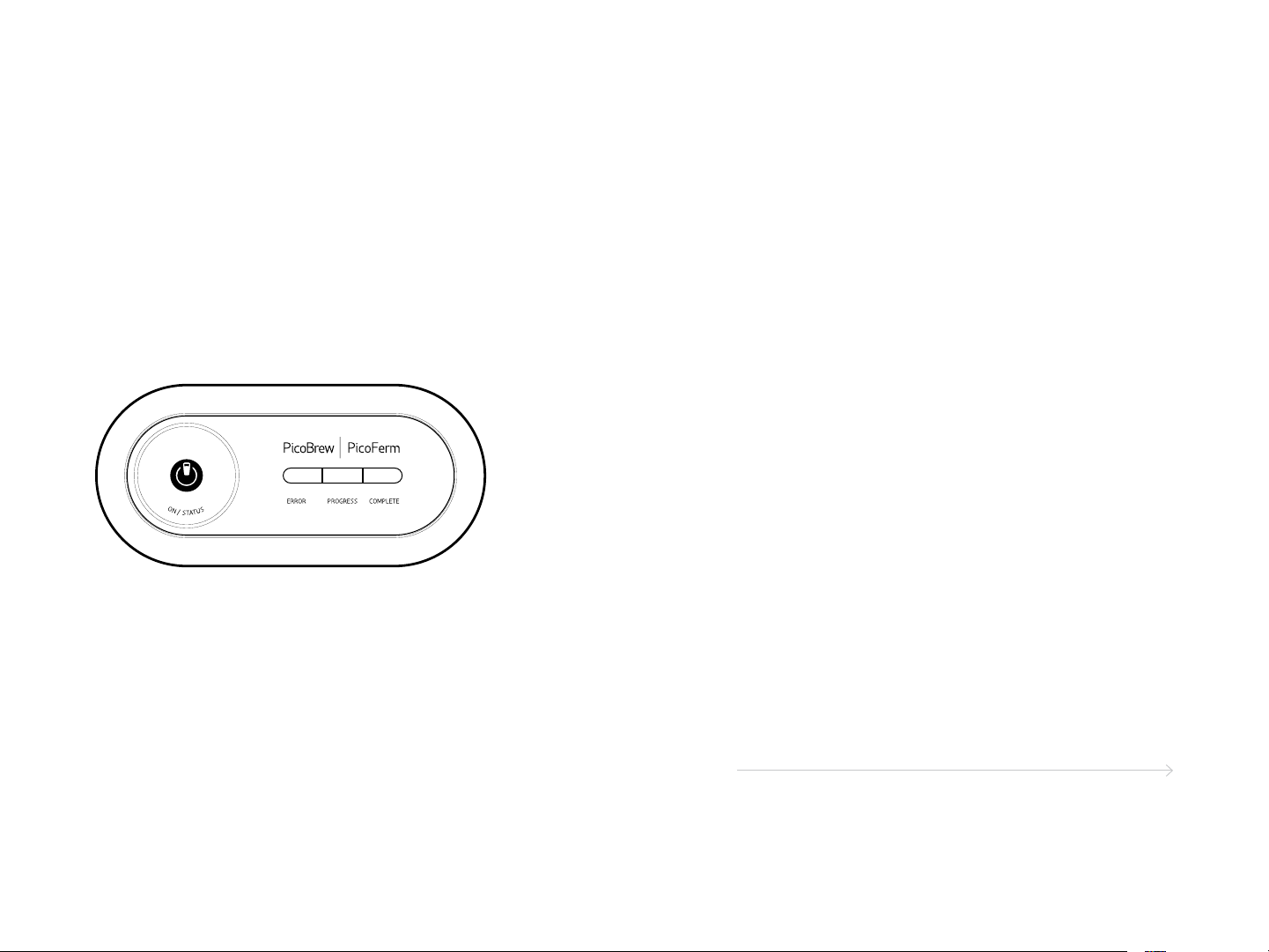
picoferm
unboxing
registering
instruction
manual
Fermentation is one of the most important steps to your
brew. PicoFerm takes the guesswork out and ensures
you’ve fermented your brew accurately.
You can navigate through chapters by
clicking on the tabs here.
connecting
picoferm
using
factory reset
Page 2
what's
in the
box
• PicoFerm
• PicoFerm Fermentation Seal (GRAY)
• 2 AA batteries
• QuickStart Guide
what you will need:
• Wi-Fi Connection
• Access to an internet browser
• Pico C and Pico C Brew Keg (or a Cornelius ball lock
keg with the PicoFerm Ball Lock adapter)
unboxing
registering
connecting
picoferm
using
factory reset
2
picoferm instruction manual
3
Page 3
connecting
and
unboxing
registering
picoferm
1. Insert two, AA batteries (included) into PicoFerm, then
press the ON/STATUS button. All the indicator lights
should illuminate and stay on.
2. Using a Wi-Fi connected smart phone or similar device,
browse to picobrew.com/setup/picoferm and follow the
on-screen instructions.
registering
connecting
picoferm
using
factory reset
4
pico c instruction manual
5
Page 4
connecting
picoferm to
unboxing
your keg
To get the most out of your PicoFerm, ensure that it is
connected securely and correctly. Follow steps 1A-4A
below if you are using a Pico C Keg, or steps 1B-3B if you
are using a ball-lock keg.
registering
connecting
picoferm
using
factory reset
6
pico c instruction manual
7
Page 5
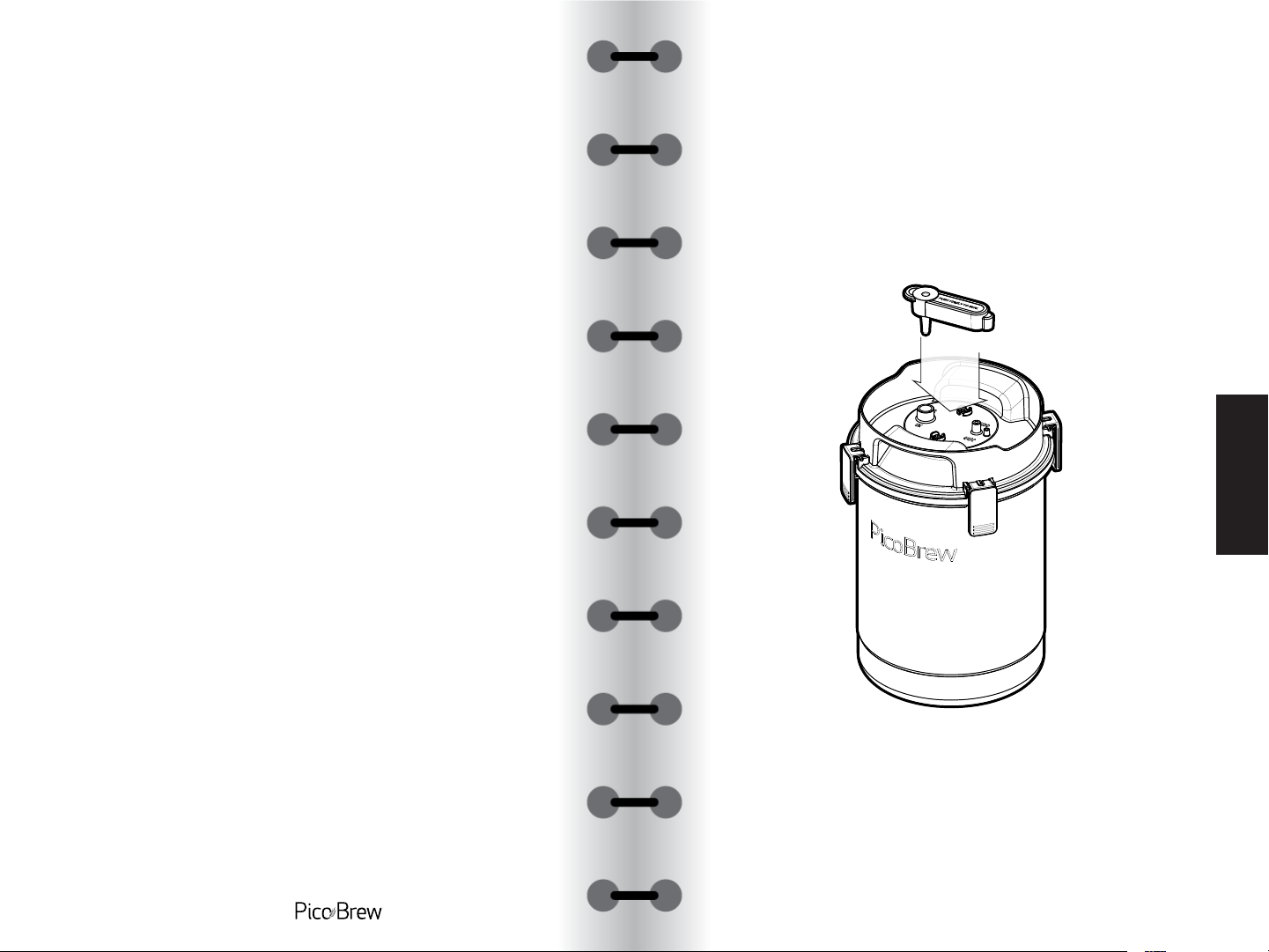
₁a
Pico C Keg.
We recommend that you sanitize your
PicoFerm Fermentation Seal before you
connect it to your brew keg. We recommend
Star San for this purpose. Only sanitize the
bottom of the Fermentation Seal so that no
liquid backs up into your PicoFerm.
Let the Fermentation Seal air dry before
attaching it to your keg.
2a
Connect the GRAY PicoFerm Fermentation
Seal that was included with your PicoFerm
to the Pico C brew keg. Be sure that the
Fermentation Seal is pressed all the way
against the keg.
unboxing
registering
connecting
picoferm
using
factory reset
8
pico c instruction manual
9
Page 6
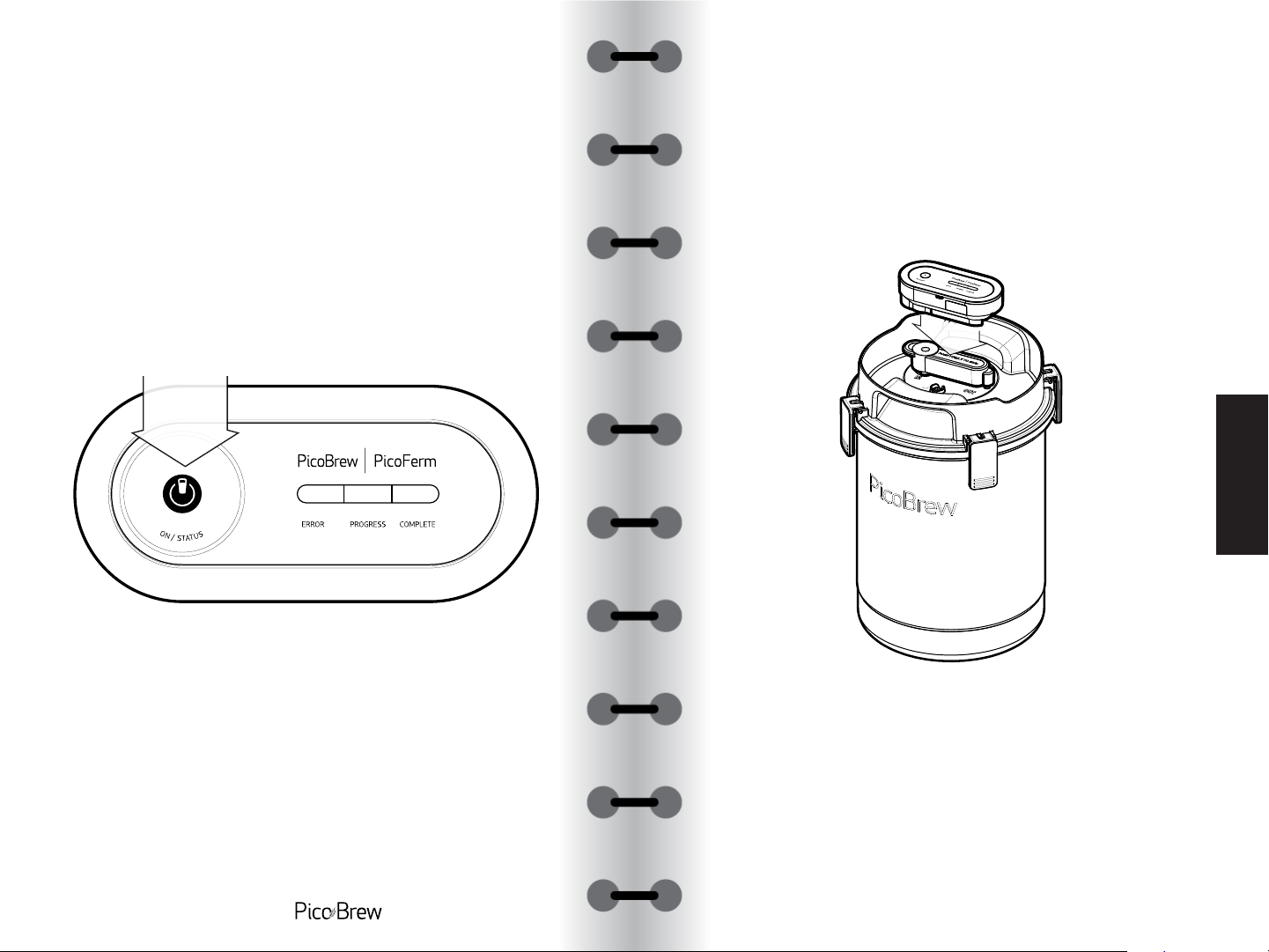
₃a
Activate your PicoFerm by pressing the ON/
STATUS but ton .
龎a
Attach the PicoFerm to the Fermentation Seal.
Note: only use the GRAY PicoFerm
Fermentation Seal while fermenting
beer with PicoFerm. Do not use when
brewing Kombucha.
unboxing
registering
connecting
10
pico c instruction manual
11
picoferm
using
factory reset
Page 7
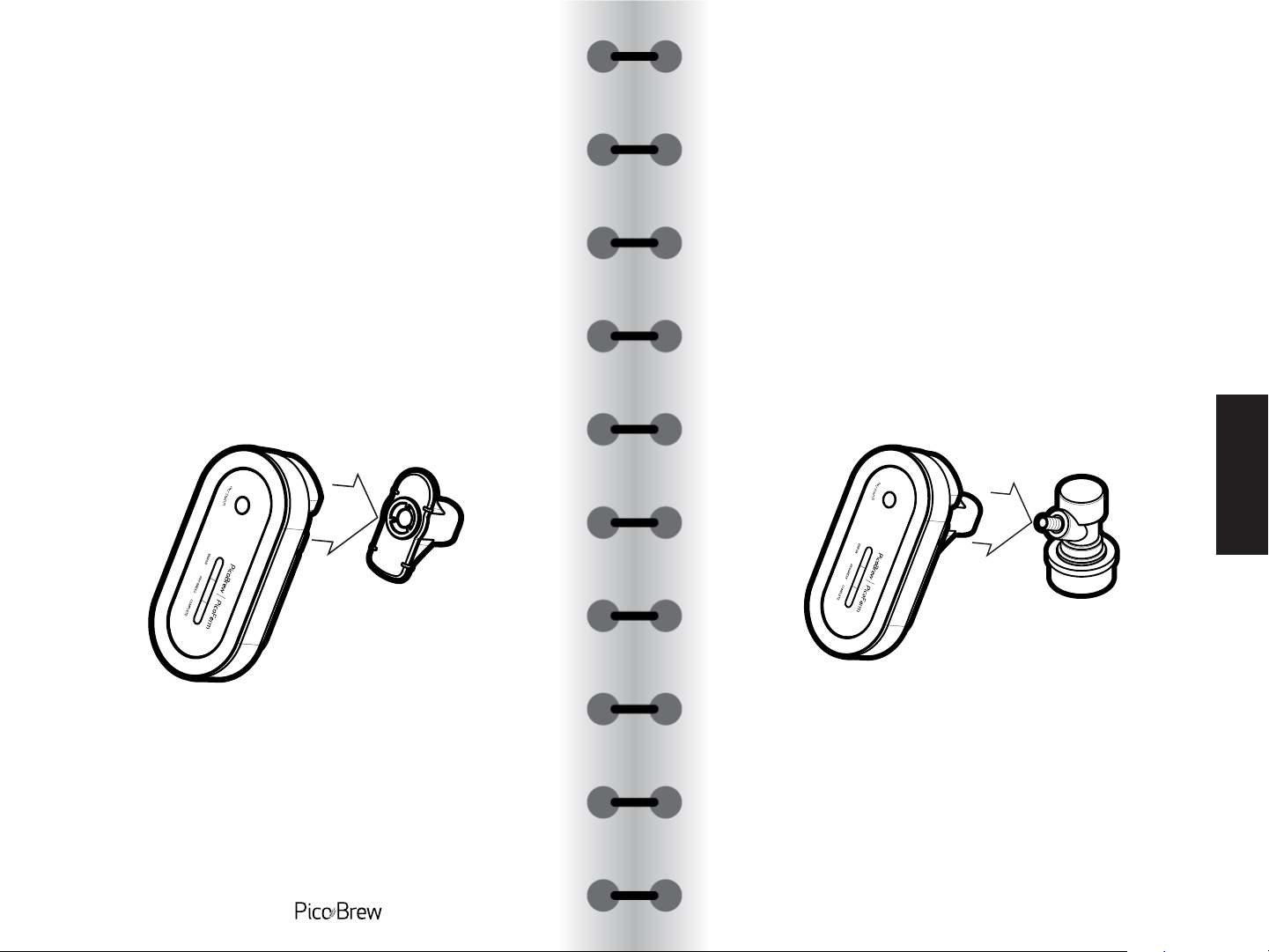
₁b
Ball Lock Keg.
Connect the Ball Lock Keg adapter to the
PicoFerm as shown.
2b
Insert the barbed fitting on the Ball Lock
into the Keg Adapter.
unboxing
registering
connecting
12
pico c instruction manual
13
picoferm
using
factory reset
Page 8
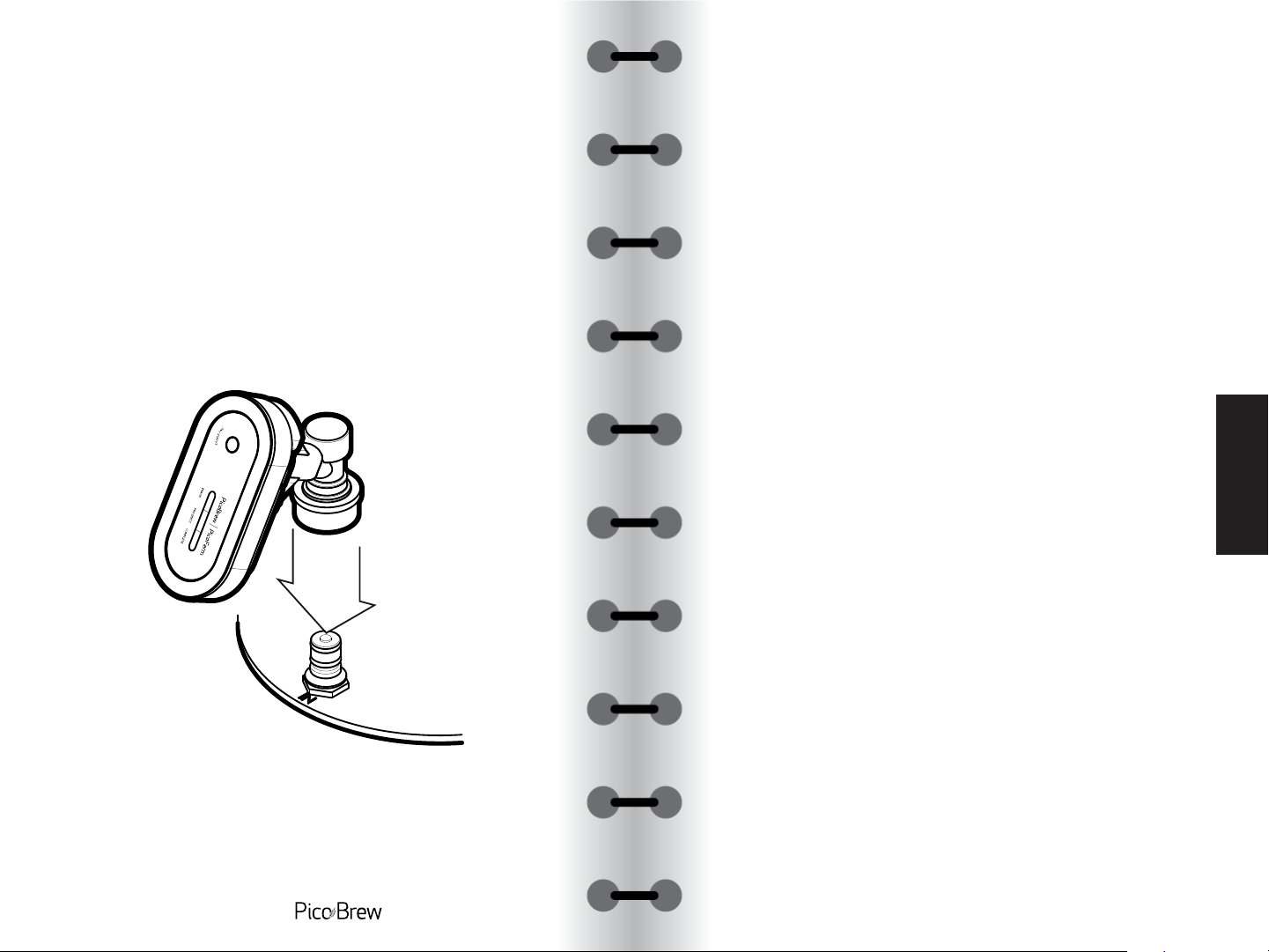
₃b
Connect the Gray Ball Lock Connector on
the PicoFerm to the post on the Brew Keg
marked “ IN”.
unboxing
registering
connecting
14
pico c instruction manual
15
picoferm
using
factory reset
Page 9
using picoferm
Press the ON/STATUS button to activate indicator lights
and check fermentation status.
Indicator Light What It Means
unboxing
registering
16
Flashing green light Beer is done fermenting
Flashing yellow light Fermentation in progress
Flashing red light Error - login to account for details
Flashing green and red lights PicoFerm is not associated with an
Red, yellow and green lights
flash in sequence
Green, yellow, red all on Access Point Mode
Yellow and red blinking Error during fermentation
Note: Whenever the PicoFerm is removed from the
Fermentation Seal the Fermentation Seal should be lifted to
release all pressure from the keg prior to placing the PicoFerm
back on the Fermentation Seal.
pico c instruction manual
account
PicoFerm is communicating with picobrew.com
17
connecting
picoferm
using
factory reset
Page 10
viewing brew data with brewhouse
viewing brew data with brewpulse
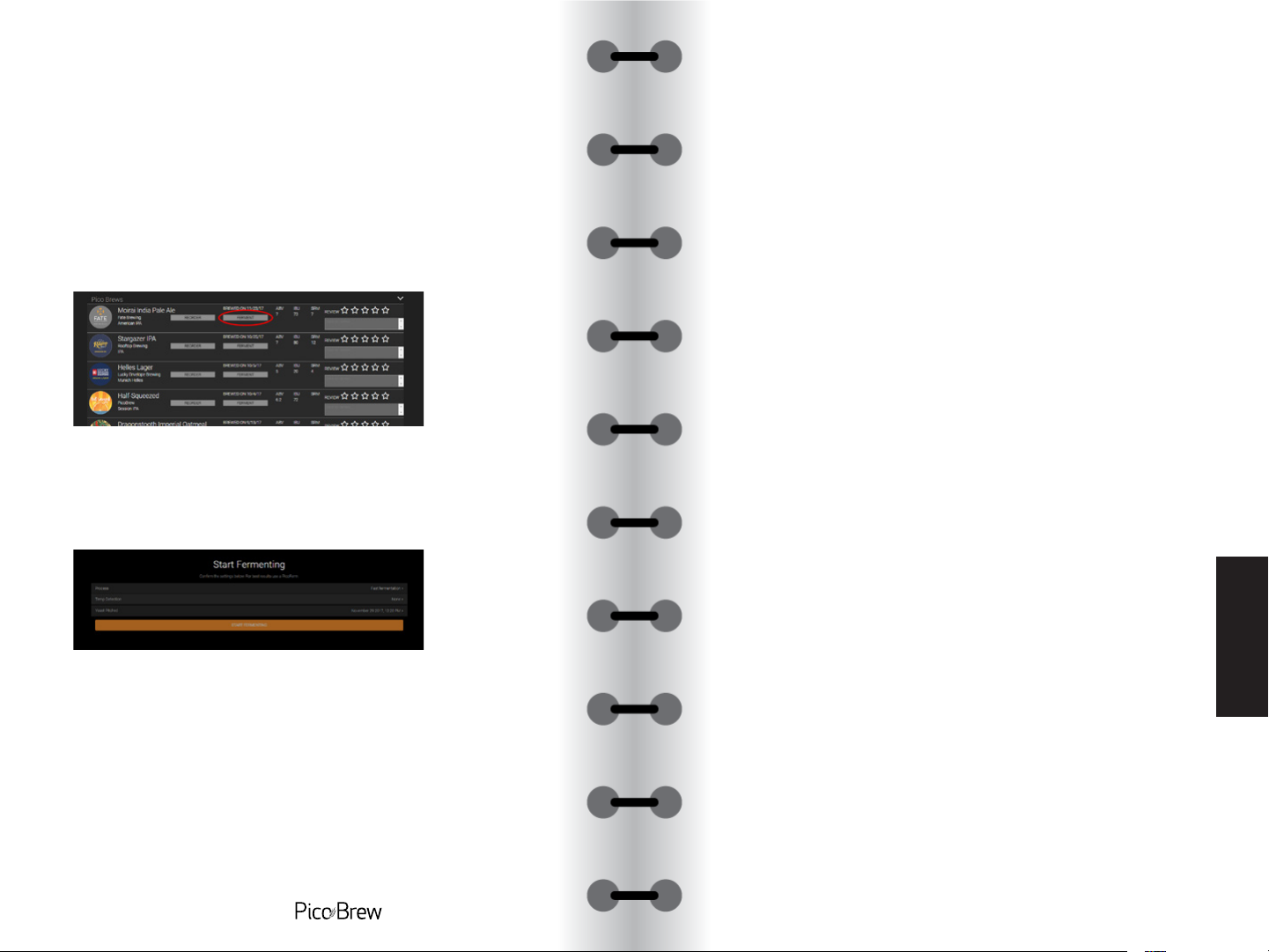
After your PicoFerm is attached and activated, click on
BrewHouse at picobrew.com to enable PicoFerm to monitor
your brew session.
Find the beer that you are ready to ferment in your list of
brews, and click the ‘FERMENT’ button.
Next, select ‘Temp Detection’ and then select your PicoFerm
from the dropdown list that appears. Your PicoFerm is now
associated with this brew session.
Coming Soon!
unboxing
registering
connecting
picoferm
using
You can view fermentation data for your beer at any time by
clicking the ‘FERMENT’ button for the associated brew.
18
pico c instruction manual
factory reset
19
Page 11

factory reset
To reset your PicoFerm to its original settings, follow the
steps below. Please note that factory reset will allow you to
re-enter your Wi-Fi credentials, but your PicoFerm will still
be associated with the original user account. Please contact
[email protected] to use PicoFerm on a new user account.
1. Press the ON/STATUS button and wait for any indicator
light to appear, then press and hold the ON button until you
see all three lights blinking (may take between 4 and 20
sec).
2. Keep the ON/STATUS button pressed until all the indicator
lights go out and come back on.
unboxing
registering
connecting
picoferm
using
17-1129
© PicoBrew Inc, 2017
www.PicoBrew.com
3. Using a Wi-Fi connected smart phone or similar device,
browse to picobrew.com/setup/picoferm and follow the
on-screen instructions
factory reset
21pico c instruction manual
 Loading...