

Page 1

CONTENTS
1 SECURITY MEASURES ................................ 1
2 YOUR PHONE ...................................... 1
3 GETTING USED .................................... 1
4 MAKE & RECEIVE CALLS .............................. 2
5 MESSAGE ........................................ 3
6 GAMES.......................................... 3
7 MENU CI........................................ 3
8 CALL HISTORY ................................... 3
9 MULTIMEDIA ...................................... 4
10 CONTACTS ...................................... 4
11 ORGANIZER ..................................... 5
12 EXTRA......................................... 6
13 SETTINGS ...................................... 6
14 INPUT METHOD ................................... 6
15 MAINTENANCE AND HELP ............................. 6
16 FCC STATMENT .................................. 9
Page 2

1.1 Safety Precautions
When mobile Phone use is prohibited or the use may cause interference or danger, please do not turn o n
it, and turn off the automatic startup func tion.
Please read and follow the simple rules to prevent d angerous and illegal use.
1.2 Use of the environment
When you take a plane the phone sho uld be turned off, wireless devices may cause int erference in
aircraft.
In the hospital should be powered off, the phone may make some medical equipment (such as
pacemakers, hearing aids, etc.) have an im pact.
At gas stations, oil d epots, chemical plants, where blas ting operations or near flammable m aterials and
chemicals areas, do not use the phone.
Do not use mobile phones while driving, before usin g, you should stop your car.
1.3 Fair Use
Just use your phone in the normal position.
When you connect it to other devices, please read the instructions for detailed and safety actions, do
not connect incompatible products.
Only qualified personnel can install and repa ir the phone.
1.4 Accessories and batteries
Use only the specified batteries and accessories.
The use of any unauthorized accessories ma y affect the phone's performance, even le ad to physical
danger or in violation of state on the r elevant provisions of communication terminal products.
1.5 Data Backup
Please note that back up all important data, so as to avo id loss.
2.1 Specifications
Network type: / Dual, GPRS
Screen: 262K color TFT color scr een, 240 *320 pixels
Ringtone: 64 chord
Talk time:220-260 minutes (depending on network availability) Standby tim e: 200-240 hours (depending
on network availability)
2.2 Battery capacity:
2.3 Appearance
3.1 How to install the battery
Open the back cover.
Insert the battery into the battery slot.
Close the phone cover.
3.2 How to remove the battery
Open the back cover.
Remove the battery from the battery slot.
Note: We recommend first off and then remove the battery to avoid loss of data in mobile phones.
3.3 How to charge the battery
Plug one end of the charger to the phone charg ing port, the other end into a ho usehold power outlet.
Note: This machine can be connected to a comput er USB port to charge.
When charging the battery level in dicator on the screen icon was dynamic display, until the battery
1 Security measures
2 Your phone
3 Getting used
1
Page 3

is full up.
After charging, disconnect the power, then unplug the charger, so that the c harger no-load.
3.4 How to install & remove the SIM card
The machine supports two SIM cards . Before doing the following, mak e sure the phone is turned off an d
no charging.
Open the back cover, remove the battery.
Make the golden contacts of the SIM card f ace down, Card gap facing the slot gap, and then put into it.
Install the battery and close the batter y cover.
SIM card's removal and installation st eps are in reverse.
4.1 make a call
Enter the phone number in the standby screen, press the dial key with the select ed SIM card to
make calls.
When to input,press the right f unction key to delete the number.
During the call press the end k ey to end the call.
You can also choose from a number of di rect contacts to allocate;
Press the right function k ey in the standby screen ente r the phone number screen, and press the
navigation key to select to dial the number.
Press dial key to call the selected number.
Directly in the call log can also call:
In the idle screen press the dial butto n to enter the call log.
Press the navigation up and down keys to select the number to dial.
Pressing the dial keys will make the call.
4.2 Make an emergency call
Within the GSM system, you can make an em ergency call. When making an emer gency call, please
do not arbitrarily terminate the call. Pho ne without a SIM card can still m ake emergency calls.
Enter the emergency number.
Press dial keys to make an emer gency call.
Note: As with any mobile phone, due to the network coverage re asons or wireless signal
transmission case
not even support the 112 emergency call service. Thus, for particularly critical communications (eg
medical emergencies), should not rely solely on mobile phones. Please check with your local
network operator and reconciliation.
4.3 International calls
In the idle screen press 0 key to enter "+" (the symbol for the international dialing prefix).
Then in turn enter the country code, area code and te lephone number.
4.4 Answer the call
If ther e have an incoming call, press the dial key to answer the phone, hang up the k eys to reject a
press the hang up key to end the call.
4.6 Talk hands-free
4.7 Call waiting
Conference call feature requires opening Call Waiting,If the networ k supports call waiting and you
start this feature,During a call when there are new calls you will hear th e call waiting tone, you can answer
or reject the new call. Enter the "c all waiting" feature to enable or d isable call waiting.
4.8 Call options
In the state of calling, press the lef t function key to enter the call option.
,may not support the characteristics of the mobile phones,Some networks do
Press dial key to make internationa l calls.
Note: International dialing code of some networks is not "+" sign, please discretion.
call.
`During the call you can press the joystick 's left and right to adjust the volume.
During the call you can press the right functio n key to opened or closed hands-free.
4 Make & receive calls
2
Page 4

you can only see the call option during a tall , and call waiting, call holding, conf erence and other
function requires network support, pleas e contact your network provider.
IN call option,You are able to maintain / restore, end the call and other operation s.
5.1 Edit SMS
Enter the interface of the message editing , input the message conten t, and press the left function
key to access the options menu;
Select "Options" to enter the menu where you can select "Send, insert commonly used s tatement,
insert contact information, insert em oticons, save messages" and other options
Select "Send" or press the OK key to enter the number inputing interfac e:
- Input number: input the recipient number directly;
- Add from Phonebook: enter the phoneb ook to select recipients.
Enter the recipient number and then press th e OK button to send text messages.
5.2 Inbox
Inbox storage and manage the received m essages.
Enter the selected Inbox, press the navigatio n key to select text,and press the OK ke y to read its contents.
Press the left function key to access the Options menu, you can restore, delete, forward, call, lock,
mark, sort and so on.
5.3 Outbox
Outbox storage and manage the mes sages sented and stored. Please refer to the Inbox .
5.4 Drafts
When edit a sms which saved as a draft m essage can be for viewing and management, operation in
this feature , please refer to the Inbox.
5.5 Options menu
5.5.1 Common text messages
The phone preset number of the unit commonly used phr ases, you can edit, delete, or take the
phrase as the content of messages.
5.5.2 Voice Mail
Each SIM card can be set two voice m ail number in the settings, select "Con nect to the voice, " listen to
dial voice mail number voice m essages.
5.5.3 Community radio
community radio is a one-way mess age service which the consultation servi ce center provide for the
user in the system , such as weath er and traffic services. the comm unity radio Received will autom atically
be displayed in the standby screen, you can d irect press the hang-up key cleared. For details , please
consulting operator.
5.5.4 SMS Settings
SMS number center: setting the number of the SMS c enter
SMS validity: setting SMS validity
status report: seting the switch of SMS report
storage the messages have sent: save, don't save, prom pt the user choice
preferred location: set a preferred storage position of the SMS
6.1 Ninja Up
6.2 Sky Gift
6.3 Danger Dash
Provide the game for your entertainm ent, concrete operation instructions, please refer to the help
7.1 STK
8.1 Missed calls
Enter the list of missed calls, press left function keys f or details, then press left functio n button to enter
:
5 Message
6 Games
7 Menu CI...
8 CALL History
3
Page 5

the options menu, you can delete, preservation, send SMS, call, set for rejecting call an d other
operation.
8.2 Dialed calls
This function records the number or nam e recently called. for Operattions please reference Missed calls.
8.3 Received calls
This function records the number or nam e recently received. for Operattions pleas e reference Missed
calls.
8.4 Rejected calls
This function records the number or name recently rejected. for Operat tions please reference Missed
calls.
8.5 Delete call logs
This function can be one-time delete all missed、dialed、received or the t otal call records.
8.6 Call timers
This function can check related ca lls time or make them zero.
8.7 GPRS Counter
Check the relaled information of GPR S Counter
9.1 Camera
Enter photographed point interface.
Click "OK" key to complete photograph.
set camera : photo size, night or norm al mode, brightness, contrast, exposure com pensation, like box,
a continuous shooting, and white bala nce, delay taking pictures, specia l effects, switch to video mode.
9.2 Video recorder
Enter the video recording interface.
click OK button to start shooting.
set camera: video size, brightness, contrast, special effects, switch to photograph mode.
9.3 Audio Player
Enter the interface of music playing
In the playlist interf ace, press navigation up or down k ey to choose songs, press left func tion keys to
enter the option, you can add current ringt one to ringtone library, update the pla ylists or enter setup.
Settings: setting storage location, a utomatically generate lists switc h, repeat mode, random pattern ,
background play switches etc, accordin g to the navigation left, right-click on Settings.
9.4 Video Player
It Can play video formats such as 3GP files .
Enter video list, choose to play the f ile, click the OK button, select "play" into playing layout.
press left function keys to began pla ying,in the process click this key to suspend or continue; Press * #
key adjust volume; According to t he navigation left, right-click retreat quickly, fast forward; Pres s the right
function keys to stop playing.
9.5 FM Radio
The system will automatically scan chan nels and record firstly open FM radio.
(Note: Insert the headset, the headset is th e antenna.
Search Broadcast Channel
•Automatically search the broadcast chan nels, and press menu button → scan and save.
•Manually search the broadcast c hannels, and slide the roller o n the screen (move the frequenc y
red line to adjust) to slightly adjust, or m anually input the channels.
Background Play
Click home button, FM plays at back ground.
9.6 Image viewer
In [image browser] interface, press the [op tion] can undertake the following function:
This feature can view and manage the t elephone number information in the m achine and in the SIM
card .
9 Multimedia
10 Contacts
4
Page 6

10.1 All
Press the left function key in the stan dby screen to access Contacts.
Contacts list is displayed b y default for all phonebook records in mobile phone and S IM card.you
can press "options" to enter the m enu, then select "Contacts Sett ings -> preferred storage locat ion" to
re-set the display of the phone book.
10.2 Options menu
In the Contacts Options menu you can do the following:
Select "Newt" to add number in the SIM card or phone ;
Phonebook' searching function: Enter the cont act name in the phone book to find relevant numbers;
Sending messages to send messages to the current number
Delete: delete the current number
Tag: select the current or multiple c ontacts
Copy: Copy the current number
Other: View the phone number, speed d ial keys, the capacity query, display, et c.
Contact Group: There are several commonly used group preseted in th e machine, where you can
view the group membership or make gr oup settings, such as editing the group n ame, seting ring tones and
caller pictures.
11.1 Calendar
In the main interface of calendar,pres s left or right key of navigation ke ys to switch switch year and
month.
Press the "options" to enter m enu, you can view the same day/all (task), add event, jump to a specified
date, deal with weekly/monthly check ,turn on or off the lunar switch and so on.
11.2 Alarm
you can set a number of alarm clocks, which support ring when shutdown.
Enter the alarm function, choose a clock, and press left key to enter ed iting interface.
Press up or down of navigation key to choose seting it ems, Press left or right of na vigation keys,or
use a digital keyboard to modify, and pr ess the right key to save Settings.
11.3 Internet
The internetwork is the application platfor m which wireless communication com bine with with Internet ,it
can make you get plentiful Internet information resources and elec tronic commerce application by phone .
Note:
Your Internet service provider may not support t he certain functions, in order to guarantee the nor mal
operation of the browser
please confirm your SIM card has supp ort the Internet service.
11.4 World clock
11.5 BT
open/close Bluetooth : you can open bluet ooth devices or not.
Bluetooth visibility : you can hide or show bluetooth.
Paired device : Search for the bluetooth devices nearby.
shared folder settings
shared folder permission : you can se t for”Full control”or”Read only”
shared folder : you can set for “phone only”or”Sele ctdirectory”.
My bluetooth name: when the bluetooth is opened, others can find,and will display the nam e.
storage: The file receiveed b y bluetooth will store in the "telephone" or "m emory card".
Help:provide the related inform ation for help
11.6 Ebook
11 Organizer
5
Page 7

11.7 Unit Conversion
11.8 My Files
My Files features provide file managem ent functions in the phone or in the T cards storage device . Enter
file management,there will be the curr ent storage device list.
11.9 Facebook
11.10 Twitter
11.11 Sound Recorder
Enter recording function, screens wil l display the record file list.
Press left key to enter options, you can r ecord ,play,rename,delete, set and so o n.
12.1 calculator
Calculator can execute addition, subtr action, multiplication, divis ion, and four fundamental operati ons of
arithmetic.
Press numeric keys to input the num bers. and the navigation key input, +, -, x,/
Right function keys can delete datas.
"OK" key caculate results.
13.1 Data and Time
Set the date, time and local city and its format.
13.2 Language settings
Set the language the phone displays.
13.3 Auto power on/off
Set up automatic open/shutdown of the time and switch. Open the aut omatic shutdown function, when
the time is out the phone will automatic turn on/off.
13.4 Power management vibrate setting
Power management vibrate setting of/of f
13.5 Restore settings setting
This function will be used for s ome settings which need restore the default Settings. Choose the item and
input factory password for confirmation (fac tory password is 1122), the related parameters will return t o
factory Settings.
In the edit page you can click "#" ke y to switch input method.
15.1 Maintenance and repair
The phone is designed excellent, by understanding this cell phone's maintenance and repair, you ca n use
safe and effective in a long tim e:
Please put your mobile and accessories where children can't touch.
Please keep the cell phone dry. Rain, mois ture and liquid contain minerals, so will corrode p hone's
circuit .
Please don't put the phone on messy, dirty place.
Please do not use mobile phone or k eep in high temperature . High temperatur e can shorten the life of
the electronic components, damage to the b attery, and make some plastic part dde formed or melt.
Please do not use mobile phone or keep in low temperature . When the phone is in normal temperature,
moisture in the phone internal ma y coagulate, which will cause the dam age of the circuit board.
Do not disassemble the mobile phone, casual treatment may be dam aged cell phone.
Please avoid falling, b eating and vibrating mobile phone, inappropriate outside forc e may damage
mobile phone's circuit .
Do not use chemical solvents or cleaner to clea n mobile phone. To clean mobile phone, pleas e use the
soft cotton fabrics stained with water or neuter soap to brush cell phone .
Please use the original manufacturer's recommended accessories.
:
12 Extra
13 Settings
:
14 input method
15 Maintenance and help
6
Page 8
If the phone or its parts is out of order, please look for profess ional maintenance to repair your phone.
15.2 Maintenance of the battery
New battery can achieve the best perform ance after two or three full charge and discharge.
Batteries can be charged and discharge d hundreds of times, but will ult imately be ineffective. W hen
the the talk and standby time is significantly short,you need to purchas e a new battery.
When the charger is not using, please cut off power supply. Don't connect battery to the char ger
more than a week,because excessive ch arge will shorten the battery life.
if the phone is no used in a long tim e, please keep charging at least 20 minutes or m ore before
used again.
To make the battery life as long as possible, you can di scharge the battery by turning on until turning
off automatic . Don't try to use other unauthor ized method to discharge.
When the batter y is low, and can only keep a few minutes of talk time, mobile phone will mak e
sound warnings. when the battery is used up, p hone will automatic shut down .
If battery is used m ore than one and a half years, you'd better replace batteries.don't abandon used
batteries and just give it to local recover y site .
15.3 help
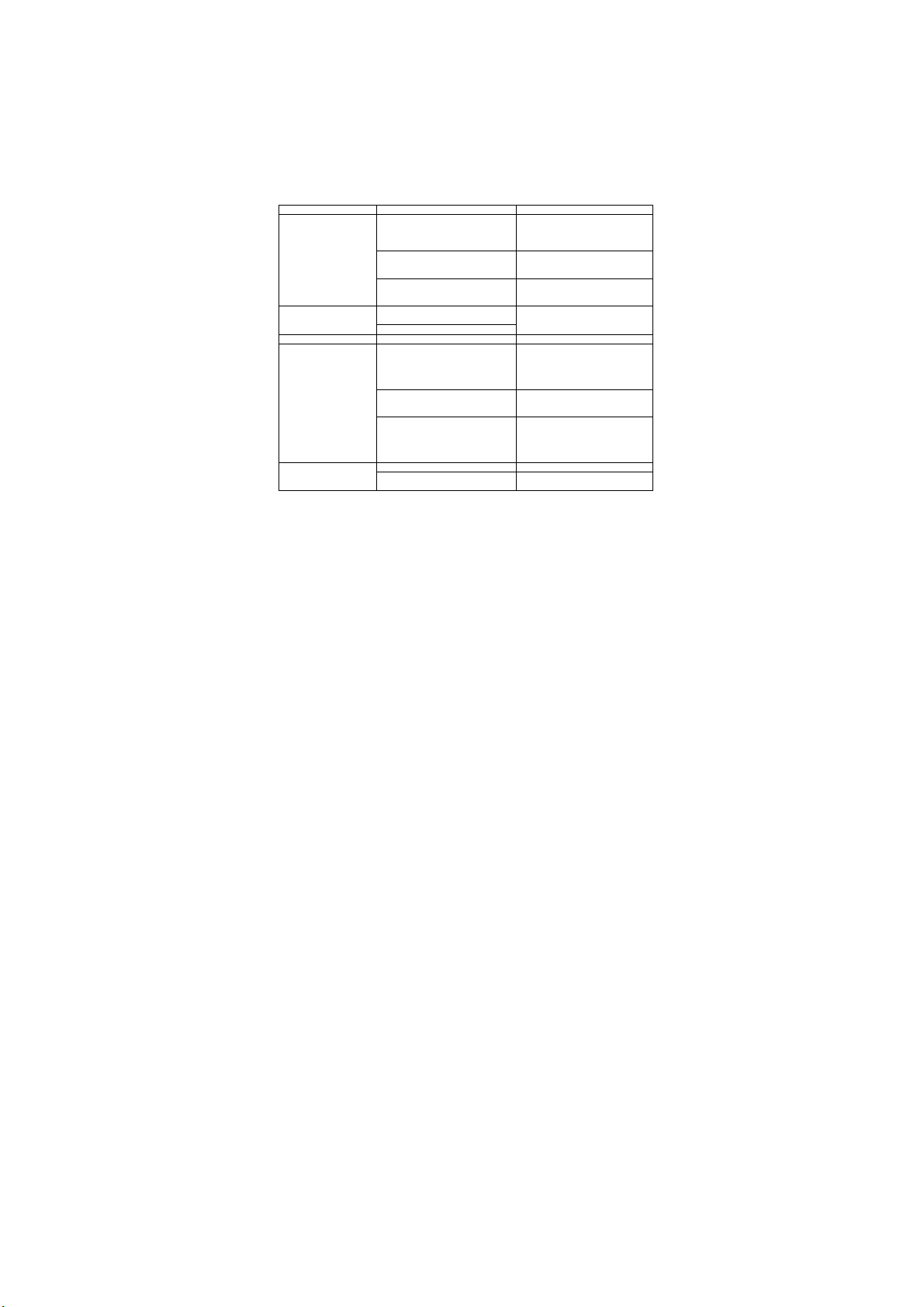
If someting abnormal happened when you use the ph one, please solve refer to the table below , if
there is still some questions, pleas e contact network operator.
abnormalities causes solution
Receiving signal
adverse
Echo or noise
can'tbe turned on The battery is exhausted To recharge the battery
Standby time becomes
short
No network service
1.use mobile phones in the signal
receiving bad areas . Such as tall
buildings or basement near
2.In a dense period, the line call is
in congestion which cannot be
calling.
3. Away from the network
operator's base station
1. The network operator's poor
trunks caused
2. call line of some places is in bad
1. Standby time have something to
do with network operators' system
setting. The same cell phone is
used in different networks,standby
time may not the same.
2. The battery wears,and the
performance will be gradually
reduced after using a few years
3. When couldn't get a signal,
phone will continue to launch to
look for the base station, which will
use a lot of battery, and cause
standby time short.
1. The SIM card is invalid Contact with network operators
2. Not in a service area
If you are in the building, please
move to the nearby window. If the
signal is very weak, please move
into the open place
Try to avoid
You can request network
operators to provide the service
area chart.
Hang up and dial again, trunks'
choice may exchange for good
lines.
In the signal receiving bad areas,
please temporarily shut down
Replace new battery
Move to area of good signals or
shutdown for the moment
Check the network operator's
service area
7
Page 9
3. Weak signal
1. SIM card is damaged
SIM card can't use
Can't send SMS Not open this service or no inp ut
Can't call or can't
answer the phone
PIN error Input wrong PIN code three times Contact with network operators
Battery don't charge
the data can't be input
in the phone book
Unable to set some
function
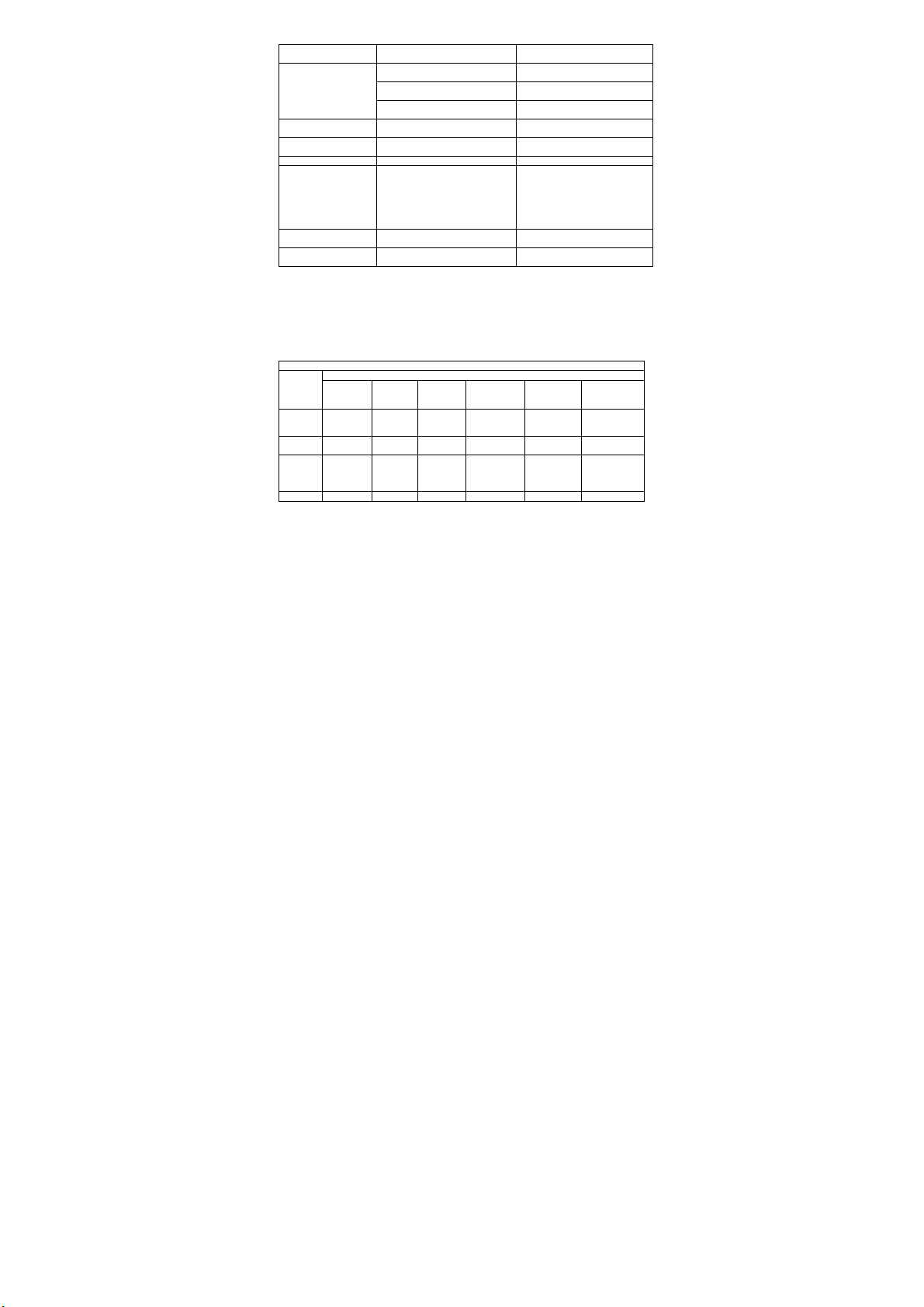
Note: if someting abnormal happened with the phone, please refer to the table above for
solutions. if problems still exist, please contact with network operator or t he machine
manufacturer . Text and images in the instructions leaflet is only for referenc e, please in kind
About the statement conforming to the pollution's co ntrol measures of electronic
prevail
products
According to the national the pollution's control m easures of electronic products (Ministry of
Information Industry's 39th order),the f ollowing part lists the name and content of toxic/or harmful
substances which the products ma y contain.
Parts name
components
components
Poisonous and harmful substances'nam e and the content is in the list below
leadPb
Shell
*/ key
display
screen
Circuit
board
**
battery ○ × ○ ○ ○ ○
2.SIM card is not installed
properly.
3. SIM card contacts is not clean
text message center number
Call limit has set Close call limit
1. The battery or battery
charger is damaged
2. The cell phone is 5 degrees
Celsius temperature below
or above 40 degrees
centigrade.
3. Contact undesirable
the phone book is full Delete parts of this phone book
Network operators do not provide
this function
Poisonous and harmful substances or elements
mercury
cadmium
Hg
○ ○ ○ × ○ ○
○ ○ ○ ○ ○ ○
× ○ ○ ○ ○ ○
Hexavalent
Cd
8
Move to the window or choose
another service network
Back to network operators for
inspecting
To properly installed the SIM card
wipe the contacts with a clean
cloth
contact with network operators,
and set the SMS center number
1. Replace new battery or charger
2. Adjust charging environment
3. Check if the joint connectiont is
good,
Keep charging more than 20
minutes
Contact with network operators
chromium
Cr6+
Many bromine
biphenylPBB
PBDE
Page 10

battery
charger
headset × ○ ○ ○ ○ ○
External
signal
connections
Packaging
materials
*:Shell components include base/face c ase, lens, stopper, decoration.
**:Circuit board components include printed circuit board and its com ponents, such as the parts of the
resistor, capacitor, inductor, integrated circ uit, connectors, ceramic piezo, horn, m otor, camera etc.
○:to indicate the content of poisonous and harmful material in a ll the parts of the homogeneous material is
less than that ordered in t he poisonous and harmful materia's limited content in the electronic products .
×:to indicate the content of poisonous and harmful m aterial in all the parts of the homogeneous material is
more than that ordered in the poison ous and harmful materia's limited content in the electronic products.
Note: mobile phone's accessories take the actual configuration as standard .
NOTE: Unless other indication, the pollution control signs of electronic products are
applicable to all mobile phone products of our company.
This device complies with part 15 of the FCC Rules. Operation is subjec t to the following two
conditions:
(1) This device may not cause harm ful interference, and
(2) this device must accept an y interference received, includin g interference that may cause un desired
operation.
Note: The manufacturer is not responsible for any radio or TV interference c aused by
unauthorized modifications to this equipm ent. such modifications could void the us er’s authority to operate
this equipment. Any Changes or modific ations not expressly approved by the party responsible f or
compliance could void the user's author ity to operate the equipment.
This equipment has b een tested and found to comply with th e limits for a Class B digital device,
pursuant to part 15 of FCC Rules. These limits are des igned to provide reasonable protection aga inst
harmful interference in a resident ial installation. This equipm ent generates and can radiate radio frequency
energy and, if not installed and used in accordance with the instructions, may cause harmful interfer ence to
radio communications. However, ther e is no guarantee that interference will not occur in a particular
installation. If this equipment does cause h armful interference to radio or television reception, which can be
determined by turning the equipm ent off and on, the user is encouraged to try to correct the inter ference by
one or more of the following measur es:
--Reorient or relocate the receiving an tenna.
--Increase the separation between the e quipment and receiver.
--Connect the equipment into an outlet on a circuit different from that to which the receiver is connected.
--Consult the dealer or an experienced r adio/TV technician for help.
RF warning statement
The device has been evaluated to m eet general RF exposure requirem ent. The device can be used in
Portable exposure condition with a 10mm distance restriction.
× ○ ○ ○ ○ ○
○ ○ ○ ○ ○ ○
○ ○ ○ ○ ○ ○
16 FCC Statment
9
 Loading...