

Page 1

Connected Audio
Wacs Basics Experience
Training
Theo Heynen
Consumer Service
September 2008
•Notes:
1
Page 2
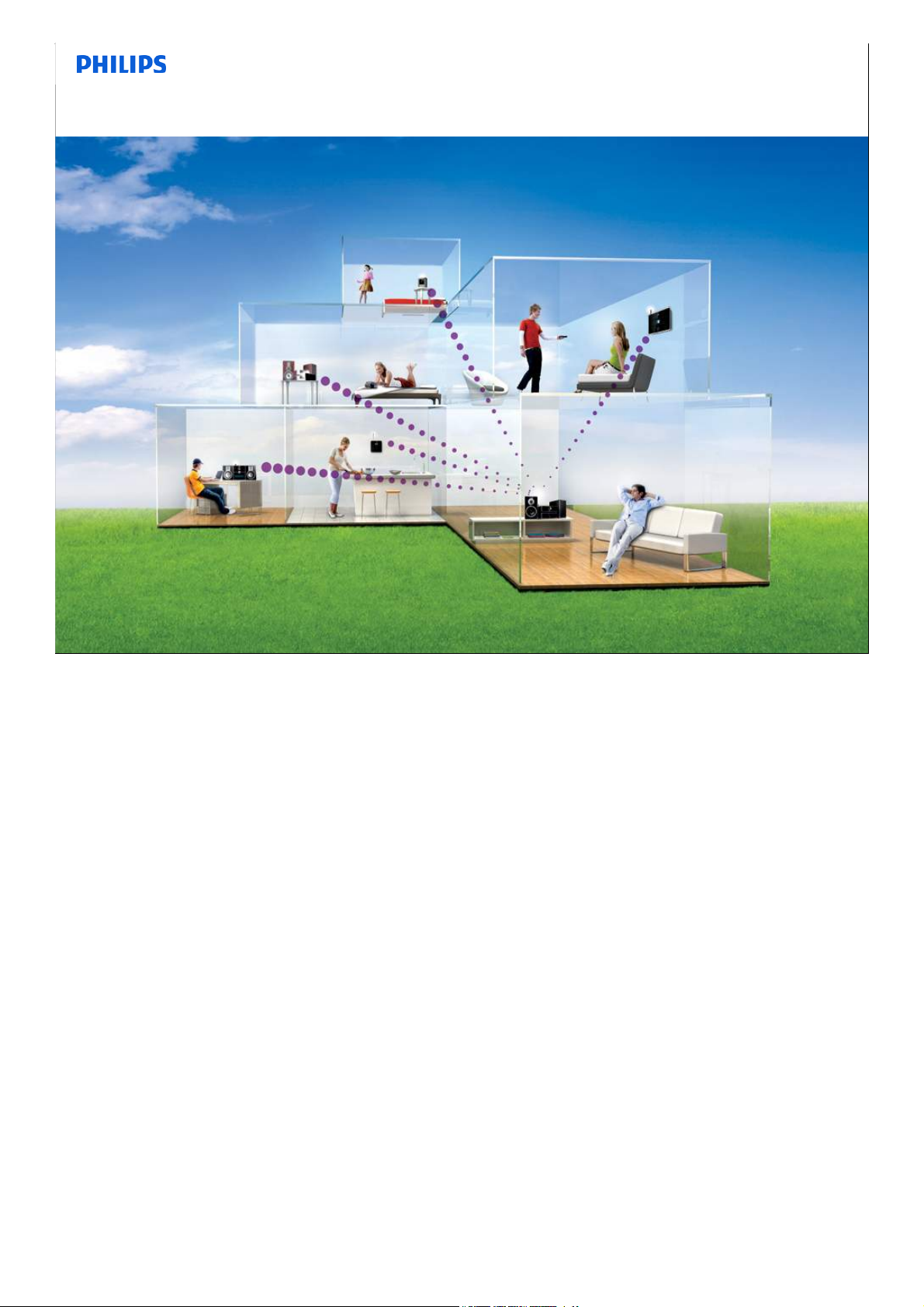
Connected Audio - Streamium - is the future of audio
•Notes:
Consumer Service, September 2008, Reference
2
2
Page 3
What will we cover today?
• Market Trend
• Range up to day
• Problem solving
•Known Problems
•Notes:
Consumer Service, September 2008, Reference
3
3
Page 4
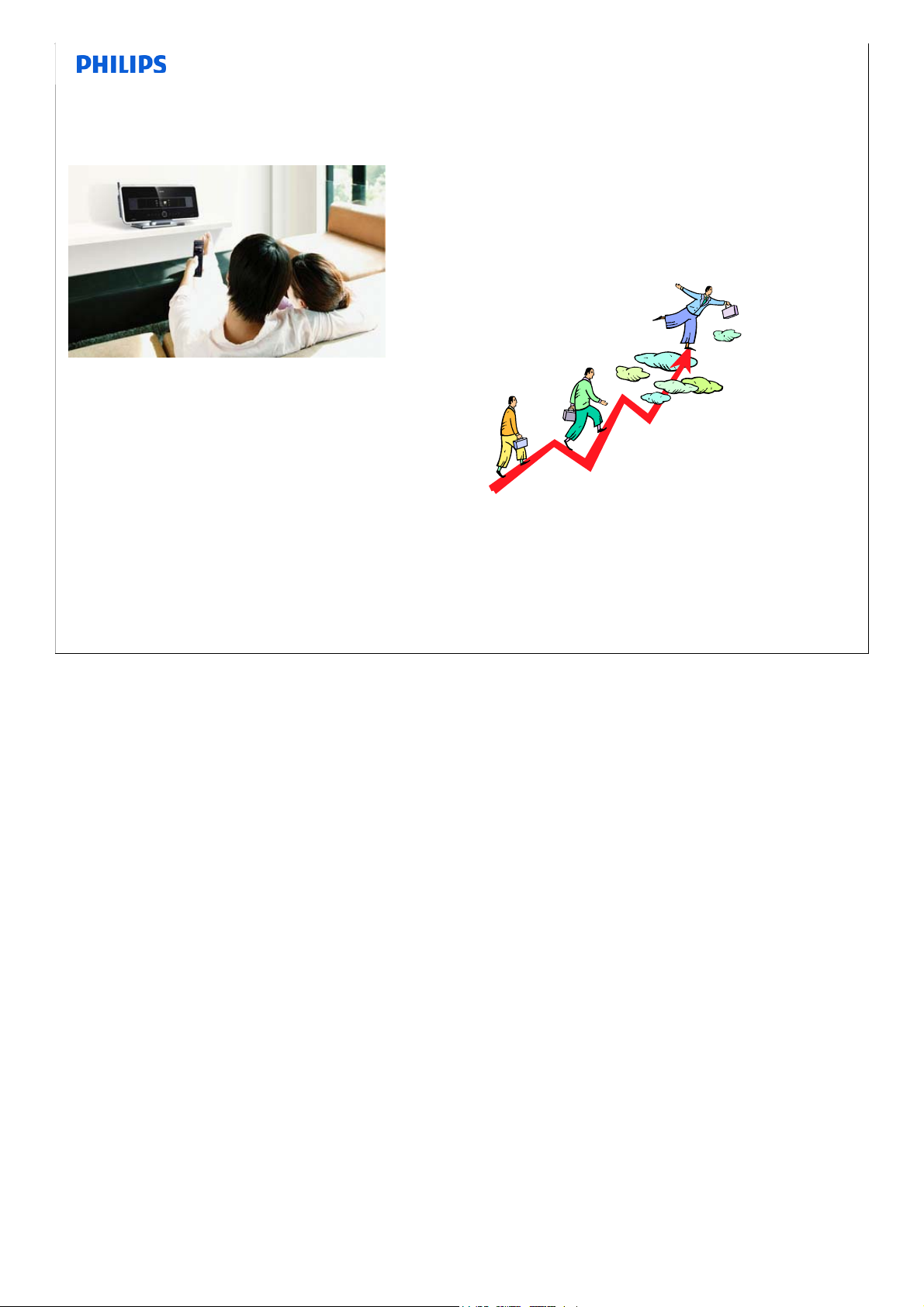
Household Broadband Penetration is growing
•Notes:
Consumer Service, September 2008, Reference
4
4
Page 5
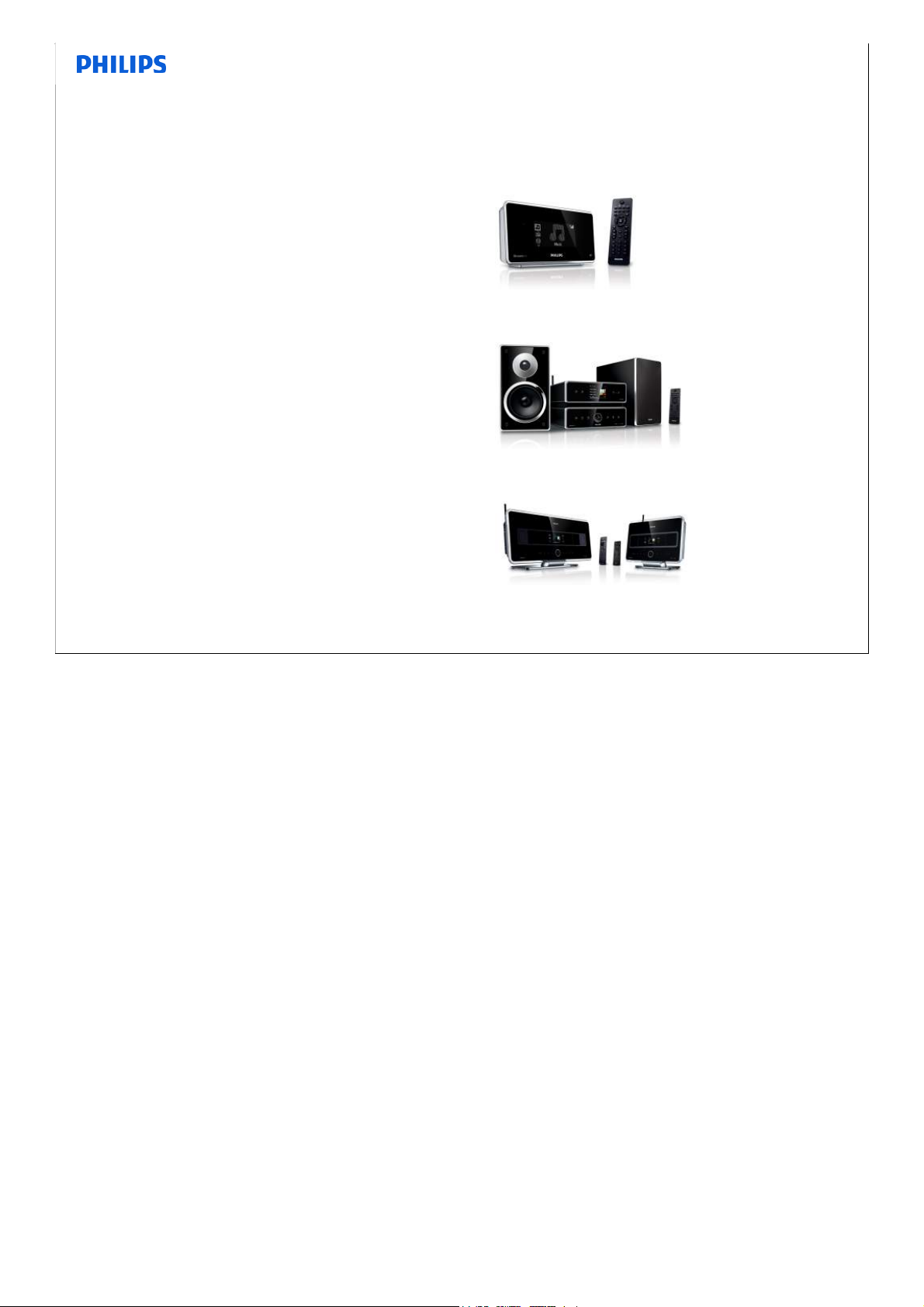
The connected audio market will grow rapidly
Philips is positioning itself to lead in the key market segments
•Network Audio Clients
• Home audio servers
(with storage)
• Complete networked systems
(multiroom)
Consumer Service, September 2008, Reference
5
•Notes:
5
Page 6
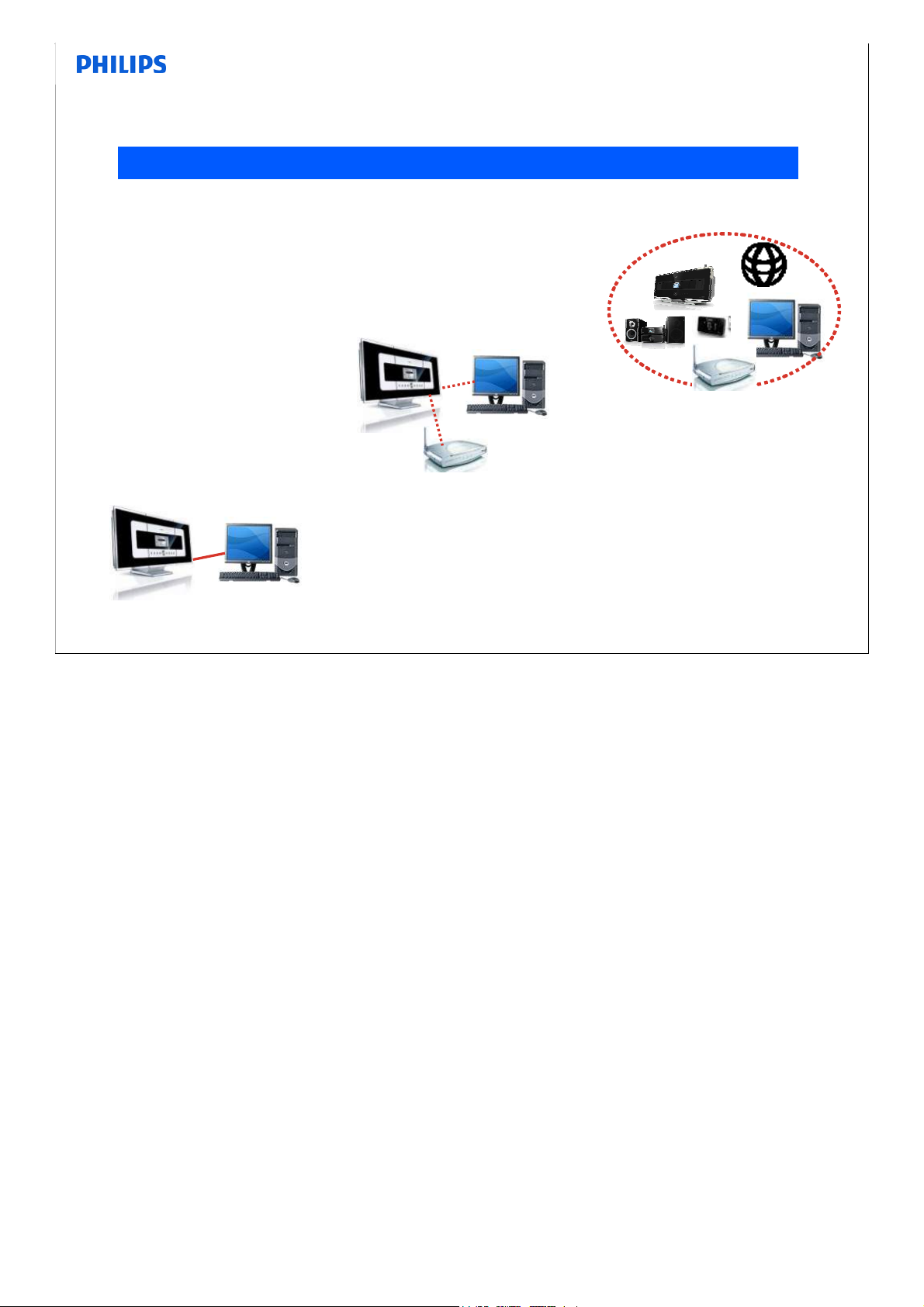
Wireless Music Systems will become more PC centric
Increasing number of (young) consumers have their music stored on their laptop
2008- …
2007
Seamless network integration
•Internet Radio and Services
2005-2006
Basic Computer connection
•Basic file transfer
Computer/network friendly
•Easy set-up
•On-line access Grace note
•Streaming from PC to center and station
•Back up/re-store
•Fast & easy track transfer
•Use your favourite music program
Consumer Service, September 2008, Reference
•Online Gracenote for AlbumArt
•Use full potential of PC integration
6
•Notes:
6
Page 7
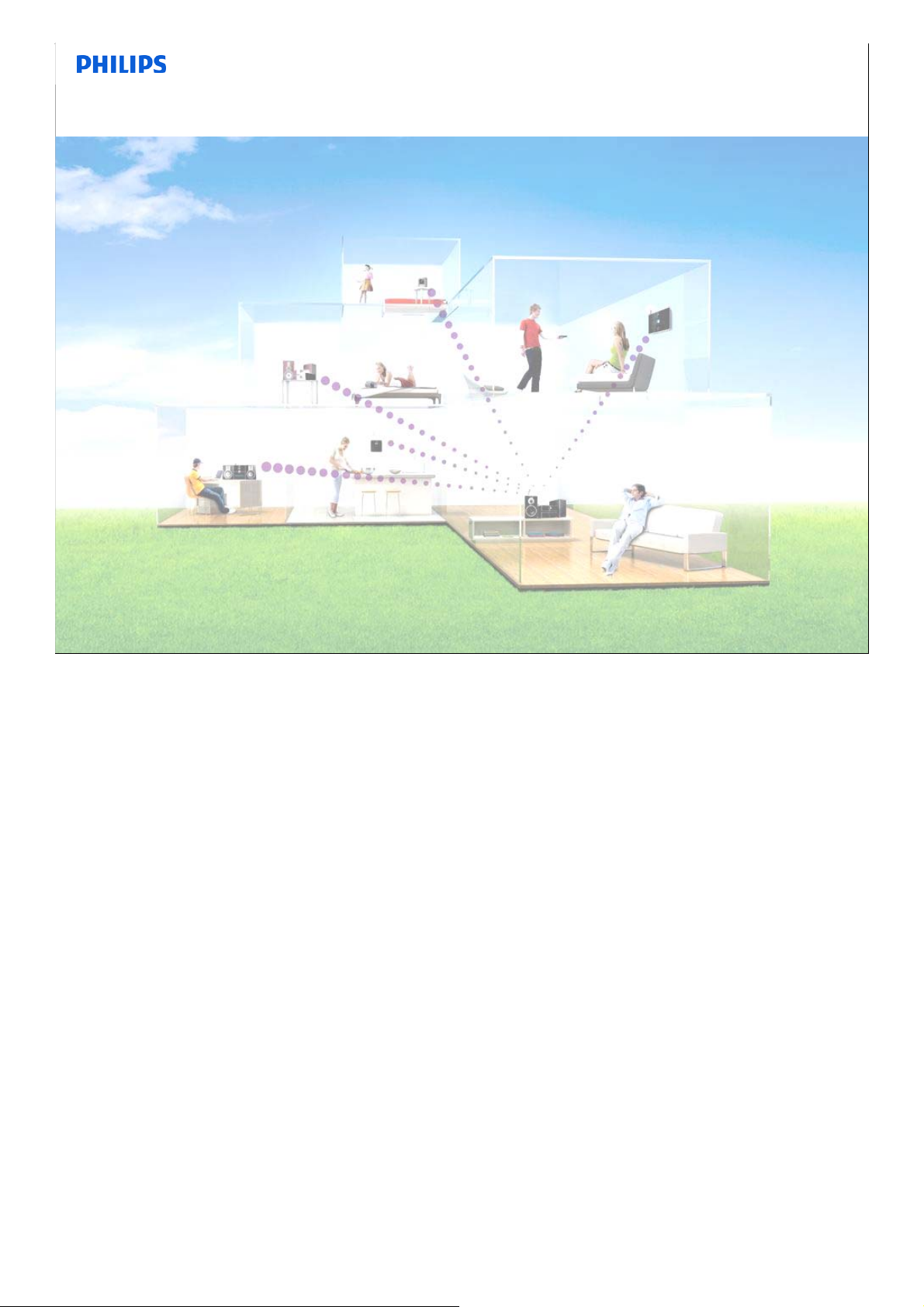
Range up to today
PRODUCT OVERVIEW
• WACS700
• WACS7000
• WACS7500
• WAS6050
• MCi500
• MCi300
• NP1100
•Notes:
Consumer Service, September 2008, Reference
7
7
Page 8
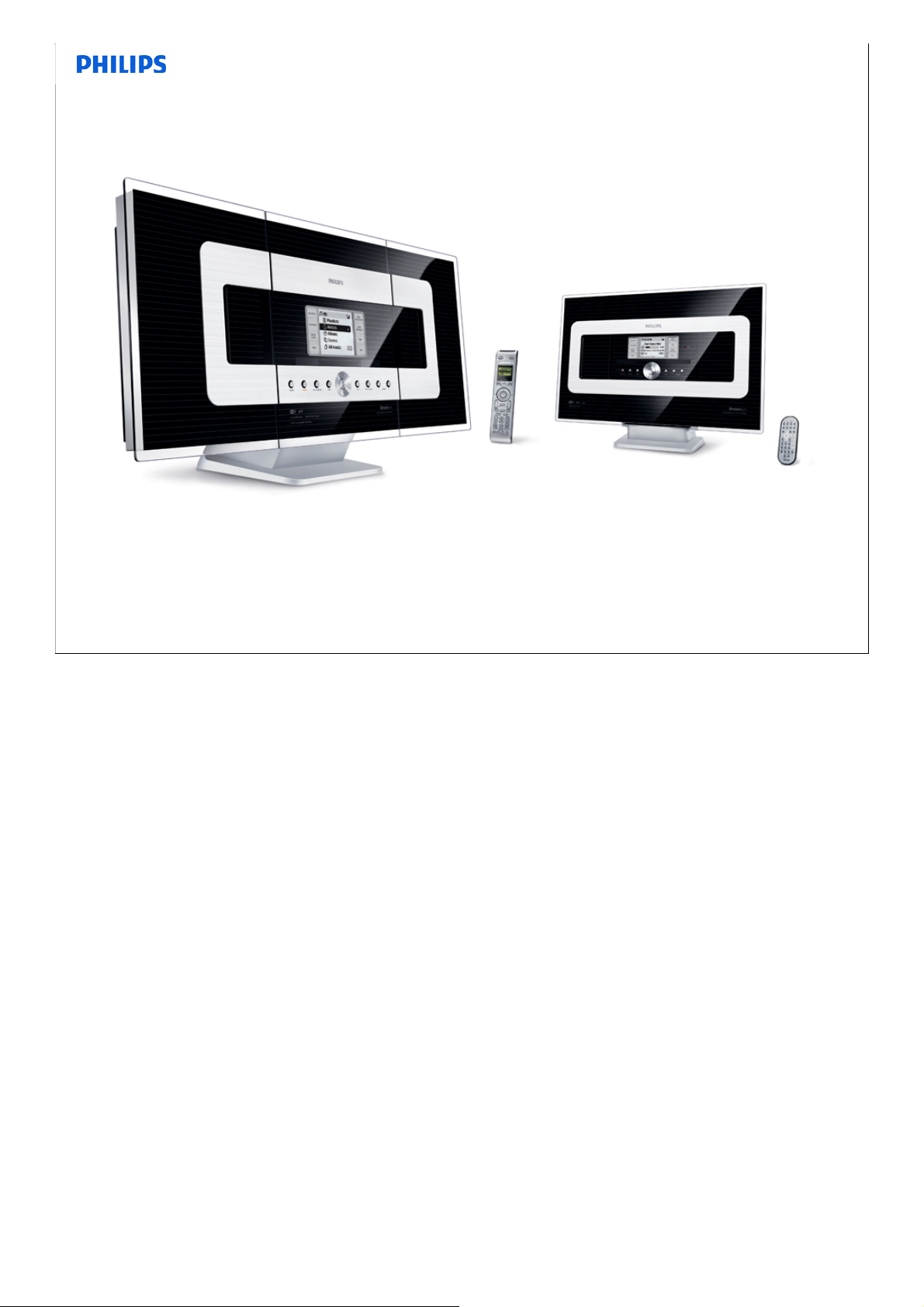
WACS700
The WAC-700/WAS-700 products are
WiFi home audio jukebox and clients
WAC700
Center
Consumer Service, September 2008, Reference
WAS700
Station
8
•Notes:
8
Page 9
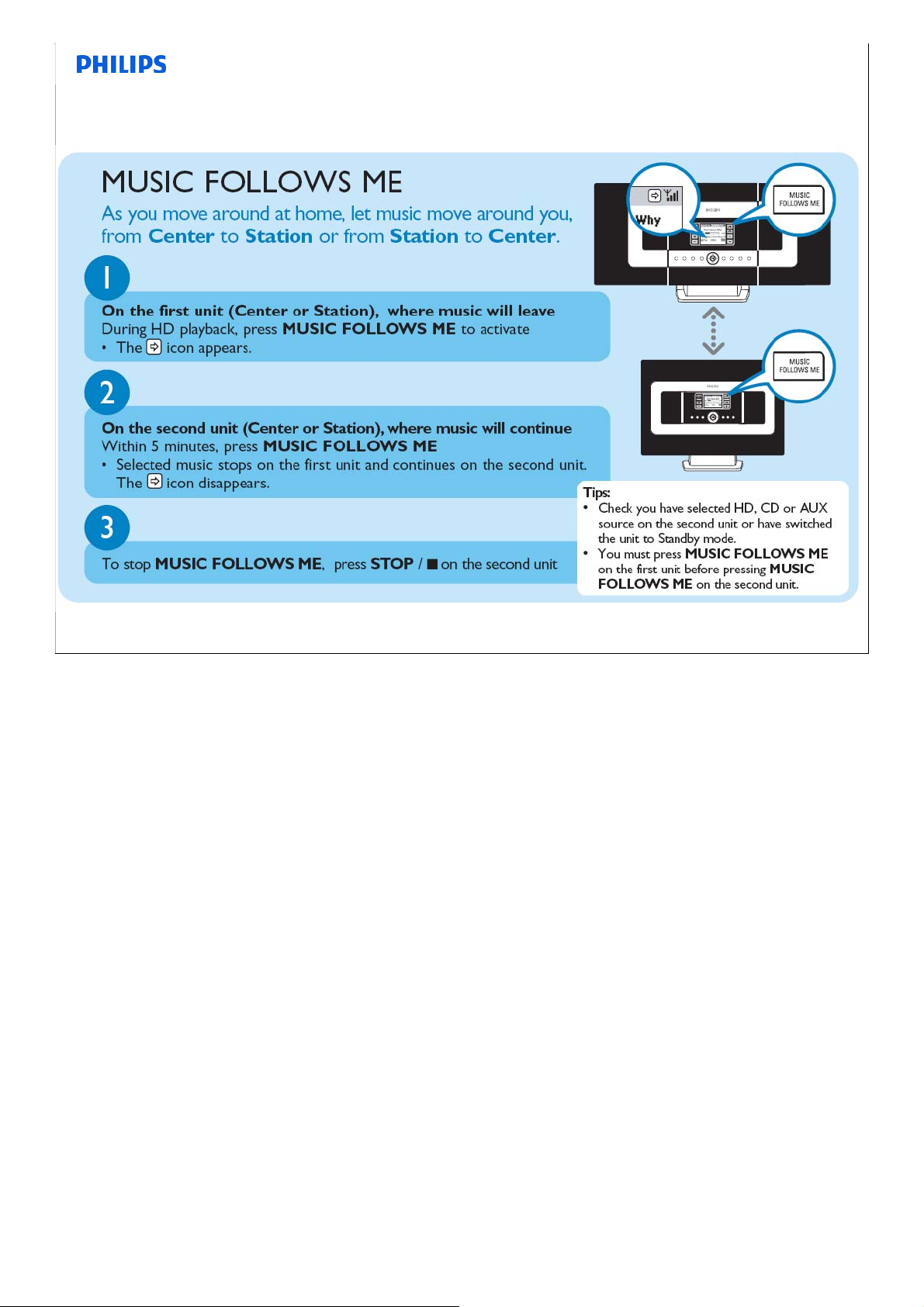
Music Follows Me
•Notes:
Consumer Service, September 2008, Reference
9
9
Page 10
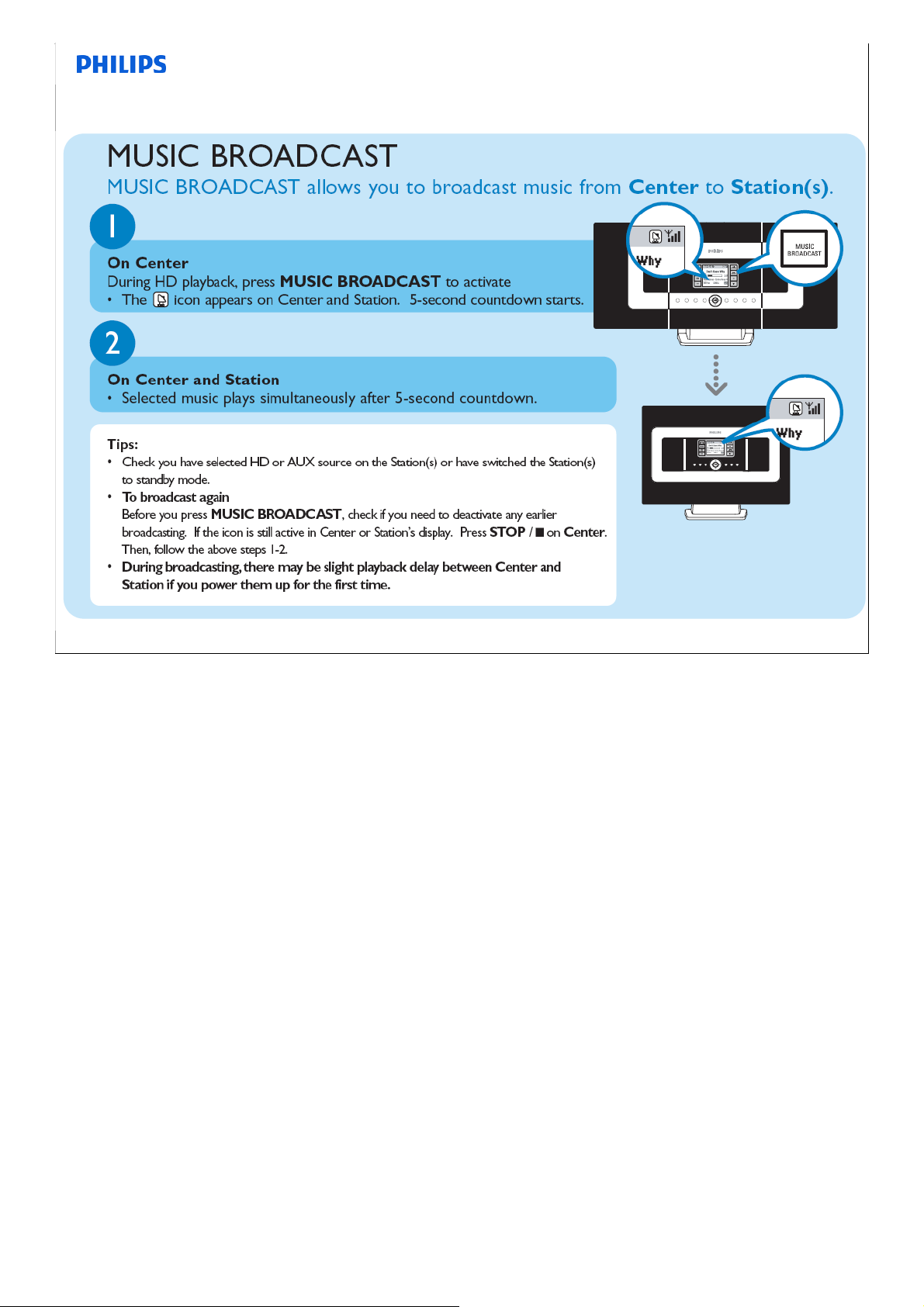
Music Broadcast
•Notes:
Consumer Service, September 2008, Reference
10
10
Page 11
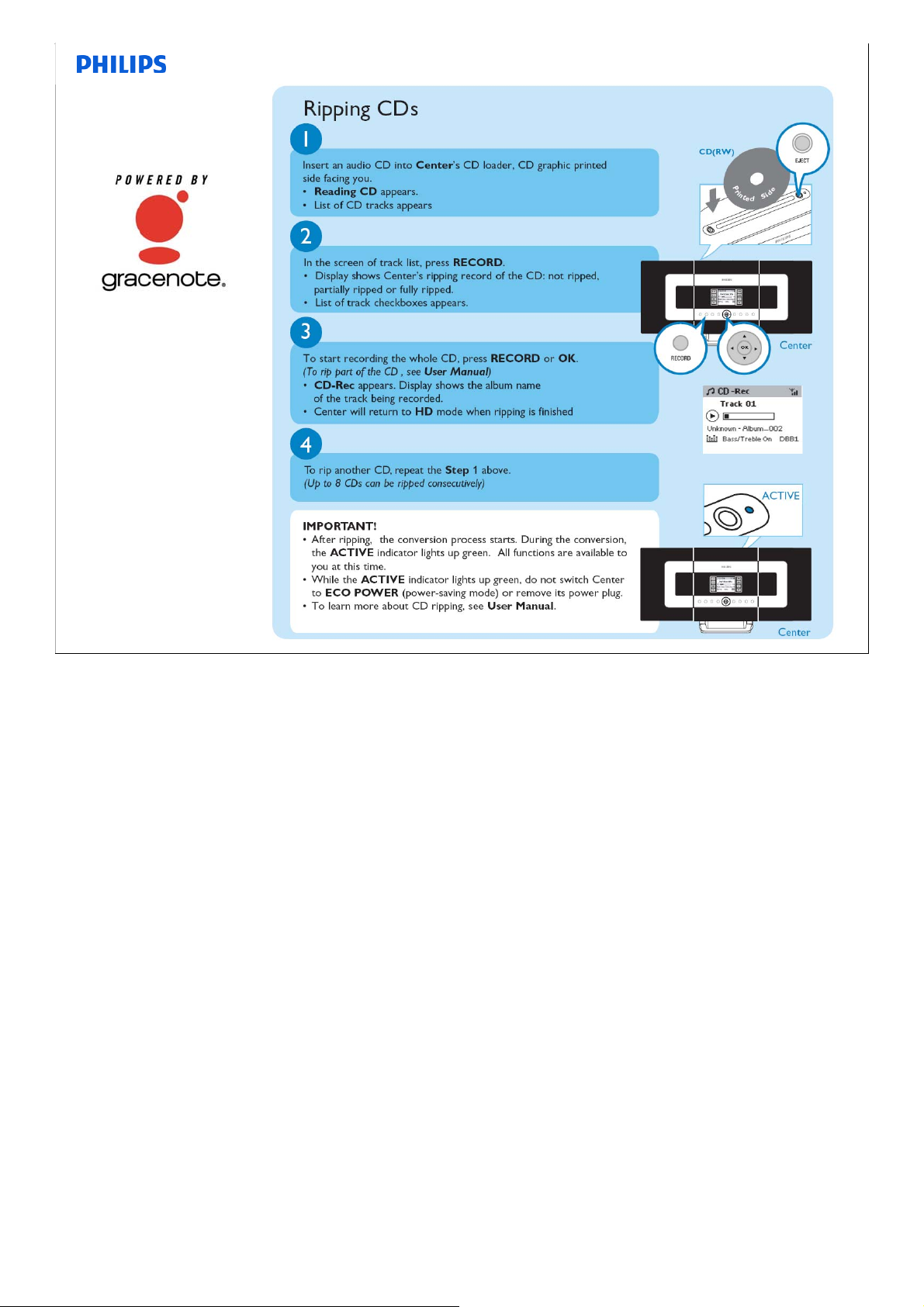
Rip CD
•Notes:
Consumer Service, September 2008, Reference
11
11
Page 12
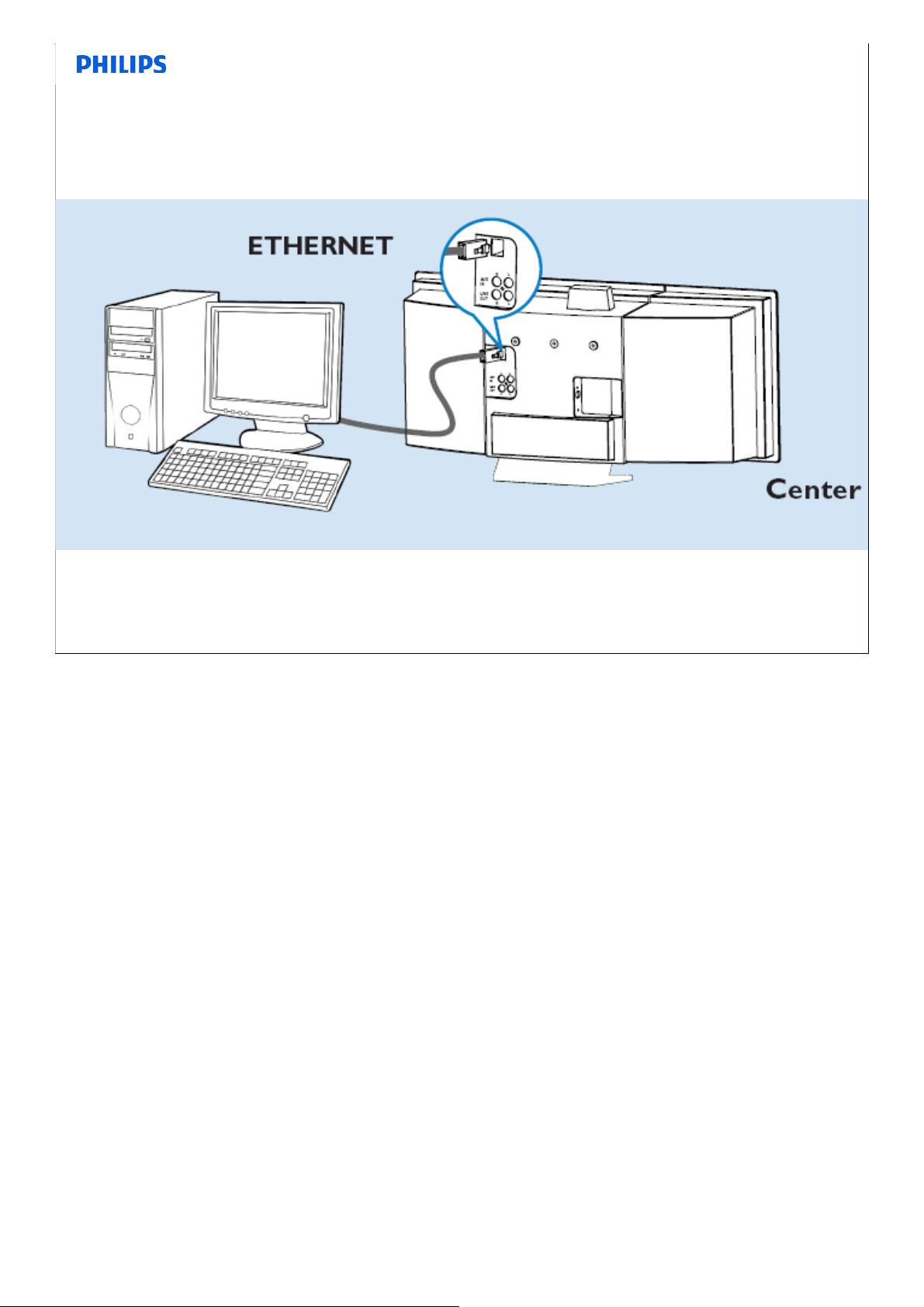
Connection to Ethernet
•Notes:
Consumer Service, September 2008, Reference
12
12
Page 13
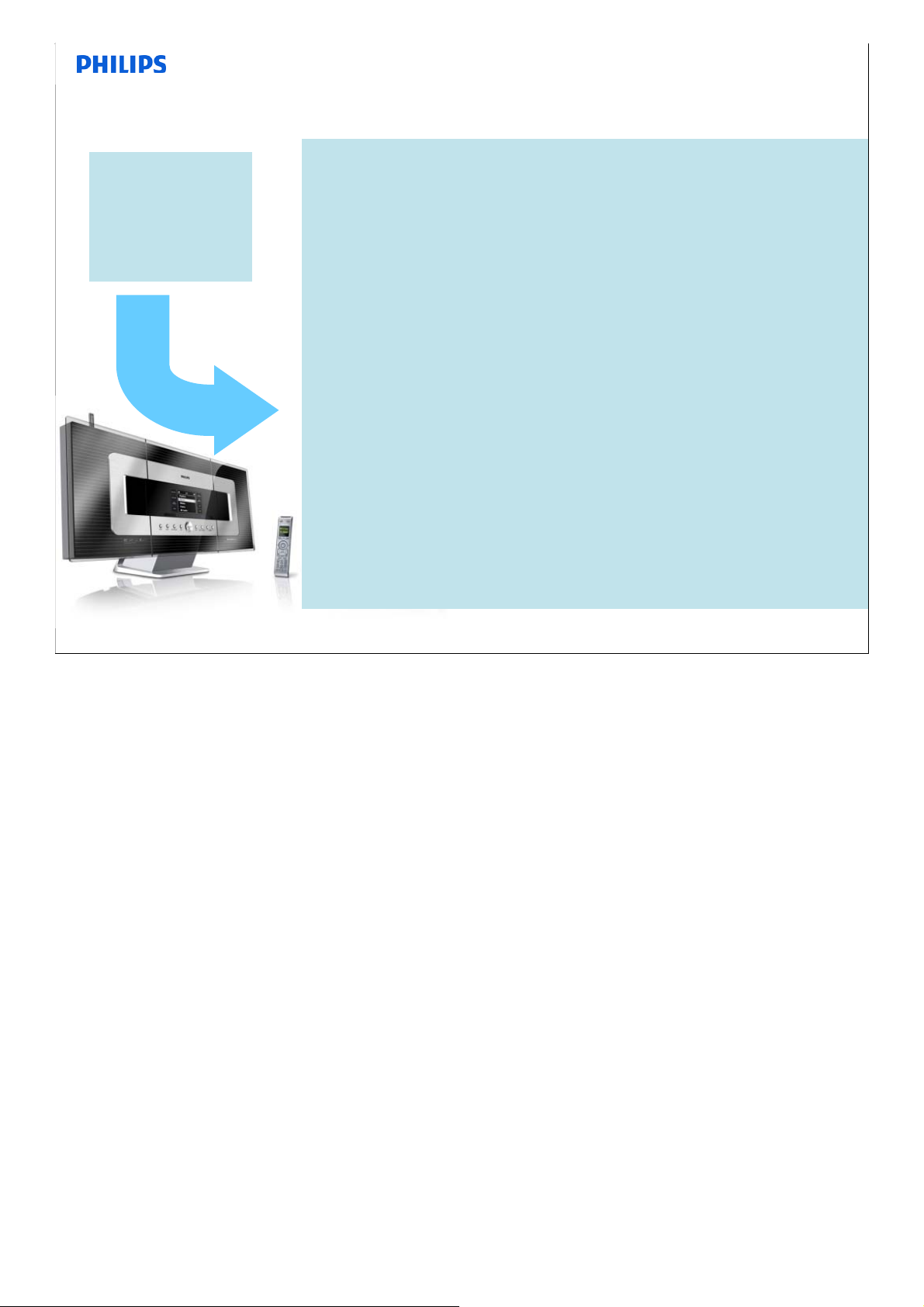
WACS7000
Multiroom system
waCS700
•Capacity 750 CDs
•My Room My Music
•Music Follows Me
•Music Broadcast
•2 way remote control
NEW waCS7000
•Capacity 1500 CDs
•My Room My Music
•Music Follows Me
•Music Broadcast
•2 way remote control
•USB direct -direct playback from data stick on center and station
-transfer songs from hard disk center to datastick
+Better sound -speakers are 2-3dB more sensitive on center & station
-more loudness at especially higher frequencies
+iPOD docking (optional)-charge and playback on center or station
-control via existing remote control
+Alpha numerical search: quickly find content by typing first letter
+More choice in compression rates
-128-320 kbps, offering near lossless compression
+Improved display -reversed display with high resolution
+Back up & restore function to PC
+Alarm and timer functionality on center and station
+Gracenote online access if center is installed in network
+Much improved, faster PC file transfer, offering full drag & drop
+Much improved PC connectivity set up
+Improved radio and RDS functionality
+Ethernet connection on center & station: support for wired networks
+30% higher scrolling speed
•Notes:
Consumer Service, September 2008, Reference
13
13
Page 14
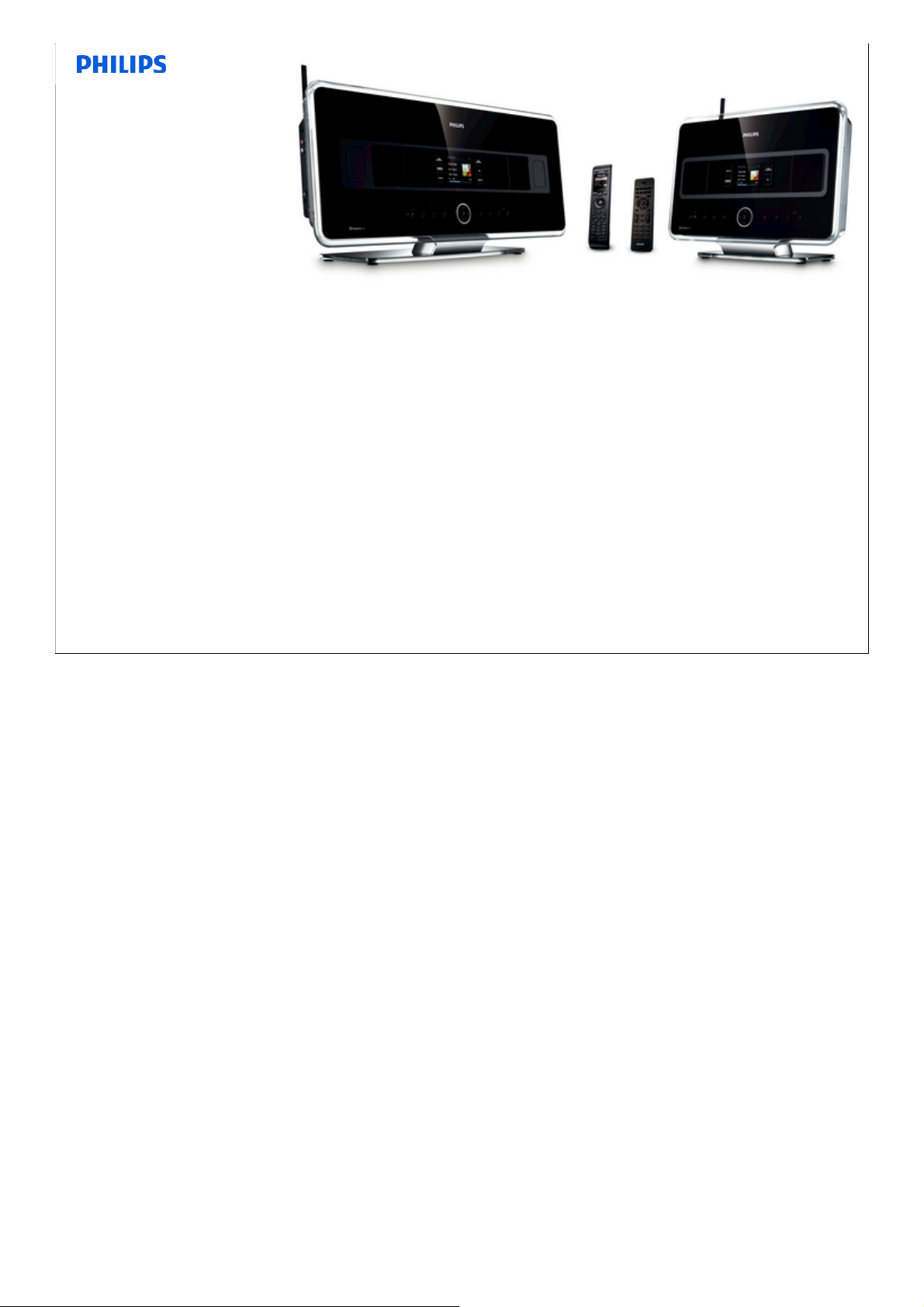
WACS7500
Multiroom
System
All your music on one wireless system
•Wireless streaming between Center, Station(s) and PC
•80GB hard disk to store and playback up to 1500CDs
•CD and USB Direct playback
•Enjoy Internet radio
Easy navigation and control
•View album art in full color
•My Room, My Music playback to all Stations
•Music Broadcast: Listen to the same music on all stations
•Music Follows Me: take your music with you from room to room
Quality sound performance
•80W RMS/Center, 30W RMS/Station with Super Sound Panel
Expandable
•Extend your system by adding up to 5 Wi-Fi Stations
Consumer Service, September 2008, Reference
14
•Notes:
14
Page 15
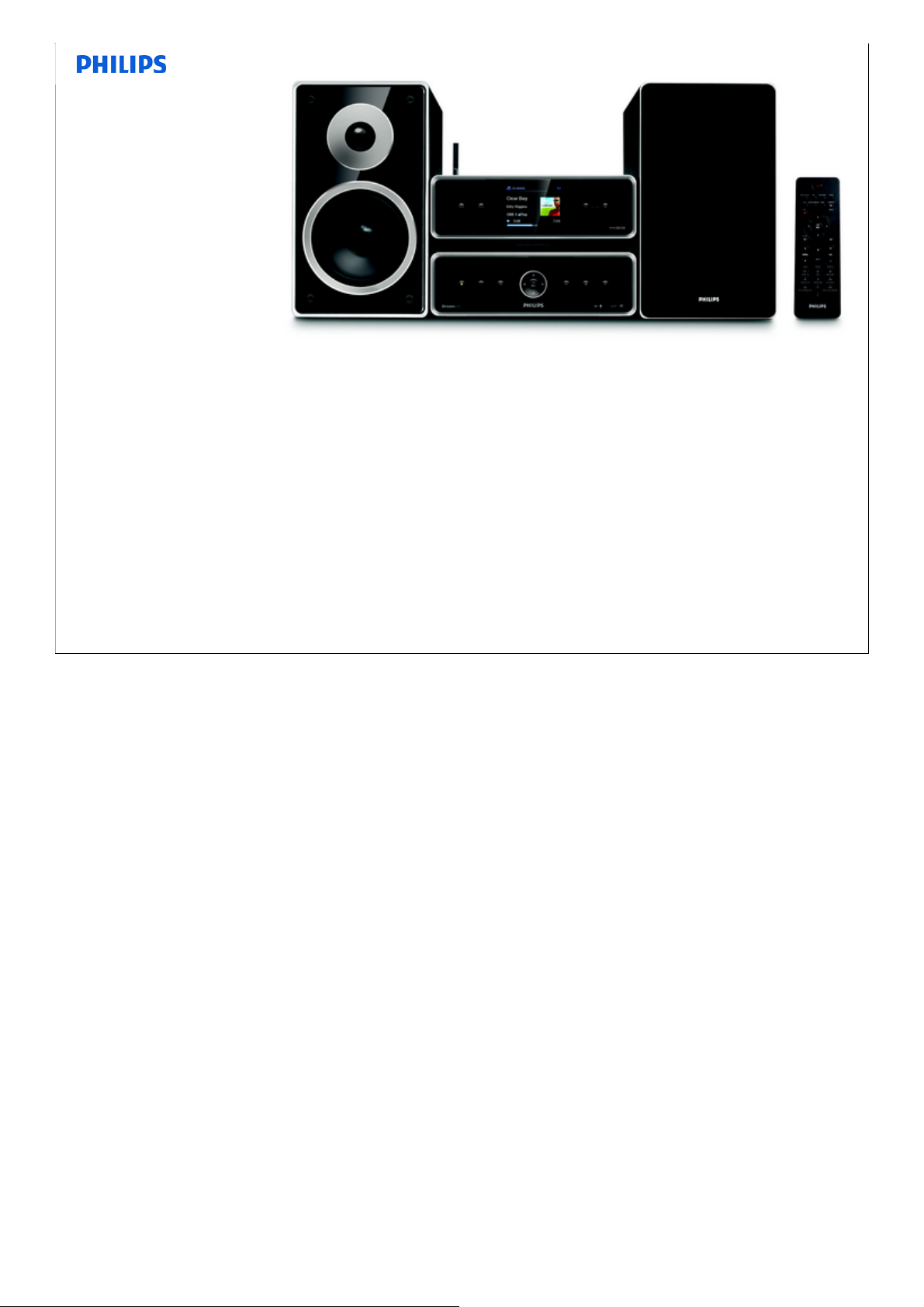
MCI500H
Home Audio
Server
All your music on one wireless system
•160GB hard disk to store up to 2000 CDs
•Drag and drop music from PC
•Enjoy Internet radio
•Play and rip CDs with Gracenote automatic song
information
•Plug and play directly your USB flash memory device
Easy navigation and control
•Alphanumeric search with remote control
•Browse your collection by album, artist, genre and track
Quality sound performance
•2x50W RMS Hi-Fi sound with Class "D" Digital Amplifier
•Hi-Fi Dome Tweeters & 5.25 " Woofers
Expandable
•Extend your system by adding up to 5 Wi-Fi Stations
•Notes:
•View album art in full color
Consumer Service, September 2008, Reference
15
15
Page 16
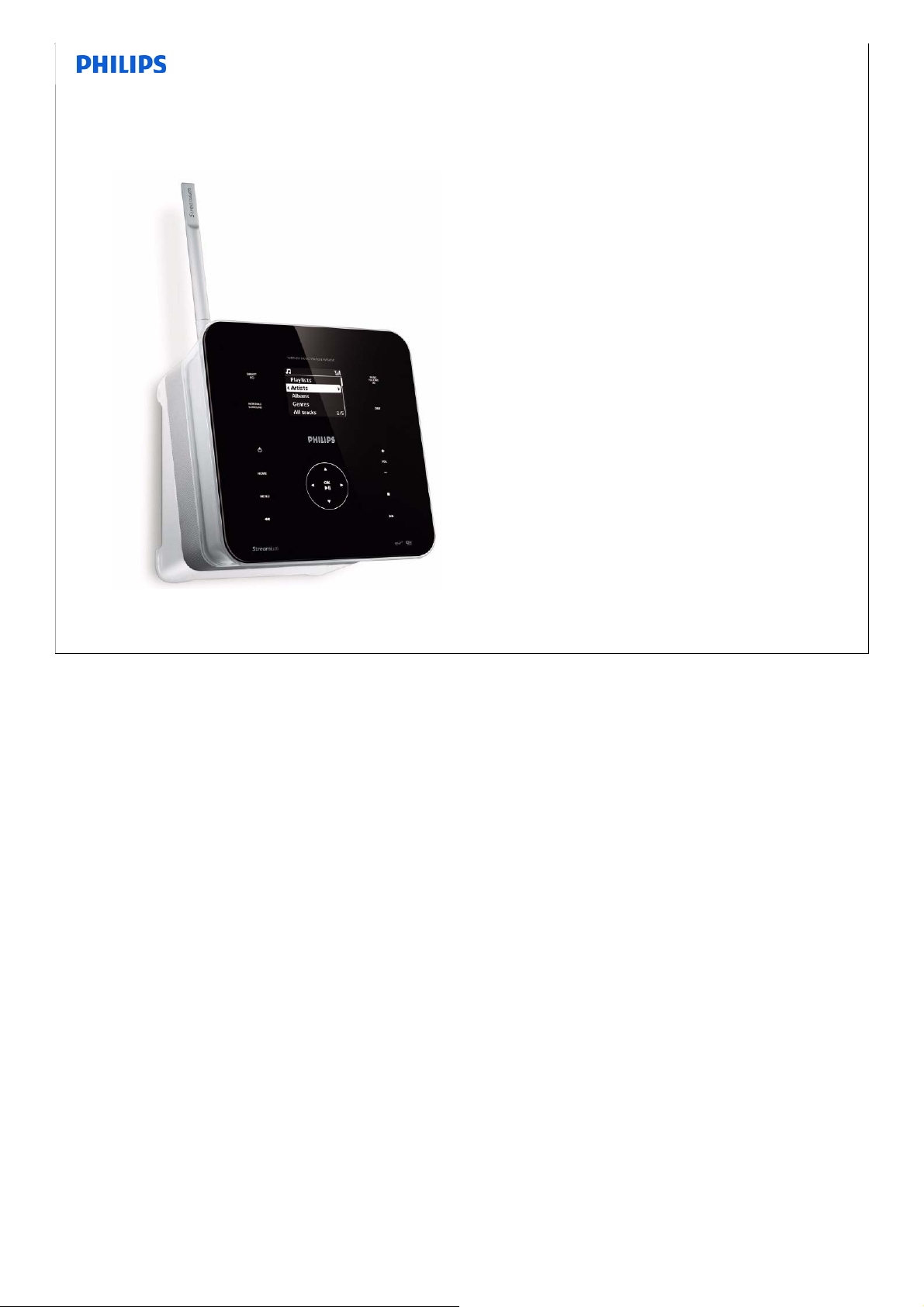
WAS6050
Network Client
Unlimited listening pleasure - wirelessly
•Wireless streaming between Music Center and
Station(s)
•Enjoy Internet radio
•Wireless streaming from PC via UPnP
Easy navigation and control
•My Room, My Music: Listen to different music in
each room
•Music Broadcast: Listen to the same music on all
stations
•Music Follows Me: take your music with you from
room to room
•Browse your collection by album, artist, genre and
track
Quality sound performance
•15W RMS
•Class 'D' Digital Amplifier with 4-speaker system
•wOOx loudspeaker technology for deep and
Consumer Service, September 2008, Reference
powerful bass
16
•Notes:
16
Page 17
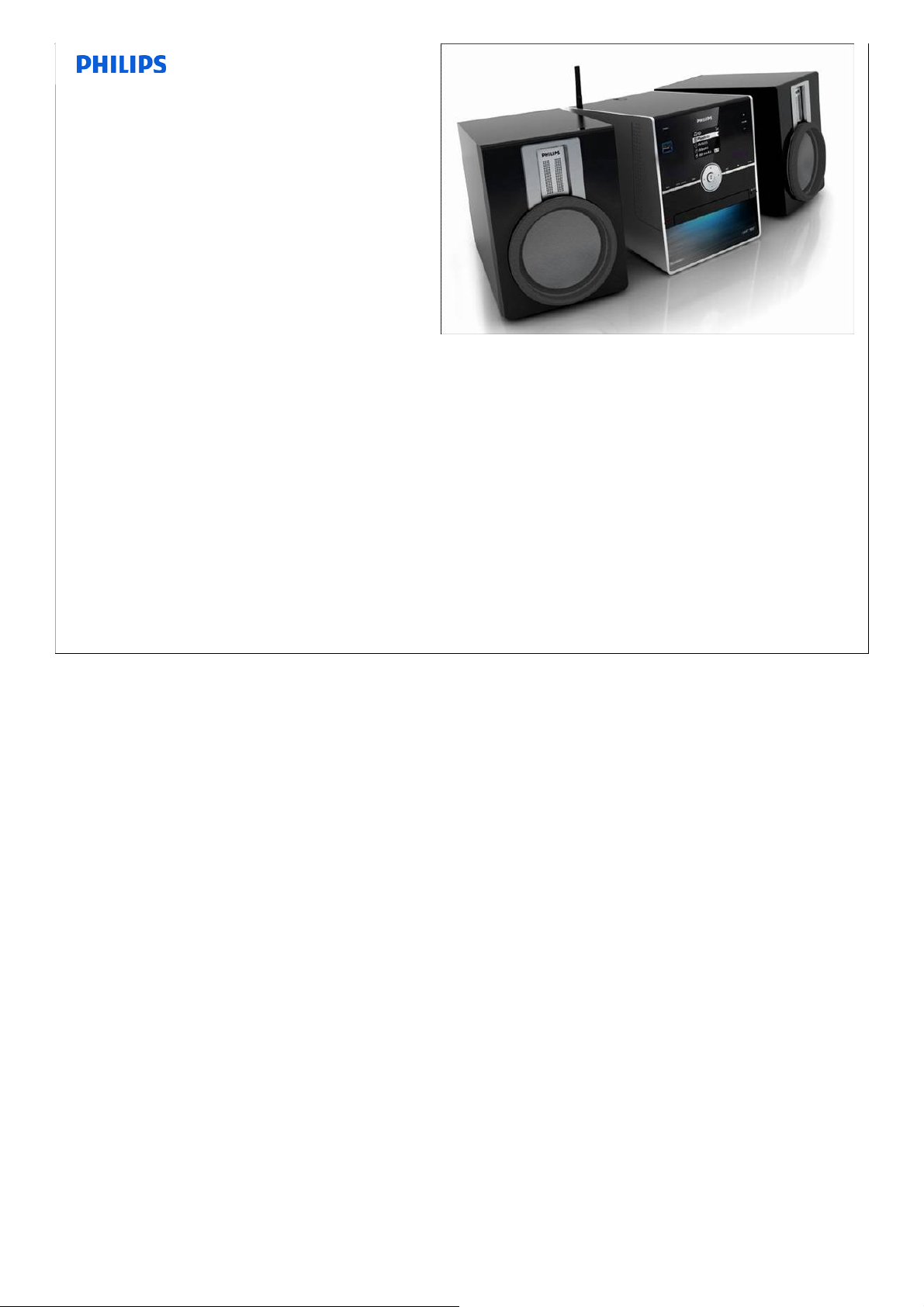
MCI300
Network Client
All your music on one wireless system
•Enjoy Internet radio
•Wireless streaming from PC via UPnP
•USB Direct plays photos and music from USB flash drives
•Wireless streaming between Center and PC
Easy navigation and control
•Alphanumeric search with remote control
•Browse your collection by album, artist, genre and track
Quality sound performance
•2x40W RMS Hi-Fi sound
•2-way Bass reflex speakers
Consumer Service, September 2008, Reference
17
•Notes:
17
Page 18
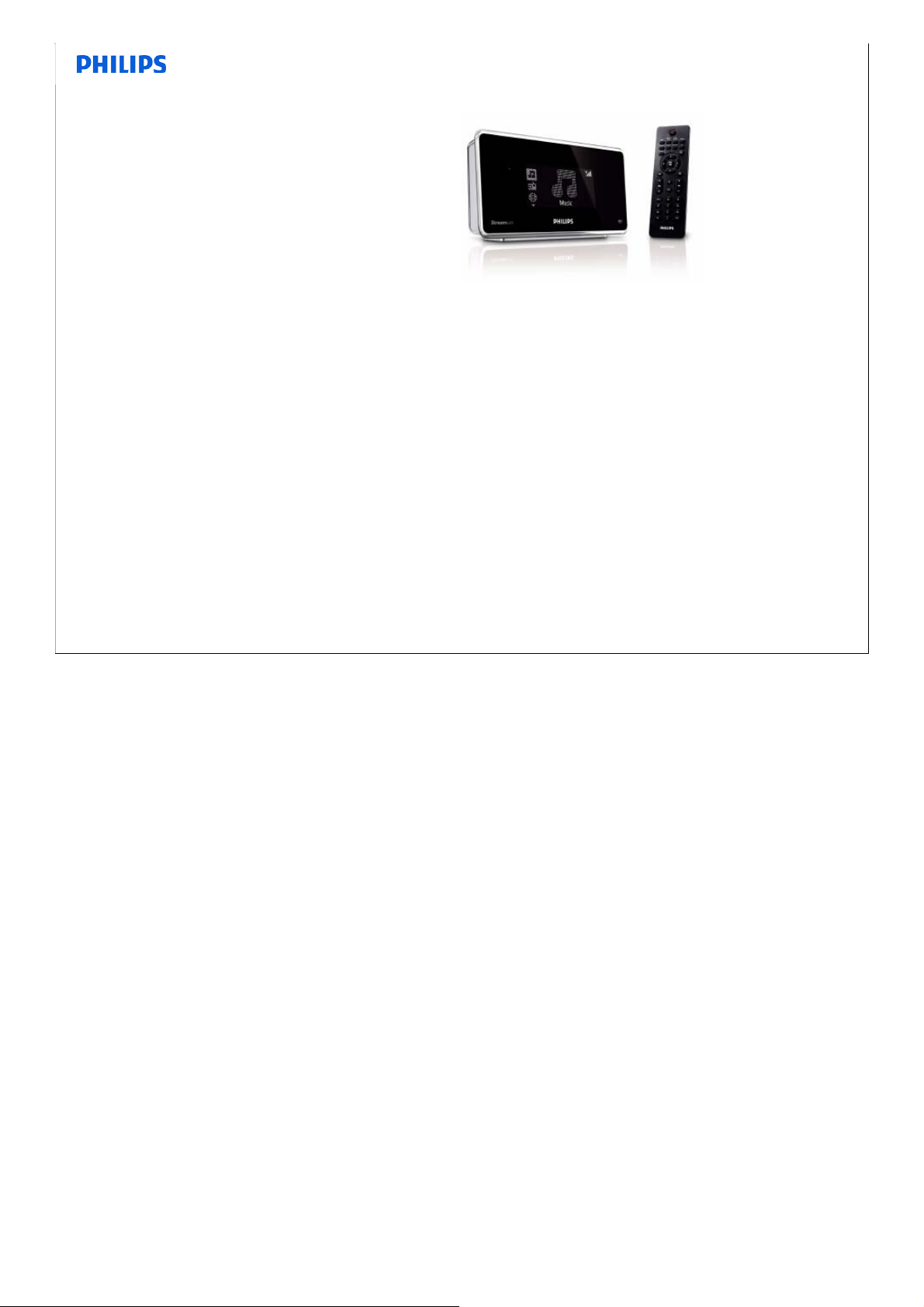
NP1100
Network Client
Easy navigation and control
•Large screen and remote control
Quality sound performance
•Coax and analog connectors
Unlimited listening pleasure - wirelessly
•Enjoy Internet radio
•Wireless streaming from PC via UPnP
•Connect to your own stereo or home theater
•Enjoy WMA and MP3 playback
Easy connectivity
•Digital output for your Hi-Fi system
Consumer Service, September 2008, Reference
18
•Notes:
18
Page 19
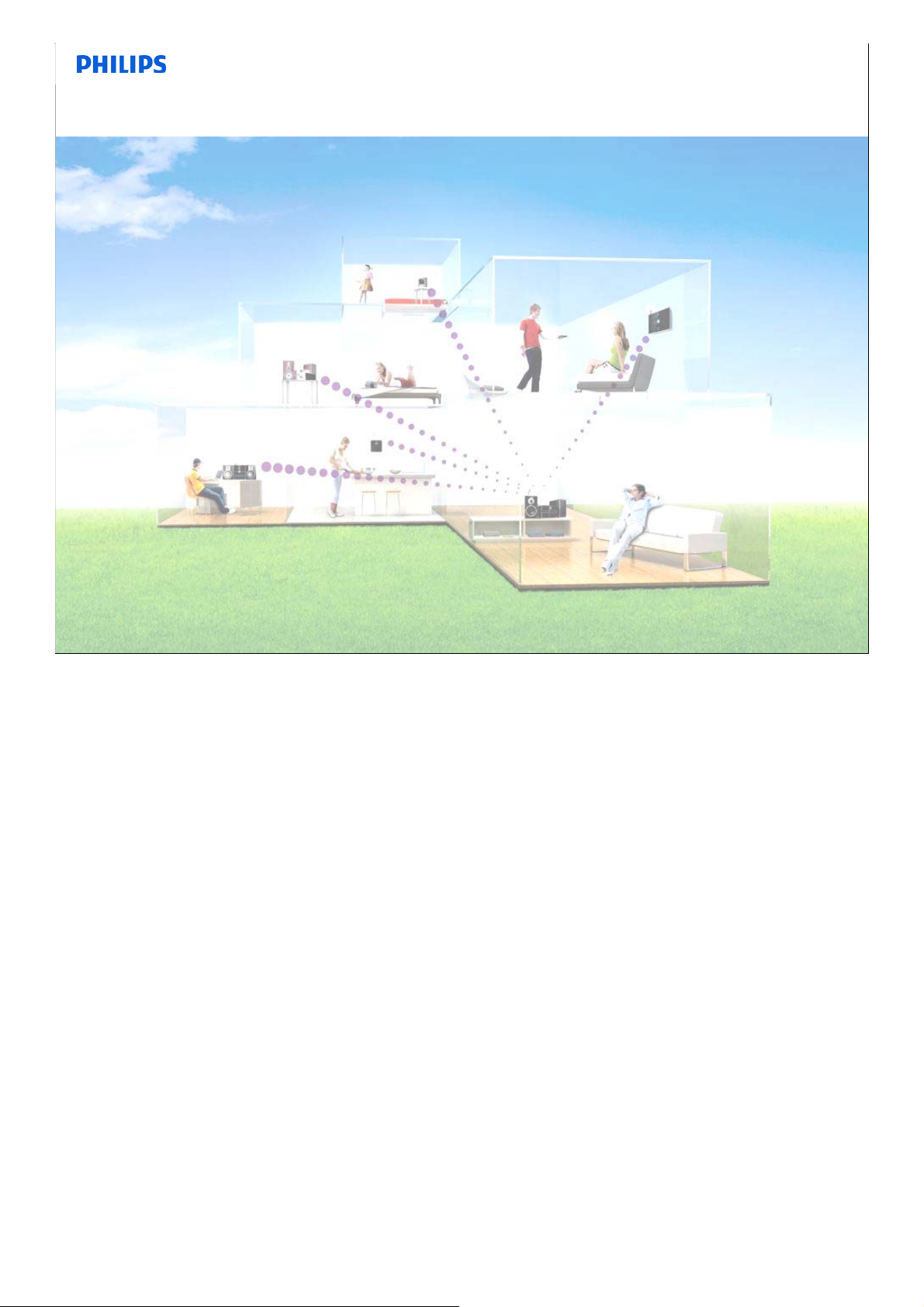
Problem Solving
• Market Trend
• Range up to day
• Problem solving
•Known Problems
•Notes:
Consumer Service, September 2008, Reference
19
19
Page 20
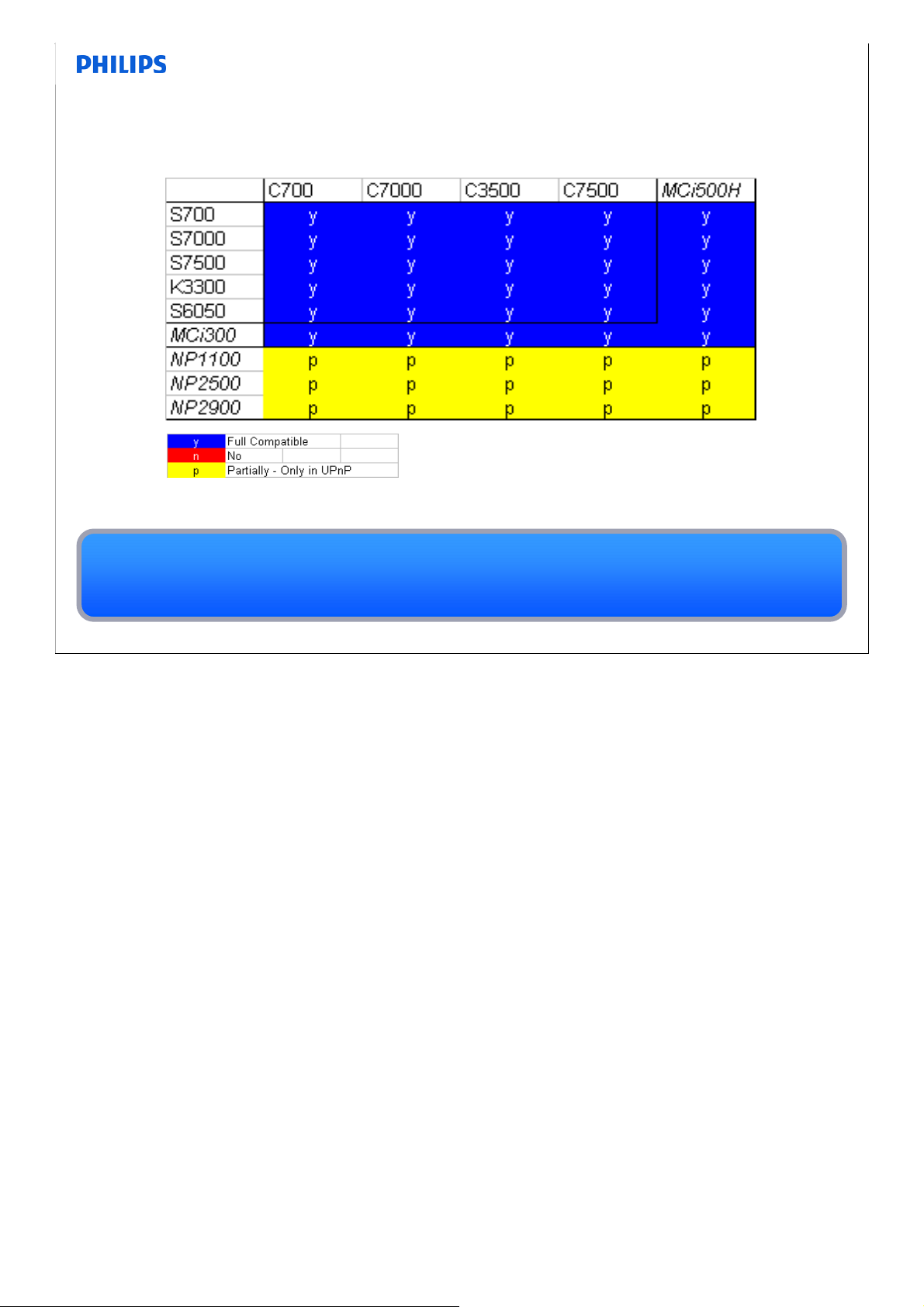
Interoperability between Center (Hard Disk based device) and
Stations
MCi500H and MCi300 are positioned and communicated as Micro Hi-fi systems
Network Player NP devices are compatible as UPnP – can access and playback content
from Center but does not support Music Follows Me and Music Broadcast
Consumer Service, September 2008, Reference
20
•Notes:
20
Page 21

Getting Album Art on WAC7500 and MCi500H
(Color Display devices)
•2 ways:
– Rip CD with WAC7500 or MCi500H connected to the Internet (to
access to online Gracenote)
– Embed Album Art in track and transfer to WAC7500 or MCi500H via
WADM software
Freeware such as MP3Tag can be used to embed Album Art in the track
• Works on MP3 track only (MP3 track has tag field for Album Art)
• Album Art on PC stored in separate location and not accessible by WACS or
MCi (platform constraint) via UPnP
• Full Album Art is shown on WAC7500, WAS7500 and MCi500H by pressing
‘Right’ (>) key in track play screen and stays on screen for a few seconds
•Notes:
Consumer Service, September 2008, Reference
21
21
Page 22
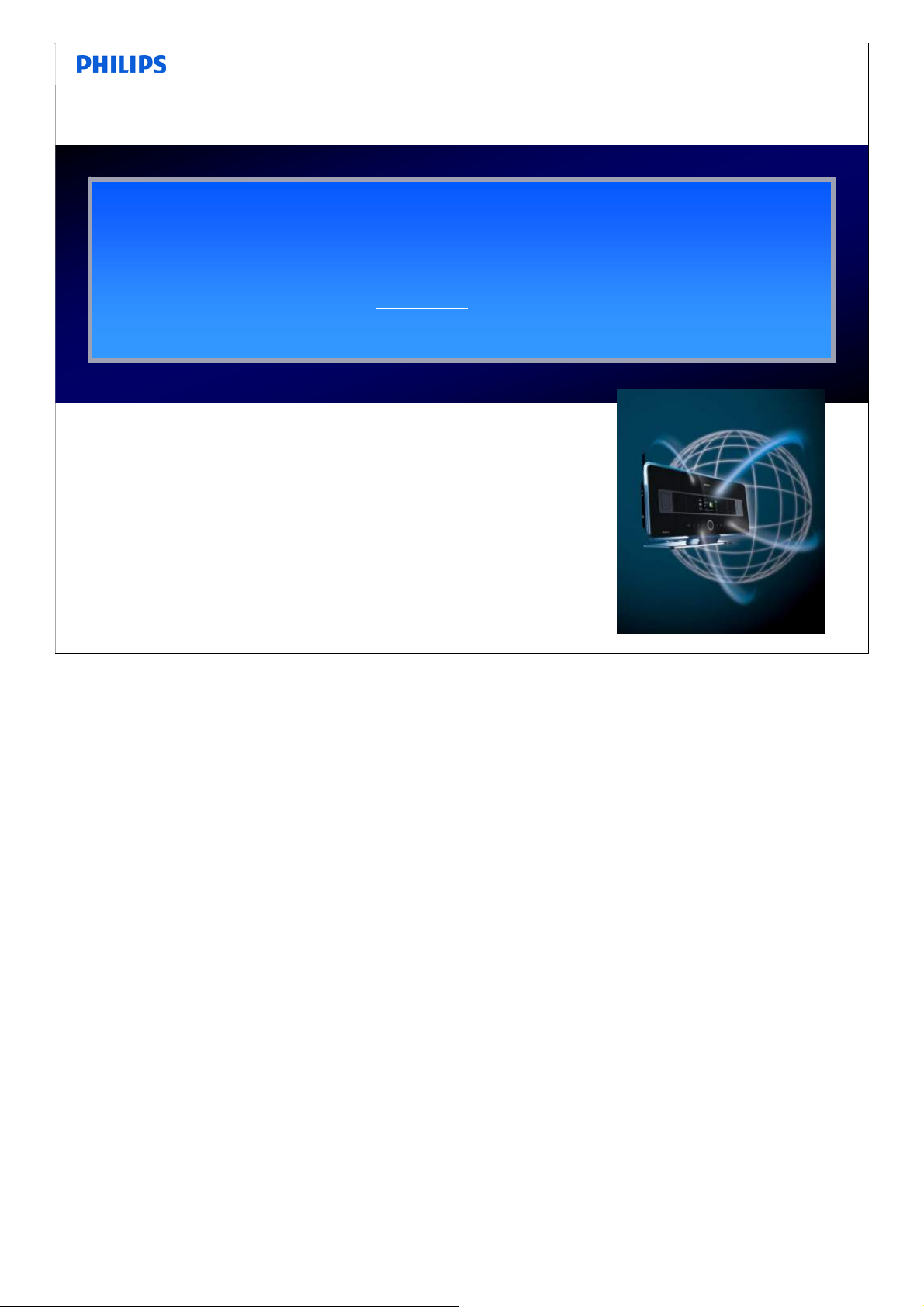
Internet Radio – the Basics
• Tag line - Free, Simple, Unlimited
• Thousands of radio stations from around the world with free content.
• No PC required – direct access via home network to the Internet
• Stations (S7500, S6050 etc.) DO NOT
Radio
Consumer Service, September 2008, Reference
require Center to access Internet
22
•Notes:
22
Page 23
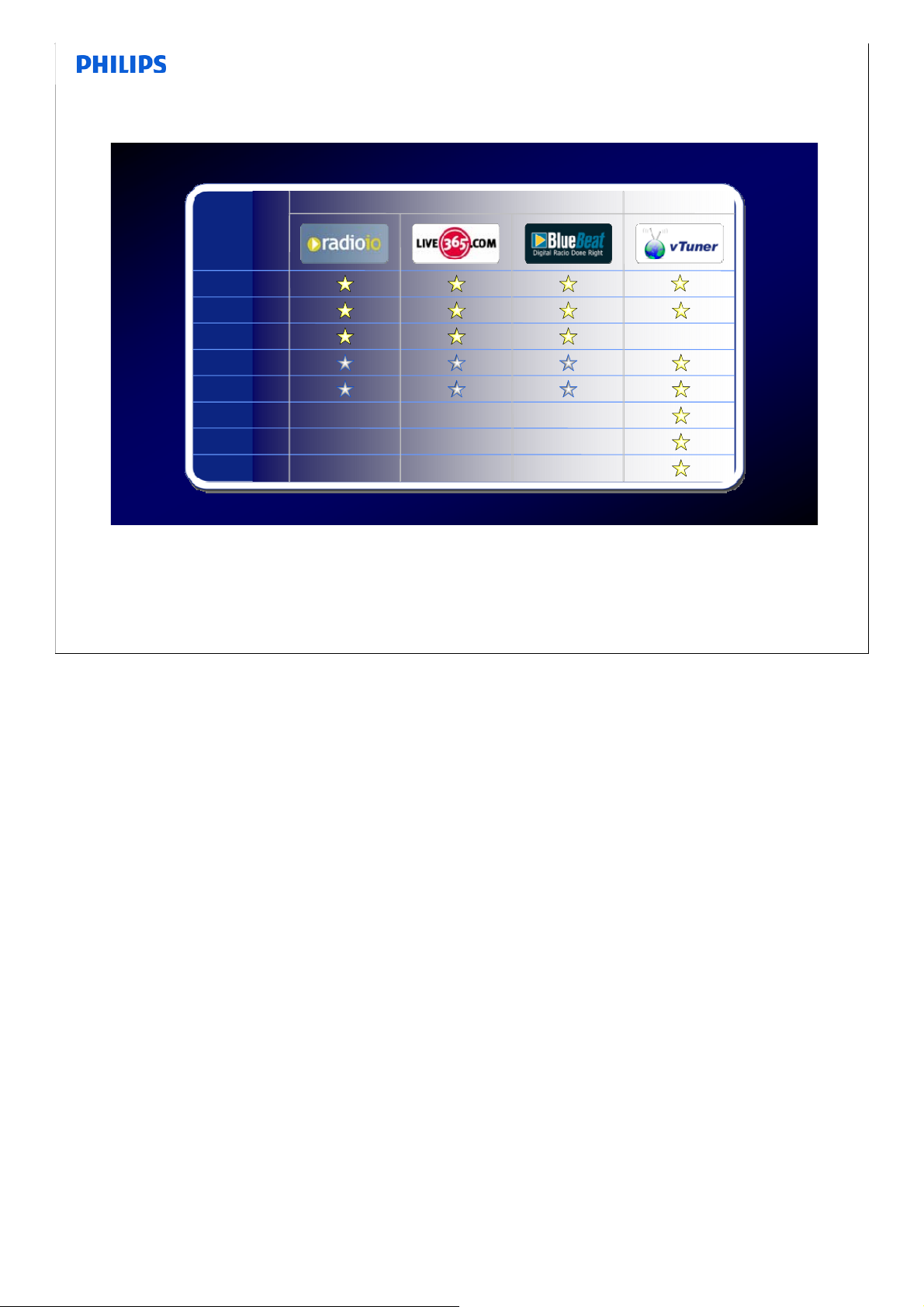
Internet Radio – Service Providers
WACS7500
WAS6050
WAC3500D
MCi500H
MCi300
NP1100
NP2500
NP2900
Theme channels
Consumer Service, September 2008, Reference
Aggregated
channels
23
•Notes:
23
Page 24
Internet Radio .. Benefits of Streamium Management
• Philips Streamium offers Quick access and control
• [Favorite Stations] allows quick access to those stations one has bookmarked
for frequent listening
• [My Media] enables one to manually add online those stations that one cannot
find on service provided
• Go www.philips.com/welcome to register, and use Streamium Management to
manage My Media and Favorites Station (to add/delete and sort order).
•Notes:
Consumer Service, September 2008, Reference
24
24
Page 25
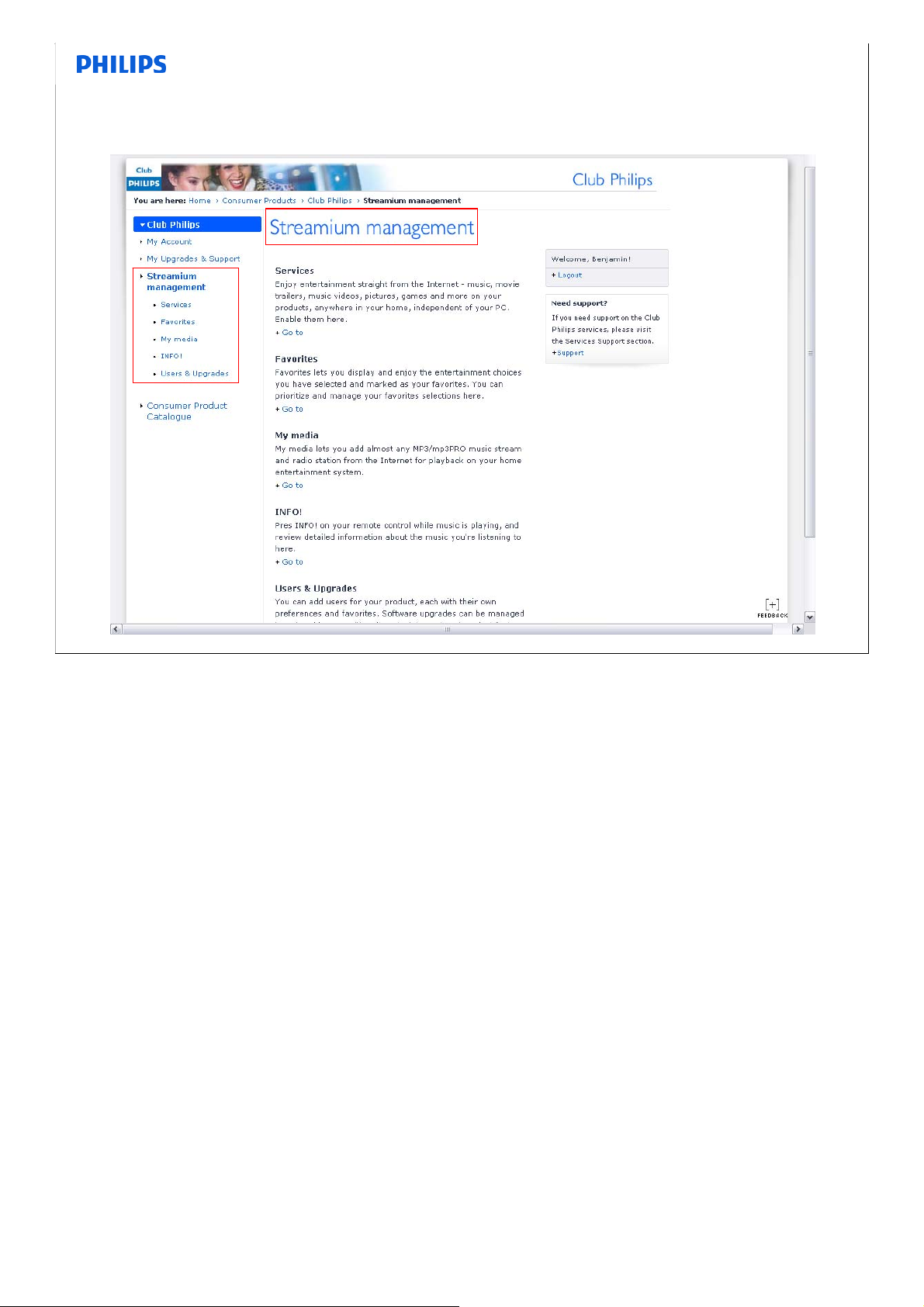
Streamium Management
•Notes:
Consumer Service, September 2008, Reference
25
25
Page 26

Internet Radio needs time to warm up …
• Typically a few seconds are required for selected Internet radio
station to start playing:
1.Access to the station
2.Buffering of streaming data (to a level) so that incoming
music (data) stream can be played continuously, depending
on
– Speed of the internet connection is at the time
– Heavy congestion on the internet or at the music server will take
even longer time for the music to start playing
• Buffering indication to display on the screen upon connecting to
station to provide indication that streaming and buffering is
happening.
Consumer Service, September 2008, Reference
26
•Notes:
26
Page 27
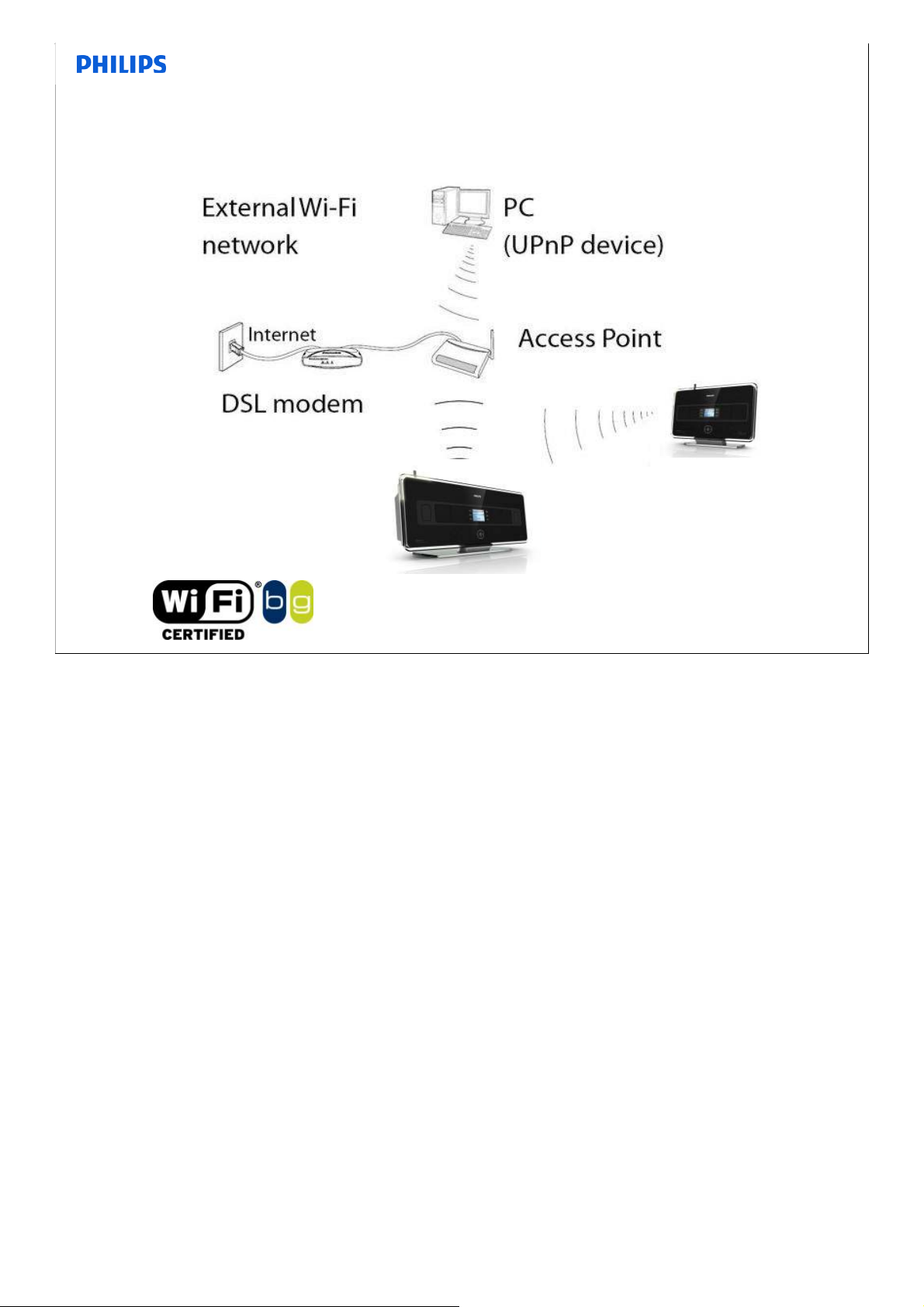
Connected Audio Devices in Home Wi-Fi Network
•Notes:
Consumer Service, September 2008, Reference
27
27
Page 28

Connect to Home Wi-Fi Network
1. Device searches for Wi-Fi networks in the neighborhood,
(WACS700 can only be installed via WAC_installer).
2. Select the Wi-Fi network presented by your Router (SSID of your
router appears in the networks list)
3. Enter the WEP/WPA/WPA2 key (set on your Wi-Fi router) via the
1-way RC ) (DO NOT use the 2-way remote control
)
4. Select Automatic if your Router is set to use DHCP mode, else
select Static and assign an IP address as prompted using the
alphanumeric keys
5. Select Yes to apply the settings
Consumer Service, September 2008, Reference
28
•Notes:
28
Page 29

Add Wireless Music Station to Wireless Music Center
• Place WAC and WAS so that they can contact to the Access Point
• Switch on WAC and select HD source
• Select MENU Æ Station Mgnt Æ Add New Station Æ OK [Searching
for the new Station starts]
• Switch on the new Station and select AUX source
• Press MENU Æ INSTALLATION Æ OK [Searching for the Center
starts]
• On the Center's display shows the number of stations found
• Press STOP/ on the Center when all the stations are found
• Same procedure for Ad-hoc and Infrastructure (home wi-fi network)
mode. For Ad-hoc place WAS and WAC together.
Consumer Service, September 2008, Reference
29
•Notes:
29
Page 30
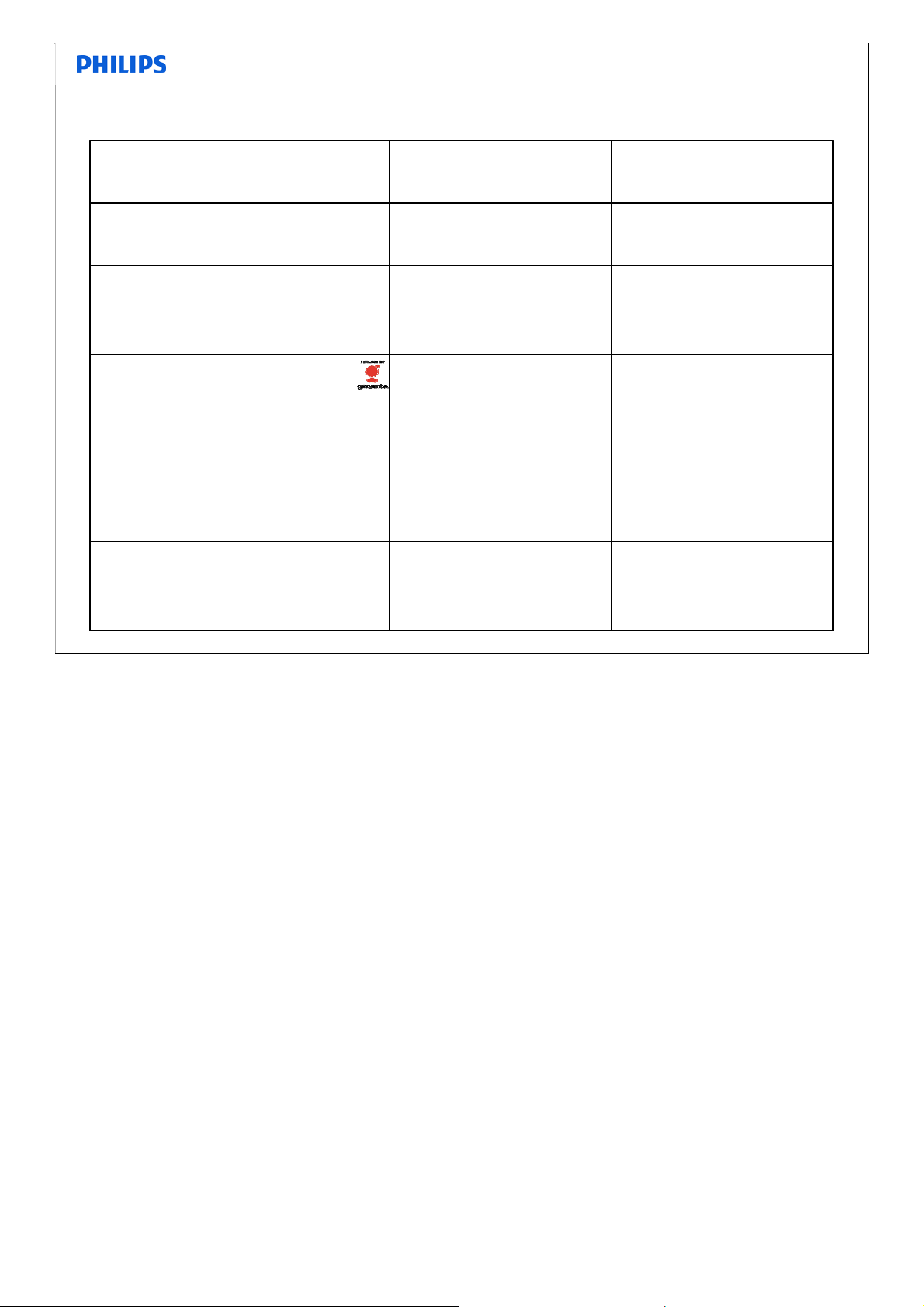
Advantages of Infrastructure Mode vs Adhoc Mode
Internet Radio
Drag and drop Tracks
from your PC via
WADM wirelessly
Online Gracenote: latest
CD info and Album Art
Stream music from PC
Online software update
from Philips ECD
Wi-Fi Range
Adhoc
N
N (only embedded
Gracenote
database)
Limited by Center's
Wi-fi coverage
Consumer Service, September 2008, Reference
Infrastructure
(Home Wi-Fi)
Y (if Home Wi-Fi has
Internet access)
YN
Y
YN
YN
Typically large - Wi-Fi
Router as
connection hub
30
•Notes:
30
Page 31

Gracenote Database Update
• For CD track information
– Album name
–Artist name
–Genre
– Album Art (WAC7500 / MCi500H)
• Gracenote database update
– First register the product on www.club.philips.com and go to "Show Upgrades
& Support" page to download Gracenote Music recognition database update
– Updates posted quarterly
– Each update is independent of each other, i.e. a later update Could be installed
without an earlier update
– Applying update
• Burn a CD with the update file using your favorite CD burning software and drop
the CD into the WAC7500 or MCi500H
• Use WADM's Gracenote update option
Consumer Service, September 2008, Reference
31
•Notes:
31
Page 32

Wi-Fi Network – Safety and Privacy
• When my neighbor has a network as well
– (Wi-Fi) Network access is identified by SSID (and maybe with security
such as WEP/WPA/WPA2 key)
– WACS would not access your neighbor network unless you set up your
system to connect to it
– Your neighbor cannot easily access your WACS if you have your Wi-Fi
protected with WEP/WPA/WPA2 unless your security is comprised
• WEP/WPA/WPA2 safety
– WPA and WPA2 are more secure than WEP provided a strong
password or pass-phrase is used
•Notes:
Consumer Service, September 2008, Reference
32
32
Page 33

Wi-Fi Network – Interference and Range
• Possible sources of interference
– Microwave, DECT phone, Bluetooth device, and another Wi-Fi network
close by on the same channel, thick walls
• Mitigate interference
–Use Wi-Fi router
– Change to different channels, channels 1, 6, and 11 are recommended
•Switch Wi-Fi channels
– Change the operating channel of the device via WADM / Web page
• Good/bad for range
– Wi-Fi networks have limited range. A typical Wi-Fi home router using
802.11b or 802.11g with a stock antenna might have a range of 45 m
(150 ft) indoors and 90 m (300 ft) outdoors
•Notes:
Consumer Service, September 2008, Reference
33
33
Page 34
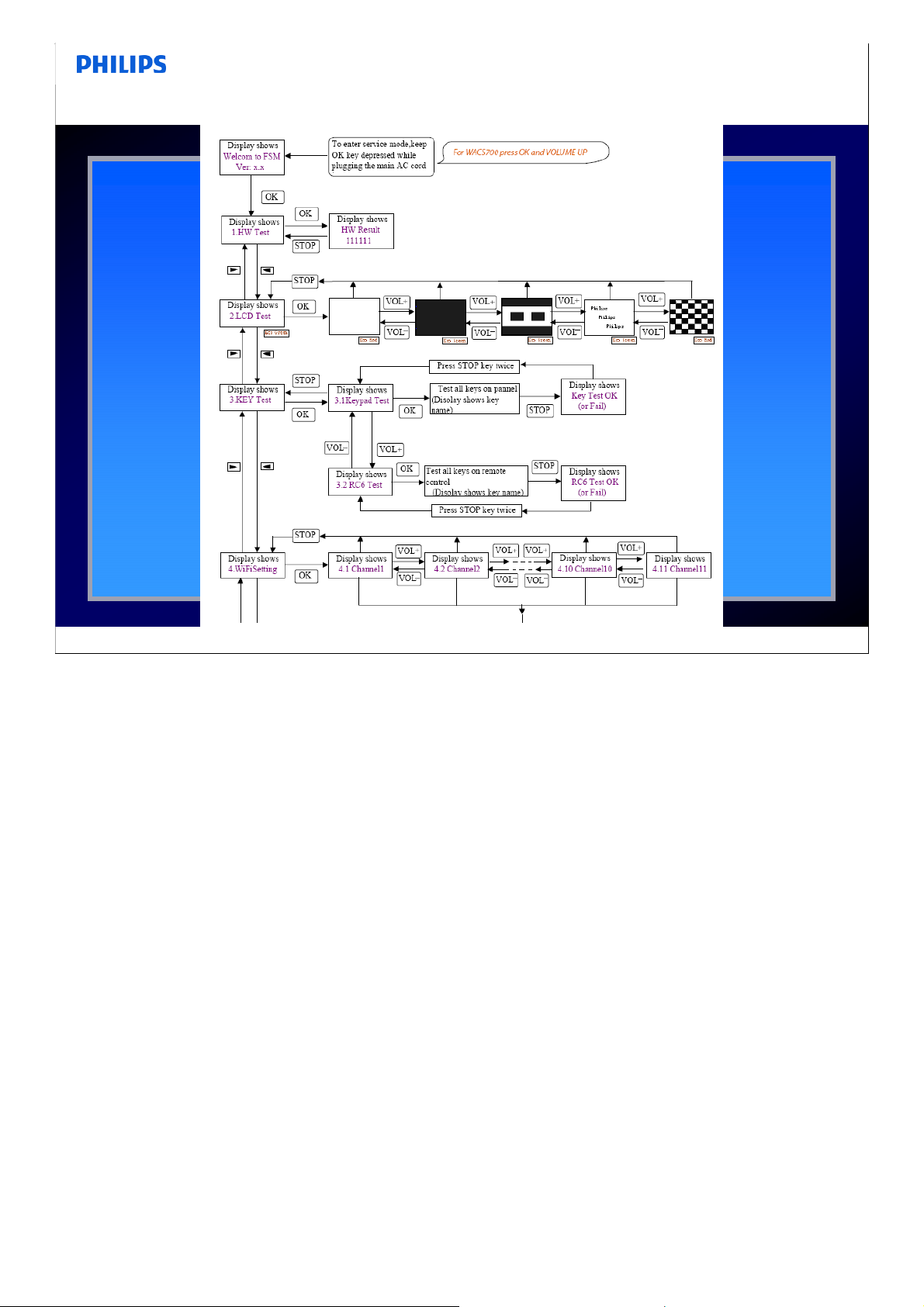
Service Test Program
•Notes:
Consumer Service, September 2008, Reference
34
34
Page 35
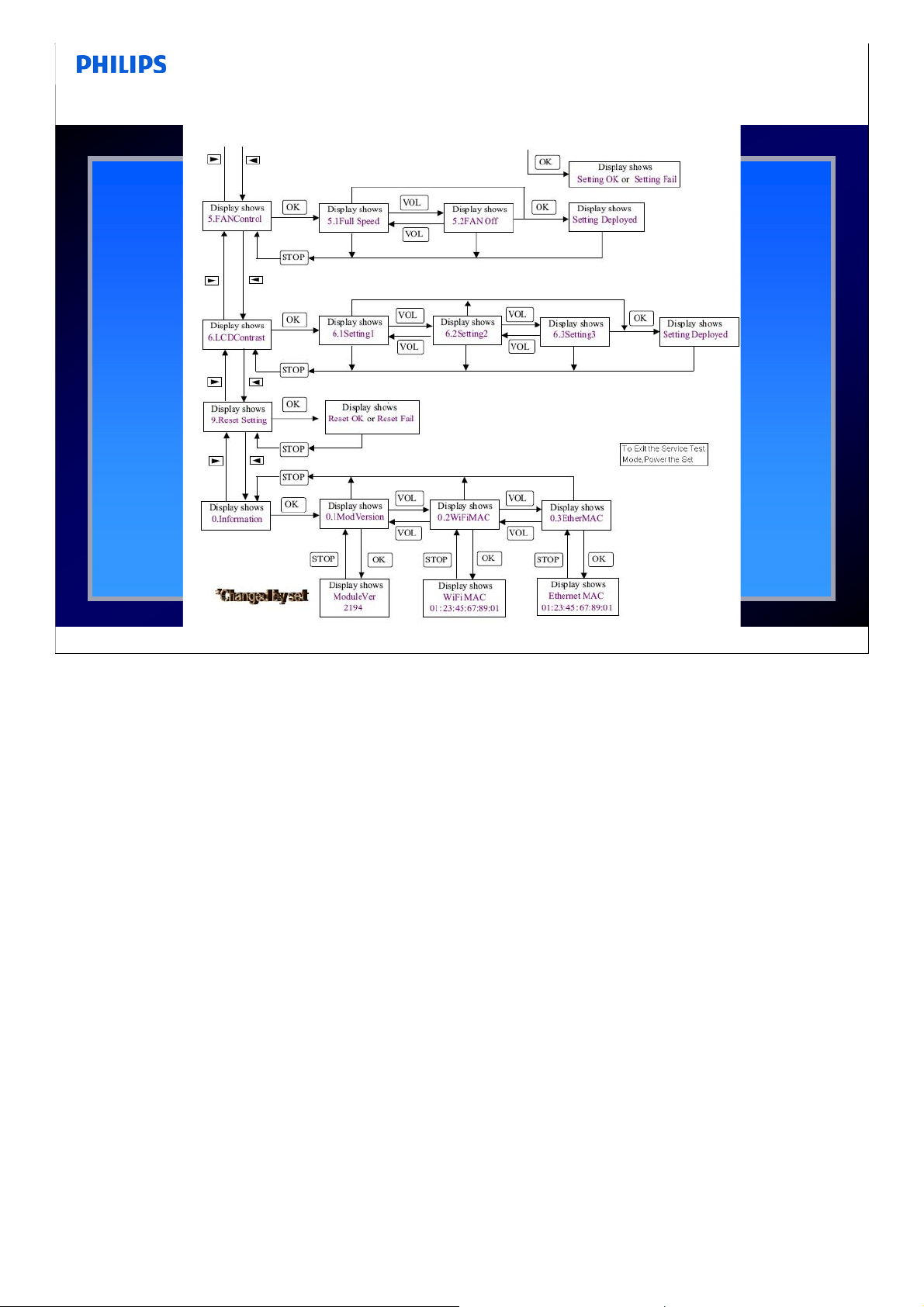
Service Test Program
•Notes:
Consumer Service, September 2008, Reference
35
35
Page 36
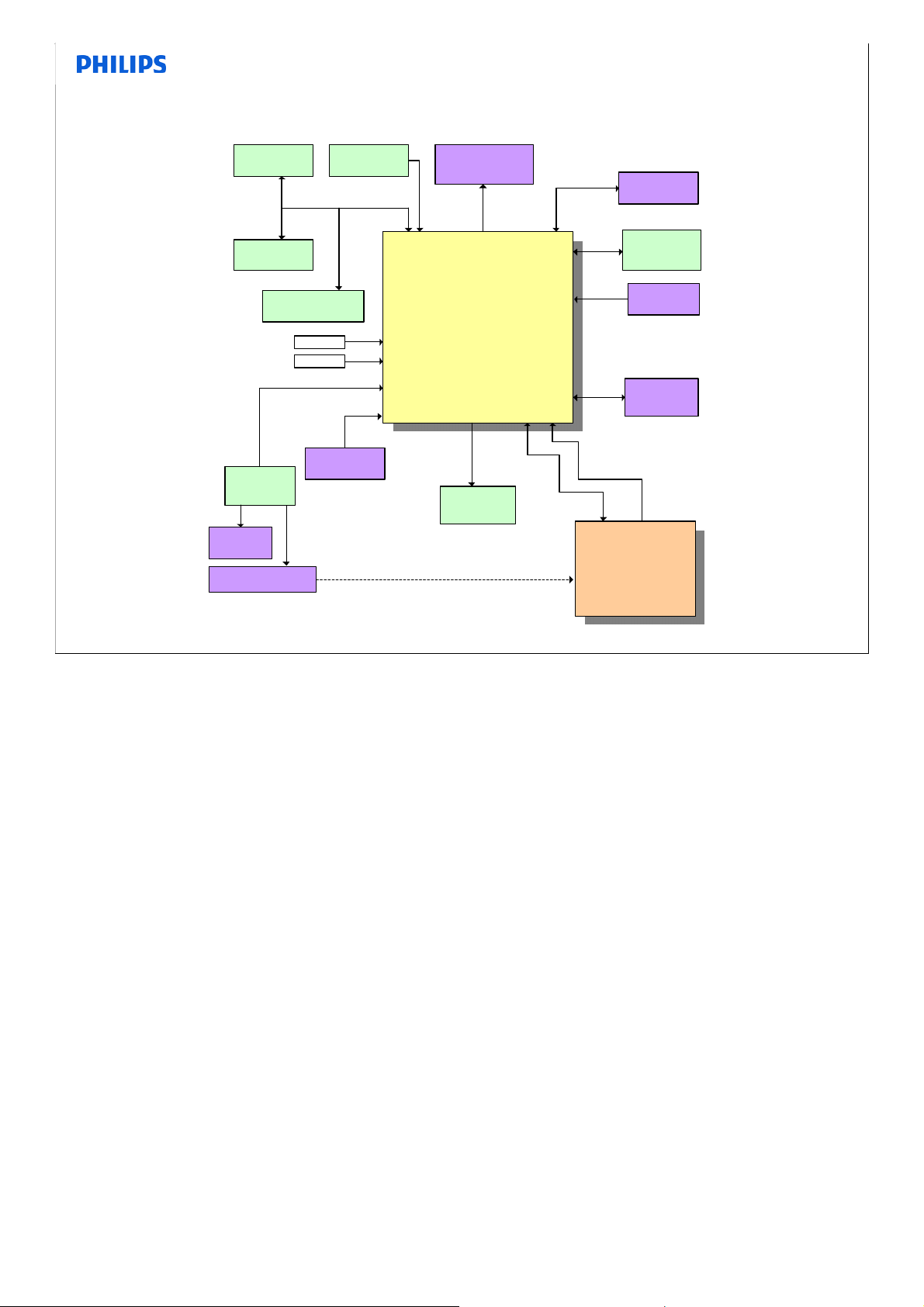
Block Diagram WAC700
EEPROM
Sound IC
I/O Expander
Shift
Register
LEDs
Power Controls
10MHz
32KHz
PIO
(3 lin e s)
RC5
RDS
PIO
(1 lin e s)
UART1
(I2C)
SI/O3
Front MCU
M30624MGP-xxxFP
256K ROM
20K SRAM
100 PI N QFP .65mm
@ 20MHz
16bit Memory
BUS
Flash (2MB
PIO
(3 lin e s)
LCD
128x96x2
SI/O4
UART0
(I2C)
NOR
)
PIO
(4 lines)
PIO
(4 lines)
PIO
ADC
(3 lin e s)
UART2
(19200)
PIO
(1 lin e s)
I2C
Slave
1)
(2 lin e s)
Tuner
System
Control
Keypad
RCmm
Interrupt
request
HAS Module
•Notes:
WiFi H ome Audio S erver - WJ -700
Consumer Service, September 2008, Reference
36
36
Page 37
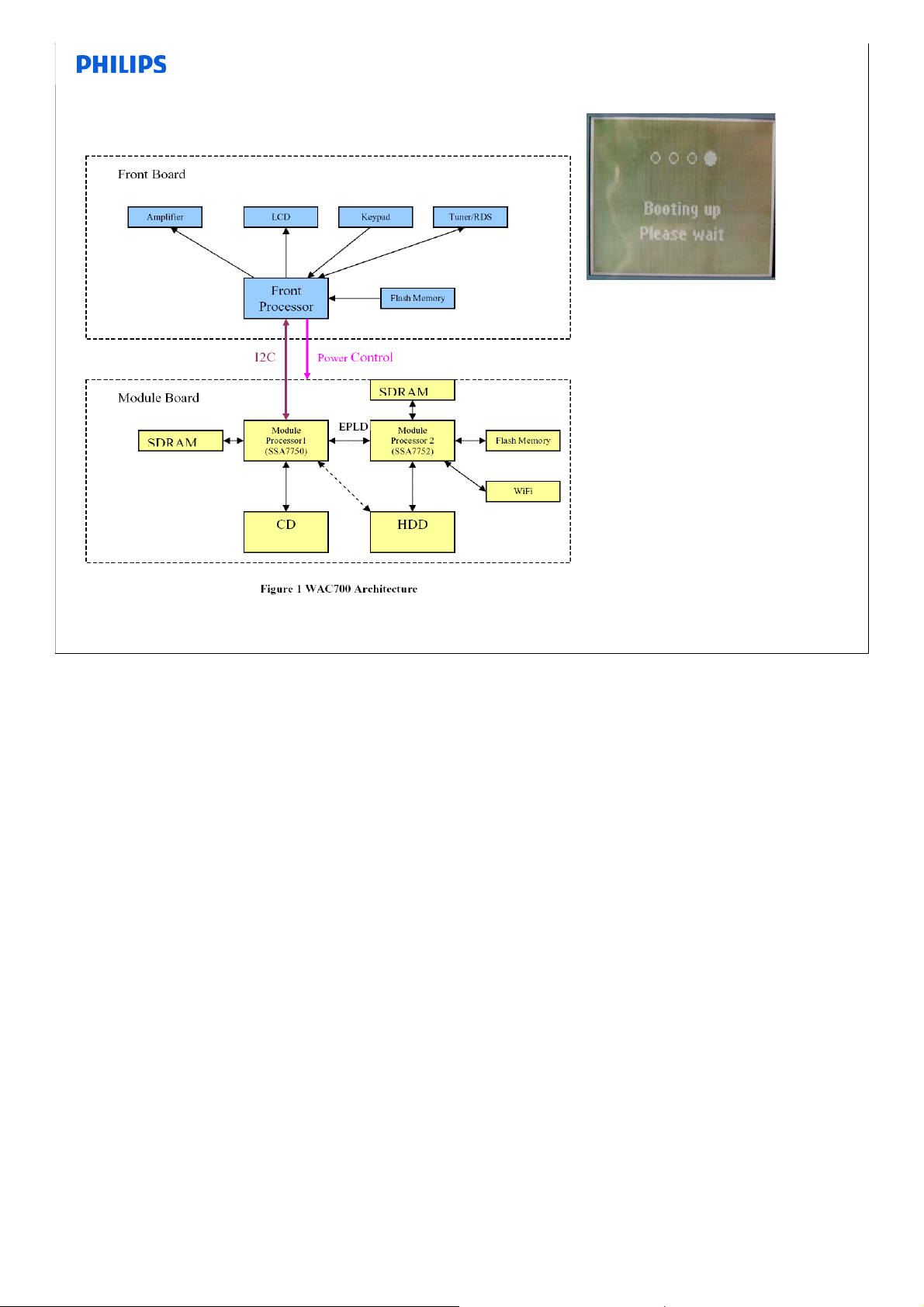
Booting procedure WAC700
Consumer Service, September 2008, Reference
As illustrated in figure 1, WAC700 (Center) consists of two major parts: Front Board and
Module Board. There is one processor/MCU (Front Processor) in Front Board and two
processors/MCUs on the Module Board.
The Front Board is the master in the system. It controls the power of Module Board and it
communicates with Module board via I2C bus.
When power up, the processor/MCU in Front Board runs program from its flash memory and
shows messages on LCD (e.g. “PHILIPS”“Booting up, pls wait”). Mean while it will enable the
power for Module board to let the 2 processors/MCUs to run their program from
flash/SDRAM/HDD. The MCU in Front Board will keep showing “Booting up, pls wait” until the
processor in Module Board gives ready signal via I2C bus. If there is no response from Module
Board in certain period (e.g. 1min), Front Board will recycle the power of Module Board to
recover.
The processor 2 on Module Board starts to run program form its flash memory after the
power is enabled by Front Board. Then it copy more program from HDD to SDRAM for
running. Meanwhile it transfer the program to the processor 1of Module Board for running.
Once Processor 1 gets the program image, it copies to its SDRAM to run and send ready signal
•Notes:
to Front Board via I2C bus.
37
37
Page 38
Known Problems
• Market Trend
• Range up to day
• Problem solving
• Known Problems
•Notes:
Consumer Service, September 2008, Reference
38
38
Page 39
WAC700 reads no CD, slot loader is defective
• Software problem causing CD locked inside the slot loader of
12NC 310330855641. When the user trying to recover the locked
CD using excess force, the CD clamper is damaged.
Update the software of the device to v1.2.10 may prevent the CD locking
inside the slot loader, thus prevent user from using excessive force to
recover the disc.
• Please refer to the software upgrade readme pdf file with the
upgrade instructions and the software v1.2.10 zip file in the attachment.
•Notes:
Consumer Service, September 2008, Reference
39
39
Page 40
WACS700 CD Cannot Eject and other WiFi connection problem
• Upgrade Firmware to version 1.2.10.
• Firmware version 1.2.10 addresses following issues:
1. WiFi connection enhancement
2. Improve the robustness for CD insertion/ejection.
3. Fix multi-session CDDA disc reading issue.
4. Support 800k CDDB region version
• We strongly recommend that every set brought in for repair
must be upgraded with the latest firmware.
•Notes:
Consumer Service, September 2008, Reference
40
40
Page 41
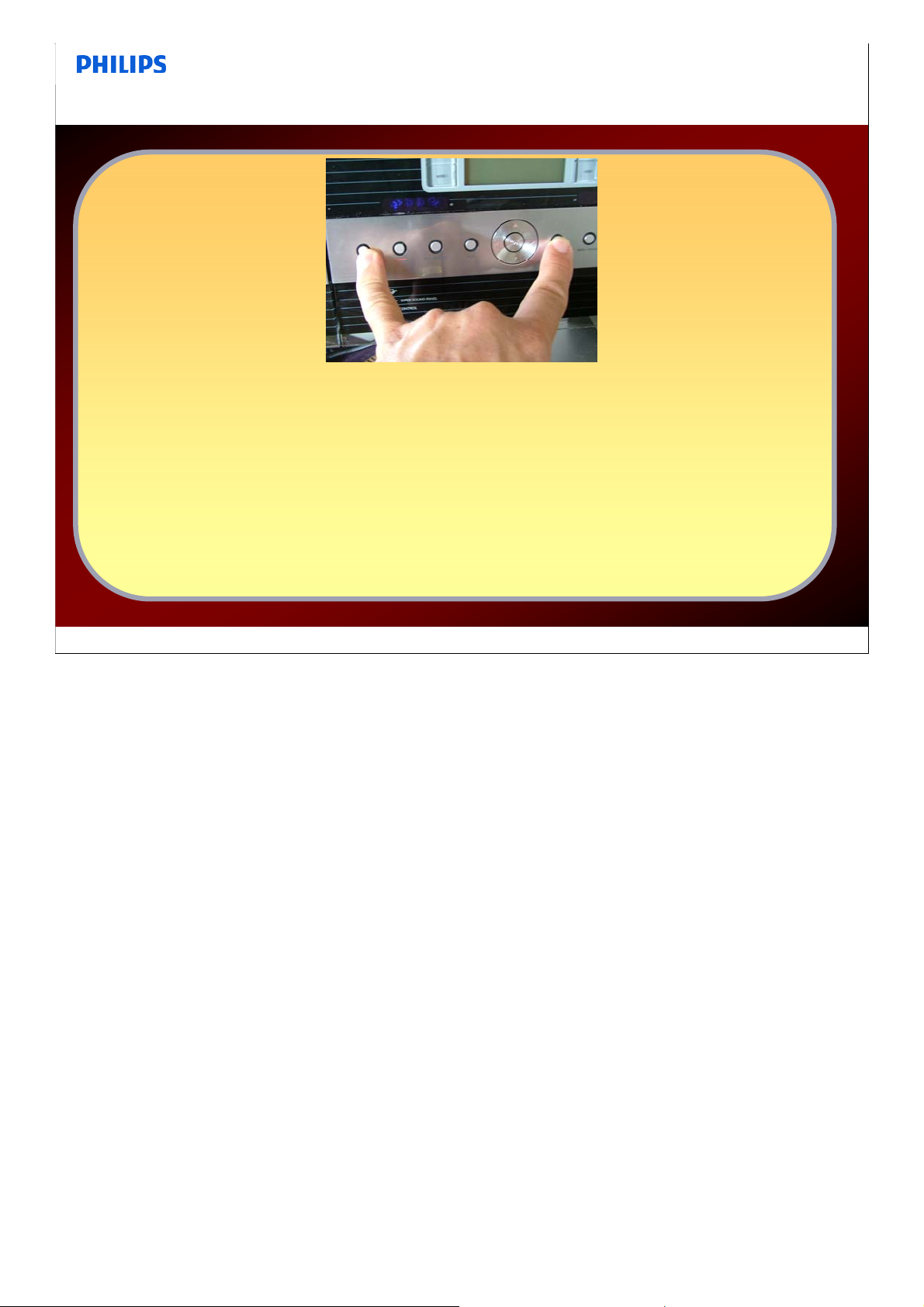
WACS700 Display shows only booting
• It might be caused by the corruption of the Firmware used by the
Center's front microprocessor.
Below procedure MIGHT help to solve the problem.
• Turn off the Center's power.
Hold both "SOURCE" & "STOP" keys,
reboot Center.
After power up the corrupted firmware will be recovered.
Consumer Service, September 2008, Reference
41
•Notes:
41
Page 42
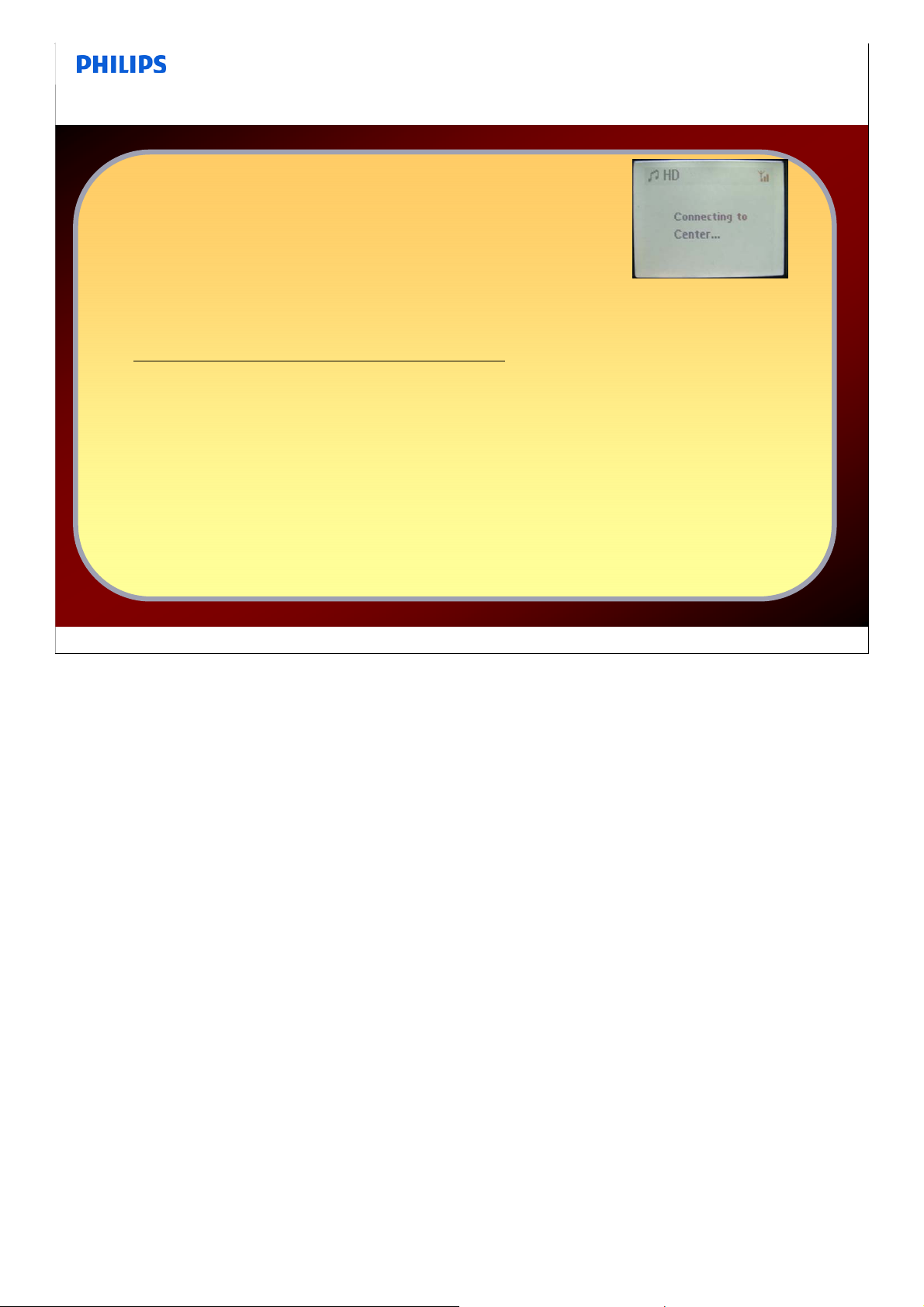
What's wrong with it that the Station can’t establish a connection to the center?
• First reset station and Center.
Automatic connection take place.
IF no connection: There may be some other signal
interference to cause the problem. Try to change the WiFi channel to
another one to avoid the problem.
• How do I change the WiFi channel?
• Connect the music center to your PC, and then run WADM software.
WADM software will auto detect the music center.
• Click
• Click
Device Configuration
Wireless Network
• Expand the option of
• Click
Apply
to confirm the setting.
button.
.
Device Wireless Channel ID
Consumer Service, September 2008, Reference
to select another ID.
42
•Notes:
42
Page 43
The ripped MP3 tracks are missing after ripping the audio CD
• IMPORTANT: It takes some time to convert the ripped tracks into
MP3 files. During the conversion, the ACTIVE indicator lights up green.
• Do not remove Center's power plug from the wall outlet
• Do not switch the Center to Eco Power mode
• Do not remove Center's power plug from the wall outlet while the
ACTIVE indicator is on and within 15 minutes after the indicator is off.
•Notes:
Consumer Service, September 2008, Reference
43
43
Page 44
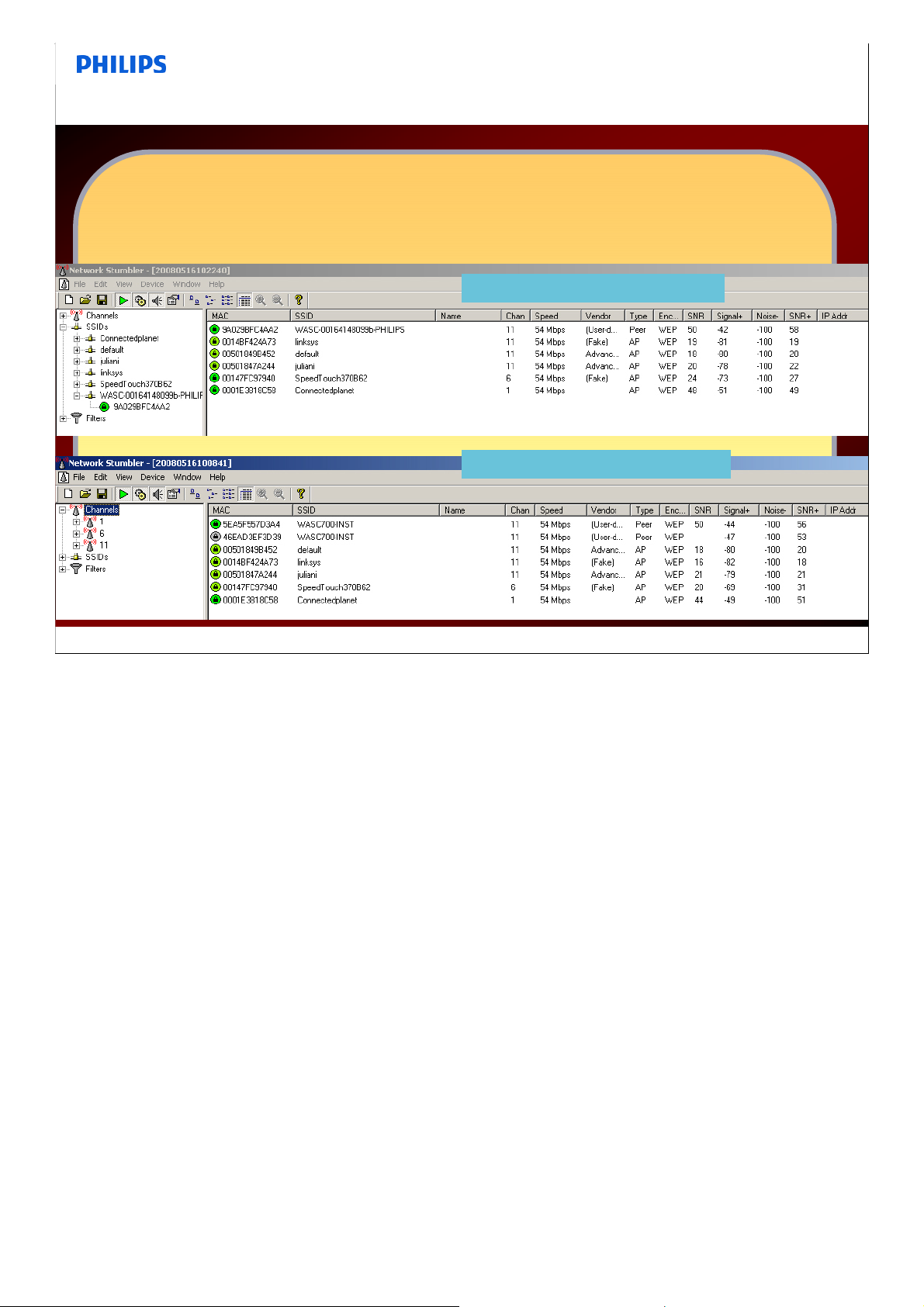
How to check WiFi network
• There are many SW available to check WiFi details.
• e.g. Network Stumbler:
• Normal Mode WACS
• WACS in Install Mode
•Notes:
Consumer Service, September 2008, Reference
44
44
Page 45
Flashing Front WAS700
In some cases it can happen that the SW in the Flash on the Front Board
at the station is corrupt. (E.g. switching off the set during upgrade.)
With the ComPairII interface you can upgrade the SW again.
Consumer Service, September 2008, Reference
This describes the connection when using the ComPair interface as level shifter.
1. For connection you can use UART cable.
Order number UART cable: 3122.785.90630
Connect:
pin 7 white to pin 2 (1018, TXD)
pin 8 brown to pin 3 (1018, RXD)
pin 9 green to pin 4 (1018, GND)
•Notes:
45
45
Page 46

•Notes:
46
 Loading...