

Page 1
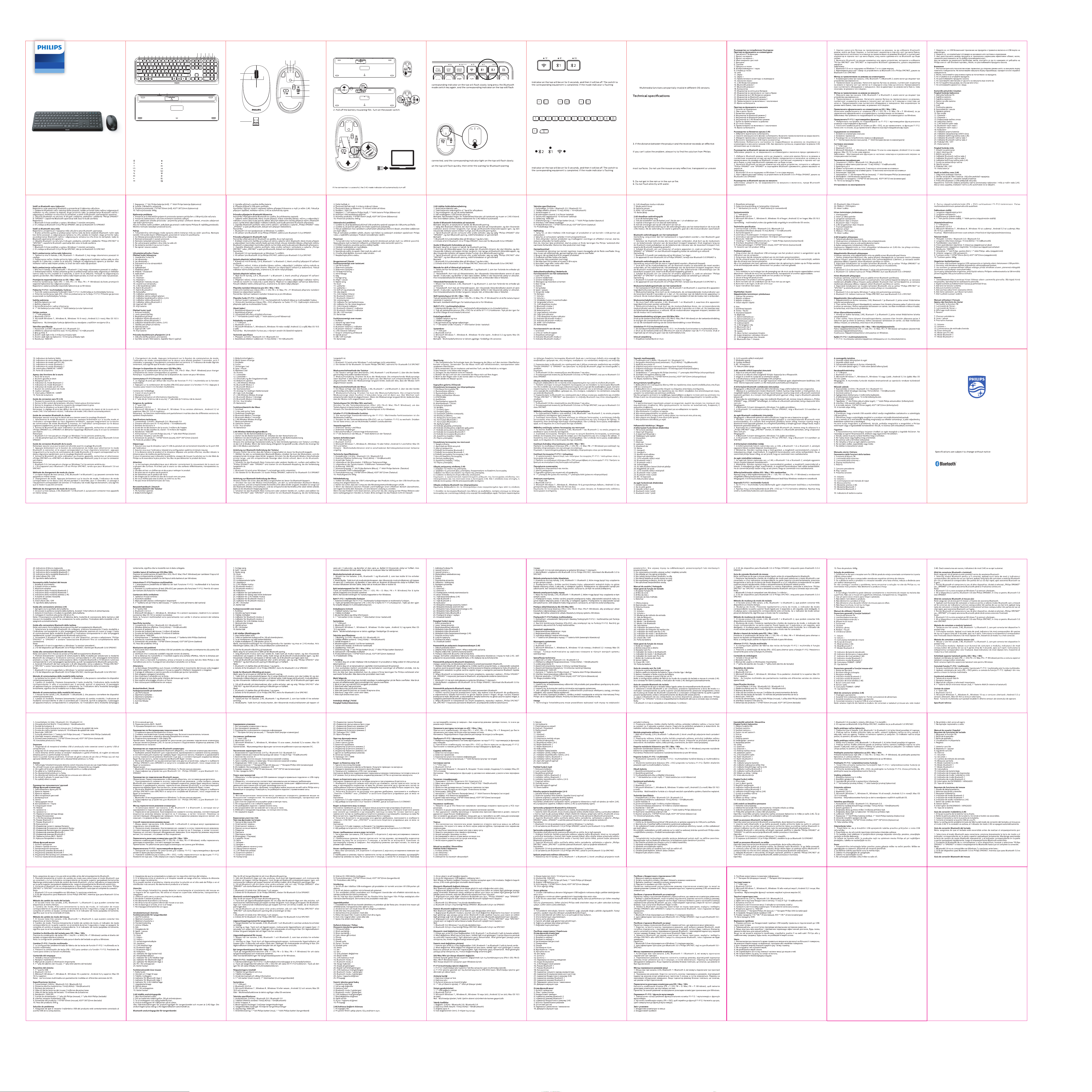
Keyboard Mouse
Combo
4000 Series
SPT6407B
User manual
21
1 2 3 4 5 6 7 8 9 10 11 12 13 14
2019 22 23
15 16 17 18
1
2
24 25
3
Function overview of the keyboard Function overview of the mouse
1. : Lock fn function
2. : Screen brightness -
3. : Screen brightness +
4. : Multi screen display
5. : Return
6. : Search
7. : Prev song
8. : Play/Pause
9. : Next song
10. : Mute
11. : Volume -
12. : Volume +
13. : Input method switching
14. : Lock screen
15. : 2.4G wireless mode
16. : Bluetooth mode 1
17. : Bluetooth mode 2
18. : Calculator
01 02 03 04 05 0706 08
19. Low battery indicator
20. Caps lock indicator
21. 2.4G wireless mode indicator
22. Bluetooth mode 1 indicator
23. Bluetooth mode 2 indic
24. ON/OFF switch
25. Battery door
ator
1. Scroll wheel
2. Left and right buttons
3. Wireless receiver
4. Bluetooth mode 2 indicator
5. Bluetooth mode 1 indicator
6. 2.4G wireless mode indicator
7. Mode switch button
8. Optical sensor
9. ON/OFF switch
10. Battery door
4 5 6
2.4G w ireless connection guide Keyboard Bluetooth connection guide
7
8
9
10
1. Push th e battery door away.
Note: mak e sure that the keyboard po wer is on before Blu etooth pairing.
1. Selec t the Bluetooth m ode to be connec ted, short press th e mode key, and the
quickly, an d then enter the wait ing for Bluetoot h pairing.
2. Turn on the Bl uetooth of your com puter or other devi ces, search an d select
"Philips SPK6 407" or "SPK64 07" and star t Bluetooth p airing until t he connectio n
is completed.
Note:
1. Blueto oth 5.0 is not suppo rted on Windows 7 a nd below;
2. The dev ice ID for Blueto oth 3.0 is Philips SPK6407, while f or Bluetooth 5.0 i s
SPK6407.
Mouse Bluetooth connection guide
Note: mak e sure that the mouse p ower is on before Blue tooth pairing.
Mode switching method of the keyboard
1. The keyboa rd has three cha nnels, 2.4G, B luetooth 1 and Bl uetooth 2, which c an
connec t three device s at the same tim e.
2. Mode sw itching. Short press t he mode switch b utton, the cor responding m ode
slowly, it me ans that the mode ha s not been connect ed.
iOS/Mac/Win layout switch
Press and hold f or 3 seconds to sw itch the system l ayout.
iOS:
Mac: Win: +
+ +
Note: the d efault sett ing is Windows layou t.
F1-F 12/ multimedia funct ion sw itch
1. The fac tory defaul t setting of F 1-F12/ multimedi a function ke ys is multimedia
funct ion.
+
2. Press this key comb ination, and s witch to F1-F 12 function . Press it again to switch
back to mul timedia funct ion.
Mode switching method of the mouse
1. The mou se has three ch annels, 2.4G , Bluetooth 1 and Bl uetooth 2, which c an
connec t three device s at the same tim e.
2. Mode sw itching. Short press t he mode switch b utton, the cor responding m ode
slowly, it me ans that the mode ha s not been connect ed.
3. Take out the re ceiver and
close the bat tery door.
Note: the fact ory default se tting of the conn ection mode o f keyboard and mous e is 2.4G mode.
4. Plug th e receiver into the
USB port of a P C.
1. Short press t he mode switc h button to selec t the Bluetoot h mode to be
long press th e Bluetooth mod e switch key, and th e correspondi ng indicator light
2. Turn on the Bl uetooth of your com puter or other devi ces, search an d select
"Philips SPK 7407" or "SPK7407 " and star t Bluetooth pair ing until th e connecti on
is completed.
Note:
1. Blueto oth 5.0 is not suppo rted on Windows 7 a nd below;
2. The dev ice ID for Blueto oth 3.0 is Philips SPK7407, while fo r Bluetooth 5.0 i s
SPK7407.
Packaging contents
1. Wirel ess keyboard and mo use
2. Wirel ess receiver
3. User ma nual/warrant y card
4. 1*AA bat tery (insid e mouse)
5. 1*AAA batte ry (inside keyboa rd)
System requirement
1. 1 x USB port
2. Blueto oh 3.0/Buuetooh 5.0
3. Wind ows® 7,Windows® 8,Windo ws® 10 or later,
Android 3 .2 and above; Mac O S 10.5 or later
Note:
1. Conne ctivit y:2.4GHz/ Bluetooh 3.0/Bluet ooh 5.0
2. Worki ng distance: 2 .4GHz about 15 m/Bluetooh abou t 10m
3. Numbe r of buttons:4
4. Butt on lifespan: 3 milli on clicks
5. Keyboa rd keys lifespan : 10 million keystr okes
6. Resolut ion:1600 DP I
7. Power supply: 1*AA P hilips battery (mouse), 1*AAA Philips batt ery(keyboa rd)
8. Inter face: USB wireless re ceiver
9. Mouse size:110.2x65.6x34. 8mm
10. Keyboard s ize:432. 8x136.4x21 .9mm
11. Prod uct weight:649g ±
Trouble shooting
1. Make sur e that the USB wireless re ceiver of the prod uct is correct ly plugged
into the USB po rt of the comput er.
2. Make sur e the computer meet s the minimum syst em requirement.
10g
range, p lease reduce th e distance for b etter perfo rmance.
websit e or nearest retail er. Please do not dis assemble the pr oduct by force.
Attent ion
1. Photoe lectric te chnology can corr ectly detect t he movement of mouse on
surfa ces.
2. Pleas e use dry and sof t cloth to clean the pro duct.
3. Do not di sassemble the p roduct by force.
4. Do not di rect the light from t he bottom of the m ouse to your eyes.
Bluetooth.
09
uit.
5. Palata
10 11 12 13 14 1615 17 18
6. Rechercher
10. Muet
18. Calculatrice
19
lautet.
lautet.
Bluetooth.
20 21 22 23 24 2625 27 28
Bluetooth.
6. Ricerca
10. Mute
18. Calcolatrice
2021 © Top Vict ory Investments L imited . All rights rese rved.
Philips and the Phi lips Shield Emblem are r egistered trad emarks of Koninklij ke
Philips N.V. and are use d under license.
This pro duct has been m anufacture d by and is sold under th e responsibilit y of
Top Victor y Investments Limite d , and Top Victory In vestments Limited is t he
warranto r in relation to t his product .
The Bluetoo th
Bluetoo th SIG, Inc. and any use of su ch marks by MMD Hong Kong Hold ing Limited
is under license. Other trademarks an d trade name s are those of their re spective
owners.
®
word mark and logos are regist ered trad emarks o wned by
Made in China
Regis ter your produc t and get suppor t at:
www.philips.co m/welcome
6. Procurar
10. Mut
18. Calculator
klar.
29 30 31 32 33 34 3635 37 38
6. Buscar
Bluetooth.
39 40 41 42 43 44 4645 47 48
18.ןוֹב ְשׁח ַמ
19.שלח הללוס ןווחמ
20.ספאק הליענ ןווחמ
21. יטוחלא בצמ ןווחמ2.4G
22. בצמ ןווחמBluetooth 1
23. בצמ ןווחמBluetooth 2
24.למשח גתמ
25.הללוס תלד
רבכעה לש תויצקנופ תריקס
יטוחלא רוביח ךירדמ2.4G
לש רוביחה בצמ לש תינרציה לדחמה תרירב תרדגה :הרעהרבכעהו תדלקמה בצמ איה2.4G. ,חילצה רוביחה םא
ה תמאתה ינפל לעופ תדלקמה חוכ יכ אד
תירביה | שמתשמל ךירדמ
49 50 51 52 53 54 5655 57 58
תריקסתדלקמה לש תויצקנופ
1. תייצקנופ תליענFN
2. ךסמ תוריהב-
3.+ ךסמה תוריהב
4.םיכסמ תבורמ הגוצת
5.רוֹזֲחַל
6.שפחל
7.םדוק ריש
8.ההשה / לעפה
9.אבה ריש
10.קי ִת ְשַׁהְל
11. חפנ-
12.+ חפנ
13.טלק תטיש תפלחה
14.הליענ ךסמ
15. יטוחלא בצמ2.4G
16. בצמBluetooth 1
17. בצמBluetooth 2
תמאתה ינפל לעופ רבכעה חתמ יכ אדוו :הרעהBluetooth.
מ ,בצמה גתמ רותפכ ךשמל לעפי ןוילעה וקלחב םיאתמה3
וא הבכי
לש המאתהה זאו ,תוריהמבBluetooth .הנכומ היהת
דע' תוטולב תמאתהב לחתהו םויסל.רוביחה
היהי
;טאל בהבת גתמ שקמ לע הכורא הציחל ץחל בצמBluetooth תבהבהמ ןוילעה וקלחב המיאתמה יוויחה תרונו
ה ךויש זאו תוריהמב- Bluetooth .ןכומ
דע' תוטולב תמאתהב לחתהו .רוביחה םויסל
רבכעה לש בצמ תפלחה תטיש
1.הלילג לגלג
מש ירותפכ
2.ןימיו לא
3.יטוחלא טלקמ
מ ןווחמBluetooth 2
4. בצ
5. בצמ ןווחמBluetooth 1
6. יטוחלא בצמ ןווחמ2.4G
7.בצמ גתמ רותפכ
8.יטפוא ןשייח
9.למשח גתמ
10.הללוס תלד
1..הללוסה תלד תא ףוחד
2..הללוסה דודיב טרס תא ךושמ . הלעפהה גתמ תא לעפה
3..הללוסה תלד תא ורגסו תרפופשה תא ואיצוה
4.ה תאיציל טלקמה תא רבח- USB .ישיאה בשחמה לש
בצמ ןווחמ2.4G .תיטמוט
רוביח ךירדמBluetooth תדלקמה לש
וו :הרעה- Bluetooth.
1. בצמב רחבBluetooth ןווחמהו בצמה שקמ לע הרצק הציחל ץחל ,רוביחל בהבהי ןוילעה וקלחב םיאתמה
;טאל בצמל גתמה שקמ לע הכורא הציחל ץחל Bluetooth , בהבהי ןוילעה וקלחב םיאתמה ןווחמהו
2.ה תא לעפה- Bluetooth רחבו שפח ,םירחא םינק תה וא ךלש בשחמה לש " ספיליפSPK6407 "וא "SPK6407 "
:הרעה
uetooth 5.0 ב ךמתנ וניא- Windows 7 ; הטמו
1 .Bl
2 . רובע רישכמה ההזמBluetooth 3.0 אוהSPK6407 רובע וליאו ,ספיליפ לש Bluetooth 5.0 אוהSPK6407.
רוביח ךירדמBluetooth רבכעה לש
1. בצמ תריחבל בצמה גתמ רותפכ לע הרצק הציחל ץחלBluetooth ,רוביחל ןוילעה קלחב המיאתמה יוויחה תרונו
2.ה תא לעפה- Bluetooth רחבו שפח ,םירחא םינקתה וא ךלש בשחמה לש " ספיליפSPK7407 "וא "SPK7407 "
:הרעה
1 .Bluetooth 5.0 ב ךמתנ וניא- Windows 7 ; הטמו
2 . רובע רישכמה ההזמBluetooth 3.0 אוהSPK7407 רובע וליאו ,ספיליפ לש Bluetooth 5.0 אוהSPK7407.
1. ,םיצורע השולש רבכעל2.4G, Bluetooth 1 ו- Bluetooth 2םילוכיש , .תינמז וב םירישכמ השולש רבחל
2..בצמ תפלחה לע הרצק הציחל ץחלבצמה ןווח
ייצקנופ איה
תכרעמ תואסרגב
.יובכ היהי אוה זאו תוינש דויצל רבעמה .םלשוה םיאתמה איה תועמשמה ,טאל בהבהמ בצמה ןווחמ םא
.רבוחמ היה אל
בצמהש
רובע תדלקמ תסירפ ףלחהiOS / Mac / Win
) םישקמה ףוריצ לע ץחלFN + I: iOS; FN + O: Mac; FN + P: Windows( המיאתמה תדלקמה תסירפ תא ףילחהל ידכ
רובע איה תדלקמה תסירפ לש לדחמה תרירב תרדגה :הרעהWindows.
תושקה ןוילימ
בי תילטמב שמ .רצומה יוקינל
.תכרעמל
היצקנופ ףלחהF1-F12 הידמיטלומ /
1. היצקנופ ישקמ לש ןרציה לש לדחמה תרירב תרדגהF1-F12 הידמיטלומ / .הידמיטלומ ת
2. בוליש לע ץחל) םישקמהFN + ESCהיצקנופל רובעל ידכ ( F1-F12. תייצקנופל רוזחל ידכ בוש וילע ץחל
.הידמיטלומה
הזיראה תלוכת
תכרעמ תשירד
.חוכב רצומה תא
1.םייטוחלא רבכעו תדלקמ
2.יטוחלא טלקמ
3.בושח עדימו שמתשמל ךירדמ
4.1 * תללוסAA ,(רבכע ךותב) 1 * תללוסAA A (תדלקמ ךותב)
1. 1 * תאיציUSB
2 .Bluetooth 3.0/5.0
3. Microsoft Windows 7, Windows 8, Windows 10 ,ךליאוAndroid 3.2 ;הלעמוMac OS 10.5 ;הלעמו
:הרעה ןקלחב תויקוח ןניא הידמיטלומ תויצקנופ .תונוש הלעפה
ינכט טרפמ
1.:ת וירושיק 2.4GHz /Bluetooth 3.0 / Bluetooth 5.0
2. ליעי קחרמ :יטוחלא15 רטמ)2.4G), 10 )רטמBluetooth(
3. :םירותפכה רפסמ3
4. :רבכע ינצחל לש םייח ךרוא3 תושקה ןוילימ
5. :תדלקמ ישקמ לש םייח ךרוא10
6. :היצולוזר1600 DPI
7. :חוכ קפס1 ספיליפ תללוס *AA , (רבכע)1 ספיליפ תללוס *AAA )(תדלקמ
8. יטוחלא טלקמ :קשממUSB
9. :רצומ דממ110 *66 *35 מ"מ ),(רבכע 433 *136 *22 מ"מ )(תדלקמ
0. :רצומ לקשמ649 םרג
1
תולקת ןורתפ
1 .ה טלקמ יכ אדוו- USB ה תאיציל יוארכ רבוחמ רצומה לש יטוחלאה- USB .בשחמה לש
2 .תשירדב דמוע בשחמהש אדוו .תילמינימה תכרעמה
ךניא םאיאנועמקהמ וא ספיליפ רתאמ ןורתפה תא אוצמל הסנ ,היעבה תא רותפל חילצמ קרפל אל אנ .רתויב בורקה
בלה תמושת
1 .הלוכי תירטקלאוטופ היגולונכט םיחטשמ לע רבכעב שמתשהל ןיא .םיחטשמה בורב רבכעה תעונת תא ןוכנ תוהזל
,םיינויער .םידיחא אל וא םיפוקש
2 .תשה אנאהכרו הש
3 .תא ףפוכל וא לפקל ןיא .רצומה
4 ..חוכב רצומה תא קרפת לא
5 .תיתחתמ רואה תא ןווכת לא .ךיניעל רבכעה
6 .וא שמשל וא םשגל סנכיהל אל .שאל
7 ..ם ימ םע תורישי ףוטשל ןיא
 Loading...