

Page 1
Always there to help you
Question?
Contact
Philips
Question?
Contact
Philips
Register your product and get support at
www.philips.com/welcome
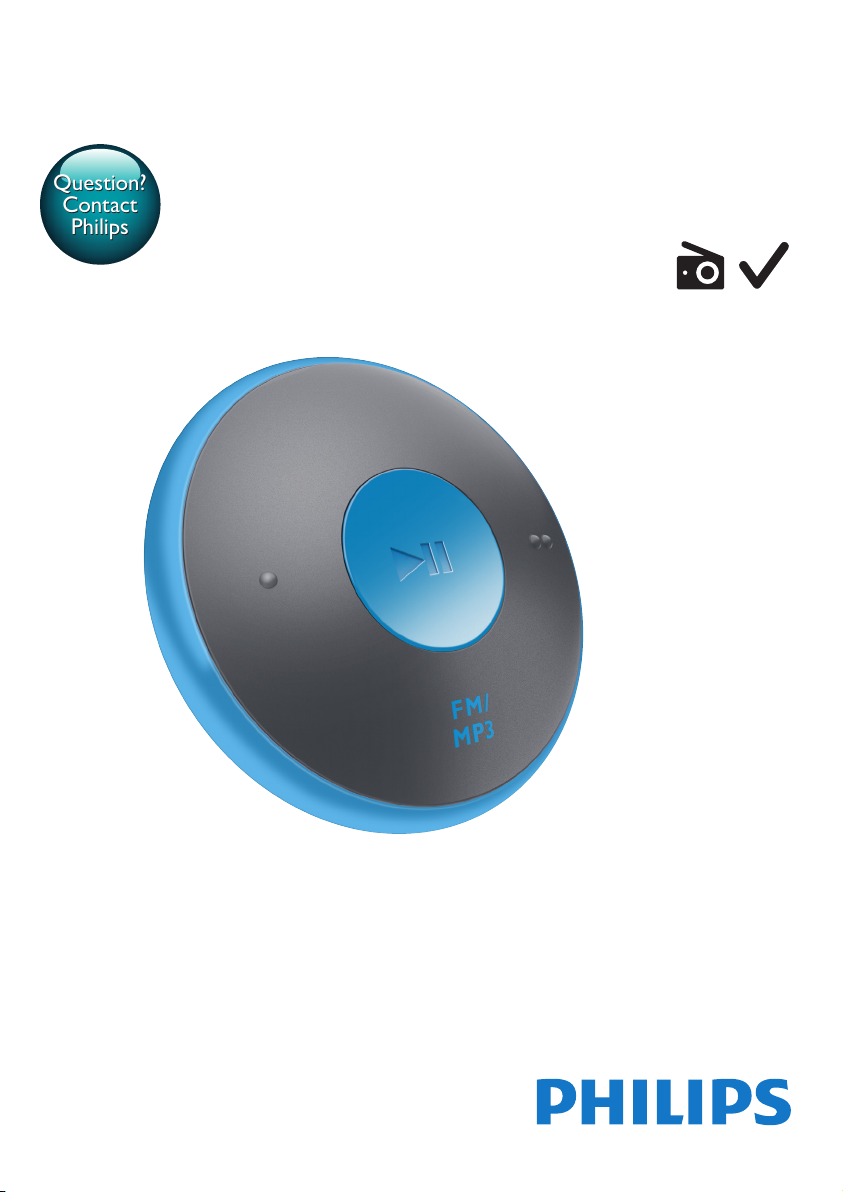
GoGEAR
SA5DOT
User manual
Page 2

Page 3

Contents
1 Important safety information 2
General maintenance 2
2 Your new player 5
What's in the box 5
PC software for the player 5
Files loaded on the player 5
Overview 5
Controls 5
LED indicator and audio feedback 6
3 Get started 7
Charge power 7
Switch the player on or off 7
Automatic standby and shut-down 7
4 Play music 8
Transfer music to the player 8
Play music 8
Search for a song 8
Change the volume level 8
Switch the random play on or off 8
software updates, and answers to frequently
asked questions.
5 FM radio 9
Tune in to radio stations 9
6 Updatethermwarethrough
Philips Device Manager 10
7 Troubleshooting 12
8 Technical data 13
PC requirements 13
Need help?
Please visit
www.philips.com/welcome
where you can access a full set of supporting
materials such as the user manual, the latest
1EN
Page 4
1 Important safety
information
General maintenance
The translation of this document is for
reference only.
In the event of any inconsistency between the
English version and the translated version, the
English version shall prevail.
Caution
• To avoid damage or malfunction:
• Use only power supplies listed in the user manual.
• Do not expose the product to excessive heat caused
by heating equipment or direct sunlight.
• Do not drop the product or allow objects to fall on
your player.
• Do not allow the product to be submerged in
water. Do not expose headphone socket or battery
compartment to water, as water entering the set may
cause major damage.
• Active mobile phones in the vicinity may cause
interference.
• Back up your les. Ensure that you retain the original
les you have downloaded to your device. Philips is not
responsible for any loss of data if the product becomes
damaged or not readable / legible.
• Manage (transfer, delete, etc.) your music les only with
the supplied music software to avoid problems.
• Do not use any cleaning agents containing alcohol,
ammonia, benzene, or abrasives as these may harm the
product.
• Batteries (battery pack or batteries installed) shall not
be exposed to excessive heat such as sunshine, re or
the like.
• Danger of explosion if battery is incorrectly replaced.
Replace only with the same or equivalent type.
About operating and storage temperatures
• Operate in a place where temperature is
always between 0 and 45ºC (32 to 113ºF)
• Store in a place where temperature is
always between -20 and 45ºC (-4 to
113ºF).
• Battery life may be shortened in low
temperature conditions.
Replacement parts/accessories:
Visit www.philips.com/support to order
replacement parts/accessories.
Hearing Safety
Listen at a moderate volume:
Using headphones at a high volume can impair
your hearing. This product can produce sounds
in decibel ranges that may cause hearing loss for
a normal person, even for exposure less than
a minute. The higher decibel ranges are offered
for those that may have already experienced
some hearing loss.
Sound can be deceiving. Over time your hearing
'comfort level' adapts to higher volumes of
sound. So after prolonged listening, what sounds
'normal' can actually be loud and harmful to
your hearing. To guard against this, set your
volume to a safe level before your hearing
adapts and leave it there.
To establish a safe volume level:
Set your volume control at a low setting.
Slowly increase the sound until you can hear it
comfortably and clearly, without distortion.
Listen for reasonable periods of time:
Prolonged exposure to sound, even at normally
'safe' levels, can also cause hearing loss.
Be sure to use your equipment reasonably and
take appropriate breaks.
Be sure to observe the following guidelines
when using your headphones.
Listen at reasonable volumes for reasonable
periods of time.
Be careful not to adjust the volume as your
hearing adapts.
Do not turn up the volume so high that you
can’t hear what’s around you.
2 EN
Page 5
You should use caution or temporarily
discontinue use in potentially hazardous
situations.
Do not use headphones while operating a
motorized vehicle, cycling, skateboarding, etc.; it
may create a trafc hazard and is illegal in many
areas.
Modications
Modications not authorized by the
manufacturer may void user's authority to
operate the product.
Copyright information
All other brands and product names are
trademarks of their respective companies or
organizations.
Unauthorized duplication of any recordings
whether downloaded from the Internet or
made from audio CDs is a violation of copyright
laws and international treaties.
The making of unauthorized copies of copyprotected material, including computer
programs, les, broadcasts and sound
recordings, may be an infringement of
copyrights and constitute a criminal offense.
This equipment should not be used for such
purposes.
The Windows Media and the Windows logo are
registered trademarks of Microsoft Corporation
in the United States and/or other countries.
Be responsible! Respect copyrights.
Philips respects the intellectual property of
others, and we ask our users to do the same.
Multimedia content on the internet may have
been created and/or distributed without the
original copyright owner's authorization.
Copying or distributing unauthorized content
may violate copyright laws in various countries
including yours.
Compliance with copyright laws remains your
responsibility.
The recording and transfer to the portable
player of video streams downloaded to your
computer is intended only for use with public
domain or properly licensed content. You
may only use such content for your private,
non-commercial use and shall respect eventual
copyright instructions provided by the copyright
owner of the work. Such instruction may
state that no further copies shall be made.
Video streams may include copy protection
technology that prohibits further copying. For
such situations the recording function will not
work and you will be notied with a message.
Data logging
Philips is committed to improving the quality
of your product and enhancing the Philips user
experience. To understand the usage prole of
this device, this device logs some info / data to
the non-volatile memory region of the device.
These data are used to identify and detect
any failures or problems you as a user may
experience while using the device. The data
stored, for example, will be the duration of
playback in music mode, duration of playback
in turner mode, how many times battery low
was encountered, etc. The data stored do not
reveal the content or media used on the device
or the source of downloads. The data stored
on the device are retrieved and used ONLY
if the user returns the device to the service
center and ONLY to simplify error detection
and prevention. The data stored shall be made
available to user on user’s rst request.
Your product is designed and manufactured
with high quality materials and components,
which can be recycled and reused.
Please inform yourself about the local rules on
separate collection of batteries because correct
disposal helps to prevent negative
3EN
Page 6

consequences for the environmental and
human health.
4 EN
Page 7
2 Your new player
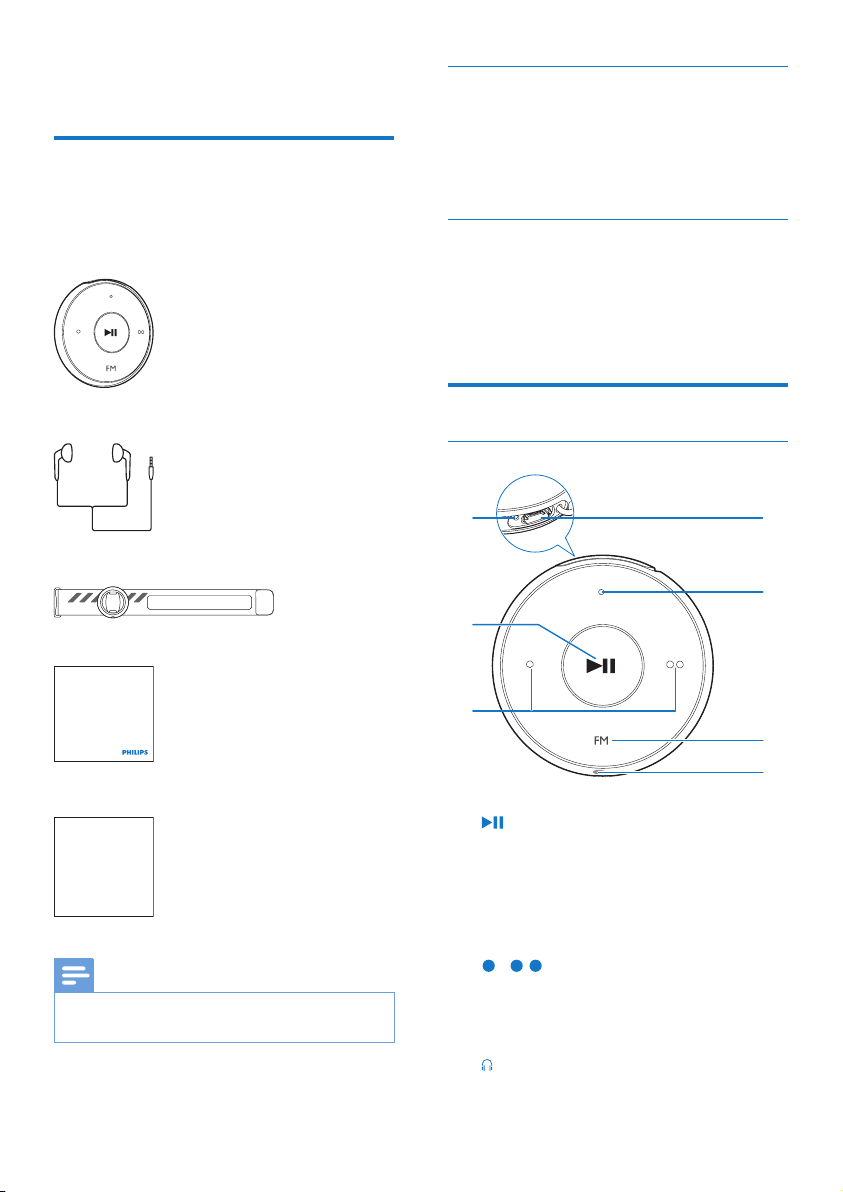
What's in the box
Make sure that you have received the following
items:
Player
Earphones
PC software for the player
MINIDOT/FITDOT can work with the
following PC software:
• Philips Device Manager (helps you get
rmware updates and recover the player)
Files loaded on the player
The following les are loaded on MINIDOT/
FITDOT:
• User manual
• Frequently asked questions
Overview
Controls
Armband (for the Sport pack)
Quick start guide
Philips GoGear audio player
Quick start guide
Safety and Warranty sheet
Safety and Warranty
Before using your set:
Check out details inside this booklet
Note
• The images serve as reference only. Philips reser ves the
right to change color/design without notice.
g
a
b
a
• Press and hold: Switch the player on
or off
• Press: Pause/ resume play
• Press twice during play: Switch the
random play on or off
b /
• Press: Decrease or increase the volume
• Press and hold: Skip to the previous or
next song or radio station
c
• 3.5 mm-headphone connector
f
e
d
c
5EN
Page 8
d FM
• Press and hold to switch between the
music and FM radio mode.
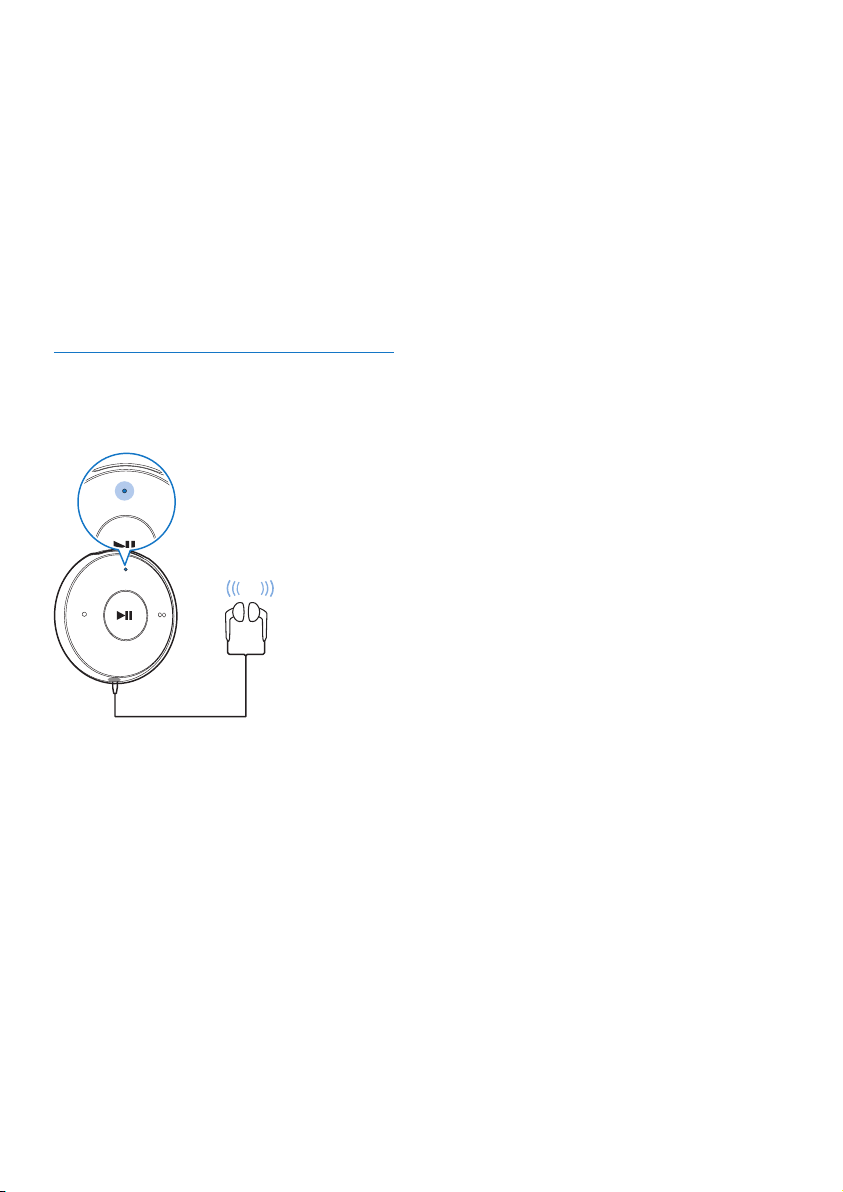
e LED indicator
f USB connector for power charging and
data transfer
g RESET
• Press the hole by using the tip of a ball
pen when the player does not respond
to the pressing of keys
LED indicator and audio feedback
With the LED indicator and/ or audio feedback,
you can know the status of the player.
BEEP
6 EN
Page 9
3 Get started
Charge power
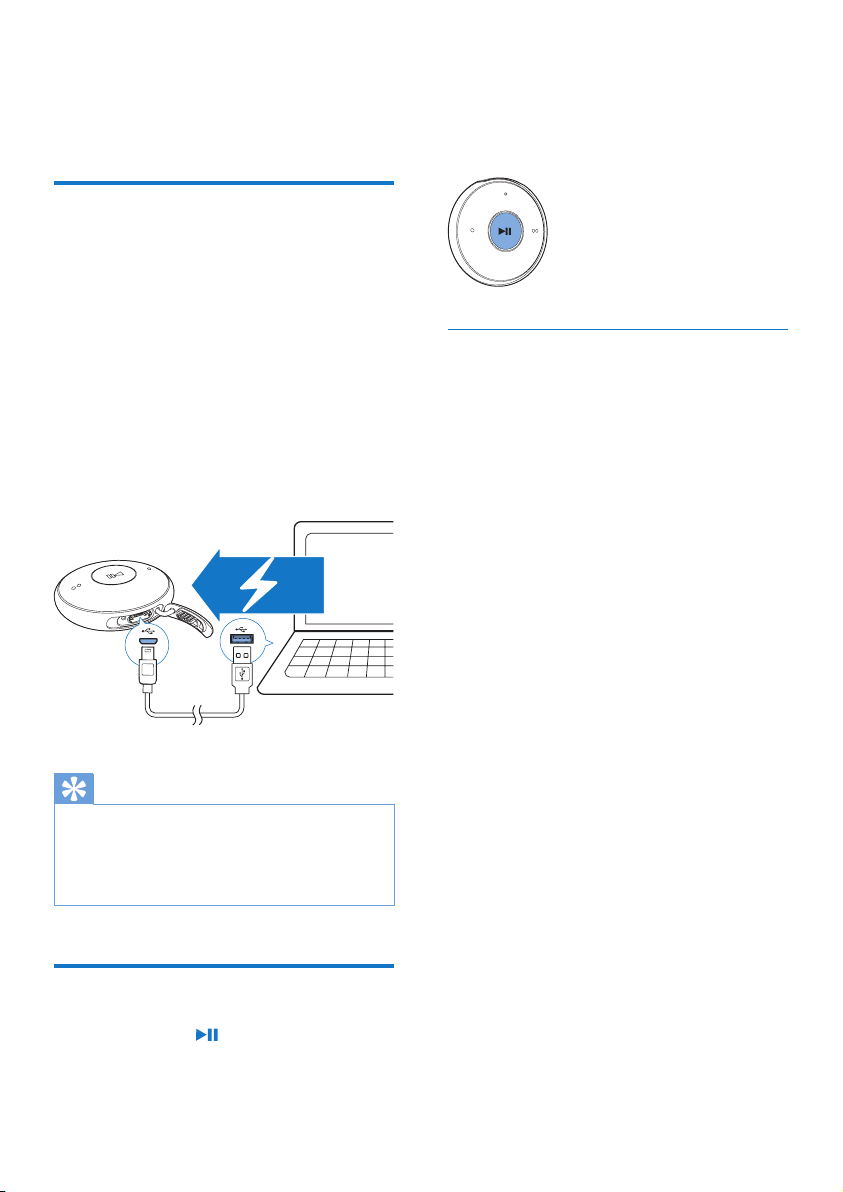
MINIDOT/FITDOT has a built-in battery that
can be charged through the USB connector of
a computer.
• Connect MINIDOT/FITDOT to a PC by
using the USB cable.
» During power charging, the indicator
changes its color to denote the battery
level.
» When the battery is full, the green
indicator lights up.
» Power on: The green indicator lights
up. Music play starts.
» Power off: The red indicator lights up.
One beep sounds.
Automatic standby and shut-down
The player has an automatic standby and shutdown feature that can save battery power.
After ve minutes in idle mode (no play, no
button is pressed), the player switches off.
Tip
• When the battery level is lower than 15%, the red
indicator ashes and two beeps sound.
• Rechargeable batteries have a limited number of charge
cycles. Battery life and number of charge cycles vary by
use and settings.
Switch the player on or off
• Press and hold until the green or red
indicator lights up.
7EN
Page 10
4 Play music
Search for a song
• Press and hold / to skip to the
previous or next song.
» One beep sounds.
Transfer music to the player
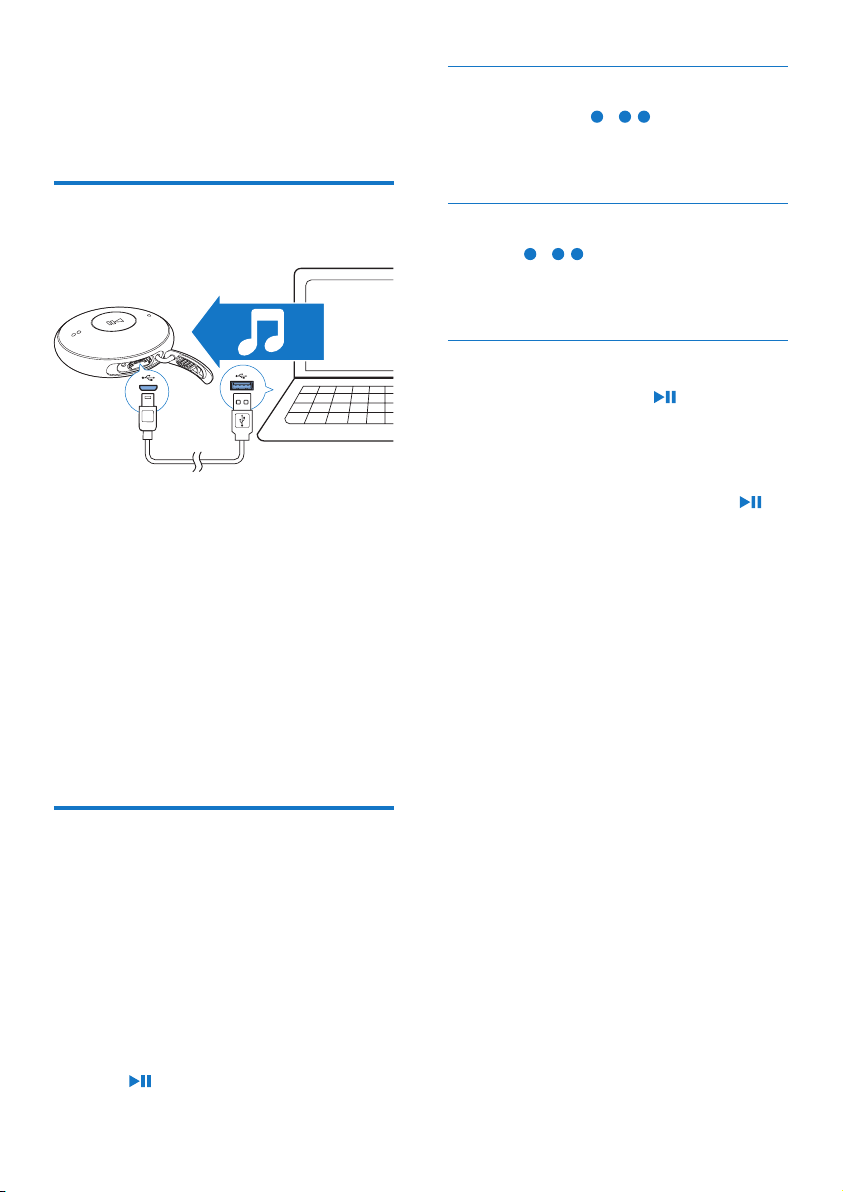
You can transfer music from your PC media
library to MINIDOT/FITDOT in the following
ways:
• Drag and drop music les in Windows
Explorer.
TodraganddropmusiclesinWindows
Explorer,
1 Connect MINIDOT/FITDOT to a PC.
2 On the PC, under My Computer or
Computer,
• drag and drop music les from the PC
to MINIDOT/FITDOT.
Change the volume level
• Press / .
» During music play, you hear the change
of volume level.
Switch the random play on or off
1 During music play, press twice.
» You hear two beeps. The green
indicator ashes twice at intervals.
» Songs play in random.
2 To switch off the random play, press
twice again.
» You hear one beep. The green indicator
ashes once at intervals.
» Songs play in sequence.
Play music
1 Make sure that you have switched on the
player.
» The green indicator lights up. Play
starts.
» During play, the green indicator ashes
at intervals.
2 Press and hold FM to switch between the
music and FM radio mode.
3 Press to pause or resume play.
8 EN
Page 11

5 FM radio
Note
• Plug in the supplied earphones when you tune in to
radio stations. The earphones double as antenna. For
better reception, move the earphone cable in different
directions.
Tune in to radio stations
1 Press and hold FM to switch from the
music mode to FM radio mode.
2 To tune in to radio stations, press and hold
/ .
9EN
Page 12
6 Update the
firmware
through Philips
Device Manager
Install Philips Device Manager
1 Connect MINIDOT/FITDOT to a PC.
2 On the PC, select My Computer
(Windows XP / Windows 2000) /
Computer (Windows Vista / Windows 7
/ 8).
3 Right click on the Philips GoGear
MINIDOT/FITDOT icon. Select Install
Philips Device Manager.
• Alternatively, click the Philips GoGear
MINIDOT/FITDOT icon. Double-click
the installer.exe.
4 Follow the onscreen instructions to
complete the installation of the software.
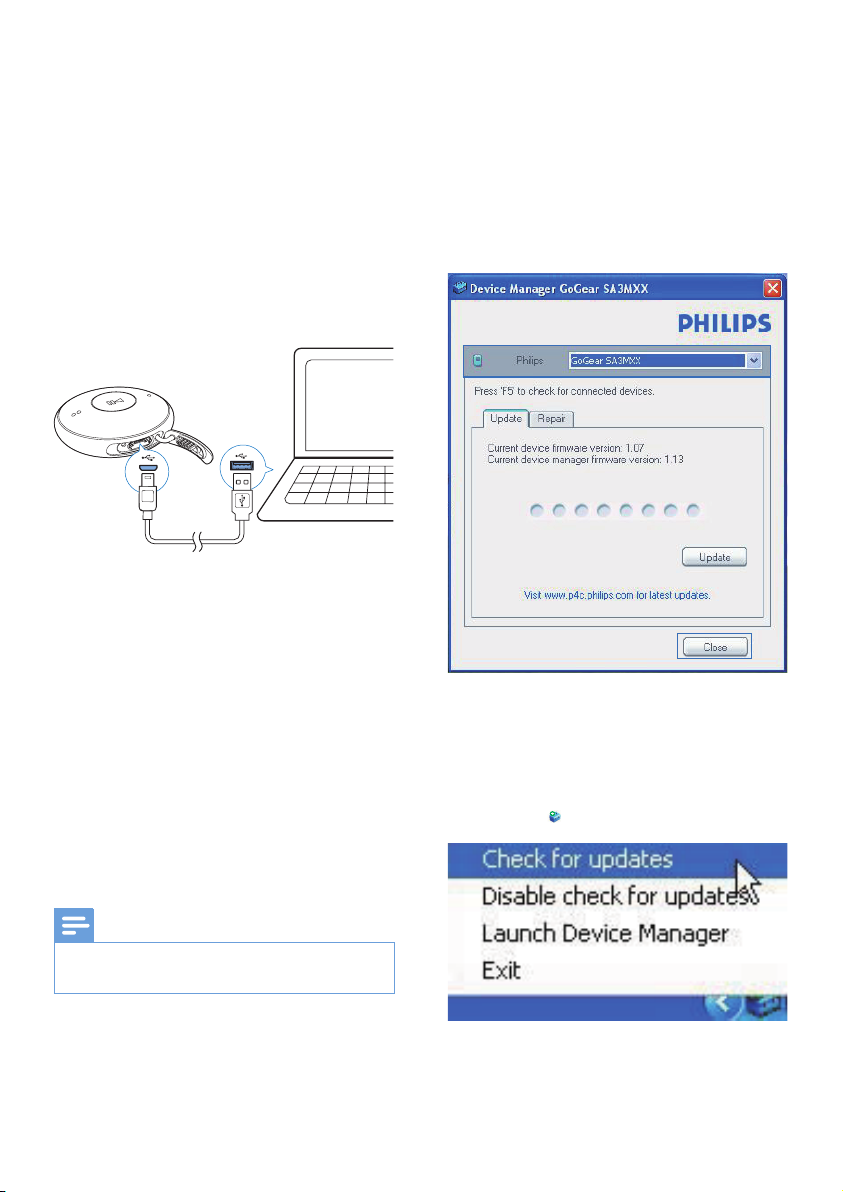
2 Launch Philips Device Manager.
» A dialog box is displayed.
3 Connect MINIDOT/FITDOT to your PC.
» When the device is connected,
"SA5DOTXX" is displayed on the text
box.
» You can nd current rmware version
of the device.
4 To check for rmware updates,
a Close the dialog box of Philips Device
Manager.
b At the base of the PC screen, right
click and select Check for updates.
Note
• The installation requires you to agree to the license
terms.
Checkforrmwareupdates
1 Make sure that you have connected your
PC to the Internet.
10 EN
» Philips SA5DOTXX Device
Manager checks for updates from
the Internet.
Page 13

Updatethermware
1 When the rmware update is available,
follow the onscreen instructions to
download and install the rmware.
2 Disconnect MINIDOT/FITDOT from the
PC.
» MINIDOT/FITDOT restarts after the
rmware is updated and is ready for
use again,
11EN
Page 14

7 Troubleshooting
If MINIDOT/FITDOT is not working properly
or the display freezes, you can reset it without
losing data:
How do I reset MINIDOT/FITDOT?
• Insert a pen tip or other object into the
reset hole on MINIDOT/FITDOT. Hold
until the player shuts down.
• If the reset option is unsuccessful, recover
MINIDOT/FITDOT through Philips
Device Manager:
1 On your PC, launch Philips Device
Manager.
2 Enter the recovery mode:
a Switch off MINIDOT/FITDOT.
b Press and hold the volume button
, and then, connect MINIDOT/
FITDOT to your PC.
c Keep holding the button until
Philips Device Manager recognizes
MINIDOT/FITDOT and enters the
recovery mode.
3 Start the recovery process:
a On Philips Device Manager, click the
Repair button. Follow the onscreen
instructions to complete the recovery
process.
b When the recovery is completed,
disconnect MINIDOT/FITDOT from
your PC.
4 Restart MINIDOT/FITDOT.
12 EN
Page 15

8 Technical data
Power
• Power supply: 95 mAh Li-ion polymer
internal rechargeable battery
• Play time¹
Audio (.mp3): up to 6 hours
Radio: up to 4 hours
• Fast charging: 6-minute charging for
60-minute play
Software
• Philips Device Manager: To update the
rmware and recover the player
Connectivity
• Headphone 3.5 mm
• USB 2.0 High speed
Sound
• Channel separation: 45 dB
• Frequency Response: 20-18,000 Hz
• Output power: 2 x 2.4 mW
• Signal to noise ratio: > 84 dB
Audio playback
Supported formats:
• MP3
Bitrate: 8-320 kbps and VBR
Sampling rates: 8, 11.025, 16, 22.050,
32, 44.1, 48 kHz
• WMA (unprotected)
Bitrate: 5-320 kbps
Sampling rates: 8, 11.025, 16, 22.050,
32, 44.1, 48 kHz
• WAV
Storage media
Built-in memory capacity²:
• SA5DOT02 2 GB NAND Flash
• SA5DOT04 4 GB NAND Flash
• SA5DOT08 8 GB NAND Flash
Media transfer³
• Windows Explorer (drag and drop)
Note
• Specications are subject to change without notice.
• ¹ Rechargeable batteries have a limited number of
charge cycles. Battery life and number of charge cycles
vary by use and settings.
• ² 1 GB = 1 billion bytes; available storage capacity is
less. Full memory capacity may not be available as some
memory is reser ved for the player. Storage capacity
is based on 4 minutes per song and 128-kbps MP3
encoding.
• ³ Transfer speed depends on operating system and
software conguration.
PC requirements
• Windows® XP (SP3 or above) / Vista /
7/ 8
• Pentium III 800 MHz processor or higher
• 512 MB RAM
• 500 MB hard disk space
• Internet connection
• Windows® Internet Explorer 6.0 or later
• USB port
13EN
Page 16

2013 © WOOX Innovations Limited. All rights reserved.
Philips and the Philips’ Shield Emblem are registered trademarks of
Koninklijke Philips N.V. and are used by WOOX Innovations Limited
under license from Koninklijke Philips N.V. SA5DOT_97_UM_V3.0 wk1350.5
 Loading...