

Page 1

Philips GoGear audio player
SA1ARA02
SA1ARA04
SA1ARA08
SA1ARA16
Quick start guide
Page 2

Need help?
Please visit
www.philips.com/welcome
where you can access to a full set of supporting materials
such as user manual, the latest software upgrades and answers
to frequently asked questions.
Page 3

Need help?
Look up our Support Centre website
www.philips.com/welcome
Besoin d’aide ?
Visitez la page Web de notre centre
d’assistance à l’adresse
www.philips.com/welcome
Page 4

¿Necesita ayuda?
Consulte nuestra página Web de Soporte
técnico,
www.philips.com/welcome
Support?
Besuchen Sie unser Support Center auf
www.philips.com/welcome
Page 5

Contents
2 Register your product
3 What’s in the box
4 Overview of the controls and connections
6 Connect and charge
8 Install software
9 Turn GoGear Ariaz on
10 Navigate and play
12 Transfer and organize
13 Audiobooks
15 Update GoGear Ariaz
16 BBC iPlayer
20 Need help?
20 Disposal of your old product and the
integrated battery
EN
1
Page 6

Register your product
Since it is possible for you to upgrade your product, we recommend
that you register your product on www.philips.com/welcome so we can
inform you as soon as new free upgrades become available.
2
Page 7

What’s in the box
Philips GoGear audio player
Quick start guide
Earphones USB cable
EN
What else you’ll
need:
Computer
CD-ROM
You need a computer with the following
minimum requirements:
Windows XP (SP2 or above) / Vista•
Pentium III 800MHz processor or higher•
512 MB RAM•
500MB hard disk space•
Internet connection•
Windows® Internet Explorer 6.0 or later•
CD-ROM drive•
USB port•
Quick start
guide
3
Page 8

Overview of the controls and connections
B
A
K
J
4
C
D
E
F
G
HL
I
Page 9
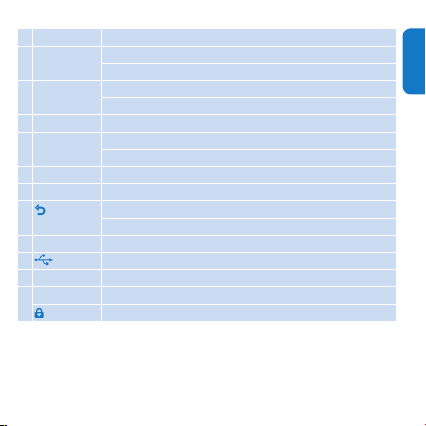
A display
B
3 / 4
press: scroll up/down
press and hold: scroll up/down at high speed
C - VOL + press: increase/decrease the volume
press and hold: increase/decrease fast
D OPTIONS view available options
E
1 / 2
press: skip to next/previous
press and hold: scroll back/forward at high speed
F MIC microphone
G
H
K
L
I
J
2;
O
p
RESET
z
press: play/pause/conrm
press: back one level
press and hold: return to main menu
headphone jack
USB connection jack
press: reset GoGear Ariaz
slide and hold: turn GoGear Ariaz on/off
slide: lock/unlock all buttons except - VOL +
EN
5
Page 10
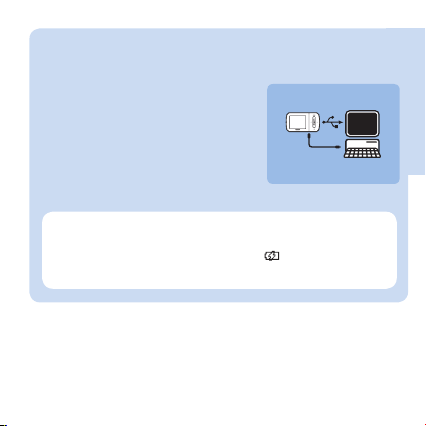
Connect and charge
Connect the USB plug of the supplied 1
USB cable to a spare USB port on
your computer.
Connect the small USB plug of the 2
USB cable to the small USB jack on
GoGear Ariaz.
Turn on your computer.3
GoGear Ariaz charges. >
Note
For rst-time use, allow GoGear Ariaz to charge for 3 hours.•
The charging animation stops and the •
when the charging process is completed.
6
icon is displayed
Page 11

Connect GoGear Ariaz to your computer.1
Insert the CD that comes with GoGear Ariaz into the 2
CD-ROM drive of your computer.
Follow the on-screen instructions to complete the installation 3
of the software.
If the installation program fails to start automatically:
Browse the CD contents with Windows Explorer.1
Double click on the le ending with ‘.exe’.2
EN
7
Page 12

Install software
GoGear Ariaz comes with the following software:
Philips Device Manager (helps you get rmware updates for •
GoGear Ariaz)
Media Converter for Philips (helps you convert and transfer •
video les for GoGear Ariaz)
Windows Media Player (helps you convert and transfer music •
les for GoGear Ariaz)
Important
Remember to install the software provided in the supplied •
CD-ROM for music and/or video transfer.
Before installing the software, check that your computer •
meets the requirements.
8
Page 13
Turn GoGear Ariaz on
To toggle between modes on and off, slide and hold 1
approximately 2 seconds.
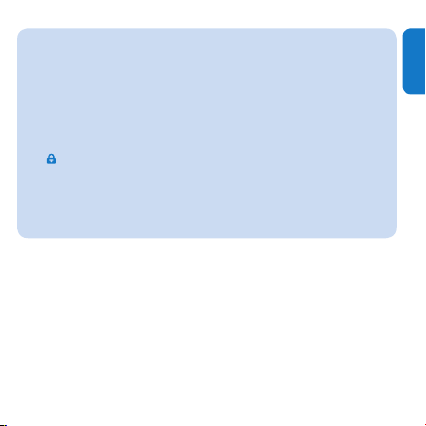
GoGear Ariaz has a lock switch to prevent accidental operation:
To lock the buttons when you play, move the slider to position 1
.
All buttons except the volume keys are locked and the display >
shows a lock icon.
To unlock the buttons again, move the slider to the center 2
position.
for
z
EN
9
Page 14
Navigate and play
From the main menu, select 1 / / , press 3 / 4 to browse
music / videos / pictures.
2;
Press 2
to select music / video / picture.
/ : Press 2; to toggle between pause and play
Mode •
music / video.
Mode • : Press 2; to start slideshow.
Press 3 OPTIONS to view available options.
Tip You can nd more detailed information on these features
in the user manual.
10
Page 15
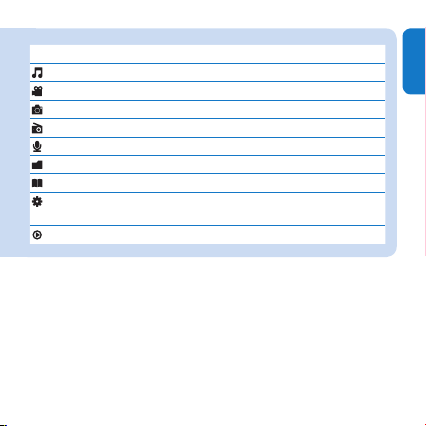
Menu Mode To
Music play music tracks
Video play videos
Pictures view pictures
FM radio listen to FM radio
Recordings create or listen to recordings
Folder view view les in folders
Text reader read text les
Settings customize the settings of GoGear
Ariaz
Now playing show the current play screen
EN
11
Page 16

Transfer and organize
You can install the Windows Media Player to organize and
facilitate locating your les.
With GoGear Ariaz connected to the USB port of the 1
computer, open Windows® Explorer.
Create folders in the mass storage of GoGear Ariaz.2
Use drag and drop actions to sort your music into the folders.3
MediaConverter™ for Philips enables you to
download videos from the Internet to your PC at the click of a •
button.
convert video les (that are compatible with • Windows Media
Player) on your PC to the correct screen size of GoGear
Ariaz.
transfer converted videos from your PC to GoGear Ariaz.•
Note Video conversion and transfer can take a long time,
depending on your PC conguration.
12
Page 17

Audiobooks
GoGear Ariaz supports books in audio format. The use of this
feature requires that you download the AudibleManager from
audible.com. With the AudibleManager you can manage the
digital contents of your audiobooks.
Visit audible.com and register. The onscreen instructions guide you
through the AudibleManager software download process.
You can search audiobooks by book name or by author.
While you listen to an audiobook, you can navigate the same way
as you would in any other audio le.
EN
13
Page 18
Listen to radio
From the main menu, select 1 .
To search for the next stronger signal, press and hold 2
To ne tune the frequency, briey press 3
Tip You can nd more information on presets and auto-
tuning in the user manual.
3
/ 4.
Settings
This is how you navigate and customize the Settings.
3
Press 1
/ 4 to select an option.
2;
Press 2
to conrm a selection and go to the next level (when
available).
to return to the previous level.
Press 3
O
Press and hold 4
14
to exit the Settings menu.
O
3
/ 4.
Page 19

Update GoGear Ariaz
Ensure that your computer is connected to the Internet.1
Connect GoGear Ariaz to the computer (see section 2 Connect
and charge for instructions).
On your computer, click 3 Start > Programs > Philips Digital
Audio Player > Ariaz Device Manager to launch Philips
Device Manager.
Click 4 Update.
Philips GoGear Ariaz Device Manager > checks for updates
and installs new rmware from the Internet, if available.
When the display shows 5 Update completed, click OK.
Disconnect GoGear Ariaz from the computer.6
GoGear Ariaz restarts after the rmware is updated and is ready >
for use again.
EN
15
Page 20
BBC iPlayer*
With BBC iPlayer you can now catch up on your favourite BBC
programmes from the past 7 days on GoGear Ariaz.
Here is how to use BBC iPlayer on GoGear Ariaz:
On your computer, open your browser and go to 1
www.bbc.co.uk/iplayer
Click on a programme to select it.2
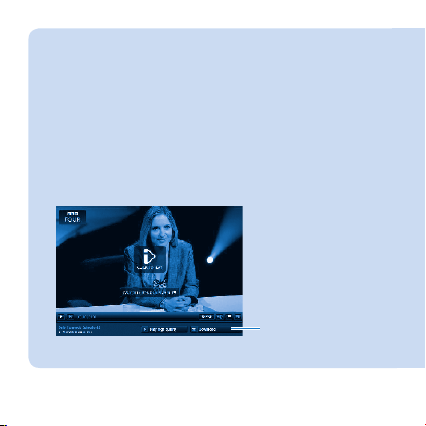
Move your mouse over the 3 Download button at the bottom
right hand side of the screen.
Click the option: 4 For portable devices to start the download.
* BBC iPlayer is only available in the UK.
16
3
Page 21
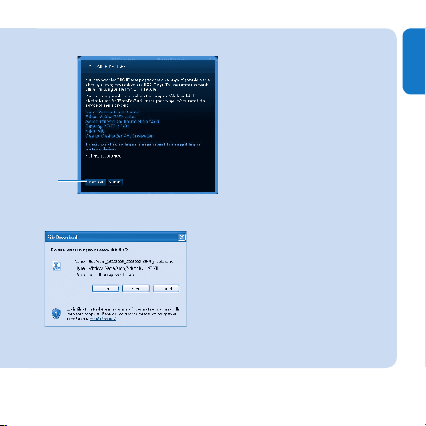
When you see a screen like this, click 5 Continue.
5
After a short while, you should see the download option. Click 6
Download to save the program on your computer.
After going through this process your le should have been >
successfully downloaded.
EN
17
Page 22
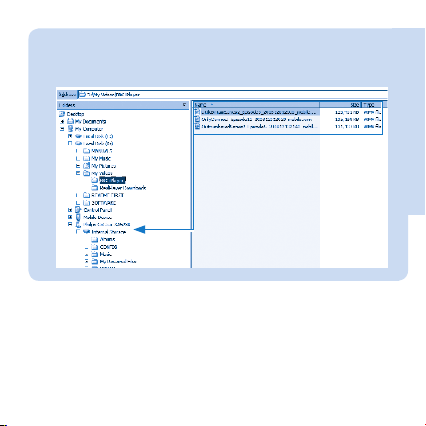
Connect GoGear Ariaz to your computer and transfer the 7
BBC iPlayer programme. (Find the le in Windows Explorer,
then drag and drop it to the device).
18
Page 23
Note
Each BBC iPlayer programme is protected with a digital
license and can only be synchronized up to 5 times to any
portable device.
For information system requirements, please consult the
user manual or quick start guide.
BBC iPlayer downloads work only with computers running
Windows XP (SP2 or above) and with a Windows Media
Player 11 installation.
EN
19
Page 24
Need help?
User Manual
See the user manual stored on this player.
On line
Go to www.philips.com/welcome
Disposal of your old product and the integrated battery
All our products are designed and manufactured with high quality materials and components,
which can be recycled and reused.
The crossed-out wheel bin symbol on a product means that the product is subject
to the European Directive 2002/96/EC. This symbol can also be used in
combination with a chemical symbol, which means that the product complies with
the environmental directive for that chemical.
Never dispose of your product with other household waste. Inform yourself or ask
your dealer about local environmentally safe recycling regulations. The correct disposal of your
old product helps prevent potentially negative consequences for the environment and human
health.
Your product contains a built-in rechargeable battery covered by the European Directive
2006/66/EC, which cannot be disposed with normal household waste.
To safeguard the functionality and safety of your product, always bring your product to an
ofcial collection point or ser vice centre where a professional can remove / replace the
battery as shown in user manual.
Please inform yourself about the local rules on separate collection of batteries because the
correct disposal will help prevent negative consequences for the environmental and human
health.
20
Page 25
Specifications are subject to change without notice .
Trademarks are the property of Koninklijke Philips Electronics N.V. or
their respective owners
© 2009 Koninklijke Philips Electronics N.V.
All rights reserved.
www.philips.com
Printed in China
SA1ARA_05_QSG_V2.0
wk9202
 Loading...