

Page 1

Philips GoGear audio player
SA1915 SA1918
SA1925 SA1926
SA1927 SA1928
SA1929 SA1945
SA1946 SA1947
SA1948 SA1949
Quick start guide
Install
1
Connect
2
and Charge
3
Transfer
4
Enjoy
Page 2

Need help?
Please visit
www.philips.com/welcome
where you can access to a full set of supporting materials
such as user manual, the latest software upgrades and answers
to frequently asked questions.
Page 3

Contents
2 Is there a manual?
2 Register your product
2 Don’t forget about upgrades
3 What’s in the box
4 Overview of controls and connections
5 Install
5 Connect and charge
5 Connect to PC
6 Read the batter y level indication of your player
6 Transfer
6 Transfer music
7 Enjoy
7 Turn on and play
7 Main menu
8 Navigate the menu
8 Music mode
9 Radio
9 Auto tune
9 Play a preset radio station
10 Recordings
10 Make recordings
10 Play back recordings
11 Troubleshooting
11 How do I reset my player?
12 Need help?
12 Disposal of your old product
EN
1
Page 4

Is there a manual?
You have a detailed user manual and FAQ on the CD by-packed with your player. You can also
download the same le from this website: www.philips.com/support
Register your product
Since it is possible for you to upgrade your product, we recommend that you register your
product on www.philips.com/welcome so we can inform you as soon as new free upgrades
become available.
Don’t forget about upgrades
We know you will enjoy your product for a long time. For best performance, we recommend
that you regularly check in to www.philips.com/support for free updates of the latest software
and Firmware Manager for your product. These downloads will help you to optimize your
product’s performance and to take advantage of our future support of new audio formats.
Enjoy your new music experience.
2
Page 5

What’s in the box
Philips GoGear audio player
1
2
3
4
Install
Connect
and charge
Transfer
Enjoy
Quick start guide
Quick start guide 1
Guide de démarrage rapide 13
Guía de inicio rápido 25
Kurzbedienungsanleitung 37
Handleiding voor snel gebruik 49
Guida di riferimento rapido 61
Snabbstartsinstruktioner 73
Быстрый запуск 85
Przewodni szybkiego startu 97
109
H
ızlıBaşlamaKılavuzu
IT
SV
RU
PL
TR
EN
FR
ES
DE
NL
SA1915 SA1918
SA1925 SA1926
SA1927 SA1928
SA1929 SA1945
SA1946 SA1947
SA1948 SA1949
EN
What else you'll need.
Computer
Headphones
CD-ROM
USB cable
Quick start guide
A computer with:
Windows 2000, XP or Vista
Pentium III 800MHz processor or higher
CD-ROM drive
128 MB RAM
500MB Hard Disk space
USB Port
Internet connection (preferable)
Microsoft Internet Explorer 6.0 or later
3
Page 6

Overview of controls and
connections
A
H
G
4
F
B
E
A p Headphone jack
B MIC Microphone
C Back one level (hold to return
D z / 2; On / Off
E slider Hold slider to lock/unlock all
C
F RESET
G USB connector
D
H 1 Skip back (hold to quick skip)
2 Skip forward (hold to quick
+/- In menus: scroll up/down (hold
to root menu)
Play/Record / Pause
Conrm selection
keys (except + / -)
skip)
to quick scroll)
In playscreen: increase /
decrease Volume (hold to
increase / decrease fast)
Page 7
Install
1
Insert the CD supplied with your product into the CD ROM drive of your PC.
1
Follow the on-screen instructions to complete the installation of Philips Device
2
Manager.
Connect and charge
2
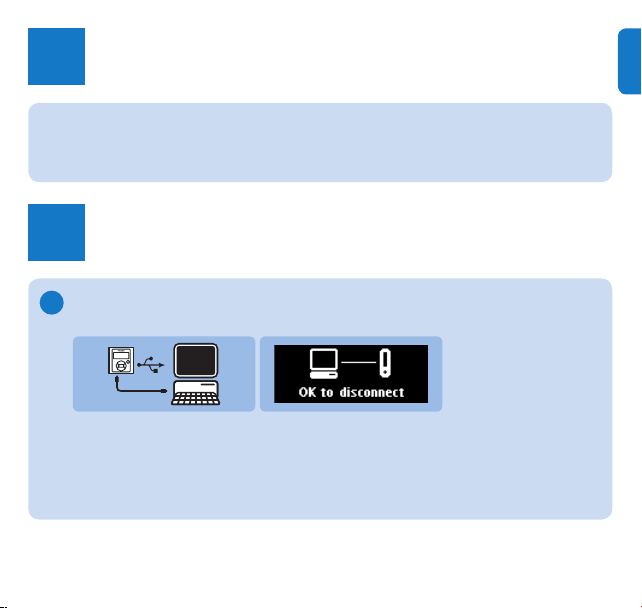
Connect to PC
A
When you connect the player to the PC, it automatically charges.
Before you use the player for the rst time, charge it for at least 5 hours.
1
The battery has a 100% charge after 4 hours and an 80% charge after 2 hours.
>
Connect the supplied USB cable to the mini USB port at the bottom of the
2
player, the other end to your PC.
The player will start to charge as soon as it is connected to your PC.
>
EN
5
Page 8
Read the battery level indication of your player
B
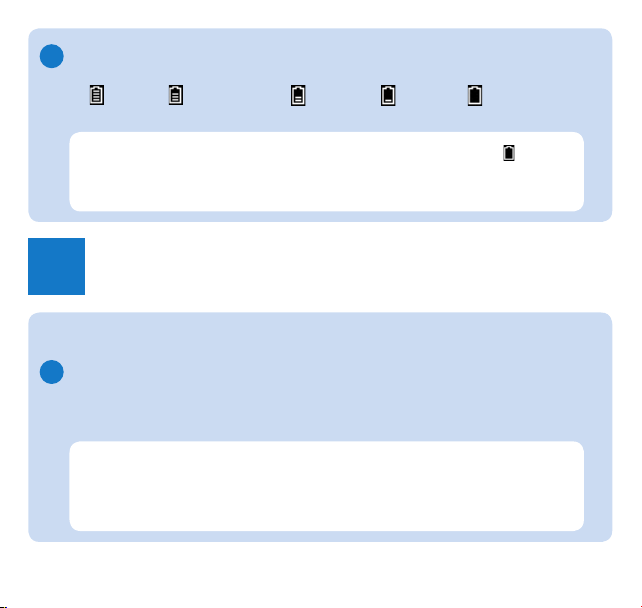
The approximate power levels of your battery are indicated as follows:
Full Two-thirds full Half full Low Empty
Note When the batteries are almost empty, the low battery screen
The player saves all settings and unnished recordings and switches off in less
than 60 seconds.
Transfer
3
The player appears as a USB mass storage device in Windows Explorer. You can
organize les, and transfer music to your player during USB connection.
Transfer music
A
Click and highlight one or more songs to transfer between your player and your
1
computer.
Use drag and drop actions to complete your transfer.
2
Tip To transfer music CDs to the player use software such as Windows Media
Player, rip (convert) the songs on your music CD into MP3/WMA les. Copy
the les into the digital audio player via Windows Explorer. Free versions of
these programs can be downloaded from the internet.
6
blinks.
Page 9
Enjoy
4
Turn on and play
A
To turn on, press z/2; until the display shows the Philips logo.
To turn off, press and hold z/2; until the display shows ‘bye’.
Tip If the player is idle and no button is pressed for 10 minutes, it switches off
automatically.
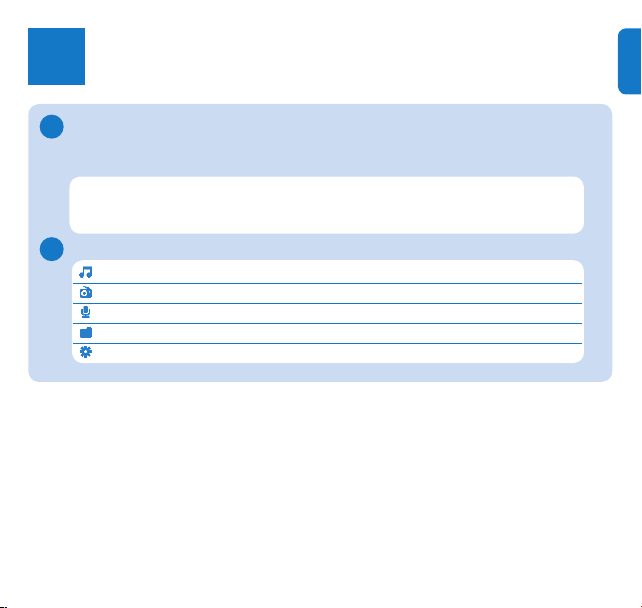
Main menu
B
Music Play your digital music tracks
Radio* Listen to FM radio
Recording Create or listen to recordings
Folder view View les in folders
Settings Customize the settings of your player
EN
* Radio: This feature is only available for some regions.
7
Page 10
Navigate the menu
C
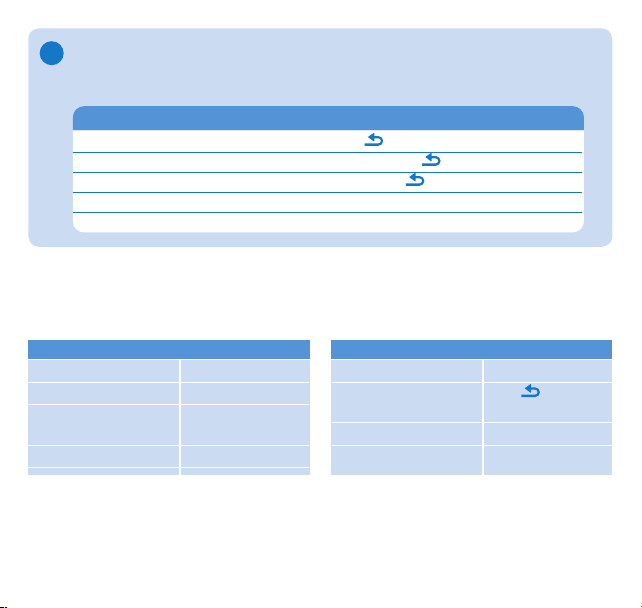
Your player has an intuitive menu navigation system to guide you through various
settings and operations.
Goal Action
Return to previous menu Press
Return to main menu Press and hold
Browse through menus Press 2; or
Scroll through a list Press + or Selection an option Press 2;
Music mode (also play mode for recordings)
The player offers the following music mode options:
Goal Action
Play / Pause music Press 2;
Skip to next audio le Press 2
Return to previous Press 1
audio le
Fast forward Press and hold 2
8
Goal Action
Fast rewind Press and hold 1
Return to browsing Press key
menu
Increase volume Press +
Decrease volume Press -
Page 11

Radio
From the main menu, select to enter radio mode.
Connect the headphones
The supplied headphones serve as a radio antenna. Ensure you connect the headphones
properly for an optimal reception.
Auto tune
From the Radio menu , select Auto tune.
1
The radio automatically tunes radio stations and saves the frequencies to presets.
>
The radio can store up to 20 radio station to presets.
Play a preset radio station
From the Radio menu , select Presets.
1
Press +/- to select preset, 2; to start playing.
2
Press 1/2 to change to another preset.
3
To exit radio, long press .
EN
9
Page 12
Recordings
You can record audio with the player.
Make recordings
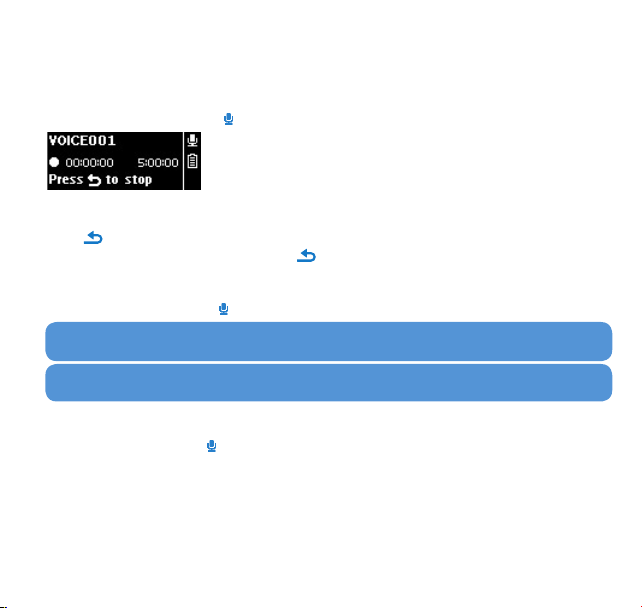
From the main menu, select > Start voice recording.
1
The player records and shows the recording display.
>
Press 2; to pause.
2
Press to stop.
3
Press 2; to save the recording or press to cancel.
4
Recordings will be saved on the player. (Filename format: VOICEXXX.WAV where XXX is the
>
recording number which will be automatically generated.)
You can nd this le under > Recording library > Voice.
5
TIP You can pause and restart a recording anytime with 2;.
Note To record FM radio*, see section Radio.
Play back recordings
From the main menu, select > Recording library > Voice.
Select the recording you want to hear.
1
Press 2; to conrm.
2
10
Page 13

Troubleshooting
How do I reset my player?
Insert a small pin or other sharp object into the reset hole located at the bottom of the
player. Hold until the player shuts down.
If none of the above works, then you may have to use the Device
Manager to recover your player:
Launch the Philips Device Manager at Start > Programs > Philips Digital Audio
1
Player > SA19XX > Philips SA19XX Device Manager on your PC.
Press and hold the button while your player is connecting to the PC.
2
Keep holding the key until the Philips Device Manager acknowledges your player and
3
goes into recovery mode.
Click the Repair button and follow the instructions given by the Device Manager.
4
After the player has been repaired, disconnect it from your PC and re-start.
5
EN
11
Page 14

Need help?
User Manual
See the user manual that came with your player.
Online
Go to www.philips.com/welcome
Disposal of your old product
Your product is designed and manufactured with high quality materials and components, which can be
recycled and reused.
When this crossed-out wheeled bin symbol is attached to a product it means the product is covered by the
European Directive 2002/96/EC
Please inform yourself about the local separate collection system for electrical and electronic products.
Please act according to your local rules and do not dispose of your old products with your normal
household waste. The correct disposal of your old product will help prevent potential negative consequences for the
environment and human health.
Batteries (including built-in rechargeable batteries) contain substances that may pollute the environment. Always hand
the appliance in at an ofcial collection point to remove any built‑in batteries before you discard the appliance. All
batteries must be disposed of at an ofcial collection point.
12
Page 15

AUSTRALIA - Philips Manufacturers Warranty for Australia only
These Warranty conditions are valid for the following consumer electronics
products: Colour Televisions, Projection TV, Plasma & LCD TV, Video
Cassette Recorders, CD Recorders & Players, DVD Players, DVD
Recorders, DVD Recorders with HDD, Audio Systems, Home Theatre systems, Digital Set Top Box & Portable Audio products.
The benefits given to the purchaser by this warranty are in addition to all
other rights and remedies, which the purchaser has in respect of the product under the Trade Practices Act or other Commonwealth or State Law.
Philips Consumer Electronics warrants its products to the purchaser as follows and
subject to the stated conditions.
1 YEAR Free Repair Service – at Philips ASC
Colour Television, Plasma Television, LCD Television, Projection Television
DVDR/VCR Combo, DVD Recorders with Hard Drive, LCD Projectors Wireless
Audio Systems, Audio Systems, Home Theatre Systems & Digital Set-Top-Box.
1 YEAR Free Replacement – at your Retailer
Portable Audio, MP3 Infotainment products, Video Cassette Recorders DVD Players,
DVD/VCR Combo Players, DVD Recorder without HDD & Portable DVD/LCD players.
Conditions of Repair Warranty
1. All claims for warranty service should be made to your nearest Philips Authorised
Service Centre or the Philips Technology Care Centre. Reasonable evidence of
date of purchase must be provided.
2. This warranty extends only to defects in material or workmanship occurring under
normal use of the product when operated in accordance with the instructions.
3. If a replacement product is supplied under the repair policy, it is warranted for the
remainder of the warranty period of the original purchased product only.
4. Home service is provided only within the normal service area of one of our rec-
ommended Authorised Service Centres (ASC). It will be provided for television
receivers only with a screen size of 67cms or above (product includes CRT, LCD
TV, PTV, and Plasma TV). Televisions with screen sizes less than 67 cms and all
other product types are to be taken or sent by the consumer to the workshop of
your nearest Authorised Service Centre, at the Consumer’s expense.
5. This Manufacturers Warranty is limited to 3 months for the above listed Consumer
Electronics Products if used in commercial applications.
6. Philips may, at its discretion choose to replace rather than repair any product cov-
ered by this warranty.
7. Product accessories are covered by the same warranty period. Please contact the
Philips Technology Care Centre for free replacement of faulty accessories.
8. This Manufacturers Warranty is neither transferable nor valid in countries other
than Australia.
This warranty does not cover:
a) Mileage or travel outside the normal service area covered by selected Authorised
Service Centre.
b) Service costs arising from failure to correctly adjust the controls of the product or
to observe the instructions, or inspections that reveal that the product is in normal
working order.
1 year Warranty valid for all new products purchased after 1stJuly 2007
c) Product failures caused by misuse, neglect, accidental breakage, transit damage,
inexpert repairs or modification by un-authorised persons, external fires, lightning
strikes, floods, vermin infestation or liquid spillage.
d) Cleaning of video or audio heads.
e) Inadequate receiving antennae.
f) Replacement of worn or used batteries or other consumables.
g) Consumer products used in commercial applications (This warranty is limited to 3
months only)
h) Second hand products.
The conditions contained in this warranty card replace and override the provision of
the Philips World-Wide Guarantee for products purchased in Australia and used in
Australia.
Philips Consumer Electronics a division of Philips Electronics Australia
Limited
ABN 24 008 445 743, Level 1, 65 Epping Road NORTH RYDE NSW 2113.
Service is provided through more than 100 accredited Authorised Service Centres
throughout Australia. For direct contact with the nearest recommended Authorised
Service Centre in capital & regional cities/towns
Authorised Service Centre Network
1300 361 392
Customer support is provided in Australia by our trained call centre staff For assistance with product features and specifications, please call
UTechnology Care Centre
1300 363 391
Please record the following information for your records and keep in a safe place. We
recommend retaining your purchase receipt to assist with any warranty claim
Model number: . . . . . . . . . . . . . . . . . . . . . . . . . . . . . . . . . . . . . .
Serial number: . . . . . . . . . . . . . . . . . . . . . . . . . . . . . . . . . . . . . .
Date of purchase: . . . . . . . . . . . . . . . . . . . . . . . . . . . . . . . . . . .
Retailer: . . . . . . . . . . . . . . . . . . . . . . . . . . . . . . . . . . . . . . . . . . .
Page 16

NEW ZEALAND - Guarantee and Ser vice for New Zealand
Thank-you for purchasing this quality Philips product.
Philips New Zealand Ltd guarantees this product against defective components and faulty workmanship for a period of 12 months.
Any defect in materials or workmanship occurring within 12 months from the date of purchase subject to the following conditions
will be rectified free of charge by the retailer from whom this product was purchased.
Conditions
1. The product must have been purchased in New Zealand.As proof of purchase, retain the original sales docket indicating the date of
purchase.
2. The guarantee applies only to faults caused by defective components, or faulty workmanship on the part of the manufacturer.
3. The guarantee does not cover failures caused by misuse, neglect,normal wear and tear, accidental breakage, use onthe incorrect
voltage, use contrary to operating instructions, or unauthorised modification to the product or repair by an unauthorised
technician.
4. Reasonable evidence (in the form of a sales docket) must be supplied to indicate that the product was purchased no more than 12
months prior to the date of your claim.
5. In the event of a failure, Philips shall be under no liability for any injury, or any loss or damage caused to property or products
other than the product under guarantee.
This guarantee does not prejudice your rights under common law and statute, and is in addition to the normal responsibilities of the
retailer and Philips.
How to claim
Should your Philips product fail within the guarantee period, please return it to the retailer from whom it was purchased.In most
cases the retailer will be able to satisfactorily repair or replace the product.
However, should the retailer not be able to conclude the matter satisfactorily,or if you have other difficulties claiming under this
guarantee, please contact
The Guarantee Controller
Philips New Zealand Ltd.
4 P.O.Box 41.021
Auckland
3 (09) 84 94 160
fax 3 (09) 84 97 858
Page 17

Page 18
Specifications are subject to change without notice.
Trademarks are the property of Koninklijke Philips Electronics N.V. or
their respective owners
© 2008 Koninklijke Philips Electronics N.V.
All rights reserved.
www.philips.com
Printed in China
wk8173
 Loading...